
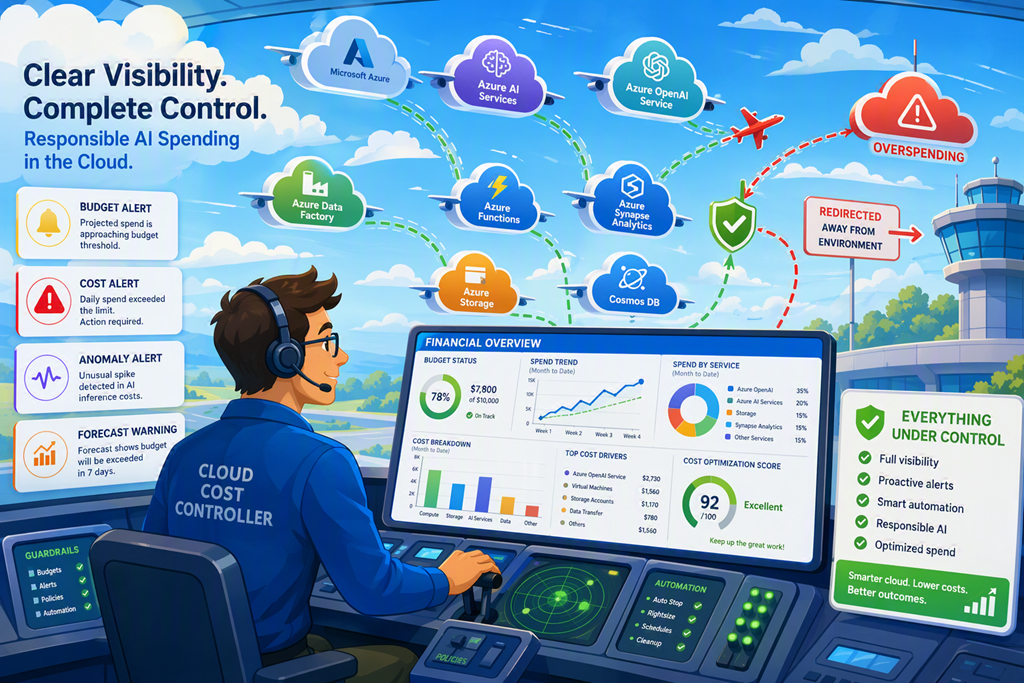
One of the biggest concerns I hear from people experimenting with Microsoft Copilot, Copilot Cowork, Azure AI Foundry, Azure OpenAI and other Azure services is:
“How do I stop unexpected Azure charges?”
This concern is becoming even more important as more Microsoft AI services move to a consumption-based pricing model. Features such as Copilot Cowork can consume Azure resources behind the scenes, and without monitoring in place, costs can creep up before you realise it.
The good news is that Azure provides built-in tools to help you stay in control. With about 10 minutes of configuration, you can create budget alerts and anomaly detection that will notify you before costs become a problem.
Here’s how I recommend every Azure user configure cost controls.
Why This Matters
Many Azure services charge based on usage. Examples include:
- Microsoft 365 Copilot PAYG features
- Copilot Cowork
- Azure AI Foundry
- Azure OpenAI
- Azure AI Search
- Virtual Machines
- Storage services
- Networking services
The danger isn’t usually the individual cost. The danger is forgetting something is running or not noticing a new workload starts consuming more resources than expected.
A few simple alerts can provide an early warning long before a large bill arrives.
Step 1: Create a Monthly Budget
Start by opening the Azure portal and navigating to:
Cost Management + Billing
→ Cost Management
→ Budgets
Select:
+ Add
Configure the Budget
Enter a meaningful name such as:
Monthly Azure Budget
Choose:
Reset Period = Monthly
Set the start date to today or the first day of the current month.
Now decide on a budget amount.
For most users I suggest:
- AU$50 for light experimentation
- AU$100 for regular testing
- AU$200 for heavier AI workloads
If you’re just getting started with Copilot Cowork or Azure AI services, AU$100 per month is a sensible starting point.
Click Next to configure alerts.
Step 2: Create Budget Alerts
Budget alerts notify you when your spending reaches specific percentages of your budget.
Rather than waiting until you hit the limit, configure several warning levels.
Alert 1
Create:
Type: Actual Cost
Threshold: 50%
If your budget is AU$100 you’ll receive an alert at AU$50.
Alert 2
Create:
Type: Actual Cost
Threshold: 75%
You’ll receive an alert at AU$75.
Alert 3
Create:
Type: Actual Cost
Threshold: 90%
This provides a final warning before reaching your budget.
Alert 4
This is the most important alert.
Create:
Type: Forecast Cost
Threshold: 100%
Forecast alerts use Azure’s spending predictions.
This means Azure can tell you:
“At your current spend rate, you’re likely to exceed your budget before the end of the month.”
This often gives you warning before you actually spend the money.
Configure Email Notifications
For each alert enter your email address:
admin@yourdomain.com
You can add multiple recipients if needed.
Unless you’re planning advanced automation, leave:
Action Group = None
Email notifications are sufficient for most users.
Once all four alerts have been configured, create the budget.
Step 3: Configure Cost Anomaly Alerts
Budget alerts are excellent for gradual overspending.
However, they won’t necessarily detect sudden spending spikes.
That’s where anomaly alerts come in.
Navigate to:
Cost Management + Billing
→ Cost Management
→ Cost Alerts
Select:
+ Add
Configure the Alert
Choose:
Alert Type = Anomaly
For the view select:
Daily anomaly by resource group
This tells Azure to look for unusual spending patterns across your subscription.
Configure the Notification
Use a descriptive subject such as:
Cost anomaly detected in Azure subscription
Add your notification email address:
admin@yourdomain.com
Optionally enter a custom message such as:
Review Azure spending immediately and investigate the source of the anomaly.
Create the alert.
How Anomaly Detection Helps
Imagine your Azure environment normally costs:
AU$2 per day
Then one day:
- A GPU virtual machine is left running
- An Azure AI deployment starts processing large workloads
- Azure AI Search is accidentally overprovisioned
- Copilot-related services begin consuming significantly more resources
Azure notices the unusual increase and generates an alert.
Instead of discovering the issue weeks later, you’ll know almost immediately.
Step 4: Identify What Is Actually Spending Money
Once alerts are configured, the next step is understanding where your money is going.
Open:
Cost Management
→ Cost Analysis
Change:
Group By = Resource Group
to:
Group By = Resource
This simple change provides much more useful information.
Instead of seeing:
copilot-rg
you’ll see the actual resources generating costs such as:
- Azure AI Search
- Storage Accounts
- AI Deployments
- Virtual Machines
- Managed Disks
- Public IP Addresses
This makes troubleshooting much easier.
Step 5: Don’t Forget Compute Services
The most common cause of unexpected charges is running compute resources.
Pay particular attention to:
- Virtual Machines
- Azure AI Foundry deployments
- Azure AI Search services
- GPU resources
- Azure OpenAI deployments
Where possible, enable automatic shutdown on virtual machines and remove unused resources.
Final Thoughts
The rise of AI services such as Copilot Cowork means more organisations will encounter consumption-based Azure costs. That’s not a reason to avoid these tools. It simply means spending should be monitored in the same way we monitor security, backups and availability.
The combination of:
- Monthly budget alerts
- Forecast alerts
- Cost anomaly detection
- Regular cost analysis reviews
provides an effective safety net for most users.
If you’re experimenting with Copilot Cowork, Azure AI Foundry or any other Azure AI services, I strongly recommend configuring these controls before you start serious testing. A few minutes of setup today can save a lot of surprises at the end of the month.

