Claude Cowork vs Copilot Cowork: why the Microsoft answer wins for SMB

image

I’ve watched a lot of clients spend the last twelve months stitching together AI tools that don’t talk to each other. A Claude tab here. A ChatGPT tab there. A Copilot tab somewhere in the middle. Then a folder of CSVs they keep dragging in and out of each one.

That’s not a workflow. That’s a tax.

So when Anthropic shipped Claude Cowork and Microsoft shipped Copilot Cowork in roughly the same window, the question landed in my inbox: which one do we tell our clients to use?

I’ll save you the suspense. For an SMB already paying for Microsoft 365, it’s not close.

What is Cowork, really?

Cowork is the bit that does the work, not the bit that talks about it. You give it an outcome — “draft the quarterly update from these meeting notes and send it to the leadership team” — and it goes off and does the thing.

That’s the shared idea. Both products own it. The split is in where the work happens.

Claude Cowork lives on your desktop. You mount a folder, drop your files in, and Claude runs in a sandbox on your machine. It doesn’t see your inbox. It doesn’t see your calendar. It doesn’t see your Teams chats unless you’ve copy-pasted them in. You bring the data to the model.

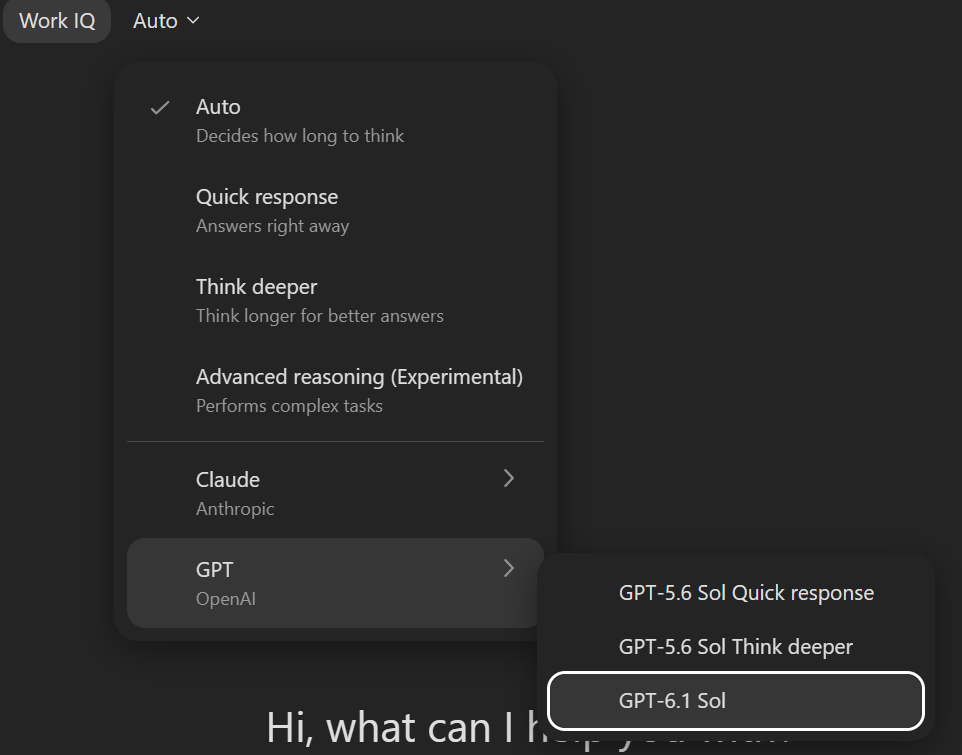
Copilot Cowork is the inverse. It already lives inside Microsoft 365, grounded in your Outlook, Teams, SharePoint, OneDrive, and calendar through Work IQ. You don’t mount anything. The model is already where your data lives.

Notice what’s missing? The mounting step. The “let me copy this folder over” step. The “hang on, I need to paste in the email thread” step.

For SMBs, that’s the whole game.

Step-by-Step: getting Copilot Cowork going

If you’re licensed for Microsoft 365 Copilot and enrolled in the Frontier preview, the start is short.

Open Cowork in Microsoft 365

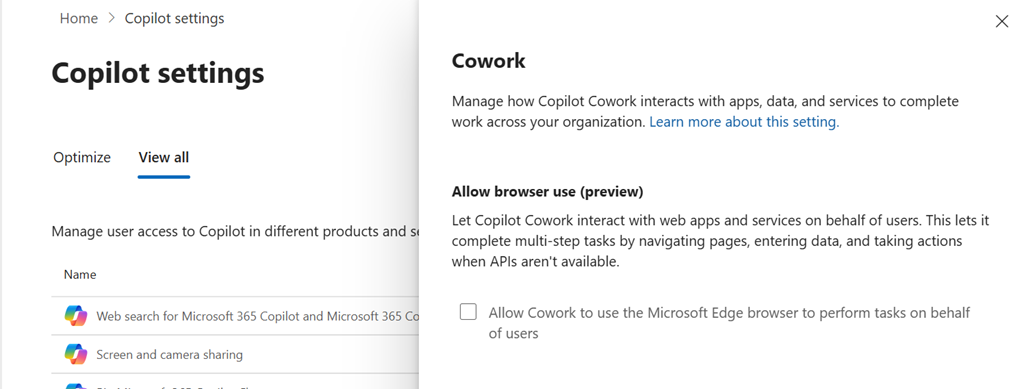
Browse to m365.cloud.microsoft, sign in, and pick Cowork from the agent list. If you don’t see it, check Frontier enrolment under Copilot settings.

Describe the outcome

Skip the prompt-engineering nonsense. Talk like a person.

Read my inbox from this week, find anything tagged from a client,
draft a Friday wrap-up email summarising open items, and post a
short version into the Operations channel in Teams.

Notice what’s missing? Any reference to a file path. Any “first export your inbox to CSV” step. Cowork already has the inbox, the calendar, the Teams channels, and the SharePoint files. It just needs the instruction.

Approve the action

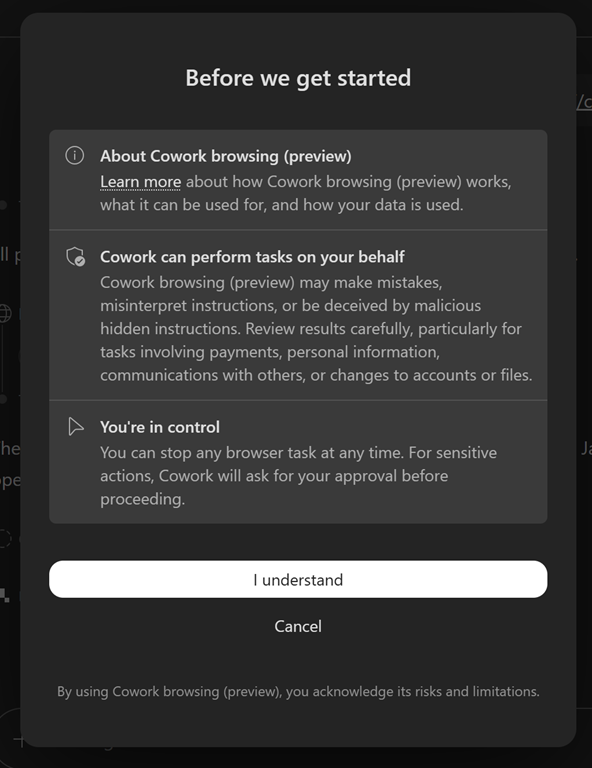
Cowork shows you exactly what it’s about to send, post, or schedule before it does it. You hit Send, Post, or Cancel. The full flow is in the getting started doc if you want to walk a client through it.

Set the schedule

Want it to do this every Friday at 4pm? Schedule the prompt and walk away. Copilot doesn’t get tired. Use that.

Why this actually changes behaviour

Claude Cowork is a beautifully built tool. For a developer or a data analyst on a Mac with a folder full of CSVs, it sings. I’m not knocking it.

But that’s not the SMB picture. The SMB picture is a bookkeeper, a sales lead and a director who all live inside Outlook and Teams from 8am to 6pm. Their data isn’t in a folder on their desktop. It’s in their mailbox, their channel chats, their SharePoint sites and their meeting transcripts.

“But couldn’t we just pipe our M365 data into Claude?”

You could. You’d be paying twice — once for M365, once for Claude — and you’d be exporting business data into a different vendor’s environment to do work the platform you already own can do natively.

That’s not a productivity gain. That’s a procurement problem.

Here’s the real win. Copilot Cowork sits behind the same Entra identity, the same conditional access, the same Purview labels and the same retention policies your tenant already runs. The governance story is already built. There’s no second tool to license, secure, train, or audit.

My recommendation? If you’re an MSP and you’re not walking your SMB clients through Copilot Cowork, you’re leaving value on the table — theirs and yours.

Meet people where they already are.

Cowork isn’t a second AI app for your clients to learn. It’s the work, finally getting done in the place it was always supposed to happen.

From tribal knowledge to Copilot skills: seven patterns every MSP should write down

image

Every MSP I’ve worked with has a playbook. Some of it is written down. Most of it lives in the head of the engineer who’s been there longest. When that engineer is sick, on leave, or finally takes the holiday they’ve been promising themselves for two years, the playbook walks out the door with them.

That’s the gap I’ve been thinking about lately. We’ve built systems that handle tickets, monitor endpoints, and bill clients. We have not done a great job of capturing the judgement — the way a senior engineer triages a queue at 7am, the questions they ask before onboarding a new client, the tone they take when a CEO’s mailbox is broken on a Monday morning.

Microsoft 365 Copilot, with the right scaffolding, finally gives us somewhere to put that judgement. Not as a chatbot. As a set of repeatable skills your team can run consistently every time.

Why bother turning workflows into skills

A skill, in this context, is a short markdown file that tells Copilot how to handle a specific kind of work. It’s the difference between asking your assistant a vague “help me with this client” and handing it a defined process — what to ask, what to gather, what to produce, where the guardrails sit.

The payoff isn’t raw speed. It’s consistency. Every new starter at every client gets onboarded the same way. Every QBR pack tells the same story in the same shape. Every outage update lands in your house voice, at the right interval, instead of being workshopped at 9pm by a tired engineer.

I’ve drafted seven of these as examples to show what’s possible. Walk through them with me.

The client-facing rhythm

Four of the skills cover the moments that define your client relationship.

Client onboarding is the first. The new MSA is signed, and somewhere between sales and service delivery, things get dropped. The skill gathers the structured client profile — domains, contacts, service tier, compliance obligations — and produces three artefacts every time: a welcome email, an internal Teams announcement to the delivery team, and a technical checklist for the engineer. Wire it into the tenant via Graph so domain checks and the initial license inventory happen up front. Schedule the day-7, day-30, day-90 touchpoints into Outlook before the engineer even picks up the work.

Employee onboarding is the same idea at the user level. New starter, Monday start, the client manager has asked for “the usual setup.” With a skill driving it, the usual becomes auditable: identity provisioned, license assigned from a role template (not copied from a colleague — that’s how entitlement drift starts), Intune enrolment, mailbox memberships, a manager briefing, and a quick-reference card the new hire actually opens on day one. Surface every drafted communication for review. Never auto-send.

QBR preparation is where most MSPs leave money on the table. The data is already there — tickets in the PSA, patch status in the RMM, Secure Score and license utilisation in the tenant. Pulling it together into a story takes hours. A skill turns it into a repeatable build: scorecard, security posture, license rightsizing, projects, roadmap. Compute every percentage with code, never by eye — a wrong MFA percentage in a QBR undermines the whole pack. Use the pptx generation to produce the deck and a Word leave-behind for the people who want detail. The trick is to lead with theme and support with data, not the other way around.

Incident communications is the one nobody wants to think about until it’s needed. When Exchange Online wobbles on a Tuesday morning, your engineers should be fixing the problem, not workshopping the wording of the customer email. The skill drafts the four stages — initial notification, progress update, all-clear, post-incident review — using only confirmed facts from Microsoft’s Service Health dashboard or your own monitoring. Never speculate about root cause in a customer-facing message. Promise an update time, not a fix ETA. Send via the channel you started on; don’t fragment.

The operational backbone

The other three skills run quietly in the background and pay you back every week.

Ticket triage applies a real Impact × Urgency matrix to your inbound queue. Most MSPs let priority drift to whatever the user typed in the subject line. With a skill driving it, every ticket gets classified the same way, security signals automatically bypass the matrix, and the engineer gets a drafted first response they can paste straight into the PSA. You’ll find it catches the “third password reset this week” pattern and quietly suggests a root-cause review — the kind of thing a good Tier 2 engineer does naturally and a stretched team often misses.

License rightsizing is the easiest commercial conversation you’ll have all year. Almost every tenant carries 10–25% waste — disabled accounts still licensed, E5 users who haven’t opened a Power BI report in a year, shared mailboxes nobody downgraded after the staff member left. The skill pulls full license inventory and sign-in history through Graph, applies a rule set, and produces a numbered list of decisions for the client with a dollar value next to each. Run it before every renewal. Run it again three months later.

Security baseline check is the one I’d implement first if I were starting fresh. Pick a standard — Essential Eight, CIS Microsoft 365 Foundations, or your own house baseline — and let the skill walk through every control. Conditional Access posture, MFA coverage, DMARC, Intune compliance, backup test recency. Each control gets a Pass, Partial, or Fail with cited evidence. The deliverable isn’t a Secure Score screenshot. It’s a 90-day remediation plan with named owners and real dates. That’s what survives an audit.

How to actually roll this out

Don’t try to deploy all seven at once. That’s how good initiatives die in busy MSPs.

Pick the one that hurts most this month. For most teams, that’s either ticket triage or QBR prep. Run it manually for a fortnight — meaning, your senior engineer literally walks through it for every relevant case and notes the spots where the prompt needs more local detail. Add your tier names, your SLA wording, your house security baseline, the SKUs you actually sell, the language your clients respond to.

Store the skill files where your team can edit them. Treat them like internal documentation — versioned, reviewed, owned by a named person. A skill nobody updates is a skill that quietly stops matching how the business actually works, and then it starts producing confidently wrong output, which is worse than no skill at all.

Keep a human in the loop on every customer-facing or change-making step. None of these skills should send a client email, remove a license, or modify a Conditional Access policy without explicit review. The aim is to make the engineer faster and more consistent — not to remove the engineer from the decision.

And track the saves. The first time the QBR skill cuts your prep from six hours to two, write that number down. The first time the rightsizing skill finds $4,000 a year of waste in a client’s tenant, write that down too. Those numbers are what you’ll show your team when you ask them to maintain the next skill, and what you’ll show your accountant when they ask why the Copilot licenses were worth it.

7 example skills MSPs could drop into their own setup. Each one targets a real, recurring pain point. They are located in my Github repo here – https://github.com/directorcia/Office365/tree/master/Cowork-Skills

client-onboarding.mdStandardizes the first 30 days of a new MSA — kickoff pack, technical checklist, recurring touchpoints

qbr-prep.mdBuilds a defensible Quarterly Business Review pack — service scorecard, security posture, license optimization, roadmap

ticket-triage.mdApplies a consistent Impact × Urgency framework to the support queue, drafts first responses

incident-comms.mdDrafts every stage of outage comms — initial notification, hourly updates, all-clear, post-incident review

license-rightsizing.mdFinds unused, oversized, and duplicated M365 licenses and quantifies the savings

security-baseline-check.mdRuns an Essential Eight / CIS / house-baseline gap analysis and stages remediation

employee-onboarding.mdProvisions a new starter end-to-end — identity, licenses, devices, Day-1 experience

Each follows the same SKILL.md structure (frontmatter + when-to-use, inputs, workflow, guardrails, done-when), so they should slot straight into a personal skills folder. They’re all in your output folder ready to download. See this post:

https://blog.ciaops.com/2026/04/23/creating-custom-copilot-cowork-skills-that-actually-matter-for-smbs/

for more information about implementing Microsoft 365 Copilot Cowork skills in your own environment.

What’s available natively in Microsoft 365

The skills can pull directly from:

  • Microsoft 365 via Graph — mailboxes, calendar, Teams chats, SharePoint/OneDrive files, people directory, sign-in activity, license assignments, Conditional Access policies, Secure Score

  • Web search — vendor status pages, public DNS lookups, pricing references

  • Files the user uploads — exports from other systems dropped into the workspace

  • Ask User Question — anything the user can answer

Mapped per skill

client-onboarding – New client details, tenant info User input + Graph for tenant/domain verification. Mostly user-driven.

qbr-prep – Tickets, patch %, backup status, licenses, Secure Score

Mixed — Secure Score and licenses come from Graph; tickets, patch, backup need exports from your PSA/RMM/backup tools because there’s no MCP connector for ConnectWise/Halo/NinjaOne/Datto today.

ticket-triage – A list of open tickets. Currently the user pastes them in or drops a CSV export. No live PSA integration.

incident-comms – Outage facts, vendor status. User input for the facts; web search for vendor status pages.

license-rightsizing – License inventory, last sign-in, mailbox state. Almost entirely Graph API — this one works end-to-end with what’s available.

security-baseline-check – CA policies, MFA stats, DMARC, Intune compliance, Secure Score .Mostly Graph — CA, MFA, Secure Score, Intune all reachable. DMARC needs a DNS lookup (web search workaround).

employee-onboarding – Role template, manager, license SKU. User input + Graph to actually create the user, assign groups, license.

The honest gap

The MSP-specific data sources — PSA, RMM, EDR consoles, third-party backup, documentation platforms (IT Glue / Hudu) — don’t have native connectors here. Skills that need them currently fall back to:

  1. The user pasting an export

  2. Dropping a CSV/XLSX into the workspace

  3. The skill explicitly flagging “data not available, please provide”

Two practical paths forward if you want these to be more autonomous:

  • Short term: each skill assumes a standard export format (e.g., “drop your PSA ticket CSV with these columns”) and works from that.

  • Longer term: a custom MCP connector for the PSA/RMM in your stack — that’s where it becomes genuinely hands-off.

What to do next

The hard part of running an MSP has never been the technology. It’s been keeping a team of busy people doing the right thing the same way every time. Codified Copilot skills are the closest thing I’ve seen to a real answer to that — and they finally put the data already sitting in your clients’ tenants to work.

Pick one. Write it down. Run it for a week. See what changes.

3 Ready‑to‑Use Copilot Cowork SKILL.md Examples for MSPs

3 Ready-to-Use Copilot Cowork SKILL.md Examples for MSPs

image


Below are three practical, production‑ready Copilot Cowork custom skills designed specifically for MSP use cases.
Each skill follows Microsoft’s supported structure:
YAML frontmatter (name, description) followed by Markdown instructions,
and is intended to live in:

/Documents/Cowork/Skills/<skill-name>/SKILL.md


Copilot Cowork automatically discovers these skills at the start of each conversation.
Each one targets repeatable, high‑value MSP workflows rather than one‑off prompts.


1) MSP Client Monthly Executive Summary (QBR‑lite)

Folder: /Documents/Cowork/Skills/msp-client-exec-summary/
File: SKILL.md

---
name: MSP Client Executive Summary
description: Creates a monthly executive summary for an MSP client using M365 activity evidence (emails, meetings, files) and a consistent MSP-friendly format.
---

## Purpose
Produce a client-ready monthly executive summary (QBR-lite) that is consistent, factual, and easy for non-technical stakeholders to read.

## Inputs to request (ask if missing)
1. Client name (exact)
2. Reporting period (e.g., "March 2026")
3. Where client artefacts live (SharePoint site / Teams name / OneDrive folder path)
4. Any key initiatives/projects to include (list)
5. Any sensitive exclusions (e.g., "do not mention incident details")

## Data gathering rules
- Prefer evidence from Microsoft 365 content: emails, meeting notes, and files in OneDrive/SharePoint.
- Use only artefacts the user has access to.
- If you can’t find evidence for an item, mark it as “No supporting evidence found in M365 sources provided”.

## Output format (Word document)
Create a Word document titled:
"Executive Summary - <Client> - <Reporting Period>"

Use these sections and headings exactly:

1. Headline Summary (5 bullets max)
   - Outcomes delivered (business language)
   - Risks/issues (non-alarmist)
   - Decisions needed from client (if any)

2. Service Health Snapshot
   - Identity & access notes
   - Device management posture
   - Security themes at a high level

3. Work Completed (Outcomes, not tasks)
   - Outcome
   - Evidence reference
   - Business value

4. Open Items & Blockers
   - What’s stuck
   - Who owns it
   - Next trigger/date

5. Recommendations for Next Month
   - 3–5 pragmatic recommendations
   - Include effort (S/M/L) and impact (Low/Med/High)

6. Appendix: Evidence List
   - Files, meetings, and email subjects used

## Tone & constraints
- Australian English.
- No vendor hype.
- Client-safe wording only.


2) MSP Incident Communications Pack

Folder: /Documents/Cowork/Skills/msp-incident-comms-pack/
File: SKILL.md

---
name: MSP Incident Comms Pack
description: Drafts an MSP incident communications pack (client update + internal summary + next-steps checklist) with approval-safe wording.
---

## Purpose
Create consistent, calm, defensible communications during an incident.

## Inputs to request (ask if missing)
1. Client name
2. Incident label (short)
3. Timeline of events
4. Confirmed facts vs suspected items
5. Client audience
6. Desired update cadence

## Data gathering rules
- Use M365 artefacts only (emails, meetings, Teams messages, files).
- Do not invent technical detail.
- Ask for clarification where facts are missing.

## Outputs
### A) Client Update Email (Outlook draft)
Subject:
"Update: <Client> - <Incident> - <Date>"

Include:
- What we know
- What we’re doing
- What we need from the client
- Next update timing

### B) Internal Technician Summary (Teams)
- Incident label + severity
- Current status
- Owner and next actions
- Links to evidence

### C) Next-Steps Checklist (Word)
Include:
1. Containment
2. Investigation
3. Recovery
4. Communications
5. Post-incident follow-up

## Tone & constraints
- Calm, factual, non-alarmist.
- Australian English.
- No blame, no absolutes.


3) MSP Onboarding Kickstart Pack (SMB‑friendly)

Folder: /Documents/Cowork/Skills/msp-onboarding-kickstart-pack/
File: SKILL.md

---
name: MSP Onboarding Kickstart Pack
description: Creates an MSP onboarding pack including welcome email, onboarding schedule, folder structure, and checklists.
---

## Purpose
Deliver a consistent, professional first-30-days onboarding experience for SMB clients.

## Inputs to request (ask if missing)
1. Client name and primary contact
2. Services in scope
3. Target go-live date
4. Preferred meeting times
5. Tenant state (new or existing)

## Outputs
### A) Welcome Email (Outlook draft)
Include:
- Week 1 expectations
- Required client inputs
- Communication model
- Links to onboarding artefacts

### B) Onboarding Plan (Word)
Title:
"Onboarding Plan - <Client> - First 30 Days"

Break down by week:
- Meetings
- Deliverables
- Dependencies

### C) Folder Structure
Create or propose:
- 01 - Commercial & Contacts
- 02 - Tenant Baseline
- 03 - Security & Compliance
- 04 - Devices & Intune
- 05 - Documentation & SOPs
- 06 - Projects
- 07 - Reports

### D) Onboarding Checklist (Word)
Include:
- Identity baseline
- Device enrolment
- Security configuration
- Documentation completion
- Client sign-off points

## Rules
- Step-by-step.
- SMB-realistic (no enterprise bloat).
- Australian English.


Implementation reminder:
Each skill must live in its own folder under /Documents/Cowork/Skills/,
must be named SKILL.md, and should have a specific description so Cowork knows when to load it.

Creating Custom Copilot Cowork Skills That Actually Matter for SMBs

image

If you’re still using Copilot like a fancy chatbot, you’re missing the point.

Copilot Cowork is Microsoft’s quiet shift from AI that answers questions to AI that actually does work. And the real power move for SMBs isn’t the built‑in skills—it’s custom Cowork skills that encode how your business actually runs. [learn.microsoft.com]

This is where Copilot stops being impressive and starts being profitable.

What a Custom Cowork Skill Really Is

A custom Cowork skill is not code, not an agent, and not a Power Automate flow. It’s a structured set of instructions written in a simple SKILL.md file and stored in the user’s OneDrive under:

/Documents/Cowork/Skills/<skill-name>/SKILL.md

Copilot Cowork automatically discovers up to 20 custom skills per user at the start of every conversation and loads them when relevant. No prompting gymnastics required. [learn.microsoft.com]

Think of a custom skill as:

“Every time I do this type of work, follow these rules, pull this data, and produce that output.”

For SMBs, that’s gold.


Example 1: Client Meeting Prep for a 10‑Person Consultancy

The problem:
SMB consultants spend 15–30 minutes before every client meeting digging through emails, Teams chats, and old documents. It’s repetitive, error‑prone, and always rushed.

The custom Cowork skill:
Client Meeting Brief

What the skill does:

  • Pulls calendar context for the upcoming meeting

  • Finds recent emails and Teams messages with that client

  • Identifies open actions from last meeting notes in OneDrive

  • Produces a 1‑page Word briefing with:

    • Client objective

    • Outstanding issues

    • Risks and next steps

Why it works for SMBs:
It saves time without introducing new tools. Everything stays inside Microsoft 365, using data they already trust. No CRM integration required.
[learn.microsoft.com]


Example 2: Weekly Operations Report for an Owner‑Managed Business

The problem:
Business owners hate status reporting, but flying blind is worse. Most weekly reports are inconsistent, late, or ignored.

The custom Cowork skill:
Weekly Ops Summary

What the skill does:

  • Reviews sent emails and calendar activity from the past 7 days

  • Pulls key numbers from a defined Excel file in OneDrive

  • Generates a consistent Word report using the owner’s template

  • Flags anything that looks overdue or hasn’t progressed

Why it works for SMBs:
Custom skills enforce discipline without admin overhead. The report looks the same every week, uses the same data sources, and takes seconds—not hours—to produce.


Example 3: Standardised Client Follow‑Ups for Professional Services

The problem:
Follow‑up emails are inconsistent. Some are overly casual, others too formal, and key details get missed.

The custom Cowork skill:
Client Follow‑Up Drafter

What the skill does:

  • Detects completed meetings

  • Creates a draft email using the company’s approved structure:

    • Summary

    • Decisions made

    • Actions and owners
  • Saves the draft for approval before sending

Copilot Cowork always asks for confirmation before external communication, which is critical for SMB risk management.


What Doesn’t Work Well as a Custom Skill

Not everything should be a skill.

Avoid:

  • One‑off tasks (“Summarise this document”)

  • Highly variable creative work

  • Anything that relies on local files (Cowork only accesses OneDrive and SharePoint)

The sweet spot is repeatable, boring, but important work.


Why MSPs Should Care (Even More Than SMBs)

For MSPs, custom Cowork skills become:

  • A standardised service delivery layer
  • A way to encode best practice for L1–L3 staff

  • A differentiator that isn’t just “we sell Copilot licences”

You don’t deploy Copilot.
You operationalise it.

Custom Cowork skills are how you turn AI from a novelty into a system—especially in SMB environments where consistency matters more than scale.

If you’re not teaching your customers how to do this, someone else will.


Further reading:
Microsoft Learn – Create custom Copilot Cowork skills
https://learn.microsoft.com/en-us/microsoft-365/copilot/cowork/use-cowork#create-custom-skills

Stop Prompting. Start Delegating: How to Use Copilot Cowork Skills Step by Step

image

Most people are still using Copilot like a very expensive chatbot. Ask a question, get an answer, move on. Copilot Cowork changes that model completely. Instead of responding once, it takes ownership of work, executes it step by step, and stays with the task until it’s finished—or you tell it to stop. Microsoft calls this a coworker, not an assistant, for a reason.

At the heart of this shift are Cowork skills. These aren’t prompts or templates; they’re defined capabilities Cowork loads dynamically to get real work done across Microsoft 365.

Let’s break down what this actually means and how to start using it properly.


What Are Copilot Cowork Skills (and Why You Should Care)

Copilot Cowork ships with a set of built‑in skills covering common Microsoft 365 workloads—things like documents, email, meetings, research, and scheduling. When you give Cowork a task, it plans the work, selects the relevant skills, and executes them in sequence, showing its progress as it goes.

The key difference from normal Copilot usage is this:

  • You give one outcome‑based instruction
  • Cowork figures out the steps
  • It asks for approval before irreversible actions (like sending an email)

  • Output is saved directly to OneDrive or SharePoint, ready for use.

This is procedural AI, not conversational AI—and that matters for anyone serious about productivity or governance.


Step 1: Open Copilot Cowork

Start in Microsoft 365 Copilot:

  1. Open the Microsoft 365 Copilot app
  2. Select Cowork from the available agents

  3. You’ll land on the Cowork home page, with suggested starter tasks like:

    • Catch me up

    • Organise my inbox

    • Prepare for a meeting

    • Research a company

These aren’t marketing examples—they’re fully functional task starters designed to load the right skills automatically.


Step 2: Enter a Task, Not a Prompt

In the chat input box:

  1. Type what you want done, not how to do it

    • e.g. “Prepare me for my meeting with the sales team tomorrow”
  2. Press Enter or select Send
  3. Cowork immediately starts planning and executing the task

Behind the scenes, Cowork decides which skills to use—email, calendar, meetings, documents—based on your request. You don’t need to micromanage this.


Step 3: Add Context with Files (This Is Critical)

Cowork is good by default, but it’s far better with context.

To attach files:

  1. Drag and drop files directly into the chat, or
  2. Select Add attachments and choose:

    • Work files from OneDrive, SharePoint, or Teams

    • Upload files from your device

    • Reference meetings or people from your tenant
  3. Wait for file uploads to complete, then send your task

This is how you stop Copilot guessing and start getting outputs that match how you work.


Step 4: Follow Along While Cowork Works

Once the task starts, you’ll see:

  • A thinking/processing indicator
  • Step‑by‑step progress as Cowork executes each phase

  • Pauses when approval is required for higher‑risk actions

This is deliberate. Microsoft designed Cowork so you stay in control—even when you’re delegating complex, multi‑step work.


Step 5: Resume or Extend the Task

Cowork treats work as ongoing, not single‑use:

  • Recent tasks appear on the home page

  • You can resume any task without starting from scratch

  • You can add new instructions while Cowork is still working

This is especially powerful for research, reporting, and meeting prep workflows.


The Bigger Picture

If you’re still judging Copilot by how clever its answers sound, you’re missing the point. Cowork is about execution, traceability, and control inside your M365 boundary. That’s the real shift—and it’s why skills matter more than prompts.

Used properly, Copilot Cowork isn’t faster typing. It’s labour delegation.

And that’s the mindset change most people haven’t caught up with yet.

Cowork skills – https://learn.microsoft.com/en-us/microsoft-365/copilot/cowork/use-cowork#cowork-skills

Automate Daily Microsoft 365 & Copilot Updates

Video URL = https://www.youtube.com/watch?v=knhtpCvfpko

Engaging Description:

In this video, I reveal my personal process for staying ahead of every change in Microsoft 365 and Copilot. Watch as I walk you through step-by-step how I use Copilot’s scheduling features to automate daily research, create custom briefings, and deliver updates straight to my inbox. I share insider tips on crafting powerful prompts, leveraging the Prompt Coach, and maximizing Co work for unlimited scheduled tasks. Whether you want daily newsletters, email briefings, or Teams posts, I show you how to set it all up for seamless, hands-free updates. If you’re ready to supercharge your productivity and never miss a Microsoft 365 or Copilot update again, this video is for you!