

The more I use Copilot Cowork, the more I realise that the interesting part isn’t the AI itself. It’s what happens when the AI can finally interact with the same systems I use every day.
For years we’ve talked about AI helping us write documents, summarise meetings and draft emails. Useful? Absolutely. But most work doesn’t stop there. Sooner or later you need to log into a website, update a portal, retrieve information from a dashboard, or complete a process that lives inside a browser window.
That’s why the addition of local browser use in Copilot Cowork has caught my attention.
The Gap Between Advice and Action
One of the frustrations I see with AI tools is that they often stop at recommendations. They’ll tell you what to do, but they won’t actually do it.
Think about a typical day. You receive an email asking for an update. You find the relevant Teams conversation. You look through a SharePoint document. You then log into a service portal to check the current status before replying.
The work isn’t creating the email. The work is gathering the information across multiple locations and then taking action.
What browser use starts to do is close some of that gap.
Instead of simply suggesting a next step, Cowork can potentially navigate the website on your behalf while remaining inside the flow of the conversation. That changes the relationship between the user and the tool. You’re no longer just asking questions. You’re delegating pieces of work.
The Real Opportunity for SMBs
When I talk with SMBs and MSPs, one common theme emerges. Many important business systems don’t have polished integrations or APIs.
There are customer portals, supplier websites, expense systems, training platforms and countless line-of-business applications that still require someone to open a browser and manually complete a task.
That’s the reality of most small businesses.
Imagine asking Cowork to collect information from a supplier portal, compare it against a spreadsheet in Excel, create a summary in Word and then draft an Outlook email ready for review.
The value isn’t that any individual step is difficult. The value comes from reducing all the switching between systems that quietly consumes large portions of the day.
Every context switch has a cost. Most people simply don’t notice it because they’re so used to doing it.
Human Control Still Matters
Of course, this isn’t a licence to let AI loose across every system without oversight.
One thing I appreciate about Microsoft’s approach is that the browser session remains connected to the user’s identity and permissions. The AI is working with the same access the user already has rather than operating as some separate privileged account.
That’s important.
The future of workplace AI isn’t about removing people from the process. It’s about putting people higher in the process.
I see the role shifting from operator to supervisor. Instead of spending ten minutes navigating through screens and forms, you’re reviewing work, making decisions and approving outcomes.
The keyboard becomes a little less important. Judgement becomes more important.
What I’m Watching Next
I suspect many people will initially view browser use as a novelty. They’ll try a few demonstrations and move on.
I think that misses the bigger story.
The real significance is that Copilot is gradually moving beyond content creation and into work execution. The ability to interact with websites, applications and business processes starts to make the assistant feel less like a chatbot and more like a digital team member.
We’re still in the early stages, and I’d encourage organisations to test it carefully and deliberately.
But every major technology shift starts with a small behavioural change.
For me, that change is simple.
When I open a browser now, I’m increasingly asking not “What can I do here?”
I’m asking, “What can I hand off instead?”
How to Enable Browser Use in Copilot Cowork
Before users can take advantage of Browser Use, there are several prerequisites that must be met. According to Microsoft’s documentation, Browser Use is disabled by default and requires administrator configuration before users can access it. [learn.microsoft.com], [learn.microsoft.com]
Step 1: Enable Copilot Cowork
Browser Use relies on Copilot Cowork being available to users. As an administrator:
- Sign in to the Microsoft 365 Admin Center.
- Navigate to Copilot.
- Open Cost Management.
- Configure usage-based billing.
- Assign access to the users who will use Copilot Cowork.
If usage-based billing hasn’t been configured, users won’t be able to access Cowork features. [learn.microsoft.com]
Step 2: Enable Browser Access
Once Cowork is available:
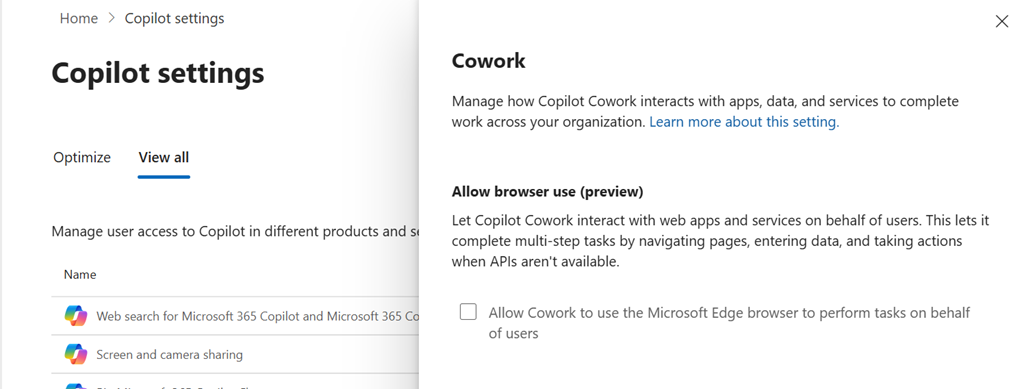
- In the Microsoft 365 Admin Center, go to Copilot.
- Select Settings.
- Choose View all.
- Locate the Cowork settings.
- Turn on Allow browser access.
- Save the changes.
Microsoft notes that Browser Use is turned off by default and must be explicitly enabled by an administrator.
Step 3: Verify User Requirements
Each user must meet the following requirements before Browser Use will work:
- Have a Microsoft 365 Copilot licence assigned.
- Have access to Copilot Cowork.
- Have Microsoft Edge installed.
- Be running a current version of Edge.
- Be signed into Edge using the same work or school account used for Copilot.
- Use Cowork in a supported browser experience rather than an unsupported client. [learn.microsoft.com]
Step 4: Launch Copilot Cowork
The user can then:
- Open Microsoft 365 Copilot.
- Launch Copilot Cowork.
- Enter a request that requires interaction with a website.
For supported tasks, Cowork can use a hidden Microsoft Edge session running on the user’s device to interact with websites and web applications whilst keeping the user within the Copilot conversation experience. [learn.microsoft.com]
Step 5: Accept First-Run Consent
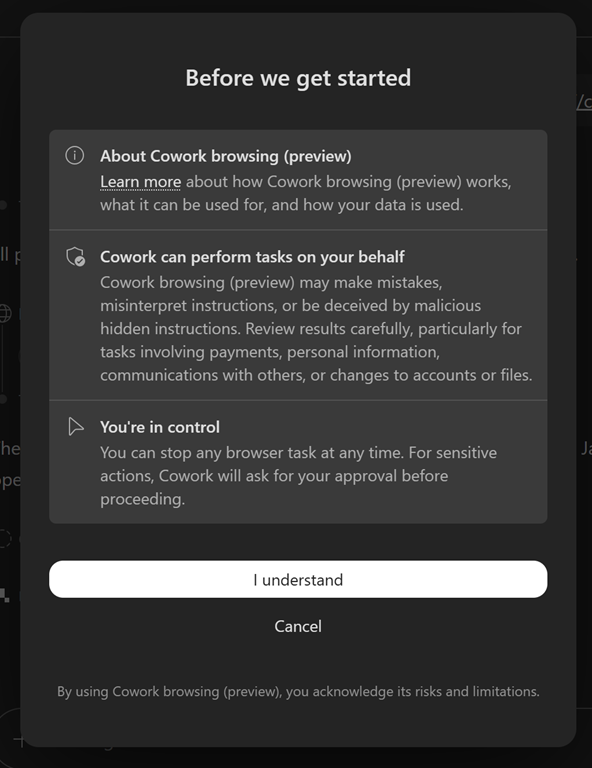
The first time Browser Use is invoked, users are presented with a consent prompt explaining:
- Browser Use is currently in preview.
- The feature can perform actions on the user’s behalf.
- AI-generated actions may not always be perfect.
- Sensitive actions may still require user confirmation.
Users must accept this prompt before Browser Use becomes available.
Step 6: Start with Low-Risk Scenarios
My recommendation is to begin with simple information-gathering tasks rather than business-critical transactions. Good examples include:
- Looking up information in customer portals.
- Checking ticket or order status.
- Gathering information from vendor websites.
- Researching data across multiple web-based systems.
As confidence grows, organisations can gradually expand usage to more complex workflows. This allows users to understand where the technology adds value while maintaining appropriate oversight.
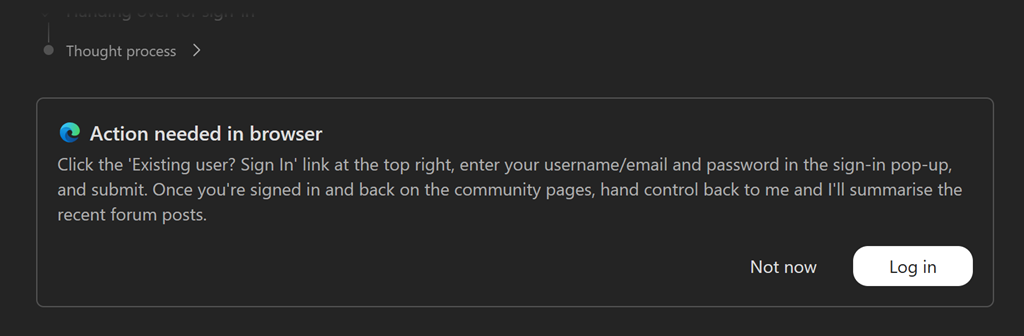
If the process needs assistance while browsing it will pause and you will see something like:
Practical Tip: If Browser Use isn’t working, check the basics first. In my experience the most common causes are that Cowork billing hasn’t been enabled, Browser Access hasn’t been switched on by an administrator, or the user isn’t signed into Microsoft Edge with the same account they use for Copilot. [learn.microsoft.com]

