The slides from this month’s webinar are available at:
and the video recording is also up on YouTube here:
Video URL – https://www.youtube.com/watch?v=IX5F3LDoPY4
Watch out for next month’s webinar.

Information about SharePoint, Microsoft 365, Azure, Mobility and Productivity from the Computer Information Agency
The slides from this month’s webinar are available at:
and the video recording is also up on YouTube here:
Video URL – https://www.youtube.com/watch?v=IX5F3LDoPY4
Watch out for next month’s webinar.
Previously – https://blog.ciaops.com/2026/07/30/the-recurring-problem-a-managed-services-story-chapter-5/
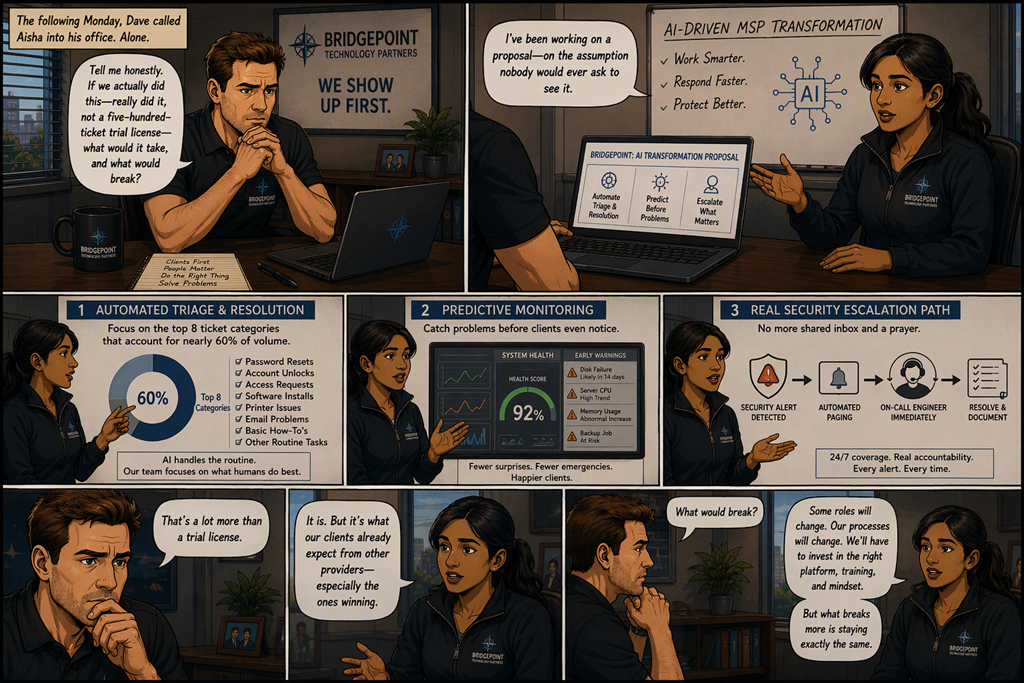
Dave called Aisha into his office the following Monday, alone, no leadership meeting audience. “Tell me honestly,” he said. “If we actually did this — really did it, not a five-hundred-ticket trial license — what would it take, and what would break?”
Aisha, to her credit, didn’t gloat. She pulled up a proposal she’d apparently been quietly refining for months on the assumption nobody would ever ask to see it. A tiered rollout: automated triage and resolution for the top eight ticket categories that accounted for nearly sixty percent of volume; predictive monitoring that could flag failing hardware and unusual network behavior before clients ever noticed a problem, instead of after; and, critically, a real security escalation path with automated paging, not a shared inbox and a prayer.
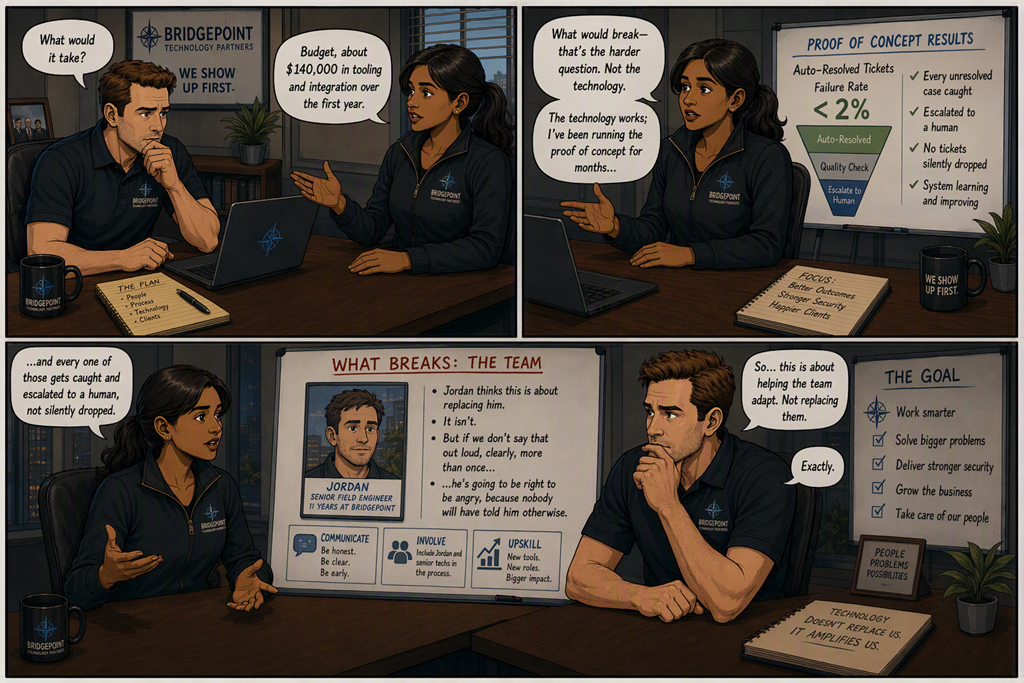
“What would it take?” she said. “Budget, about $140,000 in tooling and integration over the first year. What would break — that’s the harder question. Not the technology. The technology works; I’ve been running the proof of concept for months and the failure rate on auto-resolved tickets is under two percent, and every one of those gets caught and escalated to a human, not silently dropped. What breaks is the team, if we don’t handle this right. Jordan thinks this is about replacing him. It isn’t. But if we don’t say that out loud, clearly, more than once, he’s going to be right to be angry, because nobody will have told him otherwise.”
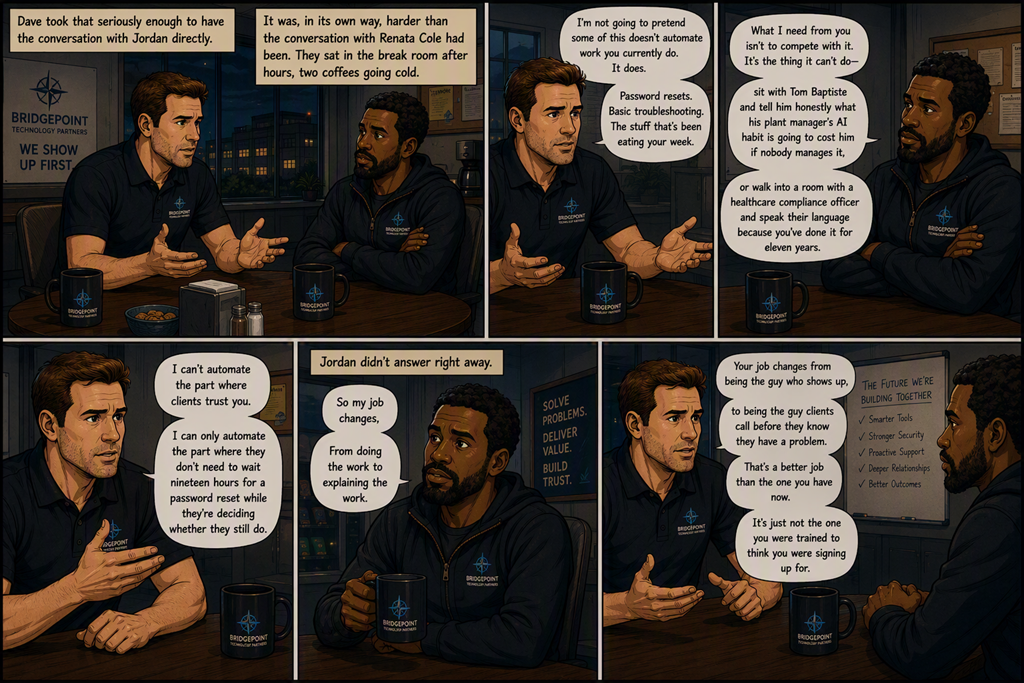
Dave took that seriously enough to have the conversation with Jordan directly, which was, in its own way, harder than the conversation with Renata Cole had been. They sat in the break room after hours, two coffees going cold.
“I’m not going to pretend some of this doesn’t automate work you currently do,” Dave said. “It does. Password resets. Basic troubleshooting. The stuff that’s been eating your week. What I need from you isn’t to compete with it. It’s the thing it can’t do — sit with Tom Baptiste and tell him honestly what his plant manager’s AI habit is going to cost him if nobody manages it, or walk into a room with a healthcare compliance officer and speak their language because you’ve done it for eleven years. I can’t automate the part where clients trust you. I can only automate the part where they don’t need to wait nineteen hours for a password reset while they’re deciding whether they still do.”
Jordan didn’t answer right away. “So my job changes,” he finally said. “From doing the work to explaining the work.”
“Your job changes from being the guy who shows up,” Dave said, “to being the guy clients call before they know they have a problem. That’s a better job than the one you have now. It’s just not the one you were trained to think you were signing up for.”
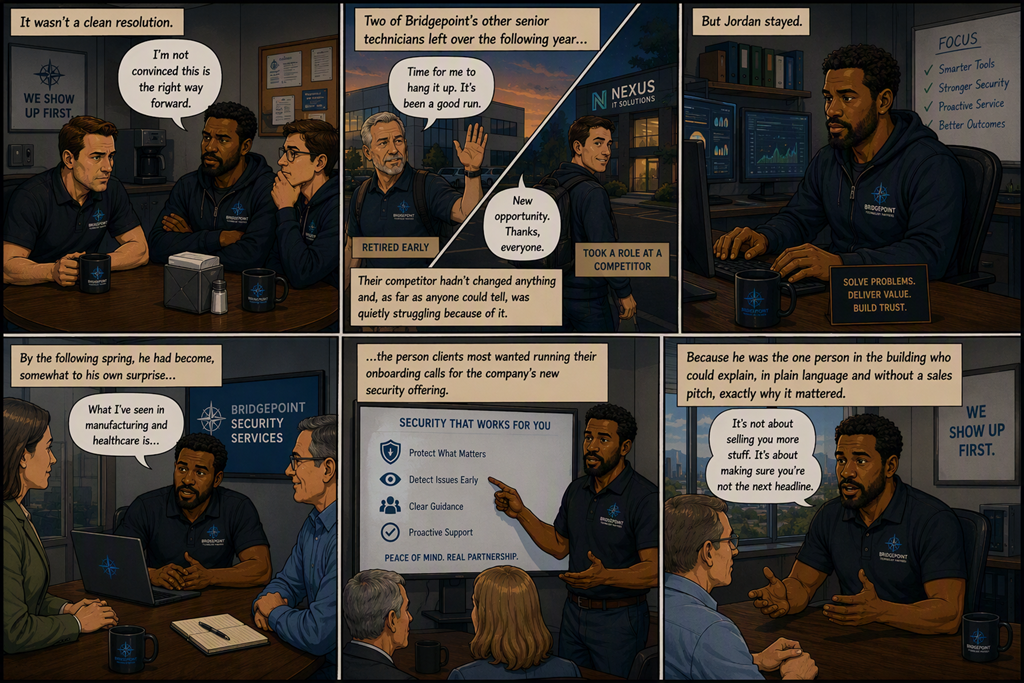
It wasn’t a clean resolution. Jordan stayed skeptical for months, and two of Bridgepoint’s other senior technicians left over the following year — one retired early, one took a role at a competitor that hadn’t changed anything and, as far as anyone could tell, was quietly struggling because of it. But Jordan stayed, and by the following spring he had become, somewhat to his own surprise, the person clients most wanted running their onboarding calls for the company’s new security offering, because he was the one person in the building who could explain, in plain language and without a sales pitch, exactly why it mattered.

I had a conversation last week that’s stuck with me. Someone was telling me, with real pride, how productive their week had been. They’d cleared every email, sat through nine meetings, skimmed four reports and watched a couple of webinars. By Friday they were wrung out. So I asked the obvious question: what actually changed because of all that? There was a long pause. The honest answer was, not much. They’d taken in a mountain of information and moved almost nothing forward.
That gap — between taking things in and actually getting somewhere — is something I keep coming back to.
It has never been easier to consume. Open Outlook and Copilot will boil a forty-message thread down to a few lines before you’ve read the subject. Miss a Teams meeting and the recap is sitting there waiting for you. Ask Copilot in Word to turn a thirty-page document into five points and it’s done in seconds. All of it genuinely useful. But here’s the trap I keep watching people fall into: they mistake the speed of consuming for the act of progressing.
Reading a summary feels like work. It isn’t. It’s the warm-up to work. That summary only earns its place if it leads to a decision, a reply, a change of plan — something that wasn’t true before you read it.
When I use Copilot to catch up on a noisy channel, the value was never the recap itself. It’s the one thing the recap surfaces — the client still waiting on an answer, the date that quietly moved, the call only I can make. If I read the summary and slide straight into the next one, I’ve consumed, but I haven’t progressed a single step.
So I’ve started asking Copilot a different kind of question. Not “summarise this thread,” but “what here needs a decision from me?” In Outlook, instead of “what’s in my inbox,” I’ll ask what’s waiting on a reply from me specifically. It’s a small change in wording, but it shifts Copilot from a faster way to take things in into a prompt to actually act.
The real risk in all this capability is sheer volume. Because we can now process more, we start to feel we should. More reports, more recaps, more dashboards, more catch-ups. But a business doesn’t run on how much its people have read this week. It runs on what they decided, finished and delivered.
I’d rather end a week having genuinely moved three things forward than having consumed everything that landed on my desk. Copilot is brilliant at clearing the path — pulling the signal out of a crowded SharePoint site, drafting a first version in Word, getting the numbers into shape in Excel. But once the path is clear, walking down it is still on me.
The tools will keep getting faster at feeding us information, and that’s not the part I’m watching. I’m watching whether all that speed actually changes what we do — or whether we just get very good at staying busy. Consumption is effortless now. Progress still needs a decision, and that’s the one thing no tool will make for you.

Inspired by the recent soccer world cup, I have decided to create a Copilot LLM output comparison challenge.
The plan is to use the same prompt with all examples of different services in Copilot and then different models available in each service. After that, the idea is them to compare the winner of each round to determine the overall winner and to continue to do this on a regular basis as new models and services are added over time.
Thus, the methodology is to use the same complex prompt to generate the result from the model (a report) and then use a standard prompt to evaluate all the results to determine a winner. The easiest comparison method is to use Copilot in SharePoint but the aim will also to be to compare using other models as well.
So, for round 1 I’m going to compare all the models available in Copilot chat. Comparison generated by Copilot for SharePoint.
Rather than try and fit the reports here I will upload them to my Github repository here in markdown format:
https://github.com/directorcia/general/tree/master/Copilot/Comparisons
Comparative Assessment – Live Writer Paste
This first report is now directly available at:
https://github.com/directorcia/general/blob/master/Copilot/Comparisons/20260630-Chat.md
The results where (out of 10):
1. Opus – 9.51
2. Sonnet – 9.45
3. GPT 5.6 Thinking – 8.76
4. GPT 5.5 Quick – 7.69
5. Auto – 6.93
So, the winner for Round 1 – Copilot Chat = Opus.
Onto Round 2
Previously – https://blog.ciaops.com/2026/07/29/the-recurring-problem-a-managed-services-story-chapter-4/
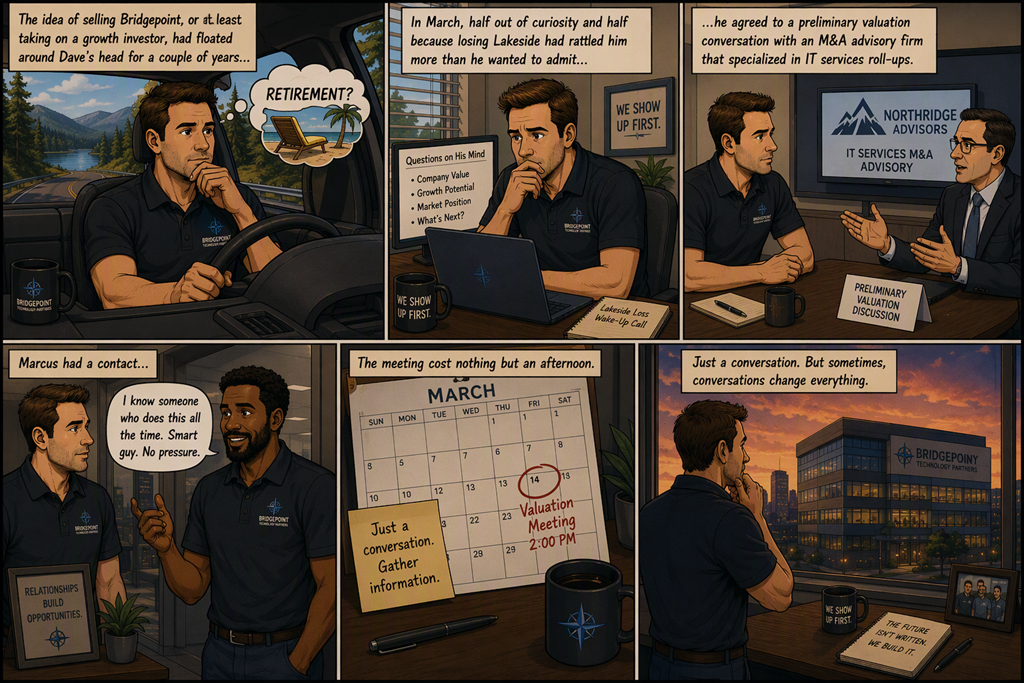
The idea of selling Bridgepoint, or at least taking on a growth investor, had floated around Dave’s head for a couple of years, mostly as a retirement fantasy he indulged on long drives. In March, half out of curiosity and half because losing Lakeside had rattled him more than he wanted to admit, he agreed to a preliminary valuation conversation with an M&A advisory firm that specialized in IT services roll-ups. Marcus had a contact; the meeting cost nothing but an afternoon.
The advisor, a clipped, unsentimental woman named Renata Cole, walked Dave and Priya through Bridgepoint’s financials with the emotional affect of someone reading a weather report. Revenue: $9.4 million. EBITDA: roughly $1.6 million, a healthy-looking 17 percent margin. Dave had always been quietly proud of that number.
“Your EBITDA is fine,” Renata said. “Your multiple is going to be a problem.”
“Explain that to me,” Dave said.
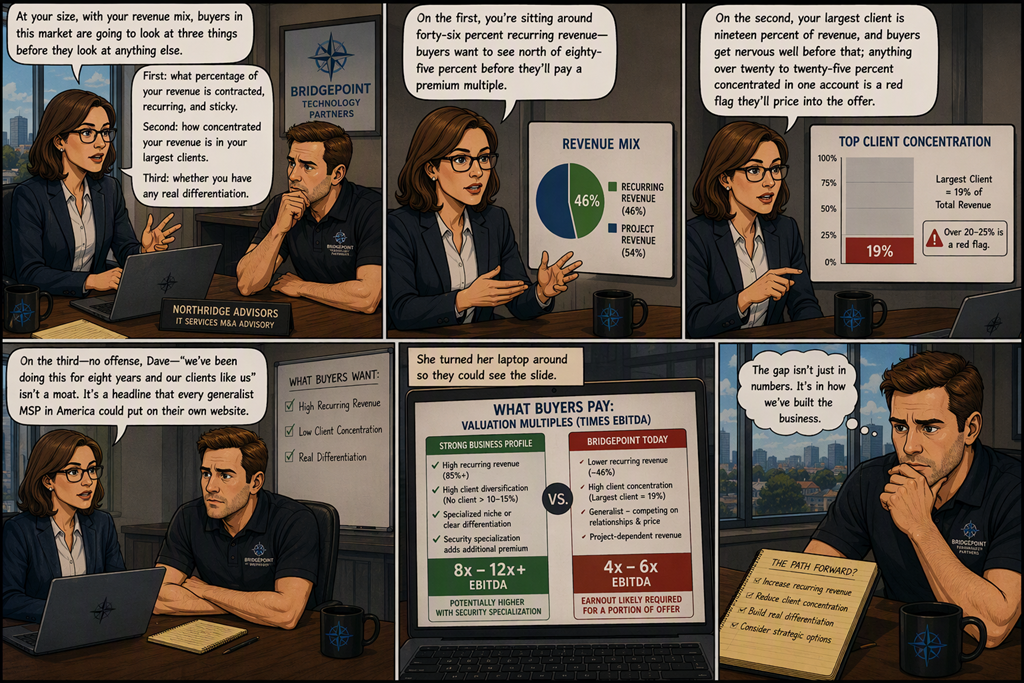
“At your size, with your revenue mix, buyers in this market are going to look at three things before they look at anything else,” she said, ticking them off on her fingers. “First: what percentage of your revenue is contracted, recurring, and sticky, versus one-off project work that could evaporate next quarter. Second: how concentrated your revenue is in your largest clients. Third: whether you have any real differentiation, or whether you’re a generalist competing on relationships and price. On the first, you’re sitting around forty-six percent recurring revenue — buyers want to see north of eighty-five percent before they’ll pay a premium multiple. On the second, your largest client is nineteen percent of revenue, and buyers get nervous well before that; anything over twenty to twenty-five percent concentrated in one account is a red flag they’ll price into the offer. On the third — no offense, Dave — ‘we’ve been doing this for eight years and our clients like us’ isn’t a moat. It’s a headline that every generalist MSP could put on their own website.”
She turned her laptop around so they could see the slide. A business with Bridgepoint’s EBITDA and a strong recurring-revenue base, high client diversification, and a specialized niche could reasonably expect eight to twelve times EBITDA, even higher with a security specialization. A business that looked like Bridgepoint currently looked — generalist, project-dependent, concentrated — was more realistically priced at four to six times, and buyers would likely structure a meaningful chunk of even that as an earnout contingent on retaining the client base through the transition.
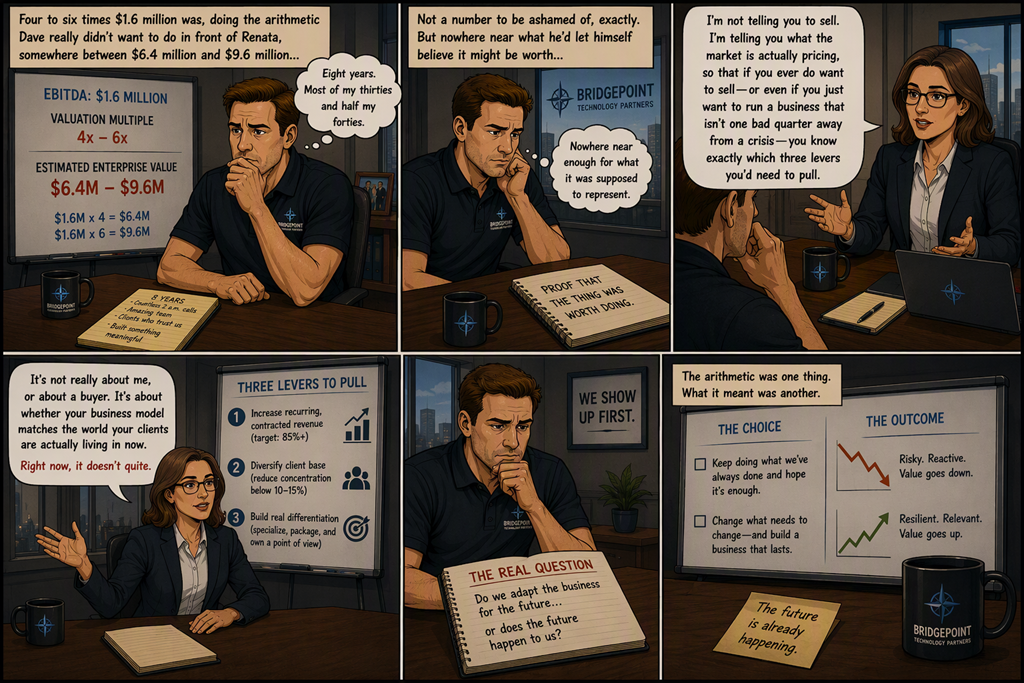
Four to six times $1.6 million was, doing the arithmetic Dave really didn’t want to do in front of Renata, somewhere between $6.4 million and $9.6 million — for a company he’d spent eight years and, by his own private accounting, most of his thirties and half his forties building. Not a number to be ashamed of, exactly. But nowhere near what he’d let himself believe it might be worth, and nowhere near enough for the number to represent what it was supposed to represent: proof that the thing had been worth doing.
“I’m not telling you to sell,” Renata said, more gently, watching his face. “I’m telling you what the market is actually pricing, so that if you ever do want to sell — or even if you just want to run a business that isn’t one bad quarter away from a crisis — you know exactly which three levers you’d need to pull. It’s not really about me, or about a buyer. It’s about whether your business model matches the world your clients are actually living in now. Right now, it doesn’t quite.”
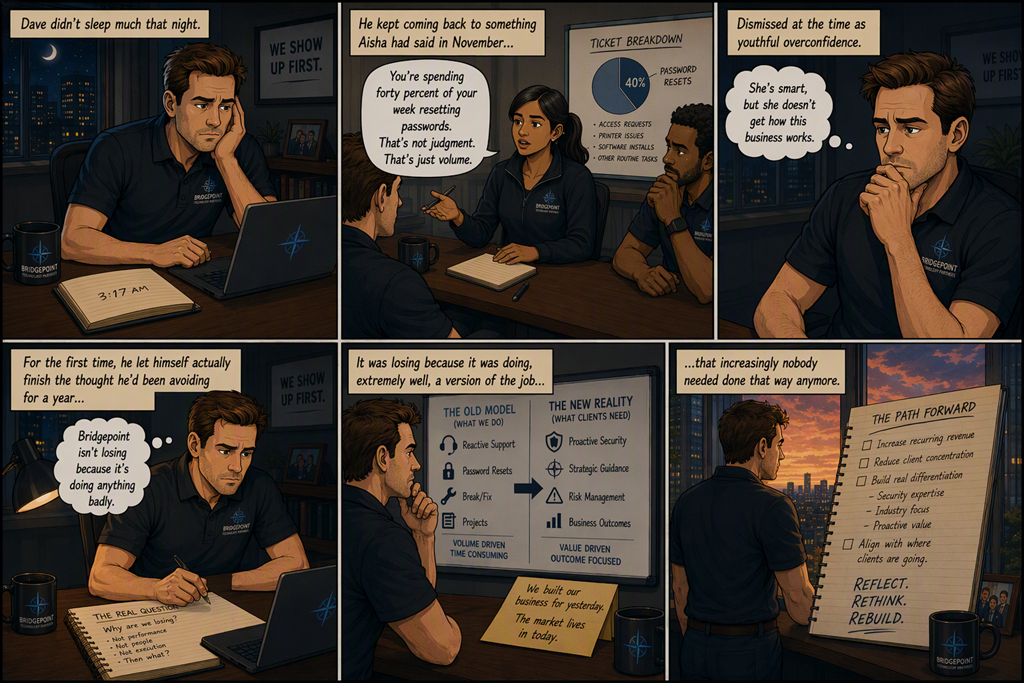
Dave didn’t sleep much that night. He kept coming back to something Aisha had said in November, dismissed at the time as youthful overconfidence: You’re spending forty percent of your week resetting passwords. That’s not judgment. That’s just volume.
For the first time, he let himself actually finish the thought he’d been avoiding for a year: Bridgepoint wasn’t losing because it was doing anything badly. It was losing because it was doing, extremely well, a version of the job that increasingly nobody needed done that way anymore.

For most of my working life, expertise has been a bottleneck. The person who really understood how to structure a sound investigation, write a watertight scope of work, run a proper risk assessment, or close out a project without loose ends — that person was rare, busy, and usually expensive. Their knowledge lived in their head, in a handful of dog-eared templates, or in a methodology a consulting firm guarded like a recipe. If you wanted the good version of something, you waited for the expert, or you paid for them, or you simply went without and hoped your rough effort was good enough.
So here is the question I keep turning over: what happens to a business when those world-class practices stop being scarce? When the best way to do a thing is no longer trapped in one person’s experience, but packaged as a skill that anyone can call on, inside the tools they already use every day?
We are closer to that than most people realise.
Think about what a “best practice” actually is. It’s a sequence of good decisions someone learned the hard way, refined over years, and turned into a repeatable approach. The hard part was never the steps themselves — it was knowing them, and knowing when to apply them.
Copilot changes who has access to that sequence. With agents and custom skills, an organisation can take its genuinely good way of doing something — the proposal process the best salesperson uses, the onboarding checklist that actually works, the way the sharpest analyst pressure-tests a forecast — and make it available to everyone. Not as a PDF nobody reads, but as something you ask for in the flow of work. You’re in Word drafting a statement of work, and the expert method is right there. You’re in Excel staring at a model, and Copilot applies the same scrutiny your best analyst would, in the same Excel you already had open.
The recipe leaves the head of the chef. And once it does, the people who were never going to become experts can still produce expert-grade work.
I find this genuinely interesting, because of what it does to the gap between the few and the many.
In most businesses there’s an enormous distance between your top performer and your average one. Not because the average person isn’t capable, but because they never had the top performer’s accumulated judgement. When that judgement becomes a skill anyone can invoke — when the new hire in their second week can ask Copilot to apply the company’s proven method and get most of the way there — that gap narrows fast.
I’ve watched a junior team member produce a client response that, two years ago, would have needed three rounds of review from someone senior. The senior person still added value. But the starting point was already good, because the method was baked in rather than carried around in someone’s memory. That’s a different shape of organisation. The floor rises. The distance between your best and your rest gets smaller.
And that should make business leaders pause, because so much of how we structure teams, pay people, and value experience assumes that gap stays wide.
Here’s the part I think is easy to miss. If the best way to do something is available to everyone — including your competitors — then knowing the best practice stops being an advantage. Everyone has it. It becomes table stakes.
So what’s left? Judgement about which problem to point it at. Taste about what “good” actually means for your customers. And the plain willingness to act. When the expert method is in the room, the question shifts from who knows how to who actually does something with it.
I’ve seen two businesses with the same tools and the same access. One treats Copilot as a curiosity someone in IT is “looking into.” The other has quietly rebuilt how its people work — its real methods captured as agents in Teams, surfaced where decisions get made, used a hundred times a day. Same starting line. Wildly different outcomes. The difference wasn’t the technology. It was the decision to act on it.
That’s the uncomfortable, liberating truth of broadly available expertise. It doesn’t reward the people who hoarded knowledge. It rewards the ones who move.
I don’t think this makes expertise worthless — I think it relocates it. The value moves from holding the knowledge to deciding what to do with it, and to having the judgement to know when the expert method is wrong for this particular case. Those things are harder to automate, and they’re suddenly worth far more.
What I’m watching for is which organisations notice the shift early. The ones who capture their best practices as Copilot skills and put them in everyone’s hands aren’t just becoming more efficient. They’re flattening a hierarchy that has shaped business for a very long time. The expert is no longer a bottleneck. The expert is in the room — for everyone, all the time.
The only question left is what you do now that they are.
The short answer is this:
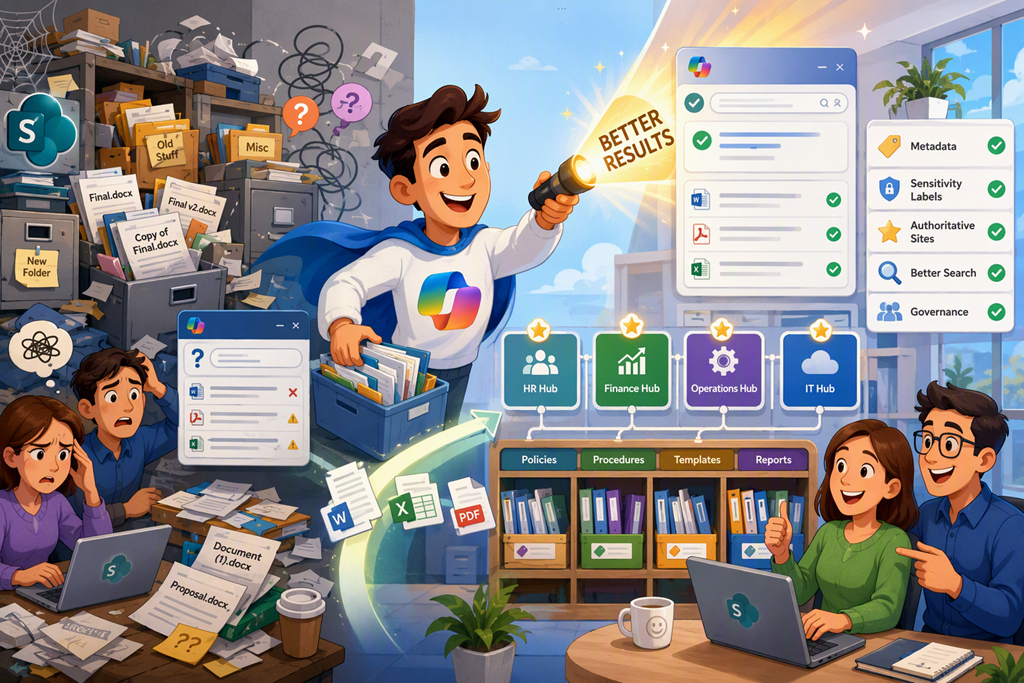
Copilot results are only as good as the SharePoint environment underneath them. If your SharePoint is messy, overshared, full of duplicate files, stale content, and inconsistent naming, Copilot will surface messy, duplicate, stale content. If SharePoint is well-structured, governed, and maintained, Copilot becomes dramatically more useful.
From everything I’ve seen in SMB environments, improving SharePoint for Copilot usually delivers a bigger productivity gain than buying additional AI licences.
This is the most important step.
Copilot doesn’t magically know what information is important. It relies on Microsoft Graph and existing permissions. If users can access content they shouldn’t, Copilot can discover and surface that content.
SharePoint Advanced Management and Data Access Governance reports were specifically highlighted as ways to identify oversharing risks before Copilot rollout.
Many organisations have:
Documents
├── New Folder
├── Old Stuff
├── Final
├── Final V2
├── Copy of Final
└── Misc
Copilot struggles because the business itself has no structure.
Instead build:
Finance Hub
├── Budget Planning
├── Forecasting
├── Reporting
└── Policies

Sales Hub
├── Proposals
├── Customers
├── Pricing
└── Marketing
The clearer the structure, the easier it is for:
to locate relevant content.
Copilot does read document content, but filenames still matter.
Bad:
Proposal.docx
Proposal New.docx
Proposal Final.docx
Proposal Final Final.docx
Good:
CustomerName-Proposal-2026-07.docx
CustomerName-SOW-v1.docx
CustomerName-SOW-Approved.docx
In one of your SharePoint discussions, naming conventions were specifically called out as something that should be standardised across the site.
Metadata is one of the biggest Copilot improvements available.
Rather than:
Projects
 ├── Sydney
 ├── Melbourne
 ├── Brisbane
Use columns such as:
Column
Value
Client
ABC
Region
Sydney
Project Type
Migration
Status
Active
This gives Copilot richer context when searching and grounding answers.
Instead of finding a file based only on its location, Copilot can reason over:
One major challenge is outdated content appearing in search results.
Microsoft now provides features that recommend:
to improve discoverability and Copilot relevance.
Ask yourself:
A common issue is Copilot finding a policy from 2019 while a better one exists from 2026.
One of the newest improvements is the ability to mark SharePoint sites as authoritative.
Examples:
Content from these sites can be prioritised in Copilot Search and Copilot Chat results.
For example:
Site
Why make it authoritative?
HR
Official policies
Finance
Budgets and governance
Legal
Contracts
Company Communications
Executive announcements
This helps reduce contradictory responses.
Copilot respects sensitivity labels and information protection controls.
Typical labels:
Benefits include:
Copilot depends heavily on Microsoft Search.
Poor search equals poor Copilot.
Things that help:
Instead of storing everything in Word documents:
Every key page should have:
Bad:
Welcome
General Information
Policies
Good:
Employee Leave Policy
Expense Claim Procedure
Remote Work Guidelines
Hub sites create logical business groupings.
Example:
Corporate Hub
 ├── HR
 ├── Finance
 ├── Operations
 └── IT

Customer Hub
 ├── Sales
 ├── Marketing
 └── Service
Hub sites improve navigation, search context and content relevance for Copilot.
Where a user only needs answers from a particular area, create a SharePoint Agent.
Examples:
These agents ground themselves on specific SharePoint locations and often produce more accurate answers than tenant-wide searches.
Copilot works best when content explains:
Bad document:
Procedure.docx
Good document:
Financial Approval Process
Owner: Finance
Review Date: July 2026
Applies To: Australia Operations
The extra context significantly improves grounding quality.
The best Copilot environments are not set-and-forget.
Establish a quarterly process:
Data Access Governance reports and Content Management assessments are specifically designed for this ongoing process.
If I were preparing a tenant for Copilot today, I’d prioritise:
In most SMB tenants, doing just those ten things improves Copilot results more than any prompt engineering or user training because you’re improving the quality of the information Copilot can see and trust.
Previously – https://blog.ciaops.com/2026/07/28/the-recurring-problem-a-managed-services-story-chapter-3/
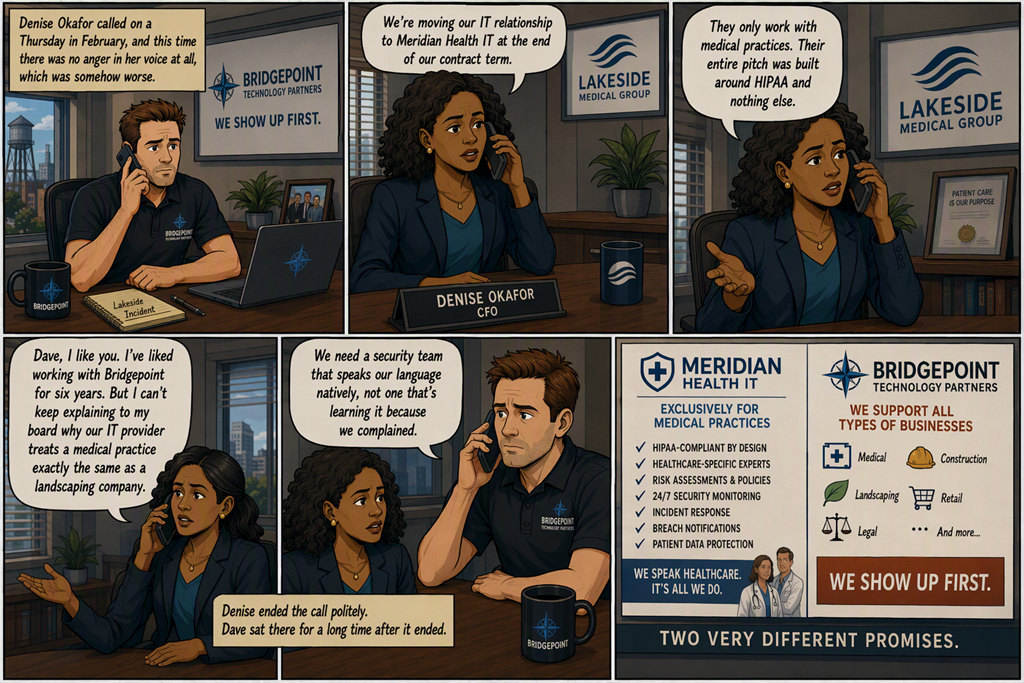
Denise Okafor called on a Thursday in February, and this time there was no anger in her voice at all, which was somehow worse. “We’re moving our IT relationship to Meridian Health IT at the end of our contract term,” she said. “They only work with medical practices. Their entire pitch was built around HIPAA and nothing else. Dave, I like you. I’ve liked working with Bridgepoint for six years. But I can’t keep explaining to my board why our IT provider treats a medical practice exactly the same as a landscaping company. We need a security team that speaks our language natively, not one that’s learning it because we complained.”
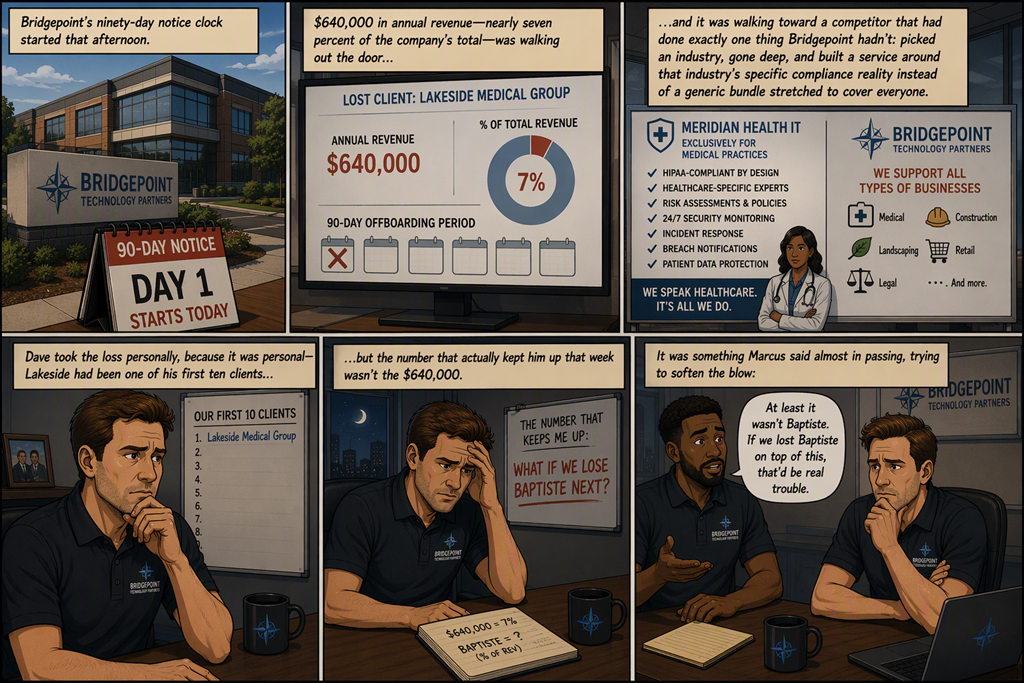
Bridgepoint’s ninety-day notice clock started that afternoon. $640,000 in annual revenue — nearly seven percent of the company’s total — was walking out the door, and it was walking toward a competitor that had done exactly one thing Bridgepoint hadn’t: picked an industry, gone deep, and built a service around that industry’s specific compliance reality instead of a generic bundle stretched to cover everyone.
Dave took the loss personally, because it was personal — Lakeside had been one of his first ten clients — but the number that actually kept him up that week wasn’t the $640,000. It was something Marcus said almost in passing, trying to soften the blow: “At least it wasn’t Baptiste. If we lost Baptiste on top of this, that’d be real trouble.”
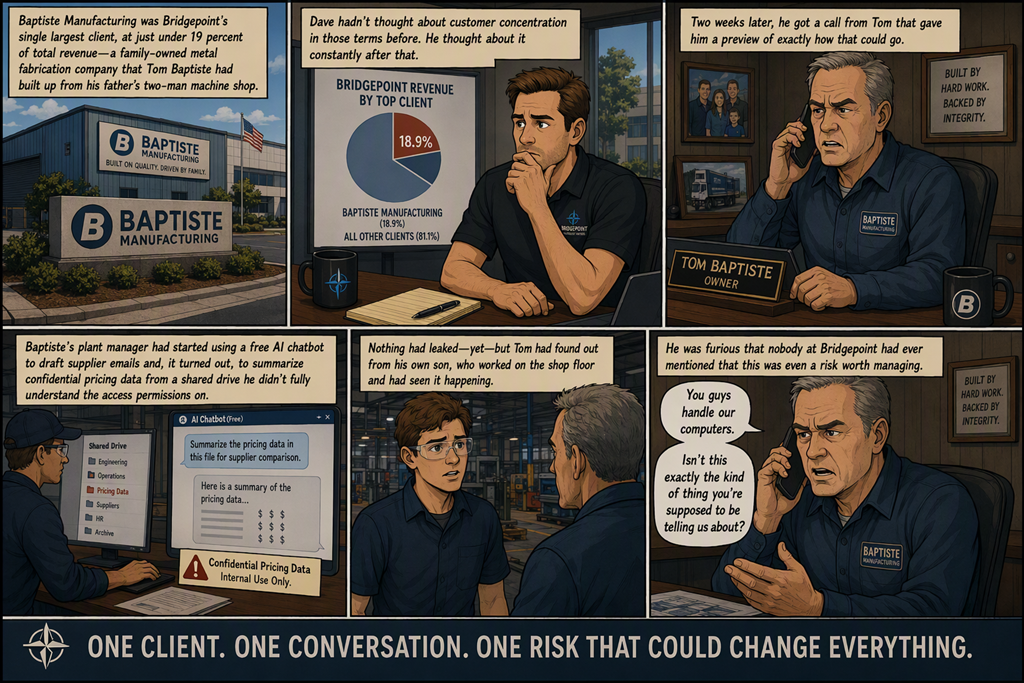
Baptiste Manufacturing was Bridgepoint’s single largest client, at just under 19 percent of total revenue — a family-owned metal fabrication company that Tom Baptiste had built up from his father’s two-man machine shop. Dave hadn’t thought about customer concentration in those terms before. He thought about it constantly after that.
Two weeks later, he got a call from Tom that gave him a preview of exactly how that could go. Baptiste’s plant manager had started using a free AI chatbot to draft supplier emails and, it turned out, to summarize confidential pricing data from a shared drive he didn’t fully understand the access permissions on. Nothing had leaked — yet — but Tom had found out from his own son, who worked on the shop floor and had seen it happening, and he was furious that nobody at Bridgepoint had ever mentioned that this was even a risk worth managing.
“You guys handle our computers,” Tom said. “Isn’t this exactly the kind of thing you’re supposed to be telling us about?”
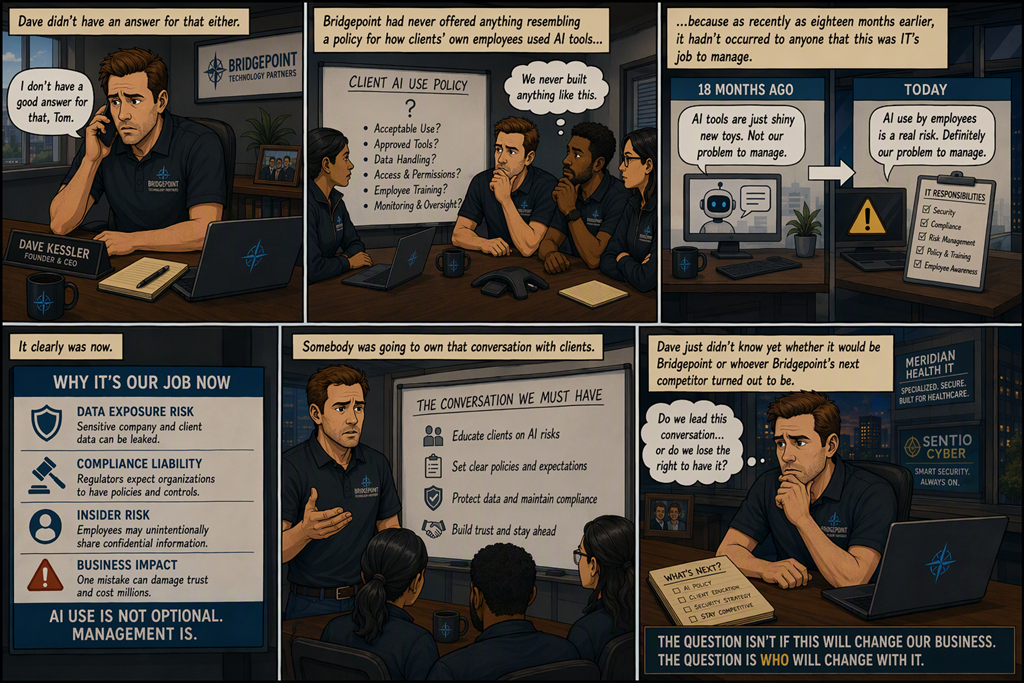
Dave didn’t have an answer for that either. Bridgepoint had never offered anything resembling a policy for how clients’ own employees used AI tools, because as recently as eighteen months earlier, it hadn’t occurred to anyone that this was IT’s job to manage. It clearly was now. Somebody was going to own that conversation with clients. Dave just didn’t know yet whether it would be Bridgepoint or whoever Bridgepoint’s next competitor turned out to be.