CIA Brief 20260627

image

Security & Threat Intelligence
Microsoft Product Updates & Announcements
Cloud & AI
Sustainability

After hours

When a cyber attack took 100 hospitals offline – https://www.youtube.com/watch?v=WxY6aLRVgcI

Editorial

If you found this valuable, the I’d appreciate a ‘like’ or perhaps a donation at https://ko-fi.com/ciaops. This helps me know that people enjoy what I have created and provides resources to allow me to create more content. If you have any feedback or suggestions around this, I’m all ears. You can also find me via email director@ciaops.com and on X (Twitter) at https://www.twitter.com/directorcia.

If you want to be part of a dedicated Microsoft Cloud community with information and interactions daily, then consider becoming a CIAOPS Patron – www.ciaopspatron.com.

Watch out for the next CIA Brief next week

Your sensitivity labels aren’t doing anything

image

Most clients I work with have sensitivity labels deployed. They’ll show me the dropdown in Word — Confidential, Internal, General, Public — and say, “We set that up during the M365 rollout.”

Fair enough. But when I ask how much of the content in SharePoint and OneDrive is actually labelled, the answer is almost always a pause. And then: “Not sure, to be honest.”

Which means almost nothing.

Users don’t apply labels manually. Not because they’re careless — but because asking someone to classify a document before they can save it is friction, and people route around friction every single time. If your labelling strategy depends on the human hitting that dropdown, it’s not a strategy. It’s wishful thinking.

That’s not a training problem. That’s a deployment gap.

What is auto-labelling, really?

There are two very different things living under this name, and mixing them up is exactly where most tenants stall.

The first is client-side auto-labelling. This is built into the sensitivity label itself — when a user opens a document or composes an email, the Office app scans the content and either suggests a label or quietly applies one. It’s useful. But it only fires when someone has a file open.

The second — and the one I want you to focus on — is service-side auto-labelling. This is a separate auto-labelling policy you create in Microsoft Purview. It runs in the background, continuously scanning SharePoint, OneDrive, and Exchange. No user involvement. Files sitting in SharePoint from two years ago? Scanned. Emails passing through Exchange right now? Scanned.

The labels go on whether the user ever touched the file or not.

Labels that apply themselves. That’s the actual goal.

Step-by-Step: Creating a service-side auto-labelling policy

One prerequisite: sensitivity labels must exist and be published before you create auto-labelling policies. If they’re not set up yet, start there.

Then, in the Microsoft Purview portal:

Open Information Protection > Policies > Auto-labelling policies

Sign in to purview.microsoft.com. Navigate to Solutions → Information Protection → Policies → Auto-labelling policies, then select + Create auto-labelling policy.

Choose a template or go Custom

Microsoft provides templates for common data types — financial data, personal data by region (there’s an Australian one), health records. Start with a template to see the shape of a policy, or go Custom if you want full control over which sensitive information types trigger the label.

Name the policy and pick the label

Give it a name that tells a story: “Confidential – Tax File Numbers – SharePoint” is more useful than “Auto-label policy 1.” Then select which sensitivity label gets applied on a match.

Select your locations

Pick SharePoint, OneDrive, Exchange, or all three. Scope to specific sites or users, or leave it at All. Start narrow — one site or department — until you’ve seen the simulation results.

Write the rule

This is the substance of the policy. Here’s a simple example:

If content contains:
  Sensitive info type: Tax file number (Australia)
  Confidence level: High
  Instance count: 1 or more
→ Apply label: Confidential

Notice what’s missing? A user making a decision.

Run simulation first — always

Before the policy applies a single label, run it in simulation mode. Purview crawls the selected locations and shows you a matched-files list without changing anything. Review it. Look for false positives. Check the count. When you’re satisfied, activate the policy.

Why this actually changes behaviour

Once service-side auto-labelling is running, you stop being dependent on user habits to build label coverage.

Here’s the real win: every downstream control that references sensitivity labels now has something to reference. DLP policies that trigger on Confidential content have labelled files to fire on. Conditional Access policies that restrict access by label context have something to evaluate. And Copilot respects sensitivity labels when deciding what to surface in responses — which means your Copilot governance story only works if the labels are actually on the files.

Before: “We set up sensitivity labels in the rollout.”

After: “We have auto-labelling policies running across SharePoint and Exchange, and the Purview dashboard shows 87% of our content is classified.”

One of those answers a cyber insurance question. The other is a checkbox nobody can verify.

The Purview data classification dashboard shows label coverage across your whole tenant. After a few days with auto-labelling running, watch that coverage number move. That’s the metric that matters when an auditor or an insurer asks how sensitive data is classified and protected.

My recommendation? Start with one workload, one sensitive info type, one site. Run simulation. Check the results. Turn it on. Then expand.

The platform knows how to classify. You just have to let it.

Sensitivity labels without auto-labelling are just a menu no one orders from. Turn on the scanner, let Purview do the work your users never will, and then show your clients the dashboard.

Opportunity Is the Enemy

image

The most dangerous moment for an MSP isn’t a slow quarter. It’s a good one.

When the calendar is full, leads are landing, and a former client pings you about “a quick idea” — that’s when the trouble starts. Suddenly you’re half-thinking about a new managed service line, a side venture with a vendor friend, a property deal someone mentioned at lunch. None of it is bad. That’s the whole problem.

I’ve watched too many capable owners chip themselves into pieces this way. The wins keep arriving, just not in the lane they originally chose. The actual business — the one paying the bills and the team — quietly slows down while they chase the next shiny thing. A year later they wonder how the work they actually built ended up running on autopilot, or not running at all.

Every shiny thing has a real cost

When someone pitches you an opportunity, the cost looks small. A meeting. A few emails. A weekend reading through a deck. Easy.

But every hour spent on something that isn’t your main game is an hour you didn’t spend on the clients, the people, and the systems that pay your mortgage. That trade is rarely visible in the moment. It shows up six months later when renewals slip, your senior tech is restless, and you can’t remember the last proper sit-down with your number one client.

The discipline isn’t in saying yes to the right work. It’s in saying no to the wrong opportunities — especially the flattering ones.

Build a filter, not a willpower contest

Relying on raw willpower to turn things down is a losing strategy. By Friday afternoon you’re tired, someone’s been charming, and the calendar fills back up.

What works better is a written filter. One short paragraph. What you do, who you serve, the size of client you take on, and the kind of work you flat-out refuse. I keep mine in a Loop component pinned at the top of my main planning page in Teams. When a new pitch arrives, I open it, re-read the filter, and the answer is usually obvious before I’ve finished the second sentence.

The tiny ritual takes the emotion out of the decision. The filter said no. Not me.

Let Copilot guard the door

The other shift for me has been using Copilot in Outlook as a first-pass screener. When a long, friendly email arrives proposing something tangential, I ask Copilot to summarise what’s actually being requested, how much time it would cost, and how it fits against my current priorities, which I keep in a short document in OneDrive.

Most of the time, the reply writes itself. Copilot drafts a polite decline and suggests someone better placed to help. I read it, tweak a sentence, send. A minute, instead of an afternoon of overthinking.

I do the same with meeting requests. Before I accept anything outside current client work, I ask Copilot to pull recent threads on the topic and tell me whether I’ve already had this conversation. Half the time, I have. That’s the meeting that quietly doesn’t get booked.

The quieter calendar

The strange part is that turning things down doesn’t make the business shrink. It makes it sharper. The clients I keep get more of me. The team gets more of me. And the work I actually built finally has room to grow into something worth defending.

Opportunity will keep knocking. That’s its job. Mine is to stop answering every time.

Before You Buy the Copilot Licence, Do This First

MAI_a705418914201c07

Everyone wants to know what Copilot can do. Almost nobody asks what Copilot will find.

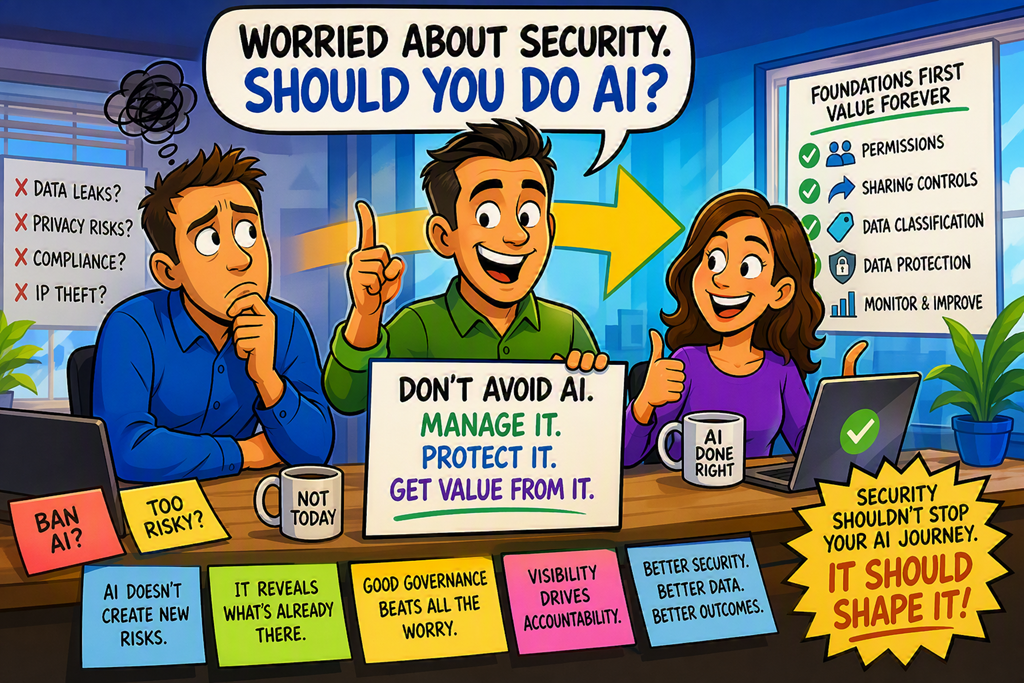
That’s the question that actually matters. Copilot doesn’t create new access — it works entirely within your existing Microsoft 365 permissions. It can only surface what a user is already allowed to see.

Sounds safe. It’s not. Not if your SharePoint environment looks like most tenants I’ve walked through.

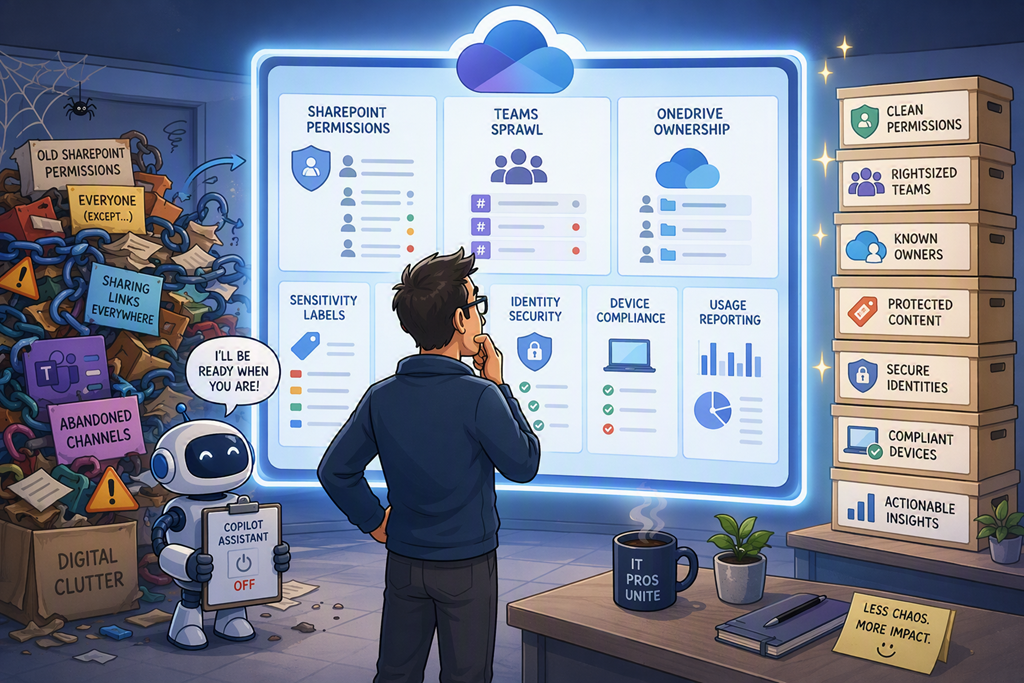
Sites shared with “Anyone with the link” since 2021. Files in folders with permissions no one’s reviewed in years. Ownerless sites stuffed with content nobody knows exists. When your finance manager asks Copilot to “summarise what we know about Project X,” it’ll pull from everything she can already access — including documents she’d have had to know to search for directly.

That’s not a Copilot problem. That’s the data governance problem you already had, just made visible.

My recommendation? Run the readiness assessment before you assign a single licence.

What is the Copilot Readiness Assessment, really?

Most people think readiness means “do you have the right licence and update channel.” The Copilot Readiness Report in the Microsoft 365 admin centre does tell you that — which users are technically eligible, which devices are on the right update channel, who your best pilot candidates are.

That’s the easy half.

The hard half is whether your data is in a state that Copilot should be let near. That check lives in a completely different place, and most readiness guides skip it entirely.

Notice what’s missing? Almost every “Copilot readiness checklist” you’ll find online focuses on licence eligibility. The data side is where the actual risk sits.

Step-by-Step: Running a Proper Readiness Check
Open the M365 Copilot Readiness Report

Go to the Microsoft 365 admin centre. In the left nav, select Reports > Usage, then choose Microsoft 365 Copilot and open the Copilot report. Click the Readiness tab.

You’ll see prerequisite licence counts, update channel eligibility, and a user table flagging suggested Copilot candidates. Export the list. It gives you a concrete starting point for a pilot conversation with your client.

Check for Oversharing in SharePoint

Open the SharePoint admin centre. Go to Reports > Data Access Governance. This is where you find the oversharing risk — sites with “Anyone” sharing links active, files broadly accessible across the tenant, high-member-count sites with no clear owner.

Work through the data access governance reports. Anything flagged here is content Copilot can reach on behalf of any user who has permission.

By default, SharePoint sharing is set to the most permissive option. Most tenants have never changed it.

Run the Content Management Assessment

Still in the SharePoint admin centre, go to Advanced Management > Content Management Assessment and select Start assessment. This surfaces inactive sites, ownerless sites, and sites that haven’t been attested by anyone recently.

SharePoint admin centre
  > Advanced Management
    > Content Management Assessment
      > Start assessment

Rerun it every 30 days. This isn’t a one-time exercise. It’s a recurring conversation starter with every client who has Copilot.

Review Your Sensitivity Labels

Open the Microsoft Purview compliance portal > Information protection > Labels. Check whether labels are deployed and whether content users will ask Copilot about is actually labelled.

Sensitivity labels travel with content. Copilot honours them at response time — it won’t surface content a user doesn’t have decrypt rights for. No labels means no enforceable control over what ends up in a Copilot response.

They’re not a Copilot feature. They’re the floor you build on.

Why This Actually Changes Behaviour

Here’s the real win.

Running this before you sell the licence gives you a different kind of client conversation. Not “here’s what Copilot can do” — but “here’s what your data looks like right now, and here’s what we need to fix before Copilot is safe to use.” That’s a trusted adviser conversation, not a licence upsell.

Microsoft’s Secure & Governed Data Foundation blueprint organises this into three pillars: remediate oversharing, set up guardrails, meet regulations. It’s worth reading before your next client review. Print it. Take it in.

If you’re not showing clients this work before you enable Copilot, you’re not protecting them — you’re just adding a powerful AI to a mess.

Copilot doesn’t create oversharing. It reveals it. Fix the foundation first, then turn on the power.

Treat Your Calendar Like a Scoreboard

image

Last Friday I sat down with my Outlook calendar open for the week ahead and felt that familiar drop in the stomach. Eighteen meetings. Two thirty-minute “quick syncs” stacked back to back. A coaching session I’d promised myself I’d run for a client. A “catch-up” with someone whose name I had to look up twice. And the actual deep work — the strategy piece I’d been telling everyone was my top priority for the quarter — nowhere to be seen.

That’s the moment it clicked properly. My calendar wasn’t a plan. It was a confession.

What the diary is really telling you

A diary is a record of where your attention actually goes, not where you wish it went. If the most important work of your year isn’t on it — blocked out, named, defended — then you haven’t really committed to it yet. You’ve just talked about it.

A lot of us treat our calendar like an inbox. Things land in it. People send invites, we accept, and the week fills up by default rather than by design. Then we wonder why the work that actually moves the business forward keeps slipping into Saturday morning.

There’s a simple test I run now. Open Outlook on a Sunday night. Look at the week ahead. Can you point to the block that represents the one thing you said matters most this quarter? If not, the rest of the week is just noise around an empty centre. And the empty centre is the bit you said mattered.

Run a weekly audit, not a weekly hope

Hope isn’t a strategy, and a calendar that fills itself isn’t one either. So I now sit down every Friday afternoon for fifteen minutes and review what I actually did against what I said I would do. Copilot in Outlook makes this surprisingly easy — I ask it to summarise where my time went, who I spent it with, and which blocks moved against my stated priorities. The answer is often uncomfortable.

Then I look at the week ahead and run every single block past one question. Is this taking me closer to the work I said matters, or further from it? If the honest answer is “further”, the meeting goes. I decline it, suggest an async update in Teams, or send a Loop component with the three things I would have said in the room. Nobody has yet complained that they got a clearer written summary instead of a half-attended meeting.

The ones that pass the test get something more important than a tick. They get protected. Title in bold, marked as busy, no overlay. I treat them with the same seriousness I’d give a paying client, because future me is the client.

The feedback loop most leaders skip

Here’s the bit that surprised me. Once I started running this rhythm, my calendar stopped being a source of guilt and started being a source of useful signal. It tells me, week by week, whether I’m actually serious about what I said matters. Or whether I’ve quietly traded it for the comfort of being responsive.

That’s the real value of reading the week before you live it. Mid-game, a scoreline tells you what to do next — push harder, change tactics, stop bleeding time on the wrong play. The diary does the same job, if you’ll let it. It doesn’t argue with you. It just shows you the score.

Copilot can draft the polite decline. Teams can absorb the conversation that didn’t need a meeting. Outlook can hold the block you’ve been avoiding. But none of that matters until you decide, every single week, what’s on the board and what’s just filler.

Defender for Identity: the sensor you’ve been avoiding just got easy

MAI_8e04c152a34c15b8

Most of us treat the domain controller like furniture. It’s been in the corner for fifteen years, it works, and nobody wants to touch it.

But that DC sees everything. Every logon. Every Kerberos ticket. Every “let me just check if this service account still works” at 2am from a machine that has no business asking.

You’re sitting on the single richest source of attack signal in the whole environment, and most small-business tenants aren’t reading a word of it.

That’s not a tooling gap. That’s a switch nobody flipped.

And I get why. For years, turning on Microsoft Defender for Identity meant a download, an installer on every DC, a group managed service account, audit GPOs, and a packet-capture driver. Real work. So it sat on the “later” pile.

Later just arrived. The new sensor changes the maths completely.

What is the Defender for Identity sensor, really?

Forget the marketing. Defender for Identity is a sensor that lives on your domain controllers and watches the authentication traffic they already handle.

It’s looking for the things your antivirus will never see — lateral movement, Kerberoasting, DCSync, someone quietly enumerating your admins. The DC is the witness. The sensor just takes its statement.

Here’s what changed. The version 3 sensor — the “unified” one that went generally available late last year — doesn’t ship as its own agent anymore. It rides inside Defender for Endpoint. If Defender for Endpoint is already onboarded on your DC, the identity sensor is a few clicks in the portal. No installer. No service account. No Npcap.

One caveat before you get excited, and it’s the one MSPs trip on: this isn’t in Business Premium. You need Microsoft 365 E5, E5 Security, EMS E5, or the standalone Defender for Identity licence. Check the SKU before you promise a client anything.

Step-by-Step: turning the sensor on

Assuming Defender for Endpoint is already running on a Windows Server 2019-or-later DC that’s kept current on updates, here’s the path. Everything happens in the Microsoft Defender portal — no remoting onto the box.

Open the activation surface

Go to security.microsoft.com, then Settings > Identities. First time in, it provisions your workspace in a few seconds.

Activate the sensor

Open the Sensors (or Activation) page. Every DC that’s already onboarded to Defender for Endpoint and meets the bar shows up as eligible. Tick it, activate, done. No download, no reboot, no downtime on the DC.

Defender portal → Settings → Identities → Sensors
  [x] DC01  (eligible — Defender for Endpoint onboarded)  → Activate
  [x] DC02  (eligible — Defender for Endpoint onboarded)  → Activate

Notice what’s missing? No installer to copy. No service account to create and babysit. No access key pasted into a setup wizard. If you’ve done this the old way, that absence is the whole story.

Mind the stragglers

Version 3 only covers domain controllers on Server 2019 and later. Got an old 2016 DC, or a standalone AD FS, AD CS, or Entra Connect box? Those still need the classic v2 sensor with its installer. Mixed estates are fine — both versions report to the same workspace.

Set a honeytoken

This is the cheap win everyone skips. Under Settings > Identities > Entity tags > Honeytoken, tag a dormant account as a honeytoken. Give it a tasty name — svc-backup-admin, sql_sa_old — and never use it. Because nothing legitimate ever touches it, any authentication against it is, by definition, someone poking where they shouldn’t. High signal, almost no noise.

Why this actually changes behaviour

The sensor needs time to learn what normal looks like — figure on a few weeks per DC before the behavioural alerts settle. Don’t treat every early alert as gospel. Watch, tune, then trust.

“So I just switch it on and start blocking?”

No. You switch it on and start watching. Audit before you trust. The honeytoken is the exception — that one’s high-confidence from minute one.

Here’s the real win, and it’s a business one. Identity attacks don’t announce themselves on the endpoint. They look like a valid logon, because they are one — with stolen credentials. The DC is the one place that sees the pattern. Turn the sensor on and you’ve gone from “we’d never know” to “we’d get paged.”

For an MSP, that’s a renewal conversation, not a checkbox. “We’re watching your domain controllers for credential attacks” is something a client understands and pays for.

Defender for Identity isn’t there to add another console to your morning. It’s there so the most important server in the building finally has someone listening.

You’ve already got the witness. Go take the statement.

The Difference Between a Direction and a Walk

image

I’ve been watching people coach lately. Mine and other people’s. Inside teams, on calls, in coaching sessions, in the small handovers that happen between desks. And the same pattern keeps surfacing, in versions large and small.

We give directions. We rarely take the walk.

A direction is the polite, efficient gesture — the link in chat, the screenshot with an arrow, the “have a look at this, it explains it well”. It assumes the person on the other end has the time, the focus, and the confidence to follow the trail to the end. Most of the time, they don’t. Most of the time, they were asking because the trail is exactly what they’ve been struggling with.

Taking the walk is different. It means putting down what you were doing, getting up out of your chair (literally or in the digital equivalent of it), and going with them. It is slower, it is less elegant, and it is the thing that almost always works.

Why this hits hardest with Copilot right now

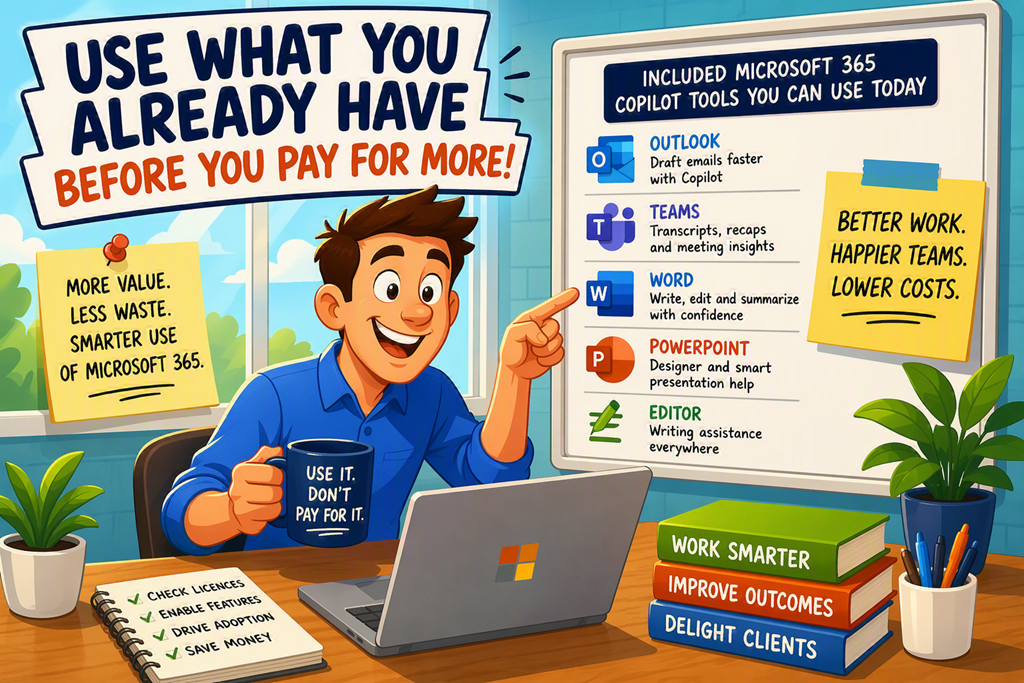
The reason this is sitting on top of my mind is what I’m seeing inside Microsoft 365 rollouts. Copilot is now embedded across Outlook, Word, Excel, Teams, OneNote, Loop — every surface a knowledge worker touches. The interface is right there. The documentation is right there. The training videos are right there.

And the gap is still enormous.

That gap isn’t a documentation problem. It’s a companionship problem. People know Copilot is in their email. What they don’t know is what to type when they actually have to reply to a customer who is upset, or summarise a three-week Teams thread, or pull the relevant lines out of a contract sitting in SharePoint. They need a person beside them the first time. Not afterwards. Not in a wiki. The first time.

When you sit next to somebody — sharing a screen in Teams works just as well as sitting at the same desk — and you open Copilot in their inbox, in front of their actual unread emails, two things happen. First, the prompt becomes specific. Generic prompt libraries are useless; their prompt for their email at this moment is electric. Second, they see you make a mistake, refine it, try again, and get somewhere usable. That’s the part documentation never teaches.

The handover is part of the coaching

The other thing I’ve come to value is the handover. Coaching isn’t finished the moment somebody can do the thing once. It’s finished when they have somewhere to go the second time.

In Microsoft 365 that means leaving a trail the next person — or the same person on a different morning — can pick up. Pin the prompt you just shaped together into a Loop component the team can see. Drop a note in their Teams channel calling out what worked. Connect them with the colleague who is already three months ahead. The point is that the next time they reach for help, the path ahead is already lit.

What I’m trying to do less of

I’m catching myself in the act of pointing more often than I’d like to admit. The instinct to send the link is strong; it costs me nothing, it looks like I helped, and it gets the conversation off my plate.

But the version of me that other people actually need isn’t the one with the curated bookmarks. It’s the one prepared to push the chair back and say, fine, let’s go and look at it together.

That’s the coaching that compounds. Everything else is signage.