The Browser Is Becoming Part of the Conversation

image

The more I use Copilot Cowork, the more I realise that the interesting part isn’t the AI itself. It’s what happens when the AI can finally interact with the same systems I use every day.

For years we’ve talked about AI helping us write documents, summarise meetings and draft emails. Useful? Absolutely. But most work doesn’t stop there. Sooner or later you need to log into a website, update a portal, retrieve information from a dashboard, or complete a process that lives inside a browser window.

That’s why the addition of local browser use in Copilot Cowork has caught my attention.

The Gap Between Advice and Action

One of the frustrations I see with AI tools is that they often stop at recommendations. They’ll tell you what to do, but they won’t actually do it.

Think about a typical day. You receive an email asking for an update. You find the relevant Teams conversation. You look through a SharePoint document. You then log into a service portal to check the current status before replying.

The work isn’t creating the email. The work is gathering the information across multiple locations and then taking action.

What browser use starts to do is close some of that gap.

Instead of simply suggesting a next step, Cowork can potentially navigate the website on your behalf while remaining inside the flow of the conversation. That changes the relationship between the user and the tool. You’re no longer just asking questions. You’re delegating pieces of work.

The Real Opportunity for SMBs

When I talk with SMBs and MSPs, one common theme emerges. Many important business systems don’t have polished integrations or APIs.

There are customer portals, supplier websites, expense systems, training platforms and countless line-of-business applications that still require someone to open a browser and manually complete a task.

That’s the reality of most small businesses.

Imagine asking Cowork to collect information from a supplier portal, compare it against a spreadsheet in Excel, create a summary in Word and then draft an Outlook email ready for review.

The value isn’t that any individual step is difficult. The value comes from reducing all the switching between systems that quietly consumes large portions of the day.

Every context switch has a cost. Most people simply don’t notice it because they’re so used to doing it.

Human Control Still Matters

Of course, this isn’t a licence to let AI loose across every system without oversight.

One thing I appreciate about Microsoft’s approach is that the browser session remains connected to the user’s identity and permissions. The AI is working with the same access the user already has rather than operating as some separate privileged account.

That’s important.

The future of workplace AI isn’t about removing people from the process. It’s about putting people higher in the process.

I see the role shifting from operator to supervisor. Instead of spending ten minutes navigating through screens and forms, you’re reviewing work, making decisions and approving outcomes.

The keyboard becomes a little less important. Judgement becomes more important.

What I’m Watching Next

I suspect many people will initially view browser use as a novelty. They’ll try a few demonstrations and move on.

I think that misses the bigger story.

The real significance is that Copilot is gradually moving beyond content creation and into work execution. The ability to interact with websites, applications and business processes starts to make the assistant feel less like a chatbot and more like a digital team member.

We’re still in the early stages, and I’d encourage organisations to test it carefully and deliberately.

But every major technology shift starts with a small behavioural change.

For me, that change is simple.

When I open a browser now, I’m increasingly asking not “What can I do here?”

I’m asking, “What can I hand off instead?”
Screenshot 2026-07-08 055301

How to Enable Browser Use in Copilot Cowork

Before users can take advantage of Browser Use, there are several prerequisites that must be met. According to Microsoft’s documentation, Browser Use is disabled by default and requires administrator configuration before users can access it. [learn.microsoft.com], [learn.microsoft.com]

Step 1: Enable Copilot Cowork

Browser Use relies on Copilot Cowork being available to users. As an administrator:

  1. Sign in to the Microsoft 365 Admin Center.

  2. Navigate to Copilot.

  3. Open Cost Management.

  4. Configure usage-based billing.

  5. Assign access to the users who will use Copilot Cowork.

If usage-based billing hasn’t been configured, users won’t be able to access Cowork features. [learn.microsoft.com]

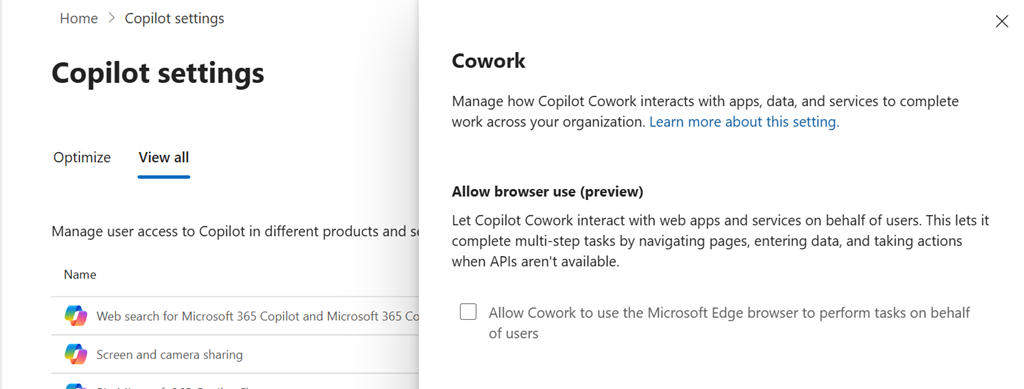
Step 2: Enable Browser Access

Once Cowork is available:

  1. In the Microsoft 365 Admin Center, go to Copilot.

  2. Select Settings.

  3. Choose View all.

  4. Locate the Cowork settings.

  5. Turn on Allow browser access.

  6. Save the changes.

Microsoft notes that Browser Use is turned off by default and must be explicitly enabled by an administrator.

Step 3: Verify User Requirements

Each user must meet the following requirements before Browser Use will work:

  • Have a Microsoft 365 Copilot licence assigned.

  • Have access to Copilot Cowork.

  • Have Microsoft Edge installed.

  • Be running a current version of Edge.

  • Be signed into Edge using the same work or school account used for Copilot.

  • Use Cowork in a supported browser experience rather than an unsupported client. [learn.microsoft.com]
Step 4: Launch Copilot Cowork

The user can then:

  1. Open Microsoft 365 Copilot.

  2. Launch Copilot Cowork.

  3. Enter a request that requires interaction with a website.

For supported tasks, Cowork can use a hidden Microsoft Edge session running on the user’s device to interact with websites and web applications whilst keeping the user within the Copilot conversation experience. [learn.microsoft.com]
Screenshot 2026-07-08 060426

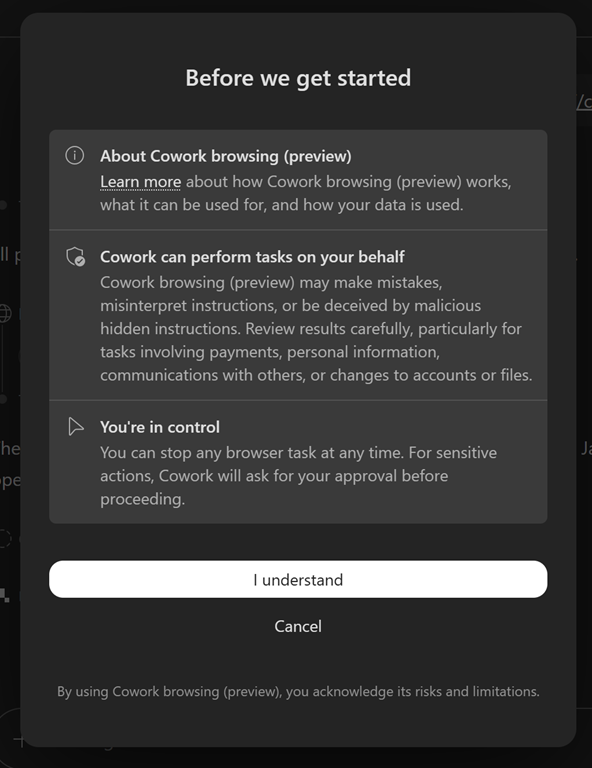
Step 5: Accept First-Run Consent

The first time Browser Use is invoked, users are presented with a consent prompt explaining:

  • Browser Use is currently in preview.

  • The feature can perform actions on the user’s behalf.

  • AI-generated actions may not always be perfect.

  • Sensitive actions may still require user confirmation.

Users must accept this prompt before Browser Use becomes available.

Step 6: Start with Low-Risk Scenarios

My recommendation is to begin with simple information-gathering tasks rather than business-critical transactions. Good examples include:

  • Looking up information in customer portals.

  • Checking ticket or order status.

  • Gathering information from vendor websites.

  • Researching data across multiple web-based systems.

As confidence grows, organisations can gradually expand usage to more complex workflows. This allows users to understand where the technology adds value while maintaining appropriate oversight.

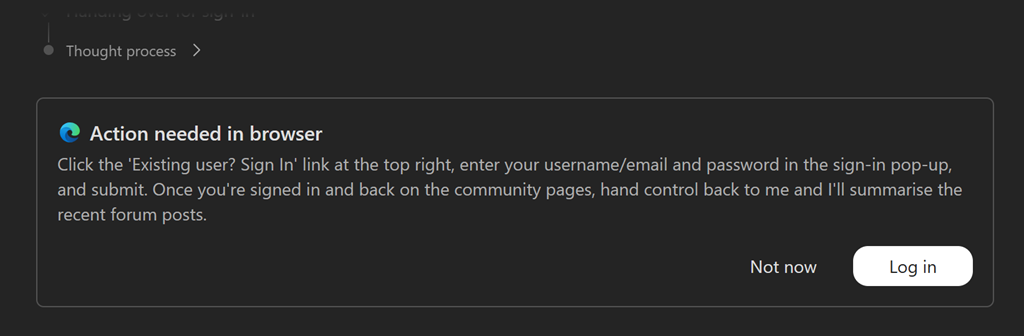
If the process needs assistance while browsing it will pause and you will see something like:
Screenshot 2026-07-08 060945


Practical Tip: If Browser Use isn’t working, check the basics first. In my experience the most common causes are that Cowork billing hasn’t been enabled, Browser Access hasn’t been switched on by an administrator, or the user isn’t signed into Microsoft Edge with the same account they use for Copilot. [learn.microsoft.com]
Use What You Already Have Before Paying for More Copilot

image

One of the things I’m seeing more often now is organisations enabling Copilot Cowork PAYG and then wondering where the consumption costs are coming from.

The assumption seems to be that every AI interaction needs to go through Copilot Cowork and every task needs an agent.

It doesn’t.

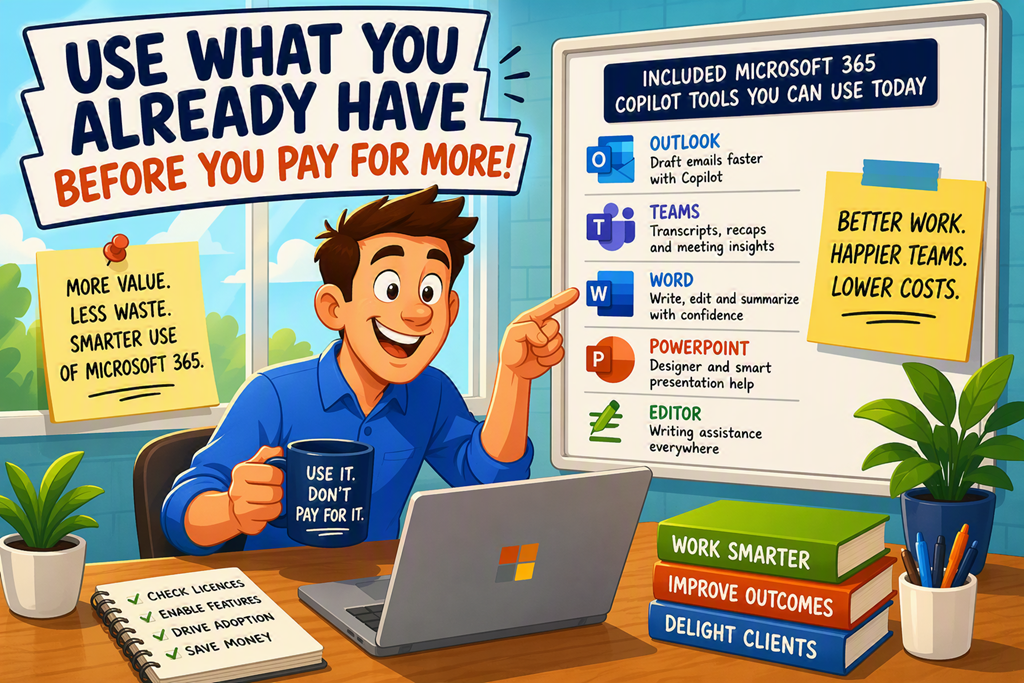
In fact, many Microsoft 365 users already have AI-powered tools sitting in front of them every day that don’t require PAYG consumption at all.

That’s the part many people miss.

The conversation shouldn’t start with “Which AI should I use?”

It should start with “What have I already paid for?”

If you’re not showing clients this, you’re leaving value on the table.

What are the included Microsoft 365 Copilot tools, really?

When most people hear “Copilot”, they immediately think about the chat interface.

That’s only one option.

Microsoft has been embedding AI capabilities throughout Microsoft 365 for years. Features such as Outlook Draft with Copilot, Teams meeting recap, PowerPoint Designer, Editor, transcription, summaries, coaching and intelligent suggestions are already available through various Microsoft 365 subscriptions.

What makes these valuable is that they’re integrated directly into the workflow people already use.

There’s no prompting.

There’s no agent configuration.

There’s no additional consumption model to monitor.

You simply use the feature where the work already happens.

“Isn’t this just a cheaper version of Copilot?”

No. It’s often a more appropriate version of Copilot.

The goal isn’t to generate more AI activity.

The goal is to get better outcomes.

Meet people where they already are.

Step-by-Step: Start with Included AI Features First
Review your Microsoft 365 licensing

Open:

Microsoft 365 Admin Center > Billing > Your products

Before enabling PAYG services, understand exactly what capabilities are already included in your existing licences.

Microsoft regularly updates included features, so it pays to check first.

You can review licence capabilities through the Microsoft Learn documentation for Microsoft 365 Copilot plans and Microsoft 365 subscriptions.

Enable transcription and meeting intelligence

Open:

Teams Admin Center > Meetings > Meeting policies

Many organisations pay for AI-generated summaries while simultaneously disabling transcription.

That makes no sense.

Features such as transcripts, intelligent recap and meeting search often deliver immediate value without users needing to learn anything new.

Microsoft documents these capabilities in Teams meeting recap.

Use Outlook drafting and coaching features

Open:

Outlook > New Email > Draft with Copilot (where available)

Measure before enabling PAYG

Open:

Microsoft 365 Admin Center > Reports

Look at actual adoption.

Who is using the included features?

What problems are being solved?

What tasks genuinely require a custom agent or consumption-based AI service?

Only after answering those questions should additional AI expenditure enter the discussion.

Why this actually changes behaviour

The biggest challenge with AI isn’t usually technology.

It’s habit.

People live in Outlook.

People live in Teams.

People live in Word.

The closer AI gets to those locations, the greater the chance it will actually be used.

That’s why I encourage clients to focus on workflow before features.

A custom agent that nobody uses is not innovation.

It’s a cost centre.

Notice what’s missing?

Prompt training.

Agent management.

Consumption monitoring.

Complex governance discussions.

Those things still matter, but they shouldn’t be the starting point.

My recommendation?

Get users comfortable with the AI capabilities they already have access to first.

Then identify the gaps.

Then determine whether Copilot Cowork PAYG or custom agents genuinely solve a business problem worth paying for.

Too many organisations are starting at the wrong end of the conversation.

Copilot doesn’t get tired. Use that.

But don’t pay for AI to solve a problem that’s already been solved by tools sitting in your Microsoft 365 subscription today.

The real opportunity isn’t more AI.

It’s getting more value from the AI you’ve already paid for.

Before You Buy Microsoft 365 Copilot, Clean Up Your Tenant First

image

One of the biggest mistakes I continue to see with Microsoft 365 Copilot is treating the licence purchase as the project.

It’s not.

The licence is the easy part. The hard part is making sure the information Copilot can access is actually worth finding.

Copilot doesn’t create information. It exposes what already exists.

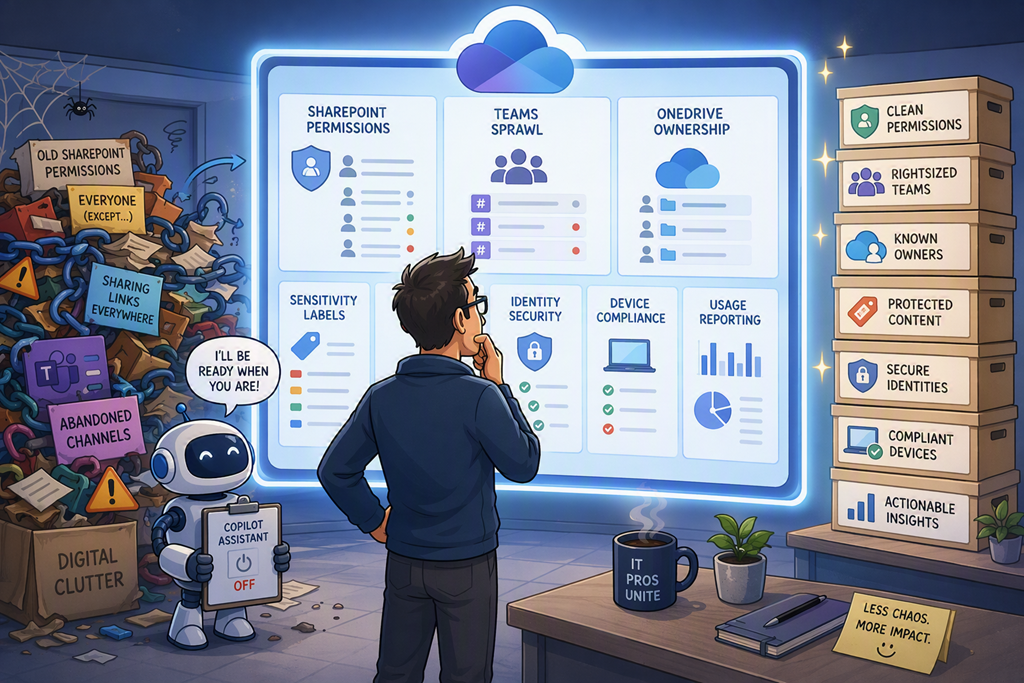
If your tenant is messy, overshared and unmanaged, Copilot simply helps users find the mess faster.

What is Microsoft 365 Copilot readiness, really?

Most people think readiness is about licences, supported apps and technical prerequisites.

That’s not readiness. That’s procurement.

Real readiness means asking whether your Microsoft 365 environment contains information that is organised, secured and governed well enough for AI to work across it. Microsoft talks about defining your strategy, protecting sensitive data and checking readiness before rollout in its Microsoft 365 Copilot rollout guidance.

Copilot works across the data users already have access to. That should make every MSP pause.

Because if users already have access to content they shouldn’t, Copilot won’t politely ignore it. It will work with the permissions you’ve given it.

Step-by-Step: Review your tenant before assigning licences
Audit SharePoint permissions

Start with SharePoint.

This is where a lot of the Copilot value lives, and it’s also where many of the surprises hide.

Review high-value sites, external sharing, broad groups, anonymous links and old project workspaces. Microsoft has specific guidance around building a secure and governed data foundation for Copilot, including oversharing remediation and guardrails.

Notice what’s missing?

Most SMB tenants have never had a proper SharePoint permissions review.

Review OneDrive ownership

Every OneDrive is effectively a knowledge repository.

Look for departed staff, abandoned content, sensitive folders and business-critical files that only one person controls.

Copilot won’t know whether that file belongs in a managed SharePoint library instead. It will simply see information the user can access.

Clean up Teams sprawl

Open the Teams admin centre and look at inactive teams, duplicated teams and channels nobody owns.

If humans can’t tell which Team contains the source of truth, don’t expect Copilot to magically understand your operating model.

“We thought Copilot was giving bad answers.”

In many cases, the tenant was giving bad data.

Review sensitivity labels

If you use Microsoft Purview, check whether sensitivity labels exist, whether they’re published to the right users and whether people understand them.

Sensitivity labels are not decoration. They classify and can protect organisational data across Microsoft 365, as Microsoft explains in its sensitivity labels documentation.

Keep labels simple.

A label nobody understands is just another button nobody presses.

Check retention and stale content

Old content is not harmless just because storage is cheap.

Review retention policies, old libraries, archived Teams and documents that should no longer be active reference material.

Copilot can make stale content visible again.

That’s not intelligence. That’s exposure.

Validate identity and device controls

Before assigning Copilot licences, review MFA, Conditional Access, privileged accounts and device compliance.

This is where SMBs often underinvest.

They buy the AI licence, but the tenant still has weak identity hygiene and unmanaged devices.

That’s backwards.

Decide how you’ll measure usage

Don’t wait until renewal time to ask whether Copilot is working.

Set expectations early. The Microsoft 365 admin centre includes a Microsoft 365 Copilot usage report for adoption and usage metrics.

That matters because licence assignment is not adoption.

A user having Copilot and a user changing the way they work are two different things.

Why this actually changes behaviour

Here’s the real win.

A Copilot readiness review improves the tenant even before you assign the first paid licence.

Permissions get cleaned up.

Teams become easier to navigate.

Content ownership improves.

Old information gets archived.

Security conversations become practical instead of theoretical.

Copilot doesn’t get tired. Use that.

But don’t ask it to compensate for years of neglected governance.

The best Copilot deployments I’ve seen don’t start with a licence order. They start with a conversation about data, access and outcomes.

My recommendation?

Treat Copilot readiness as an MSP service, not a pre-sales checklist.

If you’re not showing clients what Copilot might expose before they pay for it, you’re leaving value on the table.

Microsoft 365 Copilot isn’t there to fix a messy tenant.

It’s there to make a well-run tenant dramatically more useful.

Creating a Digital Twin of Your Business

image

When most people hear “digital twin”, they picture an engineer running a virtual copy of a jet engine, or watching a simulated factory floor hum along on a screen. It sounds like something built for heavy industry, a long way from a business that runs on email, spreadsheets and the occasional frantic search through old files. I’ve come to think the idea fits an ordinary organisation just as well — and that most of us are far closer to having one than we’d assume. The raw material is already sitting there. We’ve just never thought of it in those terms.

A digital twin of a business isn’t a 3D model. It’s a living representation of how your organisation actually thinks: the decisions it has made, the reasons behind them, the way a job quietly moves from one person to the next. That knowledge already exists. The problem is that it’s scattered. Some of it sits in SharePoint, some in a Teams thread nobody has opened in a year, some buried in a colleague’s sent items — and an uncomfortable amount lives only inside one person’s head.

You already own the knowledge

A while back I watched someone spend half a morning answering a question their business had already answered twice. The work existed. It simply couldn’t be found quickly enough, so they built it again from nothing. That’s the everyday cost of not having a twin you can talk to. You’re not short of information. You’re short of a way to ask your own business what it already knows.

This is where Copilot starts to shift things. Connected across your Microsoft 365 tenant, it lets you put a question in plain language and pulls the thread together for you. Ask why a particular client moved onto a different plan, and Copilot can surface the Outlook email where it was decided, the meeting where it was thrashed out, and the document that recorded the outcome. A new staff member can ask it how something is normally done and get an answer drawn from real history, not folklore. You stop hunting for a file and start interrogating your own past.

The twin is only as good as what you feed it

This is where most businesses come undone. If a decision gets made on a phone call and never written down, the twin can’t see it. If the reasoning lives only in someone’s memory, it isn’t in the model. So the habit worth building is unglamorous but powerful: put decisions somewhere Copilot can reach. Keep the Teams meeting recap instead of letting it disappear. Write the why into the document, not just the what. Treat a SharePoint page or a Loop component as the place your thinking genuinely lives, rather than a tidy-up job for later.

None of that is technical work. It’s a discipline — choosing to treat your own knowledge as something worth keeping, instead of something you’ll cobble back together under pressure when you next need it.

What it actually buys you

I don’t think the goal is a perfect replica. No model captures everything, and you wouldn’t want one that tried. But a business that can answer its own questions — one that remembers why it did things — moves faster and argues less. It brings new people up to speed sooner. It stops relitigating decisions that were settled months ago.

The pieces are already sitting in your tenant, waiting to be connected. What I’m watching now is which businesses bother to feed the twin, and which keep solving the same problem every Tuesday morning, none the wiser for having solved it before.

CIAOPS AI Dojo 14

image

What’s the session about?

This month we will be focusing on new Copilot Cowork features and updates as well as optimising AI for Small Business.

Who should attend?

This session is perfect for:

  • IT administrators and support staff
  • Business owners
  • People looking to get more done with Microsoft 365
  • Anyone looking to automate their daily grind

Save the Date

Date: Friday the 31st of July 2026

Time: 9:30 AM Sydney AU time

Location: Online (link will be provided upon registration)

Cost: $80 per attendee (free for Dojo subscribers)

Register Now

The AI Toolkit Monetization Strategy: Building Enterprise Value with Microsoft Technologies

image

I’ll start with something that won’t win me any friends at the next AI meetup: owning the cleverest AI tool in the room won’t make you a cent. Not the model, not the agent, not the prompt you spent a weekend perfecting. I’ve watched a lot of people fall in love with the technology and then wonder why the invoices aren’t getting any bigger. The uncomfortable truth is that nobody pays for tools. They pay for problems disappearing.

Think about a carpenter for a moment. A carpenter doesn’t get wealthy selling you a single hammer off the back of the ute. They get paid because they walk onto a site, look at a house that needs building or a roof that’s letting the rain in, and they know exactly which tool to reach for and when. The hammer matters, but only because of the hand holding it and the job it’s pointed at. That’s the mindset I think anyone serious about AI needs to adopt — and if your organisation already lives inside the Microsoft cloud, you’ve quietly been handed a very good toolkit. Most people just haven’t worked out how to pick it up.

The hammer: Copilot and Azure OpenAI

The language model is your hammer. It’s the tool you swing by hand, and it’s genuinely powerful — but it does what you tell it, no more. In the Microsoft world that’s Microsoft Copilot sitting across your Outlook, Word and Teams, with Azure OpenAI underneath when you need to build something bespoke.

Here’s where most people get it wrong: they treat Copilot like a fancier search box. They type a vague half-question, get a vague half-answer, and conclude the whole thing is overhyped. The people getting real value approach it with a bit of discipline. The way I think about it is four steps — mission, ask, parameters, shape.

Start with the mission: the business outcome, not the chore. Don’t ask Copilot to “find me some leads.” Tell it you need thirty new enterprise clients this quarter to hit a revenue target. Then comes the ask — one sharp, specific request, like pulling together forty qualified IT directors in healthcare with their contact details. Then parameters — the context and the guardrails. This is where Copilot in Microsoft 365 earns its keep, because you can point it straight at the files in your SharePoint or OneDrive so it’s reasoning over your data, not a guess about the world. A tip I lean on constantly: dictate your context rather than typing it. The voice option in Copilot lets you talk through the background in thirty seconds, and you talk far faster than you type. Finally, shape — tell it the format you want. A clean table, a CSV you can drop into Excel, a tight bulleted summary. Stop reformatting things by hand like it’s 2015.

The screwdriver: Power Automate

A hammer needs a fresh swing every single time. The moment you find yourself doing the same AI-assisted task over and over, you’ve outgrown it. That’s when you reach for the screwdriver — automation — and in the Microsoft stack that’s Power Automate with AI Builder doing the heavy lifting.

The shift here is subtle but enormous. Instead of opening Copilot every morning to run the same prompt, you build a flow once and let it run on a schedule or off a trigger, quietly, in the cloud, forever.

Not everything deserves a flow, though, and this is where people burn weeks they’ll never get back. I run three quick tests before building anything. Is it repetitive — happening at least weekly, ideally daily? Is it rule-based, with predictable inputs and a predictable result? And does it actually pay back — does the time saved over a year dwarf the time spent building it? Don’t spend sixty hours constructing a flow that rescues someone two minutes a week. That’s not automation, that’s a hobby.

A example I like: a sales call recording lands in a Teams channel. Power Automate sees it, AI Builder pulls the transcript, reads the sentiment, drops the action items straight into Dynamics 365, and posts a tidy weekly summary back into the leadership channel in Teams. Nobody touched it. That’s the screwdriver doing its job.

The power drill: Copilot Studio

Then there are the jobs where you don’t want to define the steps at all — you just want the outcome. That’s the power drill, and Microsoft’s answer is Copilot Studio, where you build agents that handle whole processes on their own.

With the hammer and the screwdriver, you’re still drawing the map. With an agent, you describe the destination and let it find its own way through the subsystems. The trick to doing this without disaster is what I’d call staying on the loop rather than in it. Pick a genuinely meaty workflow — vendor onboarding end to end, say, from reading the invoice email, to cross-checking your Dataverse tables, to running compliance, to setting up billing. Then, and this is the hard part, don’t keep grabbing the wheel. Let it run.

Two habits make this safe. First, have agents check each other — a builder agent in Copilot Studio writes a script, and a separate reviewing agent picks it apart for security gaps before anything reaches a human. Second, watch for drift. An agent grinding away over hours or days can slowly lose the plot, so your role becomes the manager who inspects, resets the context when it wanders, and keeps it pointed at the goal.

The orchestrator gets paid

Here’s the part that actually moves the money. Owning these three tools doesn’t make you rich. Conducting them does. The orchestrator is the one who looks at a bleaking supply chain or a drowning support desk and reaches across the whole Microsoft AI toolkit — Copilot, Power Automate, Copilot Studio — to make the pain stop.

Your clients don’t lie awake wondering whether you used GPT-4o through Azure or a Copilot Studio agent. They lie awake about their costs. Solve that, and the technology underneath becomes a footnote. Problems are where the value lives.

So the real shift isn’t learning another tool. It’s moving from doing the work to directing it. Step back, find the problem worth solving, and orchestrate the kit you already own.

Outlook Draft Instructions vs Microsoft 365 Copilot Personalization — what’s the difference and which takes priority?

image

I see a lot of people trying out Microsoft 365 Copilot for Outlook, then asking why the emails it drafts don’t sound like them. Many end up manually tweaking every email Copilot writes, thinking it’s unavoidable.

“Why does Copilot always add ‘I hope you’re well’? I’m spending more time editing than drafting!”

Sound familiar? That’s not a failure of Copilot. That’s a missed opportunity. If you keep re-teaching Copilot your style every time you use it, you’re doing it wrong. The solution: set up the right instructions once, so Copilot learns how you want your emails written from the start.

What are Outlook Draft Instructions and Copilot Personalization, really?

Think of them as layers of guidance for Copilot. Outlook Draft Instructions are your email-specific preferences stored in Outlook. They’re all about how your email drafts should look: friendly vs formal tone, how long or detailed to make messages, whether to use bullet points, how to greet people, the sign-off you prefer—basically, how to sound like you in email (https://support.microsoft.com/outlook/copilot-outlook/ask-copilot-to-make-email-drafts-sound-like-you).

By contrast, Microsoft 365 Copilot Personalization is your global Copilot profile—the custom instructions and memory that apply across all Copilot experiences in Microsoft 365 (Word, Outlook, Teams, etc.), not just email. These personalization settings let Copilot know your role, typical audience, and general communication style so it can tailor any response, in any app, closer to what you need (Customize how Microsoft 365 Copilot responds to you).

Put simply: Draft Instructions tell Copilot how to handle your emails, while Copilot Personalization defines how Copilot behaves everywhere. And there’s no mystery about which one takes priority. When you click Draft with Copilot in Outlook, here’s the order in which Copilot follows your instructions:

  • Your prompt (highest priority): Anything you explicitly ask for (tone, style, language, etc.) in the prompt overrides everything else.

  • Outlook Draft Instructions: Your app-specific email defaults; used whenever your prompt doesn’t override them.

  • Global Copilot Personalization: Your general preferences fill any gaps not covered by your prompt or Outlook’s instructions.

  • Organizational policies: These always apply for compliance and safety (e.g. Data Loss Prevention (DLP) blocking sensitive info) but they don’t affect writing style.
Step-by-Step: Fine-tune Copilot for your email style
Open Outlook’s Copilot Draft Instructions

To set this up, you’ll need the new Outlook (or Outlook on the web) since the feature isn’t in classic Outlook’s UI. In the new Outlook on Windows or web, click the Copilot icon in the compose window. From the dropdown, select Settings, then click Draft Instructions.

Add your email style preferences

Turn on Use custom instructions when drafting email. Now type a short description of how you want Copilot to draft your emails. Be specific about tone, structure, greetings, and sign-offs. Do you prefer concise messages or detailed ones? Formal language or a friendly vibe? For example, you might write:

Use a friendly tone.
Start each email with "Hi [Name],".
Avoid corporate jargon and fluff.
Sign off with "Thanks, [Your Name]".

Notice what’s missing? We didn’t mention anything about length or level of detail in those instructions. That’s on purpose – if you leave something out here, Copilot will fall back to your global Personalization settings to fill in the blanks.

Set global Copilot Personalization

Next, open your Microsoft 365 Copilot settings (for example, in the Copilot Chat app or via the Copilot sidebar in any Office app). Go to Settings and select Personalization. Under Custom instructions, add broad guidance about yourself and your style that should apply everywhere. Tell it who you are and how you like your output across Microsoft 365. For instance, “I’m a small business owner writing for busy clients, so keep everything concise and professional.” Save your instructions.

Why this changes how you email

Once you’ve set up these preferences, you’ll stop fighting with Copilot’s tone and phrasing. Instead of manually fixing greetings or trimming fluff each time, you get drafts that fit your style on the first try. It’s like hiring an assistant who already knows your voice—from day one.

Better yet, showing your clients how to configure these settings is an easy win. It reduces their frustration with generic AI output, boosts their trust in Copilot, and makes you look like a trusted advisor. If you’re not helping them set their Copilot’s style, you’re leaving a lot of value on the table.

Copilot’s drafting preferences aren’t about adding complexity – they’re there to remove it.

Set them up once, and you can stop rewriting Copilot’s emails and start reaping the benefits of an AI that truly sounds like you.

The Most Important Part of Productivity Is the Product

image

I had a conversation last week that’s stuck with me. Someone was describing their week — back-to-back meetings, an inbox wrestled down to zero, a colour-coded calendar that would make a project manager weep with joy. They were exhausted and, oddly, proud of it. So I asked a simple question: what did you actually make? Long pause. The honest answer was “not much.” A full week of motion, and almost nothing to show for it.

We’ve quietly redefined productivity to mean busyness. How fast you reply. How many minutes you squeeze from a day. How efficiently you move between tasks. But strip the word back and the heart of it isn’t the activity — it’s the product. The thing that exists now that didn’t exist on Monday morning. The proposal that’s written. The decision that’s made. The client problem that’s solved. Everything else is just noise around the signal. We measure the noise because it’s loud and easy to count. The signal is quieter, and it’s the only part that actually matters.

Motion is easy to measure. Output is the hard part.

The reason we drift toward efficiency is that it’s comfortable. You can count emails sent and meetings attended. You feel the satisfaction of a tidy inbox. But none of those are products — they’re scaffolding. I’ve watched people spend an entire afternoon “getting organised” and call it a good day’s work, when really they just rearranged the furniture. The week looked productive. Nothing was produced.

This is where I think Copilot changes the conversation, and not in the way the marketing suggests. The point isn’t that it makes you faster at the busywork. It’s that it takes the busywork off the table, so what’s left is the actual product. When I ask Copilot in Outlook to summarise a long thread and draft the reply, I haven’t saved twenty minutes — I’ve removed a task that was never the point. The reply was never my product. The thinking behind it was.

Spend the time you save on something worth showing.

That’s the part people miss. The danger isn’t that Copilot does the low-value work — it’s what you do with the gap it opens up. If Copilot pulls your meeting notes and action items together in Teams, and you spend that reclaimed hour clearing three more emails, you’ve efficiency-ed yourself in a circle. But if you use it to write the strategy document you’ve been avoiding, or to think properly about a client’s problem in Word with Copilot helping shape the argument, the tool has earned its place. Or you point Copilot at a messy spreadsheet in Excel, ask it what the numbers are really saying, and walk into the meeting with an answer instead of a pile of data. The output, not the speed, is the scorecard.

I’ve started asking myself a blunt question at the end of each day, and I’d suggest you try it. Not “was I busy?” — I’m always busy. The question is: what can I point to? What did I produce that someone else could pick up, use, or judge? Some days the answer is a single solid thing, and that beats a day filled with forty small tasks that vanish the moment they’re done.

Copilot has made me more honest about this, because once the friction is gone, you can’t hide behind it. The empty afternoon is exposed for what it is. That’s the real shift worth watching — not doing things faster, but finally being able to ask whether the thing was worth doing at all.