
I see a lot of people trying out Microsoft 365 Copilot for Outlook, then asking why the emails it drafts don’t sound like them. Many end up manually tweaking every email Copilot writes, thinking it’s unavoidable.
“Why does Copilot always add ‘I hope you’re well’? I’m spending more time editing than drafting!”
Sound familiar? That’s not a failure of Copilot. That’s a missed opportunity. If you keep re-teaching Copilot your style every time you use it, you’re doing it wrong. The solution: set up the right instructions once, so Copilot learns how you want your emails written from the start.
What are Outlook Draft Instructions and Copilot Personalization, really?
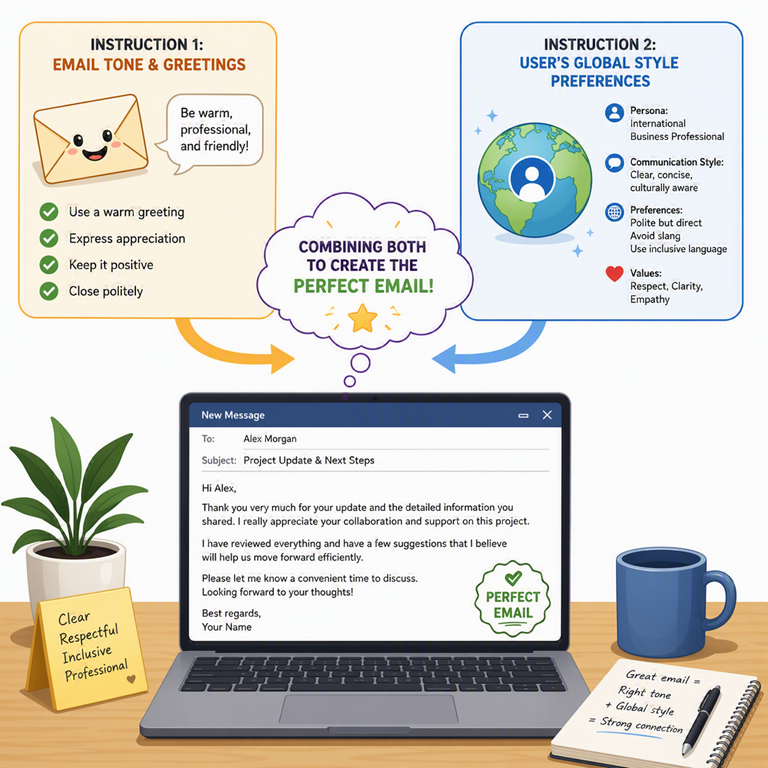
Think of them as layers of guidance for Copilot. Outlook Draft Instructions are your email-specific preferences stored in Outlook. They’re all about how your email drafts should look: friendly vs formal tone, how long or detailed to make messages, whether to use bullet points, how to greet people, the sign-off you prefer—basically, how to sound like you in email (https://support.microsoft.com/outlook/copilot-outlook/ask-copilot-to-make-email-drafts-sound-like-you).
By contrast, Microsoft 365 Copilot Personalization is your global Copilot profile—the custom instructions and memory that apply across all Copilot experiences in Microsoft 365 (Word, Outlook, Teams, etc.), not just email. These personalization settings let Copilot know your role, typical audience, and general communication style so it can tailor any response, in any app, closer to what you need (Customize how Microsoft 365 Copilot responds to you).
Put simply: Draft Instructions tell Copilot how to handle your emails, while Copilot Personalization defines how Copilot behaves everywhere. And there’s no mystery about which one takes priority. When you click Draft with Copilot in Outlook, here’s the order in which Copilot follows your instructions:
- Your prompt (highest priority): Anything you explicitly ask for (tone, style, language, etc.) in the prompt overrides everything else.
- Outlook Draft Instructions: Your app-specific email defaults; used whenever your prompt doesn’t override them.
- Global Copilot Personalization: Your general preferences fill any gaps not covered by your prompt or Outlook’s instructions.
- Organizational policies: These always apply for compliance and safety (e.g. Data Loss Prevention (DLP) blocking sensitive info) but they don’t affect writing style.
Step-by-Step: Fine-tune Copilot for your email style
Open Outlook’s Copilot Draft Instructions
To set this up, you’ll need the new Outlook (or Outlook on the web) since the feature isn’t in classic Outlook’s UI. In the new Outlook on Windows or web, click the Copilot icon in the compose window. From the dropdown, select Settings, then click Draft Instructions.
Add your email style preferences
Turn on Use custom instructions when drafting email. Now type a short description of how you want Copilot to draft your emails. Be specific about tone, structure, greetings, and sign-offs. Do you prefer concise messages or detailed ones? Formal language or a friendly vibe? For example, you might write:
Use a friendly tone.
Start each email with "Hi [Name],".
Avoid corporate jargon and fluff.
Sign off with "Thanks, [Your Name]".
Notice what’s missing? We didn’t mention anything about length or level of detail in those instructions. That’s on purpose – if you leave something out here, Copilot will fall back to your global Personalization settings to fill in the blanks.
Set global Copilot Personalization
Next, open your Microsoft 365 Copilot settings (for example, in the Copilot Chat app or via the Copilot sidebar in any Office app). Go to Settings and select Personalization. Under Custom instructions, add broad guidance about yourself and your style that should apply everywhere. Tell it who you are and how you like your output across Microsoft 365. For instance, “I’m a small business owner writing for busy clients, so keep everything concise and professional.” Save your instructions.
Why this changes how you email
Once you’ve set up these preferences, you’ll stop fighting with Copilot’s tone and phrasing. Instead of manually fixing greetings or trimming fluff each time, you get drafts that fit your style on the first try. It’s like hiring an assistant who already knows your voice—from day one.
Better yet, showing your clients how to configure these settings is an easy win. It reduces their frustration with generic AI output, boosts their trust in Copilot, and makes you look like a trusted advisor. If you’re not helping them set their Copilot’s style, you’re leaving a lot of value on the table.
Copilot’s drafting preferences aren’t about adding complexity – they’re there to remove it.
Set them up once, and you can stop rewriting Copilot’s emails and start reaping the benefits of an AI that truly sounds like you.

