Capturing ALL Microsoft Secure Score items

image

Ok, so you are telling me you have time on your hands and want to improve the security of your Microsoft 365 tenant? Ok, if you are only kind of serious, I’d tell you to go to:

https://security.microsoft.com/securescore

and select the Improvement actions as shown above.

image

That will show you a filtered view of items based on what hasn’t yet been completed in the tenant. In the case above, that equates to 67 items.

Oh, you want more to do you say?

image

Ok, if you remove that filter you’ll see the number in the list increase. In this case up from 67 to 84. That’s 36% increase in things you can address. Enough?

What? You want even more? Are you sure? Really sure?

image

Well, if you are, then the good news is that I have written a script for you that uses the Microsoft Graph to go in and grab all, and I mean ALL, of the secure score items. You’ll find the script in my Office 365 GitHub repo:

https://github.com/directorcia/Office365/blob/master/o365-ssdescpt-get.ps1

Now before you run this scripts, you’ll need to follow the instructions I have written about before:

Access the Microsoft Graph with a script

and set yourself up an OAuth token to access your tenant. You only need to do this once.

You’ll then need enter the values from this configuration into the script prior to running it:

image

You get these three items from the oAuth token set up I set out.

image

When run, the script will connect to the Microsoft Graph and start reading information from the Secure Score of YOUR tenant. It will also save the output to a text file in the parent directory. Why you ask?

SNAGHTML20f6be5

Well, as you can see from the output from my tenant above, there are now potentially 6,972 items that I can go look at and configure to make my tenant more secure. That’s a 8,200% increase in things to keep you busy.

Remember, you did ask for more after all.

Connecting to Exchange Online with Azure Cloud Shell

I’ve written previously about

Azure Cloud Shell

and how handy it is when it comes to connecting to your tenant with PowerShell. What you may not realise is that you can also Azure Cloud Shell to connect to Exchange Online! All you need to do once you have launched Azure Cloud Shell is run the command:

connect-exopssession

image

As you can see from the above where I have connected and then used the command get-mailbox inside Azure Cloud Shell.
image

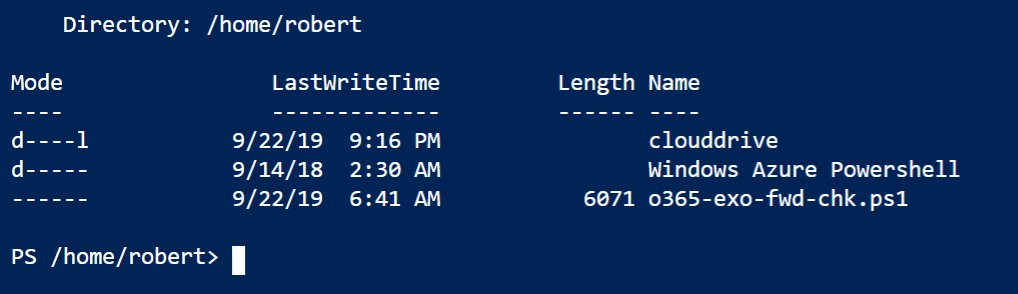
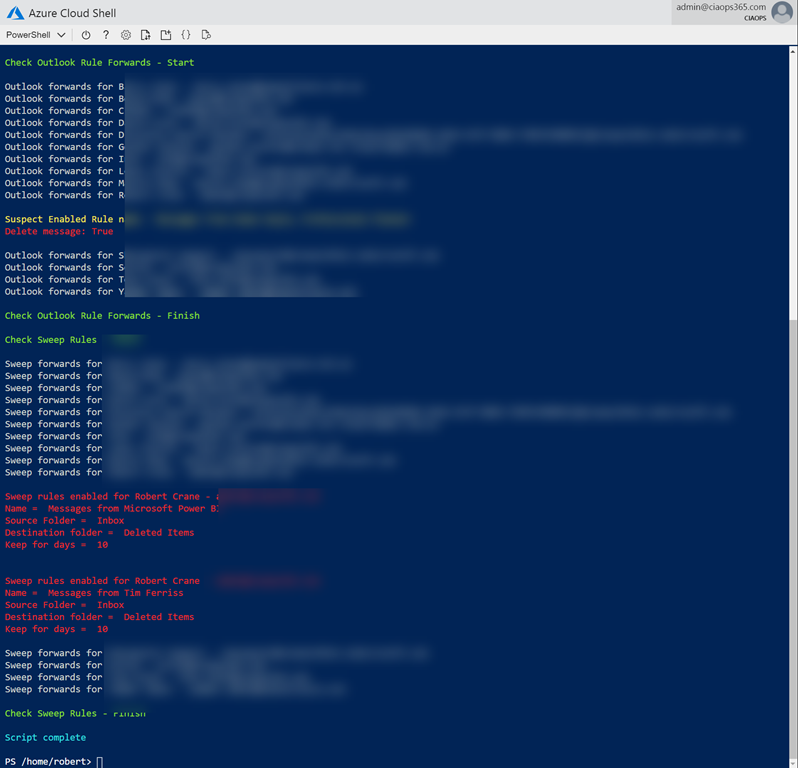
This now means you could copy my mailbox forwarding checking script:

https://github.com/directorcia/Office365/blob/master/o365-exo-fwd-chk.ps1

into your Clouddrive that is part of Azure Cloud Shell and run it.

image

And thanks to Clouddrive it will be there next time you use Azure Cloud Shell. Handy eh? If you want to learn about this capability, visit:

Azure Cloud Shell now supports Exchange Online

New Safe Links option

An eagled eye CIAOPS Patron spotted this new option in Office 365 ATP Safe Links:

image

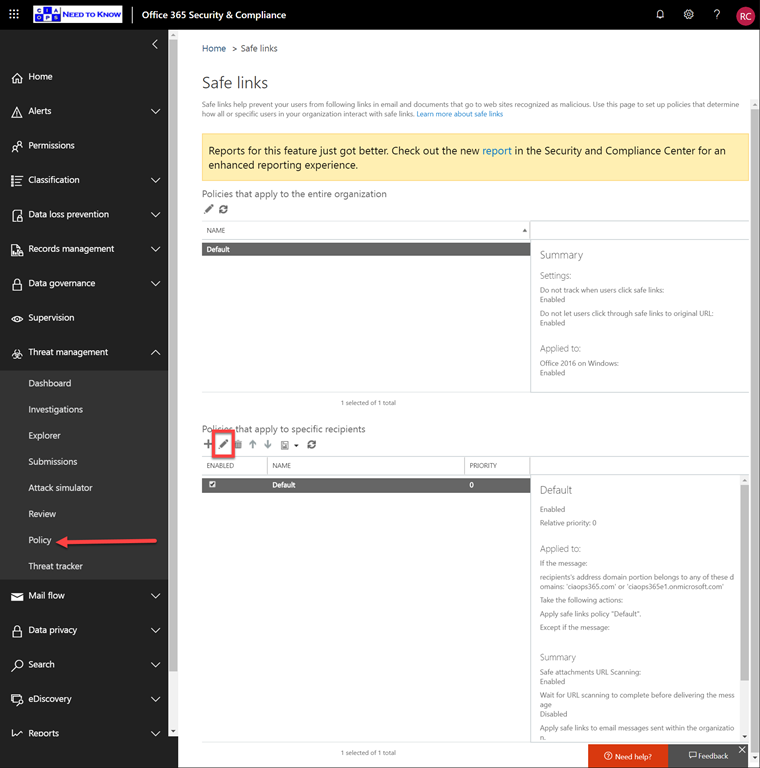
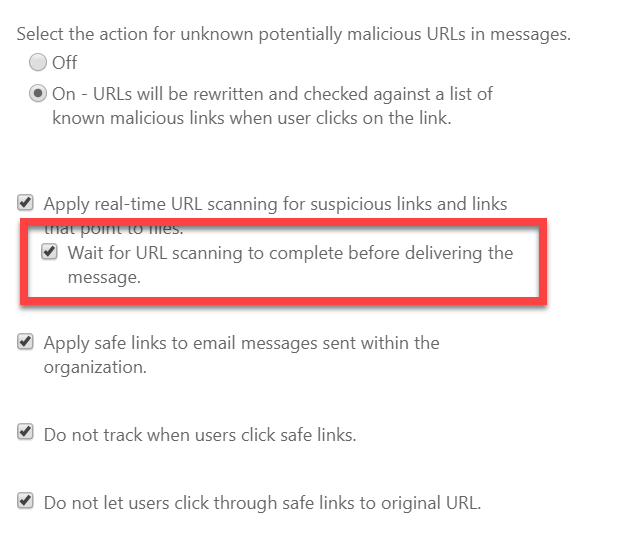
Wait for URL scanning to complete before delivering the message

image

You get to this via the Security and Compliance Centre, Threat Management, Policy, Safe Links. You then select the lower policy option as shown above.

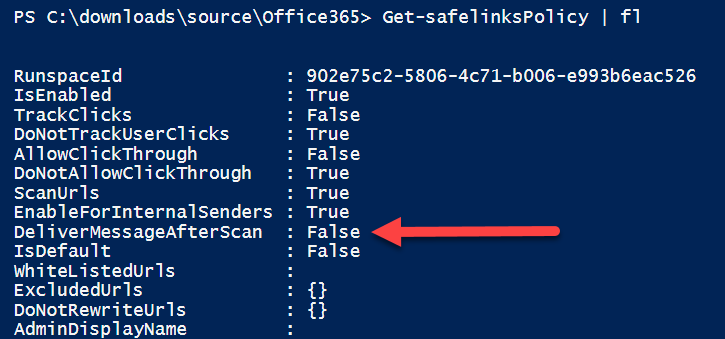
I had a look at the PowerShell for this policy:

image

Indeed, there is now an option:

delivermessageafterscan

as shown above.

Interestingly, there is no mention of this option yet in the:

Set-SafeLinksPolicy

documentation. So I thought I’d try adding it to the existing policy anyway.

image

No error, which is a good sign.

image

Checking back in the GUI, you can now see that option is set.

So, there is now a nice new shiny option that you can set Office 365 ATP Safe Links to prevent a message being delivered to an end user until the links have been fully checked. This now matches the policy option for safe attachments. You can also set this option via PowerShell.

Not all characters are created the same

image

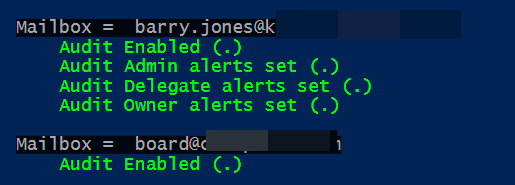
I was up late doing some PowerShell coding to set alerts on mailboxes in Microsoft 365 and I had everything working nicely as you can see above. At this stage I was just using the standard PowerShell ISE to execute the code.

I had also been updating the code with Visual Studio Code so I could then push it up to my GitHub repositories. Just before call it quits I now ran the scripts directly from the command prompt which is where the Visual Studio Code version had been saved. In essence, at the command prompt, I ran:

.\o365-mx-alert-set.ps1

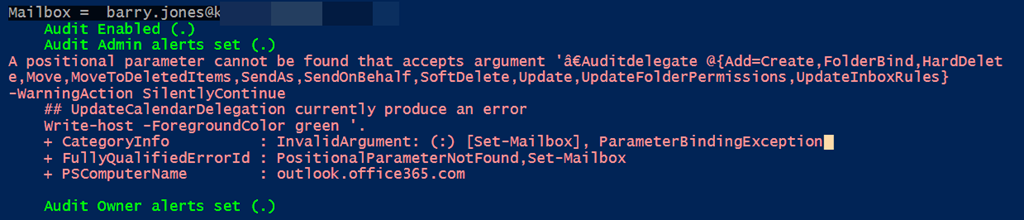
When I did this I now received the following error:

image

How is that possible? The code on the disk via Visual Studio Code is exactly the same as the code I had been working with directly in the PowerShell ISE. I don’t understand why I am getting this error.

I spent quite a long time trying to resolve the issue but to no avail. Out of desperation, the following morning,  I contacted PowerShell guru Elliot Munro from GITS for help.

Long story short, Elliot pointed out that from the error it appeared to be:

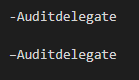
an issue with the em dash character, the one in front of AuditDelegate is a different dash compared to the other parameters ( – instead of – ). I guess running it from the command line doesn’t automatically convert it to the standard dash like ISE does.

BINGO we have a winner. Changing the dash to the “right” one fixed that problem immediately! Elliot, you are a legend and life saver.

image

As you can see from the above, there is very slight difference in the dash at front of the parameter. The top one is the one that works, the bottom one is the one that causes the error. No much in it eh? However, that was all it took to waste a few hours of my time late at night looking for an answer.

Hopefully, this article get found by others who may have the same issue and error in PowerShell and I can ‘pay forward’ Elliot’s assistance.

Use PowerShell to get site storage usage

One of the challenges for IT Pros when managing the online collaboration world of SharePoint Online and OneDrive for Business in Microsoft 365, is getting a quick overview of things like storage usage across their environment. In the gold ol’ days you’d just using Windows Explorer or something similar, but in the Microsoft 365 world these tools are not ‘online’ aware.

Thankfully, it is PowerShell to the rescue here again! What you can do is is basically grab all the SharePoint and OneDrive for Business Sites and look at a property called StorageUsageCurrent. Thus,

$sposites=get-sposite
$sposites.storageusagecurrent

will firstly get all the SharePoint sites and then display the storage usage of each in MB. However, that is a bit basic. What you really want is something like this:

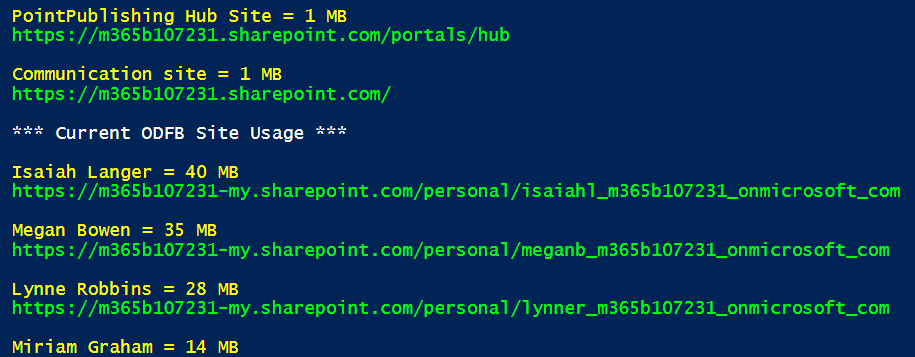
image

for you SharePoint sites and and a separate group for your OneDrive for Business sites like this:

image

You might also notice that they are also sorted in descending order, from largest to smallest.

The good news is that I have done all that hard work for you and made the script available in my GitHub repo here:

https://github.com/directorcia/Office365/blob/master/o365-spo-getusage.ps1

The only thing that you need to do before running the script is to connect to SharePoint Online using PowerShell as an administrator.

Don’t forget there are also plenty of other handy scripts in my GitHub repo which get updated regularly. So, make your admin life easier and use what I have already created rather than re-inventing the wheel.

Key skills for an IT Professional

accuracy-action-active-433077

If you are an IT professional working in with Microsoft 365 then I would suggest the following are the top five skills that you need to have to be successful going forward. My pick, in order is:

1. PowerShell

2. Azure AD

3. Security

4. Intune

5. SharePoint

and here’s why:

PowerShell

PowerShell gives you the ability to script commands for both cloud and on premises Microsoft services. There are many things you can also only do using PowerShell, however more importantly, you can begin to automate what you do. This reduces the time it takes to complete processes as well as giving more consistent results. It also means that you can potentially offload these tasks to others who only need to know how to run the scripts you have created not understand what they entail.

I also find that understanding the PowerShell side of a process gives you a a much deeper understanding of that process and what is possible. I also think that having to do a bit of coding is a benefit to everyone. It helps you to think more logically, plan and structure what you want to achieve. You however don’t need to become a developer, it is easy to CTL-C and CTRL-V good scripts from various places and integrate them into your processes while making a few changes along the way. You can go as deep as you wish and create really amazing scripts that really make life in IT so much easier, while allowing you to do your job faster.

Remember, software will eat the world.

Azure AD

Identity is key to our modern world. You don’t get access to “stuff” until you prove who you are. Importantly, Azure AD is not the same a traditional on premises Active Directory. It is a subset, where the additional options can be added as needed. However, you need a good understanding of where a user’s primary identity is and how it is managed and secured in the cloud. Without this fundamental knowledge you are really going to struggle to understand things like modern device management and security.

All Microsoft services are underpinned by identity and Microsoft cloud services are underpinned by Azure AD. Thus, to administer, configure, troubleshoot these you need a good understanding of Azure AD.

Security

With so much of our assets now being digital, protecting them is paramount. We need to do this in a way that doesn’t inhibit productivity and that is a real challenge. Poor security to me indicates a fundamental lack of knowledge about the products in question. It also demonstrates a lack of discipline and consistency which are the hallmarks of your adversaries out there trying to gain access to systems you protect.

Security will never be an absolute and that makes it hard for many “IT types” to deal with who like to have a tangible end goal. There is not a finite end point with security, there is simply an ongoing challenge to stay one step ahead of the bad actors. Some see that as a burden while the true security professional sees it as a challenge. The protection of our future lies with good security and the challenges that brings. It therefore, will be a skill that will be in continuing high demand.

Intune

As mentioned, Azure AD doesn’t contain the same resources that on premises Active Directory did. The best example of this is probably Group Policy, which is something that Azure AD does not incorporate. To a large extent, that is now handled by Intune and this why it is such an important skill going forward for IT Professionals to become skilled with. It can also be implemented using things like PowerShell, which again goes to the point of how important this list of skills is across all Microsoft services today.

A key factor with Intune is its ability to configure mobile devices. This is something traditionally IT Professionals have not been able to do. However, with the growing numbers of mobile devices in use and their criticality to businesses of every size, it is now more important than ever to be able to easily configure and secure them directly from the Internet.

SharePoint

Most IT Professionals have some skill or familiarity with Exchange and emails which easily translates to services like Exchange Online. However, when it comes to files and folders in the cloud the service of choice is going to be SharePoint, for which there are a decided lack of skills even though SharePoint has been with us for many years now. As I have spoken about many, many time here, SharePoint is more than just simple storage, it is a collaboration system and needs to be approached in that manner to get the most from it. Not doing so results in lots of pain for both administrators and end users.


So there you have it. If I had to pick five skills in order that characterise a modern IT Professional, these would be they. You don’t need to be an elite ninja in each but likewise you can’t remain ignorant of them. if you work with Microsoft cloud technologies you should be familiar and comfortable with them all. If not, then you need to start investing some time and learning them because they will serve you well now and into the future.

Script to disable direct Shared Mailbox logins

A while back I spoke about

The Insecurity of Shared Mailboxes

and how that even though they have an Azure AD Account they should have their logins disabled and access rights ONLY provided via the mailbox.

To make things easier for people I have now created a script that will allow you to view and potentially disable the direct logins for all your shared mailboxes to make them more secure.

image

The scripts requires that you are already connected to both Exchange Online and Azure AD.

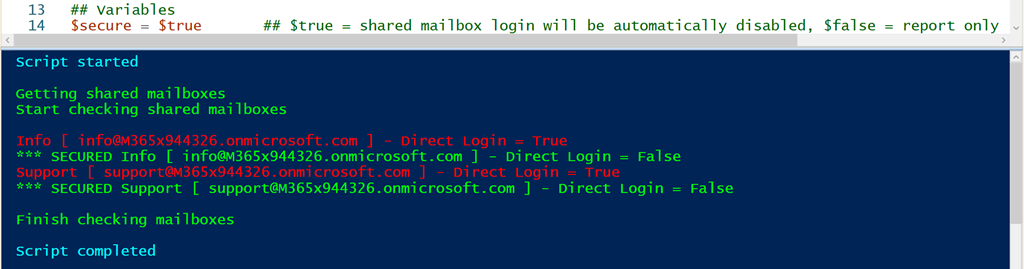
At the top of the script, you’ll find a variable called $secure. If that is set to $false then no changes will be made to your environment, you’ll just get a report like shown above. Shared mailboxes that have direct login enabled will be displayed in red.

image

Now, if you change the variable $secure to $true then any shared mailbox that is currently enabled for direct connection will have that ability disabled. The output will display two lines for each mailbox that has direct access enabled. The first line indicates that direct logins are enabled and then the second line will show that has now been secured. In this scenario, all that is happening is that the shared mailbox identity is simply being blocked as I outlined in my earlier article.

image

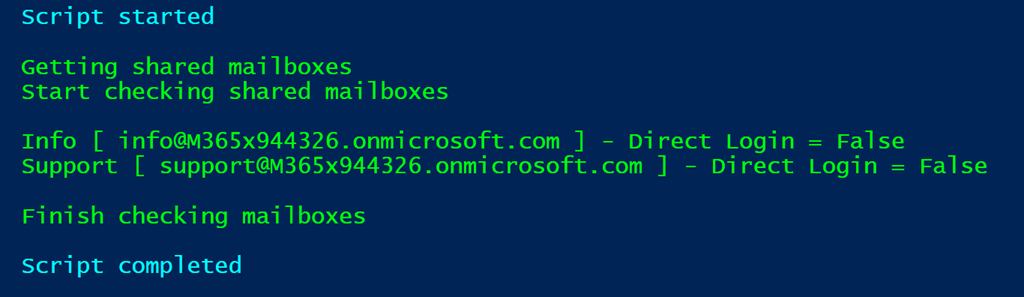
 The last possibility is that the shared mailboxes direct logins have already been disabled, and in this case the results of the script should simply show that result in green.

In summary then, you can run this script with the variable $secure set to $false to just display the direct login condition of your shared mailboxes. You can run this script with $secure set to $true and then not only will the direct login condition of the shared mailboxes be reported but they will all then be blocked for direct login.

You will find this script in my GitHub Office 365 repository at:

https://github.com/directorcia/Office365/blob/master/o365-exo-sharedblock.ps1

Access the Microsoft Graph with a script

In a recent article I showed how to connect to the Microsoft Graph in a web browser:

Using the Microsoft Graph Explorer

I also showed how you could do the same:

Using Interactive PowerShell

This article is going to focus on how you can do the same thing but directly via a script that won’t prompt you for credentials.

Before running this script you’ll need to follow the Using Interactive PowerShell article and set up an app in your Azure AD.

image

image

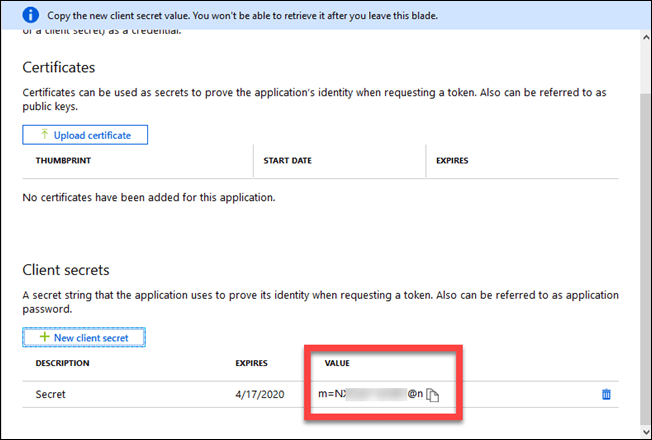
During that process you’ll need to record three things that will be used here:

1. Application ID

2. Tenant ID

3. Client secret

I borrowed the connection piece of this script from:

https://www.lee-ford.co.uk/getting-started-with-microsoft-graph-with-powershell/

which I found really handy in helping me understand all this. You can download my script from my GitHub repository here:

https://github.com/directorcia/Office365/blob/master/graph-connect.ps1

You’ll need to enter your own Application ID, Tenant ID and Client secret in the variables section. After that, all you need to do is run the script. The results for the query of /security/alerts will end up in a variable called $query which you can view. The actual content of the alerts you’ll find in $query.content.

image

This Graph connection script should now allow you to connect to the Microsoft Graph for a tenant and start running queries and returning values for entries in there. At the moment it only queries security alerts, but you can modify it to query anything in the Graph for your tenant.