Enrolling an iOS device into Intune

Before you can actually enrol an iOS device into Intune you typically need to complete the following preliminary steps:

Add an Apple management certificate to Intune

Set up an iOS Intune device compliance policy

Set up an iOS Intune device configuration policy

With all this done, you can now actually configure the device to be managed by Intune.

image

We’ll be using a newly wiped and configured iPhone as shown above in this walk through.

image

Note here, that this phone has both Facetime and the Safari browser on the device and available. After the device has been enrolled in Intune they will both be removed as part of the configuration policies that gets applied.

image

To do Mobile Device Management (MDM) for the device with Intune the user will need to download the Company Portal app and then run it.
image

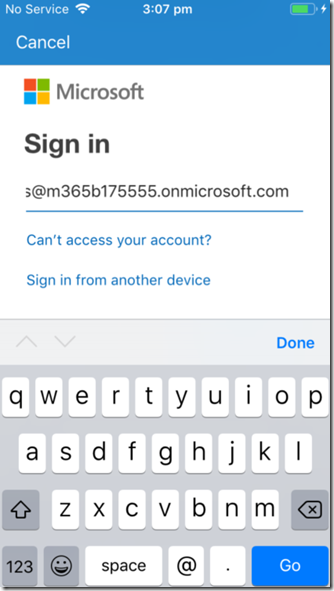
There will be a prompt for a user login. This will be the user’s Office 365 credentials typically.
image

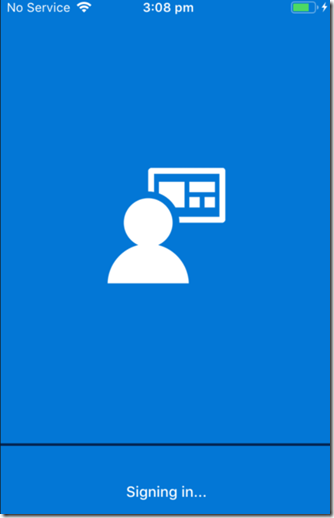
The device will also need to be connected to the Internet so it can verify these credentials and continue.

image

The user will now be prompted to put the device under management by selecting the Begin as shown above.

image

The user will then receive notification about what putting a device under management will mean as seen above.

In this scenario, we are assuming it is a bring your own device (BYOD).

image

The user will be given further instructions and then be required to press the Continue button.

image

The process will now try and open the Microsoft Intune portal in a browser. The user will need to select Allow to continue.

image

They will now be taken to a screen and prompted to install a new management profile by selecting the Install button in the top right.

This profile is the one that will be controlled by Intune and provide security over company data on this device.

image

The user will need to select Install again to continue.

image

They will then receive a warning about a third party certificate being installed as shown. This a certificate from Intune so the user should select Install in the top right to continue.

image

The user will be prompted to confirm that they wish their phone to be enabled for remote management.

They should select Trust to continue.

image

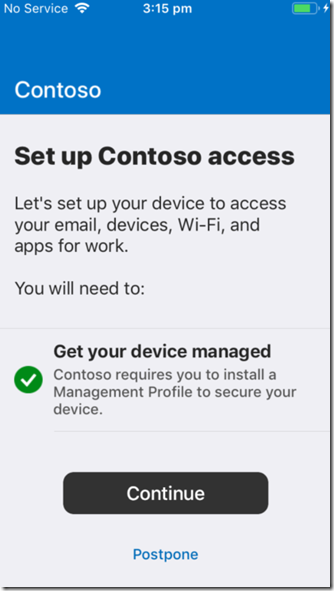
The management profile will complete installation. To finish this process select Done in the top right corner.
image

The user will be taken back to the Intune Company Portal app, where they will be prompted to continue. They should also now see that the device is now managed.

Select the Continue option.

image

The device settings will be checked. This is effectively running the compliance policy from Intune over the device to ensure it can be enrolled and meets the requirements to be considered to have the appropriate settings enabled and configured.
image

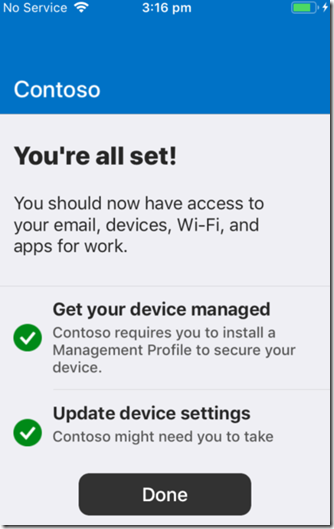
The process should complete without warnings or errors. This then indicates that the device is compliant and now has the configuration policies applied to it from Intune.

Select Done to continue.
image

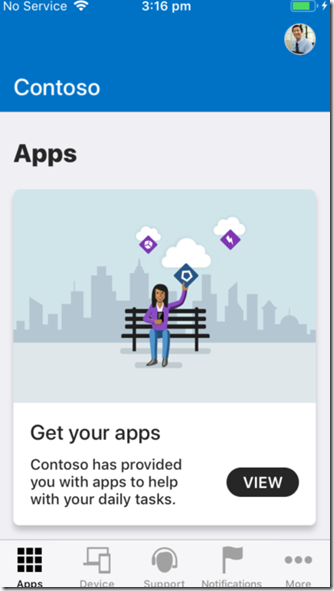
The user will now see the Apps menu of the Company Portal app as shown above. They can return and use some of the other functionality in the app at any time but for now, simply close the app.

image

If you now look closely at the home page of the enrolled device now above, you will see, per the Intune Configuration policies that have been applied, both Facetime and Safari are no longer available on the device.

image

If an administrator now looks in the Intune portal they will see the device that has just been enrolled.

Select it to get more details.

image

They should see a summary of the device as well as a number of controls for the device across the top on the right.

image

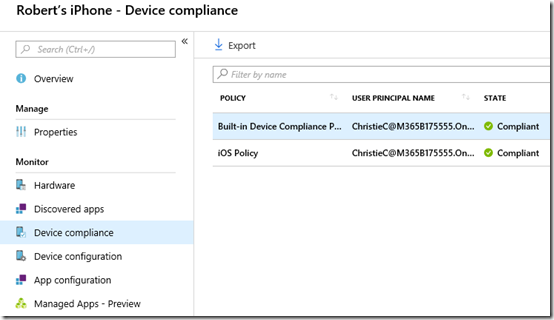
If they select the Device compliance option from the menu on the left they will see the compliance policies that have been applied to the device and their state.

image

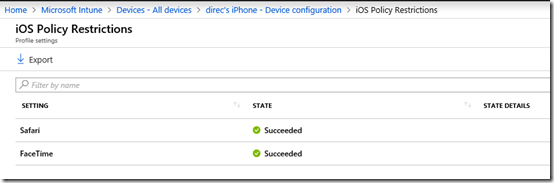
If they select Device configuration, they’ll see all the configuration policies that have been applied to this device and their current state.

You can select any of these policies on the right to get more information.
image

When you do you’ll see all the settings that have been applied as part of that policy. Here, you’ll see the policies for Facetime and Safari have been successfully applied (i.e. to be made unavailable on the device).

So, that’s how you put an iOS device under management using Intune. Doing so give you greater control over what is done on the and also the ability to do things like remotely wipe that device if required. A future article will show you how these management task can be accomplished on the the device.

Posting code snippets to Microsoft Teams

image

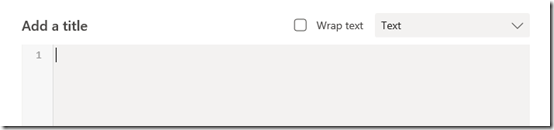
If you want to post a snippet of code to Microsoft Teams go to the Conversations tab and then select the Format text icon as shown above.

image

From this expanded dialog box select the Code icon as shown.

image

This should display a new dialog like shown above.

image

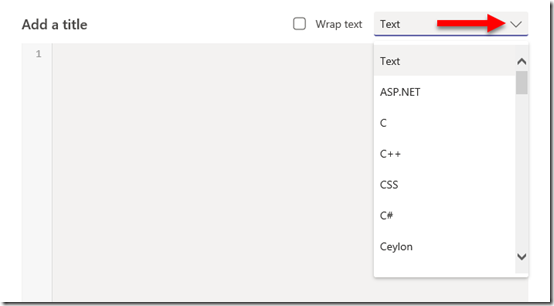
If you select the options in the top right you will see a huge range of code selections displayed as shown.

image

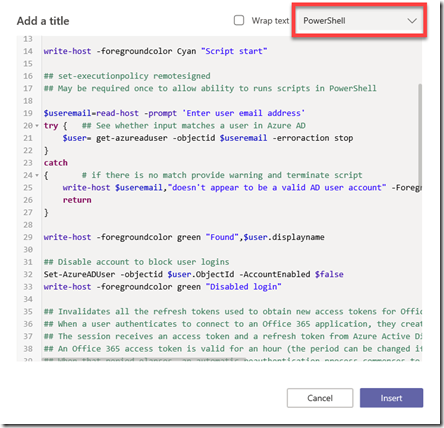
In the above case, I have select PowerShell and you can see that it formats and colours the code snippet for me automatically making it much easier to read.

image

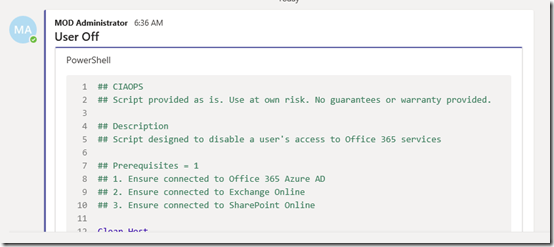
You can now post the result and that will be added to the Teams Conversations as shown above. You will see that it even automatically add line numbers, which is very handy.

Thus, if you are going to post code into Microsoft Teams Conversations, make sure you do it via the Format Text option so that it is formatted in a way that makes it more readable.

Need to Know podcast–Episode 195

Troy Hunt makes a return to the podcast to talk about the power of serverless compute. We discuss how Troy has been successfully using serverless compute to run his website haveibeenpwned. Troy also shares with us some insights as to the practical day to day operations of running a site with 5 billion breach records. Brenton and I also update you on the latest Microsoft Cloud news including a raft of updates to Microsoft Teams.

Take a listen and let us know what you think –feedback@needtoknow.cloud

You can listen directly to this episode at:

https://ciaops.podbean.com/e/episode-195-troy-hunt/

Subscribe via iTunes at:

https://itunes.apple.com/au/podcast/ciaops-need-to-know-podcasts/id406891445?mt=2

The podcast is also available on Stitcher at:

http://www.stitcher.com/podcast/ciaops/need-to-know-podcast?refid=stpr

Don’t forget to give the show a rating as well as send us any feedback or suggestions you may have for the show.

Resources

@troyhunt

@contactbrenton

@directorcia

haveibeenpwned

Azure serverless compute

CIAOPS Patron program

Skype for Business is moving to Teams

What’s new in Microsoft Teams – November round up

Top scoring in industry AV tests

How can I get started with machine learning

CIAOPS Need to Know Office 365 Webinar–November

laptop-eyes-technology-computer

This month we are going to look at one of my favourite applications – OneNote. OneNote is a digital notebook and can be used for a variety of tasks and has many, many benefits which I’ll dive you. OneNote will truly change the way you work and help you to be better organised, more productive and use less paper across everywhere you work and play. I’ll also cover off all the latest Microsoft Cloud news and update to make you even MORE productive!

You can register for the regular monthly webinar here:

November Webinar Registrations

The details are:

CIAOPS Need to Know Webinar – November 2018
Thursday 22nd of November 2018
11am – 12am Sydney Time

All sessions are recorded and posted to the CIAOPS Academy.

There of course will also be open Q and A so make sure you bring your questions for me and I’ll do my best to answer them.

The CIAOPS Need to Know Webinars are free to attend but if you want to receive the recording of the session you need to sign up as a CIAOPS patron which you can do here:

http://www.ciaopspatron.com

or purchase them individually at:

http://www.ciaopsacademy.com/

Also feel free at any stage to email me directly via director@ciaops.com with your webinar topic suggestions.

I’d also appreciate you sharing information about this webinar with anyone you feel may benefit from the session.

Get started with Office 365 on the front page

image

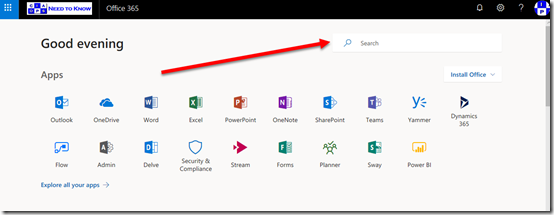
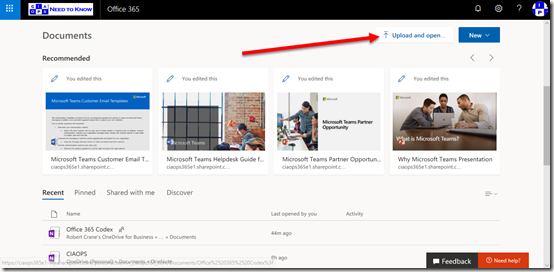
When most users access Office 365 they start on the front page as shown above. There is lots of really great and helpful stuff on this page but many people in my experience don’t take a moment to actually see what is here and understand how it can make their lives easier.

The first of these benefits is Search which you’ll find in the upper right corner of the page as shown. This will find information for you across all of Office 365.

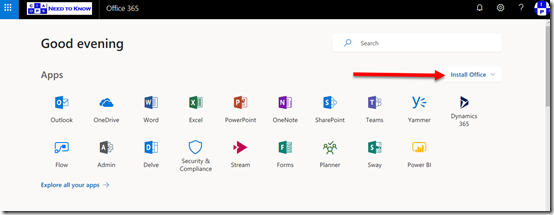
image

Then there is the ability to down and install a local version of Office via the Install Office button also on the right. Remember that you get 5 installs of Office on PC’s and Macs, 5 on tablets and 5 on phones.

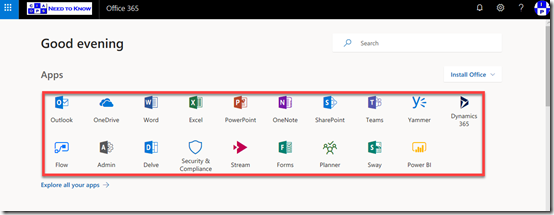
image

Hopefully most people are familiar with the Apps in the middle of the page that give you access to your Office 365 services simply by selecting them.

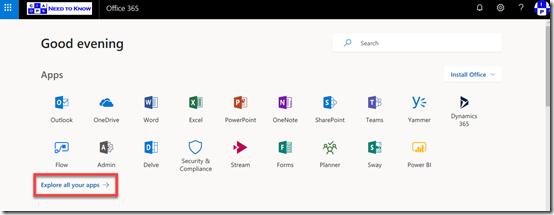
image

Of course, if you don’t see the app that you are after then you can select the Expand all your apps option to see all the Office 365 services you have access to.

image

If you now scroll down you’ll see that you can Upload documents directly from this page,

image

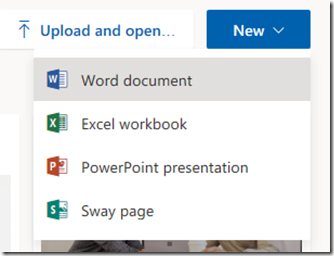
as well as create a New Office document.

image

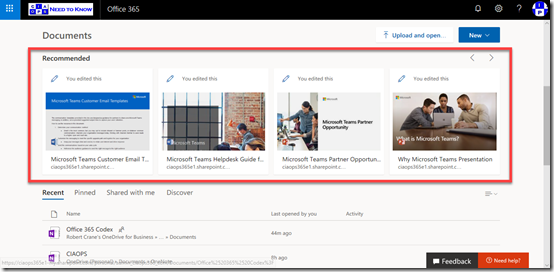
A little further down you’ll see Recommended documents. These recommendations come from the Office Graph and are files you make not have seen but have access two. These recommendations are typically files that your peers are working on.

image

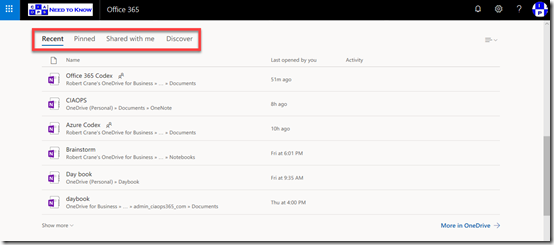
Further down you’ll find a number of categories of your files as shown above, including Recent files that you have been working on, which is handy.

image

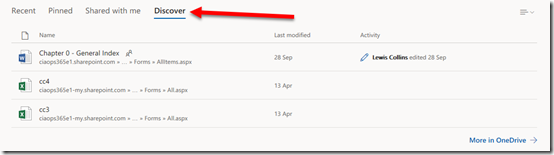
Here again, you’ll find the Discover option to view files that the Office Graph finds relevant for you.

image

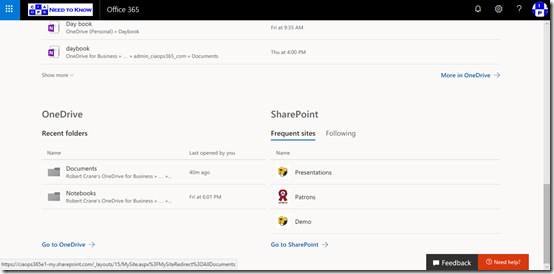
Right at the bottom you’ll find access and information about your OneDrive for Business and SharePoint sites.

So, this start page is a great summary for a user of all the stuff that they need access to. Take a moment and have a look at what it says for you and you may find that it is indeed the best way to get to your information in Office 365.

Teams resource information from SharePoint site

image

Hopefully you know that when you create a Microsoft Team you get a range of resources automatically provisioned, including a SharePoint Site, group mailbox and calendar, Planner and more.

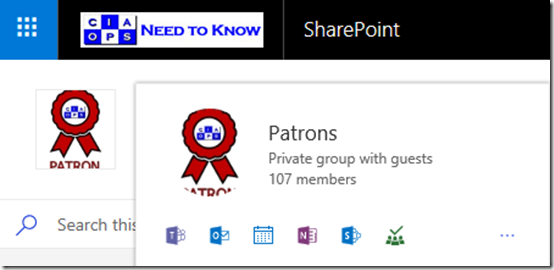
If you mouse over the icon for the Microsoft Team in the SharePoint that was created as part of that Team you’ll see a nice summary of the Team’s resources as shown. Clicking on this small icon will take you direct to the Team, the Team inbox, calendar, notebook, SharePoint site, Planner, etc.

image

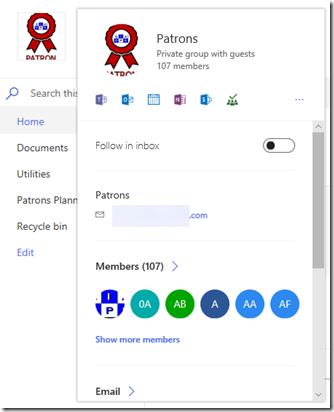
If you leave your mouse there for a little longer a more extensive card will appear, as shown above. You will notice the option to Follow in inbox at the the top.

image

If you scroll right to the bottom of this card you’ll find a Show more option which, when selected, will display even more information about the Team as shown above.

So to get some handy short cuts to all your Microsoft Teams resources, just roll your mouse over the icon.

Setting up an iOS Intune device configuration policy

Before you set up any iOS device configuration policy in Intune it is best practice to ensure:

You have added an Apple management certificate to Intune

and

You have set up an iOS Intune device compliance policy

with those two tasks complete you can now create an iOS device configuration policy. A configuration policy applies settings and configurations to the iOS device joined to this environment.

image

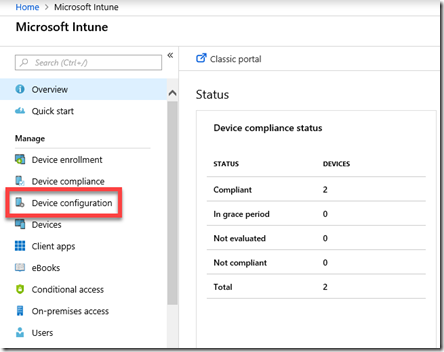
Open the Azure portal as an administrator and navigate to Intune. From the menu that appears on the left select Device configuration as shown above.

image

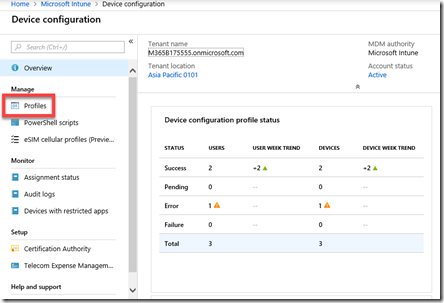
Next select Profiles from the menu on the left as shown above.

image

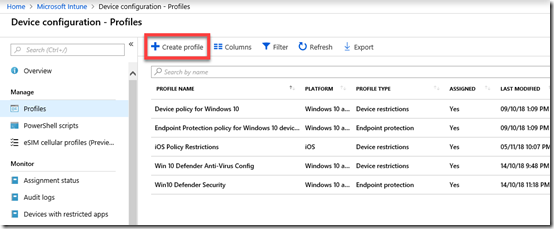
Here you will see any profiles that already exist. To create a new policy simply select Create policy from the menu bar across the top as shown.

image

Gove the policy a Name and Description. Select iOS as the platform.

image

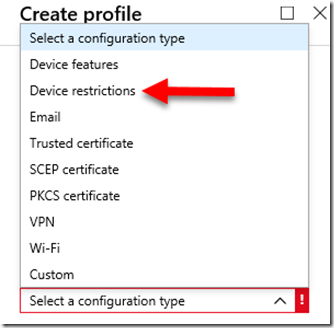
You’ll see that there are lots of different configuration types you can select to create configuration policies for. In this case we’ll select Device restrictions as an example of how to configure a policy, but remember there at least 9 options here you need to consider.

Remember, you can have multiple policies if you desire as well a number of the different configuration type policies if you want.

image

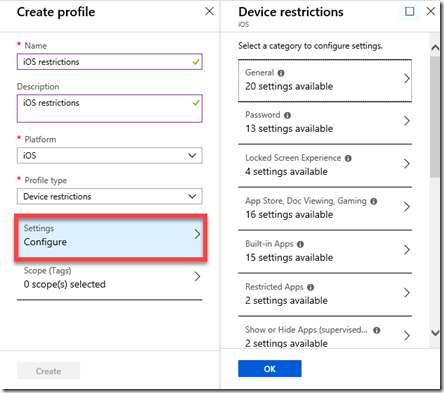
If you now select Settings towards the bottom of the window as shown above, you will see the numerous range of configuration options you can set for devices.

image

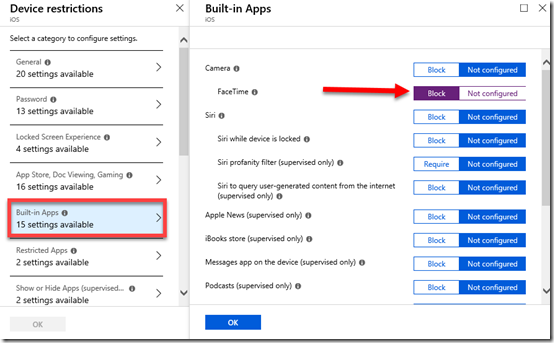
In this case I’ll simply illustrate changing one setting by selecting Built-in Apps and then Blocking Facetime as shown above.

Make sure you select OK at the bottom of any screen on which you make changes.

image

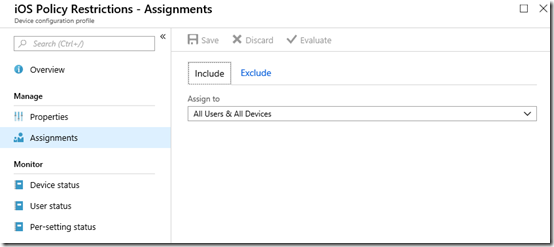
The final step once you have made all your selections and Saved the policy, is to assign the policy. Here I have assigned it to All Users & Devices as shown.

image

You can revisit and make changes to your policy at any time by navigating to it and selecting it.

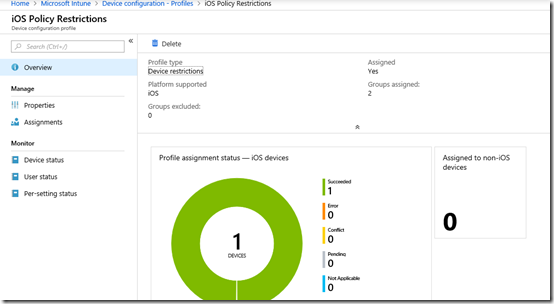
The options at the bottom of the menu on the left above: Device status, User Status and Per-setting status will again give you a summary of how this policy has been applied to devices.

Once we have all this in place we can now start joining actual devices to this environment so they can be manged. When we do that, they will be checked against the compliance policy and then have any configuration policies applied.

I’ll cover the process of adding devices to this environment in an upcoming article.

Setting up an iOS Intune device compliance policy

Once you have added an Apple certificate to allow device management for iOS as I have detailed previously here:

Adding an Apple Certificate to Intune

the next step in the process to get your iOS device managed is to create a specific iOS compliance policy in Intune.

A compliance policy is basically a set of rules that the device must follow to be considered compliant. If the device fails these rules then it is considered noncompliant and you are able to take action on that such as excluding it from connecting to your corporate data. Compliance for all devices is checked regularly.

image

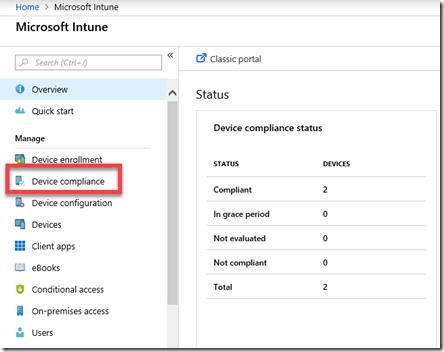
To create this compliance policy you’ll need to login to the Azure portal and navigate to the Intune service. Once there, you’ll find an option in the menu Device Compliance as shown above, that you’ll need to select.
image

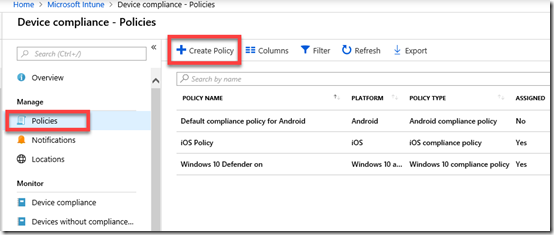
You’ll then need to select Policies on the left and the Create Policy option from the menu on the right that appears as shown above.

You may also see number of other existing policies here for different platforms. Note, that it is possible to have multiple compliance policies for the same platform if desired.

image

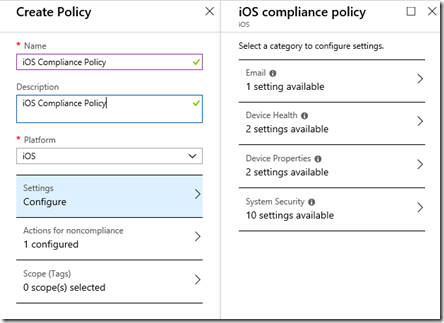
You’ll now need to give the new iOS compliance policy a Name, Description and select the Platform as iOS as shown above.

You’ll then need to select the Settings option below this to configure compliance rules. When you do so another blade will appear on the right with four categories: Email, Device Health, Device Properties and System Security as shown above.

image

You can configure as many options as you like here but I’m going to cover what I consider the basics for iOS compliance.
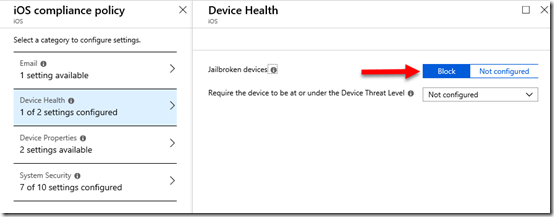
In Device Health, set Jailbroken devices to Block as shown above.
image

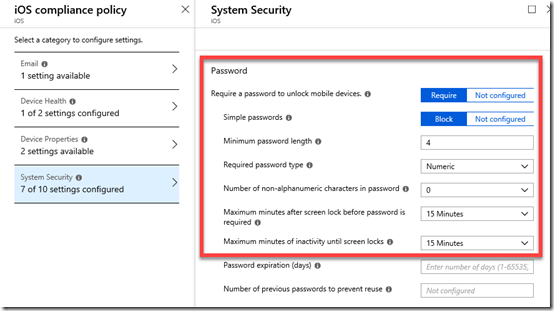
In System Security set the Password options as shown above.
Make sure you select OK at the bottom of each setting to update your preferences.

image

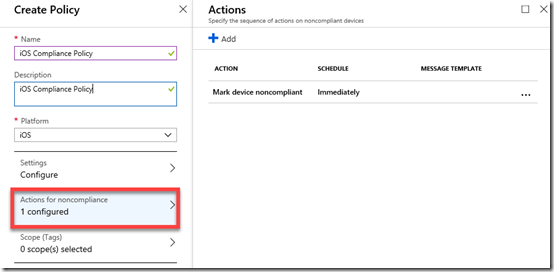
If you go into the Actions for noncompliance you’ll see there is currently a default option to Mark device noncompliant.

image

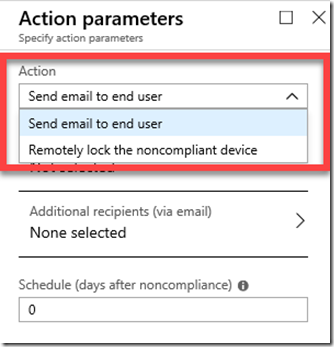
You can add more actions here, to Send email to end user and/or Remotely lock the noncompliant device if you wish.

When you have finished making your change, ensure that you Save the policy.

image

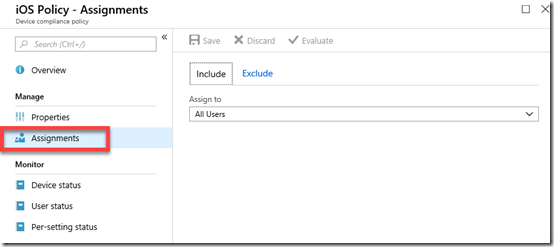
Now that the new iOS compliance policy has been created you’ll need to apply that policy to a group of users. To do this, select the policy you just created from the list of compliance policies. Then select the Assignments option from the menu on the left.

It is probably easiest to apply this new policy to all users but you can certainly select a group of users as well as exclude user if you wish.

Once again, when you have made you selection, ensure you Save any changes to have the policy applied to these users.

image

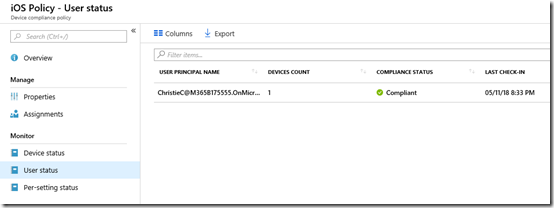
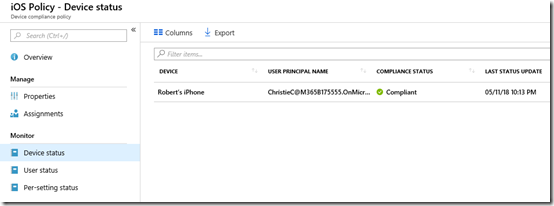
When devices connect to the tenant, they will be evaluated to be compliant or not. When this occurs, you can again examine the options at the bottom of the policy to see the device status as shown above. This will tell you whether connected devices are compliant (here they are).

image

You can also get the status by user, because remember, some users may have multiple devices.

image

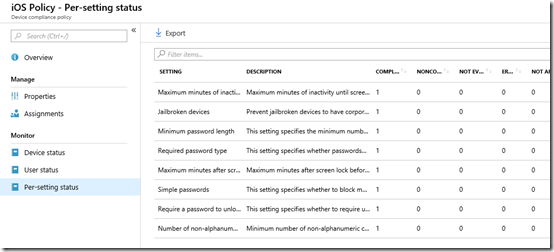
Finally, you can also examine the per-setting status. This is handy if a device has failed compliance and you want to know exactly what setting(s) have caused this failure.

image

You can also see the compliance by examining the individual device in Intune as shown above.

You’ll see here that there is in fact a default compliance policy as well as any your have created.

Selecting the Built-in Device Compliance Policy will show you its settings like so:

image

Basically, the Built-in Compliance Policy simply checks whether device is active, the user exists in the tenant and another compliance policy has been assigned. Thus, the device won’t be considered compliant by default until we create at least one compliant policy for the platform.

image

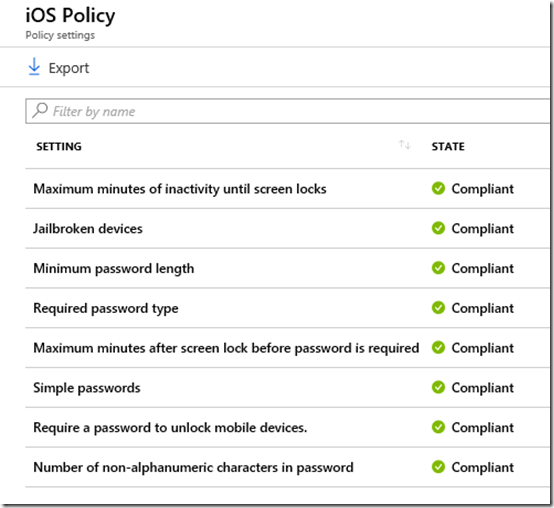
If you instead select any of the custom compliance policies that you created you will see whether each individual setting is considered compliant in that policy as shown above.

So, creating a device compliance policy is important when we wish to use Intune to manage devices. You need to create a compliance policy for each platform with the settings against which devices will be continually checked. This will ensure that devices connecting to your environment maintain the settings you desire.

The next step will be setting up device configuration policies to actually configure how the device operates. That will be covered in an upcoming article.