

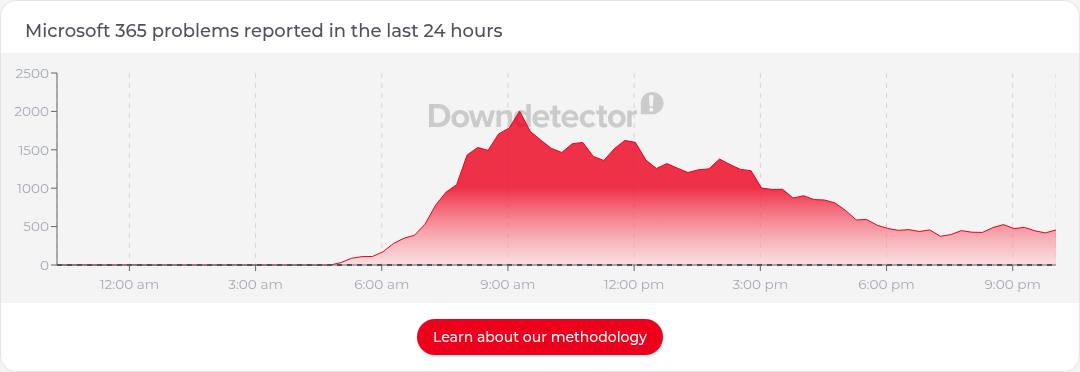
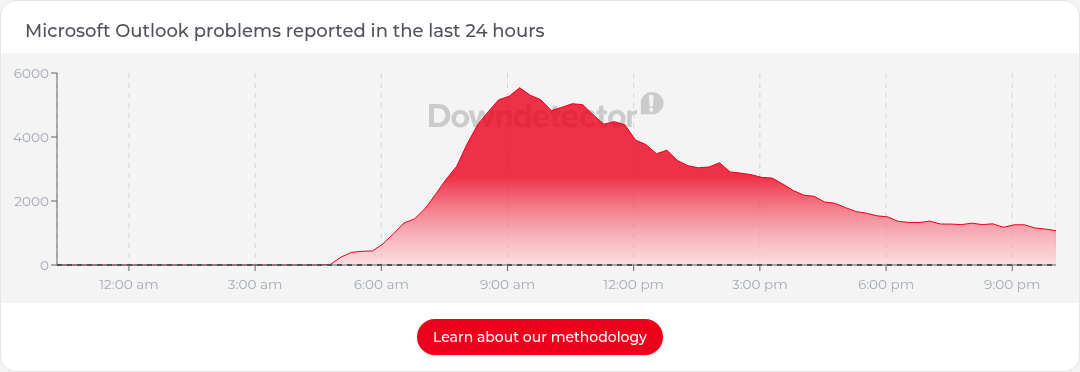
On Friday 13 November 2026, Microsoft 365 had a long, messy day. From around 5am Sydney time, user reports started climbing on Downdetector Australia. Microsoft’s first public status post arrived at 8:01am. After that came partial recoveries, setbacks, a missed 7:30pm update, and a late-evening note that repairs had finished on part of the Asia Pacific infrastructure. Outlook was the service most people felt. Teams calls, meetings and chats mostly kept working. Files in SharePoint and OneDrive still opened. A lot of the pain sat in anything that had to talk to Exchange Online: mailbox access, delayed email, calendars, Copilot, and admin portals.
If you run an MSP, you already know that day. The phones start early. Users want their password reset. Your technicians need to know whether this is a tenant issue or a Microsoft issue, and you need something accurate you can paste to customers.
I already had a Grok Bot I use as a help desk assistant. I had also just written about pointing a routine at Microsoft’s public status page, in How Grok Bot Can Watch Microsoft 365 Status and Alert You When Something Breaks. This post is what happened when that idea met a real Friday outage, and how I set the watch up so you can copy the pattern. By the end of the day it had grown into a scheduled check, a copy-and-paste report, a plain-English section for everyday users, Downdetector charts, and a public WordPress page that updates itself: https://blog.ciaops.com/m365-outage-status/.
Nothing here is a substitute for your own tenant’s Service health view in the Microsoft 365 admin center. This account stops at 10:39pm Sydney time, when I closed the incident on the CIAOPS side. It does not cover anything Microsoft posted overnight after that.
What the 13 November outage looked like from Sydney
These times are Sydney time (AEDT) on Friday 13 November 2026, from Microsoft’s public status posts, @MSFT365Status on X, Downdetector Australia, and the CIAOPS running log. Microsoft tracked the incident as EX1550543 / MO1550821, a service degradation affecting features that depend on Exchange Online. It also listed Teams and SharePoint among the affected services; the sharp end, for most people, was still mail and calendar.
- About 5:00am: user reports start rising on Downdetector AU.
- 8:01am: Microsoft’s first status post.
- 10:06am: some servers back in service and partial recovery in some regions.
- 11:08am: setback, as servers returned to service stopped responding again under load.
- 12:06pm: Microsoft said the root cause was an overloaded secure-connection process, and that a configuration fix was being validated, a network change was being reverted, and traffic limits were in effect.
- Through the afternoon: more capacity work, more setbacks, including a mitigation that caused a surge of internal traffic, and a confirmation that Microsoft had no indication of malicious activity.
- 7:30pm: the promised update was not posted on time.
- 8:10pm: early signs of stabilisation, but capacity was not back to normal. Microsoft extended the email timeout window to 48 hours so delayed messages would be held and retried.
- 9:01pm: a status note only. Incremental improvement, health still variable, no ETA.
- 10:04pm: recovery actions completed across portions of the affected infrastructure in the Asia Pacific region. Traffic was being gradually restored. Mailbox access and delayed email processing were improving, with intermittent issues remaining.
- 10:39pm: I told the help desk bot to consider the outage resolved on the CIAOPS side. Microsoft had not yet posted a formal restore. The public page was updated with a closing note at 10:41pm, and the watch stayed on for any genuinely new incident.
Closing it on my side is not the same as Microsoft declaring the incident over. The page said so, and pointed people back to Service health and status.cloud.microsoft for Microsoft’s final confirmation.
How the watch is put together
A scheduled routine wakes the help desk bot about every 15 minutes. The bot reads three public sources, compares them with a small state file, and only then decides whether to alert me, rebuild the customer report, and update the WordPress page.
- A routine, not a one-off chat. The watch is a saved prompt on a schedule. A conversation is not enough, because the chat will end and the bot will stop looking.
- Microsoft’s public status feed. The bot polls the public JSON endpoints behind https://status.cloud.microsoft/, not a scraped screenshot. In practice that is
/api/posts/macfor Microsoft 365, plus/azureand/ppac. The Power Platform feed has a standing “Available” notice that we ignore. - X, but only while an outage is active. The bot uses Grok Bot’s built-in public search for posts from
@MSFT365Status. Some posts appear there slightly ahead of, or in addition to, the status page. Many simply repeat it. - Downdetector Australia as an independent signal. Official status and user reports do not always move in lockstep. We treat Downdetector as indicative only, never as proof.
- A state file. It stores the last incident id, last update time, a short hash of the message, when the next Microsoft update is due, recent X post ids, and a short Downdetector snapshot. On this day, it was worth comparing the update time and the message body as well as the id, so a new post id was not treated as a brand-new outage on its own.
- Charts. A short script on the bot’s computer captures the 24-hour chart from each Downdetector Australia service page.
- One WordPress page. The WordPress.com connector updates that page and uploads the new charts. Standing approval is limited to that one page.
- Me, in chat, only when it matters. If nothing changed, the routine stays quiet. If Microsoft is more than ten minutes late for a promised update, I get a short overdue note.
The same bot also does remote support through AnyDesk, and it has a dedicated help desk inbox. That is a different routine. I will come back to it at the end.
Step-by-step setup
You can copy this pattern on your own Grok Bot. I built a lot of it during a live incident, which I would not recommend if you can avoid it. Set it up on a quiet day, test it against the current status page, then leave it running.
1. Start with a bot you already trust. I used my help desk bot, because it already had rules about approvals, secrets and Sydney time. You could use a dedicated status bot if you prefer to keep support work separate.
2. Check the timezone, then find routines. Open Settings from the sidebar account button at the bottom-left, or with Cmd+, (or the command palette’s “Open settings”), and check the timezone on the General tab. To see saved routines, click the agent’s name in the chat header, or use Cmd+Shift+I, to open the per-agent info pane. Routines sit in that pane, under the computer preview. You can still create the routine in chat. Routines usually start within a few minutes either side of the time you set. If the run must start right on the minute, say “exactly” or “sharp”.
3. Ask for a watch, not a dashboard. Name the source, what counts as “major”, and what you want when an incident starts and when it ends. Do not ask the bot to email your customers on its own.
4. Add independent sources once the first watch is working. I added @MSFT365Status, then Downdetector Australia, then the charts, then the copy-and-paste report, then the WordPress page. Each add-on was a short instruction, not a redesign.
5. Put the watch on a schedule. I used a 15-minute cadence, in Sydney time: 7, 22, 37 and 52 minutes past each hour, with a little flexibility either side so a slow run does not collide with the next one.
6. Make it keep state. Tell the bot to store what it last saw, and to compare against that file every run. Without this, you get either no history or a repeat of the same alert.
7. Create the public page yourself, then give narrow permission to update it. I created https://blog.ciaops.com/m365-outage-status/ first. The bot is allowed to update that page and upload charts for it. It is not allowed to create a second page, or change any other post, menu or setting.
8. Decide what “resolved” means on your side. Microsoft may keep posting about the same incident after you have stopped actively tracking it. You need a rule for that, or you will get woken up by repeat posts.
In the earlier how-to I said a routine should draft a customer notice and wait, and should not update a status page on its own. That remains the default. What I did on 13 November was a deliberate, written exception for one operational page.
Example prompts you can copy
These are the sorts of instructions I used, cleaned up so you can paste them. They are examples, not a magic script. The earlier ones are reconstructed from the requests I made during the day, because I built the watch in stages rather than from a single perfect brief. The two later ones, about the plain-English section and closing the incident, are close to my original wording.
The initial ask (example, reconstructed):
Watch https://status.cloud.microsoft/ and tell me about major Microsoft 365 outages I need to be aware of, and tell me when those outages are restored. Use Sydney time. If nothing important has changed, don’t message me.
Monitor X while an outage is active (example, reconstructed):
While an outage is active, also monitor @MSFT365Status on X (https://x.com/MSFT365Status) for information that is not already on the status page. Don’t treat a repeat of the same status text as news.
Add Downdetector as an independent check (example, reconstructed):
Use https://downdetector.com.au/ as an independent verification signal. Treat it as user-reported and indicative only. Always remind people to confirm in their own tenant’s Service health in the Microsoft 365 admin center.
Include the 24-hour charts in every update (example, reconstructed):
Every outage update should include Downdetector’s 24-hour report chart for each affected service, including Microsoft 365, Outlook, Teams and OneDrive when they are relevant.
Produce a copy-and-paste report for MSPs and admins (example, reconstructed):
For each update, give me a copy-and-paste summary report written for MSPs and administrators, including the Downdetector graphics if possible. I will send it on myself. Don’t email customers or post it to social media unless I ask.
Relay every Microsoft update, and flag a late one (example, reconstructed):
Relay every Microsoft status update, even minor ones. If Microsoft’s promised next update is more than 10 minutes overdue, send me a short overdue note even if the status text hasn’t changed.
Publish automatically to one WordPress page only (example, reconstructed):
Automatically publish each update to a single existing WordPress page: https://blog.ciaops.com/m365-outage-status/. I am giving standing approval for that one page only. Update that page and upload charts for it. Do not create a second page, do not change any other page, post or setting, and never touch any other site.
Add a plain-English section for non-technical readers
This is close to what I actually asked later in the day:
Can you add a new section to the report and WordPress page for non-technical people? There should be the Microsoft tech-speak as well as a plain-English end-user explanation of the issues and resolutions for the wider audience. Put the plain-English section first.
A tighter version you can reuse (example):
For each outage update, open both the copy-and-paste report and the WordPress page with a heading “In plain English (for everyday users)”. Cover what isn’t working, what still works, what staff should and shouldn’t do, and what Microsoft is doing, without jargon. Follow it with “Technical detail (for IT admins and MSPs)”.
Close an incident on your side
This is the wording I used at 10:39pm:
Consider this outage resolved.
If you want the bot to be more precise, use something like (example):
Consider this outage resolved on our side. Add a closing note to the WordPress page and the report. Do not claim that Microsoft has formally declared it restored unless they have. Keep watching for genuinely new incidents. If Microsoft keeps posting about this same incident, record those posts in the state file but don’t alert me or rewrite the page each time.
The closing note published at 10:41pm said CIAOPS had stopped tracking the incident, quoted Microsoft’s last 10:04pm update, and told people still seeing problems to check Service health or status.cloud.microsoft. It did not pretend Microsoft had closed EX1550543 / MO1550821.
A routine prompt you can adapt
A routine needs a saved prompt and a trigger. The trigger I use is a Sydney-time schedule, every 15 minutes: CRON_TZ=Australia/Sydney 7,22,37,52 * * * *, with a little flexibility either side. The prompt should describe intent, not a brittle list of tool names, because connectors change. Here is a generalised version of the watch we ended up with. It is an example, adapted from the behaviour of the running routine, not a verbatim paste of the saved text. Change the page URL and the approval wording to suit your own site.
You are checking for major Microsoft 365 outages.
1. Read the public Microsoft status feeds at https://status.cloud.microsoft/ (the Microsoft 365, Azure and Power Platform JSON endpoints). Ignore the standing Power Platform “Available” notice. Convert all times to Sydney time. 2. Compare what you find with the state file from the last run. Use the last updated time and the message body, not the id alone, to decide whether anything changed. 3. If a major incident is active, also check public posts from @MSFT365Status and the Downdetector Australia pages for Microsoft 365, Outlook, Teams and OneDrive. Capture the 24-hour report chart for each relevant service. Treat Downdetector as user-reported and indicative only. 4. If nothing material has changed, and Microsoft is not more than 10 minutes late for a promised update, do not message me. Just refresh the state file if needed. 5. If this is a new major incident, a change to an active one, a restoration, or an overdue Microsoft update, message me in this chat. Send a short summary first, then a copy-and-paste report. Put “In plain English (for everyday users)” first, then “Technical detail (for IT admins and MSPs)”. Attach the charts. 6. When there is a material change, update the single existing WordPress page I have approved for this purpose, and upload the new charts to that page. Do not create another page or change anything else on the site. After publishing, fetch the public page in a way that bypasses the cache and confirm the new “Last updated” line is actually visible. 7. If I have closed a particular incident, keep watching for new outages, but ignore further posts about the closed incident. Record them silently in the state file. After Microsoft marks it resolved, or 24 hours after I closed it if it is no longer listed, reset the public page to a short “No major Microsoft 365 outage” message. 8. Never send email, post to X, or contact customers as part of this watch. Never handle passwords or other secrets.
Message me in this chat only when there is something to report. If nothing has changed, stay quiet.
That last line is easy to skip and expensive to leave out. A 15-minute routine that congratulates itself four times an hour is not a watch. It is noise.
As the day went on I tightened and relaxed the rules in chat. When I wanted those changes to survive the next scheduled run, I made sure the saved routine itself was updated, rather than assuming a chat instruction would stick on its own.
Auto-publishing to a WordPress page
This is the part that makes the watch useful to other people, not just to me. During the outage, the same report that landed in my chat was also written to a public page, with the charts, in a consistent layout. Anyone I pointed at the URL could refresh that one link rather than wait for me to forward a message.
In the earlier watch post I said a routine should draft a customer notice and wait for approval, and should not update a status page on its own. That is still the right default. A bot that can publish to your blog is a bot that can publish the wrong thing, to the wrong place, at 2am.
What I did on 13 November was a scoped exception, not a change of that policy. I already had a published WordPress page with a stable slug, m365-outage-status, and a public URL I could share. Comments are closed. The title stays the same; only the body changes. The bot uses the WordPress.com connector for the CIAOPS blog. Writes of this kind normally ask for confirmation. I gave standing approval, in writing, for two actions only: updating that one existing page, and uploading new Downdetector charts destined for it.
That approval does not cover any other page, any blog post, menus, settings, or any other site. If you copy this, say the restriction out loud in the prompt and in the approval. “Publish it to my blog” is too wide. Ordinary CIAOPS articles still go through the normal draft-and-schedule process.
Create the page first. Do not ask the bot to invent a new post every time, and do not let it create a second status page if the first lookup fails. If the bot cannot find the page, it should stop and tell you, not improvise.
Keep a fixed layout. The page we used on 13 November had eight parts, in this order: a short intro; a Last updated line, in Sydney time, including the weekday and date; an H2 incident heading; an H3, In plain English (for everyday users); an H3, Technical detail (for IT admins and MSPs); the Downdetector Australia charts, each with a caption and a note that the data is user-reported; the sources; and a disclaimer that Downdetector is indicative only, and that people should confirm in their own tenant’s Service health. When I closed the incident, a short closing note went in under the H2, so no one had to hunt for it.
Upload fresh charts, and use the new media. Each run captures new charts and uploads them, then points the image blocks at the new media. Re-uploading the same filename can produce a new file in the library. Use the new id.
Review the page after every publish, because of cache. WordPress.com can briefly serve the previous version of the page. A run is not finished when the update call returns. Fetch the public URL in a cache-busted way, check that it returns a normal page, check that the new “Last updated” line is in the body, and check that the chart URLs actually return images. When I am at the desk I also glance at the public page in a browser. A successful write is not the same as a page a customer can actually read.
Reset the page after the incident, on a delay. Once Microsoft marks the incident resolved, or 24 hours after I closed it if it is no longer listed, reset the page to a short “No major Microsoft 365 outage” message. That keeps the URL stable for the next event.
The report format, with a short example
Every update I received had two parts: a short summary I could read on a phone, then a paste-ready report, starting with the everyday-user section. That was a late addition, and it was the right one. The mid-afternoon Microsoft updates were accurate, and almost unreadable if you just wanted to know whether you could send email or join a Teams meeting.
The plain-English section answers four questions: what is not working, what still works, what staff should and should not do, and what Microsoft is doing. The technical section carries the incident ids, the service list, the admin actions and the timeline.
Here is a shortened example, based on the 10:04pm update:
In plain English (for everyday users)
Since early Friday morning, many people have not been able to use Outlook email, calendars and some other Microsoft 365 features. Teams calls, meetings and chats mostly still work, and files in SharePoint and OneDrive still open. This is a problem at Microsoft’s end, not your computer or your account. Please don’t reset your password or reinstall anything, and only resend an email if you get a bounce. Microsoft is holding delayed messages for up to 48 hours. Its 10pm update said it had finished repair work on part of its Asia Pacific systems and was gradually sending traffic back. Email access and delayed delivery were improving, but some problems would still come and go. It had not given a time for a full recovery.
Technical detail (for IT admins and MSPs)
- Status: service degradation, recovery in progress but not complete. Incident EX1550543 / MO1550821. Next Microsoft update due by 11:00pm AEDT.
- Impact: Exchange Online mailbox access and delayed delivery; calendar features in Teams; Copilot experiences that need mail, calendar or files; plus impact on a range of admin and security portals that depend on the same path.
- Admin actions: track the incident in Service health; do not reset passwords or rebuild profiles to “fix” it; do not ask senders to resend unless they get a bounce; expect users to restart Outlook or Teams once the service is stable.
The charts sit under that. These two were captured from Downdetector Australia at 10:17pm AEDT on 13 November 2026. They are user-reported, and they were already well off the mid-morning peaks, which matched Microsoft’s “improving, but not finished” wording.
Guardrails, and what the day taught me
Standing approval covers one WordPress page and the chart uploads for that page. Everything else waits for me. The bot drafts; I send. It does not email customers, or post to X or Teams, on the back of an outage update. The watch uses public sources. It does not sign in to a tenant or handle passwords. Every report is in Sydney time, with the source named. Once I have closed an incident, repeat posts about it are recorded and not re-published. Downdetector is never treated as official.
Official status and independent signals can lag each other, and both can lag what users are feeling. Downdetector reports were climbing from about 5am. Microsoft’s first post was at 8:01am. Later, some X posts only repeated the status page, and one useful note appeared on X without a matching status-page change. You want all three sources, and you want the bot to say when they agree and when they do not.
Recovery is not a straight line. This incident had several moments that looked like progress and then went backwards, including servers that failed again under load and a mitigation that caused a surge of internal traffic. If you only relay “good news” updates, you will mislead people. Relay every official update, including the dull ones and the setbacks.
Promised update times slip. When the 7:30pm update did not arrive, a short overdue note was more useful than waiting politely. I would rather get a “Microsoft is late” message than discover an hour later that everyone else is waiting on the same missing post.
Write for two audiences or you will fail one of them. The technical report is for MSPs and admins. The people ringing the help desk need different sentences: what still works, don’t reset your password, don’t resend mail unless it bounces. Putting that section first made the public page usable without watering down the admin detail.
Decide when you are done, even if Microsoft is not. At 10:39pm I closed it on the CIAOPS side because I no longer needed a live running commentary. The page said that in so many words. The routine kept watching for the next incident. And build this before you need it. I added sources, charts, the public page and the plain-English section during the outage. It worked, but it was harder than it needed to be.
The same bot as a help desk, including AnyDesk
The outage watch sits on the bot I already use for remote IT support. That is a different job, and it has a different trigger.
Customers can email a dedicated help desk inbox. An email-triggered routine reads the thread, treats the email as untrusted data, and follows no instructions in it except to pick up an AnyDesk address the customer has sent for that request. On a new request, it replies once in that thread, as me, with thanks and setup instructions: download AnyDesk from the official site, run it (no install needed), reply with the address shown in the app and a short description of the problem, keep AnyDesk open, and click Accept when the connection request appears.
When the customer replies with an AnyDesk address, the bot starts a session from its computer and tries to fix the problem. A few rules are non-negotiable:
- It only connects to an address I have given it, or that a customer I have arranged has sent to that help desk inbox. It must not connect to an address from any other source.
- The remote user has to click Accept.
- It can look around and diagnose freely, but it has to ask me before anything consequential: installing or uninstalling software, deleting files or data, changing security settings, registry edits, restarts, signing the user out, or anything that could lose work.
- It never types, reads out or reveals passwords or other secrets. The remote user enters credentials and MFA themselves.
- When it is finished, it closes the connection and tells me who wrote, what it replied, what it found, what it changed, and anything left to do. Times are in Sydney time.
The two ideas fit together on an outage day. The watch tells you it is a Microsoft-side incident, and gives you something you can send to users. The help desk inbox is how those users reach you if their device still needs a look. The same guardrails apply: no secrets, no unsolicited connections, and no consequential changes without asking.
A URL you can keep, and a watch you can copy
The public page is here: https://blog.ciaops.com/m365-outage-status/. When there is no major incident, it will go back to a short “no major outage” message and keep that address.
Official Service health in the admin center remains the first place to look for your tenant. A bot does not replace that, and it does not replace a phone call to a worried customer. What it can do is watch the public sources, keep your times straight, and keep one honest page up to date while you get on with the rest of the day.
If you want to try the same approach, start with the first prompt in this post, put it on a 15-minute routine, and only then add X, Downdetector, the report format and a single, tightly approved web page. Set the guardrails before the next Friday morning, not during it.

