Remote Desktop app for WVD doesn’t work with WIP

*** Solution – ensure the WVD feed URL (e.g. http://rdweb.wvd.microsoft.com/webclient) is part of the appropriate definitions in your WIP network isolation configuration

image

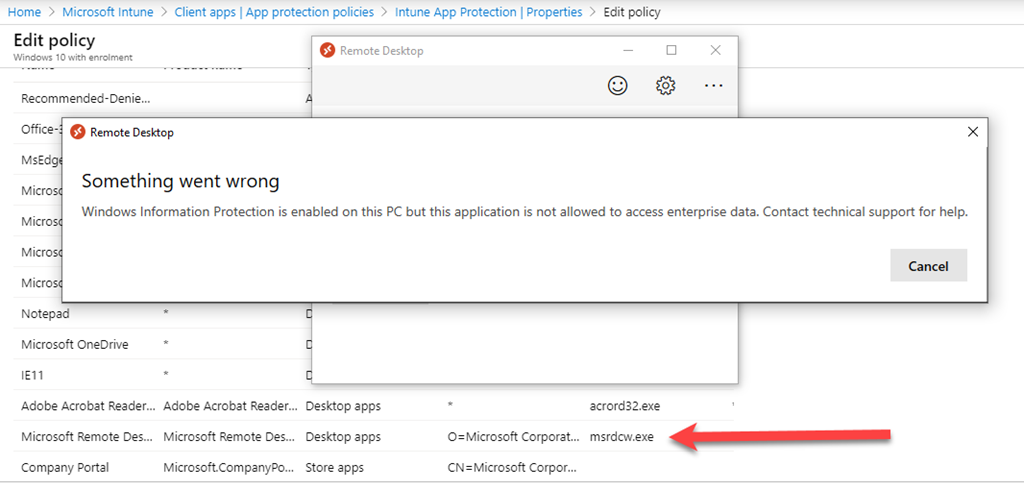
When I tried to update the feeds on my Remote Desktop client on Windows 10 for use with the Spring release of WVD I was greeted with the above issue with Windows Information Protection. (WIP). I tried setting the Remote Desktop app (msrdcw.exe) to be a protected app in WIP and still had the same issue. Also tried setting to be an exempt app, but that also didn’t help-. Only disabling WIP seemed to allow me to refresh the feeds. Once you do this you can turn WIP back on if you need to.

Hopefully Microsoft will address this issue in upcoming releases of he Remote Desktop app for Windows 10. Until then, there doesn’t seem to be much option but disabling WIP.

Adding Microsoft To Do as a recommended app with Windows Information Protection

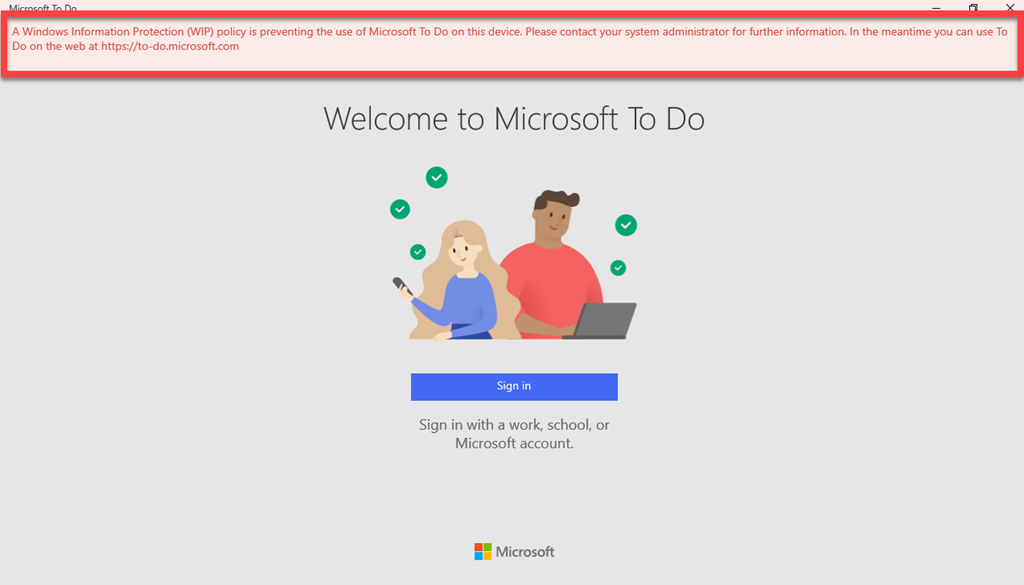
I’m a big fan of Microsoft To-Do but recently noticed that I was having trouble syncing data from my Windows 10 desktop to my other devices. Everything looked fine on my desktop but the next troubleshooting step I took revealed my problem as you can see below.

image

A Windows Information Protection (WIP) policy is preventing the use of Microsoft To Do on this device.

Ah ha, I had indeed recently changed my Windows Information Protection (WIP) policy for the desktop. This change had inadvertently stopped Microsoft To Do syncing as well as preventing me from logging in.

To solve the problem you need to add the Microsoft To Do app to the list of Protected apps in the Intune App Protection policy for the device, which by default, isn’t there.

image

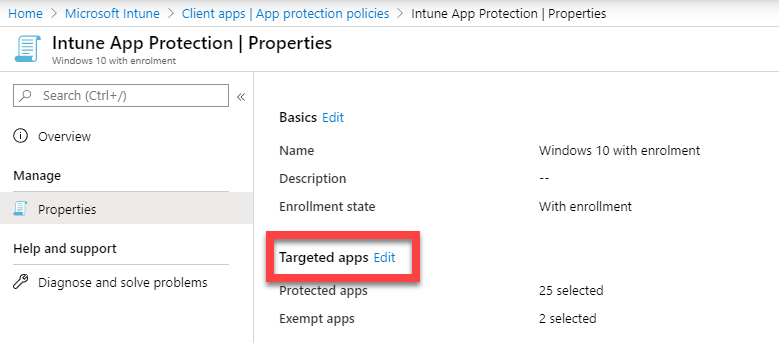
Navigate to the Intune App Protection policy in question and view the properties as shown above. On the right hand side, select the Edit link next to Targeted apps as shown.

image

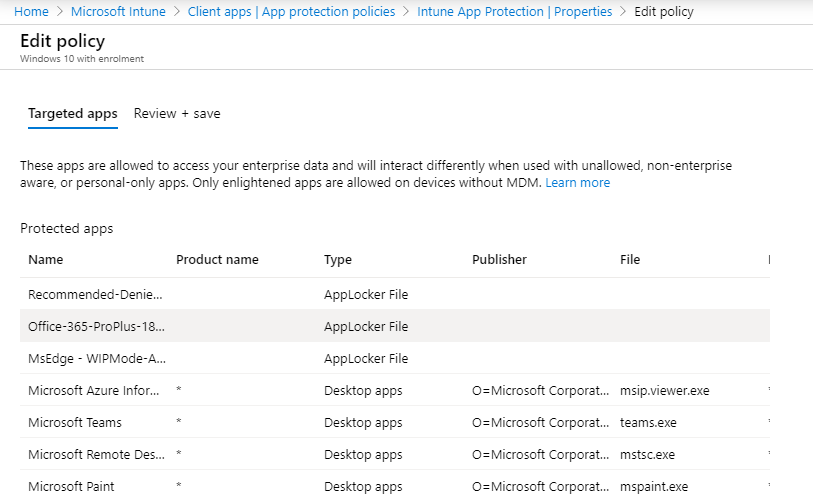
You should then see the Targeted apps as shown above.

SNAGHTML2706055

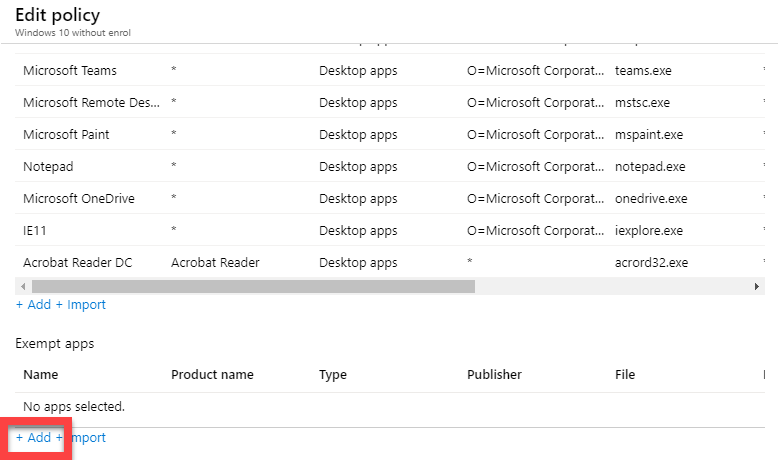
Scroll to the bottom of the list of Protected Apps and select the +Add link at the bottom as shown.

This process is similar to one I documented a while back for Adobe Acrobat:

Adding Acrobat as an allowed app

The difference this time is that Microsoft To Do is a store app.

image

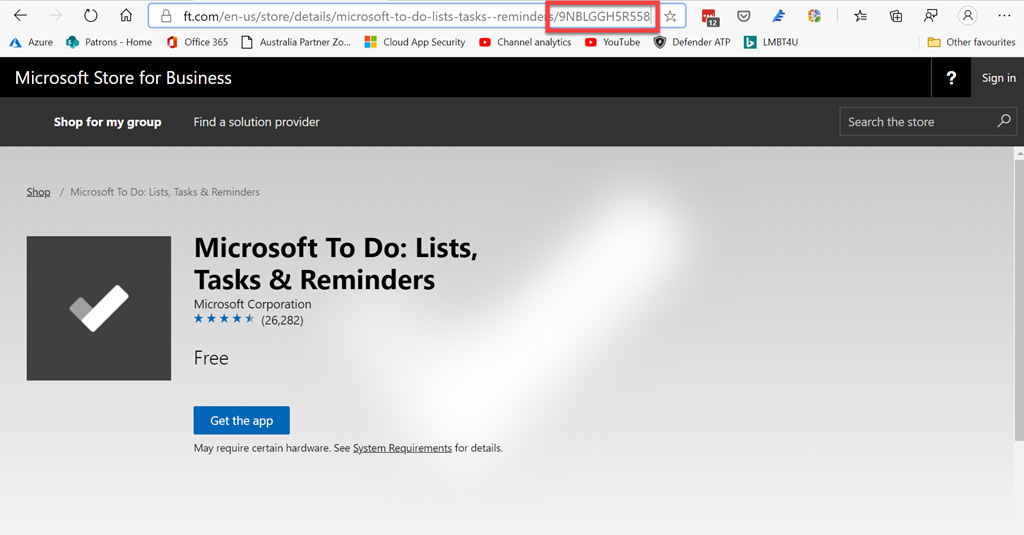
To identify the app you need to search for the store app on the Microsoft Store as shown above. When you locate the app and view the URL you will see a unique identifier as shown. In this case, for Microsoft To Do, it is 9NBLGGH5R558.

You’ll then need to visit this URL:

https://bspmts.mp.microsoft.com/v1/public/catalog/Retail/Products/9NBLGGH5R558/applockerdata

image

Doing so will spit out the information you need to add the app as a protected app to your policy. To view the result for other store apps just insert the appropriate identifier into the URL instead of the one for Microsoft To Do shown here.

Thus, for Microsoft To Do you’ll need:

“packageIdentityName”: “Microsoft.Todos”

“publisherCertificateName”: “CN=Microsoft Corporation, O=Microsoft Corporation, L=Redmond, S=Washington, C=US”

image

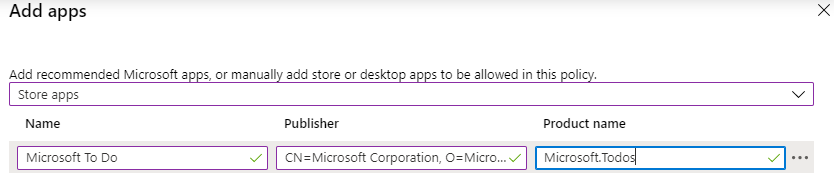
Back on the Add apps page opened earlier, change the pull down at the top of the page to be Store apps. Then enter the information for Name, Publisher and product name as:

Name = Microsoft To Do

Publisher = CN=Microsoft Corporation, O=Microsoft Corporation, L=Redmond, S=Washington, C=US

Product name = Microsoft.Todos

Select OK at the bottom of the dialog to save the changes. Then select  Review+Save to update the policy.

image

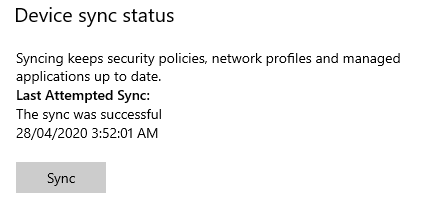
You can either wait for the policy to be pushed down or force a sync from the device sync settings in the user account information for the Windows device. Once the policy has been updated to the machine you’ll be able to open and use Microsoft To Do or any store app you have configured. Doing so fixed my Microsoft To Do issue by allowing me to login to the app again on the desktop and sync information.

Intune policy sets

The modern way to manage and configured devices in the Microsoft Cloud is to use Intune to handle device enrolment and configuration. This can become complex quickly when you at look configuring across the different operating systems (iOS, Android, Windows, MacOS, etc) and the different policies (endpoint, compliance, restrictions, etc) because there are so many possible variations. If you then layer on a variety of users and their requirements, being consistent across the organisation can be a challenge.

image

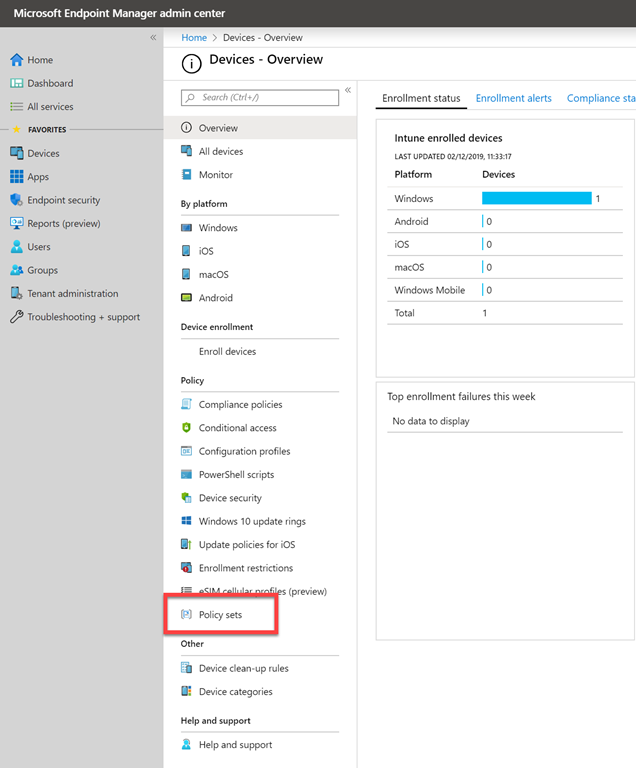
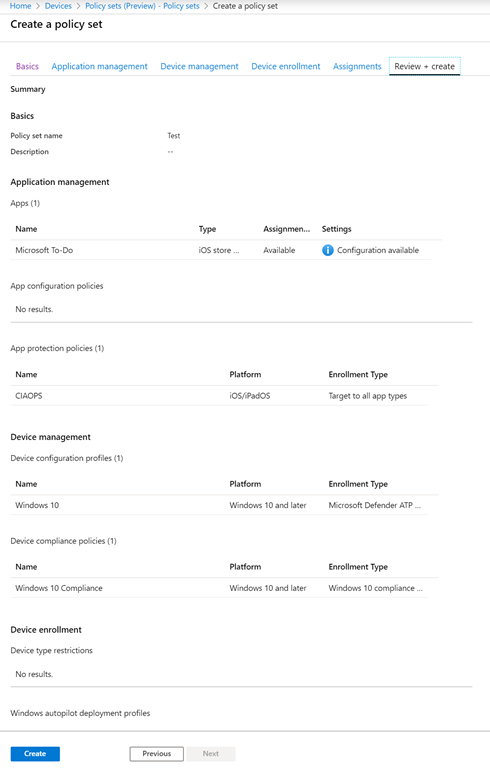
Luckily, Intune now gives us something called Policy Sets which you can find in the Microsoft Endpoint Manager admin center as shown above.

image

As the opening screen, shown above, notes – Policy sets are basically a way to group a set of individual policy configurations together and have them applied as a group. Handy eh?

image

Basically, you follow through the wizard and select the policies you wish to group together and then users you wish that to apply to. You save that as an individual Policy set, of which you can create as many different ones as you like.

Once you create the policy it will be applied exactly the same as if you did each policy individually, but now you can do all that together via a single setting! You can go back in at anytime and edit the Policy sets you created.

Device manager Policy Sets allow you to easily group a variety of individual Intune policies together and apply them together to a group of users quickly and easily. This should save you lots of time over creating an individual enrolment policy and applying, then an individual compliance policy and applying, then an individual endpoint protection policy individually and so on.

Need to Know podcast–Episode 211

Where’s Brenton? Share your thoughts here – http://bit.ly/whereisbj

Microsoft has rolled back it’s recent planned partner changes. we have some new Intune security baseline policies to try (and troubleshoot) and Teams leads Slack in user numbers. I speak with Marc Kean to get the low down on what Azure storage is all about. All this and a lot more on this episode.

This episode was recorded using Microsoft Teams and produced with Camtasia 2019

Take a listen and let us know what you think – feedback@needtoknow.cloud

You can listen directly to this episode at:

https://ciaops.podbean.com/e/episode-211-azure-storage/

Subscribe via iTunes at:

https://itunes.apple.com/au/podcast/ciaops-need-to-know-podcasts/id406891445?mt=2

The podcast is also available on Stitcher at:

http://www.stitcher.com/podcast/ciaops/need-to-know-podcast?refid=stpr

Don’t forget to give the show a rating as well as send us any feedback or suggestions you may have for the show.

Resources

@marckean

@directorcia

Updates to partner program (again)

Microsoft Intune announces security baselines

Exchange Online PowerShell WinRM issue

What is Azure Lighthouse?

Without-enrollment and Outlook for iOS and Android

Teams reaches 13 million active users

Planner and To-Do integration

New PowerApps and Flow licensing

Azure storage

Azure File Sync

Exchange Online PowerShell WinRM issue

image

I went into my PowerShell ISE today, as I always do, and tried to connect to Exchange Online. However, as you can see from the above error message:

Connecting to remote server outlook.office365.com failed with the following error message: The WinRM client cannot process the request.

I couldn’t connect! Why was this I wondered? It was working last time. I then proceeded to waste a good amount of time trying to troubleshoot WinRM errors to no avail. Only at the point of frustration did I actually read more of what the error message actually said:

Basic authentication is currently disabled in the client configuration. Change the client configuration and try the request again.

I then tried to connect to Exchange Online via PowerShell using another machine of mine and received the same error. I then tried a VM in Azure and that worked fine. It was at this point that I started to suspect it was something to do with my Intune policies as the Azure VM was stand alone.

I had just recently implemented the Security Baselines provided by Microsoft.

image

I was working my way through some of the reports of conflicts and misconfigurations by adjust my existing best practices policies to suit. I didn’t appreciate that these Security Baselines actually implement policies that get pushed out to devices! I thought they just compared your settings to what Microsoft recommended as best practice.

image

When I went to the affected workstations and ran the command:

winrm get winrm/config/client/auth

I got the above in which you can see that the Basic auth setting is indeed set to false but that it is set by a GPO. Ok, so where is this GPO I wondered? Given that all the affected machines were Azure AD joined without a local domain controller it meant that the GPO was going to be Intune, as that is where the policies are pushed from in my case.

image

When I repeated that winrm command on a machine that worked I saw the above, Basic = true and no Source=”GPO”.

I then tried in vain to change the GPO locally using PowerShell and the GP console to alter the setting but with no luck.

Suspecting Intune and my policy fiddling, I totally disabled all configuration policies for the device but the problem continued. I then deleted the Security Baseline policies I had created and BAM, everything worked!

Ok, so the problem was the Security Baseline policies, but how? Well, it turns out that these Security Baselines actually do apply an additional policy to your devices once you enable it. Now my question was, where exactly does it do this and can I alter the Security Baseline if desired?

image

Turns out, that the location for what affected me is in the Remote Management section of the MDM Security Baseline policy as shown above.

image

Unfortunately, I had breezed over these options when I first set up the policy using the wizard. You can expand each of the options there and make adjustments if you need! D’Oh!

The lessons here are, firstly that if your implement the MDM Security Baseline or the Microsoft Defender ATP baseline, these will create policies and apply these to your environment. Secondly, you can customise these baselines if you wish, both during the creation process and afterward if you wish. Thirdly, you need to be careful with these policies as they set a lot of settings that you may not seem to immediately come from Intune.

I’ll spend some more time looking at these in detail and reporting back. My own personal best practice policies are pretty close to the Microsoft ones, but it is great that I can do a comparison between them and improve my own.

A frustrating self inflicted issue to resolve but I have learned much in nutting it out and I hope if you have the same issues that this information saves you the time I had to invest to resolve it!

Key skills for an IT Professional

accuracy-action-active-433077

If you are an IT professional working in with Microsoft 365 then I would suggest the following are the top five skills that you need to have to be successful going forward. My pick, in order is:

1. PowerShell

2. Azure AD

3. Security

4. Intune

5. SharePoint

and here’s why:

PowerShell

PowerShell gives you the ability to script commands for both cloud and on premises Microsoft services. There are many things you can also only do using PowerShell, however more importantly, you can begin to automate what you do. This reduces the time it takes to complete processes as well as giving more consistent results. It also means that you can potentially offload these tasks to others who only need to know how to run the scripts you have created not understand what they entail.

I also find that understanding the PowerShell side of a process gives you a a much deeper understanding of that process and what is possible. I also think that having to do a bit of coding is a benefit to everyone. It helps you to think more logically, plan and structure what you want to achieve. You however don’t need to become a developer, it is easy to CTL-C and CTRL-V good scripts from various places and integrate them into your processes while making a few changes along the way. You can go as deep as you wish and create really amazing scripts that really make life in IT so much easier, while allowing you to do your job faster.

Remember, software will eat the world.

Azure AD

Identity is key to our modern world. You don’t get access to “stuff” until you prove who you are. Importantly, Azure AD is not the same a traditional on premises Active Directory. It is a subset, where the additional options can be added as needed. However, you need a good understanding of where a user’s primary identity is and how it is managed and secured in the cloud. Without this fundamental knowledge you are really going to struggle to understand things like modern device management and security.

All Microsoft services are underpinned by identity and Microsoft cloud services are underpinned by Azure AD. Thus, to administer, configure, troubleshoot these you need a good understanding of Azure AD.

Security

With so much of our assets now being digital, protecting them is paramount. We need to do this in a way that doesn’t inhibit productivity and that is a real challenge. Poor security to me indicates a fundamental lack of knowledge about the products in question. It also demonstrates a lack of discipline and consistency which are the hallmarks of your adversaries out there trying to gain access to systems you protect.

Security will never be an absolute and that makes it hard for many “IT types” to deal with who like to have a tangible end goal. There is not a finite end point with security, there is simply an ongoing challenge to stay one step ahead of the bad actors. Some see that as a burden while the true security professional sees it as a challenge. The protection of our future lies with good security and the challenges that brings. It therefore, will be a skill that will be in continuing high demand.

Intune

As mentioned, Azure AD doesn’t contain the same resources that on premises Active Directory did. The best example of this is probably Group Policy, which is something that Azure AD does not incorporate. To a large extent, that is now handled by Intune and this why it is such an important skill going forward for IT Professionals to become skilled with. It can also be implemented using things like PowerShell, which again goes to the point of how important this list of skills is across all Microsoft services today.

A key factor with Intune is its ability to configure mobile devices. This is something traditionally IT Professionals have not been able to do. However, with the growing numbers of mobile devices in use and their criticality to businesses of every size, it is now more important than ever to be able to easily configure and secure them directly from the Internet.

SharePoint

Most IT Professionals have some skill or familiarity with Exchange and emails which easily translates to services like Exchange Online. However, when it comes to files and folders in the cloud the service of choice is going to be SharePoint, for which there are a decided lack of skills even though SharePoint has been with us for many years now. As I have spoken about many, many time here, SharePoint is more than just simple storage, it is a collaboration system and needs to be approached in that manner to get the most from it. Not doing so results in lots of pain for both administrators and end users.


So there you have it. If I had to pick five skills in order that characterise a modern IT Professional, these would be they. You don’t need to be an elite ninja in each but likewise you can’t remain ignorant of them. if you work with Microsoft cloud technologies you should be familiar and comfortable with them all. If not, then you need to start investing some time and learning them because they will serve you well now and into the future.

Need to Know podcast–Episode 208

Jeffa is back! Jeff Alexander from Microsoft that is. Jeff is here to talk to about the modern desktop including things like Intune, Identity, Device Management and more. Modern desktops require a modern approach and thinking when it comes to everything from roll outs through to updating, so listen in for all the details on how to jump on board. Of course, Brenton and I give you an update on new things in the Microsoft Cloud so you’ll right up to date after this episode.

This episode was recorded using Microsoft Teams and produced with Camtasia 2019

Take a listen and let us know what you think – feedback@needtoknow.cloud

You can listen directly to this episode at:

https://ciaops.podbean.com/e/episode-208-jeff-alexander/

Subscribe via iTunes at:

https://itunes.apple.com/au/podcast/ciaops-need-to-know-podcasts/id406891445?mt=2

The podcast is also available on Stitcher at:

http://www.stitcher.com/podcast/ciaops/need-to-know-podcast?refid=stpr

Don’t forget to give the show a rating as well as send us any feedback or suggestions you may have for the show.

Resources

@Jeffa36

About Jeff

@Contactbrenton

@directorcia

New to Microsoft 365 in May

Adding the SharePoint Starter Kit

Provisioning Microsoft 365 Learning pathways

Get started with Intune