Optimising Azure OMS data ingestion

image

Every month when I receive my Azure bill I take a careful look at it to see if there is anything I can optimise. This month I saw that the top cost was from my Log analytics workspace as you can see above. This however was no surprise because it basically represents that amount of data that had been ingested from my remote workstations into Azure Sentinel for analysis.

image

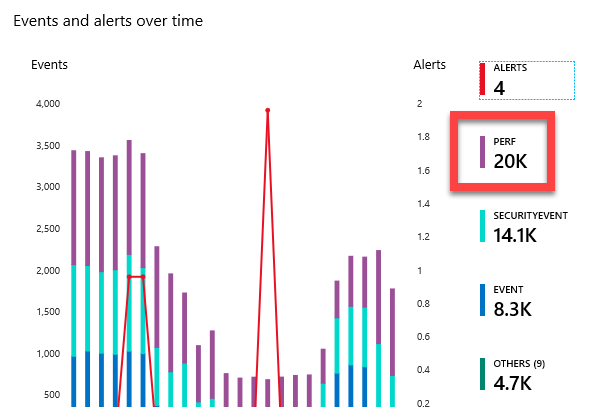
When I looked at Azure Sentinel I can see that I am bringing in more performance logs than security events per day. Now the question is, am I really getting value from having that much ingestion of performance logging? Probably not, so I want to go and turn it down a notch and not ingest quite so much and hopefully, save me a few dollars.

image

To do this, I’ll need to log into the Azure Portal and then go to Log Analytics workspaces.

image

I’ll then need to select Advanced settings from the menu on the left.

image

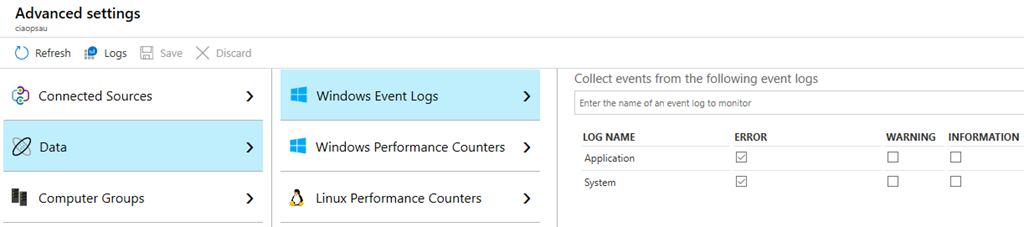
First thing I checked was in Data, Windows Event Logs is that I’m only capturing the errors in the Application and System logs for the devices, which I was.

image

Next I went to Windows Performance Counters and adjusted the sample time limit. I have increased it to every 10 minutes for now to see what difference that makes. I could also remove or add certain performance counters here if I wanted but I wanted to work with the current baseline.

With all that done, I’ll wait and see what the cost differences are in next month’s invoice and adjust again if necessary.

My software and services 2020

startup-photos

Here’s last year’s post for comparison:

My software and services – 2019

All my PC’s are running the latest version of Windows 10 (1909) without any issues and none during the upgrade process either. I do have Windows 10 and Office Insider builds happening on an original Surface PC as a testbed. All Windows 10 Pro machines are directly joined to Azure AD and managed via Intune. All machines run no third party AV as Windows Defender is a far better option in my experience. Thanks to Microsoft E5 on my production tenant, I am also using Microsoft Defender ATP at the back end for monitoring and investigation of endpoint threats.

The WD Sentinel DX4000 runs Windows Storage Server 2008 and replacement has been delayed due to the “pending” arrival of the NBN which hopefully will provide better bandwidth. In the mean time I have established a site to site VPN to Azure and have begun moving data into Azure storage. In the end this device will merely function as a backup device but for the time being I need to wait for better bandwidth. Hopefully this year I’m being told.

My two main tenants are an Office 365 E5 demo and Microsoft 365 production environments. The Windows 10 Pro machines are Azure AD joined to the Microsoft 365 production domain. The production Microsoft 365 tenant has Microsoft 365 Business for all users except myself. I have a Microsoft 365 E5 license on which I have configured all the services including integrated PSTN calling via Switch Connect.

I use most major browsers:

– Edge – mainly for logging into my production tenant

– Edge Insider – will soon become my major production browser and is used for production and business websites, like reading Microsoft docs.

– Chrome – I am minimising/eliminating my use of this on existing machines and not installing on any new machines. I want to move away from Chrome totally as soon as possible and get it off all my machines.

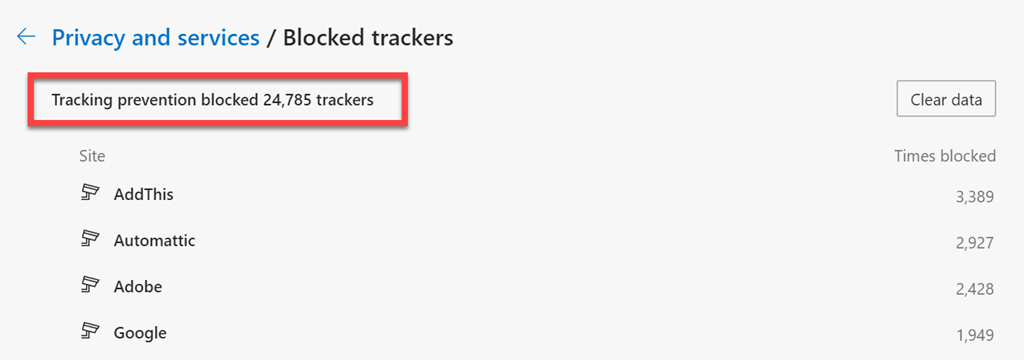
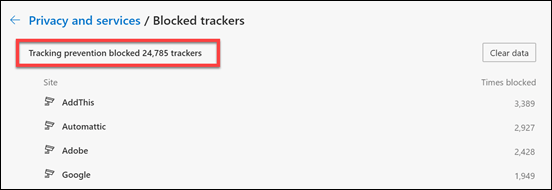
Brave – I have become increasingly concerned about the surreptitious tracking that many sites perform, especially when it comes to social media sites. I therefore now do all my ‘random browsing’, searching and viewing of social media sites. I became aware of the extent of tracking when I was adjusting the security settings in Edge Insider and found the following:
image

Made me realise that I probably need to take this ‘do not track’ stuff more seriously!

– Firefox – I occasionally use this for testing or isolation but less so now thanks to profiles in Edge Insider.

I have now cranked Edge Insider up to the maximum security level but wanted to isolate the most likely tracking culprits into another browser that was security focused. After some evaluation, I have chosen Brave to be this browser. This is now where I do all the stuff that is more likely to be tracked and now hopefully blocked or at least minimised. I have also set this browser up to use Duck Duck Go as the default search engine, otherwise I use Bing for my production browsers.

Services like SharePoint Online and OneDrive I use regularly both in the demo and production tenant. I have the OneDrive sync client installed, running and connected to various locations on my production and demo tenants. I can now sync across all my different tenants as well as my consumer OneDrive storage. We have come a long way with the sync client!

I used to have  Microsoft Teams which is now my main messaging application. All the CIAOPS Patron resources like the intranet, team, etc all reside in the Office 365 E5 demo tenant but I connect to it on my desktop normally via an Azure B2B guest account from my production tenant. Thus, I can admin the Patron resources in a browser if need be but I get the same experience on my desktop as any Patron would. Handy to know what works and doesn’t work with Microsoft Teams guest access. Thanks to Microsoft E5 and Switchconnect, I also have Teams connected as a phone.

I use Lastpass to keep my passwords and private information secure. It allows me to do things like generate and store unique passwords for each website that I sign up for. It is also available across all browsers on my machine (including Microsoft Edge). I also now also use Lastpass to store secure notes.

The extensions I run in all my browsers are:

LastPass

GetPocket

I use the automation sites If This Then That and Zapier to automate many different tasks. A good example of one of these is automatically publishing to various social media sites. I am now using Microsoft Power Automate more and more for automation and I am still looking to dive deeper using things like Azure Functions in 2020. I have now replaced Socialoomph to post precisely scheduled social media posts with my own solution in  Power Automate.

For my Office 365 and Azure email newsletters I use Mailchimp.

My preferred public social networks for business, in order are:

1. Twitter

2. Linkedin

3. Facebook

The Apowersoft software allows me to display both iOS and Android devices on my Windows desktop which is really handy for demonstrations and presentations.

I also use Yammer extensively but for more specialised roles and thus don’t consider it really a ‘public’ social network, more a private one.

I consume a lot of content from YouTube both for business and personal interest. I also also use YouTube extensively for my publicly available training video training.

Microsoft Office desktop software is still part of my everyday workday via applications such as Outlook, Word, Excel, PowerPoint, etc. I use the desktop version of Outlook on my Surface Pro 6 which lives on my desk but I only use Outlook Web App on my travelling Surface Pro 4 device. I could happily not use Outlook on the desktop any more I believe but I still use so I understand the experience for most users. However, I do see the day when Outlook on the desktop begins to lose its appeal.

One of the things I have added to my desktop version of Outlook is a digital certificate that signs every email that I now send. This helps the receiver confirm that the message they have received is in fact from me and that it hasn’t been altered in any way. There are some issues when people attempt to reply to these emails from a mobile device but I believe a fix from Microsoft is not far away.

The key application from the suite for me is OneNote. OneNote is my go to Swiss Army knife for just about everything digital. I use it to capture all sort of data. I even use it as a diary as I have detailed previous here:

One of the ways I use OneNote

The reason OneNote is key is because:

1. Just about everything I put in there us searchable

2. It is freely available across all platforms.

3. All my information is synced and accessible on all devices.

4. It is available on the web or offline if needed.

There are now two version of OneNote, the Windows store OneNote and OneNote 2016. Microsoft have changed their stance on future upgrades to OneNote 2016 desktop which is great to hear and kudos to Microsoft for taking feedback on that score. I am a big user of OneNote on my iPad with the Apple pencil. This combination has allowed me to totally eliminate my paper notebooks for things such as journaling.

I use Pure Text to easily paste information, especially to and from OneNote as only text.

I am now a big Microsoft To-Do user. I use it to keep many tasks and items that I need to follow up. I love how it is available on all my devices and syncs across them all as well. I was becoming a bit worried when it had sat there with no updates for a long while, but that has changed now with heaps of updates being released. I’m keen to see where To-Do goes in 2020.

I use Windows terminal now for things like PowerShell execution and Microsoft Whiteboard for demonstrations and training.

Another key service I use everyday along with Office 365 and OneNote is Azure. Typically, I use it for running up virtual machines that I test various things with but I also use it to backup my local data as well as that of other members of my family using Azure Backup.

Azure desktop backup

I have also now implemented an Azure site to site VPN as well as Azure SMB File storage to start moving my data into. I use Azure Sentinel to monitor all my services and machines in one single console and tell me about any incidents. My plans for 2020 is to keep building out my Azure infrastructure to include Azure AD Domain Services, Windows Virtual Desktop and more. Stay tuned for updates on this throughout 2020.

There is just so much that can be done with Azure and I pretty much use it everyday.

For a subset of my local data that I wish to remain secure I use Truecrypt to create encrypted volumes. All my Windows 10 machines run with full disk encryption thanks to Bitlocker, but stuff like financial and customer data I keep inside Truecrypt volumes for that extra layer of security. I understand that Truecrypt is no longer maintained and may have some very minor security flaws, but for how and why I use it, it is more than adequate.

Production data is also protected using Windows Information Protection which provides yet a further level of protection and extends that to all devices including mobile devices like phones and tablets,

To capture my desktop for my online training academy or my YouTube channel I use Camtasia. I use SnagIt to capture screen shots and add highlights and emphasis to these. Snagit allows me to capture complete screens or specific areas quickly and easily.

I use Microsoft Teams to record my podcasts, which I then produce with Camtasia. These are uploaded to Podbean where they syndicated across various network.

To compose and publish blog articles I use Open Live Writer.

The majority of images I get, like the one at the top of this article, I get from Pexels. Pickit is also another great option.

For improved meeting management productivity I use Microsoft FindTime.

I use Visual Studio Code in which I do most of my PowerShell editing and publishing. The end result typically is my GitHub repository where you will find a range of scripts and other resources that I maintain regular. With Visual Studio Code I can edit publish and sync all my machines and my GitHub repository no matter where I am. Very handy.

Here are also a few of the other items I use regularly that are not for business:

Amazon Prime Video – only place to the latest The Grand Tour action. I also liked the Jack Ryan series and well as the Gymkana Files.

NetFlix – Just added this recently and have found many great documentaries.

XBox Live Gold – access to all the online Xbox goodness.

Duolingo – language learning, Japanese and Italian at the moment

Tinycards – language and facts learning via flashcards. Also handy for certification exams.

So there you have it, the major software and services that I use regularly. I continue to search out additional software that will improve my productivity. If you use something that you’ve found really handy, please let me know and I always keen to explore what works for others.

Moving to the Cloud–Part 1

This year I thought I’d try and embrace as much of the Microsoft Cloud technology that is available. However, I’d try and approach it through the lens of a SMB business moving to the cloud but also lay it out in a staged manner for easier comprehension. This post therefore represents the first in a series of posts that covers the methods and configuration you can take in moving your infrastructure to the cloud.

That said, there is no one single approach or method that will work for all. However, by running through the various options and also explaining what value these may have, hopefully people will get a better idea of all the options that are available. As I said, there isn’t necessarily any right or wrong here, just my thoughts on the approach that I take given typical scenarios I see.

The first thing you’ll need to go and do is get a Microsoft 365 tenant. I’ll cover off what I recommend specifically and why in later posts, but for now, you’ll need to have a tenant.

Next, you’ll need to add a paid Azure subscription to this same tenant. I have detailed about this approach here:

Deploy Office 365 and Azure together

In short, doing so will give you more options and capabilities, especially when it comes to infrastructure. The good news is that you’ll only pay for what you use, so as you build your solution out you can keep costs down.

With you Microsoft 365 and Azure subscriptions in place, I would suggest that the starting point should be a site to site VPN to Azure. This basically extends your on premises network to Azure.

In my situation, I have Ubiquiti equipment so I followed articles like:

Connecting Ubiquiti Unifi USG to Azure via VPN

The Azure Site to Site VPN documentation is here:

Create a Site-to- Site connection in the Azure portal

This article is also handy:

Step by step: Configuring a site to site VPN gateway between Azure and on premises

Given that there are already a lot of detailed documents out there on doing this I’m not going to cover this off here. However, you’ll basically need to:

1. Create a virtual network in Azure.

2. Create a virtual network gateway in Azure and connect to the virtual network you created above.

3. Create a connection from the virtual network gateway in Azure back to your on premises environment.

4. Configure the on premises equipment to connect to Azure.

image

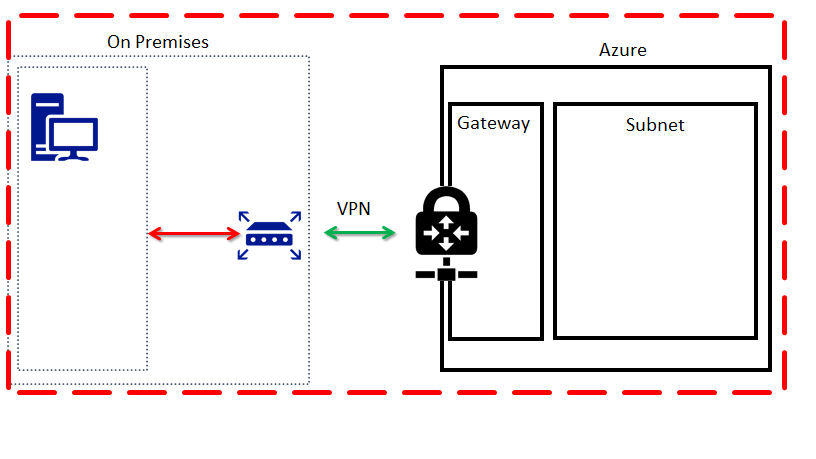
When complete, you should have something that looks like the above. There isn’t a lot that you can do with this configuration just yet, but it is going to be the basis for what is used going forward. What it gives us in effect is a single network that spans both on premises and Azure.

Now, let’s consider the costs.

An Azure virtual network is free.

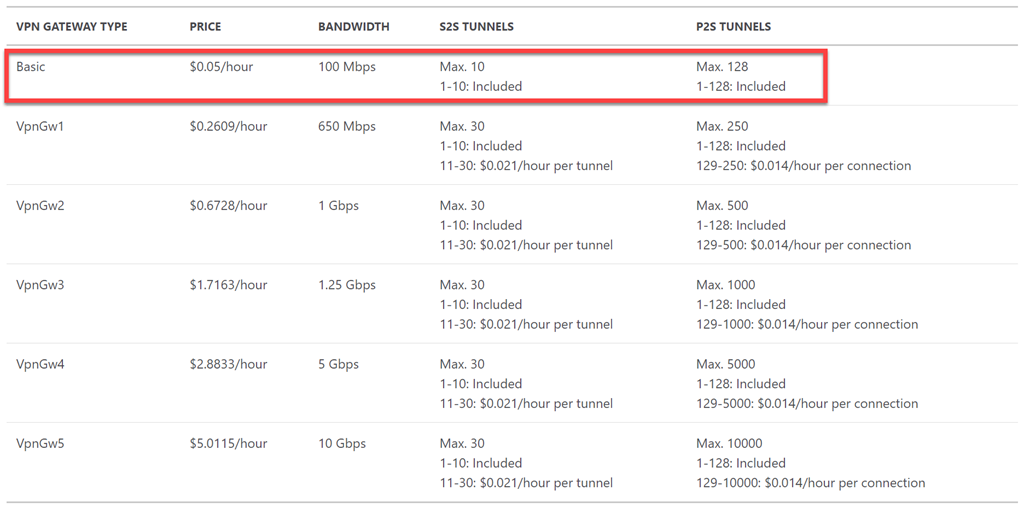
There are a number of different VPN options in Azure per:

VPN gateway pricing

image

In this case I’m going to select the Basic VPN, simply because it has enough bandwidth and tunnels, etc for my needs. However, the Basic VPN is typically only recommended for dev/test environments, but to keep costs down here I’ll use that going forward.

image

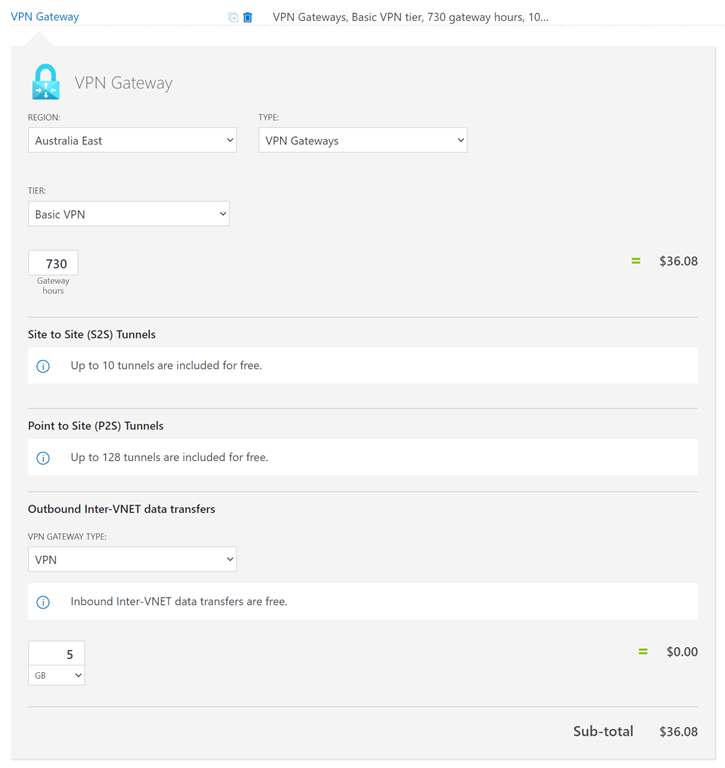
So, if I now use the Azure Pricing Calculator to get an estimate of the costs I get the above (in Australian dollars out of an Australian datacenter). Cost will vary depending on currency and location. You should also note that basically:

1. Data transfers into Azure are free.

2. You get the first 5 GB of data transfers out of Azure for free also.

So my expected initial VPN cost will be:

AU$36.08 per month

for up to 5GB of outbound (unlimited inbound) traffic.

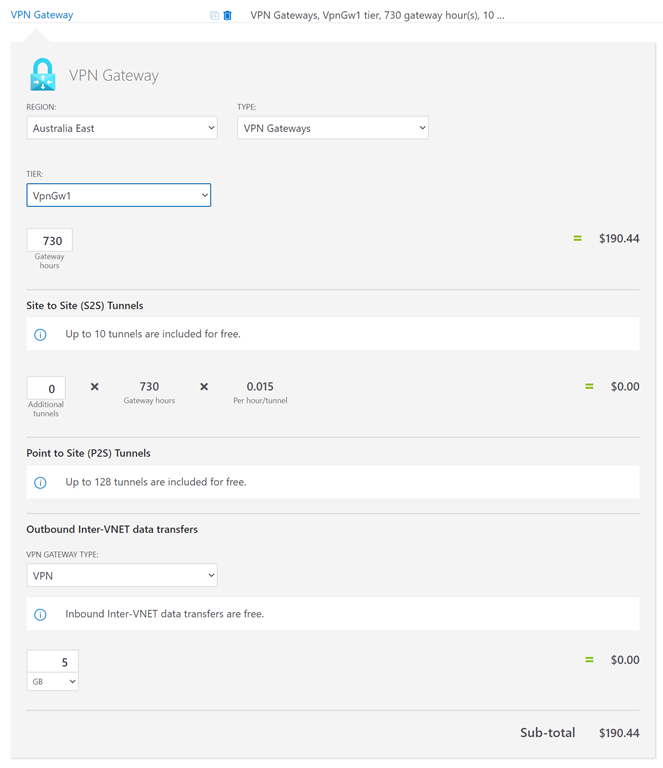
What’s the comparison cost if we step up to the next level of VPN?

image

You see that the cost jumps to AU$190.44 per month.

How easy is it to change VPN gateways in azure if you wanted to? Deleting and re-creating is easy, the downside is simply the time taken. This is because the time required to spin up a VPN Gateway in Azure is between 30 – 45 minutes generally. When you do so, you may also get a different external IP address for the gateway, which would mean a change to the configuration of the on premises environment. However, all of this isn’t difficult to do if needed. So for now, I’m going to stay with the Basic gateway because it is all I need and I want to keep costs down.

image

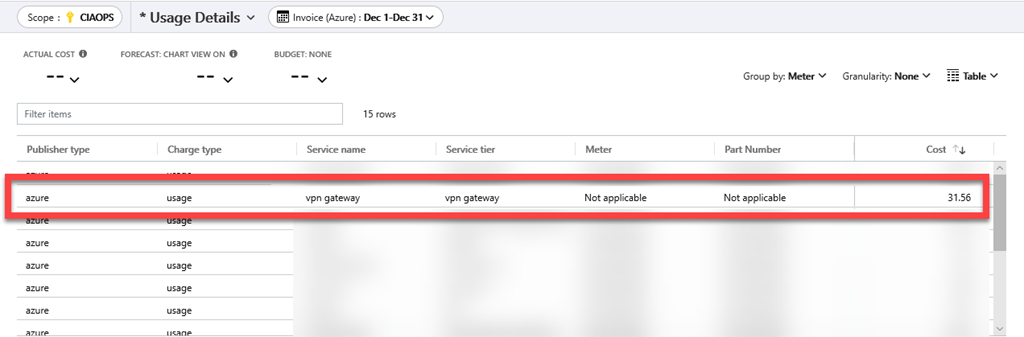
When I look at my bill for the month, as it turns out, the cost of the Basic VPN Gateway for the month, shown above, is pretty much what the calculator determined. The variance is probably just a small amount of outbound data that I used. So, you can be pretty confident that the cost of the VPN with less than 5GB of outbound traffic will be a fixed cost per month. We’ll cover how to budget for outbound traffic in upcoming articles, so stay tuned. However, for now, I know I am going to have a fixed cost of AU$36.08 for just my Basic VPN gateway every month. Add that to the budget.

In summary, one of the first steps in migrating an on premises environment to the cloud is to establish a site to site VPN. You can do this easily with Azure and the expected costs for the most configuration is around AU$36 per month. The benefit of this is that you have now extended you on premises network to Azure and can start taking advantage of the services there.

Watch out for upcoming articles on the next stages of this process.

Azure file storage private endpoints

I’ve previously detailed how to create an Azure SMB File Share:

Creating an Azure SMB file share

as a way to create a ‘cloud USB’ drive that you can map to just about any desktop quickly and easily. All of this is accomplished securely but many remain hesitant to do this across the Internet directly. Luckily, there is now an option to map this SMB share to an IP address inside an Azure VNet to restrict access if desired.

image

Before you set this up you will need to have an existing Azure Vnet created as well as a paid Azure subscription. You can add a Private Endpoint to an existing Azure storage account or create one at the same time you create a new Azure Storage account. In this case, I’m going to an existing account.

In the Azure portal search for “private link”, which should then take you to the Private Link Center as shown above. Select the Add button on the right.

image

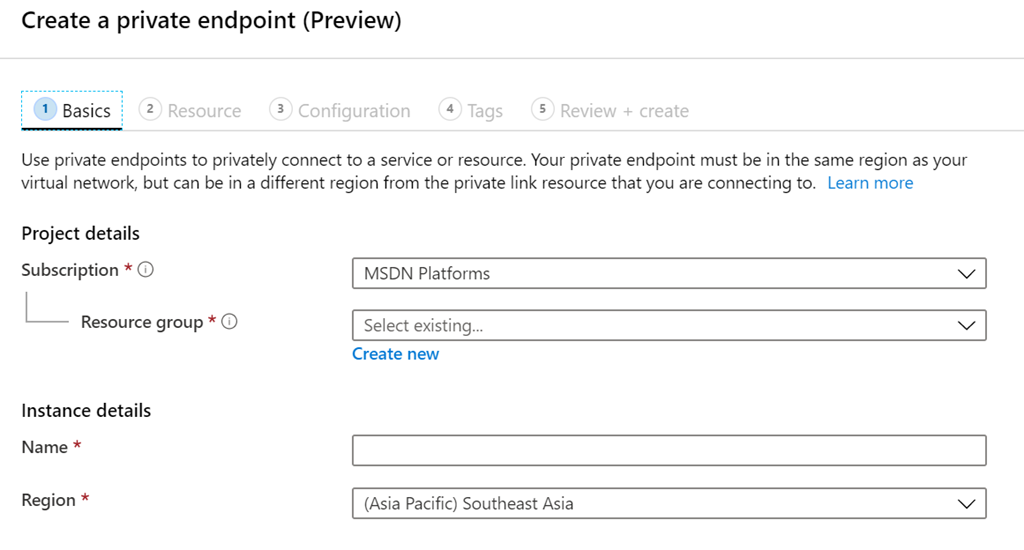
You’ll need to select a Resource Group as well as a Name as shown above.

image

You’ll then to select the Azure Storage account and the file option to connect to an existing SMB file share as shown above.

image

Next, you’ll need to connect to an existing Vnet and if you want to access the resource privately by a name, then you’ll need to integrate it with a private DNS zone, which will also be set up for you as part of this process.

image

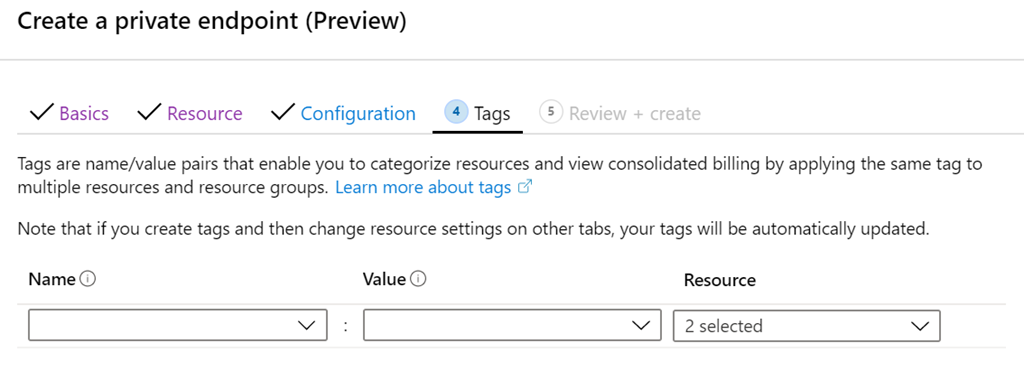
You can then add tags. Note – when I created mine, if I assigned tags here I couldn’t create the Private Endpoint, which appears to be a bug. So, if for some reason you find the same issue, create the Private Endpoint without tags and then add them later.

With all that done, select the Create button to finish the configuration on the Review + Create page.

image

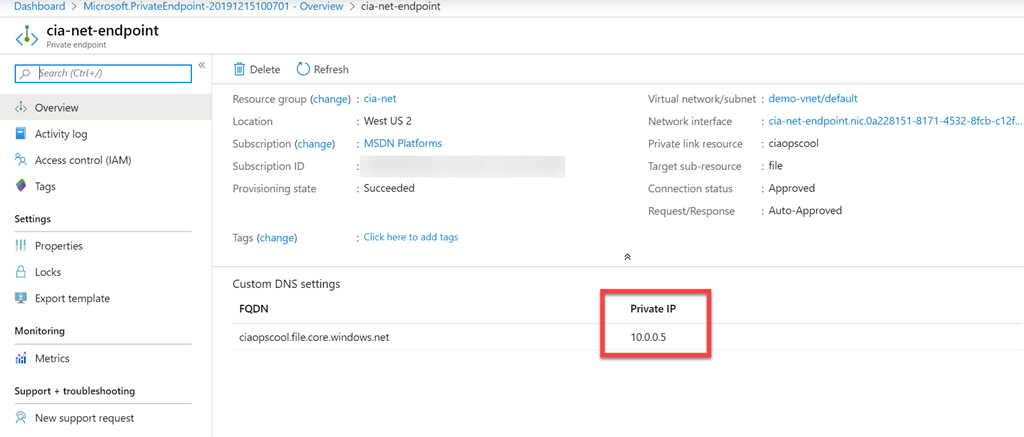
When the set up process is complete you’ll now see your endpoint as shown above with an allocated IP address on the Vnet you selected.

image

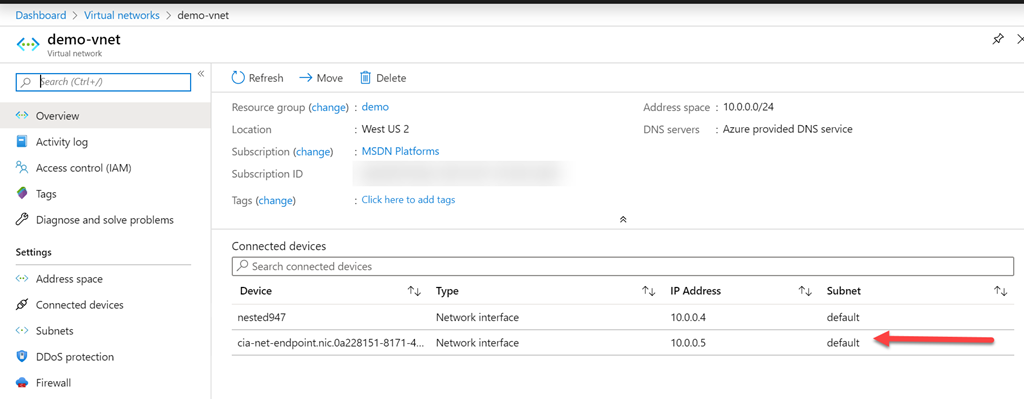
If you then look at your Vnet, as shown above, you will see that the Storage Account is seen as a connected device.

SNAGHTMLc990f5b

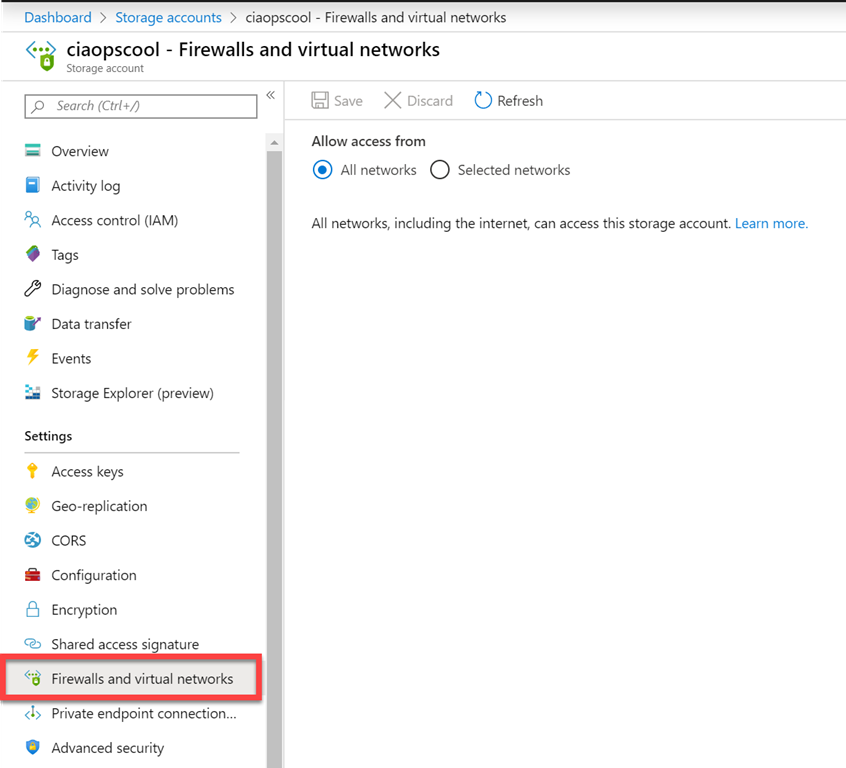
If you now visit the Storage Account and select Firewalls and virtual networks as shown above, you can configure what networks can access this new Private Endpoint.

Leaving the option set to All networks means that you can still map to that SMB share directly across the Internet, which you may want.

image

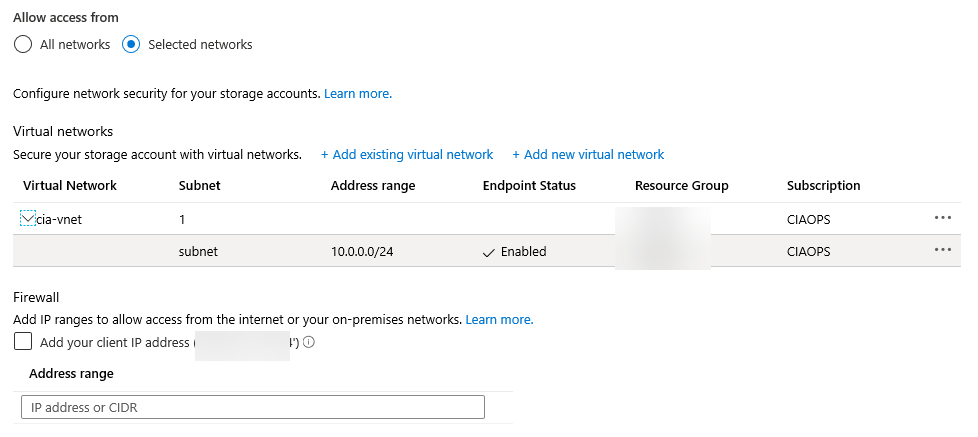
However, in the above case, I have selected to restrict the access to the Vnet only.

image

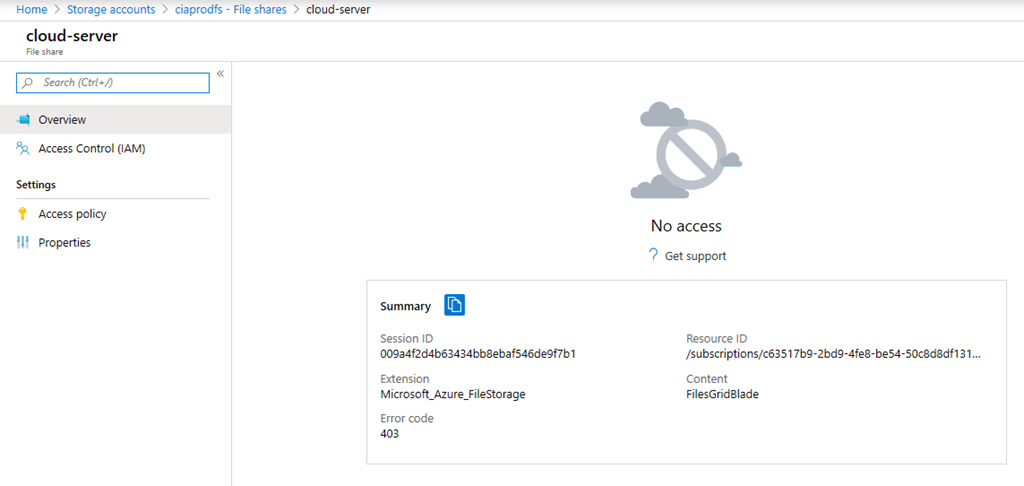
Doing so means that the ONLY way I can now access that SMB Share is via the selected Vnet. I can’t get to it using the Azure portal on my remote desktop machine as shown above.

image

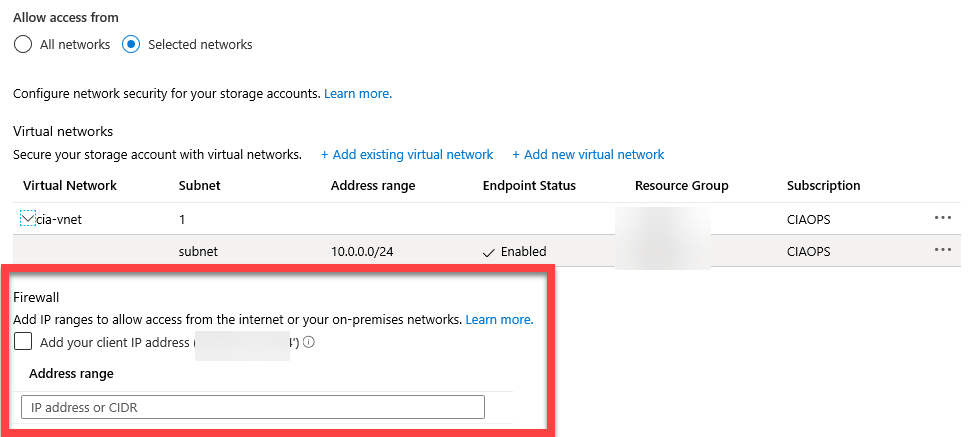
If I wanted to access this from a remote location, outside the Vnet across the Internet, I could add those details below. However, I have chosen not to do this.

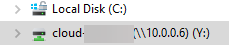
My Azure SMB File share now has a dedicated IP address that is restricted to access via an Azure Vnet, how do I work with this share directly on premises? Easy. I set up an Azure Site to Site VPN to that same Vnet and now I can access that Azure SMB File share from my local machines by mapping to something like the IP address.

image

Thus, the only way that Azure SMB file share can be access is across a Site to Site VPN, making even more secure.

image

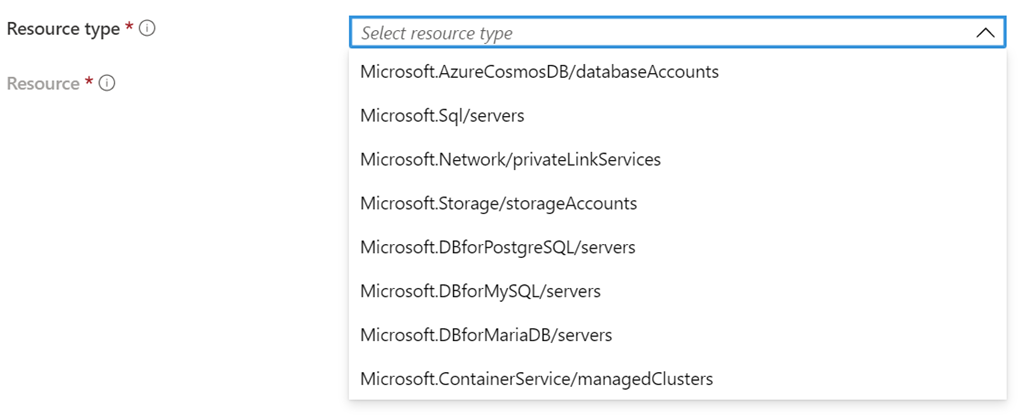
Private Endpoints support connection to a number of PaaS Azure services as shown above. This is handy as it allows you to connected you Azure IaaS services (like VMs) directly to Azure PaaS (like storage) quickly and easily as shown. What’s the benefit? Remember, IaaS is typically billed on time used, while PaaS is billed on resource consumption. Thus, why should I pay for a VM to store my data and pay the time it runs (typically 24/7), plus disk storage where I could use Azure Storage and most be billed just for the data capacity?

PaaS is the future and has many benefits over IaaS. You should be looking to shift as much of you infrastructure to PaaS to take advantage of things like reduce maintenance, cost savings, etc. Private Endpoints is an easy way to start doing just that. For more information on Azure Private Endpoint visit:

What is Azure Private Endpoint?

Intune policy sets

The modern way to manage and configured devices in the Microsoft Cloud is to use Intune to handle device enrolment and configuration. This can become complex quickly when you at look configuring across the different operating systems (iOS, Android, Windows, MacOS, etc) and the different policies (endpoint, compliance, restrictions, etc) because there are so many possible variations. If you then layer on a variety of users and their requirements, being consistent across the organisation can be a challenge.

image

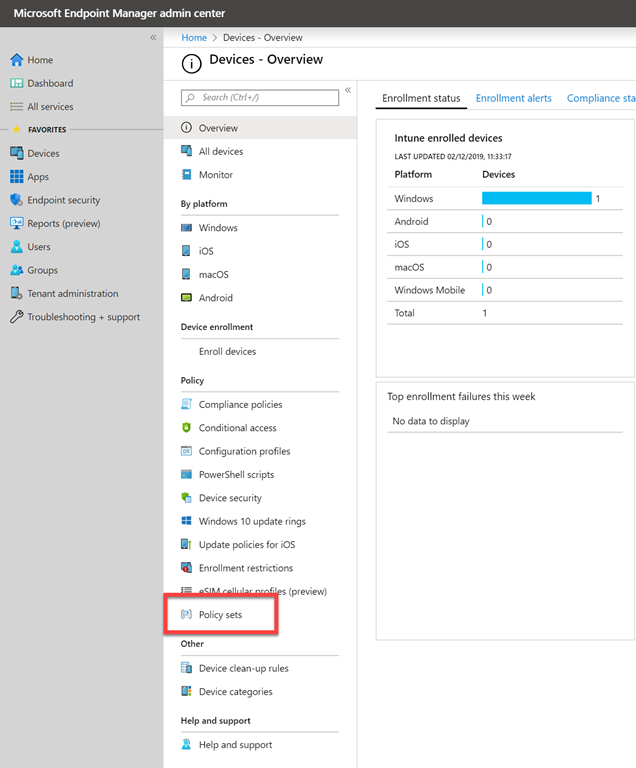
Luckily, Intune now gives us something called Policy Sets which you can find in the Microsoft Endpoint Manager admin center as shown above.

image

As the opening screen, shown above, notes – Policy sets are basically a way to group a set of individual policy configurations together and have them applied as a group. Handy eh?

image

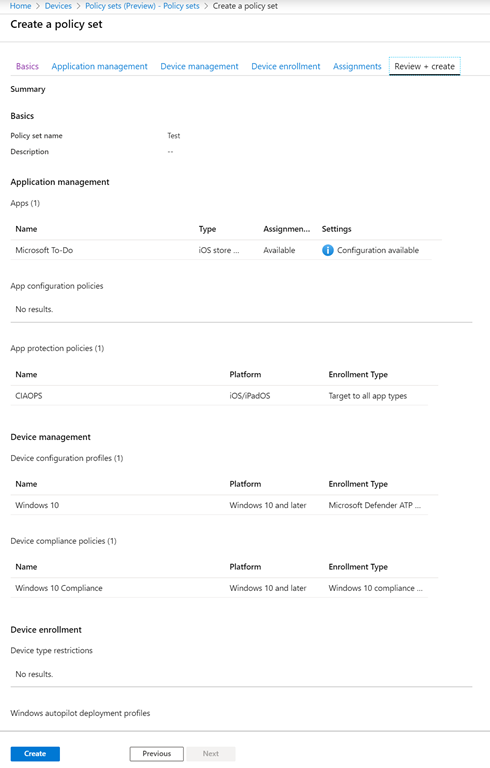
Basically, you follow through the wizard and select the policies you wish to group together and then users you wish that to apply to. You save that as an individual Policy set, of which you can create as many different ones as you like.

Once you create the policy it will be applied exactly the same as if you did each policy individually, but now you can do all that together via a single setting! You can go back in at anytime and edit the Policy sets you created.

Device manager Policy Sets allow you to easily group a variety of individual Intune policies together and apply them together to a group of users quickly and easily. This should save you lots of time over creating an individual enrolment policy and applying, then an individual compliance policy and applying, then an individual endpoint protection policy individually and so on.

Need to Know podcast–Episode 220

In this episode I speak with Leigh Wood from Node IT in the UK about what attending the Microsoft worldwide partner conference known as Inspire. Leigh gives us some great insights, experiences and the benefits of attending. A great episode for Microsoft partners to listen in to and learn from Leigh. We have our usual Microsoft Cloud updates from Brenton and myself. Stay tuned, stay up to date and listen along. Let us know what you think of this episode.

This episode was recorded using Microsoft Teams and produced with Camtasia 2019

Take a listen and let us know what you think – feedback@needtoknow.cloud

You can listen directly to this episode at:

https://ciaops.podbean.com/e/episode-220-leigh-wood/

Subscribe via iTunes at:

https://itunes.apple.com/au/podcast/ciaops-need-to-know-podcasts/id406891445?mt=2

The podcast is also available on Stitcher at:

http://www.stitcher.com/podcast/ciaops/need-to-know-podcast?refid=stpr

Don’t forget to give the show a rating as well as send us any feedback or suggestions you may have for the show.

Resources

@nodeIT

@contactbrenton

@directorcia

Microsoft submissions to Cyber 2020 strategy

Outlook on the web is becoming a progressive web app

Security defaults provides key security for free

Microsoft Partner Agreement

Azure Sentinel

Azure Sentinel is a great add on

MFA penetration in the Microsoft Cloud

Microsoft Norway now open

Azure cost management for partners

CIAOPS AZ-900 Exam prep course now available

AZ-900-microsoft-certified-azure-fundamentals

I am happy to announce I have completed another online Microsoft exam prep training. This time it is for the Microsoft AZ-900 Azure Fundamentals exam. This exam is an excellent starting point if you are looking to get into Azure. It is quite broad but it is important to remember that it is focused on ensuring you have a basic understanding of most of the Azure services. That means, you need to know what they are and what they do NOT how to configure them individually.

I am a big believer in industry certifications as I have details previously here:

The benefits of certification

It is important to have Azure in your tool bag these days because new services like Windows Virtual Desktop are built on a variety of Azure services. To do anything with Windows Virtual Desktop, you are going to need to have Azure knowledge and this AZ-900 is a great starting point on that journey.

You can sign up for this new course here:

https://www.ciaopsacademy.com/p/azure-az-900-exam-preparation/

and look out for more courses coming soon from the CIAOPS.

Bad guys keep winning (Part V)

image

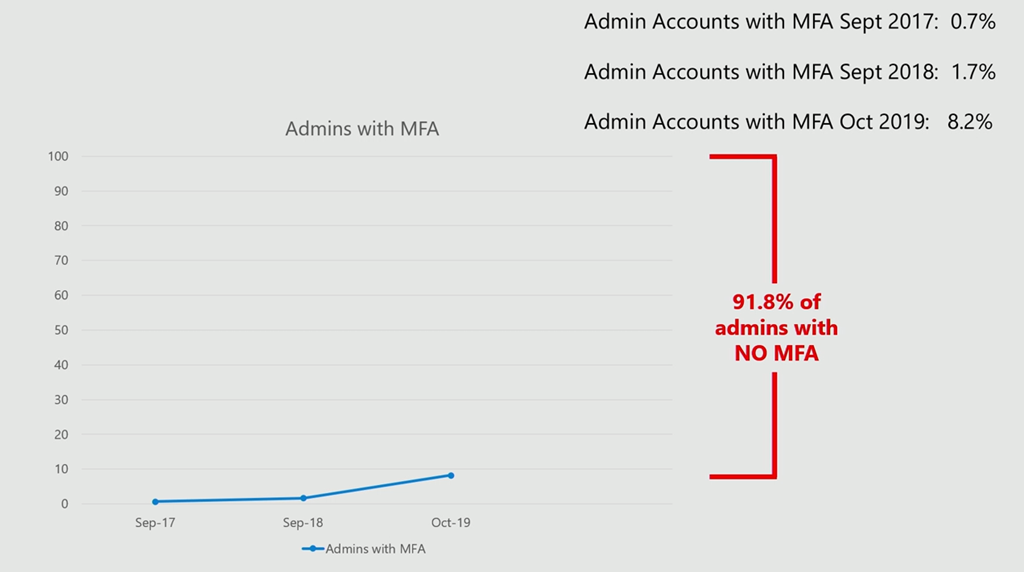
The above amazing slide is from the recent Microsoft Ignite 2019 session – SECI20 – Shut the door to cybercrime with identity-driven security.

This means that vast majority of Microsoft Cloud tenants DO NOT have their admin account secured via MFA. You could understand maybe 5 or 10 percentage as ‘break glass’ style accounts but 92%??

Would you not say that in the past year we, as a society, have become MORE dependent on technology? I know many business can’t run a business without technology but not enabling simple protective measure like this is simply amazing! It also makes you wonder at how much else is not secured appropriately? I think saying that 92% of ALL IT installations are not appropriately secured would not be far wrong.

The good news is that, if you take the time to implement things like MFA, you are more secure than 92% of systems out there. Given that bad guys go after the easiest target (law of the jungle), it kinda makes you less susceptible. Sad but true, that there are plenty of victims out there just waiting to happen!

I’m sure there is a lot of finger pointing that can be had as to who is responsible and who needs to do what, however all that is irrelevant as it simply means the bad guys are rubbing their hands together as the 92% vacillates over implementing what really should be mandatory!