
If you still rely on Connect-MicrosoftTeams with an interactive sign-in every time you need to do some administration, you already know the frustration.
Scripts stop and wait for credentials. Scheduled tasks simply can’t run unattended. MFA prompts interrupt automation. And if you’re managing multiple tenants as an MSP, jumping between browser windows and authentication prompts quickly becomes tedious.
Microsoft has supported certificate-based authentication for Teams PowerShell for some time. The challenge hasn’t been the technology. The challenge has been the setup.
I’ve created a script that handles that process for me, removing most of the manual work and making certificate-based authentication something I can deploy consistently across customer tenants. The approach follows the same design philosophy I’ve been using for Exchange Online and other Microsoft 365 workloads: automate the plumbing so I can focus on the outcome. You can find it here:
https://github.com/directorcia/Office365/blob/master/o365-connect-tms-cert.ps1
and the documentation is here:
https://github.com/directorcia/Office365/wiki/Certificate-based-connection-for-Teams
What the Script Actually Does
The script operates in two primary modes.
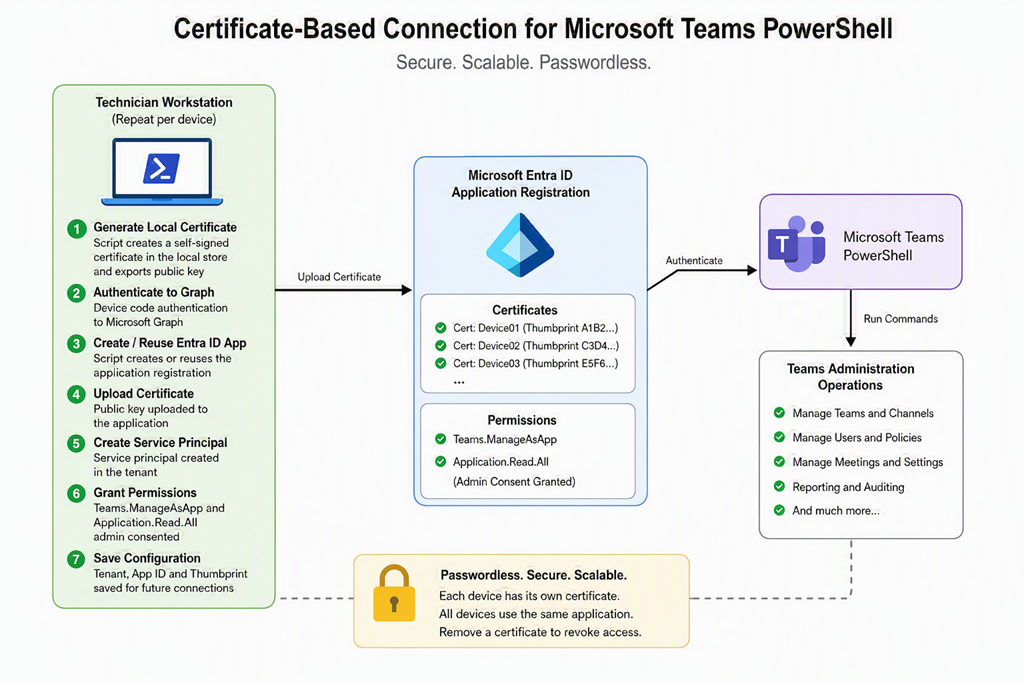
The first mode, -GenerateLocalCertificate, creates a self-signed certificate on the local machine and exports the information needed for authentication. If required, it can also provision the Entra ID application automatically. The local certificate becomes the device’s identity when connecting to Teams PowerShell.
The second mode, -UseCertificateAuth, performs the actual Teams connection using the existing certificate and application registration. No password. No browser pop-up. No MFA prompt in the middle of an automated process.
The really useful feature is combining certificate generation with application provisioning. In a single operation the script can:
- Create the local certificate
- Authenticate to Microsoft Graph using device code authentication
- Create or reuse an Entra ID application registration
- Upload the certificate to the application
- Create the required service principal
- Assign the necessary permissions
- Store the configuration details for future use
Tasks that typically involve multiple portals, several copy-and-paste operations, and more than a few opportunities to make mistakes can be reduced to a single repeatable process.
Why Certificate Authentication Matters
The biggest advantage is that you’re no longer tying automation to an admin account.
Traditional approaches often depend on an account that someone logs into interactively. That works fine until MFA settings change, conditional access rules are updated, or the account password expires.
Certificate authentication shifts the trust model. Instead of trusting a username and password, Microsoft validates the certificate installed on the machine against the certificate registered in Entra ID. If they match, the connection succeeds. If they don’t, access is denied.
That makes the solution both more secure and more reliable.
For MSPs, it also provides a cleaner operational model. Each technician workstation can have its own certificate while sharing the same application registration inside the customer tenant. If a machine is retired or a staff member leaves, removing the associated certificate immediately blocks access from that device without affecting anyone else.
The MSP Advantage
This is where the approach starts to shine.
A common question is whether every machine requires a separate application registration. The answer is no.
The design I prefer is a single Teams application per tenant with multiple certificates attached to it. Each device gets its own unique certificate, but all of them authenticate through the same application registration. That keeps administration simple while still maintaining proper separation between devices.
When a new technician needs access:
- Run the provisioning process.
- Generate a new certificate.
- Associate it with the existing application.
- Start working.
When access needs to be removed:
- Delete the certificate association.
- Access from that machine immediately stops.
No password resets. No account changes. No disruption for other administrators.
Getting Started
If you’re still connecting to Teams PowerShell interactively for daily administration, I’d encourage you to investigate certificate-based authentication.
The technology isn’t new. What’s important is reducing the complexity required to deploy it.
The real benefit isn’t that you save a few clicks when connecting. The real benefit is that you create a repeatable, secure authentication framework that supports automation, improves operational consistency, and removes dependence on administrator credentials.
For MSPs managing multiple tenants, that’s a significant improvement.
The less time I spend authenticating, the more time I spend solving customer problems. And that, ultimately, is the point.

