Azure AD and SharePoint Online user differences

I’ve been developing scripts to work with OneDrive for Business when I fell into a bit of a rabbit hole that lead me to an interesting revelation.

Part of the challenge with working with OneDrive for Business in Office 365 is that not all users have one, even though they are licenses for it. The reason for this is simply that a user’s OneDrive for Business isn’t generally provisioned for them until they start using it. Thus, in my demo tenant there are probably users who haven’t as yet been through the process of having a OneDrive provisioned. No issues.

Secondly, when you share information with external users in SharePoint and Teams you may also find an AD account but that user hasn’t as yet access SharePoint resources for some reason. Maybe, they haven’t accepted the sharing request and so on. Again, no big deal.
image

So I created a script that goes through each active Azure AD user in the Office 365 tenant and check to see whether there is a corresponding SharePoint Online user. To do this I used the following commands:

get-spouser

and

get-azureaduser

So I trained these commands on the OneDrive for Business URL which is typically:

https://tenantname-my.sharepoint.com

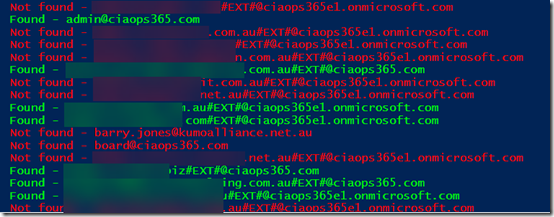
As you can see from the above report, the green lines indicates matches to accounts in my Azure AD and in my OneDrive for Business. The green tenant users, with a custom domain typically have their own OneDrive for Business. The green External users, distinguished by an account that includes #EXT# are typically accounts outside the tenant that have been shared information with and accepted that sharing request.

Now the red tenant users, typically haven’t had their OneDrive for Business provisioned yet and the red external users typically haven’t accepted the sharing request that has been sent them as yet. All understood.
image

Here’s where the rabbit hole opened up. Ok, I thought, now what happens if I do the reverse? That is, check my SharePoint users against my Azure AD users? So off I went to create a script.

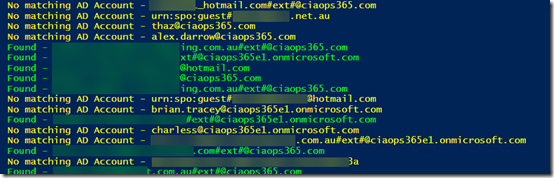
The script came back with the results you see above. All the the yellow accounts are SharePoint users that don’t have a match Azure AD account. Quite a few eh? When I first saw this I panicked a bit, because many of the accounts I didn’t recognize. What was going on here I wondered? Had I been compromised?

In a perfect world, there would be a one to one mapping between Azure AD accounts and SharePoint account. However, things aren’t that perfect, so in my demo tenant, I had created lots and lots of accounts over the years and many had become ‘orphaned’ leaving behind information in SharePoint. Many were just so old I forgotten that I created them and then later deleted the Azure AD account.

Is this a problem? Not really I don’t think, because without an Azure AD account to login to, these ‘orphaned’ resources aren’t much use. Still, if they aren’t needed then they really should be deleted to my mind.

Interestingly, some of these ‘orphaned’ SharePoint users actually still had their own OneDrive for Business that clearly wasn’t being displayed anywhere else. Once I took control of these ‘orphaned’ sites by making myself a Site Collection Administrator I could see what they actually contained. When I was happy it wasn’t needed or in use I deleted these, again using PowerShell.

So what did my trip down the rabbit hole teach me? Firstly, I learned that Azure AD and SharePoint user accounts don’t always line up. Next, I learned that you can end up with ‘orphaned’ SharePoint users and resources that you may want to clean up using PowerShell. I don’t believe these represent any security issues but if they aren’t necessary then they probably should be deleted. However, be careful of system accounts which shouldn’t be removed. Just get rid of those you recognise as no longer being required.

The biggest thing that my exploration taught me is the value of PowerShell to get behind the standard interface of Office 365 and see what is really going on. It gives you much better control and for me it helps me understand much better how everything works.

If you want the scripts that I used to do these comparisons then I suggest you sign up to my Patron community – www.ciaopspatron.com where you’ll find these and whole lot more Office 365, Microsoft 365 and Azure resources.
Checking SharePoint External Users PowerShell Script

image

Another things that you should keep your eye on in your Office 365 environment are the external users who have been give access to any of your SharePoint sites. You’ll probably find that many of these should no longer have access, so I’ve done a simple script which you can get here:

https://github.com/directorcia/Office365/blob/master/o365-spo-extusr.ps1

that will basically loop through all your SharePoint sites (including OneDrive and those created by Teams and Groups) and list out all the external users on the screen.

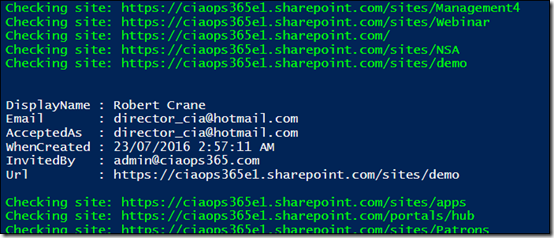
As you can see from the above screen shot, it will tell you the external users name, email, when they were invited and by whom. Importantly, it also shows you which email actually accepted the invitation as this may vary in some cases (another point of investigation potentially).

I’ll continue to work on this script and the others I have in my GitHub repository. So please send me your feedback and suggestions on how to improve what I have developed as well as any ideas for scripts you’d like to see.

PowerShell script to check email forwards

A while ago I wrote an article about how important it is to check the email forwards that all your mailboxes have in Office 365. Why? Because, the first things most bad actors set up after successfully phishing a user’s credentials is to forward all email to their own account. This effectively mirrors everything a users receives. Doing so allows the bad actors to gather intelligence about the user and the organisation and potentially impersonate that user.

If you look at the configured email forwards for your tenant, as I detailed here:

Check those Office 365 email forwards

are much more likely to detect something that could be an issue and take action.

As the article details, the easiest way to do this is to use a PowerShell command. However, an even easier way to use the script that I have just made available for free in my GitHib repo here:

https://github.com/directorcia/Office365/blob/master/o365-exo-fwd-chk.ps1

You’ll need to connect to Exchange Online prior to running this script.

image

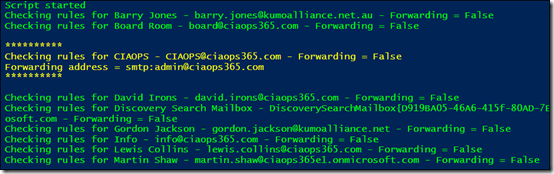
The script will report back on all mailboxes and show you any forwards configured. It will show those in place but disabled (in yellow) and those in place and enabled (in red). The enabled ones are the ones you really should check to ensure that they are required and not implemented by some bad actors.

I’ve also uploaded many more scripts to my GitHub repo to allow you to connect to Office 365 services directly or using multi factor authentication. I’ll keep adding scripts and updating existing ones regularly, so ensure you check back there regularly.

CIAOPS GitHub Repositories

GitHub-Mark

I have now created 2 GitHub repos for Office 365 and Azure content. You can find these at:

https://github.com/directorcia/Office365

and

https://github.com/directorcia/Azure

At the moment they mostly contain basic connection PowerShell scripts but I am looking to grow the content over time and include other information that people can use. For example, in the Azure repo you’ll find my Azure bucket spreadsheet which is a basic way of pricing and bundling Azure services.

Much of the content is under development but using GitHub allows me to easily work on the content across different machines and have a development environment to work with (i.e. versions, branches, etc).

Using GitHub I also see as a way for me to gain experience with the technology given the recent Microsoft purchase of GitHub as well as the general move to a DevOps world.

So, take a look at what is there, hopefully you’ll find some handy PowerShell scripts and don’t forget to check back regularly for new and updated content. As always you can send me feedback directly or in GitHub for each project.

Using Office 365 PowerShell with MFA enabled

Enabling multi factor authentication (MFA) in Office 365 is best practice, especially for global administrators. However, doing so can raise some challenges when it comes to working with PowerShell command line and the ISE.

The above video tutorial takes you through the process of accessing your Office 365 tenant when you have MFA enabled. The commands that you need to also do this via the PowerShell ISE are here:

Import-Module $((Get-ChildItem -Path $($env:LOCALAPPDATA+”\Apps\2.0\”) -Filter Microsoft.Exchange.Management.ExoPowershellModule.dll -Recurse ).FullName|?{$_ -notmatch “_none_”}|select -First 1)

$EXOSession = New-ExoPSSession

Import-PSSession $EXOSession

Now you can still have MFA enabled on your accounts while using PowerShell. Yes, there is more work to enable this but if it is harder then generally you know it is more secure!

Azure Active Directory version 2 PowerShell module

For a long time we have been using the msonline module in PowerShell to access Azure AD which provides Office 365 identity and security. This has now been superseded by the new:

Azure AD V2 PowerShell module

Also thanks to advances in PowerShell this module is even easier to install.

image

Just open the PowerShell application on your workstation (it is always recommended that you do this as an administrator). Then just type:

install-module –name azuread

and press enter.

image

You may be prompted about a Nuget provider as shown above. Select Yes to continue.

image

You should now see this being installed as shown above.

image

You may also be prompted about installing from an untrusted repository. Select Yes to all to continue.

image

You should now see the Azure AD module being downloaded.

 image

When complete you’ll be returned to the command prompt.

image

You’ll still need to login to your tenant using the standard get-credential command. However now you use the following:

connect-azuread

command to access Azure AD.

image

Once that is complete you can issue some of the new module command such as:

get-azureaddomain

as shown above to work with your cloud AD.

This new Azure AD module will the option to use going forward to work with your identities PowerShell for Office 365 because the older version 1 msonline will be depreciated at some stage.

January webinar resources

https://docs.com/d/embed/D25191743-6640-8940-4220-000669904411%7eMd4186d87-61d5-259a-4d26-00a8bd86cfff

Welcome to 2017. The first webinar of the New Year is now done and dusted. You can see the slide above or download directly from:

January 2017 Need to Know Webinar

If you are not a CIAOPS patron you want to view or download a full copy of the video from the session you can do so here:

http://www.ciaopsacademy.com/p/january-2017-need-to-know-webinar/

you can also now get access to all webinars via:

http://ciaops-academy.teachable.com/courses/need-to-know-webinars

for a nominal fee.

Thanks to everyone who attended and I hope to see you again next month.

Need to Know podcast–Episode 113

A special episode with a true technology superstar. Jeffrey Snover, Microsoft Technical Fellow/Lead Architect for Enterprise Group, Azure Stack and PowerShell Architect joins us to talk about Microsoft Operations Management Suite (OMS) and of course, all about his baby, PowerShell. Jeff shares some really great insights into the birth of PowerShell and why scripting is so valuable is today’s modern IT environment. Of course you’ll also get a cloud news update from Marc and I as well as a special report about upcoming changes to the Microsoft reseller initiatives around Office 365. It’s a bumper episode packed with content. So listen along, give us some feedback and listen to wisdom the father of PowerShell.

You can listen to this episode directly at:

http://ciaops.podbean.com/e/episode-113-jeffrey-snover/

or subscribe via iTunes at:

https://itunes.apple.com/au/podcast/ciaops-need-to-know-podcasts/id406891445?mt=2

The podcast is also available on Stitcher at:

http://www.stitcher.com/podcast/ciaops/need-to-know-podcast?refid=stpr

Don’t forget to give the show a rating as well as send me any feedback or suggestions you may have for the show.

Resources

@marckean

@directorcia

Modern SharePoint Lists

SharePoint Online Site Collection limit increased to 25TB

Change to partner remuneration coming 1st October 2016

Marc’s blog with all the Azure news

@jsnover – Jeffrey Snover: Microsoft Technical Fellow/ Lead Architect for Enterprise Cloud Group/ Azure Stack Architect/ PowerShell Architect

Here is the must watch video on Jeff’s history at Microsoft https://www.youtube.com/watch?v=3Uvq38XOark

Use the PowerShell 5 Convert-String Cmdlet

Learning PowerShell

Getting Started with PowerShell 3.0 – Microsoft Virtual Academy Course

Microsoft Operations Management Suite Overview

Show feedback – feedback@needtoknow.cloud