CIAOPS Need to Know Microsoft 365 Webinar–November

laptop-eyes-technology-computer

The most under utilised tool in the Microsoft suite is OneNote. Join us for a deep dive into what OneNote is and how to make the most from it personally and professionally. There is also plenty of news that I’ll cover as well as open Q and A for any questions you may have.

You can register for the regular monthly webinar here:

November  Webinar Registrations

The details are:

CIAOPS Need to Know Webinar – November 2020
Friday 27th of November 2020
11.00am – 12.00am Sydney Time

All sessions are recorded and posted to the CIAOPS Academy.

The CIAOPS Need to Know Webinars are free to attend but if you want to receive the recording of the session you need to sign up as a CIAOPS patron which you can do here:

http://www.ciaopspatron.com

or purchase them individually at:

http://www.ciaopsacademy.com/

Also feel free at any stage to email me directly via director@ciaops.com with your webinar topic suggestions.

I’d also appreciate you sharing information about this webinar with anyone you feel may benefit from the session and I look forward to seeing you there.

Need to Know podcast–Episode 258

Apart from all the latest Microsoft Cloud news, I speak with David Bjurman-Birr who is a security architect, especially focused on the SMB space. David shares plenty of great tips when it comes to ensuring your Microsoft 365 tenant. Listen along to stay safe.

This episode was recorded using Microsoft Teams and produced with Camtasia 2020

Take a listen and let us know what you think – feedback@needtoknow.cloud

You can listen directly to this episode at:

https://ciaops.podbean.com/e/episode-258-david-bjurman-birr/

Subscribe via iTunes at:

https://itunes.apple.com/au/podcast/ciaops-need-to-know-podcasts/id406891445?mt=2

The podcast is also available on Stitcher at:

http://www.stitcher.com/podcast/ciaops/need-to-know-podcast?refid=stpr

Don’t forget to give the show a rating as well as send us any feedback or suggestions you may have for the show.

Resources

David Bjurman-Birr

@directorcia

CIAOPS Patron Community

CIAOPS Blog

The definitive guide to Productivity Score

Microsoft Teams reaches 115 million DAU—plus, a new daily collaboration minutes metric for Microsoft 365

Darknet Diaries podcast

Security Unlocked podcast

Uncovering hidden risk podcast

Microsoft announces plans to establish its first cloud region in Austria to accelerate local innovation and growth

Microsoft to establish its first datacenter region in Taiwan

Microsoft’s commercial cloud continues to hum with Azure sales up 48% in Q1

Plus Addressing Now Available in Exchange Online

NIST cybersecurity framework

Australian cybersecurity guidance for SMBs

Australian essential eight explained

Office 365 investigation tooling

Guide to implementing CIS Controls with Microsoft 365 Business Premium

Practical guide to securing remote work using Microsoft 365 Business Premium

SMB Tech community

Intune Data Collection Policy Error 0x87d1fde8

State = error

State Details = -2016281112 (Remediation failed)

image

It all started when I was checking my Intune Configuration policies and I found that all of a sudden I have a new policy called Intune data collection policy as shown above, that I didn’t created. Worse, it had errors!

image

When I looked at a specific device that was affected, as shown above, I could see two errors on the device. One was from a user designated as System account, which was also somewhat puzzling.

image

Digging further I found that the State was Error and the State details were -2016281112 (Remediation failed) as you can see above.

image

At the most granular level, I found the Error code was 0x87d1fde8 as shown above.

image

It turns out that the Intune data collection policy gets created when you use Endpoint Analytics as shown above.

image

This gives you some really nice reports as shown above on your Windows devices. You can read more about it here:

What is Endpoint Analytics?

I had now solved where the mystery Intune data collection policy came from and after much research it turns out that the device errors are because of licensing as you can read here:

Licensing Prerequisites

which says:

Endpoint analytics is included in the following plans:

Proactive remediations also require one of the following licenses for the managed devices:

  • Windows 10 Enterprise E3 or E5 (included in Microsoft 365 F3, E3, or E5)

  • Windows 10 Education A3 or A5 (included in Microsoft 365 A3 or A5)

  • Windows Virtual Desktop Access E3 or E5

The error I was seeing was due to those machines only being Windows 10 Pro, NOT Win 10 Enterprise! Endpoint Analytics currently only works with Windows 10 Enterprise licensed devices.

Once I had changed the Intune data collection policy to exclude the Windows 10 Pro machines the errors went away, as did the duplicate System account as well.

Hopefully, Microsoft will consider extending Endpoint Analytics to Windows 10 Pro machines as well, but for now you’ll need to exclude them from any Intune data collection policy if you don’t want errors in Endpoint Manager.

Need to Know podcast–Episode 257

FAQ podcasts are shorter and more focused on a particular topic. In this episode I speak about some automation options that are available in the Microsoft Cloud.

This episode was recorded using Microsoft Teams and produced with Camtasia 2020

Take a listen and let us know what you think – feedback@needtoknow.cloud

You can listen directly to this episode at:

https://ciaops.podbean.com/e/episode-257-windows-autopilot/

Subscribe via iTunes at:

https://itunes.apple.com/au/podcast/ciaops-need-to-know-podcasts/id406891445?mt=2

The podcast is also available on Stitcher at:

http://www.stitcher.com/podcast/ciaops/need-to-know-podcast?refid=stpr

Don’t forget to give the show a rating as well as send us any feedback or suggestions you may have for the show.

Resources

FAQ 18

@directorcia

Modern Device Management – Part 7

CIAOPS Patron Community

New Exchange Policy Configuration analyzer

image

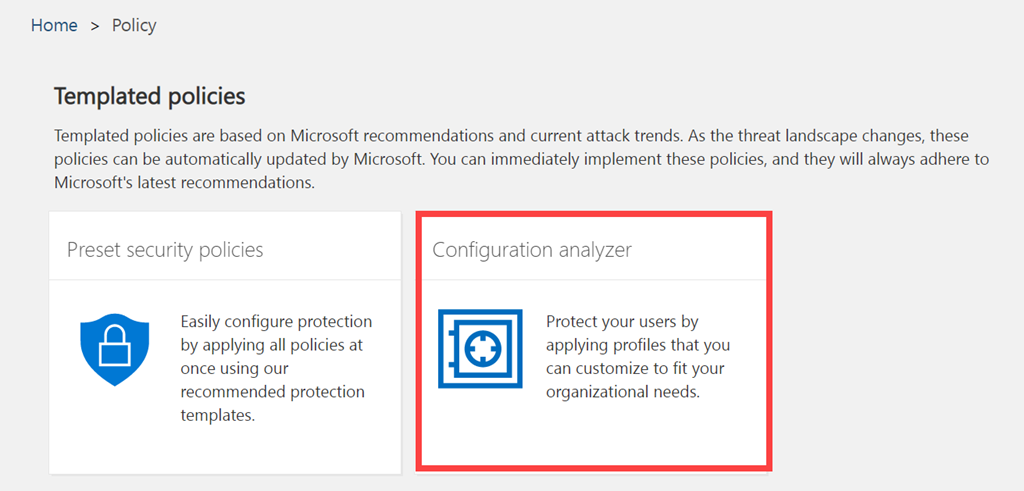
If you have a look in your Threat Management policies in Security and Compliance you’ll see a new tile called Configuration Analyzer as shown above. The direct URL is:

https://protection.office.com/configurationAnalyzer

image

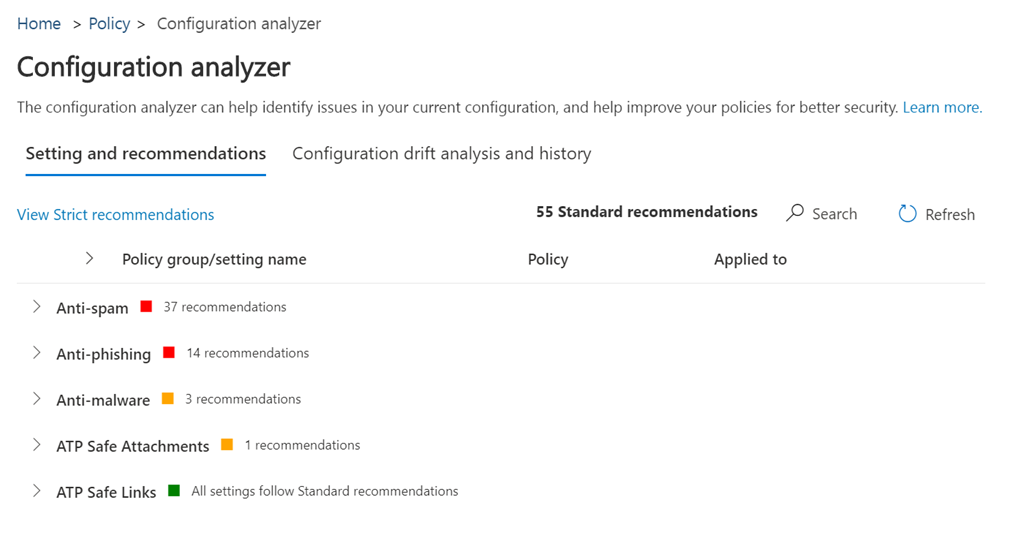
When you select this tile you’ll see a screen like that shown above which compares your current policy settings to Microsoft best practices.

image

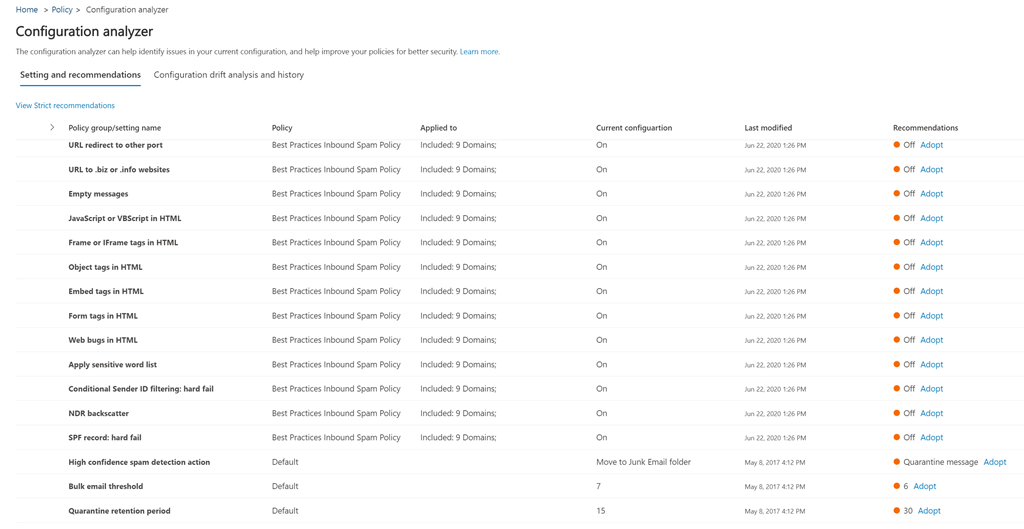
If you expand any of the headings you’ll the settings in question and what the recommendation is on the right. You’ll also see a link that allows you to easily Adopt this setting.

image

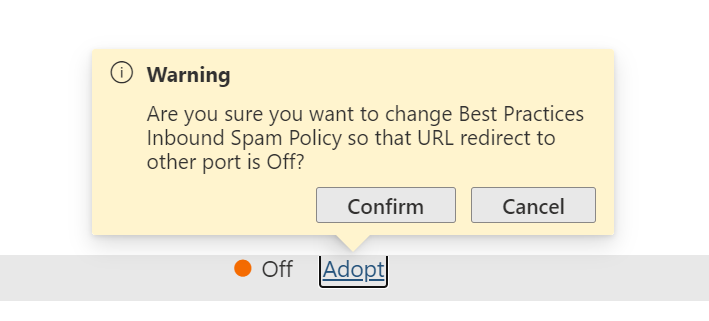
If you do select the Adopt link, you’ll be presented with the above warning asking you whether you wish to proceed and Confirm or Cancel the change.

image

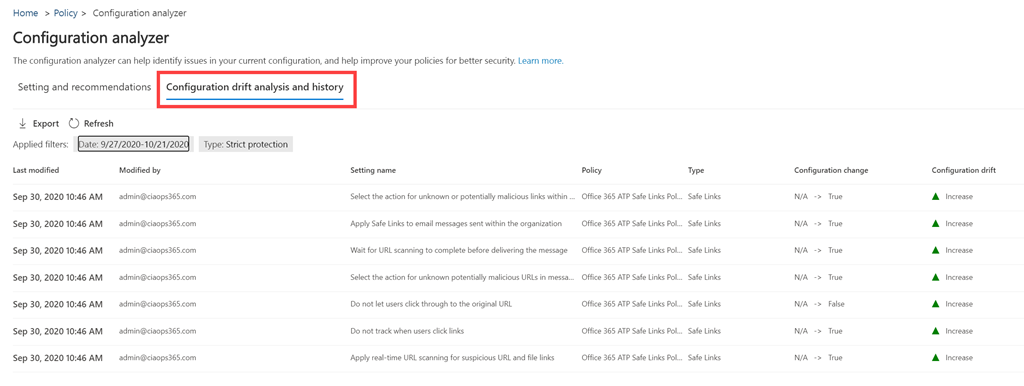
You will also see a Configuration drift analysis and history option as shown above. This allows you to compare changes in configuration over time and their effect. Basically, whether changes made improve email security or not.

If you want to learn more about Microsoft’s best practice configurations I suggest you take a look at my previous article:

New templated email policies

I see this as a further step towards what I spoke about here:

The changing security environment wit Microsoft 365

and how Ai will soon do all this automatically.

Modern Device Management with Microsoft 365 Business Premium–Part 10

Previous parts in this series have been:

Office 365 Mobile MDM – Modern Device Management with Microsoft 365 Business Premium–Part 1

Intune MDM – Modern Device Management with Microsoft 365 Business Premium – Part 2

Intune MAM – Modern Device Management with Microsoft 365 Business premium – Part 3

Endpoint Manager – Modern Device Management with Microsoft 365 Business Premium – Part 4

Baselines – Modern Device Management with Microsoft 365 Business Premium – Part 5

Deployment – Modern Device Management with Microsoft 365 Business Premium – Part 6

Autopilot admin – Modern Device Management with Microsoft 365 Business Premium – Part 7

Autopilot endpoint – Modern Device Management with Microsoft 365 Business Premium – Part 8

Deploying applications – Modern device Management with Microsoft 365 Business Premium – Part 9

I’m going to wrap up this series with a range for helpful links that provide lots of help when troubleshooting issues with device management. I’ve covered a lot so far and figured that it is better to give you this one location to use for getting help with device management.

As I have noted elsewhere in this series, the best general best practice tips to help with troubleshooting I can give you are:

1. Maintain good documentation of your device management environment. The more complex it becomes, the more important good documentation becomes.

2. Maintain good naming conventions. With so many policies potentially in play with device management having a logical naming convention for make life a lot easier.

3. Start small and grow. Don’t implement everything at once. Start with one policy at a time, get that working and build on that. Doing too much too fast is a recipe for frustration.

Good troubleshooting links:

Intune troubleshooting 101 – https://techcommunity.microsoft.com/t5/Intune-Customer-Success/Intune-Troubleshooting-101/ba-p/924827

Troubleshoot device enrollment in Microsoft Intune – https://docs.microsoft.com/en-gb/intune/enrollment/troubleshoot-device-enrollment-in-intune

Troubleshoot Windows device enrollment problems in Microsoft Intune – https://docs.microsoft.com/en-gb/intune/enrollment/troubleshoot-windows-enrollment-errors

Troubleshoot iOS device enrollment problems in Microsoft Intune – https://docs.microsoft.com/en-gb/intune/enrollment/troubleshoot-ios-enrollment-errors

Troubleshoot Android Enterprise device problems in Microsoft Intune – https://docs.microsoft.com/en-gb/mem/intune/enrollment/troubleshoot-android-enrollment

How to get support for Microsoft Intune – https://docs.microsoft.com/en-ca/intune/get-support

Intune app protection diagnostics and managed browser bookmarks – https://blogs.technet.microsoft.com/cbernier/2018/02/05/intune-app-protection-diagnostics-and-managed-browser-bookmarks/

Set the mobile device management authority – https://docs.microsoft.com/en-us/intune/mdm-authority-set

Troubleshooting devices using the dsregcmd command – https://docs.microsoft.com/en-us/azure/active-directory/devices/troubleshoot-device-dsregcmd

MDM Diagnostics Tool – Tips & Tricks – Windows Autopilot Troubleshooting – https://www.anoopcnair.com/mdm-diagnostics-tool-windows-autopilot/

Azure AD device registration error codes – https://s4erka.wordpress.com/2018/03/06/azure-ad-device-registration-error-codes/

Enroll devices by using a device enrollment manager account – https://docs.microsoft.com/en-us/intune/device-enrollment-manager-enroll

Manually sync your Windows device – https://docs.microsoft.com/en-us/intune-user-help/sync-your-device-manually-windows

How long does it take for devices to get a policy, profile or app after they are assigned? – https://docs.microsoft.com/en-us/intune/configuration/device-profile-troubleshoot#how-long-does-it-take-for-devices-to-get-a-policy-profile-or-app-after-they-are-assigned

Common questions, issues, and resolutions with device policies and profiles in Microsoft Intune – https://docs.microsoft.com/en-us/intune/configuration/device-profile-troubleshoot#how-long-does-it-take-for-devices-to-get-a-policy-profile-or-app-after-they-are-assigned

Send log data to storage, event hubs or log analytics in Intune – https://docs.microsoft.com/en-us/intune/fundamentals/review-logs-using-azure-monitor

Do not clone an Azure AD-joined or MDM-enrolled Windows 10 OS – https://oofhours.com/2020/06/07/do-not-clone-an-azure-ad-joined-or-mdm-enrolled-windows-10-os/

Diagnose MDM failures in Windows 10 – https://docs.microsoft.com/en-us/windows/client-management/mdm/diagnose-mdm-failures-in-windows-10

Common error codes and descriptions in Microsoft Intune – https://docs.microsoft.com/en-us/mem/intune/fundamentals/troubleshoot-company-resource-access-problems

Hopefully, you’ll be able to solve any issue you come up against by consulting the list of above links. I know I have.

Microsoft 365 device management will continue to evolve over time and I’ll continue to update you here on my blog, so stay tuned for more articles on Microsoft 365 device management.


Custom Praise badges in Microsoft Teams

image

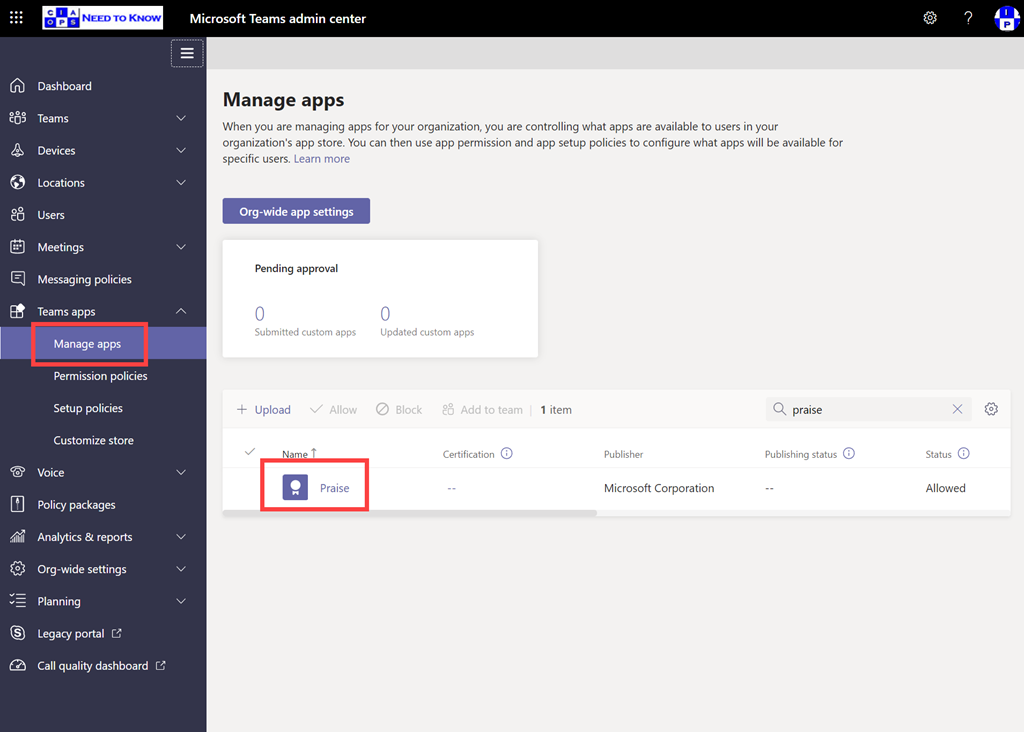
If you navigate to the Teams admin portal and expand the Teams apps option from the menu on the left, you should see a Managed apps option. You can locate the Praise app by using search on the right.

image

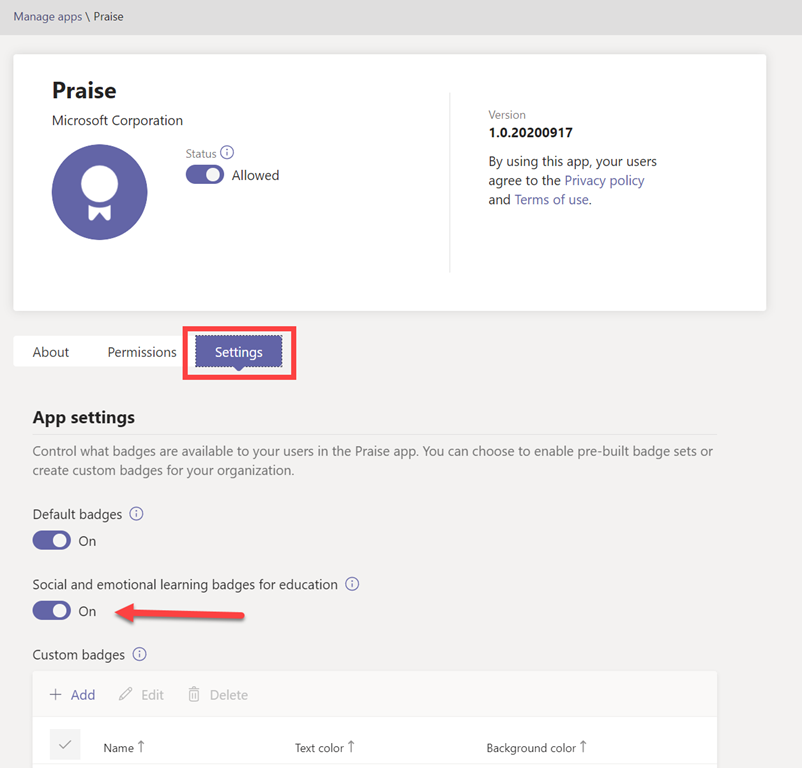
If you select the Praise app you’ll then see a screen like that shown above. If you then select the Settings option just under the information banner you get the badges options.

Generally, default badges are enabled but why not also enable the Social and emotional learning badges for education as well? They are free after all!

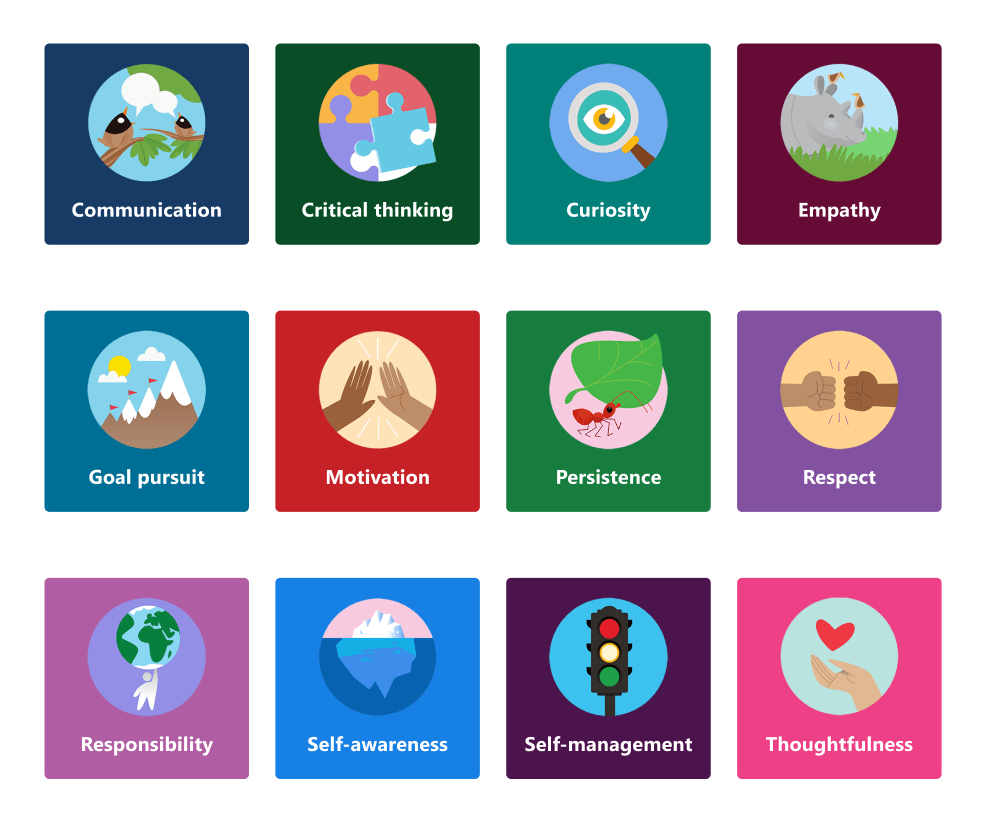
Preview of the Social and emotional learning badges for  education

When you do so, you’ll see the additional badges shown above in your Teams Praise app.

image

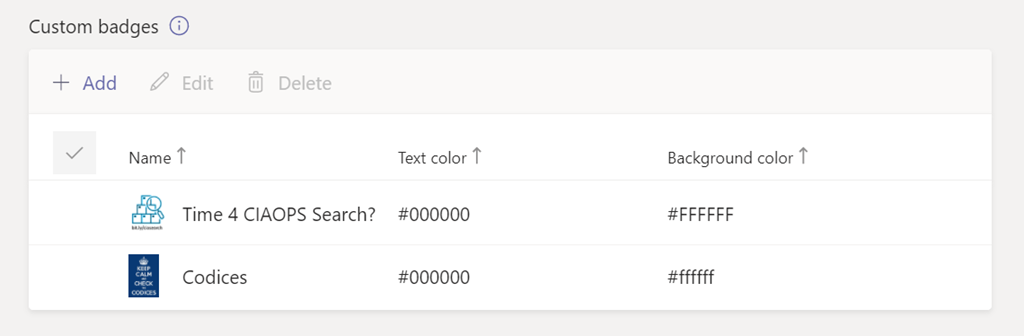
Even better, further down, you can also add you own custom Praise apps.

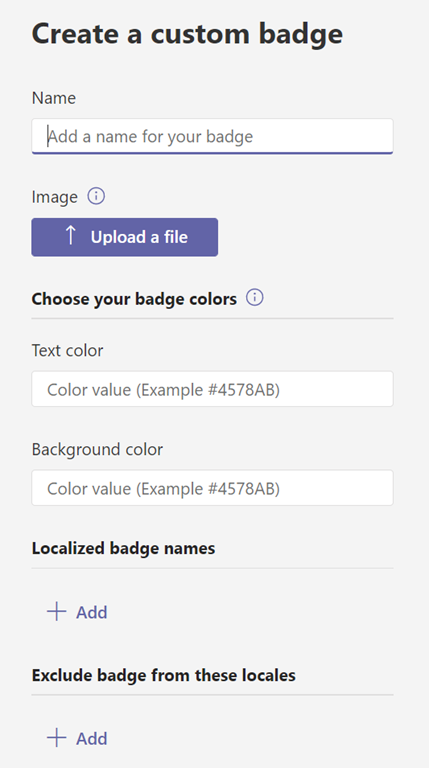
image

Just update a suitable badge graphic and add the details about the badge.

image

So now, when you Praise someone in Teams, you have many more options, including your own custom ones as shown above.

When selecting an image, keep badge dimensions in mind. For the best quality, we recommend uploading an image file that is 216 x 216 pixels (which are the maximum dimensions). Avoid stretching or distorting the image to fit these dimensions.

The above is from a great Microsoft article:

Manage the Praise app in the Microsoft Teams admin center

that provide lots of information about the Praise app and badges. So I recommend you take a look to learn more.