Need to Know podcast–Episode 210

Brenton speaks with global Azure black belt Sarah Young about the new Azure Sentinel service. Of course we also update you on all the happenings in the Microsoft Cloud and there has been plenty of late, so listen along to get all the latest and learn about Azure Sentinel.

This episode was recorded using Microsoft Teams and produced with Camtasia 2019

Take a listen and let us know what you think – feedback@needtoknow.cloud

You can listen directly to this episode at:

https://ciaops.podbean.com/e/episode-210-sarah-young/

Subscribe via iTunes at:

https://itunes.apple.com/au/podcast/ciaops-need-to-know-podcasts/id406891445?mt=2

The podcast is also available on Stitcher at:

http://www.stitcher.com/podcast/ciaops/need-to-know-podcast?refid=stpr

Don’t forget to give the show a rating as well as send us any feedback or suggestions you may have for the show.

Resources

Sarah Young

@contactbrenton

@directorcia

Faster, with a modern design, and new features – the new Outlook on the web is here

Tracking failed logins with Cloud App Security

New Azure discount for CSP partners to come live in October

OneDrive Roundup – June 2019

Announcing question and answer in Yammer

First Microsoft Cloud regions in the Middle East now available

Step 10. Detect and investigate security incidents: top 10 actions to secure your environment

All 10 steps

Upload Bitlocker keys to Azure AD

Bitlocker is the Microsoft technology that allows you to full encrypt your Windows PC hard disk. This is a good thing as it provides additional security and protection for that device, especially if that device ever gets lost or stolen. Typically, Bitlocker will use the Trusted Platform Module (TPM) chip on your PC to provide the encryption key for BitLocker. This means that the user doesn’t have to type in a password to unlock their drive for use. Now having an automatically managed key raises a question, what happens if you actually need that key? If everything is automated and I never see the key how can I get access to it if needed? If, say, the original PC died and I wanted to recover the original encrypted drive how would I recover? To do that, you’d need the encryption key.

You can manually backup you BitLocker Recovery key to a file or USB drive however, if your device is Azure AD joined then that Recovery Key should be saved directly into Azure AD. Here’s how you check this.

SNAGHTML1d8570c5

If you are using something Microsoft 365 Business and Intune navigate to Intune inside the Azure portal. Select Devices.

image

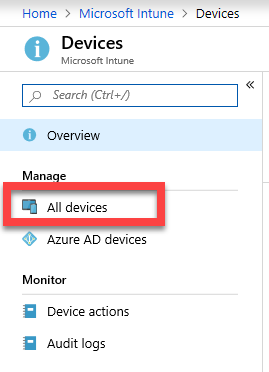
Select All Devices.

image

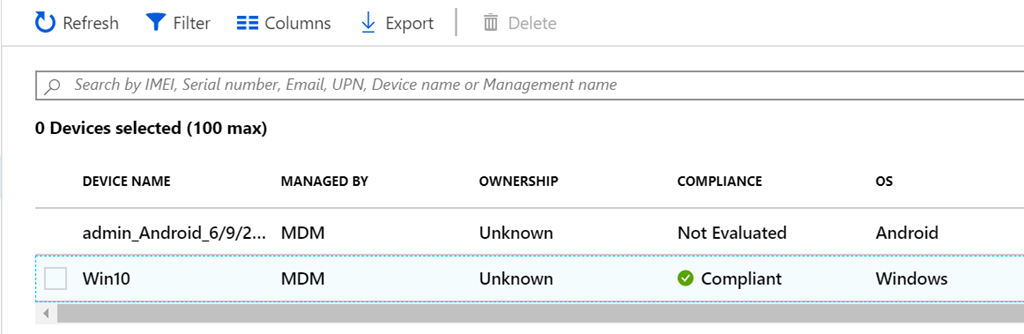
Select the PC in question from the list.

image

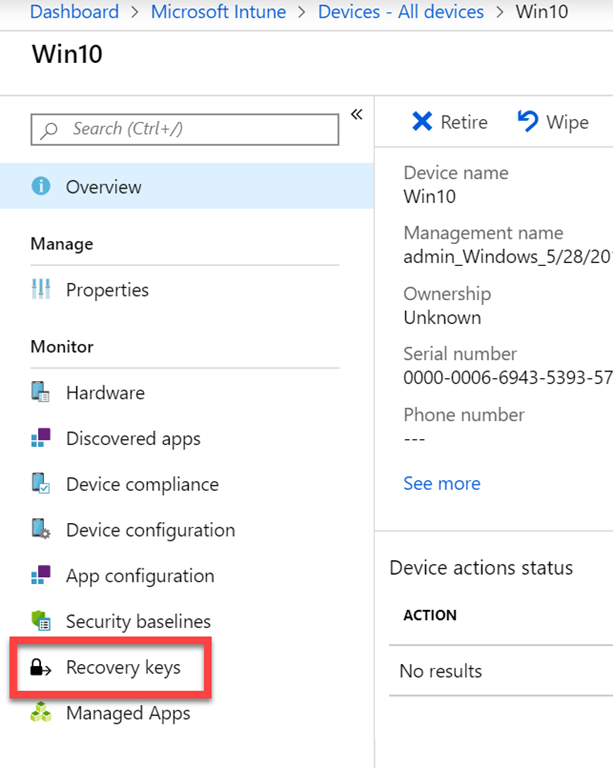
Now select the Recovery keys option.

image

On the right you should see the Recovery keys listed. You’ll note here that I don’t see the expected BitLocker Key.

image

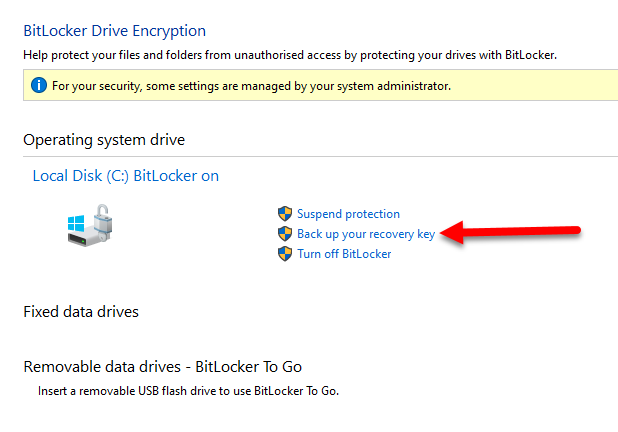
If you don’t see the Recovery Key for your device go to that device and open BitLocker management on your PC. Select the option to Back up your recovery key as shown.

image

Then select the option to Save to your cloud account as shown. This should then upload the Recovery Key to Azure AD, provided you have an Azure AD joined machine first of course.

image

If you return to the device in Intune and refresh the display, you should now see the Recovery key for you device as shown above.

image

If you do not have access to the Intune portal, perhaps because you are not an administrator, simply navigate to:

https://account.activedirectory.windowsazure.com

and login with your Microsoft 365/Office 365 credentials and view your profile. You should then see any registered device plus the option to get the BitLocker keys as shown. Remember BitLocker is for Windows devices, not iOS or Android.

Even though Azure AD joined machines should save BitLocker keys automatically, I’d suggest you go and have a look and make sure that they are indeed actually there! Best be sure I say.

Tracking failed logins using Cloud App Security

Previously, I have said that Office365/Microsoft Cloud App Security is

A great security add on for Microsoft 365

I’ve also detailed the differences in the plans here:

Cloud App Discovery/Security

What many people want to know more information about is failed logins to their tenant, so Cloud App Security to the rescue!

image

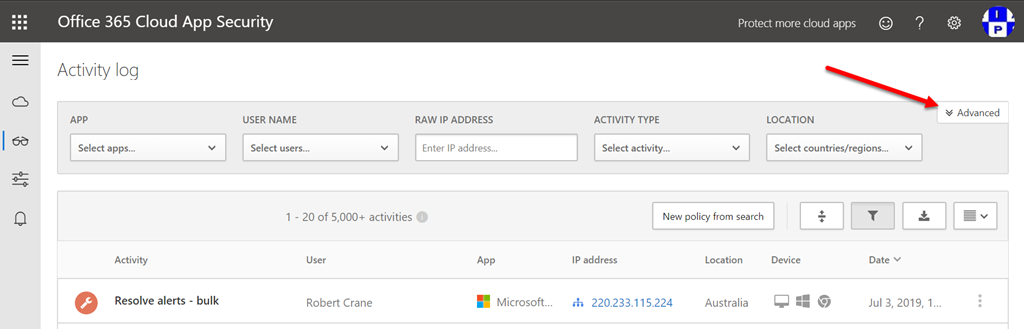
Start by navigating to the Cloud App Security Activity log as shown above. Then select the Advanced option in the top right as shown.

image

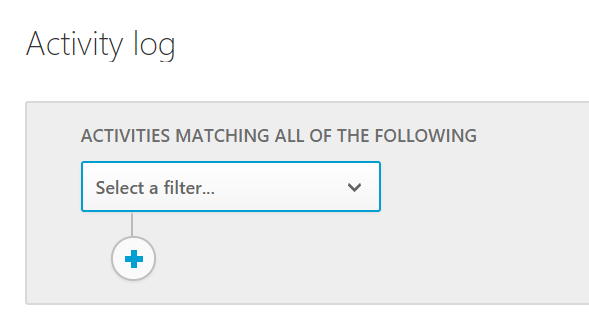
Doing so should reveal the ability to define filters as show above.

I’d also recommend that you go and define a “safe” range of IP addresses like I have detailed here:

Define an IP range in Cloud App Security

In my case I have defined some known safe IP’s as “Corporate”.

image

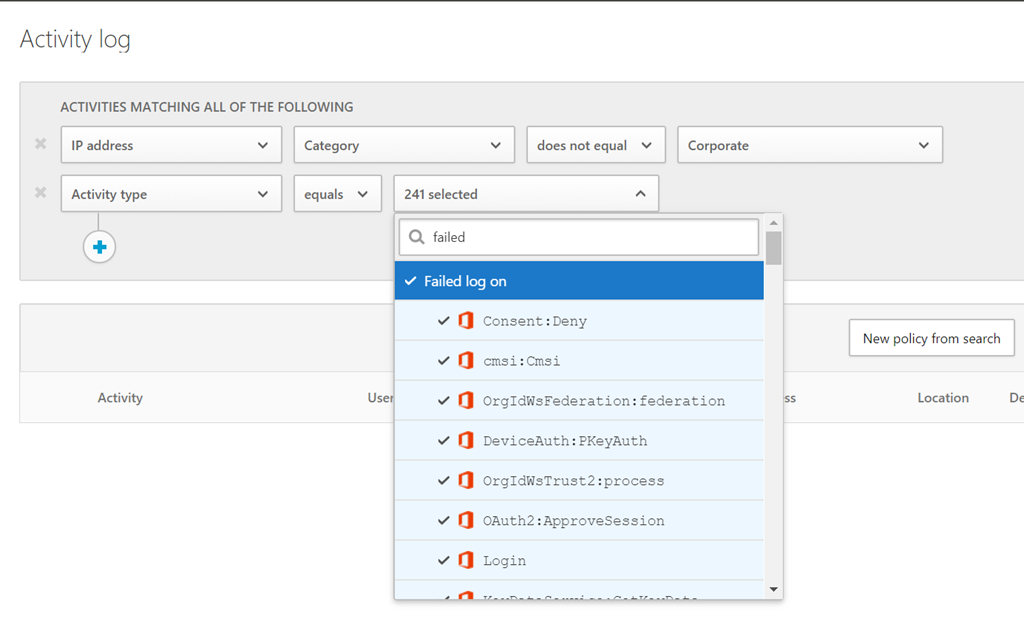
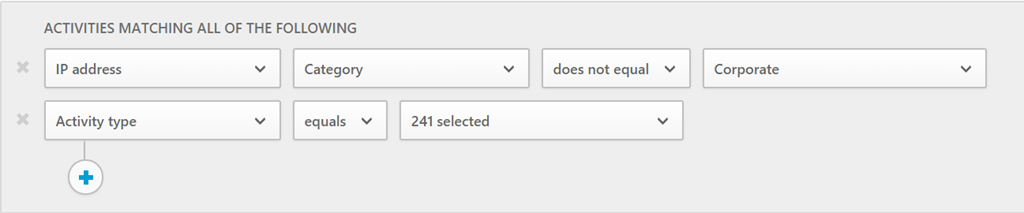
So the first line of my query basically excludes any of these known IP addresses in the results. That is, I’m looking for failed logins outside my corporate environment. This will generally exclude average users failing to login to their accounts inside my environment, which happens a lot. The idea with this is simply to reduce the noise of lots of alerts, but if you want to know about all failed logins to your tenant, just exclude this condition.

image

The second part of the filter is to show activities that equal ‘Failed log on’ as shown. You can customise this further if you want to make it more granular, but for now let’s track any failed login to the tenant.

image

So the final query should look like the above.

image

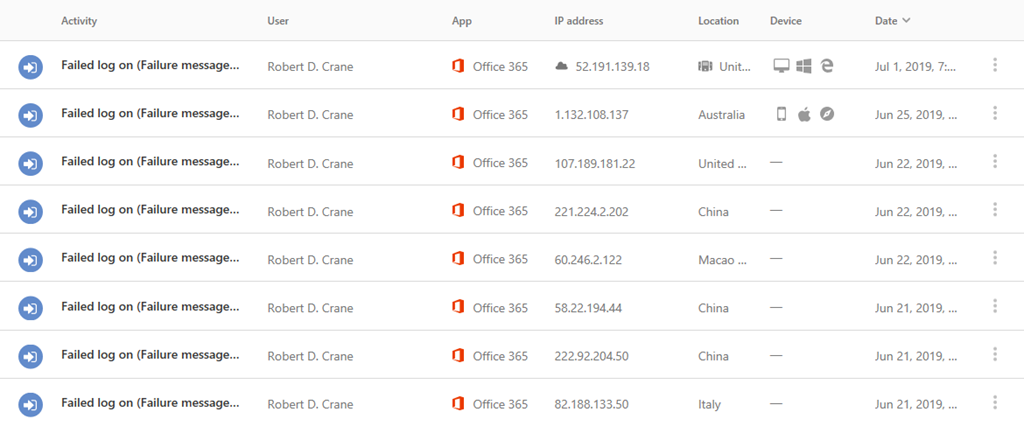
You should be not surprised to see the number of results you get as shown above. In my case, there are failed logins from the US, China, Russia, Italy, etc.

Now of course, I can drill into each item for more details but what I really want is a way for me to be alerted about these when they happen. Cloud App Security to the rescue again.

image

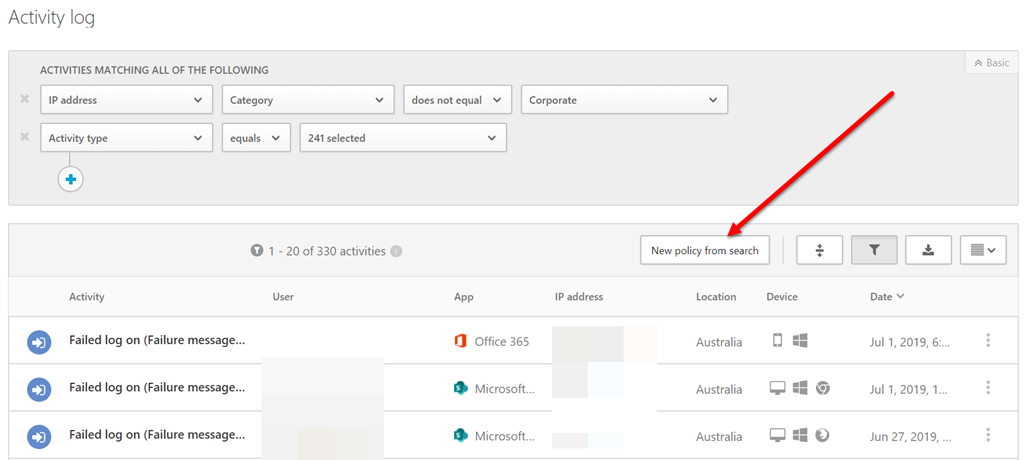
At the top of the results you should find a button as shown that says New policy from search, which you should select.

image

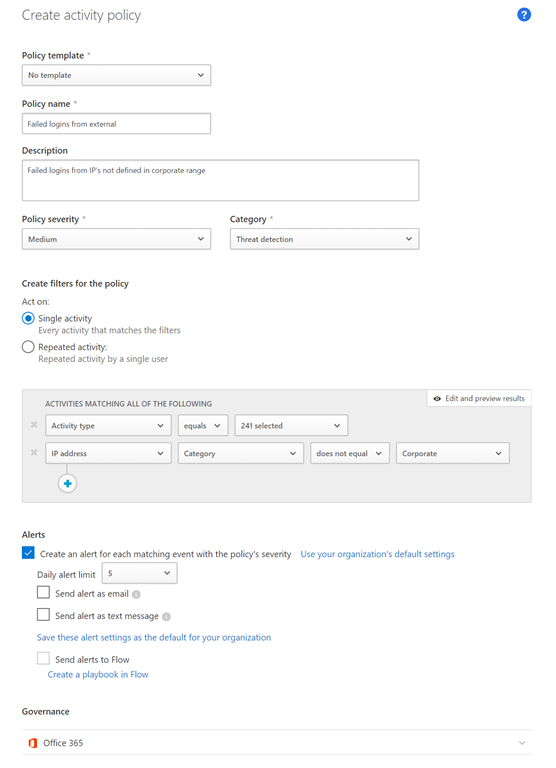
You should now see a page like shown above where you can define your policy. You’ll need to give it a name and description. You may want to increase the severity or change the category to suit. You can also select between single or repeated activity.

image

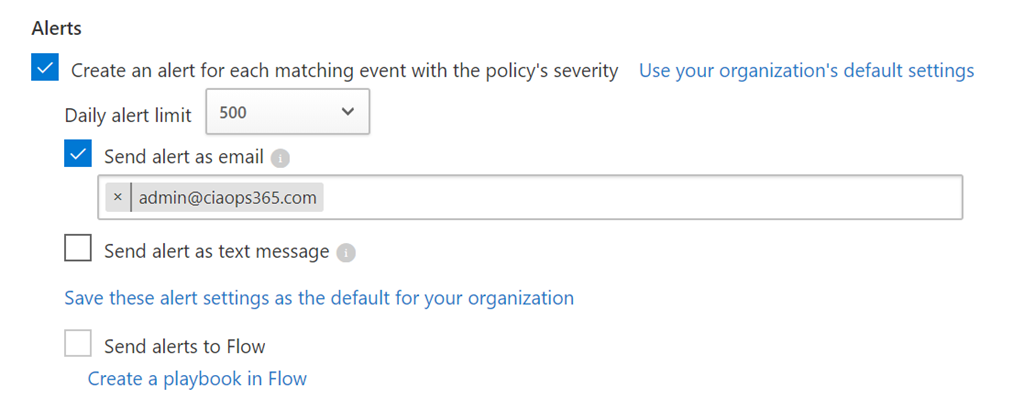
Now if you want an email alert then you’ll need to select the option Send alert as email and put in your email address as shown above. You may also want to change the Daily alert limit to suit your needs.

When you have completed the configuration, scroll to the bottom of the page and select the Create button.

image

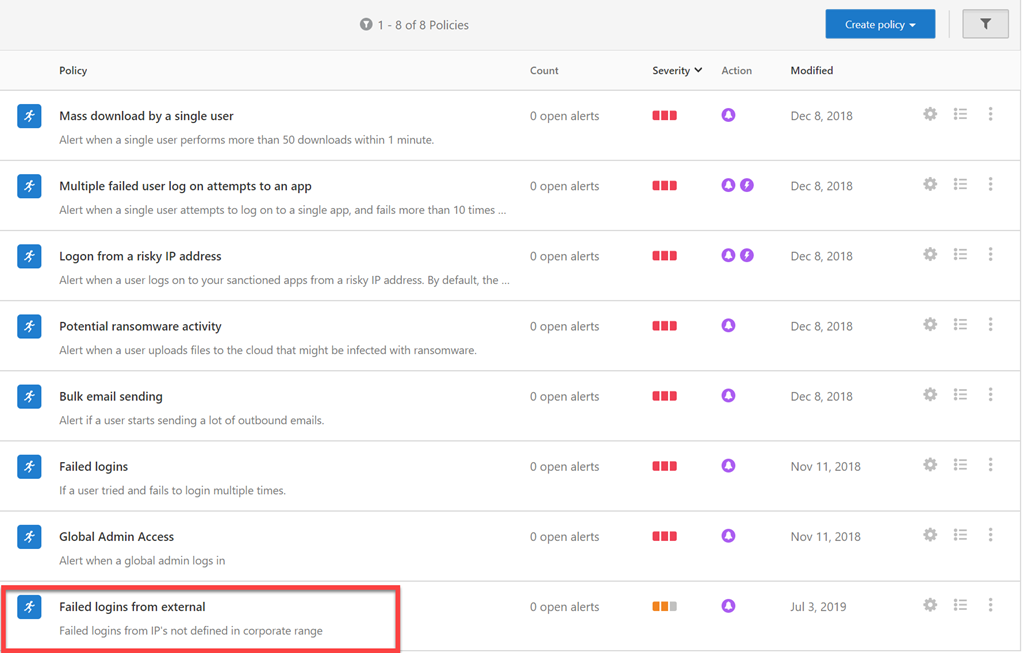
You should now see that policy in the list in your tenant as shown above.

Cloud App Security is a really powerful tool that I believe is a must have for every Microsoft 365 tenant, because not only can you create your own custom queries but you can also convert those into alerts as I have shown.

MVP for 2019-20

MVP_Logo_Horizontal_Preferred_Cyan300_RGB_300ppi

I’m proud to say that Microsoft has graciously awarded me as a Most Valued Professional (MVP) for 2019 in the Office Servers and Services category. This makes it now eight awards in a row for me, which is very special and honouring. I thank Microsoft for this special award and acknowledge the responsibilities it entails.

However, this award is not possible without members of the community out there who take the time to do things like read my blog, watch my YouTube channel, attend events where I speak and more. Thanks everyone.

I’m committed to continuing to provide more information and insight into the fantastic products and services Microsoft creates. I can’t wait each day to see what new stuff Microsoft has brought us and how it can be implemented for users. With the rapid development rate in the cloud I am always amazed at all the new stuff that becomes available but it is really great to have that challenge of staying current.

Having attended my first MVP Summit this  year I’m looking forward to next year’s one so I can again visit Redmond and learn from Microsoft and fellow MVPs. Being an MVP is being part of a unique community of very dedicated and smart people who truly love to share their knowledge. I aim to live up to the example they set and continue to improve and grow. I congratulate all those who were also awarded for this year and look forward to seeing you at the MVP Summit in 2020.

But again, I thank Microsoft for this honour and will work hard to live up top the expectations it sets again for 2019-20 so I can make it nine years ins 2020!

CIAOPS Techwerks 7–Melbourne August 16

bw-car-vehicle

I am happy to announce that Techwerks 7 will be held in Melbourne on Friday the 16th of August. The course is limited to 15 people and you can sign up and reserve your place now! You reserve a place by completing this form:

http://bit.ly/ciaopsroi

or  sending me an email (director@ciaops.com) expressing your interest.

The content of these all day face to face workshops is driven by the attendees. That means we cover exactly what people want to see and focus on doing hands on, real world scenarios. Attendees can vote on topics they’d like to see covered prior to the day and we continue to target exactly what the small group of attendees wants to see. Thus, this is an excellent way to get really deep into the technology and have all the questions you’ve been dying to know answered. Typically, the event produces a number of best practice take aways for each attendee. So far, the greatest votes are for deeper dives into Intune, security and PowerShell configuration and scripts, however that isn’t finalised until the day.

Recent testimonial – “I just wanted to say a big thank you to Robert for the Brisbane Techworks day. It is such a good format with each attendee asking what matters them and the whole interactive nature of the day. So much better than death by PowerPoint.” – Mike H.

The cost to attend is:


Patron Level Price Inc GST
Gold Enterprise Free
Gold $ 33
Silver $ 99
Bronze $ 176
Non Patron $ 399


The CIAOPS Techwerks events are run regularly in major Australian capital cities, so if you can’t make this one or you aren’t in Melbourne on that date, stay tuned for more details and announcements soon. If you are interested in signing up please contact me via emails (director@ciaops.com) or complete the form:

http://bit.ly/ciaopsroi

and I can let you know all the details as well as answer any questions you may have about the event.

I hope to see you there.

Adding the SharePoint Starter Kit

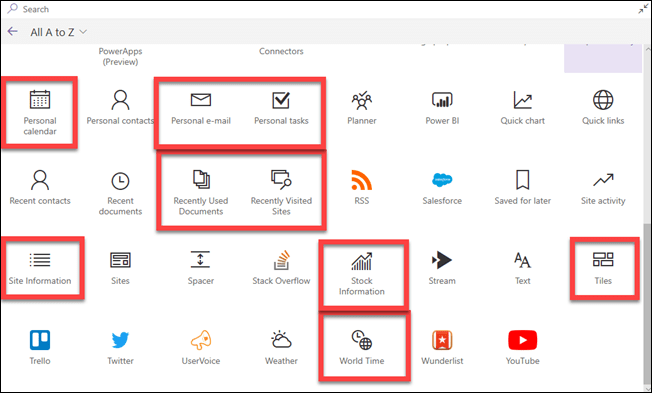
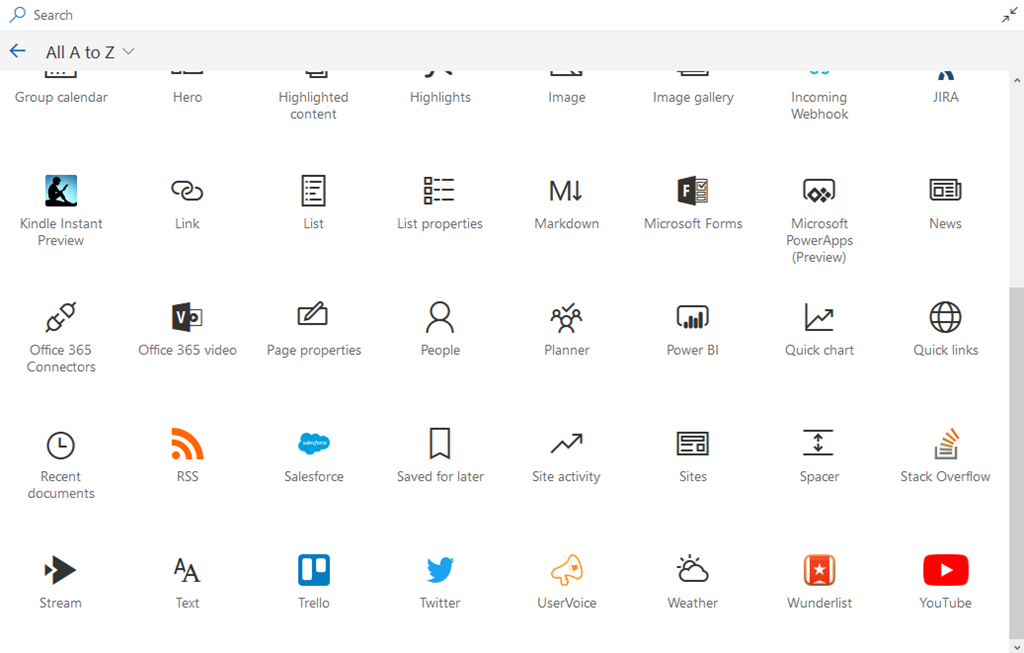
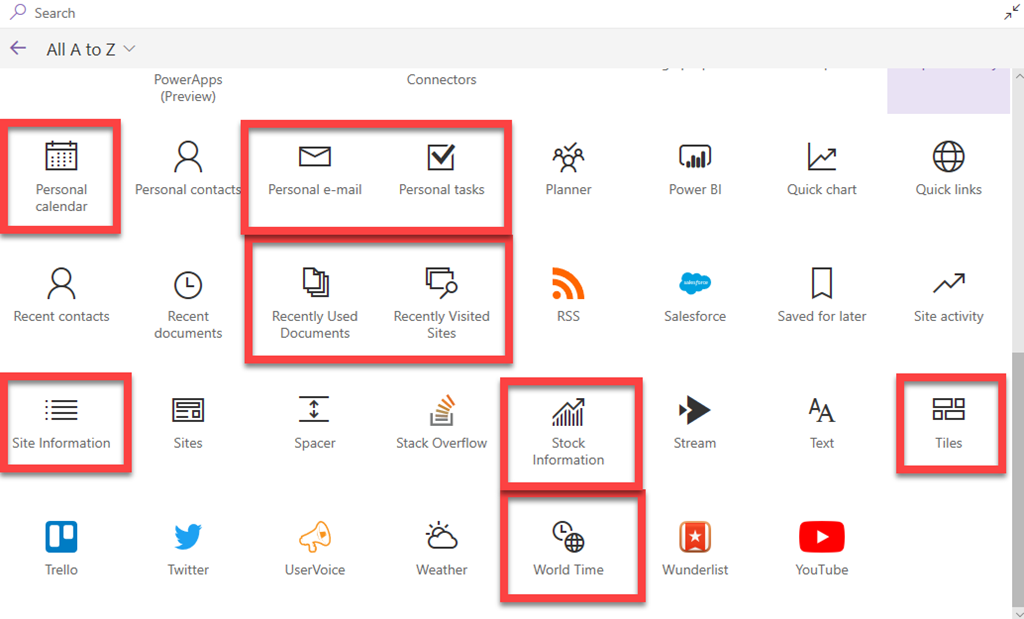
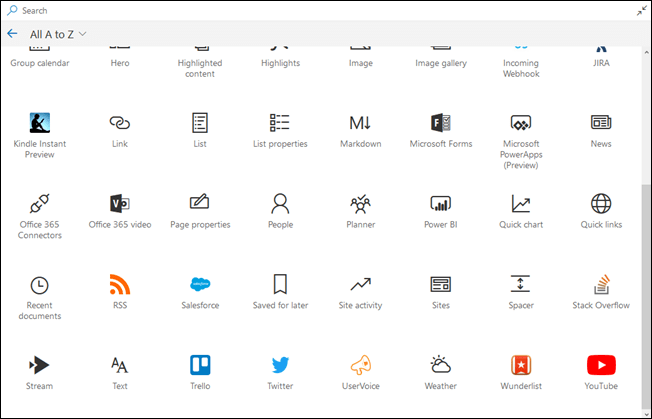
If you have a look at all the web parts you have available to you in your current SharePoint environment,
image

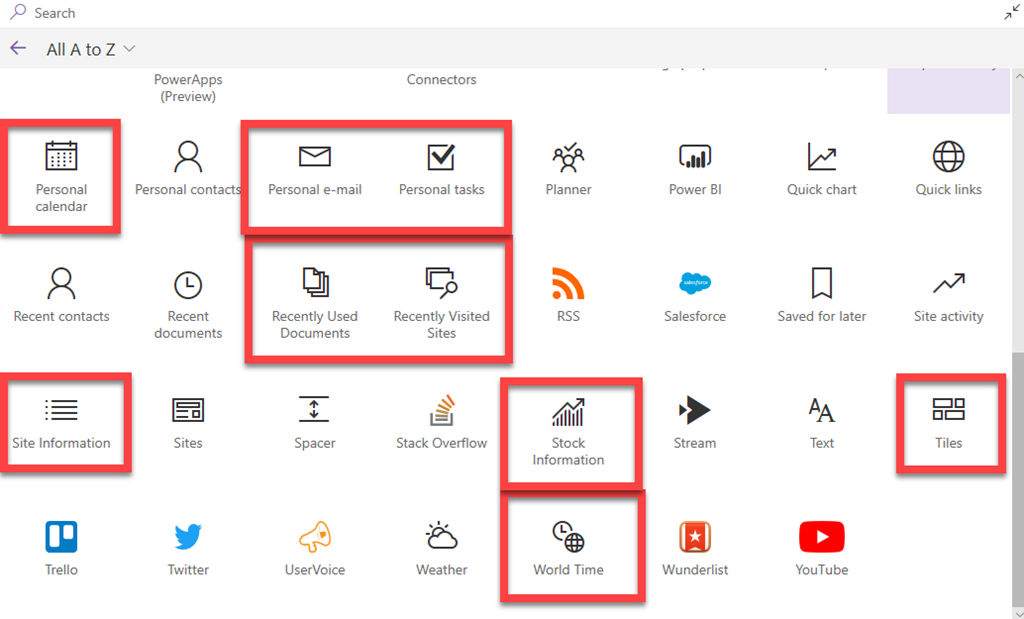
versus what I have available,

image

You will see that I have quite a few more! The good news is that it is easy to add all these plus a range of additional features using the SharePoint Online provisioning service.

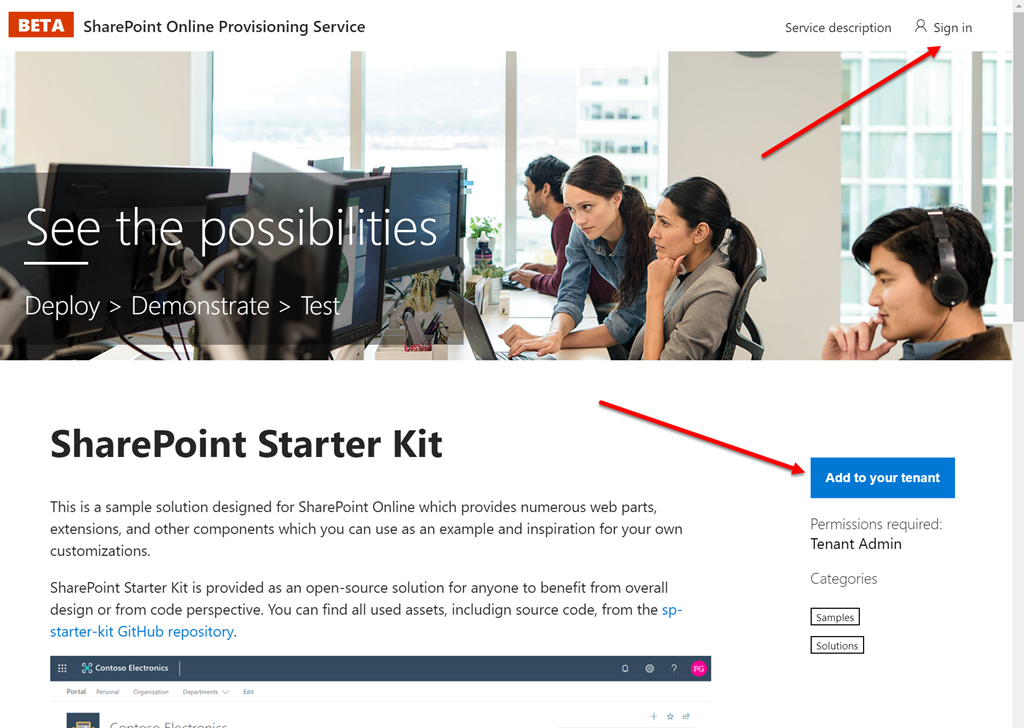
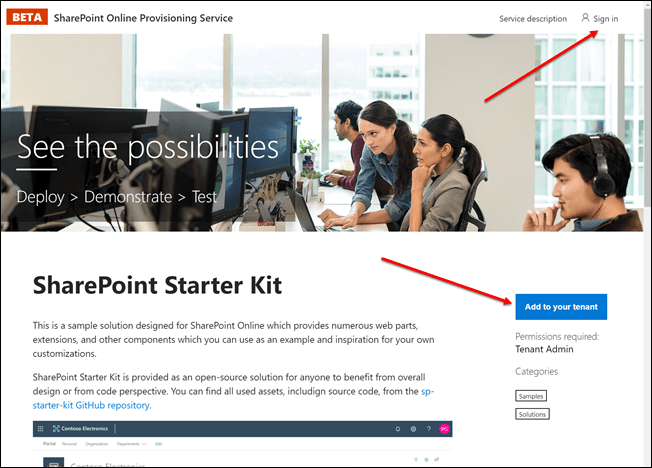
The easiest way to add all these features to simply visit the SharePoint Starter Kit option
image

and use the option in the top right of the page to Sign in as a Global Administrator for your tenant and then select the Add to your tenant button on the right as shown above.

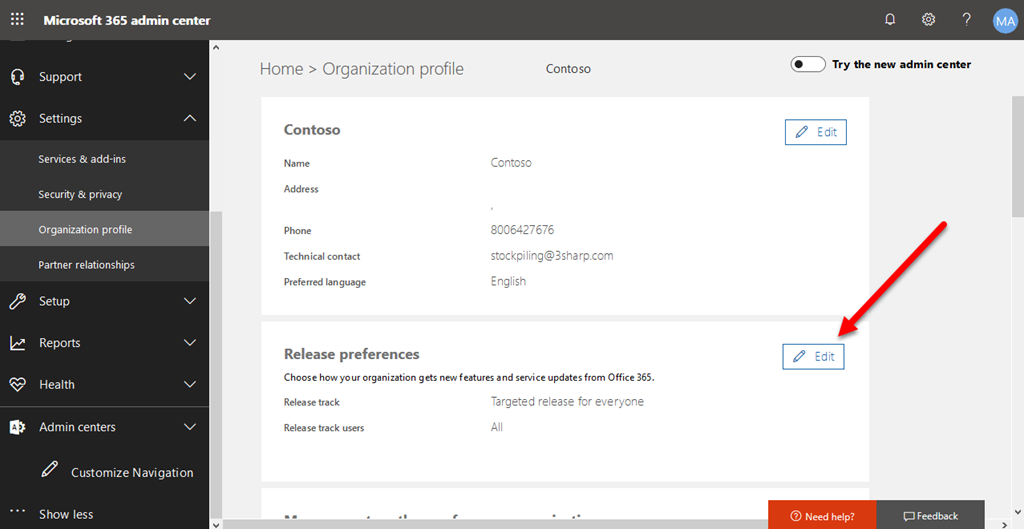
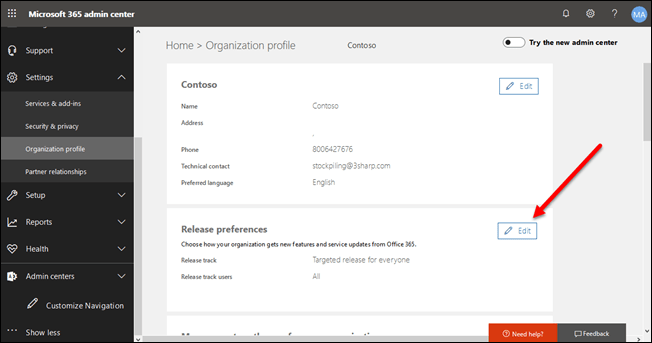
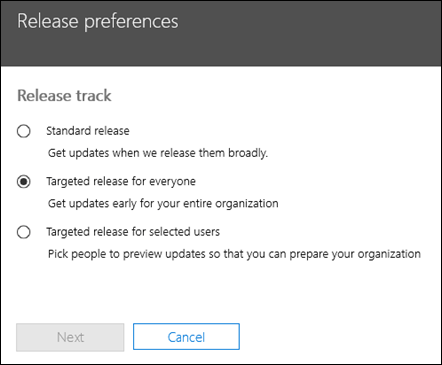
However, before you do that you’ll need to ensure you have completed a few pre-requisites. Firstly, that your tenant is on Targeted Release.
image

You’ll find the setting for that in the Office 365 Admin Center, under Settings and Organizational profile as shown above.
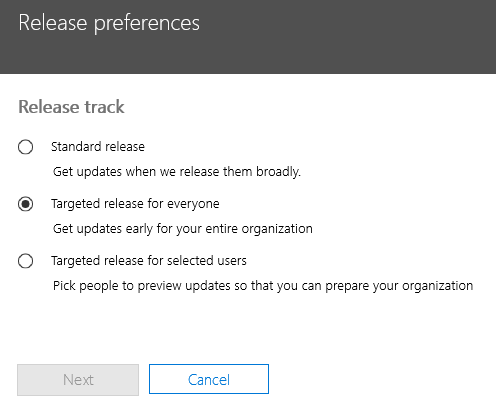
image

You can use the Edit button to make changes to the setting.

If you do change the setting, it may take up to 24 hours for that change to be fully applied to the tenant. Making this change may also affect other areas of your tenant, so I suggest you review the following documentation:

Set up the Standard or Targeted release options in Office 365

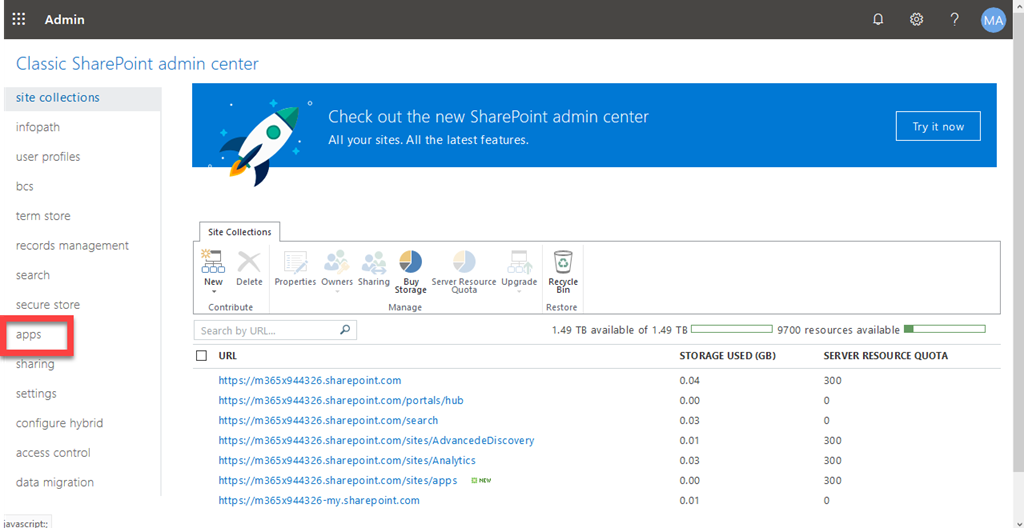
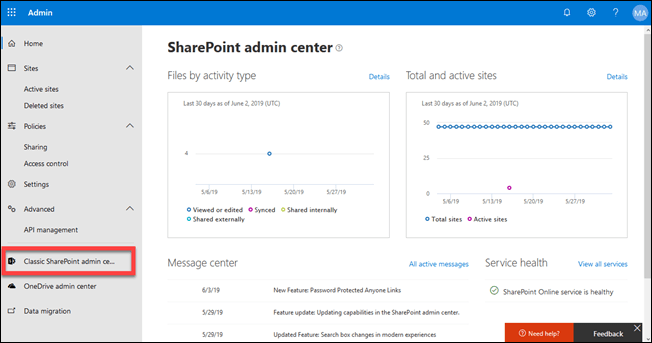
Next, you need to ensure your tenant has an App Catalog. To see whether it does, locate the SharePoint Admin console.
image

If you are taken to a newer version of the SharePoint Admin console, as shown above, select the Classic SharePoint admin console option on the left.
SNAGHTMLb66368

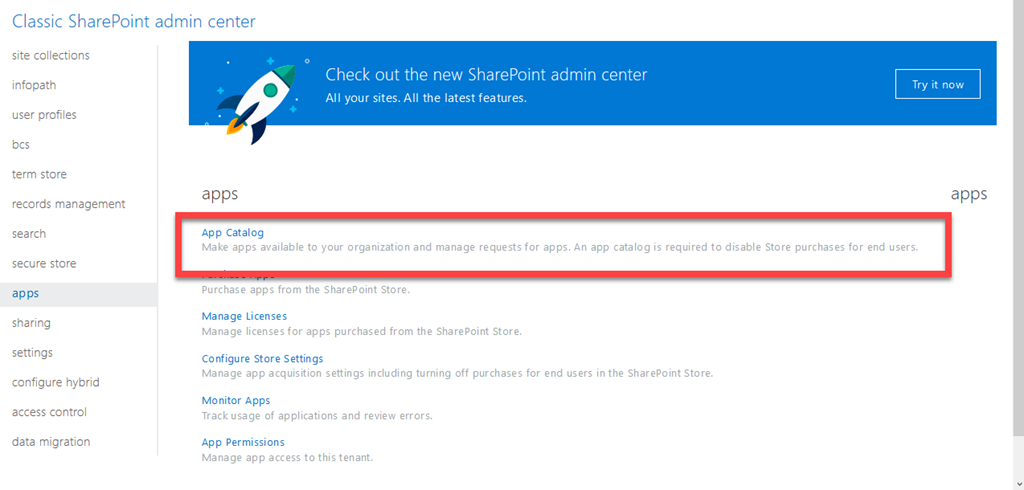
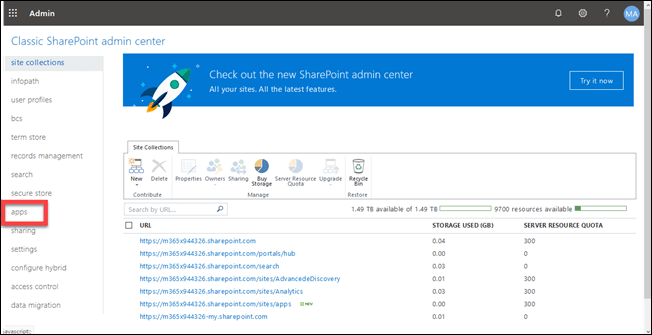
At the “Classic” SharePoint Admin console select apps on the left.
image

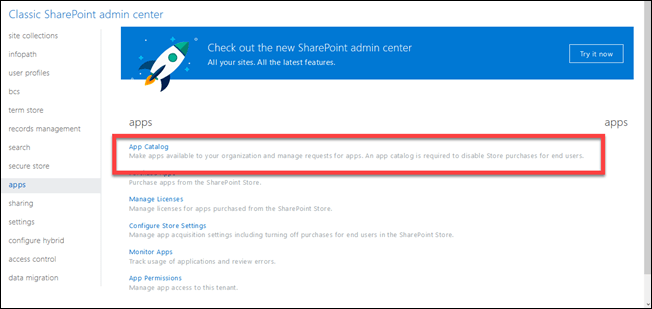
Then select App catalog at the top, on the right as shown above.
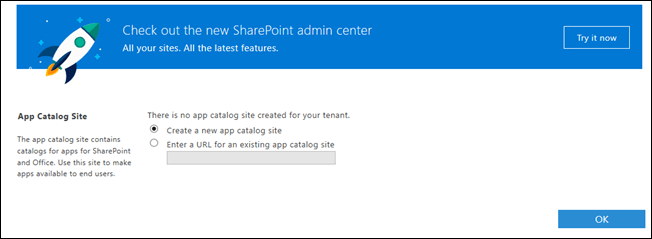
image

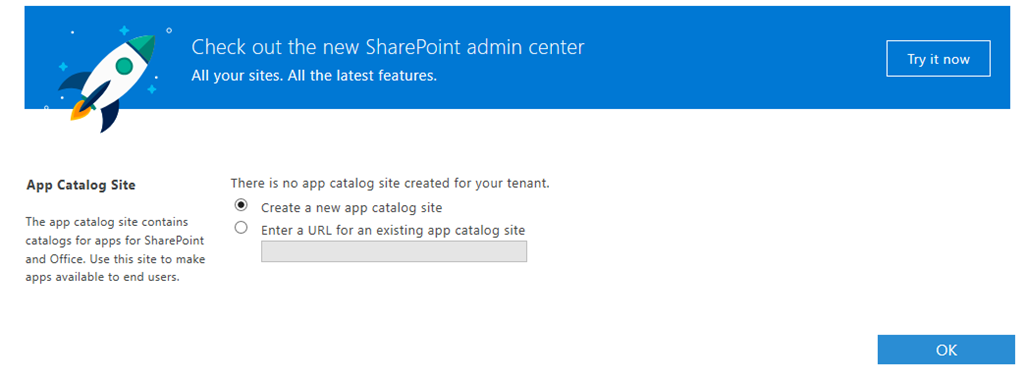
If you don’t already have an App Catalog you need to select the option – Create a new app catalog site and then select OK.
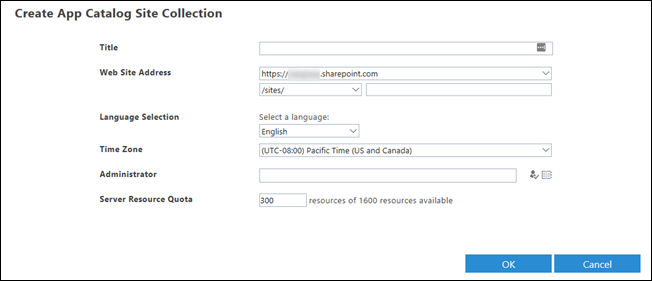
image

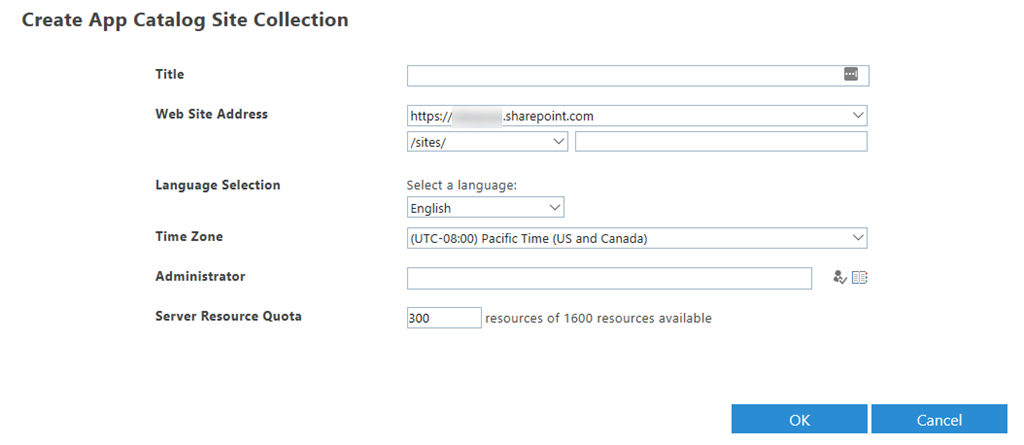
It is recommended that you use the following settings here:

Title = Apps

URL suffix = apps

Administrator = Global or SharePoint administrator

Once you have completed these details select OK to create the site.
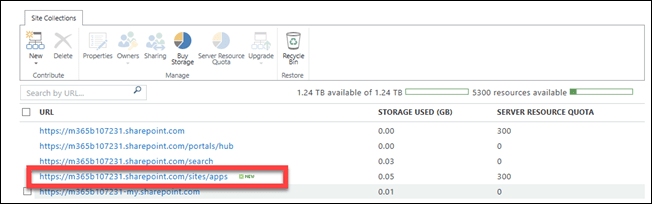
image

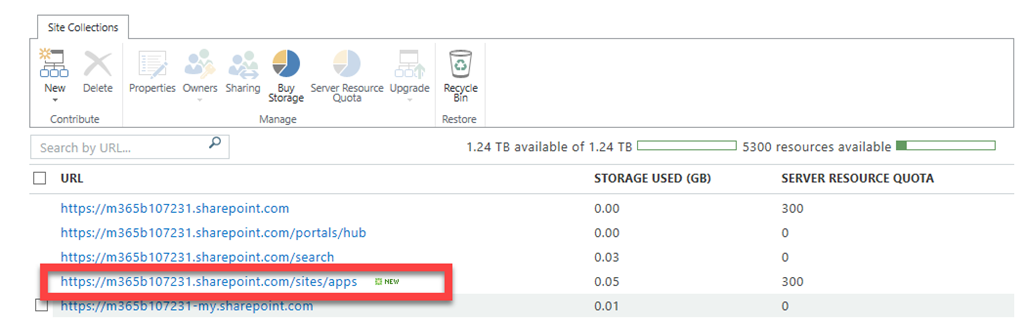
In a short while you should find that you have a new SharePoint Site Collection, as shown above, with the details you just entered.
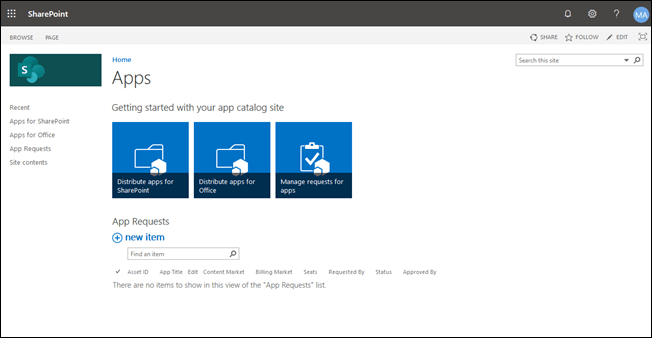
image

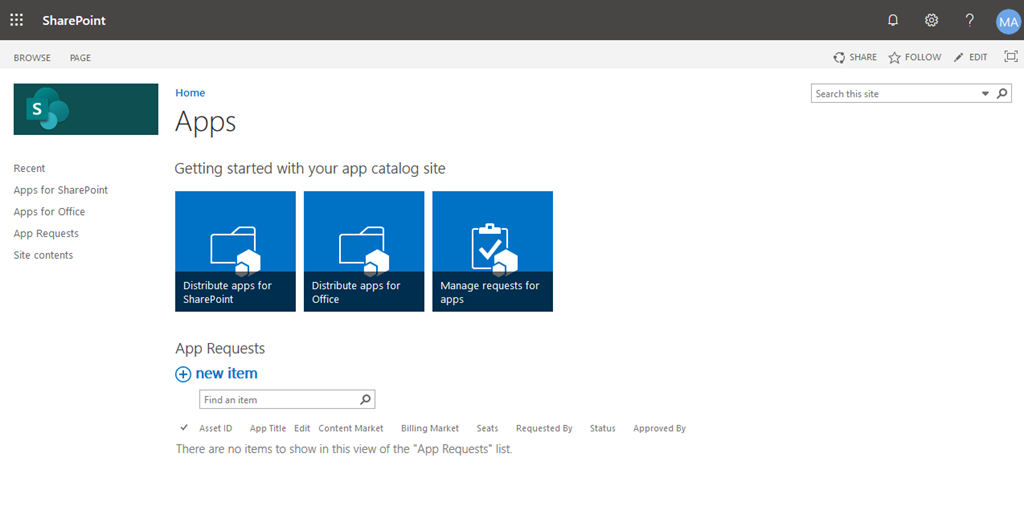
If you already have an App Catalog or you just created one, when you visit that URL you should see a site like that seen above.

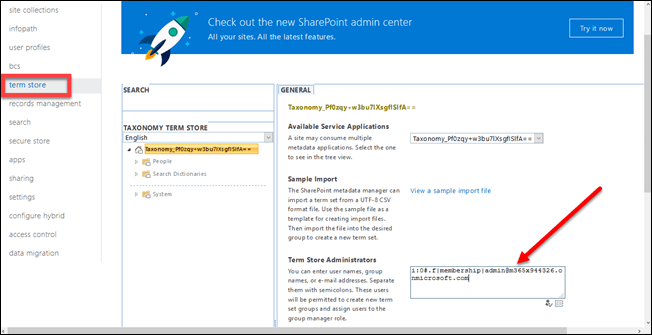
The final pre-requisite that you need to configure is some permissions on the SharePoint Term Store.
image

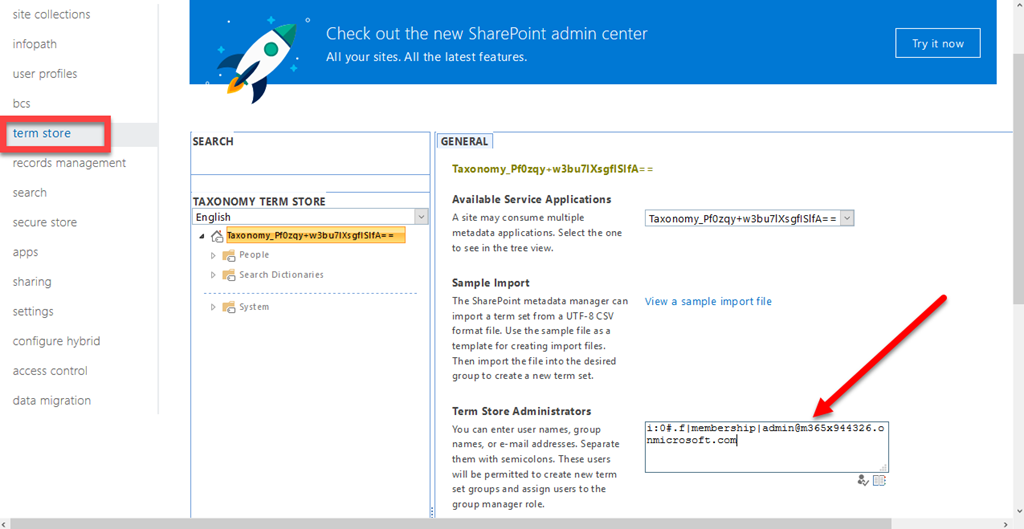
Once again, from the “Classic” SharePoint Admin center, select term store on the left. Then scroll down on the right and locate the Term Store Administrators option and enter you Global or SharePoint administrator in there again.

Scroll down to the bottom of the page on the right and Save the changes.

Now that all these pre-requisites have been configured, return to the SharePoint Starter Kit option:
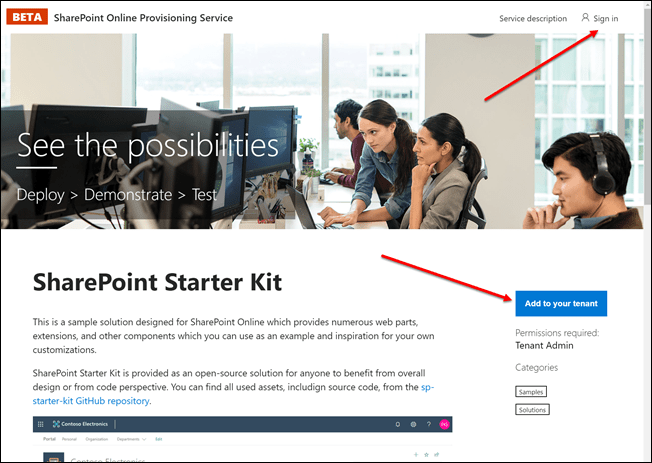
image

and select the Add to your tenant button on the right.
image

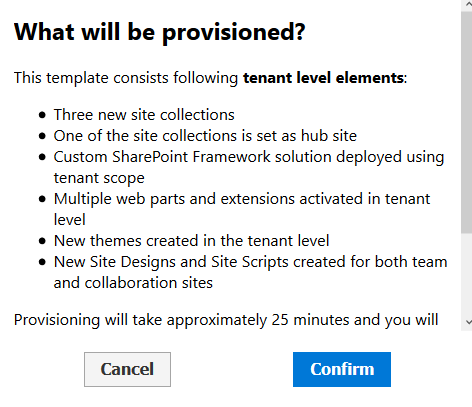
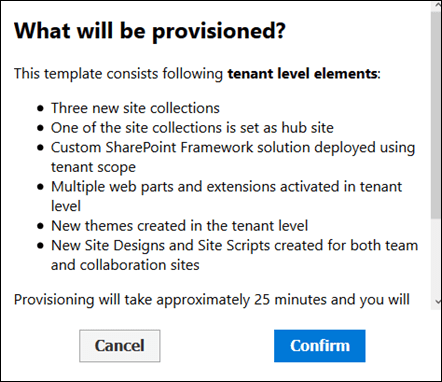
You may see a message about providing permissions, which you should accept. You’ll also see a summary of what will be provisioned as shown above. You’ll basically get all the new features plus three new site collections.

Select Confirm to continue.
image

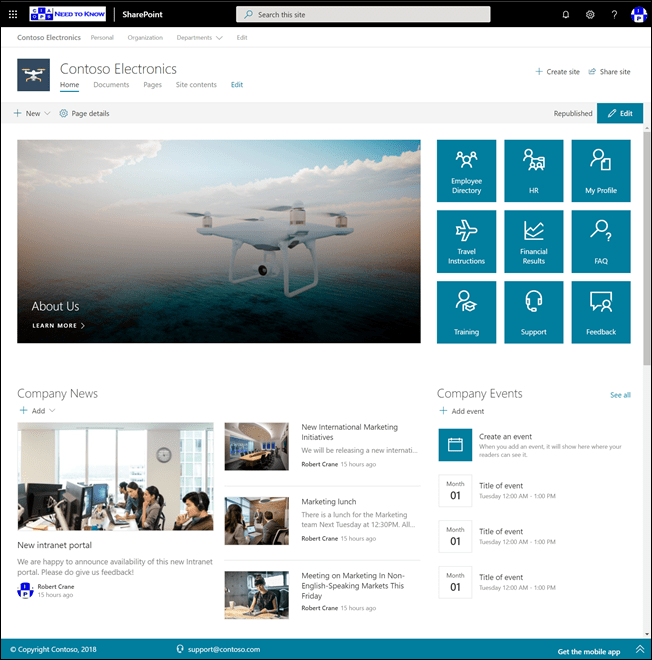
In a short while you’ll get a number of new SharePoint sites like that shown above that you can explore. Importantly, you also get additional features and web parts across your whole tenant.
SNAGHTMLd387cb

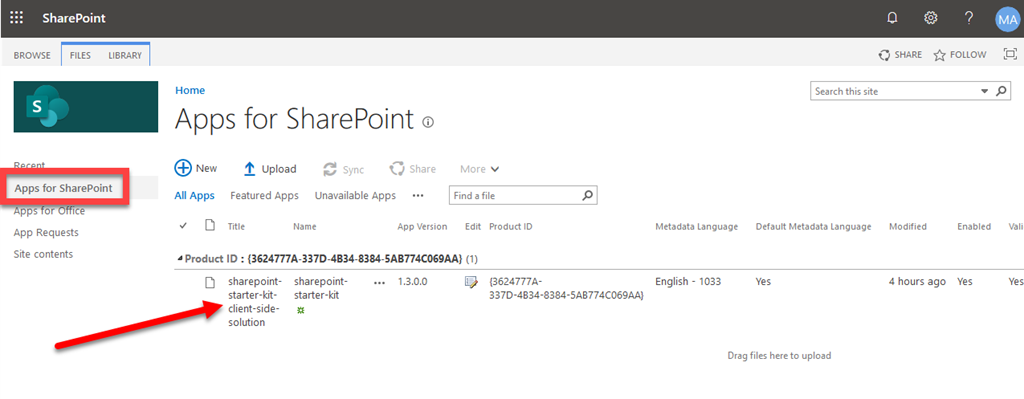
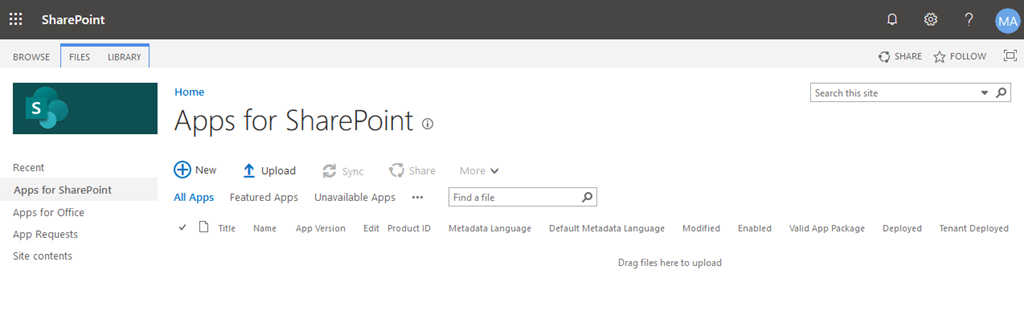
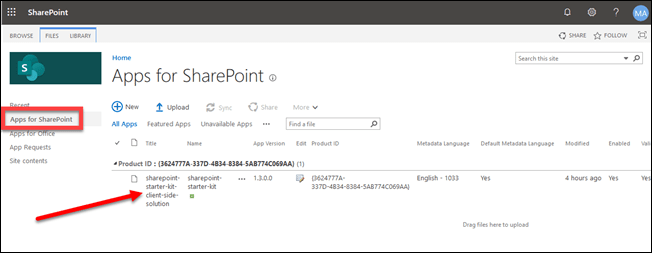
If you return to the App Catalog site and select the Apps for SharePoint option on the left, you will that the SharePoint Starter Kit solution appears as shown. This is the item that delivers all the new features to your environment.

The above sequence is the easiest way to deploy these add on features but what happens if you wish to do this manually and not get the additional demo Site Collections the above deploys?

You’ll still need to ensure the pre-requisites from above are completed (enable Targeted Release, have an App Catalog and modify the permissions on your SharePoint Term Store). Once these are complete you need to visit the sp-starter-kit GitHub repo:

https://github.com/SharePoint/sp-starter-kit/tree/master/package

and download the file sharepoint.starter-kit.sppkg here:

https://github.com/SharePoint/sp-starter-kit/blob/master/package/sharepoint-starter-kit.sppkg
image

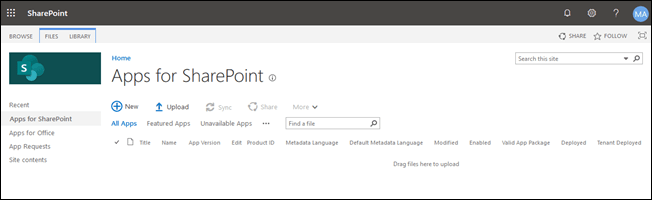
You then need to return to the Apps for SharePoint location in the App Catalog
image

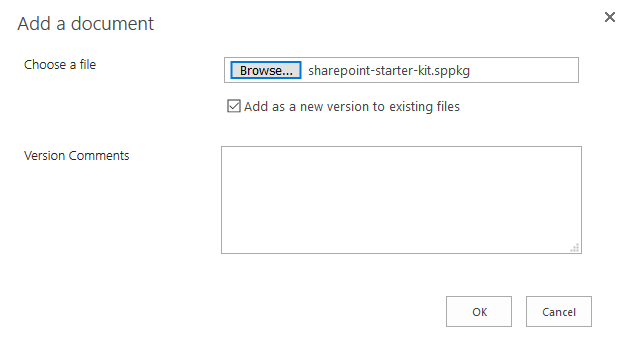
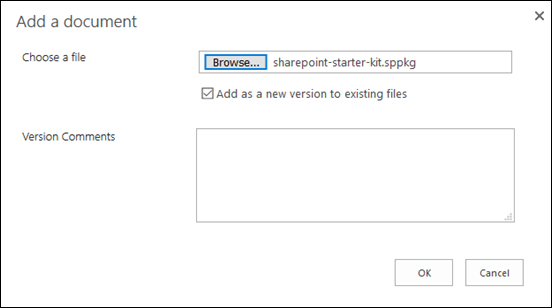
and upload the file sharepoint.starter-kit.sppkg here.
image

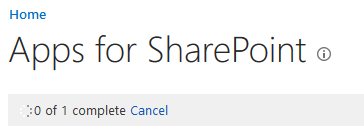
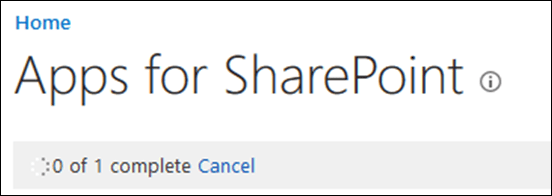
The file is about 7MB so you’ll need to wait while the file uploads into the library. You’ll the progress as shown above.
image

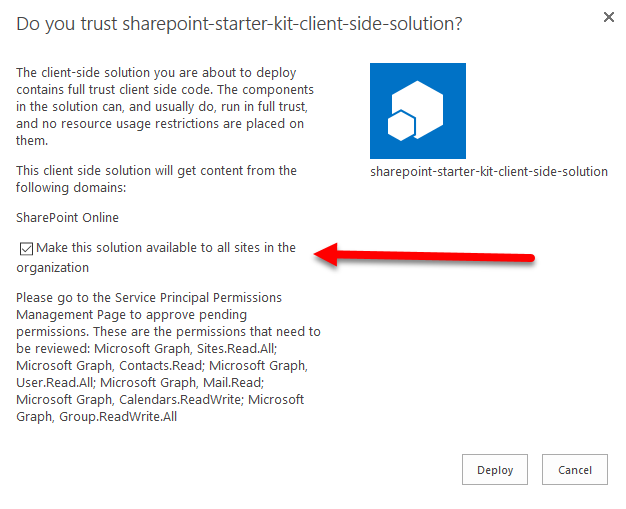
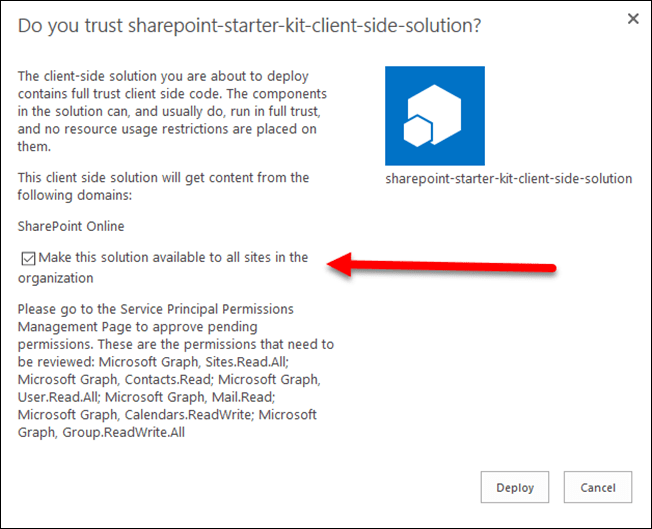
Once the package has been uploaded, you’ll see the above dialog boxing asking you to Deploy it. Before you deploy, ensure the option to Make this solution available to all sites in the organization is selected.

You may need to wait a little while for the package to roll out to all areas in your tenant. In most cases, this won’t usually be more than a few minutes.
image

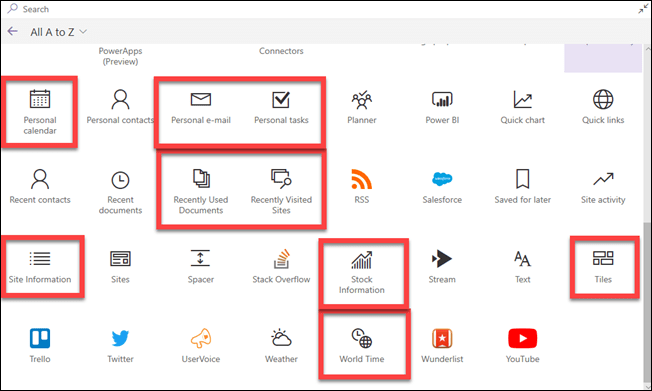
You should now see all these new web parts available to you in your modern pages within all sites in your tenant.

Remember that the SharePoint Starter Kit is available in GitHub and will continue to be updated over time. As it is, simply upload the new package into your App Catalog to gain access to the new features.

Using the SharePoint Starter Kit should give now you lots more options when working with SharePoint and all for free!


Your collaboration structure should be wide not deep

In previous articles I’ve provided:

A framework for file migrations to Microsoft 365

and

Processes for file migrations to Microsoft 365

In this article, I’m going to focus on the next level down and how you should be thinking wide not deep when it comes to transforming your data into Microsoft 365.

In essence, structure is not as important as it once used to be. Having layers and layers of directories and sub-directories in a file share was really the only way to catalogue and organise your information in the world of on premises. However, structure becomes far less important in a world where everything is available via search. Think about it, how do you find stuff on the Internet? You search for it. Why then should internal data work any differently?

image

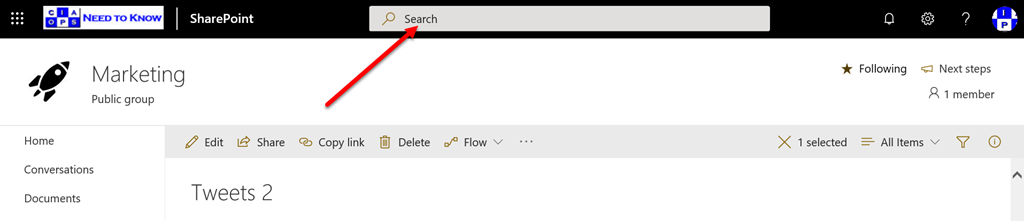
Search is built into Microsoft 365 and now appears at the top of most pages as you see above.

image

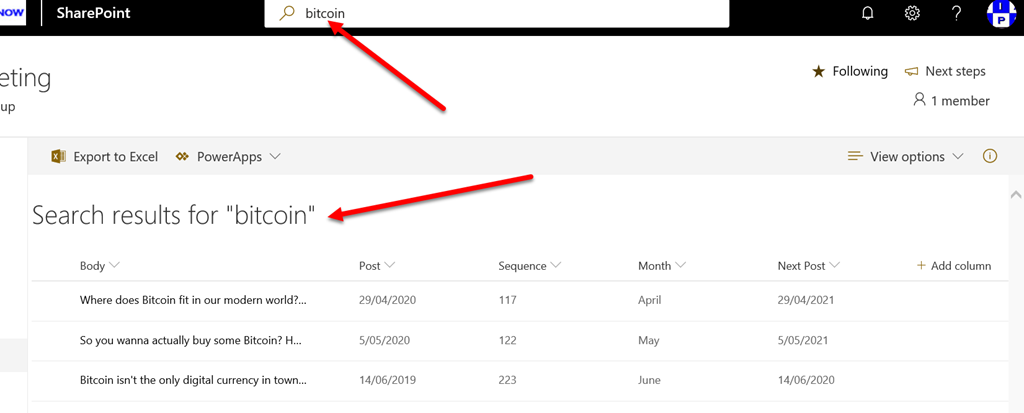
For example, if I do a search for “bitcoin” then I’m returned results from that location, in this case a list.

image

Not only do I have search, but thanks to the Microsoft Graph and some “AI” magic I can get a feed of my most relevant documents in Delve. I can also see documents others are working on that are also relevant to me and that I have permission to, again all in Delve.

So, the concept of structure is less important than it used to be, especially the deeper you go. It more becomes a case of get it into some major buckets and we can filter and sort from there.

Let’s say that there is an existing on premises folder structure like so:

F:\Finance\customers\abc\2017

F:\Finance\customers\abc\2018

F:\Finance\customers\abc\2019

and so on. How do you ‘transform’ this into the new world of Microsoft 365? Best practices is to start at the top and work down. Thus:

F:\Finance

is going to be the initial bucket. This means that you should either create a Microsoft Team or a SharePoint Site called “Finance”.

Once you have a Microsoft Team called “Finance” then you would probably create a Channel called “Customers”. If it was a SharePoint site then you’d have a Document Library called “Customers”.

Inside the Microsoft Team called “Finance” and the Channel called “Customers” you have a folder in the Files area called “ABC” and so on for each customer.

At this point we have now reached “Robert’s rule of three” maximum structure depth. That means we have a Microsoft Team, a Channel and a folder. We don’t really want to create anything deeper if we can avoid it. This is where “metadata” comes to the rescue. Perhaps, instead of a a single Channel or Document Library for customers, maybe you have a unique library for each? The choice is yours.

If we look at the structure of the source data, we see that is broken out be year. However, we can create a custom column in SharePoint that contains the values of “Year” and use that to ‘tag’ our data. Thus, you create an additional column in the Document Library where the data lives. You specify that the only values allowed in the column are numerical years. You then set that field to the appropriate value for each file.

image

In the above example, you’ll see that I have created an additional column called “Customer” and used that to tag both files and folders.

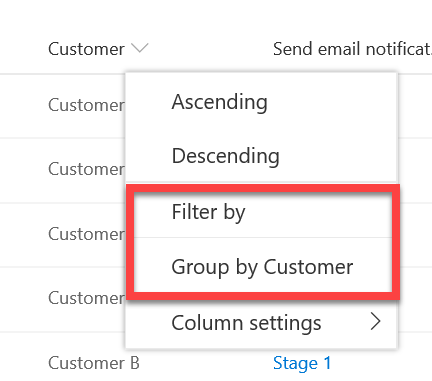
Thus, metadata allows me to collapse my structure by using tags, which in many ways is what people used folders for on premises. Once I have tagged my data I can easily sort and filter it like so:

image

Here it is “grouped by Customer”

image

Thus, with metadata you can create a much flatter structure because you don’t need all those sub folders. The benefits of a flatter structure is that it is easy to see more of the data quickly and then using the inbuilt filtering tools to get to what you want. Typically, you’ll only be using this filtering technique if you haven’t searched for the data or had it presented to you via Delve. However, for those that still like to navigate a formal structure, it is still possible as you can see.

My best practice is that every time you are considering going more than three levels deep, you should break the data into another Channel or Document Library. Remember, you can create as many Document Libraries as you want in SharePoint and then also link them back into Microsoft Teams if you want. You should be looking to use lots of Document Libraries and keeping them no deeper than a single folder as a rule of thumb.

The other benefits of using additional Document Libraries is that you can have a different set of metadata to describe your information. You can also have a different set of permissions as well as a different look and feel thanks to SharePoint Views. A wide structure in general makes more things visible to people when they go looking, rather than it being buried deep within a folder structure and lost.

Thus, most of your top level folders from on premises file servers will become independent Teams or SharePoint sites. Subfolders below these will become Teams Channels or unique Document Libraries in SharePoint. It is also always better to break deep structures into different Document Libraries and link them back into Microsoft Teams if required.

Remember, moving to Microsoft 365 is about “transforming” data and restructuring it in a ways that users will benefit most. This means keeping it as shallow as possible and using inbuilt tools like filter, sort and search to get to your information rather than constantly navigating up and down deep structures. Services like Delve will also present to you the information you need most times and so you won’t even have to go searching for it. Simply ‘dumping’ data from an on premises file share into a single Document Library is not providing any value or transforming that in any way. If you aren’t going to do that why are you even bothering to move it?

As I have said previously, transformation requires effort, it doesn’t magically happen. However, the point of migration is the opportunity to transform data so that it can take advantage of all the tool Microsoft 365 provides. Also don’t forget that you don’t have to do all of this transformation in one hit. Create the Microsoft Teams, Channels as a starting point at least, then add metadata across the data down the track. Likewise, if you want to make a change down the track you can. That’s the whole idea with Microsoft 365, it is something that will evolve over time as the business does. It is never a once off migration process without future change. Never!
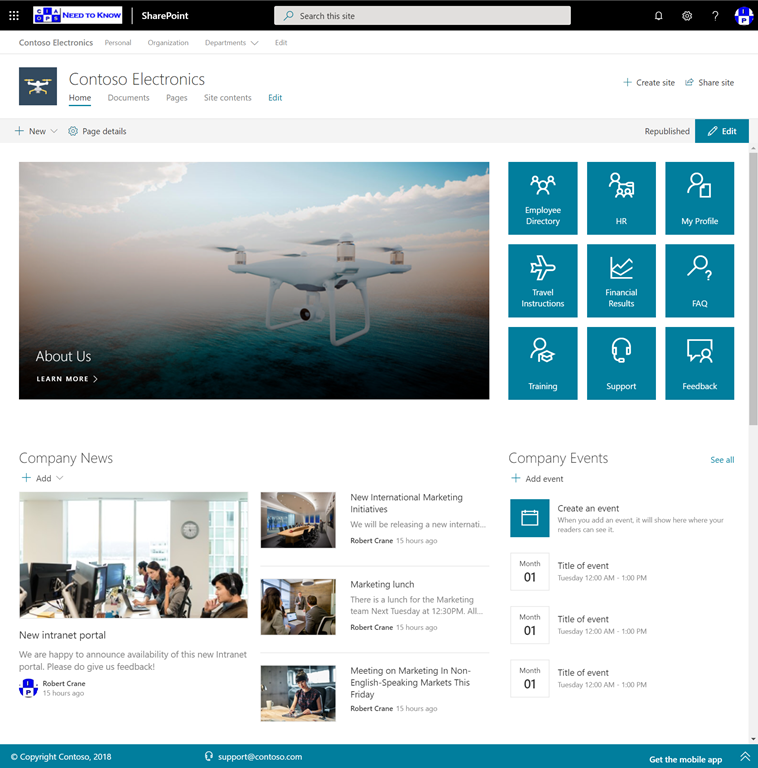
Microsoft 365 gives you the resources and tools to go wide not deep with your structure. Start my replacing some of your sub folders with metadata fields as illustrated above. Doing so will enable your business to be far more productive than it ever was with deep on premises file shares. Remember, moving to Microsoft 365 is about transforming not merely migrating.

Cloud App Discovery/Security

Microsoft has a range of security options available, delivered in a variety of ways from the cloud. I’m going to focus on three items that tend to get lumped together and with which I see much confusion. These services are:

1. Azure AD Cloud App Discovery

2. Office 365 Cloud App Security

3. Microsoft Cloud App Security

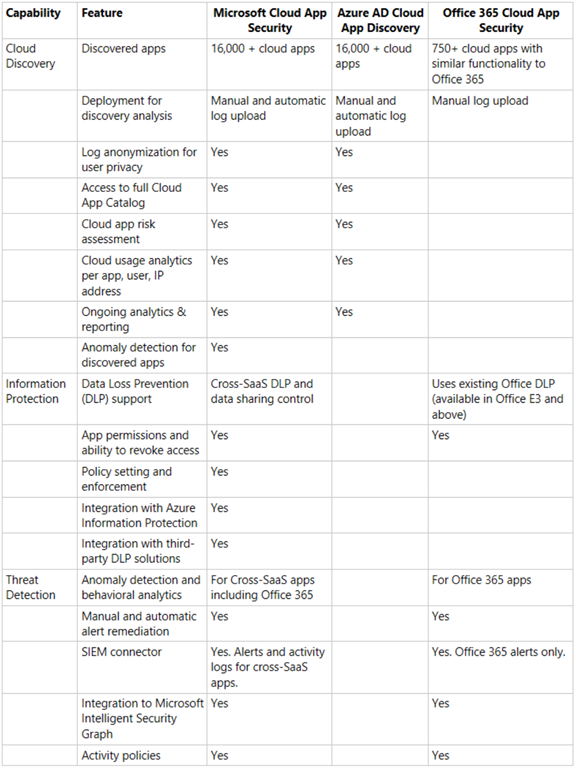
Here’s a summary of the differences between the products:

image

1. Azure AD Cloud App Discovery

This is the most basic of the three services and is only available when you purchase and license Azure AD P1, there is no stand alone version of just Azure AD Cloud App Discovery. This is a description of the product:

Azure Active Directory Premium P1 includes Azure Active Directory Cloud App Discovery at no additional cost. This feature is based on the Microsoft Cloud App Security Cloud Discovery capabilities that provide deeper visibility into cloud app usage in your organizations. Upgrade to Microsoft Cloud App Security to receive the full suite of Cloud App Security Broker (CASB) capabilities offered by Microsoft Cloud App Security.

Thus you receive Azure AD Cloud App Discovery when you purchase the following:

– Azure AD Premium P1 (stand alone)

– Azure AD premium p2 (stand alone)

– Microsoft 365 E3 (which includes Azure AD P1)

– Enterprise and Mobility Suite (EMS) E3 (which includes Azure AD P1)

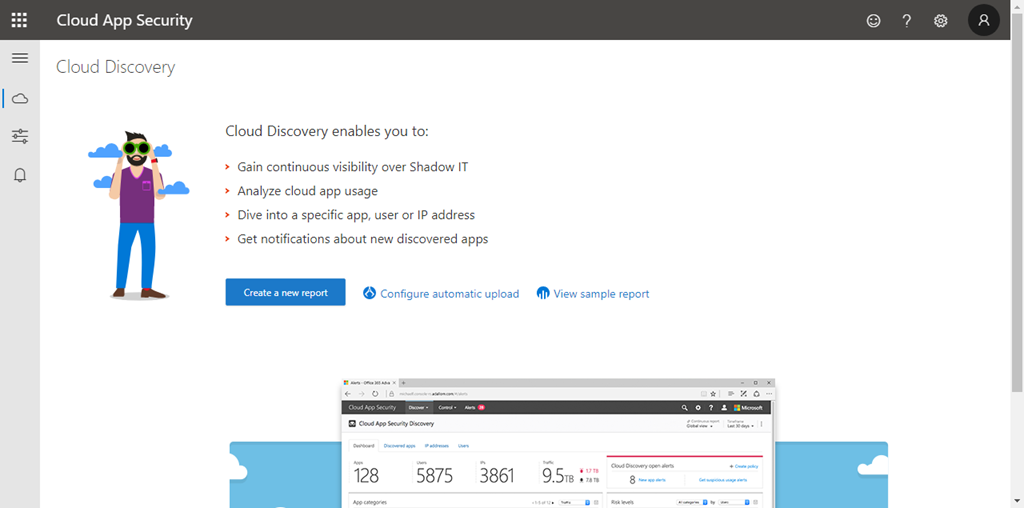
When you visit the portal you will see:

image

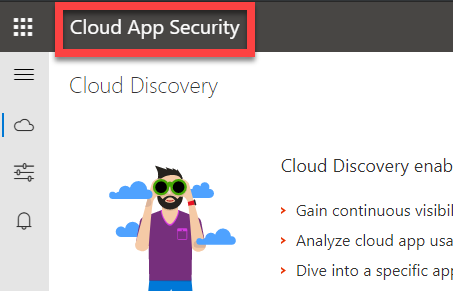
Firstly, note that the banner reads Cloud App Security like so:

image

2. Office 365 Cloud App Security

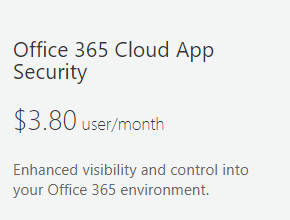
This is available as a stand alone purchase for existing Office 365 / Microsoft 365 tenants.

clip_image001

You can also get Office 365 Cloud App Security as part of:

– Office 365 E5

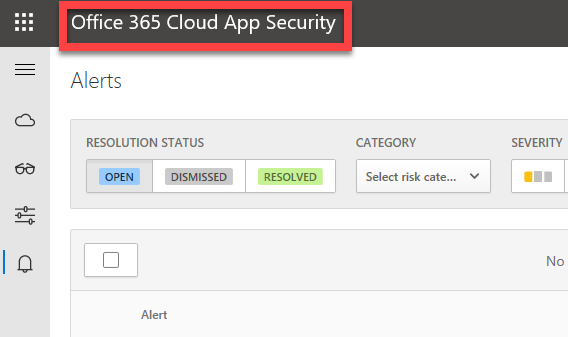
You’ll see Office 365 Cloud App Security in the top left of the portal like so:

image

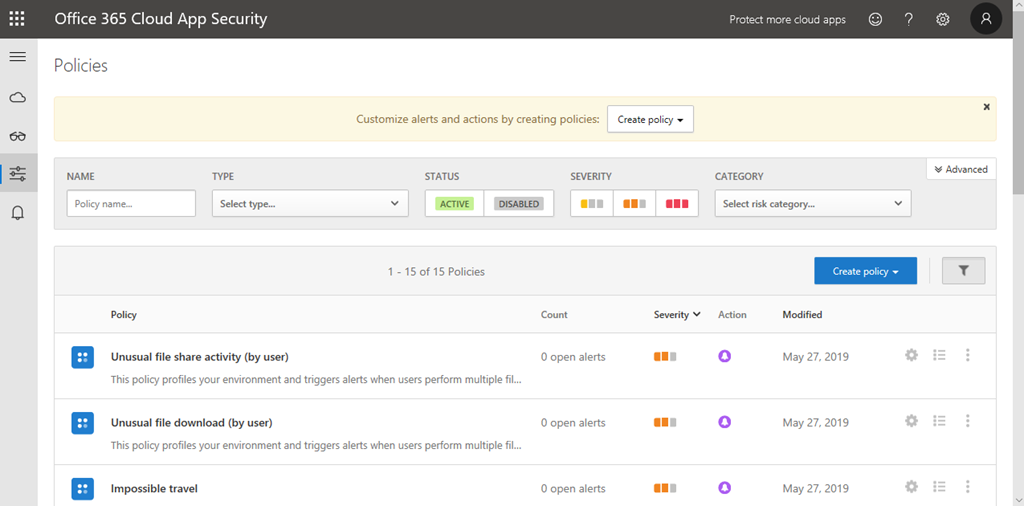
The biggest advantage I believe of Office 365 Cloud App Security over Azure AD Cloud App Discovery is the Activity policies like so:

image

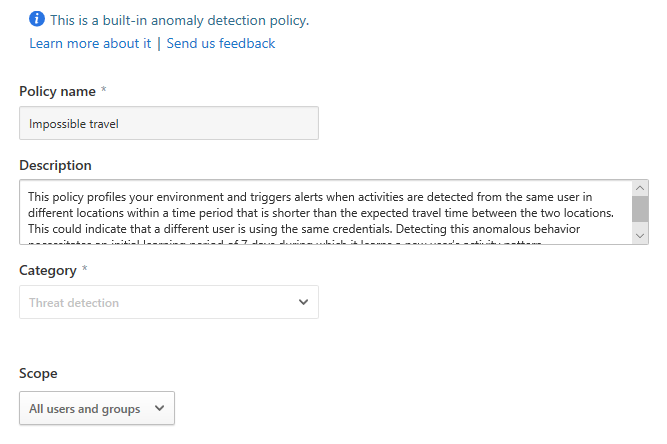
These activities includes built in anomaly detection for things like Impossible travel like so:

image

You also get a number of default activity policies like Logon from a risky IP address:

image

as well as the ability to create your own unique activity policies and alerting.

3. Microsoft Cloud App Security

This again, is available as a stand alone add-on to any Office 365 / Microsoft 365 tenant, being a tad more expensive that office 365 Cloud App Security:

clip_image001[4]

It is also available when you purchase:

– Microsoft 365 E5

– Microsoft 365 E5 Security

– Enterprise and Mobility Suite (EMS) E5

As you can see from the table at the top of this article, Microsoft Cloud App Security includes everything (plus more) that is in Azure AD Cloud App Discover and Office 365 Cloud App Security. Thus, think of Microsoft Cloud App Security as Azure AD Cloud App Discovery + Office 365 Cloud App Security.

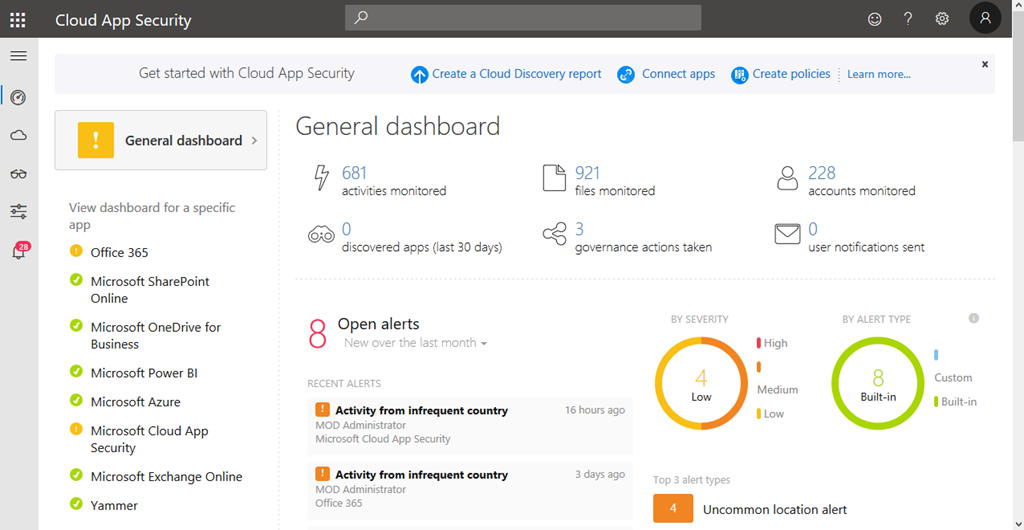
This is what you see when login to Dashboard:

image

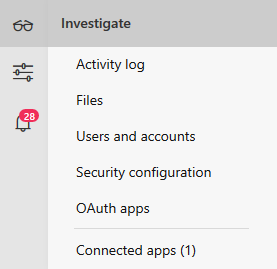
You’ll see it look very different even though the top left says “Cloud App Security” again. You get far more options that with either of the other two including more options under Investigate like so:

image

Summary

Not everything is quite as simple as I have outlined here. Deeper detail about the licensing can be found here:

https://query.prod.cms.rt.microsoft.com/cms/api/am/binary/RE2NXYO

or on:

Microsoft Cloud App Security

In my opinion Azure AD P1 is a must have for all tenants to get features like conditional access and trusted IP’s. That will give you Azure AD Cloud App Discovery. However, I’d also recommend also adding Office 365 Cloud App Security as a minimum to get access to the Activity alerts. if you want even more power then add Microsoft Cloud App Security instead.

The final question I get is whether you require a license for all users in your tenant? For that I will leave you with the official word from Microsoft on that topic which is:

“Each user must be licensed for Microsoft Cloud App Security to use or benefit from it. For customers who license a subset of users, services enforced at the tenant level are not licensed for the other users. They are not entitled to use or benefit from the service, regardless of whether the service is technically accessible.”