Need to Know podcast–Episode 215

In this episode I speak with Alex Fields about the power of conditional access. You’ll learn what it is, how to implement it as well as many best practices recommended by Alex based in his experience and knowledge. The great new is conditional access is part of Microsoft 365 Business, so listen in for the way to make it work to protect your information.

Brenton and I also bring you up to speed with all the latest Microsoft Cloud news, so listen in for the latest as always. We hope you enjoy this episode and don’t forget to send us your feedback.

This episode was recorded using Microsoft Teams and produced with Camtasia 2019

Take a listen and let us know what you think – feedback@needtoknow.cloud

You can listen directly to this episode at:

https://ciaops.podbean.com/e/episode-215-alex-fields/

Subscribe via iTunes at:

https://itunes.apple.com/au/podcast/ciaops-need-to-know-podcasts/id406891445?mt=2

The podcast is also available on Stitcher at:

http://www.stitcher.com/podcast/ciaops/need-to-know-podcast?refid=stpr

Don’t forget to give the show a rating as well as send us any feedback or suggestions you may have for the show.

Resources

@vanvfields

@contactbrenton

@directorcia

CIAOPS Patron Community

ITProMentor

ITProMentor – Best parctices

Attacker Kill Chain described

ITProMentor – Free Microsoft 365 Business eBook

ITProMentor – Licensing Guide

Telstra Purple

New version of To-Do

Authenticator backup on Android now available

Prepare for iPadiOS Launch

New webparts coming to SharePoint

Azure QuickStart Center

Top 5 advantages of syncing with OneDrive

Modernize your root site

Check your journaling rules

One of challenges with security is that there are lots of places to check and secure but only one vulnerability required for compromise. Most compromises happen at the user level but there are also other places that you may want to keep an eye. One of the is the journaling rules in Exchange Online.

Now, journaling rules can only generally be configured by an administrator. According to:

https://docs.microsoft.com/en-us/exchange/security-and-compliance/journaling/journaling

“Journaling can help your organization respond to legal, regulatory, and organizational compliance requirements by recording inbound and outbound email communications.”

That means it maybe possible to record email traffic and forward it to another location. That may mean for example, a rogue administrator setting up a journaling rule to send the CEO’s emails to their own private external email box.

Defending against rogue admin is tough and requires some planning. The least that you could do is check any existing journaling rules and ensure that only required ones appear.

image

You can do this by visiting the Exchange Online Admin Center. From here select Compliance Management then journal rules as shown above.

As you can see there are no journal rules in this tenant and it is my experience that most tenants don’t use journaling at all. That doesn’t mean there isn’t legitimate reasons for having journaling rules. All I’m saying is that you should check what you have and ensure it is right.

As always, I find that using PowerShell is a much quicker way to report on this using the command:

get-journalrule

The reason which checking journaling is important, is because as I understand it, journaling won’t show up in the audit logs for the tenant. This means that once it was surreptitiously enabled, it could run unreported in the background, collecting information unknown to everyone? That is a bad thing.

The best solution against rogue administrators in general is Privileged Access Management (PAM) in Office 365:

Configuring Privileged Access Management

which is typically only included in advanced Microsoft 365 licensing like E5. This, unfortunately, puts it beyond the reach of many. So, for the time being, keep an eye on your journaling rules and check to see where they maybe sending your information.


Not all characters are created the same

image

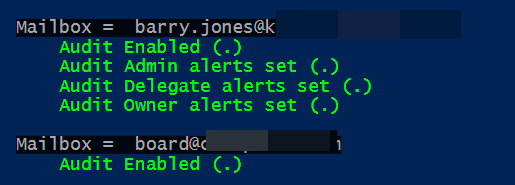
I was up late doing some PowerShell coding to set alerts on mailboxes in Microsoft 365 and I had everything working nicely as you can see above. At this stage I was just using the standard PowerShell ISE to execute the code.

I had also been updating the code with Visual Studio Code so I could then push it up to my GitHub repositories. Just before call it quits I now ran the scripts directly from the command prompt which is where the Visual Studio Code version had been saved. In essence, at the command prompt, I ran:

.\o365-mx-alert-set.ps1

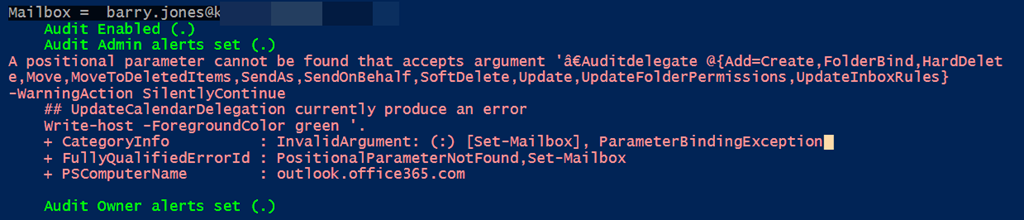
When I did this I now received the following error:

image

How is that possible? The code on the disk via Visual Studio Code is exactly the same as the code I had been working with directly in the PowerShell ISE. I don’t understand why I am getting this error.

I spent quite a long time trying to resolve the issue but to no avail. Out of desperation, the following morning,  I contacted PowerShell guru Elliot Munro from GITS for help.

Long story short, Elliot pointed out that from the error it appeared to be:

an issue with the em dash character, the one in front of AuditDelegate is a different dash compared to the other parameters ( – instead of – ). I guess running it from the command line doesn’t automatically convert it to the standard dash like ISE does.

BINGO we have a winner. Changing the dash to the “right” one fixed that problem immediately! Elliot, you are a legend and life saver.

image

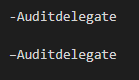
As you can see from the above, there is very slight difference in the dash at front of the parameter. The top one is the one that works, the bottom one is the one that causes the error. No much in it eh? However, that was all it took to waste a few hours of my time late at night looking for an answer.

Hopefully, this article get found by others who may have the same issue and error in PowerShell and I can ‘pay forward’ Elliot’s assistance.

A hidden gem

image

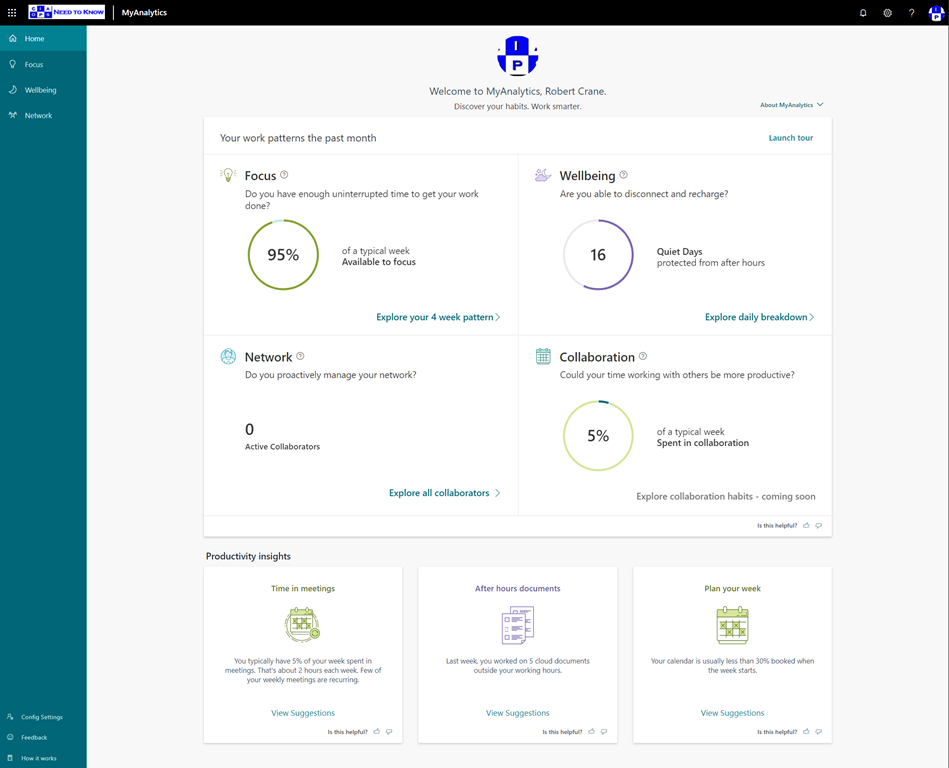
Microsoft has a hidden gem squirrelled away at:

https://myanalytics.microsoft.com/

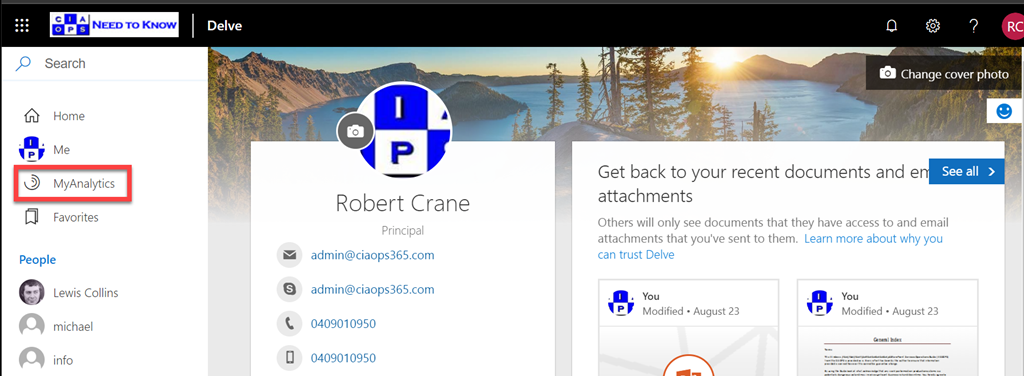
You also get access to it via Delve:

image

In short, it a “wellness” dashboard to report on your interactions using Microsoft 365. It’s available in most tenants right now, so you can go and have a look at your own version.

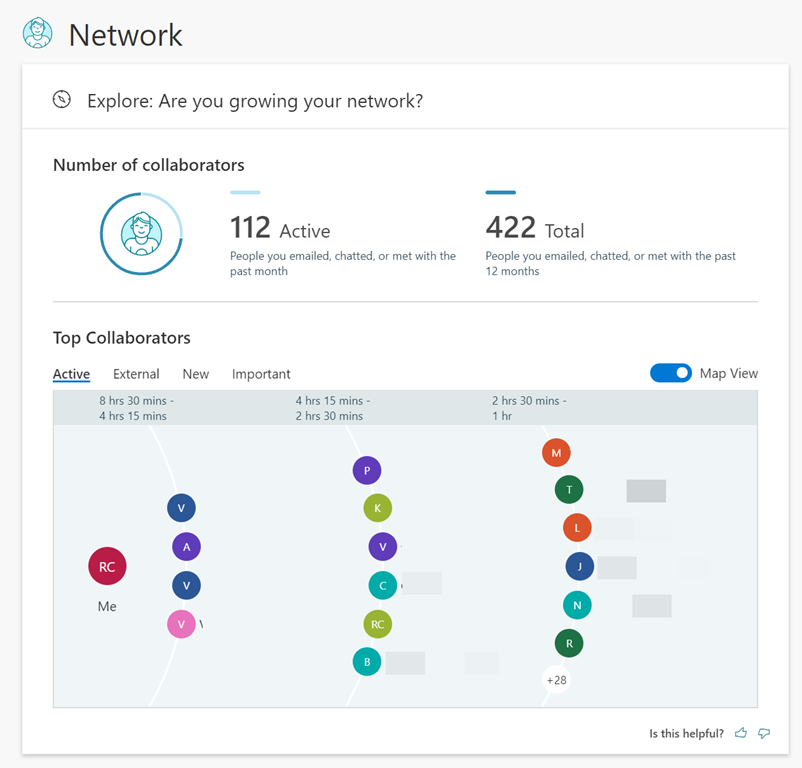
image

I especially like the Network option that shows you who you communicate with.

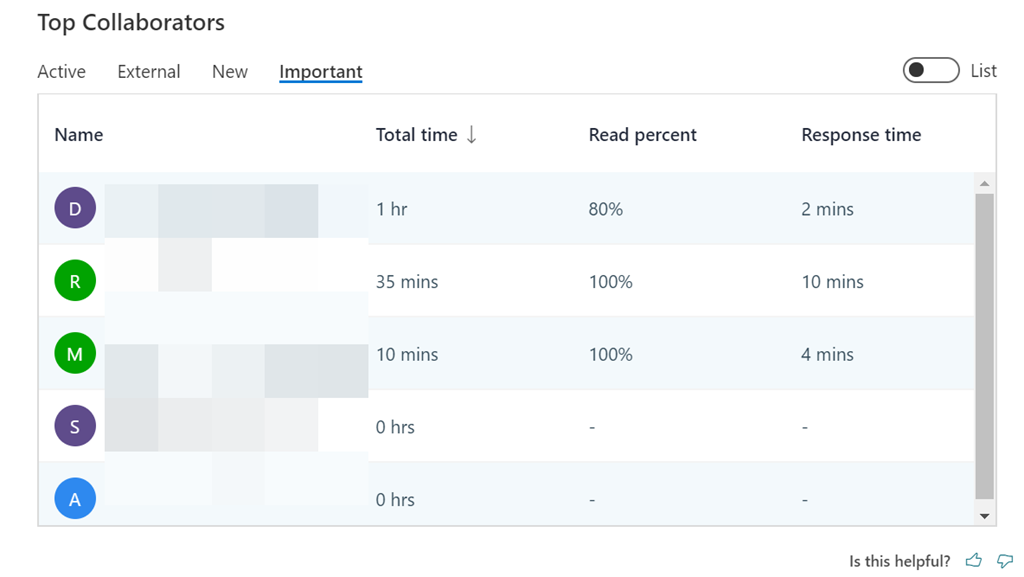
image

You can also display that as a list and interesting read and response times for each contact as well as select from Active, External, New and Important.

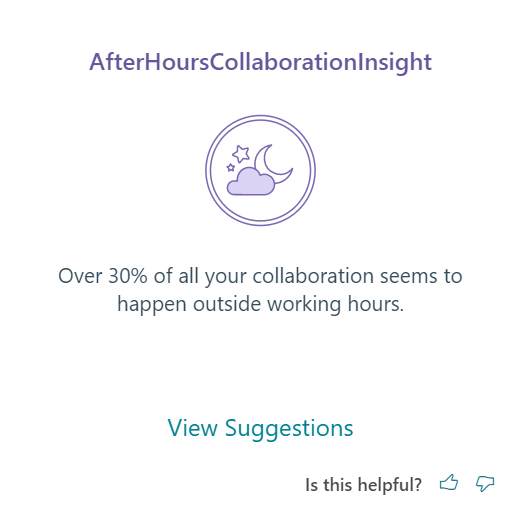
image

You get After-hours breakdowns as you see above,

image image

As well as suggestion cards for improved productivity and wellness as shown above.

If you want to know how it all works visit:

https://docs.microsoft.com/en-us/Workplace-Analytics/myanalytics/use/dashboard-2

Now all of this is great, but my concern it is not really front and centre. Most people who have Microsoft 365 don’t even know Delve exists is my sad experience. Many are also unlikely to visit the URL directly. Thus, I’m a little concerned about the fate of this handy tool. Non-mainstream items in Microsoft 365 tend to end up being discontinued. I hope this won’t be the case for MyAnalytics. I’ve provided feedback that maybe the option for a weekly email with a summary report is a worthwhile addition. I think it also need more depth in the information it provides to be a compelling place for most users. at the moment, it is a ‘nice to see’ not a ‘must see’ and to survive it needs that I believe.

Hopefully, this is just the beginning of the features that will be brought to the service. Go and have a look for yourself and make some suggestions as to what you’d like to see.

Waiting to upgrade to a Communications Site?

Microsoft have placed on their roadmap that you can run the following PowerShell command:

enable-spocommsite

to upgrade a classic site collection to a modern site collection.

However, the documentation at:

https://docs.microsoft.com/en-us/powershell/module/sharepoint-online/Enable-SPOCommSite?view=sharepoint-ps

reads:

Enables the modern communication site experience on an existing site. At this time, based on early adopter feedback, we have decided to postpone rolling out this feature. We apologize for any inconvenience and will communicate a new schedule via Message Center, once it is available. We expect to have an update in the Q3 time frame

and when you actually try it you get:

image

So it looks like we’ll have to wait a little longer. Hopefully not too much longer.

Need to Know podcast–Episode 213

A quick news update followed by an engaging interview with Amy Babinchak around some of the cloud topics she will be presenting at some upcoming events. Amy is owner of Harbor Computer, Third Tier Consulting and an Office 365 MVP to boot, so plenty of great learnings to he had listening in.

This episode was recorded using Microsoft Teams and produced with Camtasia 2019

Take a listen and let us know what you think – feedback@needtoknow.cloud

You can listen directly to this episode at:

https://ciaops.podbean.com/e/episode-213-amy-babinchak/

Subscribe via iTunes at:

https://itunes.apple.com/au/podcast/ciaops-need-to-know-podcasts/id406891445?mt=2

The podcast is also available on Stitcher at:

http://www.stitcher.com/podcast/ciaops/need-to-know-podcast?refid=stpr

Don’t forget to give the show a rating as well as send us any feedback or suggestions you may have for the show.

Resources

@ababinchak

@contactbrenton

@directorcia

Samsung and Microsoft Alliance

Updates to SharePoint authoring

Top 5 advantages of OneDrive for Business

MFA and end user impacts

Set up conditional access with Microsoft Search in Bing

New Azure files authentication

Lower pricing for Azure storage

Chromium version of Edge now has a beta channel

Impact of a password spray attack

Basically, when someone launches a password spray attack on one of your accounts, they are basically using automated processes to guess your password and brute force their way into the account. These attacks typically happen via legacy protocols that should be disabled in your Microsoft 365 tenant as i have mentioned before:

Disable basic auth to improve Office 365 security

This can be tricker than you think because many legacy applications require basic authentication to operate. Therein lies the challenge.

I have purposely left legacy authentication enabled on some accounts to track what happens during brute force attempts. Experience is the best teacher as they say. Thanks to Cloud App Security:

A great security add on for Microsoft 365

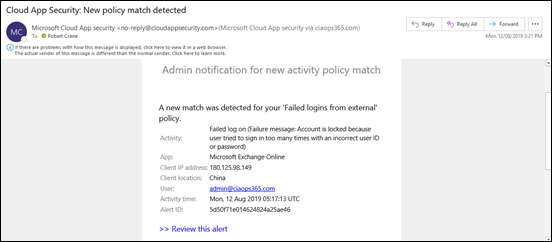
I have configured it to alert me when there is failed login from outside my corporate locations:

Tracking failed logins using Cloud App Security
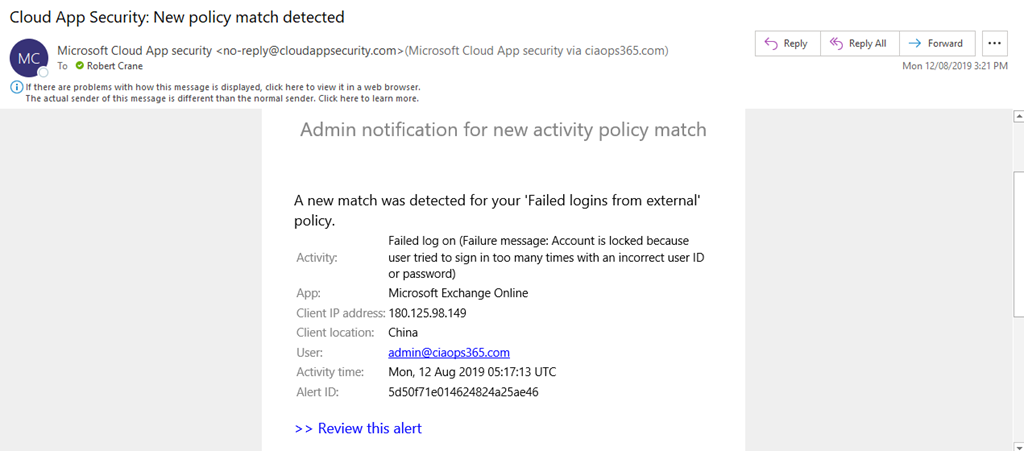
image

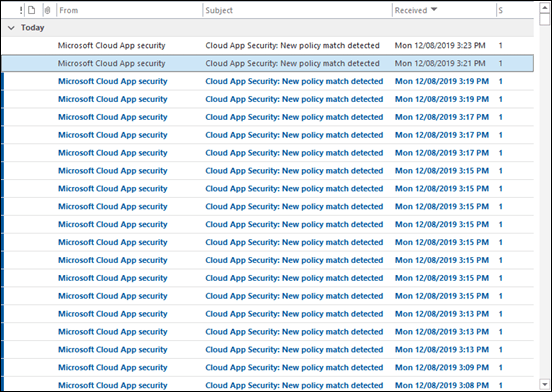
I would occasionally get the odd failed alert but nothing sustained. That was until today!
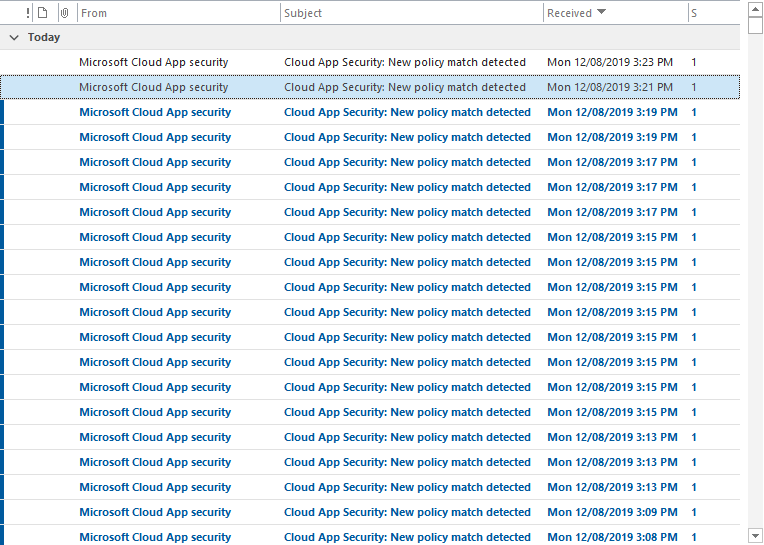
image

As you can see from my inbox, all of sudden I started to get massive volumes of alerts from Cloud App Security. The spray was on!
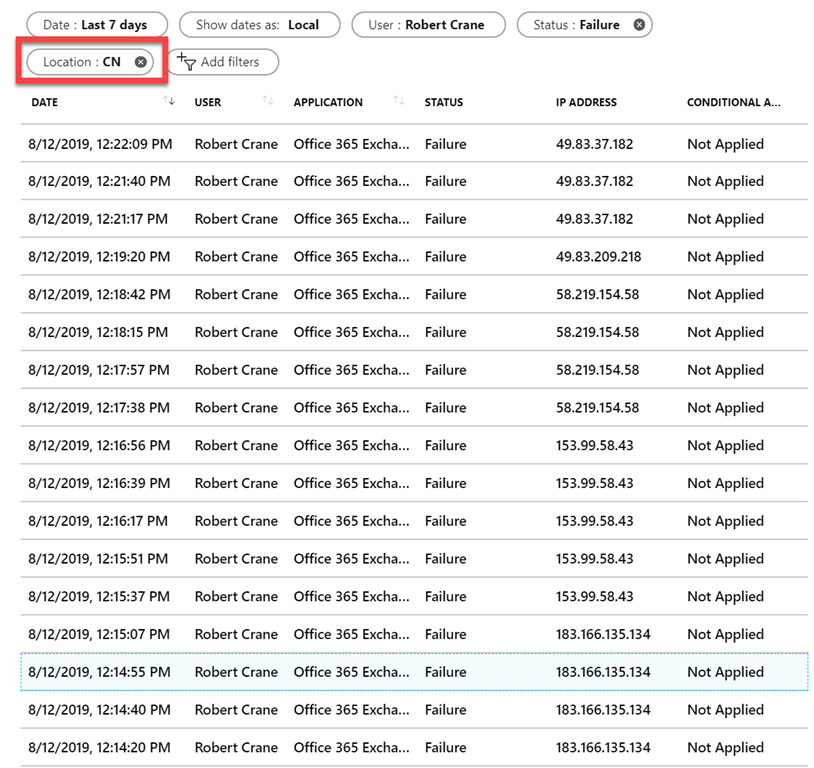
image

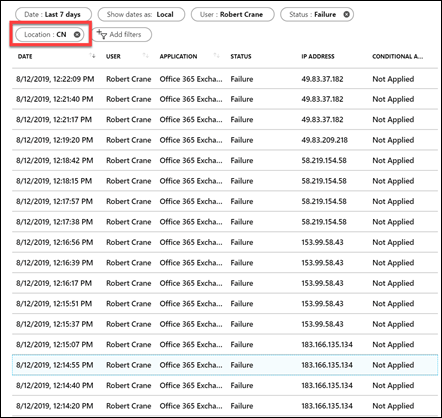
I jumped across to Azure AD sign-ins for the account and filtered the location down to be largely from China (i.e. CN is the location filter in the above results).
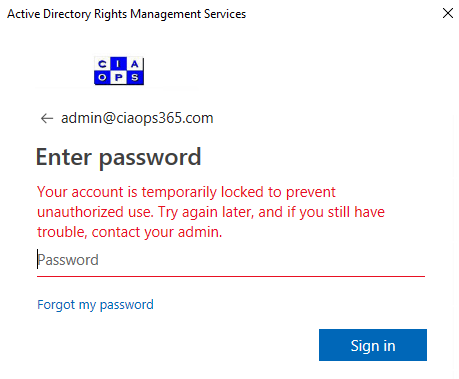
image

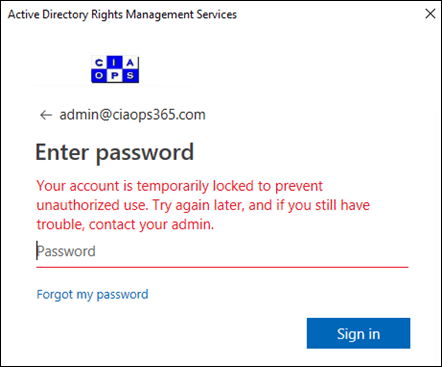
Due to the intensity of attack I started to get login failures and reported locks outs as shown above. So how does Azure AD handle lockouts? You’ll find that information here:

Azure Active Directory smart lockout

which says:

By default, smart lockout locks the account from sign-in attempts for one minute after 10 failed attempts. The account locks again after each subsequent failed sign-in attempt, for one minute at first and longer in subsequent attempts.

Smart lockout tracks the last three bad password hashes to avoid incrementing the lockout counter for the same password. If someone enters the same bad password multiple times, this behavior will not cause the account to lockout.

…

Smart lockout is always on for all Azure AD customers with these default settings that offer the right mix of security and usability. Customization of the smart lockout settings, with values specific to your organization, requires paid Azure AD licenses for your users.

In this case, the tenant didn’t have a premium version of Azure AD so the standard defaults were in effect.
image

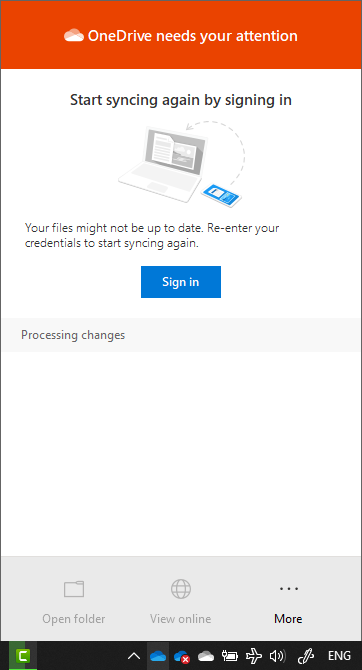
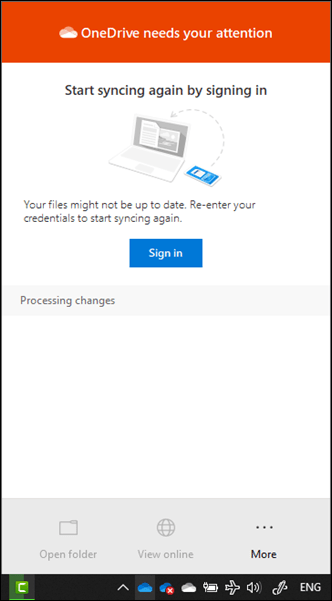
The next application to feel the strain was the OneDrive for Business sync client which started requiring re-authentication.
image

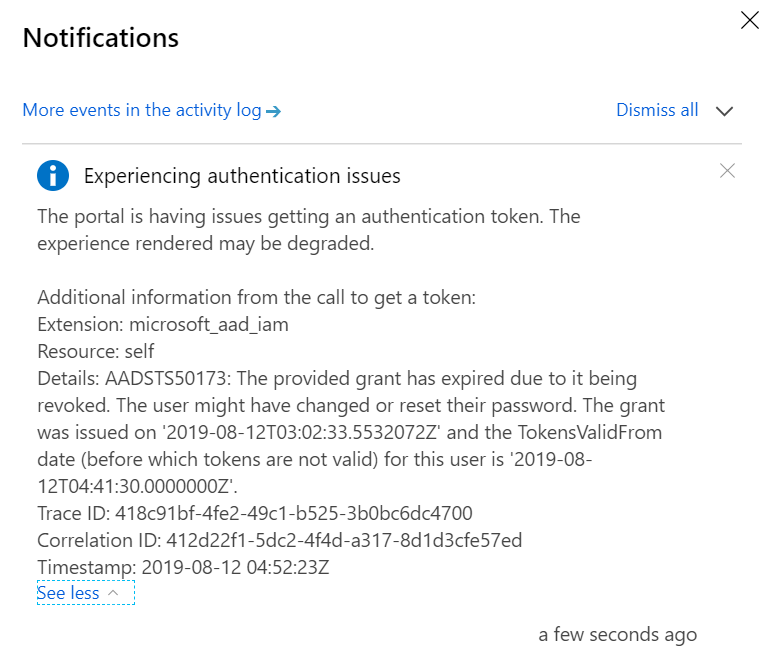
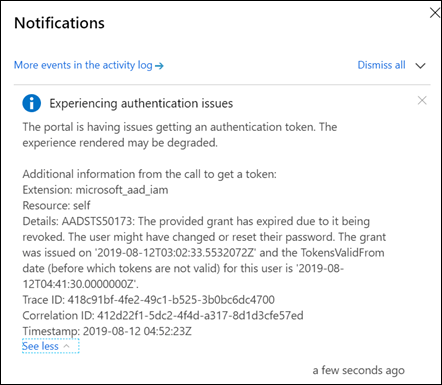
Then the Azure portal began to struggle under the weight of so many failed login attempts.
image

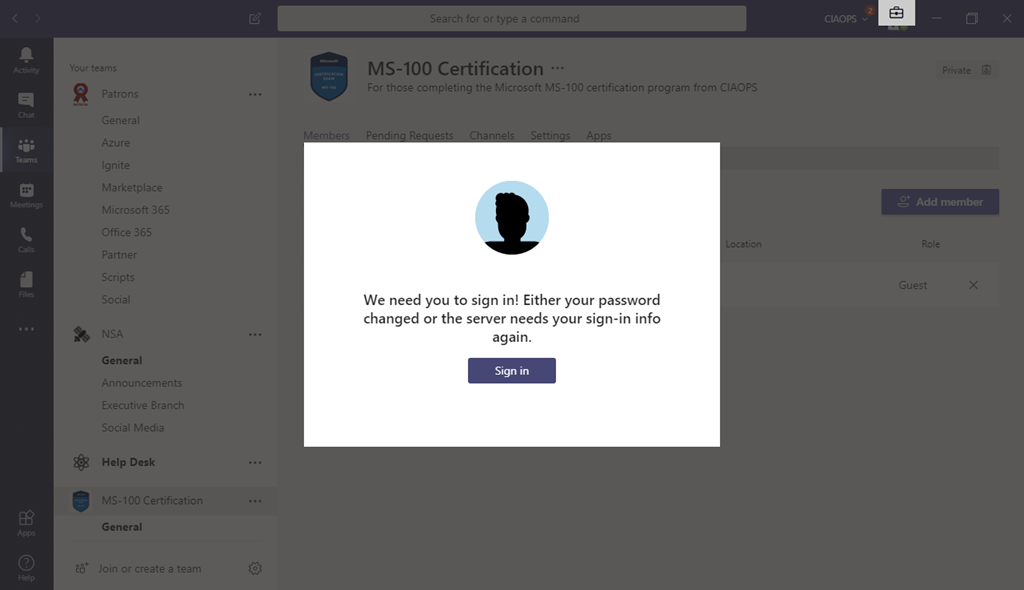
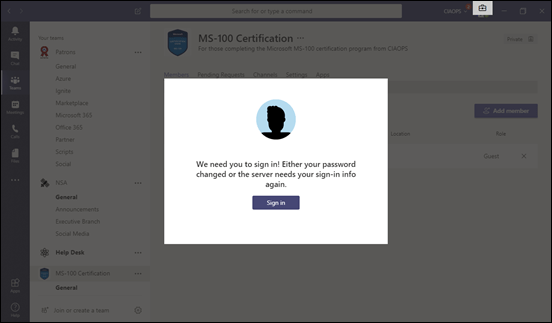
Then the Microsoft Teams desktop application also started to have authentication issues.
image

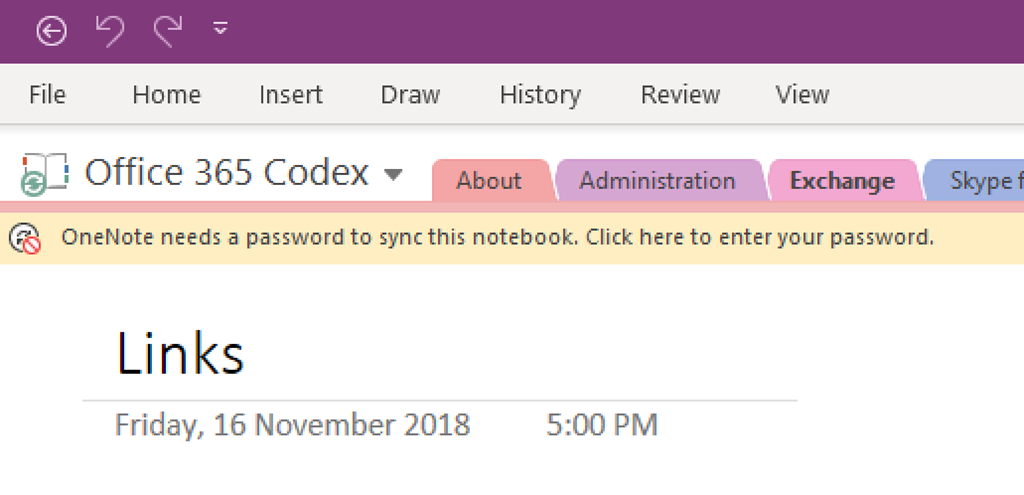
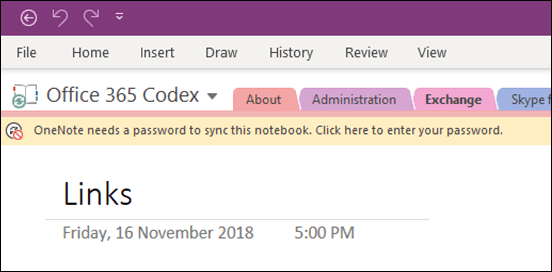
Next, it was OneNote’s turn to start requiring re-authentication.

The attacks came in waves, typically separated by a few minutes (as happens with spray attacks) and then it was back again.
image

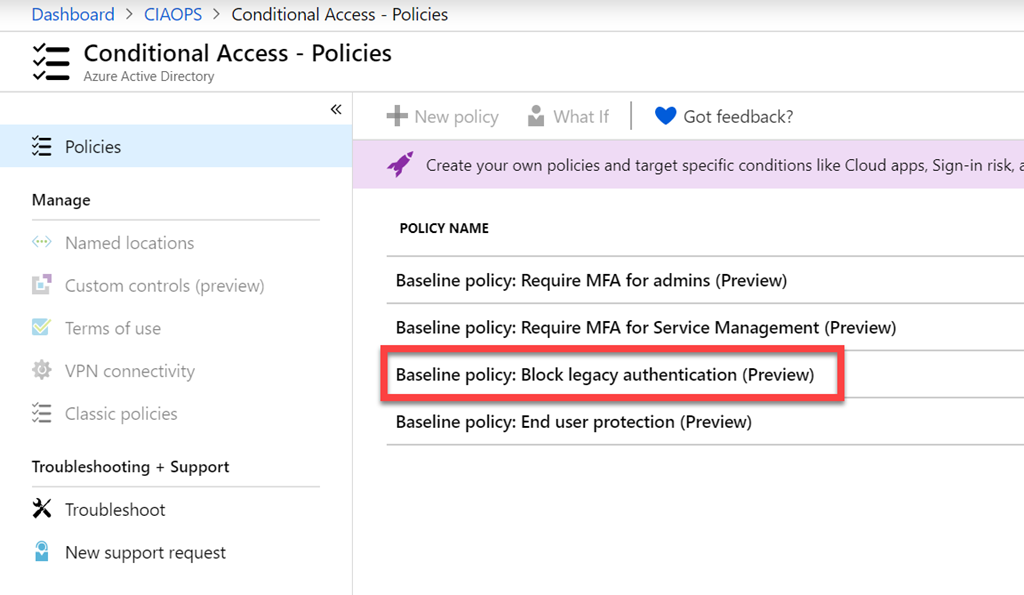
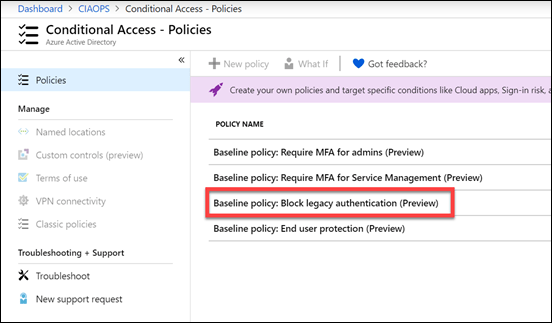
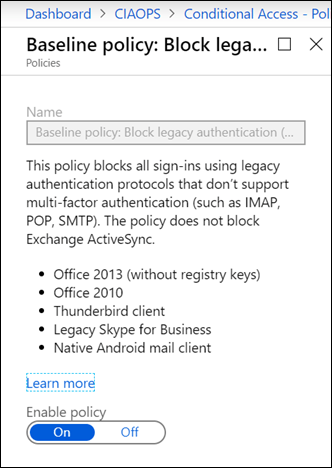
So what can you do if an account is subject to a spray attack and you are effectively getting denial of service thanks to that? Microsoft has provided every tenant with a number of free Baseline Conditional Access policies. The most appropriate one in this case is Block legacy authentication.
image

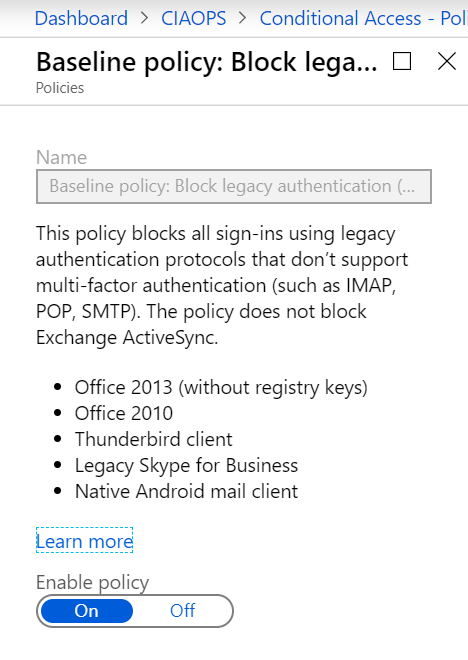
Enabling this policy will basically prevent legacy protocols like IMAP, POP and SMTP BUT it will do this across the WHOLE tenant! That is, for ALL users. That may be an issue if you have other accounts that depend on these older protocols for operation. However, this is certainly the quickest and easiest way to block spray attacks if you need to.
image

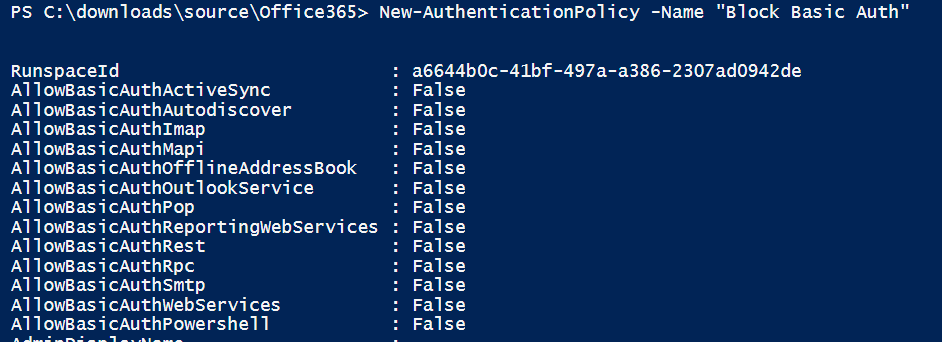
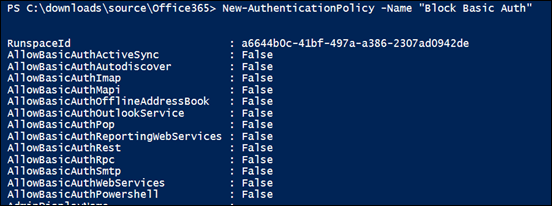
A more refined approach is to use PowerShell and create a new authentication policy as shown above. This creates a policy that disables the legacy protocols.


image

image

With the policy in place you can now apply it to just the user in question. Most authentication policies can take up to twenty four hors to take effect, however you can force an immediate refresh using the –STSRefreshTokenValidFrom option as shown above.


image

image

After doing all this, it is advisable to check to ensure the user has this authentication policy enabled as shown above.
image

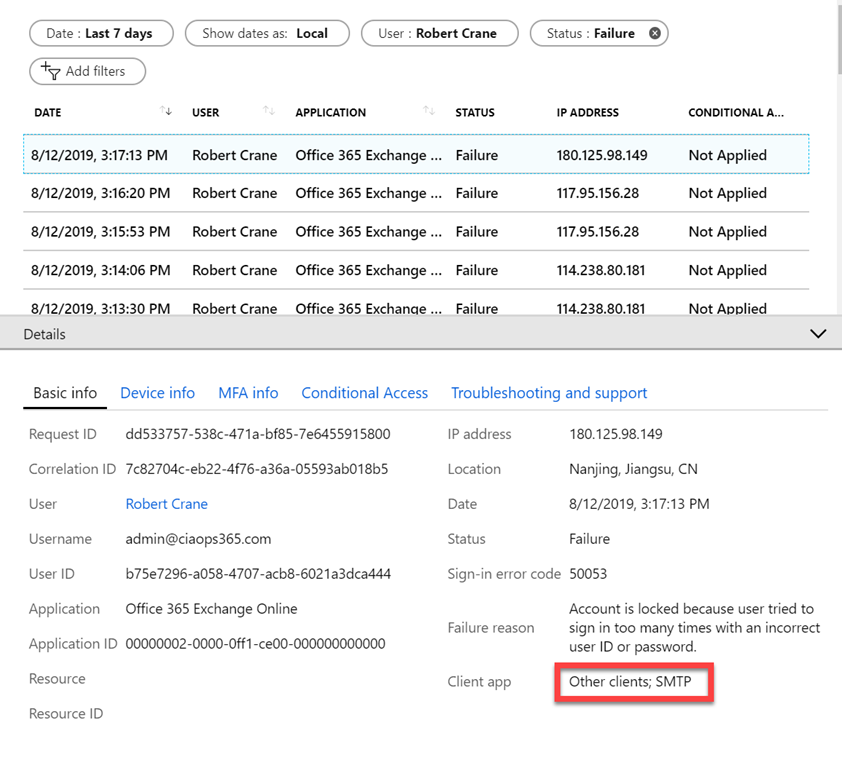
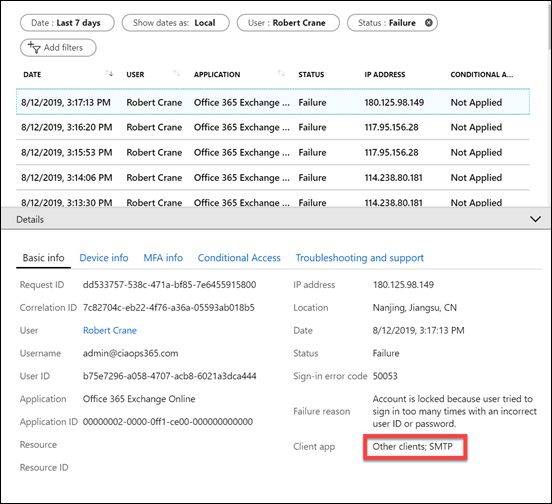
When you dive into the Azure AD logs you’ll see that the brute force attempts have happened via SMTP, confirming a spray attack against the account.
image

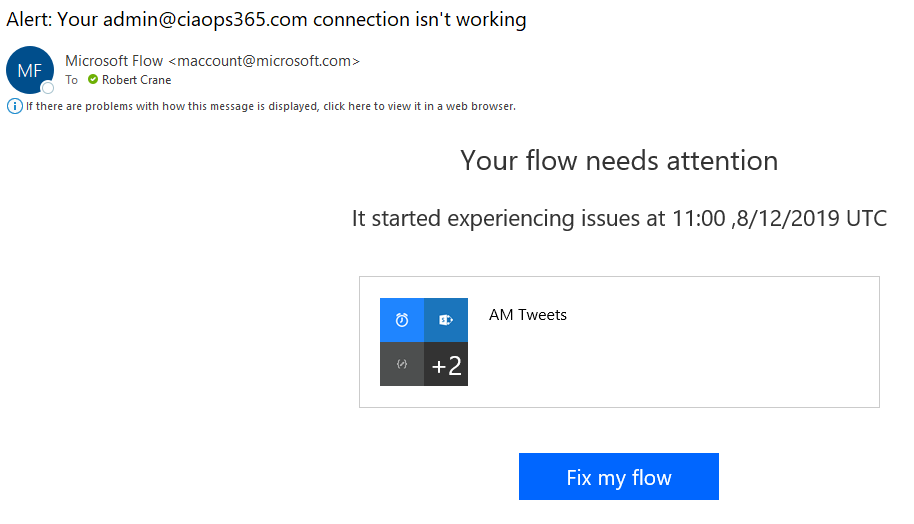
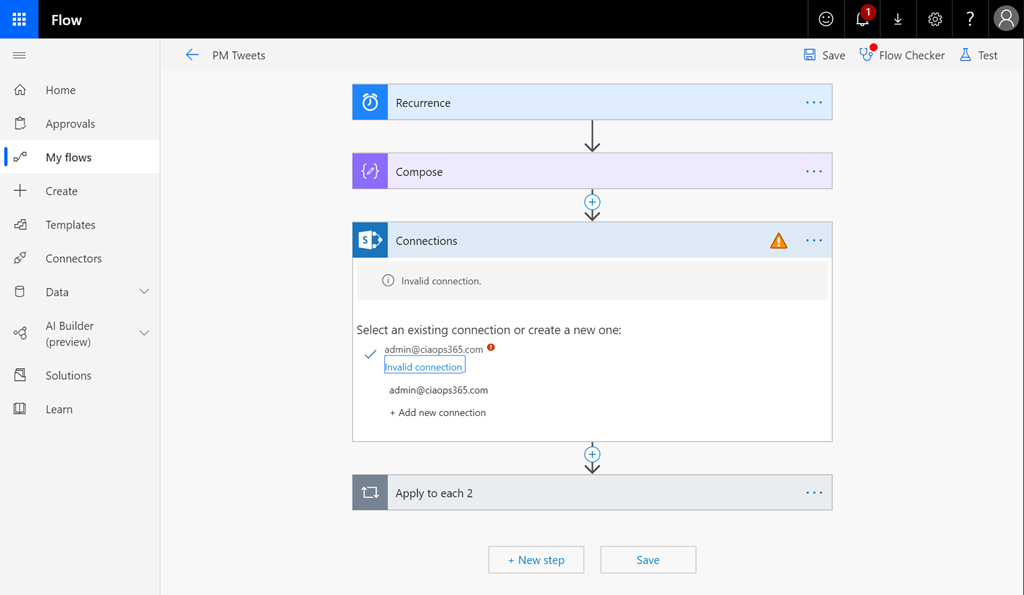
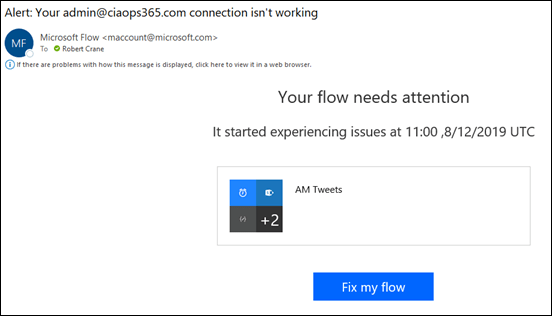
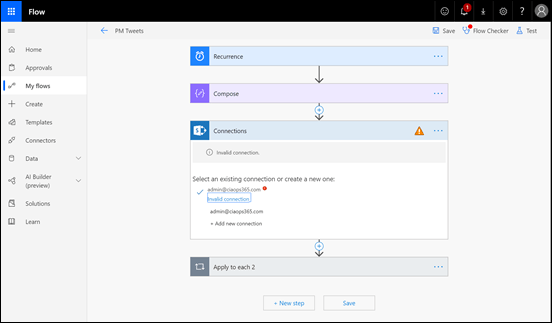
Another service that may be affected by these attacks is Flow as seen above.
image

You may need to go into the Flow and re-authenticate as with the other affected apps. The issue may not be come evident until the next time your Flow actually runs.

So what my ten take aways?

1. Spray attacks are easy to automate and initiate. That means they will continue because they have a great ROI for attackers.

2. Implementing MFA on accounts is going to protect against an account breech from these spray attacks.

3. Spray attacks are facilitated via basic authentication which is enabled on all tenants by default for legacy support and has to be manually disabled! Enabling MFA DOES NOT automatically disable basic authentication since it allows support for static app passwords for applications that don’t support MFA out of the box. Disabling legacy authentication can cause issues with older applications that don’t support modern authentication. Disabling legacy authentication across the whole tenant needs to be done with caution. A user by user approach may be a better approach initially.

4. If your applications are complaining about failed authentication, check to see whether your account is not in fact the subject of a spray attack. Azure AD is trying to protect the account by locking itself out for a time period which affects good and bad attempts.

5. Use Cloud App Security and you’ll get a heads up on this sort of thing early on. Knowing what is happening makes it much easier to deal with and there really isn’t a better way than using Cloud App Security.

6. Use conditional access to restrict who can attempt to login to your tenant. Every one gets some free basic baseline policies from Microsoft but it is worth paying for Azure AD P1 to get the ability to be more granular. Don’t forget that Microsoft 365 Business comes with this granular Conditional Access ability out of the box now!

7. Consider having a ‘break glass’ emergency administrator account that you can call on to make admin changes if your only other existing administration account comes under attack and access becomes denied. This account doesn’t need a licence, it just needs permissions. It is hard to make changes to a tenant as an administrator if that account is subject to denial of service by a spray attack!

8. Even if you have MFA enabled, if you leave legacy authentication enabled, then even though attackers can’t correctly guess the password, their continued attempts could effectively result in a denial of service. This is very hard to mitigate, so look to eliminate all your legacy apps and protocols to prevent becoming collateral damage.

9. Review:

Azure AD and ADFS best practices: Defending against password spray attacks

as a good refence for the steps to protect your tenant against spray attacks. Remember, security is a journey and requires eternal vigilance and education.

10. Documentation before, during and after any incident is critical to knowing, understand and mitigating attacks. This all starts with preparation and knowing your situation and what can and needs to be done in a logical manner using tools like checklists. Your information is too important and valuable to leave to chance. Have a plan, your attacker does.

The more hardened your environment, the more likely attackers will simply move on to easier targets. Leaving legacy settings enabled is going to ensure they keep coming back to test your defences and potentially impacting your productivity as a side effect. In this case, once legacy authentication was disabled for the account the attacks ceased.


Use PowerShell to get site storage usage

One of the challenges for IT Pros when managing the online collaboration world of SharePoint Online and OneDrive for Business in Microsoft 365, is getting a quick overview of things like storage usage across their environment. In the gold ol’ days you’d just using Windows Explorer or something similar, but in the Microsoft 365 world these tools are not ‘online’ aware.

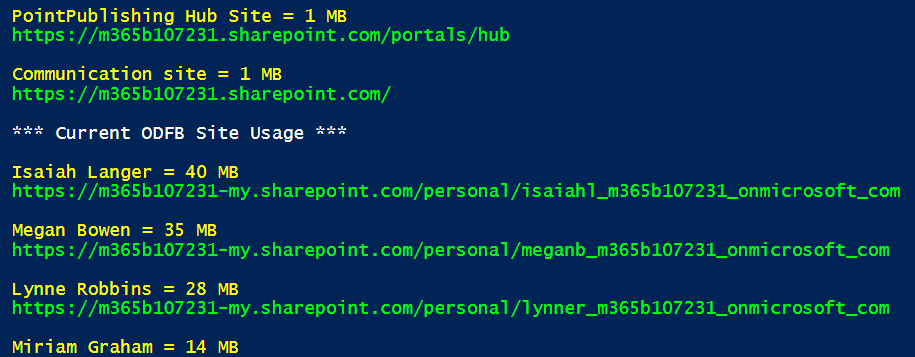
Thankfully, it is PowerShell to the rescue here again! What you can do is is basically grab all the SharePoint and OneDrive for Business Sites and look at a property called StorageUsageCurrent. Thus,

$sposites=get-sposite
$sposites.storageusagecurrent

will firstly get all the SharePoint sites and then display the storage usage of each in MB. However, that is a bit basic. What you really want is something like this:

image

for you SharePoint sites and and a separate group for your OneDrive for Business sites like this:

image

You might also notice that they are also sorted in descending order, from largest to smallest.

The good news is that I have done all that hard work for you and made the script available in my GitHub repo here:

https://github.com/directorcia/Office365/blob/master/o365-spo-getusage.ps1

The only thing that you need to do before running the script is to connect to SharePoint Online using PowerShell as an administrator.

Don’t forget there are also plenty of other handy scripts in my GitHub repo which get updated regularly. So, make your admin life easier and use what I have already created rather than re-inventing the wheel.