A dedicated Microsoft Cloud Search engine

image

Recently, I have been working with the Microsoft AI tools typically provided via Azure. Personally, I don’t like the term “Artificial” when it comes to AI because I really don’t believe that it is truly ‘Artificial” as yet. I therefore far more prefer the term ‘Automated Intelligence’.

Terminology aside, I have been looking at where these new “AI” style technologies can be utilised effectively. One of most common questions I hear is finding ‘good’ information about Microsoft Cloud technologies. It is all there in traditional search engines but it gets mixed in with everything else. So what I have done is used Azure Search to configure a service at:

http://bit.ly/ciasearch

that only searches through links that I have provided. The idea is to provide a quality set of links from Microsoft and others that provides the best information about the Microsoft Cloud. The idea being is that you get all the benefits of traditional search engines, less the advertising and across a list of high quality but specific sites. Hopefully, that means the chance of you finding what you are looking for to be much higher and of a better quality.

image

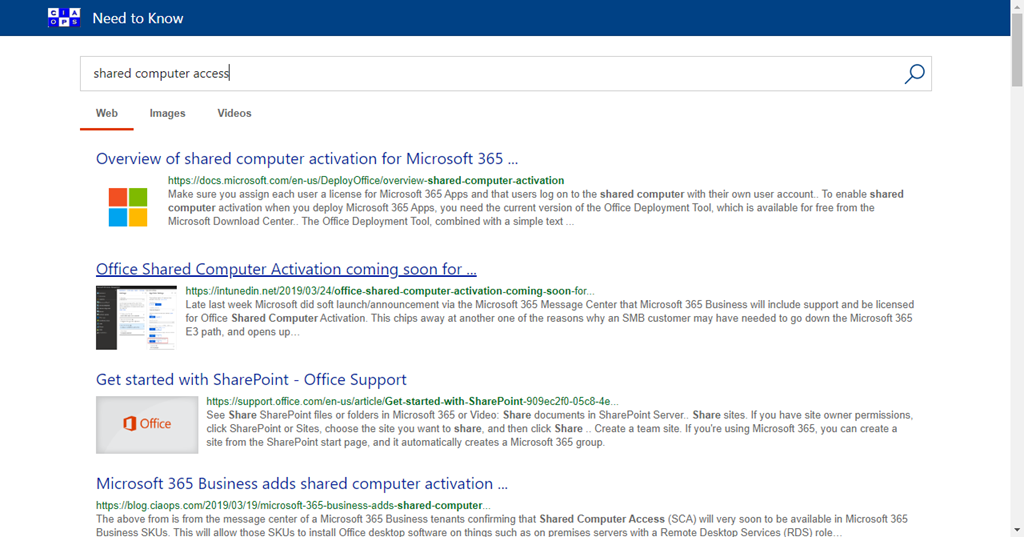
When you search for an item, as shown above, it works exactly like any other search engine. It supports the same query syntax (AND, OR, INCLUDES:, etc) and will return you a list of results as shown above from the material that it indexes.

Of course, any search engine is only as good as the information that it crawls, and I continue to add sources on an ongoing basis. However, if you wish to suggest a URL to include in the CIA Search then you can do that via:

https://bit.ly/ciasearchsubmit

I’ll review each submission and all to the engine if it is of a high enough quality.

The more people that use the CIA Search the better it will become, so please share this with others whom you believe may receive benefit.

Need to Know podcast–Episode 241

FAQ podcasts are shorter and more focused on a particular topic. In this episode I’ll talk about the importance of checking your inbound Exchange Online policies to improve security.

This episode was recorded using Microsoft Teams and produced with Camtasia 2019

Take a listen and let us know what you think – feedback@needtoknow.cloud

You can listen directly to this episode at:

https://ciaops.podbean.com/e/episode-241-check-your-exchange-online-policies/

Subscribe via iTunes at:

https://itunes.apple.com/au/podcast/ciaops-need-to-know-podcasts/id406891445?mt=2

The podcast is also available on Stitcher at:

http://www.stitcher.com/podcast/ciaops/need-to-know-podcast?refid=stpr

Don’t forget to give the show a rating as well as send us any feedback or suggestions you may have for the show.

Resources

CIAOPS Patron Community

Configure SPAM policies in EOP

@directorcia

Audio

CIAOPS Need to Know Microsoft 365 Webinar–June

laptop-eyes-technology-computer

labelling your data in Microsoft 365 provides multiple benefits for protection as well as retention. This month I’ll take a look at these option and show you how to set it all up and make best use of it. I’ll have the  the latest Microsoft Cloud updates plus open Q and A as well.

You can register for the regular monthly webinar here:

June Webinar Registrations

The details are:

CIAOPS Need to Know Webinar – June 2020
Friday 26th of June 2020
10.30am – 11.30am Sydney Time

All sessions are recorded and posted to the CIAOPS Academy.

The CIAOPS Need to Know Webinars are free to attend but if you want to receive the recording of the session you need to sign up as a CIAOPS patron which you can do here:

http://www.ciaopspatron.com

or purchase them individually at:

http://www.ciaopsacademy.com/

Also feel free at any stage to email me directly via director@ciaops.com with your webinar topic suggestions.

I’d also appreciate you sharing information about this webinar with anyone you feel may benefit from the session and I look forward to seeing you there.

Need to Know podcast–Episode 240

Mark O returns! Brenton returns! it’s the come back show, just in time for the end of COVID lock down. Mark O’Shea and I talk about the swag or recent changes to the Microsoft 365 Business suite of products. Brenton and I also bring you up to date with all the very latest Microsoft Cloud news as well. What a return it is!

This episode was recorded using Microsoft Teams and produced with Camtasia 2020

Take a listen and let us know what you think – feedback@needtoknow.cloud

https://ciaops.podbean.com/e/episode-240-mark-oshea/

Subscribe via iTunes at:

https://itunes.apple.com/au/podcast/ciaops-need-to-know-podcasts/id406891445?mt=2

The podcast is also available on Stitcher at:

http://www.stitcher.com/podcast/ciaops/need-to-know-podcast?refid=stpr

Don’t forget to give the show a rating as well as send us any feedback or suggestions you may have for the show.

Resources

@intunedin

@contactbrenton

@directorcia

Marl O’Shea’s blog

What’s New in Microsoft Teams | Build Edition 2020

Announcing Microsoft Lists – a new Microsoft 365 app to track information and organize work

Announcing Microsoft Lists – Your smart information tracking app in Microsoft 365

Now Live – SharePoint home sites: a landing for your organization in the intelligent intranet

The new Yammer public preview

Enable a combine MFA and SSPR registration experience in Azure AD

Evolving Azure AD for every user and any identity with External Identities

Audio

It’s all about Search

Here’s my second presentation from Microsoft May 2020:

https://www.slideshare.net/directorcia/its-all-about-search

It’s all about search

Search is the killer app for Microsoft 365, it is available everywhere but few seem to take full advantage of what it has to offer. This session will show the power of Microsoft 365 search and how to make the most of this from the browser to the desktop. You’ll also a peek into what Microsoft has planned for search in Microsoft 365 and what that will mean going forward.

Getting Windows Defender Application Guard (WDAG) working

Once I had solved my recent Windows Defender Application Guard (WDAG) problems:

Resolving Windows Defender Application Guard Issues

I now wanted to get it working in a manner that suited me. That meant that I wanted Microsoft Edge to work normally for things like Microsoft 365, Azure and other Microsoft sites but to automatically open Edge with WDAG if I ventured outside that. I also wanted to retain the flexibility to have a third party browser (Brave) also working on my machines. In essence, I am trying to achieve the ability to automatically ‘sandbox’ general internet browsing from work in the Microsoft Cloud as way of protecting the workstation from malicious web sites.

I’m not going to cover off setting up WDAG on your machine or via Intune because there are plenty of articles out there that show you how to enable it. You can start here:

Windows Defender Application Guard Overview

In essence, WDAG opens a defined set of URLs in a sandboxed version of Edge automatically. This means you’ll need to do a little configuration and add some features to your local version of Windows prior to getting it working. You can read about that here:

Prepare to install Windows Defender Application Guard

My configuration will be in Enterprise-managed mode. This means that I can automatically ‘white-list’ domains that I don’t want WDAG to operate with via a policy pushed from the Internet. In my case, these will be Microsoft Cloud URLs like http://www.office.com, portal.office.com and so on. Everything, apart from what I ‘white list’ I want to open using WDAG for protection.

The first thing to note here is that if you want to use Enterprise-managed mode you will need to have Windows 10 Enterprise edition. Windows 10 Pro edition only supports stand alone mode. This means:

In this mode, you must install Application Guard and then the employee must manually start Microsoft Edge in Application Guard while browsing untrusted sites.

To do this manually, you must edit the local computer policy using the local Group Policy editor or like as shown here:

Application Guard in stand alone mode

It is pretty easy to set up and get working but not really scalable. Scripting may help overcome that.

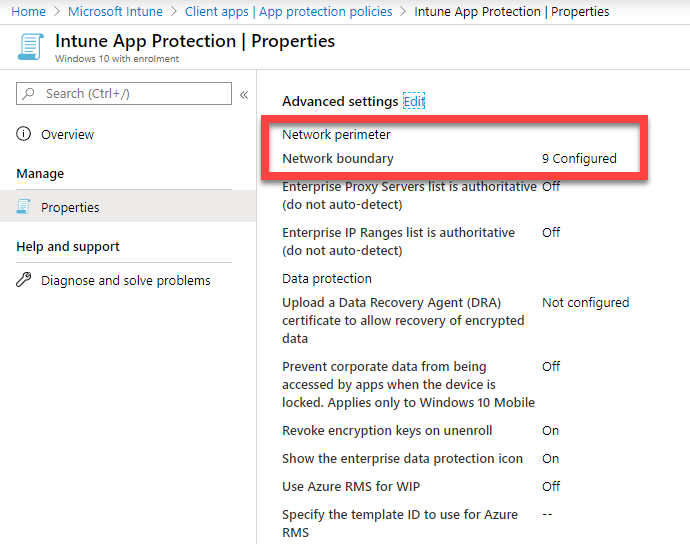
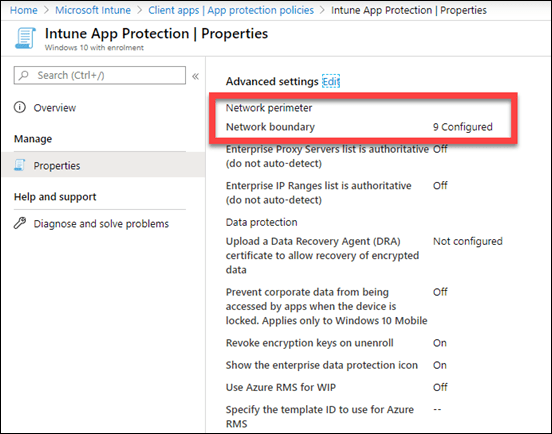
In Enterprise-mode my initial questions was ‘Where do I define my sites?’. As it turns out, this isn’t particularly obvious, so it took me a while to track down. The definitions for the sites you want to ‘white list’ for WDAG are actually in the Intune App Protection policy settings.
image

Turns out they are in the Advanced settings of your Intune App Protection policy, as shown above.

I had wrestled with these settings previously, which I detailed here:

Intune App Protection Policy blocking browser

What I didn’t appreciate initially was that sites you define here however ALSO APPLY to WDAG! Makes sense now that I look at it, but I certainly didn’t think it was the place I should be looking to ‘white list’ sites for WDAG. Now you too are the wiser.

Another subtle configuration option that took me a while to figure out was:

Network isolation wildcards

Initially, I had portal.office.com white listed from WDAG but in fact the navigation was going to http://www.office.com, which means WDAG would trigger and open http://www.office.com because it wasn’t ‘white listed’. Then I thought *.office.com would work, but no. Maybe office.com? Nope. Turns out what I needed was

..office.com

which:

Trust all levels of the domain hierarchy that are to the left of the dot. Matching sites include shop.contoso.com, us.shop.contoso.com, http://www.us.shop.contoso.com, but NOT contoso.com itself.

So be super careful with how you configure you network perimeter settings and domain wildcards as it can make things very confusing if you don’t have a good handle on it. My suggestion is to start with only one or two sites in your network perimeter and ensure that they work. Only then scale up once you have verified it is operating as expected.

Finally, with all that configured correctly, WDGA was working as expected. Yeah! This meant that when I went to a Microsoft Cloud URLs like http://www.office.com, portal.azure.com, etc. WDGA wasn’t activated, but if I went elsewhere, WDGA launched and navigated to that site in the WDAG container. In the end I also white listed sites like bing.com, docs.microsoft.com, etc as I go there many times a day.
image

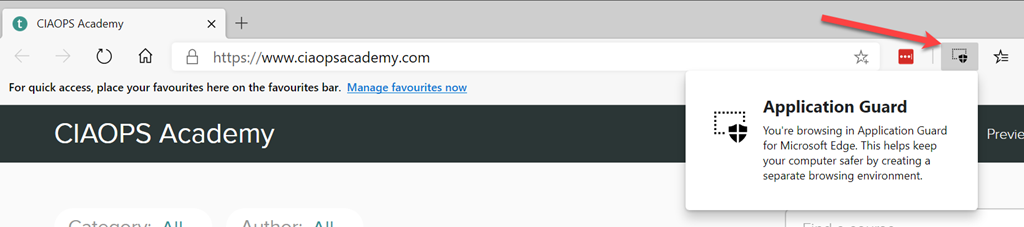
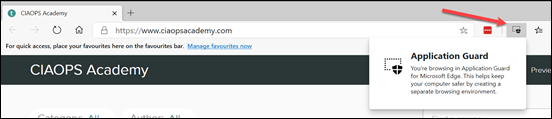
If you browse to a non ‘white listed’ site (here www.ciaopsacademy.com), then a WDAG session is launched. You’ll see WDAG spin up, if it is the very first time it has been activated. You’ll then see the browser load the site in question and then you’ll notice a WDAG icon in the toolbar as shown above, which, when opened, will let you know that the current browser is using WDAG.
image

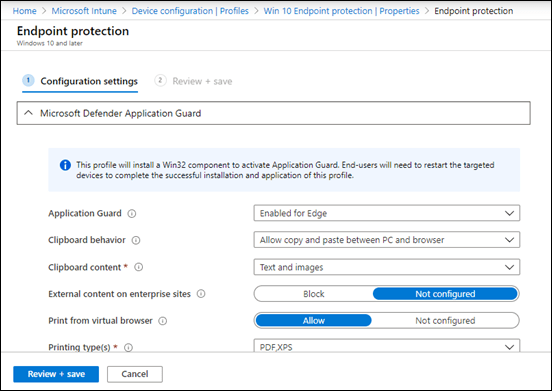
You configure WDAG settings via Intune Endpoint protection policies as shown above.
image

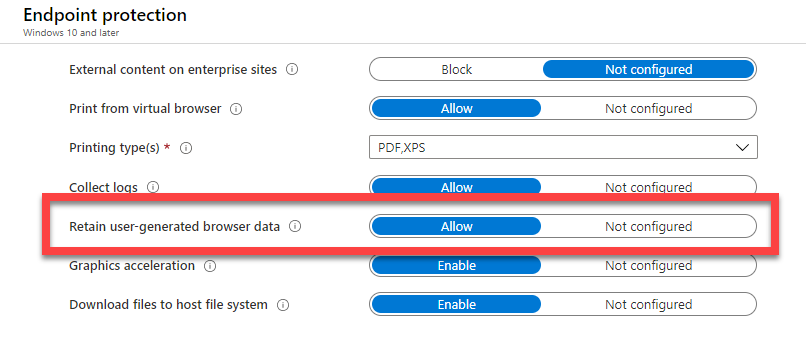
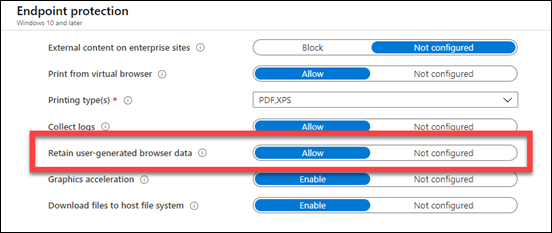
My suggestion would be to enable the option to Retain user generated browser data as shown above.  This means things like extensions, session cookies and the like will be retained between sessions. However, if you want a totally clean experience each time, then disable that option.

SNAGHTML131a8b2f

By default, you’ll find that any file you download while WDAG is active, will be saved into an Untrusted files folder as shown above.
image

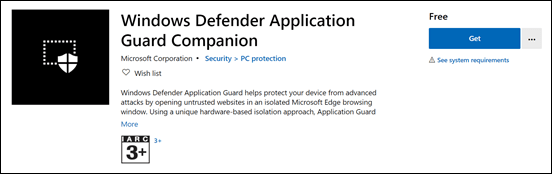
You can also get a WDAG companion app from the Windows store:

https://www.microsoft.com/en-au/p/windows-defender-application-guard-companion/9n8gnlc8z9c8#activetab=pivot:overviewtab

This allows you to manually launch a WDAG session, which is probably handy if you are not using Enterprise-managed mode. It will launch this is a container isolated from anything that automatically launches via your browsing, keeping that separate as well.
image

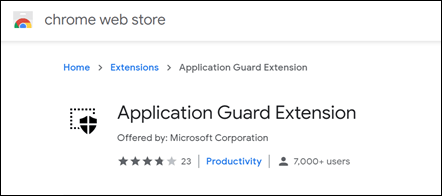
If you want non Microsoft browsers to also be protected with WDAG then you’ll find plugins available:

for Chrome

for Firefox

With these plug ins installed, those browsers will also only open non-whitelisted sites. Anything else will be opened in an Edge WDAG session for protection.

So now I have WDAG working the way I wanted. My main stumbling block was no appreciating that the WDAG ‘white list’ was the same as WIP and set via Intune App Protection policies. I now have a better appreciation for the breath of the settings in these policies.

I’m sure I’ll be tweaking WDAG along the way but I feel much more secure in the fact that I have it working and protecting my ‘random browsing’. Like most security configurations, WDAG takes a little bit of understanding and setup to get working but the end result is a much safer environment to work in and I’m all for that. Hopefully you are too!


Handy Azure AD authentication method report

image

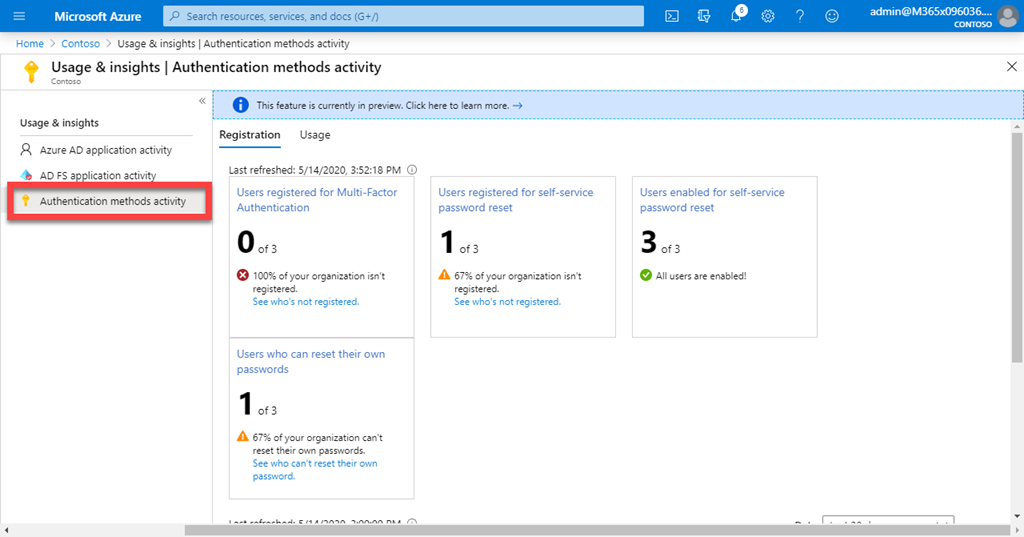
If you go to your Azure portal and navigate to Azure Active Directory, you should see something like that shown above. If you then scroll down the options on the left and locate Usage & insights , under Monitoring as shown above, you’ll end up here.

image

Selecting Authentication method activity on the left gives you some information about things like MFA, Self Service Password reset and more. You can also select the Usage tab at the top of the window on the right, will give you some nice historical graphs well.

An easy way to see how and when people are completing security registrations for Azure AD.

New Microsoft Cloud online course available

I have just released a new online training course over at the CIAOPS Academy:

Microsoft Cloud Workshop for IT Professionals and Resellers

​This course is especially for those looking to understand and sell Microsoft Cloud Services like Microsoft 365 and Azure, especially in the Small Business (SMB) space. The course takes you through overviews of services plus deep dives into things like security. It also shows you how to craft unique go to market offerings that you can build easily.

All the information you need is here including:

  • Over 18 hours of video instructions
  • Downloadable content, including slides, white papers, etc
  • Links to additional training material

If you are looking at coming to grips with everything that the Microsoft Cloud can provider your customers and users, then this is course for you!​

As a special offer to kick things along I’m offering a 50% discount for a limited time. Use the promo code:

LAUNCH0520

at check out

or the direct link:

https://www.ciaopsacademy.com/p/mscloudworkshop/?product_id=1942989&coupon_code=LAUNCH0520

I’ll continue to add content to this course, so there is never a better time to take advantage of the launch of this course! You may also want to consider the full course catalogue at the CIAOPS Academy which will include this new course as well.