Watching Copilot Videos Isn’t the Same as Using Copilot

image

There’s a mistake I see constantly when it comes to Microsoft 365 Copilot adoption.

People think they’re “learning” Copilot because they’re consuming content about it.

Videos. Webinars. Tutorials. Prompt lists. Social posts. Endless demos showing what might be possible one day.

It feels productive. It looks productive. But it’s mostly theatre.

You can easily spend hours watching Copilot content and still be no better at using it in your actual work. I see it all the time with MSPs and business users who say, “I’ve watched heaps of Copilot videos, but I don’t really use it yet.”

That’s not a Copilot problem. That’s a learning problem.

Copilot isn’t something you understand by observing. It’s something you understand by friction — by using it badly, getting average results, refining your approach, and slowly integrating it into what you already do every day.

Until Copilot is touching real work, it’s just entertainment.

The Gap Between Knowing and Doing

Here’s the uncomfortable truth:
Most people don’t fail at Copilot because it’s too complex. They fail because they never move it into their workflow.

They treat Copilot like a separate activity. Something to “play with” when they have time. Something they’ll roll out properly later. Something they’ll get serious about once they’ve watched enough tutorials.

That moment never comes.

Meanwhile, the people getting real value from Copilot aren’t the ones with the biggest prompt libraries. They’re the ones who picked one boring, repeatable task and handed it to Copilot without overthinking it.

Not tomorrow. Not next quarter. Today.

The Only Fix That Actually Works

If you want Copilot to stick, stop thinking about everything it could do and focus on one thing you already do.

Every single day.

Something mundane. Something slightly annoying. Something that consumes mental energy but doesn’t really need to.

For most people, that’s one of these:

  • Summarising meeting notes

  • Drafting emails or client updates

  • Turning rough ideas into a first draft

  • Rewriting content to sound clearer or more professional

  • Pulling key points out of documents or threads

  • Preparing agendas, reports, or handover notes

Pick one. Just one.

Then deliberately route that task through Copilot every time you do it.

Not as an experiment. Not as a test. As the default.

Where Copilot Actually Shines for SMBs

This is where Microsoft 365 Copilot quietly outperforms standalone AI tools, especially for SMBs.

Copilot already lives where the work lives.

Your emails are in Outlook.
Your documents are in Word and SharePoint.
Your notes are in OneNote.
Your conversations are in Teams.

Copilot doesn’t need you to copy and paste everything into a separate interface. It works in context, with the data you already have permission to access.

That’s not a “nice to have”. That’s the difference between novelty and adoption.

When Copilot becomes part of an existing workflow — instead of another tool to manage — usage stops being optional. It becomes habitual.

Habits Beat Tutorials Every Time

Here’s what real Copilot learning looks like:

  • You use it.

  • The output isn’t great.

  • You adjust how you ask.

  • You try again tomorrow.

  • It gets slightly better.

  • You trust it with more work.

  • You stop thinking about “using AI” and just get work done faster.

That cycle never starts by watching another video.

It starts when Copilot saves you five minutes on something you do every day. Then ten. Then thirty.

And once that happens, you don’t need motivation to keep using it. You feel the absence when you don’t.

Start Smaller Than You Think

If you’re advising clients — or trying to get your own team using Copilot — stop leading with features and demos.

Lead with behaviour change.

One task. One workflow. One daily habit.

That’s how Copilot stops being interesting and starts being indispensable.

And that’s the difference between “we’ve enabled Copilot” and “we actually get value from Copilot.”

Why Most People Fail at AI (and How Copilot Fixes That)

image

I see the same pattern play out with AI adoption over and over again.

People collect tools.

ChatGPT for writing.
Another AI for images.
Something else for meetings.
Yet another for data analysis.

Before long, they’re juggling half a dozen interfaces, prompts, logins, and workflows. The result isn’t leverage. It’s fragmentation. Lots of motion, very little progress.

Learning AI this way is like trying to learn three musical instruments at the same time. You might make some noise, but you won’t make music. Depth never comes from constant switching.

That’s why most AI initiatives stall.

The problem isn’t capability.
It’s focus.

Depth Beats Breadth Every Time

Real skill—whether it’s music, sport, or technology—comes from going deep before going wide. You don’t become competent by tasting everything. You get there by committing to one thing long enough to understand how it really works.

AI is no different.

If you want genuine productivity gains, you need to stop asking “Which AI tool should I try next?” and start asking “Which AI fits how I already work?”

For most SMBs and MSPs, the answer is obvious: Microsoft 365 Copilot.

Not because it’s flashy. Not because it’s perfect. But because it lives inside the tools you already use every day.

Copilot Wins Because It’s Embedded, Not Exotic

Copilot isn’t another destination you have to remember to visit. It’s not a separate browser tab or a disconnected chatbot. It sits inside Outlook, Word, Excel, Teams, SharePoint, and OneNote—the places where work actually happens.

That matters more than people realise.

When AI is embedded into your existing workflows, learning accelerates naturally. You don’t have to rethink how you work. You just augment it.

Drafting emails becomes faster.
Meeting notes stop being an afterthought.
Documents evolve instead of restarting from scratch.
Data gets explained, not just displayed.

This is where Copilot shines for SMBs: incremental improvement at scale, without cultural whiplash.

The 30‑Day Commitment Most People Avoid

Here’s the uncomfortable truth: most people never master Copilot because they never commit to it.

They test it once or twice, get a mediocre result, and move on. That’s not evaluation. That’s impatience.

If you want Copilot to deliver value, treat it like a skill, not a shortcut.

Commit to using Copilot as your primary AI for 30 days.

Not casually. Deliberately.

Use it every day.
Ask better questions.
Refine your prompts.
Push it into edge cases.
See where it breaks—and why.

That’s how understanding forms.

Copilot has quirks. It has limits. It has strengths that only become obvious once you stop dabbling and start relying on it.

Master One, Then Sequence

Once you truly understand Copilot—how it reasons, where it adds value, where it needs structure—you’re in a much stronger position to evaluate other AI tools.

At that point, adding another tool is a strategic decision, not a distraction.

This is the sequencing most organisations get wrong. They expand too early, before they’ve extracted value from what they already have.

Masters don’t rush to accumulate.
They build depth first.
Then they extend deliberately.

The Real AI Advantage for SMBs

The competitive advantage with AI isn’t having access to the most tools. Everyone has access now.

The advantage comes from consistent execution.

SMBs that win with AI won’t be the ones chasing every new model. They’ll be the ones that picked a single, integrated platform, learned it properly, and embedded it into daily work.

For most, that platform is already licensed, already deployed, and already waiting.

Microsoft 365 Copilot isn’t the loudest option.
It’s the most practical one.

And in business, practicality beats novelty every time.

Copilot Adoption: Where Your Customers Really Sit on the Curve

Screenshot 2026-03-18 082550

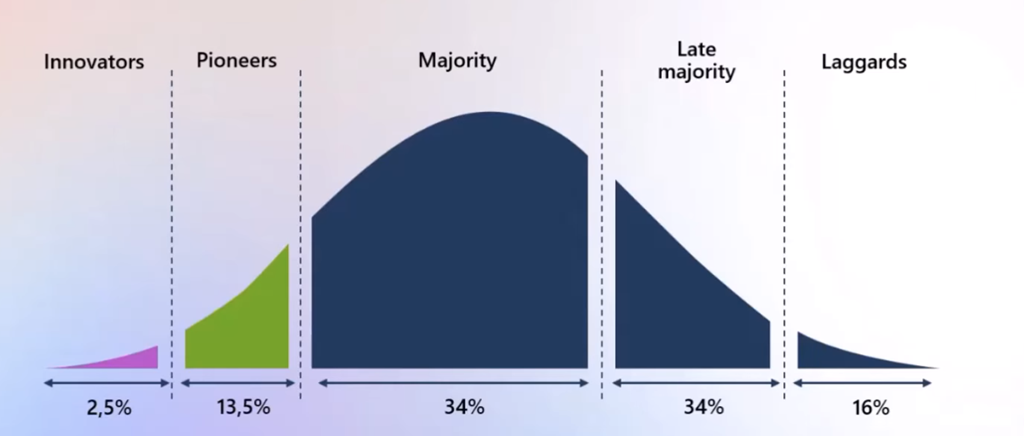
The image above should look familiar. It’s the classic technology adoption curve: Innovators, Pioneers (early adopters), the Majority, Late Majority, and Laggards. It’s been used for decades to explain why new technology doesn’t spread evenly. What’s interesting is how clearly Microsoft Copilot now fits into this model — and what that means for MSPs and business leaders trying to drive real adoption, not just licence sales.

Right now, most organisations experimenting with Copilot sit firmly on the left side of the curve. Innovators (roughly 2.5%) are the people who will try anything new just to see how it works. They don’t need much convincing. Give them access and they’ll start prompting, breaking things, and discovering value on their own.

Next come the Pioneers, about 13.5%. These are forward‑thinking leaders, power users, and teams who see Copilot as a competitive advantage. They’re curious, optimistic, and willing to tolerate some friction. Most early Copilot success stories live here — not because Copilot is “done”, but because these users are motivated enough to push through the learning curve.

The real challenge — and opportunity — sits in the middle.

The Majority (34%) won’t adopt Copilot because it’s exciting. They’ll adopt it because it clearly makes their work easier, faster, or better than what they’re doing today. This group doesn’t want AI theory, prompt engineering jargon, or hype. They want specific outcomes: “Will this save me time writing emails?”, “Will this help me understand documents faster?”, “Will this reduce rework?”

This is where most Copilot rollouts stall.

Too many deployments assume that once licences are assigned, value will magically appear. It won’t. The Majority needs structure: role‑based scenarios, simple starting prompts, guardrails, and reassurance that using Copilot won’t break anything or get them into trouble. Adoption here is less about technology and more about change management.

The Late Majority (another 34%) are even more cautious. They adopt only when Copilot becomes the normal way of working — when peers are already using it and the risk of not using it feels higher than the risk of trying. For this group, success stories, internal champions, and visible leadership usage matter far more than features.

Finally, the Laggards (16%) will resist until the very end. Some will never fully adopt, and that’s fine. Copilot doesn’t need 100% usage to deliver value. Forcing it here usually creates more friction than benefit.

The key takeaway from the image is this: Copilot adoption is not a technical rollout, it’s a staged journey. Each segment of the curve needs a different approach. Innovators need freedom. Pioneers need enablement. The Majority needs clarity and proof. The Late Majority needs confidence and social validation.

For MSPs, this changes the conversation. Success isn’t measured by how fast you sell Copilot licences, but by how effectively you help customers move from left to right on the curve. Those who focus on outcomes, education, and real‑world workflows will win. Those who treat Copilot like just another SKU will get stuck in the trough — wondering why “no one is using it”.

Copilot isn’t early anymore. But meaningful adoption still is.

If You’re Not Thinking AI‑First Right Now, You’re Falling Behind

image

Let’s get something out of the way early:
AI is no longer “coming”. It’s already here. And if you’re still treating it like a side project, an experiment, or something to “look at later”, you’re already behind.

Not because everyone else is smarter than you.
Not because you’ve failed.
But because the way work gets done has fundamentally changed — and most organisations are still trying to bolt AI onto old habits instead of redesigning how work actually flows.

That’s where AI‑first thinking comes in. And for most businesses, that means Microsoft 365 Copilot.

AI‑First Isn’t About Tools. It’s About Decisions.

Most conversations I hear about AI start with tools:

  • “Which AI should we use?”

  • “Should we trial ChatGPT?”

  • “Is Copilot worth it yet?”

Those are the wrong questions.

AI‑first thinking starts with a different mindset:

“If AI can help with this, why would we still do it the old way?”

That question changes everything.

Drafting emails.
Summarising meetings.
Creating reports.
Reviewing documents.
Preparing proposals.

If your default approach is still “I’ll do it manually and see if AI can help later”, you’re already inefficient — whether you realise it or not.

Why Microsoft 365 Copilot Wins (Especially for SMBs)

Here’s the uncomfortable truth: most businesses don’t need more AI tools. They need less context‑switching and better use of the tools they already pay for.

That’s why Copilot matters.

Microsoft 365 Copilot isn’t just “AI bolted on”. It’s AI embedded directly into where work already happens:

  • Word

  • Excel

  • Outlook

  • Teams

  • PowerPoint

  • SharePoint

That integration is the real advantage.

Instead of asking AI to work in isolation, Copilot works with your actual business data, permissions, and workflows. That means:

  • Answers grounded in your documents and emails

  • Summaries that reflect real meetings, not guesses

  • Content created inside governed, secured environments

For SMBs especially, that’s critical. Security, compliance, and data leakage aren’t optional extras — they’re table stakes.

The Real Gap: Adoption, Not Availability

Here’s what I see repeatedly with MSPs and their customers:

  • Copilot is licensed ✅

  • Copilot is enabled ✅

  • Copilot is barely used ❌

Why?

Because nobody changed how work is done.

People were given AI and told, “Go figure it out.”

That doesn’t work.

AI‑first organisations redesign workflows:

  • Meetings are shorter because summaries are assumed

  • First drafts are expected to be AI‑assisted

  • “Blank page syndrome” disappears

  • Decision‑makers ask better questions, faster

Copilot becomes a thinking partner, not a novelty.

AI‑First Is a Leadership Choice

This isn’t an IT problem.
It’s a leadership decision.

The organisations pulling ahead aren’t the ones with the most licences — they’re the ones that expect AI to be used and support people in using it properly.

That means:

  • Training focused on real work, not features

  • Clear expectations around when Copilot should be used

  • Permission to experiment without fear of “doing it wrong”

MSPs who get this will thrive. Those who don’t will spend the next few years firefighting margin pressure and explaining why clients feel slower than they used to.

The Bottom Line

AI‑first doesn’t mean “replace people”.
It means remove friction.

Microsoft 365 Copilot isn’t magic. It still needs good prompts, good data, and good judgement. But used properly, it changes how quickly work moves — and how much mental energy people waste on low‑value tasks.

If you’re not actively helping your business or your clients think AI‑first right now, someone else is.

And they’re already pulling ahead.

Excel Power Tips for SMB Finances

image

Stop doing manual maths—let Excel handle it.

If you’re still manually adding columns, copying formulas down rows, or eyeballing numbers to see if “that looks about right”, you’re not doing finance work — you’re doing busy work.

Excel has been quietly automating this stuff for years. The problem isn’t that Excel is too complex. It’s that most SMBs only ever use about 10% of what it can do.

You don’t need to become a spreadsheet wizard. You just need to stop treating Excel like a digital notepad and start letting it do the heavy lifting.

Here are five Excel features that, once you use them properly, will permanently reduce the time and effort you spend on budgets, cash flow, and financial reporting.


1. Flash Fill: Stop Re‑typing the Obvious

Flash Fill is one of those features that feels like magic the first time you use it.

Have a column with full names and you want first names only? Or account codes buried inside text strings? Start typing the pattern you want and Excel will work it out for you.

For finance teams, Flash Fill is perfect for:

  • Splitting supplier names from reference numbers

  • Cleaning up bank exports

  • Extracting dates, IDs, or categories from messy data

No formulas. No VBA. Just start typing and let Excel do the pattern recognition.

If you’re still manually reformatting data from your bank or accounting system, you’re wasting time.


2. XLOOKUP: VLOOKUP’s Smarter Replacement

If you’re still using VLOOKUP, it’s time to move on.

XLOOKUP does everything VLOOKUP does — and fixes most of the things people hated about it.

You can:

  • Look left or right

  • Avoid broken formulas when columns move

  • Return exact matches by default

  • Combine it cleanly with other formulas

In SMB finance spreadsheets, XLOOKUP is ideal for pulling:

  • Budget categories

  • Cost centres

  • Pricing or rates

  • Supplier details

Once you switch, you won’t go back. More importantly, your spreadsheets become easier to understand and far harder to break.


3. Conditional Formatting: Let Problems Highlight Themselves

If your budget spreadsheet doesn’t visually tell you when something is wrong, it’s not doing its job.

Conditional formatting lets Excel flag issues automatically:

  • Expenses over budget

  • Negative cash flow

  • Late payments

  • Variances outside tolerance

Instead of hunting for problems, you see them instantly.

This is especially powerful for SMB owners who don’t live in spreadsheets every day. Red, amber, and green tell the story faster than rows of numbers ever will.

If your spreadsheet needs explaining every time you open it, you’ve already lost.


4. Pivot Tables: Stop Rebuilding Reports Every Month

Pivot tables exist so you don’t have to create new reports every time someone asks a different question.

They’re perfect for:

  • Monthly expense summaries

  • Revenue by category or client

  • Year‑to‑date comparisons

  • Department or project reporting

Once your data is structured properly, a pivot table lets you slice and dice it without touching the raw numbers.

This is how you turn one spreadsheet into ten reports — without copying or re‑calculating anything.


5. Dynamic Arrays: One Formula, Many Results

Dynamic arrays are one of Excel’s most underrated upgrades.

Instead of copying formulas down hundreds of rows, you write one formula and Excel spills the results automatically.

They’re brilliant for:

  • Automatically expanding budgets

  • Filtered lists

  • Rolling calculations

  • Scenario modelling

Less copying means fewer errors. Fewer errors mean more confidence in the numbers you’re using to make decisions.


Tips Round‑Up

If Excel feels painful, it’s usually because you’re doing work it was designed to do for you.

You don’t need new software. You don’t need another system. You just need to use the tools you already have — properly.

Try one tip on your budget spreadsheet this week and comment on the result.
Even one small improvement compounds fast.

And if you’re an MSP, this is exactly the kind of practical productivity win your clients actually value — not another dashboard they’ll never open.

Excel isn’t old. It’s underused.

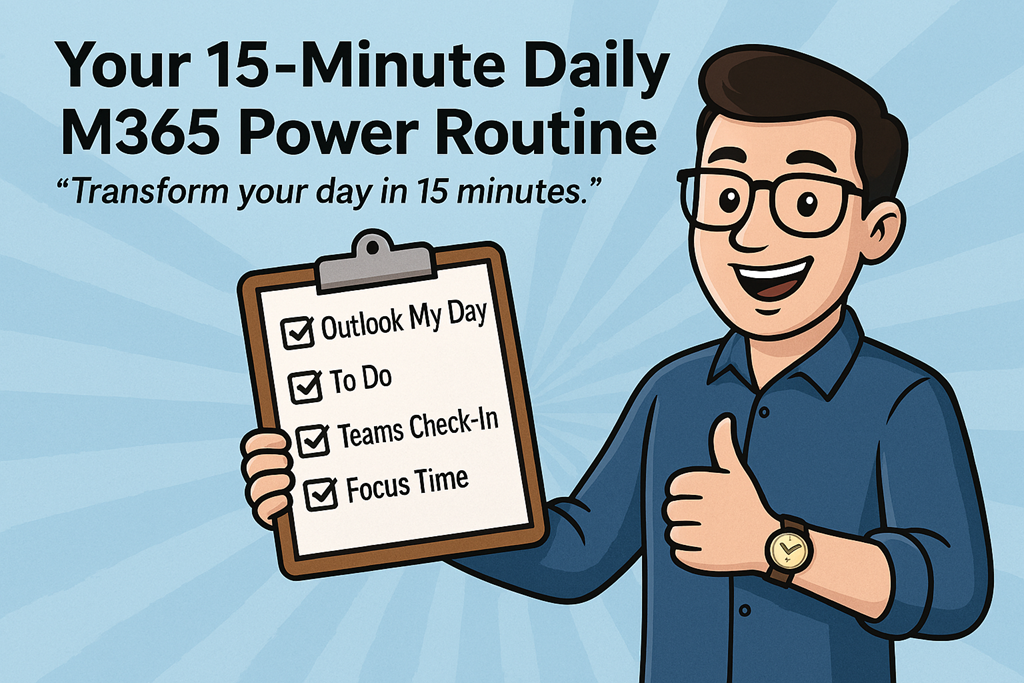
Your 15‑Minute Daily M365 Power Routine

image

“Transform your day in 15 minutes.”

Most people don’t have a productivity problem.
They have a starting problem.

The day kicks off reactively. Emails, Teams pings, half‑finished tasks from yesterday, and suddenly it’s 11am and you’re already behind. Not because you’re lazy or disorganised, but because you never took control of the day before it took control of you.

That’s where this comes in.

This is a simple, repeatable 15‑minute Microsoft 365 power routine you can run every morning. No new tools. No fancy systems. Just using what you already have – properly.

Do this consistently and you’ll stop feeling busy and start feeling deliberate.


The Rule

Before you touch email properly.
Before you open your tenth Teams chat.
Before you let someone else’s urgency define your priorities.

You run the routine.

Every. Single. Morning.


Minute 1–3: Outlook “My Day” – Reality Check

Open Outlook and bring up My Day.

This is where most people already go wrong. They either ignore their calendar completely or treat it as a suggestion rather than a commitment.

Look at:

  • Today’s meetings

  • Gaps between meetings

  • The real amount of time you actually have available

This isn’t about optimism. It’s about honesty.

If your calendar says you’ve got back‑to‑back meetings until 3pm, pretending you’ll “get some deep work done” before lunch is a lie you’ve told yourself too many times.

My Day shows you the truth. Accept it.


Minute 4–7: Microsoft To Do – Decide What Actually Matters

Now jump into Microsoft To Do.

Not your entire backlog.
Not your wish list.
Just today.

Ask one simple question:

“If I only got three things done today, what would move the needle?”

Flag or prioritise no more than three tasks. If everything is important, nothing is.

This is where most people sabotage themselves. They create a list that’s really just a guilt inventory. Don’t do that. Your job isn’t to remember everything. Your job is to progress the right things.

Everything else can wait.


Minute 8–10: Teams Check‑In – Reduce Noise Before It Starts

Send a short Teams check‑in.

This can be to:

  • Your team channel

  • A project chat

  • A key stakeholder

Something as simple as:

“Top priority today is X. I’ll be focused until lunch – ping me if urgent.”

This does two things:

  1. It sets expectations (which reduces interruptions)

  2. It forces clarity on your priorities

Most interruptions aren’t malicious. They’re caused by silence. A 60‑second message now can save you 20 distractions later.


Minute 11–15: Viva Insights – Protect Focus Time

Finally, open Viva Insights and block focus time.

Not “when I get a chance”.
Not “if the day allows”.

You schedule focus like you schedule meetings, because that’s what it is – an appointment with your most valuable asset: attention.

Even one 60–90 minute focus block changes the shape of the day. Without it, your time fragments. With it, work actually finishes.

If you don’t defend this time, nobody else will.


The Checklist (Save This)

Every morning:

  1. Review Outlook My Day

  2. Pick 3 priorities in To Do

  3. Send a Teams check‑in

  4. Block focus time with Viva Insights

That’s it.

No hacks. No dopamine tricks. Just discipline and consistency.


The Challenge

Follow this routine every morning for a week.

Not when you remember.
Not when it feels convenient.
Every morning.

Then ask yourself:

  • Did I feel more in control?

  • Did less work spill into the evening?

  • Did I stop reacting and start deciding?

If the answer is yes, you’ve just built a habit that scales better than any productivity app ever will.

If the answer is no, at least you’re now honest about how you’re starting your day.

Either way, you win.

Automate Daily Microsoft 365 & Copilot Updates

Video URL = https://www.youtube.com/watch?v=knhtpCvfpko

Engaging Description:

In this video, I reveal my personal process for staying ahead of every change in Microsoft 365 and Copilot. Watch as I walk you through step-by-step how I use Copilot’s scheduling features to automate daily research, create custom briefings, and deliver updates straight to my inbox. I share insider tips on crafting powerful prompts, leveraging the Prompt Coach, and maximizing Co work for unlimited scheduled tasks. Whether you want daily newsletters, email briefings, or Teams posts, I show you how to set it all up for seamless, hands-free updates. If you’re ready to supercharge your productivity and never miss a Microsoft 365 or Copilot update again, this video is for you!

The Ultimate Teams Channel Guide for SMBs

image

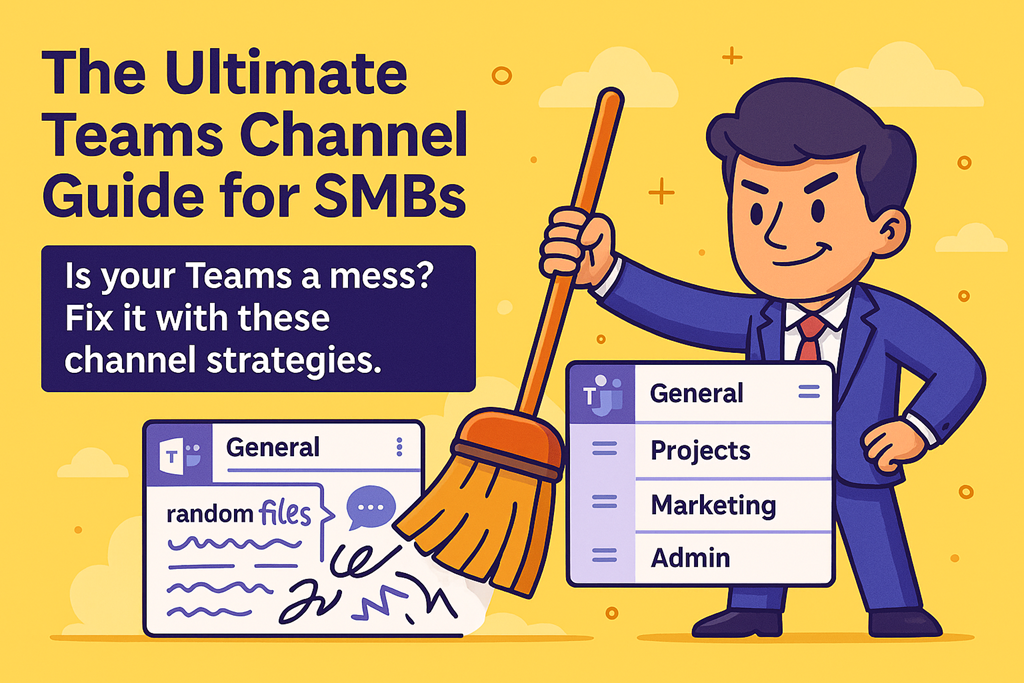
Is your Teams a mess? Fix it with these channel strategies.

Let’s be honest.
Most Microsoft Teams environments don’t fail because Teams is bad. They fail because no one ever decided how it should be used.

What starts as “we’ll just spin up a Team” quickly turns into channel sprawl, random tabs, duplicated files, and conversations scattered everywhere. Before long, people stop trusting Teams and fall back to email, private chats, or worse – asking, “Where’s that document again?”

The good news? You don’t need to rebuild everything. You just need a clear channel strategy.

This guide shows you how to structure channels, tabs, naming conventions, and integrated Planner/OneNote so Teams actually supports work instead of slowing it down.


First principle: Channels are for workstreams, not people

If your channels are named after people (“Bob”, “Accounts – Jane”) or vague concepts (“General 2”, “Random”, “Stuff”), you’ve already lost.

Channels should represent ongoing workstreams that have a shared outcome.

Good channel examples:

  • Sales Pipeline

  • Invoicing & Finance

  • Projects – Client A

  • Operations

  • Marketing Campaigns

Bad channel examples:

  • Bob

  • Misc

  • Old Stuff

  • Testing 123

A simple rule:
If the work would still exist if someone left the business, it deserves a channel.


Keep General boring (that’s a feature)

The General channel should not be a dumping ground.

Use it for:

  • Announcements

  • High-level updates

  • Links to key resources

  • Onboarding info

Do not use it for day-to-day work.
When everything happens in General, nothing stands out.


Naming conventions reduce friction (and arguments)

Consistency matters more than creativity.

Pick a naming pattern and stick to it:

  • Projects – Client Name

  • Projects – Internal

  • Admin – Finance

  • Admin – HR

This helps users instantly understand:

  • What type of work lives here

  • Whether the channel is operational, administrative, or project-based

You shouldn’t need training to find the right channel.


Tabs turn channels into workspaces

Most Teams are underpowered because channels are treated like chat rooms instead of workspaces.

Every active channel should have, at minimum:

  • Files – where the work lives

  • Planner – what needs to be done

  • OneNote – how things are done
Planner: make work visible

Add a Planner tab for:

  • Tasks

  • Ownership

  • Due dates

If it’s not in Planner, it’s not real work – it’s just a conversation.

OneNote: stop answering the same questions

Use OneNote tabs for:

  • Meeting notes

  • Process documentation

  • Decision logs

  • “How we do this” guides

This is how you reduce repeat questions and tribal knowledge.


Fewer channels, better behaviour

More channels do not mean better organisation.

As a rule of thumb:

  • 5–12 channels per Team is usually plenty

  • Archive or delete channels that are no longer active

  • Spin up a new Team when work becomes unrelated, not just “big”

If users are confused about where to post, you have too many options.


Guide + Checklist: fix one Team this week

Don’t boil the ocean. Start small.

Checklist:

  • Rename unclear channels

  • Move active work out of General

  • Add Planner and OneNote tabs to key channels

  • Remove unused tabs and channels

  • Agree on a simple naming convention

You’ll be surprised how quickly behaviour improves once structure exists.


Final challenge

Reorganise one Team this week and share a before/after screenshot.

Not for vanity.
For clarity.

Because Teams doesn’t need more features.
It needs better decisions.

If you want Teams to work, design it like a workspace – not a chat app.