Recently, I have been working with the Microsoft AI tools typically provided via Azure. Personally, I don’t like the term “Artificial” when it comes to AI because I really don’t believe that it is truly ‘Artificial” as yet. I therefore far more prefer the term ‘Automated Intelligence’.
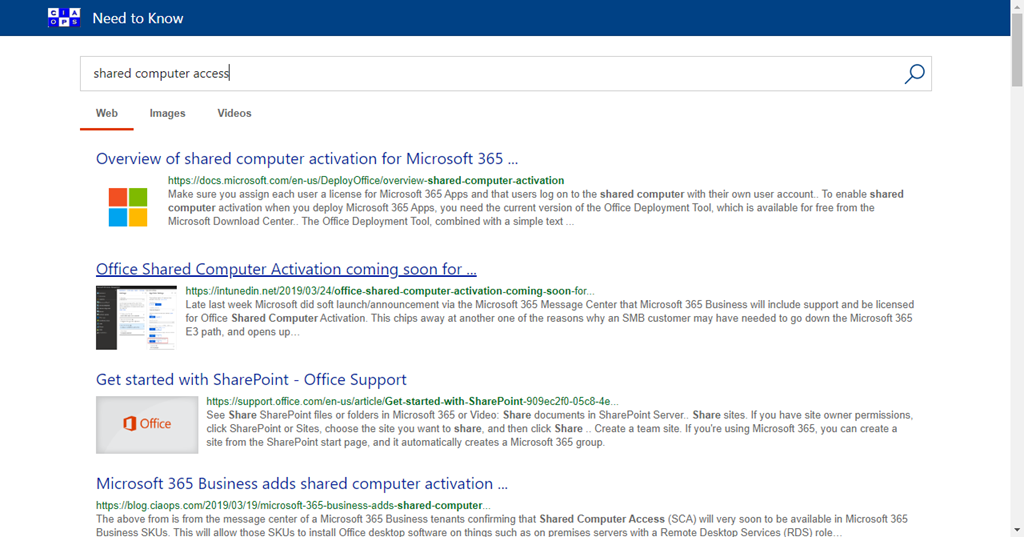
Terminology aside, I have been looking at where these new “AI” style technologies can be utilised effectively. One of most common questions I hear is finding ‘good’ information about Microsoft Cloud technologies. It is all there in traditional search engines but it gets mixed in with everything else. So what I have done is used Azure Search to configure a service at:
that only searches through links that I have provided. The idea is to provide a quality set of links from Microsoft and others that provides the best information about the Microsoft Cloud. The idea being is that you get all the benefits of traditional search engines, less the advertising and across a list of high quality but specific sites. Hopefully, that means the chance of you finding what you are looking for to be much higher and of a better quality.
When you search for an item, as shown above, it works exactly like any other search engine. It supports the same query syntax (AND, OR, INCLUDES:, etc) and will return you a list of results as shown above from the material that it indexes.
Of course, any search engine is only as good as the information that it crawls, and I continue to add sources on an ongoing basis. However, if you wish to suggest a URL to include in the CIA Search then you can do that via:
In this episode Brenton reports back on his encounters with the AZ-900 certification exam. Spoiler alert – he passed! Congrats. I also speak with Nicki Borell all about information protection and labelling in Microsoft 365. of course Brenton and I bring you up to date with everything in the Microsoft Cloud. We hope you enjoy the listen.
This episode was recorded using Microsoft Teams and produced with Camtasia 2020
Mark O returns! Brenton returns! it’s the come back show, just in time for the end of COVID lock down. Mark O’Shea and I talk about the swag or recent changes to the Microsoft 365 Business suite of products. Brenton and I also bring you up to date with all the very latest Microsoft Cloud news as well. What a return it is!
This episode was recorded using Microsoft Teams and produced with Camtasia 2020
this article will show you how to add hosts (i.e. Virtual Machines (VMs)) to the host pool you have already created.
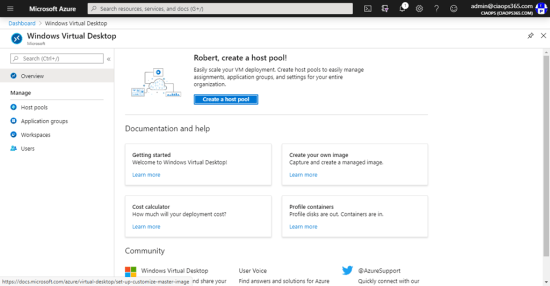
Open the Azure portal and navigate to Windows Virtual Desktop in your tenant and you should see the above screen.
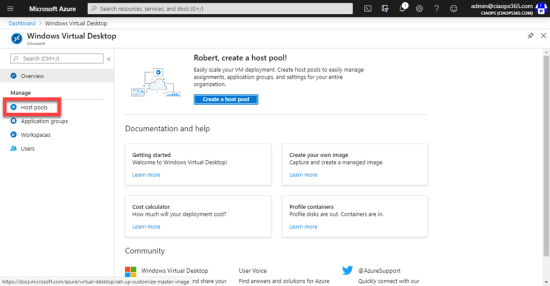
Select the option for Host pools from the menu on the left as shown.
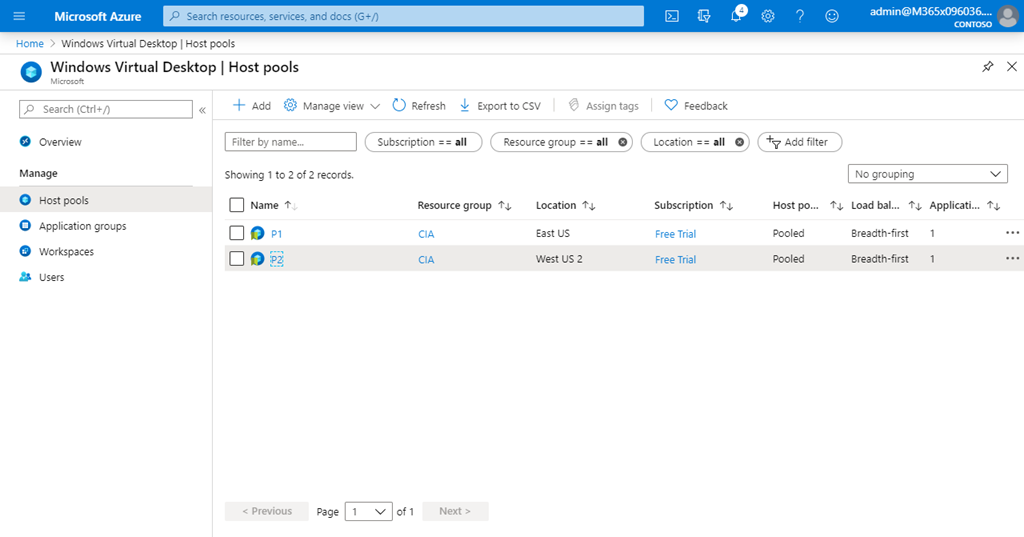
You should now see a list of Host Pools already created. You’ll need to have at least one host pool to continue, so if you don’t have one yet, you’ll need to go and create it.
Select the host pool you wish to add hosts machines (i.e. VMs) to.
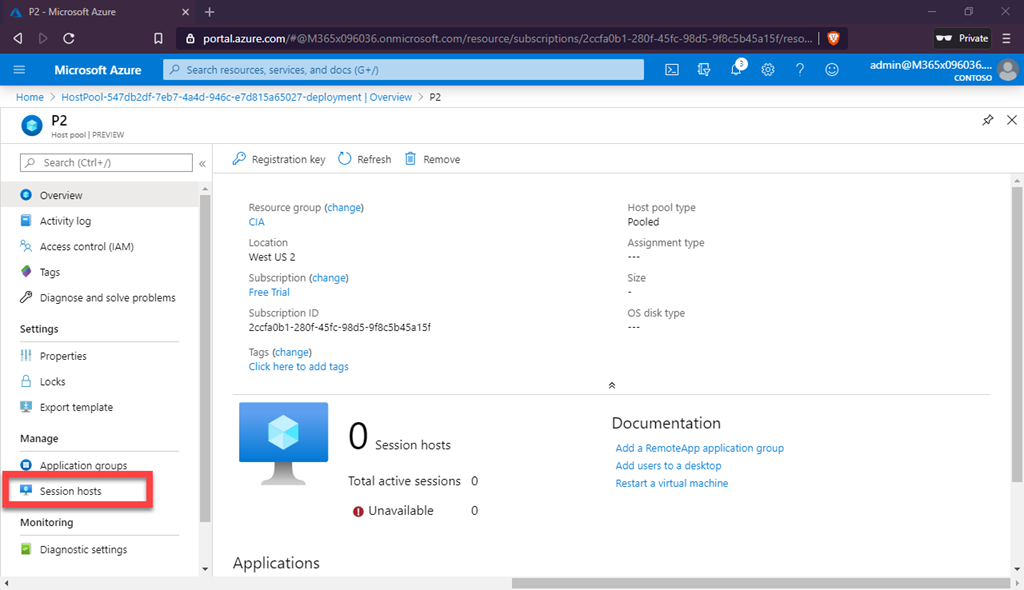
In this case, I selected Host Pool P2 and see the above screen which should also see some similar. You will note that this Host Pool currently has no Session Hosts in it. To add a Session Hosts (i.e. a VM), select the Session hosts from the menu on the left as shown above.
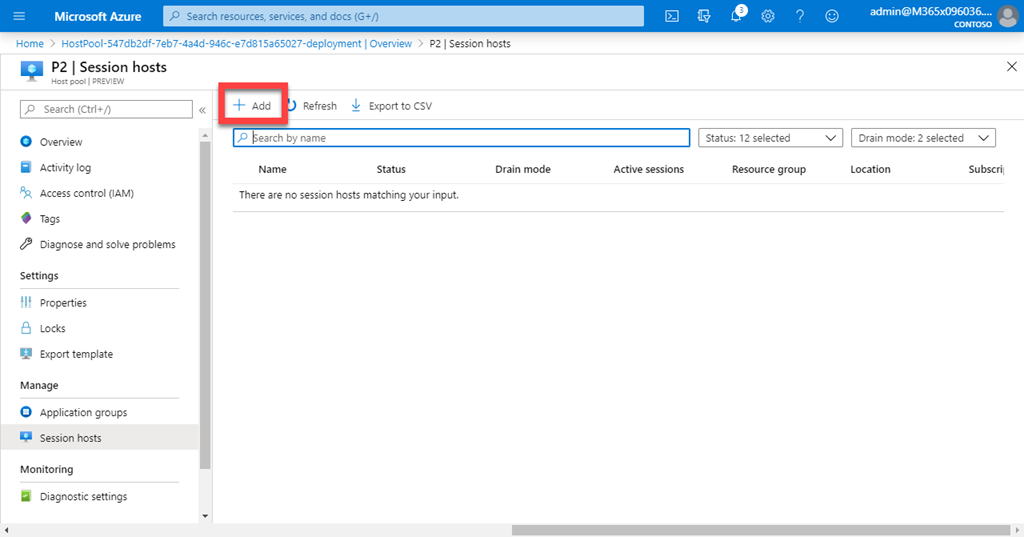
Select the +Add button on the right as shown to add a new host VM.
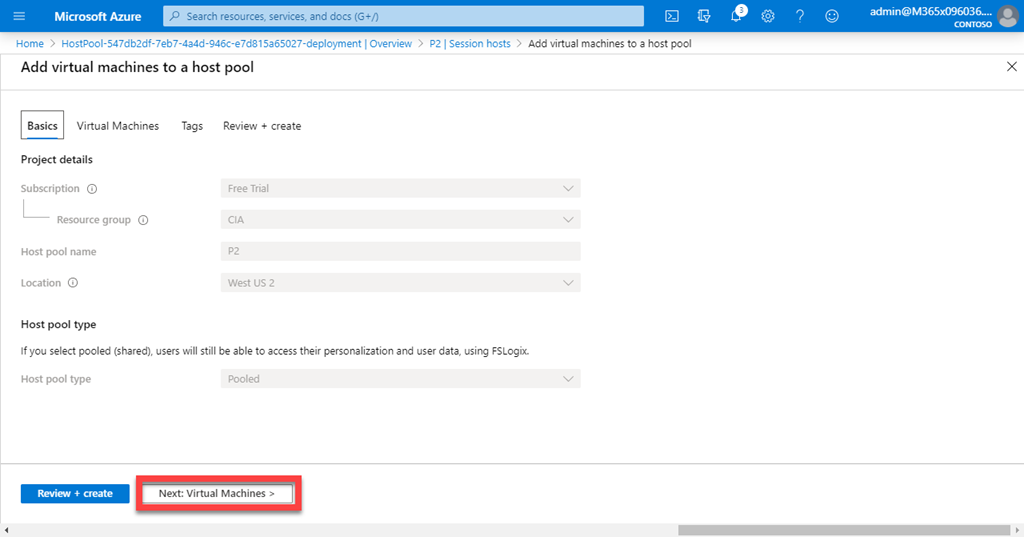
You’ll now be stepped through a host creation wizard. There generally won’t be anything you can change on this initial page, because the settings are determined already by the Host Pool. So, select the Next: Virtual Machines > button, at the bottom of the page, to continue.
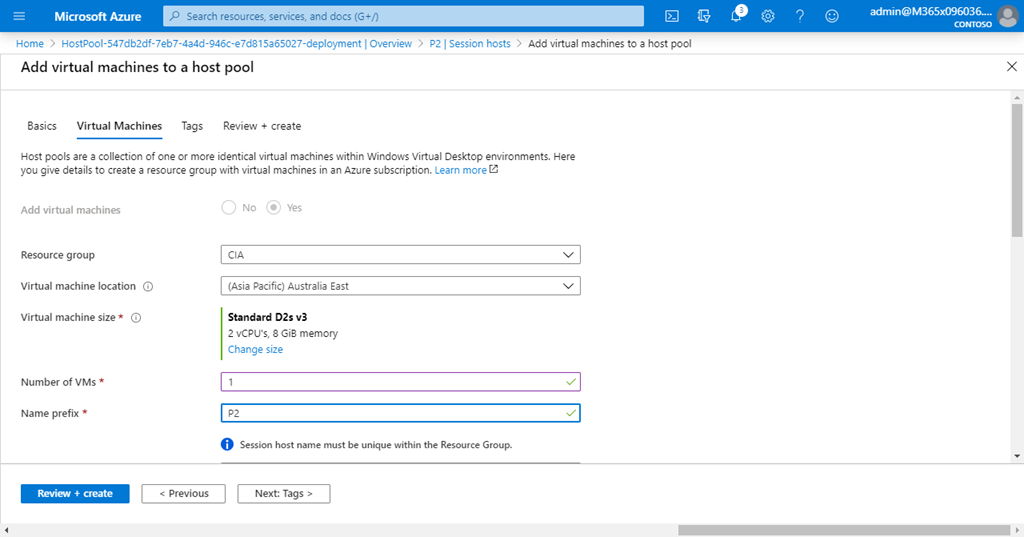
Select the Resource Group and the Location (i.e. data center) for the host machines. I’d suggest that you keep all of these together in the same data center.
Next, select the Size of the VMs you wish. Have a think here. Any machines you also add to this Host Pool will need to match any machines you add to this pool down the track. So, have a think about how machines you are likely to need in total before you select the size of the VM you want.
Now select the total number of VM’s you wish to create at this time. Again, start small and grow if you need to is the suggestion. That helps keep costs down. You can also enter a Prefix that will be added to each host as it is created. This make it easy to keep track of which hosts below to each pool. My best practice if to use an identifier that let’s you know what pool this host is part of.
When complete, scroll down for more options.
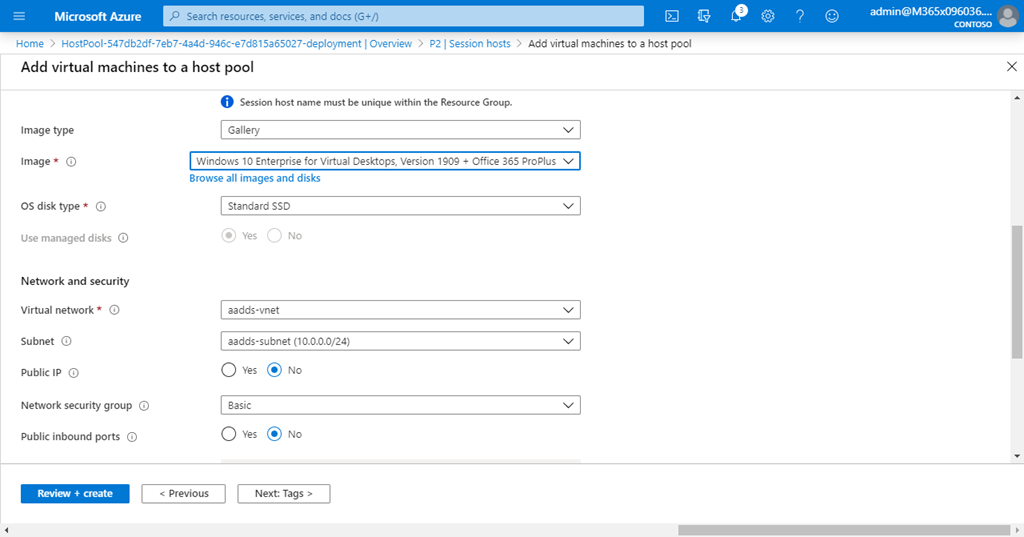
Next, you’ll need to select where to get the image to put on hosts (i.e what initial operating systems and any additional apps). You can use your own custom image if you wish, but you’ll need to have it prepared beforehand. Here a standard one from the gallery is selected.
Then, select the type of hard disk you wish for the hosts.
These hosts need to live on an existing VNET and Subnet that need to have been set up prior. Again, it’s important that this VNET, and other resources live in the same region. If you mix regions, then some of the resources may not show in the wizard. Best practice again, is to keep all of the WVD infrastructure together in the same region.
If you wish to access these hosts directly from the Internet via something like RDP, you can give them a public IP address. This can be handy for troubleshooting but is not recommended best practices as they will be exposed to attack when running. By default, hosts in a pool are only accessible via the WVD service.
Scroll down the screen for more options.
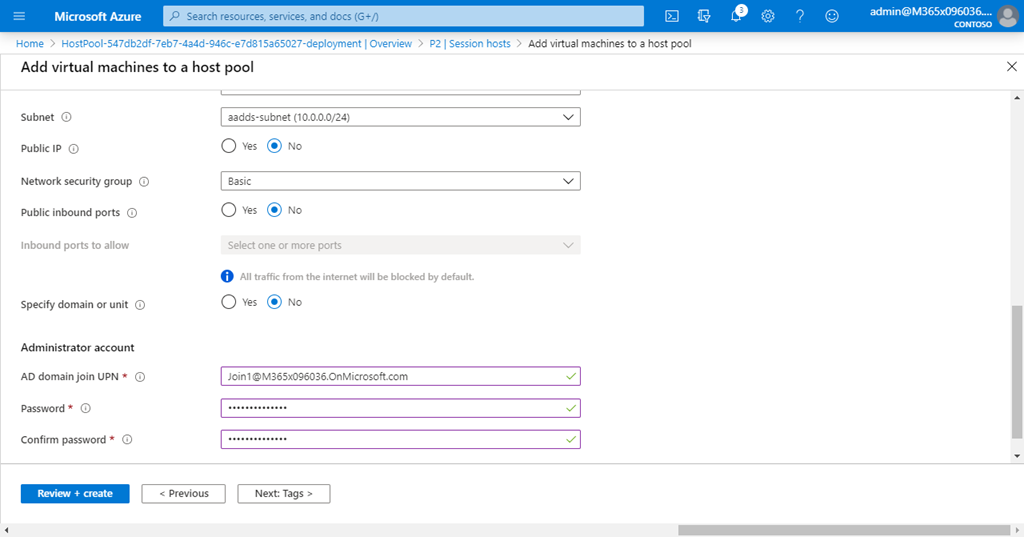
If you have configured a sub domain or want to use specific OU’s in your domain for these these new hosts, you’ll need to set the Specify domain or unit option to Yes and add the appropriate configuration.
I set up Azure AD Domain Services, specifically for WVD. Best practice, when I did that, was to create a subdomain like:
ds.domain.com
Thus, I needed to select Yes, here and enter the whole subdomain into the field that appears. You don’t necessarily have to do that, it all comes down to how you have configured your networking. But make sure you put the right entry here or adding hosts will fail.
The last fields on this page ask you for an account to be used to join the hosts to the domain. This can be the source of plenty of pain and frustration. My advice, is to test and ensure that this account actually can manually logon to Azure without MFA and also can actually add machines to the domain. Remember, this join account can’t have MFA enabled due to the automated nature of the join process about to take place. This may require manually adding a VM to the domain using this account, to verify before completing this wizard. Also, be aware that if you get the wrong details and continue with the wizard, not only will the attach fail but the account you are using might get locked out! So, lots to be aware of here and I highly recommend double checking everything as this is the most common point of failure in my experience. Remember, once the hosts are joined you can disable the login for your join account to keep it secure.
When you have made all your selections, press the Next button at the bottom of the page to continue.
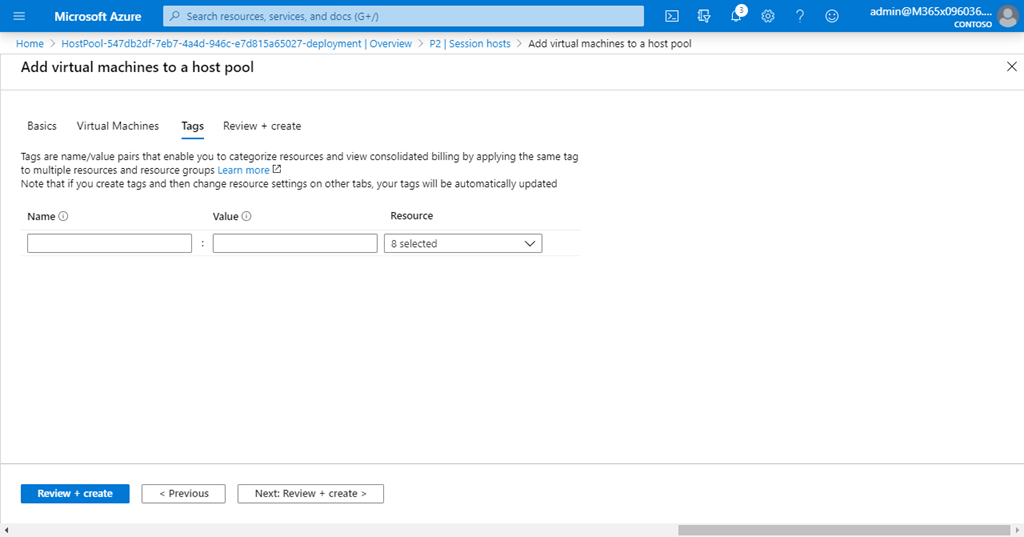
Add any tags you wish on this screen and then select the Next button at the bottom of the screen to continue.
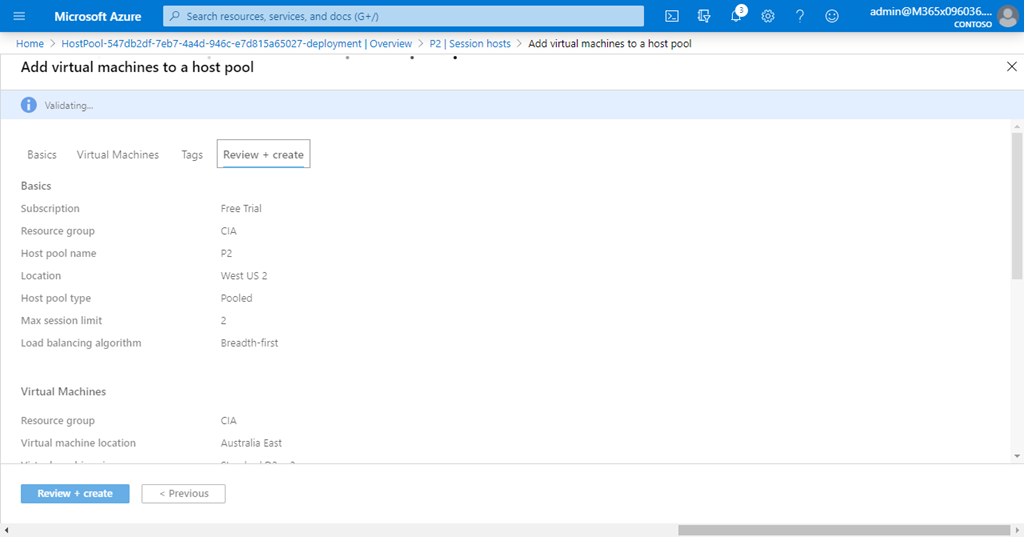
Azure will then evaluate your selections and let you know if there are any issues that require attention.
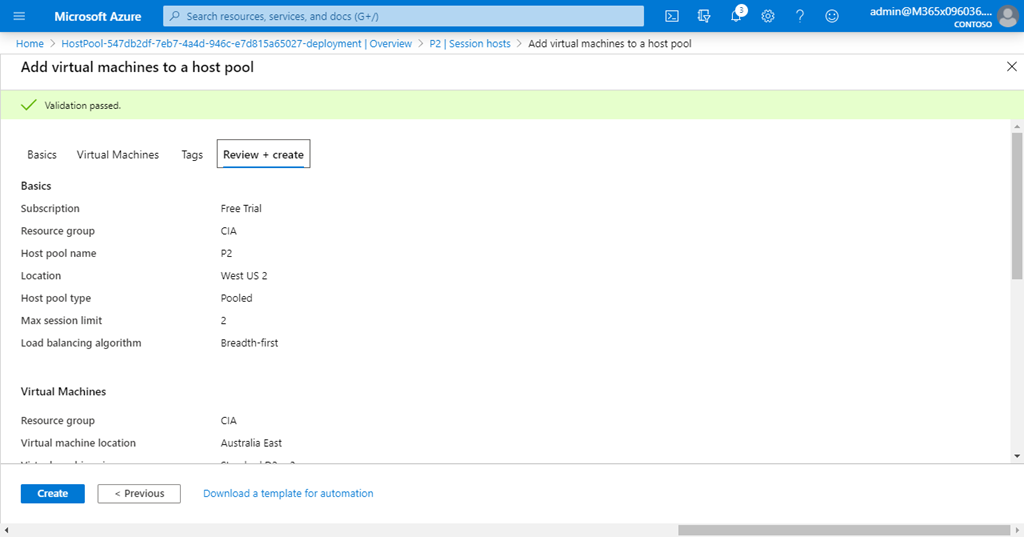
If the validation passes, you should see a green banner at the top of the page as shown and the Create button at the bottom will become available. Select this to continue.
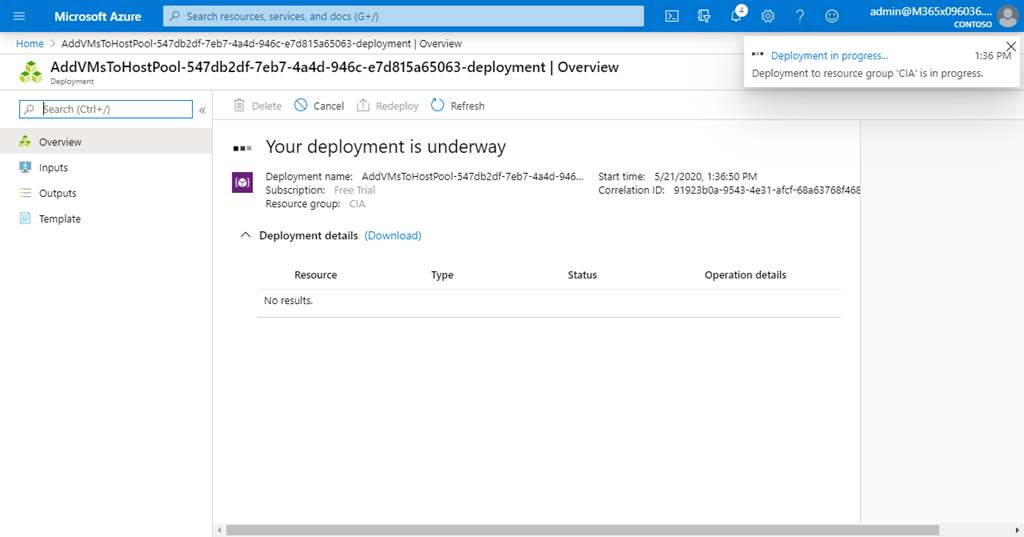
You should then see the deployment process begin as shown above.
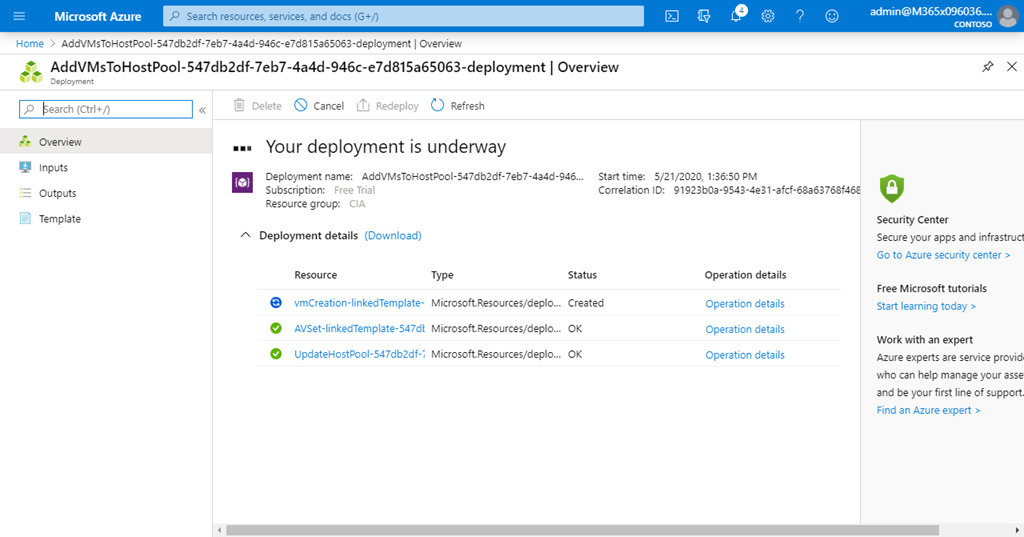
It will then continue on, through the various stages and take around 10 minutes to complete. That may vary depending on the amount and size of hosts you wish created.
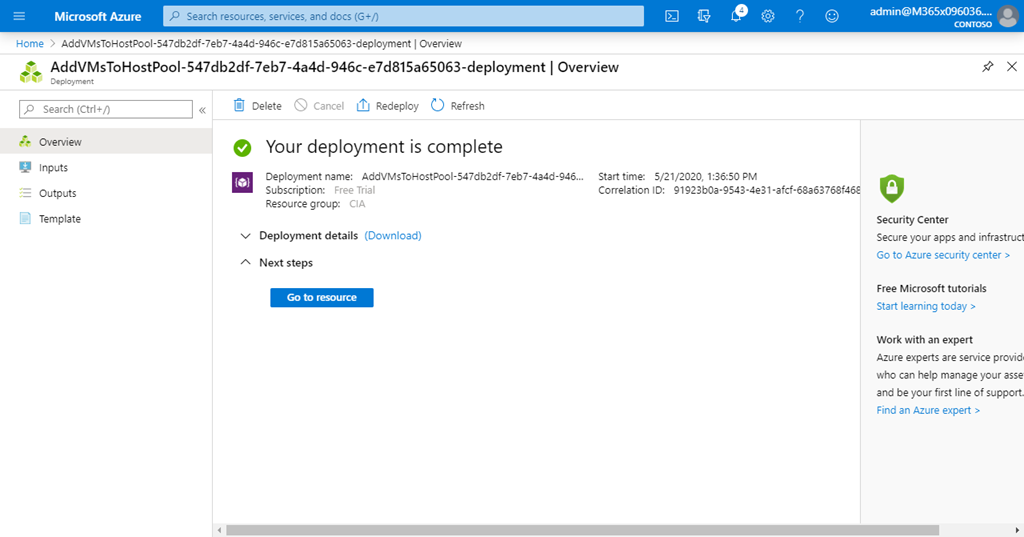
If all goes as expected, you should then be greeted with a successful deployment page as shown above.
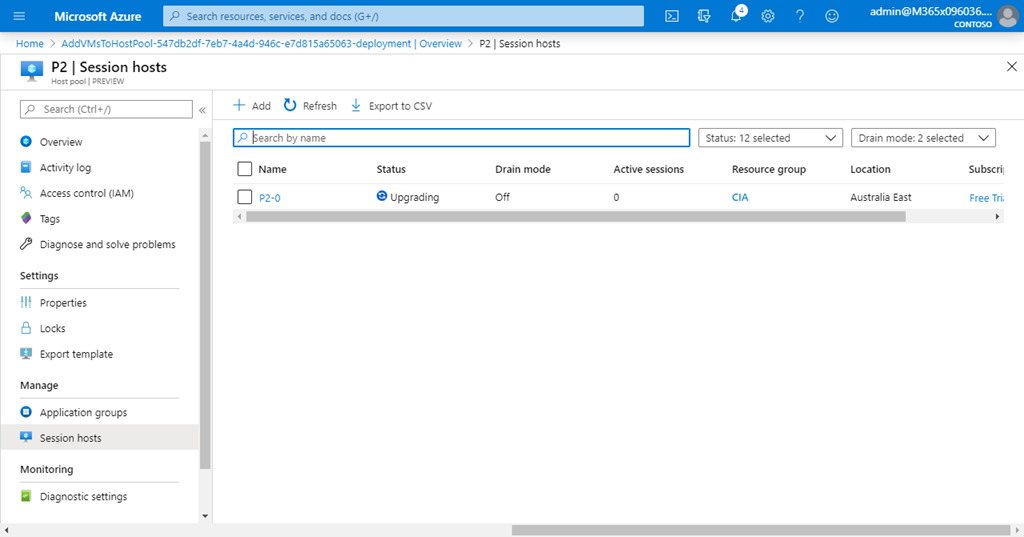
If you look at the hosts you just created in the Host Pool, you may see their status as Upgrading as shown above. This shouldn’t take long to complete.
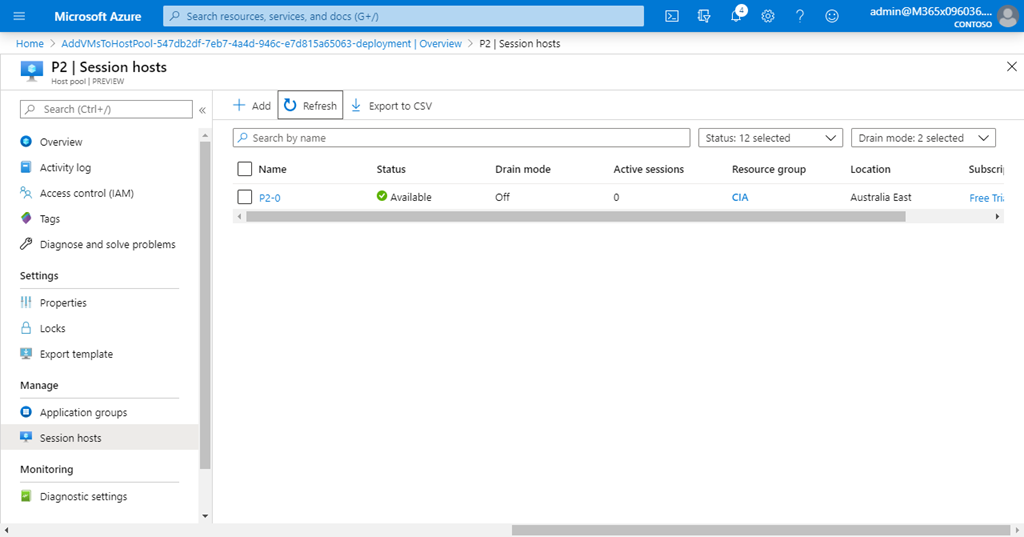
and a few minutes later, the host status should be Available as shown above.
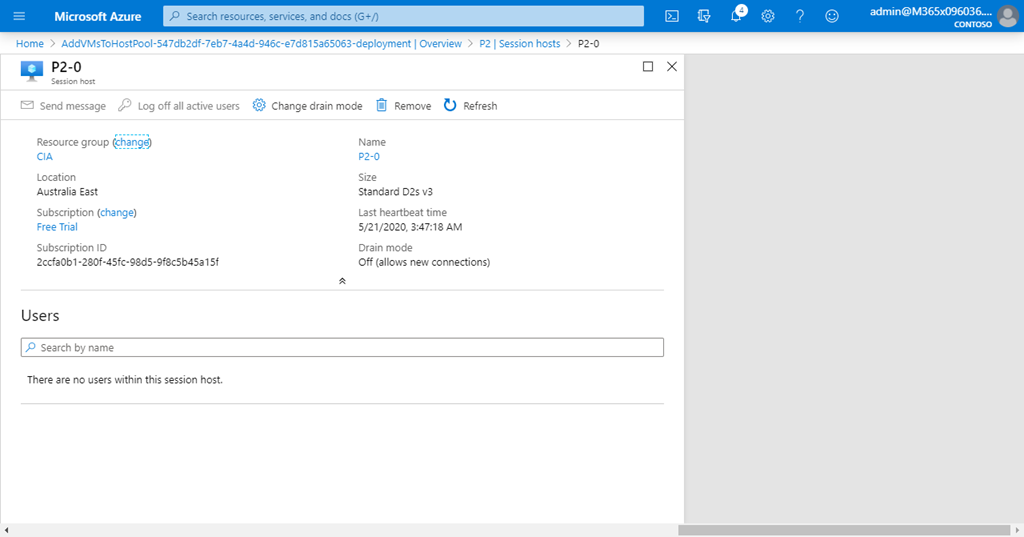
If you click on any individual host, you should see a summary screen like that shown above.
That completes the process of adding hosts (VMs) to the Host Pool. The next step will be to give users access to these machines which I’ll cover in a upcoming article.
I have now managed to find a solution for this. In short, the issue, as it turns out, has to do with disk encryption. I found some information about the general issue here:
Windows Defender Application Guard accesses files from a VHD mounted on the host that needs to be written during setup. If an encryption driver prevents a VHD from being mounted or from being written to, WDAG will not work and result in an error message (“0x80070013 ERROR_WRITE_PROTECT”).
Chatting with good people at Microsoft, it seems that in my particular case was solved by this update:
and was due to a BitLocker issue (being drive encryption).
So, the good news is that my issue is resolved and I can run Windows Defender Application Guard without any errors.
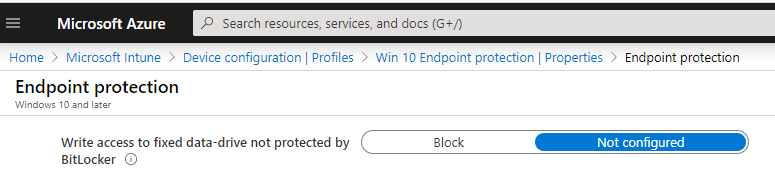
If you can’t install the KB for some reason and you need a quick work around, the issue was linked the BitLocker “Deny write access to fixed drives not protected by Bitlocker” policy and you should clear any group policy and set the following in Intune to Not configured as well as a work around.
So in the end it was an issue with drive encryption that was rectified with an update. Yeah!
Thanks to the people at Microsoft for the assist on this one. Now onto the next challenge.
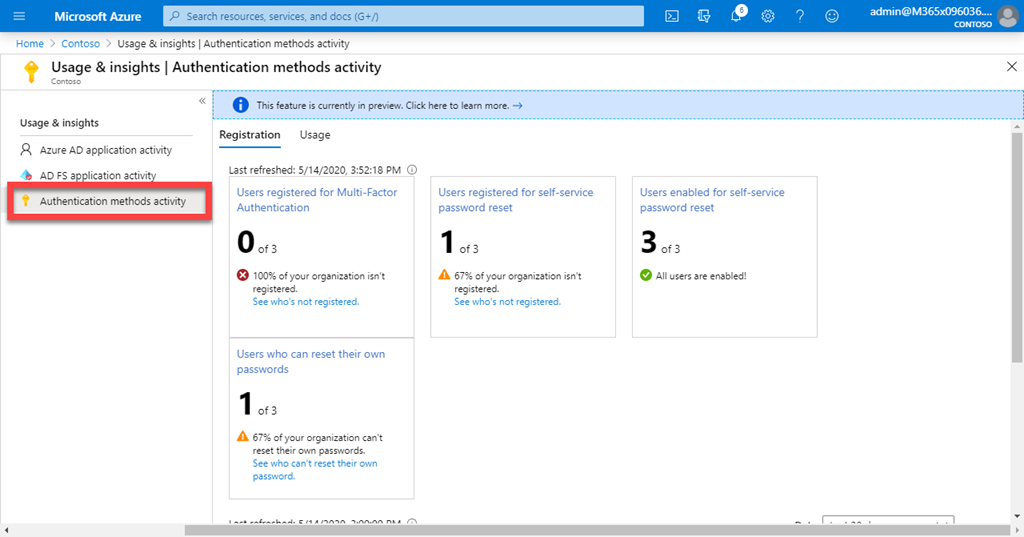
If you go to your Azure portal and navigate to Azure Active Directory, you should see something like that shown above. If you then scroll down the options on the left and locate Usage & insights , under Monitoring as shown above, you’ll end up here.
Selecting Authentication method activity on the left gives you some information about things like MFA, Self Service Password reset and more. You can also select the Usage tab at the top of the window on the right, will give you some nice historical graphs well.
An easy way to see how and when people are completing security registrations for Azure AD.
Brenton talks to Steve Hoskins about a variety of topics but focused on endpoint management, especially Intune. I provide you with a quick on everything that’s happening in teh Microsoft Cloud as usual. So tune in and enjoy.
This episode was recorded using Microsoft Teams and produced with Camtasia 2019
Robert Crane 0:02
This is Episode 238 and my name is Robert Crane and I’m flying solo for this episode. So I’ll give you a quick number of updates on what’s happening the Microsoft Cloud then we can throw over to an in depth interview further along. Now there is a little
Bit of a slowdown, I think in the news cycle from Microsoft, we are approaching build a virtual build that we’ll be having in May. And we’ve also got the Microsoft inspire, which has also gone, basically to a virtual conference. So I think Microsoft’s holding some of these things back to release them, although they did release a range of updates or new releases on this surface range. So we sort of don’t know, it’s like everything else these days. It’s always a bit we don’t quite know what’s going on. So one of the updates that has happened, there has been some news around Microsoft Teams. So Microsoft Teams now is moving into a environment shortly that will allow you to have nine people a Brady Bunch style Hollywood Squares style option to see all the people in the meeting. So let’s move on from the normal four, two by two to a three by three arrangement. Now also teams is
including the ability now to raise hands, I think that’s gonna be a fantastic option to prevent people you know, talking over each other. We’ve also now got background effects. If you haven’t seen that there are the ability to put some background effects behind you to obviously cut out distractions and also minimise or maximise your own privacy. We’ve got some background blur for iOS as well now, and we’ve had some limits increased on the live events as well. So plenty of news coming out of Microsoft Teams as you would expect, at this point in time. So I’ll make sure we put the blog post in there for you to go and have a look at there’s lots and lots to reading. There’s a lot happening with the Microsoft team’s environment. Now one of the other things that caught my eye was some updates around project cortex. Project cortex, again, is coming hopefully very soon, that allow us to manage our information and use AI to aggregate all the
Some webcasts, their webinars that recommended that you probably go and have a look at as well. Some updates around OneDrive for Business, not a huge amount here some updates around the sensitivity, and some version labelling in the desktop, which is a handy feature now so we can get to our version histories directly from our desktop, we used to be able to get to that via the web. But now we can do that directly on the desktop. We’ve also got the ability to delete any locked files there as well. Now, not to be outdone, we’ve also got some improvements in the planet experience in a mobile environment. So planner to do teams all of that is becoming more tightly integrated, so we’ll make sure again that the link to the articles in the show notes so you can have a look at the new options that are available in planner on the mobile environment. And some interesting news also that Microsoft has announced new data centres
In New Zealand and in Poland, so for those people not too far from Australia will see some data centres in New Zealand, the understanding I have, it’s going to take them probably a couple of years to spin those up as good to see, Microsoft continues to grow its footprint there in the options for those around the world to make it much better for people in those localities. Now, probably the biggest thing that’s grabbed my attention of like is the update to the windows virtual desktop. So this is now becoming an arm based model. So this has moved very much a PowerShell environment of being far more integrated with the Azure portal. So you can now spin up your host pools, you can serve your hosts, you can do all that sort of stuff basically, without needing to do everything in PowerShell, which used to be the old way of doing it. So different model, you can see that this product is maturing very quickly. So if you haven’t had a look at windows virtual desktop, I’ll certainly recommend that you go and have a look at it.
claim that quite regularly now, and would recommend that you have a deeper look at it because it’s a very, very important part of Microsoft technology stack going forward. Now with this, with that said that Microsoft has also announced that Defender ATP is in preview for these multi session environments. So that means we can bring out Defender ATP clients into monitor and manage these VDI environments for us as well when it comes to security. Now, also speaking of security, there is a good practical guide here that Microsoft has released about securing remote work with your Microsoft 365 business premium. So some options in there. It’s all pretty much common sense, but it’s good to have it all laid out. It comes down to multi factor authentication, securing your tenant correctly, making sure that your users are doing things in the right way and you have the devices locked in you use your office 365 at
policies but it’s a very good article to go in unless it basically build yourself a bit of a checklist, make sure that you are covering off all those items that they do this there. Another one he for Microsoft stream. So Microsoft stream now gives us the ability to actually capture or record stuff directly on your desktop. That is a really handy little feature for creating how to videos or even doing short informational clips for workers to share and maybe even post up to YouTube. So it’s really simple, really quick and easy to do that’s rolling out as well. Again, have a look at the show notes for more details around that. Now, the other thing that we’ve got he also is some of the security stuff around Defender ATP, I found a really good article here from Microsoft again, that basically shows you how to gain a 24 by seven detection and response coverage using Defender ATP. Now it sort of outlines how
You can just maybe kick off or stop this just via email. So maybe if you’re in a small provider, just do everything by email. And then it does have the ability to look at integrating with things like API’s, and so on. And there’s a lot of really good information in there. And hopefully, it’s pitched at different levels, but we’ll put it in the show notes so that you can go and have a look at that and do a bit of review and and see what Microsoft basically has on offer as well. So there are some articles that we recommend that you go and take a look at. If you’ve got the time. We think that there’s plenty in value there is still not happening out there in the space, maybe not as much is being revealed as yet because I think his builds coming up, not too far away. And we do have some, you know, big expectations around what they may be announcing there as well. Don’t forget there’s also the new Surface devices to go out and have a look at as well. Hopefully they’ll pique your interest there. Another iteration on
arrangement for Microsoft. And I think I’ve covered everything I need to in this short and quick update. So why don’t we get straight into the interview for this episode?
Brenton Johnson 8:12
I have Steve Hosking here from, he is now a Microsoft employee as of next week, and has extensive experience and knowledge around the Intune platform. He’s been doing a series of videos, which I mentioned a few weeks in the podcast, which was, you know, very good, very useful for me, as far as, you know, getting a bit more of a feel for the sorts of things that I can do. Certainly since last time I looked at it, it’s changed significantly, are remember when it was back in Silverlight. It’s, I don’t even recognise it anymore. And yeah, just the things that are coming out. So I thought, I know what I’ll do. I’ll reach out to Steve and ask him if he’ll come up with
In the podcast, and thankfully for us, he agreed. So welcome, Steve. Brendan.
Steve Hoskins 9:08
It’s great to have you on the podcast. So I might start by asking you, what is that? They
Brenton Johnson 9:17
say, what’s your background? How did you get here? You know, what, How’d you end up here? Alright, so my background is around Device Management. I’ve spent the last 20 years ish. I feel old now, but
Steve Hoskins 9:33
almost 20 years doing and use compute and various different
situations. So I’ve started my career as a first and second level support to an end use compute fund. Everybody’s been there, everybody’s enjoyed that.
But rather than going into that whole data centre infrastructure space, which is the typical journey, I’ve stepped into the infinite CEO of the SME development space. And that’s where I specialised in doing device provisioning device OS and managing that OS layer and being a very specialised person and doing that. And then yes, so that then I spent 10 years literally going from organisation to organisation, rolling out XP, Windows seven, Windows 10, Windows 8.1 and stepping through all of those different technologies and using what SMS 2003 and I still remember the feature pack 1.0 the difference between that and 1.1, which was the big one was that they changed the Wim format in the beta from Longhorn to Vista. And it caused a whole heap of problems with the actual
how you actually decompiled it and you had to change the executable to use it. So I’ve got a bit of history.
Brenton Johnson 10:52
You’ve got your stripes, so to speak.
Steve Hoskins 10:54
Yeah. And then we stepped through into like CMOS seven and cM 12 And then we’ve played a lot of fun with that. So for last five, five and a half years, I’ve been working for a company called vigil and it is a partner. And then in the last, what, three, four years, we started moving across and very much specialising in that insurance space. So since 2017, that has been our core direction from my practice. And we worked extensively with Microsoft on that. So over those three years, I’ve been Microsoft MVP, very lucky in being in that situation, have had a lot of fun with that, and given me access to be able to go in and understand all of the new technologies as they’ve been coming up.
Brenton Johnson 11:43
Yeah, that’s, that’s,
that’s really cool. So you’ve got a fair bit of experience in it. You’ve obviously jumped onto the chain thing quite early. You know, it wasn’t much of a product back in the day. Days compared to alternatives out there. So can you walk me through a little bit about the evolution of Intune? And where it’s come from and what the ideas behind it was? And, you know, how, how we should be thinking about it?
Unknown Speaker 12:14
Yeah. So what Intune when it first started out, it was designed for Windows seven support. It came out from the windows team, the Windows OS team actually built it. And it was designed to be managing home users and things like that. And that spawned to hang on, we could do this for enterprise organisations. And the conversation was, oh, we should be looking at insurance like, cool. You’d go and have a look at it. It was very entry level. Remain rudimentary is probably the better word. And so being a negative it was, it was still being built out. But it was very much built on Silverlight. There was no automation, there was no way to start. standardise easily. So Config Manager ended up being the de facto product for most enterprises and other products were for the consumer in the small to medium business. But then what 2017, Microsoft turned around and went, we’ve rewritten it, we’ve listened, we’re going to put it on the Microsoft Graph. And the Microsoft Graph is fully is a fully extensible REST API that allows us to do automation, whether we’re using PowerShell, C sharp, JavaScript, any scripting language you can think of. So it gives you that whole flexibility of building that out and having consistency across multiple tenants as required. And that’s that’s probably the big thing is, it’s always evolving. So when the modern version of Intune came out, which is the graph API engine, for example, there was no ability to deploy when 32 applications you’re providing have the ability to deploy a single file MSI. And I don’t know about you, I, I personally, I haven’t found any apps that are a single file MSI. Especially when you bring in third party AV products. We’re sitting there during the initial builds of our first auto pilot customer. This is before ASP was there. This was before any of this technology was there. Were sitting there and going, Oh, we need to get so FOSS installed. We’ve got this MSI this executable what we’ll do is we’ll wrap it inside an MSI. And what the executable was actually doing was going and downloading and other MSI, but multiple MSI s. So what that then in turn meant was, the MSI wrapper had to either be just dropped onto the computer and always going to assume that was successful. Or if we sat and waited for the executable to run inside the MSI came back with an error. So I can’t run because there’s another MSI running. So we had to get very creative. And we got to the point where we use when they brought in the PowerShell scripts, which was awesome. Where we could go and download content from blob storage and Azure. And then it would give you the ability to do that whole installation of anything. Whenever you needed to bring in the window to apps. It has just changed the whole market for Microsoft around Intune. It’s allowed you to move so long as you have packages under the site under a kick. Yeah, I keep tweaking no that there’s a little bit you
Brenton Johnson 15:38
said I in the video, so yeah, yeah, like,
Unknown Speaker 15:41
it’s still like, it hasn’t been expanded out. But the whole packaging of applications and this is where it allows you to start building standardised installation media for all of your small business customers. And you can start building out your automated configuration for All of your customers. So if you’ve got multiple environments where you need to make sure that they’ve got a consistent BitLocker configuration, which is pretty standard, you’re going to sit there and say, I want to have BitLocker turned on, I want non admins to be able to BitLocker. And I want it done solidly. And there’s no third party encryption already on that. These are like this four settings that you set, you can export that out using Microsoft graph with PowerShell, scary word PowerShell. And export it out into a JSON object. And then you can go and import that into any other customers you need. Once you spend a bit of time playing around with this, you learn that you have the ability then to start using that same authentication token and going in across all of your customers. So one of the one of the last projects I’ve worked on it, vigilant for an internal reporting scenario is we step into each one of our customers tenants and we check to see what the state of have applications installation of the compliance of the Windows updates. And then we return it back into teams into a channel for our support guys to go and look at. So you can go in there and go, Oh, this is what’s going on. And we can actually go from there. And one of the things that we’ve added in there is then the ability to add chicken portal. So you click on the button, and it goes to the portal page for that problem. As well as Go on, look at the video. And there’s a video on how to fix that problem.
Brenton Johnson 17:31
Oh, wow.
Unknown Speaker 17:33
All right. pointed guidance. And it’s that scalability of being that this is all just powered on graph. And Azure Automation. Like there’s no real huge trickery around it. But once you start talking around that sort of technology you go, huh, interesting.
Brenton Johnson 17:53
Yeah, and then it’s probably important to note too, that you guys don’t have like 400 developers sitting in a room with stuff out your 30 man team. You know, you’re not unlike other msps from SOS perspective, but you’re able to leverage these technologies here because you’ve actually gone down invested in understanding what a REST API is how workout interacts. You know, I think the sort of fundamentals of it that we use to all learn about how technology works on the underside, is becoming less relevant. And it’s becoming much more about Do you understand how, you know, Linux says, This is kinda like the nonsense it’s going on that if you understand our open web standards, and you know, like, I’ve hired a web developer, why did I hire a web developer? Well, when I spoke to him about rest API’s, he didn’t know much about PowerShell but he knows JavaScript Well, if you know JavaScript, you’re highly valuable to me. Sure. And I think there’s a huge amount of stuff. He’s much better on those sorts of things than the picks it up quicker than I do. You know, that’s, that’s the benefit of being that age. I can tell you that I’m old now. But Geez, I used to pick stuff up a lot quicker than I was younger. Oh, come on. Yeah. I’ve got a lane on my experience now. Well, I’ve seen that 100 times. So I can keep up because I still have that background. But I didn’t know the background. I find that very difficult.
Steve Hoskins 19:33
Exactly. And positive to go back from what you’re saying is
we’ve spent the last eight weeks six No, six weeks working on this UI, getting it all into teams, on a team of three people. Yeah, amazing. Right. We’ve had one guy that’s been probably 60% of his time, and that’s the priority that that is the most amount of time that we’re putting on Right, and we start breaking it down and go more, where’s their return on investment that is worth saving having each one of us, first of all support guys going into each one of our customers tenants, and finding out status of that configuration.
Brenton Johnson 20:17
And a huge time saver.
Unknown Speaker 20:19
And then from a training point of view, it gives us the ability to turn around and go, Well, look, I need to bring on a new resource, I don’t need to sit them down to teach them one on one how to do mention. I’m just going to point them at these videos. So we’ve spent time recording videos recording content, so that at the end of the day, once I’ve left, as I have now the organisation, people can still go in and learn that content. Whereas if I sit there and do a one on one, it’s dead time. It’s not reasonable. So it becomes not valuable. So this is part of that whole Change your paradigm of thinking, especially most, most organisations and most partners, you guys are going to have an f5 licence as part of your internal usage rights. Go and use it for strength. So there are video up there, capture, do whatever you need to do, it doesn’t need to be perfect. Like, one of the biggest barriers that I’ve found with this resource getting him involved, is I just want to perfect I’m gonna go in and modify the script in order the closed captions in such stream, I’m going to do this, I’m going to do that, like, why more important to have the content there. It doesn’t even need to be perfect. It just needs to be there so people can use it. And you stop talking through that story and people go, Oh, okay.
Brenton Johnson 21:51
And it’s your maximum, isn’t it? Perfect. That’s right. And I think what you’re you’re really talking about is you’re looking at the stuff That really brings value for you guys and your customers, and you’re building and prioritising around that. And because you know, it’s an eye, it’s a REST API. It’s not like you have to really build a whole, you know, million dollar build around it, you can just build into the parts you want. Once you both indicated, you can go to the API endpoint that you want, and, you know, retrieve the data, send the data, um, you know, probably sound a bit, not developer enough. But that’s essentially all it is. Right? It’s, you know, there’s like four major functions in a REST API, right from, like, you know,
Unknown Speaker 22:39
that the time it’s taken us to build our tool sets to export that content. It’s probably been five days. Yeah, development time. And the most of it, the bulk of it is just sitting there and making sure it’s consistent. But we’re now to the point where we can, we can export and import whole configuration We’ve spent the time to understand the toolset. So if you’re using PowerShell, go and use Visual Studio code, commit your code, do version control, and then start looking into tasks. So my colleague at vigilant, Ben Rader, who he appears on, on the intern training session quite often. He’s done some really awesome stuff around tasks and in 32 apps, where we have the ability just to hit f1. go build, and we’ll go and build the app and then go publish and like, okay, it’s already up there. I’m going to go and get a coffee. You just fill it all out as the MLM wallets doing while it’s doing the folk up. You can walk away, don’t have to think about it.
Brenton Johnson 23:47
Hackensack put your feet up. Yep. And not harder, right? Yeah,
Unknown Speaker 23:51
exactly. That, oh, there’s a new version of zoom. All right? Get the MSI good. Put it into the file, build and publish. It’s good. But, yeah. So it’s, it’s about making your life easier. And that’s where you start building that automation process it. And that’s, I think, a big value point that most organisations are still grappling with. It’s it’s one of those big changes in mindset. Once you’ve gone cloud cool, what’s next? Well, how do I make it consistent? And look, look, you’re never going to have consistency for all of your customers.
Brenton Johnson 24:35
different requirements, you know, some, some requirements, customers require certain things and other customers require other things a term but i think is across the board stuff, luckier. BitLocker example where you deploy BitLocker regardless of the customer, I’ve never had a situation where deploying BitLocker hasn’t been a good idea. Sure, I’m sure you’ve probably come across A few where they use the third party tool or something but her.
Unknown Speaker 25:04
Oh, my customers, I walk in there and go, we’re doing BitLocker and we’re doing Defender ATP and they would go okay.
Brenton Johnson 25:15
Honestly, I bet everyone wishes their customers were just like,
Unknown Speaker 25:18
yep. Well, this is where you if they say no, I’ve had. So we’ve been doing Intune deployment full time for three years now. And
Steve Hoskins 25:33
I’ve had
two customers where we have not used the default defender. The first one, where and that was our first full autopilot before his pay on 709. And we’re sitting there so 1607 1609 we’re sitting there with the old build and ah, it was it was chaos. But that was and then that was so close. And actually, I don’t think we’ve done another one without always just done Defender ATP of defender. Because why make the effort? Why? Why pay for a consultant to come in and do that change for you? Yeah. And BitLocker it’s a no brainer. Well, let me just turn around.
Brenton Johnson 26:25
Yeah, like there’s nothing in the Snowden papers about it so it’s probably our that’s my that’s my opinion on everything. Like if it’s not in the Snowden papers, if it didn’t come in hack that. Shadow brokers did a while back. Probably okay. You know, like, is cold boot attacks and those sorts things we get nation states after, then you might want to look at how you store your information. But you know, 99.9% of people or threats out there, exactly. It’s not gonna it’s the best thing. You can do it’s better than not doing it.
Steve Hoskins 27:02
Essential. And that’s it. Right. It’s about to turn. It’s not about it’s impregnable. Because it’s not knowing corruption is impregnable. If you throw enough cycles at it, yeah. Simple as that. So, look, I, I make my life easy because I sit there and I just go, well, we’re doing it this way. And if you don’t like it, we’ll let’s see how we do it my way. Well, budget Great.
Brenton Johnson 27:32
So do you want to spend your money going and getting an incremental benefit of point 000 1%? That, you know, may or may not be that because you have no idea because joining something signed on standard or do you want to stay in the safety of numbers? Where you know, if anything does happen in that situation, there’s going to be advice coming out. There’s going to be help. There’s going to be PowerShell scripts. There’s going to be all this sort of stuff. stuff. And I think this is a sort of interesting conversation and I might work might go into a little bit about back onto the chain a little bit around use cases for different sized companies. So say if you had say a five c company at 25, a company 50 or 100, say company, like how would you go about? Because, you know, in tunes a bit like the REST API example is saying you don’t have to deploy everything in Intune. You can just say what policies you want. So, as a baseline, what do you think is probably the most important policies that all organisations should have under that hundred seat, Mark?
Steve Hoskins 28:41
That the simplest ones that I’d be sitting there and saying is make sure you have office 365 going out, but make sure you have Windows Update for Business turned on and ideally with a pilot rang good. If you’re small enough, just send it out and turn on The drivers and other Microsoft product updates in Microsoft apply for business or Windows business. Because that’s going to make your life so much easier. I have a number of people that have turned around I’ve actually been to a couple of recent customers we like all we need to have the Dell support command or on our computer because we want to have all the drivers being installed from Dell. So why I couldn’t get them directly from Microsoft. And they just get pushed straight down and oh, yeah, but it’s not doing firmware. It’s like no, it is doing firmware. It’s doing everything you want it to be doing. But you don’t have to think about it. You don’t have another tool, another agent on your computer taking these cycles. And then we go across into right we’ll make sure you have BitLocker turn on BitLocker is important. Or apart, turn it on. cetera. Love it. Get new computers with it. It is one of those things where I don’t want local admin on my computers. I don’t know about you, but I don’t want local admins on my computers. That’s the simple fact. And my my end users, they’re not local admins. They’re not going to be local admins, my whole organisation a visual on it. We’re not local admins, they had the ability to go and get global admin, or device admin or whatever was relevant to their level in the organisation, but they had to be on request with him. But from a security point of view, we didn’t have local user accounts, local user accounts, and not required in any organisation anymore.
Brenton Johnson 30:40
Yeah, and I think this is an interesting distinguishing feature when we’re talking about the videos. And you talking about like, you know, if the computers messing up and we don’t know what’s wrong with it, we just blow it up. Now memory started, we just gotten a new engine, and it just resets the device. So moving Enable from having this sort of idea that they have to spend hours and hours setting up a device, the way they like it, all of that sort of thing. A lot of those configurations can be done with watching. So when people log in 90% of it’s done, what I would say is look into and we’ll do a good percentage of it. But it doesn’t need to, you don’t need to auto Configure. Your staff are smarter than what they were 10 to 15 years ago when it comes to it. When we were doing so is for XP.
Steve Hoskins 31:33
It was a hard, hard, hard learning curve, because you’d have people coming in and I’ve never used a computer. This isn’t just like people in their 50s and 60s at that point. This was people coming out of high school I still remember in 2000 when I was 2001 when I went to uni, and one of the light one of the girls that she turns around to one of the other guys can you Come and show me how to actually use a floppy disk and so farms. So you’ve just gotten into uni. It’s like, Yeah, I was never shown in high school. I don’t know. So, oh, whereas that’s not the case anymore. And that’s the that’s that whole change of mentality. But the other the other setting that I highly recommend to just turn off it’s not even a conversation just turn on is enterprise state roaming. Enterprise state roaming gives you that whole common experience across all your computers. And then OneDrive known folder move like, I can’t go on enough about this product. It is going to make your life easier. You don’t even need to think about it. It just works.
Brenton Johnson 32:44
Episode Six for everyone listening.
Steve Hoskins 32:48
You go.
Brenton Johnson 32:50
Yeah, scenario that was one of the things that we looked at. One of the first videos I watched, I’m like, Oh, this is awesome. I’m loving this. So I wrote up a whole policy around was deployed and, you know, why are we why things would on the way that they are? And yeah, it’s just like that sort of thing because we always have, it’s always senior management because snowflakes or whatever. And if they lose one file on their desktop, even if they just moved it to a different space on their desktop, and they just can’t find it anymore, and he’s opened up OneDrive, you’re like, oh, there it is. Oh, ha, cool. You backed it up. I’m like, No, no, it’s still on your desktop. You just moved it. Oh, did I? Oh, okay. Well, you know, if you have all of that stuff, then you can start thinking okay, I’ve got enterprise state roaming, again, as long as you have Microsoft 365 business, or one of the, you know, proper skews day one in it, you’ll be fine. If you try to do a lot of stuff on business premium, you’re gonna have a pretty,
Steve Hoskins 33:49
that’s just regretful that didn’t.
Brenton Johnson 33:52
Well, yeah, I should, I shouldn’t age the podcast too much. So what I meant to say is, if you are using Microsoft 365 business or Microsoft 365 Essentials, those are not good skis for doing look, you know, device and user management with the office and email and SharePoint and OneDrive. But they’re not management skews the management excuse, or self tracing small business and enterprise equivalents of those.
Steve Hoskins 34:22
That the simple fact is, and I know I’m going to oversimplify it when it comes to licencing and everything associated, but think of it the same as getting insurance going and paying that little bit of extra is that insurance for you on your at a point of view. It’s going to save you in the long run. Yeah.
It’s it’s gonna an extra $5 a week, a month, or $50 a month
could break the company maybe but it’s something to look at and go what happens if I Don’t do it. I know one of the big conversations I’ve had recently with guys at Microsoft is, alright. We’re wanting to put these companies into spaces because of the coverts. And and everything associated with like, how do I make sure that I don’t lose all of my content, all my configuration and everything associated? When we spin up at the end of the cycle? It’s like, wow, that’s that’s a great question. Because you can’t just pause payment. Soon as you pause payment on your subscription, you’re sitting there and go hang on. All of my mailboxes disappear. All of my data starts disappearing. Yeah, and I will what we’ll do is we’ll just back it all up into a storage like cool, but how do we bring it back? Yeah, we and you start talking as well. If you’re sitting on the the bare minimum price point today I can’t help you Yeah, there’s no step back. But if you’re sitting on, say an f5 or an a three and you need to are out also we’re going to money. You can step it back. But it’s it’s tough. I understand. But all of these technologies, they’re there for a really good reason. Defender ATP, that is such a, I can’t go on enough about why that is such an important product for your platform, like security centre, staff, all of that information that you can pull back around. Are you compliant? Do you have any risks in your environment? Do you have all of your applications not just the Microsoft applications, but all of your applications patched
Brenton Johnson 36:50
these are really key and core things that a lot of organisations are missing. Its and then they’re looking at third party products. Like, why you already got it and use it? So yeah, I think that goes back to our original conversation around. You don’t have to use the third party products, if you have the correct tooling for the size of the organisation you are, if you’re Coca Cola, and you have a huge IT team and one tenant to manage, you know, it’s it’s a different compensation to someone who might have, you know, 12 or 15 customers varying in size from five to 50 or 100 stuff. But then you go well, or at will, that’s what we that’s the environment that we’re in, how we’re gonna, how we’re gonna manage that. So I think it’s, it’s gonna be an interesting thing is RMM tools. Most of the MSP world or the managed service provider world will live and die by their RMM tool. There’s a lot of automation built into it. It does a lot of this stuff for them in a slightly different Why, but then you have security experts running around saying it’s the most dangerous tool ever invented is the RMM tool. There’s nothing more dangerous than an RMM tool as well, they’re actually use code Configuration Manager.
Steve Hoskins 38:19
So no, no, I this is all seriousness like you go to the, the blackhat conferences and things like that, and like half ago on hacker con and things like that. They talk about Config Manager. Like security in your config manager environment is so important. But there’s so many organisations that are out there and just say I, I’m just going to run it as HTTP. I’m not going to worry about it, because it’s just just corporate data doesn’t matter. So talk computer data. And so yeah, yeah, cool. That’s one way of going the other way, is the ability to reset your computer, the ability to go in take from it change permissions on everything in your system. So yeah, these these systems are super powerful. And
Unknown Speaker 39:10
you’ve got to be careful.
Brenton Johnson 39:12
Why are you familiar with the 10 immutable laws of IoT security that was published back in 2000, and then updated again, I think about 2013. I got one of the MVPs are Microsoft and it’s probably still there, they probably moved over from TechNet. And like, one of them is if a bad guy has access to your PC, it’s not your PC anymore. Security is not a panacea. You know, it’s like all of this stuff that was written it’s all getting a bit aged, you know, but the principles are pretty, you know, they pretty rotten with the immutable laws. I was pretty impressed. Yeah, all I learned about them probably like 2007. And we’re talking about servers and, and you know, all of this sort of stuff, and, you know, but that one always sticks with me if a bad guy has access to your PCs. your PC anymore. I’m like, Oh, it’s true. And you know, Windows credential manager is not the most secure thing in the world. Uh huh. I remember at the cybersecurity conference in Melbourne, they had a presenter there showing how she could get every single credential ever saved in Microsoft by doing all this crazy stuff on the computer shows you know a very dangerous individual if you’re on a bad side. Luckily, she’s one of the good guys but you know what I mean? Like it’s it’s probably it’s not good enough to sit back and go, you know, I it’s fine. You know, such and such RMM tool we won’t name any of the five names of RMM tools out there is fine because we’re consistently saying and it’s generally not their fault To be honest, usually password spray attacks guys. You know, these are the sorts of things the breakdowns your customers, don’t use your company name in the past Good.
This course is especially for those looking to understand and sell Microsoft Cloud Services like Microsoft 365 and Azure, especially in the Small Business (SMB) space. The course takes you through overviews of services plus deep dives into things like security. It also shows you how to craft unique go to market offerings that you can build easily.
All the information you need is here including:
Over 18 hours of video instructions
Downloadable content, including slides, white papers, etc
Links to additional training material
If you are looking at coming to grips with everything that the Microsoft Cloud can provider your customers and users, then this is course for you!
As a special offer to kick things along I’m offering a 50% discount for a limited time. Use the promo code:
I’ll continue to add content to this course, so there is never a better time to take advantage of the launch of this course! You may also want to consider the full course catalogue at the CIAOPS Academy which will include this new course as well.