Protecting your Microsoft 365 environment using Azure AD Privileged Identity Management (PIM)

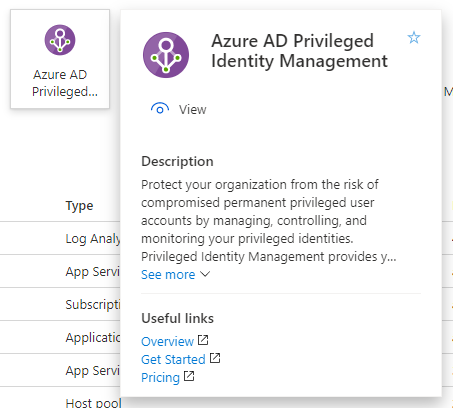
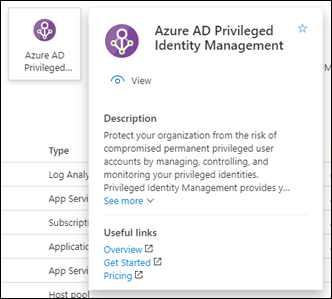
If you are managing a Microsoft 365 environment my recommendation is to do so using a Microsoft 365 E5 SKU, no matter what else in in that tenant. The reason for having at least one Microsoft 365 E5 SKU in your environment is that it provides a wealth of additional features that directly benefit administrators. One of these is Azure AD Privileged Identity Management (PIM).
image

In a nutshell, PIM allows you to do just-in-time (JIT) role escalation. This means that users can be given the permissions they need to do things, only when the need them. It means that you don’t need to have users with standing global administrator access, they can be escalated only when they actually need those privileges. Standing elevated privileges is something that you should be looking to minimise or eliminate in your environment so that if an account does get compromised it won’t have access to the ‘family jewels’. PIM is also a way to potentially minimise the threat of a ‘rogue administrator’ given that it can have an approval process tied to it as well. Most important, all PIM actions are audited in detail which is always handy to have.

PIM is a feature of Azure AD P2 and as mentioned, included in Microsoft 365 E5. Best practice is to ensure you have an ‘emergency break-glass’ administration account tucked away as a backup before you start restricting existing administrators with PIM. Once you have both the license and a ‘get out of jail’ account you are ready to use PIM.

A good example to help you understand the benefits of PIM is to illustrate how I use it myself in my own production environment. The account that I use for my day to day work used to be a global administrator but best practices dictates that it really shouldn’t be. However, given the number of browser sessions I have open already I didn’t want to add yet another one to be checking administrative tenant level ‘stuff’. PIM to rescue! With PIM, my account can stay as a member account by default and I can escalate it to be a global administrator as needed.
image

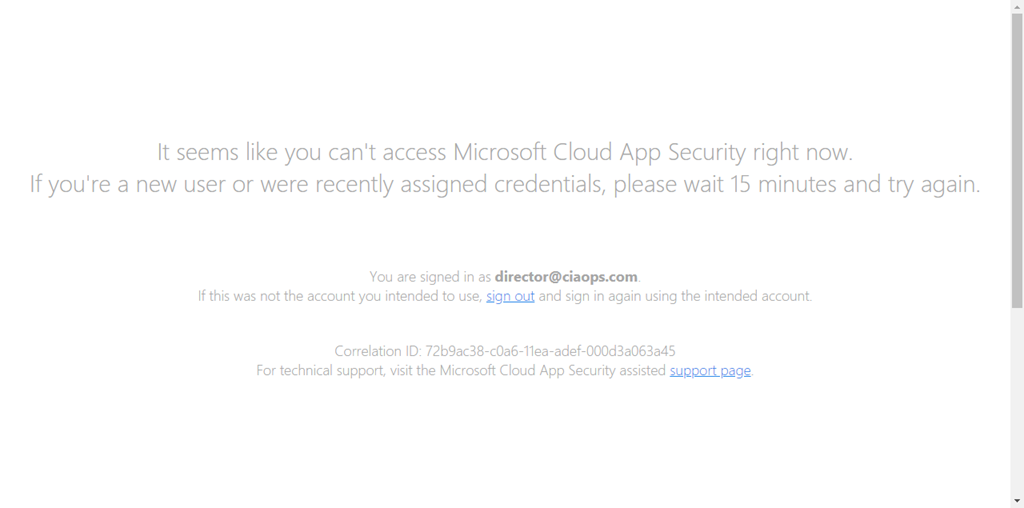
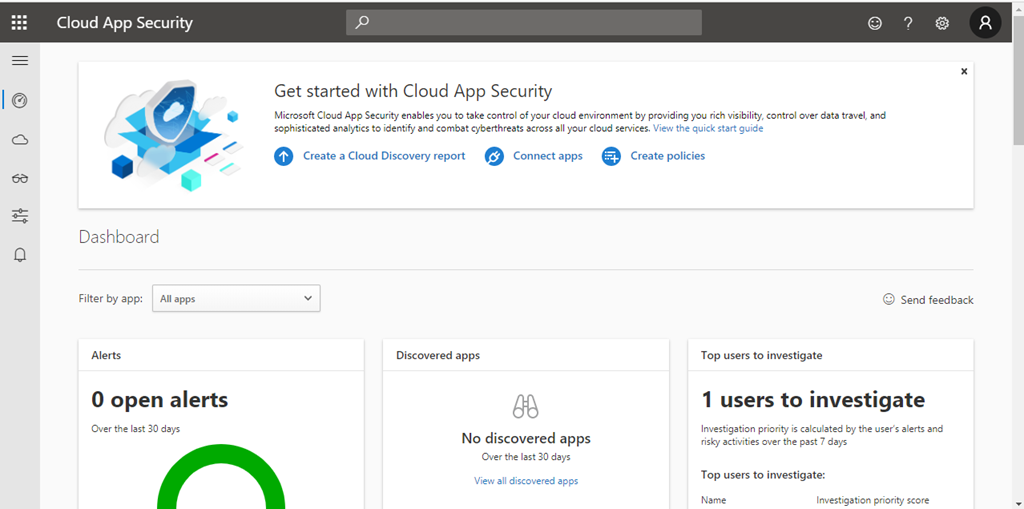
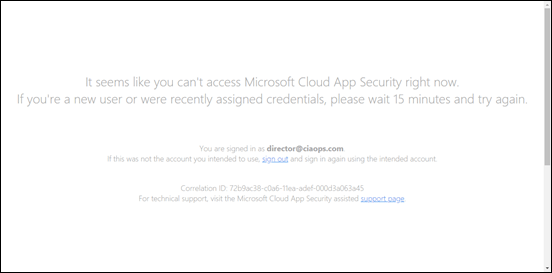
One of the things I like to check is Microsoft Cloud App Security for my tenant. As you can see above, by default, I now have no privileges.

To elevate my privileges I follow this process:

Activate my Azure resource roles in Privileged Identity Management
 image

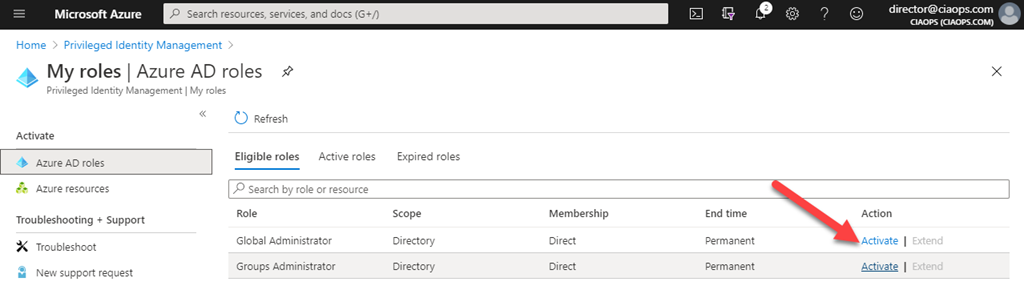
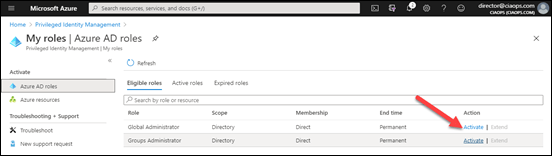
This means that I login to the Azure Portal and then navigate to Azure AD roles in PIM as shown above. Here I can see that I can activate the Global administrator role by selecting the Activate link as shown.
image

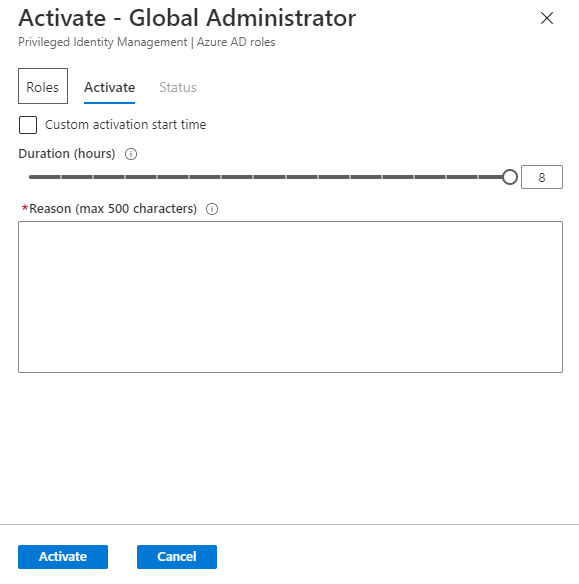
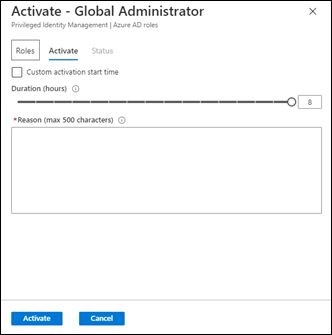
When I do this a dialog box appears and my credentials are verified. You can enable the requirement to again prompt for MFA during this validation process if you wish. That means, even if I am already logged in successfully, I need to complete an MFA challenge again to proceed.

I can now select the time required to complete my work up to a pre-defined Duration limit. Here I’m going to select the full 8 hours for a full work day at my desk. I also need to provide a Reason for elevation. This information will be recorded and held with the auditing information. This means I can track when and why I elevated.

When complete, I press the Activate button at the bottom of the page to continue.
image

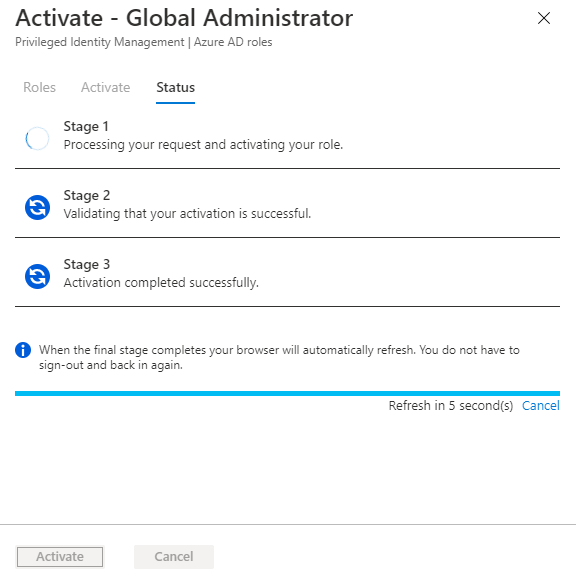
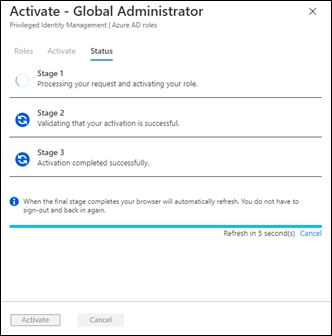
The activation request is then processed according to pre-define rules. In my case, I have elected to have automatic approvals but you can refer approvals to a third party if you wish for greater protection.
image

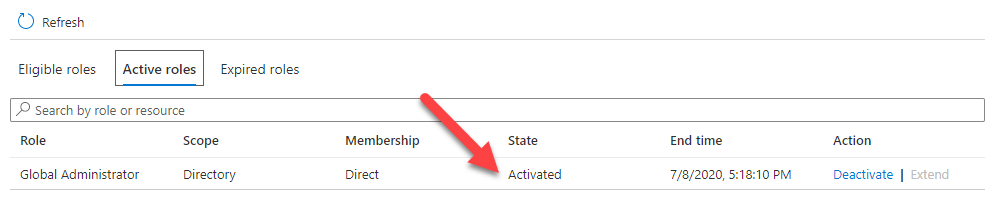
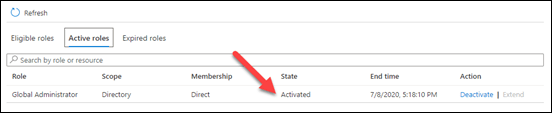
In about 30 seconds my activation is complete and if I now look in the Active roles area of the console I see that I am indeed a global administrator.
image

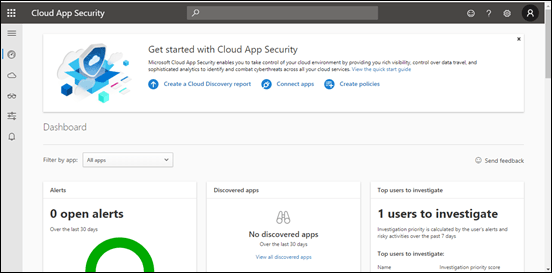
If I now refresh my Microsoft Cloud App Security page, you see that I can get access as a normal administrator. This is also the same with all the other administrator areas in the tenant thanks to undergoing the elevation to a Global Administrator thanks to PIM.

The good thing is now I can work using my normal account, check and monitor what I need to without using a different account. I can also rest easy that after the 8 hour time limit my account will again be de-activated back to being a member user. Thus, at the end of the day, I simply shut down and the account will automatically be de-activated for me without me needing to remember to do it. I can of course, manually de-activate the account at any time if I wish, say if I needed to go out somewhere. It is also easy enough for me to re-activate again if I need to do any additional work.
image

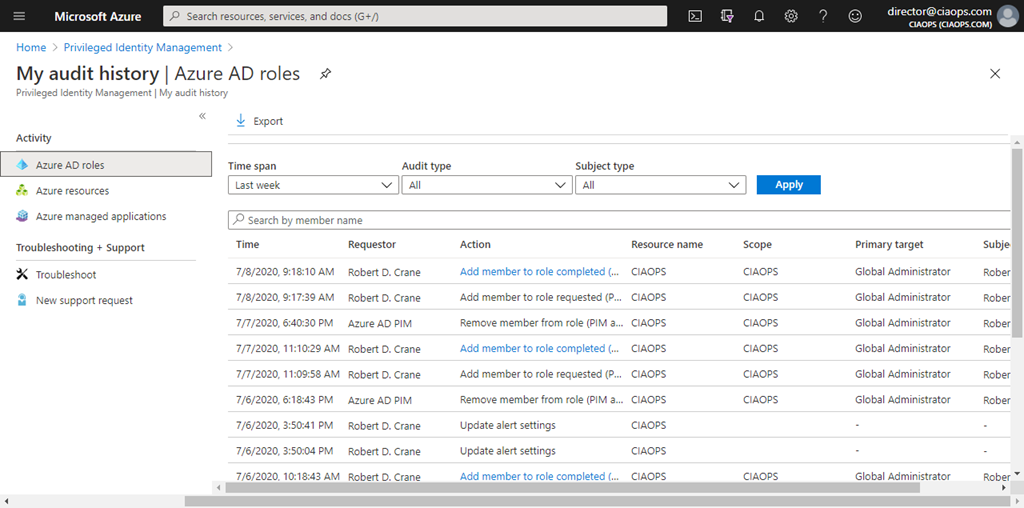
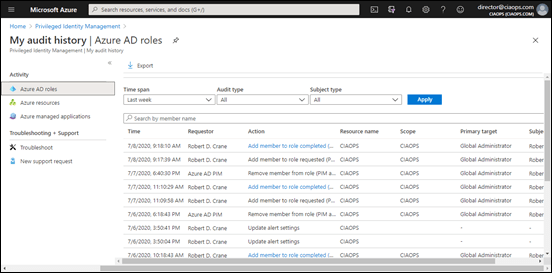
What I also like is the audit logging as shown above. Having it all in one place in the PIM console makes it easy for me to verify what has been happening with the process over time.

So in summary, I am using PIM to elevate my normal work account to an escalated level as needed during the day. This means that I don’t have to maintain standing administrator access for the account but I still have the convenience of using it to perform administrator roles as needed.

To set this up for yourself, you’ll need M365 E5 or Azure AD P2 as well as a ‘break-glass’ account. Then you’ll need to configure the roles you wish to escalate to via:

Configure Azure resource role settings in PIM

You can get quite granular here if you wish, but my advice is that you keep it simple to start with and go from there. For me, I just wanted the simple process of becoming a ‘normal’ global administrator.

You can have multiple roles, with different access for different users if you wish. In my case, I’m just focusing on the role of the tenant administrator. As I said, you can also have approvals sent to a third party or parties if you want for an extra level of protection if desired. There lots of settings you can customise with PIM.

Using PIM now gives me extra level of protection when it comes to administration rights. It means my production user isn’t a global administrator by default. I can however, use that same account as a global administrator, by going through a simple automated escalation process that requires MFA for greater security. Additional benefits include that I get great auditing and tracking, I can manually de-activate those rights at any point and those rights will also be automatically de-activated for me after a specified time limit and I also get alerting.

If you want to make your Microsoft 365 environment, especially you administrator logins, more secure then I suggest you take a look at PIM. Even for a small environment like mine, it is great value.


Create a Bing Custom Search

I detailed in a previous article how I had created a custom search:

A dedicated Microsoft Cloud Search Engine

The benefits were that I could target it to a specific set of URL’s to search through when producing a result. It also eliminated many of the commercial elements you see in common search engines. This makes it much cleaner and faster.

The good news is that you too can easily go and create your own custom search. Before you do so however, you will need to have an Azure subscription as there are generally costs that are incurred depending on the functionality you desire. the Custom Search capability is found under Cognitive Services in Azure. However, the easiest way to start creating your own custom search is to visit:

https://www.customsearch.ai/

and sign in with your tenant credentials.

image

You’ll come to the above screen first. Simply select I agree and then the Agree button below to continue.

image

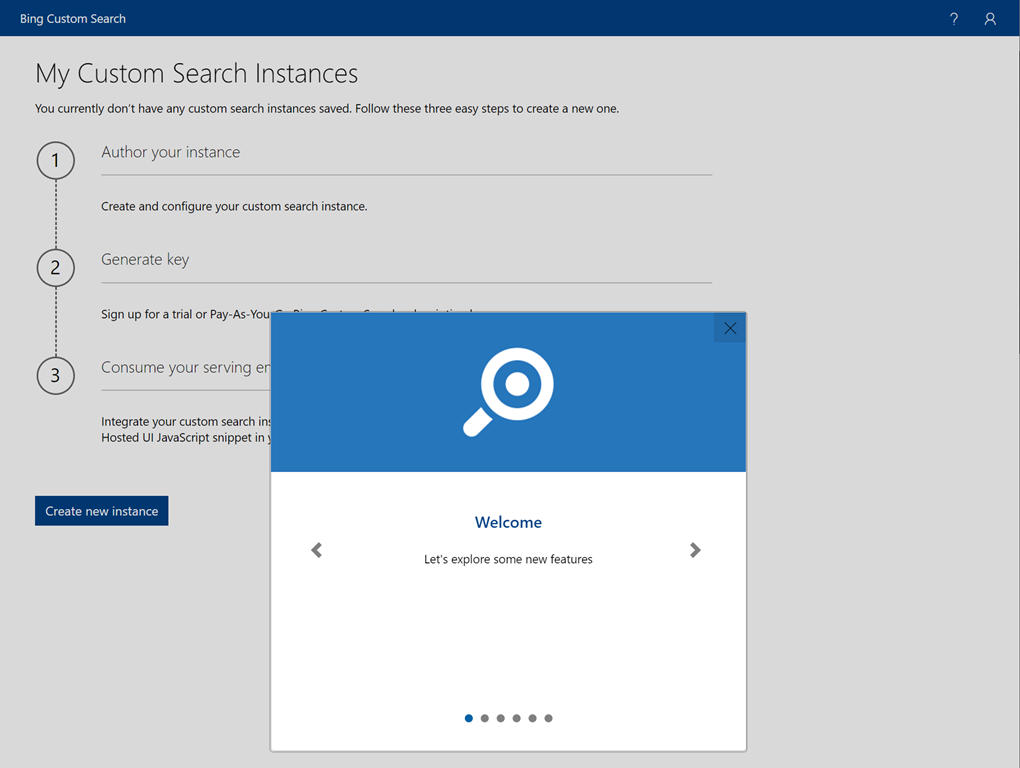
You can go through he Welcome messages if you wish.

image

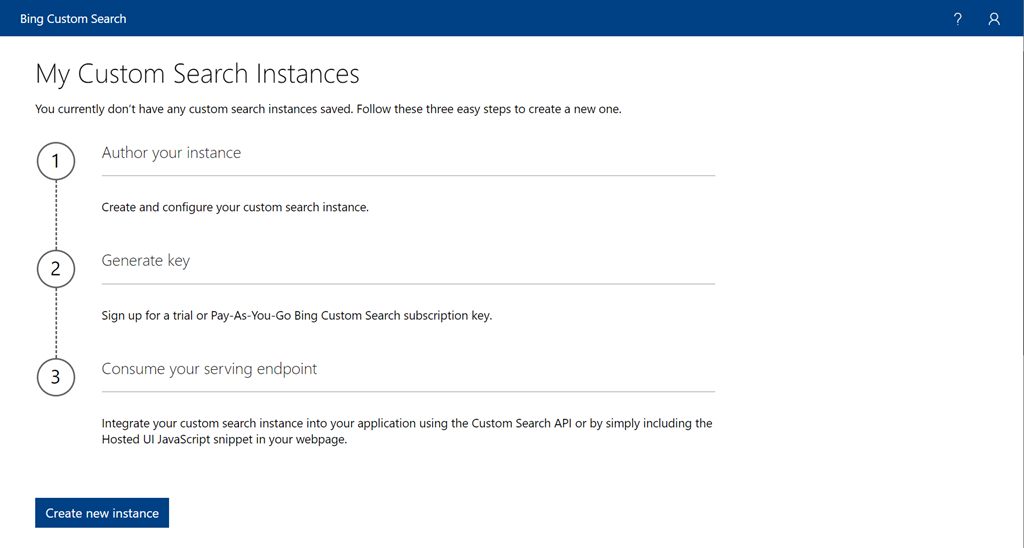
Next, select the Create new instance button at the bottom of the page.

image

Give your instance a name (here Demo) and select Ok.

image

You’ll then end up on the above page where you can input the URLs you wish to have be part of your custom search.

image

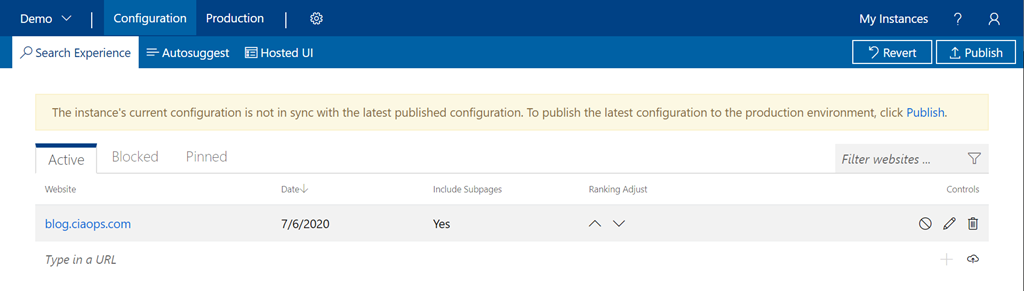
Just keep adding the URL’s you desire. As you do you’ll notice a yellow banner appear at the top of the page as shown above. This is a reminder that you need to Publish your results for them to be visible to others.

image

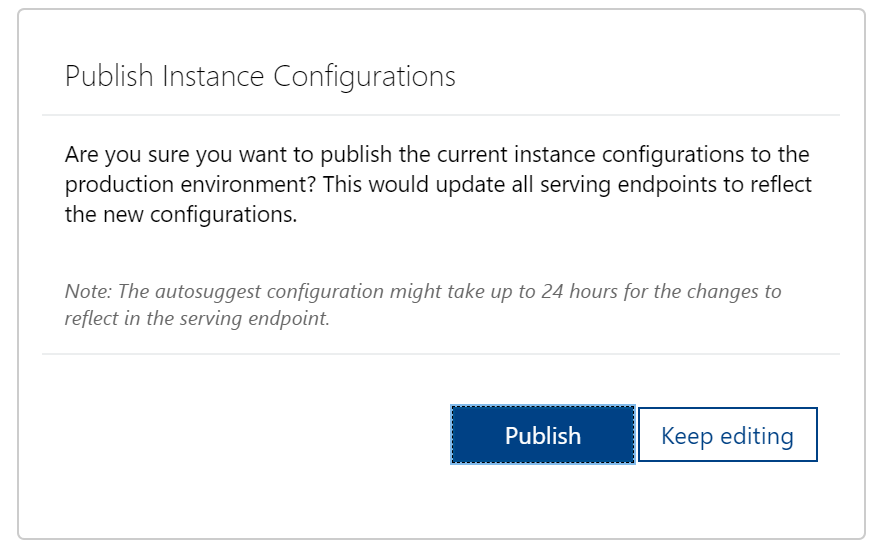
When you do elect to publish you will see the above dialog. Press the Publish button to continue.

image

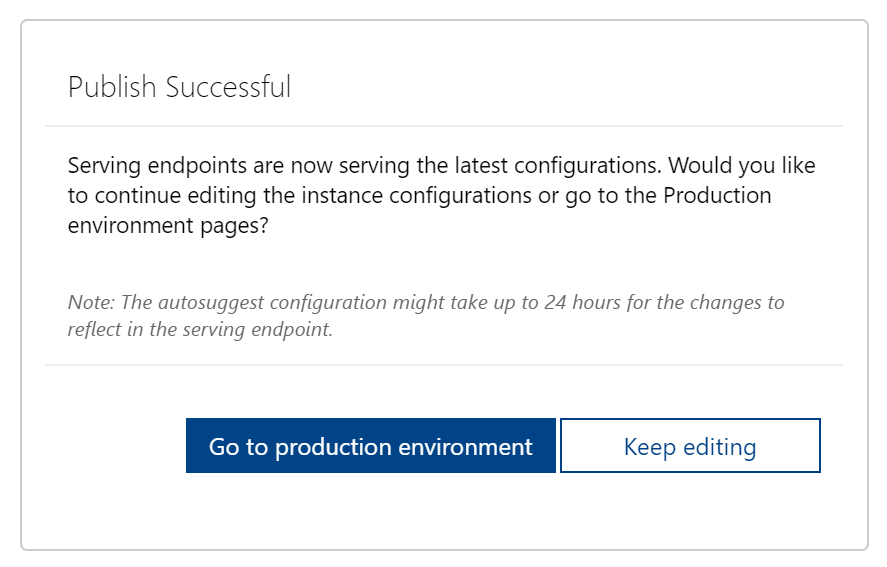
You should begreeted with a successful result, as shown above. You can return and keep editing the environment or you can select the Go to production environment option.

image

In the production environment, if you now select the Host UI menu option on the left, the windows on the right will show you a dialog box towards the button as shown above. Copy this URL.

image

If you Paste this URL into a new browser window, you should see your custom search engine as shown above.

Pretty easy to get going right?

image

If you navigate to the Azure portal and search for Cognitive services you should see your new Bing CustomSearch as shown above, along with any other services that utilise Cognitive Services (here a Q and A bot).

You can go in here and customise different aspects of your Custom Search, which I’ll cover off in up coming articles. However, hopefully, you see how easy it is to get started creating a Custom Search in Azure. Remember, you can always test out what I have created using this here:

https://bit.ly/ciasearch

Need to Know podcast–Episode 244

Sarah Young from Microsoft joins us again to talk about Azure Sentinel. We run through what it is and why you should be using it to protect your IT environments. Brenton joins us as well to cover off the latest news and certifications he has achieved. Listen in for all the details.

This episode was recorded using Microsoft Teams and produced with Camtasia 2020

Take a listen and let us know what you think – feedback@needtoknow.cloud

You can listen directly to this episode at:

https://ciaops.podbean.com/e/episode-244-sarah-young/

Subscribe via iTunes at:

https://itunes.apple.com/au/podcast/ciaops-need-to-know-podcasts/id406891445?mt=2

The podcast is also available on Stitcher at:

http://www.stitcher.com/podcast/ciaops/need-to-know-podcast?refid=stpr

Don’t forget to give the show a rating as well as send us any feedback or suggestions you may have for the show.

Resources

Sarah Young

@contactbrenton

@directorcia

L400 Sentinel Ninja Training

MS Tech Community Sentinel blog

Sentinel GitHub repo

Sentinel documentation

MS Security Community webinars

Defender ATP for Linux now GA

Defender ATP for Android

OneDrive Roadmap Roundup – May 2020

PowerPoint Live is now generally available

What’s New: Livestream for Azure Sentinel is now released for General Availability

Azure responds to COVID-19

20 updates for Microsoft Teams for Education, including 7×7 video and Breakout Rooms

Outlook for Windows: Signature cloud settings

An easier way to connect using PowerShell

If you visit my Office 365 GitHub repository, you’ll find a whole of scripts there you can use for free. A subset of those scripts are designed to make connecting to the various Microsoft Cloud service easier. For example the script:

https://github.com/directorcia/Office365/blob/master/o365-connect-exov2.ps1

allows you to easily connect to Exchange Online using the version 2 module.

While all of this helps, it can still be a bit trickly for people to know what to run when to get connected. So, with that in mind I have created this script:

https://github.com/directorcia/Office365/blob/master/c.ps1

which when run by simply typing

.\c.ps1

in the PowerShell command line

image

will now pop up a dialog as shown above and allow you to select which service which wish to connect to.

image

Even better, you can also select multiple services in this same window. You simply use the CTRL and SHIFT keys to select multiple item, just as you do in any Windows desktop application (like Windows Explorer for files say).

After you have made your selection, those individual service connection scripts will be run.

Of course, the assumption is that you have all of my scripts (including the individual connection scripts) in the same directory. If not, then the connections will not be made. However, if you have ‘cloned’ what I have into a single location on your machine, then you should be all good.

I also created this short script:

https://github.com/directorcia/Office365/blob/master/r.ps1

which you can run at the PowerShell command prompt via:

.\r.ps1

to remove any currently loaded PowerShell sessions as well, quickly and easily.

Hopefully, this new ‘master connection’ script will make it easier for people to connect to the Microsoft Cloud services they need.

Make you you check back regularly to my Github repository for any updates and additions

Need to Know bot for your Microsoft Cloud Q and A

Recently I wrote an article about using Microsoft At to create,

a dedicated Microsoft Cloud Search engine

Another form of AI that is available is a chatbot service for questions and answers. Many people have seen these already on web sites, where a helpful customer service rep appears on your web page asking if you need assistance. I have now created a similar chat experience which I have christened the CIAOPS N2Kbot.

You’ll find the N2KBot here:

http://bit.ly/n2kbot

image

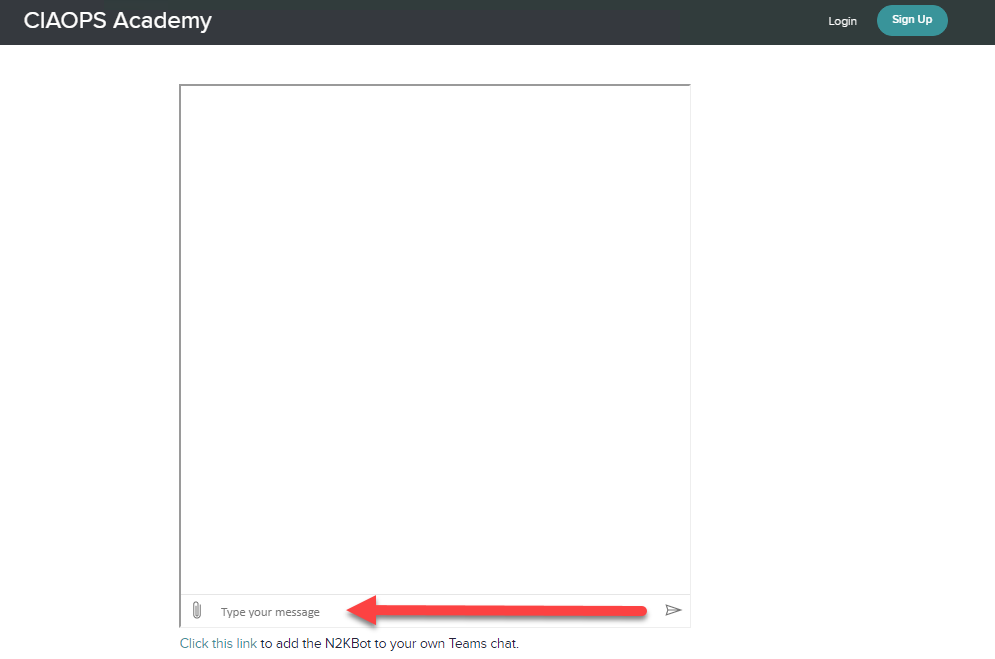
When you first arrive you’ll see a page like that shown above. simply enter your question in the lower line (where it says type your message” and then press enter). I haven’t as yet automated it greet you as personally I find that annoying. So for now, you can interact manually.

image

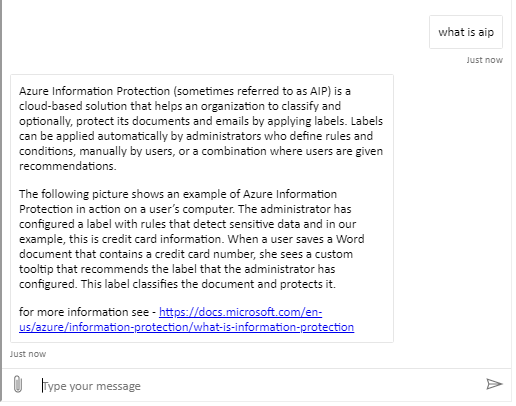
You’ll see above that if I ask “what is aip” I get a response back about Azure Information Protection.

SNAGHTML19eeb575

At the bottom of the page, you’ll also find a link to add the N2KBot to your Team if you want, as shown above.

image

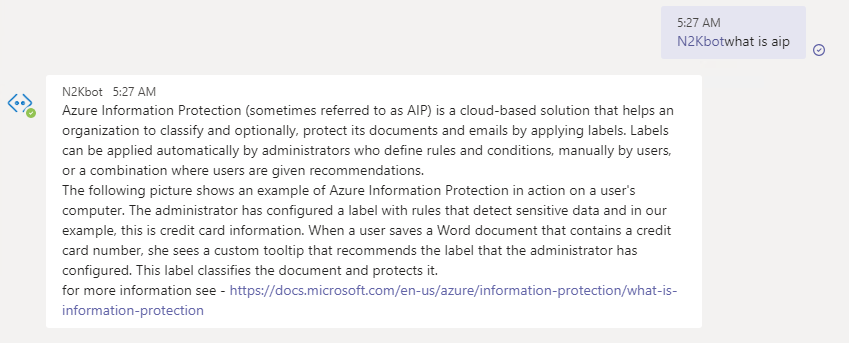
You can have it as a private bot or inside a channel if you wish. Once installed you activate the bot by starting a line with @n2kbot and then asking as question, like:

@n2kbot what is aip

as shown in the above example.

What is interesting about this chatbot versus the custom search engine I created previously, is how people so far have interacted with it. Most have treated this chatbot like a search engine, expecting to give them the exact answer to the question they asked. A chatbot really isn’t that. It is basically a list of question and answer pairs. That is, if you type in this (or close to it), then answer with this. It doesn’t search the web, it looks to it’s pre-programmed question and answers pair largely.

You can prime the chatbot with your own custom questions and answers or you can target web links. Sites that have lots of FAQs (frequently asked questions) on it ingest very well into the bot. However, it is important to remember that chatbots are not search engines.

So where could I see chatbot playing a role? I think they would work well for adoption, that is people asking basic questions about OneDrive for example (i.e. “How do I upload to OneDrive”) or things like “What is Sway”. So think of chatbots more as a way to answer common questions in an automated way. When you actually sit down and have a look at how many times the same or similar questions get asked you begin to appreciate the role that chatbots could play.

I am still testing this chatbot concept out in the area of providing information specifically on the Microsoft Cloud but, as I said, I can see an initial benefit in things like adoption, which I have started working on. In an upcoming article, I’ll show you how easy it is to create a chatbot like this in Azure. However, the idea for this preliminary article is to get you thinking about:

1. The differences between chatbots and search

2. Where a chatbot may make sense in your business. That is, what information is going to help with?

Once you have that, then creating an effective chatbot will be much easier in my experience.

In the meantime, feel free to have a play with the N2KBot and let me know your thoughts. It is far from perfect and only runs on the cheapest plan, so it might be a bit slow initially when you use it. However, once ‘awake’ it should perform normally. If you have some suggestions for the questions it should be able to answer, let me know, I’m very interested to hear other people’s thoughts on this.

My aim with all this, is to get the cogs in my head turning about where this new “AI” technology can effectively be applied. They are certainly beginning to turn in mine.

A dedicated Microsoft Cloud Search engine

image

Recently, I have been working with the Microsoft AI tools typically provided via Azure. Personally, I don’t like the term “Artificial” when it comes to AI because I really don’t believe that it is truly ‘Artificial” as yet. I therefore far more prefer the term ‘Automated Intelligence’.

Terminology aside, I have been looking at where these new “AI” style technologies can be utilised effectively. One of most common questions I hear is finding ‘good’ information about Microsoft Cloud technologies. It is all there in traditional search engines but it gets mixed in with everything else. So what I have done is used Azure Search to configure a service at:

http://bit.ly/ciasearch

that only searches through links that I have provided. The idea is to provide a quality set of links from Microsoft and others that provides the best information about the Microsoft Cloud. The idea being is that you get all the benefits of traditional search engines, less the advertising and across a list of high quality but specific sites. Hopefully, that means the chance of you finding what you are looking for to be much higher and of a better quality.

image

When you search for an item, as shown above, it works exactly like any other search engine. It supports the same query syntax (AND, OR, INCLUDES:, etc) and will return you a list of results as shown above from the material that it indexes.

Of course, any search engine is only as good as the information that it crawls, and I continue to add sources on an ongoing basis. However, if you wish to suggest a URL to include in the CIA Search then you can do that via:

https://bit.ly/ciasearchsubmit

I’ll review each submission and all to the engine if it is of a high enough quality.

The more people that use the CIA Search the better it will become, so please share this with others whom you believe may receive benefit.

Need to Know Podcast–Episode 242

In this episode Brenton reports back on his encounters with the AZ-900 certification exam. Spoiler alert – he passed! Congrats. I also speak with Nicki Borell all about information protection and labelling in Microsoft 365. of course Brenton and I bring you up to date with everything in the Microsoft Cloud. We hope you enjoy the listen.

This episode was recorded using Microsoft Teams and produced with Camtasia 2020

Take a listen and let us know what you think – feedback@needtoknow.cloud

https://ciaops.podbean.com/e/episode-242-nicki-borell/

Subscribe via iTunes at:

https://itunes.apple.com/au/podcast/ciaops-need-to-know-podcasts/id406891445?mt=2

The podcast is also available on Stitcher at:

http://www.stitcher.com/podcast/ciaops/need-to-know-podcast?refid=stpr

Don’t forget to give the show a rating as well as send us any feedback or suggestions you may have for the show.

Resources

@nickiborell

SharePointtalk.net

YouTube – Technology and Me

Nicki Borell – – Linkedin

www.nickiborell.com

www.xpertsatwork.com

@contactbrenton

@directorcia

Announcing OAuth 2.0 support for IMAP and SMTP AUTH protocols in Exchange Online

Making it easier to stay caught up with Cortana in Microsoft 365

General availability of Azure Files on-premises Active Directory Domain Services authentication

Security baseline (DRAFT): Windows 10 and Windows Server, version 2004

AZ-900 exam

Windows 10 2004 update

Audio

Need to Know podcast–Episode 240

Mark O returns! Brenton returns! it’s the come back show, just in time for the end of COVID lock down. Mark O’Shea and I talk about the swag or recent changes to the Microsoft 365 Business suite of products. Brenton and I also bring you up to date with all the very latest Microsoft Cloud news as well. What a return it is!

This episode was recorded using Microsoft Teams and produced with Camtasia 2020

Take a listen and let us know what you think – feedback@needtoknow.cloud

https://ciaops.podbean.com/e/episode-240-mark-oshea/

Subscribe via iTunes at:

https://itunes.apple.com/au/podcast/ciaops-need-to-know-podcasts/id406891445?mt=2

The podcast is also available on Stitcher at:

http://www.stitcher.com/podcast/ciaops/need-to-know-podcast?refid=stpr

Don’t forget to give the show a rating as well as send us any feedback or suggestions you may have for the show.

Resources

@intunedin

@contactbrenton

@directorcia

Marl O’Shea’s blog

What’s New in Microsoft Teams | Build Edition 2020

Announcing Microsoft Lists – a new Microsoft 365 app to track information and organize work

Announcing Microsoft Lists – Your smart information tracking app in Microsoft 365

Now Live – SharePoint home sites: a landing for your organization in the intelligent intranet

The new Yammer public preview

Enable a combine MFA and SSPR registration experience in Azure AD

Evolving Azure AD for every user and any identity with External Identities

Audio