Opportunity Is the Enemy

image

The most dangerous moment for an MSP isn’t a slow quarter. It’s a good one.

When the calendar is full, leads are landing, and a former client pings you about “a quick idea” — that’s when the trouble starts. Suddenly you’re half-thinking about a new managed service line, a side venture with a vendor friend, a property deal someone mentioned at lunch. None of it is bad. That’s the whole problem.

I’ve watched too many capable owners chip themselves into pieces this way. The wins keep arriving, just not in the lane they originally chose. The actual business — the one paying the bills and the team — quietly slows down while they chase the next shiny thing. A year later they wonder how the work they actually built ended up running on autopilot, or not running at all.

Every shiny thing has a real cost

When someone pitches you an opportunity, the cost looks small. A meeting. A few emails. A weekend reading through a deck. Easy.

But every hour spent on something that isn’t your main game is an hour you didn’t spend on the clients, the people, and the systems that pay your mortgage. That trade is rarely visible in the moment. It shows up six months later when renewals slip, your senior tech is restless, and you can’t remember the last proper sit-down with your number one client.

The discipline isn’t in saying yes to the right work. It’s in saying no to the wrong opportunities — especially the flattering ones.

Build a filter, not a willpower contest

Relying on raw willpower to turn things down is a losing strategy. By Friday afternoon you’re tired, someone’s been charming, and the calendar fills back up.

What works better is a written filter. One short paragraph. What you do, who you serve, the size of client you take on, and the kind of work you flat-out refuse. I keep mine in a Loop component pinned at the top of my main planning page in Teams. When a new pitch arrives, I open it, re-read the filter, and the answer is usually obvious before I’ve finished the second sentence.

The tiny ritual takes the emotion out of the decision. The filter said no. Not me.

Let Copilot guard the door

The other shift for me has been using Copilot in Outlook as a first-pass screener. When a long, friendly email arrives proposing something tangential, I ask Copilot to summarise what’s actually being requested, how much time it would cost, and how it fits against my current priorities, which I keep in a short document in OneDrive.

Most of the time, the reply writes itself. Copilot drafts a polite decline and suggests someone better placed to help. I read it, tweak a sentence, send. A minute, instead of an afternoon of overthinking.

I do the same with meeting requests. Before I accept anything outside current client work, I ask Copilot to pull recent threads on the topic and tell me whether I’ve already had this conversation. Half the time, I have. That’s the meeting that quietly doesn’t get booked.

The quieter calendar

The strange part is that turning things down doesn’t make the business shrink. It makes it sharper. The clients I keep get more of me. The team gets more of me. And the work I actually built finally has room to grow into something worth defending.

Opportunity will keep knocking. That’s its job. Mine is to stop answering every time.

Treat Your Calendar Like a Scoreboard

image

Last Friday I sat down with my Outlook calendar open for the week ahead and felt that familiar drop in the stomach. Eighteen meetings. Two thirty-minute “quick syncs” stacked back to back. A coaching session I’d promised myself I’d run for a client. A “catch-up” with someone whose name I had to look up twice. And the actual deep work — the strategy piece I’d been telling everyone was my top priority for the quarter — nowhere to be seen.

That’s the moment it clicked properly. My calendar wasn’t a plan. It was a confession.

What the diary is really telling you

A diary is a record of where your attention actually goes, not where you wish it went. If the most important work of your year isn’t on it — blocked out, named, defended — then you haven’t really committed to it yet. You’ve just talked about it.

A lot of us treat our calendar like an inbox. Things land in it. People send invites, we accept, and the week fills up by default rather than by design. Then we wonder why the work that actually moves the business forward keeps slipping into Saturday morning.

There’s a simple test I run now. Open Outlook on a Sunday night. Look at the week ahead. Can you point to the block that represents the one thing you said matters most this quarter? If not, the rest of the week is just noise around an empty centre. And the empty centre is the bit you said mattered.

Run a weekly audit, not a weekly hope

Hope isn’t a strategy, and a calendar that fills itself isn’t one either. So I now sit down every Friday afternoon for fifteen minutes and review what I actually did against what I said I would do. Copilot in Outlook makes this surprisingly easy — I ask it to summarise where my time went, who I spent it with, and which blocks moved against my stated priorities. The answer is often uncomfortable.

Then I look at the week ahead and run every single block past one question. Is this taking me closer to the work I said matters, or further from it? If the honest answer is “further”, the meeting goes. I decline it, suggest an async update in Teams, or send a Loop component with the three things I would have said in the room. Nobody has yet complained that they got a clearer written summary instead of a half-attended meeting.

The ones that pass the test get something more important than a tick. They get protected. Title in bold, marked as busy, no overlay. I treat them with the same seriousness I’d give a paying client, because future me is the client.

The feedback loop most leaders skip

Here’s the bit that surprised me. Once I started running this rhythm, my calendar stopped being a source of guilt and started being a source of useful signal. It tells me, week by week, whether I’m actually serious about what I said matters. Or whether I’ve quietly traded it for the comfort of being responsive.

That’s the real value of reading the week before you live it. Mid-game, a scoreline tells you what to do next — push harder, change tactics, stop bleeding time on the wrong play. The diary does the same job, if you’ll let it. It doesn’t argue with you. It just shows you the score.

Copilot can draft the polite decline. Teams can absorb the conversation that didn’t need a meeting. Outlook can hold the block you’ve been avoiding. But none of that matters until you decide, every single week, what’s on the board and what’s just filler.

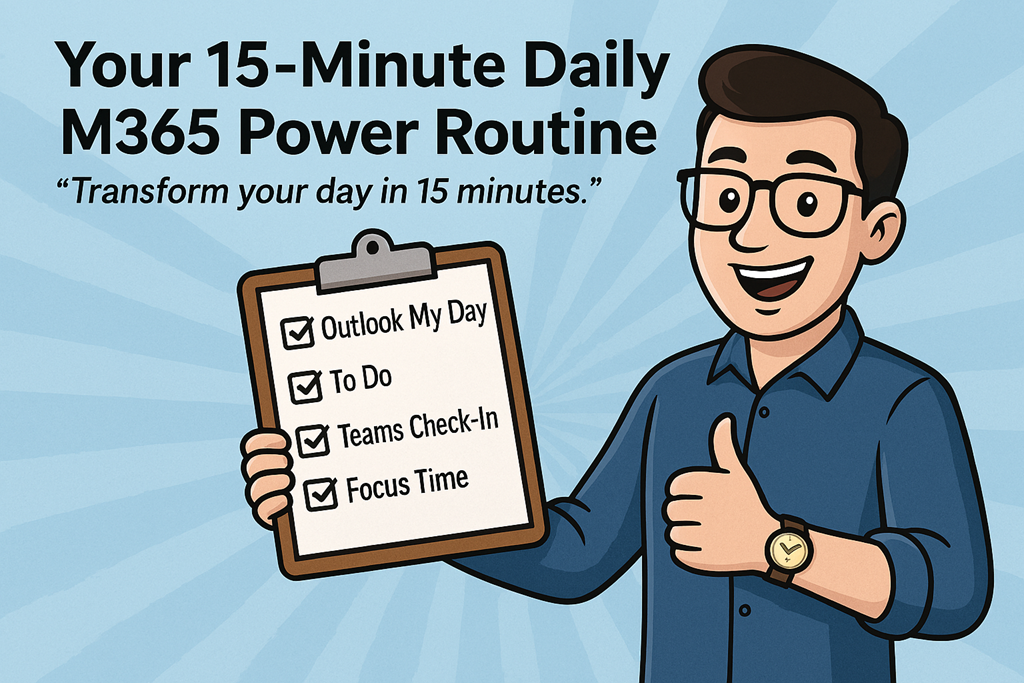
Your 15‑Minute Daily M365 Power Routine

image

“Transform your day in 15 minutes.”

Most people don’t have a productivity problem.
They have a starting problem.

The day kicks off reactively. Emails, Teams pings, half‑finished tasks from yesterday, and suddenly it’s 11am and you’re already behind. Not because you’re lazy or disorganised, but because you never took control of the day before it took control of you.

That’s where this comes in.

This is a simple, repeatable 15‑minute Microsoft 365 power routine you can run every morning. No new tools. No fancy systems. Just using what you already have – properly.

Do this consistently and you’ll stop feeling busy and start feeling deliberate.


The Rule

Before you touch email properly.
Before you open your tenth Teams chat.
Before you let someone else’s urgency define your priorities.

You run the routine.

Every. Single. Morning.


Minute 1–3: Outlook “My Day” – Reality Check

Open Outlook and bring up My Day.

This is where most people already go wrong. They either ignore their calendar completely or treat it as a suggestion rather than a commitment.

Look at:

  • Today’s meetings

  • Gaps between meetings

  • The real amount of time you actually have available

This isn’t about optimism. It’s about honesty.

If your calendar says you’ve got back‑to‑back meetings until 3pm, pretending you’ll “get some deep work done” before lunch is a lie you’ve told yourself too many times.

My Day shows you the truth. Accept it.


Minute 4–7: Microsoft To Do – Decide What Actually Matters

Now jump into Microsoft To Do.

Not your entire backlog.
Not your wish list.
Just today.

Ask one simple question:

“If I only got three things done today, what would move the needle?”

Flag or prioritise no more than three tasks. If everything is important, nothing is.

This is where most people sabotage themselves. They create a list that’s really just a guilt inventory. Don’t do that. Your job isn’t to remember everything. Your job is to progress the right things.

Everything else can wait.


Minute 8–10: Teams Check‑In – Reduce Noise Before It Starts

Send a short Teams check‑in.

This can be to:

  • Your team channel

  • A project chat

  • A key stakeholder

Something as simple as:

“Top priority today is X. I’ll be focused until lunch – ping me if urgent.”

This does two things:

  1. It sets expectations (which reduces interruptions)

  2. It forces clarity on your priorities

Most interruptions aren’t malicious. They’re caused by silence. A 60‑second message now can save you 20 distractions later.


Minute 11–15: Viva Insights – Protect Focus Time

Finally, open Viva Insights and block focus time.

Not “when I get a chance”.
Not “if the day allows”.

You schedule focus like you schedule meetings, because that’s what it is – an appointment with your most valuable asset: attention.

Even one 60–90 minute focus block changes the shape of the day. Without it, your time fragments. With it, work actually finishes.

If you don’t defend this time, nobody else will.


The Checklist (Save This)

Every morning:

  1. Review Outlook My Day

  2. Pick 3 priorities in To Do

  3. Send a Teams check‑in

  4. Block focus time with Viva Insights

That’s it.

No hacks. No dopamine tricks. Just discipline and consistency.


The Challenge

Follow this routine every morning for a week.

Not when you remember.
Not when it feels convenient.
Every morning.

Then ask yourself:

  • Did I feel more in control?

  • Did less work spill into the evening?

  • Did I stop reacting and start deciding?

If the answer is yes, you’ve just built a habit that scales better than any productivity app ever will.

If the answer is no, at least you’re now honest about how you’re starting your day.

Either way, you win.

Teams vs Email: Which to Use When

image

Still emailing files back and forth? There’s a better way.

Email has been around forever, which is both its strength and its biggest problem. It’s familiar, universal, and dangerously easy to misuse. Most workplaces aren’t struggling because they lack tools — they’re struggling because they’re using the wrong tool for the job.

The real productivity gain doesn’t come from “moving everything to Teams”. It comes from knowing when to use Outlook, when to use Teams chat, and when a Teams channel is the right answer.

Let’s make that decision easier.


The core problem isn’t email — it’s overload

Email works brilliantly for external communication, formal messages, and one‑to‑one correspondence. Where it falls apart is collaboration.

Long reply‑all threads. Multiple versions of the same attachment. “See my comments in the attached doc v7 FINAL‑FINAL.docx”. Sound familiar?

Every time a conversation becomes ongoing, shared, or file‑centric, email starts to create friction. Teams exists to remove that friction — but only if it’s used properly.


A simple decision framework

Before you send that next message, ask one question:

Is this a conversation, a collaboration, or a communication?

Your answer determines the tool.


Use Outlook email when…

Email is still the right choice when:

  • You’re communicating externally (customers, suppliers, partners)

  • The message is formal, contractual, or needs an audit trail

  • It’s a one‑to‑one message with no expectation of ongoing discussion

  • You’re sending a summary or decision, not working something out

Email is a delivery mechanism, not a workspace. Treat it like the envelope, not the filing cabinet.


Use Teams chat when…

Teams chat is ideal for quick, informal, time‑sensitive conversations:

  • Clarifying a question

  • Getting a fast answer

  • Coordinating in the moment (“Are you free now?”)

  • Lightweight internal discussions that don’t need long‑term visibility

Chat is fast — and that’s both good and bad.

The mistake people make is using chat for work that actually matters later. Chats are hard to search, easy to lose, and tied to individuals rather than outcomes. If the conversation needs to live beyond today, chat probably isn’t the right place.


Use Teams channels when…

This is where the real shift happens.

Teams channels are for shared work, ongoing conversations, and files that matter.

Use a channel when:

  • Multiple people need visibility

  • Files will be edited collaboratively

  • The conversation will continue over days or weeks

  • The context matters more than the individual participants

  • You want one source of truth, not ten inboxes

A Teams channel replaces the entire email thread — conversation, files, history, and decisions — in one place.

This is the part most organisations get wrong. They create Teams, but still default to email “because that’s what we’ve always done”. The result is duplication, confusion, and frustration.


The practical rule most teams need

Here’s the rule I give clients:

If you’re about to reply‑all for the third time, stop and move it to a Teams channel.

One long email thread replaced with one Teams conversation per week is enough to change how people work. You don’t need a big transformation program — just one deliberate habit change.

Post the update in the channel. Upload the file once. Tag the people who need to see it. Let the conversation sit next to the work.


This is about behaviour, not technology

Teams doesn’t magically fix collaboration. It exposes it.

If your team lacks clarity, ownership, or structure, Teams will surface that quickly. Used well, though, it reduces noise, improves visibility, and stops work disappearing into inboxes.

Email isn’t going away. Nor should it. But if your internal collaboration still lives there, you’re paying a productivity tax you don’t need to.

So this week, pick one email thread and replace it with a Teams conversation.

You’ll wonder why you didn’t do it sooner.

Add OneNote integration to New Outlook

The new Outlook is slowly improving.

image

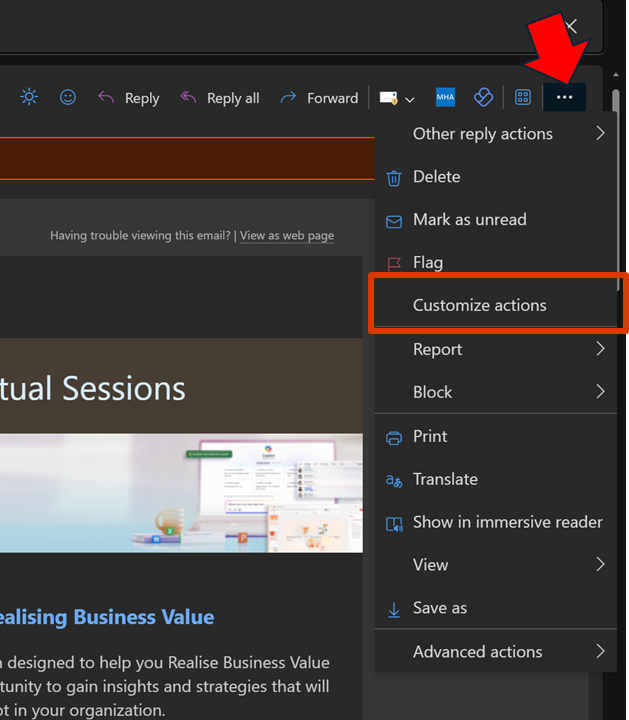
One key missing component for me was the integration with OneNote, as I like to send stuff from Outlook to OneNote. That feature is now there but simply isn’t enabled. To enable OneNote integration, open an email and select the ellipse (3 dots) as shown. From the menu that appears select Customize actions.

image

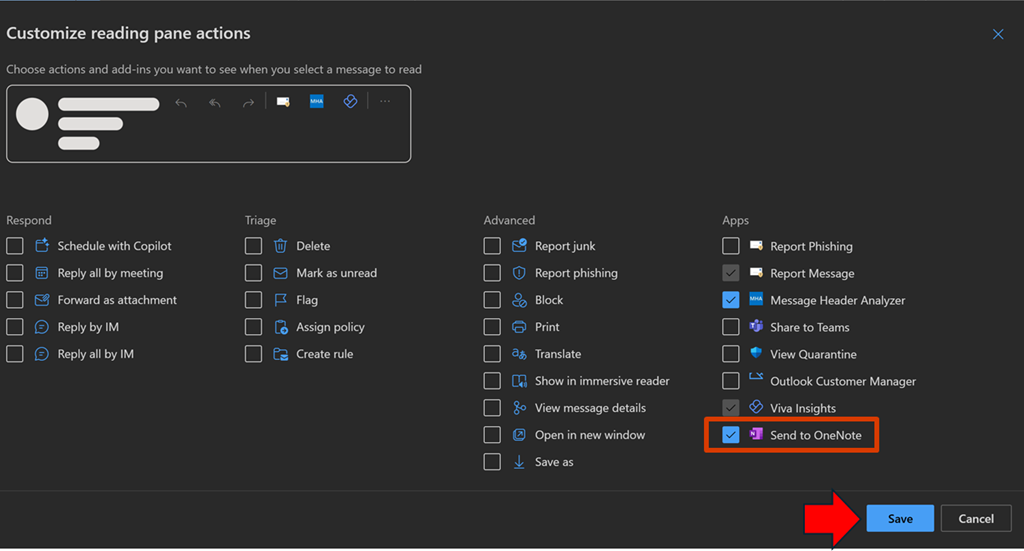
From the menu that select Send to OneNote, as shown above. Then select Save.

image

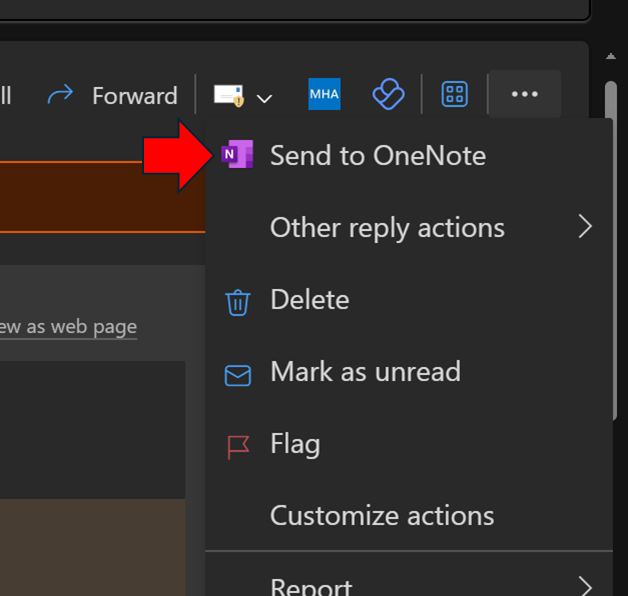
When you return to that menu for an email you should see the Send to OneNote as shown above.

image

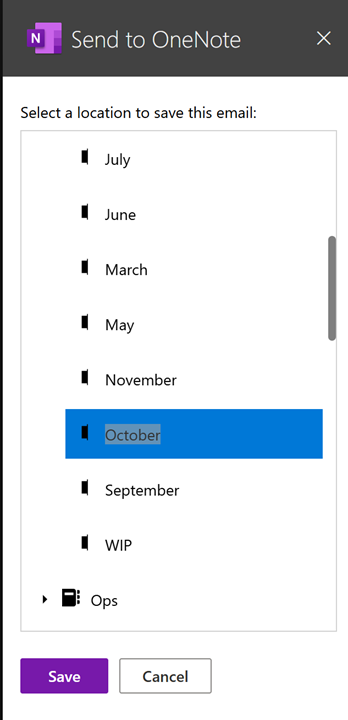
A dialog will appear on the right as shown above, allowing you to select where you wish the email saved.

Unfortunately, it only currently saves the content to a new page in the section in the notebook you nominate, not inside an existing page as used to happen in Outlook ‘classic’.

Hopefully, we’ll get the ability to send to an existing OneNote page as we used to be able to. At least I can send information to OneNote that I was unable to before I customized the actions as I have shown here.

Copilot for Microsoft 365 in ‘classic’ Outlook

image

To get Copilot for Microsoft 365 to work with desktop applications you need to follow this process:

Adding Copilot button to desktop applications

To get the most from Copilot for Microsoft 365 you need to use the ‘new’ Outlook. However, there is currently the ability to use some of the Copilot features in the ‘classic’ desktop version of Outlook.

image

When you open an email in the older desktop version of Outlook you will find a Summarize button in the upper right as shown above (provided you have a Copilot for Microsoft 365 license of course).

image

If you select that, Copilot will go away and munch on the information in the email for a moment.

image

Then, you’ll then get a nice summary at the top of the email as shown above.

As I understand it, more Copilot for Microsoft 365 will be coming to the ‘classic’ version of Outlook and I’ll let you know when they start appearing for me. However for now, if you do have Copilot for Microsoft 365 and prefer the older version of Outlook on the desktop put it work doing email summaries.

Enabling Play my emails on iOS

Play your emails on iOS has been with us for a while now. My experience is however that most documentation doesn’t tell you how to actually enable this if it is not already on.

To do so, ensure you have a Bluetooth connection to your iOS device. That could be a wireless headset or in your car.

image

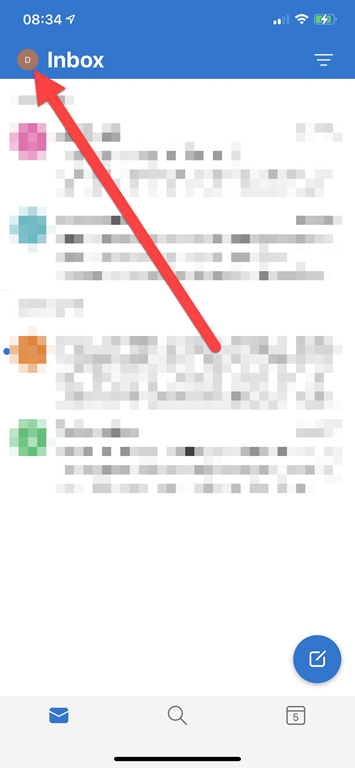
Click the icon in the very top right of you Outlook app once it is open as shown above.

image

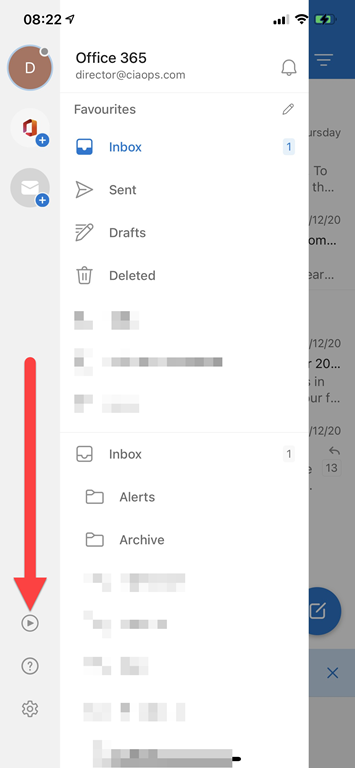
That should display the ‘back stage’ as shown above. Select the Play button on the left hand side towards the bottom as shown.

file

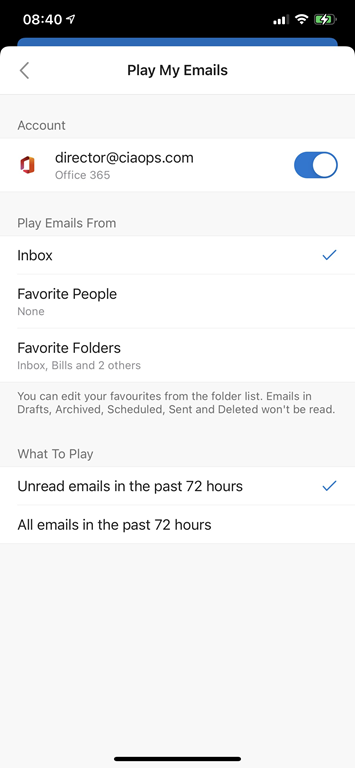
If the setting is Off then switch it On.

image

You can now make any adjustments to your configuration.

image

If you return to ‘back stage’ of the app and press the same Play button Cortana will appear and you’ll be able to have your emails read to you.

image

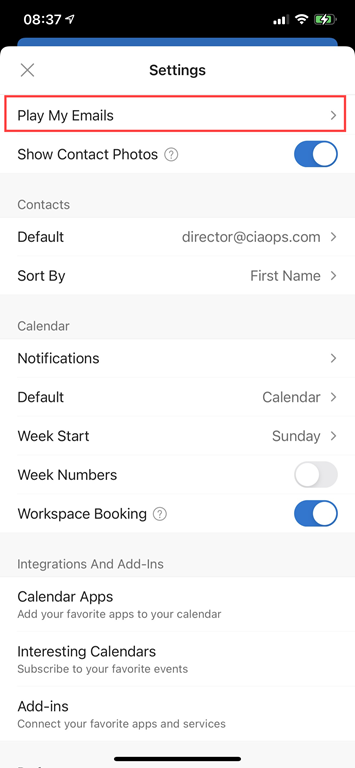
You can get back to the Play My Email configuration at anytime now via the app settings as shown above.

For more details on Play My Email in Outlook see:

Blocked files types in OWA

Outlook Web Access maintain a list of allowed and blocked file types. These are contained in a policy for each user. To determine what this policy is with PowerShell, the first thing you’ll need to do is connect to Exchange Online. I have made that easy for you by creating a script to connect using the new Exchange Online V2 PowerShell module. you will find that script here:

https://github.com/directorcia/Office365/blob/master/o365-connect-exov2.ps1

Once you have connected, run the following commands:

$casmailbox=Get-CASMailbox <user email address>
$owapolicyname = $casmailbox.OwaMailboxPolicy
$owapolicyname

This should display something like:

image

which gives us the policy name.

Next run the command:

$policy = Get-OwaMailboxPolicy $owapolicyname

to get the settings/values of that policy.

To view the allowed file list run the commands:

$allowedFileTypes = $policy.AllowedFileTypes

$allowedFileTypes

which should show something like:

image

To view the blocked file list run the commands:

$blockedfiletypes = $policy.BlockedFileTypes
$blockedfiletypes

image

The next question is, can you adjust these lists? Yes you can. You basically do that by adjusting the list of extensions variable (here $blockedfiletypes) via something like:

$blockedFileTypes.Remove(“.XXX”)

and reapplying that to the policy like:

Set-OwaMailboxPolicy $policy -BlockedFileTypes $blockedFileTypes

and if you want to extend the list just use add instead of remove in the above command prior to applying it to the policy.

Microsoft is making additions to the BlockedFileTypes list from April 2020:

What file extensions will be added to the BlockedFileTypes list with this change?
The following extensions are used by the Python scripting language:


“.py”, “.pyc”, “.pyo”, “.pyw”, “.pyz”, “.pyzw”


The following extensions are used by the PowerShell scripting language:


“.ps1”, “.ps1xml”, “.ps2”, “.ps2xml”, “.psc1”, “.psc2”, “.psd1”, “.psdm1”, “.cdxml”, “.pssc”


The following extension is used by Windows ClickOnce


“.appref-ms”


The following extension is used by Microsoft Data Access Components (MDAC)


“.udl”


The following extension is used by the Windows sandbox


“.wsb”


The following extensions are used for digital certificates:


“.cer”, “.crt”, “.der”


The following extensions are used by the Java programming language:


“.jar”, “.jnlp”


The following extensions are used by various applications. While the associated vulnerabilities have been patched (for years, in most cases), they are being blocked for the benefit of organizations that might still have older versions of the application software in use:


“.appcontent-ms”, “.settingcontent-ms”, “.cnt”, “.hpj”, “.website”, “.webpnp”, “.mcf”, “.printerexport”, “.pl”, “.theme”, “.vbp”, “.xbap”, “.xll”, “.xnk”, “.msu”, “.diagcab”, “.grp”

The list in my test tenant right now is:

Blocked File Types:

.settingcontent-ms
.printerexport
.appcontent-ms
.appref-ms
.vsmacros
.website
.msh2xml
.msh1xml
.diagcab
.webpnp
.ps2xml
.ps1xml
.mshxml
.gadget
.theme
.psdm1
.mhtml
.cdxml
.xbap
.vhdx
.pyzw
.pssc
.psd1
.psc2
.psc1
.msh2
.msh1
.jnlp
.aspx
.xnk
.xml
.xll
.wsh
.wsf
.wsc
.wsb
.vsw
.vst
.vss
.vhd
.vbs
.vbp
.vbe
.url
.udl
.tmp
.shs
.shb
.sct
.scr
.scf
.reg
.pyz
.pyw
.pyo
.pyc
.pst
.ps2
.ps1
.prg
.prf
.plg
.pif
.pcd
.ops
.msu
.mst
.msp
.msi
.msh
.msc
.mht
.mdz
.mdw
.mdt
.mde
.mdb
.mda
.mcf
.maw
.mav
.mau
.mat
.mas
.mar
.maq
.mam
.mag
.maf
.mad
.lnk
.ksh
.jse
.jar
.its
.isp
.ins
.inf
.htc
.hta
.hpj
.hlp
.grp
.fxp
.exe
.der
.csh
.crt
.cpl
.com
.cnt
.cmd
.chm
.cer
.bat
.bas
.asx
.asp
.app
.adp
.ade
.ws
.vb
.py
.pl
.js


and Allowed File Types is:

.rpmsg
.xlsx
.xlsm
.xlsb
.tiff
.pptx
.pptm
.ppsx
.ppsm
.docx
.docm
.zip
.xls
.wmv
.wma
.wav
.vsd
.txt
.tif
.rtf
.pub
.ppt
.png
.pdf
.one
.mp3
.jpg
.gif
.doc
.bmp
.avi


Your mileage may vary.