Step-by-Step Program to Achieve Priority #4 with Microsoft 365 Business Premium

This is part of a series on MSP priorities for 2026.

Enhancing Customer Experience & Strategic Value: MSP Roadmap for 2026 (SMB Focus)

Managed Service Providers (MSPs) serving small and medium businesses in 2026 must go beyond break-fix IT support to deliver exceptional customer experiences and strategic business value. This roadmap outlines a step-by-step program leveraging Microsoft 365 Business Premium to transform an MSP’s service delivery – improving client satisfaction, building deeper partnerships, and driving measurable outcomes. The plan is organized into clear phases with targeted Microsoft 365 tools, assigned MSP roles, and key KPIs to track success. Key objectives include faster, more proactive support, alignment with clients’ business goals, empowered end-users through modern workplace solutions, and robust security/compliance as a trust builder. The result is an MSP that is seen not just as an IT fixer, but as a strategic partner delivering tangible business outcomes to SMB clients. [corkinc.com], [blog.ciaops.com] [corkinc.com], [corkinc.com]
Implementation Roadmap Overview

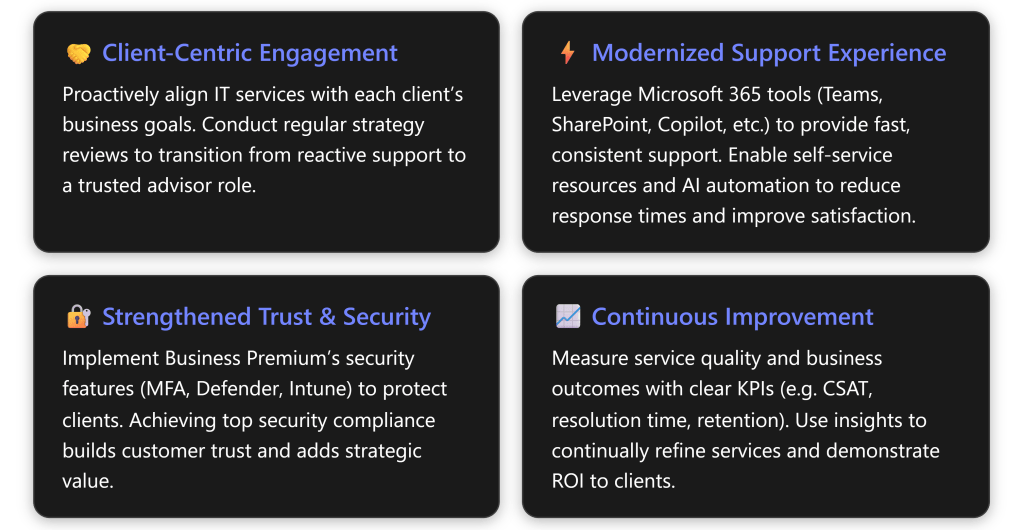
The program is structured into four major phases, executed over roughly 6–9 months (followed by ongoing improvement). Each phase includes specific initiatives, responsible team roles, supporting Microsoft 365 Business Premium capabilities, and targeted outcomes. Table 1 below summarizes the phases with key activities, tools, role assignments, and success metrics:

Table 1: Phased Program Plan – Activities, Tools, Roles, and KPIs

Phase & TimelineKey Activities & DeliverablesM365 Tools/FeaturesResponsible MSP RolesKey Metrics (KPIs)
Phase 1: Discovery & Planning
Month 1
– Client Vision & Needs Assessment: Gather client business goals, pain points, and current satisfaction levels.
– CX Strategy Workshop: Define how IT can enhance client’s customer experience and map out value-add opportunities.
– Roadmap & KPI Setting: Develop a tailored improvement plan with agreed success metrics and timeline.
Teams – for kickoff meetings & stakeholder interviews.
Forms – to survey end-user satisfaction or needs.
SharePoint – to document client requirements and share proposal.
Account Manager / vCIO – leads strategy discussions with client.
Solutions Architect – analyzes client IT environment & maps M365 solutions.
Project Manager – drafts roadmap, ensures stakeholder buy-in.
– Baseline CSAT (customer satisfaction) captured via survey Roadmap sign-off by client stakeholders.
– Defined KPIs (e.g. target first-response time, CSAT %, etc.) established for program.
Phase 2: Solution Implementation
Months 2–4
– Modernize Support Channels: Set up integrated support via Microsoft Teams (e.g. dedicated Teams channel or chat for client, Teams Phone/Voice for helpdesk) to provide quick, multi-channel help.
– Self-Service & Knowledge Base: Create a client-facing SharePoint site or portal with FAQs, how-to guides, and possibly a Power Virtual Agent chatbot for common issues, enabling 24/7 answers
Process Automation: Streamline routine tasks (password resets, onboarding) using Power Automate flows or Azure AD self-service features, freeing up engineers for higher-value work– Security & Reliability Enhancements: Deploy Intune for device management and Microsoft Defender for Business for threat protection across endpoints and email. Enforce Conditional Access + MFA for all users to significantly reduce breach risk. (Leverage M365 Lighthouse to apply and monitor these across clients.)
– Collaboration Upgrade: Improve client’s internal collaboration using Teams & OneDrive (if not fully adopted) – e.g. set up Teams channels for projects, train on OneDrive file sharing – to boost their workforce productivity (an indirect CX benefit).
Teams – channels & chat for support; Teams Phone for call routing.
SharePoint Online – client knowledge base portal (with search).
Power Automate – automate repetitive support tasks/workflows.
Power Virtual Agents (for Teams) – optional bot for common Q\&A.
Intune (Endpoint Manager) – enforce device security policies (app updates, AV, etc.).
Defender for Office 365 & Endpoint – threat protection (phishing, malware).
Azure AD P1 – Conditional Access, MFA, SSO for user convenience.
Microsoft 365 Lighthouse – multi-tenant monitoring of compliance/security.
Service Delivery Manager – oversees support improvements (Teams helpdesk setup, KB content).
Cloud Engineer – implements Intune policies, Defender configuration, automation workflows.
Security Specialist – leads security configuration (MFA, CA policies) and compliance checks.
Collaboration Specialist – optimizes Teams/SharePoint usage for client’s staff (may coordinate with client’s IT champion).
– Average First Response Time (to support queries) ↓ – e.g. respond within X hours (measured via Teams or ticket system).
– Ticket Volume ↓ via self-service – track reduction in repetitive tickets (password resets, FAQs) as users self-help
– First Contact Resolution (FCR) ↑ – more issues resolved on first touch (target >Y% FCR)Security Posture Score ↑ – e.g. Microsoft Secure Score improvement (demonstrating risk reduction).
– Zero critical incidents during period (goal of no major downtime/security breaches, indicating reliability).
Phase 3: Training & User Engagement
Month 5
– End-User Training Sessions: Conduct interactive training for client employees on new tools and portals (Teams usage, accessing the SharePoint help portal, any new self-service processes). Use Teams webinars or in-person workshops to ensure high adoption.
– Enable Champions: Identify a client-side “IT champion” or power users and equip them to advocate best practices among peers.
– Feedback Loop: Gather user feedback on the changes (via Forms surveys or during training Q\&A) to identify any friction points or additional needs.
– Refinement: Fine-tune the solutions/configuration based on real-world use and feedback (e.g. adjust a Power Automate workflow, add content to FAQs).
Teams – live training meetings or webinars (recorded for future reference).
Microsoft 365 Learning Pathways/Viva – provide on-demand training content (if available).
Forms – collect attendee feedback and quiz for understanding.
SharePoint – host user guides, tip sheets in portal.
Yammer/Viva Engage (if in use) – establish community for peer support.
Training Specialist – leads user training sessions, creates help materials.
Account Manager – communicates changes, manages expectations with client leadership throughout rollout.
Support Engineers – on standby to assist users during initial go-live of new tools (floor-walking or rapid response).
– User Adoption Rate – e.g. % of users actively using Teams/OneDrive/portal (monitored via M365 usage analytics) ↑.
– User Feedback – post-training survey shows confidence in using new tools (e.g. >90% feel “well prepared”).
– Support Satisfaction – measure via quick post-ticket surveys; should show improvement as users find new system helpful.
– Change Adoption Time – all users onboarded to new processes within X weeks (indicating successful change management).
Phase 4: Ongoing Improvement & Strategic Review
Month 6 onward (continuous)
– Performance Monitoring: Continuously monitor service performance and security. Use Microsoft 365 Admin Center and Lighthouse for alerts (e.g. new threats, device compliance) and track support metrics (ticket trends) over time. Ensure the improvements are sustained (e.g. no MFA lapses, knowledge base kept current).
– Quarterly Business Reviews (QBRs): Every 3 months, hold a strategic meeting with the client (virtual or on-site via Teams) to review key metrics and business outcomes. Present how IT initiatives are impacting their business (e.g. productivity gains, zero major incidents, higher employee satisfaction) [corkinc.com]. Discuss new business needs or technology updates.
– Introduce Innovation: Evaluate and propose new Microsoft 365 features or integrations that could further benefit the client’s business. For example, as AI capabilities mature, consider deploying Microsoft 365 Copilot or building a custom Copilot (via Copilot Studio) to automate customer service or data analysis tasks for the client.
Also explore Power BI reports for the client’s data to uncover insights they value.
– Recognize & Adjust: Track outcomes against the defined KPIs. If targets aren’t met (e.g., CSAT below goal), analyze root causes and implement adjustments (additional training, process tweaks, etc.). Likewise, celebrate and reinforce successes (e.g., highlight that security compliance improvements have set the client apart in their industry, bolstering their trust with their own customers
Executive Communication: Maintain ongoing executive-level engagement – share newsletters or dashboards summarizing IT value delivered (uptime, new capabilities enabled, risk mitigated) in business terms, reinforcing the MSP’s strategic role. [corkinc.com], [corkinc.com]Microsoft 365 Lighthouse – unified view of client tenants (monitor compliance, threat alerts).
Azure AD & Endpoint Manager Admin – routine checks on sign-in security, device health.
Teams – QBR meetings and ad-hoc strategy calls.
Power BI – (optional) dashboards for service metrics or client business KPIs.
Microsoft 365 Copilot – (optional) assist in drafting reports and mining insights for QBRs; potential client-facing use cases (with appropriate licensing).
SharePoint – internal wiki for MSP to document lessons learned across clients; external newsletters via SharePoint News posts emailed out.
Account Manager / vCIO – leads QBRs, maintains strategic relationship, translates IT results to business value [corkinc.com].
Service Delivery Manager – monitors ongoing operations and SLA compliance; continuous improvement owner.
Security/Compliance Lead – continuously audits security posture, keeps client compliant (e.g. industry standards, ACSC Essential Eight if relevant).
Innovation Lead (optional) – explores new M365 features (AI, analytics) and pilots them for client benefit.
– Customer Satisfaction (CSAT) Score ↑ – aim for high post-engagement ratings (e.g. ≥ 90% satisfaction on QBR feedback surveys).
– Net Promoter Score (NPS) ↑ – improved likelihood of client recommending the MSP (indicates strong trust/relationship).
– Client Retention – 100% renewal of contracts and upsell of new services (zero churn).
– Business Impact Metrics – client-specific outcomes achieved (e.g. reduced their internal support costs by X%, improved their end-customer ratings, etc., as gathered during QBR).
– Compliance/Posture – maintain high security score and no major incidents (demonstrating risk managed effectively).

Phase 1: Discovery & Planning. In the first month, the MSP engages with client leadership to define a joint vision for how technology will enhance the client’s customer experience. This involves interviews and workshops to understand the client’s business objectives, current pain points, and what “great service” means to them. For example, if the client is an e-commerce firm struggling with downtime affecting their end-customers, the plan will prioritize reliability and fast support. Using Microsoft Teams meetings and perhaps Forms surveys, the MSP gathers both qualitative and quantitative baseline data (e.g. current CSAT scores, ticket volumes). The MSP’s virtual CIO (vCIO) or account manager leads a strategy workshop to map out how Microsoft 365 solutions can address these needs – aligning IT initiatives with business outcomes (e.g. faster issue resolution leading to the client’s increased sales or customer loyalty). By the end of Phase 1, there is a documented roadmap on a SharePoint site (accessible to client stakeholders) that outlines the upcoming implementation steps, timeline, and agreed success metrics. For instance, the client and MSP might set a goal to raise end-user satisfaction by 15% and cut average ticket resolution time by 30% over the next 6 months (these targets will later be measured and reported). Establishing these goals upfront creates accountability and clarity. [corkinc.com]

Phase 2: Solution Implementation. In this phase (spanning roughly months 2–4), the MSP executes on the roadmap by deploying Microsoft 365 Business Premium solutions that directly enhance the customer experience and add strategic value for the client:

  • Improve Responsiveness & Multi-Channel Support: The MSP configures modern support channels using Teams. For example, they might set up a Team with the client for real-time communication – enabling the client’s staff to @mention the MSP support team for quick questions or schedule ad-hoc support calls. If the client’s arrangement allows, the MSP may also integrate their ticketing system with Teams or use Teams Phone so that when the client calls for help, it rings into an organized call queue. The goal is to meet clients on the channels they prefer and respond faster. Outcome: Clients get help through chat or video within minutes rather than waiting hours for email responses, improving satisfaction (faster responses are strongly correlated with higher CSAT).
  • Enable Self-Service & Knowledge Access: Anticipating common questions and issues, the MSP creates a SharePoint Online knowledge base or client portal. This site contains how-to articles, troubleshooting guides, and even short how-to videos (stored in SharePoint/Stream). It might also include a Power Virtual Agent bot (using the included Power Platform capabilities) embedded on the site or in Teams, which can answer routine questions 24/7 (“How do I reset my email password?” etc.). By leveraging these Microsoft 365 tools, the MSP empowers client users to find answers instantly, reducing the number of trivial tickets and freeing up support staff for more complex issues. This not only speeds up resolutions but also gives users a sense of control, improving their experience.
  • Automate Routine Tasks: Using Power Automate, the MSP automates repetitive processes that previously required human intervention. For example, implement an automated user onboarding workflow: when the client hires a new employee, a Power Automate flow can automatically create the user account in Azure AD, assign licenses, email setup instructions, and schedule a Teams orientation call. Similarly, a self-service password reset (a feature of Azure AD) is enabled so users can resolve login issues without opening a ticket. These automations reduce manual effort and errors, allowing the MSP’s engineers to focus on strategic improvements instead of mundane tasks. Outcome: The MSP can handle client needs more efficiently – routine tasks that took hours or days now happen in seconds, and staff can devote more time to proactive projects (as Microsoft’s research notes, automation frees employees for high-value work).
  • Strengthen Security and Trust: Since a reliable, secure IT environment underpins any good customer experience, the MSP uses Business Premium’s security suite to harden the client’s infrastructure. This includes deploying Microsoft Defender for Endpoint & Office 365 to all client devices and mailboxes for advanced threat protection (guarding against malware, phishing, etc.), and enforcing Multi-Factor Authentication and conditional access policies via Azure AD to prevent unauthorized access. Device management with Intune ensures all client PCs and mobile devices have consistent security configurations, up-to-date patches, and compliance policies (like requiring encryption). These steps dramatically lower the risk of incidents like breaches or malware outbreaks, which can be devastating to the client’s operations and reputation. Achieving a high level of security compliance is framed as a strategic business value: the MSP explains that meeting top standards (for example, aligning with frameworks like ACSC Essential Eight Maturity Level 3) will differentiate the client in their market and foster trust with their customers and partners. In other words, the MSP turns cybersecurity into a customer experience issue — by preventing disruptions and building a trustworthy brand, the client improves the experience of its own customers. Outcome: measurable improvements in security posture (e.g., Microsoft Secure Score) and no major security incidents. Additionally, the client gains confidence that the MSP is safeguarding their business, reinforcing the partnership.
  • Enhance Productivity & Collaboration: Although not strictly “support,” improving the client’s internal collaboration tools can indirectly elevate their overall experience and the value they get from IT. The MSP ensures the client is taking full advantage of the productivity features of Microsoft 365: for instance, rolling out Teams company-wide if not already done, helping migrate files to OneDrive/SharePoint for easy sharing, and setting up Shared Teams or Channels between MSP and client for joint projects. By introducing features like Teams integration with third-party apps or simple Power Apps to streamline specific client workflows, the MSP helps the client’s employees work more efficiently. This kind of guidance shows the MSP is invested in the client’s success, not just basic IT upkeep. Outcome: The client sees increases in their own team’s productivity (which can be gauged via tool usage metrics or feedback) and attributes some of that success to the MSP’s recommendations – deepening the MSP’s strategic value. [corkinc.com]

By the end of Phase 2, the core enhancements are in place. The MSP should communicate the early wins to the client: e.g., “Since we launched your new support portal, we’ve deflected 20% of tickets through self-service, and urgent issues are now addressed within 1 hour on average, down from 4 hours. Security score has improved by 30 points, reducing your cyber risk.” This sets the stage for training and full rollout.

Phase 3: Training & User Engagement. Even the best tools won’t deliver value if people don’t use them correctly. In month 5 (or once Phase 2 solutions are ready), the MSP invests time in educating the client’s users and driving adoption:

  • The MSP’s training lead schedules live training sessions via Microsoft Teams webinars for different user groups. For example, a session for general employees on using the new IT self-service portal and Teams support channel; a session for managers on accessing new Power BI reports or compliance dashboards if those were provided; and perhaps a focused session for the client’s IT contact on the security improvements (so they understand the changes). These sessions are recorded and shared on SharePoint for any staff who could not attend live.
  • The MSP provides quick-reference guides and FAQs (stored on SharePoint or delivered through OneNote) to reinforce learning. These might include a one-page infographic on “How to get IT help faster using Teams,” or a short video demonstrating the new password reset process. By integrating with familiar Microsoft 365 apps (e.g., a Viva Connections or intranet link to the support portal), the MSP makes it easy for users to remember how to engage.
  • To ensure sustained adoption, the MSP encourages the client to nominate a few “digital champions.” These are tech-savvy employees at the client who will act as first-line support for their peers and promote the new tools internally. The MSP can host a separate, slightly more advanced training for these champions, equipping them to handle basic questions and gather feedback. This creates a partner on the inside and fosters user buy-in.
  • Feedback is actively solicited. The MSP might use a Microsoft Forms survey after each training or at the end of the pilot period asking users how the new support experience is working for them. Questions could include rating the responsiveness via Teams, the usefulness of the self-service portal, etc., and open prompts for suggestions. This not only identifies areas to tweak but also makes users feel heard – an important aspect of a positive experience.

By the end of Phase 3, the client’s team is onboarded and comfortable with the new system. We expect to see high engagement – e.g., many knowledge base views, active Teams chats – and a reduction in confusion about IT processes. Ideally, support satisfaction scores (perhaps measured by a simple “How was your support experience?” survey after tickets) are already trending up. Any critical feedback (e.g., “the portal search isn’t finding what I need”) is fed into minor adjustments in this phase. The MSP demonstrates flexibility by refining the solution to fit the users’ reality.

Phase 4: Ongoing Improvement & Strategic Review. With the new processes in full swing by month 6, the MSP transitions into a continuous improvement mode. This phase is indefinite/ongoing and is about maintaining momentum and proving value:

  • The MSP sets up regular monitoring using the admin tools in Microsoft 365. For instance, the Service Delivery Manager receives alerts from M365 Lighthouse or Intune if any device falls out of compliance or if there’s an unusual sign-in attempt on the client’s tenant, allowing the MSP to respond proactively (often before the client even notices an issue). They also watch helpdesk metrics: if ticket volume starts creeping up or satisfaction dips, that’s a signal to investigate and intervene early. This data-driven approach ensures the quality of service remains high over time, not just immediately after the project.
  • Critically, the MSP conducts Quarterly Business Review (QBR) meetings with the client’s executives. In these meetings (held via a Teams video conference or in person), the MSP comes prepared with reports illustrating the impact of the last quarter’s IT operations in business terms. For example, a QBR report might show: Average ticket resolution time dropped to 2 hours (meeting our target), and as a result the client’s employee satisfaction with IT rose to 95% as per the survey – which helps their overall productivity. It might also highlight: Zero security incidents occurred, and the client passed a compliance audit smoothly, which protects their reputation. The MSP might use Power BI to present trends (like a chart of monthly support satisfaction or security posture improvements). By speaking the language of outcomes and risks (not just tech metrics), the MSP solidifies their role as a strategic partner. These reviews are also a forum to plan ahead: discuss upcoming client initiatives (office expansion, new software, etc.) and how the MSP can support them, essentially doing ongoing IT roadmap planning that aligns with the client’s business roadmap. [corkinc.com]
  • The MSP keeps an innovation pipeline for each client. They stay abreast of new Microsoft 365 features (for example, new AI capabilities like Microsoft 365 Copilot and the Copilot Studio toolkit for custom AI assistants). Where relevant, the MSP pilot-tests these and introduces them to the client as additional enhancements. For instance, if the client’s customer service could benefit from AI, the MSP might propose building a custom Copilot chatbot integrated with the client’s data to handle tier-1 customer inquiries, leveraging the Copilot Studio platform. This would directly contribute to the client’s customer experience – an example of the MSP delivering strategic value beyond the initial scope. Even simpler, the MSP might implement small improvements continually: maybe a new Teams app for scheduling site visits, or a Power Automate update to integrate the client’s CRM with Teams notifications. By always seeking ways to improve, the MSP demonstrates commitment to the client’s evolving needs.
  • KPIs are tracked and reported as part of continuous improvement. The MSP uses the agreed metrics (set in Phase 1) to measure success. For example, if one KPI was Net Promoter Score (NPS) of the client for the MSP’s service, the MSP will measure NPS annually and aim for increases. Internally, the MSP also watches retention and growth: a satisfied client is likely to renew and possibly expand services, so a 100% retention rate and new project engagements are signs of success. Security metrics (secure score, incident counts) and compliance status are checked regularly, and the MSP provides the client with compliance reports (e.g., leveraging Microsoft Purview tools if available for audit readiness). If any metric falls short, the MSP treats it as an actionable item – for instance, if surveys show only 80% satisfaction and the target was 90%, the MSP will dig in to find out if perhaps response time is still an issue for certain ticket types and address that specifically.

Throughout this phase, communication is key. The MSP doesn’t wait for QBRs only; they maintain frequent, transparent communication, positioning themselves as an ongoing advisor. For example, monthly email updates might highlight “new features” or share a cybersecurity tip, subtly reinforcing the MSP’s value. As one industry leader put it, clients today demand certainty and partnership – “clients do not just need tools, they need certainty” in outcomes. The MSP’s continuous oversight and engagement provide that certainty. Over time, this cements loyalty: the client views the MSP as an integral part of their success, not an interchangeable supplier. This directly addresses the blog’s emphasis that MSPs must elevate their role and meet rising expectations in 2026. [corkinc.com]


Measuring Success and Outcomes

By implementing this program, MSPs can expect significant improvements in both service quality and client relationship health. Here are the core outcomes and how they are measured:

  • Higher Customer Satisfaction & Loyalty: The ultimate goal is improved CSAT and NPS from the client’s leadership and end-users. For example, post-implementation survey scores should show noticeable gains. High satisfaction is a leading indicator of client retention and referrals – key for an MSP’s growth. Evidence: Faster response and resolution directly drive up satisfaction, and clients who see their MSP proactively improving their business are far more likely to stay on and even expand the partnership.
  • Faster, More Efficient Support Operations: Metrics like first response time and average resolution time should improve substantially. If, for instance, first response went from 4 hours to 1 hour by using Teams and a knowledge bot, that’s a quantifiable win. First Contact Resolution rates should also rise due to better knowledge availability and skilled front-line handling, leading to fewer escalations. Evidence: A well-integrated knowledge base and AI assistance can reduce time spent searching for answers, leading to quicker resolutions and consistent responses.
  • Reduced Ticket Volume for Common Issues: With self-service in place, the MSP’s helpdesk will notice fewer repetitive questions (password resets, “how do I” queries). Those that do come will often be resolved by referring to the new portal, taking less effort. This efficiency gain can be tracked by categorizing tickets and seeing the drop in Tier-1 queries. The MSP can reallocate this saved time to value-added activities (e.g., more client consulting).
  • Improved Security and Compliance Posture: Thanks to Business Premium’s security features, the client’s risk of incidents is minimized. A tangible metric is the Secure Score within Microsoft 365 (aim for a high score, e.g. >90%). Another is compliance audits passed or certifications achieved. The absence of any major security breach over the year is itself a critical outcome – a negative result that speaks volumes. The client and MSP can publicize that robust security (like Essential Eight Maturity Level 3 compliance) as a competitive advantage, reinforcing the strategic value delivered.
  • Strategic Partnership & Business Outcomes: On a qualitative level, the client’s perception of the MSP should shift from “vendor” to “trusted advisor.” Are the MSP’s recommendations now part of the client’s business planning? Is the client asking the MSP for input on new initiatives (a clear sign of trust)? These are observable outcomes. Quantitatively, client retention rate and revenue per client are KPIs for the MSP’s business – satisfied clients stay and often grow the engagement (e.g., adding more Microsoft licenses or new projects, which in turn is a win-win). The program’s success is ultimately reflected in renewals, contract expansions, and maybe client testimonials attesting to the MSP’s value.

By focusing on these metrics, MSPs ensure they continuously align with what the client values most (e.g. uptime, responsiveness, innovation). Each metric ties back to the theme of customer experience and strategic value: for instance, client retention is a direct result of delivering strong experience and strategic insight; first-call resolution is a technical metric but heavily influences the customer’s day-to-day happiness.


Conclusion

In summary, MSPs can enhance customer experience and strategic value by systematically leveraging Microsoft 365 Business Premium across people, process, and technology dimensions. Starting with a deep understanding of client needs and ending with ongoing innovation, this program turns an MSP into a true partner in the client’s success. The use of Business Premium’s integrated suite – from Teams to Intune to the latest AI Copilot capabilities – enables proactive, personalized, and secure services at scale. Clients will notice the difference: quicker solutions, more engagement in planning, and technology that actually advances their business goals, not just maintains the status quo. [corkinc.com], [corkinc.com]

By following this roadmap, MSPs not only meet the “rising expectations” of 2026 but exceed them – delivering outcome-focused, relationship-driven service. This positions the MSP competitively in a changing market where, as experts note, “clients no longer want task-based IT support…they want outcomes”. Embracing that mindset, underpinned by Microsoft 365 tools, will translate into happier clients, stronger long-term partnerships, and growth opportunities for the MSP. [blog.ciaops.com] [corkinc.com]

Step-by-Step Program to Achieve Priority #3 with Microsoft 365 Business Premium

This is part of a series on MSP priorities for 2026.

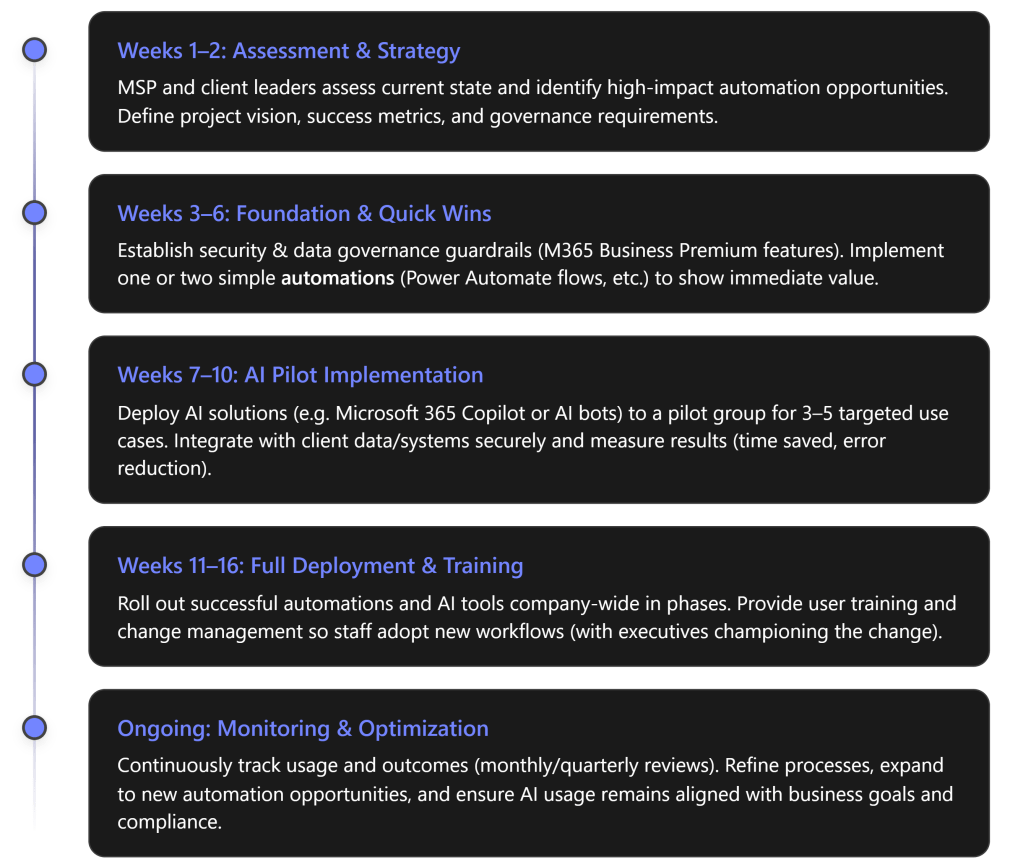
AI-Driven Automation Program for MSPs (SMB Clients)

Objective: Enable SMB clients to embrace AI-driven solutions and automation using Microsoft 365 Business Premium, through a phased program with clear steps, timelines, roles, and measurable outcomes. The program focuses on quick wins in efficiency and security, structured adoption of AI (e.g. Microsoft 365 Copilot, Power Automate), and ongoing optimization – all delivered in an executive-friendly, outcome-focused manner.

Phase 1: Assessment & Strategy (Weeks 1–2)

Key Actions: Kick off the program with a joint MSP–client assessment of the client’s current processes, pain points, and readiness for AI. The MSP conducts an AI readiness audit covering technology and workflow gaps, while client stakeholders (business managers and IT leads) catalog repetitive, labor-intensive processes and key data sources. Together, define 3–5 high-impact use cases where AI or automation can add value – focusing on tasks with heavy manual effort, clear rules, and measurable outcomes (e.g. time saved, fewer errors). For example, candidates might include automating invoice approvals, using an AI assistant for helpdesk ticket triage, or auto-generating routine reports. Additionally, establish success criteria for each use case (such as “reduce invoice processing time by 50%” or “save 10 hours/month on helpdesk responses”). Finally, align on scope, timeline, and sponsorship: ensure an executive sponsor is in place to communicate vision and support change management. The output of this phase is a clear automation roadmap (target use cases, required Microsoft 365 tools, and KPIs) and a shared understanding of responsibilities. [eatonassoc.com]

Roles: The MSP leads the assessment by bringing templates and expertise (e.g. conducting workshops to surface improvement areas). The client’s executives and process owners provide business context: for instance, “Office managers list the top 10 repetitive processes… IT leaders map where data resides”. This collaboration ensures the strategy focuses on relevant business priorities. The MSP also identifies which Microsoft 365 Business Premium capabilities will be leveraged for each opportunity – for example, Power Automate for workflow automation, Teams + Power Virtual Agents or Copilot for AI-driven assistance, and Azure AD/Intune for identity or device needs. Both parties agree on a high-level plan before moving forward. [eatonassoc.com]

Phase 2: Foundation & Quick Wins (Weeks 3–6)

Key Actions: Before rolling out advanced AI, the environment must be “AI-ready.” In this phase, the MSP establishes a strong foundation on the client’s Microsoft 365 Business Premium tenant. This includes implementing critical security and compliance controls and any pre-requisites for safe AI usage. For example, enforce Azure AD Conditional Access and MFA for all users if not already in place, and enable data protection policies (sensitivity labels, DLP for sensitive info) – essentially “minimum governance guardrails” to ensure AI is deployed on a secure identity and data foundation. Business Premium’s built-in tools (like Defender for Business, Intune, Conditional Access) are utilized here to harden security and manage devices, since successful AI adoption requires trust that corporate data is handled safely. The MSP also sets up an early win by deploying one or two simple automations immediately. For example, using Power Automate to streamline a common task: perhaps an approval workflow or an email alert integration that addresses a known pain point. These quick wins demonstrate tangible improvement within weeks. As one guide notes, introducing basic automations for common repetitive tasks can “deliver a quick efficiency win” and open clients’ eyes to the power of their M365 tools.

In parallel, the MSP finalizes any needed licensing or tool enablement for AI. Notably, Microsoft has introduced “Microsoft 365 Copilot Business” SKUs for SMBs (including one for Business Premium) that add AI capabilities. If the client opts for Copilot, the MSP ensures those licenses are in place and initial Copilot configurations (permissions, content accessibility) are set according to best practices. By the end of Phase 2, the client’s tenant should have a solid security posture and one or two automated workflows live – boosting confidence and setting the stage for broader AI rollout. [connectwise.com]

Roles: The MSP takes charge of technical execution in this phase. They configure M365 Business Premium features for security (e.g. enabling MFA, Intune policies, Defender) and build the initial Power Automate flows or other scripts. The MSP also advises on governance policies – for instance, deciding which data sources Copilot can access or which users should get early AI access. The client’s IT stakeholders assist by providing necessary approvals or information (e.g. which compliance policies apply, who should be in pilot groups). Client leadership should communicate to employees about upcoming improvements (“We are implementing new tools to eliminate manual drudgery and improve security”), helping set expectations and a positive tone. Early user involvement might be limited, but any quick-win automation that goes live should be explained to affected staff so they understand the new, easier process. [connectwise.com], [eatonassoc.com]

Measurable Outcomes (Phase 2): Quick security improvements and initial efficiency gains can be tracked. For example, after enforcing MFA and security baselines, the client’s Microsoft Secure Score should jump upward (a quantifiable security metric). A quick-win automation might be measured by the reduction in time to complete that process. Although Phase 2 is largely foundational, it should already yield visible results – e.g. “automated alerting for form submissions eliminated an hour of manual email sorting per week” – to build momentum.

Phase 3: AI Pilot Implementation (Weeks 7–10)

Key Actions: With the groundwork laid, the program moves to an AI pilot phase. The MSP now implements the core AI-driven solutions for the prioritized use cases, initially on a small scale. This typically involves:

  • Deploying AI Tools to a Pilot Group: For instance, enabling Microsoft 365 Copilot for a set of pilot users (such as a few people in sales, finance, or HR who will exercise it in their daily work), or developing a prototype AI chatbot in Teams for the helpdesk, or using Power Automate with GPT-based actions. The pilot group should be representative and enthusiastic, and they should have clear objectives for what to try (e.g. sales team uses Copilot to draft proposals and get data insights; helpdesk uses an AI assistant to classify and respond to common tickets).
  • Integrating and Configuring AI Workflows: Ensure the AI solutions are properly integrated with the client’s data and workflows. For example, if rolling out Copilot, the MSP checks that it’s grounded in the client’s SharePoint/OneDrive content in a governed way (respecting permissions set in Phase 2). If building a custom automation, connect it to relevant data sources (e.g. linking Outlook, Teams, or a third-party system via connectors). Business Premium provides a robust base here – identity and device management from Phase 2 help ensure only authorized, compliant data feeds into AI, addressing a key concern that AI adoption “must be built on the right identity controls, data permissions, and governance”. The MSP might use tools like the new Copilot Studio or Power Platform capabilities to create tailored AI agents or flows, and leverage their expertise to handle any API or integration work needed. [connectwise.com] [eatonassoc.com]
  • Executing the Pilot and Collecting Feedback: The pilot users start using the AI-driven solutions in real scenarios, while the MSP closely monitors usage and outcomes. It’s critical to measure baseline vs. post-pilot metrics to validate the impact. For each use case, track things like: time to complete a task (before vs. after automation), number of manual steps or touchpoints eliminated, and quality indicators (e.g. error rates or response accuracy). Also gather subjective feedback: are users finding the AI helpful? Any confusion or adjustments needed? The program should allow for quick iteration – if the AI workflow isn’t yielding the expected result, tweak the prompts or logic. For example, if an AI helpdesk agent is piloted, measure if first-response resolution rates improve or if it correctly routes issues, and refine it if it’s missing certain categories. [eatonassoc.com]

During this phase, success means proving out value on a small scale. A well-run pilot will show, for instance, that generating a monthly report with Copilot takes 5 minutes instead of 2 hours, or that an automated approval cuts a three-day waiting process down to same-day. These results should be documented as they will justify expansion. Notably, MSPs are encouraged to “make Copilot outcomes measurable” – define concrete metrics and track them – so that the AI rollout is tied to business value from the start. [connectwise.com]

Roles: In the pilot, MSP experts build and oversee the AI solutions, while pilot users (client employees) actively participate and provide feedback. The MSP’s responsibilities include technical development (e.g. configuring Copilot, creating Power Automate flows with AI integrations) and ensuring the solution works within the client’s environment (taking care of any integration with line-of-business systems or adjusting security settings as needed). The MSP also acts as a coach: training the pilot users in how to use the new AI tools effectively (for example, showing them how to ask Copilot for certain analyses, or how to trigger and monitor the new automated workflow). The client stakeholders during this phase should include the business owners of each pilot use case – they will validate that the AI is producing acceptable outputs. For instance, the finance manager in the pilot can confirm that the AI-generated invoice summaries are accurate. These stakeholders help set the acceptance criteria for the pilot (“we need at least 90% accuracy on categorizing helpdesk tickets” or “proposal drafts should require minimal editing”). They work closely with the MSP to tweak rules or provide sample data to train/guide the AI if needed. Importantly, the client’s IT and compliance officers verify that all pilot activities stay within policy – e.g. that AI is not accessing restricted data or that any sensitive outputs are handled properly. This collaborative pilot execution ensures that by the end of Phase 3, there is solid evidence (in performance metrics and user satisfaction) that the AI-driven solutions deliver the promised outcomes.

Measurable Outcomes (Phase 3): Each pilot use case will have its own success measures, but collectively the pilot should demonstrate at least some of the following improvements: significantly reduced cycle times for the targeted processes, reduction in manual workload (e.g. “we eliminated 5 manual data entry steps in onboarding”), and improved responsiveness (e.g. “customer emails are now answered by the AI assistant within seconds, with an option for human follow-up”). Quantitatively, the team should capture things like “X hours of work saved per week” or “Y% increase in output per staff member” for pilot tasks. Early indications of user adoption are also key: if the majority of pilot users stick with the AI tool and find it beneficial, that’s a green light. (Many organizations see over 80% user adoption within 3 months when AI pilots are well-scoped and demonstrably improve daily work – the pilot phase aim is to hit such high adoption and enthusiasm in the test group.) [eatonassoc.com]

Phase 4: Full Deployment & Training (Weeks 11–16)

Key Actions: After a successful pilot, the program scales the AI-driven solutions to the broader organization. This phase is about deployment at scale, change management, and ensuring all users are enabled to use the new tools effectively. Key activities include:

  • Gradual Rollout: The MSP and client plan a phased rollout of the AI and automation solutions to additional departments or the entire company as appropriate. Rather than a big bang, it’s wise to sequence the deployment. For example, if an AI automation was piloted in Accounts Payable, extend it next to the Purchasing team, then to other finance functions. If Copilot was piloted with a handful of users, consider rolling it out to a larger group in waves (perhaps all managers first, then all knowledge workers). This staged approach allows any minor issues to be addressed and avoids overwhelming the support capacity. Microsoft 365 Business Premium with Copilot (if in use) will now be broadly enabled – this is where having Business Premium pays off, as it “already has identity, device management, and security controls in place, making secure AI adoption easier to operationalize”. In other words, scaling up Copilot or Power Automate usage is straightforward because the necessary licenses and security measures were handled in earlier phases. [eatonassoc.com] [connectwise.com]
  • Comprehensive User Training & Awareness: A critical focus in Phase 4 is getting users comfortable and proficient with the new AI-driven processes. The MSP (or a training specialist) delivers targeted training sessions for different user groups. For instance, host a workshop for all employees on “Using Microsoft 365 Copilot for daily tasks” covering how to ask it to draft documents, find information, or generate insights. Likewise, if automated workflows affect certain roles, provide documentation or live demos of the new process (e.g. “how expense approvals happen in Teams now via automation”). It’s important to convey not just the how but the why – reassure staff that automation isn’t a threat but a means to eliminate drudgery so they can focus on higher-value work. Also set guidelines (especially for AI tools): clarify appropriate use, data handling, and any limitations. For example, train sales and marketing teams on how to review and refine AI-generated content to maintain quality. Executive sponsorship is crucial here: leadership should visibly endorse the changes, for example by using Copilot themselves in meetings and sharing success stories, which “sets an example that motivates employees”. When employees see managers actively embracing the new AI tools, it reinforces cultural adoption.
  • Governance and Policy Refinement: As AI usage becomes widespread, formalize the governance policies. In Phase 2 and 3, interim guardrails were set; now the MSP helps the client institute lasting policies and documentation. For instance, update the company IT policies to include AI acceptable use (what cannot be asked of Copilot, data categories that shouldn’t be fed into prompts, etc.), and ensure audit logging is enabled for AI-related activities for compliance. Microsoft 365 provides auditing and DLP tools that can track sensitive data usage even in AI scenarios. If not already done, define data access boundaries for AI – essentially confirming “what data AI tools can and cannot access” and setting any needed restrictions. Also, establish an internal support process: if users have questions or if the AI produces uncertain output, how should they escalate it? The MSP might set up a feedback channel (like a Teams channel for AI Q\&A or issues) to gather user inputs post-rollout. [eatonassoc.com]

By the end of Phase 4, the AI-driven solutions should be fully embedded in daily operations. All intended users have access, have been trained, and are actively using them for their work. The organization should start realizing the broader benefits: faster workflows across the board, more consistent outputs, and employees leveraging AI as a “copilot” in various tasks.

Roles: During full deployment, MSP responsibilities include technical rollout (e.g. pushing any required client-side updates or ensuring all targeted user accounts have the necessary licenses and access) and acting as the program manager for adoption. They will coordinate training sessions, prepare user guides or cheat-sheets, and remain on standby to troubleshoot any technical snags as user counts grow. The MSP continues to ensure security as new users come online – for example, confirming new users adhere to MFA and that any new devices are Intune-compliant, so the expansion doesn’t introduce vulnerabilities. The client’s leadership and managers hold a vital role in change management: they must encourage their teams to embrace the new ways of working. For example, a sales director might mandate that the team uses the AI proposal generation tool for all new proposals, or an operations manager might set a goal that 90% of routine service requests go through the AI triage bot. Managers should also celebrate early successes (e.g., “Our finance team closed the books in 3 days instead of 5, thanks to the automation – kudos to the team!”). Meanwhile, end-users are responsible for integrating these tools into their routine and providing feedback if something is not working well. The client’s IT support should now be prepared to handle basic inquiries about the AI tools (with the MSP as Tier-2 support for more complex issues). Essentially, in this phase the MSP gradually hands over day-to-day operation of the solution to the client (while still overseeing it), so clearly documented SOPs (Standard Operating Procedures) are created for the client’s IT team regarding the maintenance of these new systems. [eatonassoc.com]

Measurable Outcomes (Phase 4): By the end of the full deployment phase, the program should be hitting its targeted outcomes on a broad scale. Key metrics to look at include: User Adoption Rate – e.g. what percentage of employees are actively using Copilot or following the new automated process. The goal is high adoption; as a benchmark, >75% of the target users consistently using the AI tools is excellent (studies show many SMBs reach ~80% AI adoption in a few months with the right training and incentives). Productivity/Efficiency Gains – quantify the overall impact, such as “automated workflows now handle 100+ transactions per week that used to be manual” or “the average helpdesk ticket resolution time dropped from 4 hours to 1 hour after AI triage.” If the program included customer-facing improvements (like faster responses), customer satisfaction scores could be measured (e.g. an uptick in CSAT due to quicker service). Financial impact should also start to emerge: for example, if each hour saved is reinvested, calculate the notional cost savings. It’s not unrealistic to see on the order of $500–$2,000 per month in savings for an SMB through efficiencies and error reduction, as 66% of AI-adopting SMBs in one survey reported within a few months. The outcomes should be compiled into a report or dashboard – something an executive can glance at to see that, say, “AI automation has saved 50 worker-hours this month, prevented 10 potential errors, and improved our proposal turnaround by 2 days.” These concrete results validate the investment and set a baseline for continuous improvement. [eatonassoc.com]

Phase 5: Ongoing Monitoring & Optimization (Continuous)

Key Actions: The final “phase” is an ongoing effort that runs indefinitely once the solutions are in place. Achieving the outcomes is not a one-time event; sustaining and expanding them requires continuous monitoring and improvement. In this stage, the MSP transitions into a steady-state support and optimization role (often as part of a managed service agreement), and the client’s teams continue to refine their use of AI. Key activities:

  • Performance Monitoring & Support: The MSP (or client IT) should track key metrics on an ongoing basis – usage statistics, success rates of automations, system performance – using dashboards or reports. Regular reviews (e.g. monthly) are scheduled with client stakeholders to review these metrics and any incidents. For example, if Copilot usage data shows some departments lagging, the MSP can arrange additional training or investigate if there’s a blockage. If an automated workflow fails or is bypassed frequently, troubleshoot why and enhance it. It’s advisable to hold quarterly executive checkpoints focusing on AI/automation outcomes: in these, discuss ROI realized to date and decide on any course corrections or further investments. [connectwise.com]
  • Continuous Improvement & New Use Cases: With the first wave of AI solutions delivering value, identify further opportunities to leverage AI across the business. The MSP should help the client plan the next set of improvements. This might mean iterating on the current solutions (e.g. expanding an AI chatbot’s knowledge base to handle more queries) or applying AI to new domains in the organization. For instance, after seeing success in internal operations, the client may want to explore an AI-driven customer FAQ bot, or use Power BI with AI visuals for advanced analytics. Because technology evolves, new features in Microsoft 365 (especially around AI) will continue to emerge – the MSP keeps the client informed of relevant updates (for example, if Microsoft releases a new Copilot capability or integration, the MSP evaluates if it can help the client). Essentially, the MSP and client establish a cycle of innovation: pilot, rollout, measure, optimize, then repeat with new ideas. This prevents stagnation and ensures the client continues to benefit from the latest improvements. It also turns the initial project into a long-term partnership, where the MSP acts as a virtual CIO continuously aligning tech advances with the client’s business strategy.
  • Roles & Responsibilities Formalization: Over time, some responsibilities may shift more to the client’s internal team. Part of optimization is ensuring the client can manage day-to-day operations of the automations (with runbooks or admin guides provided by the MSP). However, areas like advanced AI tuning, major updates, or building new automations might remain the MSP’s role. It’s important to clearly define this in the ongoing phase to avoid gaps. Typically, the MSP handles system health, updates, and complex changes, while the client handles basic user administration and identifies business needs. Regular governance meetings should also ensure compliance is maintained – e.g. review audit logs to ensure AI usage is within policy, and update policies if regulations or business needs change.

Measurable Outcomes (Ongoing): In the long run, the program’s success is gauged by sustained and improved metrics. Efficiency gains should accumulate – for example, if in the first quarter 200 hours were saved, aim for 300+ hours saved in the next with further optimizations. User adoption should remain high or even increase as new features are added (you might target near-100% adoption for applicable roles after ample time and improvements). Business impact can be measured in higher-level terms too: perhaps the SMB client can handle a greater volume of business without adding headcount, or employees report higher satisfaction because they can focus on more creative tasks instead of routine work (this could be measured via employee surveys). The ultimate outcome is that the client organization is now more agile, efficient, and AI-augmented than before: they have, as the blog put it, truly “embraced AI-driven solutions and automation” in their day-to-day operations. The MSP should also track the ROI of the project for the client (e.g. productivity gains quantified in dollar value versus the cost of the solution over time), as well as for the MSP’s own business (since a successful outcome often leads to contract renewals, referrals, and case studies for the MSP).


Roles and Responsibilities Overview

To ensure clarity, the table below summarizes the key roles and responsibilities for the MSP and the client throughout this program:

MSP (Service Provider)Client (SMB Stakeholders)
Strategic Advisor & Project Lead: Drive the overall program plan, phase by phase. MSP consultants perform the initial environment and process audit, uncovering automation opportunities [eatonassoc.com]. They define the solution architecture (which M365 Premium tools and AI services to use) and set success KPIs in consultation with client executives.Executive Sponsor & Stakeholder Alignment: Assign a senior sponsor (e.g. CEO or Principal) to champion the initiative and communicate its importance. Ensure department heads are engaged to define business pain points and priorities. For example, finance and operations managers enumerate the manual processes and pain points that need improvement [eatonassoc.com], providing clear goals for the MSP to target.
Technical Implementation & Integration: Configure Microsoft 365 Business Premium security features, deploy Copilot/AI tools, and build Power Automate flows or bots as needed. The MSP handles all technical setup, from enabling licenses to integrating AI with line-of-business data [eatonassoc.com], ensuring solutions work seamlessly in the client’s environment. They maintain a secure and compliant configuration throughout (e.g. enforcing identity controls, data access limits as defined).IT Coordination & Data Provisioning: Client’s IT staff or primary IT contact works with the MSP to provide access to systems and data required for automation (e.g. ensuring the MSP can connect to a CRM or database if needed). They validate that security and compliance requirements are met from the client’s perspective, approving changes like security policy updates. IT also prepares to support the new tools post-deployment (with documentation from MSP).
Training & Enablement: Educate and guide users on the new AI-driven processes. The MSP creates user-friendly documentation and conducts training sessions (live demos, Q&A) for various teams.They also set usage guidelines (in line with company policies) for AI tools, so employees know how to use Copilot or automated workflows effectively and responsibly.Employee Adoption & Change Management: The client’s management ensures that employees attend trainings and actually use the new tools. Leaders lead by example – e.g. management demonstrates its own use of AI tools in meetings – to foster a culture that embraces automation.Department heads monitor their teams’ adoption and address any resistance or issues (with feedback to the MSP for further support if needed).
Monitoring & Optimization: Continuously monitor solution performance and results. The MSP tracks metrics (usage, time saved, errors prevented, etc.) and reports these to the client in regular reviews [connectwise.com]. They proactively fine-tune workflows or AI configurations to improve outcomes. The MSP also keeps the client informed about new Microsoft 365 features or AI updates that could enhance the solution, proposing enhancements over time.Feedback & Continuous Improvement: Client stakeholders provide ongoing feedback on what’s working or where further improvements are needed. For instance, end-users report if an AI-generated report needs tweaking or if an automated process could cover more scenarios. Business units also identify new areas where automation could help. This feedback loop allows the program to adapt and expand, keeping the automation roadmap aligned with evolving business needs.

Measurable Outcomes and Success Metrics

By following this structured program, MSPs and their SMB clients can achieve concrete outcomes. Below are key success metrics to track, which tie back to the goals of “embracing AI-driven solutions and automation”:

  • Productivity Gains: Significant reduction in manual effort and process cycle times. Aim for on the order of 20+ hours per month of routine work eliminated for key teams (e.g. through automated workflows) – indeed, over half of SMBs using AI report saving at least 20 hours monthly by automating repetitive tasks. For example, if an approval process that used to take 3 days (with human reminders) is now done in half a day via Power Automate and Teams notifications, that translates to faster results and labor hours returned to the business. We should document such improvements for each automated process (e.g. “X process now 70% faster, saving Y hours per week”). Over a year, these efficiency gains should reflect as either capacity to handle more work with the same staff or cost savings by reallocation of effort. [eatonassoc.com]
  • User Adoption & Engagement: High adoption of AI tools across the organization, indicating user buy-in. A successful outcome is when a substantial majority of employees (75%+) in scope are actively using the provided AI-driven solutions in their day-to-day work. As a benchmark, many SMB deployments have seen around 80% of users adopting AI tools within 3 months when those tools clearly help in their job. We will track metrics like number of Copilot queries per user, number of tasks run through the automated workflows vs. old manual way, etc. A rising trend and broad usage means the workforce has embraced the change. Qualitatively, positive employee feedback – e.g. users saying “the new system saves me an hour each day” – signals cultural acceptance of AI. [eatonassoc.com]
  • Process Accuracy and Quality: Automation and AI should not only speed things up but also reduce errors and improve consistency. We will measure error rates or rework instances before vs. after. For example, if manual data entry in a report often had mistakes, and now an AI-driven process generates that report, the error rate should drop to near-zero. Similarly, an AI helpdesk triage might decrease misrouting of tickets. These quality improvements may be seen in metrics like a reduction in corrections needed or higher compliance (since automated steps occur the same way each time). In surveys, employees might report that outputs from AI (emails, analyses, etc.) meet quality standards most of the time, which is an improvement over previous human variability.
  • Business Impact & ROI: Ultimately, the program’s success will reflect in business-level outcomes. This can include cost savings, capacity for growth, and better service delivery. We will translate efficiency metrics into financial terms – for instance, 20 hours saved per month in a department is equivalent to approximately 0.5 FTE, which for an SMB might mean ~$1,000 in cost saved or re-deployable value (in line with findings that ~66% of AI-using SMBs save $500–$2,000 monthly through such optimizations). If automation allowed the company to avoid hiring an additional employee despite growth, that’s a direct cost avoidance benefit. Additionally, faster response times and improved deliverable quality can enhance customer satisfaction, which may lead to revenue retention or growth (though harder to measure short-term, we can use customer feedback or NPS as indicators if available). The MSP and client should agree on a few top-level KPIs that matter to leadership – for example, average project delivery time, monthly sales proposals completed, or customer ticket resolution rate – and see how those move after the AI implementations. These tie the technological outcomes to business outcomes like revenue growth or risk reduction. [eatonassoc.com]
  • Security & Compliance Posture: An often overlooked but crucial outcome of introducing automation under Business Premium is that it can increase security and compliance rather than risking it. By using M365’s secure ecosystem, the client’s data is now more centrally governed. We will note improvements such as an improved Microsoft Secure Score, 100% MFA coverage (if it was lower before), and adherence to data handling policies even as AI tools are used (verified via audit logs). A secure foundation means the AI-driven operations run without incidents – success is measured by the absence of security breaches or compliance violations despite increased automation. In other words, the client achieves efficiency without sacrificing security, thanks to the MSP’s careful governance (this addresses a key requirement that AI adoption be “measurable, compliant, and built to scale”). [connectwise.com]

In summary, by the end of this program the MSP-enabled initiative should deliver clear, executive-level results: faster workflows, empowered employees, and tangible savings. For example, an executive report might read: “Through AI-driven automation, the organization improved operational efficiency by 30%, saving an estimated 120 hours of work per month and $XV in costs. User adoption of the new tools is at 85%, and error rates in key processes have dropped to near zero. These enhancements were achieved while strengthening security (Secure Score up by 15 points), enabling the company to scale effectively into 2026.” Such outcomes demonstrate that the MSP’s step-by-step program not only met the objectives of item three (“Embracing AI-Driven Solutions and Automation”) but did so in a structured, risk-managed way that delivers value to the SMB client’s bottom line. [eatonassoc.com]

Step-by-Step Program to Achieve Priority #2 with Microsoft 365 Business Premium

This is part of a series on MSP priorities for 2026.

Program Overview

To fulfill this priority, MSPs should standardize clients on Microsoft 365 Business Premium and fully leverage its cloud services. The following steps outline how to modernize IT operations and workflows using Business Premium’s capabilities. Each step focuses on core actions MSPs can take to deliver the outcomes described in item two of the blog post – namely, a more efficient, secure, and collaborative SMB workplace.

Step-by-Step Implementation

  1. Migrate to a Cloud-First Platform: Begin by moving clients off legacy systems and onto Microsoft 365 Business Premium for all core services. This means migrating email to Exchange Online, files to OneDrive/SharePoint Online, and adopting Teams for communications. Standardizing on Business Premium consolidates productivity apps and security tools into one suite, eliminating silos and legacy on-premise servers. Outcome: A unified, cloud-based environment that reduces maintenance overhead and improves reliability (no more patching local servers or managing disparate apps).
  2. Strengthen Identity and Access Management: Leverage Business Premium’s Azure AD Premium P1 features to secure and streamline user access. Enable multi-factor authentication (MFA) for all users (if not already enforced via Security Defaults) and configure Conditional Access policies to allow only compliant, trusted sign-ins. Set up Self-Service Password Reset to empower users to resolve login issues without helpdesk intervention. Outcome: Tighter security with less friction – users enjoy single sign-on to cloud apps and self-service account management, while MSPs see fewer password reset tickets and reduced breach risk.
  3. Implement Modern Device Management: Use Intune (Endpoint Manager), which is included in Business Premium, to manage and secure all client devices centrally. Enroll Windows PCs via Azure AD Join and Windows Autopilot for zero-touch provisioning of new devices. Enforce standard security policies across endpoints – e.g. require antivirus (Defender for Business), enable BitLocker encryption on laptops, and push OS updates automatically. For mobile/BYOD, apply Intune App Protection (MAM) so users can work on personal devices without compromising company data. Outcome: Consistent, automated device configuration and compliance. New employees get productive faster with pre-configured devices, and ongoing device hygiene (updates, AV, encryption) is maintained without constant manual effort.
  4. Maximize Collaboration & Productivity Tools: Deploy and configure Microsoft Teams as the hub for teamwork (chat, meetings, and project collaboration) in each client organization. Create structured Teams/Channels for departments or projects to reduce email overload and improve knowledge sharing. Move shared files from old file servers or disparate cloud storage into SharePoint Online/Teams so everyone accesses the same cloud-stored documents with version control and easy sharing. Encourage use of OneDrive for Desktop (Known Folder Move) to automatically back up users’ PC files to the cloud, protecting data and enabling work-from-anywhere. Provide user training and best practices on using Office apps, Teams, and cloud storage effectively. Outcome: Employees work more efficiently and flexibly – they can co-edit documents in real time, find information quickly, and collaborate from any location. This improves overall business productivity and reduces time wasted on outdated workflows.
  5. Automate Workflows and Standardize Processes: Identify repetitive tasks that consume your team’s or the client’s time and automate them using Microsoft 365 tools. For example, use Power Automate (included with M365 with standard connectors) to create simple workflows like alerting the team of new client requests, or automating employee onboarding (provisioning accounts, Teams access, welcome emails). In Intune, set up compliance policies and auto-remediation (like auto-installing missing apps or settings) to minimize manual intervention on devices. Leverage Microsoft 365 Lighthouse (a free tool for partners managing multiple Business Premium tenants) to apply uniform security configurations and monitor all clients at scale. Outcome: Automation and consistent policies reduce human error and free up technician time. Routine actions (user setup, software updates, incident notifications) happen faster and more reliably, allowing the MSP to serve more clients without proportional headcount increases.
  6. Monitor, Optimize, and Evolve: Establish metrics to track the impact of these initiatives – e.g. reduction in support tickets, faster onboarding time, or increased Teams usage. Use the Microsoft 365 Admin Center reports and Secure Score to monitor security posture and product adoption. Regularly review these insights to spot areas for improvement. For instance, if Secure Score shows weak points (like users not enrolling in MFA or devices not compliant), fine-tune your policies or provide targeted user training. Stay up-to-date with Microsoft 365 updates (new features, deprecations, and best practices) by scheduling quarterly service reviews. Continuously refine the program: maybe introduce new capabilities like Microsoft Viva for employee experience or Copilot AI features as they become relevant for SMBs. Outcome: The MSP keeps clients’ environments running optimally and evolves their modern workplace over time. By proactively adapting to changes and iterating on policies, you ensure the efficiency gains and business benefits of the cloud-first approach are sustained and grow even further.

Why This Program Works: Microsoft 365 Business Premium provides an integrated suite of tools that cover the productivity, security, and management needs of SMBs. By executing the steps above, an MSP helps clients fully utilize what they’re already paying for – from Office apps to advanced security – instead of piecemeal solutions. The result is a streamlined IT environment where:

  • Users have a seamless, productive experience (one login, access to all work resources anywhere, easy collaboration);
  • SMB Owners see better outcomes (fewer disruptions, higher employee output, stronger protection of data); and
  • The MSP can manage each client more efficiently (centralized policies, less firefighting, more time to focus on strategic improvements).

By focusing on this priority, MSPs turn the promise of digital transformation into tangible day-to-day improvements for small business clients, using the robust toolset of Microsoft 365 Business Premium as the enabler.

Disabling Office Macros via ASR to Meet Essential Eight Requirements

Using M365 Business Premium

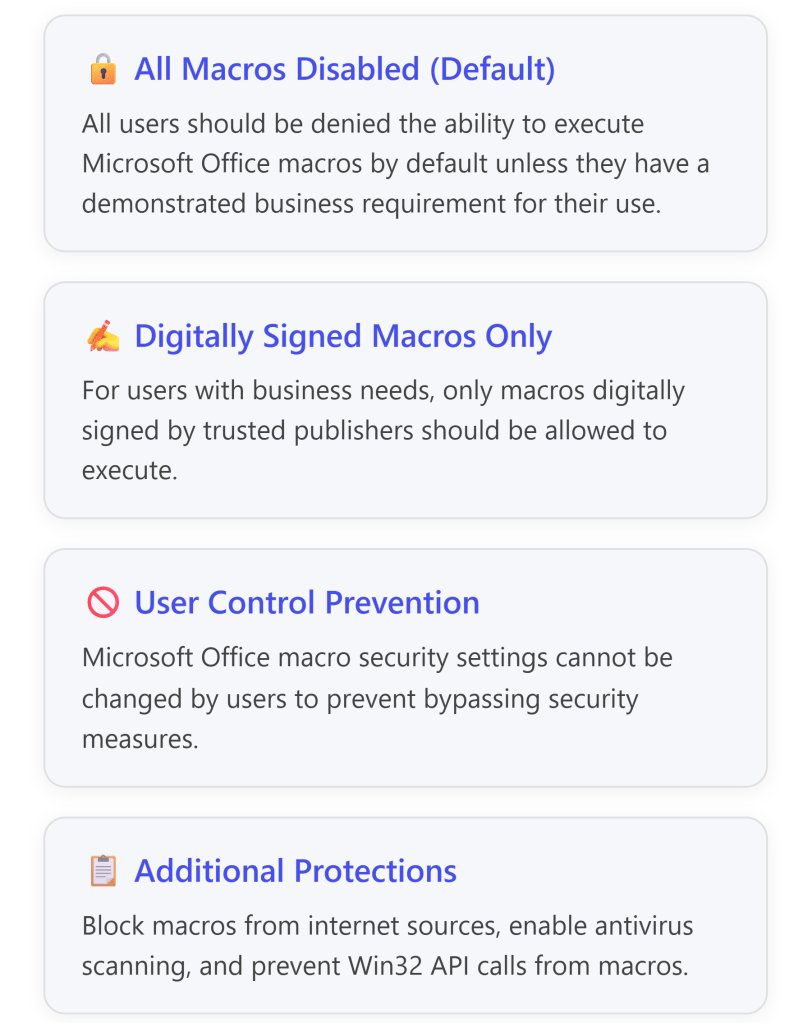
The Essential Eight Mitigation Strategy #3 – Configure Microsoft Office Macro Settings requires organizations to disable Office macros by default for users without a demonstrated business need.1In cloud-only environments using Microsoft 365 Business Premium and Microsoft Intune, this can be achieved through multiple complementary approaches: 

  1. Configuration Profiles (Settings Catalog or Imported Administrative Templates) 
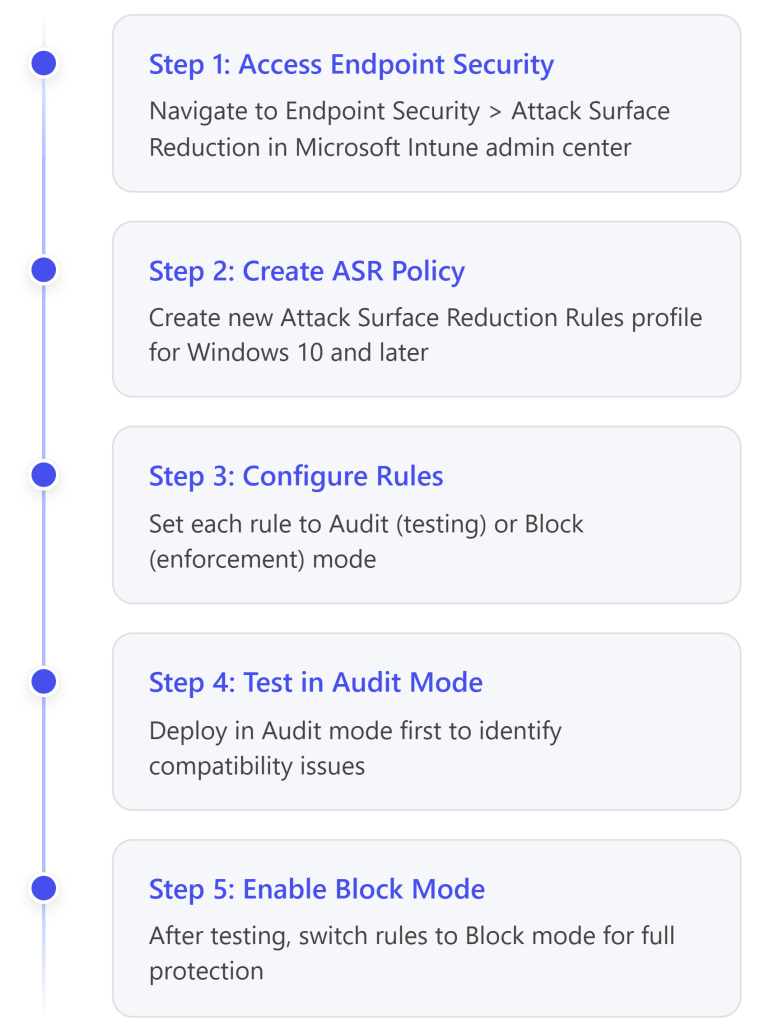
  1. Attack Surface Reduction (ASR) Rules 
  1. Microsoft Defender for Endpoint capabilities (included in Business Premium) 

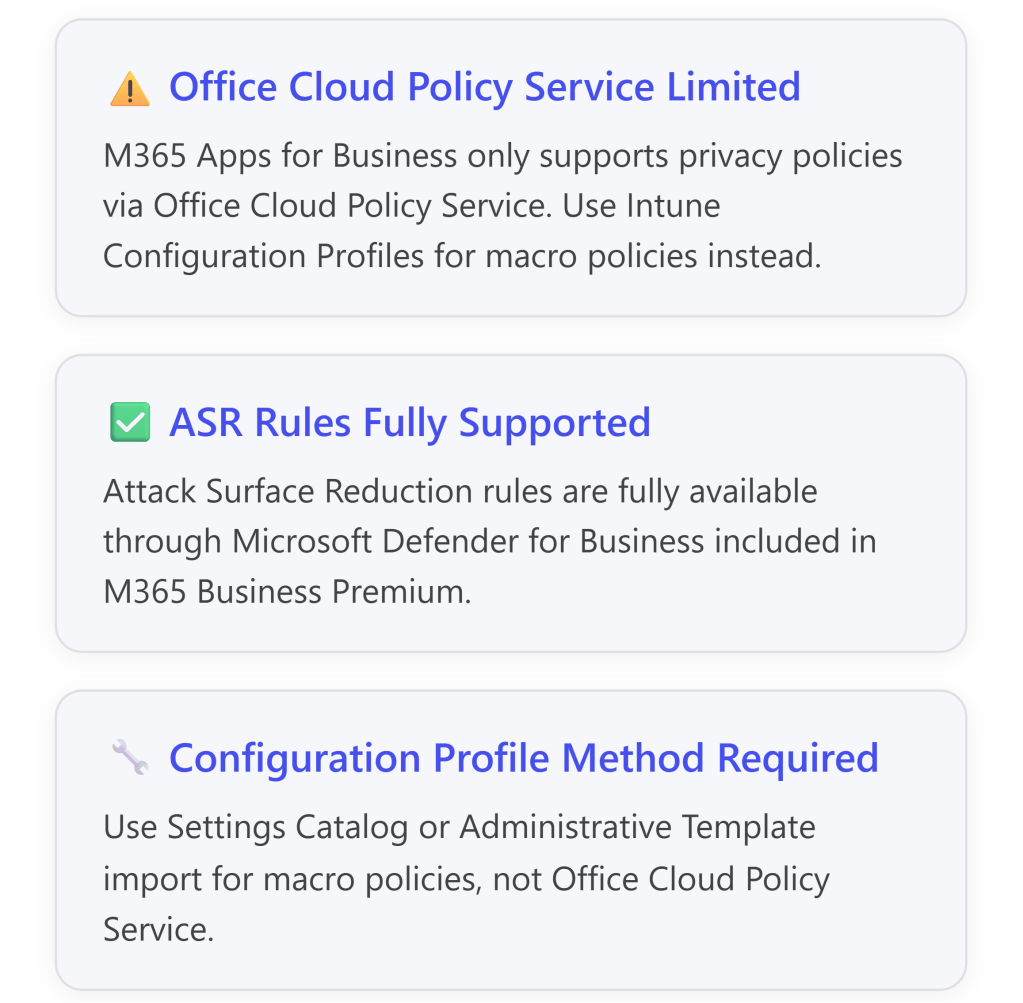
However, there is an important limitation: Microsoft 365 Business Premium includes Microsoft 365 Apps for Business, which has limited support for the Office Cloud Policy Service—only privacy-related policies are supported.2For full macro control policies, you must use Configuration Profiles in Intune instead.3 


Understanding Essential Eight Macro Security Requirements 

Essential Eight Maturity Level Requirements 

The Australian Cyber Security Centre (ACSC) Essential Eight framework defines specific controls for Microsoft Office macro security:4 

Key ISM Controls (March 2025) 

The Essential Eight implementation addresses multiple Information Security Manual (ISM) controls:5 

ISM Control Requirement Implementation Method 
ISM-1671 Macros disabled for users without business requirement Configure “Disable VBA for Office applications” policy 
ISM-1488 Block macros from internet sources Enable “Block macros from running in Office files from the internet” 
ISM-1675 Disable Trust Bar for unsigned macros Configure “Disable Trust Bar Notification for unsigned applications” 
ISM-1672 Enable macro antivirus scanning Set “Macro Runtime Scan Scope” to “Enable for all documents” 
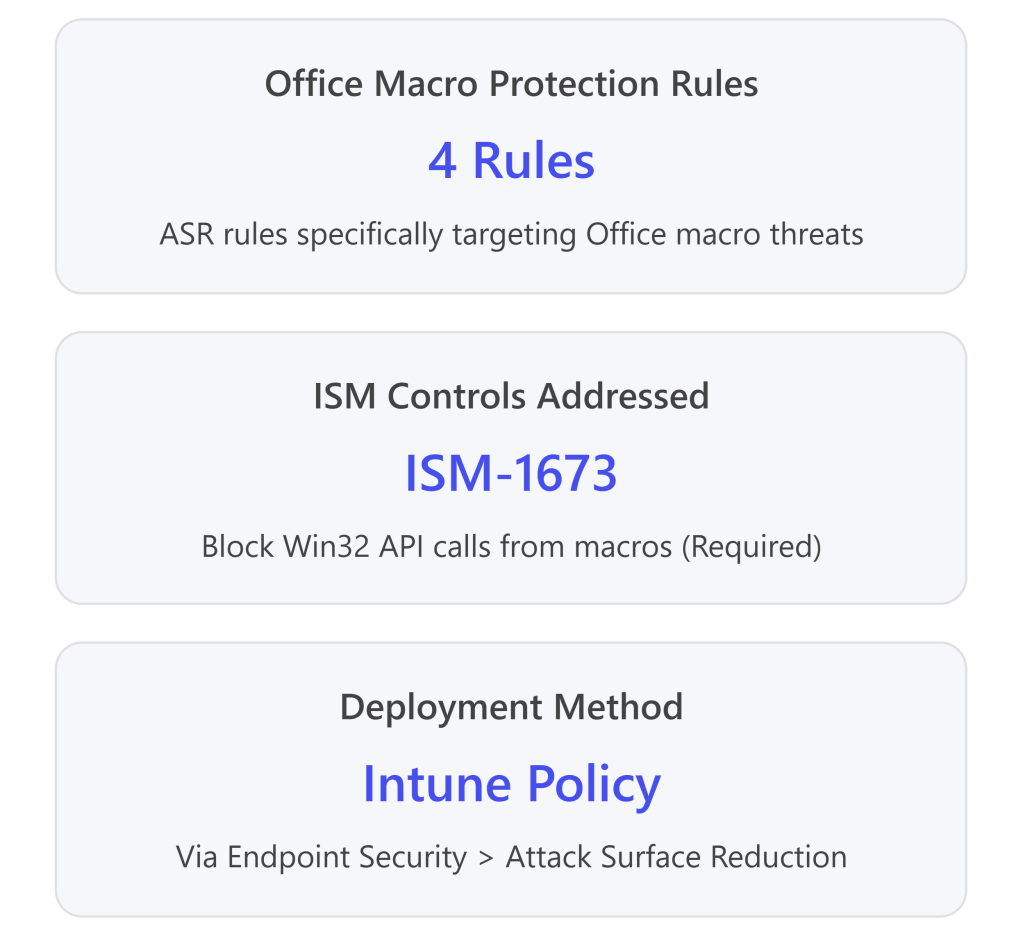
ISM-1673 Block Win32 API calls from macros Deploy ASR rule 92E97FA1-2EDF-4476-BDD6-9DD0B4DDDC7B 
ISM-1489 Prevent users from changing macro settings Deploy policies via Intune (users cannot modify) 

Microsoft 365 Business Premium Capabilities for Macro Control 

What’s Included in Business Premium 

Microsoft 365 Business Premium includes: 

  • Microsoft Intune for device management 
  • Microsoft Defender for Business (includes Attack Surface Reduction) 
  • Microsoft 365 Apps for Business (desktop applications) 

Important Licensing Limitations 

⚠️ Critical Consideration: The Office Cloud Policy Service (config.office.com) has limited functionality with Microsoft 365 Apps for Business: 

  • Only privacy control policies are supported6 
  • Full macro security policies are NOT supported via Office Cloud Policy Service for Business licenses7 
  • You must use Intune Configuration Profiles (Settings Catalog or Administrative Templates) instead 

For full Office Cloud Policy Service support, you would need Microsoft 365 Apps for Enterprise licenses.8 


Implementation Approach: Configuration Profiles in Intune 

Method 1: Import Pre-Built ACSC Hardening Policy (Recommended) 

Microsoft provides pre-built configuration profiles aligned with ACSC guidance. This is the fastest and most reliable method for Essential Eight compliance. 

Step-by-Step: Import ACSC Office Hardening Policy 

Detailed Steps:9 

  1. Create Target User Group 
  • Create an Azure AD security group for “All Office Users” 
  • This group will receive Office apps and hardening policies 
  1. Download ACSC Policy Template 
  • Download the ACSC Office Hardening Guidelines JSON file10 
  1. Import to Intune 
  • Sign in to Microsoft Intune admin center: https://intune.microsoft.com[^1] 
  • Navigate to: Devices > Windows > Configuration profiles > Create 
  • Select: Import Policy 
  • Name: “ACSC Office Hardening – All Macros Disabled” 
  • Browse for the downloaded JSON file 
  • Click Save11 
  1. Import OLE Prevention Script 
  • Navigate to: Devices > Scripts > Add > Windows 10 and later 
  • Name: “OLE Package Prevention” 
  • Configure: 
  • Run script using logged-on credentials: Yes 
  • Enforce script signature check: No 
  • Run in 64-bit PowerShell: No12 
  • Assign to: All Office Users group13 
  1. Assign the Policy 
  • In the imported policy, go to Assignments 
  • Included groups: Select “All Office Users” 
  • Review + Save 

Method 2: Manual Configuration Using Settings Catalog 

If you prefer granular control, you can manually configure macro policies using Intune’s Settings Catalog. 

Step-by-Step: Create Custom Macro Blocking Policy 

  1. Create New Settings Catalog Policy 
  • Navigate to: Microsoft Intune admin center (intune.microsoft.com) 
  • Go to: Devices > Configuration policies > Create > New Policy 
  • Platform: Windows 10 and later 
  • Profile type: Settings catalog 
  • Name: “Office Macro Security – Disable All Macros” 
  1. Configure Settings for Each Office Application 

The following settings must be configured for each Office application (Word, Excel, PowerPoint, Access, Outlook):14 15 

Microsoft Office 2016 (Global Settings) 

Setting Path Configuration 
Microsoft Office 2016 > Security Settings  
Automation Security Enabled 
– Set Automation Security level Disable macros by default 
Disable VBA for Office applications Enabled 
Security Settings > Trust Center  
Allow mix of policy and user locations Disabled 

Microsoft Excel 2016 

Setting Path Configuration 
Excel Options > Security > Trust Center  
VBA Macro Notification Settings Enabled 
– VBA Macro Notification Disable all without notification 
Block macros from running in Office files from the Internet Enabled 
Trust access to Visual Basic Project Disabled 
Turn off trusted documents Enabled 
Turn off Trusted Documents on the network Enabled 
Excel Options > Security > Trust Center > Trusted Locations  
Allow Trusted Locations on the network Disabled 
Disable all trusted locations Enabled 

Microsoft Word 2016 

Setting Path Configuration 
Word Options > Security > Trust Center  
VBA Macro Notification Settings Enabled 
– VBA Macro Notification Disable all without notification 
Block macros from running in Office files from the Internet Enabled 
Trust access to Visual Basic Project Disabled 
Turn off trusted documents Enabled 
Turn off Trusted Documents on the network Enabled 
Word Options > Security > Trust Center > Trusted Locations  
Allow Trusted Locations on the network Disabled 
Disable all trusted locations Enabled 

Microsoft PowerPoint 2016 

Setting Path Configuration 
PowerPoint Options > Security > Trust Center  
VBA Macro Notification Settings Enabled 
– VBA Macro Notification Disable all without notification 
Block macros from running in Office files from the Internet Enabled 
Trust access to Visual Basic Project Disabled 
Turn off trusted documents Enabled 
Turn off Trusted Documents on the network Enabled 
PowerPoint Options > Security > Trust Center > Trusted Locations  
Allow Trusted Locations on the network Disabled 
Disable all trusted locations Enabled 

Microsoft Access 2016 

Setting Path Configuration 
Application Settings > Security > Trust Center  
VBA Macro Notification Settings Enabled 
– VBA Macro Notification Disable all without notification 
Block macros from running in Office files from the Internet Enabled 
Turn off trusted documents Enabled 
Turn off Trusted Documents on the network Enabled 
Application Settings > Security > Trust Center > Trusted Locations  
Allow Trusted Locations on the network Disabled 
Disable all trusted locations Enabled 

Microsoft Outlook 2016 

Setting Path Configuration 
Security > Trust Center  
Apply macro security settings to macros, add-ins and additional actions Enabled 
Security settings for macros Enabled 
– Security Level Never warn, disable all 
  1. Assign the Policy 
  • Assignments: Select your target user or device groups 
  • Review + Create 

Attack Surface Reduction (ASR) Rules for Essential Eight Compliance 

Can ASR Rules Meet Essential Eight Requirements? 

Yes, partially. Windows Attack Surface Reduction rules provide critical additional protections that complement macro blocking policies and help meet Essential Eight requirements.16 17 

ASR rules are included with Microsoft 365 Business Premium via Microsoft Defender for Business and can be deployed through Intune.18 

Essential Eight-Relevant ASR Rules 

The following ASR rules directly support Essential Eight mitigation strategies:19 20 

ASR Rules for Office Macro Security 

ASR Rule Name GUID Essential Eight Alignment ISM Control 
Block Win32 API calls from Office macros 92e97fa1-2edf-4476-bdd6-9dd0b4dddc7b ✅ Required – Prevents macros from making dangerous system calls ISM-1673 
Block Office applications from creating child processes d4f940ab-401b-4efc-aadc-ad5f3c50688a ✅ Recommended – Prevents macro-launched executables User App Hardening 
Block Office applications from creating executable content 3b576869-a4ec-4529-8536-b80a7769e899 ✅ Recommended – Prevents macros from creating .exe files User App Hardening 
Block Office applications from injecting code into other processes 75668c1f-73b5-4cf0-bb93-3ecf5cb7cc84 ✅ Recommended – Prevents code injection attacks User App Hardening 
Block Office communication applications from creating child processes 26190899-1602-49e8-8b27-eb1d0a1ce869 ✅ Recommended – Protects Outlook from exploitation User App Hardening 

Step-by-Step: Deploy ASR Rules via Intune 

Detailed Implementation Steps:21 

  1. Navigate to ASR Policy Creation 
  • Go to: Endpoint security > Attack surface reduction 
  • Click: Create Policy22 
  1. Configure Policy Basics 
  • Platform: Windows 10, Windows 11, and Windows Server 
  • Profile: Attack Surface Reduction Rules 
  • Name: “Essential Eight – Office ASR Rules” 
  • Description: “ASR rules aligned with ACSC Essential Eight requirements” 
  1. Configure ASR Rules 

For each of the Essential Eight-relevant rules, configure the mode:23 

ASR Rule Initial Mode Production Mode 
Block Win32 API calls from Office macros Audit Block (Required for ISM-1673) 
Block Office applications from creating child processes Audit Block 
Block Office applications from creating executable content Audit Block 
Block Office applications from injecting code into other processes Audit Block 
Block Office communication applications from creating child processes Audit Block 

Mode Definitions: 

  • Not Configured (0): Rule is disabled 
  • Block (1): Rule is enforced 
  • Audit (2): Rule logs events but doesn’t block 
  • Warn (6): User receives warning but can bypass24 
  1. Assign the Policy 
  • Assignments: 
  • Included groups: “All Windows Devices” or specific pilot groups 
  • Excluded groups: Any test or exception groups 
  • Click Next and Create 
  1. Testing and Deployment Strategy 

⚠️ Important: ASR rules should be thoroughly tested before full enforcement:25 

  • Week 1-2: Deploy all rules in Audit mode 
  • Week 3-4: Review Microsoft Defender for Endpoint logs for blocked activity 
  • Week 5+: Switch rules to Block mode for full enforcement 
  • Monitor for false positives and create exclusions as needed 

Alternative: Manual ASR Deployment via Graph API 

For advanced deployments, you can use Microsoft Graph API to deploy ASR policies programmatically:26 

Step-by-Step: 

  1. Navigate to Graph Explorer 
  • Sign in with administrator credentials 
  • Grant necessary permissions 
  1. Create POST Request 
  • Method: POST 
  • Schema: Beta 
  1. Use ACSC Windows Hardening JSON 
  • Copy the JSON content and paste into the request body 
  • Modify the policy name if needed 
  • Execute the POST request 
  1. Assign Policy 
  • Use Graph API or Intune portal to assign the created policy to your device groups 

Monitoring and Validation 

Verifying Policy Application 

After deploying policies, verify they’re working correctly: 

  1. Check Policy Status in Intune 
  • Navigate to: Devices > Monitor > Device configuration 
  • Review deployment status for your macro policies 
  • Check for any errors or conflicts28 
  1. Test on End-User Device 
  • Have a test user attempt to open a macro-enabled Office file 
  • Verify that macros are blocked and no prompt appears 
  • Check that Trust Center settings are grayed out (not user-modifiable) 
  1. Review Microsoft Defender for Endpoint 

If you have Defender for Endpoint (included in Business Premium), monitor for macro-related events:29 

  • Endpoint behavioral sensors collect macro execution attempts 
  • Cloud security analytics translate signals into insights 
  • Threat intelligence identifies attacker techniques 
  • Review alerts in the Microsoft 365 Defender portal (security.microsoft.com) 
  1. Validate ASR Rule Effectiveness 
  • Navigate to: Microsoft 365 Defender portal > Reports > Attack surface reduction rules 
  • Review triggered events for each ASR rule 
  • Identify false positives and create exclusions if needed 

Exception Management: Allowing Trusted Macros 

Some users may have legitimate business requirements for macros. The Essential Eight framework accommodates this through Trusted Publishers or Trusted Locations.30 

Option 1: Trusted Publishers (Recommended) 

Trusted Publishers use digital signatures to verify macro authenticity. This is the preferred method for Essential Eight compliance.31 

Step-by-Step: Enable Trusted Publishers 

  1. Create Exception Group 
  • Create Azure AD group: “Office Macro Users – Trusted Publishers” 
  • Add users with legitimate macro needs32 
  1. Download Trusted Publisher Policy 
  1. Import to Intune 
  • Navigate to: Devices > Configuration profiles > Import Policy 
  • Browse for downloaded JSON file 
  • Name: “ACSC Office – Trusted Publishers Enabled” 
  • Assign to: “Office Macro Users – Trusted Publishers” group33 
  1. Exclude from Macro Blocking Policy 
  • Edit your “All Macros Disabled” policy 
  • Go to Assignments 
  • Excluded groups: Add “Office Macro Users – Trusted Publishers”34 
  1. Deploy Trusted Publisher Certificates 

For each approved macro publisher:35 

  • Navigate to: Devices > Configuration profiles > Create 
  • Profile type: Trusted certificate 
  • Upload the publisher’s code-signing certificate 
  • Assign to: “Office Macro Users – Trusted Publishers” group 

Certificate Requirements:36 

  • Must use V3 signature scheme (more secure) 
  • Certificate must be from a trusted Certificate Authority 
  • Each publisher should have a separate policy for easier management 
  1. Macro Vetting Process 

Before signing any macros:37 

  • Execute macros on an isolated test device with ACSC hardening applied 
  • Verify no malicious behavior 
  • Use Microsoft Defender Antivirus scanning (automatic with ACSC policies) 
  • Consider third-party macro scanning tools for additional validation 

Comprehensive Policy Summary Table 

Configuration Profile Settings 

Policy Category Setting Configuration Purpose 
VBA Macro Execution Disable VBA for Office applications Enabled Disables VBA engine globally38 
 VBA Macro Notification Settings Disable all without notification Blocks all macros silently39 
Internet Macros Block macros from Internet sources Enabled Prevents macros from untrusted sources40 
Automation Security Automation Security Level Disable macros by default Prevents COM automation attacks41 
Trust Center Turn off trusted documents Enabled Prevents trust bypass via document trust42 
 Turn off Trusted Documents on network Enabled Prevents network trust bypass43 
 Disable all trusted locations Enabled Blocks trusted location bypass44 
 Allow mix of policy and user locations Disabled Prevents user-defined trust45 
 Trust access to VBA Project Disabled Blocks programmatic VBA access46 
Macro Scanning Macro Runtime Scan Scope Enable for all documents Enables Defender AV scanning47 

Attack Surface Reduction Rules 

ASR Rule GUID Mode Purpose 
Block Win32 API calls from Office macros 92e97fa1-2edf-4476-bdd6-9dd0b4dddc7b Block Prevents dangerous API calls (ISM-1673)48 
Block Office apps creating child processes d4f940ab-401b-4efc-aadc-ad5f3c50688a Block Prevents macro-launched executables49 
Block Office apps creating executable content 3b576869-a4ec-4529-8536-b80a7769e899 Block Prevents .exe creation50 
Block Office apps injecting code 75668c1f-73b5-4cf0-bb93-3ecf5cb7cc84 Block Prevents process injection51 
Block Outlook creating child processes 26190899-1602-49e8-8b27-eb1d0a1ce869 Block Protects email client52 

Key Limitations and Considerations 

Microsoft 365 Business Premium Constraints 

Testing Recommendations 

  1. Pilot Deployment: Test policies with a small group before organization-wide rollout53 
  1. Audit Mode First: Deploy ASR rules in Audit mode for 2-4 weeks before enforcement54 
  1. User Communication: Notify users about macro blocking to reduce helpdesk calls 
  1. Exception Process: Establish clear process for macro exception requests 
  1. Regular Review: Validate Trusted Publisher certificates annually55 

Complete Implementation Checklist 

  • Phase 1: Preparation 
  • Create Azure AD security groups (“All Office Users”, “Macro Exception Users”) 
  • Document current macro usage across organization 
  • Establish exception approval process 
  • Communicate changes to end users 
  • Phase 2: Baseline Policy Deployment 
  • Download ACSC Office Hardening policy from GitHub 
  • Import policy to Intune Configuration Profiles 
  • Download and import OLE prevention PowerShell script 
  • Assign policies to pilot group 
  • Test policy application on pilot devices 
  • Phase 3: ASR Rule Deployment 
  • Create ASR policy in Endpoint Security 
  • Configure 5 Office-related ASR rules in Audit mode 
  • Assign to pilot group 
  • Monitor events in Microsoft 365 Defender for 2-4 weeks 
  • Phase 4: Production Rollout 
  • Review audit logs for false positives 
  • Create ASR exclusions if needed 
  • Switch ASR rules to Block mode 
  • Expand deployment to all users 
  • Configure Trusted Publisher policies for exception users 
  • Phase 5: Ongoing Management 
  • Monitor Defender for Endpoint alerts 
  • Review exception requests quarterly 
  • Validate Trusted Publisher certificates annually 
  • Update policies as new ISM controls are released 

Conclusion 

Meeting the Essential Eight requirements for disabling Office macros in a cloud-only environment with Microsoft 365 Business Premium is achievable through: 

  1. Intune Configuration Profiles: Disable macros at the Office application level using Settings Catalog or imported administrative templates 
  1. Attack Surface Reduction Rules: Deploy complementary ASR rules to block macro-related attack behaviors 
  1. Exception Management: Use Trusted Publishers for users with legitimate macro needs 
  1. Continuous Monitoring: Leverage Microsoft Defender for Endpoint for visibility and alerting 

While Office Cloud Policy Service has limitations with Business Premium, Intune Configuration Profiles provide full macro control capabilities needed for Essential Eight compliance. ASR rules successfully accommodate Essential Eight requirements by providing the necessary technical controls, particularly ISM-1673 (blocking Win32 API calls from macros). 

The combination of these approaches provides defense-in-depth aligned with ACSC guidance and enables organizations to achieve Essential Eight Maturity Level 3 for macro security. 


References 

Microsoft Official Documentation 

Microsoft Learn – Essential Eight Guidance 

  • Essential Eight configure Microsoft Office macro settings 
  • Site: Microsoft Learn 

Microsoft Learn – Essential Eight User Application Hardening 

  • Essential Eight user application hardening 
  • Site: Microsoft Learn 

Microsoft Learn – Intune Office Policies 

  • Policies for Microsoft 365 Apps – Microsoft Intune 
  • Site: Microsoft Learn 

Microsoft Learn – Office Cloud Policy Service Overview 

  • Overview of Cloud Policy service for Microsoft 365 
  • Site: Microsoft Learn 

Microsoft Learn – Attack Surface Reduction Rules Reference 

  • Attack surface reduction rules reference – Microsoft Defender for Endpoint 
  • Site: Microsoft Learn 

Microsoft Learn – Manage ASR with Intune 

  • Manage attack surface reduction settings with Microsoft Intune 
  • Site: Microsoft Learn 

Microsoft Intune Admin Center 

  • Microsoft Intune admin center 
  • Site: Microsoft Intune 

Australian Cyber Security Centre (ACSC) Guidance 

Cyber.gov.au – Restricting Microsoft Office Macros 

  • Restricting Microsoft Office macros 
  • Site: Australian Cyber Security Centre (ACSC) 

Cyber.gov.au – Guidelines for System Hardening 

  • Guidelines for System Hardening 
  • Site: Australian Cyber Security Centre (ACSC) 

Cyber.gov.au – Hardening Microsoft 365 and Office 

  • Hardening Microsoft 365, Office 2021, Office 2019, and Office 2016 
  • Site: Australian Cyber Security Centre (ACSC) 

Cyber.gov.au – Microsoft Office Macro Security 

  • Microsoft Office Macro Security 
  • Site: Australian Cyber Security Centre (ACSC) 

Cyber.gov.au – Essential Eight Assessment Process Guide 

  • Essential Eight assessment process guide 
  • Site: Australian Cyber Security Centre (ACSC) 

Cyber.gov.au – Technical Example: Configure Macro Settings 

  • Technical example: Configure macro settings 
  • Site: Australian Cyber Security Centre (ACSC) 

ASD Blueprint for Secure Cloud 

ASD Blueprint – Office Hardening All Macros Disabled 

  • ASD Office hardening – all macros disabled 
  • Site: ASD’s Blueprint for Secure Cloud 

ASD Blueprint – Microsoft Office Macro Hardening Design 

  • Microsoft Office macro hardening 
  • Site: ASD’s Blueprint for Secure Cloud 

ASD Blueprint – Restrict Microsoft Office Macros 

  • Restrict Microsoft Office macros 
  • Site: ASD’s Blueprint for Secure Cloud 

GitHub Repositories and Templates 

Microsoft GitHub – ACSC Office Hardening Guidelines 

  • ACSC Office Hardening Guidelines (JSON) 
  • Site: GitHub – Microsoft 

Microsoft GitHub – OLE Prevention PowerShell Script 

  • OfficeMacroHardening-PreventActivationofOLE.ps1 
  • Site: GitHub – Microsoft 

Microsoft GitHub – ACSC Windows Hardening ASR Policy 

  • ACSC Windows Hardening Guidelines – Attack Surface Reduction policy (JSON) 
  • Site: GitHub – Microsoft 

GitHub – ACSC Essential 8 Office Hardening Module 

  • benjamin-robertson/acsc_e8_office_hardening 
  • Site: GitHub – Community 

Community and Technical Resources 

Reddit – Office 365 Community Discussion 

  • 365 Business Premium – GPO or config.office.com 
  • Site: Reddit – r/Office365 

Practical365 – Office Cloud Policy Service 

  • Block Macro Execution with Office Cloud Policy Service (OCPS) 
  • Site: Practical365 

Mr T-Bone’s Blog – Intune Office Policies 

  • How to use policies for Office apps in Intune 
  • Site: Mr T-Bone´s Blog 

Helge Klein – Blocking Office Macros 

  • Blocking Office Macros, Managing Windows & macOS via Intune 
  • Site: Helge Klein 

T-Minus365 – Deploy ASR Rules 

  • Deploy Attack Surface Reduction Rules from Microsoft Intune 
  • Site: T-Minus365 

Azure with Tom – Implementing ASR Policies 

  • Implementing Attack Surface Reduction Policies 
  • Site: Azure with Tom 

Additional Resources 

Microsoft Graph API – Graph Explorer 

  • Graph Explorer for API Testing 
  • Site: Microsoft Developer 

Microsoft 365 Defender Portal 

  • Microsoft 365 Defender Security Portal 
  • Site: Microsoft 365 Defender 

CISA – Disable VBA Macros Guidance 

  • Disable Visual Basic for Applications (VBA) Macros (CM0056) 
  • Site: Cybersecurity and Infrastructure Security Agency (CISA) 

Step-by-Step Guide: Setting Up Entra ID Conditional Access for Small Businesses

Understanding Conditional Access

Conditional Access is Microsoft’s Zero Trust policy engine that evaluates signals from users, devices, and locations to make automated access decisions and enforce organizational policies. Think of it as intelligent “if-then” statements: If a user wants to access a resource, then they must complete an action (like multifactor authentication).

For SMBs using Microsoft 365 Business Premium, Conditional Access provides enterprise-grade security without requiring complex infrastructure, protecting your organization from 99.9% of identity-based attacks.

Prerequisites

  • License Requirements: Microsoft 365 Business Premium (includes Entra ID P1) or Microsoft 365 E3/E5
  • Admin Role: Conditional Access Administrator or Global Administrator privileges
  • Preparation: Ensure all users have registered for MFA before implementing policies
  • Emergency Access Account: Create at least one break-glass account excluded from all policies

Phase 1: Initial Setup and Planning (Week 1)

Step 1: Turn Off Security Defaults

  1. Navigate to Microsoft Entra admin center (entra.microsoft.com)
  2. Go to Entra ID → Properties
  3. Select Manage security defaults
  4. Toggle Security defaults to Disabled
  5. Select My organization is using Conditional Access as the reason
  6. Click Save

Important: Only disable security defaults after you’re ready to create Conditional Access policies immediately.

Step 2: Create Emergency Access Accounts

  1. Create two cloud-only accounts with complex passwords
  2. Assign Global Administrator role to both accounts
  3. Store credentials securely (separate locations)
  4. Document these accounts for emergency use only
  5. Exclude these accounts from ALL Conditional Access policies

Step 3: Access the Conditional Access Portal

  1. Sign in to entra.microsoft.com
  2. Navigate to Entra ID → Conditional Access
  3. Select Policies to view the main dashboard

Phase 2: Create Baseline Policies (Week 1-2)

Policy 1: Require MFA for All Users

  1. Click New policy from templates
  2. Select Require multifactor authentication for all users template
  3. Name your policy: “Baseline: MFA for All Users”
  4. Under Assignments:
    • Users: All users
    • Exclude: Select your emergency access accounts
  5. Under Target resources:
    • Select All resources (formerly ‘All cloud apps’)
  6. Under Access controls → Grant:
    • Select Require multifactor authentication
  7. Set Enable policy to Report-only
  8. Click Create

Policy 2: Block Legacy Authentication

  1. Click New policy from templates
  2. Select Block legacy authentication template
  3. Name your policy: “Security: Block Legacy Authentication”
  4. Under Assignments:
    • Users: All users
    • Exclude: Emergency access accounts
  5. Under Conditions → Client apps:
    • Configure: Yes
    • Select Exchange ActiveSync clients and Other clients
  6. Under Access controls → Grant:
    • Select Block access
  7. Set Enable policy to Report-only
  8. Click Create

Policy 3: Require MFA for Administrators

  1. Click New policy from templates
  2. Select Require multifactor authentication for admins template
  3. Name your policy: “Security: MFA for Admin Roles”
  4. Under Assignments:
    • Users: Select users and groups
    • Select Directory roles
    • Choose all administrative roles
    • Exclude: Emergency access accounts
  5. Under Access controls → Grant:
    • Select Require multifactor authentication
  6. Set Enable policy to Report-only
  7. Click Create

Phase 3: Testing and Validation (Week 2)

Step 1: Use the What If Tool

  1. Navigate to Conditional Access → Policies → What If
  2. Enter test scenarios:
    • Select a test user
    • Choose target applications
    • Set device platform and location
  3. Click What If to see which policies would apply
  4. Review both “Policies that will apply” and “Policies that will not apply”
  5. Document results for each test scenario

Step 2: Monitor Report-Only Mode

  1. Leave policies in Report-only mode for at least 7 days
  2. Navigate to Entra ID → Sign-in logs
  3. Filter by Conditional Access = Report-only
  4. Review impacts:
    • Check for “Report-only: Success” entries
    • Investigate any “Report-only: Failure” entries
    • Look for “Report-only: User action required” entries
  5. Address any issues before enforcement

Step 3: Pilot Testing

  1. Create a pilot group with 5-10 users
  2. Create a duplicate policy targeting only the pilot group
  3. Set this pilot policy to On (enforced)
  4. Monitor for 3-5 days
  5. Gather feedback from pilot users
  6. Address any issues identified

Phase 4: Production Deployment (Week 3)

Step 1: Enable Policies

  1. After successful testing, return to each policy
  2. Change Enable policy from Report-only to On
  3. Start with one policy at a time
  4. Wait 2-4 hours between enabling each policy
  5. Monitor sign-in logs after each activation

Step 2: Communicate to Users

  1. Send announcement email before enforcement
  2. Include:
    • What’s changing and when
    • Why it’s important for security
    • What users need to do (register for MFA)
    • Support contact information
  3. Provide MFA registration instructions
  4. Schedule optional training sessions

Phase 5: Advanced Policies (Week 4+)

Optional: Require Compliant Devices

Only implement after basic policies are stable

  1. Create new policy: “Security: Require Compliant Devices”
  2. Target high-value applications first
  3. Under Grant controls:
    • Select Require device to be marked as compliant
  4. Test thoroughly before enforcement

Optional: Location-Based Access

  1. Define trusted locations (office IP addresses)
  2. Create policies based on location:
    • Block access from specific countries
    • Require MFA when not in trusted location

Troubleshooting Common Issues

Users Can’t Sign In

  • Check sign-in logs for specific error messages
  • Use What If tool to identify blocking policies
  • Verify user has completed MFA registration
  • Temporarily exclude user while investigating

Policy Not Applying

  • Verify policy is set to “On” not “Report-only”
  • Check assignment conditions match user scenario
  • Review excluded users and groups
  • Wait 1-2 hours for policy propagation

Emergency Rollback

  1. Navigate to problematic policy
  2. Set Enable policy to Off
  3. Or exclude affected users temporarily
  4. Document issue for resolution
  5. Re-enable after fixing configuration

Training Resources

Microsoft Learn Modules (Free)

Documentation and Guides

Video Resources

Best Practices Summary

  • ✅ Always maintain emergency access accounts excluded from all policies
  • ✅ Test every policy in Report-only mode for at least 7 days
  • ✅ Use the What If tool before and after creating policies
  • ✅ Start with Microsoft’s template policies – they represent best practices
  • ✅ Document all policies and their business justification
  • ✅ Monitor sign-in logs regularly for anomalies
  • ✅ Communicate changes to users before enforcement
  • ✅ Have a rollback plan for every policy
  • ✅ Implement policies gradually, not all at once
  • ✅ Review and update policies quarterly

10 ready-to-use prompts you can ask your ASD-aligned security agent

Here are 10 ready-to-use prompts you can ask your ASD-aligned security agent to tackle the most common SMB security issues in Microsoft 365 Business Premium tenants.
Each prompt is engineered to:

  • Align with the ASD Secure Cloud Blueprint / Essential Eight and ACSC guidance
  • Use only features available in M365 Business Premium
  • Produce clear, step-by-step outcomes you can apply immediately
  • Avoid E5-only capabilities (e.g., Entra ID P2, Defender for Cloud Apps, Insider Risk, Auto-labelling P2, PIM)

Tip for your agent: For each prompt, request outputs in this structure: (a) Current state → (b) Gaps vs ASD control → (c) Recommended configuration (Business Premium–only) → (d) Click-path + PowerShell → (e) Validation tests & KPIs → (f) Exceptions & rollback.


1) Identity & MFA Baseline (ASD: MFA, Restrict Privilege)

Prompt:
“Assess our tenant’s MFA and sign-in posture against ASD/ACSC guidance using only Microsoft 365 Business Premium features.
Return: (1) Conditional Access policies to enforce MFA for all users, admins, and high-risk scenarios (without Entra ID P2); (2) exact assignments, conditions, grant/ session controls; (3) block legacy authentication; (4) break-glass account pattern; (5) click-paths in Entra admin portal and Exchange admin centre; (6) PowerShell for disabling per-user MFA legacy and enabling CA-based MFA; (7) how to validate via Sign-in logs and audit; (8) exceptions for service accounts and safe rollback.”


2) Email Authentication & Anti-Phishing (ASD: Email/Spearphishing)

Prompt:
“Evaluate and harden our email domain against phishing using Business Premium capabilities.
Cover: (1) SPF/DKIM/DMARC status with alignment recommendations; (2) Defender for Office 365 (Plan 1) policies—anti-phishing, Safe Links, Safe Attachments, user and domain impersonation; (3) external sender tagging and first-contact safety tips; (4) recommended policies per ASD/ACSC; (5) step-by-step config in Security portal & Exchange admin centre; (6) test plans (simulated phish, header eval, URL detonation); (7) KPIs (phish delivered, click rate, auto-remediation success).”


3) Device Compliance & Encryption (ASD: Patch OS, Restrict Admin, Hardening)

Prompt:
“Create Intune compliance and configuration baselines for Windows/macOS/iOS/Android aligned to ASD/ACSC using Business Premium.
Include: (1) Windows BitLocker and macOS FileVault enforcement; (2) OS version minimums, secure boot, tamper protection, firewall, Defender AV; (3) jailbreak/root detection; (4) role-based scope (admins stricter); (5) conditional access ‘require compliant device’ for admins; (6) click-paths and JSON/OMA-URI where needed; (7) validation using device compliance reports and Security baselines; (8) exceptions for servers/VDI and rollback.”


4) BYOD Data Protection (App Protection / MAM-WE)

Prompt:
“Design BYOD app protection for iOS/Android using Intune App Protection Policies (without enrollment), aligned to ASD data protection guidance.
Deliver: (1) policy sets for Outlook/Teams/OneDrive/Office mobile; (2) cut/copy/save restrictions, PIN/biometrics, encryption-at-rest, wipe on sign-out; (3) Conditional Access ‘require approved client app’ and ‘require app protection policy’; (4) blocking downloads to unmanaged locations; (5) step-by-step in Intune & Entra; (6) user experience notes; (7) validation and KPIs (unenrolled device access, selective wipe success).”


5) Endpoint Security with Defender for Business (EDR/NGAV/ASR)

Prompt:
“Harden endpoints using Microsoft Defender for Business (included in Business Premium) to meet ASD controls.
Return: (1) Onboarding method (Intune) and coverage; (2) Next-Gen AV, cloud-delivered protection, network protection; (3) Attack Surface Reduction rules profile (Business Premium-supported), Controlled Folder Access; (4) EDR enablement and Automated Investigation & Response scope; (5) threat & vulnerability management (TVM) priorities; (6) validation via MDE portal; (7) KPIs (exposure score, ASR rule hits, mean time to remediate).”


6) Patch & Update Strategy (ASD: Patch Apps/OS)

Prompt:
“Produce a Windows Update for Business and Microsoft 365 Apps update strategy aligned to ASD Essential Eight for SMB.
Include: (1) Intune update rings and deadlines; (2) quality vs feature update cadence, deferrals, safeguards; (3) Microsoft 365 Apps channel selection (e.g., Monthly Enterprise); (4) TVM-aligned prioritisation for CVEs; (5) rollout waves and piloting; (6) click-paths, policies, and sample assignments; (7) validation dashboards and KPIs (patch latency, update compliance, CVE closure time).”


7) External Sharing, DLP & Sensitivity Labels (ASD: Data Protection)

Prompt:
“Lock down external sharing and implement Data Loss Prevention using Business Premium (no auto-labelling P2), aligned to ASD guidance.
Deliver: (1) SharePoint/OneDrive external sharing defaults, link types, expiration; (2) guest access policies for Teams; (3) Purview DLP for Exchange/SharePoint/OneDrive—PII templates, alerting thresholds; (4) user-driven sensitivity labels (manual) for email/files with recommended taxonomy; (5) transport rules for sensitive emails to external recipients; (6) step-by-step portals; (7) validation & KPIs (external sharing volume, DLP matches, label adoption).”


8) Least Privilege Admin & Tenant Hygiene (ASD: Restrict Admin)

Prompt:
“Review and remediate admin privileges and app consent using Business Premium-only controls.
Provide: (1) role-by-role least privilege mapping (Global Admin, Exchange Admin, Helpdesk, etc.); (2) emergency access (‘break-glass’) accounts with exclusions and monitoring; (3) enforcement of user consent settings and admin consent workflow; (4) risky legacy protocols and SMTP AUTH usage review; (5) audit logging and alert policies; (6) step-by-step remediation; (7) validation and KPIs (admin count, app consents, unused privileged roles).”


9) Secure Score → ASD Gap Analysis & Roadmap

Prompt:
“Map Microsoft Secure Score controls to ASD Essential Eight and generate a 90‑day remediation plan for Business Premium.
Return: (1) Top risk-reducing actions feasible with Business Premium; (2) control-to-ASD mapping; (3) effort vs impact matrix; (4) owner, dependency, and rollout sequence; (5) expected Secure Score lift; (6) weekly KPIs and reporting pack (including recommended dashboards). Avoid recommending E5-only features—offer Business Premium alternatives.”


10) Detection & Response Playbooks (SMB-ready)

Prompt:
“Create incident response playbooks using Defender for Business and Defender for Office 365 for common SMB threats (phishing, BEC, ransomware).
Include: (1) alert sources and severities; (2) triage steps, evidence to collect, where to click; (3) auto-investigation actions available in Business Premium; (4) rapid containment (isolate device, revoke sessions, reset tokens, mailbox rules sweep); (5) user comms templates and legal/escalation paths; (6) post-incident hardening steps; (7) validation drills and success criteria.”


Optional meta‑prompt you can prepend to any of the above

“You are my ASD Secure Cloud Blueprint agent. Only recommend configurations available in Microsoft 365 Business Premium. If a control typically needs E5/P2, propose a Business Premium‑compatible alternative and flag the limitation. Return exact portal click-paths, policy names, JSON samples/PowerShell, validation steps, and KPIs suitable for SMBs.”


Building a Collaborative Microsoft 365 Copilot Agent: A Step-by-Step Guide

Creating a Microsoft 365 Copilot agent (a custom AI assistant within Microsoft 365 Copilot) can dramatically streamline workflows. These agents are essentially customised versions of Copilot that combine specific instructions, knowledge, and skills to perform defined tasks or scenarios[1]. The goal here is to build an agent that multiple team members can collaboratively develop and easily maintain – even if the original creator leaves the business. This report provides:

  • Step-by-step guidelines to create a Copilot agent (using no-code/low-code tools).
  • Best practices for multi-user collaboration, including managing edit permissions.
  • Documentation and version control strategies for long-term maintainability.
  • Additional tips to ensure the agent remains robust and easy to update.

Step-by-Step Guide: Creating a Microsoft 365 Copilot Agent

To build your Copilot agent without code, you will use Microsoft 365 Copilot Studio’s Agent Builder. This tool provides a guided interface to define the agent’s behavior, knowledge, and appearance. Follow these steps to create your agent:

As a result of the steps above, you have a working Copilot agent with its name, description, instructions, and any connected data sources or capabilities configured. You built this agent in plain language and refined it with no code required, thanks to Copilot Studio’s declarative authoring interface[2].

Before rolling it out broadly, double-check the agent’s responses for accuracy and tone, especially if it’s using internal knowledge. Also verify that the knowledge sources cover the expected questions. (If the agent couldn’t answer a question in testing, you might need to add a missing document or adjust instructions.)

Note: Microsoft also provides pre-built templates in Copilot Studio that you can use as a starting point (for example, templates for an IT help desk bot, a sales assistant, etc.)[2]. Using a template can jump-start your project with common instructions and sample prompts already filled in, which you can then modify to suit your needs.


Collaborative Development and Access Management

One key to long-term maintainability is ensuring multiple people can access and work on the agent. You don’t want the agent tied solely to its creator. Microsoft 365 Copilot supports this through agent sharing and permission controls. Here’s how to enable collaboration and manage who can use or edit the agent:

  • Share the Agent for Co-Authoring: After creating the agent, the original author can invite colleagues as co-authors (editors). In Copilot Studio, use the Share menu on the agent and add specific users by name or email for “collaborative authoring” access[3]. (You can only add individuals for edit access, not groups, and those users must be within your organisation.) Once shared, these teammates are granted the necessary roles (Environment Maker/Bot Contributor in the underlying Power Platform environment) automatically so they can modify the agent[3]. Within a few minutes, the agent will appear in their Copilot Studio interface as well. Now your agent effectively has multiple owners — if one person leaves, others still have full editing rights.
  • Ensure Proper Permissions: When sharing for co-authoring, make sure the colleagues have appropriate permissions in the environment. Copilot Studio will handle most of this via the roles mentioned, but it’s good for an admin to know who has edit access. By design, editors can do everything the owner can: edit content, configure settings, and share the agent further. Viewers (users who are granted use but not edit rights) cannot make changes[4]. Use Editor roles for co-authors and Viewer roles for end users as needed to control access[4]. For example, you may grant your whole team viewer access to use the agent, but only a smaller group of power users get editor access to change it. (The platform currently only allows assigning Editor permission to individuals, not to a security group, for safety[4].)
  • Collaborative Editing in Real-Time: Once multiple people have edit access, Copilot Studio supports concurrent editing of the agent’s topics (the conversational flows or content nodes). The interface will show an “Editing” indicator with the co-authors’ avatars next to any topic being worked on[3]. This helps avoid stepping on each other’s toes. If two people do happen to edit the same piece at once, Copilot Studio prevents accidental overwrites by detecting the conflict and offering choices: you can discard your changes or save a copy of the topic[3]. For instance, if you and a colleague unknowingly both edited the FAQ topic, and they saved first, when you go to save, the system might tell you a newer version exists. You could then choose to keep your version as a separate copy, review differences, and merge as appropriate. This built-in change management ensures that multi-author collaboration is safe and manageable.
  • Sharing the Agent for Use: In addition to co-authors, you likely want to share the finished agent with other employees so they can use it in Copilot. You can share the agent via a link or through your tenant’s app catalog. In Copilot Studio’s share settings, choose who can chat with (use) the agent. Options include “Anyone in your organization” or specific security groups[5]. For example, you might initially share it with just the IT department group for a pilot, or with everyone if it’s broadly useful. When a user adds the shared agent, it will show up in their Microsoft 365 Copilot interface for them to interact with. Note that sharing for use does not grant edit rights – it only allows using the agent[5]. Keep the sharing scope to “Only me” if it’s a draft not ready for others, but otherwise switch it to an appropriate audience so the agent isn’t locked to one person’s account[5].
  • Manage Underlying Resources: If your agent uses additional resources like Power Automate flows (actions) or certain connectors that require separate permissions, remember to share those as well. Sharing an agent itself does not automatically share any connected flow or data source with co-authors[3]. For example, if the agent triggers a Power Automate flow to update a SharePoint list, you must go into that flow and add your colleagues as co-owners there too[3]. Otherwise, they might be able to edit the agent’s conversation, but not open or modify the flow. Similarly, ensure any SharePoint sites or files used as knowledge sources have the right sharing settings for your team. A good practice is to use common team-owned resources (not one person’s private OneDrive file) for any knowledge source, so access can be managed by the team or admins.
  • Administrative Oversight: Because these agents become part of your organisation’s tools, administrators have oversight of shared agents. In the Microsoft 365 admin center (under Integrated Apps > Shared Agents), admins can see a list of all agents that have been shared, along with their creators, status, and who they’re shared with[1]. This means if the original creator does leave the company, an admin can identify any orphaned agents and reassign ownership or manage them as needed. Admins can also block or disable an agent if it’s deemed insecure or no longer appropriate[1]. This governance is useful for ensuring continuity and compliance – your agent isn’t tied entirely to one user’s account. From a planning perspective, it’s wise to have at least two people with full access to every mission-critical agent (one primary and one backup person), plus ensure your IT admin team is aware of the agent’s existence.

By following these practices, you create a safety net around your Copilot agent. Multiple team members can improve or update it, and no single individual is irreplaceable for its maintenance. Should someone exit the team, the remaining editors (or an admin) can continue where they left off.


Documentation and Version Control Practices

Even with a collaborative platform, it’s important to document the agent’s design and maintain version control as if it were any other important piece of software. This ensures that knowledge about how the agent works is not lost and changes can be tracked over time. Here are key practices:

  • Create a Design & Usage Document: Begin a living document (e.g. in OneNote or a SharePoint wiki) that describes the agent in detail. This should include the agent’s purpose, the problems it solves, and its scope (what it will and won’t do). Document the instructions or logic you gave it – you might even copy the core parts of the agent’s instruction text into this document for reference. Also list the knowledge sources connected (e.g. “SharePoint site X – HR Policies”) and any capabilities/flows added. This way, if a new colleague takes over the agent, they can quickly understand its configuration and dependencies. Include screenshots of the agent’s setup from Copilot Studio if helpful. If the agent goes through iterations, note what changed in each version (“Changelog: e.g. Added new Q\&A section on 2025-08-16 to cover Covid policies”). This documentation will be invaluable if the original creator is not available to explain the agent’s behavior down the line.
  • Use Source Control for Agent Configuration (ALM): Treat the agent as a configurable solution that can be exported and versioned. Microsoft 365 Copilot agents built in Copilot Studio actually reside in the Power Platform environment, which means you can leverage Power Platform’s Application Lifecycle Management (ALM) features. Specifically, you can export the agent as a solution package and store that file for version control[6]. Using Copilot Studio, create a solution in the environment, add the agent to it, and export it as an unzip-able file. This exported solution contains the agent’s definition (topics, flows, etc.). You can keep these solution files in a source repository (like a GitHub or Azure DevOps repo) to track changes over time, similar to how you’d version code. Whenever you make significant updates to the agent, export an updated solution file (with a version number or date in the filename) and commit it to the repository. This provides a backup and a history. In case of any issue or if you need to restore or compare a previous version, you can import an older solution file into a sandbox environment[6]. Microsoft’s guidance explicitly supports moving agents between environments using this export/import method, which can double as a backup mechanism[6].
  • Implement CI/CD for Complex Projects (Optional): If your organisation has the capacity, you can integrate the agent development into a Continuous Integration/Continuous Deployment process. Using tools like Azure DevOps or GitHub Actions, you can automate the export/import of agent solutions between Dev, Test, and Prod environments. This kind of pipeline ensures that all changes are logged and pass through proper testing stages. Microsoft recommends maintaining healthy ALM processes with versioning and deployment automation for Copilot agents, just as you would for other software[7]. For example, you might do initial editing in a development environment, export the solution, have it reviewed in code review (even though it’s mostly configuration, you can still check the diff on the solution components), then import into a production environment for the live agent. This way, any change is traceable. While not every team will need full DevOps for a simple Copilot agent, this approach becomes crucial if your agent grows in complexity or business importance.
  • **Consider the Microsoft 365 *Agents SDK* for Code-Based Projects:** Another approach to maintainability is building the agent via code. Microsoft offers an Agents SDK that allows developers to create Copilot agents using languages like C#, JavaScript, or Python, and integrate custom AI logic (with frameworks like Semantic Kernel or LangChain)[8]. This is a more advanced route, but it has the advantage that your agent’s logic lives in code files that can be fully managed in source control. If your team has software engineers, they could use the SDK to implement the agent with standard dev practices (unit testing, code reviews, git version control, etc.). This isn’t a no-code solution, but it’s worth mentioning for completeness: a coded agent can be as collaborative and maintainable as any other software project. The SDK supports quick scaffolding of projects and deployment to Copilot, so you could even migrate a no-code agent to a coded one later if needed[8]. Only pursue this if you need functionality beyond what Copilot Studio offers or want deeper integration/testing – for most cases, the no-code approach is sufficient.
  • Keep the Documentation Updated: Whichever development path you choose, continuously update your documentation when changes occur. If a new knowledge source is added or a new capability toggled on, note it in the doc. Also record any design rationale (“We disabled the image generator on 2025-09-01 due to misuse”) so future maintainers understand past decisions. Good documentation ensures that even if original creators or key contributors leave, anyone new can come up to speed quickly by reading the material.

By maintaining both a digital paper trail (documents) and technical version control (solution exports or code repositories), you safeguard the project’s knowledge. This prevents the “single point of failure” scenario where only one person knows how the agent really works. It also makes onboarding new team members to work on the agent much easier.


Additional Tips for a Robust, Maintainable Agent

Finally, here are additional recommendations to ensure your Copilot agent remains reliable and easy to manage in the long run:

  • Define a Clear Scope and Boundaries: A common pitfall is trying to make one agent do too much. It’s often better to have a focused agent that excels at a specific set of tasks than a catch-all that becomes hard to maintain. Clearly state what user needs the agent addresses. If later you find the scope creeping beyond original intentions (for example, your HR bot is suddenly expected to handle IT helpdesk questions), consider creating a separate agent for the new domain or using multi-agent orchestration, rather than overloading one agent. This keeps each agent simpler to troubleshoot and update. Also use the agent’s instructions to explicitly guard against out-of-scope requests (e.g., instruct it to politely decline questions unrelated to its domain) so that maintenance remains focused.
  • Follow Best Practices in Instruction Design: Well-structured instructions not only help the AI give correct answers, but also make the agent’s logic easier for humans to understand later. Use clear and action-oriented language in your instructions and avoid unnecessary complexity[9]. For example, instead of a vague instruction like “help with leaves,” write a specific rule: “If user asks about leave status, retrieve their leave request record from SharePoint and display the status.” Break down the agent’s workflow into ordered steps where necessary (using bullet or numbered lists in the instructions)[9]. This modular approach (goal → action → outcome for each step) acts like commenting your code – it will be much easier for someone else to modify the behavior if they can follow a logical sequence. Additionally, include a couple of example user queries and desired responses in the instructions (few-shot examples) for clarity, especially if the agent’s task is complex. This reduces ambiguity for both the AI and future editors.
  • Test Thoroughly and Collect Feedback: Continuous testing is key to robustness. Even after deployment, encourage users (or the team internally) to provide feedback if the agent gives an incorrect or confusing response. Periodically review the agent’s performance: pose new questions to it or check logs (if available) to see how it’s handling real queries. Microsoft 365 Copilot doesn’t yet provide full conversation logs to admins, but you can glean some insight via any integrated telemetry. If you have access to Azure Application Insights or the Power Platform CoE kit, use them – Microsoft suggests integrating these to monitor usage, performance, and errors for Copilot agents[7]. For example, Application Insights can track how often certain flows are called or if errors occur, and the Power Platform Center of Excellence toolkit can inventory your agent and its usage metrics[7]. Monitoring tools help you catch issues early (like an action failing because of a permissions error) and measure the agent’s value (how often it’s used, peak times, etc.). Use this data to guide maintenance priorities.
  • Implement Governance and Compliance Checks: Since Copilot agents can access organisational data, ensure that all security and compliance requirements are met. From a maintainability perspective, this means the agent should be built in accordance with IT policies (e.g., respecting Data Loss Prevention rules, not exposing sensitive info). Work with your admin to double-check that the agent’s knowledge sources and actions comply with company policy. Also, have a plan for regular review of content – for instance, if one of the knowledge base documents the agent relies on is updated or replaced, update the agent’s knowledge source to point to the new info. Remove any knowledge source that is outdated or no longer approved. Keeping the agent’s inputs current and compliant will prevent headaches (or forced takedowns) later on.
  • Plan for Handover: Since the question specifically addresses if the original creator leaves, plan for a smooth handover. This includes everything we’ve discussed (multiple editors, documentation, version history). Additionally, consider a short training session or demo for the team members who will inherit the agent. Walk them through the agent’s flows in Copilot Studio, show how to edit a topic, how to republish updates, etc. This will give them confidence to manage it. Also, make sure the agent’s ownership is updated if needed. Currently, the original creator remains the “Owner” in the system. If that person’s account is to be deactivated, it may be wise to have an admin transfer any relevant assets or at least note that co-owners are in place. Since admins can see the creator’s name on the agent, proactively communicate to IT that the agent has co-owners who will take over maintenance. This can avoid a scenario where an admin might accidentally disable an agent assuming no one can maintain it.
  • Regular Maintenance Schedule: Treat the agent as a product that needs occasional maintenance. Every few months (or whatever cadence fits your business), review if the agent’s knowledge or instructions need updates. For example, if processes changed or new common questions have emerged, update the agent to cover them. Also verify that all co-authors still have access and that their permissions are up to date (especially if your company uses role-based access that might change with team reorgs). A little proactive upkeep will keep the agent effective and prevent it from becoming obsolete or broken without anyone noticing.

By following the above tips, your Microsoft 365 Copilot agent will be well-positioned to serve users over the long term, regardless of team changes. You’ve built it with a collaborative mindset, documented its inner workings, and set up processes to manage changes responsibly. This not only makes the agent easy to edit and enhance by multiple people, but also ensures it continues to deliver value even as your organisation evolves.


Conclusion: Building a Copilot agent that stands the test of time requires forethought in both technology and teamwork. Using Microsoft’s no-code Copilot Studio, you can quickly create a powerful assistant tailored to your needs. Equally important is opening up the project to your colleagues, setting the right permissions so it’s a shared effort. Invest in documentation and consider leveraging export/import or even coding options to keep control of the agent’s “source.” And always design with clarity and governance in mind. By doing so, you create not just a bot, but a maintainable asset for your organisation – one that any qualified team member can pick up and continue improving, long after the original creator’s tenure. With these steps and best practices, your Copilot agent will remain helpful, accurate, and up-to-date, no matter who comes or goes on the team.

References

[1] Manage shared agents for Microsoft 365 Copilot – Microsoft 365 admin

[2] Use the Copilot Studio Agent Builder to Build Agents

[3] Share agents with other users – Microsoft Copilot Studio

[4] Control how agents are shared – Microsoft Copilot Studio

[5] Publish and Manage Copilot Studio Agent Builder Agents

[6] Export and import agents using solutions – Microsoft Copilot Studio

[7] Phase 4: Testing, deployment, and launch – learn.microsoft.com

[8] Create and deploy an agent with Microsoft 365 Agents SDK

[9] Write effective instructions for declarative agents

Comprehensive Guide to Microsoft Autopilot v2 Deployment in Microsoft 365 Business

Microsoft’s Windows Autopilot is a cloud-based suite of technologies designed to streamline the deployment and configuration of new Windows devices for organizations[1]. This guide provides a detailed look at the latest updates to Windows Autopilot – specifically the new Autopilot v2 (officially called Windows Autopilot Device Preparation) – and offers step-by-step instructions for implementing it in a Microsoft 365 Business environment. We will cover the core concepts, new features in Autopilot v2, benefits for businesses, the implementation process (from prerequisites to deployment), troubleshooting tips, and best practices for managing devices with Autopilot v2.

1. Overview of Microsoft Autopilot and Its Purpose

Windows Autopilot simplifies the Windows device lifecycle from initial deployment through end-of-life. It leverages cloud services (like Microsoft Intune and Microsoft Entra ID) to pre-configure devices out-of-box without traditional imaging. When a user unboxes a new Windows 10/11 device and connects to the internet, Autopilot can automatically join it to Azure/Microsoft Entra ID, enroll it in Intune (MDM), apply corporate policies, install required apps, and tailor the out-of-box experience (OOBE) to the organization[1][1]. This zero-touch deployment means IT personnel no longer need to manually image or set up each PC, drastically reducing deployment time and IT overhead[2]. In short, Autopilot’s purpose is to get new devices “business-ready” with minimal effort, offering benefits such as:

  • Reduced IT Effort – No need to maintain custom images for every model; devices use the OEM’s factory image and are configured via cloud policies[1][1].
  • Faster Deployment – Users only perform a few quick steps (like network connection and sign-in), and everything else is automated, so employees can start working sooner[1].
  • Consistency & Compliance – Ensures each device receives standard configurations, security policies, and applications, so they immediately meet organizational standards upon first use[2].
  • Lifecycle Management – Autopilot can also streamline device resets, repurposing for new users, or recovery scenarios (for example, using Autopilot Reset to wipe and redeploy a device)[1].

2. Latest Updates: Introduction of Autopilot v2 (Device Preparation)

Microsoft has recently introduced a next-generation Autopilot deployment experience called Windows Autopilot Device Preparation (commonly referred to as Autopilot v2). This new version is essentially a re-architected Autopilot aimed at simplifying and improving deployments based on customer feedback[3]. Autopilot v2 offers new capabilities and architectural changes that enhance consistency, speed, and reliability of device provisioning. Below is an overview of what’s new in Autopilot v2:

  • No Hardware Hash Import Required: Unlike the classic Autopilot (v1) which required IT admins or OEMs to register devices in Autopilot (upload device IDs/hardware hashes) beforehand, Autopilot v2 eliminates this step[4]. Devices do not need to be pre-registered in Intune; instead, enrollment can be triggered simply by the user logging in with their work account. This streamlines onboarding by removing the tedious hardware hash import process[3]. (If a device is already registered in the old Autopilot, the classic profile will take precedence – so using v2 means not importing the device beforehand[5].)
  • Cloud-Only (Entra ID) Join: Autopilot v2 currently supports Microsoft Entra ID (Azure AD) join only – it’s designed for cloud-based identity scenarios. Hybrid Azure AD Join (on-prem AD) is not supported in v2 at this time[3]. This focus on cloud join aligns with modern, cloud-first management in Microsoft 365 Business environments.
  • Single Unified Deployment Profile: The new Autopilot Device Preparation uses a single profile to define all deployment settings and OOBE customization, rather than separate “Deployment” and “ESP” profiles as in legacy Autopilot[3]. This unified profile encapsulates join type, user account type, and OOBE preferences, plus it lets you directly select which apps and scripts should install during the setup phase.
  • Enrollment Time Grouping: Autopilot v2 introduces an “Enrollment Time Grouping” mechanism. When a user signs in during OOBE, the device is automatically added to a specified Azure AD group on the fly, and any applications or configurations assigned to that group are immediately applied[5][5]. This replaces the old dependence on dynamic device groups (which could introduce delays while membership queries run). Result: faster and more predictable delivery of apps/policies during provisioning[5].
  • Selective App Installation (OOBE): With Autopilot v1, all targeted device apps would try to install during the initial device setup, possibly slowing things down. In Autopilot v2, the admin can pick up to 10 essential apps (Win32, MSI, Store apps, etc.) to install during OOBE; any apps not selected will be deferred until after the user reaches the desktop[3][6]. By limiting to 10 critical apps, Microsoft aimed to increase success rates and speed (as their telemetry showed ~90% of deployments use 10 or fewer apps initially)[6].
  • PowerShell Scripts Support in ESP: Autopilot v2 can also execute PowerShell scripts during the Enrollment Status Page (ESP) phase of setup[3]. This means custom configuration scripts can run as part of provisioning before the device is handed to the user – a capability that simplifies advanced setup tasks (like configuring registry settings, installing agent software, etc., via script).
  • Improved Progress & UX: The OOBE experience is updated – Autopilot v2 provides a simplified progress display (percentage complete) during provisioning[6]. Users can clearly see that the device is installing apps/configurations. Once the critical steps are done, it informs the user that setup is complete and they can start using the device[6][6]. (Because the device isn’t identified as Autopilot-managed until after the user sign-in, some initial Windows setup screens like EULA or privacy settings may appear in Autopilot v2 that were hidden in v1[3]. These are automatically suppressed only after the Autopilot policy arrives during login.)
  • Near Real-Time Deployment Reporting: Autopilot v2 greatly enhances monitoring. Intune now offers an Autopilot deployment report that shows status per device in near real time[6]. Administrators can see which devices have completed Autopilot, which stage they’re in, and detailed results for each selected app and script (success/failure), as well as overall deployment duration[5][5]. This granular reporting makes troubleshooting easier, as you can immediately identify if (for example) a particular app failed to install during OOBE[5][5].
  • Availability in Government Clouds: The new Device Preparation approach is available in GCC High and DoD government cloud environments[6][5], which was not possible with Autopilot previously. This broadens Autopilot use to more regulated customers and is one reason Microsoft undertook this redesign (Autopilot v2 originated as a project to meet government cloud requirements and then expanded to all customers)[7].

The table below summarizes key differences between Autopilot v1 (classic) and Autopilot v2:

Feature/CapabilityAutopilot v1 (Classic)Autopilot v2 (Device Preparation)
Device preregistration (Hardware hash upload)Required (devices must be registered in Autopilot device list before use)[4]Not required (user can enroll device directly; device should not be pre-added, or v2 profile won’t apply)[5]
Supported join typesAzure AD Join; Hybrid Azure AD Join (with Intune Connector)[3]Azure/Microsoft Entra ID Join only (no on-prem AD support yet)[3]
Self-Deploying / Pre-provisioning (White Glove)Supported (TPM attestation-based self-deploy; technician pre-provision mode available)Not supported in initial release[3] (future support is planned for these scenarios)
Deployment profilesSeparate Deployment Profile + ESP Profile (configuration split)Single Device Preparation Policy (one profile for all settings: join, account type, OOBE, app selection)[3]
App installation during OOBEInstalls all required apps targeted to device (could be many; admin chooses which are “blocking”)Installs selected apps only (up to 10) during OOBE; non-selected apps wait until after OOBE[3][6]
PowerShell scripts in OOBENot natively supported in ESP (workarounds needed)Supported – can run PowerShell scripts during provisioning (via device prep profile)[3]
Policy application in OOBESome device policies (Wi-Fi, certs, etc.) could block in ESP; user-targeted configs had limited supportDevice policies synced at OOBE (not blocking)[3]; user-targeted policies/apps install after user reaches desktop[3]
Out-of-Box experience (UI)Branding and many Windows setup screens are skipped (when profile is applied from the start of OOBE)Some Windows setup screens appear by default (since no profile until sign-in)[3]; afterwards, shows new progress bar and completion summary[6]
Reporting & MonitoringBasic tracking via Enrollment Status Page; limited real-time infoDetailed deployment report in Intune with near real-time status of apps, scripts, and device info[5]

Why these updates? The changes in Autopilot v2 address common pain points from Autopilot v1. By removing the dependency on upfront registration and dynamic groups, Microsoft has made provisioning more robust and “hands-off”. The new architecture “locks in” the admin’s intended config at enrollment time and provides better error handling and reporting[6][6]. In summary, Autopilot v2 is simpler, faster, more observable, and more reliable – the guiding principles of its design[5] – making device onboarding easier for both IT admins and end-users.

3. Benefits of Using Autopilot v2 in a Microsoft 365 Business Environment

Implementing Autopilot v2 brings significant advantages, especially for organizations using Microsoft 365 Business or Business Premium (which include Intune for device management). Here are the key benefits:

  • Ease of Deployment – Less IT Effort: Autopilot v2’s no-registration model is ideal for businesses that procure devices ad-hoc or in small batches. IT admins no longer need to collect hardware hashes or coordinate with OEMs to register devices. A user can unbox a new Windows 11 device, connect to the internet, and sign in with their work account to trigger enrollment. This self-service enrollment reduces the workload on IT staff, which is especially valuable for small IT teams.
  • Faster Device Setup: By limiting installation to essential apps during OOBE and using enrollment time grouping, Autopilot v2 gets devices ready more quickly. End-users see a shorter setup time before reaching the desktop. They can start working sooner with all critical tools in place (e.g. Office apps, security software, etc. installed during setup)[7][7]. Non-critical apps or large software can install in the background later, avoiding long waits up-front.
  • Improved Reliability and Fewer Errors: The new deployment process is designed to “fail fast” with better error details[6]. If something is going to go wrong (for example, an app that fails to install), Autopilot v2 surfaces that information quickly in the Intune report and does not leave the user guessing. The enrollment time grouping also avoids timing issues that could occur with dynamic Azure AD groups. Overall, this means higher success rates for device provisioning and less troubleshooting compared to the old Autopilot. In addition, by standardizing on cloud join only, many potential complexities (like on-prem domain connectivity during OOBE) are removed.
  • Enhanced User Experience: Autopilot v2 provides a more transparent and reassuring experience to employees receiving new devices. The OOBE progress bar with a percentage complete indicator lets users know that the device is configuring (rather than appearing to be stuck). Once the critical setup is done, Autopilot informs the user that the device is ready to go[6]. This clarity can reduce helpdesk calls from users unsure if they should wait or reboot during setup. Also, because devices are delivered pre-configured with corporate settings and apps, users can be productive on Day 1 without needing IT to personally assist.
  • Better Monitoring for IT: In Microsoft 365 Business environments, often a single admin oversees device management. The Autopilot deployment report in Intune gives that admin a real-time dashboard to monitor deployments. They can see if a new laptop issued to an employee enrolled successfully, which apps/scripts ran, and if any step failed[5][5]. For any errors, the admin can drill down immediately and troubleshoot (for instance, if an app didn’t install, they know to check that installer or assign it differently). This reduces guesswork and allows proactive support, contributing to a smoother deployment process across the organization.
  • Security and Control: Autopilot v2 includes support for corporate device identification. By uploading known device identifiers (e.g., serial numbers) into Intune and enabling enrollment restrictions, a business can ensure only company-owned devices enroll via Autopilot[4][4]. This prevents personal or unauthorized devices from accidentally being enrolled. Although this requires a bit of setup (covered below), it gives small organizations an easy way to enforce that Autopilot v2 is used only for approved hardware, adding an extra layer of security and compliance. Furthermore, Autopilot v2 automatically makes the Azure AD account a standard user by default (not local admin), which improves security on the endpoint[5].

In summary, Autopilot v2 is well-suited for Microsoft 365 Business scenarios: it’s cloud-first and user-driven, aligning with the needs of modern SMBs that may not have complex on-prem infrastructure. It lowers the barrier to deploying new devices (no imaging or device ID admin work) while improving the speed, consistency, and security of device provisioning.

4. Implementing Autopilot v2: Step-by-Step Guide

In this section, we’ll walk through how to implement Windows Autopilot Device Preparation (Autopilot v2) in your Microsoft 365 Business/Intune environment. The process involves: verifying prerequisites, configuring Intune with the new profile and required settings, and then enrolling devices. Each step is detailed below.

4.1 Prerequisites and Initial Setup

Before enabling Autopilot v2, ensure the following prerequisites are met:

  1. Windows Version Requirements: Autopilot v2 requires Windows 11. Supported versions are Windows 11 22H2 or 23H2 with the latest updates (specifically, installing KB5035942 or later)[3][5], or any later version (Windows 11 24H2+). New devices should be shipped with a compatible Windows 11 build (or be updated to one) to use Autopilot v2. Windows 10 devices cannot use Autopilot v2; they would fall back to the classic Autopilot method.
  2. Microsoft Intune: You need an Intune subscription (Microsoft Endpoint Manager) as part of your M365 Business. Intune will serve as the Mobile Device Management (MDM) service to manage Autopilot profiles and device enrollment.
  3. Azure AD/Microsoft Entra ID: Devices will be Azure AD joined. Ensure your users have Microsoft Entra ID accounts with appropriate Intune licenses (e.g., Microsoft 365 Business Premium includes Intune licensing) and that automatic MDM enrollment is enabled for Azure AD join. In Azure AD, under Mobility (MDM/MAM), Microsoft Intune should be set to Automatically enroll corporate devices for your users.
  4. No Pre-Registration of Devices: Do not import the device hardware IDs into the Intune Autopilot devices list for devices you plan to enroll with v2. If you previously obtained a hardware hash (.CSV) from your device or your hardware vendor registered the device to your tenant, you should deregister those devices to allow Autopilot v2 to take over[5]. (Autopilot v2 will not apply if an Autopilot deployment profile from v1 is already assigned to the device.)
  5. Intune Connector (If Hybrid not needed): Since Autopilot v2 doesn’t support Hybrid AD join, you do not need the Intune Connector for Active Directory for these devices. (If you have the connector running for other hybrid-join Autopilot scenarios, that’s fine; it simply won’t be used for v2 deployments.)
  6. Network and Access: New devices must have internet connectivity during OOBE (Ethernet or Wi-Fi accessible from the initial setup). Ensure that the network allows connection to Azure AD and Intune endpoints. If using Wi-Fi, users will need to join a Wi-Fi network in the first OOBE steps. (Consider using a provisioning SSID or instructing users to connect to an available network.)
  7. Plan for Device Identification (Optional but Recommended): Decide if you will restrict Autopilot enrollment to corporate-owned devices only. For better control (and to prevent personal device enrollment), it’s best practice to use Intune’s enrollment restrictions to block personal Windows enrollments and use Corporate device identifiers to flag your devices. We will cover how to set this up in the steps below. If you plan to use this, gather a list of device serial numbers (and manufacturers/models) for the PCs you intend to enroll.

4.2 Configuring the Autopilot v2 (Device Preparation) Profile in Intune

Once prerequisites are in place, the core setup work is done in Microsoft Intune. This involves creating Azure AD groups and then creating a Device Preparation profile (Autopilot v2 profile) and configuring it. Follow these steps:

1. Create Azure AD Groups for Autopilot: We need two security groups to manage Autopilot v2 deployment:

  • User Group – contains the users who will be enrolling devices via Autopilot v2.
  • Device Group – will dynamically receive devices at enrollment time and be used to assign apps/policies.

In the Azure AD or Intune portal, navigate to “Groups” and create a new group for users. For example, “Autopilot Device Preparation – Users”. Add all relevant user accounts (e.g., all employees or the subset who will use Autopilot) to this group[4]. Use Assigned membership for explicit control.

Next, create another security group for devices, e.g., “Autopilot Device Preparation – Devices”. Set this as a Dynamic Device group if possible, or Assigned (we will be adding devices automatically via the profile). An interesting detail: Intune’s Autopilot v2 mechanism uses an application identity called “Intune Provisioning Client” to add devices to this group during enrollment[4]. You can assign that as the owner of the group (though Intune may handle this automatically when the profile is used).

2. Create the Device Preparation (Autopilot v2) Profile: In the Intune admin center, go to Devices > Windows > Windows Enrollment (or Endpoint Management > Enrollment). There should be a section for “Windows Autopilot Device Preparation (Preview)” or “Device Preparation Policies”. Choose to Create a new profile/policy[4].

  • Name and Group Assignment: Give the profile a clear name (e.g., “Autopilot Device Prep Policy – Cloud PCs”). For the target group, select the Device group created in step 1 as the group to assign devices to at enrollment[4]. (In some interfaces, you might first choose the device group in the profile so the system knows where to add devices.)
  • Deployment Mode: Choose User-Driven (since user-driven Azure AD join is the scenario for M365 Business). Autopilot v2 also has an “Automatic” mode intended for Windows 365 Cloud PCs or scenarios without user interaction, but for physical devices in a business, user-driven is typical.
  • Join Type: Select Azure AD (Microsoft Entra ID) join. (This is the only option in v2 currently – Hybrid AD join is not available).
  • User Account Type: Choose whether the end user should be a standard user or local admin on the device. Best practice is to select Standard (non-admin) to enforce least privilege[5]. (In classic Autopilot, this was an option in the deployment profile as well. Autopilot v2 defaults to standard user by design, but confirm the setting if presented.)
  • Out-of-box Experience (OOBE) Settings: Configure the OOBE customization settings as desired:
    • You can typically configure Language/Region (or set to default to device’s settings), Privacy settings, End-User License Agreement (EULA) acceptance, and whether users see the option to configure for personal use vs. organization. Note: In Autopilot v2, some of these screens may not be fully suppressible as they are in v1, but set your preferences here. For instance, you might hide the privacy settings screen and accept EULA automatically to streamline user experience.
    • If the profile interface allows it, enable “Skip user enrollment if device is known corporate” or similar, to avoid the personal/work question (this ties in with using corporate identifiers).
    • Optionally, set a device naming template if available. However, Autopilot v2 may not support custom naming at this stage (and users can be given the ability to name the device during setup)[3]. Check Intune’s settings; if not present, plan to rename devices via Intune policy later if needed.
  • Applications & Scripts (Device Preparation): Select the apps and PowerShell scripts that you want to be installed during the device provisioning (OOBE) phase[4]. Intune will present a list of existing apps and scripts you’ve added to Intune. Here, pick only your critical or required applications – remember the limit is 10 apps max for the OOBE phase. Common choices are:
    • Company Portal (for user self-service and additional app access)[4].
    • Microsoft 365 Apps (Office suite)[4].
    • Endpoint protection software (antivirus/EDR agent, if not already part of Windows).
    • Any other crucial line-of-business app that the user needs immediately. Also select any PowerShell onboarding scripts you want to run (for example, a script to set a custom registry or install a specific agent that’s not packaged as an app). These selected items will be tracked in the deployment. (Make sure any app you select is assigned in Intune to the device group we created, or available for all devices – more on app assignment in the next step.)
  • Assign the Profile: Finally, assign the Device Preparation profile to the User group created in step 1[4]. This targeting means any user in that group who signs into a Windows 11 device during OOBE will trigger this Autopilot profile. (The device will get added to the specified device group, and the selected apps will install.)

Save/create the profile. At this point, Intune has the Autopilot v2 policy in place, waiting to apply at next enrollment for your user group.

3. Assign Required Applications to Device Group: Creating the profile in step 2 defines which apps should install, but Intune still needs those apps to be deployed as “Required” to the device group for them to actually push down. In Intune:

  • Go to Apps > Windows (or Apps section in MEM portal).
  • For each critical app you included in the profile (Company Portal, Office, etc.), check its Properties > Assignments. Make sure to assign the app to the Autopilot Devices group (as Required installation)[4]. For example, set Company Portal – Required for [Autopilot Device Preparation – Devices][4].
  • Repeat for Microsoft 365 Apps and any other selected application[4]. If you created a PowerShell script configuration in Intune, ensure that script is assigned to the device group as well.

Essentially, this step ensures Intune knows to push those apps to any device that appears in the devices group. Autopilot v2 will add the new device to the group during enrollment, and Intune will then immediately start installing those required apps. (Without this step, the profile alone wouldn’t install apps, since the profile itself only “flags” which apps to wait for but the apps still need to be assigned to devices.)

4. Configure Enrollment Restrictions (Optional – Corporate-only): If you want to block personal devices from enrolling (so that only corporately owned devices can use Autopilot), set up an enrollment restriction in Intune:

  • In Intune portal, navigate to Devices > Enrollment restrictions.
  • Create a new Device Type or Platform restriction policy (or edit the existing default one) for Windows. Under Personal device enrollment, set Personally owned Windows enrollment to Blocked[4].
  • Assign this restriction to All Users (or at least all users in the Autopilot user group)[4].

This means if a user tries to Azure AD join a device that Intune doesn’t recognize as corporate, the enrollment will be refused. This is a good security measure, but it requires the next step (uploading corporate identifiers) to work smoothly with Autopilot v2.

5. Upload Corporate Device Identifiers: With personal devices blocked, you must tell Intune which devices are corporate. Since we are not pre-registering the full Autopilot hardware hash, Intune can rely on manufacturer, model, and serial number to recognize a device as corporate-owned during Autopilot v2 enrollment. To upload these identifiers:

  • Gather device info: For each new device, obtain the serial number, plus the manufacturer and model strings. You can get this from order information or by running a command on the device (e.g., on an example device, run wmic csproduct get vendor,name,identifyingnumber to output vendor (manufacturer), name (model), and identifying number (serial)[4]). Many OEMs provide this info in packing lists or you can scan a barcode from the box.
  • Prepare CSV: Create a CSV file with columns for Manufacturer, Model, Serial Number. List each device’s information on a separate line[4]. For example:\ Dell Inc.,Latitude 7440,ABCDEFG1234\ Microsoft Corporation,Surface Pro 9,1234567890\ (Use the exact strings as reported by the device/OEM to avoid mismatches.)
  • Upload in Intune: In the Intune admin center, go to Devices > Enrollment > Corporate device identifiers. Choose Add then Upload CSV. Select the format “Manufacturer, model, and serial number (Windows only)”[4] and upload your CSV file. Once processed, Intune will list those identifiers as corporate.

With this in place, when a user signs in on a device, Intune checks the device’s hardware info. If it matches one of these entries, it’s flagged as corporate-owned and allowed to enroll despite the personal device block[4][4]. If it’s not in the list, the enrollment will be blocked (the user will get a message that enrolling personal devices is not allowed). Important: Until you have corporate identifiers set up, do not enable the personal device block, or Autopilot device preparation will fail for new devices[6][6]. Always upload the identifiers first or simultaneously.

At this stage, you have completed the Intune configuration for Autopilot v2. You have:

  • A user group allowed to use Autopilot.
  • A device preparation profile linking that user group to a device group, with chosen settings and apps.
  • Required apps assigned to deploy.
  • Optional restrictions in place to ensure only known devices will enroll.

4.3 Enrollment and Device Setup Process (Using Autopilot v2)

With the above configuration done, the actual device enrollment process is straightforward for the end-user. Here’s what to expect when adding a new device to your Microsoft 365 environment via Autopilot v2:

  1. Out-of-Box Experience (Initial Screens): When the device is turned on for the first time (or after a factory reset), the Windows OOBE begins. The user will select their region and keyboard (unless the profile pre-configured these). The device will prompt for a network connection. The user should connect to the internet (Ethernet or Wi-Fi). Once connected, the device might check for updates briefly, then reach the “Sign in” screen.
  2. User Sign-In (Azure AD): The user enters their work or school (Microsoft Entra ID/Azure AD) credentials – i.e., their Microsoft 365 Business account email and password. This is the trigger for Autopilot Device Preparation. Upon signing in, the device joins your organization’s Azure AD. Because the user is in the “Autopilot Users” group and an Autopilot Device Preparation profile is active, Intune will now kick off the device preparation process in the background.
  3. Device Preparation Phase (ESP): After credentials are verified, the user sees the Enrollment Status Page (ESP) which now reflects “Device preparation” steps. In Autopilot v2, the ESP will show the progress of the configuration. A key difference in v2 is the presence of a percentage progress indicator that gives a clearer idea of progress[6]. Behind the scenes, several things happen:
    • The device is automatically added to the specified Device group (“Autopilot Device Preparation – Devices”) in Azure AD[5]. The “Intune Provisioning Agent” does this within seconds of the user signing in.
    • Intune immediately starts deploying the selected applications and PowerShell scripts to the device (those that were marked for installation during OOBE). The ESP screen will typically list the device setup steps, which may include device configuration, app installation, etc. The apps you marked as required (Company Portal, Office, etc.) will download and install one by one. Their status can often be viewed on the screen (e.g., “Installing Office 365… 50%”).
    • Any device configuration policies assigned to the device group (e.g., configuration profiles or compliance policies you set to target that group) will also begin to apply. Note: Autopilot v2 does not pause for all policies to complete; it mainly ensures the selected apps and scripts complete. Policies will apply in parallel or afterwards without blocking the ESP[3].
    • If you enabled BitLocker or other encryption policies, those might kick off during this phase as well (depending on your Intune configuration for encryption on Azure AD join).
    • The user remains at the ESP screen until the critical steps finish. With the 10-app limit and no dynamic group delay, this phase should complete relatively quickly (typically a few minutes to perhaps an hour for large Office downloads on slower connections). The progress bar will reach 100%.
  4. Completion and First Desktop Launch: Once the selected apps and scripts have finished deploying, Autopilot signals that device setup is complete. The ESP will indicate it’s done, and the user will be allowed to proceed to log on to Windows (or it may automatically log them in if credentials were cached from step 2). In Autopilot v2, a final screen can notify the user that critical setup is finished and they can start using the device[6]. The user then arrives at the Windows desktop.
  5. Post-Enrolment (Background tasks): Now the device is fully Azure AD joined and enrolled in Intune as a managed device. Any remaining apps or policies that were not part of the initial device preparation will continue to install in the background. For example, if you targeted some less critical user-specific apps (say, OneDrive client or Webex) via user groups, those will download via Intune management without interrupting the user. The user can begin working, and they’ll likely see additional apps appearing or software finishing installations within the first hour of use.
  6. Verification: The IT admin can verify the device in the Intune portal. It should appear under Devices with the user assigned, and compliance/policies applying. The Autopilot deployment report in Intune will show this device’s status as successful if all selected apps/scripts succeeded, or flagged if any failures occurred[5]. The user should see applications like Office, Teams, Outlook, and the Company Portal already installed on the Start Menu[4]. If all looks good, the device is effectively ready and managed.

4.4 Troubleshooting Common Issues in Autopilot v2

While Autopilot v2 is designed to be simpler and more reliable, you may encounter some issues during setup. Here are common issues and how to address them:

  • Device is blocked as “personal” during enrollment: If you enabled the enrollment restriction to block personal devices, a new device might fail to enroll at user sign-in with a message that personal devices are not allowed. This typically means Intune did not recognize the device as corporate. Ensure you have uploaded the correct device serial, model, and manufacturer under corporate identifiers before the user attempts enrollment[4]. Typos or mismatches (e.g., “HP Inc.” vs “Hewlett-Packard”) can cause the check to fail. If an expected corporate device was blocked, double-check its identifier in Intune and re-upload if needed, then have the user try again (after a reset). If you cannot get the identifiers loaded in time, you may temporarily toggle the restriction to allow personal Windows enrollments to let the device through, then re-enable once fixed.
  • Autopilot profile not applying (device does standard Azure AD join without ESP): This can happen if the user is not in the group assigned to the Autopilot Device Prep profile, or if the device was already registered with a classic Autopilot profile. To troubleshoot:
    • Verify that the user who is signing in is indeed a member of the Autopilot Users group that you targeted. If not, add them and try again.
    • Check Intune’s Autopilot devices list. If the device’s hardware hash was previously imported and has an old deployment profile assigned, the device might be using Autopilot v1 behavior (which could skip the ESP or conflict). Solution: Remove the device from the Autopilot devices list (deregister it) so that v2 can proceed[5].
    • Also ensure the device meets OS requirements. If someone somehow tried with an out-of-date Windows 10, the new profile wouldn’t apply.
  • One of the apps failed to install during OOBE: If an app (or script) that was selected in the profile fails, the Autopilot ESP might show an error or might eventually time out. Autopilot v2 doesn’t explicitly block on policies, but it does expect the chosen apps to install. If an app installation fails (perhaps due to an MSI error or content download issue), the user may eventually be allowed to log in, but Intune’s deployment report will mark the deployment as failed for that device[5]. Use the Autopilot deployment report in Intune to see which app or step failed[5]. Then:
    • Check the Intune app assignment for that app. For instance, was the app installer file reachable and valid? Did it have correct detection rules? Remedy any packaging error.
    • If the issue was network (e.g., large app timed out), consider not deploying that app during OOBE (remove it from the profile’s selected apps so it installs later instead).
    • The user can still proceed to work after skipping the failed step (in many cases), but you’ll want to push the necessary app afterward or instruct the user to install via Company Portal if possible.
  • User sees unexpected OOBE screens (e.g., personal vs organization choice): As noted, Autopilot v2 can show some default Windows setup prompts that classic Autopilot hid. For example, early in OOBE the user might be asked “Is this a personal or work device?” If they see this, they should select Work/School (which leads to the Azure AD sign-in). Similarly, the user might have to accept the Windows 11 license agreement. To avoid confusion, prepare users with guidance that they may see a couple of extra screens and how to proceed. Once the user signs in, the rest will be automated. In future, after the device prep profile applies, those screens might not appear on subsequent resets, but on first run they can. This is expected behavior, not a failure.
  • Autopilot deployment hangs or takes too long: If the process seems stuck on the ESP for an inordinate time:
    • Check if it’s downloading a large update or app. Sometimes Windows might be applying a critical update in the background. If internet is slow, Office download (which can be ~2GB) might simply be taking time. If possible, ensure a faster connection or use Ethernet for initial setup.
    • If it’s truly hung (no progress increase for a long period), you may need to power cycle. The good news is Autopilot v2 is resilient – it has more retry logic for applying the profile[8]. On reboot, it often picks up where it left off, or attempts the step again. Frequent hanging might indicate a problematic step (again, refer to Intune’s report).
    • Ensure the device’s time and region were set correctly; incorrect time can cause Azure AD token issues. Autopilot v2 does try to sync time more reliably during ESP[8].
  • Post-enrollment policy issues: Because Autopilot v2 doesn’t wait for all policies, you might notice things like BitLocker taking place only after login, or certain configurations applying slightly later. This is normal. However, if certain device configurations never apply, verify that those policies are targeted correctly (likely to the device group). If they were user-targeted, they should apply after the user logs in. If something isn’t applying at all, treat it as a standard Intune troubleshooting case (e.g., check for scope tags, licensing, or conflicts).

Overall, many issues can be avoided by testing Autopilot v2 on a pilot device before mass rollout. Run through the deployment yourself with a test user and device to catch any application installation failures or unexpected prompts, and adjust your profile or process accordingly.

5. Best Practices for Maintaining and Managing Autopilot v2 Devices

After deploying devices with Windows Autopilot Device Preparation, your work isn’t done – you’ll want to manage and maintain those devices for the long term. Here are some best practices to ensure ongoing success:

  • Establish Clear Autopilot Processes: Because Autopilot v2 and v1 may coexist (for different use cases), document your process. For example, decide: will all new devices use Autopilot v2 going forward, or only certain ones? Communicate to your procurement and IT teams that new devices should not be registered via the old process. If you buy through an OEM with Autopilot registration service, pause that for devices you’ll enroll via v2 to avoid conflicts.
  • Keep Windows and Intune Updated: Autopilot v2 capabilities may expand with new Windows releases and Intune updates. Ensure devices get Windows quality updates regularly (this keeps the Autopilot agent up-to-date and compatible). Watch Microsoft Intune release notes for any Autopilot-related improvements or changes. For instance, if/when Microsoft enables features like self-deploying or hybrid join in Autopilot v2, it will likely come via an update[6] – staying current allows you to take advantage.
  • Limit and Optimize Apps in the Profile: Be strategic about the apps you include during the autopilot phase. The 10-app limit forces some discipline – include only truly essential software that users need immediately or that is required for security/compliance. Everything else can install later via normal Intune assignment or be made available in Company Portal. This ensures the provisioning is quick and has fewer chances to fail. Also prefer Win32 packaged apps for reliability and to avoid Windows Store dependencies during OOBE[2]. In general, simpler is better for the OOBE phase.
  • Use Device Categories/Tags if Needed: Intune supports tagging devices during enrollment (in classic Autopilot, there was “Convert all targeted devices to Autopilot” and grouping by order ID). In Autopilot v2, since devices aren’t pre-registered, you might use dynamic groups or naming conventions post-enrollment to organize devices (e.g., by department or location). Consider leveraging Azure AD group rules or Intune filters if you need to deploy different apps to different sets of devices after enrollment.
  • Monitor Deployment Reports and Logs: Take advantage of the new Autopilot deployment report in Intune for each rollout[5]. After onboarding a batch of new devices, review the report to see if any had issues (e.g., maybe one device’s Office install failed due to a network glitch). Address any failures proactively (rerun a script, push a missed app, etc.). Additionally, know that users or IT can export Autopilot logs easily from the device if needed[5] (there’s a troubleshooting option during the OOBE or via pressing certain key combos). Collecting logs can help Microsoft support or your IT team diagnose deeper issues.
  • Maintain Corporate Identifier Lists: If you’re using the corporate device identifiers method, keep your Azure AD device inventory synchronized with Intune’s list. For every new device coming in, add its identifiers. For devices being retired or sold, you might remove their identifiers. Also, coordinate this with the enrollment restriction – e.g., if a top executive wants to enroll their personal device and you have blocking enabled, you’d need to explicitly allow or bypass that (possibly by not applying the restriction to that user or by adding the device as corporate through some means). Regularly update the CSV as you purchase hardware to avoid last-minute scrambling when a user is setting up a new PC.
  • Plan for Feature Gaps: Recognize the current limitations of Autopilot v2 and plan accordingly:
    • If you require Hybrid AD Join (joining on-prem AD) for certain devices, those devices should continue using the classic Autopilot (with hardware hash and Intune Connector) for now, since v2 can’t do it[3].
    • If you utilize Autopilot Pre-Provisioning (White Glove) via IT staff or partner to pre-setup devices before handing to users (common for larger orgs or complex setups), note that Autopilot v2 doesn’t support that yet[3]. You might use Autopilot v1 for those scenarios until Microsoft adds it to v2.
    • Self-Deploying Mode (for kiosks or shared devices that enroll without user credentials) is also not in v2 presently[3]. Continue using classic Autopilot with TPM attestation for kiosk devices as needed. It’s perfectly fine to run both Autopilot methods side-by-side; just carefully target which devices or user groups use which method. Microsoft is likely to close these gaps in future updates, so keep an eye on announcements.
  • End-User Training and Communication: Even though Autopilot is automated, let your end-users know what to expect. Provide a one-page instruction with their new laptop: e.g., “1) Connect to Wi-Fi, 2) Log in with your work account, 3) Wait while we set up your device (about 15-30 minutes), 4) You’ll see a screen telling you when it’s ready.” Setting expectations helps reduce support tickets. Also inform them that the device will be managed by the company (which is standard, but transparency helps trust).
  • Device Management Post-Deployment: After Autopilot enrollment, manage the devices like any Intune-managed endpoints. Set up compliance policies (for OS version, AV status, etc.), Windows Update rings or feature update policies to keep them up-to-date, and use Intune’s Endpoint analytics or Windows Update for Business reports to track device health. Autopilot has done the job of onboarding; from then on, treat the devices as part of your standard device management lifecycle. For instance, if a device is reassigned to a new user, you can invoke Autopilot Reset via Intune to wipe user data and redo the OOBE for the new user—Autopilot v2 will once again apply (just ensure the new user is in the correct group).
  • Continuous Improvement: Gather feedback from users about the Autopilot process. If many report that a certain app wasn’t ready or some setting was missing on first login, adjust your Autopilot profile or Intune assignments. Autopilot v2’s flexibility allows you to tweak which apps/scripts are in the initial provision vs. post-login. Aim to find the right balance where devices are secure and usable as soon as possible, without overloading the provisioning. Also consider pilot testing Windows 11 feature updates early, since Autopilot behavior can change or improve with new releases (for example, a future Windows 11 update might reduce the appearance of some initial screens in Autopilot v2, etc.).

By following these best practices, you’ll ensure that your organization continues to benefit from Autopilot v2’s efficiencies long after the initial setup. The result is a modern device deployment strategy with minimal hassle, aligned to the cloud-first, zero-touch ethos of Microsoft 365.


Conclusion: Microsoft Autopilot v2 (Windows Autopilot Device Preparation) represents a significant step forward in simplifying device onboarding. By leveraging it in your Microsoft 365 Business environment, you can add new Windows 11 devices with ease – end-users take them out of the box, log in, and within minutes have a fully configured, policy-compliant workstation. The latest updates bring more reliability, insight, and speed to this process, making life easier for IT admins and employees alike. By understanding the new features, following the implementation steps, and adhering to best practices outlined in this guide, you can successfully deploy Autopilot v2 and streamline your device deployment workflow[4][5]. Happy deploying!

References

[1] Overview of Windows Autopilot | Microsoft Learn

[2] Windows Autopilot Best Practices: 2025 Updated

[3] Intune Autopilot V1 vs Intune Autopilot V2- What is changing?

[4] How to Set Up Autopilot Device Preparation in Microsoft Intune

[5] Overview of Windows Autopilot device preparation

[6] Announcing new Windows Autopilot onboarding experience for government …

[7] What’s new in Microsoft Intune: January 2025

[8] What’s new in Windows Autopilot | Microsoft Learn