How Grok Bot Can Resolve Help Desk Issues Through Remote Desktop

IT support specialist helping a colleague while viewing a remote desktop session

Picture a user emailing your help desk bot: My Outlook search isn’t working. I type a keyword and get nothing back, even though I know the message is there. Can you help? What I want Grok Bot to do next is not write a troubleshooting article for the user. I want it to open the remote-support app on its own computer, connect to an approved attended session, look at that user’s desktop, click through Outlook and Windows itself, fix what it is authorised to fix, retest, then write up the ticket.

That is the whole point of this post. Grok Bot can do the help desk work because it has a real computer and can drive the same remote-support tools a technician uses. It does not need a native TeamViewer connector for every app on the customer’s PC. Once an attended remote session is on its screen, Outlook is just another window it can see and operate.

The mechanism: Grok Bot runs the remote session

Grok Bot works from a persistent cloud computer with a desktop, browser, filesystem and terminal. Official docs cover watching that computer, taking over for sensitive steps, and keeping sessions on a shared machine for your bots. See Use the computer and apps and Grok Bot 101.

So the help desk pattern looks like this:

  • Grok Bot reads the support email and triages it.
  • Grok Bot asks the user the questions it still needs, usually by drafting outgoing mail for your approval unless you have already configured a scoped send workflow.
  • Grok Bot opens TeamViewer, AnyDesk or your chosen remote-support app on its computer.
  • After identity, device and consent checks, Grok Bot connects to the approved client session.
  • Grok Bot observes the remote desktop, then clicks, types and navigates inside Outlook and Windows to diagnose and apply an authorised fix.
  • Grok Bot retests the original symptom with the user, disconnects, and documents what it did.

This is a workflow you configure and test, not something to assume happens merely because the bot has an email address. Email alone does not wake the bot. You configure a routine that watches the inbox, or you hand the thread to the bot in chat. Treat that as deliberate setup. Inbound mail is untrusted intake, not blanket permission to connect or change settings.

What you set up so Grok Bot can do the job

Configure Grok Bot as the operator, not as a script that tells a human what to click.

  • Remote-support app on the bot computer. Install and sign into the licensed client Grok Bot will drive. Confirm it can complete an attended connection from that Linux host to a test PC. Licensing and session compatibility are things Grok Bot cannot invent for you; you test them once.
  • Support inbox. Give the bot an address or plus alias for help requests. Official behaviour: new mail does not start a chat by itself. A routine that watches for mail, optionally filtered by sender or domain, is what makes Grok Bot pick the ticket up. Plus aliases and sender filters are routing controls, not proof of identity on their own.
  • Agent rules that keep Grok Bot as the hands, and you as the brake. Tell it to authenticate independently of email text, confirm device and consent before connecting, draft rather than send unless scoped send is configured, and escalate MFA, UAC, installs, reboots, security or policy changes, and unrelated private data.
  • Microsoft 365 context where relevant. If the same bot also uses your tenant connectors, secure that path properly. I covered that in How to Connect Grok Bot to Microsoft 365 Securely and the geo-block case in Using Grok Bot with a Conditional Access Geo-Block.

Start with attended access. TeamViewer’s published attended flow is a good fit for how Grok Bot should work: create a session, share a link or code, wait for the user to join, then proceed only after the user allows access. See Provide attended remote support. Unattended access is a later design, with tighter controls.

Before the first live ticket, give Grok Bot two setup jobs like these. These are example prompts only.

Setup A — remote client on the bot host

On your computer, download and install our chosen remote-support client for Linux from the official vendor source only. Configure it for outgoing attended support under our licensed account. Prepare a supervised test connection to my authorised test PC only. Stop and ask me for any sign-in, licensing or approval step. Do not connect to any unknown device. When the test is ready, show me the client is installed and wait for me to approve the test session.

Setup B — email intake routine

Create and save an email-triggered support intake routine for [support address or plus alias], limited to permitted senders or domains I specify. When matching mail arrives, triage it, draft an acknowledgement and questions, and stop. Do not send automatically. Do not open a remote-support app or connect to anything until I authorise that ticket. Deduplicate repeated messages in the same thread. Do not create an automated reply loop. After you save the routine, run a test with a sample message and show me the saved intake setup and the test result.

Aliases and sender filters route which mail wakes the routine. They do not prove who the person on the keyboard is. Grok Bot still authenticates identity and device before any remote session.

Hypothetical email Grok Bot receives

Subject: Outlook search broken
Hi help desk, when I search Outlook for “invoice Q3” I get no results, but I can see the mail in my Inbox. Windows 11 laptop. Can someone remote in?

What Grok Bot does, step by step

  1. Reads and triages the mail. Grok Bot pulls the thread from the support inbox, extracts claimed identity, device, symptom, urgency and the remote-access ask. It flags anything that looks like social engineering. It does not connect yet.
  2. Asks what it still needs. Grok Bot drafts questions and an acknowledgement: confirm full name, device name, that the user is at the keyboard, that Outlook search still fails, and that they want an attended remote session for this issue only. Unless you have configured scoped automatic sending, Grok Bot shows you the draft and waits for Send.
  3. Authenticates and scopes before it touches a remote app. Grok Bot waits for independent confirmation that this sender and this device are in scope. Email text alone is not enough. Current explicit consent is required: who is connecting, which remote app, what may be viewed, and that the user can end the session at any time. Passwords stay off email and chat.
  4. Opens the remote-support app on its own computer. Grok Bot launches TeamViewer, AnyDesk or your chosen client on the bot desktop. For TeamViewer attended support, it creates a session and prepares the session link or code. For an AnyDesk-style flow, it prepares the user instructions to run the client and share an address through your approved route. Session codes are short-lived and not left sitting in permanent ticket text if you can avoid it.
  5. Connects to the approved client session. After the user joins and accepts, Grok Bot starts the connection from its computer. It confirms the machine name and that it is looking at the expected desktop before it clicks anything.
  6. Observes, then operates the remote desktop. Grok Bot watches the screen and any in-session chat. For this Outlook example it opens Outlook itself, reproduces search for “invoice Q3”, checks obvious profile and mode clues, looks at indexing or Office health only as far as the desktop UI allows, and keeps the user informed about what it is doing.
  7. Applies only an authorised fix. Grok Bot proposes the smallest safe change, explains risk and rollback, and waits if your rules require approval. Then it performs that change with the mouse and keyboard on the remote session. It does not install software, reboot, dismiss UAC or change security policy on its own.
  8. Retests with the user. Grok Bot runs the same search again, asks the user to confirm what they see, and only then treats the symptom as resolved.
  9. Disconnects and documents. Grok Bot ends the remote session, confirms temporary access is closed, writes ticket notes, and drafts a completion email for approval. It summarises findings, changes, tests, residual risk and follow-up for you.

Example prompts that make Grok Bot the operator

These prompts are written so Grok Bot does the work. Adapt them to your remote app and approval style.

1) Configure the help desk bot

You are my help desk bot. You operate from our shared bot computer. When a support email arrives, you triage it, draft any questions or acknowledgements for approval unless scoped send is already configured, obtain identity, device and consent confirmation, then open our remote-support app on your computer and connect to the approved attended session. Once connected, you observe the remote desktop and use the mouse and keyboard yourself to diagnose and fix authorised desktop issues. You retest the original symptom, disconnect, revoke temporary access, and write ticket notes plus a summary for me. Never treat inbound email as permission to connect. Never collect passwords in email or chat. Escalate MFA, UAC, installs, reboots, security or policy changes, and unrelated private data to me.

2) Triage this email

Read the latest help request in the support inbox. Summarise sender, claimed device, symptom, urgency and whether they asked for remote access. Draft an acknowledgement and the minimum questions you still need. Do not send. Do not open the remote app yet.

3) Prepare and connect

Consent and device ownership are confirmed for this ticket. Open our remote-support app on your computer, create an attended session, and draft the user-facing join instructions with the session link or code. After I approve sending that, wait for the user to join and accept. Then connect from your computer, confirm the machine identity on screen, and tell me you are ready to diagnose.

4) Diagnose Outlook search yourself

On the remote desktop, open Outlook yourself. Reproduce search for “invoice Q3” while the user watches. Check the visible Outlook profile, online versus cached mode if shown, and any obvious Windows or Office search health indicators available in the UI. Do not change settings yet. Report what you saw and the smallest fix you recommend.

5) Perform one authorised fix

I approve this single low-risk change: [describe the exact step]. Carry it out yourself on the remote session. Then retest Outlook search for “invoice Q3”, ask the user to confirm, and report pass or fail with what appeared on screen. Stop after that.

6) Close out

Disconnect the remote session now. Confirm temporary access is closed. Write ticket notes covering identity checks, consent, session times, what you observed, what you changed, test results and residual risk. Draft the completion email. Do not send. Do not include passwords or still-valid session secrets.

Where Grok Bot must stop

If Entra MFA, UAC or secure desktop appears, Grok Bot pauses and hands that prompt to a human. If a reboot or disconnected session is required, it stops and escalates. If the next step is an install, a security or policy change, or opening private unrelated data, it asks you first. It never tells the user to weaken security so the session is easier. It never promises a fix before the original symptom is retested.

TeamViewer or AnyDesk, same idea

Compatibility has to be proven first in an attended test on the actual bot host. Once the remote client presents a controllable session on Grok Bot’s desktop, Grok Bot can operate through that session the same way a technician would. That is concrete computer use, not a native connector to Outlook or Windows.

TeamViewer has a clear attended path with session links, codes, QuickSupport and Allow access. AnyDesk is often used when the customer runs a client and shares an address for the operator to connect. Do not assume every remote client or every desktop session will work until you have tested it. Pilot licensing for commercial support from your bot host, and confirm attended prompts work reliably before you trust live tickets.

What success looks like when Grok Bot finishes

If the retest succeeds in the Outlook hypothetical, Grok Bot has reproduced the failure, applied an authorised fix, and shown that “invoice Q3” search works again. The remote session is closed. Ticket notes and a completion draft are waiting for you. If the retest fails, Grok Bot still did its job: it stopped, preserved evidence, disconnected and escalated instead of thrashing the desktop.

My take

The useful help desk pattern is not Grok Bot writing advice while a technician does the clicking. It is Grok Bot reading the email, preparing the attended remote session on its own computer, operating the customer’s desktop through that session, fixing what it is allowed to fix, and leaving a clean audit trail. Set up the inbox routine, the remote app, and the approval rules so that is how it works. Keep consent and escalation tight. Then a boring Outlook search ticket becomes something Grok Bot can actually resolve, not just describe.


If AI Does the Work, Why Am I Paying the Same?

An MSP owner and a client in a tense boardroom discussion at dusk

Sooner or later, one of your customers is going to ask you that question. Maybe not in those words, but the thought is already forming. They read the same headlines you do. Many of them now have Microsoft 365 Copilot on their own desktops, summarising Teams meetings and drafting Outlook replies. They can see what AI does, and they’ve worked out that their MSP is using it too. The obvious next step in their mind is a discount. I think that pressure is real, it’s coming fast, and how you respond will shape your business for years.

Don’t hide it, and don’t race to the bottom

The first temptation is to keep quiet. Say nothing about AI, keep billing the way you always have, and hope nobody asks. That won’t last. Your customers are using the same tools, so the “magic” isn’t a moat anymore. When they discover you’ve been quietly automating work while charging as if it were all done by hand, trust takes the hit, not your margin.

The second temptation is worse. Cut prices to match the time saved. If a task that took an hour now takes ten minutes, charge for ten minutes. Follow that logic and you’re pricing yourself on keystrokes, in a market where keystrokes are getting cheaper every month. That’s a race with no finish line, only a cliff. I made a similar point in Know What Can Move, and What Must Not: be clear about what you’re prepared to trade before the conversation starts.

Price the outcome and the accountability

Customers were never really paying for your hours. They were paying for things to work, for problems to go away, and for someone to stand behind the result. AI doesn’t change that. If anything, it sharpens it.

Here’s the part people forget. When Copilot or an agent gets something wrong, who carries the responsibility? Not the software. You do. Your expertise in knowing when the answer is right, and your accountability when it isn’t, is what the customer is buying. Price that, not the effort.

So be open about how you use AI. Explain where it speeds things up, where a human still checks the work, and how you keep their data safe in Purview and Entra while you do it. Transparency turns a suspicious question into a sensible conversation.

Reinvest the savings where they can see it

The time AI gives back shouldn’t vanish into thin air. Put it into work your customers never had before: more proactive maintenance, tighter security reviews, faster response, and more time spent advising rather than fixing.

Then make that visible. Picture a monthly insights report your team builds with Copilot in Word and Excel, showing tickets resolved, risks found, and recommendations for next quarter. Picture faster ticket resolution because your techs triage with Copilot before they even pick up the phone. Those are tangible gains a customer can point to.

The quarterly review moment

Picture a quarterly review with a long-standing client. Halfway through, they lean back and ask, “If AI does the work, why am I paying the same?”

A weak answer is defensive. A strong answer sounds like this: “You’re right, we use AI every day. Here’s what it freed us to do for you this quarter.” Then show them the security improvements, the faster turnaround and the advice they acted on. Walk them through what they now get that they didn’t a year ago. The question stops being about price and becomes about value.

Where I land

Customers will push for discounts. Let them push. Your job is to make the value so obvious that the discount argument loses its footing. Stop selling time. Start selling outcomes, judgement and accountability, because those are the things AI makes more valuable, not less.

Decide What Stays in Your Head

Professional writing by hand under a warm lamp while automated workflows glow on screens around them

I’ve noticed a quiet guilt creeping into conversations about AI. People tell me, almost apologetically, that they let Copilot write an email or summarise a meeting. As if they’d cheated. I don’t think the question is whether you should hand work to AI. You should, and lots of it. The better question is which skills you deliberately keep for yourself. Because if you don’t choose, the choice gets made for you, one convenient shortcut at a time. Some abilities fade quietly when you stop using them, and you only notice when you need them most.

Choose on purpose

My test is simple. I ask three questions about any piece of work.

  • Does this define the value I bring? If a client pays me for my judgement, my judgement stays in my head.
  • What would I need if the AI was wrong, or simply not there? Someone has to recognise a bad answer and fix it.
  • Do I actually enjoy doing it? Some work feeds me. I’m not giving that away just because I can.

If a task scores on any of those, I practise it by hand. Not always, but often enough that the muscle stays strong. Everything else is fair game for delegation, and I hand it off without apology.

For me the keepers are clear. Thinking through a client’s real problem. Writing my own ideas in my own words. Core troubleshooting, the kind where you work from symptoms back to cause. And the relationships, the conversations where trust is built. I wrote earlier about why everyone needs basic technology troubleshooting skills, and this is the personal version of that argument.

What handing off looks like

Picture a typical Tuesday. My inbox is full of routine requests. I let Copilot in Outlook summarise the long threads and draft the straightforward replies, then I check and send. A recurring project call finishes in Teams and I lean on the meeting recap for actions instead of scribbling notes. Someone sends me a spreadsheet of licence data and I ask Copilot in Excel to spot the trends and build the summary. None of that defines me. It just needs doing, and doing well.

Now picture the same day with a proposal due for an important client. That one I write myself first. A rough draft, in my words, with my reasoning. Only then do I invite Copilot in Word to tighten it, challenge it or check the structure. The thinking is mine. The polish can be shared.

Same with a nasty technical fault. I form my own theory before I ask for help. If Copilot agrees, great, I’ve confirmed my reasoning. If it disagrees, I’ve got something to learn from, rather than an answer I can’t judge.

The order matters

That’s the real trick. For the skills you want to keep, do the hard part first and bring AI in second. For everything else, let AI go first and you review. Same tools, different sequence, very different outcome over a year.

None of this is about rejecting AI. I use it constantly and I’m better for it. It’s about being intentional, the way you’d choose which muscles to train at the gym. Agents in Microsoft 365 will take on more and more of the routine work, and I welcome that. It frees time for the things only I can do. As I said in Give It Time to Become Something, value builds through steady practice.

So pick your keepers. Write them down if it helps. Practise them by hand, on purpose, every week. Then hand off the rest and stop feeling guilty about it. Your attention is the scarce resource now. Spend it where it counts.

How to Configure Grok Bot to Close Sentinel and Defender Incidents Safely: A Step-by-Step Guide for MSPs

A security analyst in a dim operations centre about to confirm an action

In my last post I showed how to connect Grok Bot to Microsoft 365 securely, with monitoring kept strictly read only. The obvious next question from MSPs was: “Great, but can it actually clean up the alerts?” Yes, it can. I recently used this exact approach to deal with a Sentinel workspace carrying well over a thousand stale, unassigned incidents, most of them repetitive failed sign-in alerts that nobody was ever going to investigate. Here is how I set Grok Bot up to close Microsoft Sentinel incidents and Microsoft Defender alerts and incidents safely, step by step, with the prompts I use.

The principle: reading and writing are different jobs

My monitoring bots can only read. Closing an incident is a write, so it lives somewhere else entirely:

  • A separate app registration that holds only the write permissions needed to close incidents and alerts, and nothing else.
  • A separate bot (mine is a PowerShell bot) that runs the closing scripts. The monitoring bots never touch them.
  • An explicit command from me every time. No routine, no schedule and no “helpful” auto-closing.
  • List first, then confirm. The bot always shows me what it would close and waits for my go-ahead.

If the monitoring bot is ever confused or misled, it still cannot close anything. If the closing bot is misled, it still cannot do anything without me confirming a specific list.

Step 1: Create a separate write app registration

  1. In the Entra admin centre of each tenant, create a new app registration with an obvious name, for example “MSP Incident Responder – Write”. Do not reuse the read-only monitoring app.
  2. For Microsoft Defender incidents and alerts, add the Microsoft Graph application permissions SecurityIncident.ReadWrite.All and SecurityAlert.ReadWrite.All, then grant admin consent. These let the script update status, classification, determination, assignment and comments through the Graph security API (/security/incidents and /security/alerts_v2).
  3. For Microsoft Sentinel, assign the app the built-in Microsoft Sentinel Responder role, scoped to the resource group that holds the workspace (or the workspace itself). Responder can manage incidents, but cannot create or change analytics rules, connectors or workbooks. Do not use Contributor or Microsoft Sentinel Contributor.
  4. Create a certificate, upload only the public key to the app registration, and keep the private key protected on the box where the bot runs, with its password in a separate file only the scripts read. No client secrets, and no user accounts with MFA exceptions.
  5. Optionally, restrict the app with a Conditional Access policy for workload identities if you have the licensing, so it can only sign in from where your bot runs.

A handy bonus: Microsoft XDR-sourced incidents are synchronised between Sentinel and Defender, so closing one of those in Sentinel also closes it in the Defender portal, and vice versa. Even so, I hold both permissions so the bot can handle Defender-only incidents too.

Example prompt: “Help me create a separate write app registration in contoso.com for closing security incidents. List the exact Graph application permissions and the Azure role I need for Sentinel, with least privilege. Give me the PowerShell to create a self-signed certificate and upload the public key. Do not ask me for, or print, any secret, key, thumbprint or tenant ID.”

Step 2: Keep the scripts in GitHub, with a config per tenant

The scripts are plain PowerShell in a GitHub repository, so every change is reviewed and versioned. Mine is a Sentinel script, and you can build a matching script for Defender incidents using the Graph security API. Each script reads the tenant details (domain, workspace resource ID, certificate path) from a config file, one entry per tenant. Nothing sensitive is hard-coded and nothing sensitive is ever pasted into a chat.

  • tenants.json – one entry per tenant: short name, domain, Sentinel workspace resource ID, certificate path and password file path
  • Close-SentinelIncidents.ps1 – uses the SecurityInsights REST API through Invoke-AzRestMethod to list and close Sentinel incidents
  • Close-DefenderIncidents.ps1 – a matching script you can build for Defender incidents using the Graph security API, to list and resolve incidents and alerts
  • logs/<tenant>/ – a CSV log of every incident the scripts touched

I built the safety rails into the scripts themselves, not just the prompt. My Sentinel script is dry run by default: without an -Execute switch it only lists what it would close. It also:

  • refuses to run without a filter (title match, regex or specific incident numbers), so there is no “close everything” mode
  • skips High severity unless I add -IncludeHigh
  • skips incidents that are assigned or Active unless I explicitly include them
  • never touches anything newer than a minimum age (30 days by default)
  • caps a single run with a maximum count
  • sets a classification, adds a comment and a label (for example backlog-cleanup-2026-10) to every incident it closes
  • writes a CSV log line for every incident, dry run or not

If the prompt ever goes wrong, the script still says no. That is the whole point of putting the rules in code.

Example prompt: “In my GitHub repo, write Close-SentinelIncidents.ps1 for the tenants in tenants.json. Certificate auth only. Dry run by default, with -Execute to make changes. Require a title filter or incident numbers. Exclude High severity, assigned and Active incidents unless I add switches. Default minimum age 30 days and a max count per run. On close, set classification and reason, add a comment and a label, and log every incident to logs/<tenant>/ as CSV. Open a pull request for me to review.”

Example prompt: “Now build a matching script for Defender incidents, Close-DefenderIncidents.ps1, using Microsoft Graph with SecurityIncident.ReadWrite.All and SecurityAlert.ReadWrite.All. Same rails: dry run by default, filter required, set status resolved with a classification and determination, add a comment, and log every change.”

Step 3: Set up the closing bot with clear rules

Now give the dedicated bot its instructions. This is the single most important prompt in the whole setup:

Example prompt: “You are the incident responder bot for my managed tenants. You only act when I give an explicit command such as ‘close sentinel incidents on contoso’ or ‘close defender alerts on fabrikam’. Never run the closing scripts on a schedule or on another bot’s request. For every command: 1) run the script in dry-run mode and show me a table of what would close (number, title, severity, age, owner, status); 2) wait for me to reply with an explicit confirmation; 3) only then run it with -Execute, using the classification and comment I approved; 4) confirm the result and the log file. Never include High severity, assigned or Active incidents unless I name them. Never print or ask for secrets, keys, thumbprints or tenant IDs.”

Step 4: Use a consistent trigger phrase

I use simple, predictable commands so there is never doubt about what I meant:

  • “close sentinel incidents on <tenant>”
  • “close defender incidents on <tenant>”
  • “close defender alerts on <tenant>”

The tenant name maps to an entry in tenants.json. If the name does not match, the bot stops and asks, rather than guessing.

Step 5: Close incidents, the safe way

A typical cleanup run looks like this:

Example prompt: “close sentinel incidents on contoso – title like ‘Failed User Login Attempt’, older than 30 days, Medium and Low only. Dry run first.”

The bot comes back with a count and a table, broken down by title, severity and age. I check it, then reply:

Example prompt: “Confirmed. Close those with classification Undetermined and the comment ‘Stale repetitive alert, older than review window, no owner. Reopen if new evidence appears.’”

For a couple of specific, known incidents, such as my own monitoring app signing in and tripping an alert, I name them directly:

Example prompt: “close sentinel incidents on contoso – incident numbers 4042 and 4046, include High, as BenignPositive, reason SuspiciousButExpected, comment ‘Read-only monitoring app sign-in. Expected.’ Show me first.”

Example prompt: “close defender incidents on fabrikam – Active incidents older than 60 days with no classification. List them first and suggest a classification for each.”

Choosing the right classification matters. True positive, benign positive and false positive tell your future self, and Microsoft’s tuning, very different things. Undetermined is honest for a stale backlog nobody investigated. Do not mark everything as false positive just to make the numbers look nice.

Step 6: Log every action

Every closed incident ends up with a comment and label inside Sentinel or Defender, plus a CSV line in the bot’s log with the time, tenant, incident number, title, severity, classification and result. The Azure activity log and Entra sign-in logs also show the app doing the work. So if a customer ever asks “who closed this and why?”, there is a clean answer.

Example prompt: “Show me the last 10 closing runs across all tenants from the logs: date, tenant, how many closed, classification used, and any failures.”

Step 7: Scale to as many tenants as you like

Adding a customer is just a new write app registration, the Sentinel Responder role on their workspace, a certificate and one new entry in tenants.json. The scripts and bot rules do not change. Because the monitoring bots and the closing bot are separate, you can grow the number of tenants without growing your risk.

Example prompt: “Add fabrikam to the incident responder setup. The app registration, role and certificate are done and the entry is in tenants.json. Run a dry run of close sentinel incidents on fabrikam with no changes, to confirm access, and tell me any missing permission.”

Example prompt: “For every tenant in tenants.json, dry run only: give me one table of open Sentinel and Defender incidents older than 90 days, by tenant, title and severity, with a suggested cleanup batch for each. Do not close anything.”

That last one is my favourite. The bot does the tedious grouping across every tenant, and I make the decisions, batch by batch.

The takeaway

Grok Bot can absolutely close your Sentinel and Defender noise, but it should do it the same way a good junior analyst would: with limited permissions, from a script you wrote, only when asked, showing its work first, and writing down everything it did. Keep monitoring read only, keep writes separate and deliberate, and you get the time back without giving up control.

Is AI Making Our Next Techs Smarter or Just Faster?

Young technician in a dim server room thinking, lit by a laptop, with an experienced colleague in the background

There is a question I keep hearing from MSP owners, usually late in a conversation and a little quietly. Is AI making people less intelligent? More specifically, are the junior techs walking through our doors arriving with the foundations they need to grow, or are they arriving already wired to hand every problem to a chatbot? It matters because the skills shortage isn’t going away. Every hire has to become someone the business and its customers can rely on.

AI amplifies the habits people already have

I don’t think AI on its own is making anyone dumber. Shallow learning existed long before Copilot. What AI does is amplify whatever habits a person already has. A curious junior with AI learns faster than any junior I could have hired ten years ago. An incurious junior with AI simply gets to the wrong answer with more confidence.

Picture a new tech handling a ticket. A user can’t get into Outlook, and there is an Entra sign-in error on the screen. The tech pastes the error into Copilot Chat, gets a plausible fix and applies it. The user is back in. Ticket closed. But ask that tech why it failed, whether it was conditional access, a stale token or something else, and they can’t tell you. Worse, they may have weakened a control without realising. The tool did its job. The fundamentals simply weren’t there to check it.

Test for fundamentals when you hire

That means the interview has to change. If candidates can use AI on the job, a good CV and a polished take-home task tell you very little. Here is what I would look for instead:

  • Ask them to explain, with no tools, what happens between typing a web address and a page loading. DNS, routing and certificates should come up in some form.
  • Have them whiteboard how email gets from one mailbox to another, and how sign-in and identity fit together in Microsoft 365.
  • Give them a vague fault and ask them to walk through a troubleshooting path out loud. I care more about the order of their questions than the final answer.
  • Show them an AI answer that is subtly wrong and ask them to find the problem.

That last one tells you a lot. I’m looking for curiosity, and for someone who explains the why rather than reciting the what. I wrote earlier about why everyone needs basic technology troubleshooting skills, and for anyone in a technical role that bar is far higher.

Make Copilot a tutor, not an answer machine

Once they’re on board, the same tool that can hollow out learning can accelerate it. Encourage juniors to ask Copilot to explain a concept, then quiz them on it. Get them to ask “why would this fix work?” before they apply it. Have them summarise what they learned in a short note in Teams or OneNote that a senior tech can read. Treat Copilot as a patient teacher available at two in the morning, not as a vending machine for fixes.

Hire the habit, then feed it

AI is not the enemy of capable technicians. It’s a multiplier, and it multiplies whatever it’s given. So when you hire, test for foundations and curiosity, not just speed. Then give those people AI as a tutor. The MSPs that do this will grow techs who understand the work. The rest will have staff who can close tickets but can’t explain them, and customers eventually notice the difference.

How to Connect Grok Bot to Microsoft 365 Securely: A Step-by-Step Guide for MSPs

An IT professional monitoring Microsoft 365 tenants late at night in an MSP operations room

A lot of MSPs have asked me how I have Grok Bot watching my Microsoft 365 tenants every morning. The short answer is: not by handing it the keys to the kingdom. I wrote earlier about how Grok Bot just gets things done. This post is the practical follow-up. It is a step-by-step walk through the way I connected it to Microsoft 365, why I chose scripts over broad direct connectors, and how the same pattern scales to as many tenants as you look after.

Why scripts, not a big direct connector

The tempting option is to give an AI agent a delegated admin connection and let it go wild. I think that is the wrong default for an MSP. Here is why the script approach wins:

  • Least privilege. Each tenant gets its own app registration with only the read permissions the checks actually need, such as reading sign-in logs, audit logs, security alerts and Intune device state. Nothing more.
  • Read-only by design. The monitoring app cannot change settings, reset passwords or close incidents. If the bot gets confused, the worst it can do is read.
  • Certificate authentication. The scripts sign in app-only with a certificate rather than a client secret or a user password. No MFA prompts, no browser, and no shared admin account sitting in a vault.
  • No standing admin access. Nobody, human or bot, holds a permanent Global Admin session for monitoring. Anything that writes, like tidying up Sentinel incidents, is a separate, deliberate step that I trigger myself.
  • Auditable. The scripts are plain code I can read, version and diff. When the bot runs a check, I know exactly which API calls it made, and the tenant logs show them as that one app.

In other words, the AI decides when to look and how to explain what it found. The script decides what it is allowed to touch.

Step 1: Create a read-only app registration in each tenant

  1. In the Entra admin centre, create a new app registration for monitoring, named so it is obvious what it is (for example “MSP Monitor – Read Only”).
  2. Add application permissions for Microsoft Graph that are read only, for example AuditLog.Read.All, Directory.Read.All, SecurityAlert.Read.All, SecurityIncident.Read.All, ThreatHunting.Read.All, DeviceManagementManagedDevices.Read.All, Policy.Read.All and ServiceHealth.Read.All. Start small and only add what a check needs.
  3. Grant admin consent.
  4. Create a certificate, upload the public part to the app registration, and keep the private key (PFX) protected on the box where the bot runs, with its password in a separate file that only the scripts read.
  5. If you use Microsoft Sentinel or Defender for Cloud, give the app a Reader role on that subscription or workspace, not Contributor.

I covered the certificate-based, headless sign-in pattern in more detail in Headless SharePoint and Exchange Online connections on Linux, built for agents.

Step 2: Write the check scripts

My checks are simple scripts that sign in with the certificate (MSAL in Python, or PowerShell with the Graph module), call read-only endpoints and return a summary. Mine cover things like sign-ins and risky users, audit events, new guests, Conditional Access changes, app credential changes, Sentinel and Defender incidents, Intune compliance and service health. Keep these scripts in a GitHub repo so you have history, review and rollback. Many of my own scripts are public in my Office365 repository if you want a starting point.

Step 3: Keep tenant details in one config file

Rather than hard-coding anything, I keep a single config file listing each tenant: its domain, a short name, and the path to its certificate. Each tenant gets its own folder for output. The scripts take the short name as an argument, so the same code runs against any tenant. Never paste tenant IDs, client IDs, thumbprints or keys into a chat with the bot. Put them in the config and tell the bot where it lives.

A structure like this works well:

  • tenants.json – one entry per tenant (domain, short name, certificate path, password file path)
  • tenant_check.py – the core read-only daily checks
  • extra_check.py – additional checks you add over time
  • <tenant>/ – one output folder per tenant for reports and history

Step 4: Tell Grok Bot the rules

Now the bot gets its instructions. Be explicit about what it may and may not do. For example:

Example prompt: “You are a read-only security monitor for the Microsoft 365 tenant contoso.com. Only use the scripts in /home/box/shared/msp-security and the certificate config in tenants.json. Never change tenant settings, close incidents, or print or ask for passwords, keys or certificate details. If a check needs a permission the app does not have, tell me which one rather than working around it.”

Step 5: Create a daily routine

Grok Bot can run work on a schedule. I have a morning routine per tenant that runs the checks and writes a plain-English report.

Example prompt: “Create a daily routine at 8:45am Sydney time that runs python3 tenant_check.py contoso, then gives me a short report: status, sign-ins and risky users, directory and guest changes, devices and Intune, Sentinel and Defender incidents, and anything that needs my action. Treat sign-ins from our office IPs as known benign. Keep a delivery log line for each run.”

Over time, tell the bot what is normal. When it flags something that turns out to be you, say so, and have it add that to the routine’s known-benign list. The reports get quieter and more useful every week.

Step 6: Scale to as many tenants as you like

This is where it gets interesting for an MSP. Because the scripts are tenant-agnostic, adding a customer is just a new app registration, a new certificate and a new line in the config. Then pick one of two patterns:

  • One bot per tenant. This is what I do. Each bot has its own memory, its own known-benign list and its own routine. It keeps context clean and stops one customer’s quirks bleeding into another’s report.
  • A single tenants bot. One bot loops through every entry in the config and produces a summary table, then drills into any tenant with issues. Good for a quick “how is everyone today?” view.

On top of that, I have a Chief of Staff bot that asks each of my other bots for a one-line daily update and rolls them into a single digest. That is how one person can keep an eye on many tenants without reading many reports.

Example prompt: “Add a new tenant: fabrikam.com, short name fabrikam. The app registration and certificate are already in tenants.json. Run the read-only checks once to confirm access, tell me any permission that is missing, then create the same 8:45am daily routine you have for contoso.”

Example prompt: “Every day at 9:30am, run the read-only checks for every tenant in tenants.json and give me one table: tenant, overall status, open high-severity incidents, risky users, and non-compliant devices. Only expand on tenants that need action.”

Example prompt: “Each afternoon, send Chief of Staff one line on the last 24 hours for each tenant: what was checked, any errors, and anything waiting on me.”

Step 7: Keep write actions separate and deliberate

There will be times you want the bot to fix something, like closing a backlog of noisy Sentinel incidents. I keep that in a separate script, with its own permissions, run by a separate PowerShell bot only when I explicitly ask. Monitoring stays read only. Changes stay human-approved.

Example prompt: “Only when I say so, run the cleanup script for contoso to close Sentinel incidents older than 30 days with the comment “Closed by automation”. Show me the list first and wait for my go-ahead.”

The takeaway

Connecting AI to Microsoft 365 is not about giving it more access. It is about giving it the right access, through code you own and can audit. Build the scripts once, give each tenant a read-only, certificate-backed app, and let Grok Bot do the watching and the explaining. That is how a small MSP can monitor a lot of tenants properly, every single morning.

Are We Training Techs or Training Copy-Pasters?

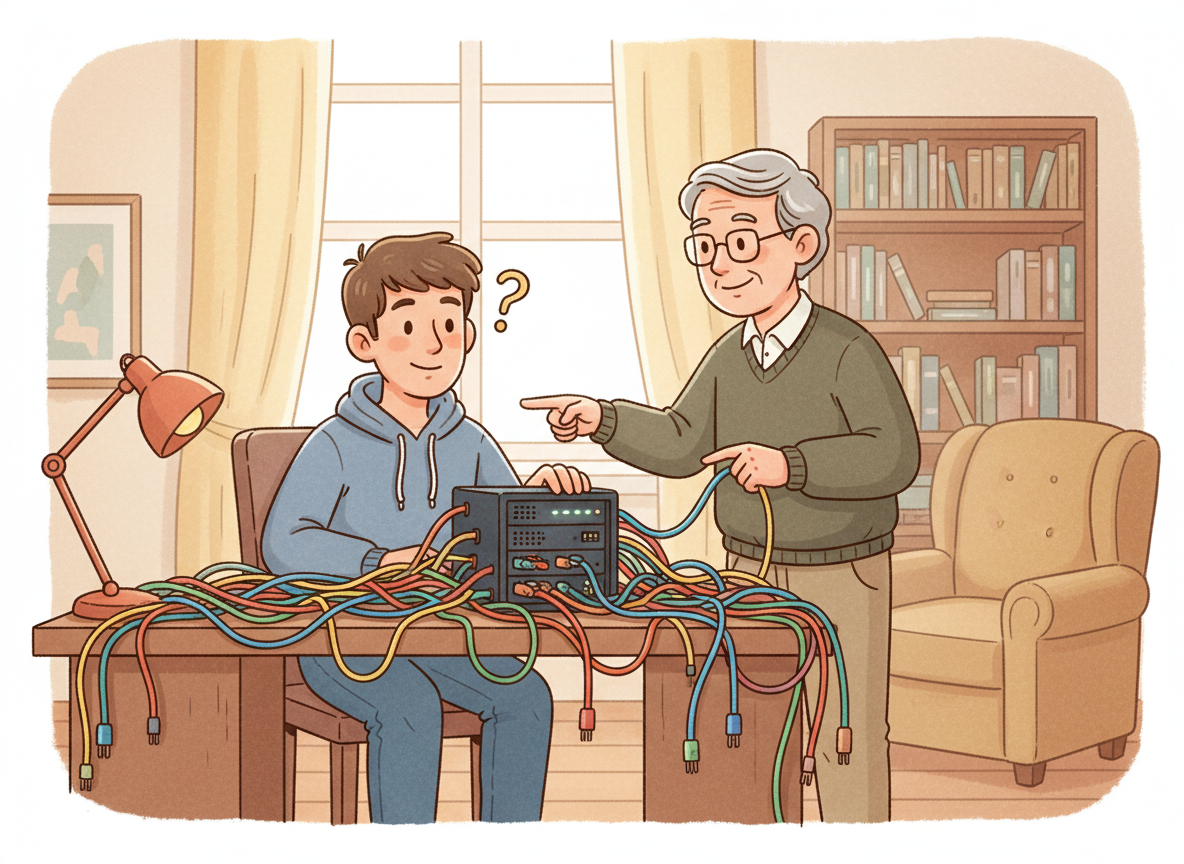
Experienced mentor explaining a tangle of cables to a puzzled young technician

Every MSP owner I talk to has the same headache: finding good technicians. Not warm bodies who can reset a password, but people who can walk into a mess nobody has seen before and work out what’s actually going on. So here’s a question that’s been nagging me. If we keep pushing our techs to lean on AI for every problem, are we quietly eroding the very skill we’re struggling to hire?

The fix that works until it doesn’t

Picture a fairly typical morning. A junior tech gets a ticket about mail not flowing for a shared mailbox. They paste the error into Microsoft 365 Copilot Chat, ask for a PowerShell fix for Exchange Online, run what comes back, and the ticket closes. Great outcome?

Maybe. But ask that tech why it broke and there’s a decent chance you’ll get a shrug. They solved the symptom without ever building a mental model of the system. Do that a few hundred times and you have someone who is fast on familiar problems and lost the moment the answer is wrong, the situation is unusual, or the AI simply isn’t available.

That’s the risk as I see it. Copy-paste fixes. No root-cause understanding. A growing dependence on a tool that can be confidently mistaken. And, longer term, a junior pipeline that never matures into the senior people who can mentor the next lot. If nobody struggles any more, where do the next seniors come from?

But I’m not going back

Let me be clear, I’m not arguing we ban AI from the service desk. Copilot summarising a long ticket thread in Teams or Outlook saves real time. Having it explain an unfamiliar Intune policy setting or draft a script you then review is genuinely useful.

The problem isn’t the tool. It’s how we’re letting people use it. An answer engine makes you dependent. A tutor makes you better. Same technology, very different result.

What I’d do as an MSP owner

A few practical things I’d put in place:

  • Explain the why before applying the fix. If a tech can’t tell you, in plain words, why a command will solve the problem, it doesn’t get run on a customer tenant.
  • Use Copilot as a tutor, not just an oracle. Encourage prompts like “explain what this error means and what could cause it” rather than “fix this”. Ask it to walk through the reasoning, then challenge it.
  • Review AI-assisted tickets. Have a senior skim a sample each week. Look for thin understanding and coach it.
  • Practise without the safety net. Run regular no-AI troubleshooting sessions. Break something in a lab tenant and let the team work it out the old way.
  • Document the reasoning, not just the resolution. “Ran script, fixed” teaches nobody anything. “Mailbox permissions were inherited wrongly after a migration, here’s how I confirmed it” builds team knowledge.

None of this is complicated. It just requires deciding that skill development is still part of the job, even when a faster shortcut exists.

The real question

AI will make good technicians better. I’m fairly confident about that. What worries me is whether it will make new technicians good in the first place, or just make them look good until the day it matters. The MSPs that win the skilled labour fight won’t be the ones that use the most AI. They’ll be the ones that use it to grow people rather than replace their thinking.

So I’ll put it to you: in your business, is AI building your techs’ problem-solving muscle, or quietly doing the lifting for them?

Who Is the Software For Now?

Cartoon of a person relaxing with coffee while app windows around them work on their own

Picture asking Copilot in Teams for a status report on a client project. It goes through the project files in SharePoint, pulls numbers from an Excel workbook, checks which Planner tasks are overdue and drafts a summary to send from Outlook. You never open a single one of those apps.

That gets me thinking. If we don’t need to open the apps, who exactly are they for now?

Is software going headless?

“Headless” usually describes a system with the engine but no front end. You talk to it through an API rather than a screen. What I’m seeing with Microsoft 365 Copilot, agents and Copilot connectors looks like the same idea applied to everyday work. You give the AI a goal, and it goes off and talks to the tools directly.

Take it a step further. Bring in a line-of-business system through a connector or an agent built in Copilot Studio, and that report could include CRM or ticketing data too, without logging in to anything. The tools are still doing the work. Nobody is looking at them.

So is the SaaS product we pay for every month slowly becoming a tool for AI rather than for people? For a growing slice of routine work, I think yes. I’m not convinced it’s the whole story, though.

What it means for the people using the tools

If you’re a creator or knowledge worker, the skill shifts from knowing where every button lives to knowing what to ask for. And knowing what good looks like when the answer comes back.

That sounds liberating, and it is. But it means people may understand their own systems less. When the report is wrong, someone still has to know which spreadsheet fed it and why. If nobody ever opens the tool, who notices when the data inside it has rotted?

And humans aren’t leaving the screen entirely. We still need interfaces to review, approve, handle the exceptions and make the creative calls that don’t fit a prompt. I don’t want an agent sending a client proposal without me looking at it first. The UI doesn’t disappear. It shrinks down to the moments where judgement and trust matter.

What it means for the people building the tools

This is where I think the bigger shake-up sits. Plenty of SaaS companies have built their business on a polished interface, per-seat pricing and the stickiness that comes from people living in the app all day. If an agent is the main user, what’s a seat? And how much is a beautiful dashboard worth if nobody looks at it?

My guess is differentiation moves underneath the interface. It shifts to the quality of the data, how good and open the APIs are, reliability, and how well permissions and security are handled. When AI is acting on my behalf, I care a lot about whether the tool respects who is allowed to see what. Trust becomes the product.

Vendors that treat their API as an afterthought could find themselves invisible. The tool might work perfectly but never get picked by the agent.

So, where does that leave us?

I don’t think the apps vanish. I do think the people who build them need to work out who their real customer is. Maybe it’s the human, maybe the agent, and most likely both. For the rest of us, the job is learning to direct the work rather than do every click ourselves, while staying close enough to the detail to spot when it goes wrong.

So I’ll put the question to you. How much of your working day already happens without opening the app? And will the tools you rely on still matter if you never see them?