SBS to Azure online training course

image

I know there are a lot of Microsoft Small Business Servers (SBS) still out there in the wild. Unfortunately, they are becoming rather long in the tooth and harder to support and maintain.

Migrating all the functions that SBS provided can be a challenge not to mention confusing in today’s world of cloud. For that reason I’ve put together this online training course:

SBS to Azure

It’s aim is to show you the basics of connecting an SBS (or any legacy on premises) environment to the Microsoft cloud.

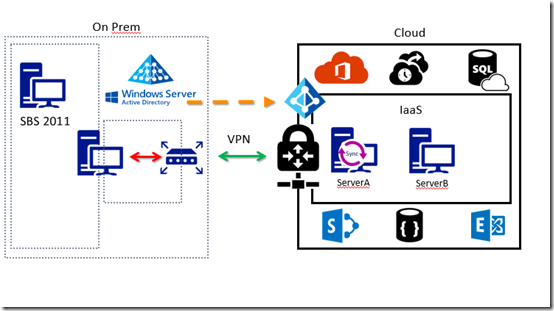
The course will step you through the process of linking your existing on premises network to Azure via a site to site VPN. It will show you how to create Azure virtual networks and virtual machines. You’ll then see how to use these to easily extend your on premises environment.

The course will show you how to set up Azure AD Connect to sync your on premises users to Azure and Office 365 while also taking advantage of Azure DNS. There is even a dash of PowerShell thrown in for good measure.

Unfortunately, there is not a single button that will migrate your SBS environment to the cloud, however this course aims to give you a much better understanding of how to tackle that tasks as well the concrete steps you need to take when doing a migration.

There are over 12 lessons with over 2 hours of interactive video training and resources. If you visit the course today you can access a free preview of the first lesson which is an overview.

I will continue to improve the course material over time but I certainly hope that you’ll consider it if you are looking to moving SBS to the Microsoft cloud.

Office 365 and Azure codex available to patrons

image

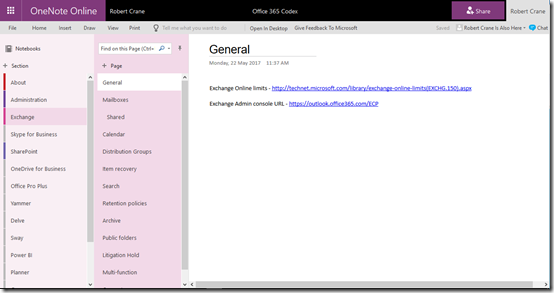
The majority of my learnings end up in OneNote. As you would expect I have OneNote notebooks for just about everything including Office 365 and Azure.

Having them in OneNote means they are searchable, available on every device and I can quickly add information no matter where I am. To my mind, they are pretty much the perfect as a portable personal knowledge base.

I have now taken all my accumulated Azure and Office 365 knowledge and made them available as continually sync’ed OneNote notebooks for CIAOPS Patrons. That’s right, all you need to do to gain access to this material is sign up to be a CIAOPS Patrons for which you’ll get access to both the Office 365 and Azure notebooks (plus I few more I’m planning on releasing) as well as access to my private Facebook community to discuss everything Microsoft cloud as well as a range of discounts (starting at 25%) to my online courses and publications.

The great thing about these OneNote notebooks is that they are dynamic, in that I’ll continue to add information to them over time, posting all the stuff I’m already posted into the Facebook group, but organising it for people to locate quicker when they need to. Best of all, as long as you stay a CIAOPS Patron you’ll get access to this included for as little as US$10 per month. That’s a pretty small price to pay for the notebooks let alone everything else that comes along with being a CIAOPS Patron.

Become a CIAOPS Patron today and enjoy the benefits! You can sign up to be a CIAOPS Patron here:

https://www.ciaopsacademy.com/p/patron/

Overview of Office 365 Security

I’ve just completed a roadshow focusing on the security options in Office 365. I certainly cover what is in all plans but I do focus on what is available, and should be implemented, in the advanced plans such as E3 and E5. I also cover how the security in Office 365 can be enhanced using things such as Azure AD Premium, Intune, Azure Rights Management, Enterprise Mobility Suite and more.

The presentation was given to SMB resellers so it also contains some insights from me on how IT resellers can generate revenue for their business while providing greater levels of security for their customers.

Here are the slides:

https://docs.com/d/embed/D25190796-8769-7753-8680-001215495959%7eMd4186d87-61d5-259a-4d26-00a8bd86cfff

or via:

https://doc.co/juEHXA

I’ve also added the session to my free:

Cloud Lecture Series

at the CIAOPS Academy

Need to Know podcast–Episode 153

Marc and I report on our impressions of the recent Microsoft Build conference. There are quite a few things that caught our eye that we thought we’d like to share with our audience. Everything from CosmosDB to OneDrive on Demand and a few things in between. Get the latest information about all the important stuff for IT Pros from Build along with our thoughts on why they are things that you should be paying attention to.

Take a listen and let us know what you think –feedback@needtoknow.cloud

You can listen to this episode directly at:

https://ciaops.podbean.com/e/episode-153-microsoft-build-2017/


Subscribe via iTunes at:

https://itunes.apple.com/au/podcast/ciaops-need-to-know-podcasts/id406891445?mt=2

The podcast is also available on Stitcher at:

http://www.stitcher.com/podcast/ciaops/need-to-know-podcast?refid=stpr

Don’t forget to give the show a rating as well as send us any feedback or suggestions you may have for the show.

Resources

@marckean

@directorcia

Azure news from Marc

Build Keynotes

OneDrive on demand

Windows Timeline

Cloud powered clipboard

iTunes comes to the Windows Store

Video remix

Channel 9 Xbox preview app

This episode brought to you by: https://cpem.io/tJ01Hzu2k.js

I made my own bot!

After watching the following Microsoft Mechanics video:

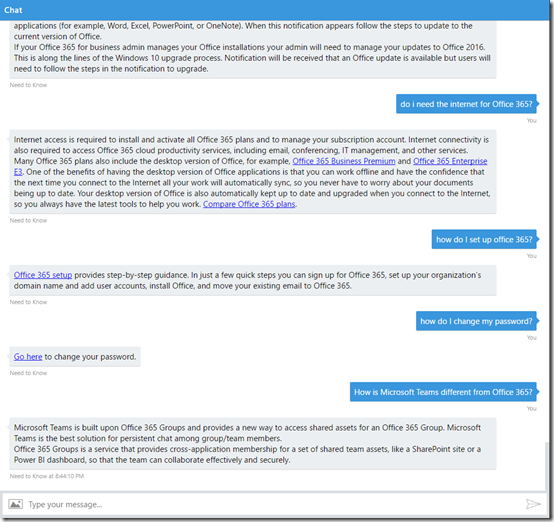
and being inspired by the information coming from Microsoft Build 2017 I decided to create my own Office 365 Q and A bot which you can see below.

image

It is actually live on the Internet right now but I’m going to do more detailed post on how easily I brought all this together when I’ve refined it just a tad more. Once that happens I’ll let you know where you can go to give it a spin and let me know what you think.

Sure, the bot currently has limitations but remember this is just the starting point! I can tell you that it only took me about 30 minutes to get it up and running. I’m keen to see where I can take this concept of an automated bot to answer your Office 365 questions but based on the knowledge based I’ve accumulated over the years. I see a lot of potential here if I can just tweak a few things to make it easy to import the information I have on hand currently.

Hopefully, if I open it up publically it can learn from user inputs and become even better at understanding the question. Again, early days, but I see this sort of things have a lot of application in a lot of businesses. That’s why I’m playing with this now. The future is here.

More soon on the new Need to Know bot from CIAOPS designed to answer your Office 365 questions.

Need to Know podcast–Episode 152

We’re joined in this episode by the chief of Lobster Pot, Rob Farley a Microsoft MVP focused on SQL. However, in this episode we speak to Rob about his experiences in giving a keynote at a recent conference. As Rob explains here, there is far more to a keynote that you think. Luckily we get the low down and all the pointers so stay tuned.

Of course, Marc and I cover off all the latest Office 365 and Azure news to keep you up to date with the latest that’s happening in the Microsoft cloud.

Take a listen and let us know what you think –feedback@needtoknow.cloud

You can listen to this episode directly at:

https://ciaops.podbean.com/e/episode-152-rob-farley/

Subscribe via iTunes at:

https://itunes.apple.com/au/podcast/ciaops-need-to-know-podcasts/id406891445?mt=2

The podcast is also available on Stitcher at:

http://www.stitcher.com/podcast/ciaops/need-to-know-podcast?refid=stpr

Don’t forget to give the show a rating as well as send us any feedback or suggestions you may have for the show.

Resources

@marckean

@directorcia

@rob_farley

Lobster Pot

On keynotes by Rob Farley

Rhino room comedy club

Azure news from Marc

Outlook Customer manager rolling out

Groups now in Mac, iOS and Android

Server 2016 performance tuning

SharePoint Virtual Summit

Microsoft Build 2017

This episode brought to you buy:

https://cpem.io/tJ01Hzu2k.js

In private browsing

I work across many different Office 365 (and Azure) tenants every day. Many times I need to be inside multiple tenants at the same time. How can I do that effectively? I use ‘private’ browsing modes inside each browser to keep login details isolated.

You can think of ‘private’ browsing as an isolated instance of surfing the web. When you start ‘private’ browsing you start with a ‘clean’ environment (no credentials, logins, etc) are remembered. When you close down the sessions everything is forgotten.

Here’s how you start ‘private’ browsing sessions across the major browsers.

Microsoft Edge

image

Right mouse click on the Microsoft Edge browser icon and select New InPrivate window from the menu that appears.

image

If you are already using Microsoft Edge, select the three dots in the upper right to display the above menu. Select the New InPrivate window option.

Google Chrome

image

Right mouse click on the Google Chrome browser icon and select New incognito window from the menu that appears.

image

If you are already using Google Chrome, select the three dots in the top right to display the menu shown above. From this menu select New incognito window.

Internet Explorer

image

Right mouse click on the Internet Explorer browser icon and select Start InPrivate browsing from the menu that appears.

image

if you are already using Internet Explorer, select the Cog icon in the top right, then from the menu that appears select Safety. From the fly out menu that then appears, select InPrivate Browsing.

Firefox

image

Right mouse click on the Firefox browser icon and select New private window from the menu that appears.

image

If you are already using Firefox, select the three lines in the top right to display the menu shown. From the menu that appears, select New Private Window.

Thus, between these four major browsers and their ‘private’ browsing modes, I can work with eight different tenants all at once. Barely enough, I’m telling you. Barely enough.