Adafruit Huzzah input from button

After the last project:

Adafruit Huzzah WiFi

I wanted to have the device take input from a switch (which also came in the Starter kit).

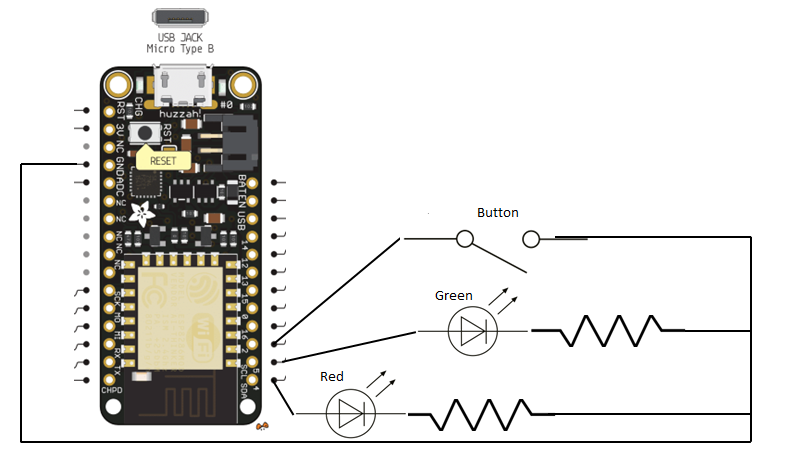
Based on my existing projects I now created a configuration of:

image

Pin 4 = Red LED + Resistor (560 ohm)

Pin 5 = Green LED + resistor (560 ohm)

Pin 2 = button

Each of these lines then went to the GND pin.

For the code I found the following article which was a great help:

https://create.arduino.cc/projecthub/muhammad-aqib/arduino-button-tutorial-using-arduino-digitalread-function-08adb5

from which I adapted my own code at:

https://github.com/directorcia/Azure/blob/master/Iot/huzzah-button.c

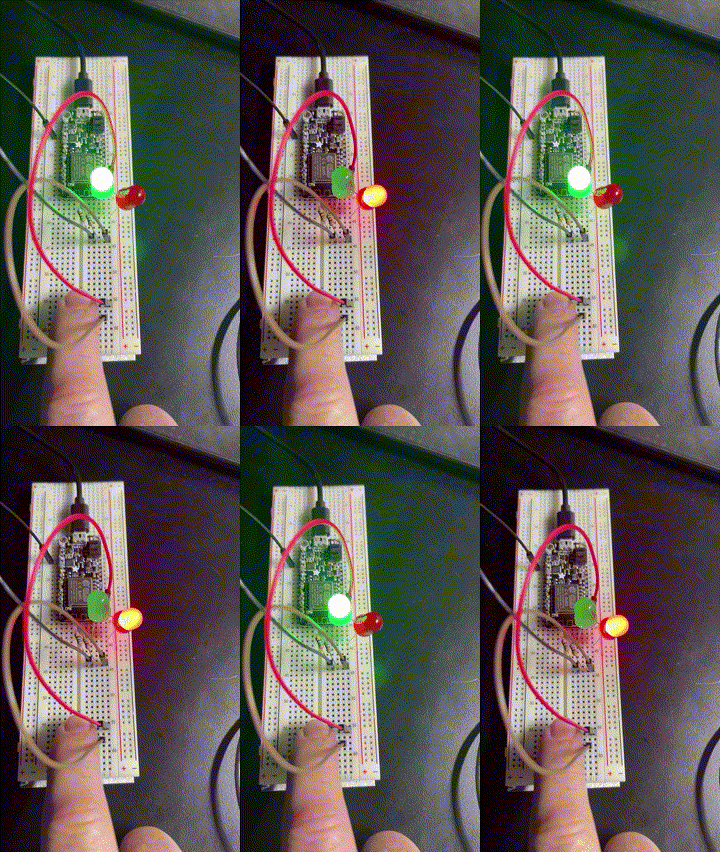
So that when the button is pressed it swaps which LED is on like so:

ledclick

Of course, it could be improved but I am still calling it a success as all I really wanted to do was incorporate input from an external source.

With all this now done, the next aim is to work out how to connect the device to Azure and get Azure capturing the input from the device and reporting it somehow.

Need to Know podcast–Episode 290

I have a few updates from the Microsoft cloud for this episode followed by a discussion about Attack Surface Reduction Rules (ASR) and their importance in reducing your risk.

You can listen directly to this episode at:

https://ciaops.podbean.com/e/episode-290-updates/

Subscribe via iTunes at:

https://itunes.apple.com/au/podcast/ciaops-need-to-know-podcasts/id406891445?mt=2

The podcast is also available on Stitcher at:

http://www.stitcher.com/podcast/ciaops/need-to-know-podcast?refid=stpr

Don’t forget to give the show a rating as well as send me any feedback or suggestions you may have for the show.

This episode was recorded using Microsoft Teams and produced with Camtasia 2022.

Brought to you by www.ciaopspatron.com

Resources

@directorcia

Join my shared channel

CIAOPS merch store

Become a CIAOPS Patron

YouTube edition of this podcast

Microsoft Outlook, your personal organizer, helps you be more productive and in control

Microsoft Digital Defense Report 2022

Investigate incidents more effectively with the new attack story view in Microsoft 365 Defender

Announcing enhanced control for configuring Firewall rules with Windows Defender

What’s New in Microsoft Teams | October 2022

New device control capabilities to manage removable storage media access in Microsoft Intune

Demystifying attack surface reduction rules – Part 1

Demystifying attack surface reduction rules – Part 2

Demystifying attack surface reduction rules – Part 3

Demystifying attack surface reduction rules – Part 4

Enable attack surface reduction rules

Check ASR Rules

Adafruit Huzzah Wifi

My last IoT challenge was to get an

External flashing LED

working and the next was to get the Adafruit Huzzah with ESP8266 to connect to Wifi. To do that I found most the required code here:

https://learn.adafruit.com/adafruit-feather-huzzah-esp8266/using-arduino-ide#connecting-via-wifi

and I’ve put my code on my Github here:

https://github.com/directorcia/Azure/blob/master/Iot/huzzah-wifi.c

You’ll need to put in your own WiFi access point details at the top of the code to connect to your own environment.

This script uses a lot of commands like:

serial.println

which basically outputs text to a serial port. This allows much easier troubleshooting so you can see what is going on. To see this output you will however need a dedicated serial monitor console program. I started off using Putty:

https://putty.org/

which works great but upon reflection, I wanted to use something that was integrated directly into Visual Studio code. After some poking around I found this extension:

https://marketplace.visualstudio.com/items?itemName=ms-vscode.vscode-serial-monitor

which is from Microsoft and seems to do what I needed.

image

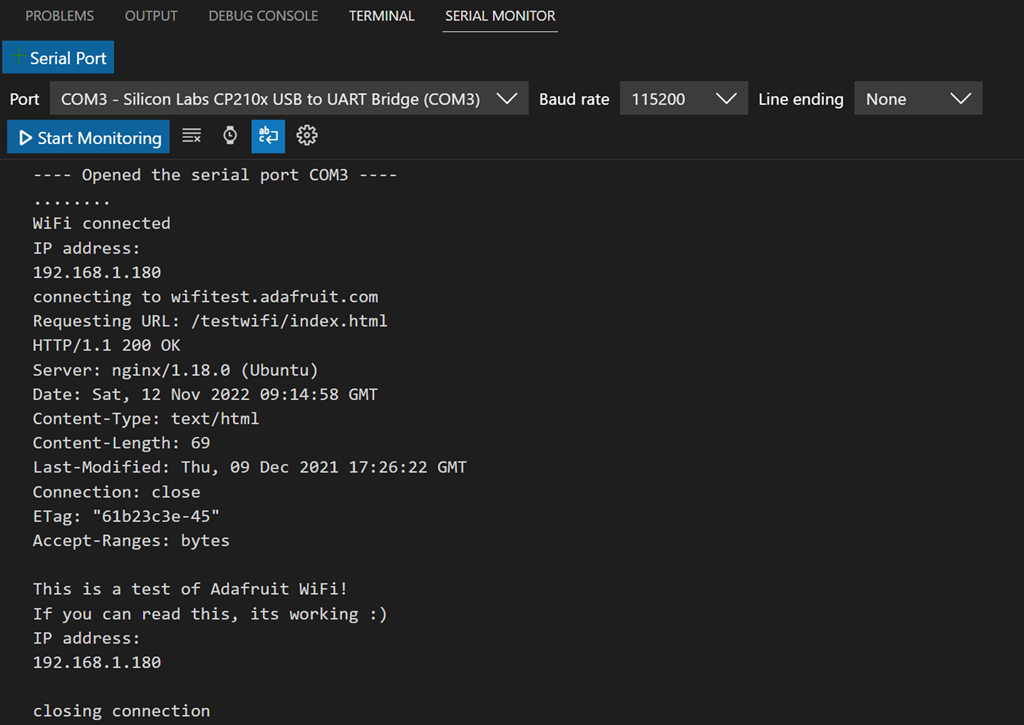
You can see the output from my code above in serial monitor. Always ensure you match the output port and baud rate in the serial monitor to the device you have (here COM3 and 115200). Configuring this is very easy with the serial monitor extension.

Without much alteration, I was able to take the initial code and easily connect to my network as well as the Internet. Once connected I could ping the Adafruit Huzzah with ESP8266 from another PC in the network. A pretty painless exercise. Nice that things are becoming a little easier now I’m becoming familiar with this stuff.

So far, all I’ve done is use the Adafruit Huzzah with ESP8266 for output. Next, I’ll be to start taking simple input into the device by reading something like a button press and then taking action on that.

Stay tuned for details on that soon.

Power Automate PAYG costs

Recently, I detailed how to enable the Power Platform PAYG billing:

Power Platform PAYG configuration

I now see the following in my environment that has Flows with premium connectors:

image

which basically says:

You can use premium capabilities in this environment. It’s covered by your org’s pay-as-you-go Azure subscription.

The reason I enabled this was because I wanted access to use Premium connectors without having to pay for a higher fixed monthly license cost.

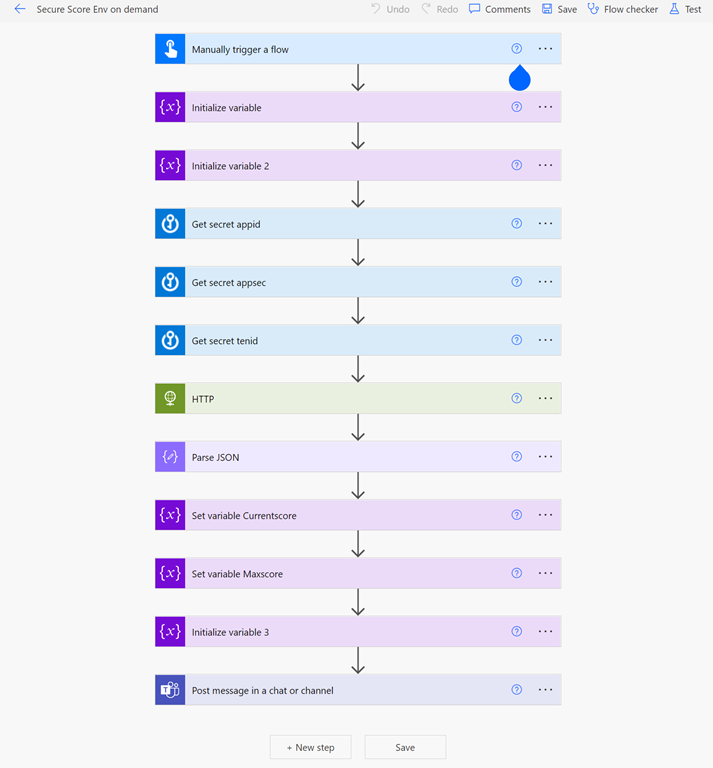
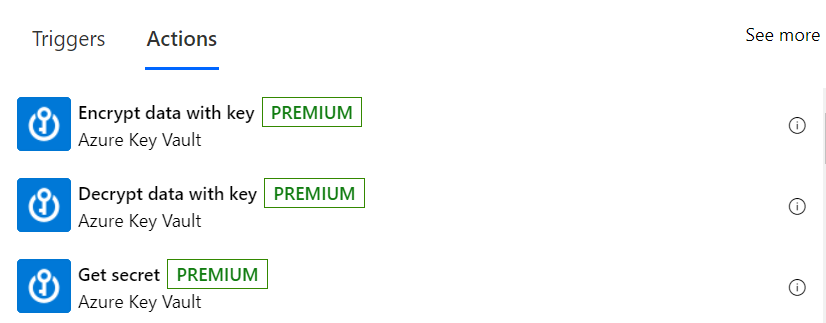
I have the following Flow in this environment that uses two premium connectors:

image

– Azure Key Vault

image

and

– HTTP

image

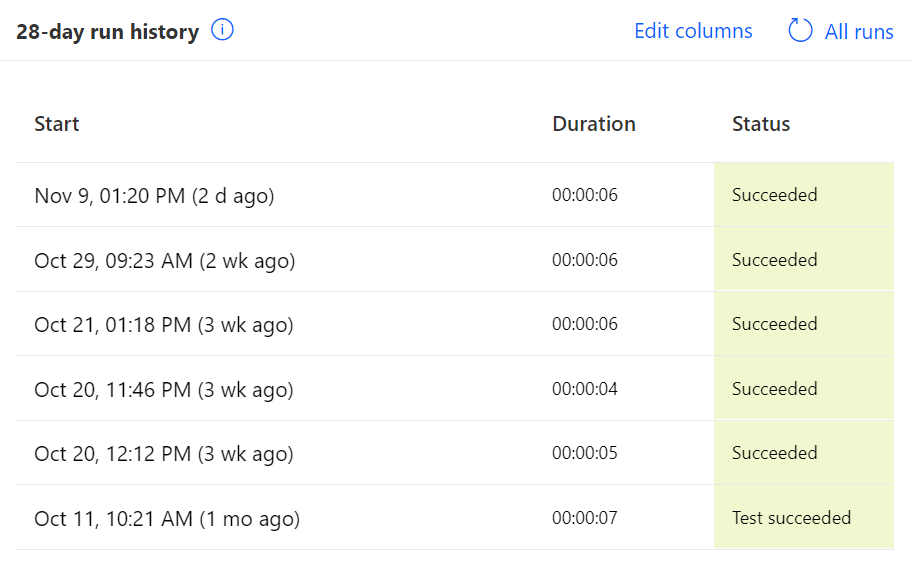
If I now look at the recent Flow runs I see six in total 1 in November and 5 in October.

image

Now looking at the Azure costs by service for November I see:

image

and for October:

image

Therefore, with 5 runs in October my average cost was $3.70 / 5 = $ 0.74 while in November, with only 1 run so far it was $0.92.

Assuming the highest run cost of $0.92 and with the execution of 4 premium connectors in the Flow (3 x Azure Key Vault and 1 x HTTP) that comes to a cost of $0.23 per premium connector.

The big benefit of the Power Platform PAYG option is that it allows quick and easy access to Premium connectors without the need to purchase a higher Power Platform license at a fixed rate per month regardless of usage. This means the PAYG option is great for testing prior to committing to a higher fixed value license or occasional use of Premium connectors. This should be really appealing to many who may only need to use a Flow with Premium connectors a few times in a month. When the PAYG billing approaches the full license cost you can always switch over.

In summary then, from what I can determine, you should allow around $0.25 per Premium connector per Flow run when calculating your PAYG costs with the Power Platform.

We shall remember them

Today marks the anniversary of the cessation of hostilities in the First World War. It was a multi year bloodbath that killed millions, many in the most terrible of ways. Many of whom have no known grave.

Today we pause to remember all those whose lives have been affected by war. Any war.

Today, many people are still experiencing war and many live with the threat of imminent war. For them we hope that horrors of the past remain in the past. Unfortunately, all too often, history repeats and brings death and destruction to their door step through no fault of their own. Let us hope that todays brief remembrance reminds everyone of the immense and continuing impact war has and why it should be prevented at all costs, not with empty promises and gestures, but real action.  

Times may change but the impact of war hasn’t. This seems to be a lesson we fail tor learn.

In times like these we celebrate and remember the human spirit of the those that sacrificed for others. Those that put the needs of others ahead of their own, and for those that put their lives on the line to save others from harm. These are the special people, who come from all walks of life but had the single purpose of service to a greater good. They are special and worthy of our utmost respect.

War is a human construct. born of the worst aspects of the human condition. It is however also something that we can just as easily could and should prevent. As those that went before, we can prevent these horrors by thinking of others before ourselves and working for the common rather than individual good.

Every day is a blessing and life is far too short. For those that we remember today, it was cut short for reasons that fad with the passing years. Let the memory of the reasons fad but never those who have paid the ultimate price.

Lest We Forget.

Windows 11 Hyper V Guest configuration

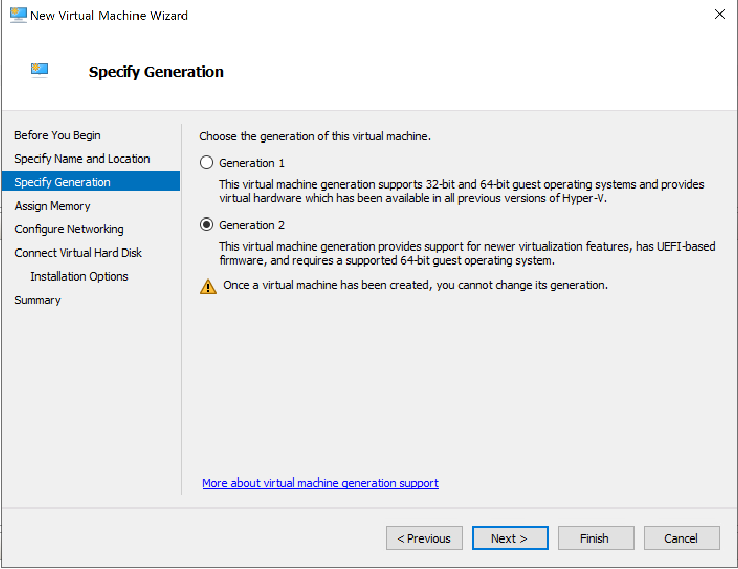
If you need to create a Windows 11 Hyper V guest machine You’ll need to ensure:

1. You create it as a Generation 2 machine

image

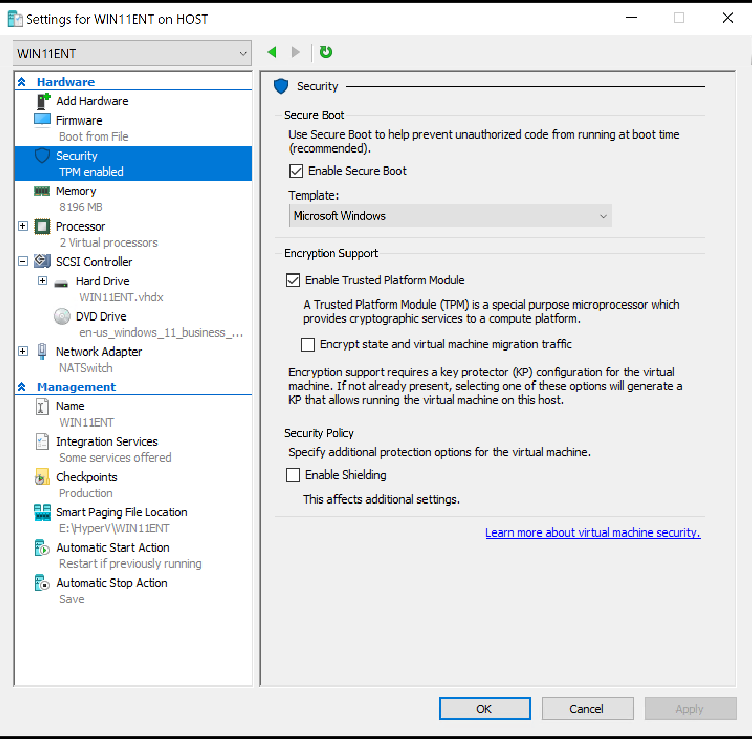
2. Once you have completed the normal set up process of assigning disks and setting up the machine, make sure you don’t power up the machine, but instead go into the Settings for that machine.

image

Select Security and ensure Enable Secure Boot and Enable Trusted Platform Module are checked.

3. Navigate to Processor

image

and ensure the Number of processors is at least 2.

With those basic settings in place you should now be able to install and run a Windows 11 Hyper V guest

image

External flashing LED

My first IoT project was to get the on board LED flashing which I achieved here:

Not as easy as IoT

With that accomplished, I now wanted to get an external LED flashing.

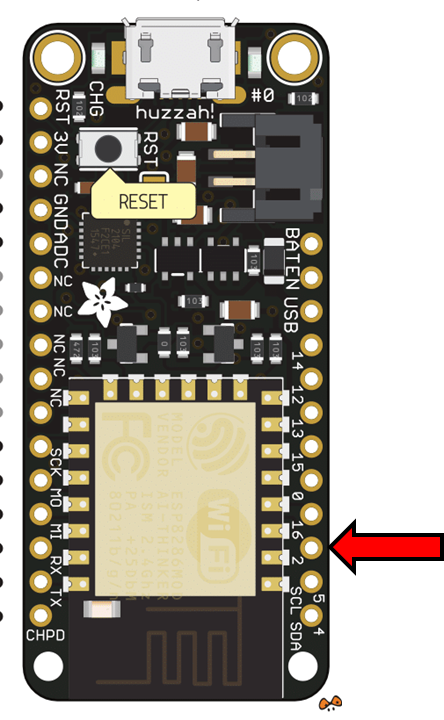
I firstly needed to pick a pin on the Adafruit device to control the output on.
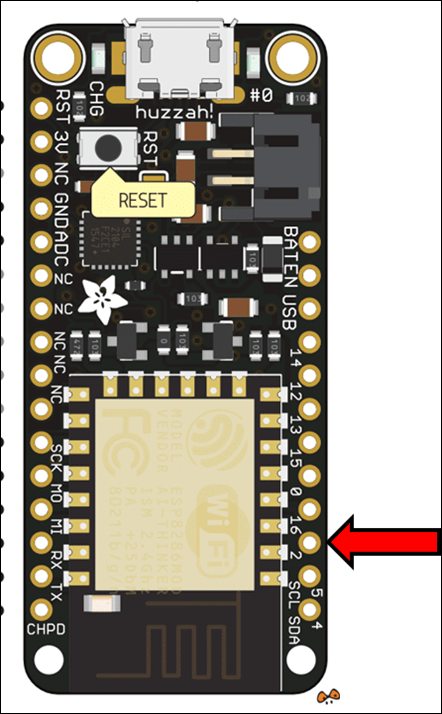
image

I chose the third in from the bottom on the right which is PIN 2.

Next, I needed to work out the maximum output voltage for the Adafruit Feather Huzzah, which turns out to be 3.3 Volts. I also noted the following from the pin output specifications as well:

“be aware the maximum current drawn per pin is 12mA. 6mA recommended”

I also needed to take into account the voltage drop that would occur across the LED, which is around 0.7V. So the voltage for my calculation was now:

3.3V – 0.7V = 2.3V

To work out what resistor I needed to place in the circuit I used the good ole V= IR.

V=IR

R = V/I

R = 2.3 / 0.006

R = 433 ohms

I double checked my logic at:

http://www.anycalculator.com/ohmslaw.htm

I then went through the:

Microsoft Azure IoT Starter Kit w/ Adafruit Feather HUZZAH

I had bought to see what resistors were included. In there I found a 560 ohm resistor. If you need to check your resistor markings like I did, you can use:

https://byjus.com/physics/resistor-colour-codes/

to help discern what you have.

A 560 ohm resistor would means my current would be:

I = V / R

I = 2.3 / 560

I = 4.1 milliamps (well below the 6 milliamp recommendation)

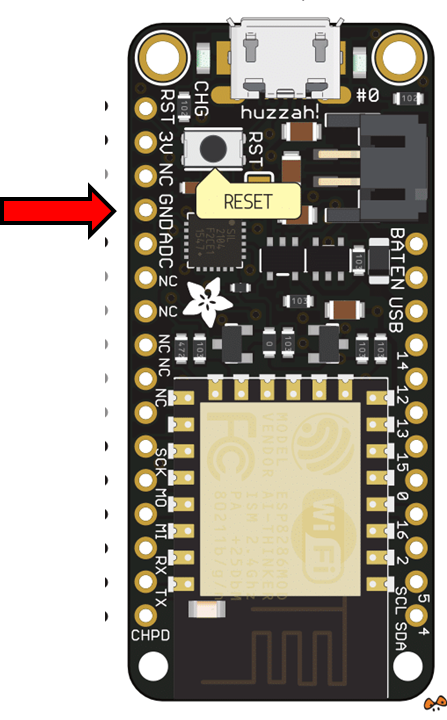
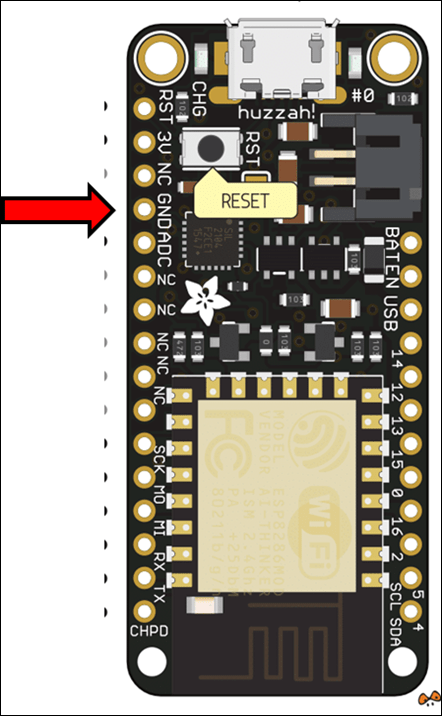
All I needed now was to find the ground for the Adafruit
image

which turned out to be the fourth pin from the top on the left.

I therefore wired up the output from pin 2 on the Adafruit, through the LED, through the resistor and then to ground, completing the circuit.

Now for the code to make it flash.

#include <Arduino.h>

int LED_Pin = 2;

int status = 1;

void setup(){

pinMode(LED_Pin, OUTPUT);

}

void loop() {

  // put your main code here, to run repeatedly:

if (status) {

digitalWrite(LED_Pin, HIGH);

  } else {

digitalWrite(LED_Pin, LOW);

  }

status = 1-status;

delay (1000);

}

which is basically the same as before, except the LED_pin now is set to 2. The code is at:

https://github.com/directorcia/Azure/blob/master/Iot/huzzah-ext-flash-led.c

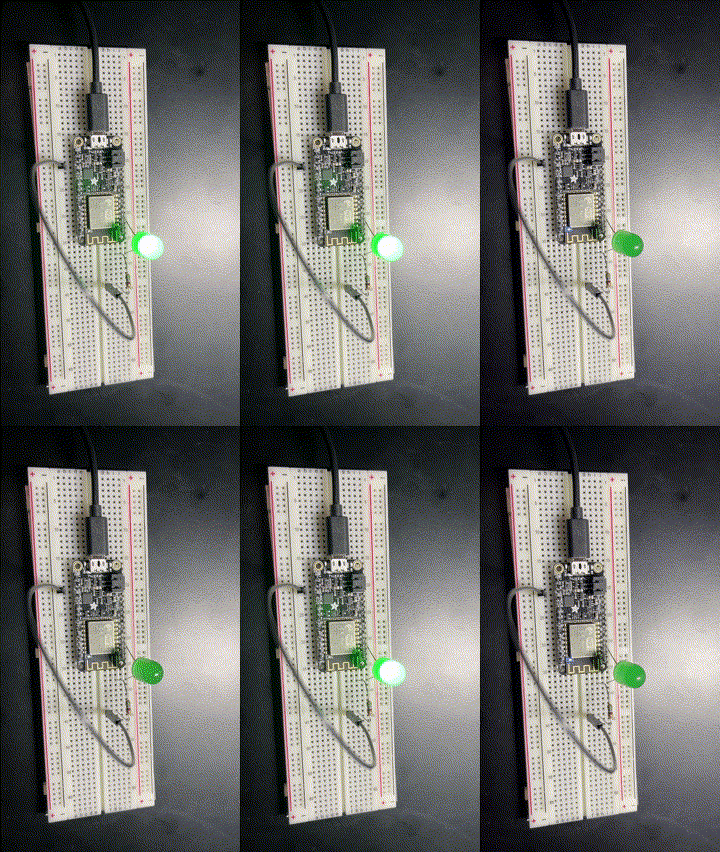
Using PlatformIO IDE I uploaded my code to the Adafruit and after a few minutes was greeted by:

iot-flash

Magic eh?

Sure it’s simple but it’s another step along my IoT journey.