CIAOPS Cyber protection model update

image

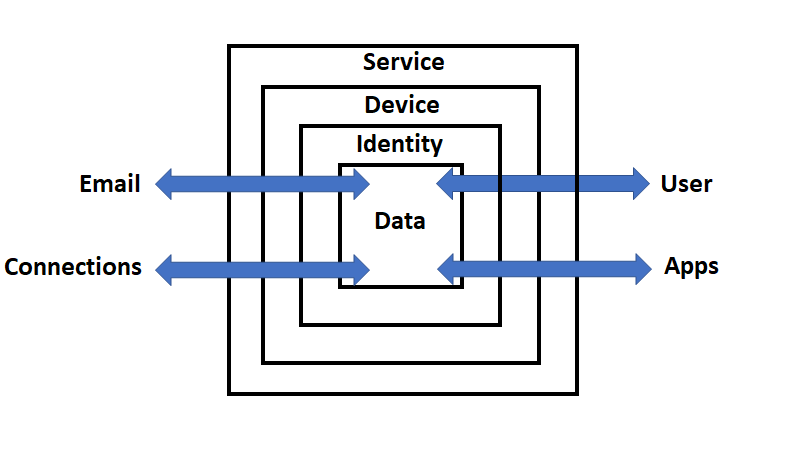
If you’ve been following along at home, I’ve been working on a simplified security model for the Microsoft cloud. After further thought, I’ve come to the conclusion that firstly, the browser is not an independent connector, it is in fact an app. Thus, I have replaced it as a connector with a User connector. The inclusion of a specific user (basically a real live person) came about after concluding that an identity and a user are actually two separate things. This is  because a user can actually have multiple identities, for example to on premise infrastructure which maybe different from  the cloud.

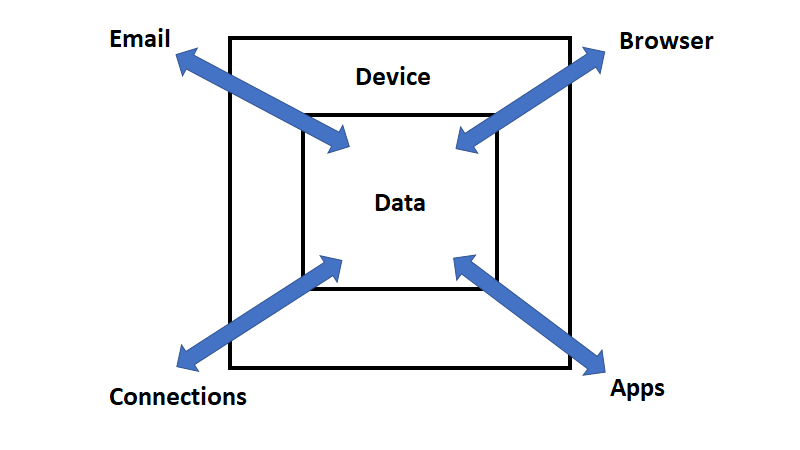
So, the current model starts with containers where data flows:

1. Service – e.g. Microsoft 365

2. Device – e.g PC or phone

3. Identity – e.g. Azure AD

4. Data – e.g. files, folders

Through and into these containers flows data from connectors like:

1. Email

2. Connections – e.g. LANs, Internet

3. Apps – e.g. Microsoft Office, Browser

4. User
image

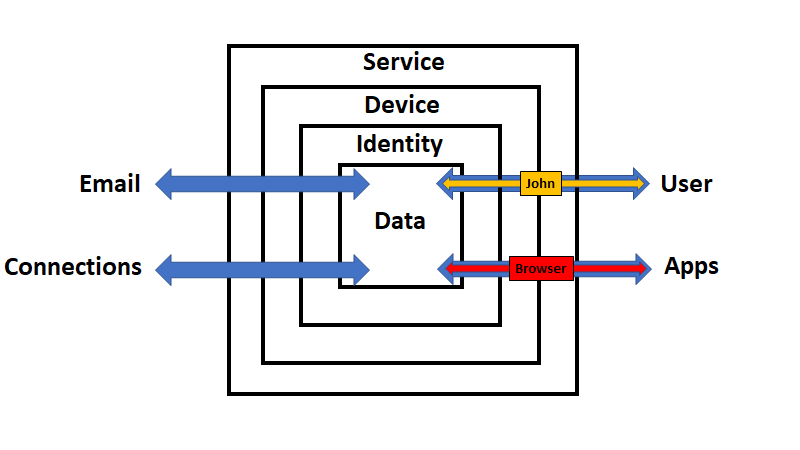
Since I have now replaced the browser connector by a user connector, let’s work through an interactions here to test my logic out.

To use a browser the user (i.e. John) will need to login to a device. Assuming that device is Azure AD connected, it means that they will be using a device inside the service (Microsoft 365) as shown above. Remember also, that as each interaction crosses a container boundary logs will be written. To gain access to a device managed by the Microsoft 365 (the service), the John (the user) will need to verify their identity with Azure AD. This process can be protected with features like multi factor authentication (MFA) and Conditional Access (CA). Once the user has successfully completed this process they can access both the data in the inner container, the device and any applications, like the browser, on the device.

If the John (the user) wants to access the data within the service they can do so securely. Remember, that any access to data via an app like a browser crosses a container boundary and thus logs are captured. In this case, those events will be captured and available in the unified audit log.

Of course, John (the user) is also typically going to want to access data from outside Microsoft 365 (the service) and there needs to be as much protection as possible provided during that process.  The first step in that protection process is to protect the application, that is the browser. This can be achieved via the Microsoft Edge baseline settings for Intune. Also, because the browser is an application running on the device that also should be protected. That can be done via the Windows 10 Security baseline, which is part of Endpoint Manager as well as Microsoft Defender SmartScreen. Further protection can be layered on with Windows Defender for Endpoint. If the user saves information into SharePoint, OneDrive for Business or Teams (i.e. the data container) it is protected via Defender for Office 365.

Data can also be protected via Azure Information Protection (AIP) and Windows Information protection (WIP). These features of Microsoft 365 (i.e. the service) allow the business to determine whether information can be stored on a device and what protection it should have no matter where it is stored. If the user is allowed to save information onto the device it can also be protected via Bitlocker which can be enforced via Endpoint Manager policies.

Now, if John (the user) was to access the service from a device that was not Azure AD joined they could do this but because the data still resides inside the service it can still be protected using things like control access from unmanaged devices.

Ok, I’m becoming happier that this model fits the bill. Each container provides layers of protection such as:

Service – Alerts, Log searching, Microsoft Cloud App security, Exchange online filtering, etc., etc.

Device – Bitlocker, Endpoint manager policies, etc

Identity – MFA, CA, Azure identity Protection, etc

Data – AIP, WIP, encryption at rest, etc

and crossing each boundary also generates separate sets of logs for the interaction.

I feel pretty confident with this security model in place I can now start attaching the specific security features the Microsoft Cloud provides in each location and explaining the role they play. I have mentioned a few here just to give you an idea and verify to myself that the model works but now I think it is time to take this mode and run with it! What do you think? Love to hear your thoughts.
CIAOPS Cyber Protection Model

I have started on a journey to nut out a unique protection model with the aim of applying it to the Microsoft Cloud to simplify the application and understanding of cybersecurity for people. My initial thoughts are here:

A simplified protection model

With input from a few, I’ve now progressed my thinking.

image

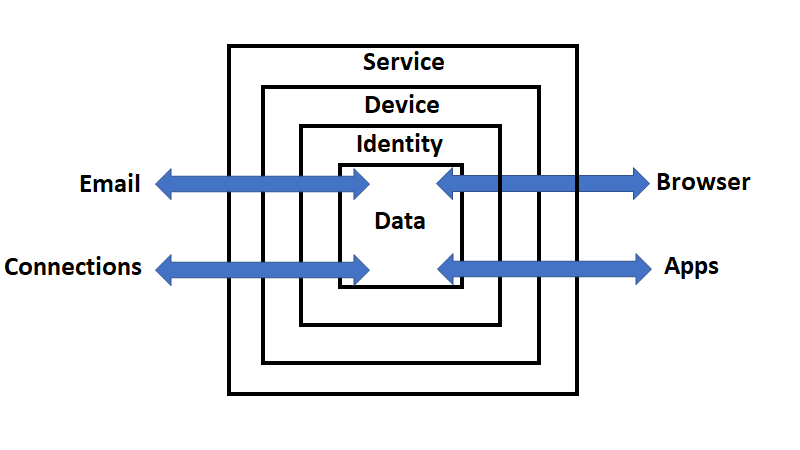
The latest model is shown above. The containers are:

1. Service – For example: Microsoft 365 or Gmail, etc

2. Device – For example: Windows 10 desktop, iPhone, Android phone, Mac PC, etc

3. Identity – For example: Azure AD credentials, Google or Apple account, etc

4. Data – For example: Files, folders, email messages, etc

Through and into these containers flows data from connectors like:

1. Email

2. Connections – For example: networked devices, the Internet, etc

3. Apps – For example: desktop apps like Office, accounting apps, etc

4. Browser – For example: Edge, Firefox, Chrome, etc

image

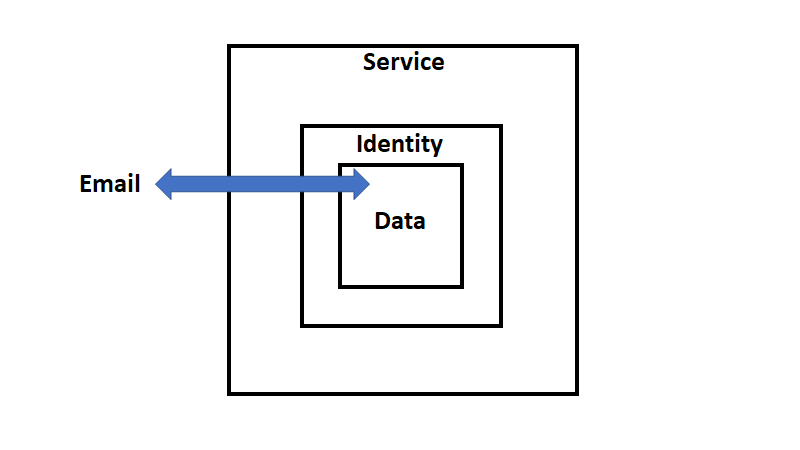
Let’s just focus on the email connector initially, as shown above. You see that in the above model that the device container is missing. This is because email can be delivered without the need of a device. That is an email can be sent to Exchange Online in Microsoft 365, received, verified that a user with that identity exists, and then finally delivered to the users inbox. That can all happen without the interaction of the user and without the need of a device.

image

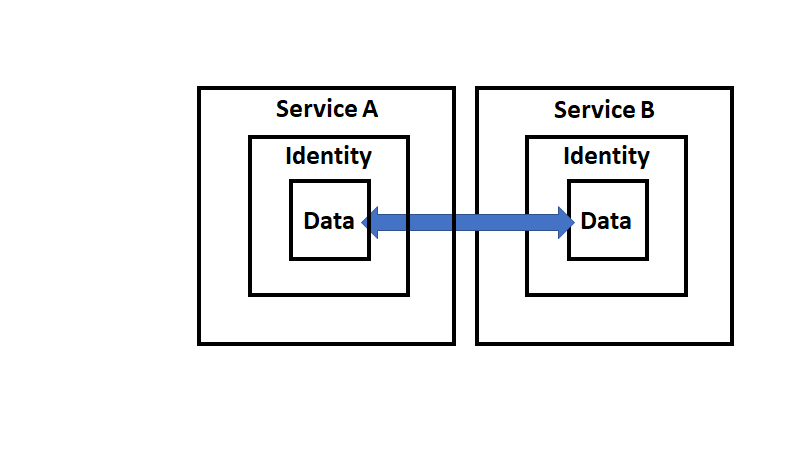
If we expend this out one level the inbound email received by Exchange Online (Service B) has to have been sent by another email service (Service A shown above). Service A must contain an identity (i.e. the sender of the email) and the actual message (i.e data).

This however, still hasn’t involved a user. It has simply been a ‘service to service’ process.

image

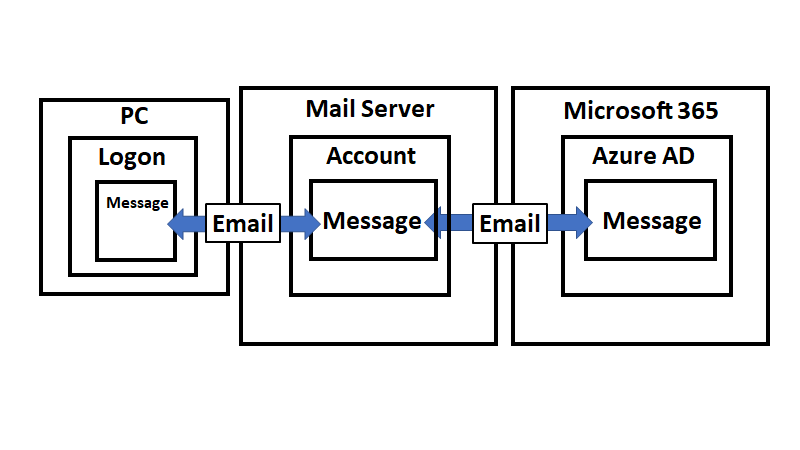
At the end of the chain will be a device (a Windows 10 PC say), logged into via a user account (identity), that created that data with an app (say Outlook). That data (email message) is then moved by the email connector firstly to Service A which then again uses an email connector to move it to Service B as shown above.

image

Putting specific identifiers on things you get the above.

image

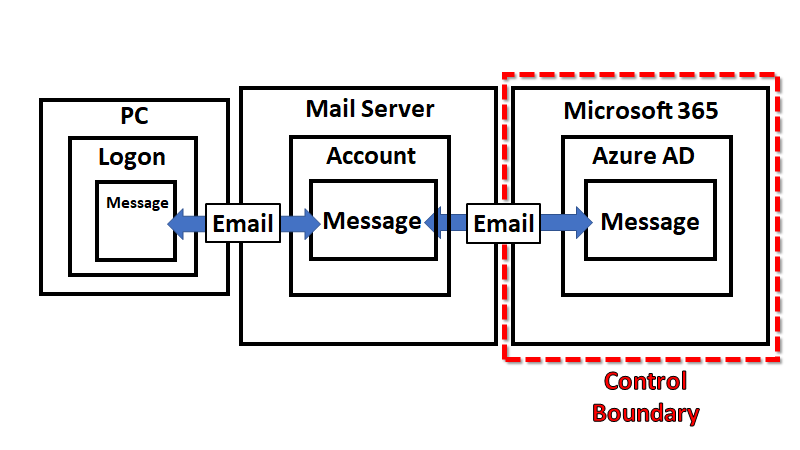
So the model seems to scale but we need to re-focus it on protection. Looking at the above, it is clear that you can only control so much of the ‘chain’, as you see highlighted by the ‘control boundary’. Therefore, we should focus our efforts on only what we can control and protect.

image

With said focus, we can now start to map capabilities to protect the environment. For example, with email, we can ensure we have appropriate DNS records. This capability lies outside the Service boundary (here M365) but still within our control boundary. When data passes over any security boundary it creates logs. In the case of emails, this would be information that could be examined using features like Message trace in Microsoft 365.

After the data, flowing through the connector, passes across a boundary and writes log data, security features of that container can now be applied to the data. In the example, once an email is delivered to Exchange Online in Microsoft 365 it then typically has anti-spam and anti-malware as well as other filtering policies applied. Additional protection can also be provided in the form of Microsoft Defender for Office 365 (shown as ATP in the above image to keep things short).

So, that is just my brief thinking around the Email connector but I feel that the model works well so far helping to simplify security I hope. I’ll keep expanding what I have and begin to incorporate more specific examples of where Microsoft Cloud security products fit into this model. Hopefully, the more built out the model becomes the easier for people it will be to understand the total breadth of Microsoft can offer to help protect your environment.

As always, love to hear your thoughts and feedback on what I’m developing here, so don’t be shy. Look out for future model enhancements coming soon!

A simplified protection model

image

As much as third party cyber security protection models are handy (i.e NIST Cybersecurity Framework), I personally find them far too complicated for my liking. Complicated generally translates to poorly or not full implemented. That translates into lower levels of security, especially in the SMB space. I think that good security is all about keeping things as simple as possible.

With that in mind, I’ve started to try and nut out my own model. My thoughts so far centre on the above diagram. In the centre is your data. Data is moved and changed via four basic connectors:

1. Email

2. Connections (i.e. to removeable storage, network connections, Internet, etc)

3. Applications

4. Browser

The Data is normally protected by a Device, being a workstation, server or mobile. However, typically it is a workstation as hopefully most people aren’t browsing on servers. The aim also here is to focus on cloud deployments here without on-premises infra-structure.

For the Connectors to interact with Data they must do so across the Device boundary. In the security context, this means that these Connectors also need access to not only the Data but also the Device. Thus, attacks are going to be targeted at either the Data or the Device via the Connectors as I see it.

If we consider that most Data doesn’t include it’s own defensive capabilities because, typically, it is the container in which the data lives that has the defensive capabilities, then we need to look at the defensive capabilities of the Device I believe. It is also worth noting that data on it’s own generally isn’t a threat, it is only when action is taken with Data that risk arises. For example, a phishing email sitting in an inbox unopened is not an active threat. It only becomes active when it is read and the link inside is clicked allowing a process to take place, typically, on the device. In short, Data typically isn’t the source of active threats, it is actions taken with that data that generates active threats. These are typically activated on the device.

That means the major security focus should be on the defensive capabilities of the Device. It also means that the major threats are going to come from the four connectors; email, browser, connections and applications. Of these four, I would suggest that the most likely source of introduced threats is going to be from email and the browser.

Reducing the risks from both email and the browser start at the source of these two connectors. For email that means appropriately configuring things like DNS, then mail filtering policies to provide protection even before the connection passes onto the device. Likewise for the browser, this means content filtering before results are returned to the browser. However, setting those items aside for the moment and let’s just focus on what threats the device faces from the email and browser connections.

The threat from email is going to be a message that either:

1. delivers a malicious attachment that when opened by the user and takes action

2. delivers a message that contains a malicious link that is clicked by the user and takes action

3. delivers a message that convinces the user to take some risky action

The threat from the browser is going to be either:

1. navigating to a web site that contains malicious content that is downloaded and takes action

2. navigating to a web site that harvests credentials

The interesting thing with all of these is that it requires some sort of user interaction. As I said, a phishing email isn’t a major threat until a user click on a link it contains.

So what’s kind of missing from my model so far is the person or identity. let me go away and think about this some more but I appreciate sharing my thoughts with you and if you have any feedback on this model I’m trying to develop, please let me know.

Introduction to MCAS course from CIAOPS

I am happy to announce that I have released a new online course:

Introduction to Microsoft Cloud App Security (MCAS)

This course is designed for those who have never used MCAS and want to understand what it is and how it can make their Microsoft 365 tenant more secure. The course includes over 90 minutes of video lessons plus additional resources to allow you to extend you understanding of MCAS.

Microsoft Cloud Best practices

pexels-element-digital-1293266

I get asked quite regularly about best practices for the Microsoft Cloud so what I have done is start a new file in my GitHub repository here:

https://github.com/directorcia/Office365/blob/master/best-practices.txt

where you’ll find links to articles from Microsoft and others (i.e. NIST, CIS, etc) around best practices for the Microsoft Cloud.

Let me know if you have any more and I’ll add them.

Need to Know podcast–Episode 260

We welcome back Brenton Johnson to speak about his success with Intune and how he’s using it to manage devices for his customers. Brenton shares his journey as well as some handy best practices during our chat.

Of course, there is also all the Microsoft Cloud news to get through, so sit back and enjoy this bumper episode.

This episode was recorded using Microsoft Teams and produced with Camtasia 2020

Take a listen and let us know what you think – feedback@needtoknow.cloud

You can listen directly to this episode at:

https://ciaops.podbean.com/e/episode-260-brenton-johnson/

Subscribe via iTunes at:

https://itunes.apple.com/au/podcast/ciaops-need-to-know-podcasts/id406891445?mt=2

The podcast is also available on Stitcher at:

http://www.stitcher.com/podcast/ciaops/need-to-know-podcast?refid=stpr

Don’t forget to give the show a rating as well as send us any feedback or suggestions you may have for the show.

Resources

@contactbrenton

@directorcia

Uptake Digital

Power Apps Community plan

Meet the Microsoft Pluton processor – The security chip designed for the future of Windows PCs

The Microsoft Cloud App Security (MCAS) Ninja Training is Here!

Extend data loss prevention to your devices with Microsoft Endpoint Data Loss Prevention, now generally available

It’s Time to Hang Up on Phone Transports for Authentication

See how to easily keep tabs on your Azure Sentinel ingestion costs

What’s new: Microsoft 365 Defender connector now in Public Preview for Azure Sentinel

Microsoft’s Cloud PC: Leak reveals new details on upcoming Azure-powered remote desktop

What’s New in Microsoft Teams | October 2020

The definitive guide to Productivity Score

Show ASR settings for device with PowerShell

image

I have just released a new script in my GitHub repository that will report on the local device Attack Surface Reduction settings (ASR) as shown above. You’ll find it here:

https://github.com/directorcia/Office365/blob/master/win10-asr-get.ps1

There no pre-requisites. Just run it on your Windows 10 devices to report.

If you are looking to change the ASR settings for your environment, I suggest you have a read of my previous article:

Attack surface reduction for Windows 10

I’d strongly encourage you to enable ASR across your Windows 10 fleet to reduce risks of attack.