Connect to Microsoft 365 using PowerShell

Once you have set up your PowerShell environment the next thing is to use it to connect to Microsoft 365 services like Exchange Online and Teams.

I have created several free automation scripts at:

https://github.com/directorcia

to make that process easy.

In this video, I’ll walk you through the steps of using what I have created to make it simple to connect to any Microsoft 365 service using PowerShell quickly and easily.

Here is a direct link to the video:

https://www.youtube.com/watch?v=c1PwAbzM8RI

Updating PowerShell for use with Microsoft 365

Keeping all your PowerShell modules up to date for Microsoft 365 is easy using the process in this video along with the free script I provide here:

https://github.com/directorcia/Office365/blob/master/o365-update.ps1

Simply use the script, with elevated privileges, and you can automatically update all the modules. If you then save the script locally, you can use an option to prompt you for each update if you wish.

Here is a direct link to video:

https://www.youtube.com/watch?v=p9rKHDM3-zI

Setting up PowerShell for use with Microsoft 365

This video will show you the process of setting up PowerShell on a new clean Windows 10 environment to support working with Microsoft 365. Basically, you grab my free set up script here –

https://github.com/directorcia/Office365/blob/master/o365-setup.ps1

and paste that into an elevated PowerShell window and run it. The required PowerShell cloud modules will then be installed into your environment, making it ready to connect to Microsoft 365, Azure, Intune, etc.

Here is a direct link to the video:

https://www.youtube.com/watch?v=UUb_lYxvlOc

How to remove a Win32 application using Intune

This video:

https://www.youtube.com/watch?v=Xilp56PVltI

will show you the steps to remove an Win32app from a Windows 10 desktop. It will utilise an existing Intune Application deployment policy to achieve this. It is able to do so because part of creating the initial deployment policy was the requirement to specify how to uninstall that same application. Thus, when you create an Application deployment policy in Intune you can use to add and remove that application from your environment.

Need to Know podcast–Episode 276

i speak with MVP and Digital Workplace expert Rebecca Jaskson. Rebecca is fascinated by what makes people and organisations tick. She specialises in the digital workplace, employee experience and change management. We do a  deep dive into the main collaboration tools that Microsoft provides such as SharePoint, with an especial focus on the value of the modern Intranet.

There is also a round up of the latest Microsoft Cloud news at the front of the episode.

This episode was recorded using Microsoft Teams and produced with Camtasia 2020.

Brought to you by www.ciaopspatron.com

Take a listen and let us know what you think – feedback@needtoknow.cloud

You can listen directly to this episode at:

https://ciaops.podbean.com/e/episode-276-rebecca-jackson/

Subscribe via iTunes at:

https://itunes.apple.com/au/podcast/ciaops-need-to-know-podcasts/id406891445?mt=2

The podcast is also available on Stitcher at:

http://www.stitcher.com/podcast/ciaops/need-to-know-podcast?refid=stpr

Don’t forget to give the show a rating as well as send us any feedback or suggestions you may have for the show.

Resources

Rebecca Jason – Linkedin, Twitter, Blog, Instagram

Mirosoft Ignite

AI-based Privacy Management for Microsoft 365 [VIDEO]

3 ways to support frontline workers in a hybrid world

Introducing Android™ Apps on Windows 11 to Windows Insiders

Microsoft achieves a Leader placement in Forrester Wave for XDR

Windows 11 security: Protect it all with Windows 11 chip to cloud security

Sysinternals in the Windows store

Sysmon report in virus total

Providing feedback on user reported messages

Hopefully, you are aware that Microsoft 365 provides users the ability to report a suspected email. I have spoken about this here:

Improved security is a shared responsibility
image

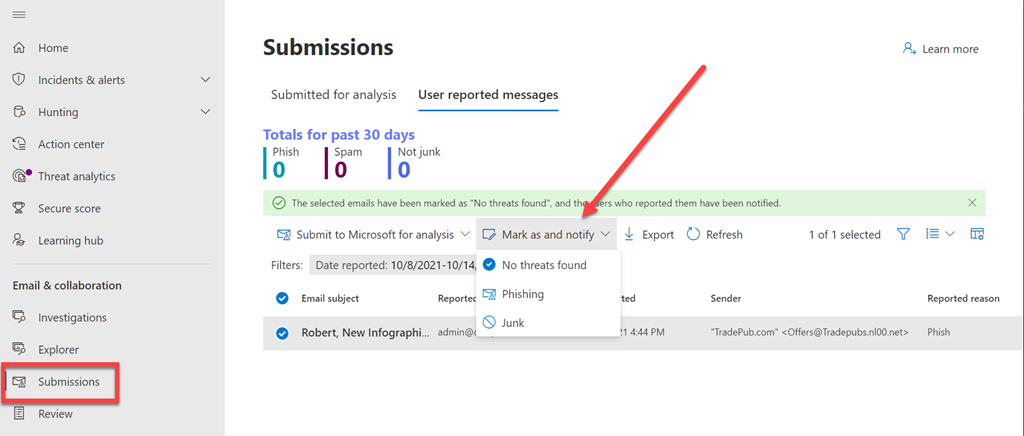
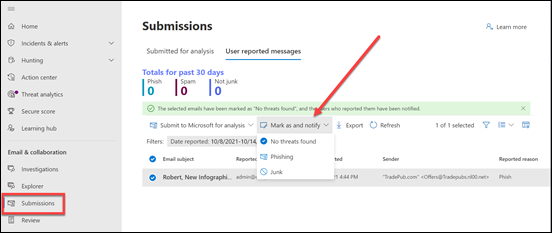
What you may not be aware of is that these submissions can viewed and action in the Microsoft Security Center:

https://security.microsoft.com

under the Submissions menu option as shown above.

You may also not be aware that there are further actions you can take in here:

image

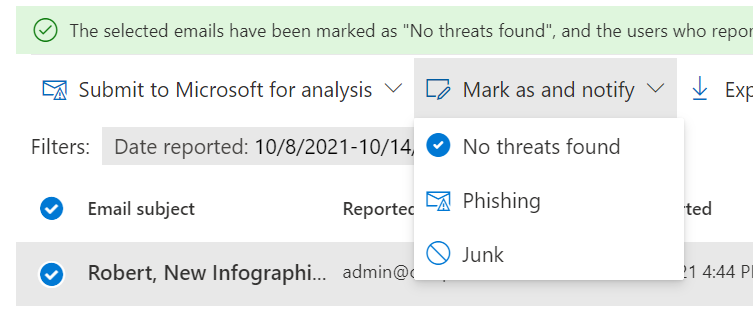
You can provide feedback directly to the user about their submission using the Mark as an notify option as shown above.
image

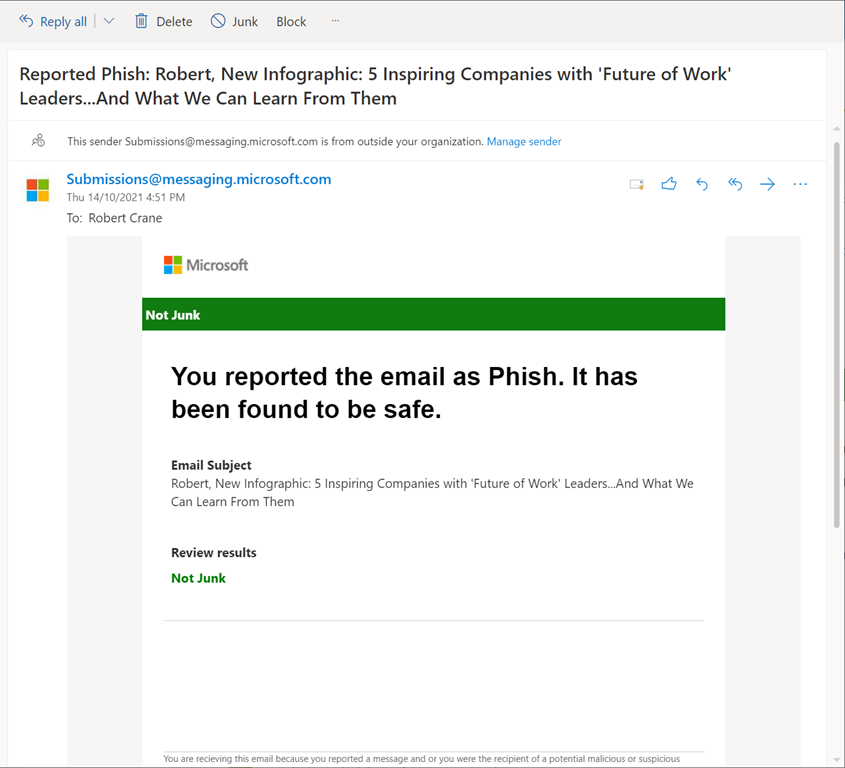
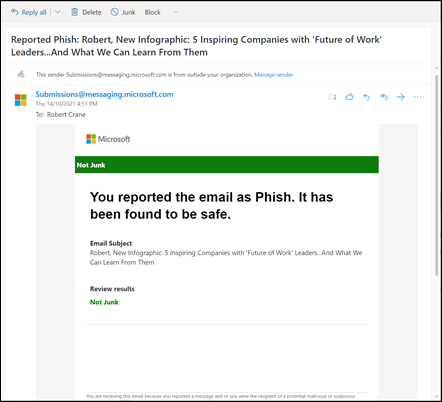
Doing so will send the user an email, like that shown above, to provide feedback about that submission for the user. Doing provides important reinforcement of users remaining vigilant as well as helping them better identify threats.
image

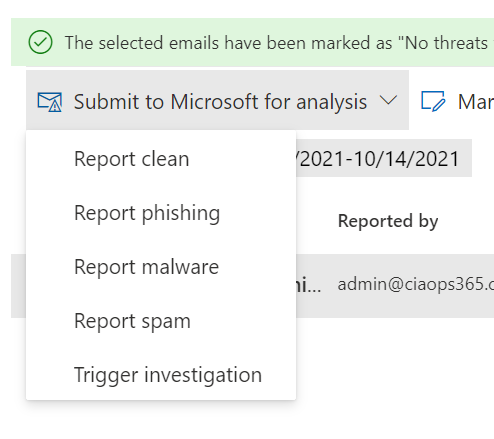
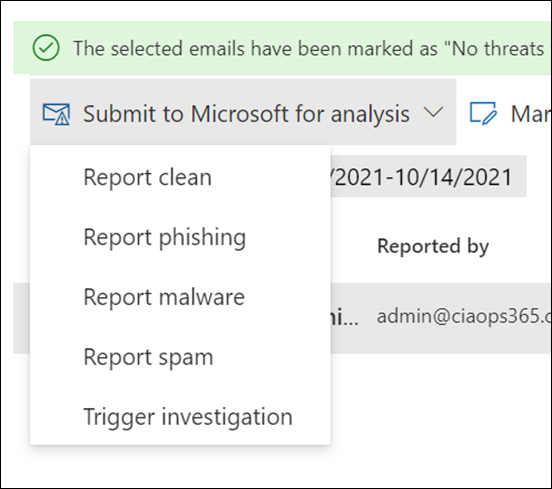
 You’ll also find actions you can take on that message that will provide feedback directly to Microsoft, as shown above.
image

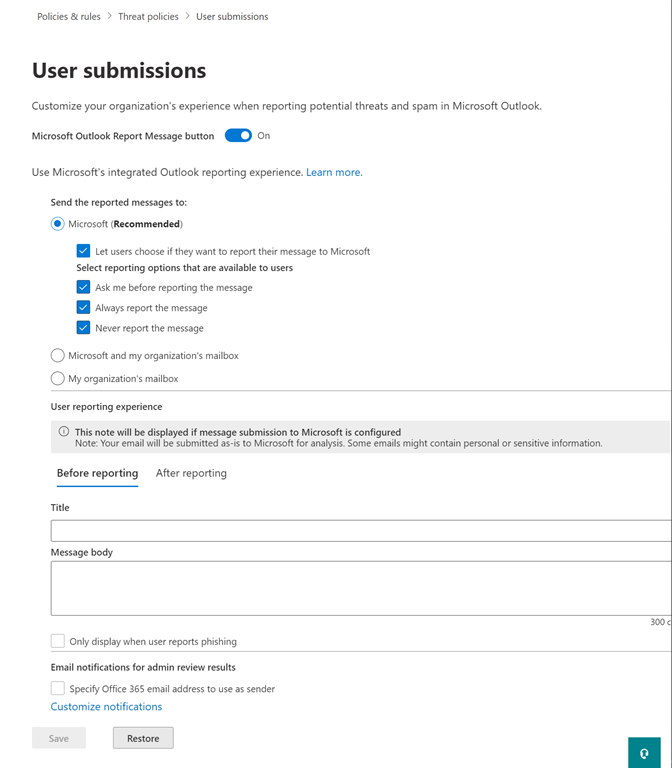
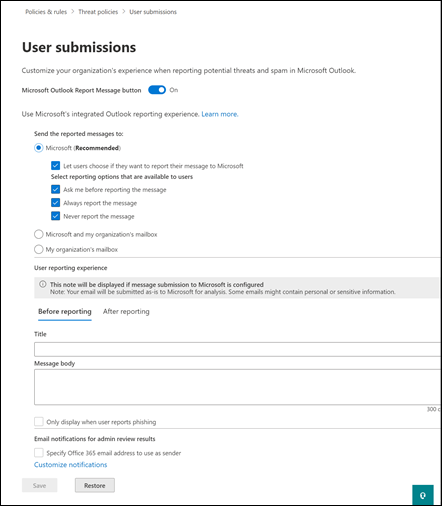
Even better, if you go into Policies & rules | Threat Policies | User submissions you are able to customise what is sent to the user, both before and after reporting as shown above.

For more information on these capabilities visit:

Admin review for reported messages

Getting users involved in security is important. Part of that is providing them feedback and recognition of their contribution, no matter how small. Using these capabilities for reported messages, you are able to do that quickly and easily.