The AI Toolkit Monetization Strategy: Building Enterprise Value with Microsoft Technologies

image

I’ll start with something that won’t win me any friends at the next AI meetup: owning the cleverest AI tool in the room won’t make you a cent. Not the model, not the agent, not the prompt you spent a weekend perfecting. I’ve watched a lot of people fall in love with the technology and then wonder why the invoices aren’t getting any bigger. The uncomfortable truth is that nobody pays for tools. They pay for problems disappearing.

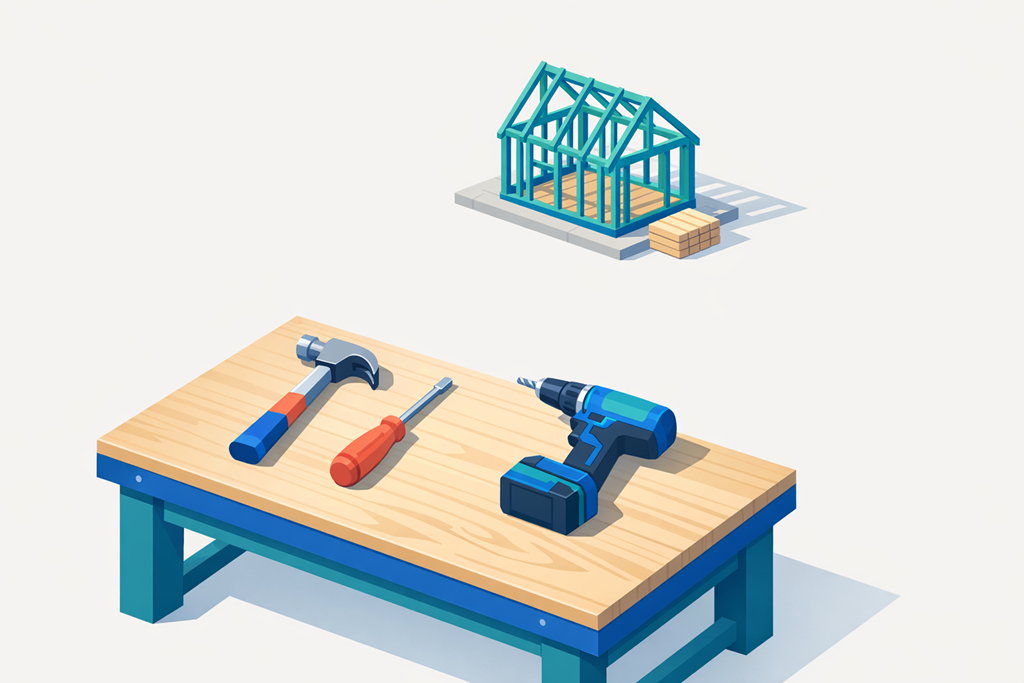
Think about a carpenter for a moment. A carpenter doesn’t get wealthy selling you a single hammer off the back of the ute. They get paid because they walk onto a site, look at a house that needs building or a roof that’s letting the rain in, and they know exactly which tool to reach for and when. The hammer matters, but only because of the hand holding it and the job it’s pointed at. That’s the mindset I think anyone serious about AI needs to adopt — and if your organisation already lives inside the Microsoft cloud, you’ve quietly been handed a very good toolkit. Most people just haven’t worked out how to pick it up.

The hammer: Copilot and Azure OpenAI

The language model is your hammer. It’s the tool you swing by hand, and it’s genuinely powerful — but it does what you tell it, no more. In the Microsoft world that’s Microsoft Copilot sitting across your Outlook, Word and Teams, with Azure OpenAI underneath when you need to build something bespoke.

Here’s where most people get it wrong: they treat Copilot like a fancier search box. They type a vague half-question, get a vague half-answer, and conclude the whole thing is overhyped. The people getting real value approach it with a bit of discipline. The way I think about it is four steps — mission, ask, parameters, shape.

Start with the mission: the business outcome, not the chore. Don’t ask Copilot to “find me some leads.” Tell it you need thirty new enterprise clients this quarter to hit a revenue target. Then comes the ask — one sharp, specific request, like pulling together forty qualified IT directors in healthcare with their contact details. Then parameters — the context and the guardrails. This is where Copilot in Microsoft 365 earns its keep, because you can point it straight at the files in your SharePoint or OneDrive so it’s reasoning over your data, not a guess about the world. A tip I lean on constantly: dictate your context rather than typing it. The voice option in Copilot lets you talk through the background in thirty seconds, and you talk far faster than you type. Finally, shape — tell it the format you want. A clean table, a CSV you can drop into Excel, a tight bulleted summary. Stop reformatting things by hand like it’s 2015.

The screwdriver: Power Automate

A hammer needs a fresh swing every single time. The moment you find yourself doing the same AI-assisted task over and over, you’ve outgrown it. That’s when you reach for the screwdriver — automation — and in the Microsoft stack that’s Power Automate with AI Builder doing the heavy lifting.

The shift here is subtle but enormous. Instead of opening Copilot every morning to run the same prompt, you build a flow once and let it run on a schedule or off a trigger, quietly, in the cloud, forever.

Not everything deserves a flow, though, and this is where people burn weeks they’ll never get back. I run three quick tests before building anything. Is it repetitive — happening at least weekly, ideally daily? Is it rule-based, with predictable inputs and a predictable result? And does it actually pay back — does the time saved over a year dwarf the time spent building it? Don’t spend sixty hours constructing a flow that rescues someone two minutes a week. That’s not automation, that’s a hobby.

A example I like: a sales call recording lands in a Teams channel. Power Automate sees it, AI Builder pulls the transcript, reads the sentiment, drops the action items straight into Dynamics 365, and posts a tidy weekly summary back into the leadership channel in Teams. Nobody touched it. That’s the screwdriver doing its job.

The power drill: Copilot Studio

Then there are the jobs where you don’t want to define the steps at all — you just want the outcome. That’s the power drill, and Microsoft’s answer is Copilot Studio, where you build agents that handle whole processes on their own.

With the hammer and the screwdriver, you’re still drawing the map. With an agent, you describe the destination and let it find its own way through the subsystems. The trick to doing this without disaster is what I’d call staying on the loop rather than in it. Pick a genuinely meaty workflow — vendor onboarding end to end, say, from reading the invoice email, to cross-checking your Dataverse tables, to running compliance, to setting up billing. Then, and this is the hard part, don’t keep grabbing the wheel. Let it run.

Two habits make this safe. First, have agents check each other — a builder agent in Copilot Studio writes a script, and a separate reviewing agent picks it apart for security gaps before anything reaches a human. Second, watch for drift. An agent grinding away over hours or days can slowly lose the plot, so your role becomes the manager who inspects, resets the context when it wanders, and keeps it pointed at the goal.

The orchestrator gets paid

Here’s the part that actually moves the money. Owning these three tools doesn’t make you rich. Conducting them does. The orchestrator is the one who looks at a bleaking supply chain or a drowning support desk and reaches across the whole Microsoft AI toolkit — Copilot, Power Automate, Copilot Studio — to make the pain stop.

Your clients don’t lie awake wondering whether you used GPT-4o through Azure or a Copilot Studio agent. They lie awake about their costs. Solve that, and the technology underneath becomes a footnote. Problems are where the value lives.

So the real shift isn’t learning another tool. It’s moving from doing the work to directing it. Step back, find the problem worth solving, and orchestrate the kit you already own.


The Most Important Part of Productivity Is the Product

image

I had a conversation last week that’s stuck with me. Someone was describing their week — back-to-back meetings, an inbox wrestled down to zero, a colour-coded calendar that would make a project manager weep with joy. They were exhausted and, oddly, proud of it. So I asked a simple question: what did you actually make? Long pause. The honest answer was “not much.” A full week of motion, and almost nothing to show for it.

We’ve quietly redefined productivity to mean busyness. How fast you reply. How many minutes you squeeze from a day. How efficiently you move between tasks. But strip the word back and the heart of it isn’t the activity — it’s the product. The thing that exists now that didn’t exist on Monday morning. The proposal that’s written. The decision that’s made. The client problem that’s solved. Everything else is just noise around the signal. We measure the noise because it’s loud and easy to count. The signal is quieter, and it’s the only part that actually matters.

Motion is easy to measure. Output is the hard part.

The reason we drift toward efficiency is that it’s comfortable. You can count emails sent and meetings attended. You feel the satisfaction of a tidy inbox. But none of those are products — they’re scaffolding. I’ve watched people spend an entire afternoon “getting organised” and call it a good day’s work, when really they just rearranged the furniture. The week looked productive. Nothing was produced.

This is where I think Copilot changes the conversation, and not in the way the marketing suggests. The point isn’t that it makes you faster at the busywork. It’s that it takes the busywork off the table, so what’s left is the actual product. When I ask Copilot in Outlook to summarise a long thread and draft the reply, I haven’t saved twenty minutes — I’ve removed a task that was never the point. The reply was never my product. The thinking behind it was.

Spend the time you save on something worth showing.

That’s the part people miss. The danger isn’t that Copilot does the low-value work — it’s what you do with the gap it opens up. If Copilot pulls your meeting notes and action items together in Teams, and you spend that reclaimed hour clearing three more emails, you’ve efficiency-ed yourself in a circle. But if you use it to write the strategy document you’ve been avoiding, or to think properly about a client’s problem in Word with Copilot helping shape the argument, the tool has earned its place. Or you point Copilot at a messy spreadsheet in Excel, ask it what the numbers are really saying, and walk into the meeting with an answer instead of a pile of data. The output, not the speed, is the scorecard.

I’ve started asking myself a blunt question at the end of each day, and I’d suggest you try it. Not “was I busy?” — I’m always busy. The question is: what can I point to? What did I produce that someone else could pick up, use, or judge? Some days the answer is a single solid thing, and that beats a day filled with forty small tasks that vanish the moment they’re done.

Copilot has made me more honest about this, because once the friction is gone, you can’t hide behind it. The empty afternoon is exposed for what it is. That’s the real shift worth watching — not doing things faster, but finally being able to ask whether the thing was worth doing at all.

The Quiet Productivity Cost of Watching AI Work

image

I noticed something a few weeks back during a busy Friday afternoon. I’d asked Copilot in Word to pull together a draft summary of a long client document, and instead of moving on to the next thing on my list, I just sat there. Watching. Cursor blinking. Sentences slowly stitching themselves across the screen like I was waiting for a kettle to boil. It took me a good thirty seconds to realise I was, in effect, staring at a digital pot — and getting absolutely nothing else done while I did it.

That small moment has stuck with me. Because I don’t think I’m the only one doing it.

The watching trap

There’s a quiet productivity tax that nobody really warned us about with generative AI inside Microsoft 365. We’ve been told these tools save us hours. And they will — but only if we actually use those hours. The moment we anchor ourselves to the screen and watch Copilot draft a reply in Outlook, summarise a meeting recording in Teams, or build out a deck slide by slide in PowerPoint, we hand back every minute of the gain.

I think this happens because the output feels unfinished until it’s done. The brain treats it a bit like a conversation — and you don’t walk away from someone mid-sentence. But Copilot isn’t speaking to you. It’s working for you. And it doesn’t care whether you’re in the room.

The result is a strange new flavour of busywork. You look productive. You’re sitting at your desk, focused, eyes on the screen. But the actual output of your time is whatever Copilot was going to produce anyway. You’ve added nothing. You’ve just supervised a process that didn’t need supervising.

Why staring at it doesn’t help

The other problem with the watching habit is that it isn’t even useful. You can’t speed Copilot up by looking at it harder. You’re not catching errors in real time, because most of us don’t read carefully enough mid-generation to spot a problem — and you’ll review the final output once it’s done anyway. The watching is pure overhead.

Worse, it primes a passive mindset. When you sit and observe the machine doing the work, you start to mentally check out. The next task on your list feels heavier than it should. You lose the rhythm of context-switching that real knowledge work depends on. By the time the draft email or summary lands, you’ve already half-disengaged. So instead of pouncing on it, reviewing it sharply, and sending it on its way, you take another minute or two to gather yourself.

That’s two layers of cost. The time you spent watching, and the time it takes to mentally re-enter the work.

Treat Copilot like a colleague, not a performance

The shift I’ve had to make is treating Copilot the same way I’d treat anyone I’ve delegated something to. You don’t stand over a colleague’s shoulder while they write a document. You hand it off, you go do something else, and you come back to review when it’s ready.

So when I ask Copilot in Excel to analyse a dataset, I switch to my inbox and clear a few replies. When I have Copilot in Word drafting something substantial, I move into Teams and respond to chats. When a deck is being assembled in PowerPoint, I’m reviewing tomorrow’s calendar or skimming a SharePoint document I’d been putting off. The five or ten seconds of context-switch cost is well worth the two or three minutes I would have otherwise stared away.

The deeper habit, though, is queueing the work. I now line up several AI-assisted tasks at once. A summary running here, a draft being produced there, an analysis underway in another window. Copilot is happy to run in parallel across Microsoft 365. There’s no good reason to make those tasks sequential by tying each one to your eyeballs.

What I’m watching next

The thing I’m paying attention to from here is how teams handle this collectively. Because once AI is doing more of the small tasks across an organisation, the productivity ceiling stops being defined by what the tools can do and starts being defined by what their humans do while the tools work. The businesses that win the Copilot game won’t be the ones with the best prompts. They’ll be the ones whose people have stopped sitting and watching, and started filling that reclaimed time with thinking, deciding, and acting.

The technology is doing its part. The next move is ours.

TechWerks 30 – Comprehensive Recap & Best-Practice Guide

After hosting the recent Techwerks event in Melbourne, I go Copilot to put together this summary of the day as a reference to what the day is all about and hopefully demonstrate the value it provides by attending.

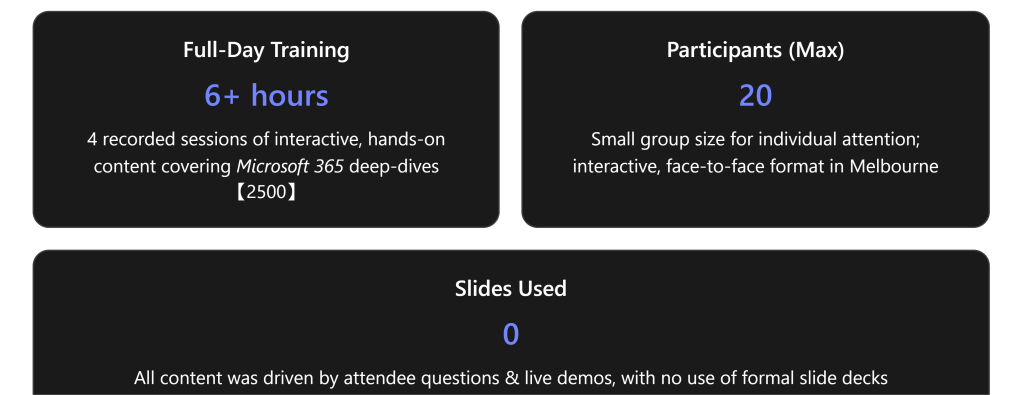
TechWerks 30 was a full-day, face-to-face Microsoft 365 deep-dive hosted by Robert Crane (CIAOPS) in Melbourne on 24 June 2026. This manual provides an in-depth recap of the major topics and hands-on sessions recorded during TechWerks 30, serving both as a post-event reference for attendees and a resource showcasing the unique value of these immersive training days to prospective participants. It synthesizes content from all four recorded sessions, focusing on key themes, tools, and takeaways while omitting any personal or sensitive information.

Executive Summary: TechWerks 30 offered a highly interactive, attendee-driven training experience in Microsoft 365 and related technologies. Instead of passively listening to pre-set slides, a small group of under 20 attendees actively shaped the agenda by voting on the topics they needed most. This approach ensured every session tackled real-world scenarios and pressing challenges that participants face in their day-to-day work, from managing cloud storage to bolstering security settings, and even exploring emerging features like Microsoft Copilot* and Copilot Co‑pilot’s new usage-based billing model. The event delivered practical demonstrations, live problem-solving, and best practices that participants could immediately apply in their own environments – producing numerous “Monday-morning” takeaways and clear business value.


Major Topics and Hands-On Activities

TechWerks 30 encompassed multiple major themes spanning the Microsoft 365 ecosystem, each addressed through interactive demonstrations and group discussions. Key topics included cloud collaboration best practices, security & identity management in M365, and the latest AI and product updates (with an emphasis on practical implications). Below we delve into each of these themes in detail, describing what was covered and highlighting the session’s live demos, best practices, and takeaways.

1. Collaboration & Cloud Data Management (OneDrive, SharePoint, & Teams)

OneDrive for Business & SharePoint Best Practices: A significant portion of the day was devoted to optimizing file storage and collaboration workflows in Microsoft 365, particularly OneDrive for Business (ODFB) and SharePoint Online. Many attendees still had questions on effectively using ODFB, highlighting that even seasoned users often seek clarity on fundamentals (a common scenario noted by the host).

  • **“Add to OneDrive” vs Syncing Document Libraries: One best-practice discussed was the use of OneDrive Shortcuts (the “Add shortcut to OneDrive” feature) instead of syncing entire SharePoint libraries. This approach offers key benefits: it saves local disk space and reduces sync complexity by letting users pick specific folders or libraries to access via their OneDrive, rather than syncing large libraries in full. Shortcuts also streamline collaboration by ensuring a single source of truth (no duplicate copies) and improving users’ day-to-day workflows through easier access to shared content. Participants learned how to create and manage these shortcuts and how they appear in their OneDrive, avoiding common issues with oversynchronization and orphaned local copies.
  • OneDrive Storage Management: The group addressed how to manage and increase OneDrive storage quotas. Attendees learned that Microsoft 365 tenants can raise the default ODFB storage from 1TB to 5TB per user for eligible plans. The manual review included step-by-step guidance (via the Microsoft 365 Admin Center and PowerShell commands) to adjust both default storage quotas and existing user quotas to 5 TB for all users – a valuable tip for growing businesses to avoid users hitting capacity limits. This discussion underscored the importance of proactive tenant capacity planning in cloud storage deployments.
  • **OneDrive Offline Access and File Sync: The latest OneDrive enhancements were highlighted, including the new Offline Mode for OneDrive Web. This upcoming feature (an extension of the Files On-Demand concept) allows users to mark files/folders in OneDrive web as “always available offline” – so they can continue working on cloud files in the browser even without internet, with changes syncing once reconnected. While offline web access was still rolling out in 2026, attendees appreciated how it narrows the gap between local and cloud storage and ensures business continuity during internet outages. The trainer contrasted this with the existing OneDrive Sync client (OneDrive.exe), which has long provided offline access by syncing files to local drives. The combination of these capabilities – traditional Sync for robust offline use, and the new Web offline mode for added flexibility – was discussed as part of a holistic file access strategy.
  • Real-World Troubleshooting Example – Excel & OneDrive: In the spirit of addressing real problems in real time, a participant’s recent issue was examined: Microsoft Excel crashing when saving files to a OneDrive Shared Library (via a shortcut). Rather than theoretical advice, the group diagnosed the issue interactively. Drawing on community and Microsoft knowledge, they discovered it was a known bug triggered by a recent patch (the May 2026 update) affecting Excel’s integration with OneDrive shortcuts. They discussed the official guidance that Microsoft provided (and any available workarounds), thereby reinforcing the day’s focus on immediate problem-solving. This example illustrated how TechWerks sessions deal with timely challenges and share the latest information on issues that matter to participants – in this case, confirming that Microsoft was aware of the bug and investigating, and that a fix or mitigation was on the way.
2. Security & Identity: Best Practices and Tools for Microsoft 365

Another core theme was securing Microsoft 365 environments. Attendees explored practical identity and access management strategies, with a particular focus on Conditional Access policies in Azure Active Directory (Entra ID) and baseline security configurations for small-to-medium businesses.

  • Conditional Access (CA) Policies – Implementation & Avoiding Pitfalls: The group walked through the process of setting up Conditional Access policies that enforce modern zero-trust principles in Microsoft 365. This included real-time demonstrations of creating CA policies to require multi-factor authentication (MFA) for users, block legacy authentication, and restrict logins from risky locations. A key best practice highlighted was to configure “named locations” (trusted geographic locations or IP ranges) in advance before enabling broad location-based blocking policies. This prevents an*“accidental lockout”* of all users – an easy mistake if an admin, for example, enables a blanket “block all sign-ins outside country X” rule without first defining country X as a trusted location. By applying this lesson, attendees learned how to tighten security without cutting off legitimate access to their cloud services.
  • Automating Best-Practice Security Setup: The session introduced tools to streamline the implementation of best-practice security baselines. Participants were shown a PowerShell-based “M365 Best Practice” script toolkit (commonly used by the CIAOPS community) that can automatically configure recommended security settings – including a baseline set of CA policies aligning with standards like the Australian Cyber Security Centre’s “Essential Eight” framework (ASD guidelines). Running these baseline scripts on a test tenant produced an immediate snapshot of the environment’s security posture, highlighting gaps and misconfigurations. Attendees were impressed by the results of a*“Tenant Posture”* script, which quickly identified areas for improvement (eliciting a “wow” from participants as it revealed areas of risk and potential enhancements).
  • Advanced Security & Compliance Topics: The group further discussed emerging security features and strategies. This included an overview of recent additions like Microsoft Entra ID improvements (for identity protection), and the importance of routine secure score reviews and policy audits to keep up with evolving threats. The interactive format allowed participants to ask specific security scenario questions (for example, how to handle specialized cases in conditional access, or ensuring privileged accounts remain accessible during emergencies). The emphasis was on practical steps that small and midsize organizations can implement immediately – such as enabling MFA for all users, using Conditional Access templates or “baseline” policies provided by Microsoft, and leveraging monitoring tools (like Secure Score and sign-in logs) to continuously track and improve tenant security. Participants left with clearer guidance on prioritizing critical security measures and confidence to apply these in their own environments.
3. Emerging Technologies & Microsoft 365 Updates

Although the primary focus was on attendee-requested core topics, TechWerks 30 also touched on a few of the latest Microsoft 365 updates and emerging tools around the time of the event:

  • Copilot Cowork & Usage-Based Billing: The event coincided with Microsoft’s general availability of Copilot Cowork – a new AI-driven**“agentic” assistant in Microsoft 365** capable of performing multi-step tasks, which was widely discussed at Microsoft Build 2026. The instructor provided an overview of Copilot Cowork’s capabilities and its new usage-based billing model, noting how this marks a shift in how AI features might be purchased. Attendees learned that beyond the standard M365 Copilot license (a flat per-user fee), using Cowork’s advanced autonomy features may incur consumption-based charges (“Copilot Credits”), and that IT admins must explicitly enable and configure Cowork’s pay-as-you-go billing by linking an Azure subscription to their tenant. It was noted that at launch, Cowork is opt-in (disabled by default) to prevent surprise costs, and that early access (Frontier program) participants have a grace period until July 1, 2026 before usage costs begin. This discussion prepared attendees for the practical and financial considerations of deploying advanced AI services in their organizations.
  • Microsoft Scout and “Autopilot” Agents: The event also briefly mentioned “Microsoft Scout,” another new AI initiative unveiled at Build 2026, as part of looking at future trends. Scout is an always-on, autonomous AI “autopilot” agent that proactively assists users across Teams, Outlook, SharePoint, and more. Given the workshop’s focus was shaped by attendees and many were more interested in immediate productivity topics over speculative AI features, the discussion around Scout and similar advanced AI agents was kept high-level, with an emphasis on monitoring these developments. Attendees were encouraged to stay informed about how these technologies (like Scout and Copilot enhancements) could eventually be leveraged to increase productivity once they mature and align with business needs.
  • Other Microsoft 365 Updates: The trainer and participants also reviewed a roundup of recent updates across the Microsoft 365 ecosystem. This likely included improvements from the 2026 roadmap and Microsoft Build announcements, such as:
    • SharePoint & Teams: UI changes and new integrations (e.g., enhancements in Teams performance and architecture from the new “Teams 2.0” client).
    • Windows & Endpoint: Possibly relevant news like Windows Autopatch or Intune updates for devices were noted if attendees raised them (especially given interest in Autopilot and device management in other events).
    • Other: Additional Q&A on miscellaneous topics arose organically, reflecting the open format. For instance, participants asked about *license management and cost optimization (prompted by the Copilot discussion), and data backup/restore scenarios in M365 (how to recover deleted items or sites). The instructor addressed these with best-practice advice and references (sometimes with follow-up resource links provided).

Session-by-Session Highlights (Daily Schedule)

While the content was organized flexibly around attendees’ interests, the day’s four sessions can be summarized as follows:


Key Takeaways & Actionable Insights from TechWerks 30

The TechWerks 30 workshop delivered a rich collection of practical lessons for attendees. Each participant left with concrete knowledge and improvements to implement in their environments, underscoring the value of these deep-dive sessions. Some of the top key takeaways and actions were:

  • Adopt “Add to OneDrive” for Shared Content: Rather than syncing entire document libraries, leverage OneDrive shortcuts to access shared folders/libraries. This approach saves local storage space, reduces sync errors, and simplifies user workflows. Participants were encouraged to audit their current SharePoint/OneDrive usage and train users on using**“Add shortcut to OneDrive”** for easier file access and collaboration.
  • Optimize OneDrive Storage: Ensure your organization’s OneDrive for Business quotas are properly configured to avoid storage shortages. Increase default storage to 5 TB per user (for eligible Microsoft 365 plans) via the Admin Center or PowerShell (using Set-SPOTenant OneDriveStorageQuota commands). This proactive step is crucial for growing businesses.
  • Implement Conditional Access Baselines Safely: Put in place a strong set of baseline security policies (e.g., require MFA, block legacy auth, restrict risky locations) to protect user accounts. Use available tools (such as Microsoft’s built-in templates or community best-practice scripts) to quickly deploy these policies. However, always configure prerequisites (like named locations for trusted IP ranges or geographies) before enabling location-based blocks, to avoid inadvertently locking out admins or users.
  • Leverage Automated Tenant Posture Assessments: Utilize scripts or tools that scan your Microsoft 365 tenant’s security posture to highlight areas needing improvement. One script demonstrated at TechWerks 30 provided a comprehensive “health check” of the tenant’s configurations, revealing misconfigurations and improvement opportunities (to the surprise of attendees). Regular posture assessments help ensure you keep up with best practices and address any gaps.
  • Prepare for AI Integration: Keep an eye on new Microsoft 365 AI features like Copilot Cowork and Microsoft Scout that are on the horizon. Although many small businesses may not deploy these immediately, understanding their capabilities (e.g. Copilot’s usage-based billing and requirement for Azure subscription for cost control) helps in future-proofing your strategy. Plan ahead by considering how agentic AI tools could deliver value to your organization when you’re ready, and ensure your environment (licensing, governance, training) can support them.

Why Attend TechWerks Deep-Dive Sessions?

TechWerks events are not ordinary training days – they are a unique blend of community-driven agenda and practical immersion in Microsoft cloud technology. Key reasons why these sessions offer exceptional value include:

  • Attendee-Led Content: You shape the day. Participants vote on the agenda beforehand, ensuring the workshop covers topics you want to learn about, rather than a generic preset syllabus. This targeted focus means each session is highly relevant to the challenges and interests of those in the room.
  • Hands-On, Not “Death by PowerPoint”: TechWerks sessions are workshop-style, emphasizing live demos, real-time problem solving, and interactive labs over slide presentations. Every concept is illustrated in the context of actual real-world Microsoft 365 scenarios, making learning more engaging and practical. One attendee praised this*“interactive nature of the day” as “so much better than death by PowerPoint”*.
  • Small Group, Big Impact: Capped at 20 attendees, these sessions provide an intimate setting for one-on-one interaction with the expert instructor and peers. Everyone’s questions get answered, and the peer discussions help participants learn from each other’s experiences. The face-to-face environment fosters networking and deeper engagement, adding value beyond what online training can offer.
  • Immediate Best-Practice Takeaways: Each TechWerks event yields a wealth of actionable insights and best practices that attendees can implement right away in their businesses. As Mike H., a past participant, noted:“It is such a good format… the whole interactive nature of the day [is] so much better than death by PowerPoint.” Attendees leave with knowledge and tools that produce immediate improvements – from quick wins (like optimizing OneDrive usage) to strategic guidance (like strengthening your M365 security posture).

In summary, TechWerks 30 not only covered a variety of technical topics tailored to the audience’s needs, but also demonstrated the power of an open, hands-on format that transforms training into collaborative problem-solving. By emphasizing active learning, real-world practice, and participant-driven content, the session showcased why TechWerks’ full-day deep dives are invaluable for IT professionals seeking to stay ahead in the fast-moving world of Microsoft 365 and cloud services. Participants gained knowledge, confidence, and concrete best practices – making a strong case for the ROI of attending such face-to-face deep dive sessions.

The SMB MSP As We Know It Won’t See 2030

image

I had a conversation recently with an MSP owner who’s been running the same shape of business for nearly twenty years. Same monthly recurring revenue model, same per-seat pricing, same mix of patching, monitoring, helpdesk, and the occasional project. He asked me what I thought the next five years looked like for him. I told him honestly. The business he runs today won’t exist by 2030. Not because he’ll do anything wrong, but because the market won’t need it anymore.

I’ve been saying versions of this quietly for a while. I think it’s time to say it out loud. The SMB MSP businesses of today — the ones built on managing endpoints, watching dashboards, resetting passwords, and pushing patches — are walking into a wall. The wall is closer than most of them realise.

The work that paid the bills is being automated away

Pick any traditional MSP price book and look at where the labour hours actually go. Patching. Monitoring. Tier 1 helpdesk. Onboarding and offboarding. Backup checks. Mailbox issues. OneDrive sync problems. Printer queues. The same dozen tickets, repeated across hundreds of clients, every week.

Almost none of that work needs a human anymore. Intune does the patching. Microsoft 365 does the self-healing. Defender does the watching. Entra automates the onboarding once it’s wired up properly. And Copilot — sitting inside Outlook, Teams, and the admin centres — answers the questions that used to be a phone call to the helpdesk. A user asking “why can’t I see this shared mailbox?” used to be a fifteen-minute ticket. Now it’s a Copilot prompt and a self-service result.

The MSP owner who thinks AI is “still a few years away” is the same one who told me cloud was a fad in 2014. The labour arbitrage that built the MSP industry — paying a junior tech in one city to fix something for a client in another — only works when the labour is needed. It mostly isn’t.

Microsoft is quietly eating the stack

The other story most MSPs aren’t telling themselves honestly is what’s happening to their tool chain. The classic SMB MSP stitched together five or six separate products to deliver a managed service — RMM, PSA, backup, antivirus, email security, password manager, MFA. The margin was in the stitching, not in any individual product.

Microsoft 365, with Defender, Intune, Entra, Purview, and Copilot layered on top, now covers most of that surface natively. It’s not perfect and it’s not cheaper, but it’s good enough for the SMB segment — and it’s getting better every quarter. When the platform a client already pays for can deliver eighty per cent of what the MSP used to charge for, the conversation about the other twenty per cent gets uncomfortable fast.

I watched an SMB owner last month ask Copilot in the Microsoft 365 admin centre to summarise her security posture, suggest fixes, and draft a message to her staff about a new MFA requirement. Three things her MSP would have charged her for, done in under a minute, without leaving the browser. She didn’t call her MSP afterwards. She just got on with her day. That’s the shift.

Buyers stopped wanting “managed IT”

There’s a generational change in SMB buyers that the industry is underestimating. The people running small businesses now grew up on consumer software that just works. They don’t want a relationship with a company that “manages their IT”. They want outcomes — their email working, their files safe, their staff productive — and they expect those outcomes to be invisible.

When the outcome can be delivered by a platform plus an AI assistant, the MSP isn’t a partner anymore. It’s a middleman. And middlemen who can’t articulate the unique value they add get squeezed out, every single time, in every industry where this pattern has played out before. Travel agents. Stockbrokers. Bookkeepers doing data entry. The MSP delivering commodity managed services is next.

The margins are already gone

Talk to any honest MSP owner about their margins over the last three years and you’ll hear the same story. Costs up. Prices flat or barely moving. Clients pushing back on increases. Staff harder to find, more expensive to keep, and asking for the kind of work that doesn’t exist in a commodity managed service anymore.

The economics don’t recover. They get worse. Because the AI tooling that’s eating the work is also reducing the cost of delivery for the few players who lean into it — meaning the price floor keeps dropping. An MSP charging eighty dollars a seat for traditional managed services is competing against a competitor charging forty, who has automated most of the same work, who is competing against a Microsoft partner bundling Copilot at a price point that makes the conversation moot.

What survives

I’m not saying every MSP is gone by 2030. I’m saying the shape most of them have today is gone. What survives is something different. Advisory businesses that help SMBs use Copilot well. Specialists who can wire up Power Automate flows that actually move the needle for a client. Security-led practices that go deep instead of wide. Firms that have stopped selling time and started selling outcomes.

Those businesses look almost nothing like the typical SMB MSP of 2025. Different revenue model, different staff mix, different conversations with clients. The ones quietly making that turn now will be fine. The ones still arguing about whether AI is overhyped will not.

I’d rather have the uncomfortable conversation in 2026 than the unavoidable one in 2029. If you run an MSP, the next eighteen months are when the work gets done — or doesn’t.

The Difference Between a Direction and a Walk

image

I’ve been watching people coach lately. Mine and other people’s. Inside teams, on calls, in coaching sessions, in the small handovers that happen between desks. And the same pattern keeps surfacing, in versions large and small.

We give directions. We rarely take the walk.

A direction is the polite, efficient gesture — the link in chat, the screenshot with an arrow, the “have a look at this, it explains it well”. It assumes the person on the other end has the time, the focus, and the confidence to follow the trail to the end. Most of the time, they don’t. Most of the time, they were asking because the trail is exactly what they’ve been struggling with.

Taking the walk is different. It means putting down what you were doing, getting up out of your chair (literally or in the digital equivalent of it), and going with them. It is slower, it is less elegant, and it is the thing that almost always works.

Why this hits hardest with Copilot right now

The reason this is sitting on top of my mind is what I’m seeing inside Microsoft 365 rollouts. Copilot is now embedded across Outlook, Word, Excel, Teams, OneNote, Loop — every surface a knowledge worker touches. The interface is right there. The documentation is right there. The training videos are right there.

And the gap is still enormous.

That gap isn’t a documentation problem. It’s a companionship problem. People know Copilot is in their email. What they don’t know is what to type when they actually have to reply to a customer who is upset, or summarise a three-week Teams thread, or pull the relevant lines out of a contract sitting in SharePoint. They need a person beside them the first time. Not afterwards. Not in a wiki. The first time.

When you sit next to somebody — sharing a screen in Teams works just as well as sitting at the same desk — and you open Copilot in their inbox, in front of their actual unread emails, two things happen. First, the prompt becomes specific. Generic prompt libraries are useless; their prompt for their email at this moment is electric. Second, they see you make a mistake, refine it, try again, and get somewhere usable. That’s the part documentation never teaches.

The handover is part of the coaching

The other thing I’ve come to value is the handover. Coaching isn’t finished the moment somebody can do the thing once. It’s finished when they have somewhere to go the second time.

In Microsoft 365 that means leaving a trail the next person — or the same person on a different morning — can pick up. Pin the prompt you just shaped together into a Loop component the team can see. Drop a note in their Teams channel calling out what worked. Connect them with the colleague who is already three months ahead. The point is that the next time they reach for help, the path ahead is already lit.

What I’m trying to do less of

I’m catching myself in the act of pointing more often than I’d like to admit. The instinct to send the link is strong; it costs me nothing, it looks like I helped, and it gets the conversation off my plate.

But the version of me that other people actually need isn’t the one with the curated bookmarks. It’s the one prepared to push the chair back and say, fine, let’s go and look at it together.

That’s the coaching that compounds. Everything else is signage.

Do an Audit of Who’s Actually In Your Corner

image

A few weeks ago I was on a long drive home from a client meeting and I started running through the names of people I’d actually spent real time with over the past year — not the LinkedIn list, the actual list. The ones who’d had my ear, my weekends, my energy and, in some cases, my best thinking. By the time I got home I realised something a bit uncomfortable. A handful of those names didn’t really belong on it anymore. Not because they’re bad people. Because they’re not pulling in the same direction I am.

That’s the part nobody likes to say out loud.

The question worth sitting with

There’s one question I think every business owner should ask themselves once a year, and it’s blunt: is the time I spend with this person making me sharper, or just making me comfortable?

Comfortable is the trap. Comfortable feels like loyalty, like history, like the easy lunch where nothing hard ever gets said. Growth tends to live somewhere else.

I’ve started using Copilot in Outlook to actually look at the data. I’ll ask it to pull together who I’ve met with most over the last three months and the answer is sometimes a surprise. The people I think I’m investing in and the people my calendar shows I’m investing in are not always the same list. Calendars don’t lie. They quietly show you where your time really goes, and once you’ve seen it laid out on a page you can’t unsee it.

Three filters I run people through

When I’m doing this stocktake, I look at three things, and I try not to overthink any of them.

The first is how I feel walking away from the conversation. If I leave a coffee buzzing with ideas and a list of things to try, that’s a signal. If I leave flat and quietly wanting a nap, that’s also a signal. The body keeps a fairly honest scoreboard, even when the head is trying to be polite about it.

The second is whether they’re actually moving. Movement doesn’t have to be loud — I know plenty of quiet operators who are building something serious. But if someone has been telling me the same story about the same plan for three years running, that stagnation will start to drag on you whether you notice it or not.

The third is whether they’ll tell me I’m wrong. The people who only ever agree with me have very little to offer me. The ones who push back, who ask the awkward question, who say “are you sure about that?” — those are the ones I keep close. Anyone who’s only ever told me what I wanted to hear has never once helped me improve.

The hardest cuts are the kindest people

The brutal part of this exercise isn’t the obvious ones. It’s the genuinely lovely humans who just don’t fit where you’re heading next. Lovely doesn’t equal useful. You can wish someone well, mean it completely, and still recognise that the season of regularly being in each other’s diaries has run its course. That’s not betrayal. That’s adulthood.

I keep a private Loop page with my thinking on this — a few names, a few notes, no judgement attached. Copilot helps me draft the reflection prompts when I’m not quite sure what I’m trying to articulate. It’s not a kill list. It’s a way of being deliberate about where my hours go next year, because nobody else is going to be deliberate about it for me.

If you’ve never done a Friendventory, do one this month. Block an hour in your calendar, pour something decent, and walk through the names honestly. The people in your corner shape the business you build next. Pick them on purpose, because by default you’ll just keep whoever was around when you started.

AI Is Starting to Feel Like the Petrol Bowser

image

I filled up the car last weekend and did that thing we all do now — glanced at the price per litre, winced a little, and worked out whether to fill the tank or just put in enough to get me through the week. It struck me, standing there, that I’ve started having the exact same conversation about AI.

For a while, AI felt free. You paid your subscription, you used it, and the meter never seemed to run. That era is ending. Token prices, usage caps, premium request limits — the cost of running AI is becoming visible, metered, and impossible to ignore. For a small business, it’s shifting from a novelty into a line item. And like petrol, it’s no longer optional. You can’t really run the business without it, but you can’t ignore what it costs either.

A running cost, not a one-off

The mistake I keep seeing is treating AI like a piece of software you buy once and forget. It isn’t. It behaves far more like fuel or electricity — something you consume, in varying amounts, every single day. Some weeks you’ll barely touch it. Other weeks, when you’re deep in a proposal or cleaning up a quarter’s worth of numbers, you’ll burn through it.

That changes how you should think about it. A running cost needs watching. It needs a budget. And it needs someone, every so often, asking the plain question: are we actually getting value for what we’re spending here?

Spend where the work actually is

Here’s where it gets interesting for a small business. You haven’t got an unlimited tank, so you have to decide where AI earns its keep. For most of the small operations I work with, the answer isn’t exotic. It’s the boring, repetitive, time-sapping work — the email triage, the first draft of a report, the summary of a long meeting nobody wants to rewatch.

That’s exactly where Copilot inside Microsoft 365 pays for itself. Asking Copilot in Outlook to clear and draft replies to a morning’s backlog saves real hours. Having it summarise a Teams meeting you missed, or pull the key figures out of an Excel workbook, turns an afternoon into a few minutes. The trick is to point your spend at the tasks that are costing you time and money today — not the shiny demos that look clever but never touch your actual week.

Economise without going without

The same way you don’t leave the car idling in the driveway, you don’t want AI burning through your allowance on low-value busywork. Be deliberate. Use the everyday Copilot features that already come with your licence before you reach for premium-priced add-ons. Give your people a quick steer on what’s worth asking and what’s just noise. And look at the bill — actually check where the consumption is going, the way you’d question a sudden jump in the power account.

None of this is about spending less for its own sake. It’s about spending on purpose.

Where I’ve landed

Petrol taught small business owners to think in terms of value per trip, not just price per litre. AI is heading the same way. The ones who do well won’t be those who spend the most or the least — they’ll be the ones who know exactly what they’re buying and why. Watch your usage, back the work that matters, and treat AI like the utility it’s quietly becoming. The meter is running now. Best to know what it’s running on.