Bad guys keep winning (Part V)

image

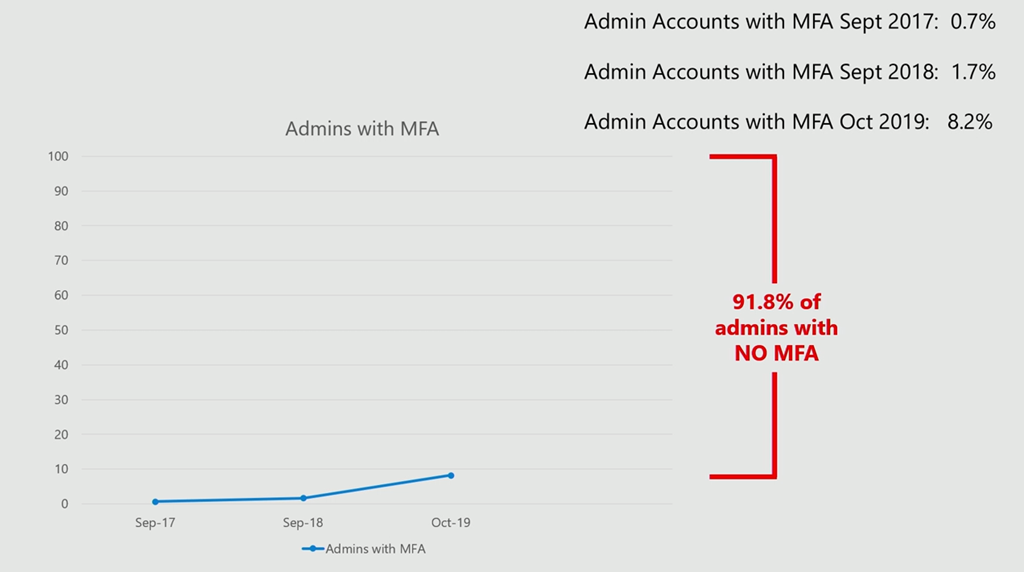
The above amazing slide is from the recent Microsoft Ignite 2019 session – SECI20 – Shut the door to cybercrime with identity-driven security.

This means that vast majority of Microsoft Cloud tenants DO NOT have their admin account secured via MFA. You could understand maybe 5 or 10 percentage as ‘break glass’ style accounts but 92%??

Would you not say that in the past year we, as a society, have become MORE dependent on technology? I know many business can’t run a business without technology but not enabling simple protective measure like this is simply amazing! It also makes you wonder at how much else is not secured appropriately? I think saying that 92% of ALL IT installations are not appropriately secured would not be far wrong.

The good news is that, if you take the time to implement things like MFA, you are more secure than 92% of systems out there. Given that bad guys go after the easiest target (law of the jungle), it kinda makes you less susceptible. Sad but true, that there are plenty of victims out there just waiting to happen!

I’m sure there is a lot of finger pointing that can be had as to who is responsible and who needs to do what, however all that is irrelevant as it simply means the bad guys are rubbing their hands together as the 92% vacillates over implementing what really should be mandatory!

Techwerks 10–Sydney 12th February 2020

bw-car-vehicle

I am happy to announce that Techwerks 10 will be held in Sydney on Wednesday the 12th of February 2020. The course is limited to 20 people and you can sign up and reserve your place now! You reserve a place by completing this form:

http://bit.ly/ciaopsroi

or  sending me an email (director@ciaops.com) expressing your interest. This training is just before the Microsoft Ignite the Tour in Sydney, so if you are in town for that you can hopefully also take advantage of this training.

The content of these all day face to face workshops is driven by the attendees. That means we cover exactly what people want to see and focus on doing hands on, real world scenarios. Attendees can vote on topics they’d like to see covered prior to the day and we continue to target exactly what the small group of attendees wants to see. Thus, this is an excellent way to get really deep into the technology and have all the questions you’ve been dying to know answered. Typically, the event produces a number of best practice take aways for each attendee. So far, the greatest votes are for deeper dives into the Microsoft Cloud including Microsoft 365, Azure, Intune, Defender ATP, security such as Azure Sentinel and PowerShell configuration and scripts, with a focus on enabling the technology in SMB businesses.

Recent testimonial – “I just wanted to say a big thank you to Robert for the Brisbane Techworks day. It is such a good format with each attendee asking what matters them and the whole interactive nature of the day. So much better than death by PowerPoint.” – Mike H.

The cost to attend is:

Gold Enterprise Patron = Free

Gold Patron = $33 inc GST

Silver Patron = $99 inc GST

Bronze Patron = $176 inc GST

Non Patron = $399 inc GST

I hope to see you there.

Another great security add on for Microsoft 365

Previously, I have spoken about Cloud App Security being a ‘must have’ add on for any Microsoft 365 environment:

A great security add on for Microsoft 365

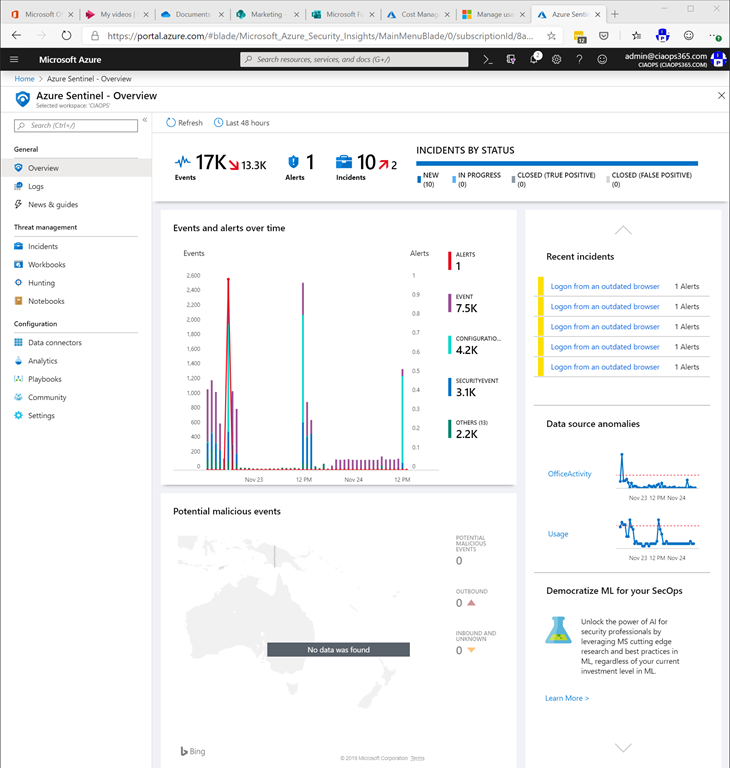
I now believe that the next ‘must have’ security add on you should integrate with your tenant is Azure Sentinel.
image

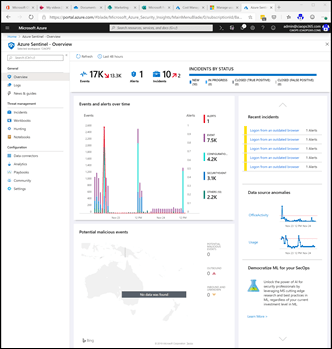
In a nutshell, Azure Sentinel will allow you to monitor, alert and report on you all you logs from just about any location, whether on prem or in the cloud.
image

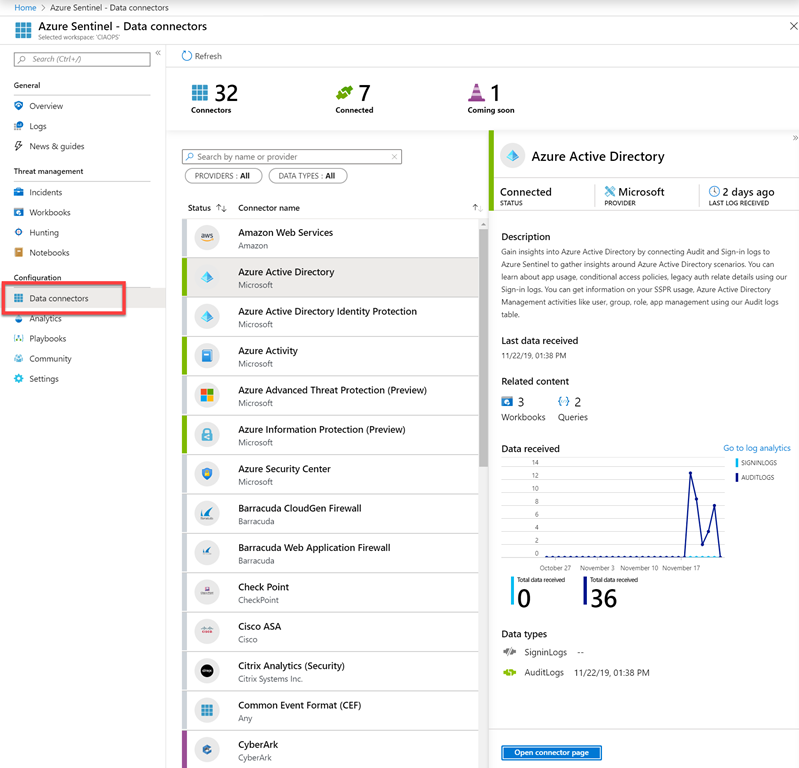
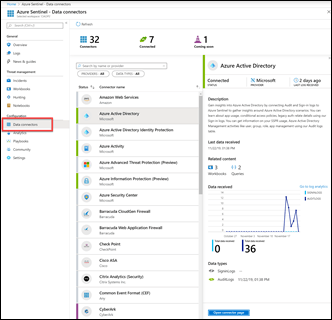
Once you have created the Sentinel service and assigned it a log workspace, the first place to go is to the Connectors option as shown above.

Here you can connect up your services. There is a huge range of options from Office 365, Azure, on prem and third parties like AWS, At a minimum I would suggest you connect up your Azure and Office 365 services.
image

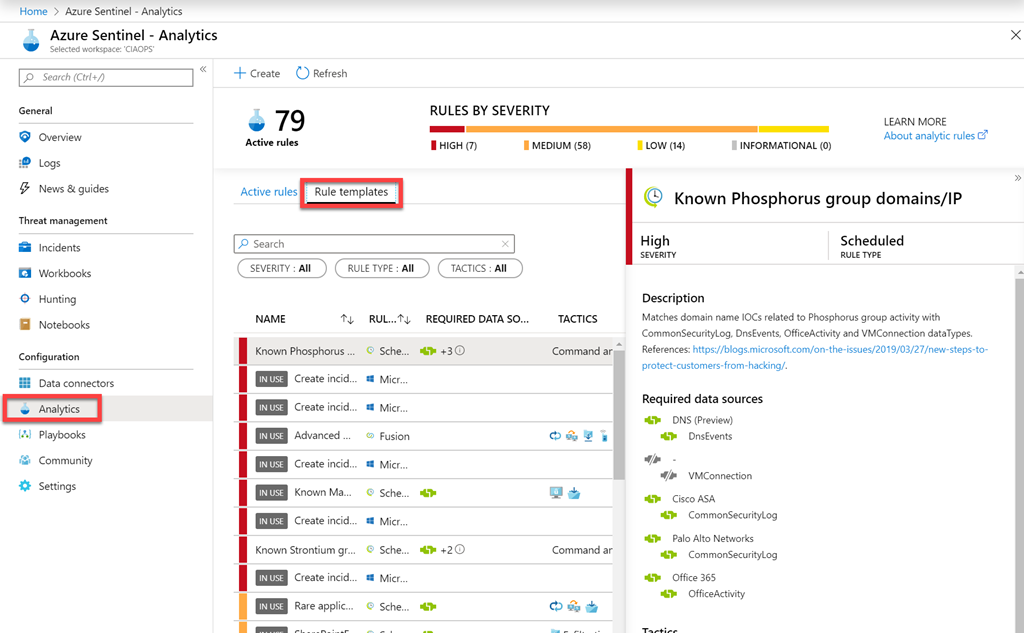
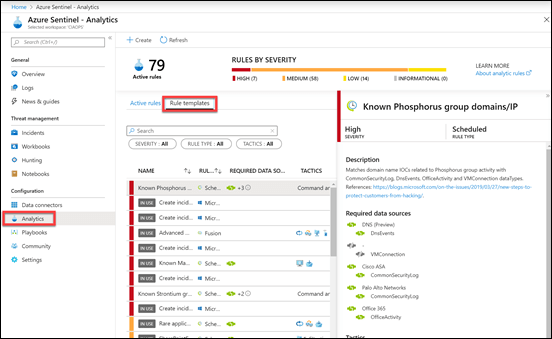
Next, go to the Analytics option, then select Rule templates from those available. These rules are basically queries across your data sources from your connectors. Add in the rules that make the most sense for your environment.
image

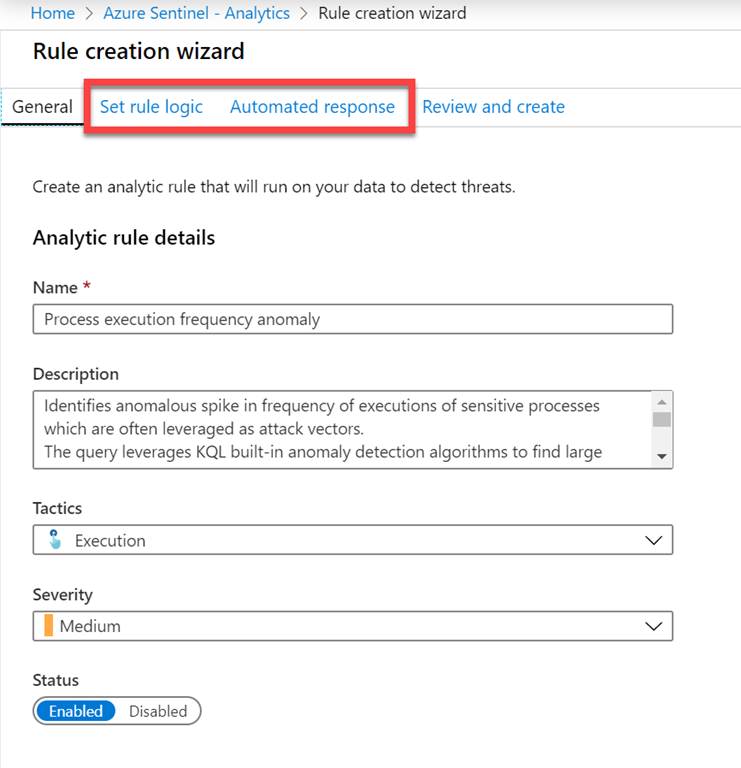
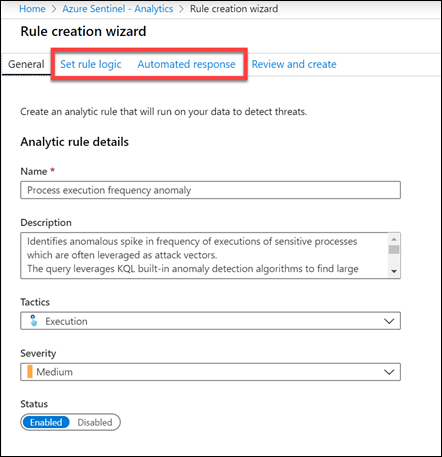
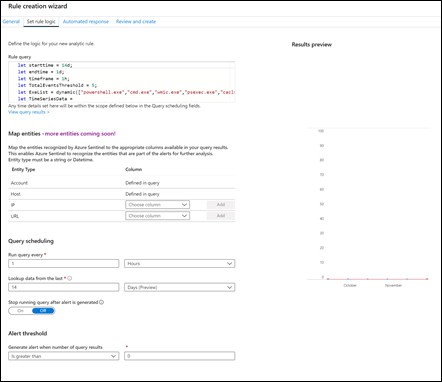
As you create these rules you be stepped through a wizard as shown above.
image

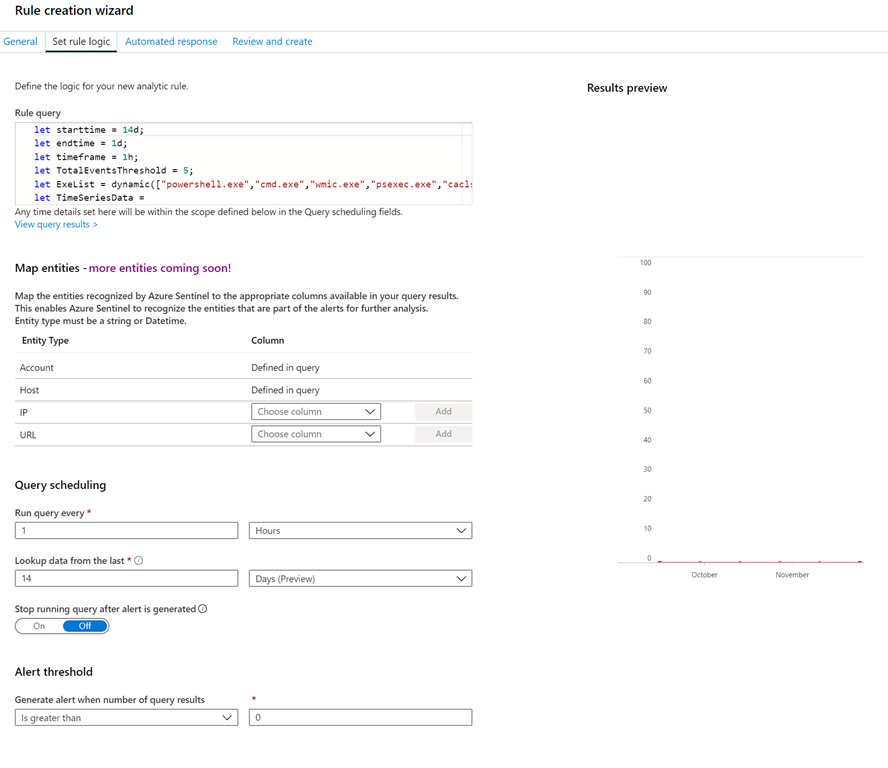
The Set rule logic step allows you to define the rule based on the data being received. You will notice there are lots of options. The great thing about using the templates is that this is already done for you but you can certainly modify these or create your own.
image

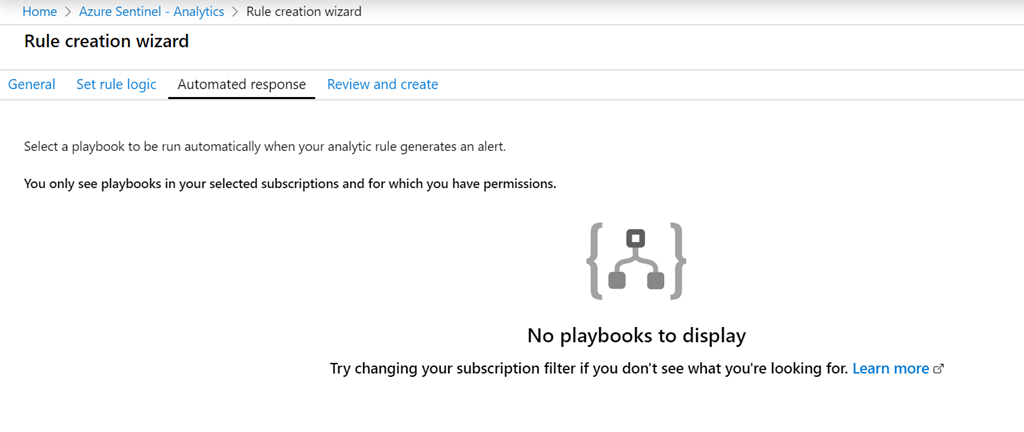
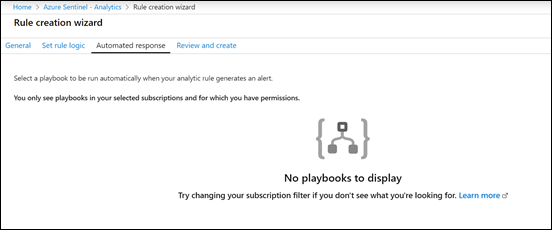
The real power of Azure Sentinel lies in the Automated response step shown above. Here you define what actions will be taken when a alert is generated by the rule. This means that you can have something automatically execute when an alert happen. This could be a remediation process, advanced alerting and more. This allows the response action to threat to be immediate and customisable.
image

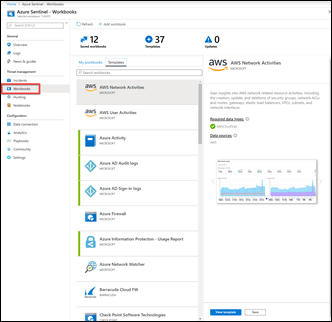
Next, go into the Workbook options as shown and then the Templates area and add all the options that make sense.
image

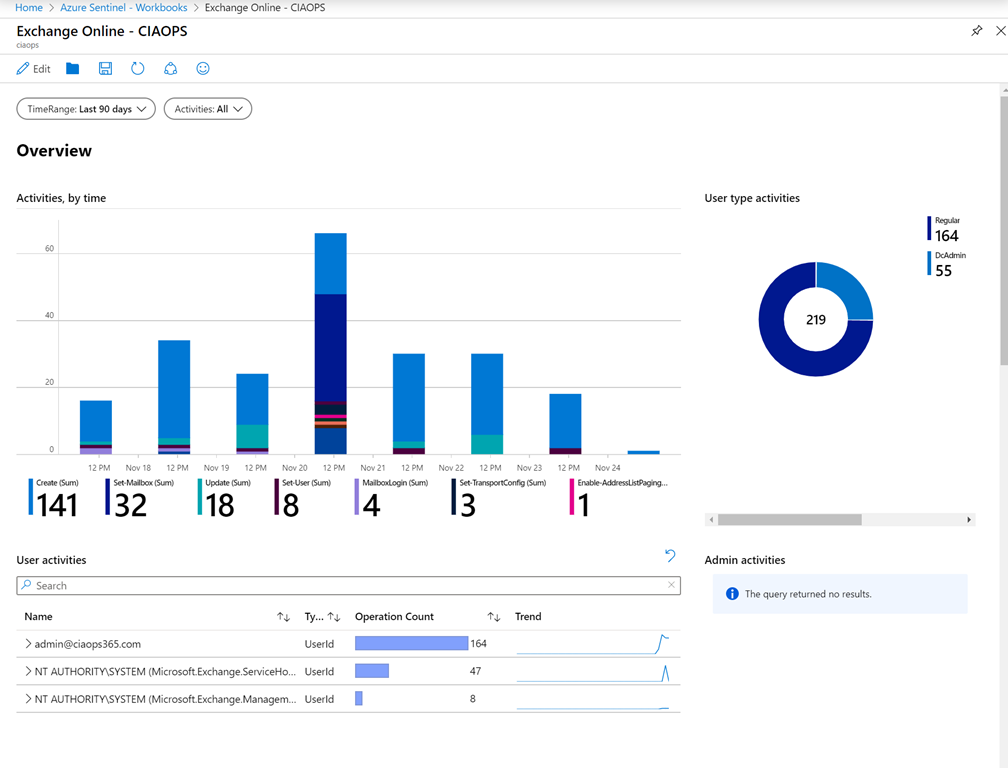
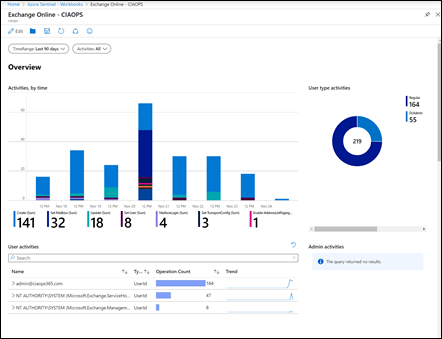
A workbook is basically an interactive dashboard where you can graphically query and report on data as shown above.
image

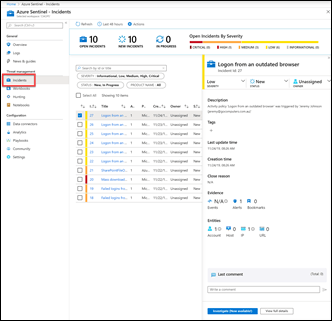
When rules are triggered they will appear as Incidents that you investigate as shown above.
image

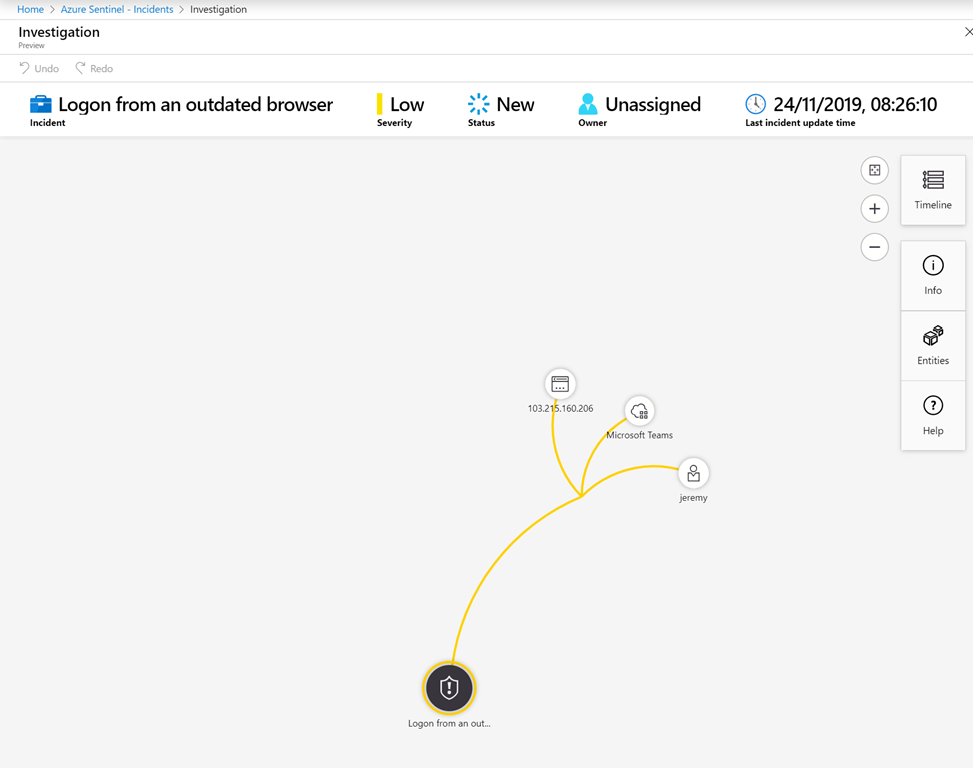
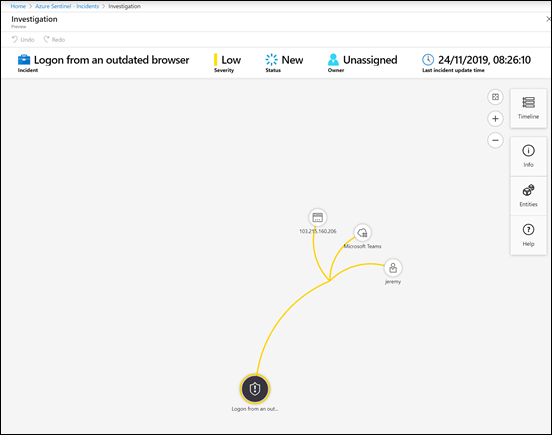
You’ll be able to explore incidents in greater depth using the graphical explorer as shown above.
image

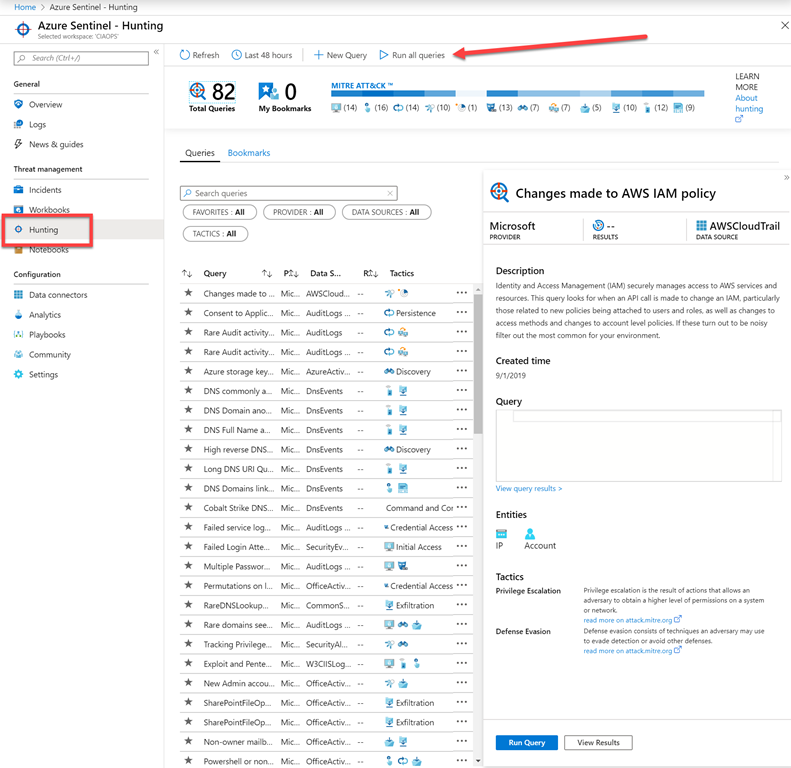
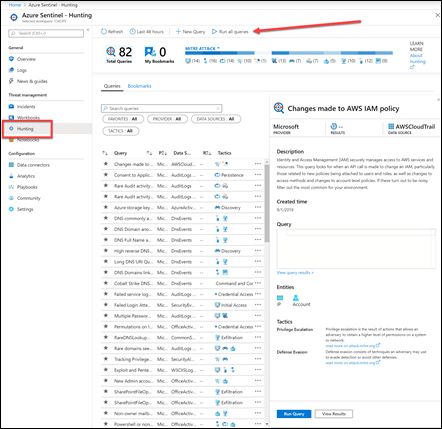
Good security is about being pro-active and Azure Sentinel gives you this via the Hunting option as shown above. This allows you to run standard queries against the data to discover items that may need further investigation and analysis. Note the option highlighted here that allows you to Run all queries at the touch of button. This is yet another hugely powerful option as you can now ‘hunt’ across all your information so quickly. Show me another tool that can do this for both cloud and on prem?
image

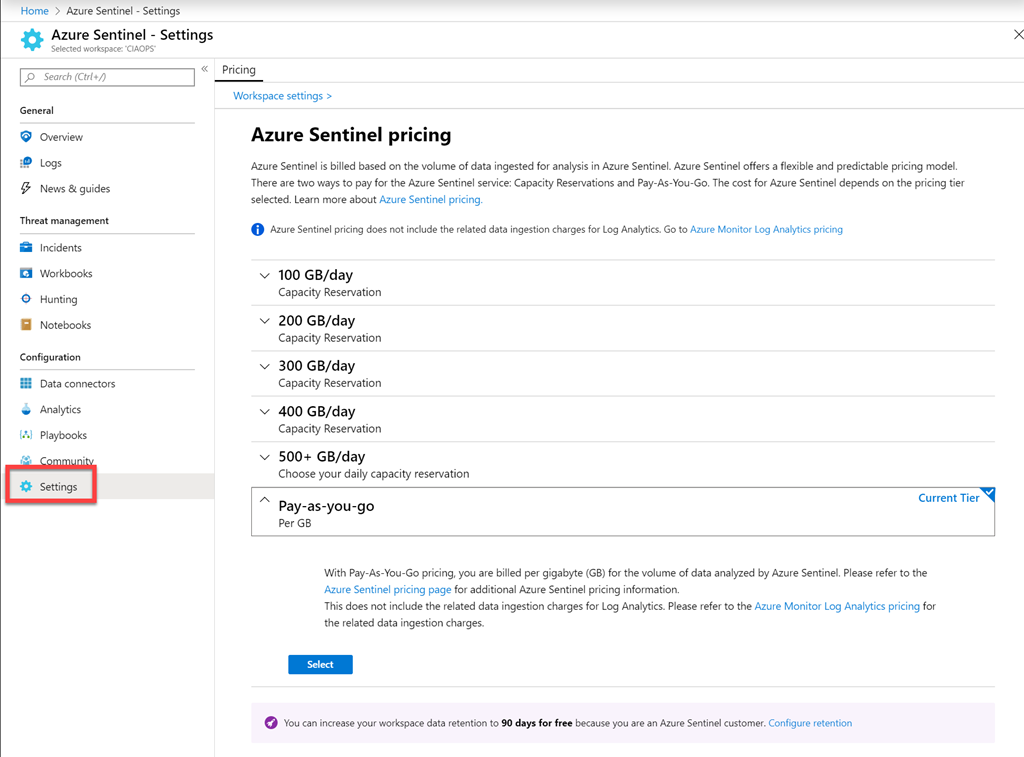
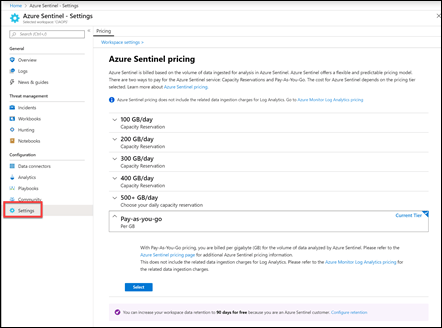
There are lots more features, but by now you are probably wondering what the costs are? As you can see from above, they are based on storage and you can reserve a storage size to suit your needs. However, you can also opt, as I have, for a pay as you go option.
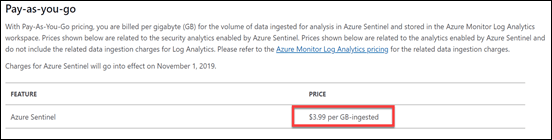
image

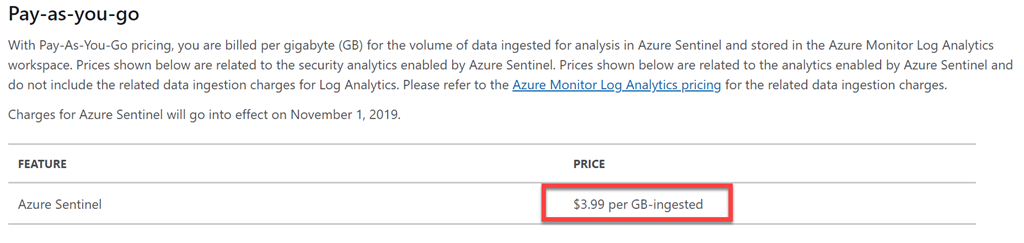
This means the Azure Sentinel cost to analyse all my data is AUD$3.99 per GB of data and

image

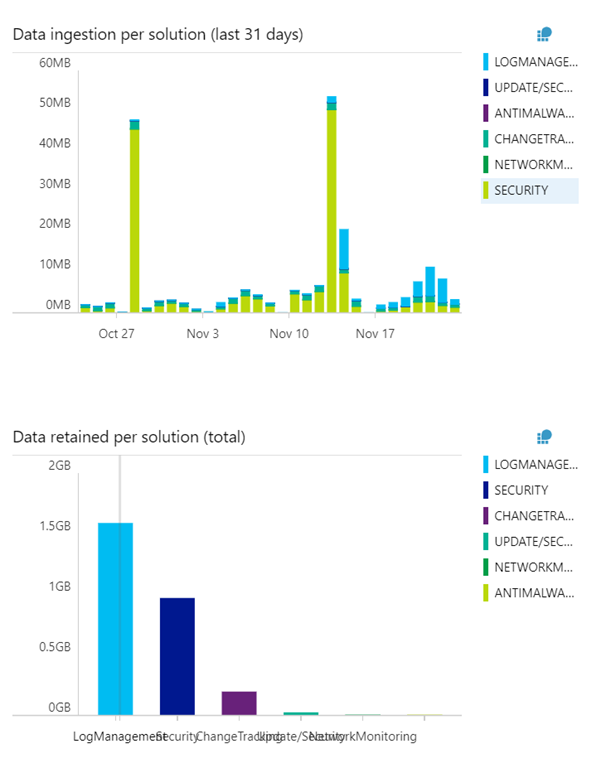
on the pay as you go plan I also need to factor in data ingestion, which is shown above in AUD$. Note that you get 5GB of data ingestion free per month. After that, I’d be paying AUD$4.586 per GB.
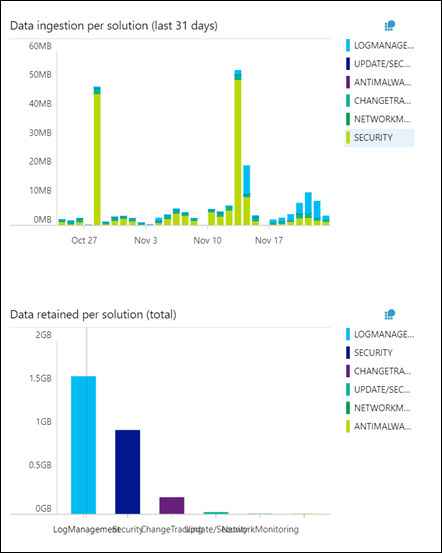
image

As you can see from the above usage figures I am no where near the 5GB ingestion limit, so all I am currently paying for just Azure Sentinel analysis.

The amount of data you ingest and analyse will depend on the services you connect and well as things like data retention periods. All of these can be adjusted to suit your needs. There are also many other Azure pricing tools you can use to control your spend. However, if you are concerned about running up an excessive bill, just connect and few services and scale from there.

In my case, I have logs from Microsoft 365 Cloud services, Azure, on premises machine monitoring, Defender ATP and more all going into Sentinel. Basically, everything I can, is going in there and the costs remain low.

I have always maintained that when you sell Microsoft 365, you should also sell an Azure subscription:

Deploy Office 365 and Azure together

Azure Sentinel is yet further confirmation that you should be doing this to add greater functionality and security to your environment. I will be spending more time deep diving into Azure Sentinel so make sure you stay tuned.

What you need for Windows Virtual Desktop (WVD)

banking-checklist-commerce-416322

Windows Virtual Desktop (WVD) is now generally available and I’ll be covering off how to set it up in upcoming articles. However, before you even login to your Azure tenant to start setting this up, here’s what you’ll need:

1. A Windows Virtual Desktop license for every user who want to use the service. These come with all Microsoft 365 and Windows E3 and E5 suites.

2. A paid Azure subscription. The majority of the cost of the WVD service will be your Virtual Machine hosts. The cost of these will vary on how many you want to use and how long they run for.

3. Azure Active Directory. The users who access the WVD service need to be in Azure AD. These users can be cloud only or synced from on premises using Azure AD Connect.

4. A Domain Controller (DC). At this point in time the WVD still requires a ‘traditional’ domain controller to allow the VMs to connect to for access. If you only have cloud users then the easiest option to achieve this is to add Azure AD Domain Services. If you already have an on premises Domain Controller (DC) you’ll need a Site to Site (S2S) VPN to link your on premises network to Azure. Note, that if you have an on premises DC that is using Azure AD Connect you can’t just add Azure AD Domain Services because Azure AD Connect doesn’t sync ‘traditional’ DC attributes. So, if you have an on premises DC, even if it is already using Azure AD Connect, you’ll still require a S2S VPN to Azure to allow the WVD service to connect VMs to that domain.

5. Azure AD tenant ID. Each Azure AD has a unique number which you can get from the web interface or via PowerShell. This is because it is possible to have multiple AD’s inside Azure and each can be configured and connected differently. The WVD service will need to know which specific Azure AD to connect to when provisioning.

6. Azure Subscription ID. The costs of the WVD service need to be applied against a unique subscription inside Azure. again, remember it is possible to have multiple independent subscriptions inside an Azure tenant. The WVD setup will need to know which subscription to bill for the service.

7. Azure tenant admin account. This will typically be a global administrator of your Azure environment. This will typically be the user who sets up, configures and manages WVD. They will also typically be an administrator of the domain that is connected to Azure AD.

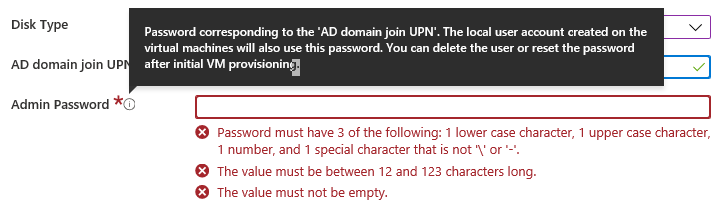
8. Domain join account. This is an account that has the rights to join machines to the domain. The WVD service will create a number of VMs that need to be connected to the domain so that users on the domain can login to these machines in your WVD environment. You may wish to have a domain join user who is not a global administrator for security reasons but you should also be aware of the potential password requirement differences between your domain user and the Azure admin account. You may wish to use the same Azure admin account as your domain join account. If so, just beware of the password requirement policy for these.

image

As you can see above, the domain join account has to be at least 12 characters long, plus 3 of the following – 1 lower case character,  1 upper case character, 1 number, a special character. That requirement may be different from what your Azure AD or on premises AD requires. My recommendation would be to create a stand alone domain join account that meets the requirements and is only used for joining machines.

9. Azure Virtual Network (VNET). You’ll need a pre-existing VNET for the WVD machines to connect to. When you implement Azure AD Domain Services or a S2S VPN to connect an on premises DC, you’ll need a VNET. Make sure you understand the IP addressing and subnetting of your Azure VNET when you create it, as changing it later can be very painful.

10. Appropriate skill set. WVD requires a range of skills and understandings including:

– Identity management

– Azure AD

– PowerShell

– Azure IaaS including VNETs, VMs, Storage, etc

– Networking

– Azure backup, imaging, etc

Can you bumble you way through without these? Maybe, but life will be much easier if you do have these skills and really, if you are planning to work in the Microsoft Cloud environment, these should be considered mandatory.

There you have it, ten pre-requisite items to get sorted before you launch into creating a WVD for yourself. Get these sorted prior and your installation will be much smoother!

As I said, I’ll have upcoming articles on how to set this up, so stay tuned.

Changing client Log Analytics workspaces

I have been using Azure Log Analytics solutions for a while now to do things like report on client machine changes, updates, inventory, security and so on. However, I wanted to change my workspace for these clients from one Azure tenant to another.

image

I was thinking that I’d have to do into the registry and change the workspace id and key but when I searched the registry there were far too many entries. Turns out you don’t need to do that at all! All you need to do is got to the control panel and find the Microsoft Monitoring Agent as shown above.

image

When you run that you’ll see any workspaces you are current joined to. You can Edit or Remove what is there.

image

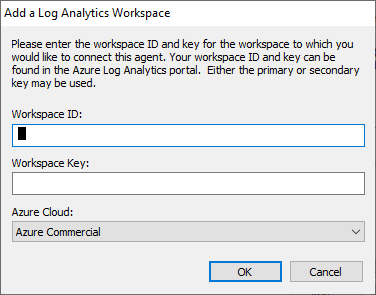
Then you you can add a new workspace as shown above.

image

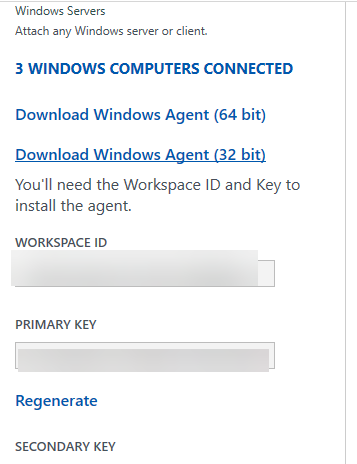
All you then need to is plug in the new Workspace ID and Key from new workspace and you are away.

I also discovered that you can configure the agent to report to multiple workspaces, even in different tenants if you want. That makes things really easy.

How easy is that?

Legitimate non-MFA protection

image

There is no doubt that multi-factor authentication (MFA) is the great thing for the majority of accounts. It is probably the best protection against account compromise, however are there times that perhaps, MFA doesn’t make sense?

Security is about minimising, not eliminating risk. This means that it is a compromise and never an absolute. Unfortunately, MFA is a technology and all technologies can fail. If MFA did fail, or be unavailable for any reason, then accounts would be unavailable. This could be rather a bad thing if such an issue persisted for an extended period of time.

In such a situation, it would be nice to be able to turn off MFA for accounts, so users could get back to work, and re-enable it when the MFA service is restored. However, today’s best practice is to have all accounts, especially administrators, protected by MFA.

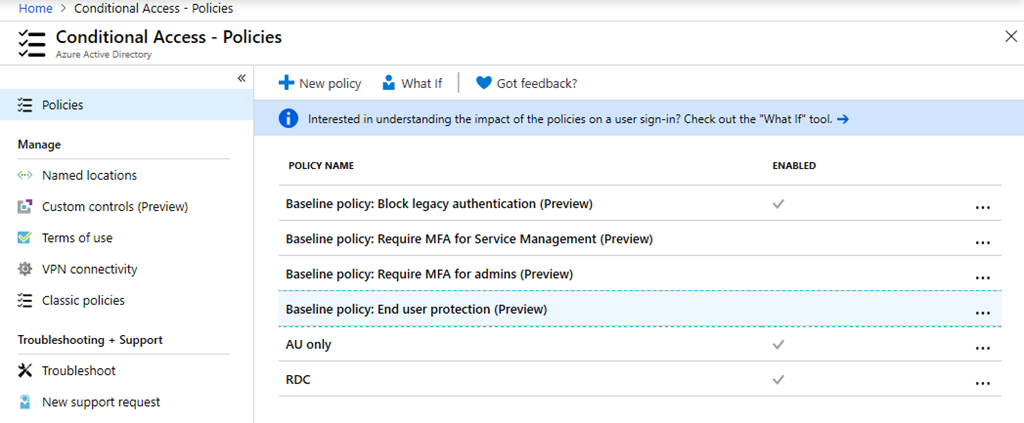
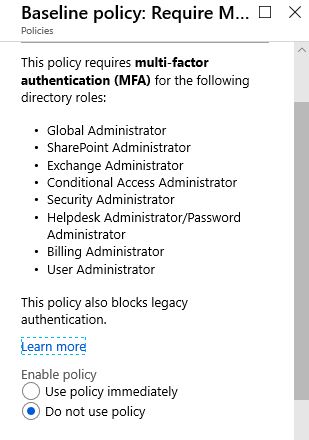
A good example is the baseline policies that are provided for free in Microsoft 365 as shown above.

image

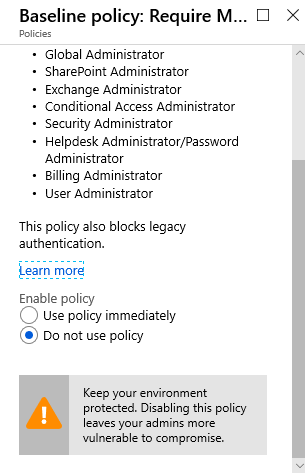
You’ll see that such a policy requires MFA for all admin roles.

image

And yes, there is a risk for admin accounts that don’t have it enabled but there is also a risk if it is enabled and MFA is not working for some reason.

The challenge I have with these types of policies is that they are absolute. It is either on (good) or off (bad), and in the complex world of security that is not the case.

I for one, suggest there is the case for a ‘break glass’ administration account, with no MFA, that be used in the contingency that MFA is unavailable to get into accounts and re-configure them if needed. Such an account, although it has no MFA, is protected by a very long and complex pass phrase along with other measures. Most importantly, it is locked away and never used, except in case of emergency. There should also be additional reporting on this account, so it’s actions are better scrutinised.

Unfortunately, taking such an approach means that you can’t apply such absolute policies. It also means that you won’t be assessed as well in things like Secure Score. However, I think such an approach is more prudent that locking everything under MFA.

As I said initially, security is a compromise, however it would be nice to see the ability to make at least on exception to the current absolute approach because service unavailability can be just as impactful as account compromise for many businesses.

Connecting to Exchange Online with Azure Cloud Shell

I’ve written previously about

Azure Cloud Shell

and how handy it is when it comes to connecting to your tenant with PowerShell. What you may not realise is that you can also Azure Cloud Shell to connect to Exchange Online! All you need to do once you have launched Azure Cloud Shell is run the command:

connect-exopssession

image

As you can see from the above where I have connected and then used the command get-mailbox inside Azure Cloud Shell.
image

This now means you could copy my mailbox forwarding checking script:

https://github.com/directorcia/Office365/blob/master/o365-exo-fwd-chk.ps1

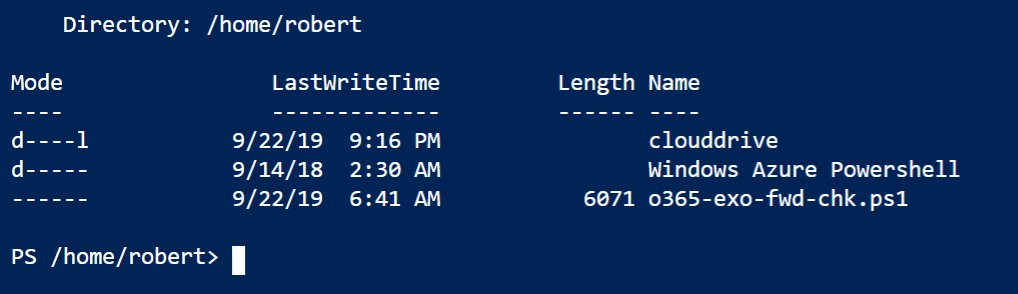
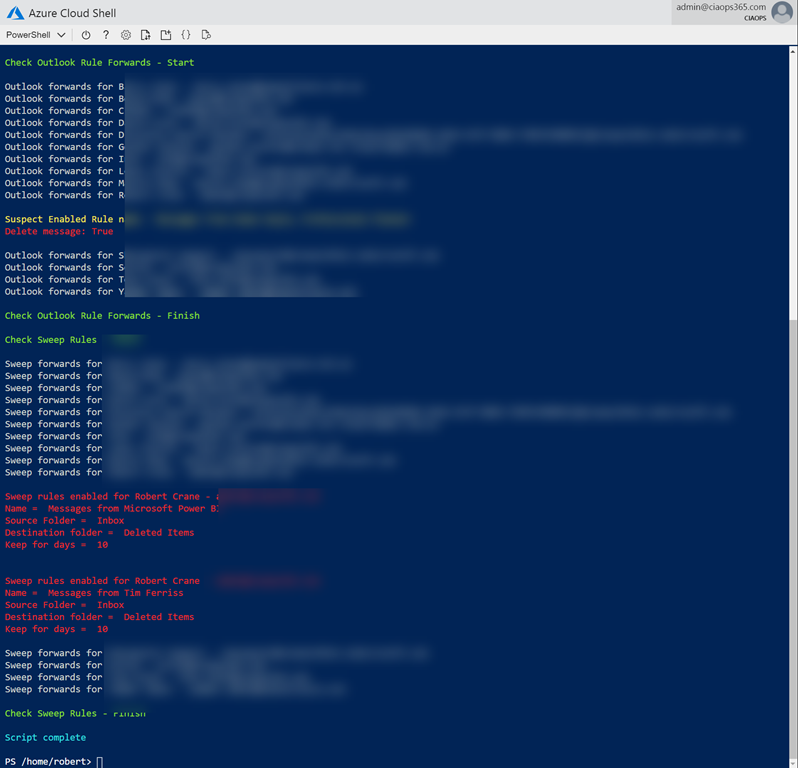
into your Clouddrive that is part of Azure Cloud Shell and run it.

image

And thanks to Clouddrive it will be there next time you use Azure Cloud Shell. Handy eh? If you want to learn about this capability, visit:

Azure Cloud Shell now supports Exchange Online

Need to Know podcast–Episode 215

In this episode I speak with Alex Fields about the power of conditional access. You’ll learn what it is, how to implement it as well as many best practices recommended by Alex based in his experience and knowledge. The great new is conditional access is part of Microsoft 365 Business, so listen in for the way to make it work to protect your information.

Brenton and I also bring you up to speed with all the latest Microsoft Cloud news, so listen in for the latest as always. We hope you enjoy this episode and don’t forget to send us your feedback.

This episode was recorded using Microsoft Teams and produced with Camtasia 2019

Take a listen and let us know what you think – feedback@needtoknow.cloud

You can listen directly to this episode at:

https://ciaops.podbean.com/e/episode-215-alex-fields/

Subscribe via iTunes at:

https://itunes.apple.com/au/podcast/ciaops-need-to-know-podcasts/id406891445?mt=2

The podcast is also available on Stitcher at:

http://www.stitcher.com/podcast/ciaops/need-to-know-podcast?refid=stpr

Don’t forget to give the show a rating as well as send us any feedback or suggestions you may have for the show.

Resources

@vanvfields

@contactbrenton

@directorcia

CIAOPS Patron Community

ITProMentor

ITProMentor – Best parctices

Attacker Kill Chain described

ITProMentor – Free Microsoft 365 Business eBook

ITProMentor – Licensing Guide

Telstra Purple

New version of To-Do

Authenticator backup on Android now available

Prepare for iPadiOS Launch

New webparts coming to SharePoint

Azure QuickStart Center

Top 5 advantages of syncing with OneDrive

Modernize your root site