Join my Teams Shared Channel

Microsoft now has the capability to create a Shared Channel. I have created a Shared Channel in my own tenant that I am freely making available to anyone who wants an invite to see what Shared Channels are all about.

If you are keen on participating then you’ll need to take some actions in your own tenant first to allow the connection.

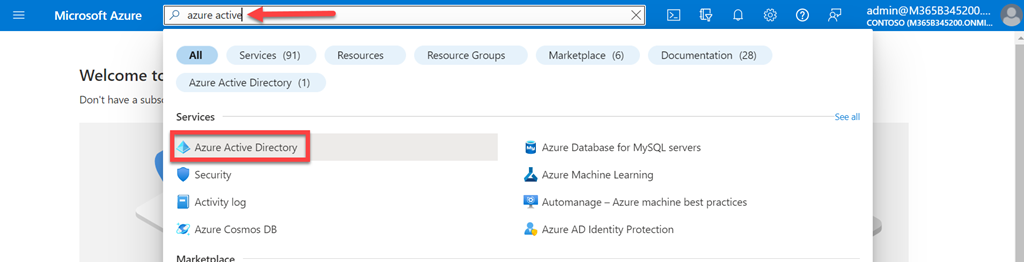
As an administrator open the Azure portal.

image

In the top search box inside the Azure portal search for Azure Active Directory. Then select the service matching that when it appears as shown above.

image

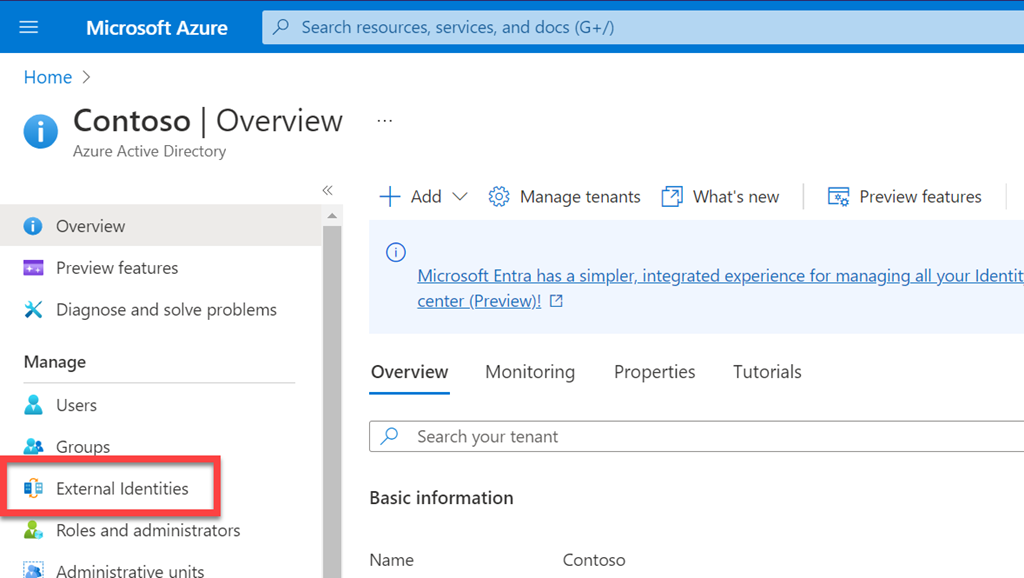
From the menu that appears on the left select External Identities.

image

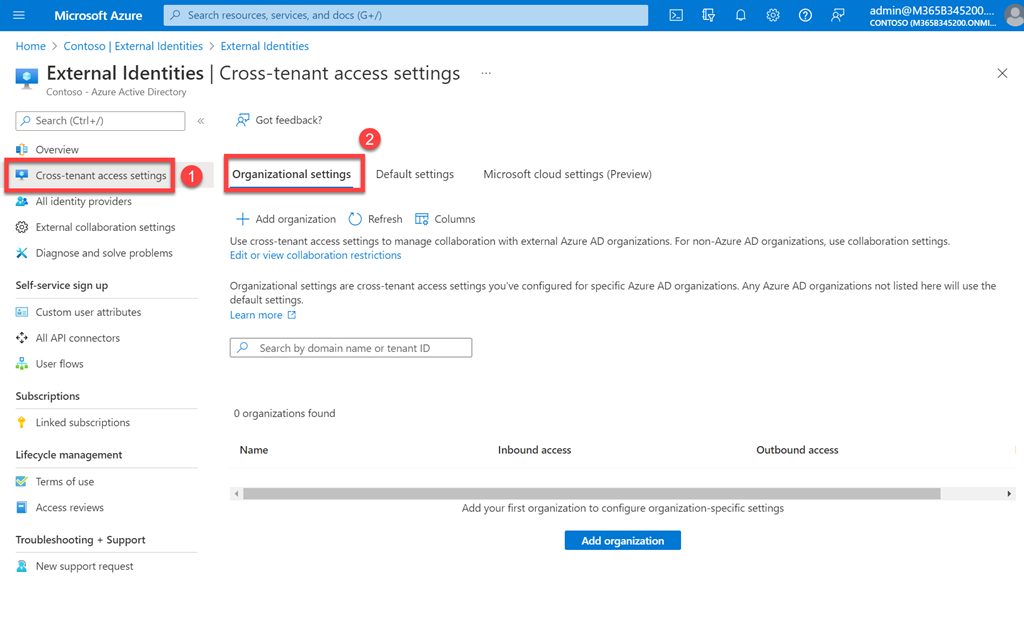
On the screen that appears, select Cross-tenant settings from the menu on the left. Then select Organizational settings on the right as shown above.

image

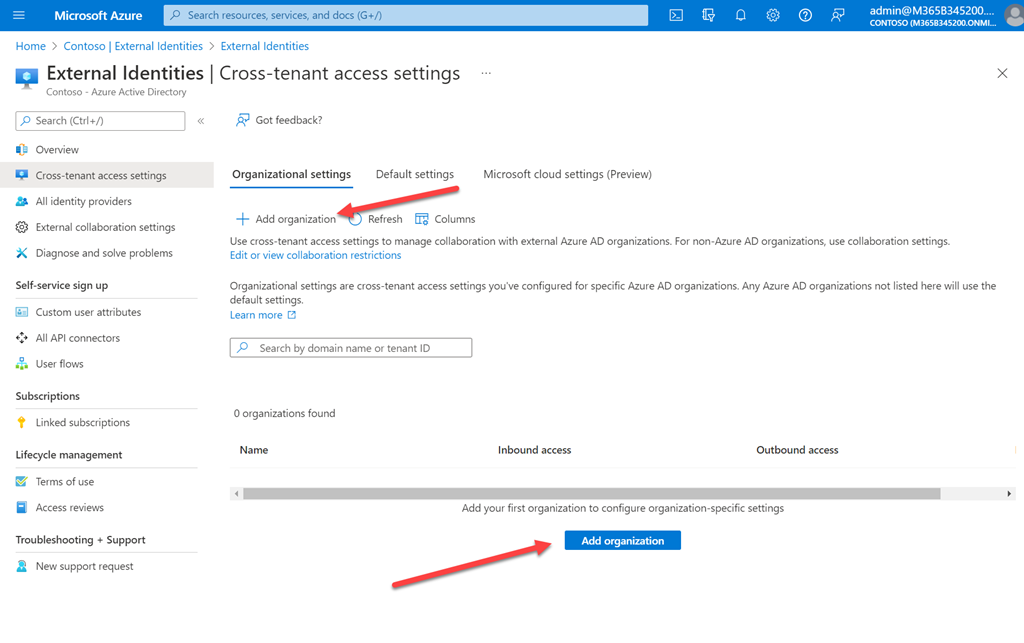
Now select Add organization either from the menu at the top or the button at the bottom as shown.

image

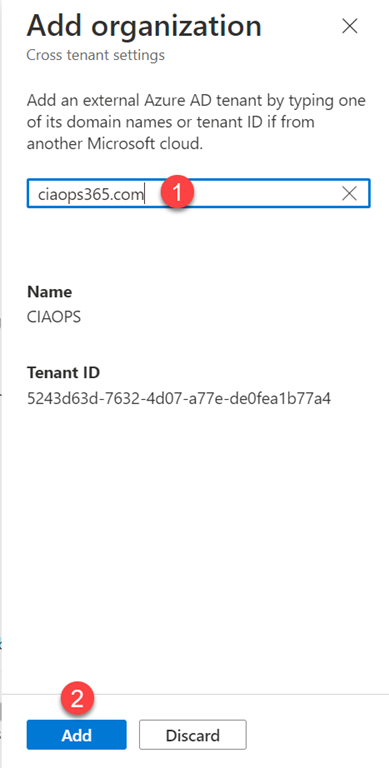
From the dialog that appears from the right enter either the domain ciaops365.com or the tenant id 5243d63d-7632-4d07-a77e-de0fea1b77a4. You see the name as CIAOPS after this is completed successfully. When it does appear as shown above, select the Add button.

image

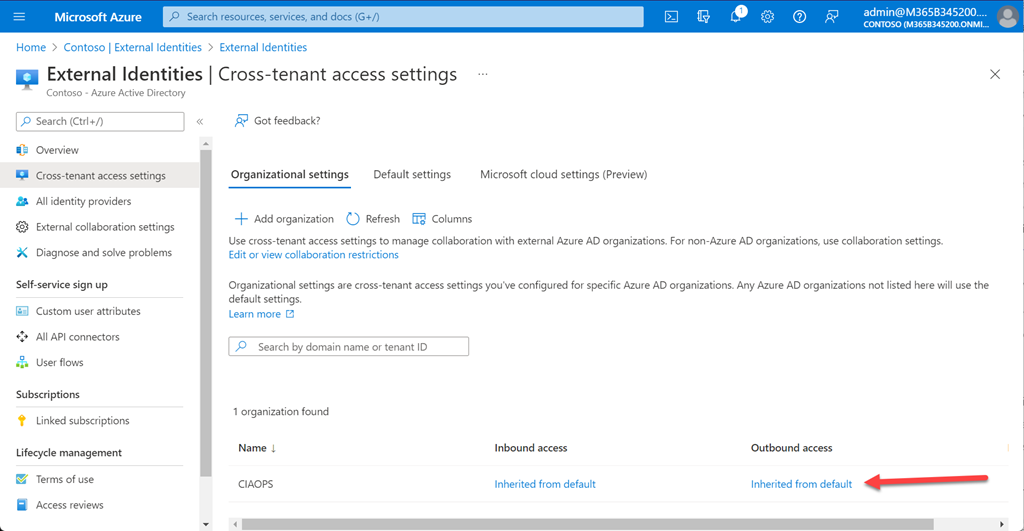
A CIAOPS entry should now appear as shown above.

image

Select the hyperlinked text under the Outbound access heading which will say Inherit from default.

image

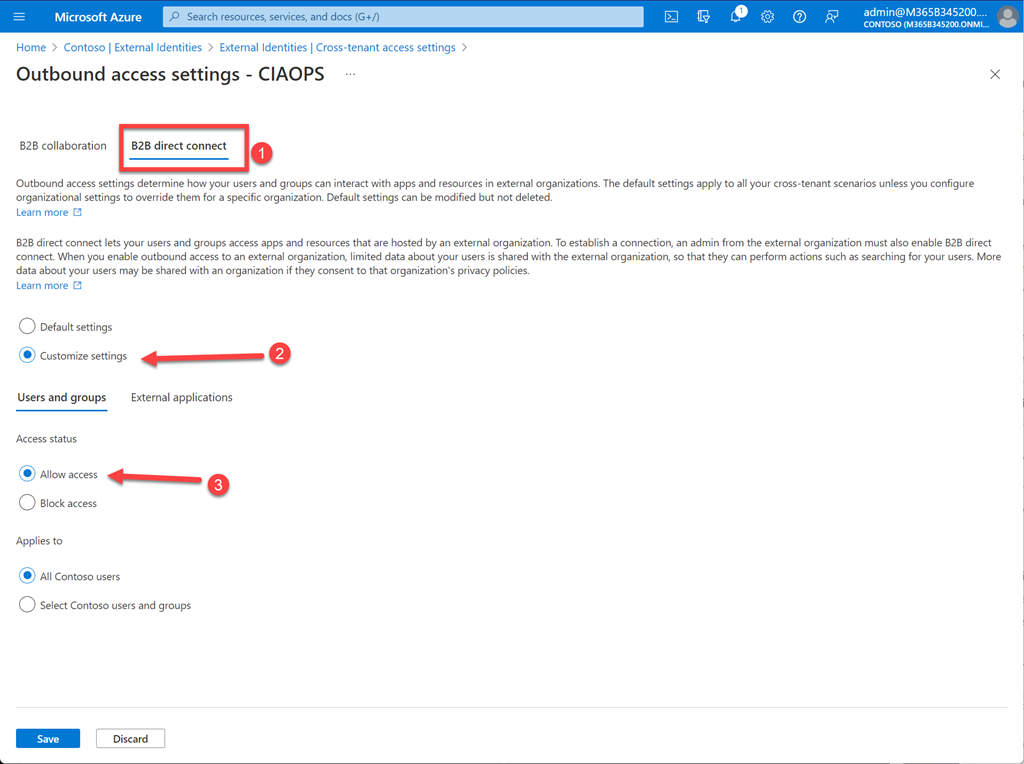
Select B2B direct connect from the menu across the top. Then select Customize settings. Finally, select Allow access as shown above.

image

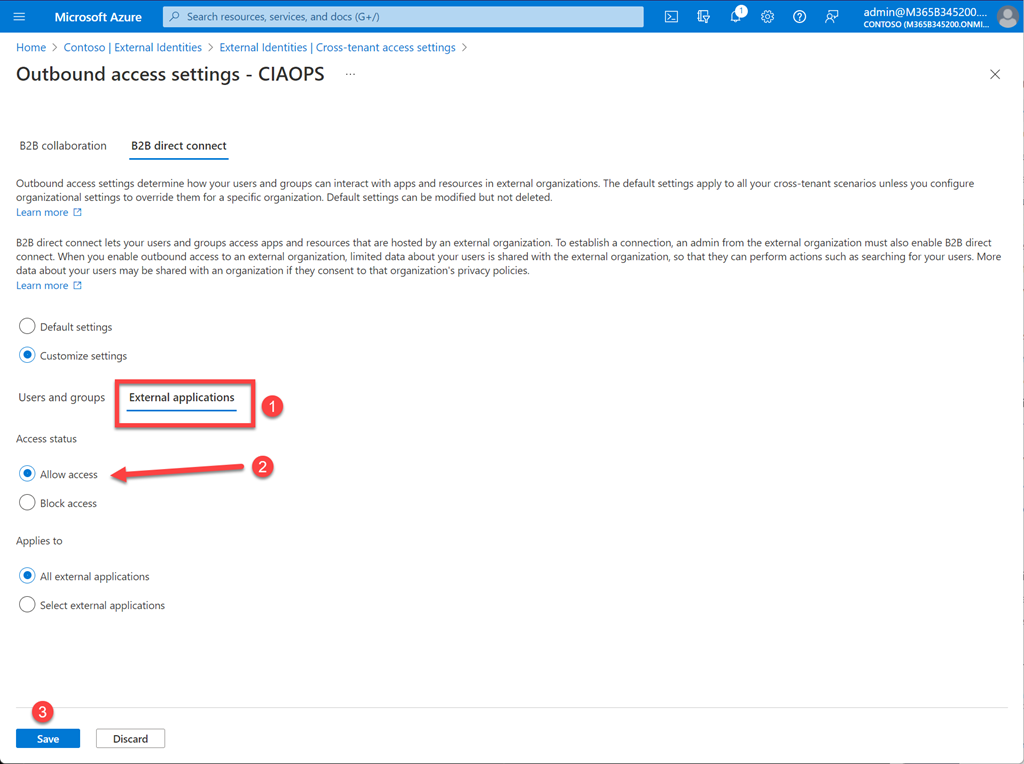
Select the External applications tab. Then Allow access. Finally, select Save at the bottom of teh screen.’

If you take a moment to read the top of the screen before you press Save you’ll see:

Outbound access settings determine how your users and groups can interact with apps and resources in external organizations. The default settings apply to all your cross-tenant scenarios unless you configure organizational settings to override them for a specific organization. Default settings can be modified but not deleted.Learn more

B2B direct connect lets your users and groups access apps and resources that are hosted by an external organization. To establish a connection, an admin from the external organization must also enable B2B direct connect. When you enable outbound access to an external organization, limited data about your users is shared with the external organization, so that they can perform actions such as searching for your users. More data about your users may be shared with an organization if they consent to that organization’s privacy policies.Learn more

In short, you have allowed your tenant to access my shared Teams channel from just my tenant (ciaops365.com).

image

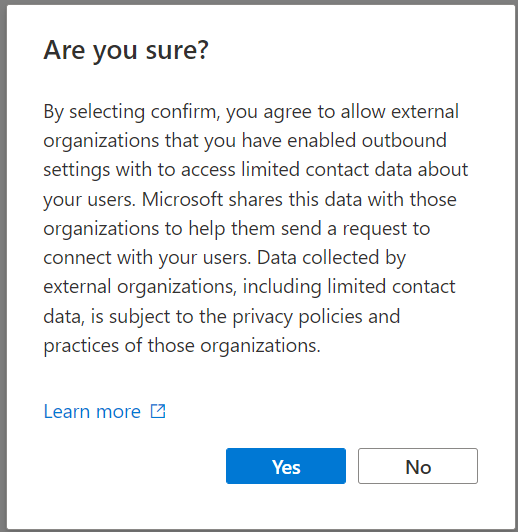
When you do press Save you see the above message. Press Yes to continue and accept.

That is all the configuration you need to do inside your tenant. What you then need to do is send me an email (director@ciaops.com) letting me know you’d like to be added to my shared channel. When I receive this I will add you.

image

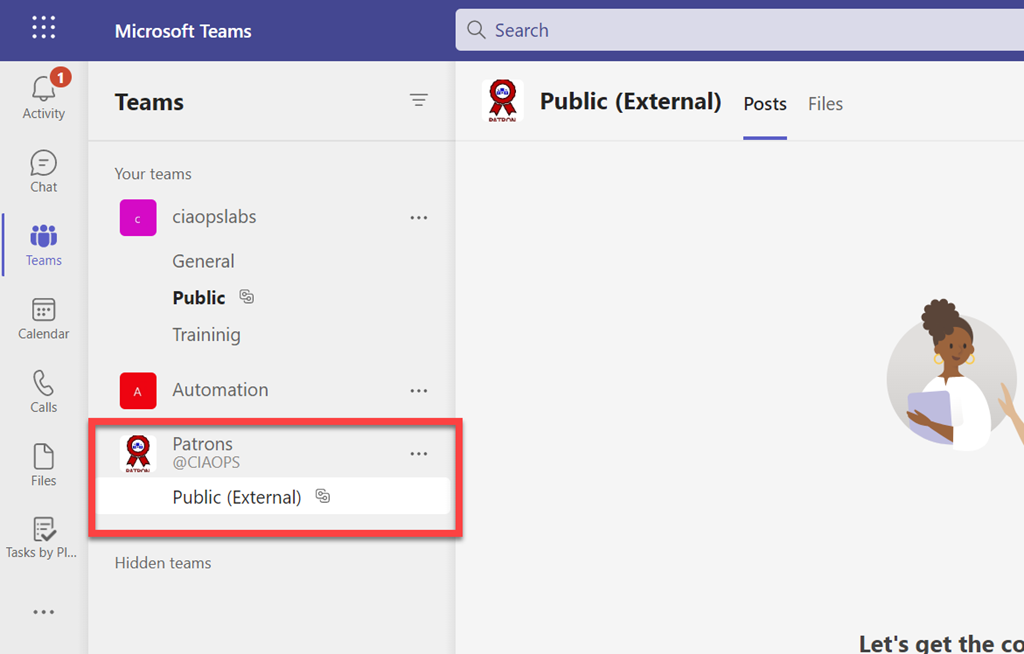
After I’ve added you the shared channel should appear in your Teams environment as shown above without the need to switch tenants.

Once you are in my shared channel encourage you to participate and get involved with the content that is there. More details are inside my shared channel. To get things started post a message about why you are in the shared channel and say hello to everyone else.

Feel free to let others know about this offer as I’d like to make my shared channel a free resource for people to come and share information about the Microsoft Cloud.

Power Automate Azure Key Vault access inconsistencies

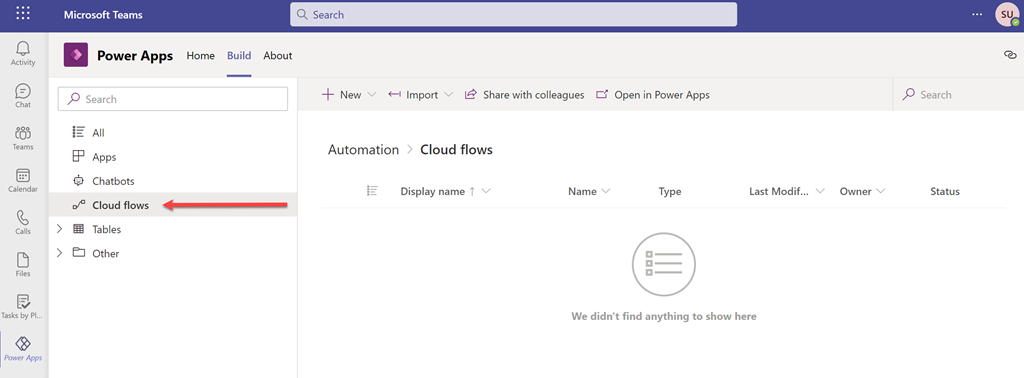
I’m in the process of building a Flow that connects to a Dataverse database inside a Microsoft Team. When you create this you get the ability to create Cloud Flows (aka Power Automate).

image

However, there is an issue when you try and use something like Azure Key Vault actions here.

image

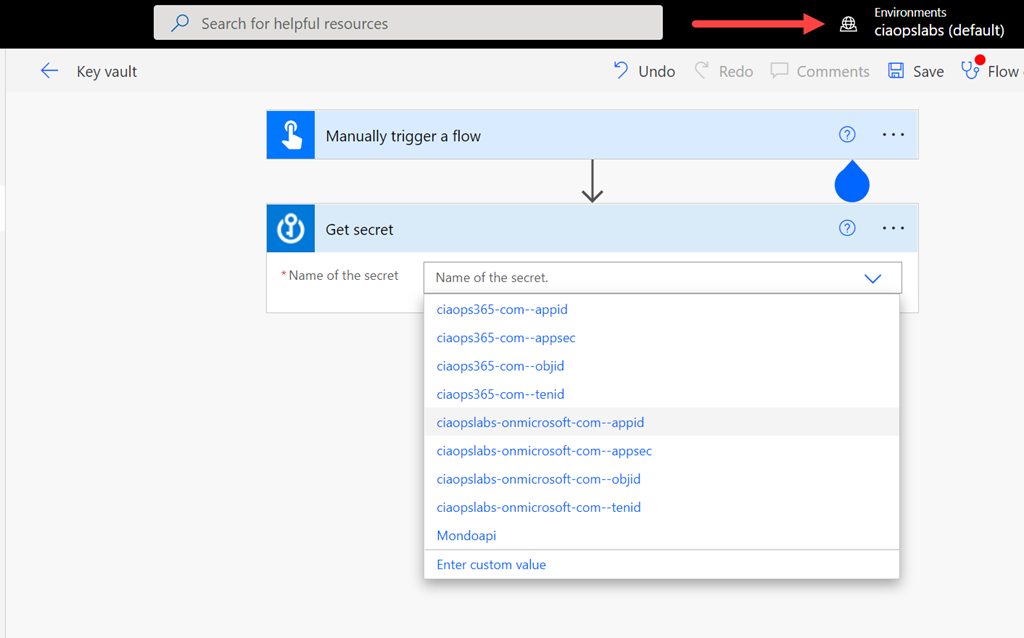
In the above, you can see that I’m in my default Power Automate environment and the Get secret action of Azure Key Vault is accessible as expected and shows all the items I have inside the vault.

image

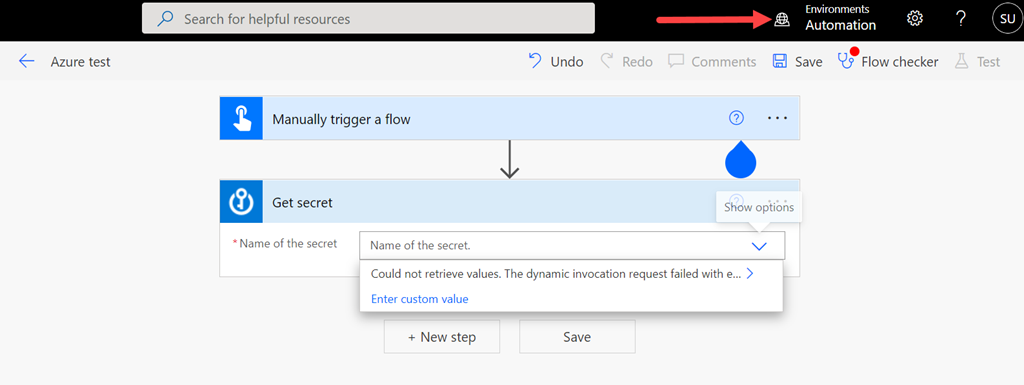
However, if I swap to another environment that was created as part of a Team (here an environment called Automation), you’ll see that I can add the Azure Key Vault action Get Secret but I no longer see the items inside that vault as I did before! I am using the same user in both cases.

It has clearly something to do with the connection,

image

which shows up as invalid as you can see above.

image

If I try and add a new connection, I see the above dialog but can’t make any changes or enter any information. Looks like I might need to investigate the Connect with a service principal option perhaps?

However, for now, there seems to be a limit when you use the Azure Key vault actions inside anything that is not the default environment for the Power Platform in your tenant. I will assume this is because these environments are limited to Microsoft Teams and have innate restrictions that I’ll need to find information on. If you know what this is, I’d love to hear from you.

Enabling security defaults will enforce MFA on external users

A really good questions that I came across was whether enabling security defaults on a tenant will enforce MFA for external guest users.

Here is the documentation for security defaults:

Security defaults in Azure AD

and when enabled one of the things it will do is:

Require all users to register for Azure AD Multi Factor

which says:

All users in your tenant must register for multi-factor authentication (MFA) in the form of the Azure AD Multi-Factor Authentication. Users have 14 days to register for Azure AD Multi-Factor Authentication by using the Microsoft Authenticator app. After the 14 days have passed, the user can’t sign in until registration is completed. A user’s 14-day period begins after their first successful interactive sign-in after enabling security defaults.

The question is does “all users” include external guest users who have been invite into a tenant for collaboration on Microsoft Teams say? This is important because Microsoft is starting to enforce security defaults on all tenants.

Interestingly, none of the documentation seems to call out specifically whether “all users” does in fact include external guest users. After some digging I came across this post:

All users should be changed to all “member” users · Issue #78194 · MicrosoftDocs/azure-docs (github.com)

which has a response from someone at Microsoft and it says:

“Follow up from the product group… Security defaults should apply to guest users as well.”

So it looks as though it does indeed appear that security defaults applies to external guest users but I wanted to be sure.

image

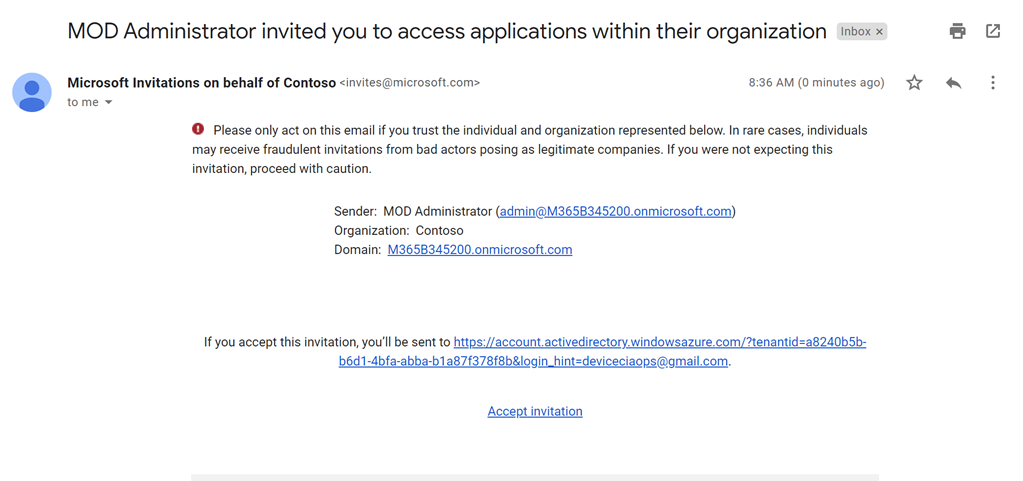
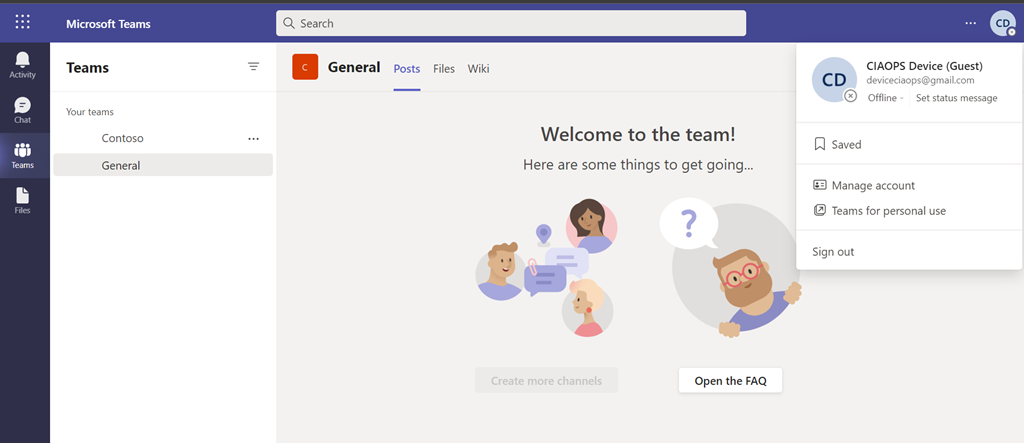
I took a generic Gmail account I use and invited that user into a demo tenant that didn’t have security defaults enabled.

image

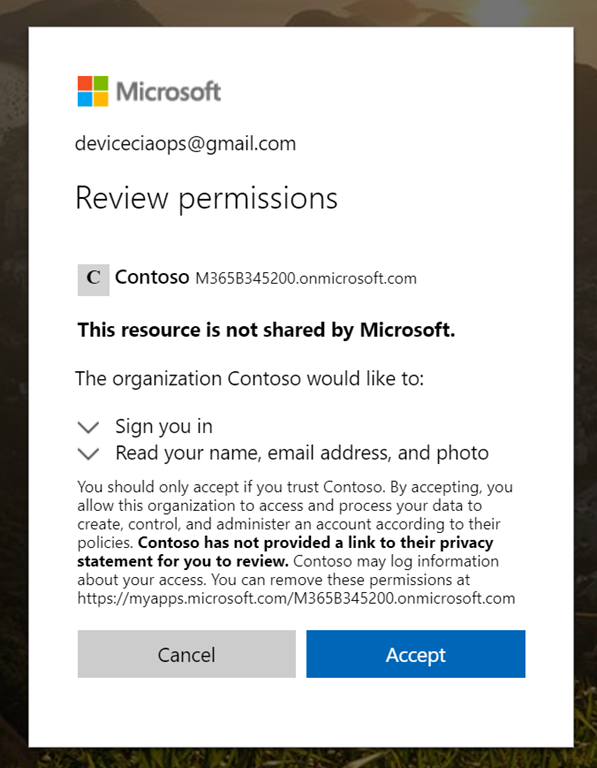
That user went through the expected process of connecting to the tenant.

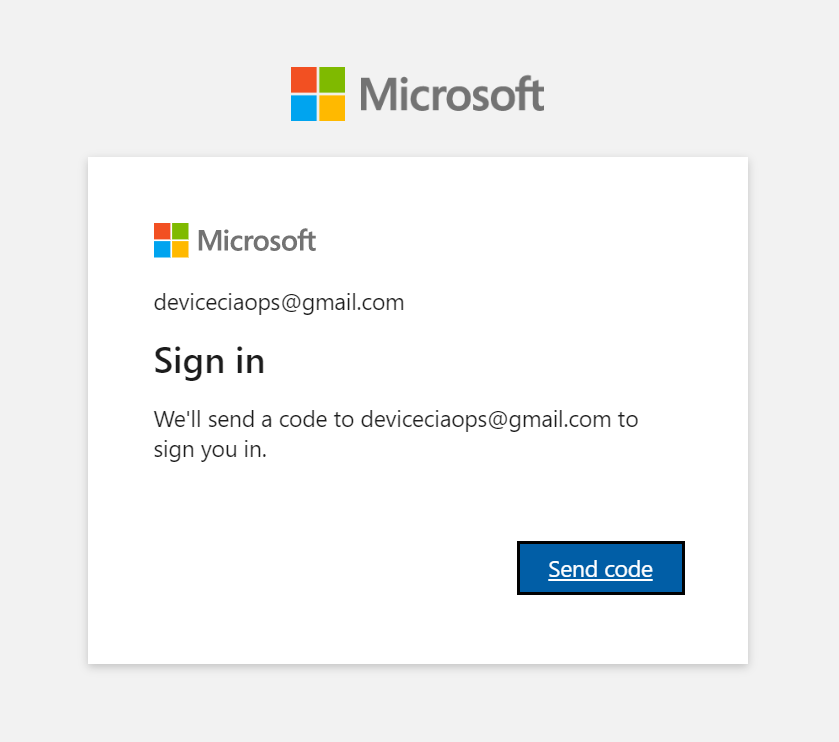
image

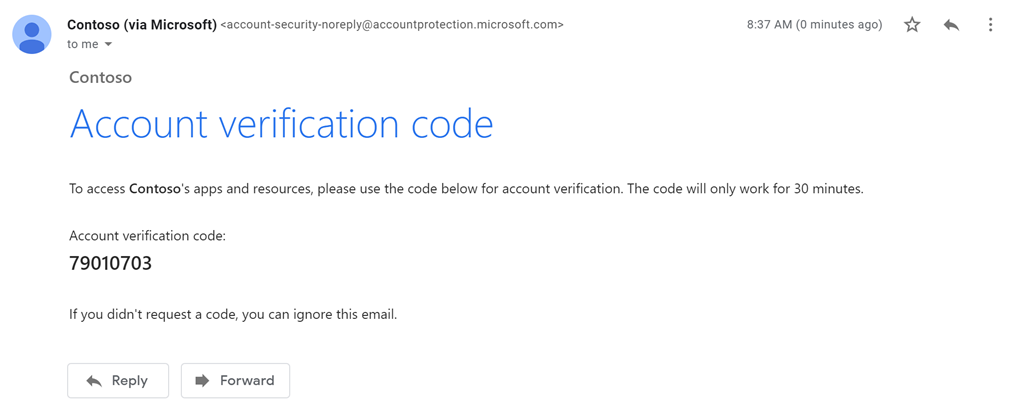
using the email code verification process.

image

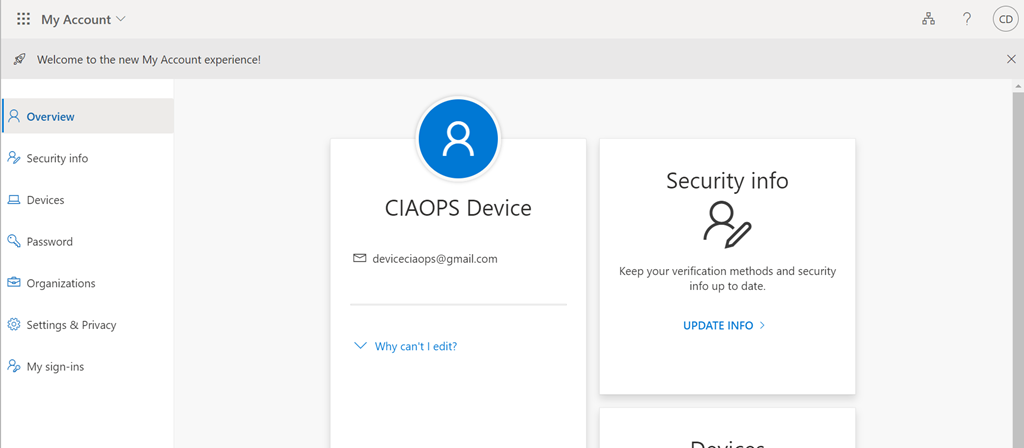
until they could access the tenant.

image

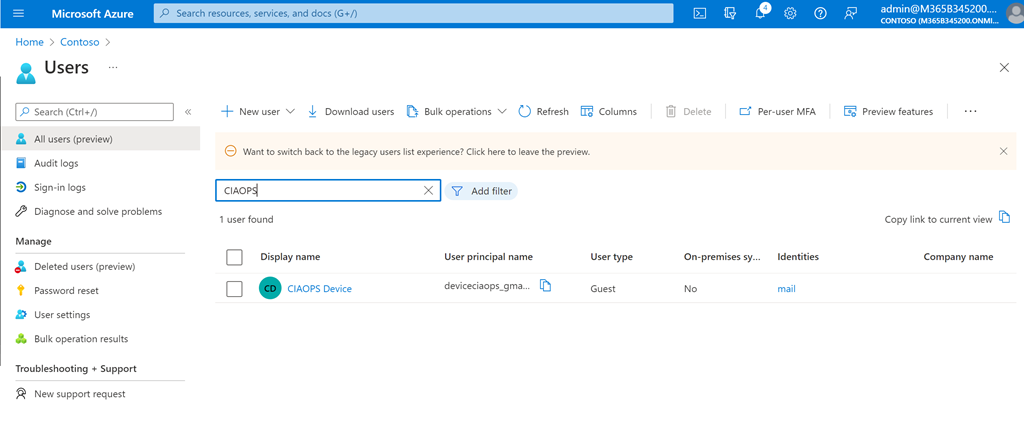
I also verified that they appeared in the Azure AD for that tenant.

image

So everything as expected so far.

image

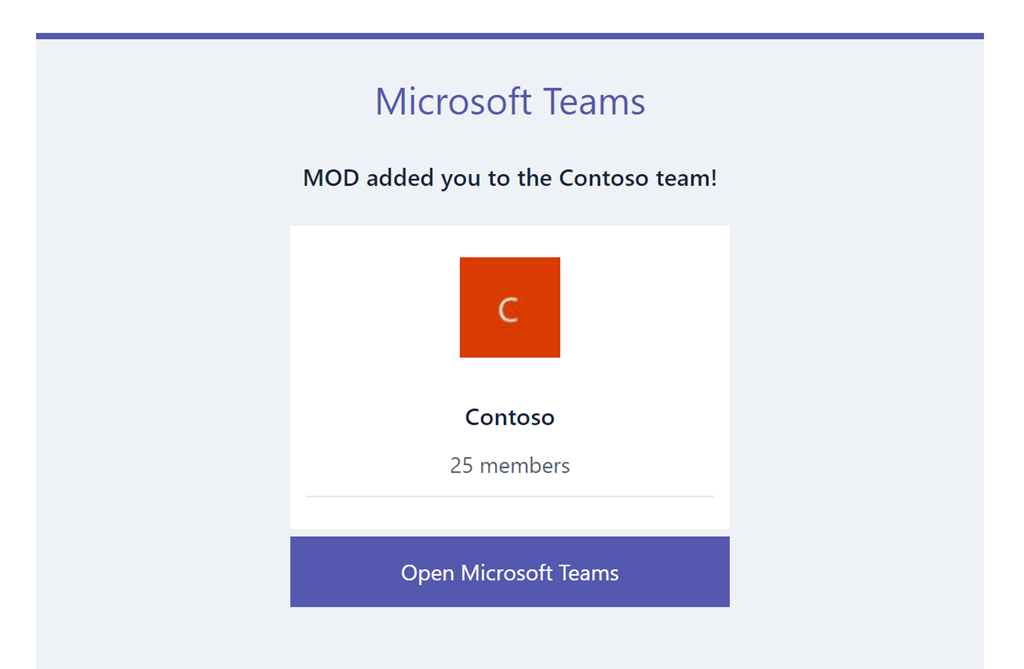
Next, I invited that same user to a Microsoft Team inside that tenant.

image

and they could access that Team using the normal email code authentication process. I tried this a few times to ensure they could access the Team without needing anything but the usual email code. So far, so good still.

image

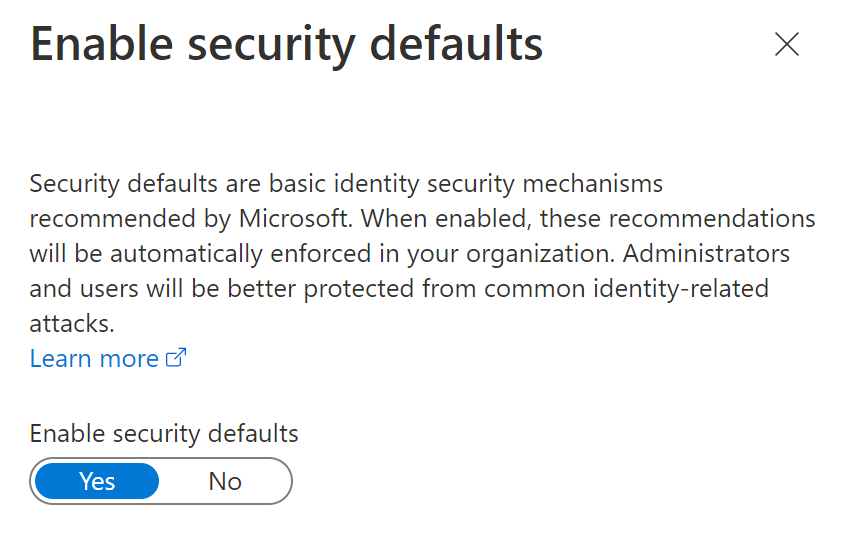
I then went in an enabled security defaults for the tenant.

image

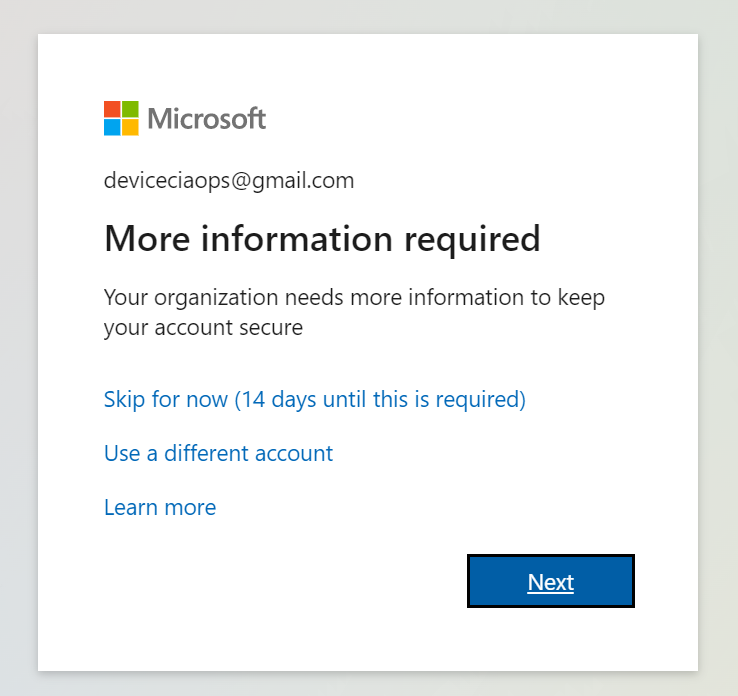
After a few minutes wait to let the policies kick in I tried to login as the external guest user again to Microsoft Teams directly, and after providing a login and getting an email code I was prompted to enable MFA for the user as seen above.

image

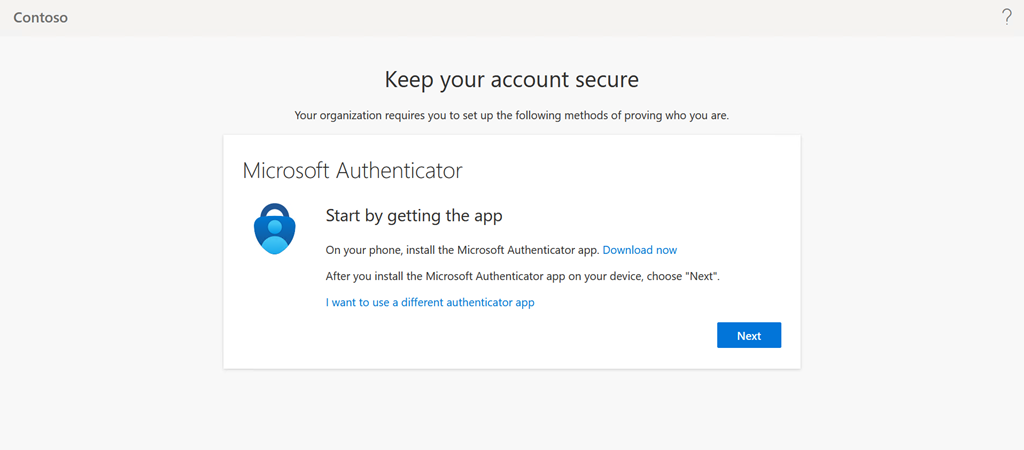
Selecting Next will take you through the standard MFA registration process as you see above.

It is therefore the case that if you enable security defaults for a tenant, all users, INCLUDING any external guest users, will be REQUIRED to enable MFA to access resources inside that tenant.

Why this is important is because Microsoft will be enabling security defaults on ALL tenants as detailed here:

Raising the Baseline Security of all organizations in the World

which says:

“Based on usage patterns, we’ll start with organizations that are a good fit for security defaults. Specifically, we will start with customers who aren’t using Conditional Access, haven’t used security defaults before, and aren’t actively using legacy authentication clients.

Global admins of eligible tenants will be notified through email and the Microsoft 365 Message Center. Then, starting in late June [2022], they’ll receive [a] following prompt during sign-in”

Being it is now June 2022, this process has commenced. You can disable security defaults if you wish, even after they have been enabled, if desired per the details in the above link.

Given that I couldn’t find a specific answer about global external users being impact by security defaults, hopefully this now provides a reference for other looking for the same information.

Get your Azure invoice emailed to you

image

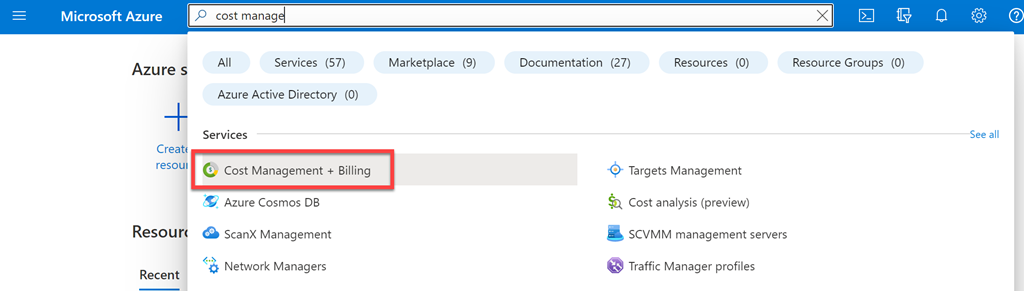
If you need a copy of the Azure invoice emailed to you then you can configure that inside your Azure portal be navigating firstly to the Cost Management + Billing.

image

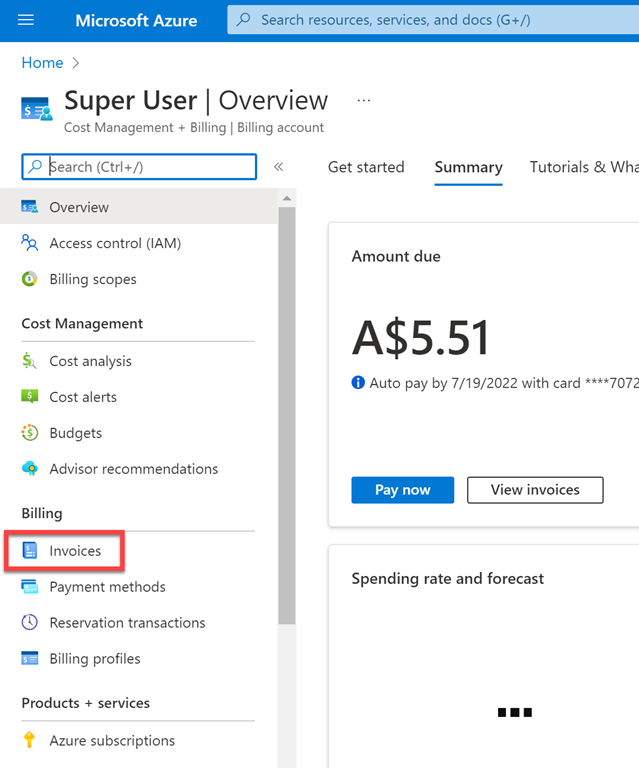
Then select Invoices from the menu on the left.

image

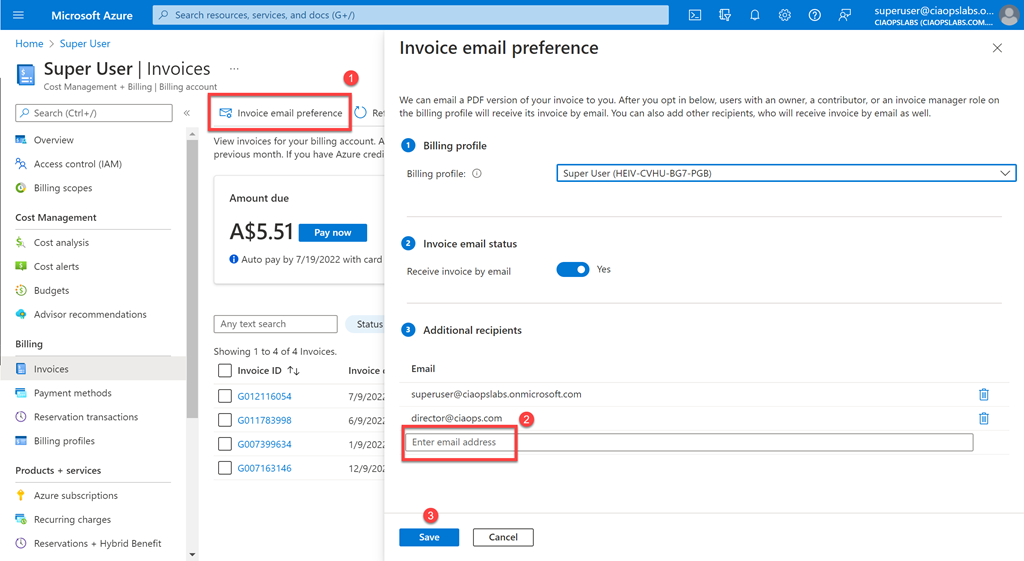
Finally, select Invoice email preferences from the menu on the right then enter the desired email address on the right in the dialog that appears. Remember to save your changes and from now on that email address will receive a copy of your Azure invoice monthly.

Set up PAYG for Power Platform

The Power Platform now has the ability to be Pay As You Go (PAYG) for licensing. This is a great option to get access to many advanced capabilities on demand. When you configure this option the billing is done via Azure rather than Microsoft 365. This means, prior to setting up PAYG for the power Platform, you’ll need to have an Azure subscription in place. As I have highlighted before:

Deploy Office 365 and Azure together

Once you have the Azure subscription in place, inside the same tenant where you want to enable PAYG for the Power Platform, you’ll need to have or create an Azure Resource group that will be associated with the PAYG option. You need to create this ahead of time. The following will show you how to create one if you need to:

Manage Azure resource groups by using the Azure portal

image

You’ll then need to visit the Power Platform admin center which is at:

https://admin.powerplatform.microsoft.com/

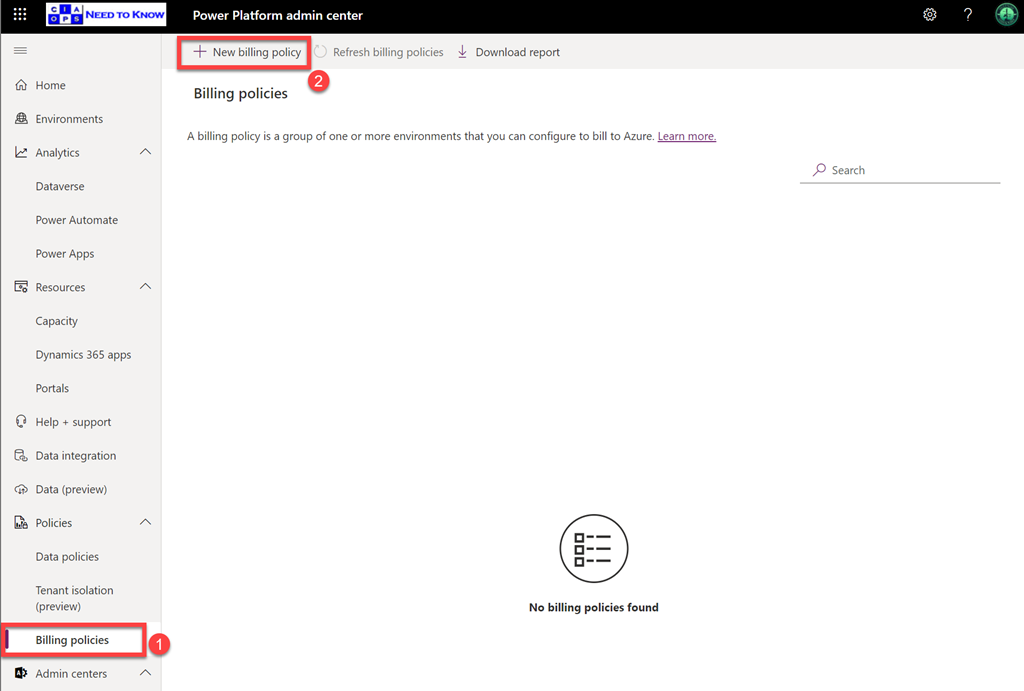
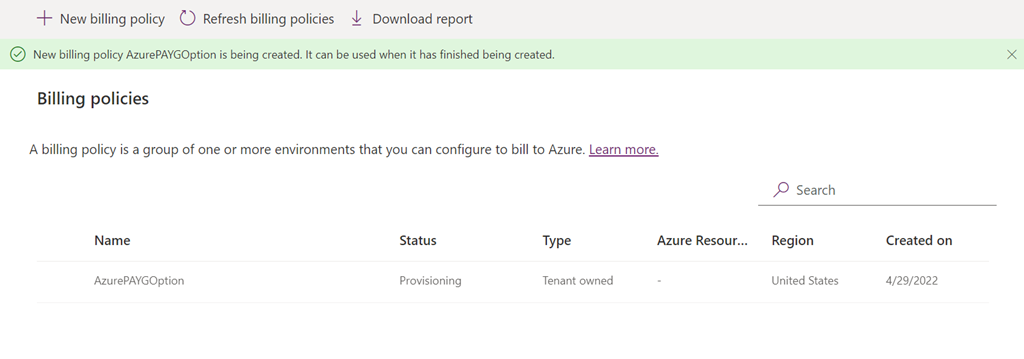
then select Billing policies. From the top menu now select New billing policy as shown above.

image

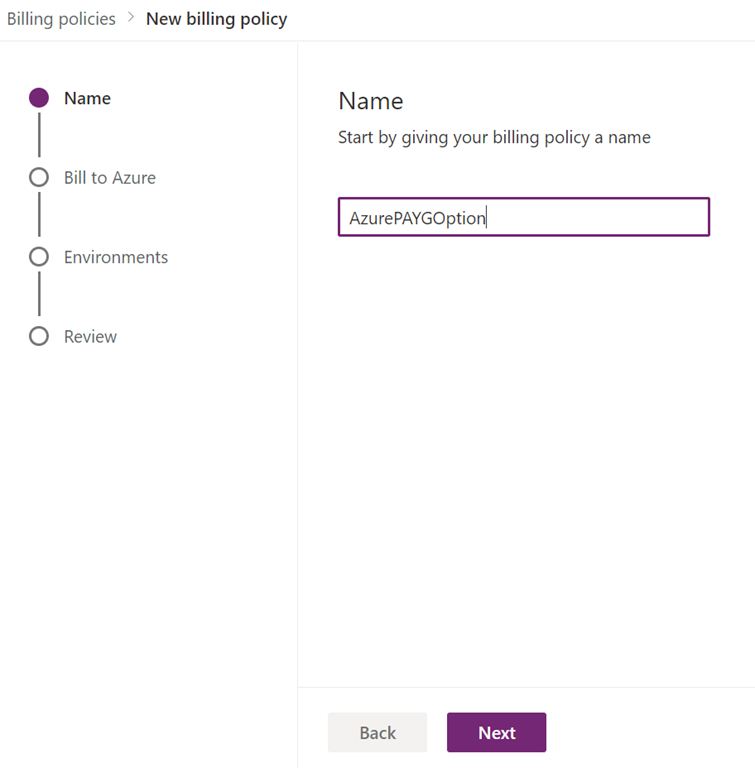
Give the policy a name, the name needs to be at least 10 alphanumeric characters. Select Next to continue.

image

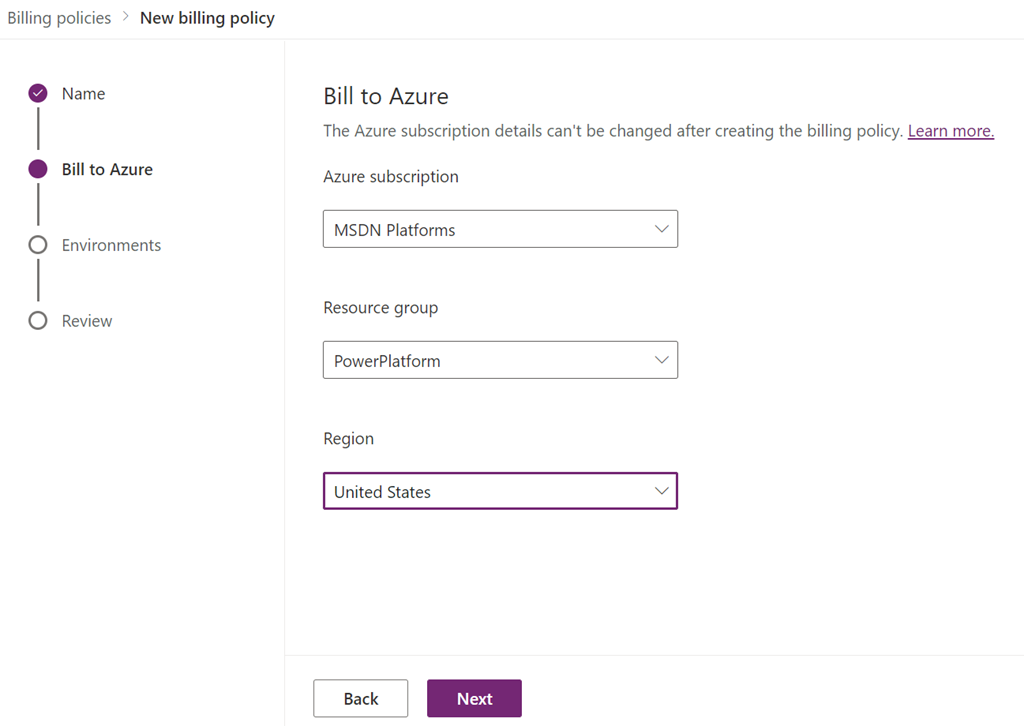
Now select the Azure subscription you want the billing ties to. Then select the Resource Group that you want to use, the must already be in your Azure subscription as aI noted earlier. Finally select the region and press Next to continue.

image

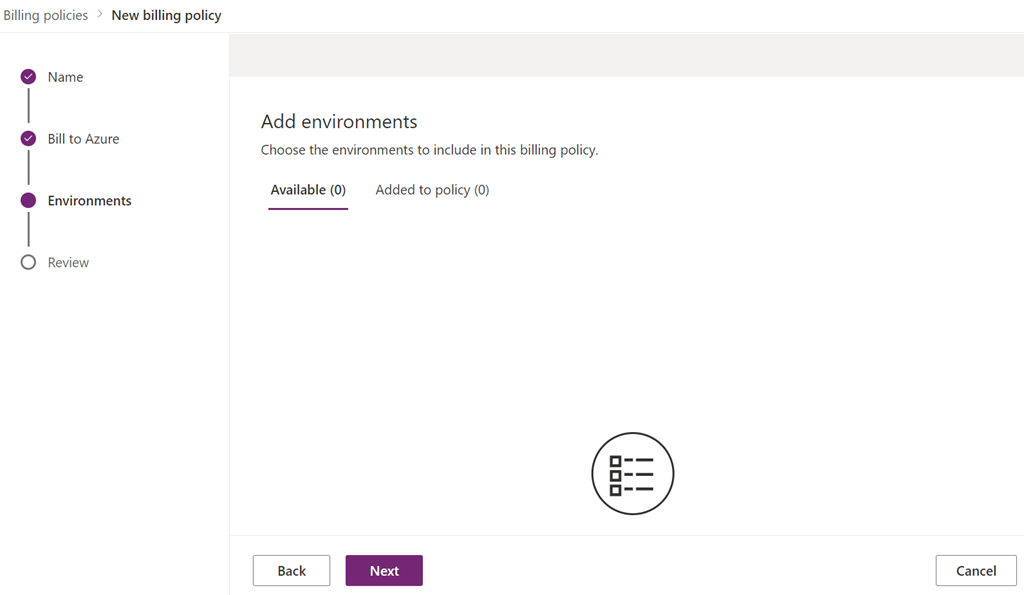
Now add any environment to the subscription and press Next to continue.

image

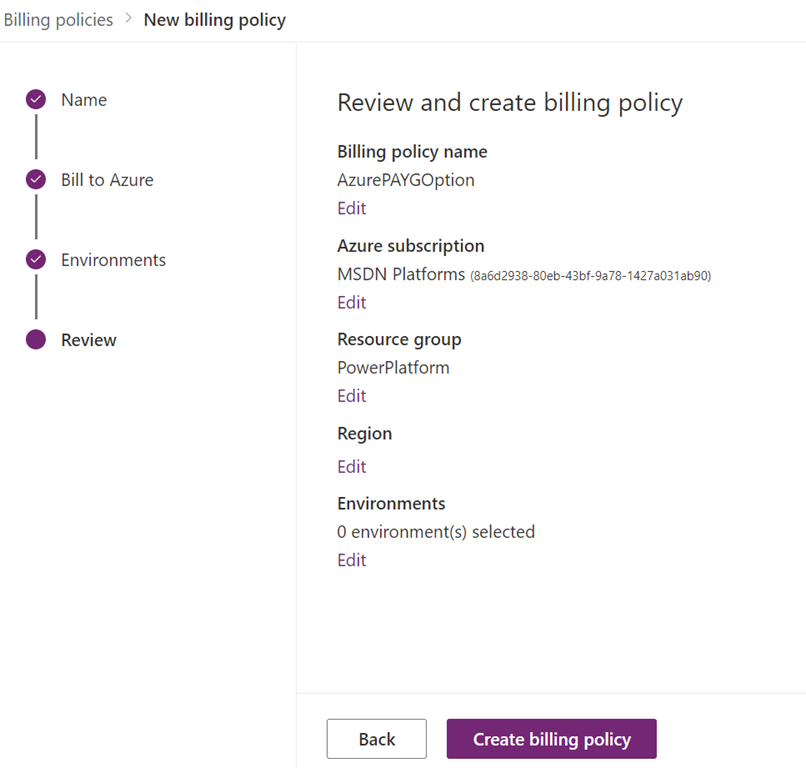
Here select Create Billing Policy.

image

The policy should now be created and displayed as shown above.

You create additional billing policies if you wish by simply repeating the above process. Doing so would allow you to tie that policy to a different Azure subscription and/or Resource Group for billing and management if needed.

For more details on the Power Platform PAYG option see:

Set up pay-as-you-go

Build a system to solve staff challenges

pexels-pixabay-163064

One of the major issues that will remain a challenge for most SMB IT resellers is the recruitment and retention of qualified staff. Many times I have been asked questions like – how much should I pay? Should I get a more senior person or more junior people? What skills do I need to look for when it comes to supporting the Microsoft Cloud? My response to that is to say that you are going about things the wrong way.

The challenge with staff is that they are human beings. This makes them imperfect for any task for which you employ them. Also, even if you do manage to employ the ‘prefect’ candidate, they can resign from the business at any time. Given the pace of Microsoft Cloud technologies there will always need to be further investment in skills and knowledge to remain effective. This is a hard job, as many business owners already know, but there is a far better approach in my books.

The thing that I don’t see readily implements in most businesses is a training and onboarding system. The idea is that you build a system that will produce the results or skill levels you are after. In that way, you can simply input just about any candidate at one end and out the other end will pop a highly effective and skilled member of your business.

Having a system means you don’t have to spend time looking for people with the ‘right’ technical skill level and paying them a fortune. You can in fact focus more on what is truly important when it comes to employees, attitude. As the saying goes, you can train skills but you can’t train attitude.

A good employee will also welcome a structured developed path that they can progress along. A system like this also allow the use of metrics to flag employees that are struggling and even though excelling, so they can be given more opportunities.

The biggest challenge obviously comes with building a system. Problem is that most people look at the end result, decide it is all too hard and then fall back on antiquated approaches that don’t work. The best way to start, is just to start! You don’t have to develop the prefect system immediately, you can grow into it over time. The important thing is to start and keep working on it, because as we know, the skills requirements will continue to change over time.

I wrote an article a while back:

Key skills for an IT Professional

that I would suggest is a good place to start when determining what training topics to look at. There are also many resources you can use to help people get skilled up and most are free. The secret is to set them out in a curriculum so people know what is required of them and what they need to learn. Simply leaving people to ‘learn by experience’ doesn’t cut it in this field any more. Likewise, learning on the customers’ dime is not a good business practice to do regularly.

A skilled employee has more confidence when they approach challenges and are much more likely to stay with a business that has invested in them and has a formal training system that encourages them to grow.

Best of all, because it is a system, it can be used over and over again when new employees are brought on board. This will also provide a consistency of knowledge throughout the business and if done right, promotes greater sharing of information and mentoring amoung staff. The idea is that you use the people who use the system to help build, extend and maintain it as they are best placed to do exactly that by already being part of the system. Remember, you should not see the system as limited just to the content it contains but also the people who utilise it. You want to create a system that suits a broad audience, who learn via different methods and learn at different speeds.

In short, investing your time looking for the ‘prefect’ employee is an ineffective approach to building the skills and team you need in a business. It is far better to invest in building the ‘prefect’ training system that you can have total control over, own and will give the desired output for just about any input.

Incentivising Microsoft Teams contributions with Power Automate

One of the most important parts of technology adoption is incentivising people. One simple way to do this is to acknowledge their contributions in Microsoft Teams. I’ve spoken about this before using something like:

Custom Praise badges in Microsoft Teams

The challenge there is, that this is a manual process. How can the same be achieved the same kind of thing using automation I recently wondered?

What if you could automatically determine the number of chat messages that someone posted into Microsoft Teams, and then acknowledge the highest contributors with a custom ‘thank you’ message? Here’s how I managed to do just that using the Microsoft Graph and Power Automate.

The core information needed about messages posted in Microsoft Teams will come the Microsoft Graph, specifically:

getTeamsUserActivityUserDetail

The first step in this process will be to create an Azure AD application in the tenant, which I have detailed previously:

https://blog.ciaops.com/2019/04/17/using-interactive-powershell-to-access-the-microsoft-graph/

the credentials for this Azure AD application will then need to be uploaded into Azure Key Vault as I have covered here:

Uploading Graph credentials to Azure Key Vault

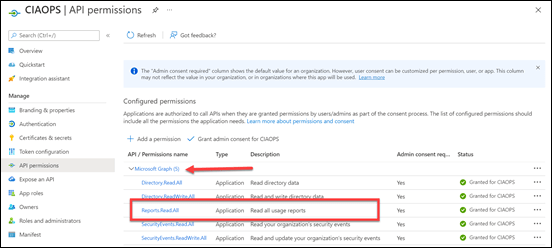
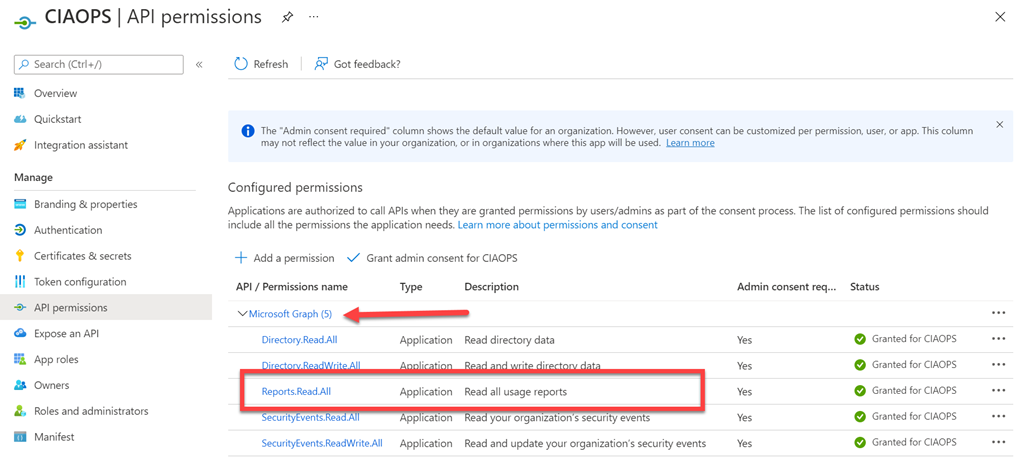
You’ll also need to set the API permissions for this application to :
image

Reports.Read.All

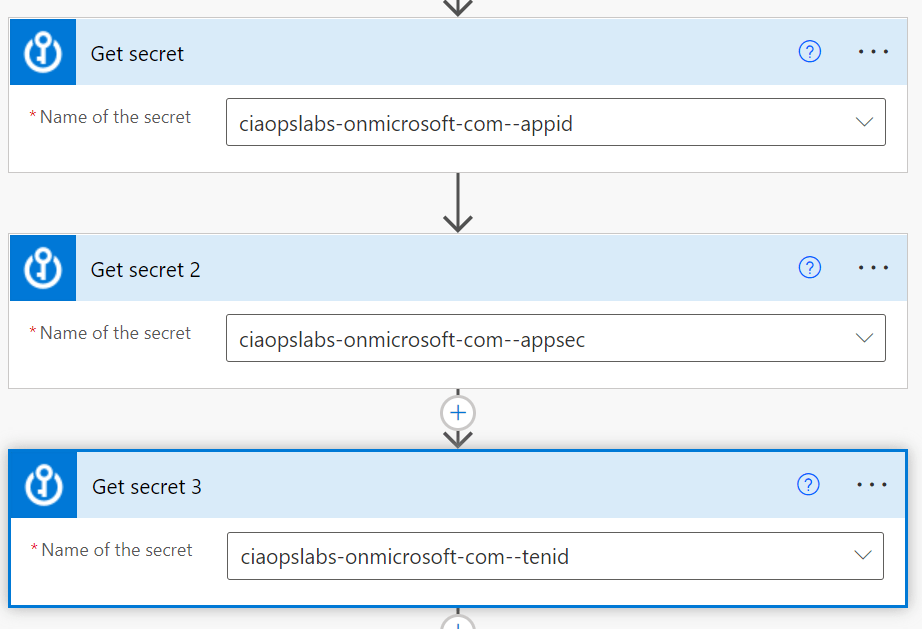
 You’ll need to trigger your Flow the way that suits you. Typically you’d schedule it to run on the first of each month. You’ll then need to use the Get secret action from the Azure Key Vault as shown above. You should also note that this is a premium connectors, so you’ll need an appropriate Power Platform license to use this.
image

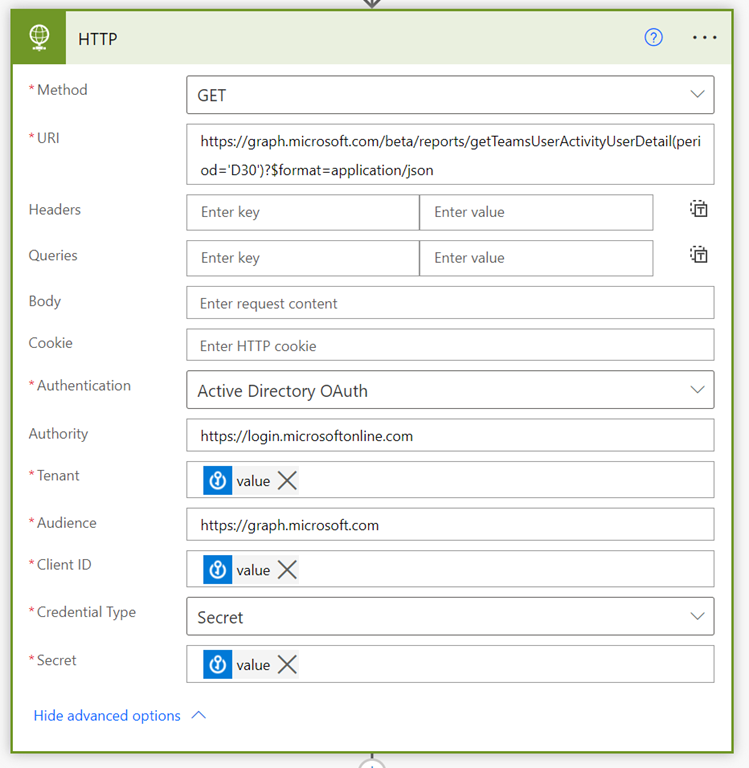
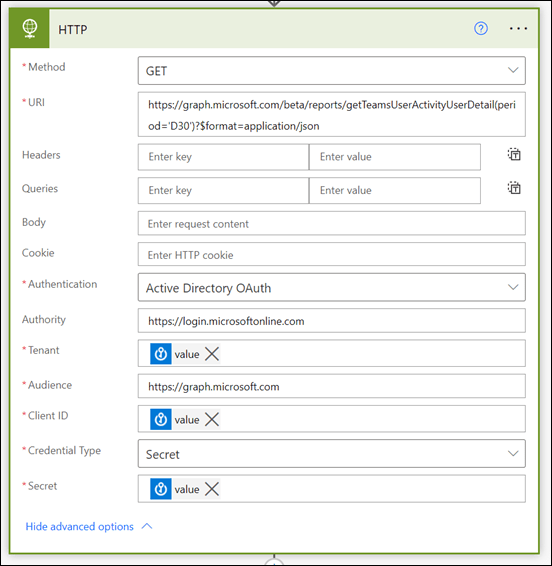
Next, will be the HTTP action that also a premium connector. The URI to use here will be:

https://graph.microsoft.com/beta/reports/getTeamsUserActivityUserDetail(period=’D30’)?$format=application/json

The D30 parameter determines how many previous days to consider. Valid options for the number of days is 7,30, 90, 180 according to the documentation.

The security parameters come from the Azure Key Vault Get secret actions.
image

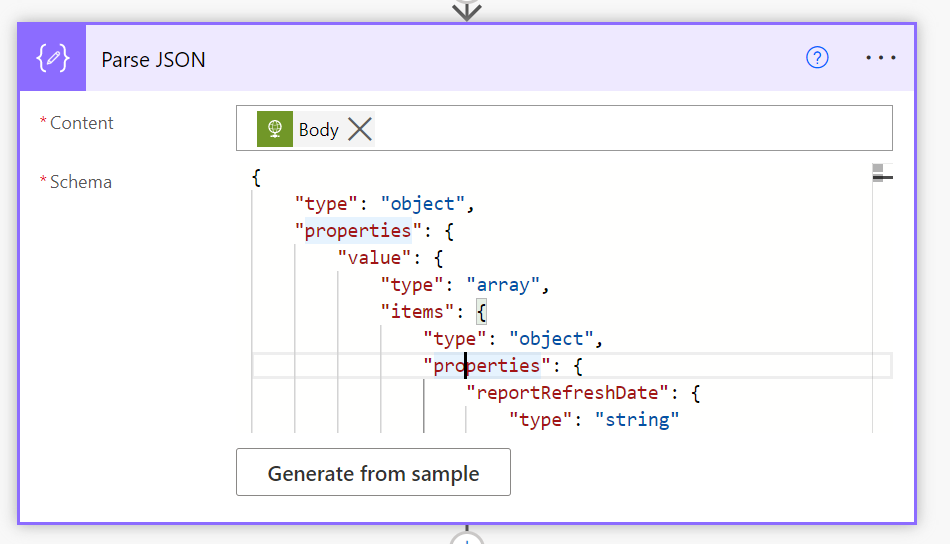
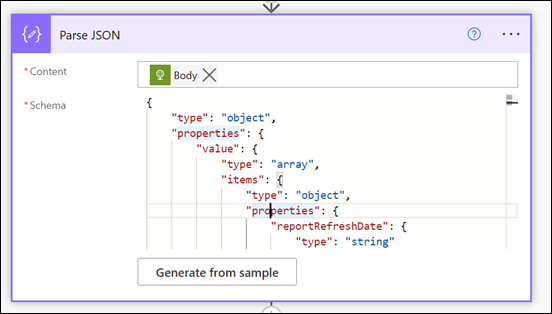
The data returned from this HTTP action will be in JSON format, so that is fed into the Parse JSON action as shown above.

One tricky things about parsing json is to get the right schema. When I first attempted this I received this error:

“message”: “Invalid type. Expected String but got Null.”,

After some digging I found that sometimes the lastactivitydate parameter returned a string or NULL value. Thus, I need to modify the original JSON for that parameter to accommodate both potential results:

“lastActivityDate”: {
     “type”: [
         “string”,
         “null”
     ]
},

Here the whole working JSON schema I used:

{
     “type”: “object”,
     “properties”: {
         “value”: {
             “type”: “array”,
             “items”: {
                 “type”: “object”,
                 “properties”: {
                     “reportRefreshDate”: {
                         “type”: “string”
                     },
                     “userId”: {
                         “type”: “string”
                     },
                     “userPrincipalName”: {
                         “type”: “string”
                     },
                     “lastActivityDate”: {
                         “type”: [
                             “string”,
                             “null”
                         ]
                     },
                     “isDeleted”: {
                         “type”: “boolean”
                     },
                     “deletedDate”: {},
                     “assignedProducts”: {
                         “type”: “array”
                     },
                     “teamChatMessageCount”: {
                         “type”: “integer”
                     },
                     “privateChatMessageCount”: {
                         “type”: “integer”
                     },
                     “callCount”: {
                         “type”: “integer”
                     },
                     “meetingCount”: {
                         “type”: “integer”
                     },
                     “meetingsOrganizedCount”: {
                         “type”: “integer”
                     },
                     “meetingsAttendedCount”: {
                         “type”: “integer”
                     },
                     “adHocMeetingsOrganizedCount”: {
                         “type”: “integer”
                     },
                     “adHocMeetingsAttendedCount”: {
                         “type”: “integer”
                     },
                     “scheduledOneTimeMeetingsOrganizedCount”: {
                         “type”: “integer”
                     },
                     “scheduledOneTimeMeetingsAttendedCount”: {
                         “type”: “integer”
                     },
                     “scheduledRecurringMeetingsOrganizedCount”: {
                         “type”: “integer”
                     },
                     “scheduledRecurringMeetingsAttendedCount”: {
                         “type”: “integer”
                     },
                     “audioDuration”: {
                         “type”: “string”
                     },
                     “videoDuration”: {
                         “type”: “string”
                     },
                     “screenShareDuration”: {
                         “type”: “string”
                     },
                     “hasOtherAction”: {
                         “type”: “boolean”
                     },
                     “urgentMessages”: {
                         “type”: “integer”
                     },
                     “postMessages”: {
                         “type”: “integer”
                     },
                     “replyMessages”: {
                         “type”: “integer”
                     },
                     “isLicensed”: {
                         “type”: “boolean”
                     },
                     “reportPeriod”: {
                         “type”: “string”
                     }
                 },
                 “required”: [
                     “reportRefreshDate”,
                     “userId”,
                     “userPrincipalName”,
                     “lastActivityDate”,
                     “isDeleted”,
                     “deletedDate”,
                     “assignedProducts”,
                     “teamChatMessageCount”,
                     “privateChatMessageCount”,
                     “callCount”,
                     “meetingCount”,
                     “meetingsOrganizedCount”,
                     “meetingsAttendedCount”,
                     “adHocMeetingsOrganizedCount”,
                     “adHocMeetingsAttendedCount”,
                     “scheduledOneTimeMeetingsOrganizedCount”,
                     “scheduledOneTimeMeetingsAttendedCount”,
                     “scheduledRecurringMeetingsOrganizedCount”,
                     “scheduledRecurringMeetingsAttendedCount”,
                     “audioDuration”,
                     “videoDuration”,
                     “screenShareDuration”,
                     “hasOtherAction”,
                     “urgentMessages”,
                     “postMessages”,
                     “replyMessages”,
                     “isLicensed”,
                     “reportPeriod”
                 ]
             }
         }
     }
}
image

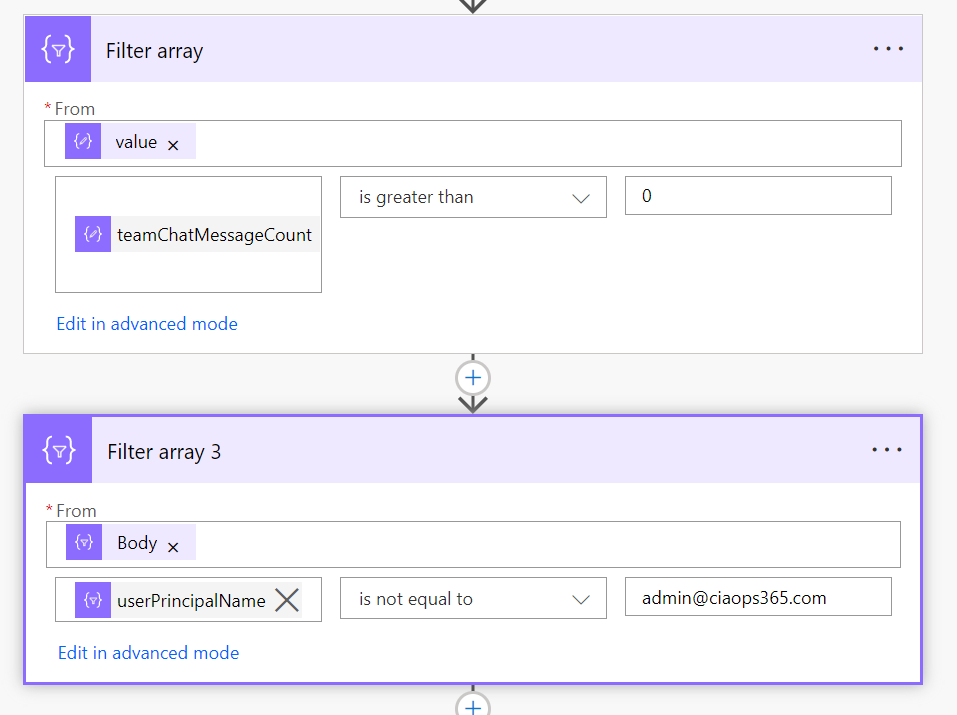
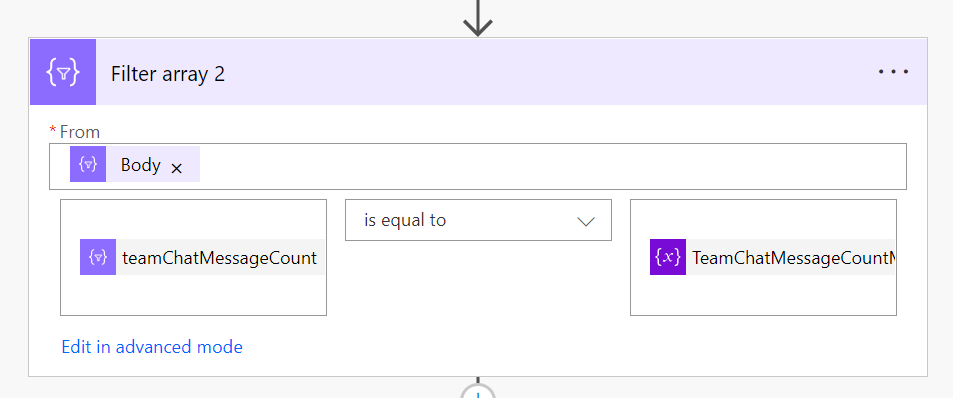
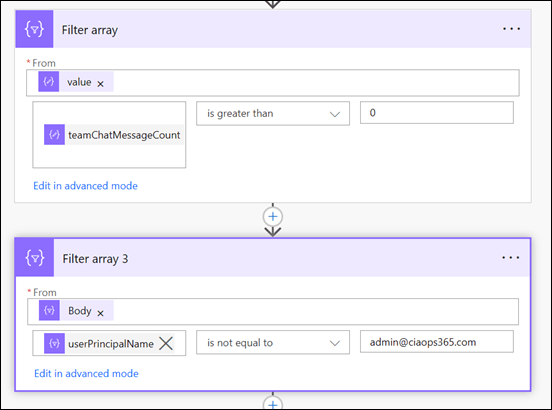
I filtered the results produced to firstly remove users with zero messages and then I removed specific users (in this case me) from the results using the two Filter action shown above.
image

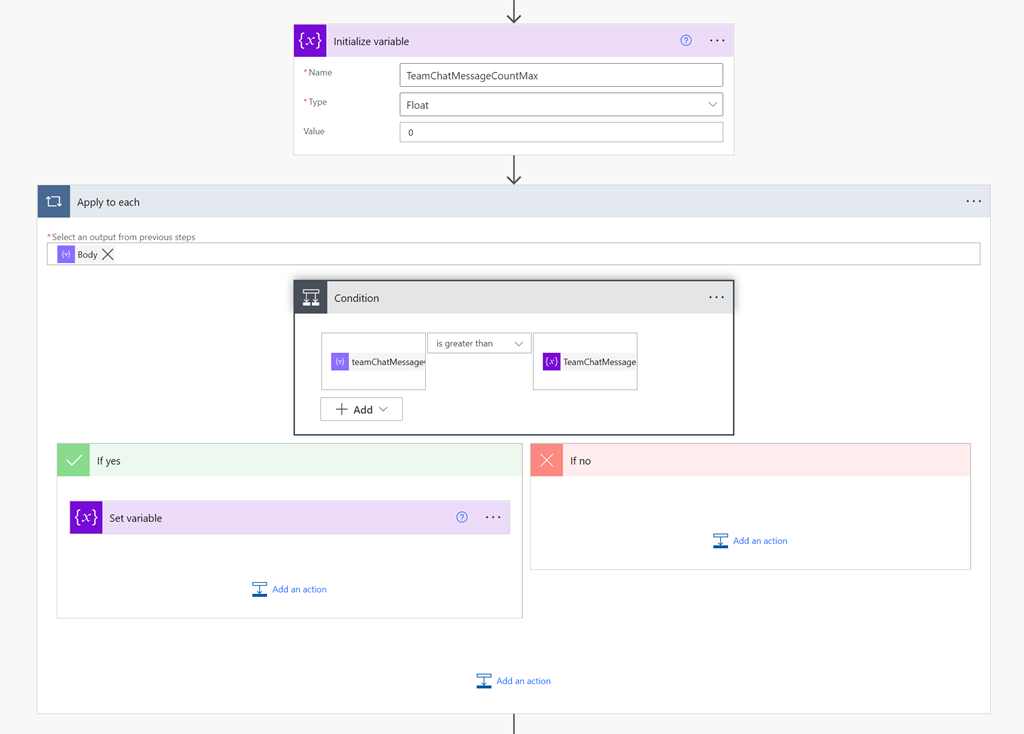
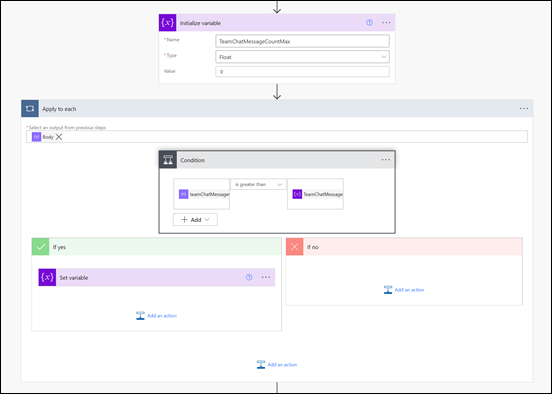
One of the limitations I found during this development process was that Flows are not very good at sorting information. It would have been nice if I could have just sorted my results from largest to smallest. I solved this but firstly creating a temporary variable into which I would store the highest number of chat messages. I then looped through all the remaining results using the Apply to Each action shown above, and set this variable to the greatest value found throughout the results.
image

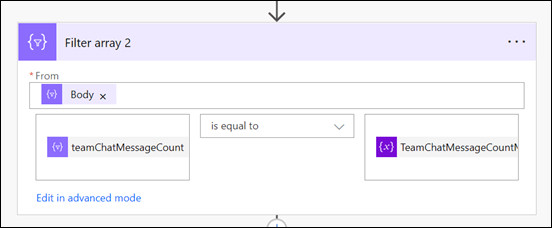
I then employed another Filter action again to remove any results that didn’t match this maximum value.

The next challenge came when considering external users, who have a UPN in the format of:

user_domain.com#EXT#tenant.onmicrosoft.com

Turns out the the Power Automate lookup actions don’t seem to work using these type of UPNs, they only work with an email address apparently!
image

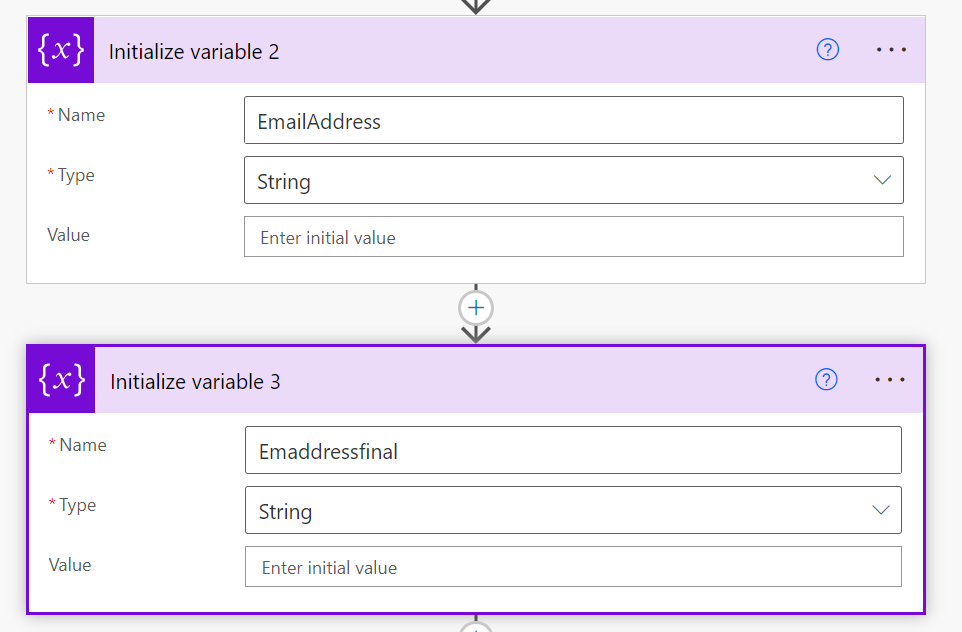
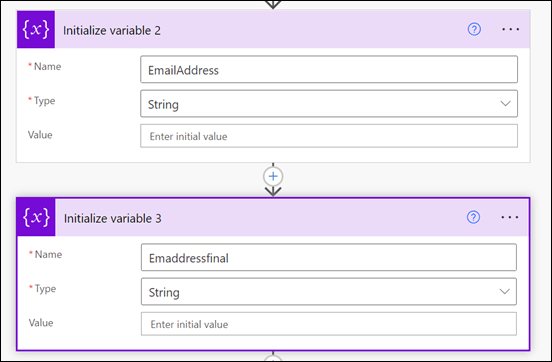
To solve this, I now created two more variables to use when extracting the external users email address.
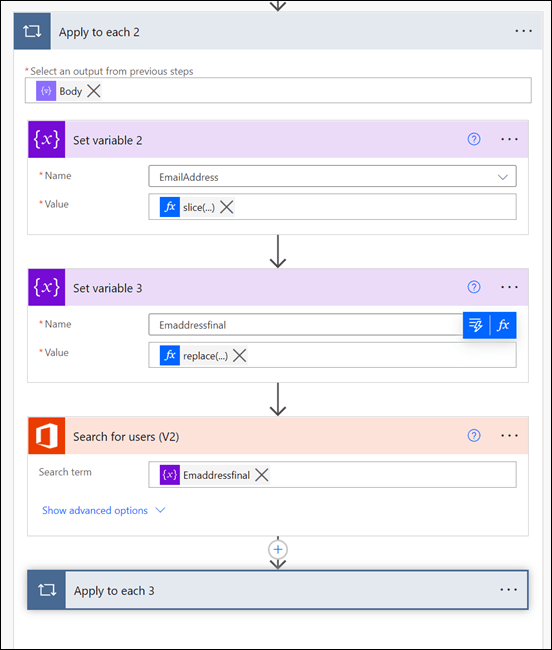
image

I need to extract and create a user email address before using it in the Search for users (V2) action. To do this I used two functions inside two Set variable actions. The first is:

slice(items(‘Apply_to_each_2’)?[‘userPrincipalName’],0,lastIndexOf(items(‘Apply_to_each_2’)?[‘userPrincipalName’],’#EXT’))

which removes anything from the #EXT and beyond. This typically leaves the format of:

user_domain.com

The second function is:

replace(variables(‘EmailAddress’),’_’,’@’)

that replaces the underscore character with an “at” symbol. The output after both of these functions complete is the users full email address which I can then feed into the Search for users (V2) action to locate my user(s).
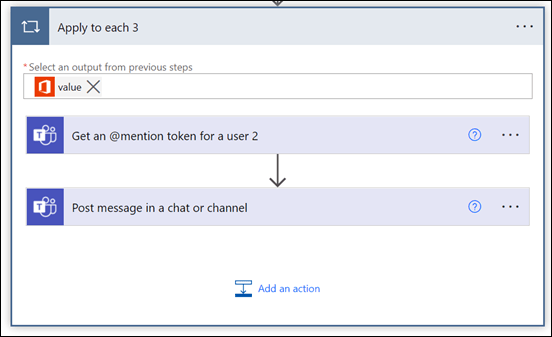
image

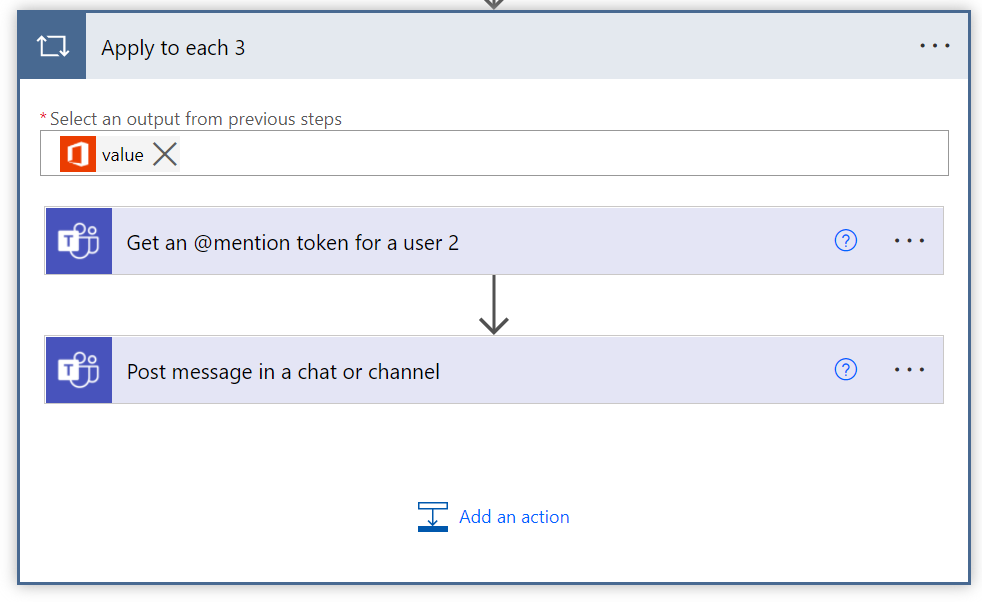
Now that I have the user information I can use it with the Get an @mention token for a user action and then post a message with that @mention and anything else into the Team to publicly recognise the user(s) using the Post message in a chat or channel action.
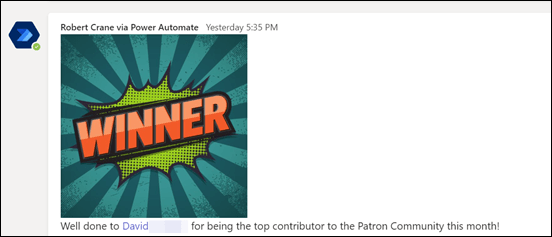
image

The end result is a nice message, like shown above, that acknowledges the user(s) for their contribution in the Microsoft Team. Best part is that now it is automated it’ll do all the hard work for you going forward!

The moral of the story here is that Power Automate combined with the Microsoft Graph can achieve just about anything you want. Yes, it does a little bit of setting up with an Azure AD application, Keyvault and so on but they are typically only once off. There is also some advanced techniques when it comes to the JSON parameters but once you start working with, it becomes easier. In short, none of that should put you off from what is possible with the Microsoft Cloud environment and putting the technology to work for you to give you more freedom and improve your business processes.

Need to Know podcast–Episode 284

In this episode I speak with MVP Bryn Lewis about IoT and what services like Azure has available to help with these projects. If you are a ‘make’ or just want to get your hands dirty with some hardware, then this is the episode for you.

I’ll also bring you up to date with all the latest news from the Microsoft Cloud.

Take a listen and let us know what you think – feedback@needtoknow.cloud

You can listen directly to this episode at:

https://ciaops.podbean.com/e/episode-284-bryn-lewis/

Subscribe via iTunes at:

https://itunes.apple.com/au/podcast/ciaops-need-to-know-podcasts/id406891445?mt=2

The podcast is also available on Stitcher at:

http://www.stitcher.com/podcast/ciaops/need-to-know-podcast?refid=stpr

Don’t forget to give the show a rating as well as send me any feedback or suggestions you may have for the show.

This episode was recorded using Microsoft Teams and produced with Camtasia 2021.

Brought to you by www.ciaopspatron.com

Resources

Bryn Lewis – Github, Blog, Twitter

IoT for beginners

Microsoft IoT Blog

Hobbyist gear – Sparkfun, Adafruit

Hobbyist and Commercial gear – Tindie, Seeed Studio, Microelektonica

Low Power wireless – Things network, Dragino, RAKWireless

Machine Learning on the Edge – Edge impluse, ML.NET

RTOS – Azure, free RTOS

.NET on the edge – nanoframework, GHI

OneDrive limit change

New security solutions to help secure SMB

Revamped Office.com

What’s new in Endpoint Manager

Do more with OneNote