Resolving Windows Application Guard Issues

A while back I wrote about a issue I was having with Windows Defender Application Guard (WDAG). You’ll find it here:

Microsoft Defender App Guard issue

I have now managed to find a solution for this. In short, the issue, as it turns out, has to do with disk encryption. I found some information about the general issue here:

Why does my encryption driver break Windows Defender Application Guard?

which says:

Windows Defender Application Guard accesses files from a VHD mounted on the host that needs to be written during setup. If an encryption driver prevents a VHD from being mounted or from being written to, WDAG will not work and result in an error message (“0x80070013 ERROR_WRITE_PROTECT”).

Chatting with good people at Microsoft, it seems that in my particular case was solved by this update:

https://support.microsoft.com/en-us/help/4550945/windows-10-update-kb4550945

and was due to a BitLocker issue (being drive encryption).

So, the good news is that my issue is resolved and I can run Windows Defender Application Guard without any errors.

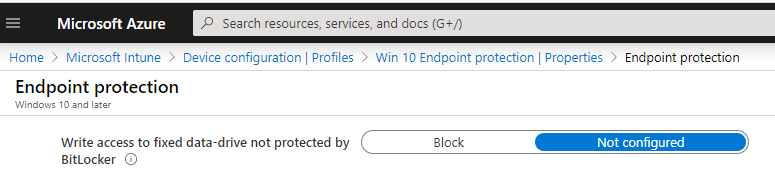
If you can’t install the KB for some reason and you need a quick work around, the issue was linked the BitLocker “Deny write access to fixed drives not protected by Bitlocker” policy and you should clear any group policy and set the following in Intune to Not configured as well as a work around.

image

image

So in the end it was an issue with drive encryption that was rectified with an update. Yeah!

Thanks to the people at Microsoft for the assist on this one. Now onto the next challenge.
Remote Desktop app for WVD doesn’t work with WIP

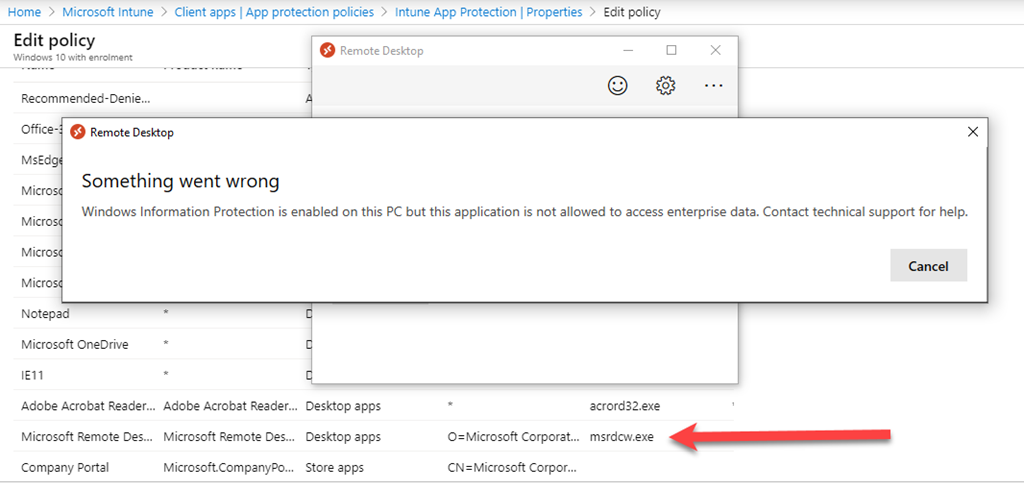
*** Solution – ensure the WVD feed URL (e.g. http://rdweb.wvd.microsoft.com/webclient) is part of the appropriate definitions in your WIP network isolation configuration

image

When I tried to update the feeds on my Remote Desktop client on Windows 10 for use with the Spring release of WVD I was greeted with the above issue with Windows Information Protection. (WIP). I tried setting the Remote Desktop app (msrdcw.exe) to be a protected app in WIP and still had the same issue. Also tried setting to be an exempt app, but that also didn’t help-. Only disabling WIP seemed to allow me to refresh the feeds. Once you do this you can turn WIP back on if you need to.

Hopefully Microsoft will address this issue in upcoming releases of he Remote Desktop app for Windows 10. Until then, there doesn’t seem to be much option but disabling WIP.

Microsoft Defender App Guard issue

**** Update **** – Solution is here – Resolving Windows Application Guard issues

This article is bit different from most others. In this post I’ll be sharing a current issues I have with Defender Application Guard. If you have some suggestions of any additional troubleshooting, I’d love to hear, because currently, I’m not having much luck finding a solution.

image

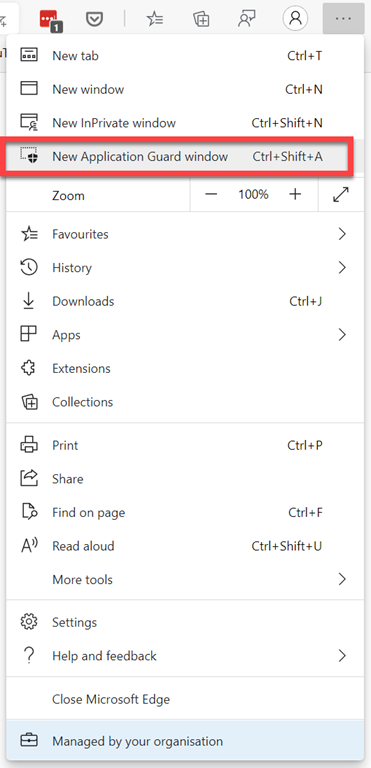
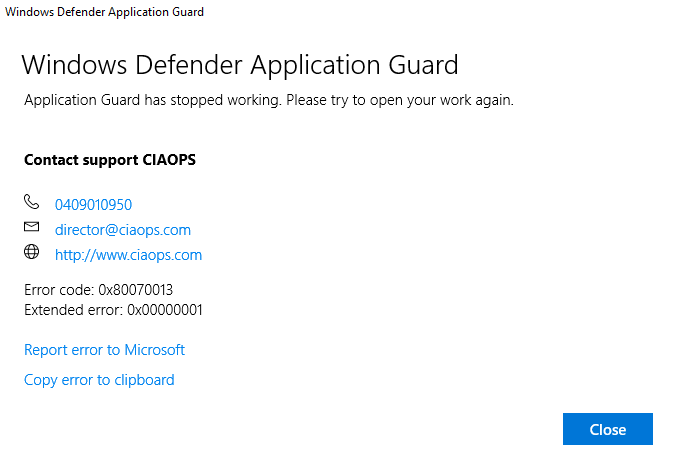
The issue is that if I go into the new Edge browser and select a New Application Guard Window, I end up with:

image

WDAG Report – Container: Error: 0x80070013, Ext error: 0x00000001; RDP: Error: 0x00000000, Ext error: 0x00000000 Location: 0x00000000

I have tried the wdagtool command line tool with the following result:

image

I have also run a:

sfc /scannow

across my machine with no integrity issues.

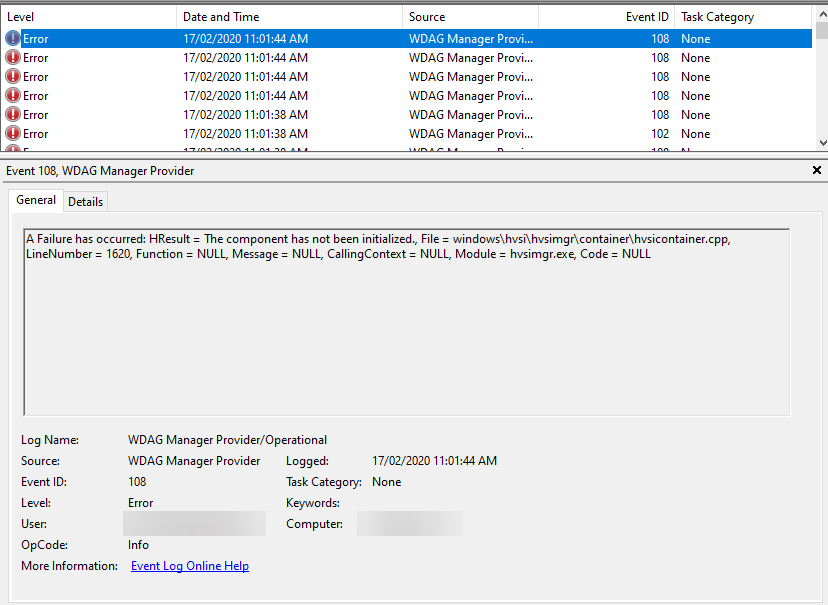
If I dig into Event viewer | Application and services log | Microsoft  | Windows | WDAG-Manager, I see:

image

A Failure has occurred: HResult = The media is write protected., File = windows\hvsi\hvsimgr\container\hvsicontainer.cpp, LineNumber = 769, Function = NULL, Message = NULL, CallingContext = NULL, Module = hvsimgr.exe, Code = NULL

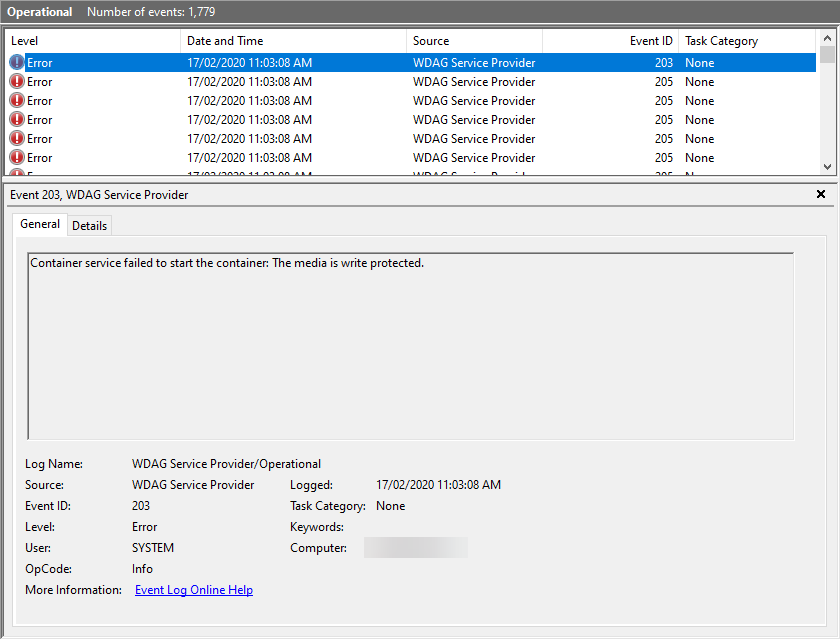
and in Event viewer | Application and services log | Microsoft  | Windows | WDAG-Service, I see:

image

Container service failed to start the container: The media is write protected.

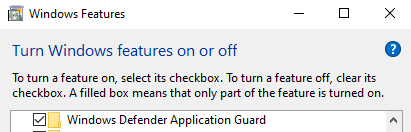
I have the App Guard Service enabled in my Windows Features  as well.

image

I have tried:

  • Re-installing Windows
  • Re-running Windows install again
  • Removing all App Guard components, rebooting, reinstalling all the components again and rebooting
  • Installing Hyper V service
  • Installing Sandboxing Service

I am still trying to resolve this issue, and have tried quite a few knowledgeable people who haven’t had much luck either. So, if you have any suggestion of what may help, please let me know.

Need to Know Podcast–Episode 228

No Brenton still but that doesn’t stop me bringing you the Microsoft Cloud news. For Brenton fans you’ll still hear him with the interview of Lorenzo Coppa about Gluh that is in the second part of this episode. Some aggressive moves by Microsoft in the default browser search space so make sure you are aware of what’s happening and listening along.

This episode was recorded using Microsoft Teams and produced with Camtasia 2019

Take a listen and let us know what you think – feedback@needtoknow.cloud

You can listen directly to this episode at:

https://ciaops.podbean.com/e/episode-228-lorenzo-coppa/

Subscribe via iTunes at:

https://itunes.apple.com/au/podcast/ciaops-need-to-know-podcasts/id406891445?mt=2

The podcast is also available on Stitcher at:

http://www.stitcher.com/podcast/ciaops/need-to-know-podcast?refid=stpr

Don’t forget to give the show a rating as well as send us any feedback or suggestions you may have for the show.

Resources

@contactbrenton

@directorcia

Gluh

New Year new browser

Microsoft will be carbon neutral by 2030

Microsoft Search in Bing through Office Pro Plus

Windows 7 support end

Swapped “ and @ on keyboard

One day you are merrily typing away as you always have, and all of a sudden you find that what you typed is wrong. You retype it again and find that the key you press is not actually the key that appears! What the??

In my case the @ (SHIFT+2) was being replaced by “ (SHIFT+’).  Luckily, I remembered that this had happened before and involved the English pound (£) symbol.

SNAGHTML6446008

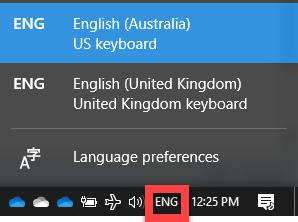
The reason is because I have 2 keyboards types installed on my desktop PC as you can see above. You can view your keyboards by selecting the language icon in the system tray which is next to the clock.

Once I re-selected the English (Australia) keyboard I was back in business with the correct keys.

image

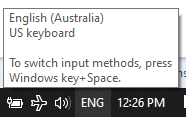
Always wanting to know how this could happen, I received my answer when I moused over that same icon as shown above. The keyboard is swapped when you press the Windows key + space. I use the Windows key + another key on my keyboard all the time so I had obviously fat fingered the secret sequence to change the default keyboard! The things my subconscious does to try and distract me.

Hopefully, this helps someone else out because it can be very frustrating to solve the first time it happens.

Need to Know podcast–Episode 206

A short sharp episode focusing on the latest news and updates from Microsoft Build. Brenton and I cover off all the Microsoft Cloud news, good and bad as there is unfortunately some bad news to report in recent experiences with Azure. However, there is also lots of good news about updates to your favourite services. Tune in and give us your feedback.

This episode was recorded using Microsoft Teams

Take a listen and let us know what you think – feedback@needtoknow.cloud

You can listen directly to this episode at:

https://ciaops.podbean.com/e/episode-206-ghost-in-the-machine/

Subscribe via iTunes at:

https://itunes.apple.com/au/podcast/ciaops-need-to-know-podcasts/id406891445?mt=2

The podcast is also available on Stitcher at:

http://www.stitcher.com/podcast/ciaops/need-to-know-podcast?refid=stpr

Don’t forget to give the show a rating as well as send us any feedback or suggestions you may have for the show.

Resources

@contactbrenton

@directoria

CIAOPS Patron program

Azure cheat sheet

Azure global outage

What’s new in Microsoft 365 user management

New people centered experiences in Microsoft 365

Microsoft Edge – All the news from Build

Minimize distractions and stay focused with AI powered updates in Microsoft 365

Need to Know podcast–Episode 204

I’m back from MVP Summit and we have a huge amount of news to cover off in this episode. You’ll hear about the latest in Office 365 ATP, Windows Virtual Desktop, the new Microsoft Edge Browser and so much more. So much in fact that we had to hold a lot of material off until our next episode. However, don’t fear, you’ll get the most important stuff right here, so tune in and let us know what you think.

Podcast recording done using Microsoft Teams

Take a listen and let us know what you think – feedback@needtoknow.cloud

You can listen directly to this episode at:

https://ciaops.podbean.com/e/episode-204-the-prodigal-host-returns/

Subscribe via iTunes at:

https://itunes.apple.com/au/podcast/ciaops-need-to-know-podcasts/id406891445?mt=2

The podcast is also available on Stitcher at:

http://www.stitcher.com/podcast/ciaops/need-to-know-podcast?refid=stpr

Don’t forget to give the show a rating as well as send us any feedback or suggestions you may have for the show.

Resources

@contactbrenton

@directorcia

CIAOPS Patron Program

New Edge Browser – https://blogs.windows.com/msedgedev/2019/04/08/microsoft-edge-preview-channel-details/

Shared Computer Access comes to M365 Business – https://blog.ciaops.com/2019/03/19/microsoft-365-business-adds-shared-computer-activation-sca-rights/

New Office 365 ATP licenses – https://docs.microsoft.com/en-us/office365/servicedescriptions/office-365-advanced-threat-protection-service-description

Office 365 ATP Automated response – https://techcommunity.microsoft.com/t5/Security-Privacy-and-Compliance/Bolster-efficiency-of-security-teams-with-new-Automated-Incident/ba-p/392773

Window Virtual Desktop now in public preview – https://azure.microsoft.com/en-au/blog/windows-virtual-desktop-now-in-public-preview-on-azure/?WT.mc_id=reddit-social-marouill

Getting Started with Windows Virtual Desktop – https://techcommunity.microsoft.com/t5/Windows-IT-Pro-Blog/Getting-started-with-Windows-Virtual-Desktop/ba-p/391054

25% of Phishing email bypass Office 365 default security – https://www.bleepingcomputer.com/news/security/25-percent-of-phishing-emails-bypass-office-365-default-security/

Your approach to Office 365 needs to change – https://www.loryanstrant.com/2019/04/03/your-approach-to-office-365-administration-needs-to-change/

Locking installed apps to Windows Store only

image

If you go into your settings in Windows 10 and select Apps you should see the above dialog.

image

You can see the options that are available to you as shown above. You’ll see that one of the options available is Allow apps from Store only. Although not a fool-proof security option but setting this would reduce the chances of malware executing on the desktop because the only method of installation is from the Microsoft curated Store. A random piece of malware, delivered via email say, could not execute since it doesn’t come from the Microsoft Store I would suggest.

image

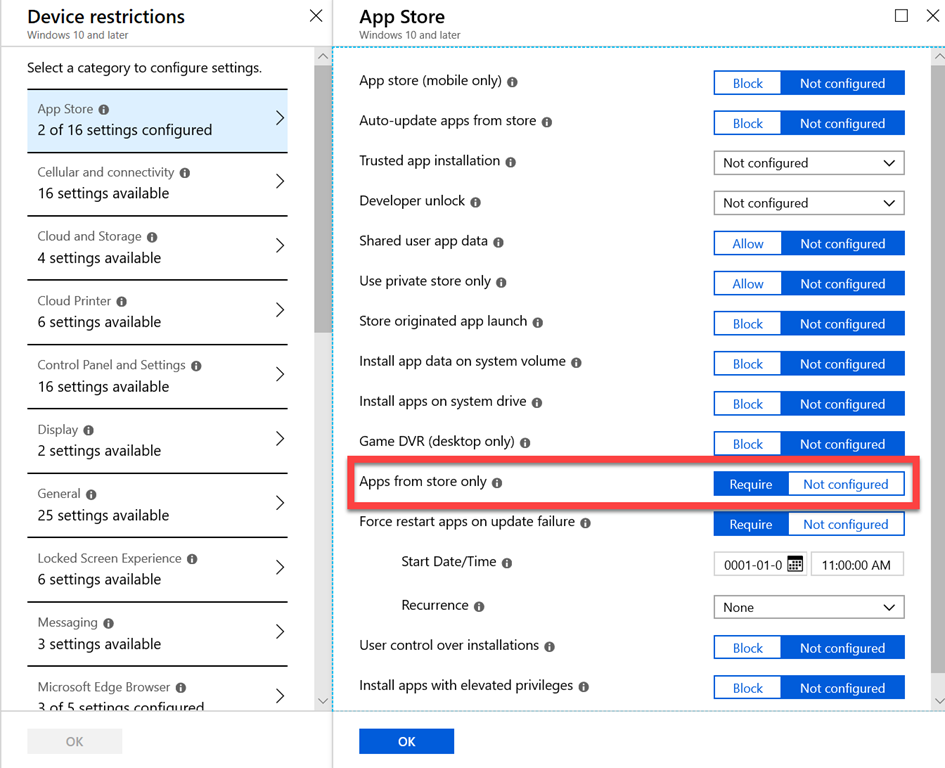
Using Intune we can apply this setting across a range of Windows 10 desktops using a Windows 10 Device Restriction Policy as you see above. Simply locate the App Store option, then Apps from store only and set the value to Require as shown.

In a short period of time, once the policy has deployed, those devices will only be able to install software from the Microsoft Store, preventing installation from anywhere else and hopefully also preventing malware installations.

The good thing about this restriction is the user can still be a local administrator of their machine if you desire and installations will be restricted. The other good things is that it is policy based, which means it is easy to turn on and off as required or exclude users if need be.

As I said earlier, it is not a fool proof method of preventing malware being installed on a Windows 10 desktop, but would certainly make it much more difficult. In this day and age, we need all the help we can get to counter the threats. Hopefully, this will help.