Skype Meeting Broadcast

One of the great new features of Skype for Business is the Meeting Broadcast ability. This allows you to not only broadcast a live event to thousands of users simultaneously but also to potentially save the broadcast so it can be replayed on demand.

This post will take you through the basics of setting up a Skype for Business Broadcast Meeting, while follow up posts will walk you through the administration and user experiences while the meeting is running.

image

To set up a Skype for Business Meeting Broadcast you’ll need to navigate to the web site:

https://broadcast.skype.com

and you should see the above screen. You’ll need to login with your Office 365 credentials.

image

You should then be greeted with the above screen that would show any existing Broadcast Meetings that you have configured.

image

Select the New Meeting option at the top of the page as shown above.

image

At the top of the page that appears complete the basic meeting details such as name, time and date. You can also add existing Office 365 users as members of the event. These people will be able to login as administrators and control the meeting.

image

Further down the page you can select which attendees the meeting will be broadcast to. The available options include:

Anonymous: Anyone with the join link can attend, even if they are external to your company.

Secure: Only those users who have been invited by the broadcast service can attend. When you select this option, you’ll get an Attendees field where you can enter the email addresses of the people you want to invite. To invite a group, enter the group alias, such as marketers@contoso.com.
Attendee section of meeting invitation with names in the Attendee field

All Company: Anyone from your company can attend by clicking the join link. They’ll use their company user name and password to attend.

In this case the Anonymous option will be selected.

At the bottom of the page you will also see that you have the option to record the meeting. You need to select this option if you wish to have an on demand recording of the meeting created and available.

image

You should now be able to select the Create button in the top right of window to save and schedule this meeting. If you have any issues saving the meeting see the following article:

Enable your organisation for Skype Meeting Broadcast

image

You should now be returned to the main screen where you should see the meeting you just scheduled as shown above.

Select the meeting to perform further configuration.

image

You should now see all the meeting details as shown above.

image

Select the Customize option in the top right of the window.

image

In the middle of this page you will see the option to add two audience participation apps. The apps currently available are Yammer and Bing Pulse.

image

Simply select the link to configure the participation app and the following dialog will appear allowing you to configure the app.

A future post will cover in more detail how to set these up.

When you have finished making configuration changes here, select the Done option in the top right of the window.

image

You are now returned to the meeting page where you can select to Show the join link as shown above.

image

If you cut and paste this link into a browser you will see the above options allowing you to Join the event anonymously or as a team member.

image

If you select the Join the event, you will be greeted with the above window telling you the meeting has not yet started. If the meeting had commenced you would see the live stream. If the meeting has completed you would see an on demand replay of the meeting.

More details about the actual meeting process and experience will be covered in upcoming posts.

That covers the basic steps of setting up a Skype Meeting Broadcast. Look out for further posts on how to run and attend these meetings.

Reference
Schedule a Skype Meeting Broadcast

Conferencing on a budget

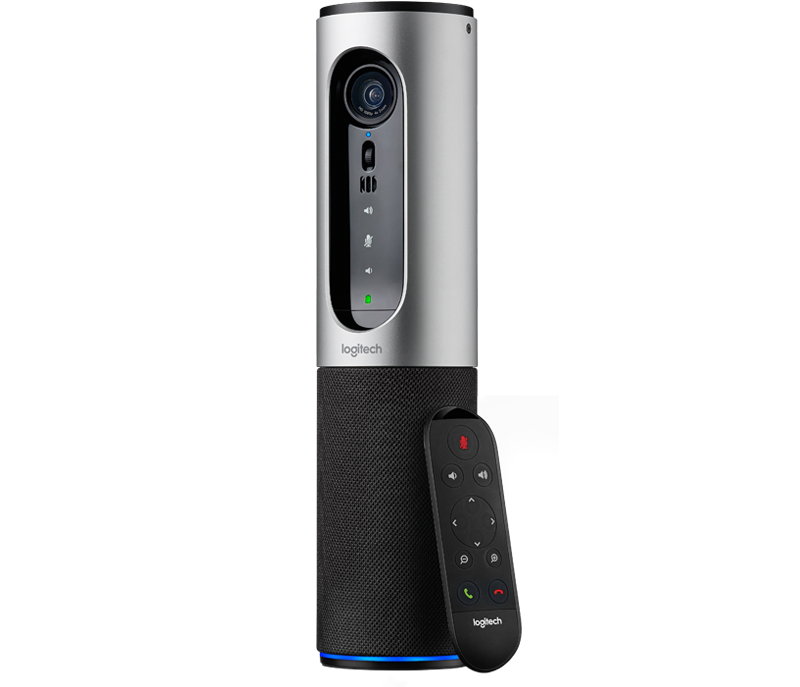
Thanks to Office 365 and the Logitech Conference Cam Connect the tools to do basic conferencing have never been cheaper and easier.

As you can see from the above image the Logitech Conference Cam Connect comes in a really neat form factor that includes the ability to broadcast video, sound as well as project to an external HDMI source. The unit is portable and includes a battery as well as being Bluetooth enabled.

The easiest way to use the Logitech Conference Cam Connect is to connect it via USB to a PC and use it with Skype for Business. In small conference room environments it works really, really well. You can also connect it to your mobile device using Bluetooth and mirror what is on the screen and then output that to a HDMI TV connected to the device.

You get all this for around $700 which is really great value I reckon. However, please remember that this i an entry level device. It can’t for example (unfortunately) run via USB and project to an external HDMI screen at the same time. To do that you’ll need to spend more money on dedicated conferencing hardware.

Those minor limitations aside, the combination of this device and Skype for Business via Office 365 provide a hugely price effective entry level conferencing option for many businesses who could never afford the option previously. I really like the fact that it is portable and runs on batteries so you can put it just about anywhere. I have been taking it with me recently and using Skype Meeting Broadcast to live stream a number of events I have been presenting recently. I also like the ability to easily ‘cast’ from most mobile devices to a HDMI monitor using it.

If you have been considering the benefits of conferencing and have Office 365, I’d look at adding the Logitech Conference Cam Connect as a low entry point to giving your business extra flexibility for meetings. Sure, your needs may grow over time but this little device will work well now and well into the future.

I’m totally blown away with what’s coming with Skype for Business

http://c.brightcove.com/services/viewer/federated_f9?isVid=1&isUI=1

http://bcove.me/9qvqbhlw

If you have ANY interest in Office 365 and especially Skype you MUST watch the above keynote presentation from Microsoft. Only then are you going to get an idea of how huge Skype for Business is going to be in the very near future.

I then suggest you have a read of the following blog post:

https://blogs.office.com/2016/03/09/expanding-the-reach-of-skype-for-business-meetings-and-voice-services-in-office-365/

Pay special attention to the section on Project Rigel.

After doing both of these things I defy you not be totally blown away with what Microsoft is doing with Office 365 and Skype for Business.

image

Here are some screen grabs of the single pane of glass Office 365 will bring to Skype for Business calls, over the Internet and the standard PSTN network.

image

You can drill into areas to measure load versus call quality, allowing you to optimise your performance.

image

You can also drill into any call and get information like that shown above as well as easily see the live stats (shown across the top of the page).

image

You can then drill into an individual user to get a dashboard of all their communications inside and outside the organisation as shown above.

image

And just to really blow your mind the above screen shows pretty much live transcriptions of Skype for Business meetings into a variety of foreign languages.

Believe me, take the time to watch the Microsoft keynote presentation. I guarantee it will blow your mind. It has also made me even more excited about what’s coming for Skype for Business and Office 365.

Roll on Office 365 Cloud PBX.

http://bcove.me/9qvqbhlw

Getting Started With Skype For Business Online–PDF version

cover-420

I am pleased to announced that the PDF version of our “Getting Started With Skype For Business Online” is now available for purchase at:

http://www.e-junkie.com/ciaops/product/509275.php

Abstract

This book is designed to get you up and running with Skype for Business Online fast! It takes you step by step through using everything in Skype for Business Online, showing you each item in detail, including screen shots at every stage. This book will help you use and better understand the capabilities of Skype for Business Online and the power that is can bring your business. Most importantly, it will show you how to be more productive by using the tools you already have to communicate better. If you use Office 365 but are not yet familiar with Skype for Business then this book is for you.

This book contains over 200 pages of detailed information and screen shots of every option.

The book will soon be available from Amazon, iBooks and in printed format but we don’t have exact dates on that yet. if you are wondering what topics the book contains here’s the index:

– Preface
– What is Skype for Business Online?
– What is Lync?
– What is the difference between Skype and Skype for Business?
– What does this document contain?
– How can I use Skype for Business Online?
– Installing Skype for Business on a PC
– Using the Skype for Business client
– Types of Meeting Members
– Scheduling a meeting in Outlook
– Scheduling a meeting using the Web
– Attending a meeting
– Instant Messaging
– File Transfer
– Call Monitor
– Phone
– Video
– Sharing
– Participants
– More Options
– Mobile Access
– Recordings
– Exiting a meeting
– Skype for Business Web Apps
– Conclusion
– Where to go from here
– Glossary
– Useful Links
– Useful Videos
– About

I take this opportunity to thank my co-author Greg Plum for all the effort he was invested in this book and his help in making this a reality. We hope it helps people adopt Skype for Business as a central part of their business.

Watch out for other formats coming soon.

Need to Know Podcast–Episode 97

This episode features an interview with HubOne CTO Roland Leggat. As an ex-‘Mirosoftie’ Roland shares his insights into the history of Skype for Business and how important it is today for businesses. We chat about what features, functionality and benefits of Skype for Business enables and how it lifts the productivity of those using it since it integrates with the most common desktop applications. If you are interested in Skype for Business then this episode is for you.

Marc and I also cover the latest from the Cloud and Microsoft including some interesting projects we are working on and what we see in the industry at the moment. 

You can listen to this episode at:

http://ciaops.podbean.com/e/episode-97-roland-leggat/

or subscribe to this and all episodes in iTunes at:

https://itunes.apple.com/au/podcast/ciaops-need-to-know-podcasts/id406891445?mt=2

The podcast is also available on Stitcher at:

http://www.stitcher.com/podcast/ciaops/need-to-know-podcast?refid=stpr

Don’t forget to give the show a rating as well as send me anyfeedback or suggestions you may have for the show. 

Resources

HubOne

Roland Leggat – roland@hubone.com 

Skype for Business

Microsoft Surface Power Cord recall

Microsoft Tecnet Virtual Conference

Azure AD Connect tool

Microsoft Fastrack now starts at 50 seats

Automatic provisioning of Yammer

Enterprise state roaming

Getting Started with Skype for Business Online

Configuring an Azure Single Sign on Portal

Need to Know podcast–Episode 91

Greg from PlumUC is back again and we are talking Skype for Business as well as a special upcoming webinar we are hosting. Greg and I talk about the updates happening with Skype for Business and the opportunities that brings all businesses.

There is going to be a lot happening around Skype for Business in next few months, so if you haven’t as yet taken a good look at what Skype for Business can do then now you should!

You’ll also get the usual update on Office 365 news and happenings so tune it and enjoy!

You can listen to this episode at:

http://ciaops.podbean.com/e/episode-91-greg-plum/

or subscribe to this and all episodes in iTunes at:

https://itunes.apple.com/au/podcast/ciaops-need-to-know-podcasts/id406891445?mt=2

The podcast is also available on Stitcher at:

http://www.stitcher.com/podcast/ciaops/need-to-know-podcast?refid=stpr

Don’t forget to give the show a rating as well as send me any feedback or suggestions you may have for the show. I’m also on the hunt for some co-presenters so if you are interested on being a regular part of the show please contact me.

Resources

Greg Plum
Principal
PlumUC
greg@plumUC.com
Twitter:  @channelmanager
LinkedIn:  http://www.linkedin.com/in/gregplum/
Blog:  http://www.gregplum.com
+1.302.514.PLUM (7586)

Cloud Business Blueprint

O365 Nation

Beyond the License webinar

Office IT Pro Deployment Script project

New Outlook on the web features

Office mobile apps for Windows 10

Send

Ensuring external Skype for Business connectivity

I am big proponent of using tools like Skype for Business for improved business productivity. As such I encourage people to connect to with using my Skype for Business account of admin@ciaops365.com.

Why would I do that? My experience is generally that I get contacted via email in regards to some technical question. I then need to reply to get more details. The sender then replies again and I need to reply again and so it goes on, back and forth. This is very disruptive because it fragments getting a solution and the time required to resolve. The better method is to chat using Skype for Business and then potentially move into screen sharing so I can see exactly what is going on. I also have other tools like screen sharing and whiteboard available in Skype for Business. This generally means the issue gets resolved much faster and in a single session so I can focus on other things.

Unfortunately, what I have discovered is that many people who have Skype for Business via Office 365 don’t have ability to communicate with external parties enabled. Now having talked so many people through the process of enabling this it is time to do a blog post so I can simply point people in this direction in the future.

If you are having issues connecting to external parties with Skype for Business follow this procedure to ensure you have external communications enabled in your office 365 tenant.

image

Login to your Office 365 tenant as an Administrator and navigate to the Office 365 admin center.

image

From the menu options in the bottom left, under Admin, select the Skype for Business option as shown above.

image

In the Skype for Business admin center, select the organization option from the menu on the left.

image

From menu option across the top on the right select external communications.

image

If you want to be able to communicate with others outside your organisation that use Skype for Business quickly and easily best practice is to select the option On except for blocked domains in the external access area at the top of the page.

If you also want to be able to connect with consumer Skype users ensure you have check the option below this to Turn on communication with Skype users and users of other IM service providers.

image

Below this you can enter the domains you wish to block or allow depending your selection above. In my case I have nothing in there but if someone starts spamming me via Skype for Business I would add their domain here (you have been warned!).

Once you have made these change don’t forget to scroll right down to the bottom of the page and select the Save button to update your preferences.

image

Now you can add people from outside your organisation that are using Skype for Business as well as consumer Skype as you can see above. The designation External Network indicates they are Skype for Business users outside your own Office 365 environment.

If you change the external communications setting in the Skype for Business admin center it may take 15 – 30 minutes for these changes to flow through and allow you to connect with external parties, so be patient.

That hopefully makes it easy for you to configure your Office 365 tenant to make connections with other Office 365 and consumer Skype users. As I said, I encourage anyone to connect to me using Skype for Business (admin@ciaops365.com) and contact me directly.

Watch out GotoMeeting

I do a lot of webinars. I also use Skype for Business a lot. Why do I use two tools? Typically, I use GotoWebinar to host public webinars. Why? It is generally set up to handle one to many presentations. Skype for Business has typically worked best for one to one or one to a few meetings.

You can of course use Skype for Business for general webinars but it wasn’t quite a polished a tool for that job as GotoWebinar. However, it you look at what Microsoft has just announced with the new Skype for Business preview it looks like I’ll only need one tool going forward.

One of the new features available world wide is the Meeting Broadcast option which does much of what GotoMeeting does and more! What excites me about the new Skype for Business Meeting Broadcast is the ability to have direct integration with Yammer. so people can be watching and contributing. Another impressive feature is the DVR ability. That means that individual viewers can pause, rewind, etc the presentation at any point in time independent of what other viewers are doing.

There are so many really cool features of this new preview that I’d encourage you to watch the video and sign up at:

https://www.skypepreview.com/

Hopefully my tenant get this enabled soon and I can document how it all works. In the meantime watch the video and I’m confident you’ll be impressed.