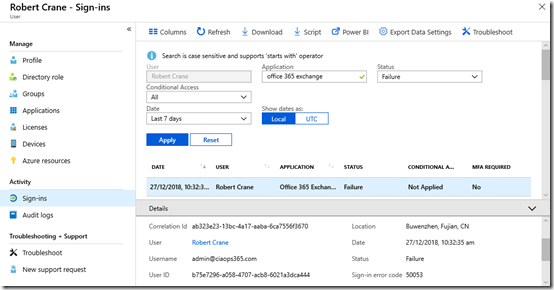
One of the best ways to ensure an account is secure is to enable Multi Factor Authentication (MFA) for it. This means, the user logs in as normal with their username and password but before the login process is complete they must enter another form of verification. That form is typically via an SMS, Phone call or an authenticator application on their mobile device.
The best practice with Microsoft 365 is to use the Microsoft Authenticator app, which is available on both iOS and Android. Here’s an overview video:
The way that you set up MFA for a Microsoft 365 account is to login to the Microsoft 365 portal as an administrator and navigate to the Admin center.
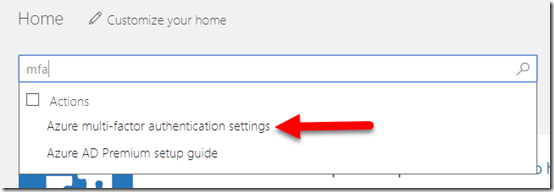
Then do a search for MFA as shown above. One of the returned results should be Azure multi-factor authentication settings as shown, which you should select.
You should be aware that here you are configuring Multi-Factor Authentication for Office 365 which is a subset of all the features available in Azure Multi-Factor Authentication. You can see the feature comparison here:
MFA version feature comparison
All versions of Office 365 and Microsoft 365 come with Multi-Factor Authentication for Office 365 the more advanced Microsoft 365 plans, such as E3 and E5 come with Azure Multi-Factor Authentication. The discussion here is focused on Multi-Factor Authentication for Office 365 and this applies to all plans.
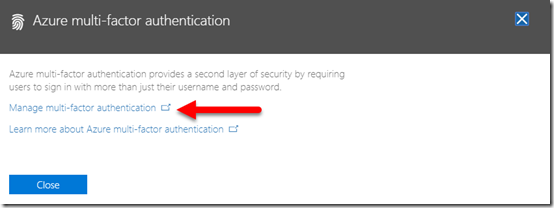
After selection of that option, a notification should now appear from the right of the windows. Select the Manage multi-factor authentication link that appears as shown above.
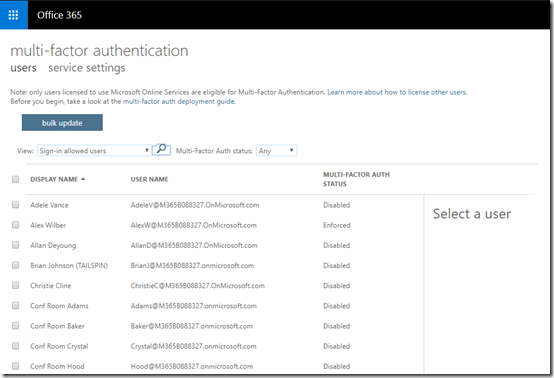
This should take you to a list of your users as shown above. This will show the MFA status of each user. The above shows you that Alex Wilber currently has an Enforced setting, while everyone else has Disabled.
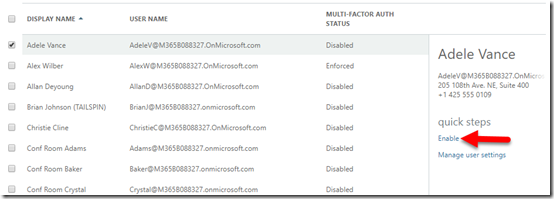
Select the user you want to enable on the right and then select the Enable link on the right as shown.
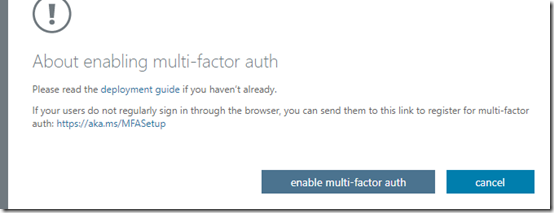
You should now see the above message. Select enable the multi-factor auth button to continue.
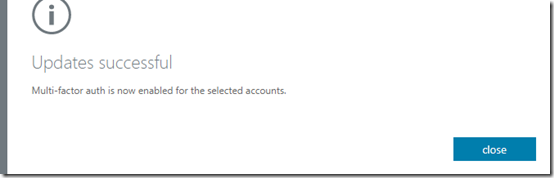
After a moment or two, you should receive confirmation that MFA is now enabled for the account as shown above. Select the close button to continue.

As shown above, you will now see that the status of that user is now Enforced. This means that they have yet to complete their MFA enrolment. Once they have, their status will change to Enabled.
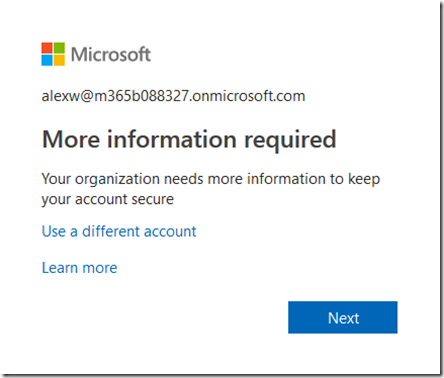
After the user enters their login and password into the Office 365 tenant the next time they login, they will see the above message telling them they basically need to enrol in MFA.
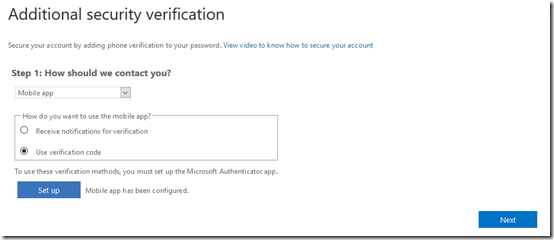
They should now see a screen like that shown above. In this case we are going to use a Mobile app as a means of authentication so we select that option from the top box. In the, How do you want to use the mobile app? box select Use verification code. This will request the user to end a unique code from the authenticator app to verify their identity during login. There is also the option to receive push notifications BUT if you are going to be using multiple authenticators then best practice is not to do this, and I’ll detail why further down when I talk about the scenarios where this multiple authenticator environment can be used. For now, select Use verification code and then the set up button underneath.
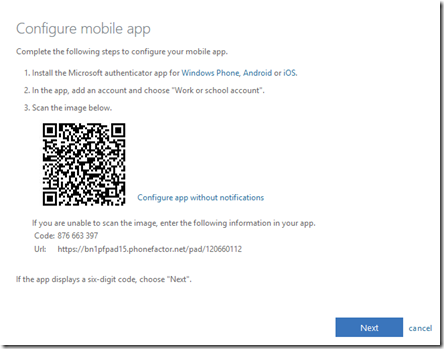
You’ll now see a QR code like shown above that you can use with your Microsoft Authenticator app. However, using this does come with limitations.
Firstly, this method doesn’t support third party authenticator like Google Authenticator or Lastpass Authenticator.
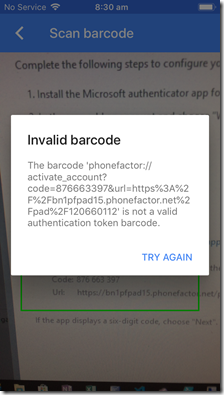
If you try to use those you’ll get an error like you see above and be unable to configure the third party authenticator.
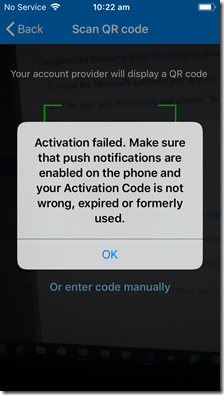
Secondly, if you try and use the same QR code on another device running a second Microsoft Authenticator app then you’ll see the above error, basically telling you that the QR code has been used before (which it has).

The trick to overcoming both of these limitations is to select the link Configure app without notifications to the right of the QR code as shown above.
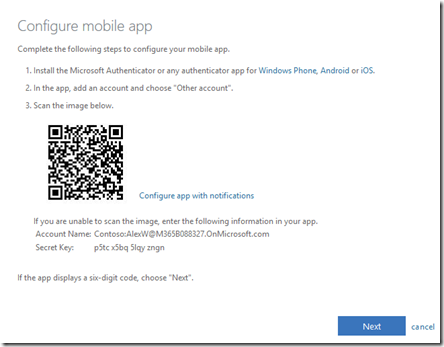
When you do so, you’ll get a new QR, that looks very similar but has different wording a link.
You can now use this QR to set up multiple Microsoft Authenticator apps on different devices as well as third party authenticators. You may also want to take a screen shot of this QR code for future reference if you wish to set up or reconfigure authenticator devices in the future.
Some considerations here. All devices you now use with this QR code will configure the same identical sequence of rolling numbers for authentication. Thus, when you configure multiple devices this way you’ll see that the pin numbers will be identical on all devices and will change more or less at the same time. What you have effectively achieved here is a duplication of the MFA token for that user. Is that a good thing? Best practice is to only have ONE and only ONE authenticator per account but there are scenarios I will illustrate later where having a duplicate is acceptable. However, please remember, the more tokens you have for an account, the less secure it is.
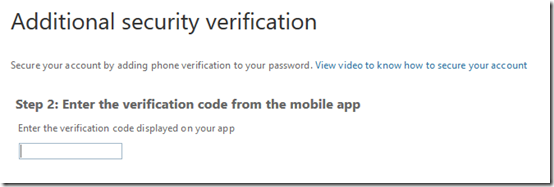
Once you have used the QR with all the devices you wish to use, select Next and then Next. You’ll then be prompted to enter a verification code from any of the devices (as they all show the same code now anyway) to verify the account set up. Enter the code and continue.
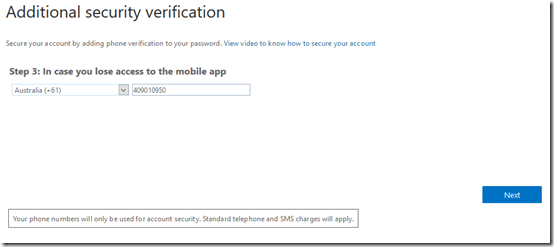
You’ll then need to enter a phone number as a fall back option. Select the Next button when this is complete.
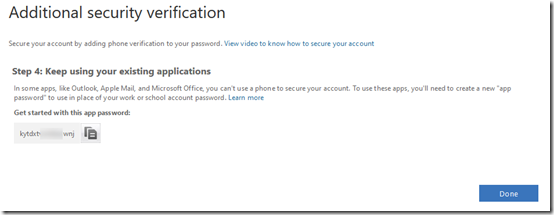
You’ll then see a single app password you can use if needed, but best practice is that you shouldn’t be using these so select the Done button.
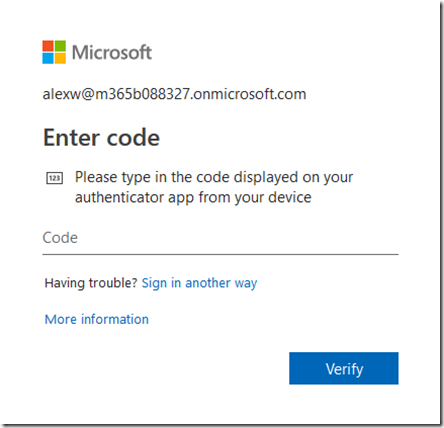
Now when the user logs in to Microsoft 365, they’ll enter their login and password as before but then also be prompted for a code from an authenticator. If you have duplicated the authenticator as shown above, the code on the devices will be the same and thus all you need to access that account is any of the devices just configured.
So where might a duplicated authenticator make sense? Perhaps as an administrator of a tenant I move between different locations and devices. Or perhaps I want to have the same code for everyone using authenticators for access. Perhaps different people need to read me the code from an authenticator on their device. There are scenarios where duplicated authenticators may make sense, so it is an option if needed.
Duplicating authenticators is probably ok if there is only one user accessing the account, but what happens when multiple need to access the one account using MFA? They should use a unique authenticator as best practice I would suggest.
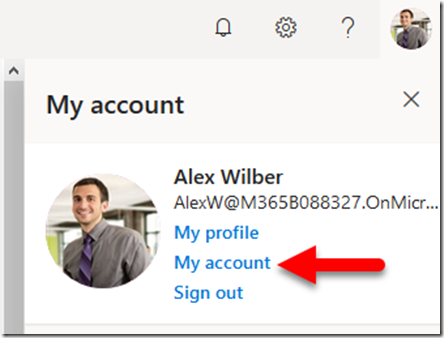
To set up multiple unique authenticators (rather than just duplicates), complete the above process but just for a SINGLE authenticator app. Again, it is recommended not to enable push notifications and just use a pin code entry. Once the single MFA has been configured for the account, login to that account using MFA. Select the user icon in the top right of the screen. That should display a menu like shown above. From this menu, select My account.
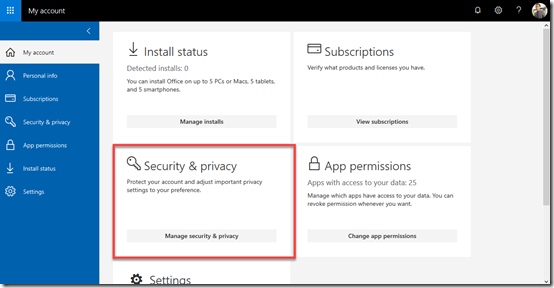
In the window that appears, locate the Security & privacy section and select the Manage security & privacy button.
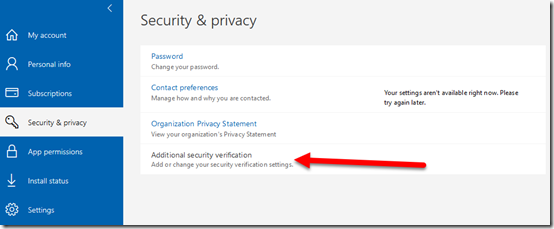
Now select Additional security verification at the bottom as shown above.
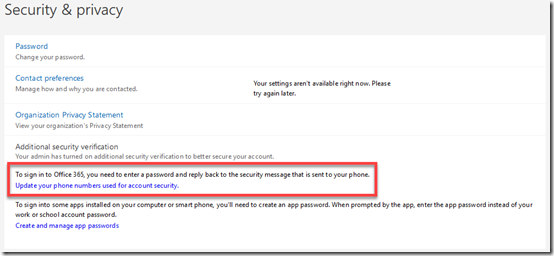
This will display two additional options as shown. Select Update your phone numbers used for account security.
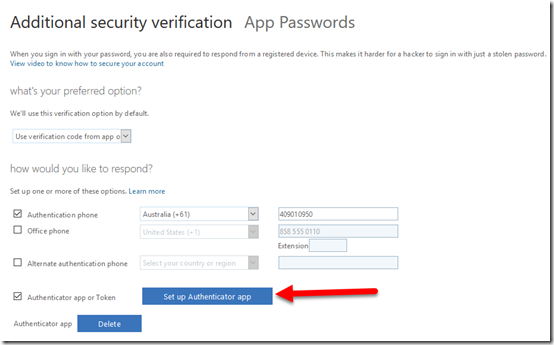
This should display the above options, where you can configure the MFA settings for the account. At the bottom of this screen you will see that there is already one Authenticator app, which is the initial one configured for the account. To add a second independent authenticator tied to this account select the Set up Authenticator app button as shown.
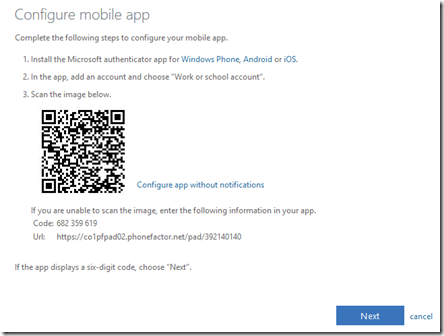
This should display the now familiar MFA configuration window as shown above. The default option will be for push notifications. This means that any time the account logs in a push notification will be send to ALL the authenticator apps configured to this account whether they have been set up as duplicates or separate authenticators. As mentioned previously, this option also only allows a single Microsoft Authenticator configuration and no third party options.
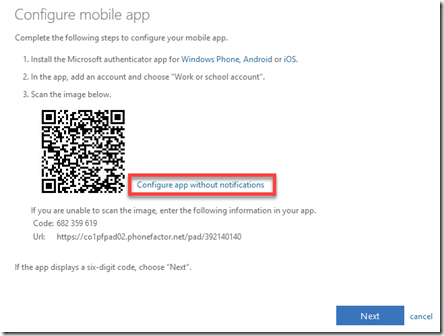
Thus, best practice is again to select the Configure apps without notifications link on the right to make more authenticator options available.
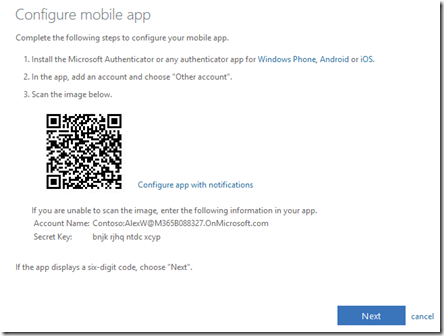
This will again give you a slightly different screen with a QR code to configure the authenticator device. Remember, here you are not duplicating the existing authenticator that was created initially, you are creating a separate independent authenticator app that is tied to the same user account.
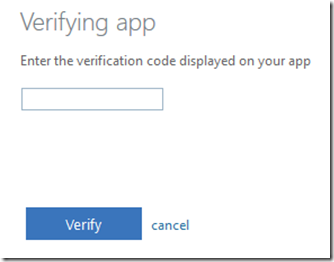
When you have completed the configuration process for this authenticator you’ll again need to verify it as shown above.
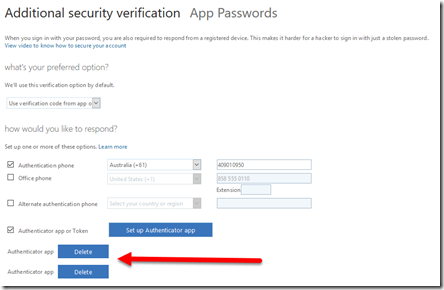
When you return to the Additional security verification screen you will now see two authenticator apps at the bottom of the screen as shown above.
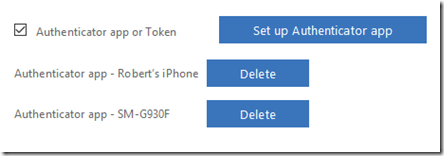
This might appear confusing, but in my example I configured two different authenticator apps independently on the same device (one Microsoft, one Google). If you configure authenticator apps on two different physical devices it should look more like the above where you can tell the difference between the devices. In my experience, if there is ever confusion or duplicates, the more recent configurations appear at the top of the list if you ever wish to delete one.
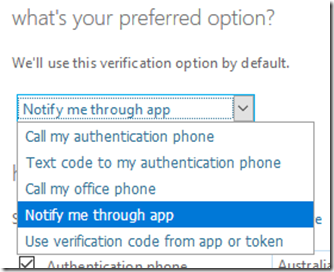
You may want to ensure that you DON’T select the option to Notify me through app, because doing so will send a push notification to all configured and supported apps for verification. If you have different people, all with their own authenticator app configured, on separate devices, you don’t want them all getting a notification when ANY one of them attempts to login to the account. Not only is it annoying, but any of the other devices can approve the login request, even though they didn’t initiate it. You can use the notification option for authentication if you wish BUT, use it with care and an understand of the risks it brings.
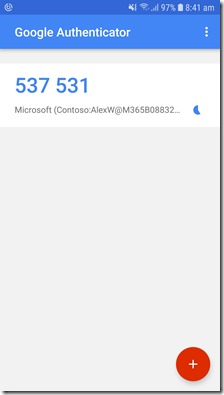
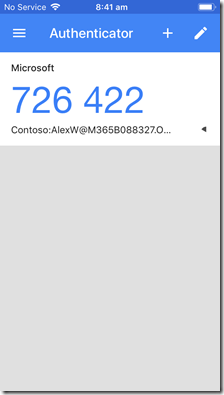
The above shows you that I have configured authentication on two separate devices (Android on left, iPhone on right). Note how the time is the same on each device, along with the account it protects. You’ll also notice that one device is using the Google Authenticator while the other is using the Microsoft Authenticator, just to show you that you can mix and match authenticators as you please. These are two independent authenticators tied to the one account as I have just shown you how to configure. Thus, if I now try and login to the configurated account, I use the one user name, plus the one password and either of the two numbers on the authenticators I have configured on these devices.
Now, where does this multiple authenticators to a single Microsoft 365 account make sense? The most common scenario is for IT resellers who need to support multiple customer tenants with multiple technicians securely using MFA. A typical scenario would be to configure a single management account in each customer’s tenant that is a global administrator for the tenant. That account would have an initial MFA authenticator enabled during set up. Then, for each technician who needs access, each of their personal devices would also be enabled for MFA on that same single customer admin account using the process I detailed above. Thus, the admin login details would be shared amongst the technicians along with the password BUT each would use their own authenticator app to gain access to the customers management account. Thus, each technician use the same username and password to access the account but a unique MFA pin code that is generated on their own personal device and is unique to them.
In the event that a technician leaves, the IT reseller could merely remove that technician’s authenticator app from the customer’s admin account and probably change the password and re-share that updated password amongst the remaining technicians. In an environment with lots of tenants and technicians, manually doing this would be time consuming. I’d be confident that this process could be scripted using PowerShell but can’t say for sure until I look at that in more detail. Stay tuned. But at least you can have multiple technicians accessing multiple shared accounts with their own unique MFA authenticator app.
So there you have it. Yes, it is possible to have multiple authentication apps providing MFA to a single Microsoft 365 account. Yes, it is possible to achieve this with both Microsoft and third party authenticator apps. Yes, it is possible to have duplicate and independent authenticator configurations for one account. And finally, YES, it makes an account LESS SECURE by having multiple authenticator apps configured against a single account, so use with CARE and THINK before you implement.