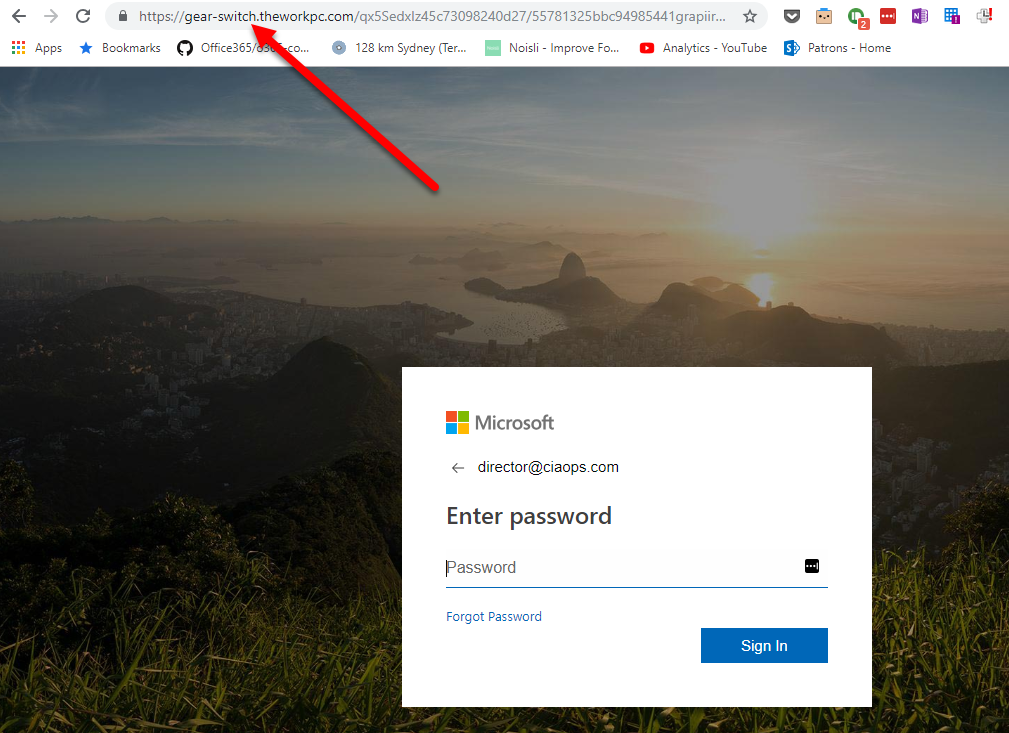
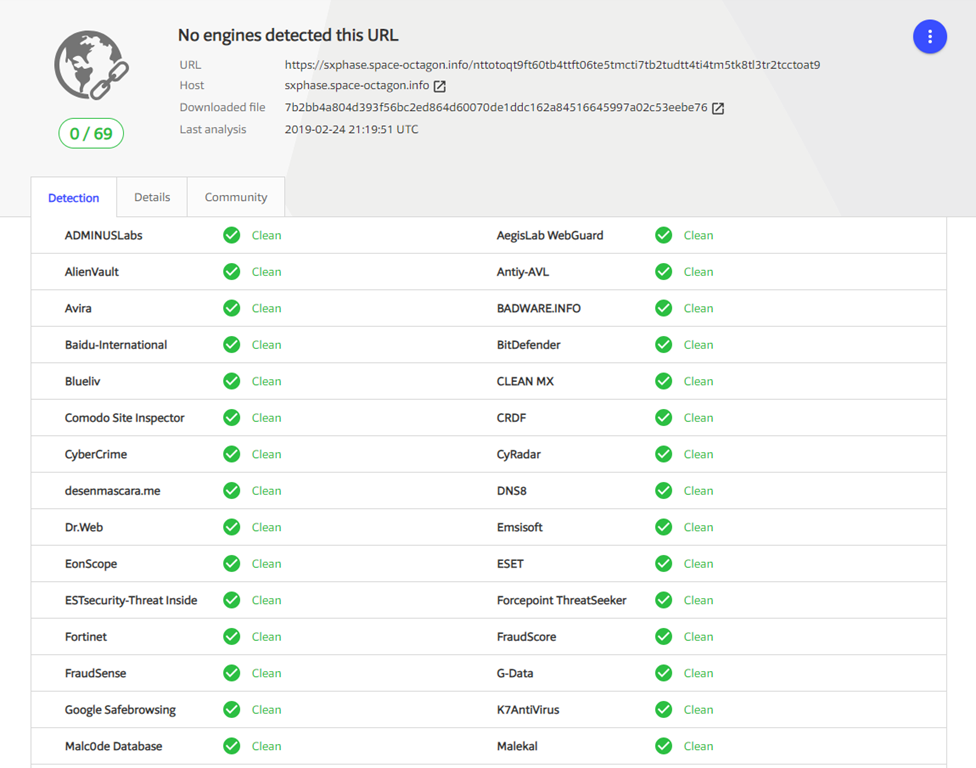
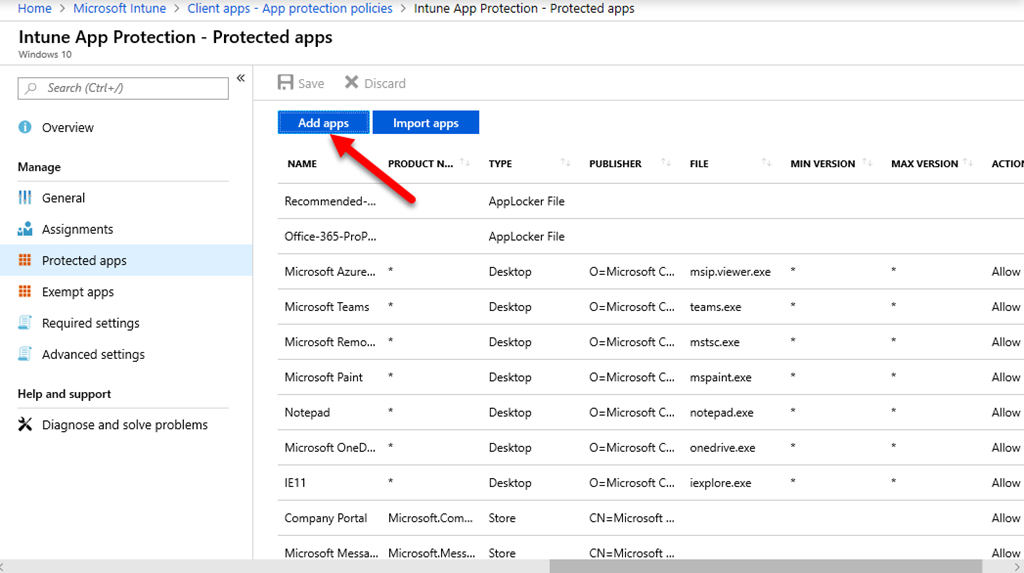
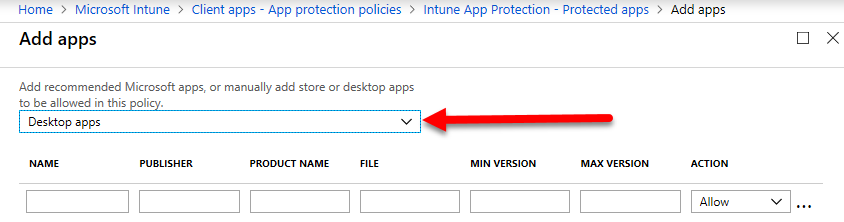
Disable basic auth to improve Office 365 security

image

In a recent article:

Investigating an Office 365 account compromise

I detailed how, if you go into the Azure AD sign in logs for an individual user you’ll probably see a huge amount of failed logins because automated hacking tools are banging away trying to brute force access into these accounts.

Once you see the sheer volume of attempts, constantly trying to gain access, you’ll hopefully appreciate how important Multi Factor Authentication (MFA) is because it means that even if the password is guessed then to login there is a need for another factor, like a security PIN.

So you think your safe with just MFA eh? Well, perhaps not as safe as you may think, because there is a good chance that basic authentication is still enabled on the tenant. What is basic authentication? Simply a login and password. Why is it still on? Because enabling MFA for users doesn’t disable it, it remains in place as a fall back.

With basic authentication still in place, this allows bad actors to keep banging away on your tenant trying to brute force a password. If you haven’t got MFA enabled for users, it is probably only a matter of time before a user’s password gets brute forced. Even if you have MFA, it is better to not even provide bad actors the ability to get one step closer to actually logging in now is it?

If you are serious about security for your Office 365 tenant then you need to enable MFA AND also disable basic authentication. Is this going to break stuff? If you are using application prior to Office 2013, for example, then yes, but you shouldn’t really be using those anyway.

To understand how to disable basic authentication and the ramifications of doing that, have a look at the following article:

Disable Basic authentication in Exchange Online

Most security conscious people should be using modern applications that mean that switching off basic authentication shouldn’t cause an issue at all.

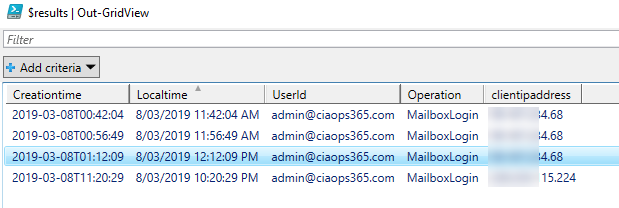
After you have disabled basic authentication, go back into your logs and see how all the attacks I’ve mentioned previous effectively cease. It ain’t magic, you’ve just hardened your tenant by reducing the risk surface area. For bonus credits on securing your tenant take a look at:

Azure AD and ADFS best practices: Defending against spray attacks

I also have the following script in my GitHub repo:

https://github.com/directorcia/Office365/blob/master/o365-modern-auth.ps1

that will enable modern authentication in your tenant when run. However, beware of enabling this as it can cause issues, especially older (pre-Office 2013) applications.

So remember, yes enable MFA across your Office 365 organisation but ALSO disable basic authentication as well!

A great security add on for Microsoft 365

Office 365 has a good deal of security available out of the box, however much of it needs to be fully configured from the defaults. Add to this the additional security options Microsoft 365 Business brings to the table on top of what Office 365 provides as standard. Services like Office 365 Advanced Threat Protection (ATP), Data Loss Prevention (DLP), Legal Hold and so on are included with Microsoft 365 Business and most also still need to be configured appropriately.

Configuring security options is nothing new. IT Professionals have been doing it for years. That won’t change just because services are now in the cloud.

Even after you have configured all of these services appropriately, there are more security options you can add on from Microsoft. I think that probably the best add on security service you can bolt on to your Microsoft/Office 365 environment is Office 365 Cloud App Security.

clip_image001

You can simply add the Office 365 Cloud App Security to any existing tenant and then assign it to your users. As you can see from the above (in $AUD), it is pretty cheap for what I’ll show it can do for you.

Now before I get too far down the path of explaining Office 365 Cloud App Security I need to let you know there is a more advanced version of this service called Microsoft Cloud App Security that I’ll cover in more detail in an upcoming article. Here, I’m going to focus on Office 365 Cloud App Security. If you want to know the differences between the two services take a look at:

What are the differences between Microsoft Cloud App Security and Office 365 Cloud App Security

image

Once you purchase a subscription to Office 365 Cloud App Security and assign the licenses, you will see an extra option appear the Alerts section of the Security and Compliance center, as shown above. Selecting the new Manage advanced alerts menu item will display the Managed advanced alerts screen on the right. Like most security option in Microsoft 365, you’ll need to go in there and enable it the first time you visit.

Once it has been enabled select the Go to Office 365 Cloud App Security button.

image

You’ll now be taken to the Office 365 Cloud App Security console and a list of policies as you can see above. These are the default policies that are created for you and it is possible to create your own policies which I’ll cover soon.

Take a moment to have look through the list of default policies and you’ll find the cover some very common scenarios.

image

In this case, I’ve click on the Mass downloaded by a single user policy to view the details.

image

The real heart of the policy is the Create Filter for the policy section a little down the page as shown above. This is where you create the rules to determine when an alert should be activated.

image

A little bit further down the screen you’ll find the section to manage the alerts. Here you’ll see the option to send an email, text message and the new preview option to trigger a Microsoft Flow. This new Microsoft Flow feature will allow you to automate just about any action if the alert is triggered.

image

The Governance section at the bottom of the page shows you the default actions that you can take when an alert is triggered, including the ability to suspend the user and force them to sign in again.

image

The above shows you a custom policy that I have created that will alert me when an Office 365 administrator logs on outside my corporate network.

Once you have customised the default policies and add any custom ones all you need to do is wait until an alert is triggered.

image

When you receive an alert via email it will look like the above with links to take you straight to the policy match.

image

You can now view any alerts in the console as shown above.

image

When you select an alert you can dig deeper into the details as shown above as well as Dismiss or Resolve it by recoding how it was (these are in the top right corner of the screen).

image

Not only can you configure and view very detailed alerts but you can also view the Office 365 Activity Log as shown above. This is very, very handy and much easier than having to use the interface in the Security and Compliance center or an exported CSV file.

image

If you click on an item you again get a huge amount of information as shown above.

image

The buttons in the top right of the item allow you to search on similar:

– Activity types (i.e. here Log on)

– Activity from the same user

– Activity from same IP

– Activity from same country and region

– Activity in the same time frame

image

The above shows you the failed logon activities, each of which you can drill into for more information.

So the second things the Office 365 Cloud App Security can provided is a detailed way to browse and investigate the Office 365 Activity log.

Sample report

Another thing Office 365 Cloud App Security can do is ingest the logs from on premises firewalls and UTM devices and display them in a dashboard as shown above. Here you can see exactly what cloud apps are being used in your environment. The idea is that it helps you identify shadow IT and prevent the leakage of corporate data from non authorised applications.

That’s a lot of power for a very small price in my books and makes Office 365 Cloud App Security a worthwhile investment for your environment. If you want even more power then you can look at Microsoft Cloud App Security which I’ll detail in an upcoming article.

If you are serious about monitoring your Microsoft/Office 365 environment quickly and easily, then nothing beats Cloud App Security. For most, Office 365 Cloud App Security will do what is required but remember that for only about $1 more, Microsoft Cloud App Security has even more power.

You can of course sign up for a 30 day trial of either product in your tenant today and try it for yourself. I’m pretty confident when you see everything that it can do you’ll happy add to the tenant going forward.

So when you get Microsoft/Office 365, I suggest Cloud App Security (either Office 365 or Microsoft) as something that you should add for sure if you are serious about security (and who isn’t these days??).

Investigating an Office 365 account compromise

I’m starting to get lots of questions about how to determine when exactly an Office 365 account was compromised. Typically, the two most common compromises are phishing and weak passwords. This article is going to focus on one of the ways weak passwords are exploited.

The first thing to appreciate here is that, generally, Office 365 won’t maintain logs needed for detailed investigation beyond 7 days and secondly most logging in Office 365 is disabled by default. There are a number of different audits in the product that you should enable, the major one is Activity auditing which I have detailed how to enable here:

Enable activity auditing in Office 365

The place I suggest you start any investigation is with my free PowerShell Office 365 user login auditing script which I have detailed here:

Auditing Office 365 logins via PowerShell

If you are a CIAOPS Patron subscriber I have an enhanced version of this same script that also outputs the results to a CSV file.

image

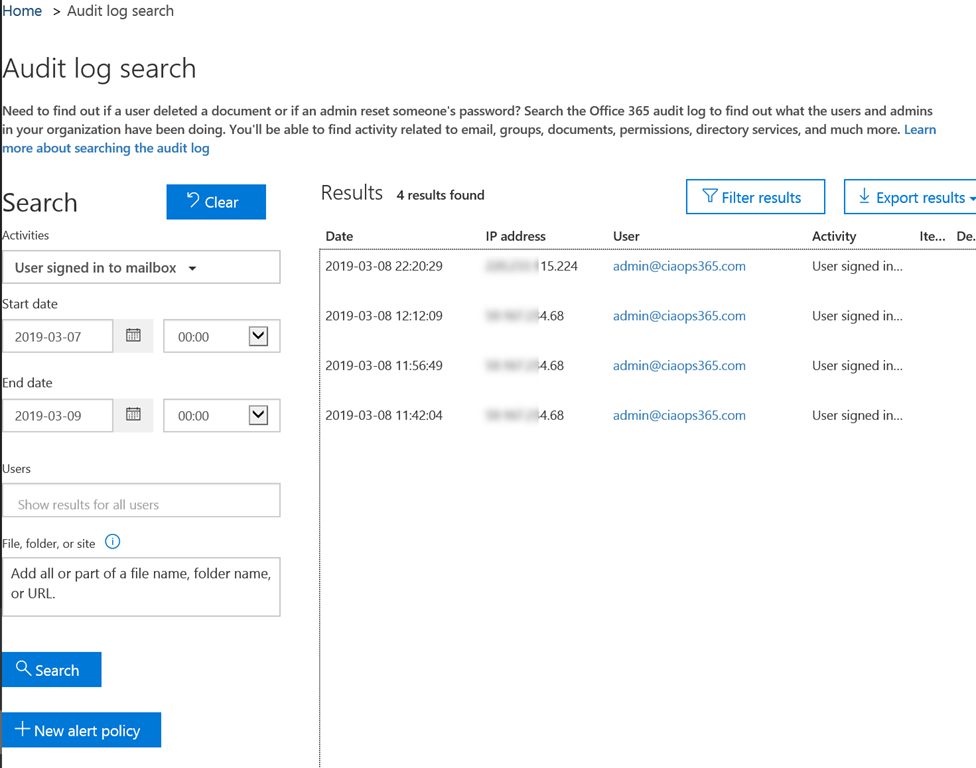
The above shows you the screen output of this script. You’ll see successful logins in green and unsuccessful ones in red.

The indication that an account has been compromised will either be:

1. Successful login from a suspicious IP address (indicating phishing and the fact that the bad actors already have the user’s password)

or

2. A number of failed logins to an account followed immediately by a successful login (indicating that the account password has been guessed via brute force).

In this article I’m going to focus on hunting down item 2, as item 1 is tougher, and means combing through IP addresses.

So, what we now need to do is take a look at the CSV file the script generated and see if we can find the login pattern we are looking for.

image

I’m using Excel as my primary investigation tool here as it provides more flexibility than other tools for me.

Firstly, I’m going to insert a table to make querying data easier.

Next, I’m going to filter out my know corporate IP addresses so I am only left with those I don’t recognise. In this case, I’m also going to only focus on a single user. Finally, I’m going to sort the times from newest to oldest.

image

Now what I’m going to do is hone in on an unfamiliar IP – in this case 110.82.6.244. When I filter the file further I find over 85 entries for that IP as shown above. The interesting things is that these entries happen sequentially on the same day and start at 1:16AM and end at 1:35AM. This confirms that my account has probably been the subject of some sort of automated ‘password spray’ attack. This basically means the bad actors have used an automated process to repeatedly try to login to my account using different passwords.

What passwords are they using? There are huge tables out there with all sorts of passwords people like to use. Where did these tables come from? Typically from systems that have been compromised and had all their login credentials stolen. These stolen credentials are now being re-purposed sand used to attack other accounts. Have a look at Troy Hunt’s site:

Have I been Pwned?

if you haven’t already to get an idea of the sheer volume of credentials there are in the wild.

image

You’ll note that in this list I don’t have any filter on the Operation column. Why? Because, I’m look for the pattern of repeated logins failures and THEN a successful login indicating that the account password has been guessed.

Luckily, for this attack IP address I don’t see that pattern. So basically, they tried 85 different attempts over a 20 minutes or so and don’t appear to have gained access. Phew.

image

When I do a lookup on the location of this IP address, I find it is in China.

image

I can do some more investigation by digging into the user account details in the Azure Active Directory service inside the Azure portal as shown above.

Basically I’ve gone into the Azure portal, selected the Azure Active Directory service then select Users and then the specific user I want to to investigate.

From the items that appear on the left for that specific user I select Sign-ins and then customise the search so that:

Application = Office 365 Exchange

Status = Failure

You then need to select the Apply button to update the query. Once I have done this I now get a list of login failures as you can see above.

image

If I select an entry in question (i.e. one from the previous results in the CSV file generated by my script) I see the above details.

The details show it is from the same IP address (110.82.6.244) and that client app in question was SMTP, i.e. the login was attempting to do an email account login.

It is also interesting to note that Microsoft blocked the attack by locking the account because it tried to login in too many times. Thus, Microsoft is detecting this common sort of attack and mitigating it based in the IP address and the repeated attempts from a single IP address. Thanks Microsoft.

image

You can click through the remaining links at the top of the page to get other information.

Unsurprisingly, there is no device info as you can see above.

This screen also gives you the option to download this log information to a CSV directly from the Azure portal for further analysis if you want. Down side is, that it is simply the single user you see here, not across all the users in the tenant.

image

Now that tenant wide option is available if you return to the top level options for Azure Active Directory, but you’ll need to have a subscription for Azure AD Premium P1 or better.

What I have therefore shown you so far will work with any Office 365 tenant and that is probably a good place to call and end to this particular article. I’ll be doing more around additional investigation options available in both standard and premium offerings soon, but for now I’ll leave you with an article from Microsoft that everyone managing an Office 365 environment should read:

Azure AD and ADFS best practices: defending against password spray attacks

and watch out for more from me around detecting and blunting attacks on Office 365.

YOUR call to action after reading all this should be to go and check your tenant for attacks like this and ensure you are doing everything you can to prevent their possible success.

Configuring Office 365 DLP with PowerShell

Data Loss Prevention (DLP) is typically an outbound scanning technology in Office 365 that monitors and prevents sensitive information from leaving the organisation.

image

Previous, DLP was only part of Exchange Online. It is still possible to configure policies only in Exchange Online as you can see above, in the Exchange Online Admin console.

To do this in PowerShell you’d use the command:

new-dlppolicy

image

The new of way doing DLP in Office 365 is via the Security and Compliance Center as you see above. The benefits of using this new method is that it is possible to use policies to not only protect Exchange Online but SharePoint and OneDrive for Business from data leakage.

image

Office 365 DLP has a number of pre-canned policy templates you can use as shown above. It is always best practices to at least start with these since they cover the basics.

You’ll note above that I’m looking to configure a policy based on Australian Financial Data. This in effects scans material looking for SWIFT code, Australia Tax File Number, Australia Bank Account Number and Credit Card as you see in the lower right.

image

Proceeding with the GUI wizard then asks for the areas in Office 365 to protect. As you can see from the above, these locations include Exchange email, SharePoint sites and OneDrive accounts. You can modify the inclusion and exclusions to all these different areas if you wish.

image

You then determine what content you are looking for in the policy settings, as well as when to detect.

image

You can customise these rules if you wish, as shown above.

image

Finally, you can determine how this policy will operate and whether it is active.

Why is all this important for using PowerShell? The simple answer is, that with many options, knowing what everything does in the web interface is going to help when it comes to implementing via PowerShell.

So, to start the PowerShell configuration process you are going to need to connect to the Office 365 Security and Compliance center using PowerShell. You’ll find scripts to do that at my GitHub repo here:

https://github.com/directorcia/Office365

We don’t want to use the older, Exchange Online only cmdlets like:

new-dlppolicy

we’ll be using the newer Security and Compliance cmdlets like

new-dlpcompliancepolicy

The first thing I need to is create a new DLP policy called ‘Australian Privacy Act’ and do that with the commands:

$params = @{
‘Name’ = ‘Australian Privacy Act’;
‘ExchangeLocation’ =’All’;
‘OneDriveLocation’ = ‘All’;
‘SharePointLocation’ = ‘All’;
‘Mode’ = ‘Enable’
}
new-dlpcompliancepolicy @params

Now, this basically establishes the policy and the location that it applies to in Office 365. There are not any rules yet to check the content.

To do this. you need to create a variable that holds the sensitive data types you want to check. Yo can do that with the following:

$senstiveinfo = @(@{Name =”Australia Driver’s License Number”; minCount = “1”},@{Name =”Australia Passport Number”;minCount=”1″})

You’ll find information about the specific sensitive data types for you region here:

https://docs.microsoft.com/en-us/exchange/policy-and-compliance/data-loss-prevention/sensitive-information-types?view=exchserver-2019

With all that in place, the rule can be added to the existing policy using the following:

$Rulevalue = @{
‘Name’ = ‘Low volume of content detected Australia Privacy Act’;
‘Comment’ = “Helps detect the presence of information commonly considered to be subject to the privacy act in Australia, like driver’s license and passport number.”;
‘Policy’ = ‘Australian Privacy Act’;
‘ContentContainsSensitiveInformation’=$senstiveinfo;
‘BlockAccess’ = $true;
‘AccessScope’=’NotInOrganization’;
‘BlockAccessScope’=’All’;
‘Disabled’=$false;
‘GenerateAlert’=’SiteAdmin’;
‘GenerateIncidentReport’=’SiteAdmin’;
‘IncidentReportContent’=’All’;
‘NotifyAllowOverride’=’FalsePositive,WithJustification’;
‘NotifyUser’=’Owner’,’SiteAdmin’,’LastModifer’
}

New-dlpcompliancerule @rulevalue

You should recognise many of these settings from what is in the web interface. Don’t forget that DLP takes a while to crawl through all the different content areas you have selected and be applied.

image

If all of that executes successfully, then you should see a new DLP policy in the web interface as shown above.

If you have an Office 365 or Microsoft 365 licenses that includes DLP, you should use the pre-existing templates that Microsoft provides you for you region and create a new policy for each.

You can, of course, customise these easily by changing the PowerShell parameters or creating your own rules to suit. The great thing is, once you have worked all of this out you now a configuration you can apply to every tenant quickly and easily.

That is the power of automation thanks to PowerShell!

Need to Know podcast–Episode 197

In this episode we focus on security starting with our interview of Alex Wilson from Yubico talking all about multi factor authentication. We take the time to dive deep into the benefits of using devices like the Yubikey to protect identities an help prevent phishing attacks. Brenton and I also discuss a number of interesting security items before the interview as well as give you the latest updates from the Microsoft Cloud.

Take a listen and let us know what you think –feedback@needtoknow.cloud

You can listen directly to this episode at:

https://ciaops.podbean.com/e/episode-197-yubikey/

Subscribe via iTunes at:

https://itunes.apple.com/au/podcast/ciaops-need-to-know-podcasts/id406891445?mt=2

The podcast is also available on Stitcher at:

http://www.stitcher.com/podcast/ciaops/need-to-know-podcast?refid=stpr

Don’t forget to give the show a rating as well as send us any feedback or suggestions you may have for the show.

Resources

Alex Wilson – alex.wilson@yubico.com

Yubico

@contactbrenton

@directorcia

Join us for the 200th episode

Australia gets world-first encryption busting laws

Australia passes new law to thwart strong encryption

Microsoft adopts ethical principles aiming to bar misuse of facial recognition technology

New breakthrough in combating tech support scams

Mastercard and Microsoft join forces to Advance Digital Identity Innovations

New Office app icons

Outlook on iOS gets a redesign

CIAOPS Patron program

Organization doesn’t allow you to use work content

image

Let’s say you have a bright and shiny Microsoft 365 Business tenant that you have configured out of the box. This means you have set up the default policies, assigned licenses and installed the software for users.

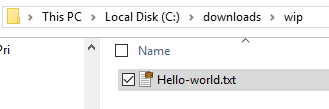
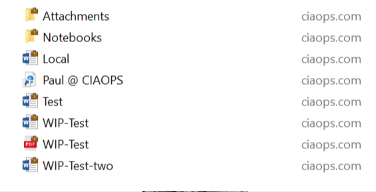
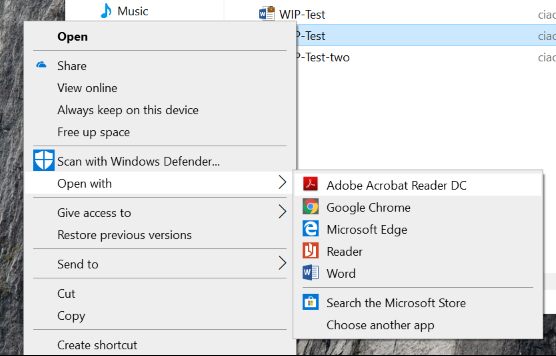
Your user now receives an email like the above with a PDF attachment. The system has Adobe Acrobat reader set as the default PDF reader.

image

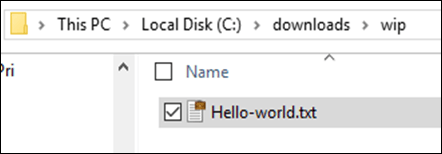
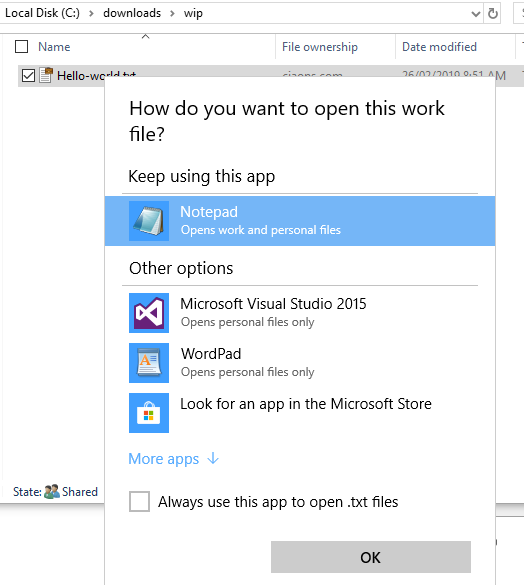
The user selects to open the attachment.

image

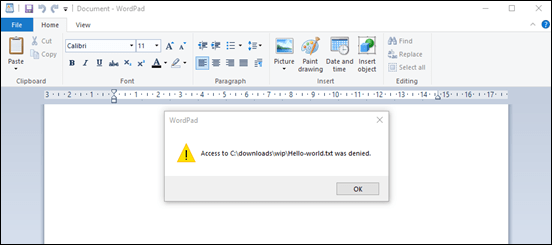
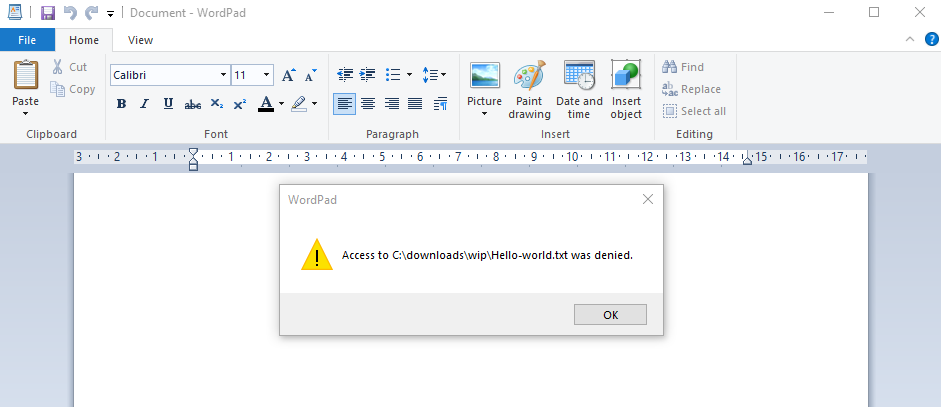
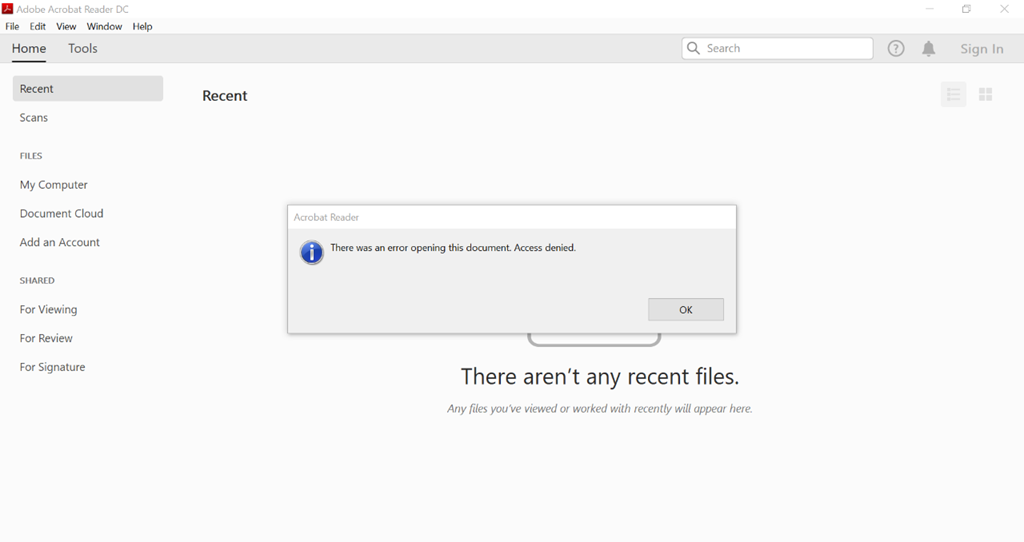
Adobe Acrobat launches as expected but you receive the above error:

There was an error opening this document. Access denied.

image

Instead, the user downloads the file to a local drive and then tries to upload it into a SharePoint Document Library as shown above.

image

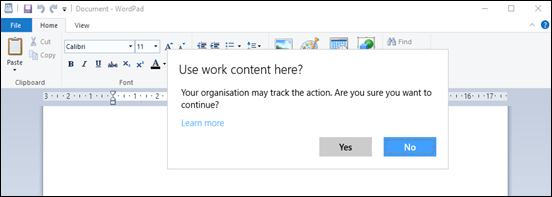
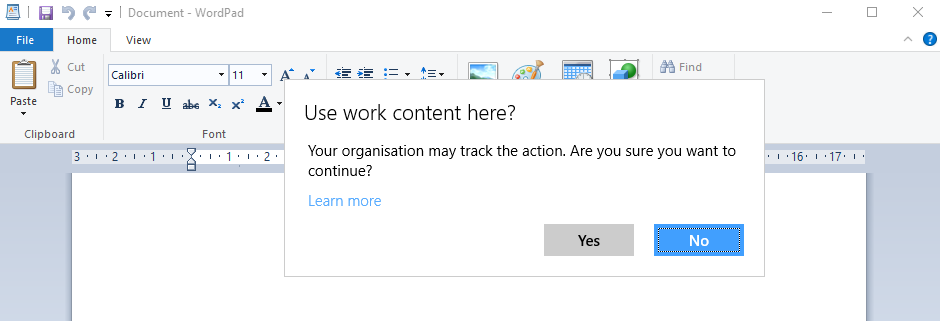
They are greeted by another error:

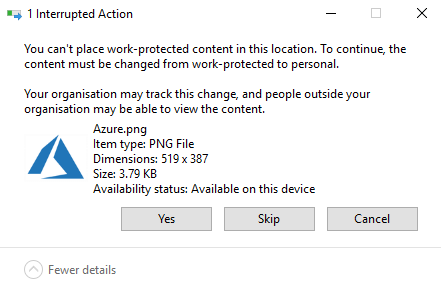
Can’t use work content here.

Your organization doesn’t allow you to use work content here.

What’s going on? Why can’t users save files? In short, the reason is Windows Information Protection (AIP). You can read more about what WIP is here:

Protect your enterprise data using Windows Information Protection (WIP)

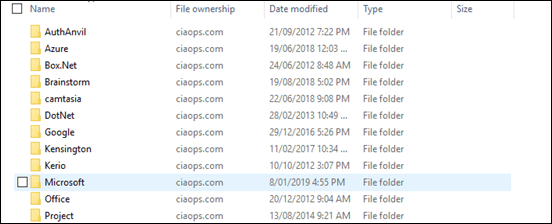
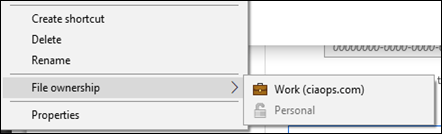
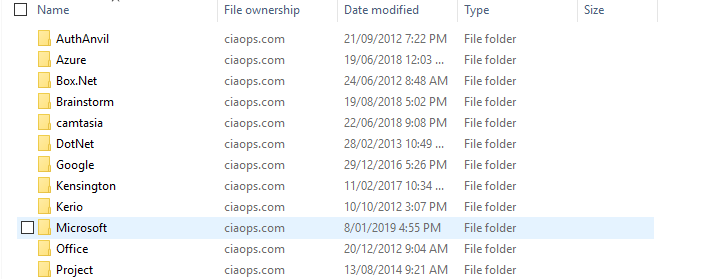
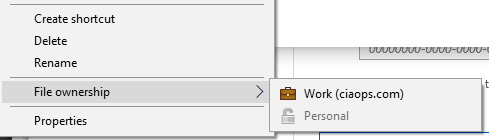
By default Microsoft 365 Business has WIP enabled. This means there is now a distinction between ‘corporate’ and ‘personal’ data. Corporate data is data that is created using pre-defined ‘corporate’ apps like Word, Excel, PowerPoint etc. Personal data is EVERYTHING else i.e. PDFs, files from network shares, local files. Why? Because these files were NOT created by the apps authorised by the WIP policy that has been enacted by Microsoft 365 Business.

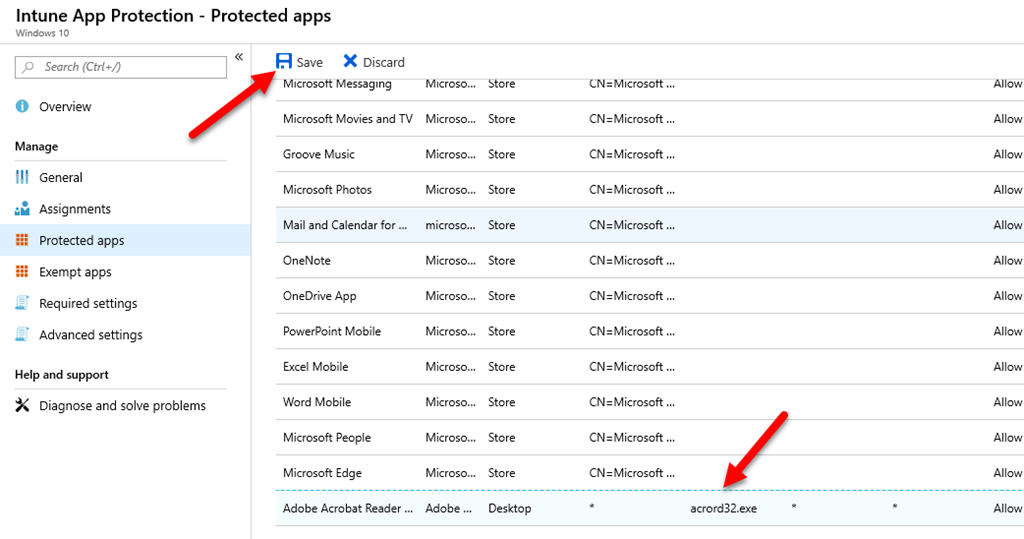
Is there are correct way to se up WIP so you don’t get these hassles? Yes, there sure is but in this article let’s keep it simple and cover off how to disable WIP for the time being so users can get on with their work.

image

Locate the Microsoft 365 admin center and then select the Device Policies tile as shown above.

image

You should then see a list of policies as shown above. In this case, I have two Application Policies for Windows 10 (one for enrolled devices and another for non-enrolled devices).

If you have multiple Application Policies for Windows 10 you’ll need to take the following actions on each policy.

image

Select the policy to edit it. Details of the policy you select should appear on the right as shown above.

Locate the Restrict copying of company data line. Here you’ll see the Setting is ON, thus WIP is enabled. To change this setting, select the Edit hyperlink to the right as shown.

image

You should that that Prevent users from copying company data to personal files is ON as shown.

image

Change this setting to Off as shown and then select Save.

While you wait for that to sync to the Windows 10 desktops (which should only take a few moments) let’s go into the back end of Intune and see where this setting actually is.

image

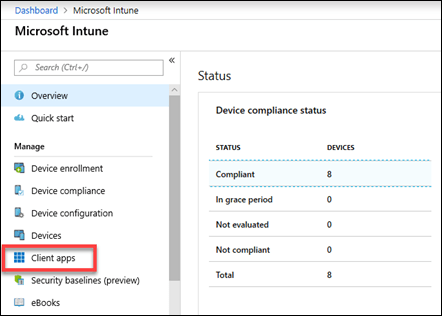
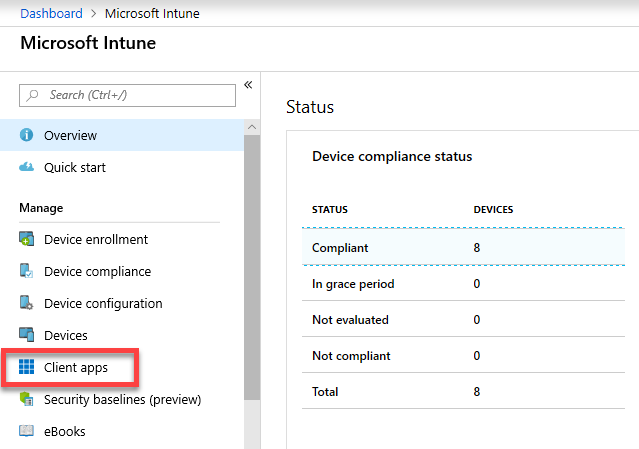
Navigate to Intune in the Azure portal and select Client apps from the main menu as shown above.

image

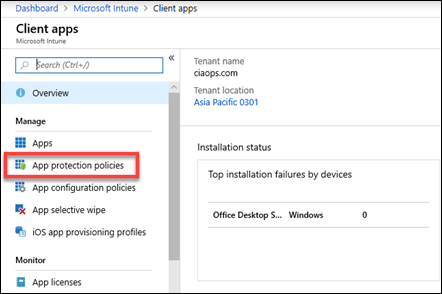
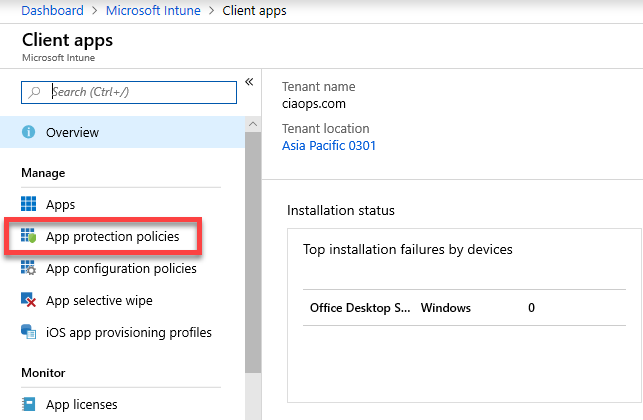
On the blade that appears, select App protection policies as shown.

image

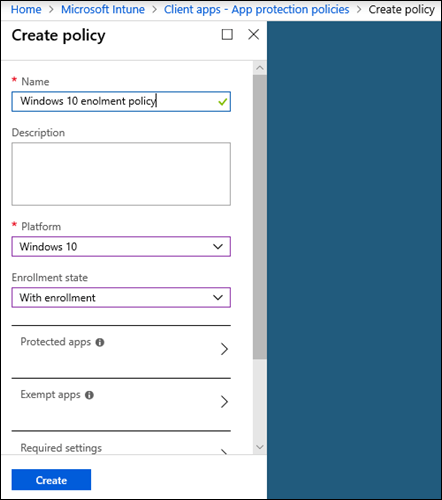
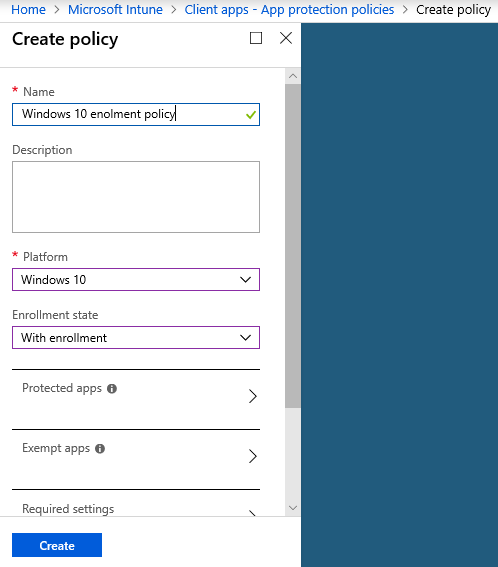
This should display the application policies with the same names as you see in the Microsoft 365 admin center. Here are only application policies, device policies are elsewhere in Intune.

Select your Application policy for Windows 10.

image

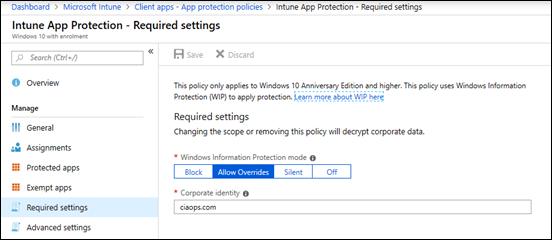
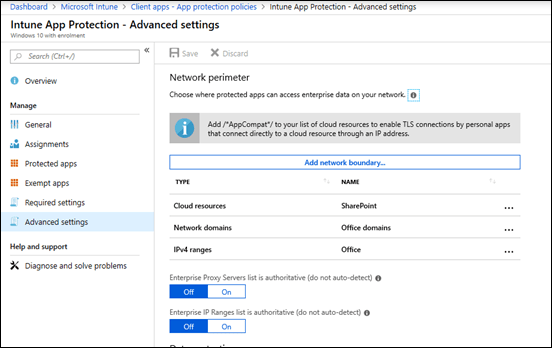
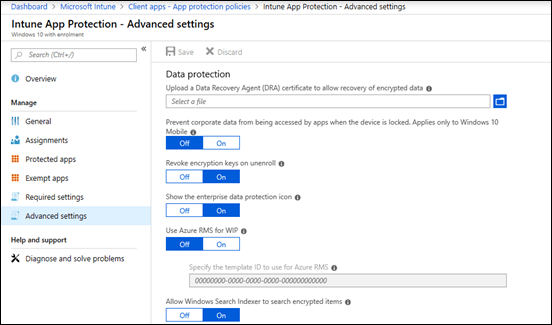
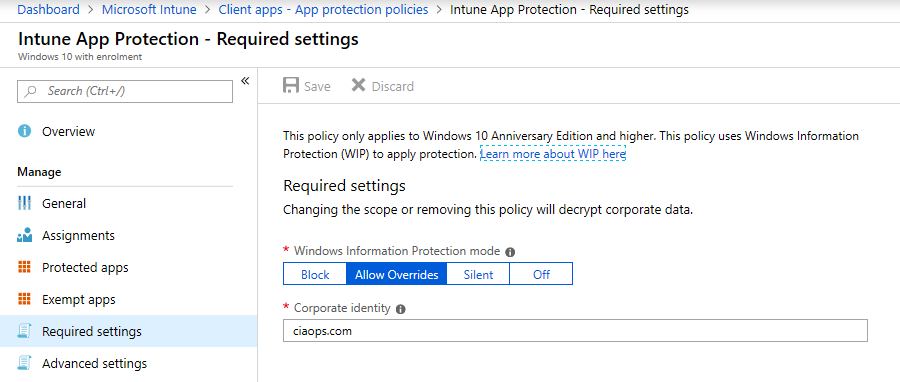
From the blade that appears select Required settings as shown. On the right will be displayed the state of Windows Information Protection.

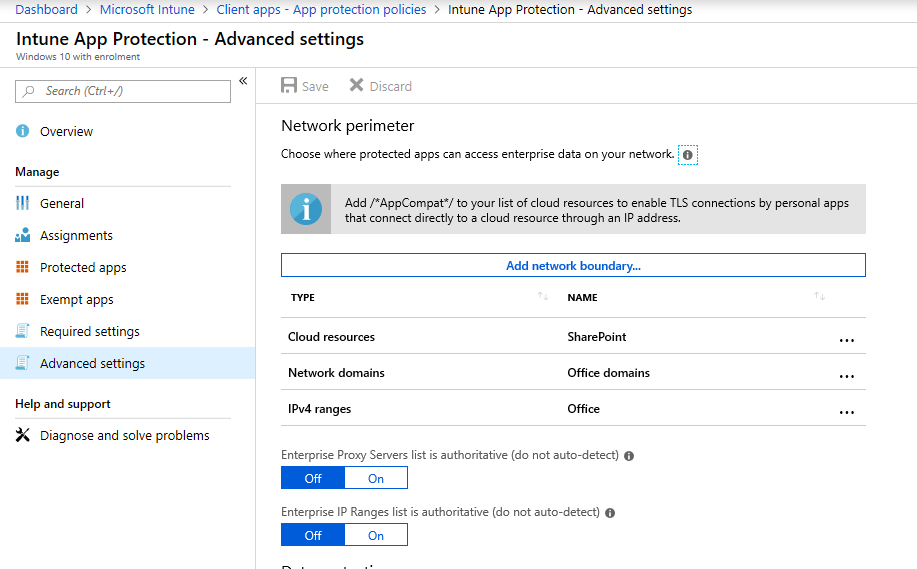
If WIP is enabled, the option here will be Block.

image

However, now you have changed the policy via the Microsoft 365 admin center the setting should be Off as shown above.

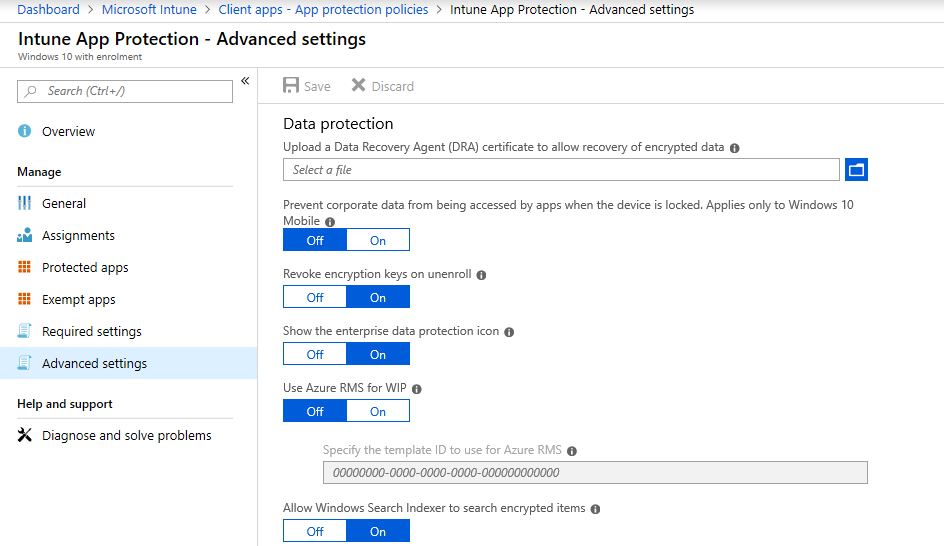
This confirms that WIP is now disabled in our environment.

image

If you now return to SharePoint on the workstation, and assuming the policy has synced to the desktop, the upload of the file should work.

image

Along with everything else that was blocked, including viewing PDFs.

Thus, to overcome the WIP issues with Microsoft 365 Business out of the box, you will probably need to change the Application Policy for Windows 10  as shown above.

How do you correctly configure WIP for your environment to take advantage of all the protection it offers? Stay tuned for an upcoming article on just that.

Do you need to backup Office 365?

The question of whether you need to backup data (emails and files) stored in Office 365 is one of the most common questions I see. The best answer is that you need to have as many backups of your own data as you feel comfortable with. That comfort level will vary with each person and business, but in general, more is better.

Let’s start by defining what most people consider to be “traditional” backup. A “backup”, for this definition, is a full copy of your data at a point in time that allows you to easily do a single item restore (such as a single email or file) if required, to the original or alternate location, that is retained for an extended (greater than 30 days) period of time. If this is the type of backup you wish to have then you should look at using a third party tool to supplement the way Office 365 retains your data.

Microsoft is indeed able to restore your data if required but how they do is very different from what people may appreciate. Microsoft also does not publicly publish the specific process by which it backups up information in its data centers, however it certainly does backup your data as shown here:

clip_image001

Which can be found at – https://products.office.com/en-au/business/office-365-trust-center-top-10-trust-tenets-cloud-security-and-privacy

Also in “Protecting Privacy and Data” – http://download.microsoft.com/download/2/0/A/20A1529E-65CB-4266-8651-1B57B0E42DAA/Protecting-Data-and-Privacy-in-the-Cloud.pdf (page 3) you will find the following statement about Microsoft Online Services:

“Additionally, each service has established a set of standards for storing and backing up data, and securely deleting data upon request from the customer.”

Office 365 is also certified to many industry standards which you can read about here:

https://products.office.com/en-au/business/office-365-trust-center-compliance-certifications

These contain standards around maintaining data within its services. With all this, you should then feel completely at ease with the fact that Microsoft is indeed protecting your data in many different ways, to industry leading standards or better, one of which is the process of backup. It is important to however understand how the common initial “traditional” definition of backup highlighted above may be different within Office 365.
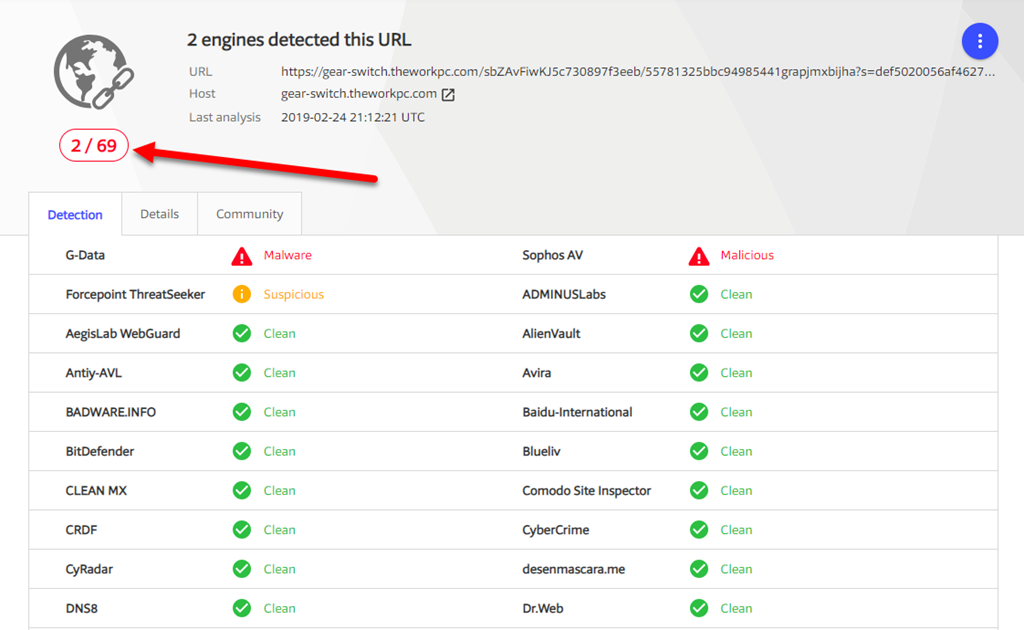
If needed, Microsoft are not going to restore a single item, such as one email message back into a mailbox. They will however restore a full mailbox for you back to a point in time. Also, they will not be able to restore a whole mailbox from say 12 months ago because, as you can appreciate, the amount of data storage required to provide this across all mailboxes in Office 365 would be enormous. Thus, if you have a need to have Microsoft restore a whole mailbox, you’ll need to typically request that as soon after the event as possible and do so by logging a support ticket with Microsoft.

Likewise with SharePoint. Microsoft won’t generally restore a single file into a document library, they will restore the whole site collection or OneDrive for Business back to a point in time provided it is within a recent time window. To do this, you’ll need to once again raise a service ticket with Microsoft.

Another point to remember with restores completed by Microsoft, for mailboxes and SharePoint sites, is that the restore will be over what is already in place. That is, restored data will be to the original location. Restored data from Microsoft cannot be recovered into an alternate location for comparison.This means that this will erase any current information in that location and replace it with everything from the restore. Thus, the data will be rolled back to that moment in time for a whole mailbox or site collection.

Thus, if you are looking for single item recovery of deleted items like files and email messages and/or items that are beyond the default Office 365 retention periods (for example from 12 months ago), then you need to consider a third party backup tool that you purchase, configure, manage and maintain yourself. Also, if you are looking to restore a whole mailbox, SharePoint site collection or OneDrive for Business without logging a support ticket with Microsoft, then you need to consider a third party tool. Also, if you wish to control where the destination of the backed up data is, you will again need to consider a third party solution. Finally, if you want granular control over the schedule of when backups actually take place, then you need to look at a third party backup solution.

Office 365 typically maintains data using a retention process. This means that Office 365 will make sure the data is made available but it does not generally keep a copy of that data forever. In essence, old deleted data will be aged out and eventually purged from the service after a period of time. That period of time varies by service as well as the license assigned to that data. There are however features that are part of the more advanced licenses and available as add ins, such as Litigation Hold that can be used to retain data indefinitely. The important difference here is “traditional” backup versus retention. For an overview of Office 365 retention policies see:

https://docs.microsoft.com/en-us/office365/securitycompliance/retention-policies

The important thing people need to understand is what protection does Office 365 provide them out of the box and do they need to supplement that? Take OneDrive for Business and SharePoint for example. Every time you update a file in either of these two services a previous copy of the file is kept. This allows the user to easily roll back to a previous version of that file if needed. By default, and this can be changed, Office 365 will retain 500 copies of previous version of a file. Once it reaches that limit it will commence over writing the oldest version.

Having version history in SharePoint and OneDrive for Business means that you can “recover” older items quickly and easily. You can also recover a whole OneDrive for Business quickly and easily using this recent feature:

https://support.office.com/en-us/article/restore-deleted-files-or-folders-in-onedrive-949ada80-0026-4db3-a953-c99083e6a84f

That same feature will soon be available for SharePoint document libraries.
Next, let’s take a look a what happens when you delete a file in OneDrive for Business or SharePoint online. Once a file is deleted it goes to the user’s recycle bin where it can be recovered if needed. If it is removed from the user recycle bin it goes to an administrator recycle bin. The total time that a file is retained across these recycle bins is 93 days. After that the file is purged from the system. I have outlined this process in depth in this article:
https://blog.ciaops.com/2018/03/using-retention-policies-in-office-365.html

What about deleted emails? An email that is deleted from the inbox is sent to the deleted items folder for that mailbox and retained there indefinitely. If it is removed from the deleted items folder it can be recovered for up to 14 days by default, which can be extended to 30 days via PowerShell. After that the email is purged from the system. I have detailed how to extend the default period to 30 days using PowerShell here:

https://blog.ciaops.com/2018/03/extending-exchange-online-deleted-items.html

Now the time that both of these processes retain for can be extended. In the case of OneDrive for Business and SharePoint you can use labels and retention policies to effectively maintain that data forever. With emails you can add the Litigation Hold feature to achieve basically the same effect. Thus, with either some additional configuration or additional license, Office 365 can retain data for a very long time. However, you need to appreciate that this is retention not backup as we defined it earlier.

What’s the difference between retained and backed up data in this context? If you enable extended retention policies for file data in SharePoint Online and OneDrive for Business beyond the default period, the information is kept in something called a Preservation Library. The challenge with this is there is only one Preservation Library per site. This means all the retained data is lumped into this one location. That can make finding a single file to restore a challenge. Preservation Libraries are also generally only available to administrators not end users.

In the case of deleted emails an administrator would need to use a tool like eDiscovery search to recover the deleted items. The items will certain be available but the structure they resided in would not be. Thus, if you deleted a file from your inbox that was stored a number of sub folders below the inbox, those folders would not typically be recovered using this eDiscovery process typically.

As you can see, there is a difference between what many people consider backup and the way that Office 365 retains data and how it can be accessed. In many cases it can be as good as a backup, however if your requirement for backup is what was defined initially, then implementing a third party tool is probably recommended. The downside to implementing a third party tool is that you need to pay, configure and maintain this. This means the additional cost of this needs to be weighed up against how often it will actually be required and what situations it provides protection above and beyond what Office 365 does. That is a decision that each business needs to make for themselves. This is a risk management decision.

In all of this you’ll also need to consider that Office 365 is fast becoming more than simply emails and files. It is Teams with chat, it is Yammer with discussions, it is Sway with presentations, Planner with tasks, and so on. No third party tools I know of will in fact backup these Office 365 services in any way. As the use of these additional services continues to grow, this means that you are going to have to rely on the processes that Microsoft has in its back end to potentially recover your data if required. At this point in time, there is no other option.

Of course, some features like Litigation Hold require a more advanced license, like Exchange Online Plan 2 but generally you don’t just get the one feature with these advanced licenses, you get a range of additional features. Thus, if you want Litigation Hold and upgrade a mailbox to Exchange Online plan 2 not only do you get Litigation Hold but you also get unlimited archiving as part of that upgraded license. Compare this for paying for a third party backup solution which generally only gives you the option to backup data and doesn’t provide much in the way of end user functionality. Also, chances are that you will rarely need that backup however the added features of advanced license can improve productivity for your end user every day.

In a perfect world, yes, you would add additional backup capabilities to Office 365 because more backups are better. However, we live in a world where compromises need to be made for different business reasons. We need to make decisions based on business risk. Thus, you need to balance risk with the offset mitigation cost and return on investment. Personally, if I had to choose between having a third party backup solution or upgrading an existing Office 365 license to include more functionality, I’d fall into the camp of providing users with additional day to day functionality. This is because I understand what Office 365 does. I understand how to get the maximum retention and recovery from what is provided out of the box and by adding advanced licenses to Office 365 and I am happy with that. I don’t believe adding third party backup software provides more value than what Office 365 can provide. Yes, I understand there maybe circumstances that may not be optimal but given how likely that circumstance may be, I believe that choice to be circumspect.

In summary then, yes, Office 365 does backup your data. However, the way that backup takes place and how it can be used to recover information is probably different many people’s “traditional” concept of backup. It is therefore important to understand:

  1. What Office 365 provides out of the box
  2. What additional configurations can be made to Office 365 to improve that
  3. What Office 365 services can be added to improve or enhance what is provide by default

Only after completing these steps should you consider adding additional third party backup solutions if appropriate.

Creating Office 365 Protection Alerts with PowerShell

I’ve previously covered off how to create a new Protection Alert in Office 365 using the web interface:

Setting an alert for file download in Office 365

I’d also tried doing this via PowerShell but ran into some issues:

I’m puzzled by new-protcetionalert

Luckily, after some chasing down, I have learned that I overlooked an important option in my scripting. It seems the option:

-aggregationtype none

needs to be included. This tells the script to only create a single alert at a time. Thus to create a Protection Alert that will tell you of malware in a file in OneDrive for Business or SharePoint you need to run:

New-protectionalert -category $category -name “Detected malware in files” -ThreatType activity –NotifyUser “user@domain.com” -Operation filemalwaredetected -AggregationType none -Severity High

You’ll first need to connect to the Security and Compliance center with PowerShell before you can run this command.

image

If you then at the Alert Policies you should see the above.

image

Interestingly, when you look at the activity that will trigger the alert you see the above, which doesn’t provide you any indication of what the activity for the alert actually is. You will also notice that I can’t edit the activity or much else on the alert once it has been created via PowerShell.

However, I do know that setting Protection alerts via PowerShell does work so I’m happy that I can do bulk add alerts via a script. I just that one option.