Script to report tenant directory activity

image

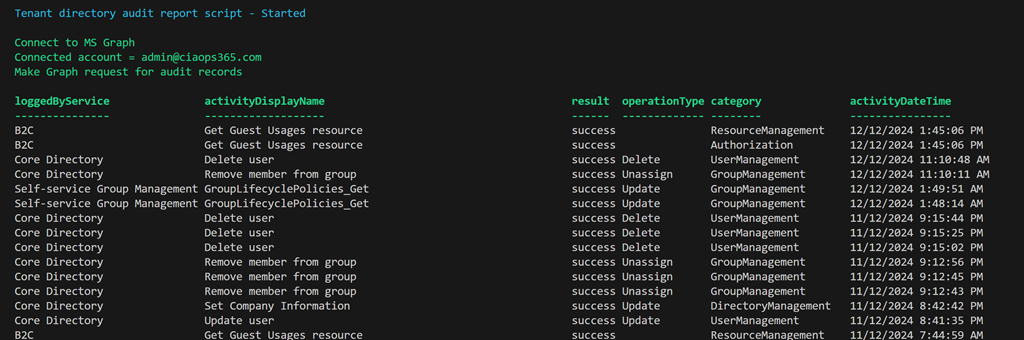
I have created a script that uses the Microsoft Graph to report directory activity for the tenant as shown above. You’ll find it here:

https://github.com/directorcia/Office365/blob/master/graph-diraudit-get.ps1

along with the documentation here:

https://github.com/directorcia/Office365/wiki/Report-directory-activity-in-a-tenant

You will need to have the Microsoft Graph PowerShell module installed and up to date.

The first time you run the script you maybe prompted to login to your tenant and then you may also be asked to provide permissions This script requires:

AuditLog.Read.All
Directory.Read.All

which you may need to consent to the first time.

After the script executes you should see an output as shown above showing the logging service, activity, result, operation, category and time stamp.

You can also use the –csv command line option to put the results to a CSV file in the parent directory.

Script to report tenant signins

image

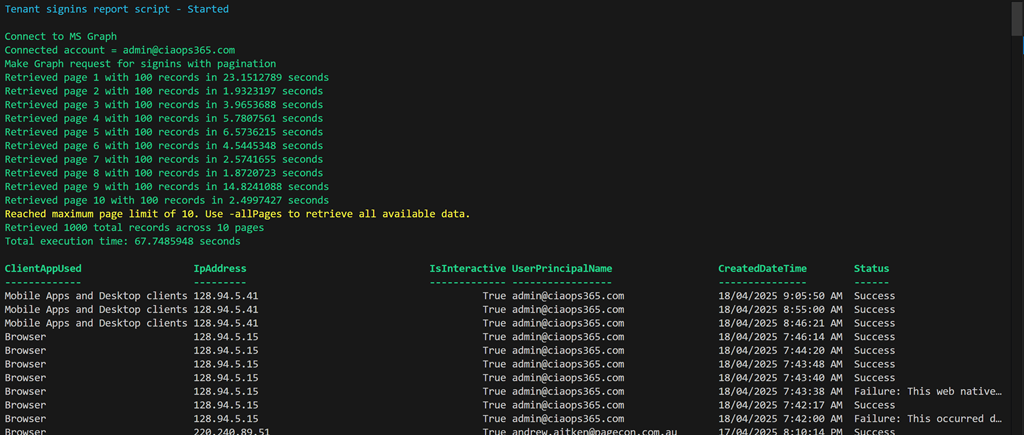
I have created a script that uses the Microsoft Graph to report signins for the tenant as shown above. You’ll find it here:

https://github.com/directorcia/Office365/blob/master/graph-signins-get.ps1

along with the documentation here:

https://github.com/directorcia/Office365/wiki/Get-tenant-signins

You will need to have the Microsoft Graph PowerShell module installed and up to date.

The first time you run the script you maybe prompted to login to your tenant and then you may also be asked to provide permissions This script requires:

AuditLog.Read.All
Directory.Read.All

which you may need to consent to the first time.

After the script executes you should see an output as shown above showing the Client App used, IP Address, is an interactive login and the user principal name.

You can also use the –csv command line option to put the results to a CSV file in the parent directory.

Script to report tenant users

image

I have created a script that uses the Microsoft Graph to report users for the tenant as shown above. You’ll find it here:

https://github.com/directorcia/Office365/blob/master/graph-users-get.ps1

along with the documentation here:

https://github.com/directorcia/Office365/wiki/Report-Tenant-Users

You will need to have the Microsoft Graph PowerShell module installed and up to date.

The first time you run the script you maybe prompted to login to your tenant and then you may also be asked to provide permissions This script requires:

User.ReadBasic.All,
User.Read.All,
User.ReadWrite.All,
Directory.Read.All,
Directory.ReadWrite.All”

which you may need to consent to the first time.

After the script executes you should see an output as shown above showing the Display name, User Principal Name, whether the account is enabled and the user type.

You can also use the –csv command line option to put the results to a CSV file in the parent directory.

Script to report tenant devices

image

I have created a script that uses the Microsoft Graph to report devices for the tenant as shown above. You’ll find it here:

https://github.com/directorcia/Office365/blob/master/graph-devices-get.ps1

along with the documentation here:

https://github.com/directorcia/Office365/wiki/Report-tenant-devices

You will need to have the Microsoft Graph PowerShell module installed and up to date.

image

The first time you run the script you maybe prompted to login to your tenant and then you may also be asked to provide permissions as shown above. This script requires:

Device.Read.All

which you may need to consent to the first time.

After the script executes you should see an output as shown above showing the device, device id, operating system and tenant join type.

You can also use the –csv command line option to put the results to a CSV file in the parent directory.

Script to report tenant licenses

image

I have created a script that uses the Microsoft Graph to report iicenses for the tenant as shown above. You’ll find it here:

https://github.com/directorcia/Office365/blob/master/graph-licenses-get.ps1

along with the documentation here:

https://github.com/directorcia/Office365/wiki/Report-tenant-licenses

You will need to have the Microsoft Graph PowerShell module installed and up to date.

The first time you run the script you maybe prompted to login to your tenant and then you may also be asked to provide permissions. This script requires:

LicenseAssignment.Read.All

which you may need to consent to the first time.

After the script executs you should see an output as shown above showing the license, the total of licenses available in the tenant and those that are currently assigned.

You can also use the –csv command line option to put the results to a CSV file in the parent directory

Script to create EntraID reset app

After a recent incident, I decided that it would be a good idea to have an EntraID app that I could use to re-enable a users inside a tenant if I needed. I have previously detailed how to do this manually:

Create an EntraID app to allow user enablement

I’ve now created a script you can use to accomplish this which you will find here:

https://github.com/directorcia/Office365/blob/master/eid-resetapp-set.ps1

Let me walk your through its operation:

You’ll need to ensure the Microsoft Graph PowerShell module is installed in your environment.

The new EntraID app will be called ‘Reset’ by default but you can change that by changing the variable $appname in the script.

The first thing the script will do is connect to the Microsoft Graph using the appropriate scopes or permissions. Typically you will need to login to your tenant with an administrator account because an new EntraID app needs to be created.

Next, the script will use the new-mgapplication command to create a new EntraID app in your environment. It will then use the add-mgapplicationpassword command to set a password for that app.

image

The script will now display all the important details about the EntraID app just created on the screen which you need to record for later use. Again, write this stuff down!

The script will now build the appropriate API permissions required for the EntraID app which are:

– User.EnableDisableAccount.All

– User.ReadWrite.All

– Directory.ReadWrite.All

These are required by the update-mguser command detailed here:

https://learn.microsoft.com/en-us/powershell/module/microsoft.graph.users/update-mguser?view=graph-powershell-1.0#description

The script now uses the command update-mgapplication to add these API permissions to the new EntraID app.

image

It then builds a consent URL and copies that to the clipboard. This consent URL you will need to past into a browser and click Accept. The consent URL is also displayed on the screen so you can copy and paste from there if needed.

I have not been able to get this consent function working inside my script. I aim to keep working on that but for now you’ll need to use the browser to consent to the permissions. If anyone know how to do this please let me know as I can’t get it to work.

image

If you look inside your EntraID application you should now see one called ‘Reset’ with the appropriate API permissions consented to as shown above.

The completed script output should look like:

image

You should now be able to follow these instructions:

Using PowerShell to allow user enablement

to gain access if needed to enable a user, but don;t forget to save the credentials that this script produces for later use.

Using PowerShell to allow user enablement

After a recent incident, I decided that I needed a way, independent of a user login to re-enable a disabled user account. To achieve this an EntraID app needs to be created with the appropriate permissions as I have detailed here:

Create an EntraID app to allow user enablement

image

If a user is disabled as shown above,

Screenshot 2024-09-30 071803

you’ll firstly need to set some variables to use in your script as shown above for the client ID and the tenant ID which where available when the EntraID app was created previously.

Screenshot 2024-09-30 072052

Next you’ll need to save the EntraID app password credential to another variable as shown above. At this point you will be prompted to enter the EntraID app password you have previously stored.

Screenshot 2024-09-30 072151

You can now connect to the Microsoft Graph using the command:

Connect-MgGraph -TenantId $tenantId -ClientSecretCredential $ClientSecretCredential

at which point you should be logged into the tenant as shown above.

The command to update the user account is:

update-mguser

which requires the following application permissions as shown.

image

These permissions were set in the EntraID app previously created.

image

if the command:

Update-MgUser -UserId “AdeleV@M365B067874.OnMicrosoft.com” –AccountEnabled

is now run we don’t receive any errors on the command line as shown above.

image

but when we check the user we see that it is unblocked and able to be logged into.

The benefit of using this method is that you are not dependent on any existing user account to unlock any account. You are logging into the tenant using the EntraID app created prior. Haveing just an ‘unlock’ app like this means it has a ‘least privilege’  function of just unlocking a user account. However, you will still need to take appropriate action to protect the EntraID app as it does not prompt for MFA.

Create an EntraID app to allow user enablement

After a recent incident, I decided that it would be a good idea to have an EntraID app that I could use to re-enable a users inside a tenant if I needed. This will allow me to login to EntraID without being depended on a user account as I would be logging in using this app directly.

image

The first step in that process is to navigate to EntraID as an administrator in the Azure portal and select App registrations from the menu on the left and then New registration on the right as shown above.

image

Simply give the app a name and select Register as shown above.

image

When you will then be taken to new app overview page as shown above. Take a moment to record the:

– Application (client ID)

– Object ID

– Directory tenant ID

image

Next, select Certificates & secrets from the menu on the left as shown above.

image

Select New client secret on the right as shown above.

image

Give the secret a name and select the duration for that secret from the list available as shown.

image

Take a moment to copy this secret as this is the only time that it will be available. If you don’t take a copy here you’ll need to generate a new secret.

image

From the menu on the left select API permissions as shown above. Then select Add a permission on the right.

image

Select the option for the Microsoft Graph as shown.

image

Select Application permissions.

Add the following permissions:

– User.ManageIdentities.All

– User.EnableDisableAccount.All

– User.ReadWrite.All

– Directory.ReadWrite.All

image

Select Grant admin consent.

image

Select Yes in the dialog that appears.

image

You should now see all the permissions have been consented to as shown above.

The EntraID app has now been created and is ready for use. This will used to login to with PowerShell and then enable any disabled user.