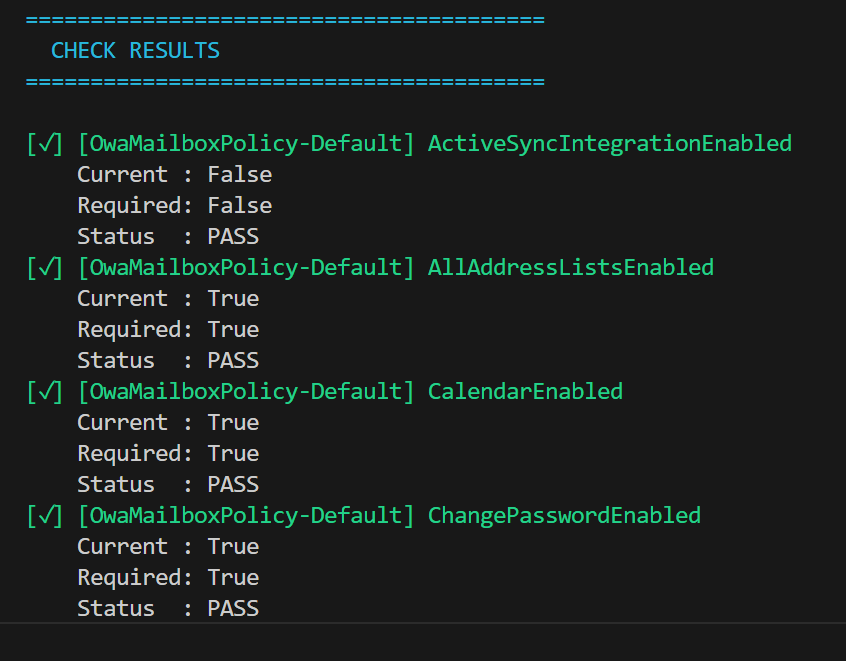
that reads the online JSON file (or uses a local version if you want to use that) and compares the recommended ASD settings to those in your own Exchange Online environment. Note, the script makes NO CHANGES to your environment, it simply reads the current settings.
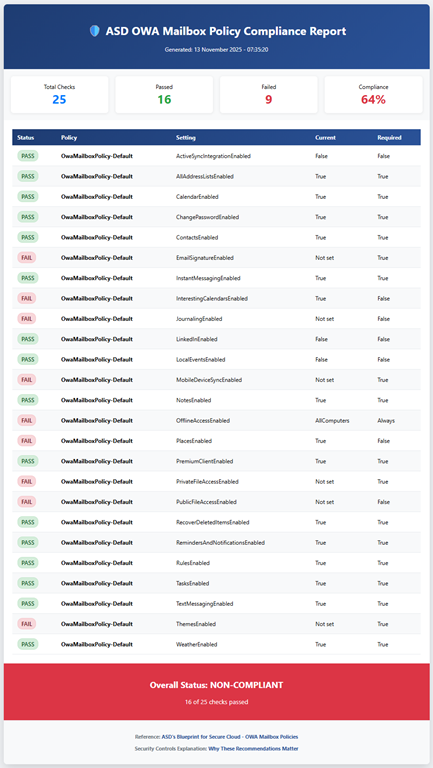
It then produces the console output you see above and a HTML report like this:
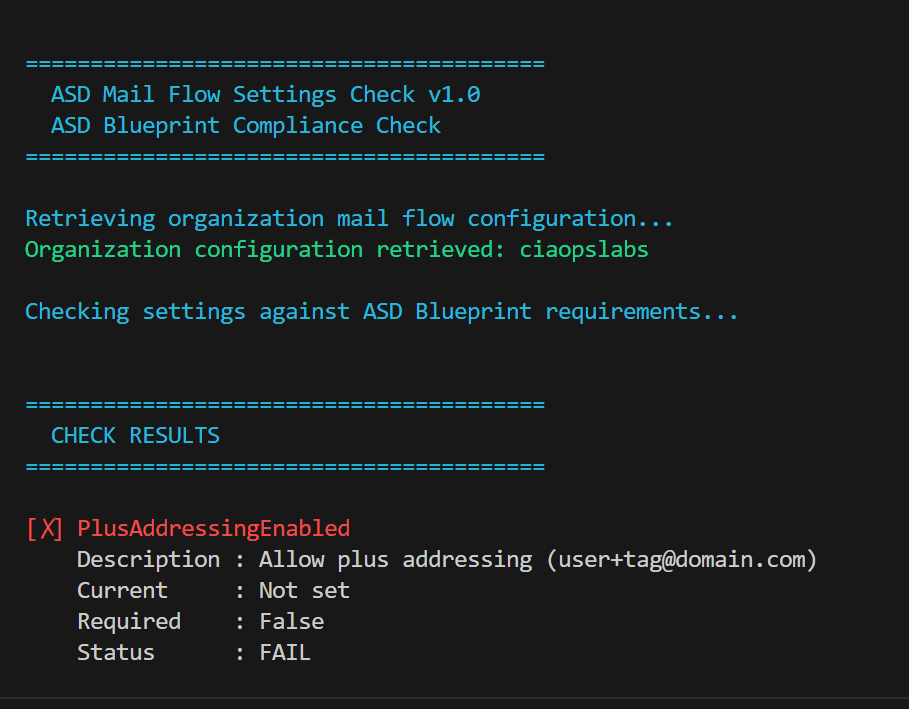
that reads the online JSON file (or uses a local version if you want to use that) and compares the recommended ASD settings to those in your own Exchange Online environment. Note, the script makes NO CHANGES to your environment, it simply reads the current settings.
It then produces the console output you see above and a HTML report like this:
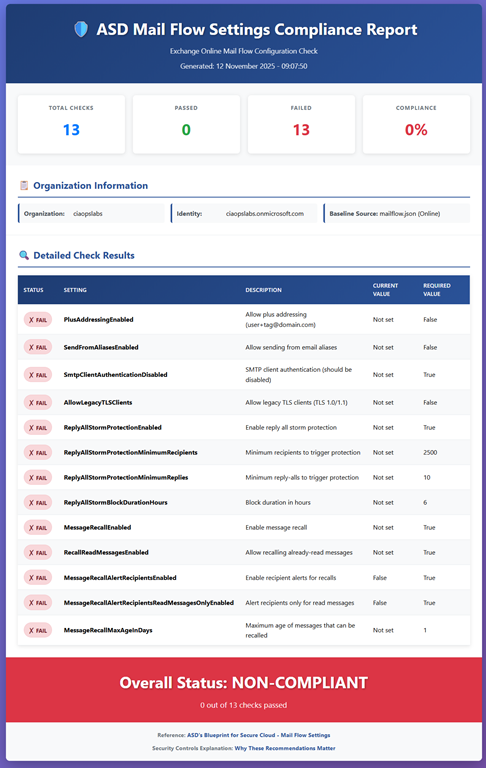
that reads the online JSON file (or uses a local version if you want to use that) and compares the recommended ASD settings to those in your own Exchange Online environment. Note, the script makes NO CHANGES to your environment, it simply reads the current settings.
It then produces the console output you see above and a HTML report like this:
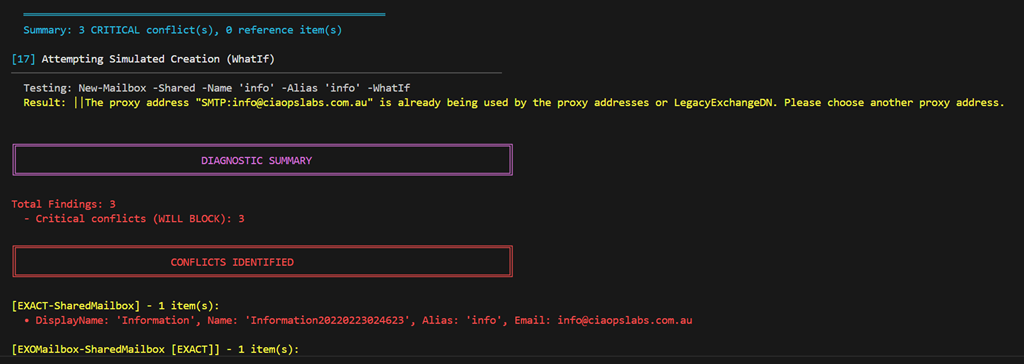
I recently had to move a mailbox alias from an existing mailbox to a hared mailbox. Every time I attempted to do so I received the following error:
The name is already being used. Please try another name
The error isn’t real helpful because it doesn’t tell you exactly what the other object causing the conflict could be. To make life easier and look across the array of places the conflict could be I created the following script:
In my case the issue was with a ‘Name’ value in Entra ID but the script will also give your recommendations on what PowerShell commands to run to overcome any issues it detects. I ran these and I was good to!
Hopefully, this script makes it easier to find any conflicts.
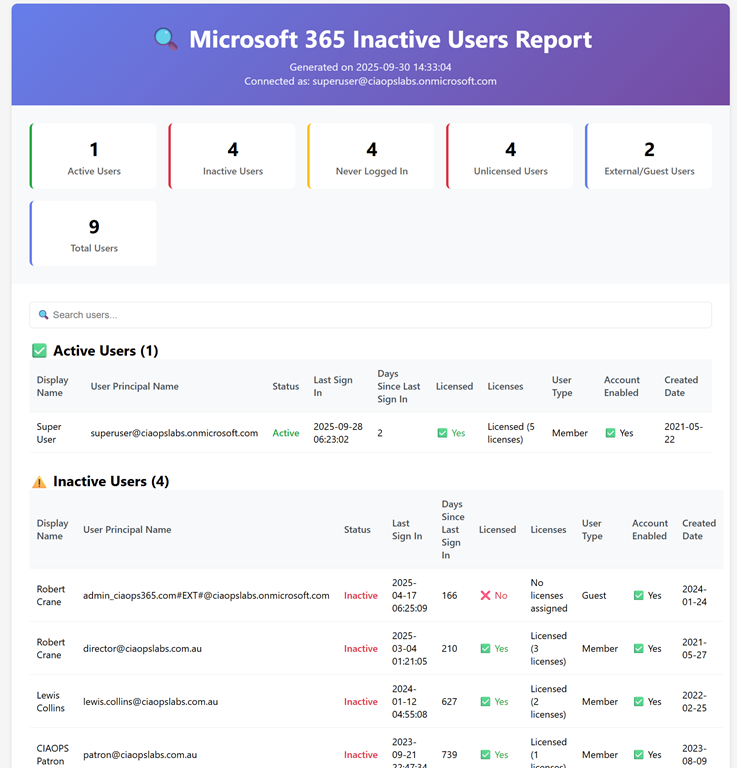
The m365-inactiveusers-get.ps1 script is a comprehensive PowerShell tool designed to analyze user activity within Microsoft 365 tenants. It identifies inactive users, tracks license assignments, monitors external/guest user access, and generates detailed reports to help administrators maintain security and optimize license usage.
This guide will provide a comprehensive, production-safe approach using both the Microsoft 365 Defender portal and Exchange Online PowerShell. We will start with a baseline of security and then layer on advanced protections. The core strategy involves keeping the default EOP anti-malware policy as a foundational safety net while creating a higher-priority, custom policy for sensitive users, such as executives and finance teams. This ensures critical assets have the most aggressive, up-to-date protection without disrupting the entire organisation. We’ll also cover essential features like the Common Attachment Filter, Safe Attachments, Safe Links, and the Zero-hour Auto Purge (ZAP) engine to defend against a wide array of evolving threats, from zero-day malware to sophisticated phishing attacks.
1. Prerequisites & Licensing Checks
Before you begin, it’s crucial to understand your licensing model.
Exchange Online Protection (EOP): This is the baseline email security included with all Microsoft 365 subscriptions (e.g., Business Basic, Standard, E3). It provides fundamental anti-malware and anti-spam protection.
Microsoft Defender for Office 365 (MDO): This is an add-on or an included feature in higher-tier plans (e.g., Microsoft 365 Business Premium, E5). MDO Plan 1 adds Safe Attachments and Safe Links, while MDO Plan 2 adds advanced hunting, investigation, and automation features (e.g., Threat Explorer, Automated Investigation and Response). This guide assumes you may have an MDO licence and will detail the optional add-ons.
2. Policy Inventory & Strategic Approach
Best Practice: Do not modify the Default anti-malware policy. This ensures a consistent baseline of protection across all users who aren’t covered by a custom policy. Instead, create new, more restrictive policies for targeted, high-risk groups. Policies are processed by priority (0 being the highest), so a new custom policy with priority 0 will apply to its users, and the default policy will catch everyone else.
GUI Method: Inventory Existing Policies
Navigate to the Microsoft Defender portal at https://security.microsoft.com.
Go to Email & collaboration → Policies & rules → Threat policies.
Under the Policies section, click on Anti-malware. You will see the default policy and any custom ones you have created.
PowerShell Method: Inventory Existing Policies
First, connect to Exchange Online.
PowerShell
# Connect to Exchange Online PowerShell
Connect-ExchangeOnline -UserPrincipalName <your-admin-email> -ShowProgress:$true
Then, view the current policies.
PowerShell
# Get all malware filter policies and their associated rules
Get-MalwareFilterPolicy
Get-MalwareFilterRule
3. Recommended Anti-malware Settings
This section details the recommended settings for your new custom anti-malware policy.
GUI Method: Creating a New Policy
In the Microsoft Defender portal, go to the Anti-malware page from the previous step.
Click Create a policy.
Give the policy a descriptive Name (e.g., High-Risk Users - Anti-malware Policy) and a Description. Click Next.
On the Users and domains page, choose the users, groups, or domains you want to protect. For our example, select Groups and search for ExecutiveTeam. Click Next.
On the Protection settings page, configure the following:
Protection settings
Enable zero-hour auto purge for malware: This is a service-side feature that, when enabled, automatically removes previously delivered malicious messages from user mailboxes. It’s a key part of EOP and is highly recommended.
Quarantine policy: Use the default AdminOnlyAccessPolicy. The rationale is simple: end-users should not be able to release malware. This prevents them from accidentally or maliciously releasing a dangerous file.
Common attachments filter
Check Enable common attachments filter. This is a powerful, extension-based block list that is a fantastic first line of defence. The list of file types has been expanded by Microsoft, but you should periodically review it.
Click Customize file types and ensure a robust list of high-risk file types is selected. The list should include: exe, dll, js, jse, vbs, vbe, ps1, com, cmd, bat, jar, scr, reg, lnk, msi, msix, iso, img, 7z, zipx. You can also add other file types that are not needed in your environment, such as wsf, wsh, url.
Notifications
Admin notifications: Check Notify an admin about undelivered messages from internal senders and Notify an admin about undelivered messages from external senders. Use your security mailbox for this (e.g., security@contoso.com).
Sender notifications:Do not enable Notify internal sender or Notify external sender. Notifying external senders can validate their address for future spam, and an internal sender’s mailbox might be compromised, which could alert the attacker.
PowerShell Method: Creating and Configuring the Policy
This script is idempotent (you can run it multiple times without errors) and will create or update the policies as needed.
PowerShell
# --- PowerShell Script to Configure Exchange Online Anti-malware Policies ---

# Define variables for your tenant
$tenantDomain = "contoso.com"
$highRiskGroupName = "ExecutiveTeam"
$adminNotificationMailbox = "security@contoso.com"
$policyName = "High-Risk Users - Anti-malware Policy"
$ruleName = "High-Risk Users - Anti-malware Rule"

# Define the common attachment filter file types
$fileTypes = @(
    'ade','adp','ani','app','bas','bat','chm','cmd','com','cpl',
    'crt','csh','dll','exe','fxp','hlp','hta','inf','ins','isp',
    'jar','js','jse','ksh','lnk','mda','mdb','mde','mdt','mdw',
    'mdz','msc','msi','msix','msp','mst','pcd','pif','prg','ps1',
    'reg','scr','sct','shb','shs','url','vb','vbe','vbs','wsc',
    'wsf','wsh','xnk','iso','img','7z','zipx','docm','xlsm'
)

# Connect to Exchange Online
Connect-ExchangeOnline -UserPrincipalName $adminNotificationMailbox -ShowProgress:$true

# Check if the policy exists
$policy = Get-MalwareFilterPolicy -Identity $policyName -ErrorAction SilentlyContinue

if ($null -ne $policy) {
    Write-Host "Policy '$policyName' already exists. Updating settings..." -ForegroundColor Yellow
    Set-MalwareFilterPolicy -Identity $policyName `
        -Action DeleteMessage `
        -EnableFileFilter:$true `
        -FileTypes $fileTypes `
        -EnableInternalSenderAdminNotifications:$true `
        -EnableExternalSenderAdminNotifications:$true `
        -AdminDisplayName "Custom policy for high-risk users."
} else {
    Write-Host "Policy '$policyName' not found. Creating a new one..." -ForegroundColor Green
    New-MalwareFilterPolicy -Name $policyName `
        -Action DeleteMessage `
        -EnableFileFilter:$true `
        -FileTypes $fileTypes `
        -EnableInternalSenderAdminNotifications:$true `
        -EnableExternalSenderAdminNotifications:$true `
        -AdminDisplayName "Custom policy for high-risk users."
}

# Check if the rule exists
$rule = Get-MalwareFilterRule -Identity $ruleName -ErrorAction SilentlyContinue

if ($null -ne $rule) {
    Write-Host "Rule '$ruleName' already exists. Updating settings..." -ForegroundColor Yellow
    Set-MalwareFilterRule -Identity $ruleName `
        -MalwareFilterPolicy $policyName `
        -Comments "Applies to high-risk group." `
        -SentToMemberOf $highRiskGroupName `
        -Priority 0
} else {
    Write-Host "Rule '$ruleName' not found. Creating a new one..." -ForegroundColor Green
    New-MalwareFilterRule -Name $ruleName `
        -MalwareFilterPolicy $policyName `
        -Comments "Applies to high-risk group." `
        -SentToMemberOf $highRiskGroupName `
        -Priority 0
}

Write-Host "Configuration complete. Run 'Get-MalwareFilterPolicy' and 'Get-MalwareFilterRule' to verify." -ForegroundColor Green
4. Defender for Office 365 Add-ons (If Licensed)
These advanced policies provide an additional layer of protection.
Safe Attachments: This sandboxing technology “detonates” email attachments in a virtual environment to detect zero-day malware.
Block: The most secure option. Messages with attachments are held while being scanned. If a threat is found, the message is blocked and quarantined. This can introduce a short delay (minutes) for emails with attachments.
Dynamic Delivery: A balance between security and user experience. The email body is delivered immediately with a placeholder for the attachment. The attachment is delivered once the scan is complete. Use this for users who can tolerate a minor delay on the attachment itself but need the email content right away. For a high-risk user group, Block is often the recommended setting.
Safe Links: This feature scans URLs at the time of the click, not just upon arrival. If a URL is later determined to be malicious, it will be blocked even if it was safe when the email was first received.
Zero-hour Auto Purge (ZAP): ZAP for malware is included in EOP and is enabled by default. MDO adds ZAP for high-confidence phishing and spam. This is a powerful, service-side feature that removes messages that have already been delivered to a user’s inbox if new threat intelligence indicates they are malicious. There is no per-policy PowerShell switch for this; its behaviour is managed by the service and the policy’s action on detection.
5. Quarantine Policies
Quarantine policies control what users can do with messages held in quarantine.
The default quarantine policy for malware (AdminOnlyAccessPolicy) prevents end-users from releasing messages. This is the recommended setting. You can create a new policy and enable notifications or release requests for other threat types (e.g., spam), but for malware, keep it locked down.
You can set up quarantine notifications (digests) for users, which provide a summary of messages in their quarantine.
6. Testing & Validation
Once your policies are configured, you must validate them.
The EICAR Test
Use a safe, legal test file to validate your policies. The EICAR (European Institute for Computer Antivirus Research) test file is a non-malicious file that all major anti-malware programs will detect.
To test the Common Attachment Filter, create a plain text file, rename it to eicar.zip, and place the EICAR string X5O!P%@AP[4\PZX54(P^)7CC)7}$EICAR-STANDARD-ANTIVIRUS-TEST-FILE!$H+H* inside it.
To test Safe Attachments, send a test email with the EICAR file attached (as a .zip or other container) to a user in your test group.
Verifying with Message Trace
In the Microsoft Defender portal, go to Email & collaboration → Exchange message trace.
Search for the test message.
Click on the message to view details. The Event field should show a Fail status with the reason Malware.
Header Analysis: You can also check the message headers. Look for the X-Forefront-Antispam-Report header and the SCL (Spam Confidence Level) and PCL (Phishing Confidence Level) values. A message blocked by an anti-malware policy will have a CAT (Category) entry indicating malware.
7. Ongoing Monitoring & Tuning
Threat Explorer (MDO P2) / Reports (EOP): Regularly review the Threat Explorer (or Reports for EOP) in the Microsoft Defender portal to see what threats are being blocked. This helps you identify trends, attack vectors, and potential false positives.
Configuration Analyzer: Located under Email & collaboration → Policies & rules → Threat policies → Configuration analyzer, this tool compares your custom policies to Microsoft’s recommended Standard and Strict preset security policies. Use it to find and fix settings that are less secure than the recommended baselines.
ORCA Module: The Office 365 Recommended Configuration Analyzer (ORCA) is a community-developed PowerShell module that provides a comprehensive report of your M365 security posture. While not an official Microsoft tool, it’s an excellent resource for a deeper dive.
False Positive/Negative Submissions: If a legitimate message is blocked (false positive) or a malicious message gets through (false negative), you must submit it to Microsoft for analysis to improve their detection engines. The submission workflow is found under Actions & submissions → Submissions in the Microsoft Defender portal.
8. Change Control & Rollback
Documentation: Always document any changes made to a policy, including the date, reason, and the specific settings changed.
Phased Rollout: When creating a new policy, first apply it to a small test group before rolling it out to production users.
Rollback: If you encounter issues, you can disable the custom policy in the GUI by toggling its status to Off or with PowerShell using Set-MalwareFilterRule -Identity "Rule Name" -State Disabled. You can also decrease its priority to ensure it no longer applies.
9. Final Checklist
Use this checklist to ensure all best practices have been implemented.
[ ] Prerequisites: Confirm M365 Business Premium or Defender for Office 365 licensing for advanced features.
[ ] Policy Strategy: Leave the default anti-malware policy untouched as a safety net.
[ ] New Policy: Create a new custom anti-malware policy for high-risk users/groups (e.g., ExecutiveTeam).
[ ] Action: Set the action for malware detection to Quarantine the message.
[ ] Common Attachment Filter: Enable and verify a comprehensive list of high-risk file extensions.
[ ] Admin Notifications: Configure admin notifications for malware detections.
[ ] Sender Notifications: Disable notifications for both internal and external senders.
[ ] Safe Attachments (if licensed): Configure a new policy and set the action to Block for high-risk users.
[ ] Safe Links (if licensed): Configure a new policy to scan URLs in emails at the time of click.
[ ] Quarantine Policies: Confirm the quarantine policy for malware is set to AdminOnlyAccessPolicy to prevent user releases.
[ ] Testing: Send a test email with a containerised EICAR file to a user in the new policy’s scope.
[ ] Validation: Use Message Trace to confirm the message was blocked, and review the headers for malware detection results.
[ ] Monitoring: Schedule a regular review of threat reports and submissions.
[ ] Tuning: Address false positives/negatives by submitting them to Microsoft.
[ ] Change Control: Document all changes and have a rollback plan in place.
[ ] Configuration Analyser: Run the Configuration Analyser and compare your policies to Microsoft’s recommended settings.
For more information, refer to these authoritative resources:
Here are 10 tailored prompts you can use with your ASD Secure Cloud Blueprint agent to address common Microsoft 365 Business Premium security concerns for SMBs, with a focus on automated implementation using PowerShell:
🔐 Identity & Access Management
“What are the ASD Blueprint recommendations for securing user identities in M365 Business Premium, and how can I enforce MFA using PowerShell?”
“How does the ASD Blueprint suggest managing admin roles in M365 Business Premium, and what PowerShell scripts can I use to audit and restrict global admin access?”
📁 Data Protection & Information Governance
“What ASD Blueprint controls apply to protecting sensitive data in M365 Business Premium, and how can I automate DLP policy deployment with PowerShell?”
“How can I implement ASD Blueprint-compliant retention policies in Exchange and SharePoint using PowerShell for M365 Business Premium tenants?”
🛡️ Threat Protection
“What are the ASD Blueprint recommendations for Defender for Office 365 in Business Premium, and how can I configure anti-phishing and safe links policies via PowerShell?”
“How can I automate the deployment of Microsoft Defender Antivirus settings across endpoints in line with ASD Blueprint guidance using PowerShell?”
🔍 Auditing & Monitoring
“What audit logging standards does the ASD Blueprint recommend for M365 Business Premium, and how can I enable and export unified audit logs using PowerShell?”
“How can I use PowerShell to monitor mailbox access and detect suspicious activity in accordance with ASD Blueprint security controls?”
🔧 Configuration & Hardening
“What baseline security configurations for Exchange Online and SharePoint Online are recommended by the ASD Blueprint, and how can I apply them using PowerShell?”
“How can I automate the disabling of legacy authentication protocols in M365 Business Premium to meet ASD Blueprint standards using PowerShell?”