Script to delete old installed PowerShell module versions

image

A while ago I wrote a script that report all the previous versions of PowerShell modules that have been installed.

https://blog.ciaops.com/2025/03/28/report-installed-powershell-module-versions/

I’ve now done a script that will allow yoru to delete all these previous versions while retaining the current version. You’ll find that script here:

https://github.com/directorcia/Office365/blob/master/psmodules-del.ps1

# Example usage:
# Remove-OldPSModules                                                  # Process all modules without confirmation
# Remove-OldPSModules -SummaryOnly                                     # Only show summary info, minimize verbose output
# Remove-OldPSModules -ModuleNames “Microsoft.Graph”, “Az”            # Process specific modules
# Remove-OldPSModules -ConfirmUninstall                               # Ask before each removal
# Remove-OldPSModules -WhatIf                                         # Simulation mode, no actual changes
# Remove-OldPSModules -ModuleNames “Az” -ConfirmUninstall -WhatIf     # Combine parameters as needed

You can modify the execution part of the script at the bottom to suit your needs.

Updated Defender for Endpoint Security Baseline

image

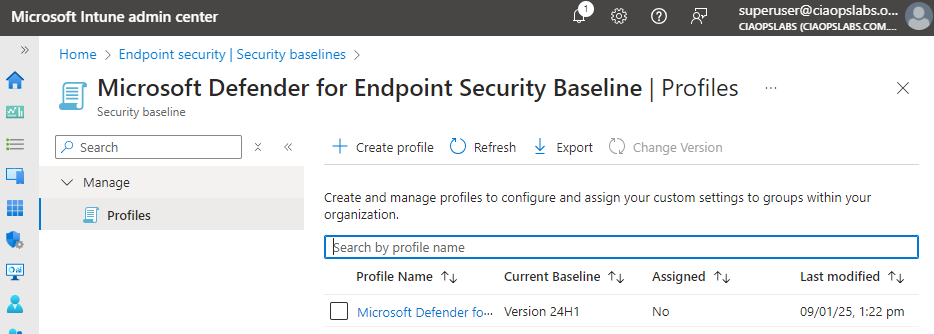
Microsoft has updated the Defender for Endpoint Security Baseline policy in Intune to Version 24H1 as shown above.

I have managed to extract my own best practice JSON configuration file for this policy and make it available at:

https://github.com/directorcia/bp/blob/main/Intune/Policies/Endpoint/Baselines/dep.json

which means you can import this directly into your environment programmatically (I used PowerShell to do exactly this).

The updates to this policy are huge! The previous version config file was about 350 lines, this new 24H1 version is now about 2,300 lines long! This indicated to me that Microsoft is moving more and more settings into theses baselines.

Script to report tenant directory activity

image

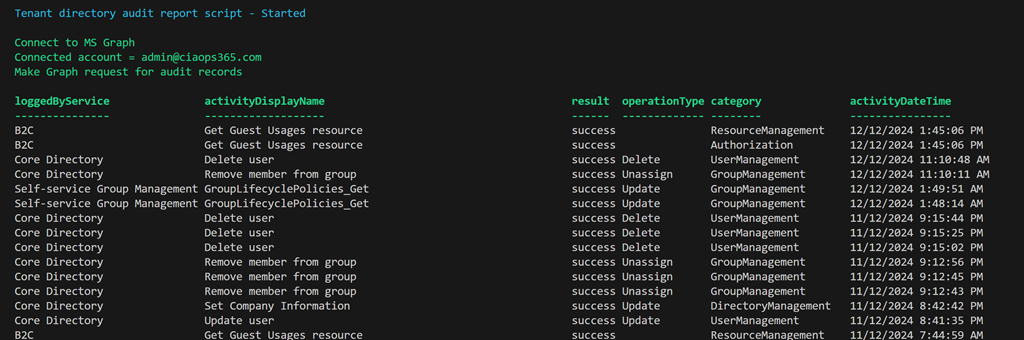
I have created a script that uses the Microsoft Graph to report directory activity for the tenant as shown above. You’ll find it here:

https://github.com/directorcia/Office365/blob/master/graph-diraudit-get.ps1

along with the documentation here:

https://github.com/directorcia/Office365/wiki/Report-directory-activity-in-a-tenant

You will need to have the Microsoft Graph PowerShell module installed and up to date.

The first time you run the script you maybe prompted to login to your tenant and then you may also be asked to provide permissions This script requires:

AuditLog.Read.All
Directory.Read.All

which you may need to consent to the first time.

After the script executes you should see an output as shown above showing the logging service, activity, result, operation, category and time stamp.

You can also use the –csv command line option to put the results to a CSV file in the parent directory.

Script to report tenant signins

image

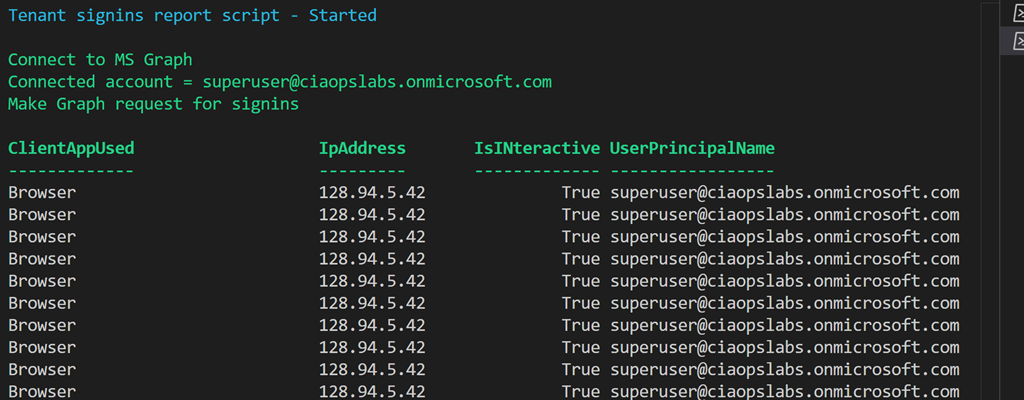
I have created a script that uses the Microsoft Graph to report signins for the tenant as shown above. You’ll find it here:

https://github.com/directorcia/Office365/blob/master/graph-signins-get.ps1

along with the documentation here:

https://github.com/directorcia/Office365/wiki/Get-tenant-signins

You will need to have the Microsoft Graph PowerShell module installed and up to date.

The first time you run the script you maybe prompted to login to your tenant and then you may also be asked to provide permissions This script requires:

AuditLog.Read.All
Directory.Read.All

which you may need to consent to the first time.

After the script executes you should see an output as shown above showing the Client App used, IP Address, is an interactive login and the user principal name.

You can also use the –csv command line option to put the results to a CSV file in the parent directory.

Script to report tenant users

image

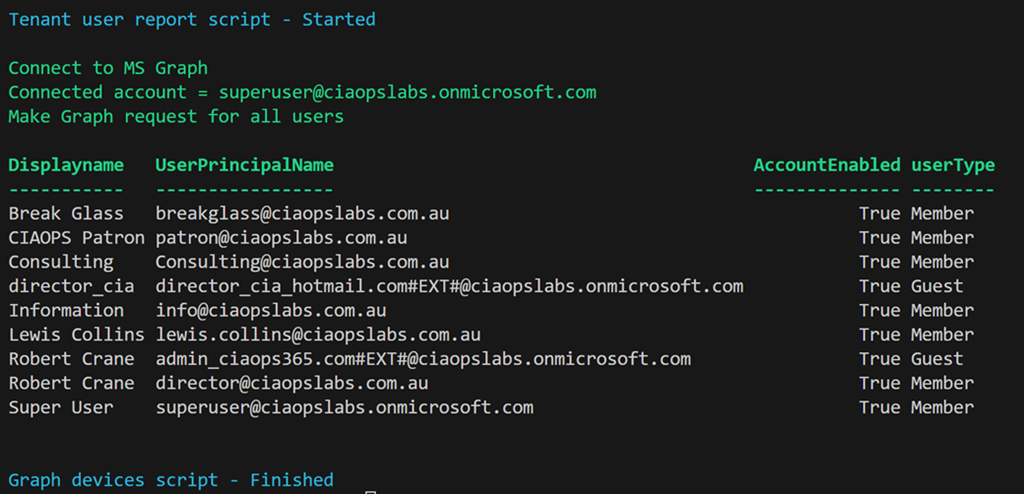
I have created a script that uses the Microsoft Graph to report users for the tenant as shown above. You’ll find it here:

https://github.com/directorcia/Office365/blob/master/graph-users-get.ps1

along with the documentation here:

https://github.com/directorcia/Office365/wiki/Report-Tenant-Users

You will need to have the Microsoft Graph PowerShell module installed and up to date.

The first time you run the script you maybe prompted to login to your tenant and then you may also be asked to provide permissions This script requires:

User.ReadBasic.All,
User.Read.All,
User.ReadWrite.All,
Directory.Read.All,
Directory.ReadWrite.All”

which you may need to consent to the first time.

After the script executes you should see an output as shown above showing the Display name, User Principal Name, whether the account is enabled and the user type.

You can also use the –csv command line option to put the results to a CSV file in the parent directory.

Script to report tenant devices

image

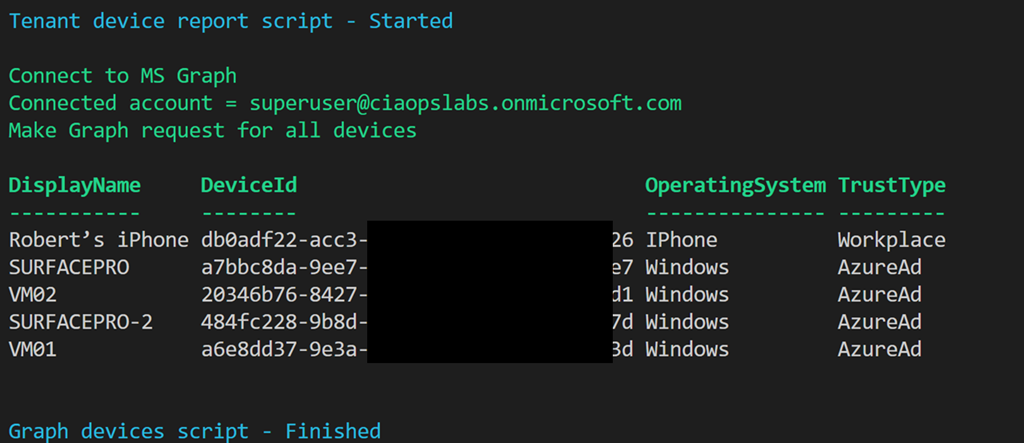
I have created a script that uses the Microsoft Graph to report devices for the tenant as shown above. You’ll find it here:

https://github.com/directorcia/Office365/blob/master/graph-devices-get.ps1

along with the documentation here:

https://github.com/directorcia/Office365/wiki/Report-tenant-devices

You will need to have the Microsoft Graph PowerShell module installed and up to date.

image

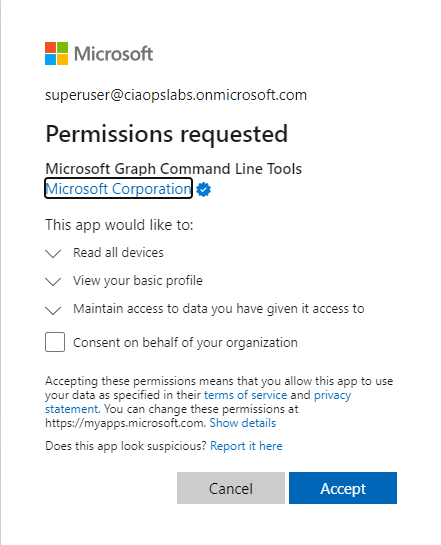
The first time you run the script you maybe prompted to login to your tenant and then you may also be asked to provide permissions as shown above. This script requires:

Device.Read.All

which you may need to consent to the first time.

After the script executes you should see an output as shown above showing the device, device id, operating system and tenant join type.

You can also use the –csv command line option to put the results to a CSV file in the parent directory.