Microsoft 365 Automation presentation

These are the slides from my recent presentation on the automation options available in Microsoft 365.

The most important take away I believe is that we live in a world dominated by software. This fact is highlighted that:

Software is eating the world

There are plenty of reasons not to focus on software as a success path but that major reason to is simply the opportunity it provides, especially if most others believe it is all too hard.

It is important remember that software is a skill not a talent. This means it is something that can learned and improved continually over time. There is no such thing as a born developer. Some may have a higher aptitude to software development than others but that doesn’t means it isn’t something you can develop and learn.

As you ponder the worth of automation, have a look at all the simple processes you repeat continually throughout your day. Why is that? Why are these not automated? We live in a world of abundant technology. Most people carry a computer with them that is more powerful that the one that landed on the moon, yet it seems we all have less time to do the things we really enjoy. Why is that? We have allowed technology to master us, rather than using software to make it do our bidding.

The place to start with Microsoft 365 automation is on the desktop. Applications like Word, Excel, and so on contain the ability to record processes via macros and replay these quickly and easily. In fact it will actually convert these actions into code that can be further modified. Every Office application has a huge set of tools to assist with automating processes.

Although tools like SharePoint Designer have now been depreciated they are still available to use. If you are doing work with SharePoint, especially migration, it is important that you have some idea about the workflows SharePoint Designer creates and how they can be maintained.

Third party services like IFTTT and Zapier provide the ability to connect to Microsoft 365 services. One place that I use IFTTT is to save a backup of each of my blog articles directly to a OneNote file I have saved in OneDrive. I use Zapier to automate my free SharePoint email course offering.

The important consideration here is that the automation does not have to be purely focused on a technical outcome. It can be used in many places inside a business, including marketing.

The Microsoft equivalent of tools like IFTTT is known as Microsoft Flow. It allows to connect to both Microsoft 365 and third party services and map a process around these. The great thing about Flow is that it can integrated to includes on premises resources as well as be extended. More power is also available with tools like Azure Logic App and Azure Functions, which can be easily integrated into Microsoft 365.

Introduction to Microsoft Flow

Automation is also available in Microsoft Teams by utilising either the built in bots or even going far as to build your own. You will also find that Teams has a Flow bot that you can incorporated. This shows you the power of the power of the Microsoft solution via the integration of tools throughout the stack. Delivering automation for a business through a services like Teams makes a lot of sense as many of your users are already here most of the time.

The automation tool that most IT Professionals should be focusing on without doubt is PowerShell. Unfortunately, this seems to be the one that garners the most resistance and there is no doubt that getting started with PowerShell can be challenging. However, there are options like Azure Cloud Shell that make this much easier and also allow you to access PowerShell through a browser or even a mobile app.

The way forward with PowerShell is to use it’s ability to integrate and take advantage of the Microsoft Graph. This avoids the need to load multiple cumbersome service modules. If you are looking to invest your time in PowerShell with Microsoft 365 then you should be investigating how to take advantage of the Microsoft Graph using it.

As a final point to consider, I’d recommend you take a look at the following video from Daniel Pink, especially at this point (from about 29 minutes in):
https://youtu.be/CUDqN7MNsRw?t=1662

Connecting to Cloud App Security API

As I have said previously, I believe Microsoft Cloud App Security is a must have for every tenant:

A great security add on for Microsoft 365

You can also manipulate it via an API and PowerShell. Most of this manipulation is currently mainly to read not set information but that is still handy. Here’s how to set that up.

image

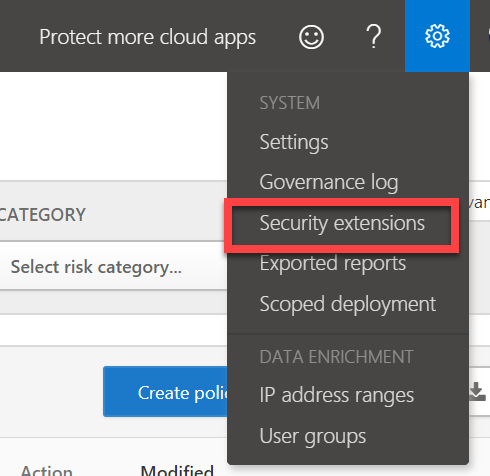
You’ll firstly need to go to the Microsoft Cloud App Security console and select the COG in the upper right corner of the screen. From the menu that appears, select Security Extensions as shown.

image

The option for API tokens should be selected, if not select this. Now select the + button in the top right to generate a new token.

image

Enter a name for this new token and select the Generate button.

image

Your API token should be generated as shown. Copy both the token and the URL and select the Close button. Note, you’ll need to take a copy of you token here as it won’t be available once you move forward.

image

You should now see the token listed in the Microsoft Cloud App Security portal as shown above.

This token can now be utilised to access Microsoft Cloud App Security via PowerShell. I have created a basic script for you to use here:

https://github.com/directorcia/Office365/blob/master/o365-mcas-api.ps1

that will basically return all of the data current in there.

You’ll then need enter the values from this configuration into the script prior to running it:

image

but in essence what that script does is take the token and uri and apply to the invoke-rest method to get a response. That return response contains a whole range of data from Microsoft Cloud App Security.

image

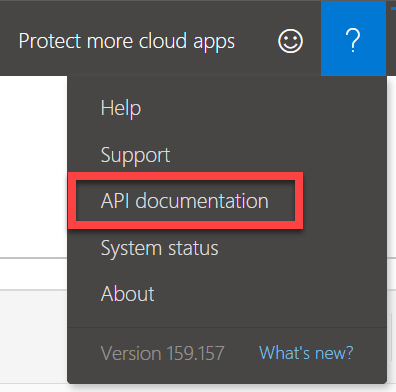
To see what you can and can’t do with the API visit the Microsoft Cloud App Security portal again and select the Question mark in the upper right this time. Select API documentation from the menu that appears.

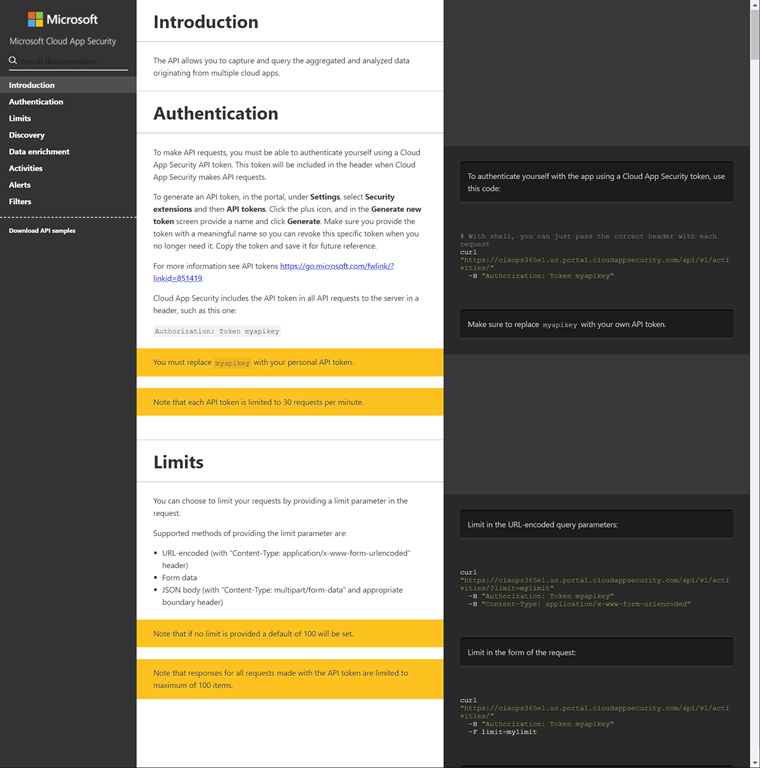
image

In there you’ll find a range of information about the API.

As I said, most of the available command current just “get” information. Hopefully, commands that “set” information aren’t too far away.

Retrieving credentials securely with PowerShell

In a recent article I highlighted how you can securely save credential from PowerShell to a local file using the Export-Clixml command here:

Saving credentials securely with PowerShell

The idea with saving credentials securely is that you can now get to them quickly and easily. Just as easily in fact as embedding them into your PowerShell (which is a major no-no). So how do you do that?

You basically use the the import-clixml command like so:

$clientidcreds = import-clixml -path .\clientid.xml

to retrieve them. This will open the client.xml in the current directory, read in the encrypted values (username and password) and store them in the variable $clientidcreds.

Now $clientidcreds.password is a secure string, which means it can’t easily be used as a normal string in PowerShell. No problemo, now jus run the command:

$clientid = [Runtime.InteropServices.Marshal]::PtrToStringAuto([Runtime.InteropServices.Marshal]::SecureStringToBSTR($clientIdcreds.password))

and $clientid will have the plain text variable you initially saved and exported to the secure  XML file.

This is pretty neat eh? It allows you to securely save items such as oAuth and API keys in a secure file on you machine and then recall them quickly and easily with the above commands and use them in your PowerShell code.

Saving credentials securely with PowerShell

There are times when you want to securely save and retrieve information in PowerShell. Saving things like passwords and other credentials to plain text is not a good idea at all. To avoid that, you can use the Secure string feature of PowerShell. The most common way to do this is via the command:

$Secure = Read-Host –AsSecureString

This creates a secure string. After you enter the command, any characters that you type are converted into a secure string and then saved in the $secure variable. With this command, the characters you enter are not displayed on the screen.

image

Because the $secure variable contains a secure string, PowerShell displays only the System.Security.SecureString text when you try and view it. So the information to be secured is now saved as a protected variable called $secure in PowerShell. How can this now be written securely to a file so that it can be re-used later and still remain protected, even on the disk?

You can use the command Export-Clixml because a valuable use of this on Windows computers is to export credentials and secure strings securely as XML.

Thus, a better way to capture the value you want to save securely is probably via:

$Secure = get-credential -credential ClientID

image

Which will prompt you for the information as shown above. You will note that the User name filed has already been created thanks to the –credential parameter.

This will then give you a variable with a username (here ClientID) and a secure string that is a PowerShell credential.

You can then save the information via:

$clientid | Export-CliXml -Path .\clientid.xml

image

If the Export-Clixml is used to save that variable to a file (here clientid.xml), it will save it like shown above. You will note that the Password field is encrypted. This is where the secure information is kept, which is great, since it is now encrypted on disk.

The other great thing about using Export-Clixml is that:

The Export-Clixml cmdlet encrypts credential objects by using the Windows Data Protection API. The encryption ensures that only your user account on only that computer can decrypt the contents of the credential object. The exported CLIXML file can’t be used on a different computer or by a different user.

image

Thus, if the file with the saved and encrypted information is copied and used by another login on the same machine or on a different machine, you get the above result. Basically, it can’t be decrypted.

Of course, this isn’t perfect, but it does mean that once you have saved the information using the above technique the only way it can be decrypted is via the same logon on to the same machine. This means you don’t need to have secure variables saved as plain text inside scripts or in unprotected files on disk that can be copied and work anywhere. With this technique you can ensure that information saved to a file is encrypted and cannot be used by any other user or by any other machine. Thus, if someone got hold of the file, the information couldn’t be viewed or decrypted and thus access would be denied.

Hopefully, that should allow you to develop more secure PowerShell scripting.

Bringing colour to PowerShell

image

I like to use colour in PowerShell via the –foreground and –background options to imp0rove the legibility of my scripts. However, with a range of colours to select from it became hard to work out what any combination looked like. I’d like to aim for a standard that looks good on most screens. Problem was I couldn’t really find an easy way to view all these options quickly and easily.

I therefore decided to create my own solutions here:

https://github.com/directorcia/Office365/blob/master/text-colour.ps1

that you can also use. It will basically spit out a line of text for each colour combination so you can see what it actually looks like. This makes it much easier to see which combinations of foreground and background colours work.

Hopefully, this helps others brighten their PowerShell output.

Capturing ALL Microsoft Secure Score items

image

Ok, so you are telling me you have time on your hands and want to improve the security of your Microsoft 365 tenant? Ok, if you are only kind of serious, I’d tell you to go to:

https://security.microsoft.com/securescore

and select the Improvement actions as shown above.

image

That will show you a filtered view of items based on what hasn’t yet been completed in the tenant. In the case above, that equates to 67 items.

Oh, you want more to do you say?

image

Ok, if you remove that filter you’ll see the number in the list increase. In this case up from 67 to 84. That’s 36% increase in things you can address. Enough?

What? You want even more? Are you sure? Really sure?

image

Well, if you are, then the good news is that I have written a script for you that uses the Microsoft Graph to go in and grab all, and I mean ALL, of the secure score items. You’ll find the script in my Office 365 GitHub repo:

https://github.com/directorcia/Office365/blob/master/o365-ssdescpt-get.ps1

Now before you run this scripts, you’ll need to follow the instructions I have written about before:

Access the Microsoft Graph with a script

and set yourself up an OAuth token to access your tenant. You only need to do this once.

You’ll then need enter the values from this configuration into the script prior to running it:

image

You get these three items from the oAuth token set up I set out.

image

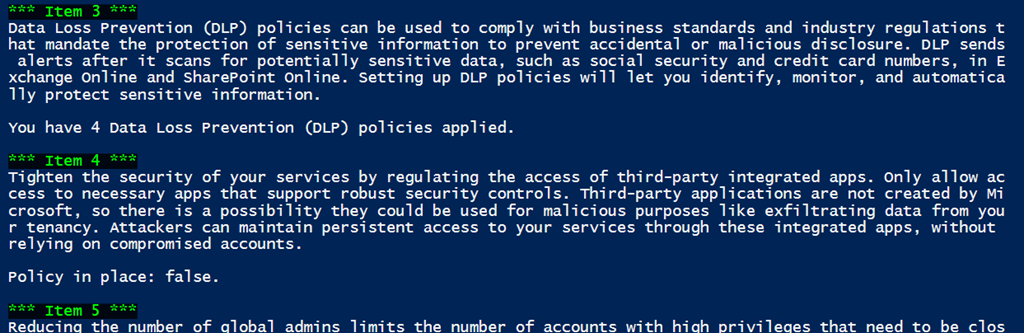
When run, the script will connect to the Microsoft Graph and start reading information from the Secure Score of YOUR tenant. It will also save the output to a text file in the parent directory. Why you ask?

SNAGHTML20f6be5

Well, as you can see from the output from my tenant above, there are now potentially 6,972 items that I can go look at and configure to make my tenant more secure. That’s a 8,200% increase in things to keep you busy.

Remember, you did ask for more after all.

Connecting to Exchange Online with Azure Cloud Shell

I’ve written previously about

Azure Cloud Shell

and how handy it is when it comes to connecting to your tenant with PowerShell. What you may not realise is that you can also Azure Cloud Shell to connect to Exchange Online! All you need to do once you have launched Azure Cloud Shell is run the command:

connect-exopssession

image

As you can see from the above where I have connected and then used the command get-mailbox inside Azure Cloud Shell.
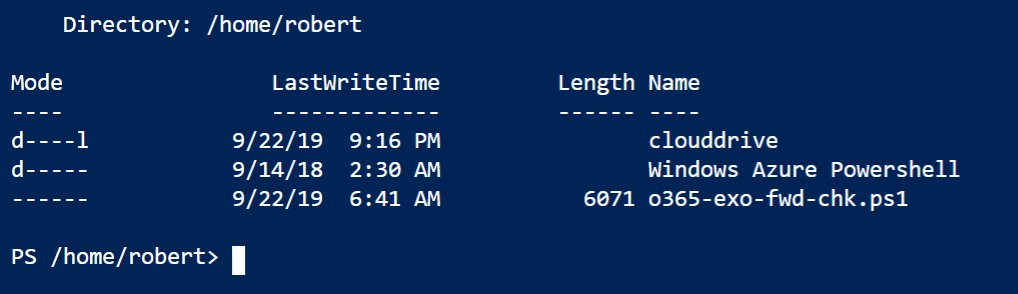
image

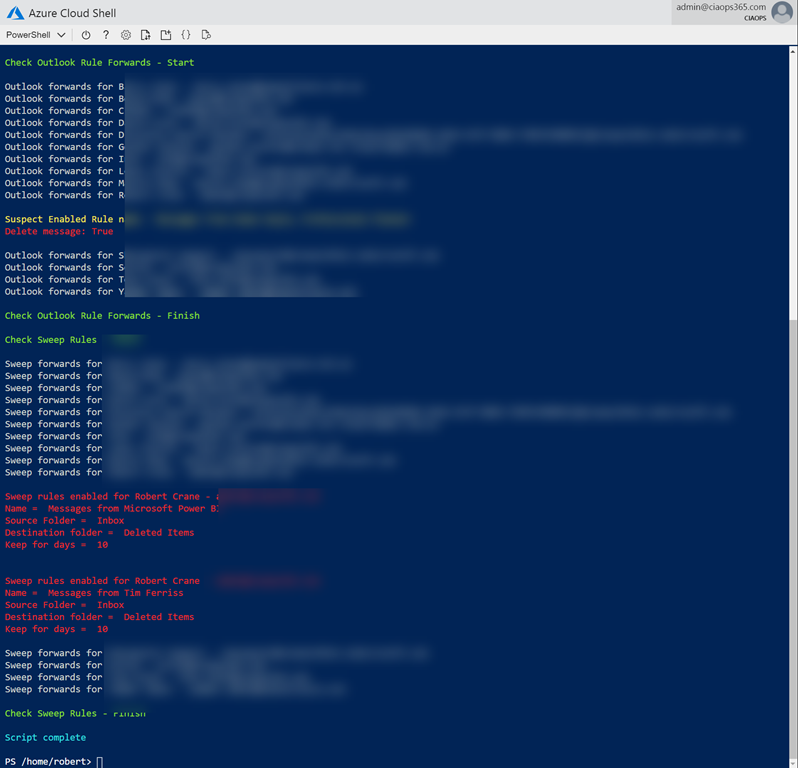
This now means you could copy my mailbox forwarding checking script:

https://github.com/directorcia/Office365/blob/master/o365-exo-fwd-chk.ps1

into your Clouddrive that is part of Azure Cloud Shell and run it.

image

And thanks to Clouddrive it will be there next time you use Azure Cloud Shell. Handy eh? If you want to learn about this capability, visit:

Azure Cloud Shell now supports Exchange Online

New Safe Links option

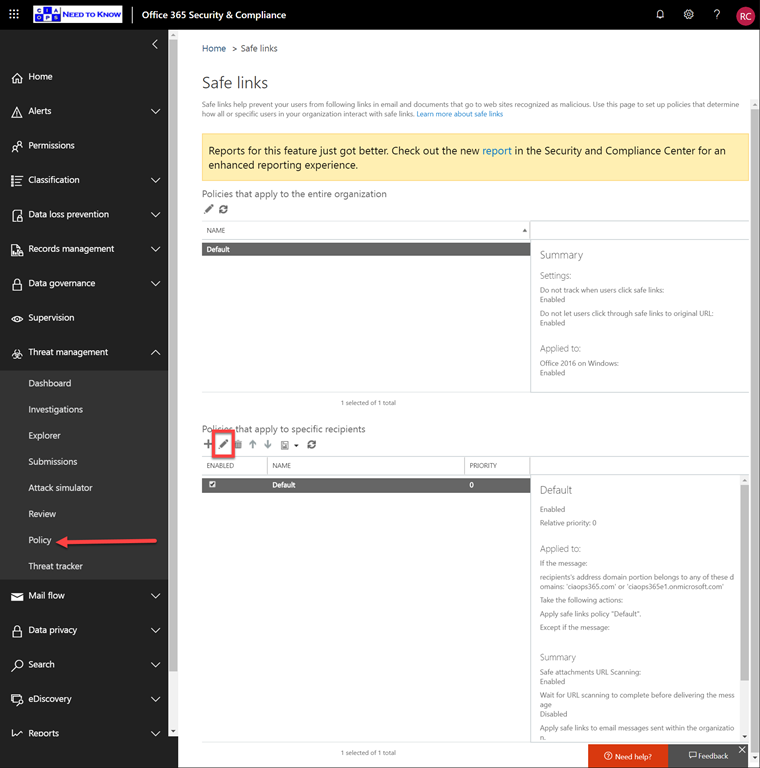
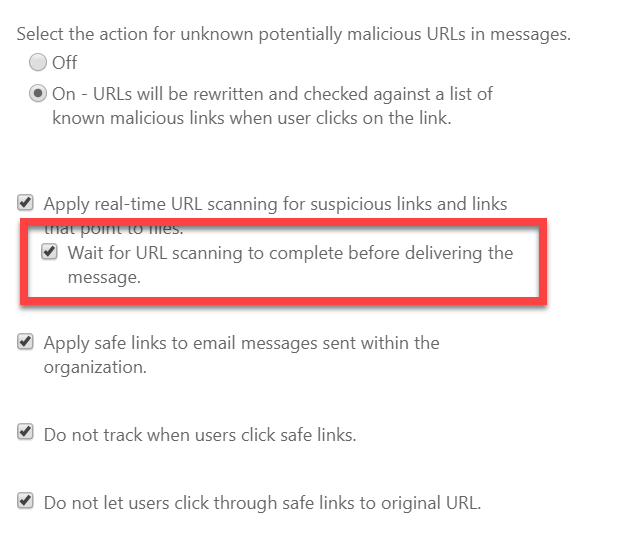
An eagled eye CIAOPS Patron spotted this new option in Office 365 ATP Safe Links:

image

Wait for URL scanning to complete before delivering the message

image

You get to this via the Security and Compliance Centre, Threat Management, Policy, Safe Links. You then select the lower policy option as shown above.

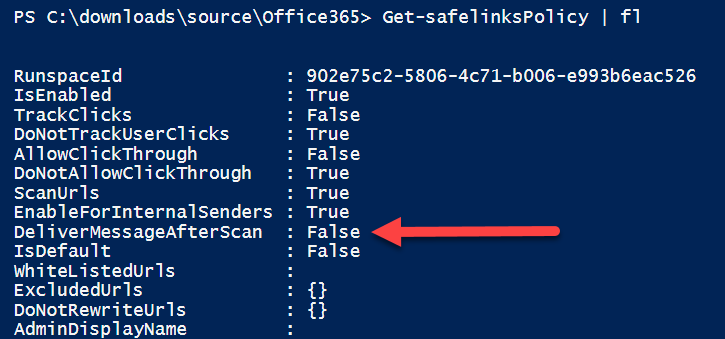
I had a look at the PowerShell for this policy:

image

Indeed, there is now an option:

delivermessageafterscan

as shown above.

Interestingly, there is no mention of this option yet in the:

Set-SafeLinksPolicy

documentation. So I thought I’d try adding it to the existing policy anyway.

image

No error, which is a good sign.

image

Checking back in the GUI, you can now see that option is set.

So, there is now a nice new shiny option that you can set Office 365 ATP Safe Links to prevent a message being delivered to an end user until the links have been fully checked. This now matches the policy option for safe attachments. You can also set this option via PowerShell.