An easier way to connect using PowerShell

If you visit my Office 365 GitHub repository, you’ll find a whole of scripts there you can use for free. A subset of those scripts are designed to make connecting to the various Microsoft Cloud service easier. For example the script:

https://github.com/directorcia/Office365/blob/master/o365-connect-exov2.ps1

allows you to easily connect to Exchange Online using the version 2 module.

While all of this helps, it can still be a bit trickly for people to know what to run when to get connected. So, with that in mind I have created this script:

https://github.com/directorcia/Office365/blob/master/c.ps1

which when run by simply typing

.\c.ps1

in the PowerShell command line

image

will now pop up a dialog as shown above and allow you to select which service which wish to connect to.

image

Even better, you can also select multiple services in this same window. You simply use the CTRL and SHIFT keys to select multiple item, just as you do in any Windows desktop application (like Windows Explorer for files say).

After you have made your selection, those individual service connection scripts will be run.

Of course, the assumption is that you have all of my scripts (including the individual connection scripts) in the same directory. If not, then the connections will not be made. However, if you have ‘cloned’ what I have into a single location on your machine, then you should be all good.

I also created this short script:

https://github.com/directorcia/Office365/blob/master/r.ps1

which you can run at the PowerShell command prompt via:

.\r.ps1

to remove any currently loaded PowerShell sessions as well, quickly and easily.

Hopefully, this new ‘master connection’ script will make it easier for people to connect to the Microsoft Cloud services they need.

Make you you check back regularly to my Github repository for any updates and additions

Exchange Online mailbox check script update

I have just updated another of the free PowerShell scripts I provide on Github. This time o365-mx-check.ps1 has been given an update. You will find it here:

https://github.com/directorcia/Office365/blob/master/o365-mx-check.ps1

1. Prior to running the script you will have needed to install the Exchange Online PowerShell module. To set up your PowerShell environment I suggest you check out:

2. Connect to Exchange Online with PowerShell. For that I recommend you use my script:

That should result in you being connected to Exchange Online PowerShell as shown above.

Once you have your PowerShell environment setup, you simply run the o365-mx-check.ps1 script at the PowerShell prompt.

image

After checking that the Exchange Online PowerShell module is loaded and connected, the script will loop through all the mailboxes in your tenant.

image

For each mailbox it will check and display a number of settings as shown above including:

  • Users Display name and principal name
  • The primary outbound email address the mailbox uses
  • When the mailbox was created
  • Whether auditing is enabled for the mailbox
  • What the maximum age limit of audit log entries for the mailbox
  • Deleted items retention period
  • If Litigation Hold is enabled
  • If mailbox archiving is enabled
  • The maximum message send size
  • The maximum message receive size
  • If POP3 is enabled for the mailbox
  • If IMAP is enabled for the mailbox

Items that are not best practices will be highlighted in red for your attention as shown above.

By default, these results will only display on the screen, however if you specify the optional –CSV parameter when you run the script like:

.\o365-mx-alert –csv

A CSV file with the output will be created in the parent directory.

image

You will see the name of the CSV created at the end of the script as shown above.

image

Each CSV file is timestamped to ensure that a unique file will be created each time the script is run.

A log file, o365-mx-alert.txt is also created in the parent directory as well on each run.

image

The log file will be overwritten each time the script is run.

Thus, the o365-mx-check.ps1 script has 1 optional parameter, that can be used:

-csv = output all logs for period to a CSV file in the parent directory. A new CSV file is created for each script execution

The script will also produce a log file (o365-mx-check.txt) in the parent directory, that is overwritten on the each run of the script.

You will find this script and all my publicly available scripts at:

http://github.com/directorcia

Don’t forget to check back there regularly for updates. Also, if you have any feedback or suggestion on this script or what you’d like to see me create, please let me know. I also maintain a large array of additional scripts via a paid subscription. More details of that can be found at www.ciaopspatron.com.

Audit script update

About two years ago I created a free PowerShell script to report on tenant logins by checking the Unified Audit Log. You’ll find that original article here:

Auditing Office 365 user logins via PowerShell

I’ve now updated the script and added some functionality as well. But before you go off and run the script, make sure you have completed the pre-requisites:

1. You’ll need to ensure that you have enabled your Unified Audit Logs in the tenant. You can see how to do that here:

2. Prior to running the script you will have needed to install the Exchange Online PowerShell module. To set up your PowerShell environment I suggest you check out:

3. Connect to Exchange Online with PowerShell. For that I recommend you use my script:

image

Once you have your PowerShell environment setup, you simply run the o365-connect-exov2.ps1 script as shown above.

image

That should result in you being connected to Exchange Online PowerShell as shown above.

image

At this point you can now run the o365-login-audit.ps1 script which you will find at:

https://github.com/directorcia/Office365/blob/master/o365-login-audit.ps1

image

That should output the list of user logins from the Unified Audit Log for the past day as shown. It will show you both successful and failed login attempts, the time they occurred, the IP that the login came from the user attempting the login as shown above.

image

If you instead run the o365-login-audit.ps1 script with the –fail parameter as shown above,

image

The output will only display failed login attempt details as shown above.

image

If you run the o365-login-audit.ps1 script with the –days parameter as shown above,

image

You will be prompted to enter the number of previous days you wish to check as shown above beyond the default one day. Remember, the more days you specify, the more logs need to be retrieved, and the longer the process will take.

image

The results will be displayed as before. You will notice the message line in the output to the total number of days being checked.

image

If you instead run the o365-login-audit.ps1 script with the –csv parameter as shown above,

image

You will notice the same output but you will also see a line, as shown above, that confirms the total results have also been sent to a CSV file.

image

if you look the parent directory, from where the script ran, you will find the CSV file (o365-login-audit.csv) mentioned previously as well as the script log file (o365-login-audit.txt).

image

The script log file (o365-login-audit.txt), as shown above, contains the output from what was displayed on the screen when you ran the script. This file is always overwritten when the script runs.

image

The CSV file contains all the log file entries for the period specified. This allows you to open the file in Excel and filter, sort and format as needed. A new CSV is created every time the script is run with the –csv option.

Thus, the o365-login-audit.ps1 script has 3 optional parameters, that can be used in any combination:

-fail = display only failed logins

-days = prompt for total number of days to check from current

-csv = output all logs for period to a CSV file in the parent directory. A new CSV file is created for each script execution

The script will also produce a log file (o365-login-audit.txt) in the parent directory, that is overwritten on the each run of the script.

You will find this script and all my publicly available scripts at:

http://github.com/directorcia

Don’t forget to check back there regularly for updates. Also, if you have any feedback or suggestion on this script or what you’d like to see me create, please let me know. I also maintain a large array of additional scripts via a paid subscription. More details of that can be found at www.ciaopspatron.com.

New Office 365 Safe Attachment options

image

I was updating my security scripts for Office 365 ATP and when I ran it I noticed an option not set, which I highlight in red in my scripts to draw attention to it.

image

I then went and took a look at the Safe Attachments options in my web console, as shown above. I didn’t see any differences there.

image

However, when I visited another tenant, as shown above, I do indeed see a new section as shown. You’ll note however that:

Only available with Microsoft 365 E5 or Microsoft 365 E5 Security license

Thus, if you have the required license there is now a Safe Documents feature that you can enable in the organisation. Once enabled it will:

“will upload user files to Microsoft Defender Advanced Threat Protection (MDATP) for scanning and verification”

You can read more here:

Safe Documents in Office 365 ATP

image

You won’t be able to enable it via PowerShell either, unless you have the appropriate license as shown above.

Uploading Graph credentials to Azure key Vault

If you have been following along with the recent articles I have been posting, you’ll know that I have been detailing how to use saved credentials from an Azure AD application to access multiple tenants using the Microsoft Graph. This post showed you how to create an Azure AD application inside multiple tenants and generate those credentials:
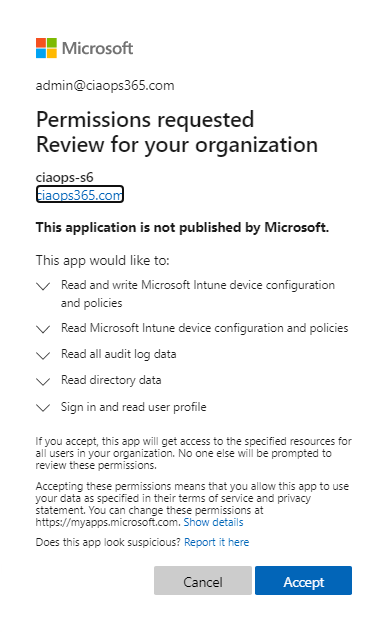
Using the Microsoft Graph with multiple tenants

Part of that process involved saving the Azure AD application credentials into locally encrypted XML files. I detailed how the encryption process for these configuration files locks those files to a single user on a single Windows 10 machine. Thus, if those files were copied to another location they couldn’t be used as you see below.

The potential challenge is, what if you want to use those credentials on multiple machines? And, what happens if the original machine on which those credential resides fails or is inaccessible? What is needed is a process to backup these files to somewhere secure in the cloud. Luckily, I know just the solution – Azure Key Vault.

To make things easy, I have created a free program to upload these credentials into an Azure Key Vault of your choosing. You’ll find the program at:

https://github.com/directorcia/Office365/blob/master/az-keyvault-saveto.exe

image

Simply download it and put into the same directory that the XML credential files for the domains live, as shown above.

image

When you run the program you’ll need to nominate an admin account for the Azure Key Vault destination as well as login into that Azure tenant into which you wish to save the credentials to. That tenant will need to have an Azure paid subscription.

image

Once you have logged into the destination tenant, you’ll be asked to select the subscription you wish to use for the Azure Key Vault. Remember, you need to have a paid Azure subscription to achieve all this.

image

When you enter the name of the destination Azure Resource Group for the destination Azure Key Vault, you’ll be warned if it already exists and if you are happy to use it. If no matching Azure Resource Group is found a new one will be created. Azure Resources Groups are just management containers for things like Azure Key Vaults.

image

You are then asked for the name of destination Azure Key Vault in that Resource Group. Again, the program will check to see if an Azure Key Vault of that name already exists and ask you whether you wish to use it. A single Azure Key Vault can hold many credentials, so using just one is fine if you choose to.

If the Azure Key Vault doesn’t already exist in that Azure Resource Group, a new one will be created with the name entered.

The destination Azure Key Vault will then be checked to determine whether a similar set of credentials already existing in there with the same name. If so, you’ll be given the option to use these existing entries or abort.

In most cases, with an Azure Key Vault with those credentials will not already exist so they can be written into the Azure Key Vault as shown above. At the end of the process, you’ll be given the option to delete the local XML configuration files if you want.

image

This process will continue through all the local XML configuration files for all the domains as shown above.

image

When the program has completed if you go and look in the destination Azure Key Vault, under the Secrets option on the left menu, you should find an entry for each configuration file uploaded as shown.

Effectively, you have now ‘backed up’ the Azure AD application credentials for all the tenants you have configured to a central secure location in Azure Key Vault.

I’ve also created a program here:

https://github.com/directorcia/Office365/blob/master/az-keyvault-saveto.exe

That will copy the credentials from Azure Key Vault and save them as local XML credential files. The good thing with this is now you can ‘restore’ these credentials securely to any Windows 10 machine.

Start by downloading the following file:

https://github.com/directorcia/Office365/blob/master/az-keyvault-saveto.exe

image

and placing it in a location where you want the Azure AD application credentials to be restored to.

image

When you run the program you’ll be asked to login to the Azure tenant with the Azure Key Vault containing the credentials you wish to restore as shown above.

image

You’ll then be prompted to select the subscription inside that tenant in which the Azure Key Vault is located as shown above.

image

Next, you’ll be prompted for the Azure Resource Group in which the Azure Key Vault lives as shown above.

image

Finally, you’ll be asked to select the Azure Key Vault inside that Azure Resource Group in which the credentials are stored. Remember, an Azure Resource Group can have many different resources, including multiple Azure Key Vaults if you choose.

image

The four credentials for each domain will be extracted one at a time and you will be prompted to hit CTRL+V (Paste) to save these in an encrypted format in the local directory. Thus, you’ll need to repeat this CTRL+V (Paste) process four times for each domain. I detailed this process previously if you need to understand it.

image

When the program is complete, if you look in the current directory, you should now see the familiar XML configuration files, four for each domain, as shown above. A copy of these credentials still remains in Azure Key Vault. You can now run any of the other Graph reporting programs on this machine as now the credential files are local o that machine.

These two programs now allow you to save the Azure AD application credential list into Azure Key Vault and restore them from there onto as many other Windows 10 workstations as you wish. Credentials are still stored securely locally and in Azure Key Vault.

Summary report on multiple tenants with the Microsoft Graph

In recent articles I’ve covered off how to add an Azure AD application to multiple tenants, then set the permissions and finally run a report all quickly and easily using automation. You’ll find all that here:

Reporting on multiple tenants with the Microsoft Graph

With those same Azure AD applications and permissions in place I have now developed a program that will provide you a summary report of emails, Teams, OneDrive for Business and SharePoint usage across multiple tenants, all WITHOUT the need to login to any of them!

You’ll find this program available at my GitHub repo here:

https://github.com/directorcia/Office365/blob/master/graph-summary-get.exe

For it to execute you’ll have needed to completed the process I detailed earlier of creating an Azure AD application in every tenant and adding suitable permissions. When that is complete you can simply run the above program. The program will need to be downloaded into the same directory that the tenant configuration files are located and run from there.

image

When it runs, it will get the configuration files in the current directory and access each tenant in order. It will collect information via the Microsoft Graph and then report on emails (above),

image

Teams (above),

image

OneDrive for Business (above),

image

and SharePoint (above). It will do this for each user in each tenant, again without the need to login to the tenant.

Thus, you could use this report to run on a regular schedule and provide details on each of the tenants. because no login is required to the tenants you can do this whole process unattended!

There is lots more that can be done in this manner via the Microsoft Graph, so look out for more stuff I’ll be making available in the future.

Microsoft Graph tenant management summary

I’ve covered a lot in recent articles around using the Microsoft Graph to manage a tenant. You can find those previous articles here:

Reporting on multiple tenants with the Microsoft Graph

Making PowerShell automation easier with the Microsoft Graph

To bring this all together I have created a summary video which you’ll find here:

https://www.youtube.com/watch?v=P3xhE2ESgE8

In it, you see how to use the code that I created to install Azure AD applications in tenants, provide permissions to these Azure AD applications and then finally run a report routine to extract the desired information.

Hopefully, this summary provides a nice easy way to see this concept in action end to end.

Reporting on multiple tenants with the Microsoft Graph

The aim of this project has been to show you how to manage multiple Microsoft 365 tenants quickly, easily and securely using the Microsoft Graph. this article builds on a previous article so go and take a look at:
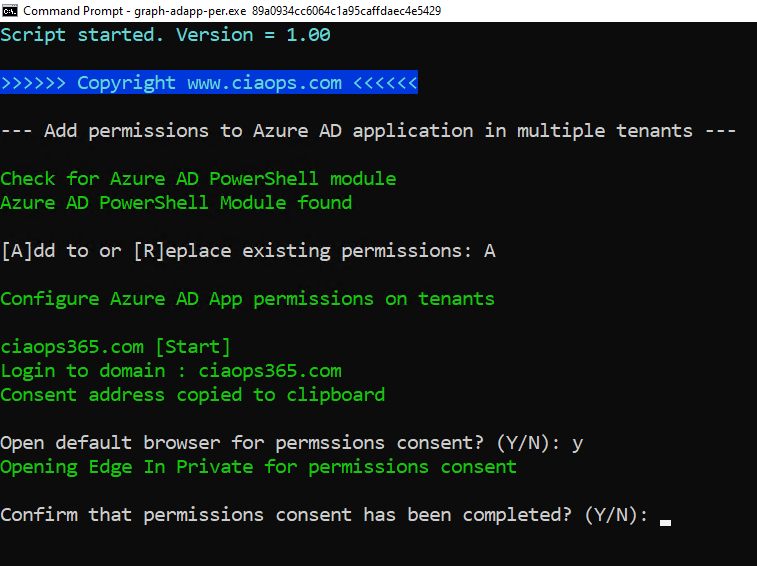
Using the Microsoft Graph with multiple tenants

The complete steps in this whole process are:

1. Embed a ‘static’ Azure AD application in all the tenants you wish to access.

2. Give those ‘static’ Azure AD applications, in all those tenants, the appropriate permissions to access the tenant values.

3. Run a Graph request against these Azure AD applications in each tenant and extract the desired results.

This article will show you how to complete Steps 2 and 3. Step 1 was covered in the previous article.

Step 2 requires granting appropriate permissions to the Azure AD application already in place inside each tenant. The manual process of how to achieve this is covered in my article:

Using interactive PowerShell to access the Microsoft Graph

image

However, why do it manually if you can automate it I say? With that in mind, I have created a self executing PowerShell script to add the appropriate permissions to multiple tenants and allow the reading of OneDrive for Business usage information for all users. You’ll find the program to do this in my GitHub repo here:

https://github.com/directorcia/Office365/blob/master/graph-adapp-per-add.exe

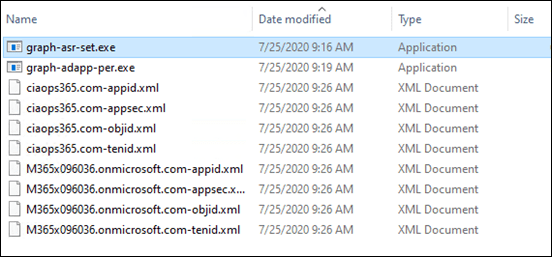
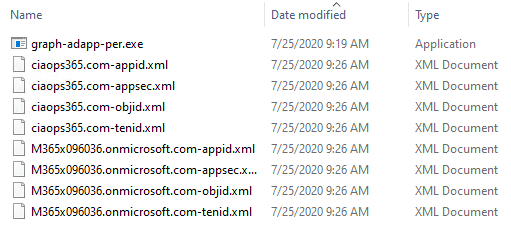
You’ll need to download the file into the location where all the XML configuration files are that were created in Step 1. These will be needed again as the program cycles through all those tenants adding the appropriate permissions.

image

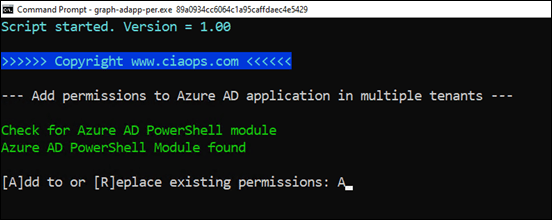
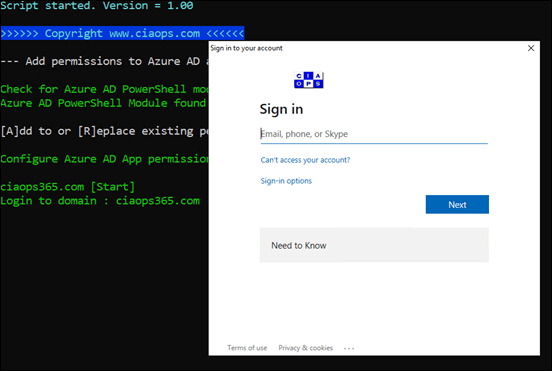
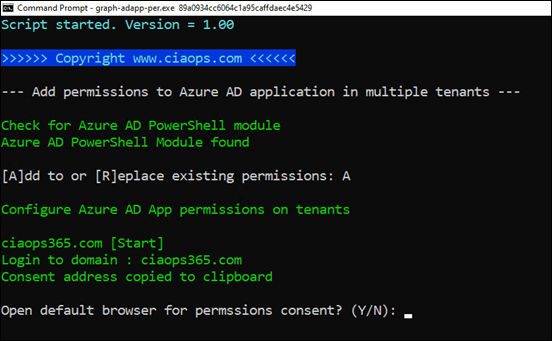
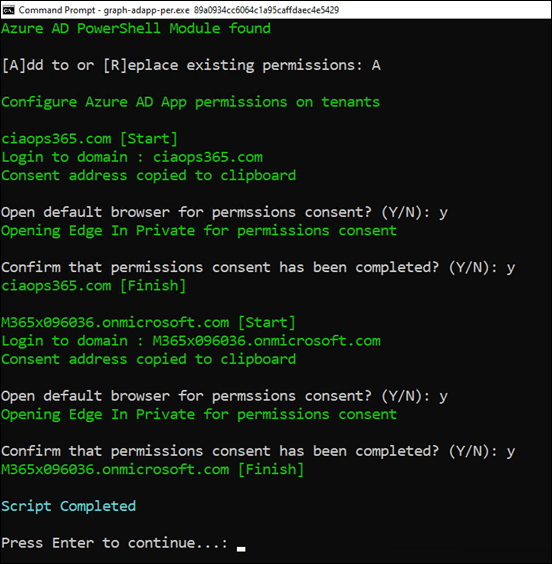
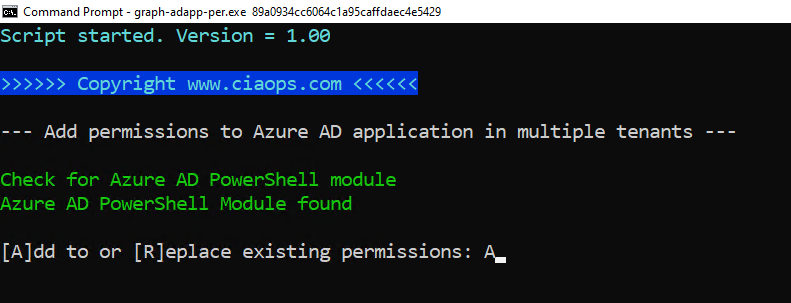
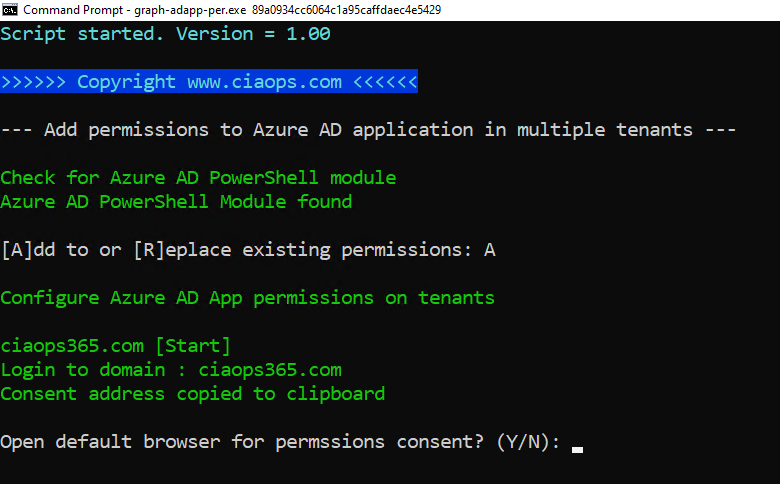
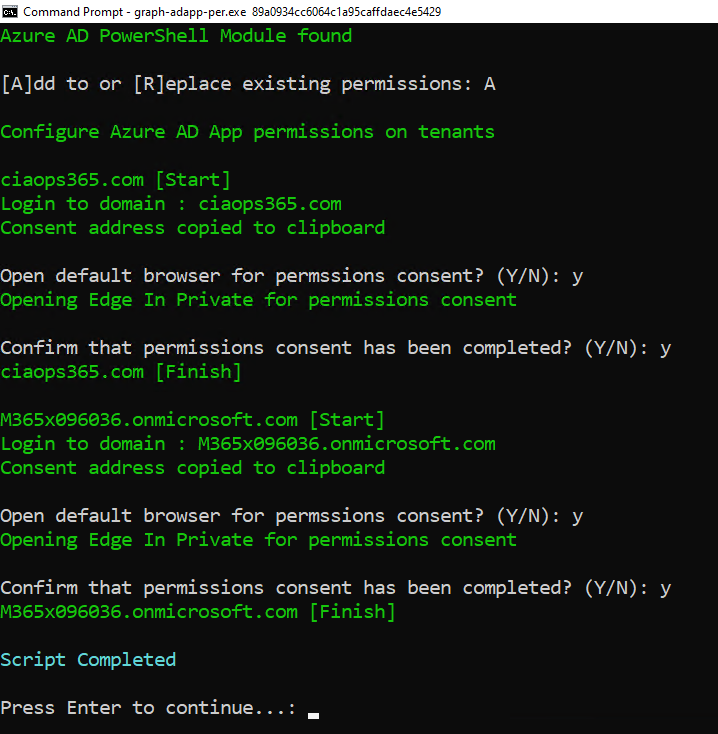
When you run the program, it will read the XML configuration files it finds in the directory and then ask you to login to each tenant again. You need to do this as you are granting/consenting to permissions and that requires administrator access.

image

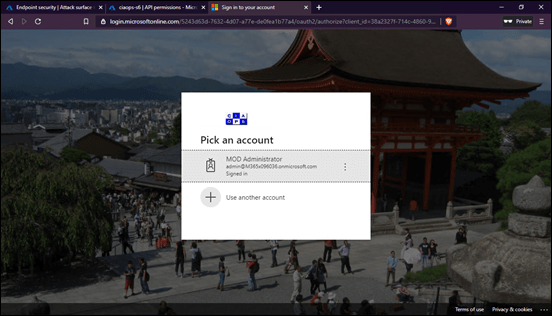
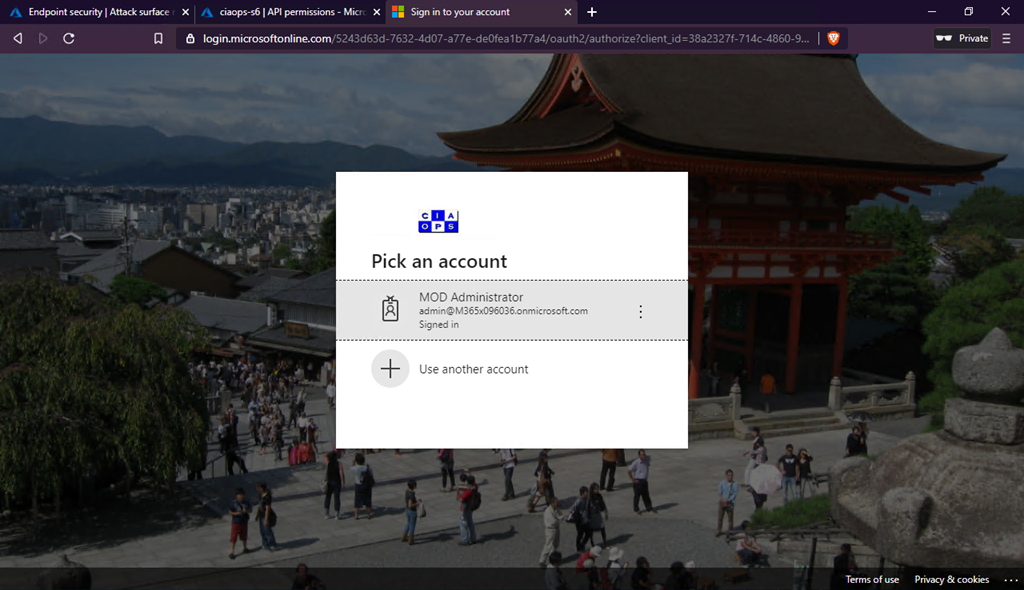
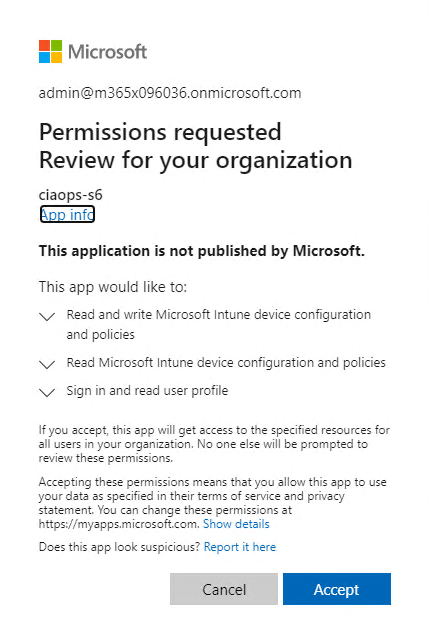
You’ll need to complete the process of opening a browser session to each tenant and Accept the permissions as shown above. You’ll note that, in this case, they are read only permissions.

For more details on this process if you haven’t seen it, take a look at the article I wrote about doing the same thing for a single tenant:

Making PowerShell automation easier with the Microsoft Graph

Remember, that you don’t necessarily have to open the default browser all the time as the consent URL is always copied to the clipboard, so you could just past it into existing active sessions for that tenant if you wished.

image

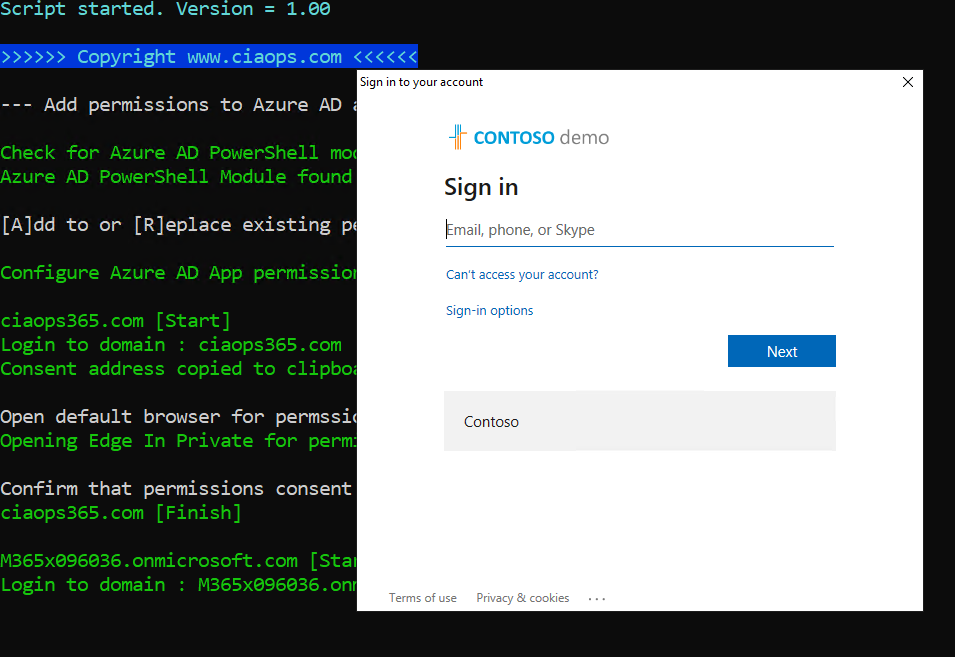
The program will work through all the domains available.

image

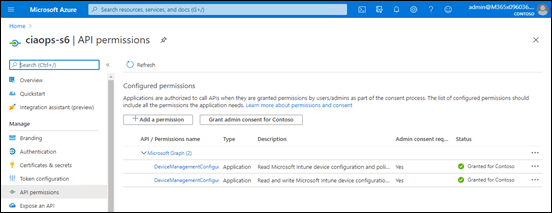
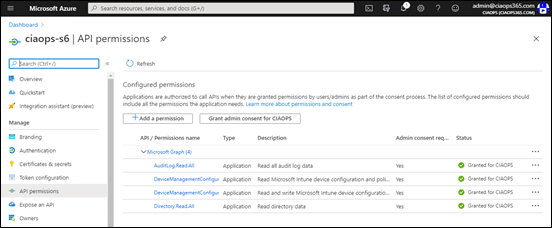
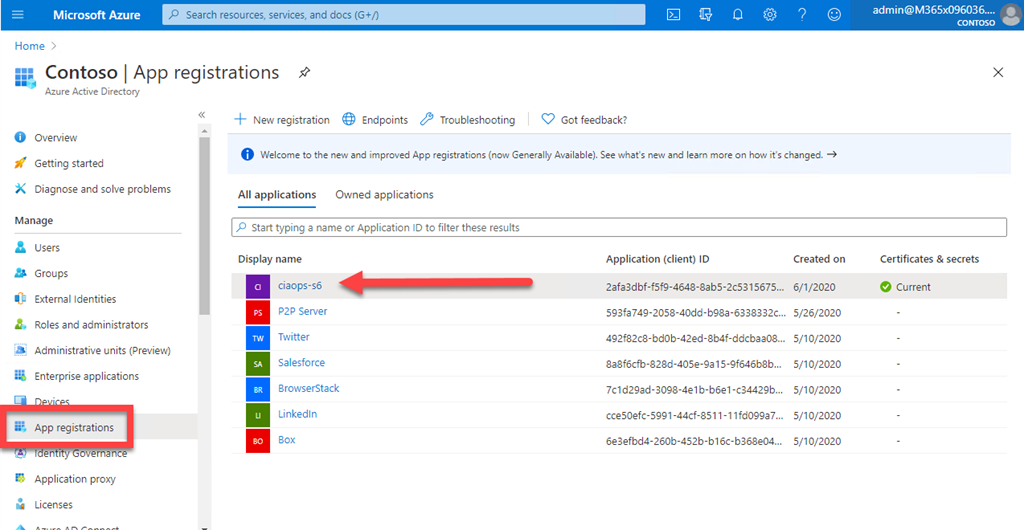
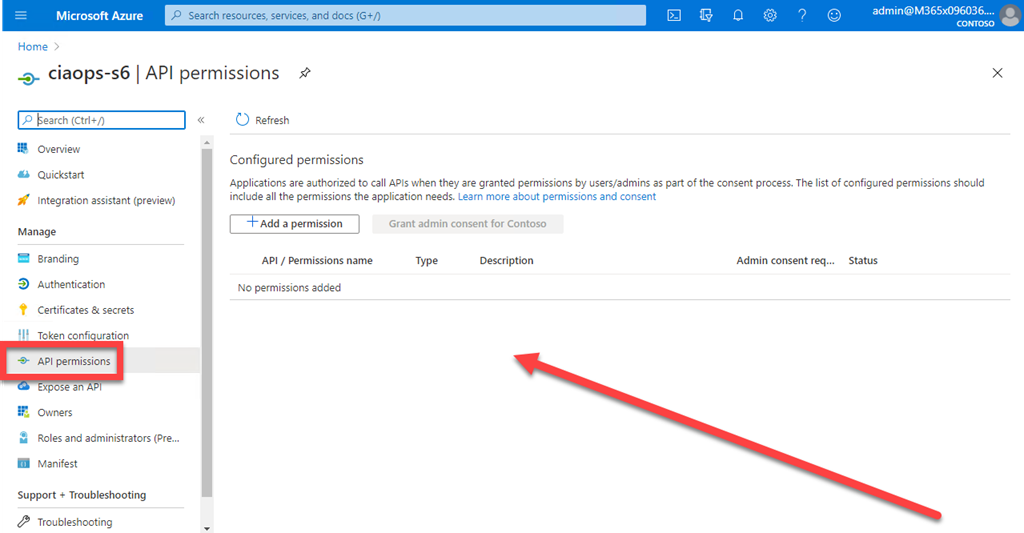
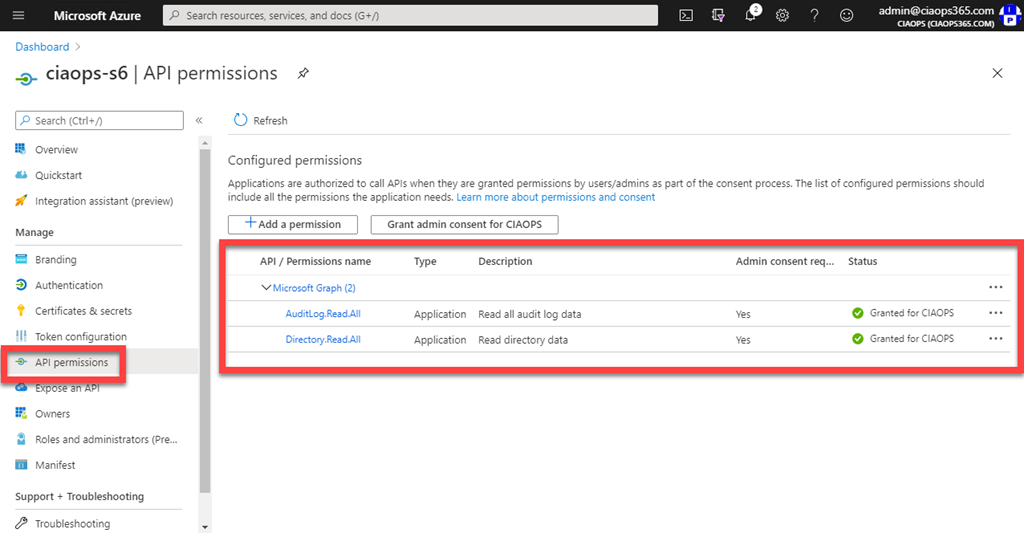
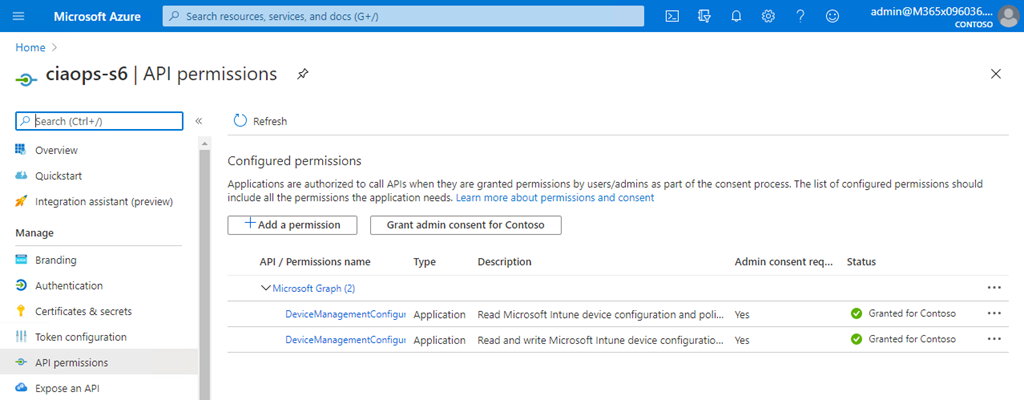
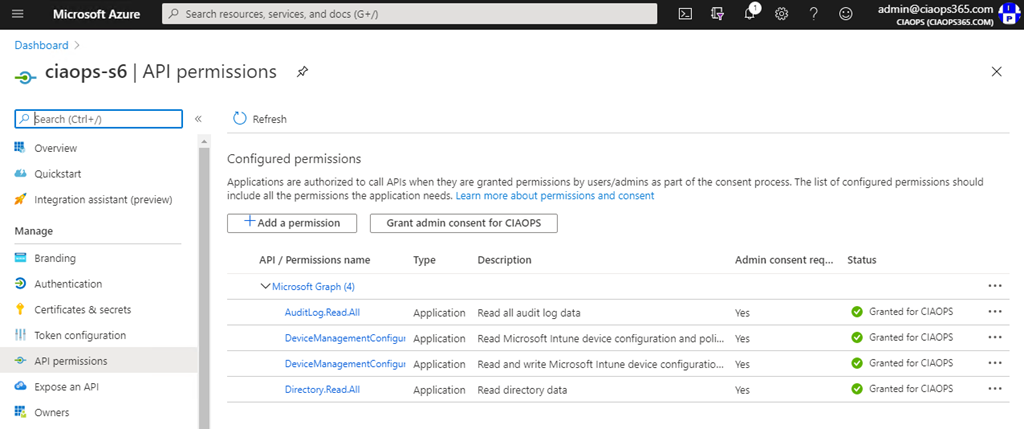
If you want to see what’s happened visit the Azure portal for each tenant. Navigate to Azure Active Directory, then App Registrations, All Applications. Select the name of the Azure AD application you are using, then  API permissions as shown above. You should see that the only permission it has is Read All usage reports. You should not that consent has also been granted.

That now completes Step 2 of the process.

We now have an Azure AD application in all the desired tenants and that Azure AD application has the appropriate permissions to do things. We can now start extracting information by continuing to  Step 3.

image

In this example, we’ll run a program that will retrieve usage information about OneDrive for Business for each user in each tenant, without prompting for a login!

You’ll need to download the program I’ve written to do this (graph-odfb-get.exe), which you’ll find here:

https://github.com/directorcia/Office365/blob/master/graph-odfb-get.exe

Again, you need to place it the same directory where all the tenant configuration files are, as shown above, so it can access all the tenants configured in previous steps.

image

When you run the program, you’ll see the program loop through all the domains and all the users in those domains, without asking for a login.

image

At the end of each domain you’ll see a summary of OneDrive for Business for that domain as shown above.

image

At the end of the process you’ll see an aggregate summary for all your domains, as shown above.

This may seem like a lot of work but remember, you only need to do Steps 1 and 2 ONCE! Once the Azure AD application is configured for each tenant and the Graph has the appropriate permissions you can run Step 3 as MANY TIMES as you wish, securely, WITHOUT be prompted for a login to each tenant! How easy is that to automate?

This example has used just one aspect of the Graph being OneDrive for Business. You can use the Graph to do just about anything in Microsoft 365 you need to, including actually changing and update parameters!. In fact that is what I’m off to do right now.