Need to Know podcast–Episode 350

In Episode 350 of the CIAOPS “Need to Know” podcast, along with the latest news from the Microsoft Cloud, we explore how Microsoft Power Pages is revolutionising web development for SMBs. Learn how this low-code platform enables businesses to build secure, scalable portals—without needing full-stack developers. From customer support portals to partner onboarding, discover real-world use cases, a step-by-step guide to building your first portal, and how Managed Service Providers (MSPs) can offer Power Pages as a service. This episode is a must-listen for IT professionals, MSPs, and business leaders driving digital transformation.

Brought to you by www.ciaopspatron.com

you can listen directly to this episode at:

https://ciaops.podbean.com/e/episode-350-power-up/

Subscribe via iTunes at:

https://itunes.apple.com/au/podcast/ciaops-need-to-know-podcasts/id406891445?mt=2

or Spotify:

https://open.spotify.com/show/7ejj00cOuw8977GnnE2lPb

Don’t forget to give the show a rating as well as send me any feedback or suggestions you may have for the show.

Resources

CIAOPS Need to Know podcast – CIAOPS – Need to Know podcasts | CIAOPS

X – https://www.twitter.com/directorcia

Join my Teams shared channel – Join my Teams Shared Channel – CIAOPS

CIAOPS Merch store – CIAOPS

Become a CIAOPS Patron – CIAOPS Patron

CIAOPS Blog – CIAOPS – Information about SharePoint, Microsoft 365, Azure, Mobility and Productivity from the Computer Information Agency

CIAOPS Brief – CIA Brief – CIAOPS

CIAOPS Labs – CIAOPS Labs – The Special Activities Division of the CIAOPS

Support CIAOPS – https://ko-fi.com/ciaops

Get your M365 questions answered via email

Show Notes

Security & Compliance
AI & Copilot
Learning & Productivity
Threat Intelligence
Platform & Tools
Recognition & Industry Updates
AI Governance & Design
Media & Branding

Getting started with the Microsoft Power Platform

image

The goal is to empower you (and your colleagues) to build solutions *without* necessarily needing deep coding expertise, focusing on productivity boosts and automating those repetitive tasks.

What is the Power Platform?

Think of it as a suite of low-code/no-code tools that work seamlessly with Microsoft 365 (and many other services) to:

  1. Power Apps: Build custom applications (mobile or web) for specific tasks or processes.

  2. Power Automate: Automate workflows and repetitive tasks between different apps and services.

  3. Power BI: Analyze data and create interactive dashboards and reports (often used alongside the others, but slightly different focus).

  4. Power Virtual Agents: Build intelligent chatbots without code.

  5. (Underlying) Dataverse: A secure, scalable data platform to store and manage data used by your Power Platform solutions (think of it as a sophisticated database optimized for business apps).

For quick and easy productivity gains and automation, we’ll primarily focus on Power Apps and Power Automate.

Prerequisites & Access

  1. Microsoft 365 License: Most standard Microsoft 365 Business or Enterprise licenses (like E3, E5, Business Standard, Business Premium) include foundational Power Platform capabilities. This typically covers:

    • Running apps.

    • Creating flows with Standard connectors (like SharePoint, Outlook, Teams, OneDrive, Forms, Excel Online).

    • Limited Dataverse usage.

    • Important Note: Using Premium connectors (like SQL Server, Salesforce, custom APIs), AI Builder features, RPA (Robotic Process Automation), or extensive Dataverse capacity often requires additional standalone Power Apps or Power Automate licenses. Start with what’s included first!
  2. Accessing the Tools:
    • Go to Office.com and sign in with your work account.

    • Click the App Launcher (the “waffle” icon, 9 dots) in the top-left corner.

    • You should see icons for Power Apps and Power Automate. If not, click “All apps”.

    • Alternatively, go directly to:

Getting Started: The Strategy

The key is to start small and focus on a specific pain point. Don’t try to boil the ocean.

  1. Identify a Bottleneck or Repetitive Task: What’s something you or your team does regularly that is manual, time-consuming, or prone to errors?

    • Examples: Manually copying data from an email into a spreadsheet, chasing people for approvals, collecting information via long email chains, tracking simple requests on paper or a shared doc.
  2. Choose the Right Tool (Initially):
    • Need to automate a process that runs in the background? (e.g., save email attachments, notify a team when a file is updated, request approval) -> Power Automate is likely your best bet.

    • Need a user interface to interact with data or kick off a process? (e.g., a simple form to submit requests, a way to view and update items in a list, a checklist app) -> Power Apps is probably the way to go. Often, Power Apps and Power Automate work together.
  3. Leverage Templates: This is the ABSOLUTE EASIEST way to start. Both Power Apps and Power Automate have extensive template galleries based on common scenarios.

  4. Connect Your M365 Services: The real power comes from connecting the tools you already use (Outlook, Teams, SharePoint, OneDrive, Forms, Planner, etc.).

  5. Build, Test, Iterate: Your first attempt won’t be perfect. Build something simple, test it, get feedback, and refine it.

Detailed Steps with Examples:

Scenario 1: Automating Email Attachments to OneDrive (Using Power Automate)

  • Pain Point: You receive regular reports via email from a specific sender and have to manually save the attachments to a designated OneDrive folder.

  • Tool: Power Automate

  • Steps:

    1. Go to make.powerautomate.com.

    2. On the left menu, click Templates.

    3. Search for “Save email attachments to OneDrive”. You’ll find several variations. Select one like “Save Office 365 email attachments to a specified OneDrive for Business folder”.

    4. Review the flow description and the connections it needs (Office 365 Outlook, OneDrive for Business).

    5. Click Continue. Power Automate will check if you’re already signed into these services or prompt you to sign in.

    6. Configure the Trigger: The template likely starts with the “When a new email arrives (V3)” trigger. You need to customize it:

      • Folder: Usually Inbox.

      • From: Enter the specific email address of the sender.

      • Include Attachments: Set to Yes.

      • Subject Filter: (Optional but recommended) Enter keywords from the subject line to be more specific (e.g., “Weekly Report”).
    7. Configure the Action(s): The template will have actions like “Apply to each” (to handle multiple attachments) and “Create file” (for OneDrive).

      • In the “Create file” action:

        • Folder Path: Click the folder icon and navigate to the exact OneDrive folder where you want to save the files.

        • File Name: The template usually pre-fills this with Attachments Name (dynamic content from the trigger). This is good.

        • File Content: The template usually pre-fills this with Attachments Content. This is also good.
    8. Save the flow.

    9. Test the flow. You can use the “Test” button in the top-right. Choose “Manually” and then trigger the flow by having an email sent that matches your criteria (or use a recent email if available via automatic testing).

    10. Turn it On: Once saved, the flow is active and will run automatically whenever a new email matching your criteria arrives.
  • Productivity Gain: Saves you minutes every time that email arrives, reduces the chance of forgetting, and keeps files organized automatically.

Scenario 2: Creating a Simple Request Form/Tracker (Using Power Apps & SharePoint)

  • Pain Point: Your team uses email or chat to request small IT support items, making them hard to track and manage.

  • Tools: SharePoint (for data storage), Power Apps (for the user interface)

  • Steps:

    1. Create a SharePoint List:
      • Go to your team’s SharePoint site (or create a new one).

      • Click + New > List.

      • Choose Blank list. Name it something like “IT Support Requests”.

      • Add columns relevant to the request:

        • Title (Rename to “Short Description” – required by default)

        • Requester (Person or Group column, default to current user)

        • RequestDetails (Multiple lines of text)

        • Urgency (Choice column: High, Medium, Low)

        • Status (Choice column: New, In Progress, Completed, Cancelled – default to ‘New’)

        • AssignedTo (Person or Group column – optional initially)

        • CompletionDate (Date and Time column – optional)
    2. Create the Power App:
      • Go to make.powerapps.com.

      • Click Create > SharePoint.

      • It will ask you to select or enter a SharePoint site URL. Find your site.

      • Select the “IT Support Requests” list you just created.

      • Click Create.
    3. Automatic App Generation: Power Apps will automatically generate a basic 3-screen app (Browse, View Details, Edit/Create New) based on your SharePoint list columns!

    4. Customize (Optional but Recommended):
      • Browse Screen: Select the gallery (the list of items). In the right-hand pane (or top formula bar), you can change which fields are displayed. Maybe show Title, Requester, and Status.

      • Edit/New Screen: Select the form. In the right-hand pane, click “Edit fields”. You can reorder fields, change control types (e.g., make RequestDetails bigger), or remove fields you don’t want users filling in (like AssignedTo if only IT assigns). Set the default value for Status to “New”.

      • Theme/Colors: Use the “Theme” option on the Home tab to quickly change the look and feel.
    5. Save the app (give it a meaningful name like “IT Request App”).

    6. Publish the app.

    7. Share the app:

      • Click Share (top right or from the app list).

      • Enter the names or email addresses of the colleagues who need to submit requests.

      • Crucially: Make sure they also have permission to access the underlying SharePoint list! Grant them “Contribute” access to the list itself in SharePoint.

      • Decide if you want to send an email invitation.
    8. Accessing the App: Users can access the app via the Power Apps mobile client, directly from the web link you share, or you can even embed it within a SharePoint page or Microsoft Teams tab for easier access.
  • Productivity Gain: Centralized request tracking, standardized information collection, clear status visibility, replaces messy email/chat trails.

Further Steps & Learning:

  1. Explore More Templates: Both Power Apps and Power Automate have hundreds. Browse them for inspiration.

  2. Learn about Connectors: Understand the difference between Standard (included with M365) and Premium (require extra licenses). Explore the vast list of available connectors.

  3. Combine Power Apps and Power Automate:
    • Trigger a Power Automate flow from a Power App button (e.g., when a new IT request is submitted in the app, trigger a flow to post a notification in a Teams channel).

    • Use Power Automate to update data that your Power App displays.
  4. Microsoft Learn: This is your BEST resource for structured learning. Search for Power Apps and Power Automate paths and modules – many are beginner-focused. (learn.microsoft.com)

  5. Power Platform Community: Ask questions, see what others are building. (powerusers.microsoft.com)

  6. Experiment: The best way to learn is by doing. Pick another small task and try to build a solution! Don’t be afraid to try things out in the editor.

Key Mindset:

  • Low-Code, Not No-Effort: While you don’t need traditional coding, you do need to think logically about process steps (for Automate) and user interface design (for Apps).

  • Iterative Improvement: Your first version is just the start. Use it, get feedback, and make it better over time.

  • Focus on Value: Prioritize automating tasks or building apps that provide the most significant time savings or process improvements first.

By starting small, using templates, and focusing on your existing M365 tools, you can quickly begin leveraging the Power Platform to make a real difference in your daily productivity and reduce manual work. Good luck!

Accessing Azure Key Vault via Power Automate

In a previous article:

Adding a secret to an Azure Key Vault

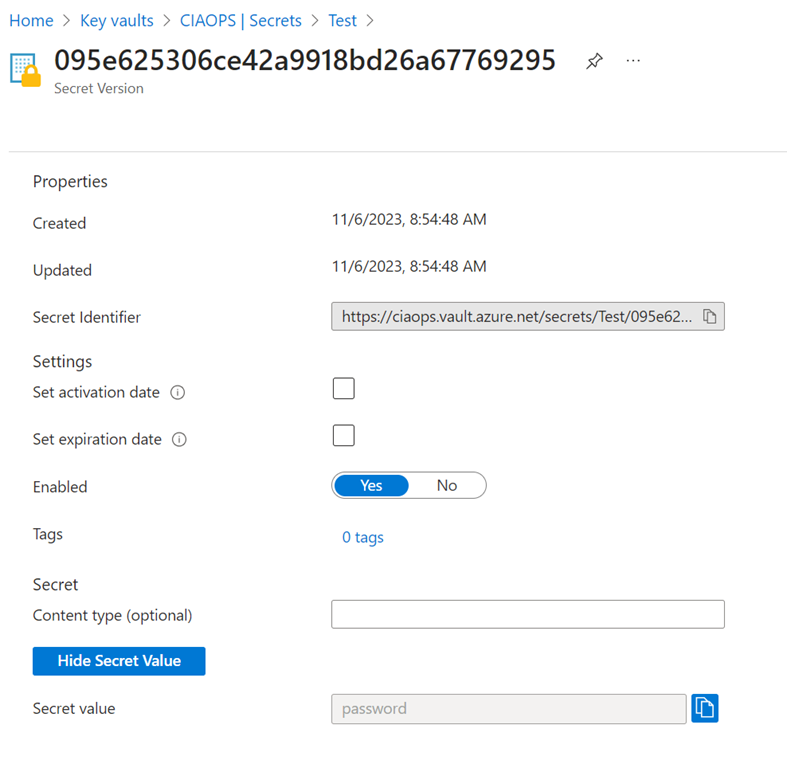
I showed how a secure credential could be saved to an Azure Key Vault and then retrieved either from the browser, or PowerShell. You can however, also retrieve a secret using Power Automate.

image

You can see I have the same ‘super secret’ password stored in the Azure Key Vault above.

The Azure Key Vault connector in Power Automate is a premium connector which means you’ll either need an advanced Power Platform license or you’ll need to set up a

Power Platform PAYG configuration

which is probably the more cost effective approach.

image

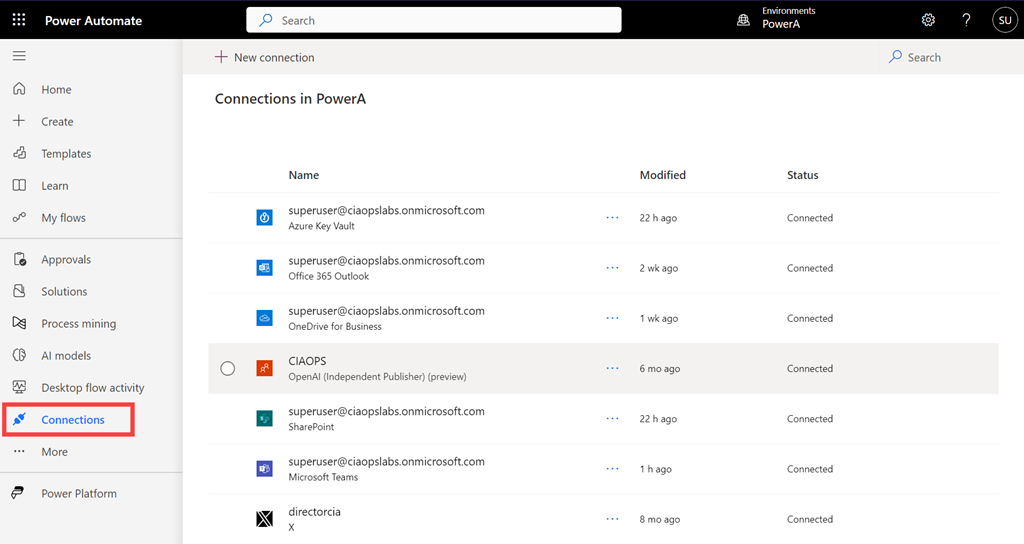
You’ll firstly need to login to your Power Platform environment and select Connectors from the menu on the left as shown above. In here look for the Azure Key Vault connector. If it is not there select the +New connector from the menu at the top.

image

Search for key vault in the top right and then select Azure Key Vault as shown above. You will note that this connector is a Premium connector as highlighted earlier.

image

Enter the vault name and select Create.

image

You should now see the connector displayed in the list as shown above.

image

If you select this connector you will see additional information and the connection Status as well. Icons on the menu bar at the top that allow you to maintain this connector if needed.

image

Create a new flow and add a new step. Search for key vault as shown and select Get Secret as the action below as shown above.

image

If you pull down the Name of the secret field you should see your secret name previously created in the Azure Key Vault as shown above, which you can select.

image

Complete your flow. Here I’m just going to output the value of the secret (i.e. the password) to a Microsoft Team channel.

image

If you now run the flow you see that it succeeds.

image

You should also see the output of the secret (i.e. here the password) stored in the Azure Key Vault displayed as shown above.

Another advantage of using an Azure Key Vault is that you can use it a variety of tools such as PowerShell and Power Automate as I have shown here. This means that the credentials stay secure and can still be accessed via your automation process.

Announcing the CIAOPS Power Automate online course

image

I have just released my new Introduction to Power Automate course which you can find here:

https://www.ciaopsacademy.com/p/introduction-to-power-automate

The course is designed to give you a kick start into the world of automation with Microsoft 365. You’ll learn what Power Automate and Flows are including how to create the different types as well as use connectors to work with data from a variety of sources.

Inside you’ll find a variety of resources including video tutorials, web references, quizzes, examples and more. Upon completion, you will have the confidence to start automating many processes in your business.

Once you get started with Power Automate you’ll be amazed at how much time you’ll save, all using the tools that come with Microsoft 365.

Start here. Start today. And get more time in your day.

Power Automate Email Arrive action file size only 4 bytes

image

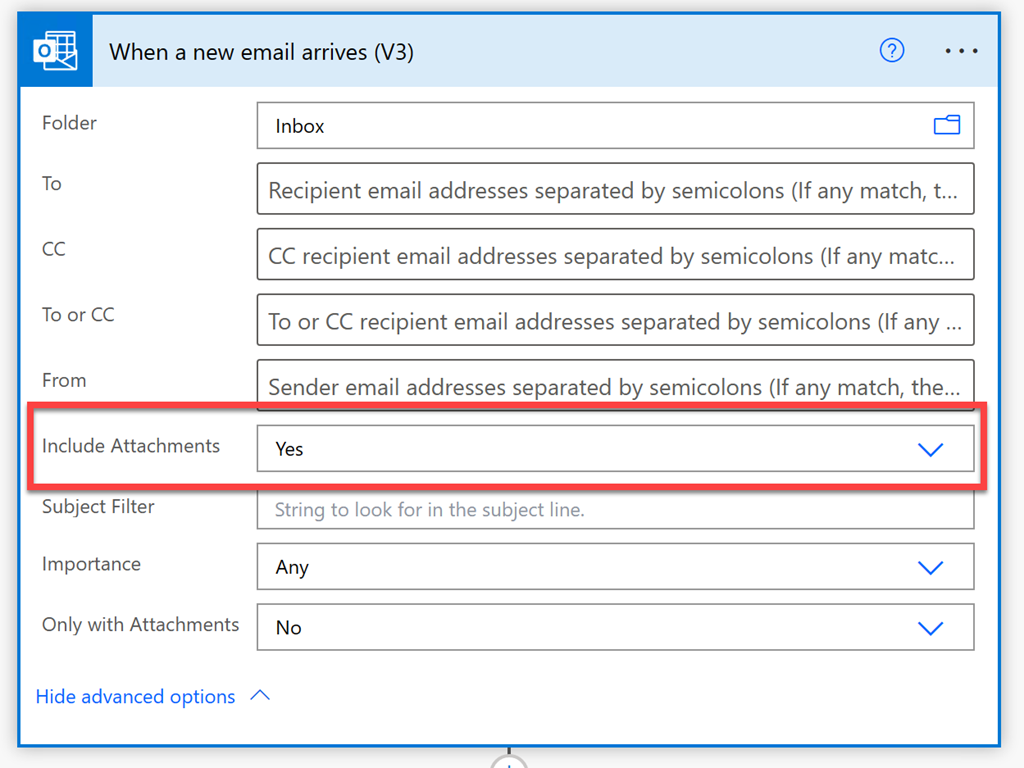
If you create a Power Automate with a trigger of When a new email arrives (V3) and you want to work with attachments in your Flow, ensure you select the Show advanced options as shown above.

image

If you don’t you’ll end up with saved attachments of only 4 bytes in size as shown above as by default the action doesn’t include attachments.

image

To work with attachments in your Flow, ensure the Include Attachments option is set to Yes as shown above. Then you’ll be able to do things like save the whole attachment to OneDrive for Business.


Adoption with fun and OpenAI

I’ve detailed how to use an API with Power Automate to inject some engaging content automatically into Microsoft Teams.

Adoption with fund and astronomy

Thanks to API’s I want to extend this to use OpenAI and ChatGPT.

What I want to achieve is to ask a question of ChatGPT via an API everyday something like this:

Tell me about 1 May as a list

When I do this interactively at chat.openai.com I see:

image

I now want something like that to appear in Microsoft Teams daily for each day.

You’ll need to head over to OpenAI and get an API key. Here’s how to do that:

How to get an OpenAI API key in just 5 easy steps

I’d also suggest signing up for an OpenAI API subscription if you want to continue using this service. Here’s an idea of the costs.

image

Create a new Scheduled cloud flow. Don’t forget to change the repeat option to 1 day typically.

image

Add the Current Time action.

Add the Convert time zone action to get the time in your location. Set the format string to Month/day pattern (i.e. May 1).

image

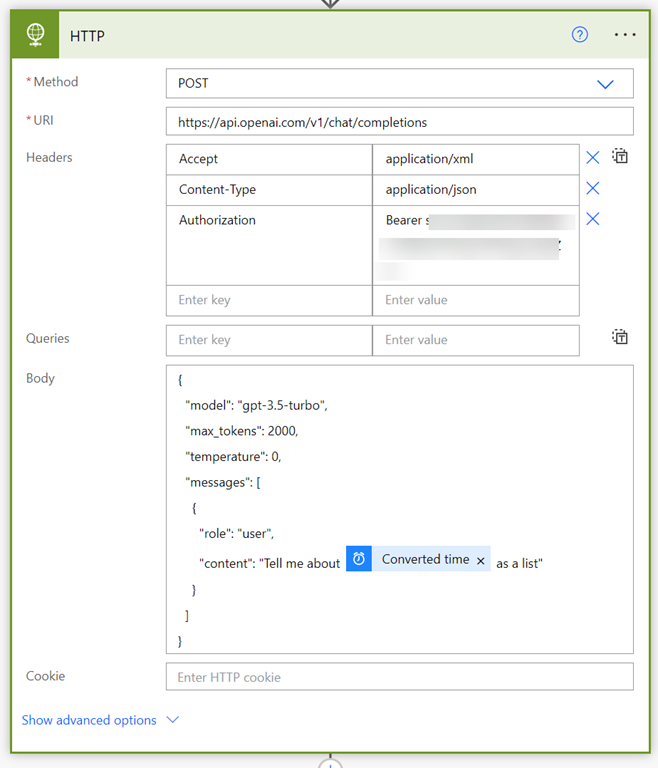
Add the HTTP action. Remember, this is a Premium connector. Set teh following options here:

Method = POST

URI = https://api.openai.com/v1/chat/completions

Accept = application/xml

Content-Type = application/json

Authorization = Bearer (your OpenAI API key)

Body:

{
   “model”: “gpt-3.5-turbo”,
   “max_tokens”: 2000,
   “temperature”: 0,
   “messages”: [
     {
       “role”: “user”,
       “content”: “Tell me about @{body(‘Convert_time_zone’)} as a list”
     }
   ]
}

Ensure you double check all these settings as it is easy to make a mistake.

image

Add the Parse JSON action.

I’ve put the JSON schema you need here:

https://github.com/directorcia/general/blob/master/Power%20Platform/OpenAI/JSON-for-GPT

image

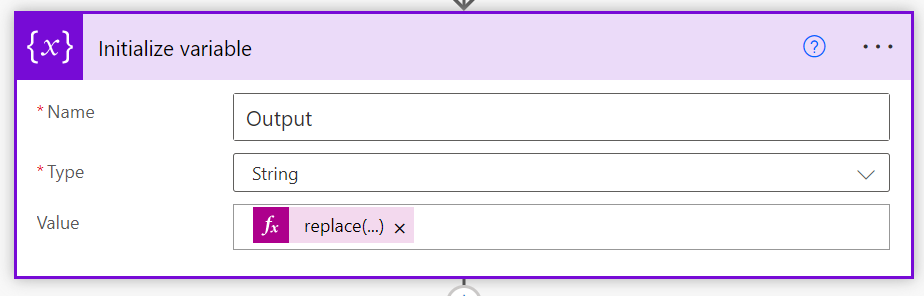
Add the Initialize variable action. We need to extract the returned text and format it so it will display in Teams. That means replacing the ‘/n’ string ‘<br>’. That can be done via this expression:

replace(body(‘Parse_JSON’)?[‘choices’][0]?[‘message’]?[‘content’],’/n’,’<br>’)

NOTE: if you copy and paste this expression and receive an error when you try and save it, you’ll most likely have to change the apostrophe from ‘ to ‘. It’s subtle, but you need to use the one to the left of the ENTER key on most keyboards to get it to work in Power Automate.

image

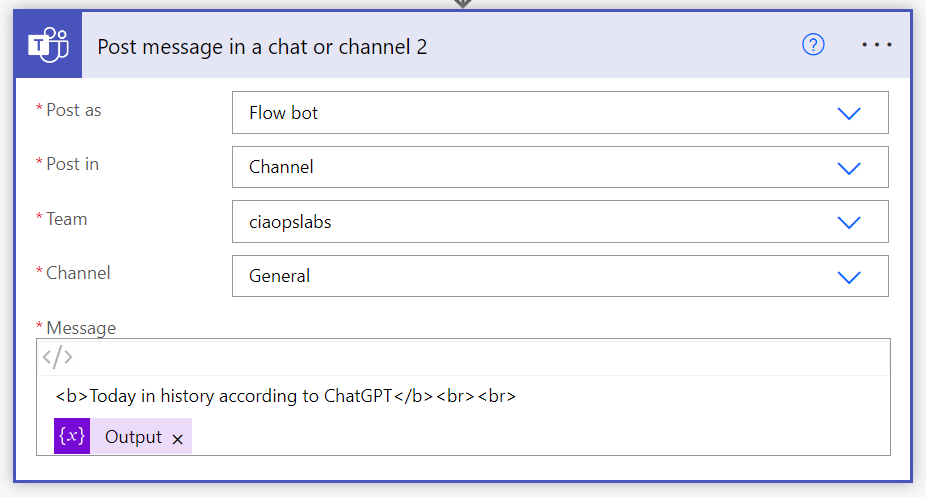
Finally add the Post message in chat or channel action.

image

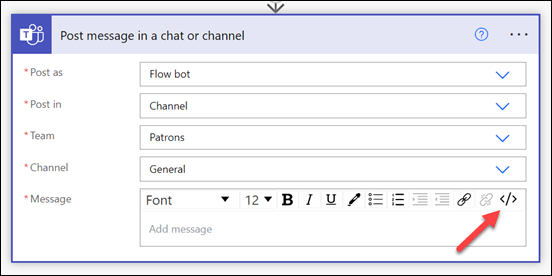
Ensure you swap to the HTML editor using the </> item in the top right of the message as shown above.

Format the message the way you want to and insert variable created previously as shown.

image

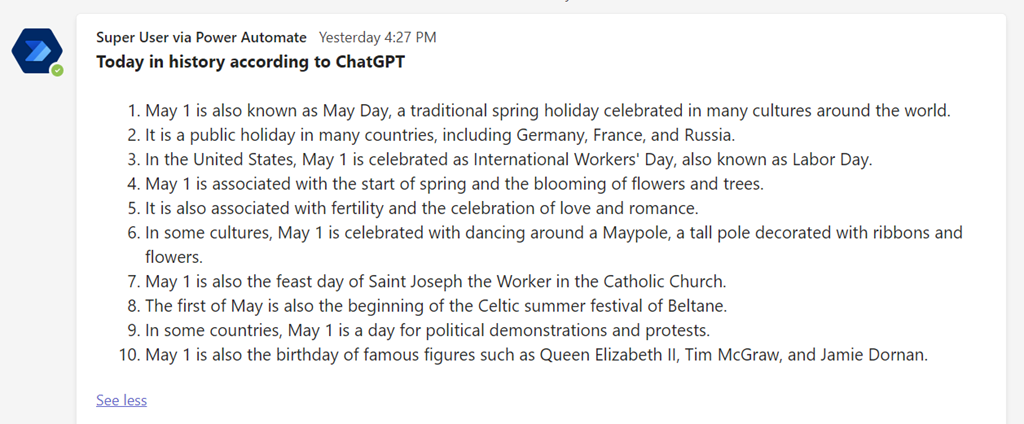
When the Flow executes the output should look something like the above.

Note that GPT isn’t always right! You can also change the AI models if you wish, but remember they have different prices.

Typically, I’d suggest you run this Flow once a day to promote more engagement in your Microsoft Team. Better yet, you can show everyone how you are integrating AI into Teams. Yet another point of engagement in your Microsoft Team and perhaps a way to spark ideas for how you can expand the use of OpenAI in yoru business.

Connect Power Automate to Twitter using a Bring Your Own App approach

*** On July 29 the MS docs now say:

The default shared application (Twitter Client application maintained by Microsoft) is no longer available. The connector now supports only one authentication type – Bring your own application. As of June 2023, it requires a paid Enterprise tier application. However, Twitter’s pricing policy might continue to change.

https://learn.microsoft.com/en-us/connectors/twitter/

Twitter or X as it is now, costs are here:

https://developer.twitter.com/en

Enterprise plans will cost >$5,000 per month!


**** On July 19 2023 this configuration starting reporting errors and now no longer seems to work either!

As I have detailed previously:

Power Automate Twitter connector failing

I needed to regenerate the connection to Twitter in my Flows. The following is what worked for me and I hope it can help you as I didn’t find this set out clearly anywhere else. I found that you needed to create all new Twitter connections in your Flows, so remember to record how these are configured before you go and delete anything.

Step 1. Remove any existing Twitter connections in your Data

image

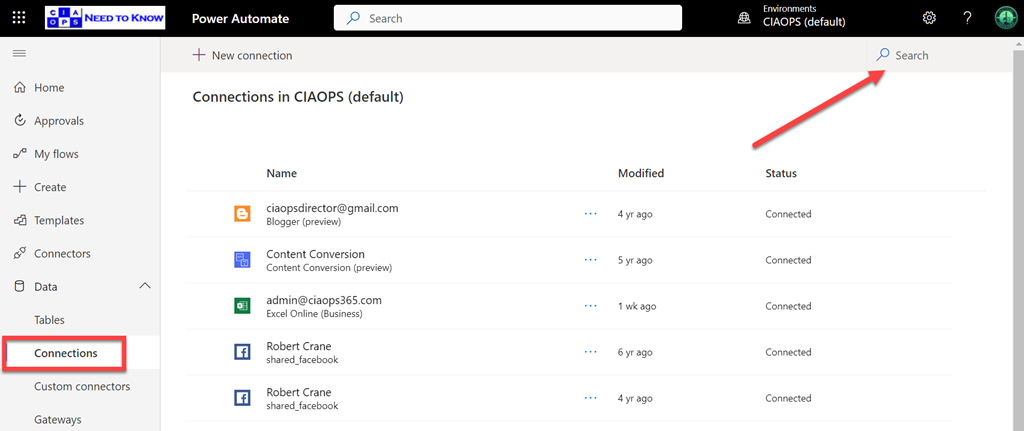
Navigate to Power Automate and select Data and then Connections from the menu on the left. In the top right of this screen you will find a Search box. Into this search box type:

Twitter

image

You should now see a list of all your existing Twitter connections. ALL of these will need to be removed and thus prior, ensure you have recorded what your Twitter actions do in your Flows, because once you delete the connection here you will NOT be able to see what the actions actually did. They will simply show as invalid.

image

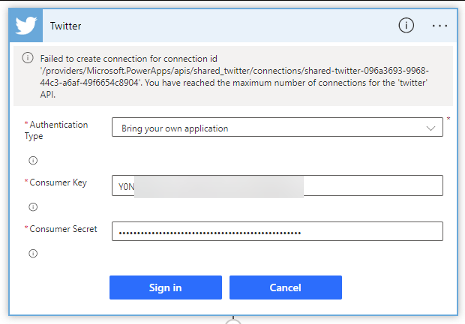
The reason you need to delete ALL the Twitter connections you find is the above error:

Failed to create connection for connection id ‘/providers/MicrosoftPowerApps/apps/shared_twitter/connections/shared-twitter-<guid>’. You have reached the maximum number of connections for the ‘twitter’ API.

I personally found I actually had two connectors. Both years apart, but all must be removed as Twitter now only supports one connection for free.

Step 2. Create Twitter API credentials

Microsoft does provide documentation on this here:

Authentication and Bring your own application

and to start with ensure you are logged into your Twitter account in the browser and navigate to:

https://developer.twitter.com/

image

Select Developer Portal in the top right as shown above.

image

Select the option to Sign up for a Free Account towards the bottom of he page.

image

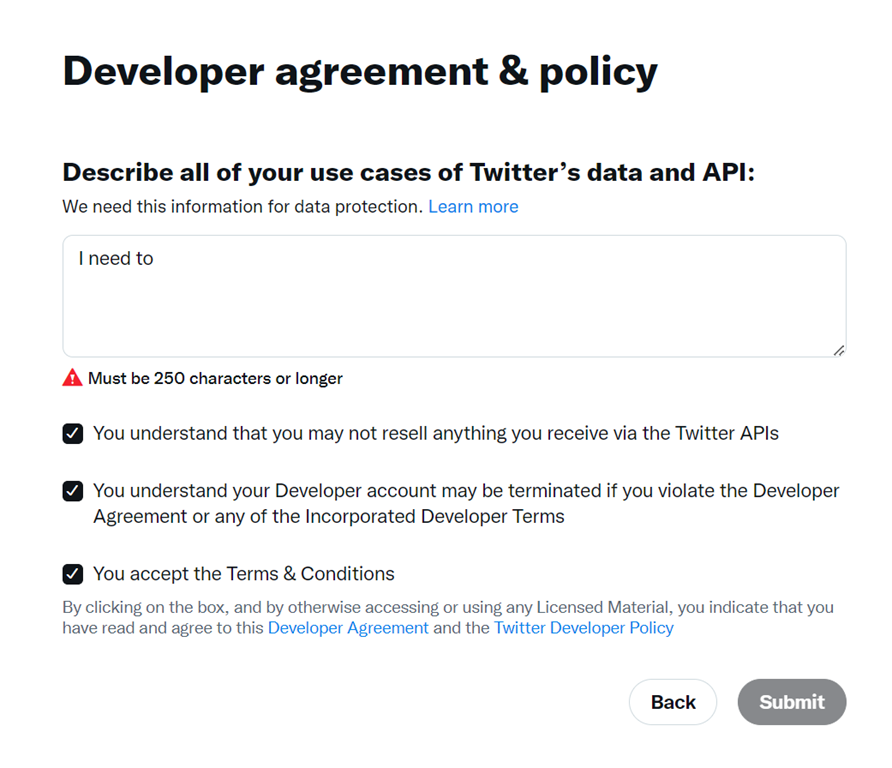
You’ll then need to write a 250 character or more essay and agree to to all the Terms and Conditions before you Submit.

image

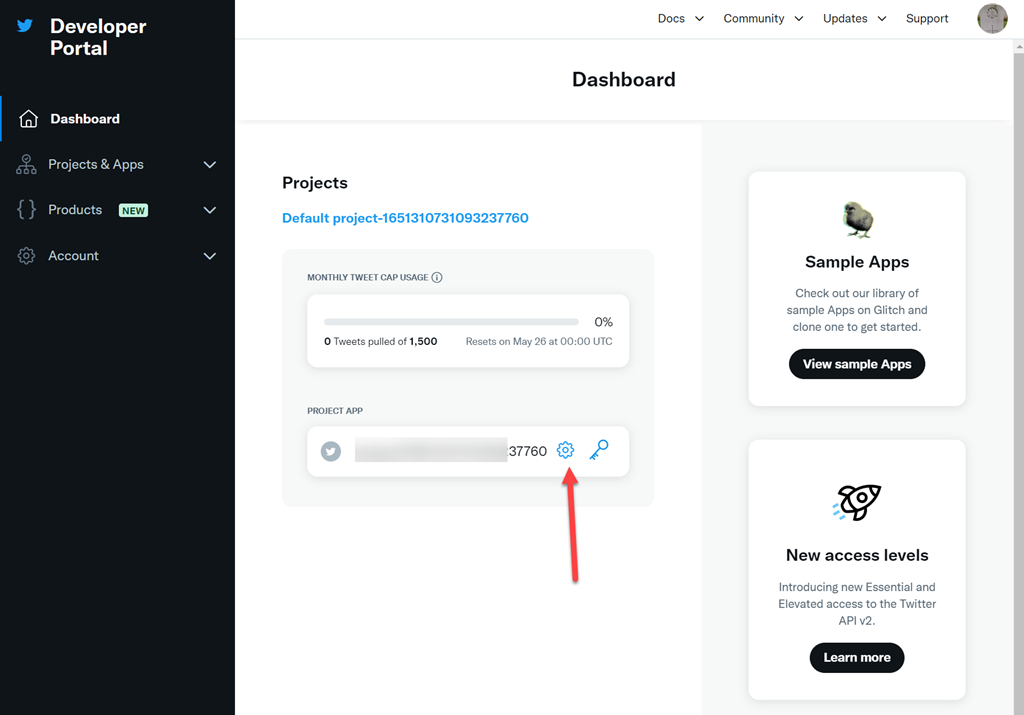
Now select the COG under the default project name that has been created for you as shown above.

image

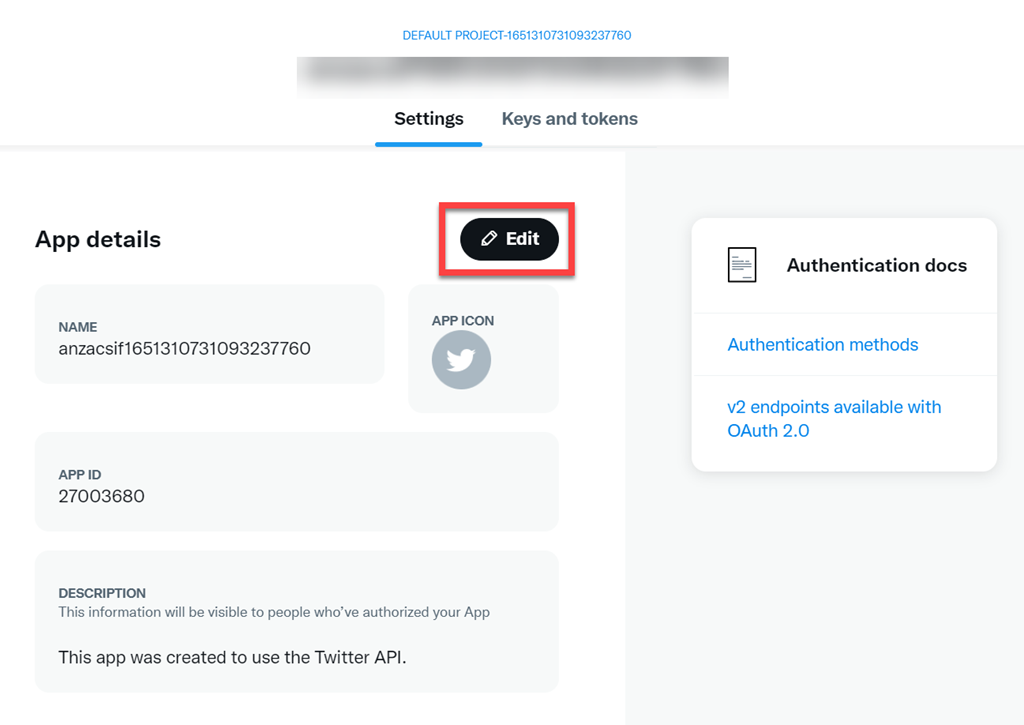
Select the Edit button as shown above.

image

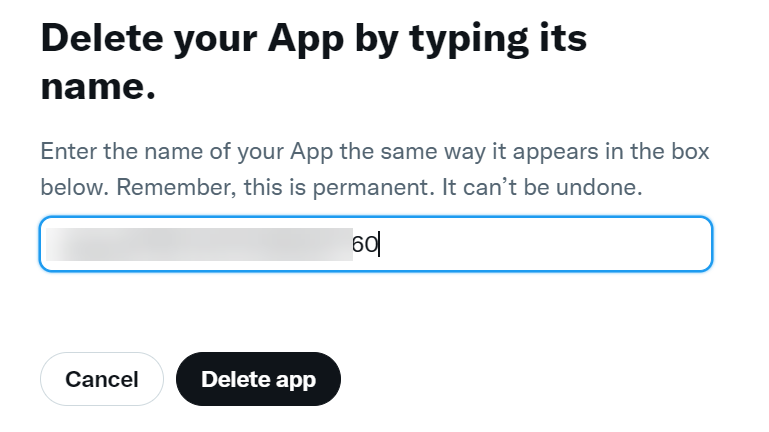
Select the Delete App button at the bottom of the page. I found that the default app did not have the correct permissions and access so I removed it and created a new one with the right settings.

image

Make sure copy the name of the app because you’ll need to enter at the next dialog before pressing Delete app.

image

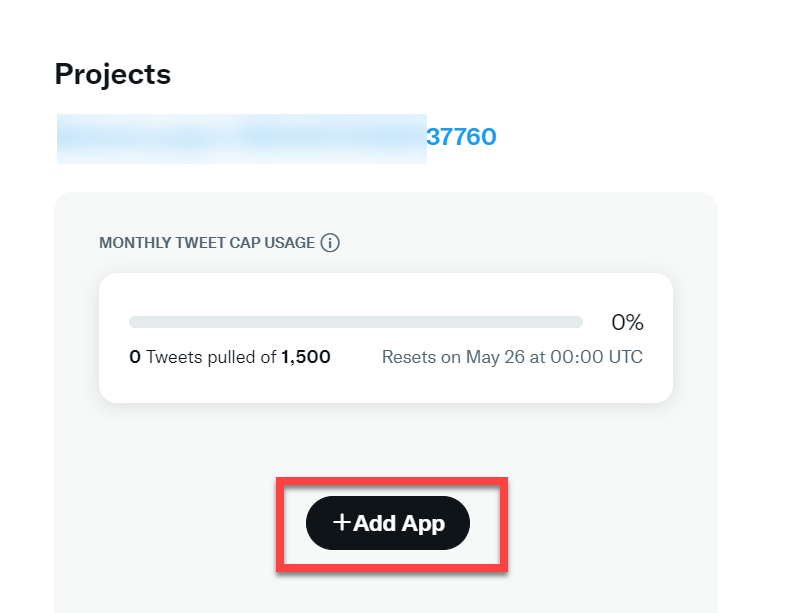
Back in the projects dashboard select Add an App as shown above.

image

Give the app a meaningful name select Next at the bottom of the page.

image

Copy the API Key and API Key Secret for later use. Make sure you DO SAVE both the API Key and API Key Secret as they’ll be needed back in Power Automate.Also, keep both of these secure as they control access to your Twitter account.

Select App settings at the bottom of the page to continue.

image

Select the Set up button under the User authentication settings towards the bottom of the page as shown above

image

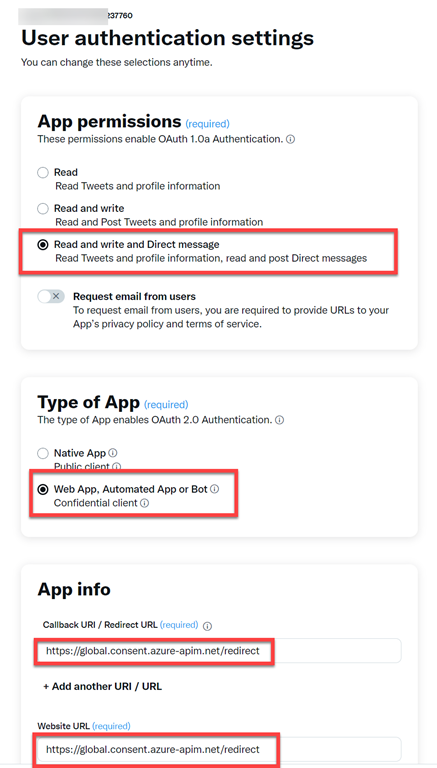
Ensure:

App permissions = Read and write and Direct message

Type of App = Web App, Automated App or Bot

Call Back URI / Redirect URI = https://global.consent.azure-apim.net/redirect

Website URL = https://global.consent.azure-apim.net/redirect

image

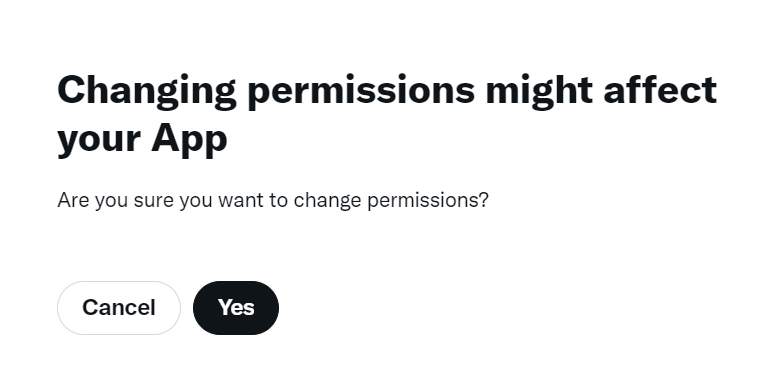
Select he option to Save at the bottom of the page. Select Yes when the above dialog appears to confirm.

image

You’ll now see a Client ID and Client Secret as shown above. You won’t need these so simply select Done to continue. You can re-create them if needed later.

image

Select Yes, I saved it to continue.

Step 3. Reconnect Twitter account in Power Automate

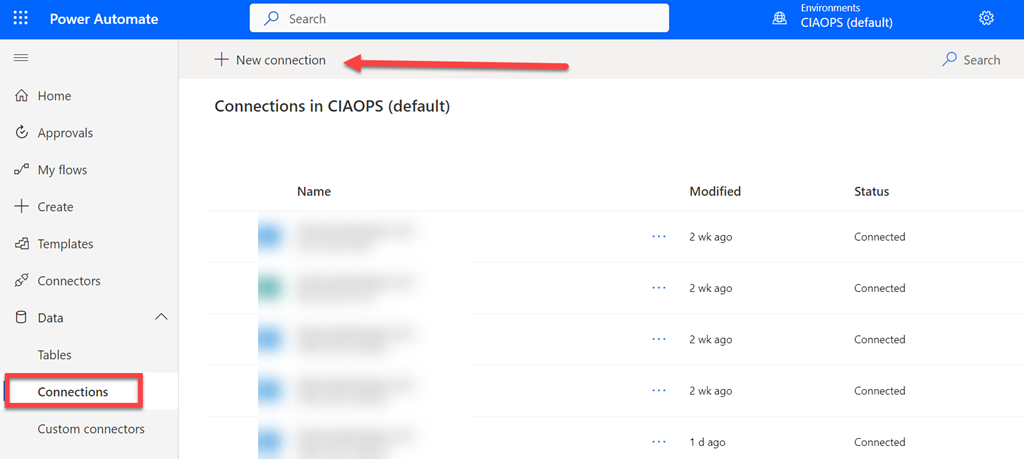
Return to Power Automate, Data, Connectors

image

Select New connection from the top of the page as shown above.

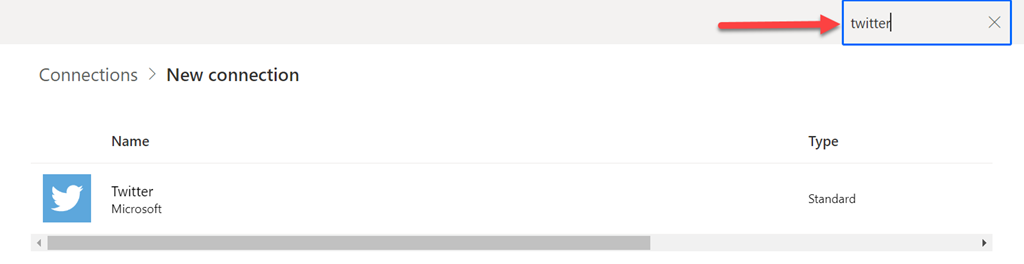
image

Search for Twitter using the Search box in the upper right. Then select the Twitter connector to configure it.

image

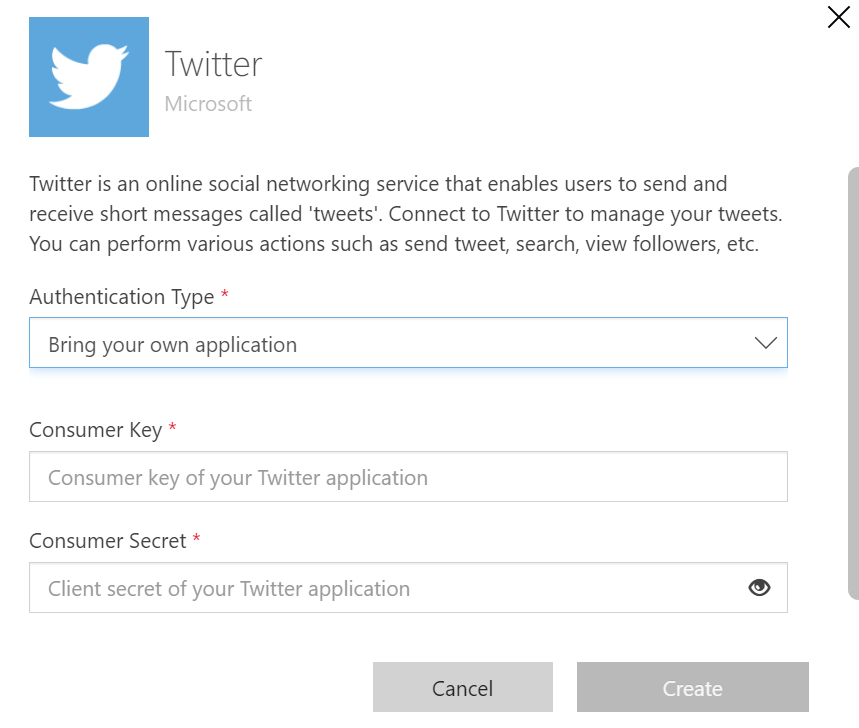
Ensure:

Authentication type = Bring your own application

Consumer key = API Key

Consumer secret = API Key Secret

image

A browser pop up will now appear asking you to authorize access to your Twitter account. You’ll need to login here with your Twitter account details. Enter you login details and select Authorize app.

You should then see a confirmation appear in this dialog and the browser pop up window will now close.

image

In the list of connections should now appear an entry for Twitter as shown above, and it it should show as Connected.

image

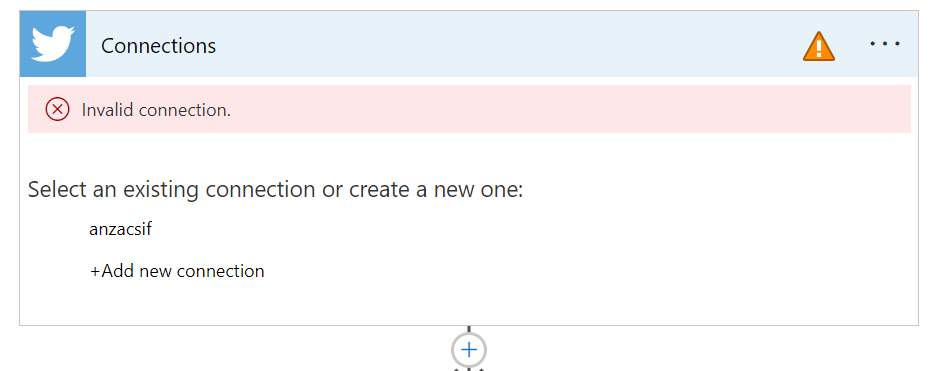
If you now navigate to where the Twitter action is inside your Flows you should see that the existing one is invalid as shown above.

image

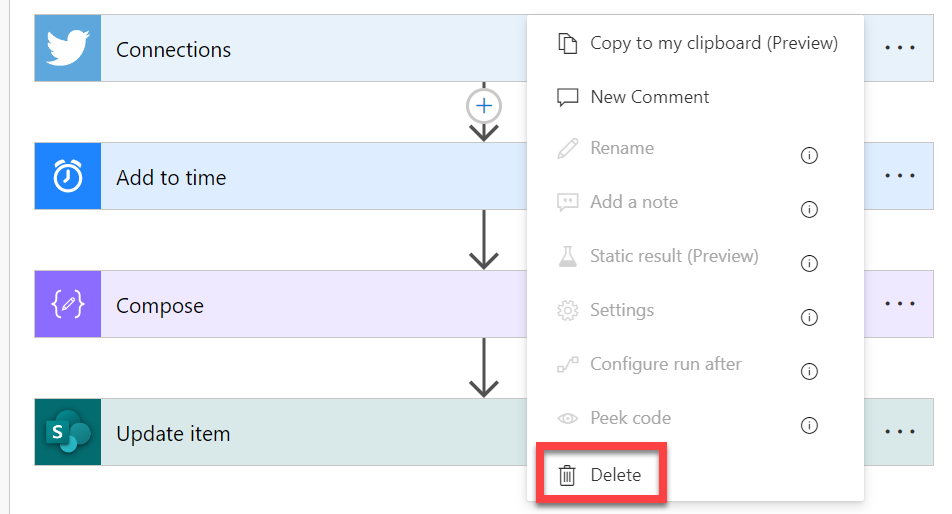
Select the ellipse in the top right hand corner and from the menu that appears select Delete. I found I had to minimise the Twitter action first to allow it to be deleted.

You can now create a new Twitter action which will use the new connector and API that was created.

With that all done you should now Save your Flow and test it to ensure it is working as expected.

In summary, you’ll firstly need to check the existing configuration for any Twitter actions you have in a Flow and record these. Next, you’ll need to remove any and all existing Twitter connections in Power Automate. Remember, there maybe more than one. Next, you’ll need to go Developer area in Twitter. There you’ll need to delete the default app that is created and create a new one. When you create a new one you’ll receive credentials you’ll need to save and use back in Power Automate. Once created you’ll need to configure it with a few additional settings. With that complete, you’ll return to Power Automate and create a new Twitter data connection with the credentials obtained. Finally, you’ll need to remove the old Twitter actions from your Flows and create new ones.

As I said, this process worked for me and I hope it does for you.

Power Automate Twitter connector failing

*** My resolution to this here – https://blog.ciaops.com/2023/04/27/connect-power-automate-to-twitter-using-a-bring-your-own-app-approach/

Since the 20th of April 2023 the Power Automate Twitter connector has been failing to authenticate. This means you get an error in your Flow that looks like:

image

When I tried to fix the connector I am greeted by.

Image

There have no doubt been changes in the Twitter API which have caused this.

I’m trying to find an answer from Microsoft on how this will be handled going forward, but as yet I have not heard nothing back. If I find out, I’ll post here again.