Enabling Play my emails on iOS

Play your emails on iOS has been with us for a while now. My experience is however that most documentation doesn’t tell you how to actually enable this if it is not already on.

To do so, ensure you have a Bluetooth connection to your iOS device. That could be a wireless headset or in your car.

image

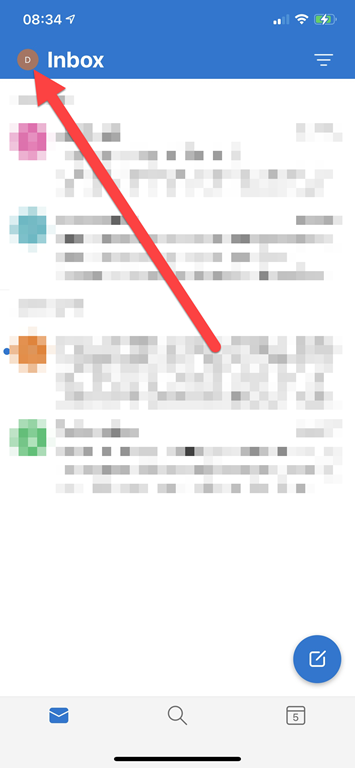
Click the icon in the very top right of you Outlook app once it is open as shown above.

image

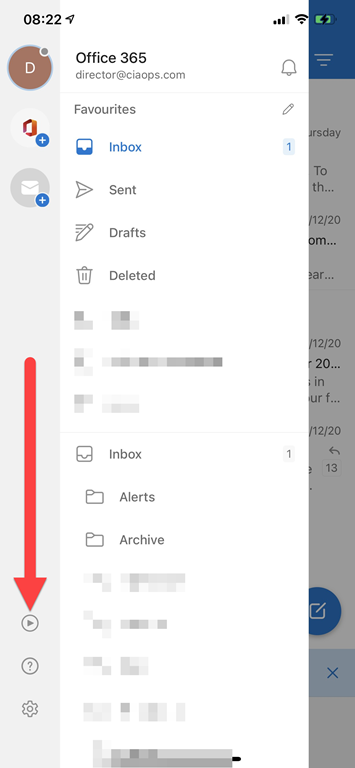
That should display the ‘back stage’ as shown above. Select the Play button on the left hand side towards the bottom as shown.

file

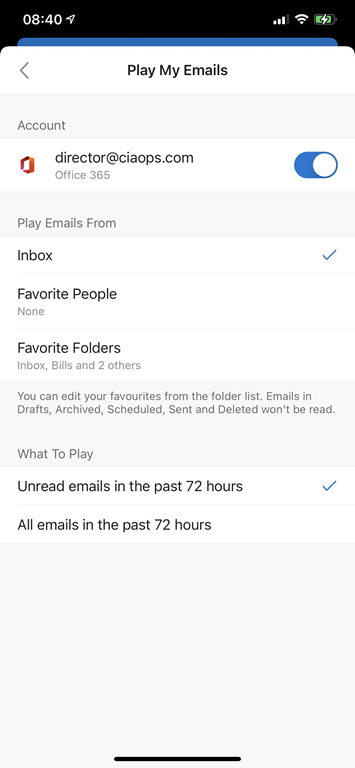
If the setting is Off then switch it On.

image

You can now make any adjustments to your configuration.

image

If you return to ‘back stage’ of the app and press the same Play button Cortana will appear and you’ll be able to have your emails read to you.

image

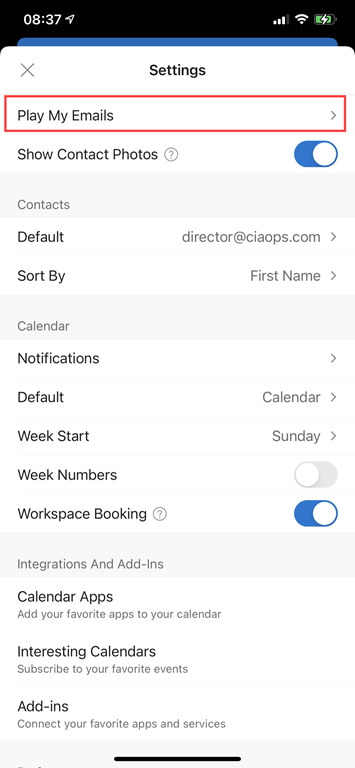
You can get back to the Play My Email configuration at anytime now via the app settings as shown above.

For more details on Play My Email in Outlook see:

End to End email protection with Microsoft 365–Part 2

This is part of a series of articles about email security in Microsoft 365.

End to End email protection with Microsoft 365 – Part 1

These articles are based on a model I have previously created, which you can read about here:

CIAOPS Cyber protection model

designed to help better explain expansive security included with Microsoft 365.

image

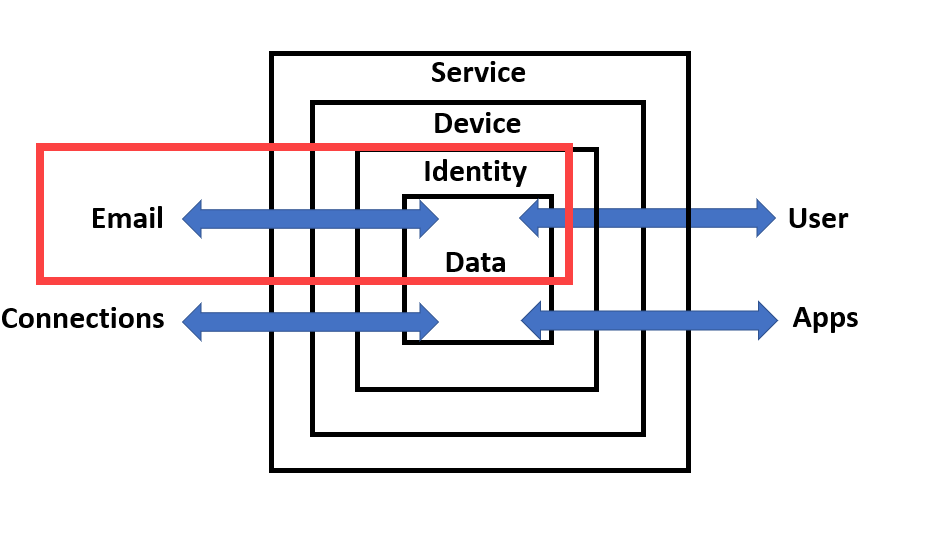
In the previous part of this series I spoke about DNS and Exchange Online Protection (EOP) and the role they play in email security as well as how to configure these in your service. I haven’t as yet spoken about the best practices settings that you should employ. The initial objective here is to help you understand the flow as well as all the security services that can be utilised in Microsoft 365 to better help you protect your data.

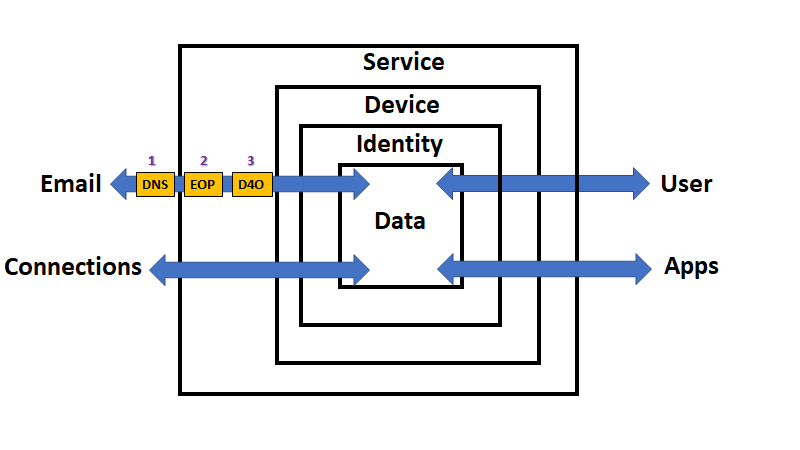
If you look at the above diagram, you’ll see that data is flowing via the email connector in and out of our Microsoft 365 environment (the ‘Service’). Through which, so far, we have talked about DNS and EOP, now it is time to move onto Defender for Office 365 (D4O). However, just before we do let, me point out somethings that you may not appreciate. Firstly, via the process far, inbound email data has not yet come to rest. That is, it hasn’t as yet been stored inside a users mailbox, it is still being ‘processed’ by the security feature set of Microsoft 365 (i.e. the ‘Service’). Secondly, and more importantly for security considerations, what we have examined so far largely only ‘scans’ the data and makes security decisions as data passed through that service. It doesn’t generally continue to protect the data once it has been processed by that service. For example, with spam filtering inbound emails are scanned by the anti spam service in EOP, appropriate action taken based on the policies in place but then the data exits the service. Once an email has exited the anti spam service in EOP it will no longer be scanned by the service. To distinguish these type of security services going forward, let’s refer to them as ‘pass through’ security services being that they only handle the data once during its transit through a connector.

So after DNS and EOP have ‘processed’ the inbound email it is time for Defender for Office 365 (D4O) to do it’s job.

image

Defender for Office 365 is an add-on to existing plans like Microsoft 365 Business Basic and Business Standard but included in Microsoft Business Premium. Interestingly, it is not part of Microsoft 365 E3 but is part of Microsoft 365 E5. In short, we’ll assume the plan here is Microsoft Business Premium.

Defender for Office 365 also has two plans

Gains with Defender for Office 365, Plan 1 (to date):

Technologies include everything in EOP plus:

  • Safe attachments

  • Safe links

  • Microsoft Defender for Office 365 protection for workloads (ex. SharePoint Online, Teams, OneDrive for Business)

  • Time-of-click protection in email, Office clients, and Teams

  • Anti-phishing in Defender for Office 365

  • User and domain impersonation protection

  • Alerts, and SIEM integration API for alerts
  • SIEM integration API for detections

  • Real-time detections tool
  • URL trace
  • So, Microsoft Defender for Office 365 P1 expands on the prevention side of the house, and adds extra forms of detection.

    Gains with Defender for Office 365, Plan 2 (to date):

    Technologies include everything in EOP, and Microsoft Defender for Office 365 P1 plus:

  • Threat Explorer
  • Threat Trackers

  • Campaign views
  • Automated Investigation and Response (AIR)

  • AIR from Threat Explorer

  • AIR for compromised users

  • SIEM Integration API for Automated Investigations
  • So, Microsoft Defender for Office 365 P2 expands on the investigation and response side of the house, and adds a new hunting strength. Automation.

    The above is from The Office 365 security ladder from EOP to Microsoft Defender for Office 365.

    Microsoft Business Premium includes Defender for Office 365 P1, while Microsoft 365 E5 includes Defender for Office 365 P2.

    Unlike EOP, you’ll also note that Defender for Office 365 extends protection actually into the data container as well as providing initial scanning of data as it passes through the service. This effectively means that Defender for Office 365 is monitoring email data inside user email boxes and providing additional protection even after an item is delivered. This is very important to appreciate because once most emails are delivered they are generally no longer protected by scanning technologies like anti-spam policies, especially third party offerings. Therefore, a major of value of using Microsoft 365 is that it can ensure the security of data even after it has been delivered using technology like Defender for Office 365.

    Another point that the above diagram illustrates is that Defender for Office 365 largely applies only to inbound email data. all the policies in Defender for Office 365 are focused at emails being delivered to, not from, mailboxes.

    Finally it is also important to note that previous components in the data flow chain impact Defender for Office 365, DNS probably being the more influential. This is why it is so important to ensure that you have your DNS records (especially SPF, DKIM and DMARC) configured correctly because their impact is more than on a single service in Microsoft 365.

    Defender for Office 365 is composed of three unique components:

    – Safe Attachments

    – Safe Links

    – Anti-Phishing

    Safe Attachments

    As Safe Attachments in Microsoft Defender for Office 365 notes:

    Safe Attachments uses a virtual environment to check attachments in email messages before they’re delivered to recipients (a process known as detonation).

    In short, it will open suspect attachments in a virtual environment and check to see whether they activate any malicious activity such as encrypting data (i.e. cryptolocker attack), changing registry settings and so on.

    Safe Attachments protection for email messages is controlled by Safe Attachments policies. There is no default Safe Attachments policy. Please note that, there is NO default Safe Attachments policy by default! Thus, ensure you have set one up if you are using Defender for Office 365.

    Set up Safe Attachments policies in Microsoft Defender for Office 365

    Safe Attachments will continue to provide protection even after the data has been delivered. This is because the maliciousness of the attachment is evaluated not only at the time the user opens it but also continually as they sit as data in users mailbox. Thus, you need to consider Safe Attachments as protection both during transit and at rest. This is generally different from the role of EOP.

    I will also briefly note here that Safe Attachments protection extends beyond just emails, but I’ll cover that in a later article.

    Safe Links

    As Safe Links in Microsoft Defender for Office 365 notes:

    Safe Links is a feature in Defender for Office 365 that provides URL scanning and rewriting of inbound email messages in mail flow, and time-of-click verification of URLs and links in email messages and other locations.

    In short, it routes any link clicked on in an email through a reputation proxy to ensure that it is safe prior to proceeding. This provides protection against malicious content, downloads, phishing and more.

    Safe Links settings for email messages

    How Safe Links works in email messages

    Safe Links can be configured to provide customised protection:

    Set up Safe Links policies in Microsoft Defender for Office 365

    Safe Links will continue to provide protection even after the data has been delivered. This is because the maliciousness of links is evaluated not only at the time the user clicks on them but also continually as they sit as data in users mailbox. Thus, you need to consider Safe Links as protection both during transit and at rest. This is generally different from the role of EOP.

    I will also briefly note here that Safe Links protection extends beyond just emails, but I’ll cover that in a later article.

    Anti-phishing

    Phishing is when attackers try to trick users into providing secure details in an effort to compromise that account. A common ‘trick’ is to attempt to impersonate a ‘familiar’ email address and try to have the recipient take an action that will result in an account compromise.

    Protection via Defender for Office 365 is again provided by a policy:

    Exclusive settings in anti-phishing policies in Microsoft Defender for Office 365

    Anti-phishing will continue to provide protection even after the data has been delivered. This is because the maliciousness of email content is evaluated not only at the time the user views  them but also continually as they sit as data in users mailbox. Thus, you need to consider Anti-phishing as protection both during transit and at rest. This is generally different from the role of EOP.

    In addition to the above Defender for Office 365 P1 also provides:

    Threat Explorer and Real-time detections

    while Defender for Office 365 P2 additionally provides:

    Threat Trackers

    Automated investigation and response (AIR) in Microsoft Defender for Office 365

    Attack Simulator in Microsoft Defender for Office 365

    Summary

    Inbound email data flows into Defender for Office 365 after it has been processed by EOP. Here additional protection policies are applied. All of these policies can be configured by the user and have capabilities that extend into protecting data even after it has been delivered. This means that a major benefit of Defender for Office 365 is that it not only scans email data during inbound transit but also while it is being stored in the users mailbox over the life of that data item for both current and future threats.

    It is also important to note that many of the Defender for Office 365 do not have appropriate default policies in place and it is up to the user to configure these to suit their environment.

    The inbound email data has yet further protection configurations to be applied to it after being processed by Defender for Office 365 thanks to the capabilities of Microsoft 365. Please follow that process with the next article:

    End to End email protection with Microsoft 365–Part 3

    End to End email protection with Microsoft 365–Part 1

    image

    I’ve talked about the

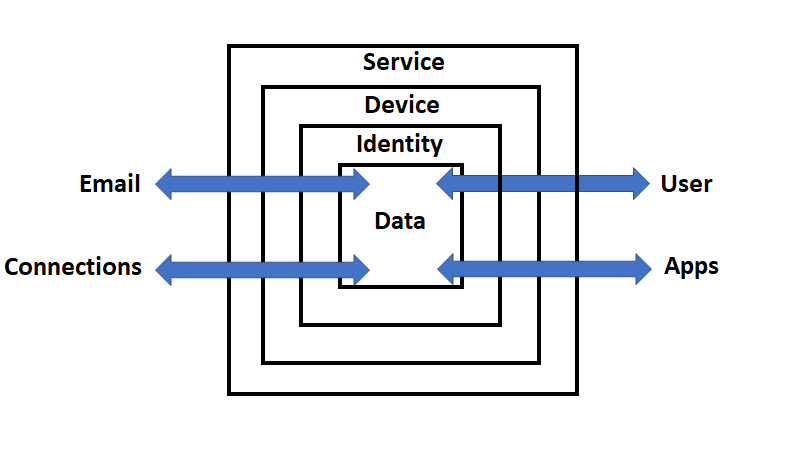
    CIAOPS Cyber protection model

    before and you can see it above.

    image

    Now it is time to start applying it directly to Microsoft 365 to help understand the security Microsoft 365 provides and what can be configured to provide enhanced security.

    image

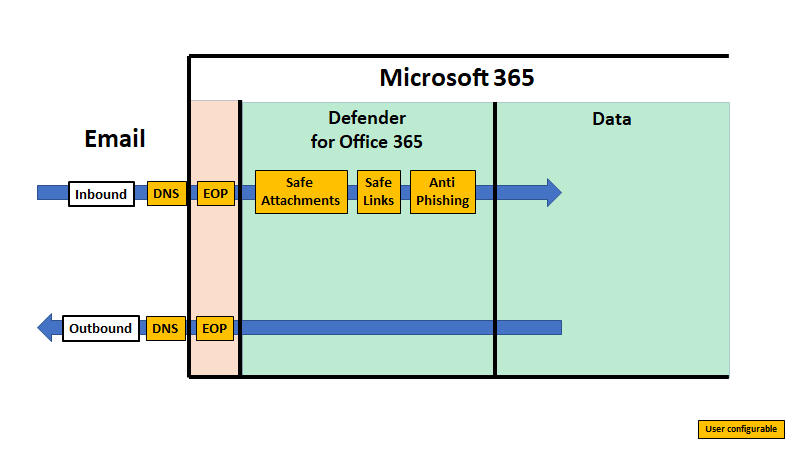
    I’ve therefore started by breaking the Email connector from my model into two components, Inbound and Outbound, as shown above. The left hand side (outside the box) is the Internet, while inside the box on the right hand side, is Microsoft 365.

    Outside the box, on the Internet, there are three user configurable items: SPF, DKIM and DMARC. You’ll see arrow from these three items away and further into the Internet as well as back into the Microsoft 365 service. This is because these three DNS records will affect both sent and received emails and should be considered the first item on your email security check list. Some articles that may help on this include:

    SPF, DKIM, DMARC and Exchange Online

    Set up SPF to help prevent spoofing

    Support for validation of DKIM signed messages

    Use DKIM to validate outbound email sent from your custom domain

    Use DMARC to validate email

    When others send email to Microsoft 365, the following articles may help:

    Sending mail to Microsoft 365

    Services for non-customers sending mail to Microsoft 365

    Inbound email is received into Microsoft 365 via Exchange Online. A component of this service is Exchange Online Protection (EOP).

    Exchange Online Protection overview

    EOP features

    Inbound emails

    The first stage of a message progressing through Exchange Online Protection is for it to traverse the Edge Protections as shown above. These are basically policies and configuration managed and maintained by Microsoft. A user is unable to alter them but information about these can be found at:

    Use Directory Based Edge Blocking to reject messages sent to invalid recipients

    Backscatter in EOP

    How EOP validates the From address to prevent phishing

    It is important to note that DNS records like SPF play an important role in helping secure email data, which is why it is important to configure them.

    How Microsoft 365 uses Sender Policy Framework (SPF) to prevent spoofing

    After the Edge Protection phase is complete, any inbound email is then sent to Exchange Online Protection (EOP) for further processing. It is here that there are many policies and settings that can be configured by the user. The sequence in which these take place can be found here:

    Order and precedence of email protection

    Generally, first to be processed is the Connection filtering.

    Configure connection filtering

    Then Malware filtering.

    Configure anti-malware policies in EOP

    Then Transport rules.

    Mail flow rules (transport rules) in Exchange Online

    Next are any Data Loss Prevention (DLP) policies.

    Data Loss prevention

    Spam filtering follows.

    Anti-spam protection in EOP

    Configure anti-spam policies in EOP

    Anti-spam message headers in Microsoft 365

    Bulk complaint level (BCL) in Exchange Online Protection EOP

    Finally inbound email will be checked for phishing and spoofing.

    Anti-phishing policies in Microsoft 365

    Configure spoof intelligence policy

    After all these the inbound email will continue to be processed by any additional protection options and features like Defender for Office 365 which will be covered in an upcoming article, so don’t think that email protection stops with EOP, it continues with Defender for Office 365 right through to the email app on the device which will all be covered in upcoming articles.

    Outbound emails

    If we now turn our attention to outbound emails and work from right to left, along the bottom arrow, we see that the email has a lot less policies to travel through. The main one is the Outbound spam filter.

    Configure outbound spam filtering in EOP

    However, it will also go through the DLP policy:

    Data Loss prevention

    and then Transport rules:

    Mail flow rules (transport rules) in Exchange Online

    You can also use

    Message Encryption

    if you wish to protect the contents of emails sent from Microsoft 365.

    Summary

    Remember, what is covered here is only the first part of the full range of protection capabilities that Microsoft 365 provides for emails. You will also see that a significant amount of these capabilities provide the ability of customisation. For the items that are user configurable in the diagram, a good rule of thumb is to implement and configure from left to right, top to bottom. Once you have all that done, then you can move onto the next stage which will be covered in the next article on this topic.

    End to End email protection with Microsoft 365 – Part 2

    New Exchange Policy Configuration analyzer

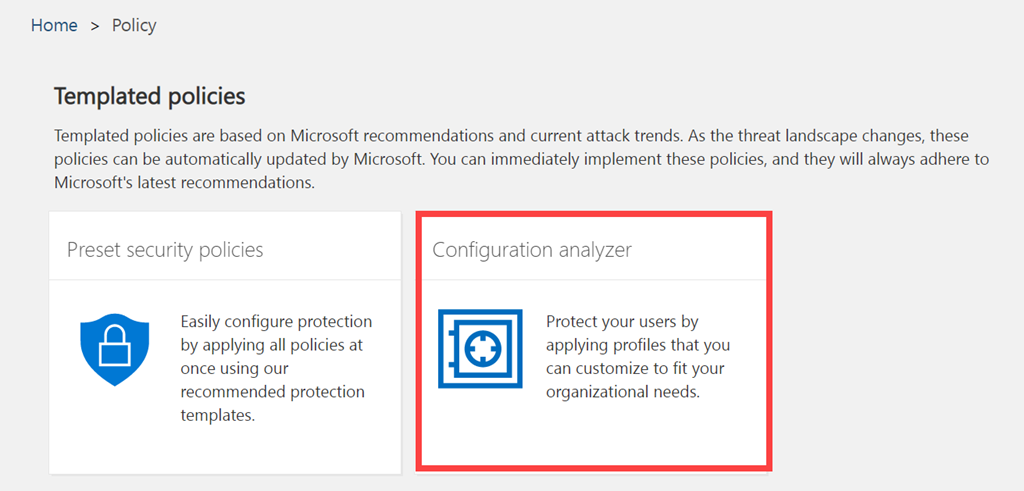
    image

    If you have a look in your Threat Management policies in Security and Compliance you’ll see a new tile called Configuration Analyzer as shown above. The direct URL is:

    https://protection.office.com/configurationAnalyzer

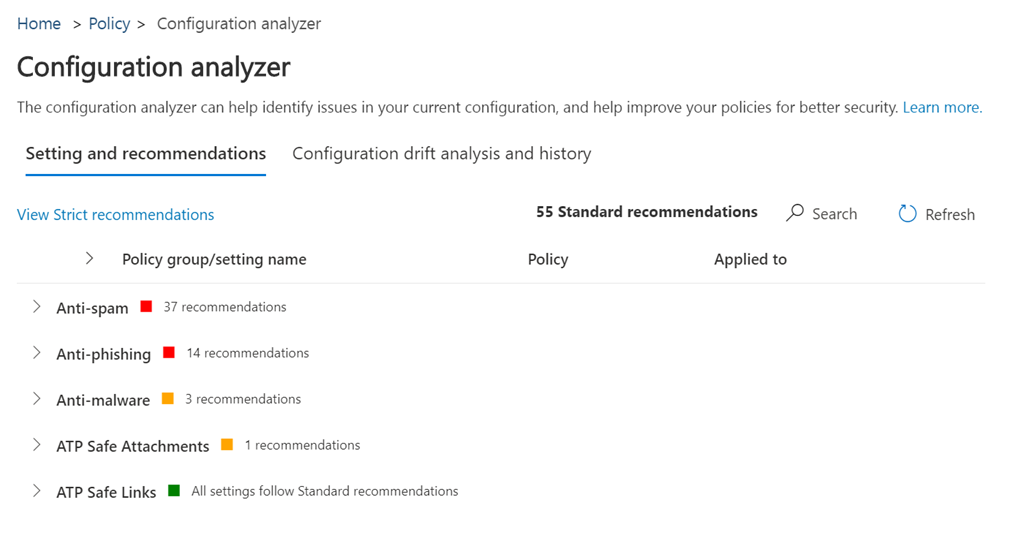
    image

    When you select this tile you’ll see a screen like that shown above which compares your current policy settings to Microsoft best practices.

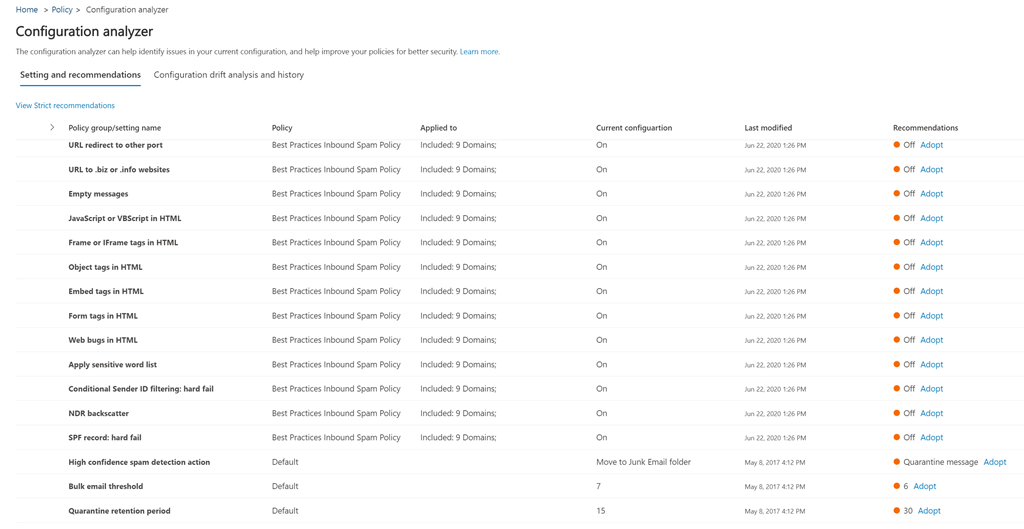
    image

    If you expand any of the headings you’ll the settings in question and what the recommendation is on the right. You’ll also see a link that allows you to easily Adopt this setting.

    image

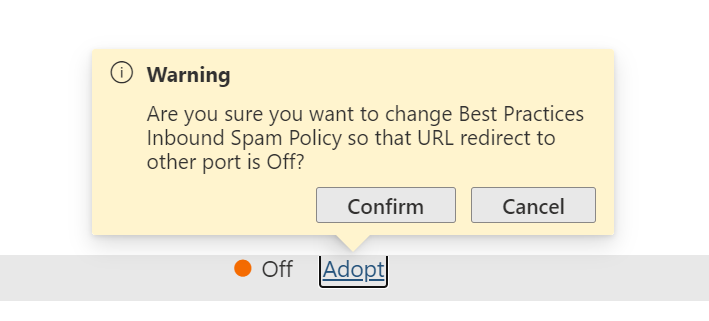
    If you do select the Adopt link, you’ll be presented with the above warning asking you whether you wish to proceed and Confirm or Cancel the change.

    image

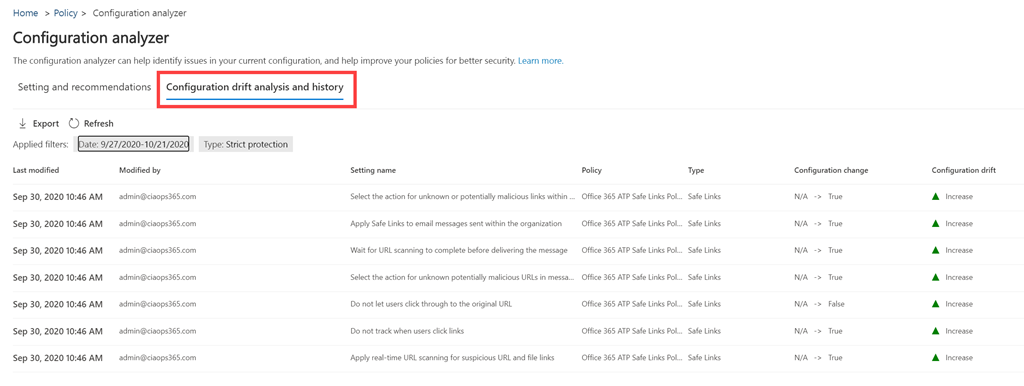
    You will also see a Configuration drift analysis and history option as shown above. This allows you to compare changes in configuration over time and their effect. Basically, whether changes made improve email security or not.

    If you want to learn more about Microsoft’s best practice configurations I suggest you take a look at my previous article:

    New templated email policies

    I see this as a further step towards what I spoke about here:

    The changing security environment wit Microsoft 365

    and how Ai will soon do all this automatically.

    New templated email policies

    image

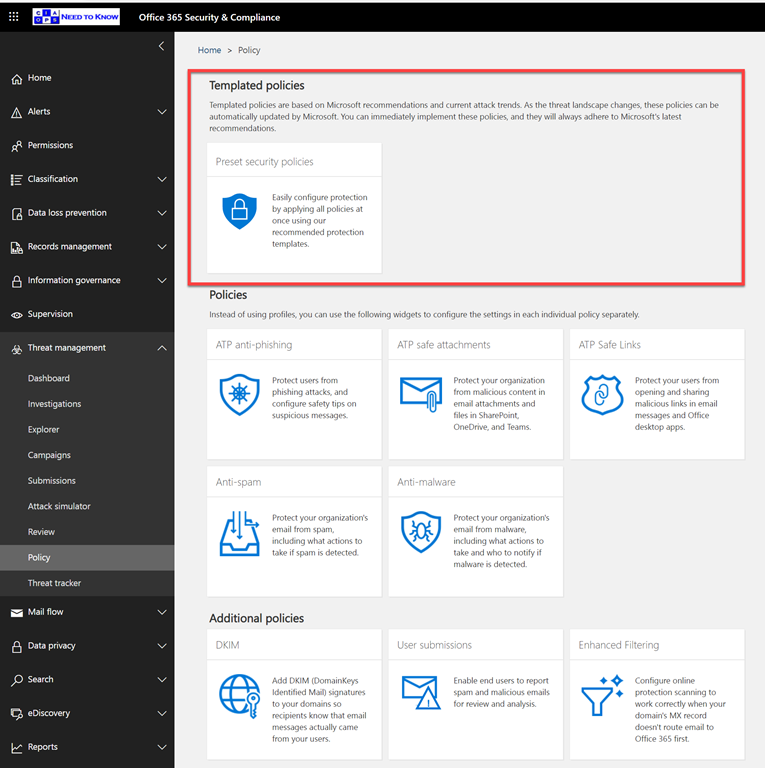
    If you dip into your Microsoft 365 Security and Compliance Center, then into Threat Management and then into Policy as shown above you might some new Templated policies.

    image

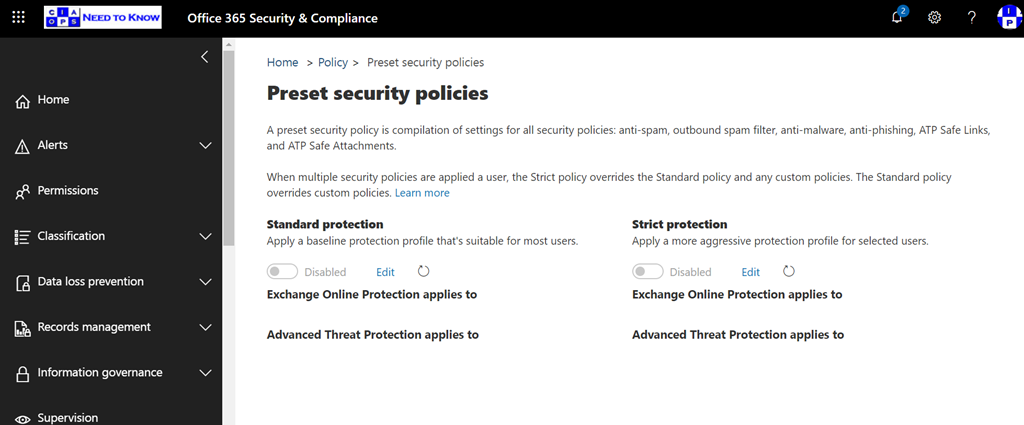
    This will allow to select from two ‘best practices’ policies for your email protection from Microsoft. There is a standard and a Strict protection option.

    You’ll find details about these here:

    Preset security policies in EOP and Office 365 ATP

    and if you want to know the low level settings that use you can find that here:

    Recommended settings for EOP and Office 365 ATP

    At the moment they are not enabled by default, but I can see the day when at the least the Standard template will be applied to all new tenants.

    Of course, these are just a starting point for securing your email environment in but I certainly recommend that you do start with these templates because they apply a lot of best practices quickly and easily. They also configure not just Exchange Online but also Office 365 Advanced Threat protection (ATP) if that is part of the tenant.

    Get-Formatdata issues when connecting to Exchange Online with PowerShell

    *** Update 10 July 2020. This is a back end service issue that Microsoft is working on to resolve. See the following for more details – https://techcommunity.microsoft.com/t5/exchange/error-when-connecting-to-exchange-online-vis-powershell/m-p/1512141#M5466

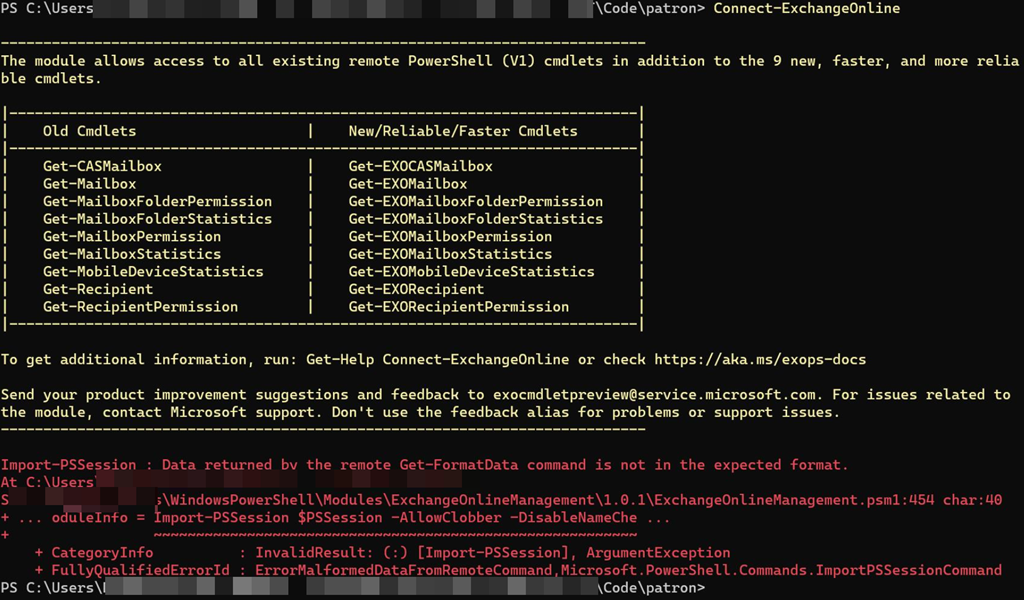
    image

    To connect to Exchange Online with PowerShell you simply type a command like:

    connect-exchangeonline

    as shown above. This “should” work with Exchange Online PowerShell V2. However, as you can also see from the above screen shot this generates the following error on a number of tenants:

    Import-PSSession : Data returned by the remote Get-FormatData command is not in the expected format

    This therefore, prevents you from connecting to Exchange Online via PowerShell.

    Interestingly, you get the same issue if you use the older method of connecting to Exchange Online via PowerShell (aka V1) to those same specific tenants. It is also independent of the device you use to connect, updates, etc. It seems to be tied to only a limited number of tenants for some reason.

    image

    The fix for now is to specify the –delegatedorganization parameter with the full .onmicrosoft.com user identity. When you do that, to exactly the same tenant, you can gain access as shown above without an error.

    So, if you need access use:

    connect-exchangeonline –delegatedorganization <tenantname>.onmicrosoft.com

    and you should be able to gain access. The problem is that this is ok for interactive sessions but if you already have bulk automated scripted in place that don’t use this then it is painful to start changing these just to accommodate a ‘limited’ number of affected tenants.

    I am chasing down some leads to try to determine a reason for this and hopefully find a resolution soon.

    Configure new Edge to allow Exchange PowerShell MFA module download

    One of the challenges with MFA and PowerShell is that you need to basically go into the Exchange management console and download a special PowerShell module that supports MFA. The need for that MFA module when connecting to Exchange Online with PowerShell is largely being negated by using the Exchange Online PowerShell V2 module (yeah). However, if you want to connect to the Security and Compliance center online with PowerShell and MFA you are still going to need to install this special module MFA from the Exchange Admin center in the portal (damm).

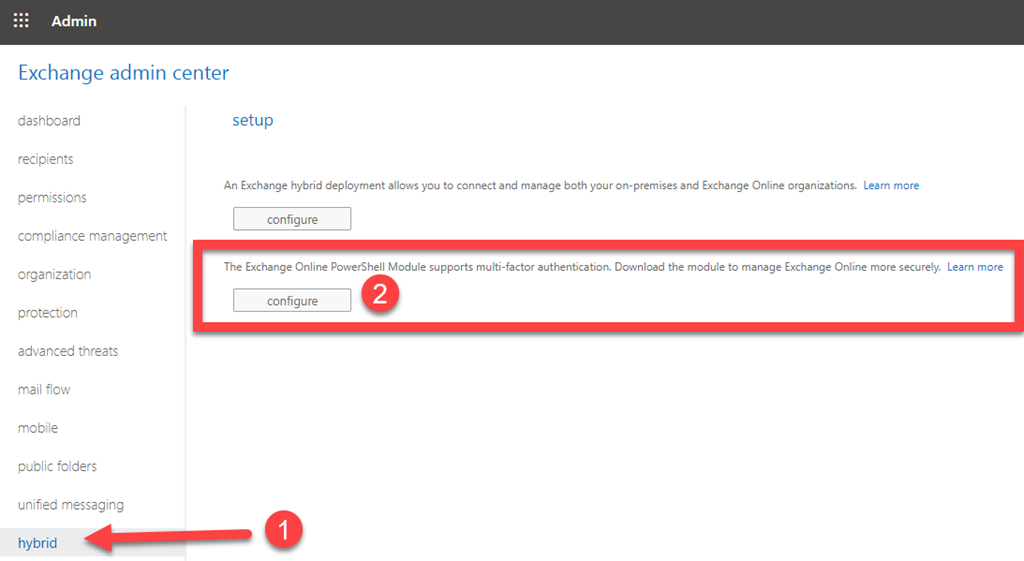
    image

    To do this, you’ll need to navigate to the Exchange admin center as shown above and select Hybrid from the items on the left. you’ll then need to select the lower option that is then displayed on the right hand side, which allows you to download the special MFA PowerShell module.

    That should commence an automated download for you. This automated download “should” work in both the older Internet Explorer and the new Edge (chromium based) browser.

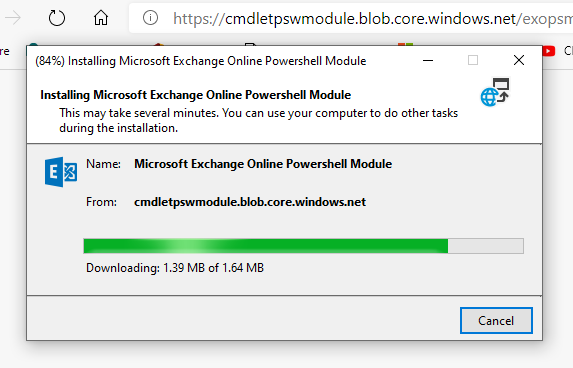
    image

    That download process should look something like what is shown above. However, if for some reason you can’t get it working with the new Edge (chromium based) browser navigate to:

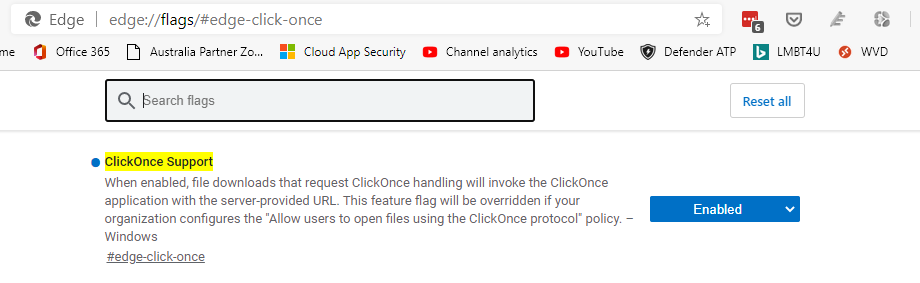
    edge://flags/#edge-click-once

    image

    and Enable the ClickOnce Support option as shown above, if not already enabled. Most of the time it is set as Default, which you will need to change to allow the download to commence.

    The browser will need to reload, but after that you should able to run the file in the Edge (chromium based) browser to get the Exchange Online MFA module installed on your local machine.

    Exchange Online mailbox check script update

    I have just updated another of the free PowerShell scripts I provide on Github. This time o365-mx-check.ps1 has been given an update. You will find it here:

    https://github.com/directorcia/Office365/blob/master/o365-mx-check.ps1

    1. Prior to running the script you will have needed to install the Exchange Online PowerShell module. To set up your PowerShell environment I suggest you check out:

    2. Connect to Exchange Online with PowerShell. For that I recommend you use my script:

    That should result in you being connected to Exchange Online PowerShell as shown above.

    Once you have your PowerShell environment setup, you simply run the o365-mx-check.ps1 script at the PowerShell prompt.

    image

    After checking that the Exchange Online PowerShell module is loaded and connected, the script will loop through all the mailboxes in your tenant.

    image

    For each mailbox it will check and display a number of settings as shown above including:

    • Users Display name and principal name
    • The primary outbound email address the mailbox uses
    • When the mailbox was created
    • Whether auditing is enabled for the mailbox
    • What the maximum age limit of audit log entries for the mailbox
    • Deleted items retention period
    • If Litigation Hold is enabled
    • If mailbox archiving is enabled
    • The maximum message send size
    • The maximum message receive size
    • If POP3 is enabled for the mailbox
    • If IMAP is enabled for the mailbox

    Items that are not best practices will be highlighted in red for your attention as shown above.

    By default, these results will only display on the screen, however if you specify the optional –CSV parameter when you run the script like:

    .\o365-mx-alert –csv

    A CSV file with the output will be created in the parent directory.

    image

    You will see the name of the CSV created at the end of the script as shown above.

    image

    Each CSV file is timestamped to ensure that a unique file will be created each time the script is run.

    A log file, o365-mx-alert.txt is also created in the parent directory as well on each run.

    image

    The log file will be overwritten each time the script is run.

    Thus, the o365-mx-check.ps1 script has 1 optional parameter, that can be used:

    -csv = output all logs for period to a CSV file in the parent directory. A new CSV file is created for each script execution

    The script will also produce a log file (o365-mx-check.txt) in the parent directory, that is overwritten on the each run of the script.

    You will find this script and all my publicly available scripts at:

    http://github.com/directorcia

    Don’t forget to check back there regularly for updates. Also, if you have any feedback or suggestion on this script or what you’d like to see me create, please let me know. I also maintain a large array of additional scripts via a paid subscription. More details of that can be found at www.ciaopspatron.com.