Defender for Cloud App connectors

An important piece of the security puzzle is to ensure everything that you have access to is enabled and configured fully. If you have any version of Defender for Cloud Apps you should verify that the signals from Microsoft 365 are feeding into Defender for Cloud Apps.

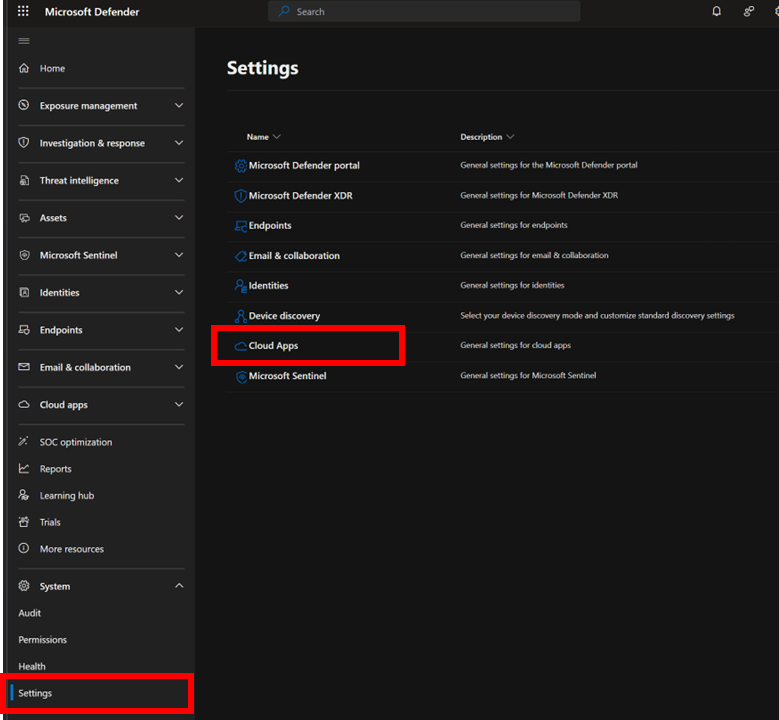
To verify or enable this connection fully navigate to:

http://security.microsoft.com

image

Open the Settings option from the menu on the left. From the options that appear on the right select Cloud Apps as shown above.

image

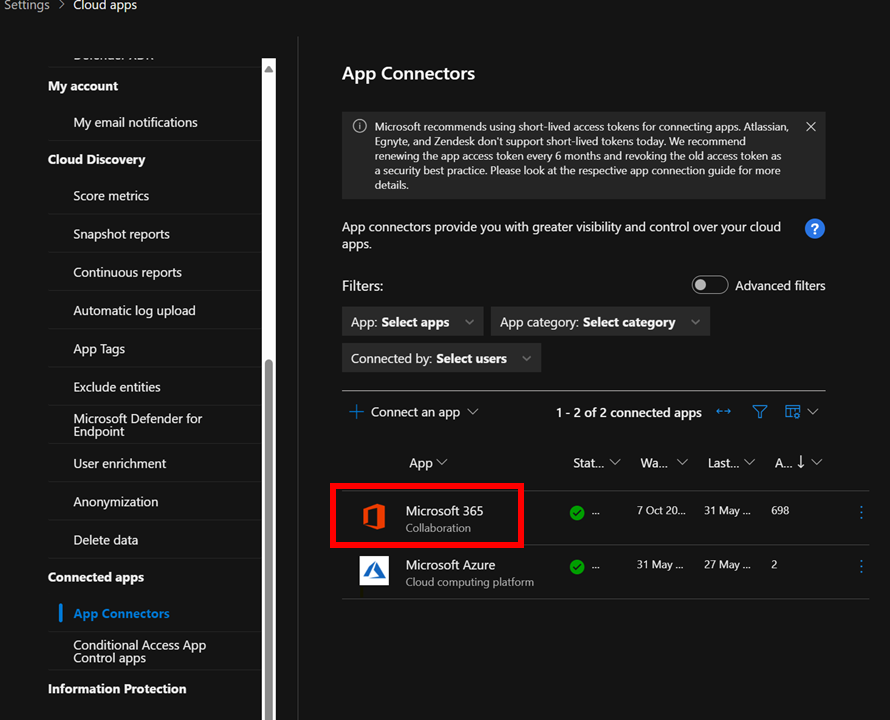
Then under the Connected Apps heading select App connectors as shown above. Ensure that connectors for Microsoft 365 and Microsoft Azure appear. If they don’t you can use the Connect an app option on the menu.

image

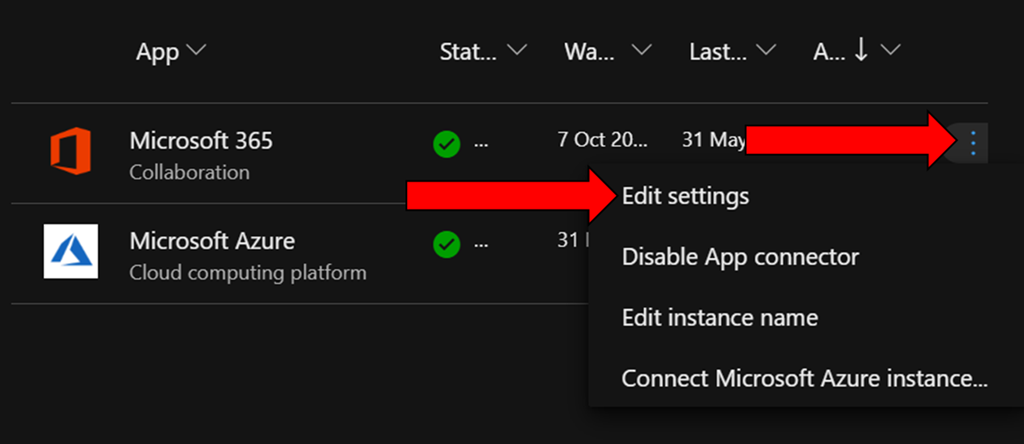
To verify the Microsoft 365 app is fully enabled locate the ellipse (three dots) on the right hand side of this connector and select it as shown above.

From the menu that appears select Edit Settings.

image

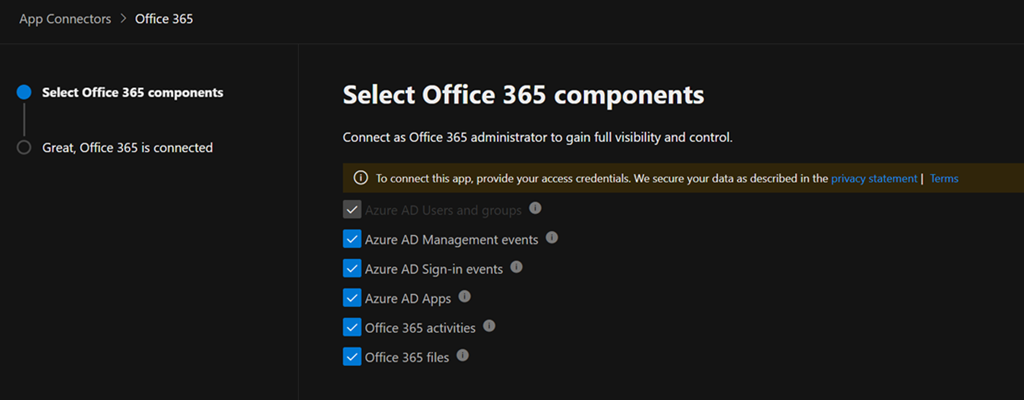
Ensure all the settings available to you are enabled as shown. Select the Connect to Office 365 button at the bottom of the dialog to save your settings and continue.

There is no addition cost to enabling these options and when you do you are able to monitor, audit and capture the logs for:

– Azure AD Users and Groups

– Azure AD Management events

– Azure AD Sign-in events

– Azure AD Apps

– Office 365 Activities

– Office 365 files

all thanks to Defender for Cloud apps.

Enabling Microsoft Syntex PAYG

There are lots of great new features coming to Microsoft Syntex (or SharePoint Premium) and many of these can be used in a PAYG manner tied to an Azure subscription. This is much like the Power Platform PAYG configuration I have detailed previously.

Before you configure anything in Microsoft 365, you’ll need an Azure subscription to bill against that is in the same tenant as Microsoft 365. I would also suggest you create a new unique Resource Group which you can target for Syntex PAYG services. This will make it much easier to determine the costs of the Syntex services that you consume. I’m not going to cover how to add a resource group to Azure here, but make sure you have the subscription in place before proceeding.
image

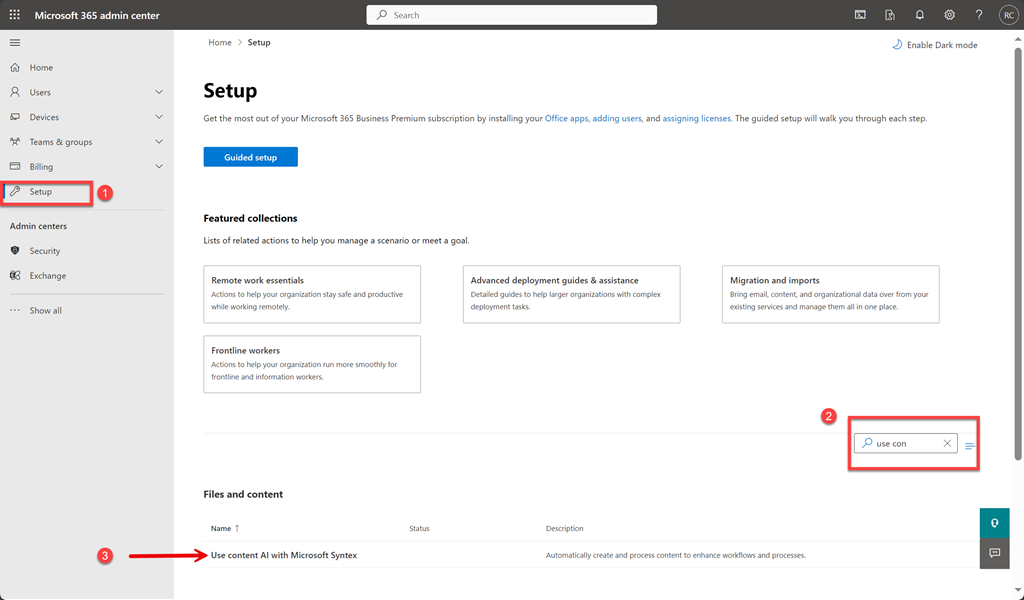
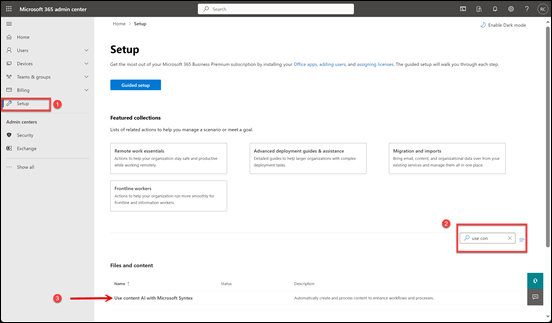
To enable Syntex PAYG you need to login to the Microsoft 365 portal as an administrator and navigate to the Admin center as shown above. Select Setup from the menu on the left. On the right enter “use con” into the search box as shown in step two above. This will filter out all the other options except the one you want which is:

Use content AI with Microsoft Syntex

as shown in step 3 above. Select this.

image

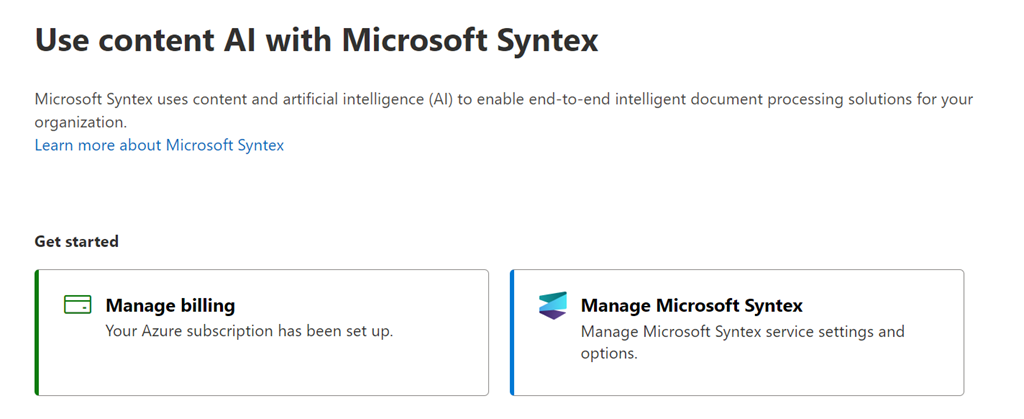
You should see the screen shown above. If you have not yet configured the PAYG billing for Syntex the only option available will be the Set up billing option on the left, as shown, which you should select.

image

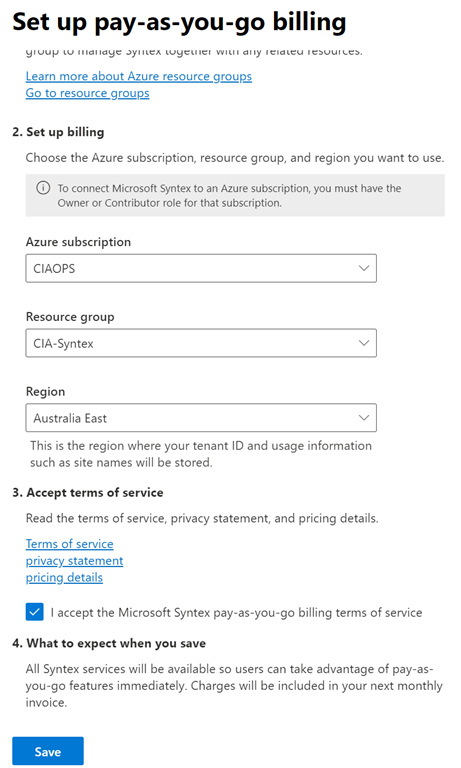
A dialog will appear from the right hand side with a number of options as shown above. Here you’ll need to select your Azure information from the drop down menus presented.

image

When you have completed all the fields (including the Resource Group which I suggest you create just for this purpose), select the I accept Microsoft pay-as-you-go billing terms of service. Finally, select the Save button at the bottom of the dialog.

image

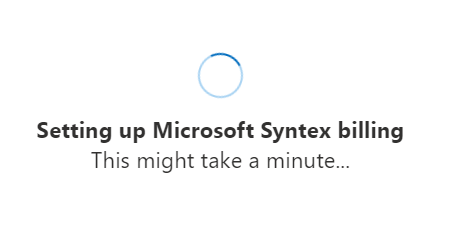
The system will then display the above screen for a few minutes (be patient, it takes a little while to fully configure).

image

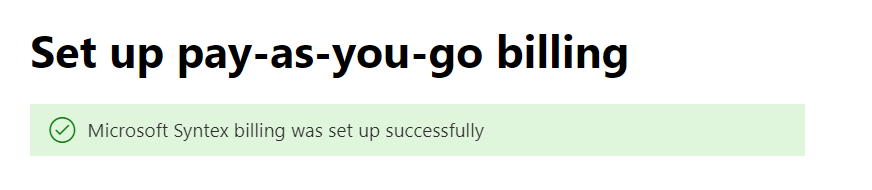
All going well, you should receive a confirmation of success at the top of the page as shown above. You can now close this dialog.
image

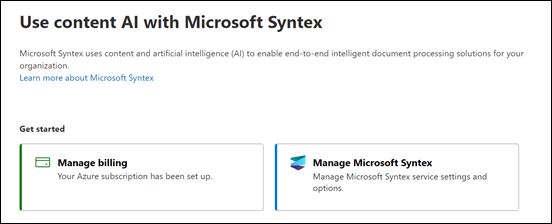
With the billing complete you should now be able to select the Manage Microsoft Syntex option on the right as shown above.
image

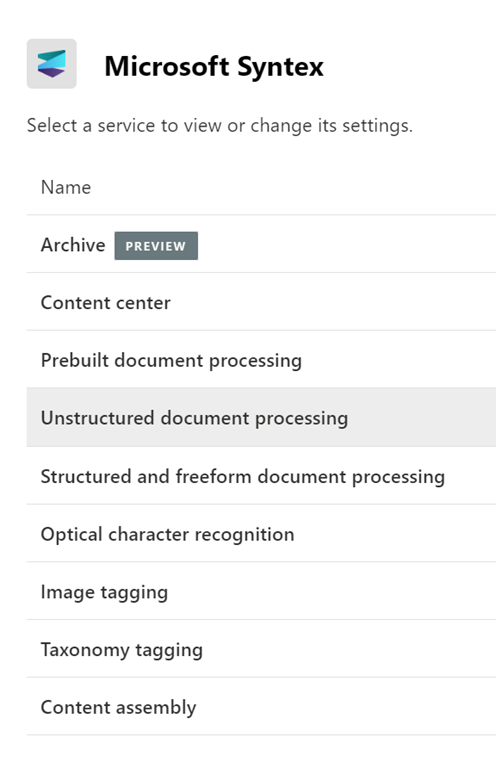
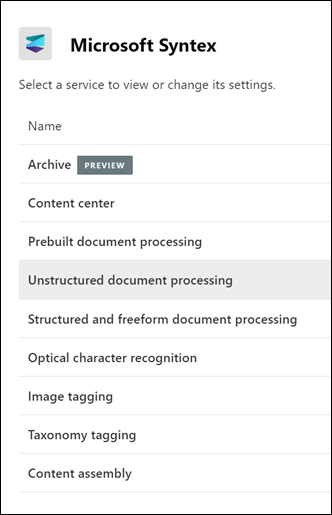
You should now see the current list of services that can be utilised with Syntex PAYG. More will be added over time, so don’t forget to check back regularly. To configure any of these simply select that service.

image

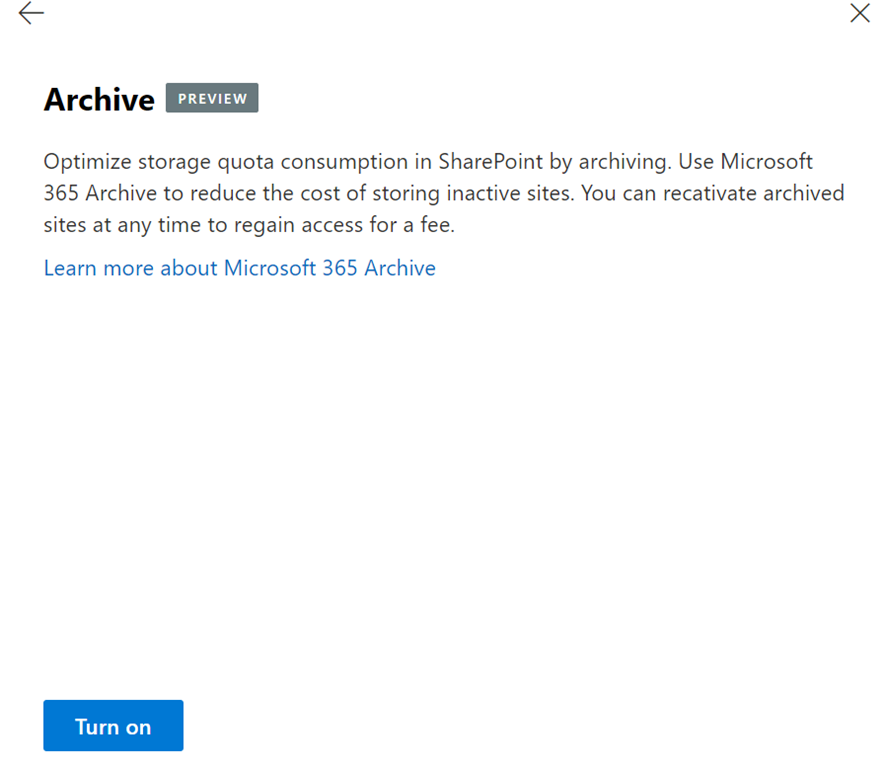
In this case, the Archive option was selected and you can see the Turn on button on the bottom of the dialog you would need to select to enable SharePoint Site archiving in your Microsoft 365 tenant. There are more configuration steps required to enable the service and all this really does is bill the service in a PAYG manner to your Azure subscription.

You can now close out of all these windows and leave everything turned off for now, ready for when you do want to start using those capabilities. There will be no costs until you actually start using these services (i.e. PAYG. Don’t use, don’t pay!)

It is really good that these advanced options are being made available in a PAYG manner, allowing greater access to such capabilities, without necessarily having to pay high monthly fees with a lock in contract. A very SMB friendly option in my opinion!

I look forward to seeing more services appear here for Syntex which I can star using, including eSignatures which is coming real soon. Stay tuned.

New IoT device with a servo motor

image

I had a recommendation to move to a different IoT device to make connection to Azure and programming easier going forward. The recommendations was to use a:

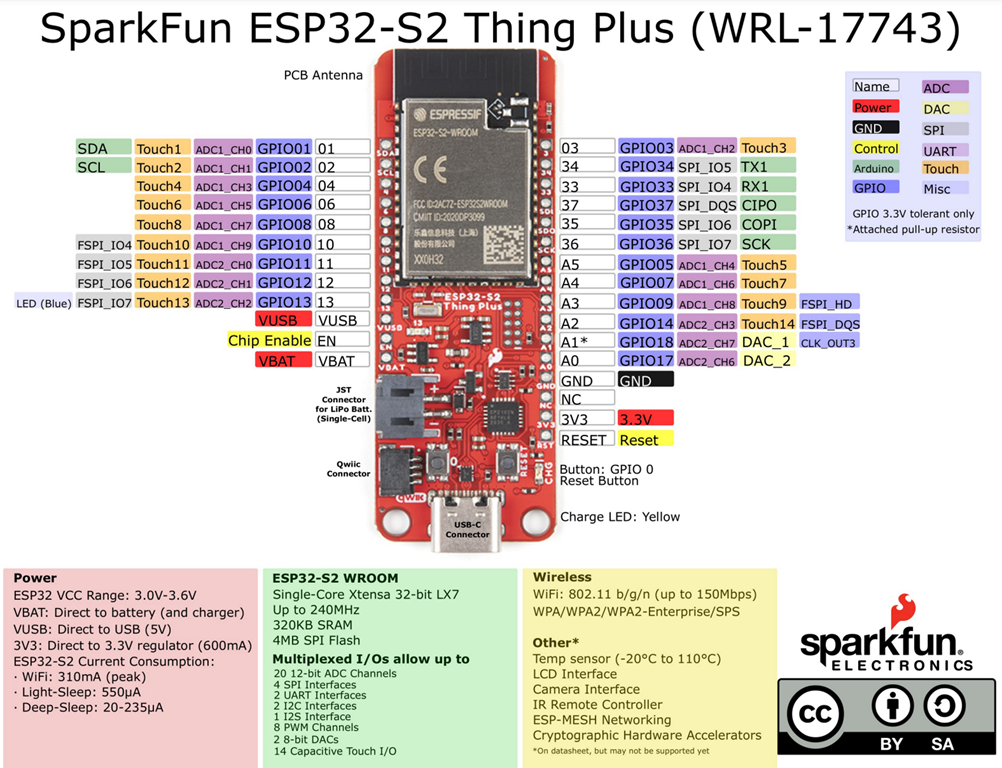
SparkFun Thing Plus – ESP32-S2 WROOM

So the first thing I needed to do was get the right board selection working with PlatformIO. The end result of this was the need to use this platformio.ini file in the project:

[env:sparkfun_esp32s2_thing_plus]
platform = espressif32
board = sparkfun_esp32s2_thing_plus
framework = arduino

and you can look at this for further reference:

https://docs.platformio.org/en/latest/boards/espressif32/sparkfun_esp32s2_thing_plus.html#board-espressif32-sparkfun-esp32s2-thing-plus

Once I had the board being recognised and accepting uploads the next challenge was to execute some code. I went back to start and did the standard stuff I’d done with other devices like:

External flashing LED

but with the SparkFun Thing Plus – ESP32-S2 WROOM device instead. All of that is pretty straight forward on any device, so I won’t repeat the details here. What I though I’d cover off is something new on attaching a servo motor to the device.

image

The configuration is pretty simple as shown above. I used a:

SG92R Micro server motor

that basically has three connections – Power, Ground and Control as shown above.

I found some simple example code that I could use here:

Using Servo Motors with ESP32

I have also put all the code I’ve actually used for my ESP32-S2 device here:

https://github.com/directorcia/Azure/tree/master/Iot/ESP32-S2

I also needed to add the

ESP32Servo

library from Kevin Harrington to the project.

The code that I used to make the servo ‘sweep’ backwards and forwards is here for your reference:

https://github.com/directorcia/Azure/blob/master/Iot/ESP32-S2/servo.cpp

and here’s what it looked like when it ran on the device:

servo

With this new device under control, it’s time to move onto bigger projects.

Microsoft Defender for Business post setup wizard recommendations

image

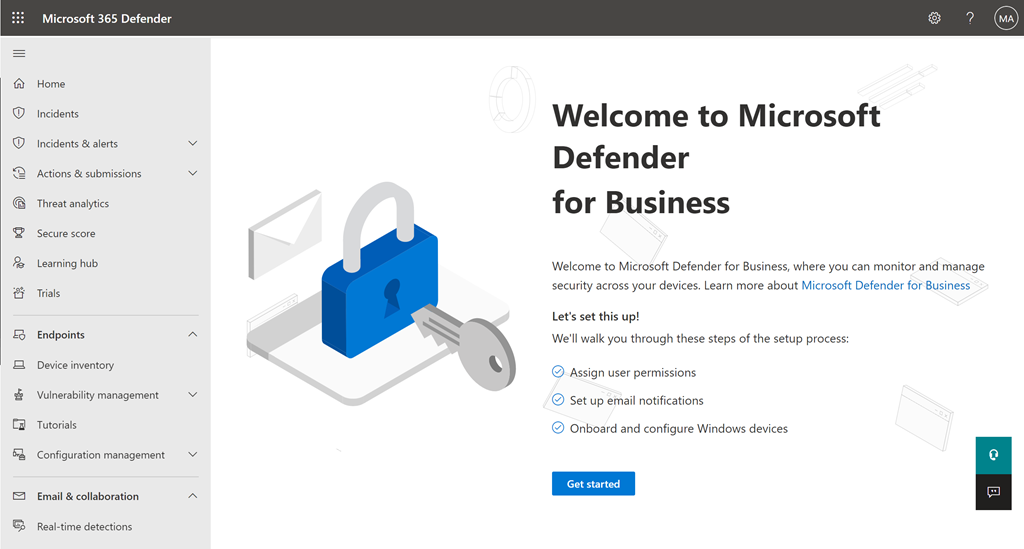
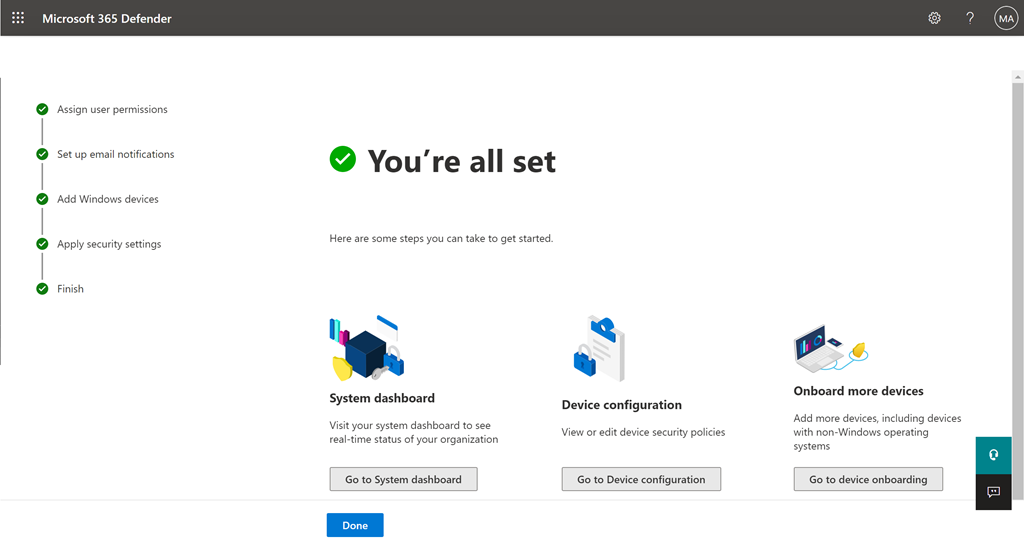
Let’s say that you have kicked off the Microsoft Defender for Business setup wizard as shown above. For the purposes of this article I’ll also assume that this is part of a Microsoft 365 Business Premium tenant.

image

Let’s assume that you have now completed that process, which you can read about here:

Use the setup wizard in Microsoft Defender for Business

image

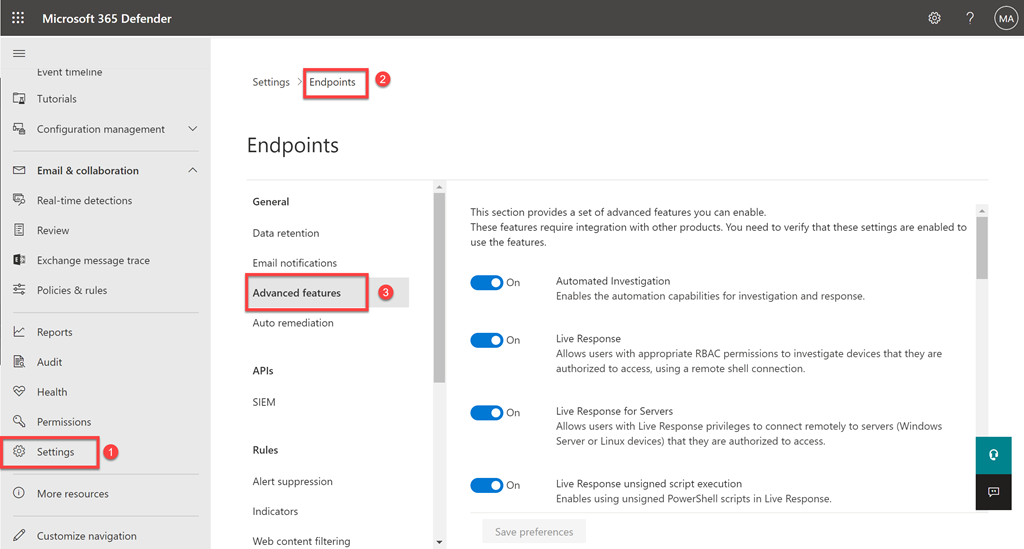
After the wizard has completed I suggest you head to the Settings options in https://security.microsoft.com and then select Endpoints and finally, select Advanced features, where you should see the above screen full of options on the right.

At this point I’d suggest you go and enable all the options listed. Now, not all of them will be relevant but I’d still recommend they be turned on none the less. Do it once and you won’t need to come back is my philosophy.

Leave that location open as we’ll be coming back here.

image

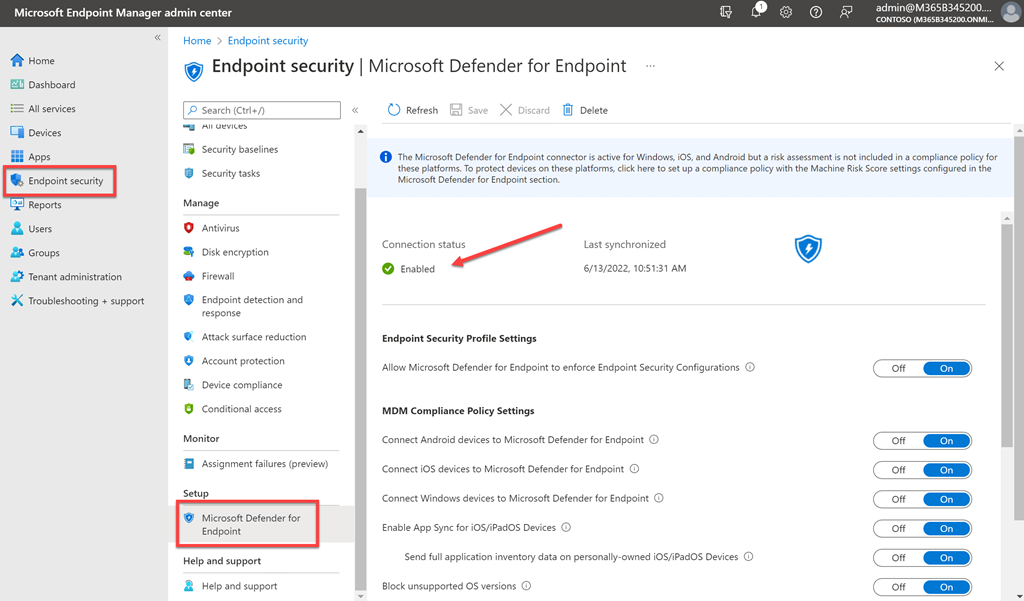
Next, head over to your Microsoft Endpoint Manager and select Endpoint security on the left, then Microsoft Defender for Endpoint, which should result in the above screen.

Here you want to ensure the Connection status is Enabled (i.e. green check mark) as shown.

If it isn’t for some reason, then head back to https://security.microsoft.com, Settings, Endpoint, Advanced features.

image

Scroll through the list of items until you find the Microsoft Intune connection as shown above. Ensure that it is turned On. If it isn’t, turn it On, wait at least 15 minutes and check back in Endpoint Manager for the Connection status to be Enabled (i.e. you see the green check mark). If it is already On and the green check mark doesn’t appear, turn the setting Off for at least 15 minutes and then turn it back On. You know, kinda reboot it. The connection status should go green after that in my experience.

image

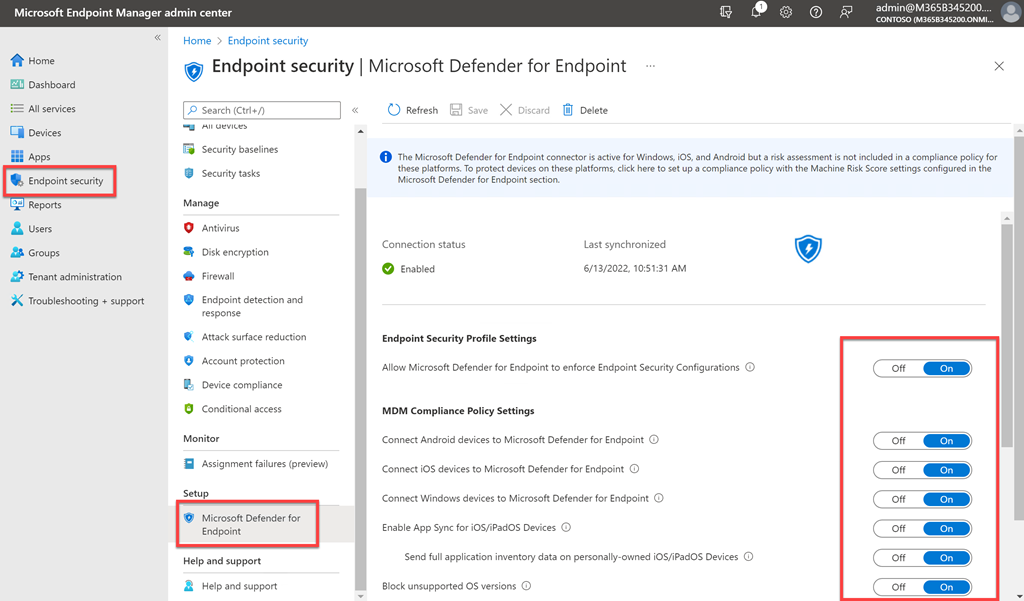
When the Connection status is Enabled go and turn all the options on the page to On as shown above.

image

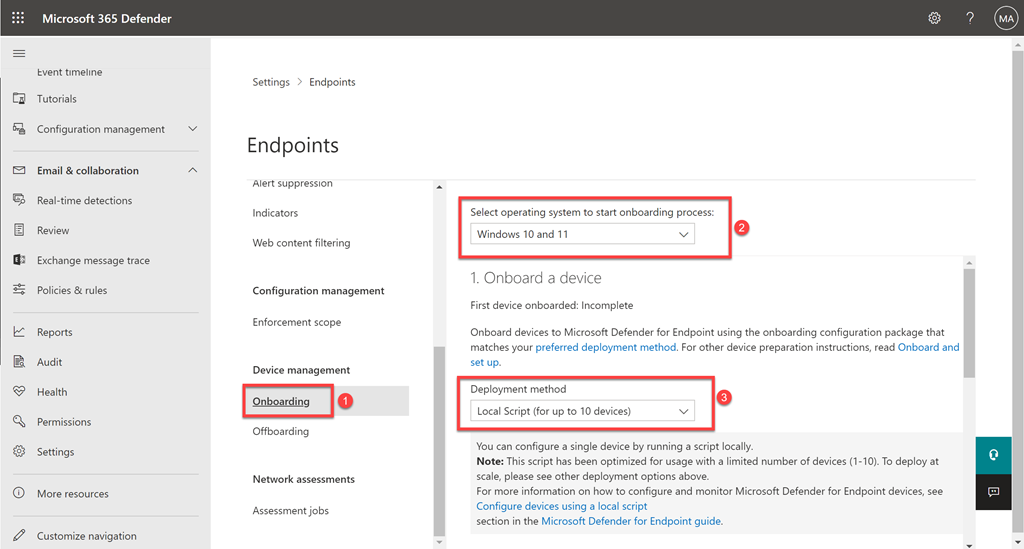
Return to https://security.microsoft.com and select the Onboarding option as shown above.

My recommendation is that you manually onboard the first Windows 10 device in your environment using a local script. That will ensure everything is working quickly and easily.

Simply download the script provided and run it on one of the Endpoint Manager enrolled devices in your environment.

image

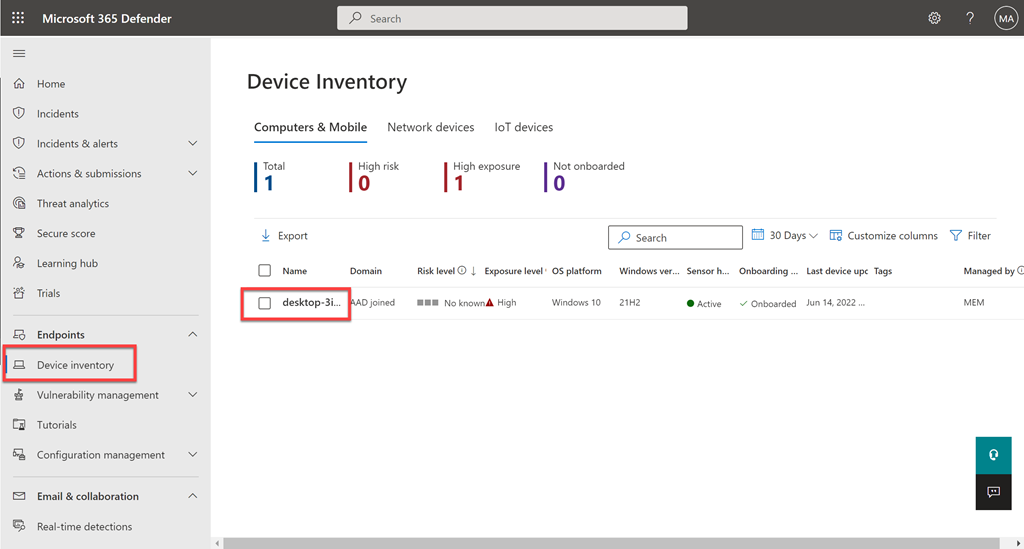
Once the script has run successfully return to the console and select Device inventory from the menu on the left as shown. Within 15 minutes or so, you should see the machine that you ran the script on appear here.

Congratulations, you have successfully onboarded your first device to Defender for Business in your tenant. You are now free to continue to configure additional devices using the policies provided. I always like to do the very first device in the environment manually so I know everything is working as expected. If I then get issues, I know to troubleshoot my deployment policies.

Windows 10 in cloud configuration

Microsoft has released a handy guide called

Windows 10 in cloud configuration

that walks you through a recommended best practice configuration of you Windows 10 devices using Endpoint Manager. what they are now doing, as highlighted by my video, is begin to roll this into a wizard inside the Endpoint Manager portal, allowing you to quickly and easily create and apply policies to protection your Windows 10 machines.

I believe this in only the beginning of what Microsoft plans to roll out and I expect to see lots more configuration coming very soon, not only for Windows 10 but also iOS and Android.

Watch this space.

Intune policy sets

The modern way to manage and configured devices in the Microsoft Cloud is to use Intune to handle device enrolment and configuration. This can become complex quickly when you at look configuring across the different operating systems (iOS, Android, Windows, MacOS, etc) and the different policies (endpoint, compliance, restrictions, etc) because there are so many possible variations. If you then layer on a variety of users and their requirements, being consistent across the organisation can be a challenge.

image

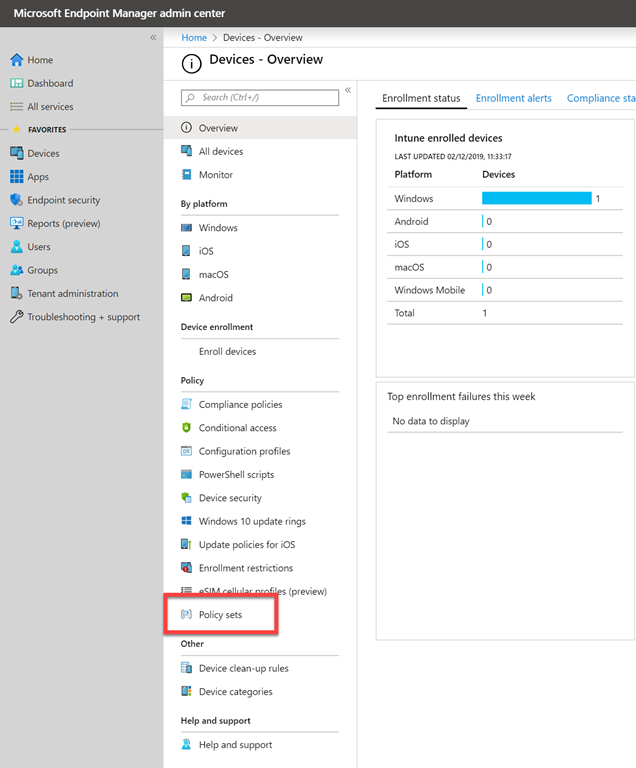
Luckily, Intune now gives us something called Policy Sets which you can find in the Microsoft Endpoint Manager admin center as shown above.

image

As the opening screen, shown above, notes – Policy sets are basically a way to group a set of individual policy configurations together and have them applied as a group. Handy eh?

image

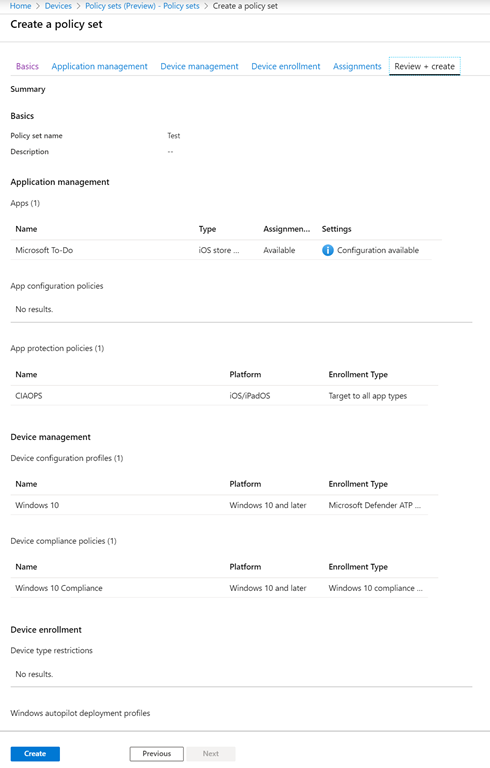
Basically, you follow through the wizard and select the policies you wish to group together and then users you wish that to apply to. You save that as an individual Policy set, of which you can create as many different ones as you like.

Once you create the policy it will be applied exactly the same as if you did each policy individually, but now you can do all that together via a single setting! You can go back in at anytime and edit the Policy sets you created.

Device manager Policy Sets allow you to easily group a variety of individual Intune policies together and apply them together to a group of users quickly and easily. This should save you lots of time over creating an individual enrolment policy and applying, then an individual compliance policy and applying, then an individual endpoint protection policy individually and so on.

Changing client Log Analytics workspaces

I have been using Azure Log Analytics solutions for a while now to do things like report on client machine changes, updates, inventory, security and so on. However, I wanted to change my workspace for these clients from one Azure tenant to another.

image

I was thinking that I’d have to do into the registry and change the workspace id and key but when I searched the registry there were far too many entries. Turns out you don’t need to do that at all! All you need to do is got to the control panel and find the Microsoft Monitoring Agent as shown above.

image

When you run that you’ll see any workspaces you are current joined to. You can Edit or Remove what is there.

image

Then you you can add a new workspace as shown above.

image

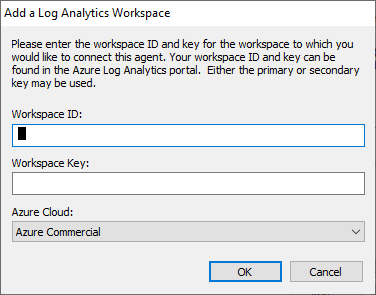
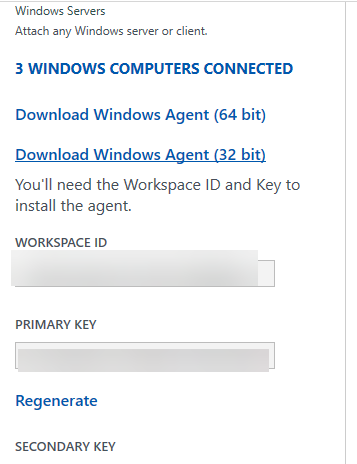
All you then need to is plug in the new Workspace ID and Key from new workspace and you are away.

I also discovered that you can configure the agent to report to multiple workspaces, even in different tenants if you want. That makes things really easy.

How easy is that?