How MSPs Should Really Value Their Business (Especially If You’re Thinking of Selling or Merging)

image

Most MSPs only think about valuation when someone taps them on the shoulder and says, “Have you ever thought about selling?”

That’s already too late.

If you’re an MSP owner—even if you have zero intention of selling—you should understand how your business would be valued today, because it shapes almost every decision you make: pricing, service design, staffing, documentation, and even which customers you keep.

And here’s the uncomfortable truth: most MSPs dramatically overestimate what their business is worth.

Valuation Is About Risk, Not Feelings

MSPs often value their business emotionally. They remember the late nights, the weekends, and the clients rescued from disaster. Buyers don’t care.

Buyers value risk-adjusted future cash flow.

That’s why the industry has largely standardised around EBITDA‑based valuation rather than revenue alone. Unlike SaaS businesses, MSPs are service-heavy, people-dependent, and operationally complex. Buyers care about what’s left after the work is done—not how big your top line looks. [guicarlos.com]

If your MSP can’t consistently generate profit without you personally saving the day, the risk profile goes up—and the valuation multiple goes down.

Recurring Revenue Is Necessary, but Not Sufficient

Yes, Monthly Recurring Revenue matters. Deeply.

But not all MRR is created equal. Buyers will examine:

  • Contract length and termination clauses

  • Client concentration (one “big” client is a liability)

  • Price discipline and annual increases

  • Retention and net revenue retention (NRR)

An MSP with tidy long‑term agreements and predictable billing will attract stronger multiples than one running on handshake deals and “mates’ rates” pricing. [auxocapita…visors.com]

If your contracts can vanish with 30 days’ notice, so can your valuation.

The Biggest Valuation Killer: Key Person Risk

This is where many founder‑led MSPs fall apart.

If sales, architecture decisions, major escalations, and client relationships all run through you, buyers see a business that can’t survive without its owner. They’ll either:

  • Discount the price heavily, or

  • Walk away entirely

Well‑documented processes, repeatable service delivery, and a leadership layer that can operate without you aren’t “nice to have”. They’re valuation multipliers—or destroyers. [nuoptima.com]

Tool Sprawl and Custom Work Hurt More Than You Think

From a buyer’s perspective, every bespoke solution and one‑off tool is future pain.

Standardised stacks, consistent security baselines, and repeatable onboarding reduce integration risk and improve margins. MSPs that treat operations like a product—not a collection of exceptions—command higher multiples because they scale without chaos. [aventis-advisors.com]

Ironically, MSPs that pride themselves on “flexibility” often sabotage their own exit.

Growth Story Beats Heroics

Buyers don’t pay premiums for burnout.

They pay for credible growth:

  • Defined ICP (not “anyone with a credit card”)

  • Clear service roadmap (security and cloud maturity matters here)

  • Sales that aren’t founder‑dependent

If growth flatlines when you stop selling personally, the multiple shrinks fast.

Value Your MSP Like You Intend to Sell—Even If You Don’t

The takeaway is simple: build your MSP as if someone else will run it one day.

That mindset forces better decisions:

  • Cleaner financials

  • Better documentation

  • Less hero culture

  • More focus on outcomes than effort

Whether you sell, merge, or keep running it, you end up with a stronger, more valuable business.

And if you do eventually exit? You’ll be negotiating from a position of strength rather than hope.


External References

Endpoint Privilege Management in Intune: a deployment that actually sticks

image

Endpoint Privilege Management (EPM) is the cleanest answer Microsoft has shipped for the local-admin problem. Done well, it lets your tenants run as standard users while still installing approved apps and updating drivers — auditable, just-in-time, no helpdesk ticket. Done badly, you ship a half-configured agent that produces noise, breaks line-of-business apps, and convinces the customer that “least privilege” is somebody else’s problem. Here is how to make EPM stick at an MSP.

The licensing trap nobody warns you about

EPM is not included in Microsoft 365 Business Premium. It needs Microsoft Intune Plan 1 plus either the Intune Suite add-on or the standalone EPM add-on. If your customer is on BP only, you have a quoting conversation before you have a deployment conversation. Confirm assignments under Tenant administration → Intune add-ons before you create a single policy.

While you are there, validate the other prerequisites people skip: devices must be Microsoft Entra joined or hybrid joined, Intune-enrolled (or ConfigMgr co-managed), 64-bit only, and on supported builds — Windows 11 24H2/23H2/22H2/21H2 or Windows 10 22H2/21H2 with the listed cumulative updates. EPM also needs clear line of sight to its endpoints without SSL inspection — this single item kills more pilots than anything else.

See EPM deployment planning for the full prerequisite matrix.

Where to configure

Everything lives in the Intune admin center at Endpoint security → Endpoint Privilege Management. There are two policy types you need to understand:

  • Elevation settings policy — provisions the EPM agent on the device, sets the default elevation response, and turns on reporting. One per device-targeted persona.

  • Elevation rules policy — defines which binaries can elevate, how (Automatic, User confirmed, Support approved, or Elevate as current user), and using which signal (file hash, certificate, or metadata). Up to 100 rules per policy.

Do not configure rules first. The agent does not exist on the endpoint until the settings policy lands. See the EPM overview.

The rollout pattern that actually works

Three rings, audit-first — same as every other Intune deployment that survives contact with users:

  1. Audit ring (week 1–2). Deploy only an elevation settings policy to a pilot device group. Set Default elevation response = Require support approval, Send elevation data = Yes, Reporting scope = Diagnostic data and all endpoint elevations. No rules yet. Let it bake. EPM data is processed once every 24 hours, so resist the urge to declare it broken on day one.

  2. Pilot ring (week 3–4). Use the Overview dashboard and the Frequently unmanaged elevations and Frequently approved by support tiles to identify the real top 5–10 elevation candidates. Build rules for those — prefer publisher certificate + file path over file hash, because hashes change with every app update. Roll into a 20–30 user pilot.

  3. Production ring (week 5+). Widen progressively. Once managed-elevation coverage is high, deploy an account protection policy to remove standing local admin from the user group on those devices. That is the actual goal — the rules are just the bridge.

Build rules from Creating elevation rules. Watch coverage from EPM reports.

Top pitfalls

  • Certificate-rule sprawl. A certificate-only rule allows any binary signed by that publisher to elevate. Some vendors sign their entire catalogue — including tools you did not intend to elevate — with one cert. Always pair certificate with file name or path.

  • SSL inspection on the proxy. EPM telemetry travels over a pinned channel. Decrypt it and the device reports as “not applicable” with no useful error. Add an exclusion before you blame the agent.

  • Forgetting to remove local admin. Shipping rules without ever taking standing admin off the user group means EPM is theatre, not control. The whole point is the standard user.

Get those three right and EPM is a near-magical capability for an MSP. Get them wrong and it is just another agent on the box.

Copilot image generation in PowerPoint

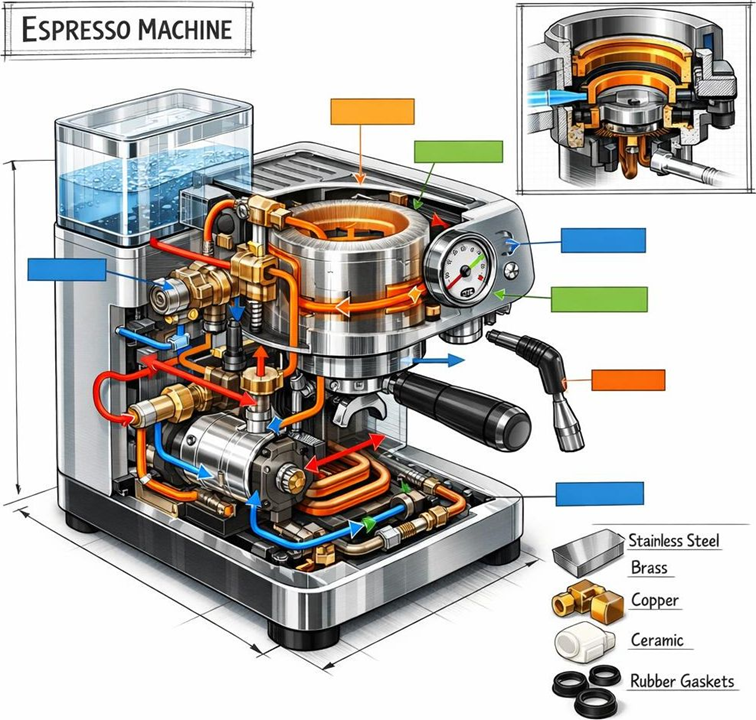
One of the ways I like to test new image models is to give them the same prompt to create an image of an expresso machine. You can see the last iteration here:

https://blog.ciaops.com/2026/05/05/revisiting-copilot-image-generation-analysis/

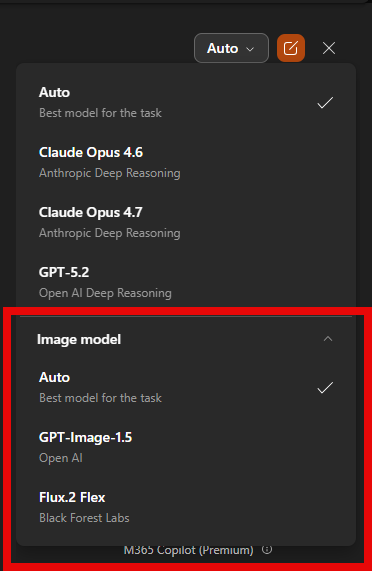
More advanced image options have made their way into PowerPoint and it allows me to use the image model of my choice per:

image

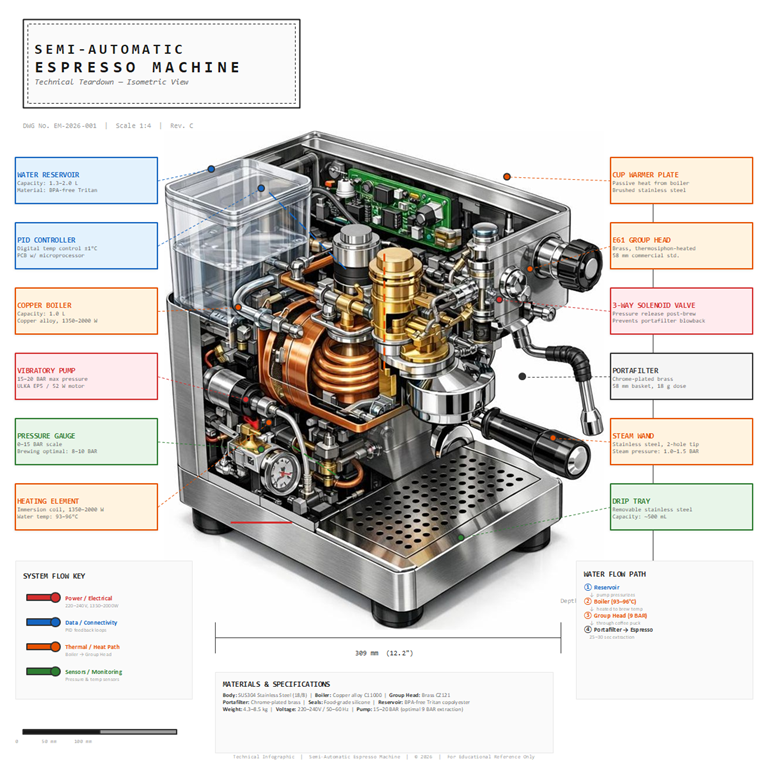
So to test, I took exactly the same prompt I had used before to create images and used it inside PowerPoint with each model. Here’s the result from using GPT-Image-1.5

image

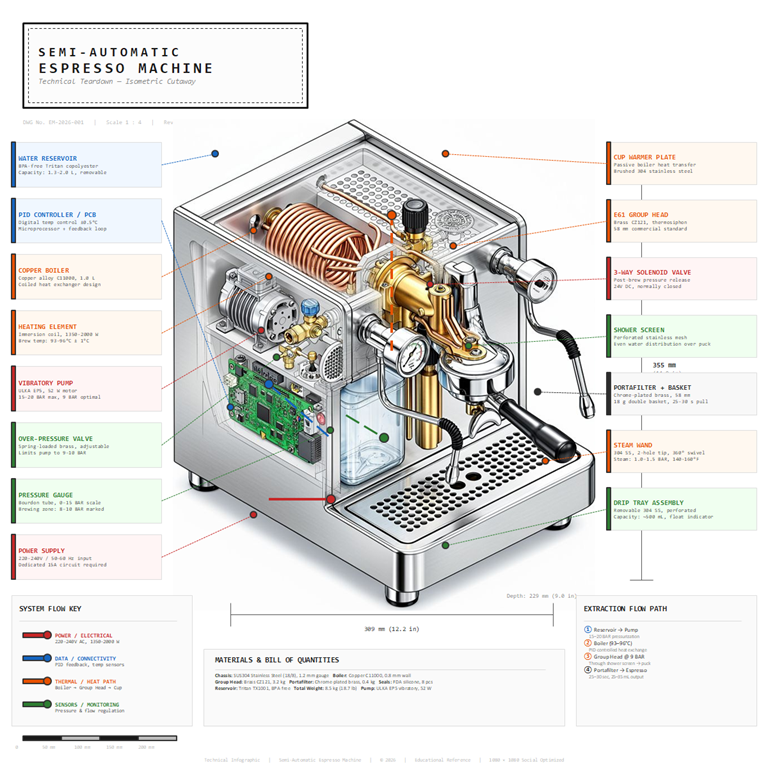
and Flux.2 Flex

image

These output are now beginning to revival dedicated image creation tools and they are backed right into PowerPoint and probably soon, all other desktop apps thanks to Copilot!

As a slight variation, I asked Copilot in PowerPoint to create a complete slide rather than just a single image and here’s what I got:

GPT-Image-1.5

image

and Flux.2 Flex

image


CIA Brief 20260516

image

Security & Threat Intelligence

Microsoft 365 & Teams

Windows

Power Platform

AI & Copilot

After hours

Reimagining the mouse pointer with AI – https://www.youtube.com/watch?v=pZNzfQLgGsA

Editorial

If you found this valuable, the I’d appreciate a ‘like’ or perhaps a donation at https://ko-fi.com/ciaops. This helps me know that people enjoy what I have created and provides resources to allow me to create more content. If you have any feedback or suggestions around this, I’m all ears. You can also find me via email director@ciaops.com and on X (Twitter) at https://www.twitter.com/directorcia.

If you want to be part of a dedicated Microsoft Cloud community with information and interactions daily, then consider becoming a CIAOPS Patron – www.ciaopspatron.com.

Watch out for the next CIA Brief next week

If You Want a Successful MSP, You Need a Mirror and a Map

image

After working with MSPs for years, one pattern keeps repeating itself. The businesses that grow sustainably don’t necessarily have better tools, smarter engineers, or bigger marketing budgets.

They have two things others avoid:

A mirror and a map.

One tells them who they really are.
The other tells them how they actually move forward.

Most MSPs struggle because they’re missing one—or both.

The Mirror: Getting Brutally Honest About Who You Serve

The mirror is uncomfortable, which is exactly why so many MSPs avoid it.

It forces you to answer questions like:

  • Who are we actually good at serving?

  • Which clients drain time, margin, and morale?

  • Where do we make money without constant firefighting?

Too many MSPs still operate on “we support anyone with Microsoft 365”. That’s not a niche. That’s a stress strategy.

I’m seeing this play out right now with Microsoft 365 Copilot. MSPs rush to “support Copilot” without asking whether their existing client base is even ready for it. Poor data hygiene, no governance, inconsistent security—and then Copilot gets blamed for messy outcomes.

The mirror reveals whether your ideal clients:

  • Care about productivity and outcomes, not just price

  • Are willing to change how they work

  • See IT as a business partner, not a helpdesk

If your clients won’t invest in structure, security, or user adoption, Copilot won’t fix that. It will simply surface the cracks faster.

The mirror isn’t about being perfect. It’s about being honest. Once you know who you want to serve, your decisions stop being reactive.

The Map: Turning Intent Into a Real Game Plan

Once the mirror gives you clarity, you need a map. Not a vision statement. Not a slide deck. A usable, day‑to‑day plan.

Many MSPs say they want to move “up the stack” or become “strategic advisors”, but their operating model still revolves around tickets and tools. That disconnect shows up everywhere—from pricing to staff burnout.

A good map answers practical questions:

  • What problems do we solve repeatedly?

  • What services are standardised—and which ones shouldn’t be sold at all?

  • What does success look like for our clients in 6 or 12 months?

Copilot is a great example here. Supporting it properly requires a map that includes data governance, identity hygiene, user readiness, and ongoing guidance—not a one‑time deployment fee.

Without a map, MSPs treat Copilot like the last shiny thing: Sell it. Deploy it. Move on. Deal with the fallout later.

With a map, Copilot becomes part of a broader productivity and decision‑making strategy—one that actually strengthens long‑term client relationships.

Where MSPs Get Stuck

The trap I see most often is MSPs trying to fix operational pain with more tools.

If margins are thin, they add another service. If tickets spike, they deploy another platform. If clients complain, they discount.

None of that works without the mirror and the map.

Copilot isn’t forcing this conversation—but it is accelerating it. It exposes poor information structures, vague ownership, and the absence of a clear game plan very quickly.

That’s uncomfortable. But it’s also an opportunity.

The Real Advantage

The MSPs that will win aren’t the ones rushing to tick “Copilot ready” checkboxes.

They’re the ones willing to:

  • Look honestly at who they serve

  • Draw a clear line around what they do—and don’t—support

  • Build services that focus on outcomes, not just activity

So if your MSP feels busy but stuck, don’t look for the next tool.

Pick up the mirror.
Then draw the map.

Everything else becomes easier after that.

Tamper Protection and EDR Block Mode: An Opinionated Rollout for Business Premium

image

If you manage Microsoft 365 Business Premium tenants and you are still treating Tamper Protection as a one-click toggle and EDR in block mode as an afterthought, you are leaving real protection on the table. Both are included with Defender for Business — there is no licence excuse — but the production rollout is more nuanced than the docs suggest.

Here is the playbook I run on every BP tenant.

Prerequisites that bite people

Before either feature does anything useful, devices must be onboarded to Microsoft Defender for Endpoint (or Defender for Business) and reporting healthy in the Defender portal. Until onboarding completes, Tamper Protection literally shows as Not Applicable on the device, and the EDR sensor cannot enforce anything.

Three prerequisites that catch MSPs out:

  • Devices must be Intune-managed or co-managed with the Endpoint Protection workload pointed at Intune. Co-managed devices where the workload still points to ConfigMgr are not supported by the Intune Tamper Protection policy.
  • Defender antimalware platform must be at 4.18.1906.3 or later. Modern devices are; stale gold images and the odd Server 2016/2019 host often are not.
  • If you plan to manage AV exclusions through Intune, set DisableLocalAdminMerge = true in your AV policy. Without it, tamper-protected exclusions silently fail to apply.

Verify all of this on a pilot device with Get-MpComputerStatus, checking IsTamperProtected and AMRunningMode, before you flip anything.

Where to configure

For Tamper Protection, do it in Intune, not the Defender portal. Granular targeting beats a tenant-wide toggle every time.

Intune admin centre → Endpoint security → Antivirus → Create policy → Platform: Windows → Profile: Windows Security Experience → Tamper protection (device): On.

For EDR in block mode, the cleanest path is the Defender portal — it is tenant-wide and does not fight your AV policies:

Microsoft Defender portal → Settings → Endpoints → Advanced features → Enable EDR in block mode → Save.

You can also drive it through Intune via the Defender CSP when you need device-group scoping, but for most BP tenants tenant-wide is correct.

Microsoft’s references:

The rollout that survives contact with users

Three rings, always:

  1. Pilot (5–10 devices) — your own techs plus one cooperative power user. Apply the Tamper Protection policy first, leave it 48 hours, then enable EDR block mode tenant-wide. Watch the Action Center for unexpected Blocked/Prevented entries; confirm IsTamperProtected = True and AMRunningMode = Normal (or EDR Block Mode on third-party AV tenants).
  2. Broader pilot (~25%) — one quiet department, ideally not Finance during end-of-month. Run for a full working week.
  3. Full rollout — assign to your “All Workstations” dynamic group.

Sequencing matters. Enabling EDR block mode before Tamper Protection means a misbehaving LOB app can still be silenced by a local admin disabling Defender — which defeats the point.

Top three pitfalls

  1. Passive-mode false sense of security. If a third-party AV is the primary product, Defender drops into passive mode. EDR block mode still fires, but real-time protection, network protection, ASR rules, and indicators are all inactive. Either document this in the customer-facing security baseline or migrate them off the third-party AV.
  2. Tamper Protection blocking your own policy changes. Once on, you cannot edit AV exclusions or disable real-time protection from the device — and sometimes not cleanly from Intune either. Use troubleshooting mode from the Defender portal for short-lived changes; never disable Tamper Protection at scale.
  3. Forgetting the servers. Windows Server 2012 R2/2016 do not auto-passivate when third-party AV is installed. Set the ForceDefenderPassiveMode registry value before onboarding, or you will have two AV products fighting at boot.

Get the prerequisites right, ring the rollout, and these two features quietly become the most boring — and most valuable — controls in your Business Premium stack.

Inspect What You Expect: Why MSPs Can’t “Set and Forget” Copilot (or Anything Else)

image

One pattern I see repeatedly in MSP businesses—especially as they start adopting Microsoft 365 Copilot—is the quiet belief that once something is delegated, the job is done.

Hand it to a technician.
Hand it to an admin.
Hand it to an AI tool.

Then move on.

That approach has always been risky. With Copilot in the mix, it becomes outright dangerous.

Not because Copilot is untrustworthy—but because systems don’t improve unless you observe them. And as an MSP, improving systems is literally your job.

Delegation Without Inspection Is How Problems Hide

Most MSPs already understand this with infrastructure. You don’t deploy backups and just hope they work. You test. You get alerts. You look for drift.

But when it comes to productivity work—emails, reporting, meetings, content creation—we suddenly relax.

I’m seeing MSPs roll out Copilot, show users a few prompts, and then disappear. No feedback loop. No measurement. No review of outputs or behaviours.

Weeks later, the questions start:

  • “Why are users still asking basic questions?”

  • “Why hasn’t productivity improved?”

  • “Why does Copilot feel underwhelming?”

The issue isn’t the tool. It’s the lack of inspection.

Copilot Changes the Work—So You Need New Sensors

Copilot doesn’t just speed things up. It changes how work happens.

People delegate thinking earlier.
Drafts appear faster.
Decisions are made with less friction—and sometimes less reflection.

That’s powerful, but only if you can see what’s going on.

This is where I introduce the idea of sensors.

Sensors are simple mechanisms that tell you when reality drifts from expectation. They’re not about distrust—they’re about visibility.

In Copilot terms, that might look like:

  • A short weekly check‑in where users paste an example output that helped (or failed).

  • A dashboard showing adoption signals across apps, not just license counts.

  • A Teams message when usage patterns drop after the initial rollout.

  • A review cadence where managers validate whether Copilot‑created artefacts are actually being used.

None of this is complex. Almost no one does it.

AI Amplifies Weak Processes First

Here’s the uncomfortable truth: Copilot makes good systems better and bad systems louder.

If documentation is outdated, Copilot spreads outdated thinking faster.
If decision rights are unclear, Copilot accelerates confusion.
If users don’t know what “good” looks like, Copilot produces more confident mediocrity.

Inspecting outcomes—not effort—is how you catch this early.

I’ve worked with MSPs who expected Copilot to “lift capability” across the board. What actually happened was more revealing: high performers got better, while poor habits became more visible.

That visibility is a gift—if you’re looking for it.

Growth Comes From Feedback Loops, Not Trust Falls

Whether you’re an MSP of five people or fifty, growth doesn’t come from hiring smarter people or deploying smarter tools. It comes from tightening feedback loops.

That’s why mature MSPs obsess over:

  • Red/green indicators

  • Exception reporting

  • Notifications when something deviates from normal

The same thinking now applies to knowledge work.

Copilot isn’t a project you “finish”. It’s a system you tune. And tuning only works when you inspect what you expect.

The Takeaway for MSP Leaders

If you’re advising clients—or running your own MSP—don’t treat Copilot like a magic upgrade.

Treat it like any other core system:

  • Define what “good” looks like

  • Build simple sensors

  • Review outputs, not intentions

  • Adjust the environment, not just the prompts

Trust is fine. Visibility is better.

If you’re not inspecting, you’re guessing. And guessing doesn’t scale—especially in an AI‑assisted world.

A Cleaner Way to Connect PowerShell to SharePoint Online

image

Connect-PnPOnline with a browser sign-in is fine when you’re sitting at the keyboard. It becomes a problem the moment you’re not. The script that worked beautifully on your laptop refuses to run unattended. The scheduled job that was meant to tidy up orphaned sites overnight quietly does nothing, because it’s still waiting for someone to type a password. And the moment conditional access tightens on the admin account you’ve been quietly using for automation, every script that touches SharePoint behaves like it’s been thrown out a window.

The fix has existed. The setup hasn’t.

Certificate-based app authentication for SharePoint Online has been supported by Microsoft for years. The mechanics are well documented. The trouble has always been the assembly — generate a cert, export the public key, register an app in Entra ID, paste the right GUIDs in the right boxes, find Sites.FullControl.All in the API permissions list, grant admin consent, copy the thumbprint somewhere you won’t lose it, and verify the tenant ID in three different places along the way. By the time you’ve finished, you’ve forgotten which client you were doing it for.

So I’ve written a script that does the whole sequence end to end:

  • Generates a self-signed RSA-2048 certificate in your local certificate store

  • Creates the Entra ID app registration

  • Uploads the certificate and grants Sites.FullControl.All with admin consent

  • Provisions the service principal and adds Application.Read.All on Graph so the app can read its own metadata back

  • Resolves your tenant’s SharePoint root URL automatically from the Graph verified-domains call

  • Saves tenant, app ID, site URL, and thumbprint into a JSON profile so future connections need almost no parameters

What’s normally half an hour of clicking between Entra, the SharePoint admin centre, and a Notepad full of half-remembered GUIDs runs in about ninety seconds.

I’ve been written a new script — https://github.com/directorcia/Office365/blob/master/o365-connect-pnp-cert.ps1

with full documentation here – https://github.com/directorcia/Office365/wiki/Connect-to-SharePoint-Online-with-Certificates

What the Script Actually Does

There are two modes, controlled by switches.

-GenerateLocalCertificate creates a self-signed RSA-2048 certificate in your current user’s certificate store, exports the public key as a .cer file, and optionally exports a password-protected .pfx. By default it’s valid for two years. That’s the local side of the handshake.

-UseCertificateAuth is the everyday mode. You tell it which tenant to connect to — or let it look up the details in a profile map file — and it signs into Exchange Online using that certificate. No password. No browser. No MFA dialog.

The clever bit is the third option: combining -GenerateLocalCertificate with -ProvisionEntraApp -Tenant 'contoso.onmicrosoft.com'. In a single run, the script will generate the local certificate, authenticate to Microsoft Graph via a device-code flow, create the Entra ID app registration if it doesn’t exist, upload the certificate, grant Exchange.ManageAsApp and Application.Read.All with admin consent, create the matching service principal, sign you into Exchange Online to add the app to the Organization Management role group, and save the tenant, app ID, and certificate thumbprint to a JSON profile file so future connections don’t need any of those parameters.

Getting Started

If you’re new to certificate auth, the first run is the one that matters. Drop the script onto an admin machine, open PowerShell, and run:

.\o365-connect-pnp-cert.ps1 -GenerateLocalCertificate -ProvisionEntraApp -Tenant 'yourtenant.onmicrosoft.com'

You’ll be prompted to sign in — via device code for the Graph permissions (which if you use the –copydevicecodetoclipboard, option will put the required device code straight into the clipboard to paste into the request). You need a Global Admin account.

Where this earns its keep across a client base

After that first run, connecting to a tenant looks like this:

.\o365-connect-pnp-cert.ps1 -UseCertificateAuth -Tenant ‘contoso.onmicrosoft.com’

No password. No browser. No MFA prompt. The profile file is the bit that pays you back across an MSP book. One script lives in your tooling folder, each client has its own certificate and entry in the JSON map, and Task Scheduler can finally drive things like site collection audits, sharing reports, lifecycle cleanup on Teams-connected sites, and external-user reviews without anyone watching it run. Filter by tenant or site URL on the command line and the same script services twenty different customers without you ever editing it.

One honest caveat

When you’ve just provisioned a brand-new app, give Entra fifteen to thirty minutes for the role grants to replicate before your first cert-based connect. It’s the single most common reason a fresh setup looks broken when it isn’t. The script flags this on the way out, but it’s worth saying twice.

Why Certificates Beat Passwords

The security argument is the easy one. A certificate’s private key never leaves the machine that generated it. Nothing crosses the wire that an attacker could intercept and replay. There’s no shared secret to rotate across a team, no admin password sitting in a vault that someone might extract, and no MFA bypass to engineer because the flow doesn’t involve a user account at all.

If the certificate is ever compromised, you remove the key credential from the app registration and the access is gone — no password reset required, no impact on any human admin account.

The script enforces TLS 1.2, refuses to assign RBAC if the PnP session has landed in the wrong tenant, warns when the certificate is within thirty days of expiry, and keeps the device-code value off the clipboard by default to avoid leaks on RDP or shared sessions.

The change is a quiet one. You stop thinking about who is signing in and start thinking about which certificate is presenting itself. Once your SharePoint automation is no longer at the mercy of someone else’s MFA settings or a password rotation policy, the kind of work you’re willing to schedule expands. That’s the real win — not the ninety seconds saved on setup, but the chores you finally get around to doing.