Need to Know Podcast–Episode 99

Marc and I speak have a chat about Azure storage. We look at all the different ways that you can save data into Azure and discuss the best options for your needs. We look at things like SMB File shares, tables and blob storage as some tips and tricks on how to make the most of what Azure has to offer with storage and how to keep your costs down.

You can listen to this episode at:

http://ciaops.podbean.com/e/episode-99-azure-storage/

or subscribe to this and all episodes in iTunes at:

https://itunes.apple.com/au/podcast/ciaops-need-to-know-podcasts/id406891445?mt=2

The podcast is also available on Stitcher at:

http://www.stitcher.com/podcast/ciaops/need-to-know-podcast?refid=stpr

Don’t forget to give the show a rating as well as send me any feedback or suggestions you may have for the show.

Resources

Creating Azure SMB File shares

Azure SMB file share price and performance

Azure storage

Azure storage documentation

Introduction to Azure storage

Azure storage team blog

How to fix the inability to sync Team Sites with Next Gen sync client

The unfortunate thing is not that Microsoft recently update Team Sites to 1TB of storage but it hasn’t as yet brought the ability to sync Team Sites to the Next Gen sync client.

You can find all the details on the Next Gen Sync client here:

Meet the OneDrive for Business Next Generation Sync Client

Getting Started wit the OneDrive for Business Generation Sync Client in Windows

Deploying the OneDrive for Business Next Generation Sync Client in an enterprise environment

This inability to sync Team Sites is causing a lot of frustration in the field and the inability to sync Team Sites has recently been announced in the roadmap map, but for many it can’t come soon enough.

If you want to do something more than simply shake with rage about this and other issues you are experiencing with the sync client I suggest you visit the OneDrive User Voice:

https://onedrive.uservoice.com/

and vote up the items you want given priority. Also don’t be shy about leaving a comment as to the impact this is having for your business.

If you want the new sync client to support Team Sites then throw as much of your votes here:

https://onedrive.uservoice.com/forums/262982-onedrive/suggestions/10026033-new-sync-client-must-support-team-sites

Once you voted, pass the link onto others and get them to vote.

This is the most effective method of effecting change with the Next Gen sync client because just being frustrated doesn’t. You need to take action to effect change.

So if you want to fix the Next Gen Sync client, take action and encourage others to do the same. Vote,comment and then share this post.

I’m totally blown away with what’s coming with Skype for Business

http://c.brightcove.com/services/viewer/federated_f9?isVid=1&isUI=1

http://bcove.me/9qvqbhlw

If you have ANY interest in Office 365 and especially Skype you MUST watch the above keynote presentation from Microsoft. Only then are you going to get an idea of how huge Skype for Business is going to be in the very near future.

I then suggest you have a read of the following blog post:

https://blogs.office.com/2016/03/09/expanding-the-reach-of-skype-for-business-meetings-and-voice-services-in-office-365/

Pay special attention to the section on Project Rigel.

After doing both of these things I defy you not be totally blown away with what Microsoft is doing with Office 365 and Skype for Business.

image

Here are some screen grabs of the single pane of glass Office 365 will bring to Skype for Business calls, over the Internet and the standard PSTN network.

image

You can drill into areas to measure load versus call quality, allowing you to optimise your performance.

image

You can also drill into any call and get information like that shown above as well as easily see the live stats (shown across the top of the page).

image

You can then drill into an individual user to get a dashboard of all their communications inside and outside the organisation as shown above.

image

And just to really blow your mind the above screen shows pretty much live transcriptions of Skype for Business meetings into a variety of foreign languages.

Believe me, take the time to watch the Microsoft keynote presentation. I guarantee it will blow your mind. It has also made me even more excited about what’s coming for Skype for Business and Office 365.

Roll on Office 365 Cloud PBX.

http://bcove.me/9qvqbhlw

Migrating On Premises SharePoint to Office 365

A very common request I receive is about migrating an on-premises SharePoint installation (typically Companyweb on Small Business Server) to Office 365. I have done a few previous blog posts on the topic but I think it is time to revisit this topic and share the challenges and ways I have overcome these.

Start fresh

The initial starting point for any SharePoint migration should always be asking the question, is it quicker, easier and better to start from scratch? Most smaller on premises SharePoint installations don’t contain a lot of data and have generally been thrown together in a very ad hoc manner. In this case, it is probably best to consider the migration to Office 365 SharePoint Online as an opportunity for a ‘fresh beginning’.

Any SharePoint environment should be governed by a least a little planning and forethought, which I can assure you will pay huge dividends down the track. So, if you are starting again, take a moment to do some planning and understand exactly what you want from SharePoint Online using the experience you have gained from previous on premises installation.

Copying files

As the size and complexity of local installations of SharePoint grows so too does the reluctance to start again, which is totally understandable. However, it is important that in most cases you can’t simply ‘move’ SharePoint for reasons I’ll go into shortly. You can however ‘move’ file data by simply mapping a drive to the source and destination and copying / pasting between locations. the downside of using this method is that you are going to only bring the files across, not any of the associated properties such as previous versions, check ins, workflows, etc. However, if SharePoint has simply been used as a document dumping ground then just map a location using Windows Explorer for the source and destination, then drag and drop between them.

To get a better understanding of how to map a drive in SharePoint have a look at my video:

Uploading documents to SharePoint Online

Templating

More complex SharePoint sites also typically contain other things such as calendars, contact lists, announcements and so on. These can’t generally be copied directly across they need to be migrated.

If you are migrating between identical versions of SharePoint i.e. 2013 on premises to Office 365, then you can template the source elements, including the data contained within, and then import into the destination. A fairly arduous task if there are are lots of different elements but provided you have SharePoint 2013 on premises the process is pretty straight forward.

This video of mine will give you a basic idea of how to template a site:

Saving a SharePoint Online site as a template

Migrating between different versions of SharePoint

The challenge arises when you DON’T have SharePoint 2013 on premises. This is the case with Small Business Server (SBS) which has SharePoint Foundation 2010 (SBS 2011), Windows SharePoint Services 3.0 (SBS 2008) and Windows SharePoint Services 2.0 ( SBS 2003). The rule with SharePoint is that you can’t take a template from one version and use it on another version. Thus, you can’t take a template of something from SharePoint Foundation 2010 and import it directly into Office 365, it needs to be migrated.

The first solution to this problem is to upgrade the on premises version of SharePoint to SharePoint 2013 so it matches that in Office 365. For SharePoint Foundation 2010 this means a single upgrade to SharePoint Foundation 2013, However for WSS v3 this means 2 migrations, the first to SharePoint Foundation 2010 and the second to SharePoint Foundation 2013 and then to Office 365. You can probably guess the story for the upgrade of WSS v2.0. It needs to be migrated to WSS v3, then 2010, then 2013 and then to Office 365.

SBS is also a special case (as it always is) in that you should NOT be upgrading it as it will break everything. Thus, doing an in place upgrade is not an option for SBS (and besides SharePoint 2013 no longer supports in place upgrades).

Typically this on premises migration is done using a database swing process which basically copies the old database to a new SharePoint server installation and then attaches it using a command line option. During this process the old database is upgraded to the new SharePoint version. if you want to learn more about this database attach method I suggest you consult my freely available comprehensive SharePoint Guides at:

SharePoint Foundation 2010 Guide

Windows SharePoint Services Guide

Thus, an upgrade from WSS v3 is going to mean two database swing migrations even before attempting to got to Office 365.

It is important to be aware that any SharePoint migration from an old version will never be prefect. Some features (if utilised in the old version) are not available in the never version. The main change is the fact that things look very different when you migrate SharePoint versions doing a database swing.

Third party tools

The better way to approach the migration process is to use a third party tool that will not only move the data but also upgrade the information on the fly. I have spoken previously about some options I have used:

Migrating from Companyweb to Office 365 SharePoint

but by far and away the best is Sharegate. It is very simply to use, yet extremely powerful to use. It truly makes migration from previous versions a breeze.

A good example, is that I recently used Sharegate to migrate from a 12 year old on premises WSS v2 installation to Office 365 with success. It wasn’t exactly straight forward but Sharegate made life so much easier than doing it any other way.

The challenge with Companyweb

There still remains a challenge with SBS systems because third party tools like Sharegate require direct access to the SharePoint site. This works fine if you are on premises running Sharegate from a workstation on the network but what if you want to do it remotely like I was? It’s simple. You can’t without major changes to SBS and your local firewall configuration because Companyweb is effectively hidden behind Remote Web Workplace (RWW), meaning there is no easily way to provide direct access.

The solution was going to be to copy the SharePoint site to a new stand alone server that was configured to be directly on the Internet and then use Sharegate. This is going to mean the need to run a copy of WSS v3 somewhere.

A while back I detailed how I used to do this using on premises virtual machines hosted on a laptop but I now had this set up in Azure:

I finally get Azure

What I have there is two things I need to complete this task. Firstly, I have a demo WSS v3 machine, fully patched and secondly I have a workstation on which I have Sharegate installed.

Thus, the next task to accomplish was getting the WSS v3 server in Azure up and running with the data from the on premises SBS instance. This meant getting a copy of the on premises SharePoint databases and attaching them to the WSS v3 installation in Azure. The trick was getting the on premises SharePoint database into Azure given that it was a few gigabytes.

The solution to this upload problem is relatively easy. What I did was create an Azure SMB file share per:

Creating an Azure SMB fileshare

and had the on premises SharePoint databases uploaded here by simply mapping a drive letter to Azure from a local workstation.

Once the database was in Azure I simply mapped that same SMB file sshare to my WSS v3 Azure virtual machine and copied the databases to the appropriate location on the virtual machine. I then attached these uploaded databases to WSS v3. Once complete, I then had a direct copy of the on premises SharePoint server but now directly accessible via the Internet.

I then fired up my Azure VM with a copy of Sharegate on it. I connected Sharegate to the source WSS v3 site, now in Azure, and the destination Office 365 SharePoint Online. I configured Sharegate appropriately and then stepped back to let it do its magic.

You may be asking, why didn’t you just run Sharegate on you local machine? Why do you need to use a virtual machine hosted in Azure to run the migration tool? Here’s why kids. I learnt during an early SharePoint migration that things ALWAYS take far longer than you expect. In my case I was on the client’s premises still doing the migration as the end of day approached. I couldn’t easily leave because that would mean stopping the migration and returning when they reopened, since I would need to power off my local workstation. I therefore figured out that if I did everything in an Azure virtual machine I could simply disconnect and leave the VM running and not interrupt the migration. I could then easily relocate elsewhere and reconnect to the still running migration session. Much more flexible I think you’ll agree, so that’s the way I do all migrations now. You gotta love Azure don’t you?

Once the Sharegate migration was complete, I checked the logs and the destination. I then let the client know that the migration was complete and they should check the result to ensure they were happy. Of course there still things that will need to be fixed because the source site did things not supported in SharePoint 2013 and used bad practices like direct URL links, but these are relatively minor problems and easily rectified. In one swoop, the site was upgraded from WSS v3 to SharePoint 2013 and moved to Office 365. The power of third party tool ins action. Thank you Sharegate.

Sharegate is a fantastic tool but the its only downside is the fact that it is rather expensive. This puts it out of the reach of most small businesses and resellers, especially if they only need to do a single migration. I have put a case to Sharegate that they look at a cheaper offer for SMB. Hopefully they’ll be open to that but in my opinion, Sharegate is the premier tool for SharePoint migrations, bar none.

Migrating on premises SharePoint to Office 365 is a challenge and there are many ways of approaching it (SBS even more so). To do a complete content migration in one swoop you’ll need a third party tool, and I have said, my recommendation is Sharegate. However, if you don’t have the skill set to do this or find Sharegate a bit beyond your budget then you really need to contact me (director@ciaops.com) so I can help you. Hopefully, as you can tell from this post, I do this sort of thing a lot and have the tools and set up to streamline the process and therefore make it far more cost effective for those smaller and one off migrations. So don’t be afraid to contact me directly (director@ciaops.com) for advice and assistance for your on premises to Office 365 SharePoint migration. I’m here to help.

Please support my free content efforts at http://patreon.com/ciaops where as a supporter you can access other benefits.

I ask for your support

I have been wondering about the best way that I can ask for support from people who receive benefit from all the stuff I create for free like this blog, my YouTube channel, the Need to Know podcast and more. Of course there are my publications as well as my online courses but they may not appeal to everyone.

What I have therefore created is a patron page at:

https://www.patreon.com/ciaops

on which you’ll find the following support levels (per month)

$2 per month– pledge two dollars a month as a way of saying “I want to support you and help you focus on creating more content”. Backers at this level get the rights to say to friends “I supported CIAOPS and what they do.”

$10 per month – Pledge ten dollars a month and you’ll receive access to my restricted Facebook support group that will answer your questions on Office 365, Azure and other Microsoft cloud technologies. You’ll get 25% discount off any one of my online courses per month. You’ll get access to the monthly recorded support webinar. You’ll get 50% discount off any one of my existing paid publications.

$50 per month – Pledge fifty dollars a month and you’ll receive access to my restricted Facebook support group that will answer your questions on Office 365, Azure and other Microsoft Cloud technologies. You’ll get 50% discount off an one of my online courses per month. You’ll receive an invite to attend live my monthly support webinar that will answer questions and demonstrate Microsoft cloud technologies as well as receive access to the recording. You’ll also receive free access to all my existing paid publications and any new paid publications I create.

$100 per month – Pledge one hundred dollars a month and you’ll receive access to my restricted Facebook support group that will answer your questions on Office 365, Azure and other Microsoft Cloud technologies. You’ll get 80% discount off an one of my online courses per month. You’ll receive an invite to attend live my monthly support webinar that will answer questions and demonstrate Microsoft cloud technologies as well as receive access to the recording. You’ll also receive free access to all my existing paid publications and any new paid publications I create. You will also receive a monthly one on one remote consulting session for training or problem solving.

My aim is to hopefully get enough regular monthly income so I can focus a good part of my time on creating more and deeper content for people. I am really keen to take a lot of the stuff that I do to the next level but to do so I need some funding to allow me to pay the bills while I focus on creating content.

So, if you like the stuff that I do then I’d really appreciate your patronage at any level. Every little bit helps.

Thank you.

Need to Know Podcast–Episode 98

We’re joined again by Microsoft Senior Technical Evangelist Jeff Alexander to talk about the latest with Windows Server 2016. Jeff tells us about all the latest cool features that are now available and where the direction of this product is headed. We talk about virtualisation, Nano servers, containers, PowerShell, Azure and more.

You’ll also get a round up of the latest Office 365 and Azure new from us including information on Azure Resource Manager, increased SharePoint Online Team Site storage and more. Listen in to stay up to date with the latest in the Microsoft Cloud.

You can listen to this episode at:

http://ciaops.podbean.com/e/episode-98-jeff-alexander/

or subscribe to this and all episodes in iTunes at:

https://itunes.apple.com/au/podcast/ciaops-need-to-know-podcasts/id406891445?mt=2

The podcast is also available on Stitcher at:

http://www.stitcher.com/podcast/ciaops/need-to-know-podcast?refid=stpr

Don’t forget to give the show a rating as well as send me any feedback or suggestions you may have for the show. 

Resources

Jeff Alexander – http://about.me/jeffa36

Free Windows 10 eBook for IT Pros

Exploring Nano Server

Getting Started with Nano Server

Azure SDK

Azure Resource Manager Basics

Windows 10 update information

Windows 10 update history

Version numbers for update branches for Office 365 clients

Office 365 client branch releases

Updated Delve profiles

Office 365 Team Sites storage increased

Azure Resource Manager basics

One of the challenges of working in a virtual infrastructure envionment is that you need to keep track of all the different resources. Things like virtual machine images, storage, network cards, etc all need to be assembled into a completed virtual machine.

Typically, all of this has been done piecemeal and by hand. Microsoft’s best practice is to move away from this IaaS version 1 to IaaS version 2 or using something it calls Azure Resource Groups.

You can basically think of Azure Resource Group as a container into which you put everything your need for your infrastructure configuration. Because everything is now in a single object it makes it easier to build and delete if necessary. That way it makes it easier to build is that you can now basically script the whole process.

The following will take you through a very basic process of creating a single Azure virtual machine using the Azure Resource Manager so you get an idea of the differences from the ‘classic’ method of building infrastructure.

The easiest way to deploy using Azure Resource Manager is to use Visual Studio. However, don’t install Visual Studio first! You’ll have problems if you do.

image

Instead, visit the following location:

https://www.visualstudio.com/en-us/features/azure-tools-vs.aspx

and select the link to Download Azure SDK and then run the download.
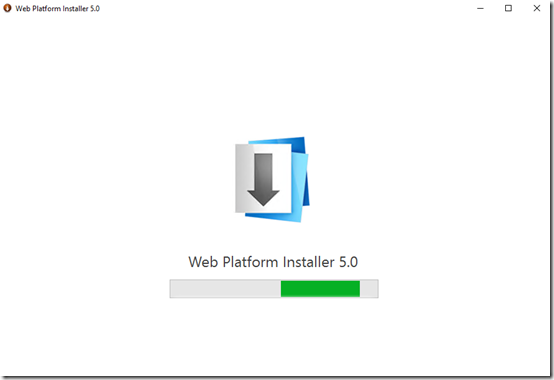
image

This will launch the Web Platform Installer as shown above. This will download not only the free Visual Studio Community Edition but also add the appropriate Azure components for you automatically.

image

You should now see the installer for Visual Studio Community 2015 with Microsoft Azure SDK displayed as shown above.

Select Install to continue.

image

Ensure you have enough free space on the machine to install all the components. The total size of the installation is displayed as shown above.

Select I Accept to continue.
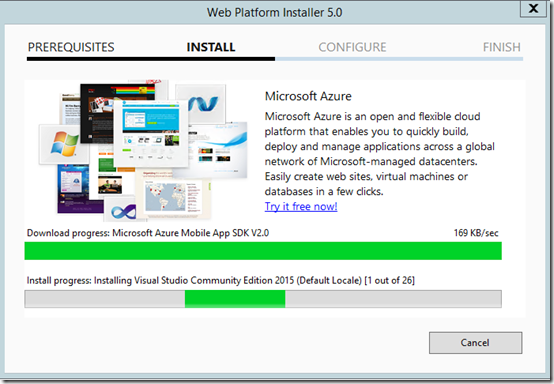
image

The installation will then commence. This whole process of downloading and installing the appropriate components will take a fair amount of time, so generally allow 45 – 60 minutes for the process to complete.

image

You’ll see the progress displayed on the lower bar along with the total of components that have been installed so far.
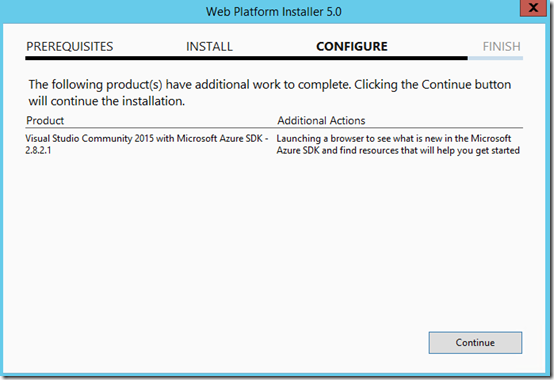
image

When the process is complete, you’ll see the above screen.

Select Continue.

image

You’ll then see a summary of installation process.

Select Finish.

image

You’ll then be given the option to download additional components if desired.

Select Exit.

image

Run Visual Studio. Select File | New | Project.

image

On the left hand side of the dialog that appears, open Installed | Templates | Visual C# | Cloud. On the right, you should see Azure Resource Group at the bottom of the list, as shown above.

Select Azure Resource Group, provide a name for the project and press the OK button to proceed.

image

You’ll then be prompted to select an Azure template. In this case Windows Virtual Machine will be selected.

After selecting the template, press OK to continue.
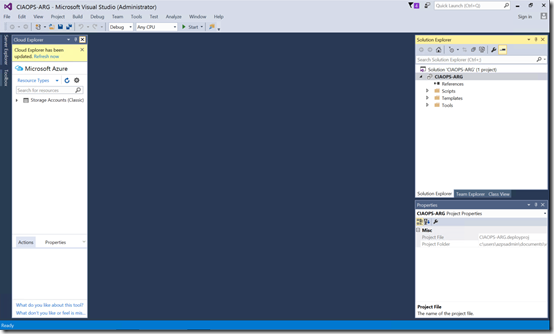
image

This will open Visual Studio proper on your desktop like shown above.

image

In the top right you’ll see the Solution Explorer box as shown above. In here will be a Templates folder that you need to open. You should then find two .JSON files inside.

Select WindowsVirtualMachine.json to continue.

image

This should open the file in a large window in the center of the page.

Take a look through the file to see all the options. If you want to customise your virtual machine deployment you’ll need to do it in this file.

However, don’t make any changes to the file at this stage.

image

Right mouse click on the project name in the Solution Explorer box in the top right of the Visual Studio desktop.

From the menu that appears, select Deploy and then New Deployment from the submenu.

image

This will open a new window as shown above. Here select Add an account.

You’ll then need to add the login details for the Azure account in which the new Virtual Machine will be created in.

image

When you have added your Azure account most of the remaining fields will be populated has shown above.

Select the pull down option for the empty Resource group.

image

From the pull down menu that appears select .

image

Enter a name for the Resource Group. This will the container in which all the assets live.

Next, select a region where this Resource Group and the items it contains will reside. Here, Australia East has been selected.

Select Create to continue.

image

You’ll be returned to the previous window. Here, select the Edit Parameters button.

image

Enter the virtual machine administrator login name in the adminUsername field.

Enter the virtual machine administrator password in the adminPassword field.

Enter a name in the dnsNameForPublicIP field. This fieldmust be in lowercase and not contain special characters (i.e. !@$%- etc is not supported).

All of these values could have be entered in the configuration JSON if desired.

It is also recommended that you select the option Save passwords, otherwise you’ll be prompted top continually enter all these details during the creation process.

image

When complete, select the Save button to continue.

image

Select the Deploy button.

image

The deployment of the Resource Group will now commence. You can view the progress in the Output box at the bottom of the Visual Studio desktop.

image

The results of each step in the deployment process will be displayed. If there are any errors they will also be displayed here.

image

If you now look in the new Azure portal, as shown above, under the Resources groups area, the Resource Group just created should appear. Select this.

This will then display all the assets contained within that group. Select any whitespasce in the lower part of this blade.

Doing so will open the Resources blade where you can see each individual resource as it is created. Select the Refresh button at the top of the page to see new resources as the configuration progresses.
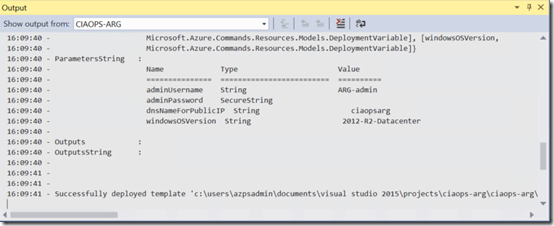
image

After a while the Output box on the Visual Studio desktop should show you that the deployment process is complete as shown above.

image

If you then return to the Resource Group and drill down into the virtual machine, you should see something like shown above. That is a running virtual machine.

So, that’s the way to get a single basic virtual machine up and running with Azure Resource Manager. It may seem like more work but as you begin to scale and manage large and more complex configurations it makes life much easier.

It is also interesting to note, as I have said many time here before, the future is about software. Azure Resource Manager shows how important it is to be comfortable with coding, which is not something I see with most IT Professionals. So now is the time to start getting comfortable!

You can also do all of this using PowerShell, which will be post coming in the future. For now, be fruitful and multiply using Azure Resource Manager for your IaaS environment.

Cloud App Discovery coming to Office 365

One of the handy features of Azure AD Premium was the ability to install a small program on each workstation and then have it report on cloud based applications used. All the data was collected by Azure and then reported in a handy dashboard.

That way you could see what cloud based applications were in use, how much data was flowing through them and whether they were being used outside the Azure AD Single Sign On Web Portal.

A good example I have seen is where cloud app discovery uncovered the fact that a number of employees were sharing large amounts of corporate information using Dropbox which had been banned from the workplace. Cloud Discovery allowed these users to be identified along the times sharing was taking place. The business could then take appropriate action.

According to this post from Microsoft:

https://blogs.office.com/2016/02/25/new-security-management-and-transparency-capabilities-coming-to-office-365/

Cloud App discovery is a new feature, amongst others, coming to Office 365. To quote:

Office 365 cloud app discovery gives you the ability to understand which other cloud services your users are connecting to. From the Office 365 admin portal, you can view a dashboard on network activity. For example, you can see where users are storing and collaborating on documents and how much data is being uploaded to apps or services outside of Office 365.

Not quite sure how exactly it works but I expect it will be a slightly cut down version of what is available in Azure AD Premium, like many other enhanced features of Office 365 are.

There are also some other great security enhancements announced in that blog post so check it and be ready for the new features arriving in an Office 365 near you soon!