Modern Device Management with Microsoft 365 Business Premium–Part 5

Previous parts in this series are:

Office 365 Mobile MDM – Modern Device Management with Microsoft 365 Business Premium–Part 1

Intune MDM – Modern Device Management with Microsoft 365 Business Premium – Part 2

Intune MAM – Modern Device Management with Microsoft 365 Business premium – Part 3

Endpoint Manager – Modern Device Management with Microsoft 365 Business Premium – Part 4

One of the biggest challenges with the availability of all these policies via Intune MDM and MAM as well as Endpoint security is getting to a ‘best practices’ state.
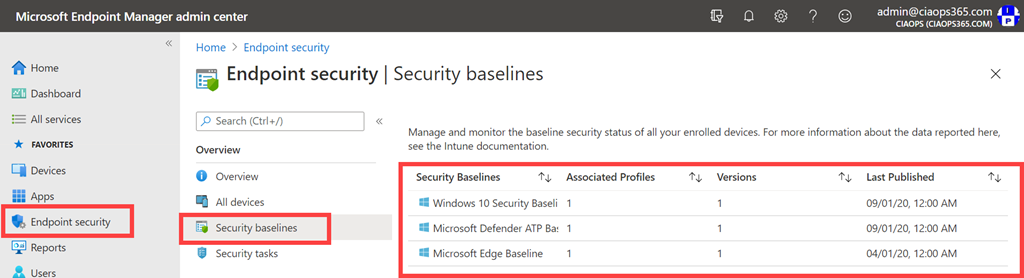
image

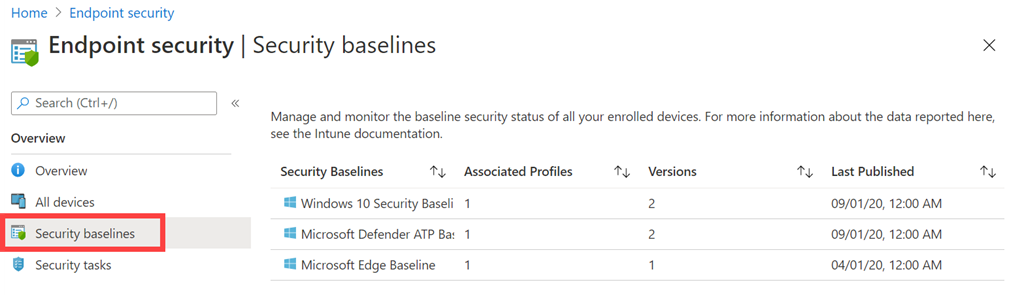
One of the benefits that Endpoint security provides is the ability to implement Security baselines as shown above. There is a baseline for Windows 10 security, Microsoft Defender ATP and Microsoft Edge already. Microsoft recently announced that an Office baseline will soon be available.
image

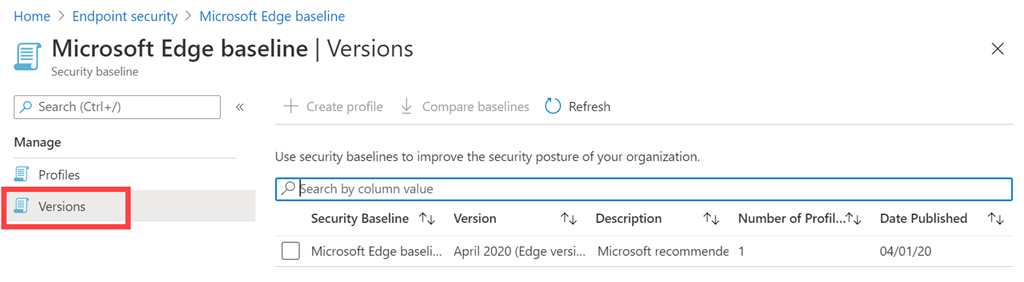
The idea is that Microsoft will publish a ‘best practices’ baseline, as shown above for Edge, and that you can create a policy or ‘profile’ as it is called here, from this to use across your environment just like any other policy we have already spoken about.
image

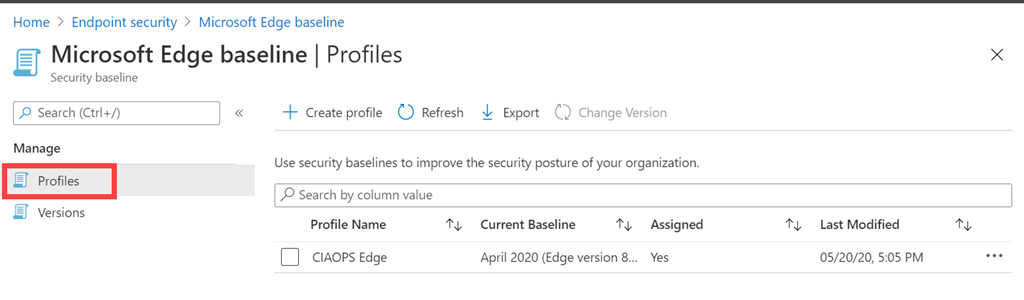
The idea is that, rather than you having to work out and apply a range of best practice settings across all the individual policies, you can simply implement these baseline policies from Microsoft as a starting point.

Another benefit is, as updated baselines are released by Microsoft, you can simply update any existing ‘profile’ you have created with these baselines to incorporate these updated settings.
image

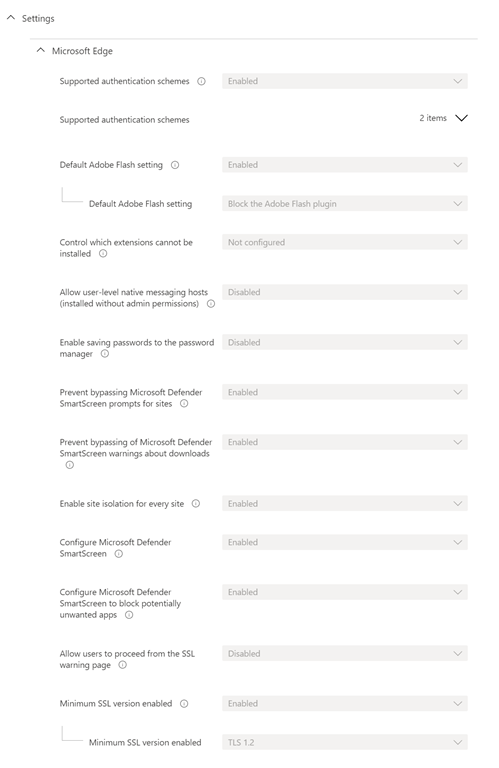
When you look at the settings available in these baselines, as shown above for Edge, you’ll notice that they basically contain many of the same settings available to you in individual Endpoint security policies. Thus, setting once via a baseline ‘profile’ is a much faster method of implement these settings. Otherwise, you’d probably have to create multiple individual policies to achieve the same level of protection.

You can, of course, adjust any baseline ‘profile’ that you create and when a new baseline is available it can be applied to existing ‘profile’ you have created while maintaining any custom settings you have made in that ‘profile’. You can also create a range of different ‘profiles’ from baselines and target them to different audiences in your environment just as you can with other individual policies from Intune MDM, MAM and Endpoint security.

If you already have individual Endpoint security and Intune policies deployed you will need to be careful if you then start to deploy baseline policies. If there are differences in the settings between the baseline policies and those configured in Intune MDM, MAM and Endpoint security you’ll end up with a conflict. Thus, you will either need to make sure that the settings are identical between all the policies that you use or stop using some of the conflicting policies. Generally, I would suggest that just using the baseline policy for the setting is a best practice approach.

Why do I believe this? If you look at the volume of policy settings that can be made across all options like Intune MDM, MAM and Endpoint security, it makes more sense to me to start with what Microsoft believes is best practice first and adjust from there. Doing so is going to:

1. Reduce the amount of individual settings in individual policies that you need to make.

2. Reduce setting conflicts across all your policies.

3. Allow you to more easily to update to new best practices when they become available.

With this in mind and looking back across what we have talked about so far with MDM and MAM, Intune and Endpoint security, I would suggest this as a new best practice approach to configuring device security is, in order:

1. Implement all Microsoft baseline security policies.

2. Make any required customisations to the deployed baseline ‘profiles’ in your environment.

3. Implement individual Endpoint security policies for additional settings not covered by the baselines.

4. Implement MDM compliance policies for additional settings not covered by baselines or individual Endpoint security policies.

5. Implement MDM configuration policies for additional settings not covered by baselines, individual Endpoint security and MDM compliance policies.

6. Implement MAM application protection polices for additional settings not covered by baselines, individual Endpoint security, MDM compliance and MDM configuration policies.

7. Implement MAM configuration policies for additional settings not covered by baselines, individual Endpoint security, MDM compliance, MDM configuration policies and MAM application protection policies.

in short, start with baselines, then implement individual Endpoint security policies, then Intune MDM policies, then Intune MAM policies.

At this stage, no single policy is going to provide all the protection required. Thus, you need to use a mix of policies across baseline, Endpoint security and Intune to suit your needs. However, in the long run, I see baselines and Endpoint security policies as being the future and suggest you start there rather than the traditional approach that was to start with Intune. If you already have Intune in place, for example, then you’ll need to think about migrating to baselines and Endpoint security policies as I am currently doing. It will be frustrating at times tracking down the duplicates at times, but I suggest doing so will position you better for future improvements in the device management space.

Success with device management is not merely about select the right setting in a policy, it is also about deploying it effectively into your organisation. That’s what I’ll take a look at in the next article.

As something else to consider, I’d suggest you have a read of my article:

The changing security environment with Microsoft 365

In light of the recommendation to apply Microsoft baselines. The questions to think about are – in the future why can’t Microsoft simply apply these baseline policies automatically and use AI to fill the gaps with additional settings? Where does that then leave those who are setting device polices today?

Modern Device Management with Microsoft 365 Business Premium – Part 6
Modern Device Management with Microsoft 365 Business Premium–Part 4

In the previous parts of this series I have covered:

Office 365 Mobile MDM – Modern Device Management with Microsoft 365 Business Premium–Part 1

Intune MDM – Modern Device Management with Microsoft 365 Business Premium – Part 2

Intune MAM – Modern device Management with Microsoft 365 Business premium – Part 3

We still have some additional device configuration options available to us thanks now to Microsoft Endpoint Manager.

image

As well as Intune MDM and MAM policies we now have extra Endpoint security policies.

image

You’ll find these under the Endpoint security menu item on the left and then under the Manage heading as shown above. In there you will find the following options that you can go and configured policies:

– Antivirus

– Disk encryption

– Firewall

– Endpoint detection and response

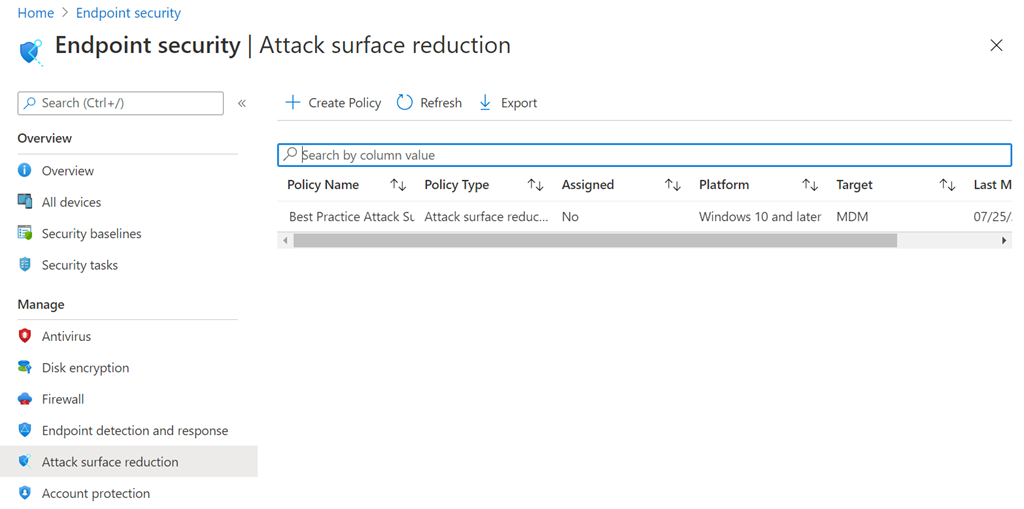
– Attack surface reduction

– Account protection

image

If look inside any of these Endpoint option, here Attack surface reduction, you see that you can set policies just like what has already been covered around Intune device and application policies.

image

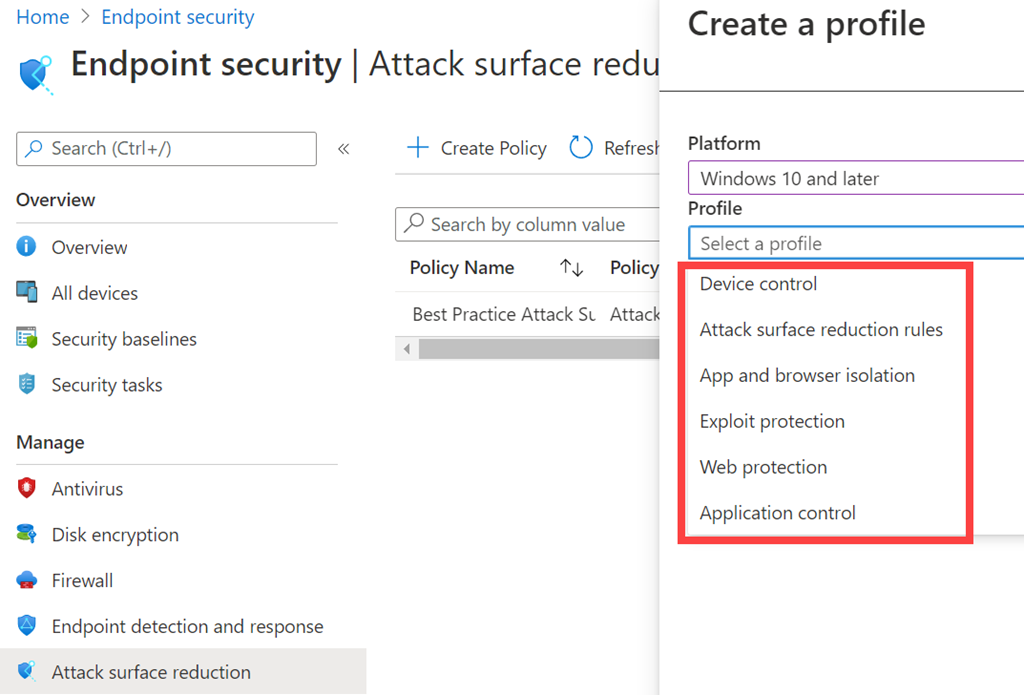
When you do create an Attack surface reduction policy, for example, you’ll get the option to target device control, attack surface reduction rules, app and browser isolation and so on, as shown above.

image

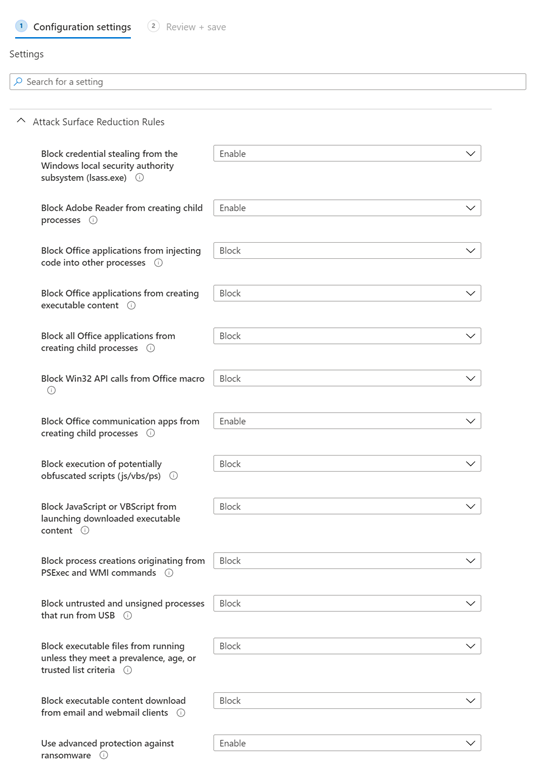
If you configure the attack surface reduction rules, as shown above, you’ll see the now familiar configuration settings that you choose from and then save to the policy. You then finally target the policy that you create to a user and/or a device, again just like Intune.

In essence, you now have a number of additional policies, largely focused on Windows 10 device security for now, that can also be applied to your environment.

The challenge here becomes, some of these Endpoint Manager policy settings are unique and some overlap with existing Intune policies that you may have set. If there is a mismatch in the policy settings you have between Endpoint Manager and Intune, these will report as conflicts in the Endpoint Manager portal. So, the trick is to either use the duplicate Endpoint Manager policy settings BUT ensure they are the SAME as what is set in Intune or only have one set of policies (Endpoint Manager or Intune) for the desired option. My opinion would be that if the desired setting option is available in Endpoint Manager policies, set it there and don’t set it in any Intune policy. It is my understanding, that in the long run, Endpoint Manager policies are were Microsoft is investing the most in currently.

In summary then, it is possible to use three sets of policies for your devices:

1. Intune device policies

2. Intune application policies

3. Endpoint Manager policies

You can set any combination of the three, but be careful about creating conflicts as they can be challenging to track down as some settings overlap.

All of these policies can be implemented and accessed with PowerShell, however I would suggest not ‘basic’ PowerShell like you might be used to with Exchange Online for example. Think more of accessing the settings via the Microsoft Graph with PowerShell, which is a little more complex than ‘standard’ Microsoft 365 PowerShell with commands like get-msoluser for example.

There are still more considerations with device management that will be covered in the next article. Hopefully, by now you are beginning to appreciate the power and granularity that is possible with device management from Microsoft 365. However, as they say, “With great power comes great responsibility” (and I would add a lot more complexity).

Modern device Management with Microsoft 365 Business Premium – Part 5

Modern Device Management with Microsoft 365 Business Premium–Part 3

In the previous parts of this series I have covered:

Office 365 Mobile MDM – Modern Device Management with Microsoft 365 Business Premium–Part 1

Intune MDM – Modern Device Management with Microsoft 365 Business Premium – Part 2

The next step in the step in the process of securing and managing devices with Microsoft 365 Business Premium is Mobile Application Management (MAM) which we’ll look at now.

MAM allows the ability to fully manage select applications, typically business applications like Outlook Mobile, Word Mobile, etc on any device. MAM is handy because it doesn’t require device management (MDM). This makes especially handy when users bring their own personal devices and want access to business data like emails but don’t want the organisation having fully control of their device. Thus, MAM is prefect for the Bring Your Own Device (BYOD) scenario.

image

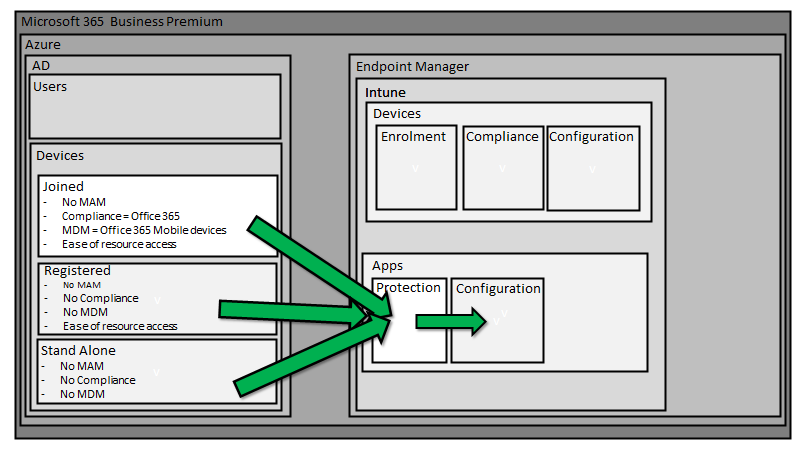
We can thus use MAM on any device, independent of whether it is Azure AD joined, registered or stand alone.

The Intune service inside Endpoint Manager is typically what is used for MAM. Application control is once again managed by policies that are pushed down to the individual applications on the device. The first of these policies is known as App Protection policies which is focused on application security.

SNAGHTML2087555d

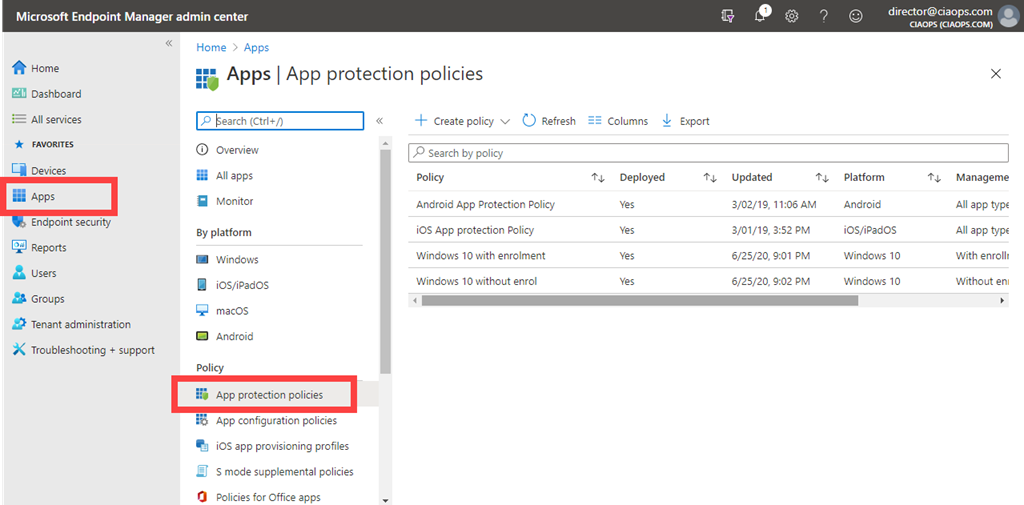
These policies are located in the Endpoint Manager portal under Apps and then App protection policies as shown above.

You can target policies to different device OS versions and here you typically define ‘targeted apps’ (i.e. corporate apps) as well any apps you want exempted from protection policies. Anything not defined by either of these is considered a non-corporate app. In here you also define corporate data locations, which will typically be Microsoft 365 services like OneDrive, SharePoint, etc but may also include on premises and third party cloud based services (say Salesforce). Now with both corporate apps and corporate data locations defined you can set policies around how data is to be stored and managed. For example, you may want to only allow corporate data to be saved to corporate locations or maybe you only want to store corporate data onto ‘secure’ devices. App protection policies allow these configurations and definitions.

App protection policies also give you the ability to selectively wipe data from corporate managed apps. MDM gives you the ability to wipe the WHOLE device remotely, both corporate and personal apps and data. MAM however, gives you the ability to just wipe the data inside Outlook mobile for example. This is why MAM is generally the best option for BYOD devices where the device owner don’t want the business to have access to anything but corporate data on the device.

image

You then have Application Configuration policies as shown above which are also part of Intune MAM. These policies target the options you want configured for applications on devices.

image

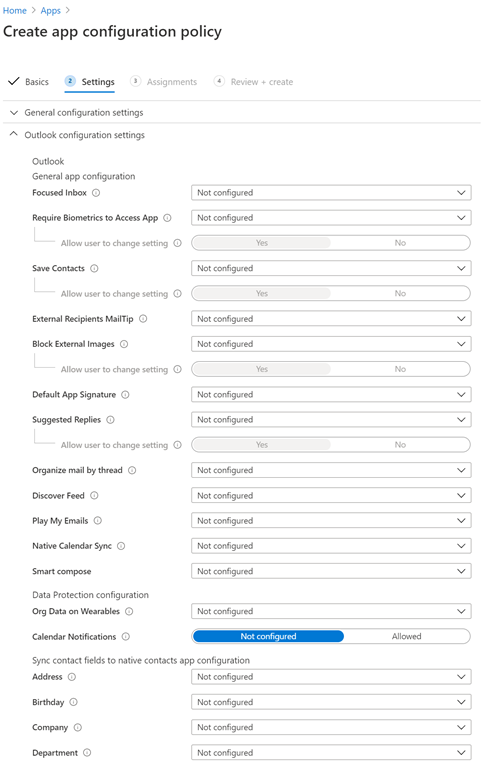
This is again controlled by policy which can be targeted at the device OS. The above is taken from the configuration policy for Outlook for iOS and illustrates the level of detail you can go down to when configuring. You can ensure that suitably configured apps are made available to user and devices optionally or as a requirement. There is a lot that can be done here to allow you to deploy and manage applications on mobile devices.

image

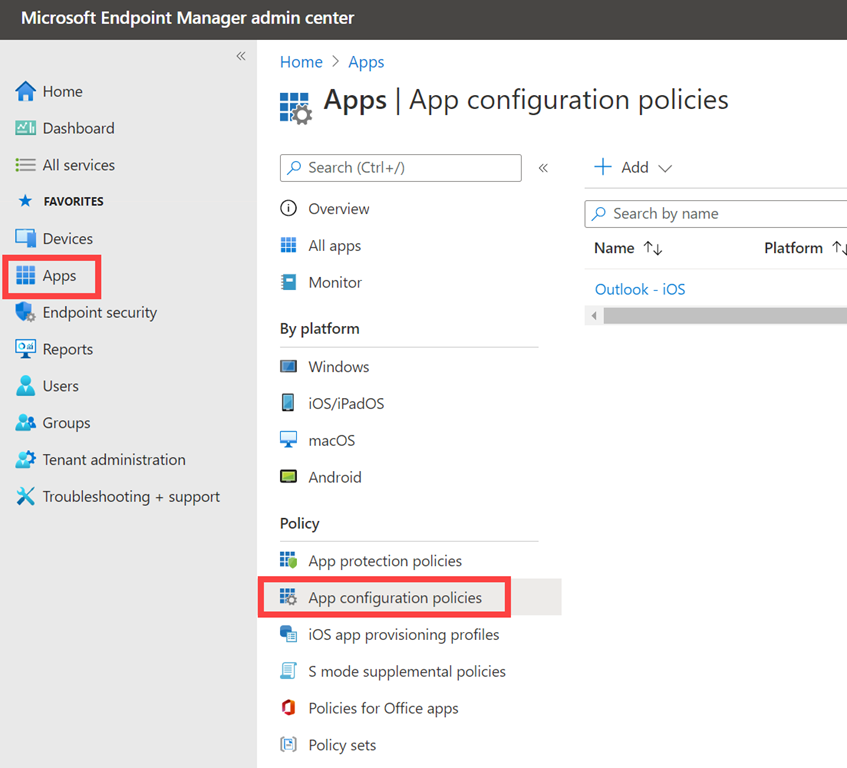
You get to these policies via the Apps option in Endpoint Manager and then App configuration policies as shown above.

Many people ask the question about whether you should or can use MDM and MAM together? The answer is most certainly, Yes. The reason you would choose to do that is to provide extra security and convenience. MDM means for example I can ensure that my device storage is encrypted while MAM will prompt me for a pin number when I actually use a corporate app. That makes my data more secure. Do you need to use both MDM and MAM? It all depends on your security and deployment requirements. If you mainly have BYOD devices that don’t want to be device managed then MAM will be your only option. The main thing is that it provides flexibility when it comes to both security and configuration of your devices. The best strategy is defence in depth. The more layers of protection you have the lower your risk.

Given all the options that have been covered in both MDM and MAM so far, hopefully you can now see the huge amount of options available to you when it comes to managing devices. The tricks is to firstly get the device enrolled, apply MDM and then MAM policies.

Don’t think however this is the end of device options available to you. Oh no, Endpoint Manager has a many additional configuration options you can implement to make your devices EVEN more secure. Stay tuned for that upcoming article.

MOdern device Management with Microsoft 365 Business Premium – Part 4

Modern Device Management with Microsoft 365 Business Premium–Part 2

In

Modern Device Management with Microsoft 365 Business Premium–Part 1

I covered the basic overview and out of the box device management you get with pure Office 365. In this article I want to start digging into the more advanced features you get by using Intune which is part of Microsoft 365 Business Premium.

image

Microsoft has a service called Endpoint Manager that allows advanced device configuration and management. You access this via:

https://endpoint.microsoft.com/

image

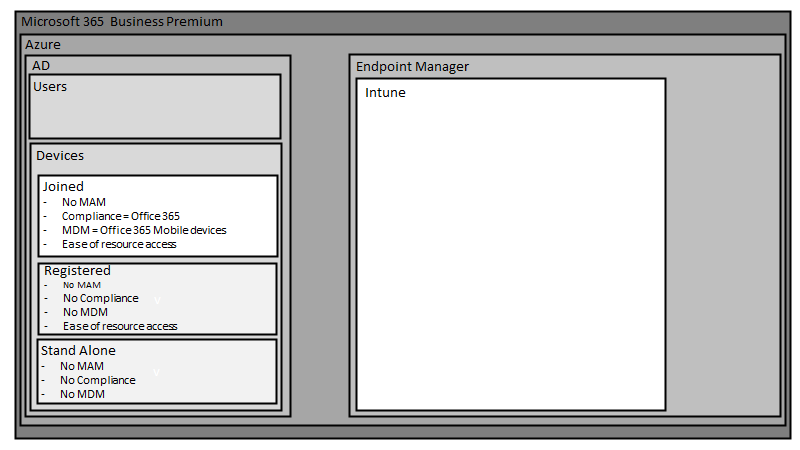
Intune is now part of Endpoint Manager, so you use that to gain access to the Intune configuration.

image

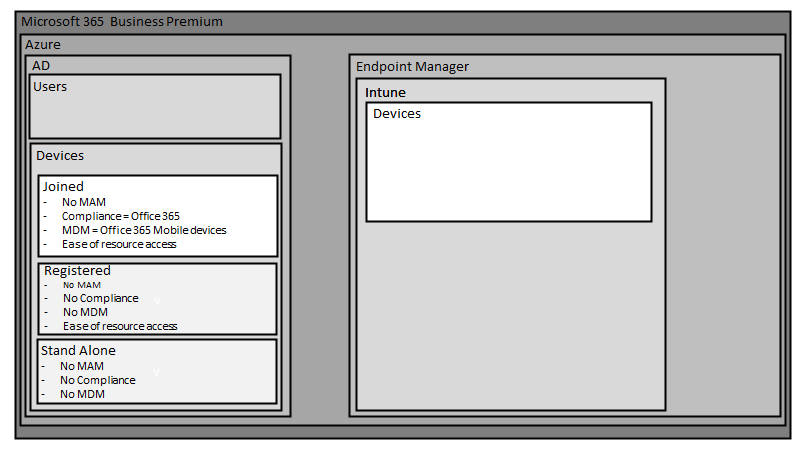
Part of the Intune configuration capability is device management, this is more advanced than the basic options in pure Office 365 that were detailed in the previous article.

image

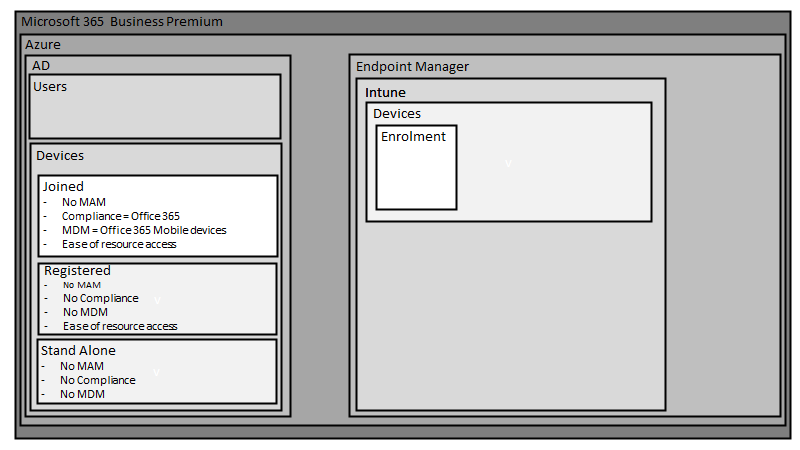
To have devices managed by Intune they first need to go through a specific Intune enrolment process.

image

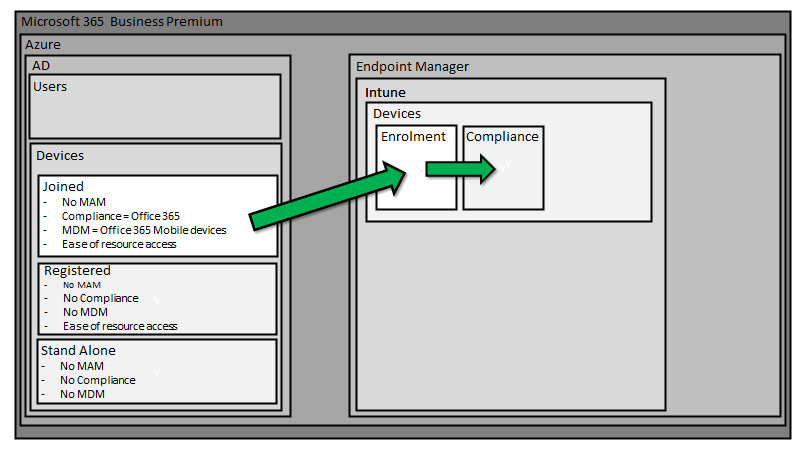
Intune device enrolment can only be achieved once devices have been joined to Azure AD. Both registered and stand alone devices cannot be managed at a device level via Intune, only those devices that have been fully joined to Azure AD can be enrolled in Intune for device management.

image

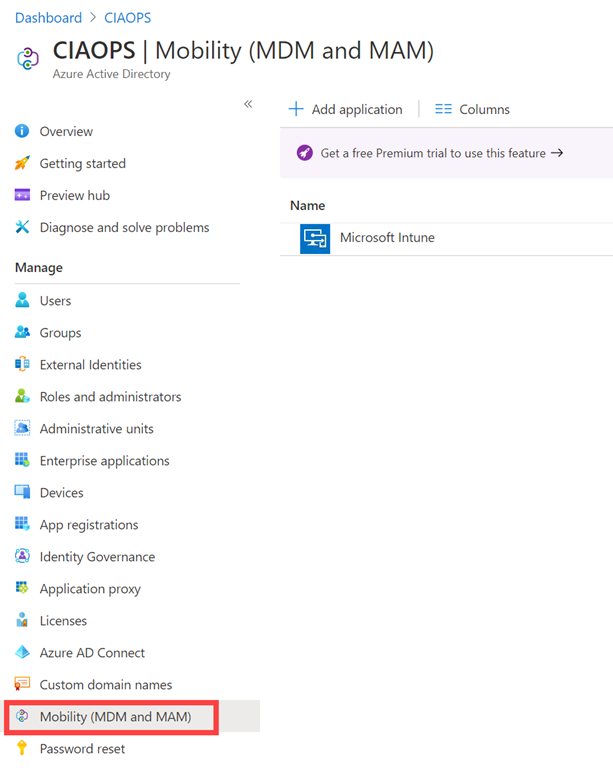
If you look at your Azure AD in the Azure portal you’ll see the option Mobility (MDM and MAM). If you select that, you’ll probably see a Microsoft Intune option on the right as shown above.

image

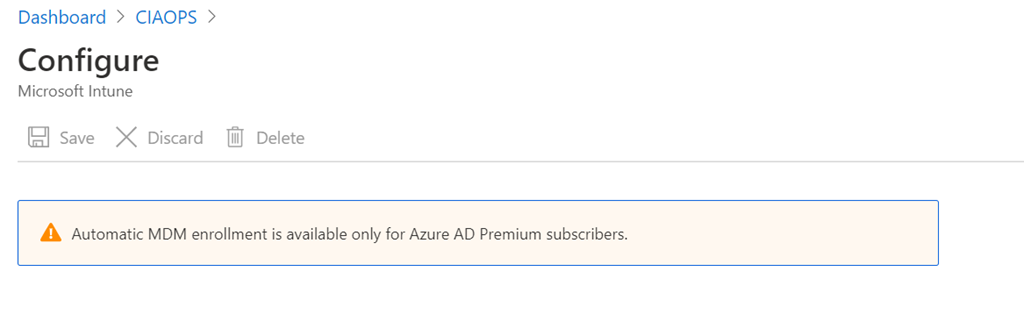
If you select that Intune option and you don’t have a license for Intune you’ll be greeted with something like the above. What this is telling you is that automatic enrolment of device requires an Intune license.

image

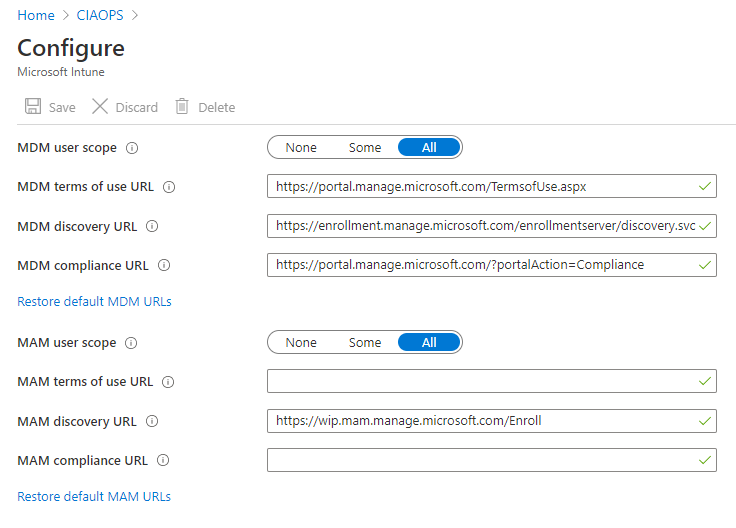
If you do however have a license for Intune you’ll see the above instead. This allows you to select which groups (None, Some, All) that will automatically be enrolled in both device management (MDM) and application management (MAM). You could still of course, manually enrol if you wished but by adding an Intune license you now get the ability to automatically enrol devices into Intune management once you have joined these devices to Azure AD.

So the, typical steps so far have been:

1. Join device to Azure AD

2. Have it automatically commence device enrolment in Intune

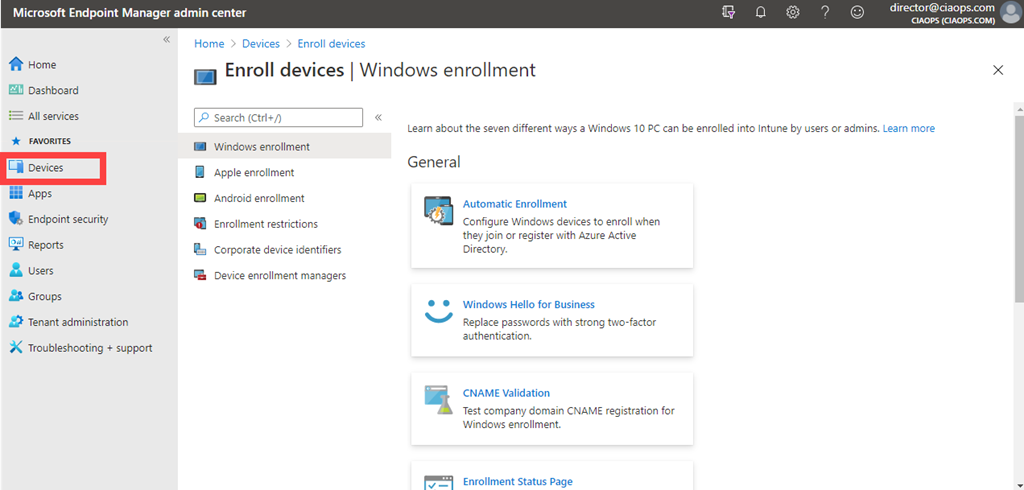
You will find the configuration for Intune enrolment by navigating to Endpoint Manager:

https://endpoint.microsoft.com/

SNAGHTML14ccbdd9[4]

and then go to the Devices option from the menu on the left then Enroll devices as shown above.

SNAGHTML1487c6b2

The first major difference you’ll now see is that you have enrolment options for Windows, Apple and Android as well as the ability to enforce restrictions and allocate managers. Each operating system will have it’s own enrolment capabilities and options. For example, it is here that you configure Windows Autopilot and Windows Hello for Business if you wanted, as they are considered potentially part of any advanced device enrolment.

I’ll look at covering off many of these different enrolment options in future articles, however I do want to call your attention that to enrol Apple devices you will need to set up a free Apple certificate beforehand. I have detailed that process previously here:

Adding an Apple Certificate to Intune

SNAGHTML14b17f9b

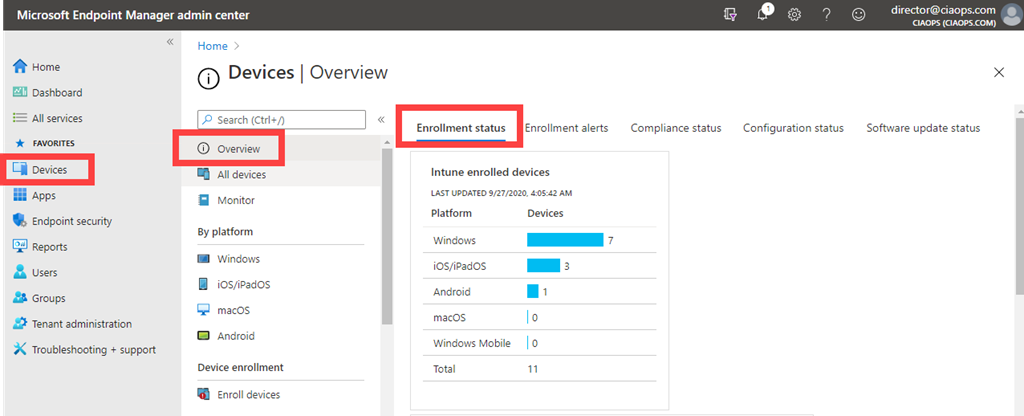
You can get an overview of the device enrolment status in your environment (i.e. successes and failures) via Endpoint Manager | Devices | Overview | Enrollment status as shown above. You’ll also see any Enrollment alerts on the very next tab to the right.

image

Once devices have successfully completed enrolment, they will commence device compliance.

SNAGHTML14a1feac

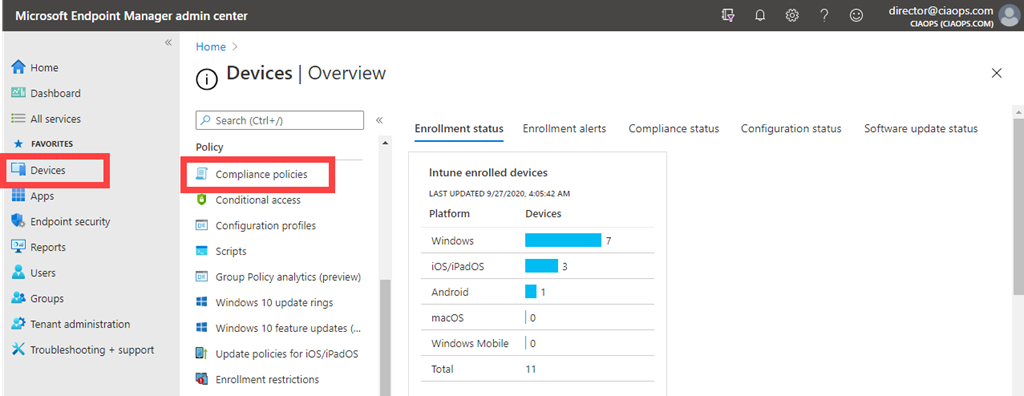
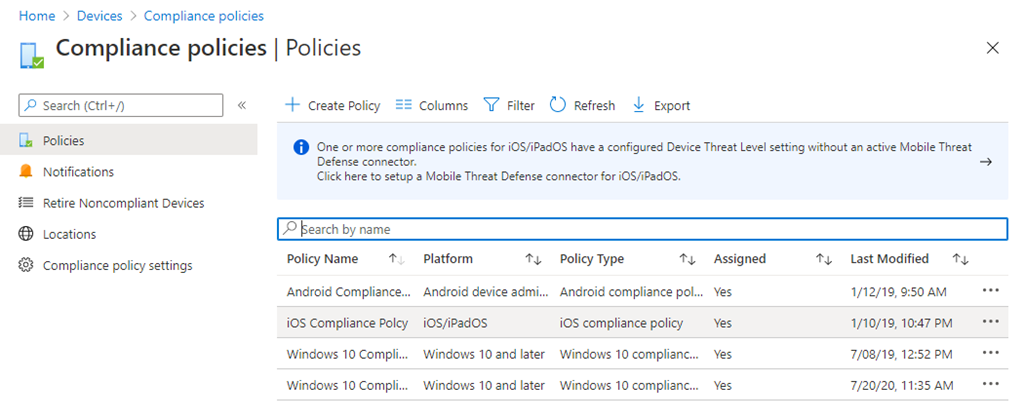
You can configure device compliance policies via Endpoint Manager | Devices | Compliance policies as shown above.

image

Here you create as many different Compliance policies as you wish. Typically, you have one per device operating system, however you can have more if you wish. A good example of why you might have two Windows 10 policies is to handle machines that have and those than don’t have TPM capabilities. Disk encryption is a compliance setting you can check for and enforce. However, you may not want to enforce full disk encryption via BitLocker for machines that don’t have inbuilt TPM chips for example. Thus, two separate compliance policies would be required. One to check machines with a TPM capability and one for those without.

image

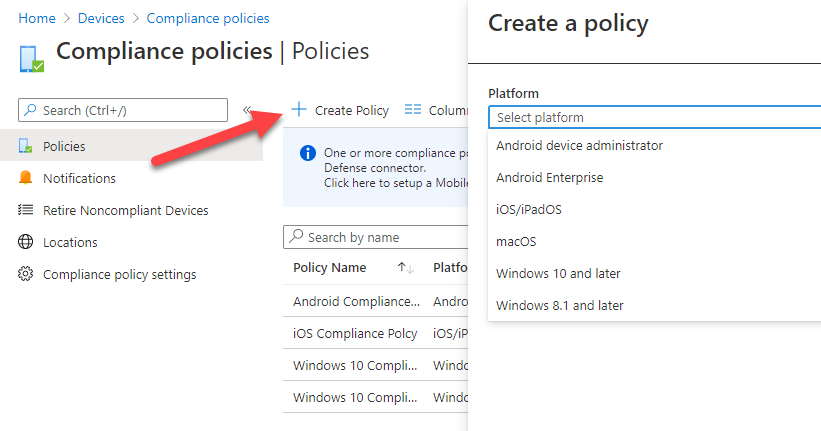
If you select the Create Policy option, as shown above, you’ll be able to select from a range of platforms (OS’s).

image

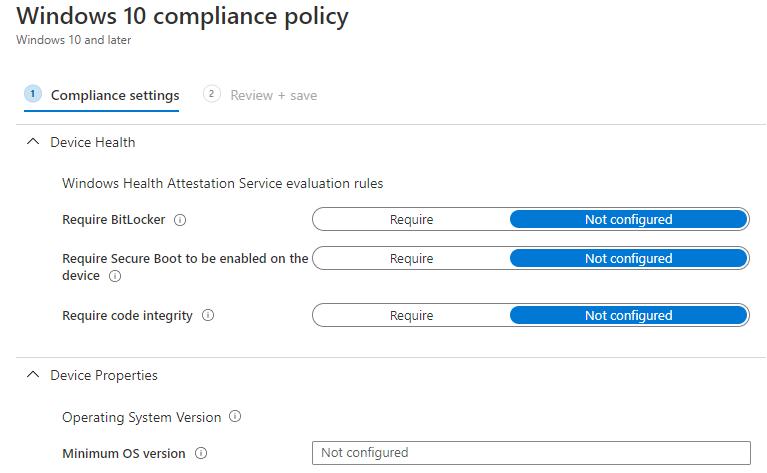
The compliance options available will vary by device operating system, but an example of some of the Windows 10 options you can configure in the policy are shown above.

The main idea here is to configure appropriate checks via policies for each device operating system. Devices that fail these checks are considered and marked as ‘non-compliant’ and further action can then be taken. An example of an action that can be taken on a device that is ‘non-compliant’ is to exclude it from accessing Microsoft 365 information. A good example of this is a policy that prevents devices that have been jailbroken or have unsupported operating systems from being able to access corporate data.

SNAGHTML14b4bded

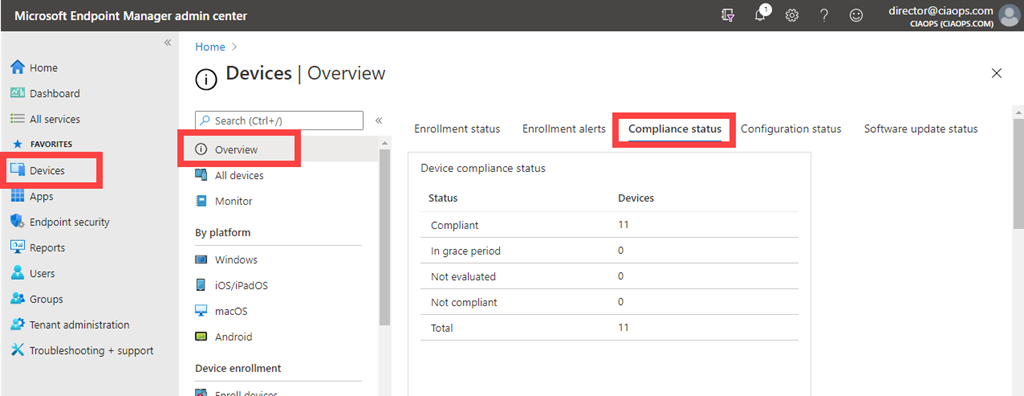
You can get an overview of the device compliance status in your environment by navigating to Endpoint Manager | Devices | Overview | Compliance status as shown above.

image

Once compliance policies have been applied to a device, the final part of adding devices to Intune device management is the application of configuration policies.

SNAGHTML14b99b3a

These policies are found by navigating to Endpoint Manager | Devices | Configuration policies as shown above.

image

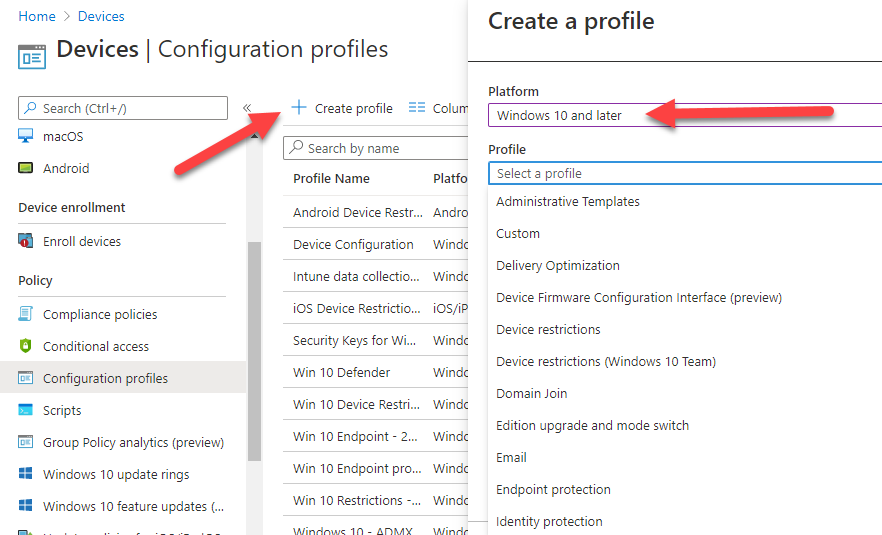
When you create a new policy via the Create profile button from the menu as shown above you again need to select the device operating system and then the profile. The number, types and content of these profile will vary by operating system but for example allow to to do things like control when anti virus scans run, control photo uploads, enforce pin locks and so much more.

Here you will typically have lots of policies including different policies for different groups of users, different operating systems and so on.

image

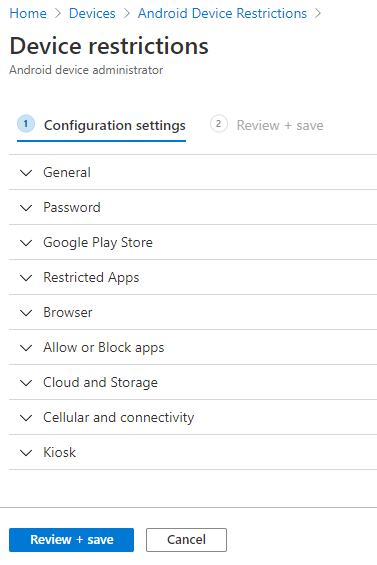
Above is an example of the options that are available in an Android Device Restriction configuration policy.

In summary, this article has covered the process of enrolling in advanced device management (MDM) using Intune. The process is:

1. Join devices to Azure AD

2. Devices complete Intune enrolment

3. Devices have Intune compliance policies applied

4. Devices have Intune configuration policies applied

After this process, devices are considered to fully ‘device’ managed by Intune. That is MDM is now done via Intune.

Note, MDM is for devices that are Azure AD joined and require full control of the device down to the operating system. This means the business has full control of the device. That may not be desired for users who bring their own devices (BYOD). Such devices can be managed by application management (MAM) which will be the focus of the next article.

Modern Device Management with Microsoft 365 Business premium – Part 3

Modern Device Management with Microsoft 365 Business Premium–Part 1

The way that devices running Windows 10, iOS, Android and MacOS get managed with Microsoft 365 Business Premium can be daunting to those who aren’t familiar with it. The common way that it is explained is from the inside out, that is via policies in Intune first, rather than starting with the big picture and working in.

I therefore thought that I’d do my best to explain it from what I see is a more logical way to understand what is going on.

image

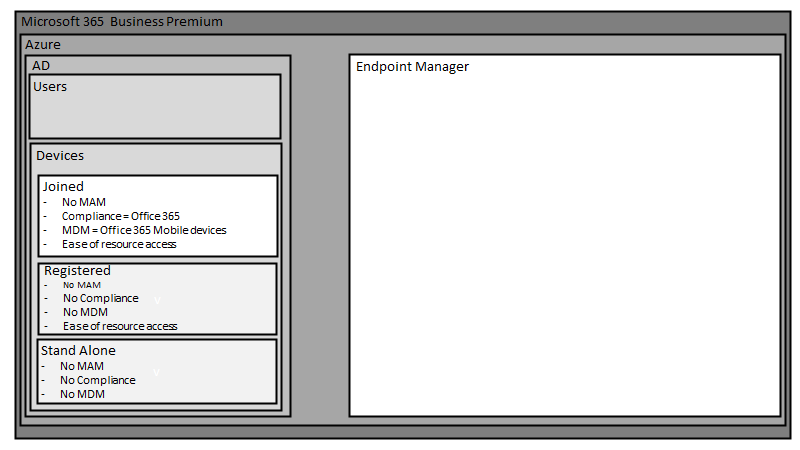
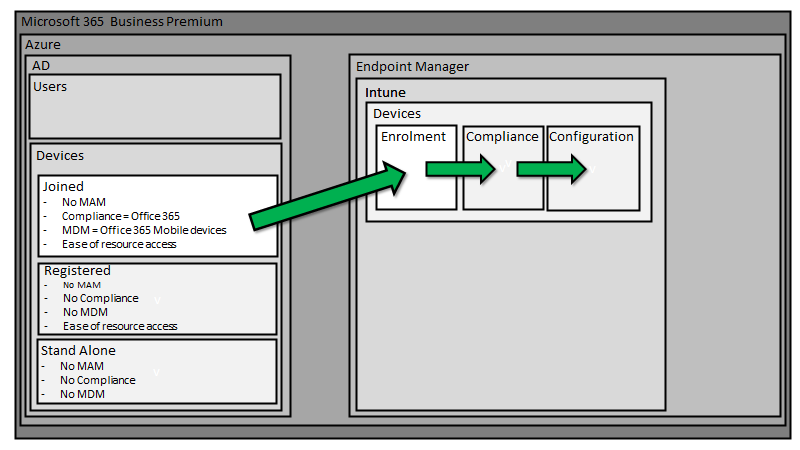
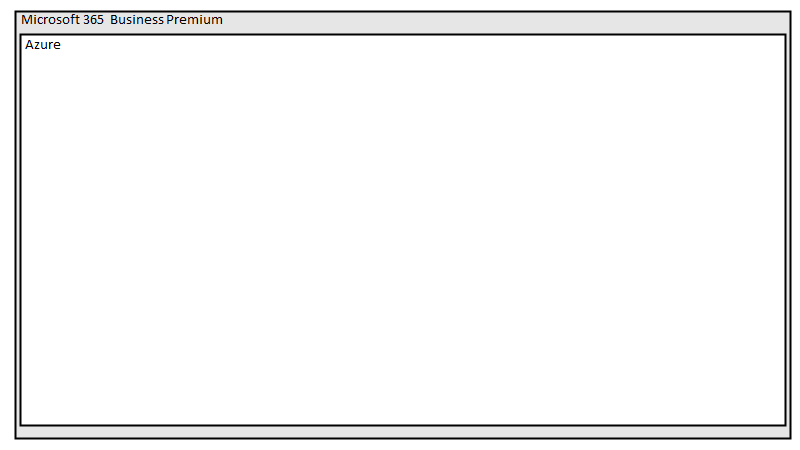
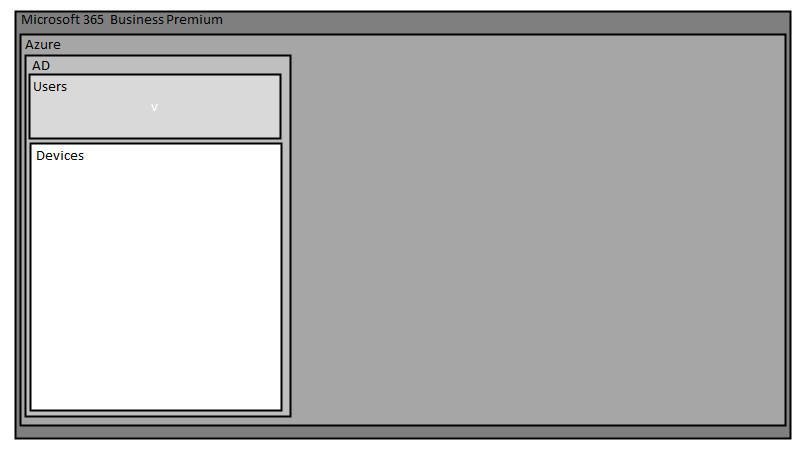
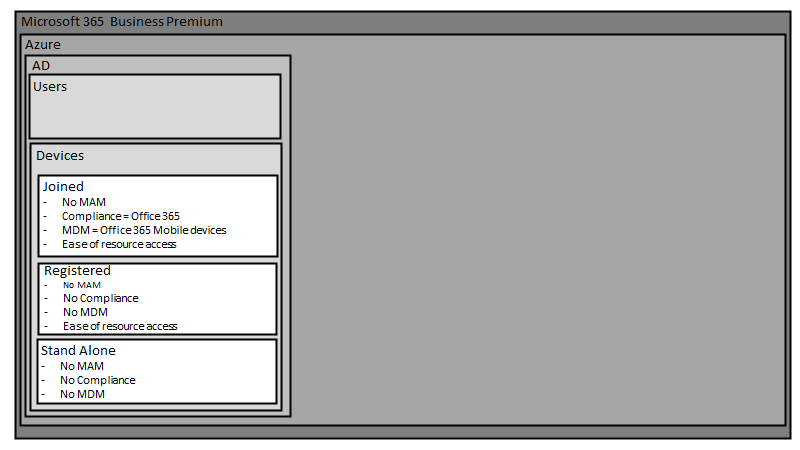
The starting point is the Microsoft 365 Business Premium tenant in which everything lives.

image

Inside a Microsoft 365 Business Premium tenant is an Azure AD tenant. See my article:

Deploy Office 365 and Azure together

for more information.

image

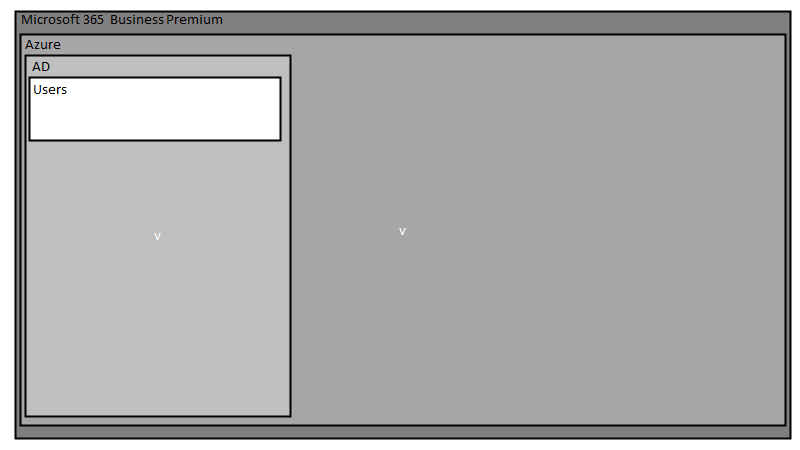
Inside the Azure AD tenant is Active Directory (AD) (i.e. Azure AD).

image

Inside Azure AD are user identities (i.e. login credentials).

image

Also inside Azure AD are devices.

image

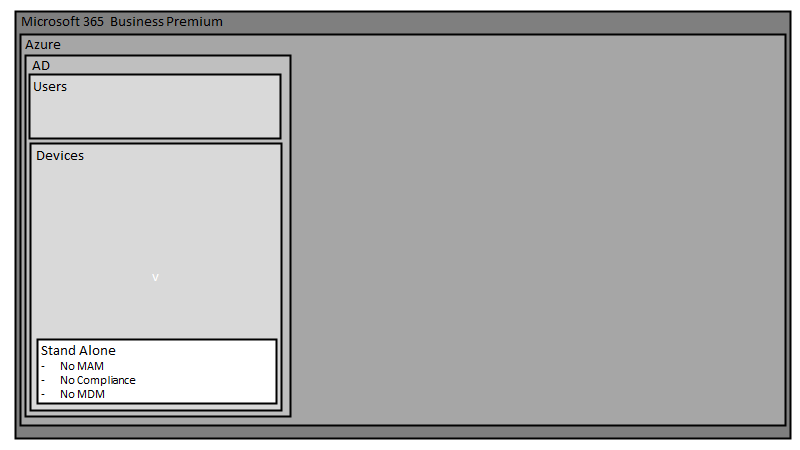
The first type of device that can be used, are devices that are totally stand alone. They have no connection to the tenant or are joined in any way. Given a larger canvas, these would live outside the tenant, however for convenience and space, I’ll simply represent them where they are.

If you want to access Microsoft 365 Business Premium services on such devices, you typically do so just using a browser. There is no device (MDM) or application management (MAM) of these devices as well as no compliance to ensure they meet requirements like an up to date operating system.

image

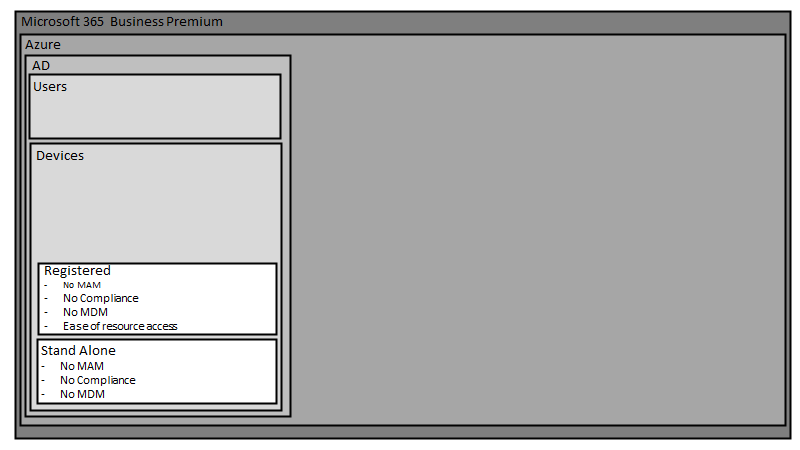
The next set of devices are those that are simply ‘registered’ with Azure AD. You do this by following these steps:

Register your personal device on your organization’s network

for more information see:

Azure AD registered devices

Once a device is registered it will appear in Azure AD.

image

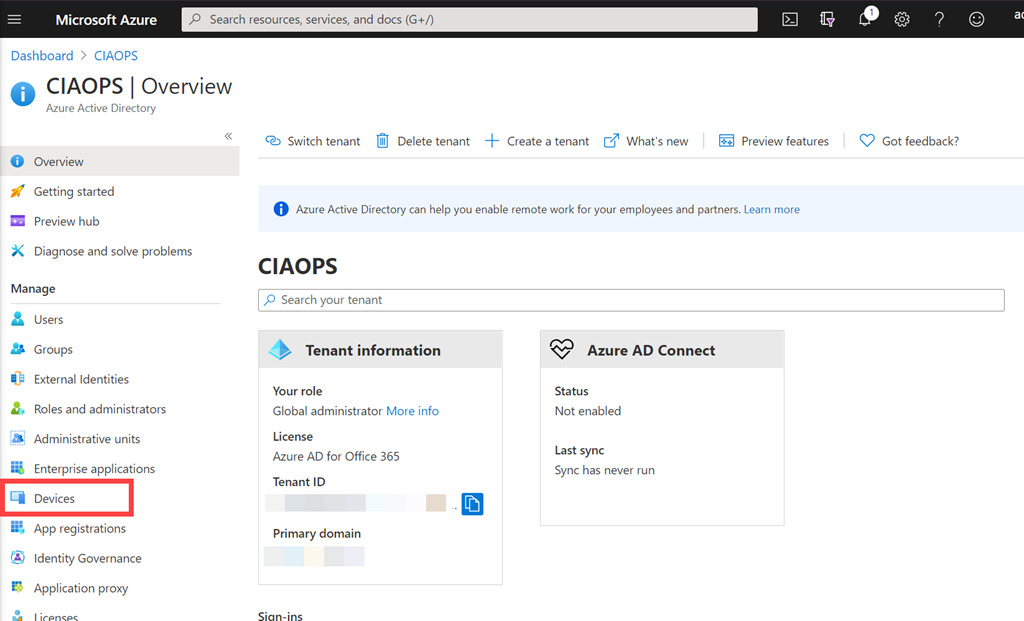
You typically find that in the Azure Portal under the Azure Active Directory service and then selecting Devices as shown above.

image

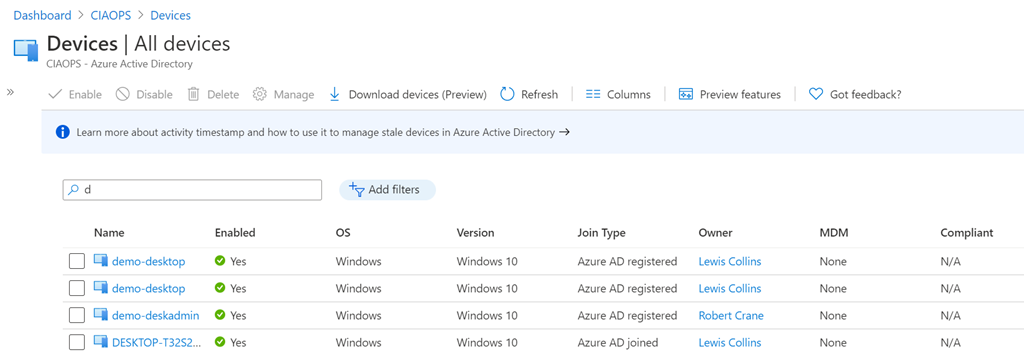
You will see that registered devices are displayed as Azure AD registered as shown above.

Azure AD registered devices typically have no application control (MAM), no device management (MDM) or compliance. The one advantage you do get over stand alone devices is that access to Microsoft 365 resources, like files, is easier and subject to less prompts to enter credentials.

Registered Azure AD devices are a typical scenario you see for BYOD in a pure Office 365 environment. That is, environments WITHOUT Intune.

image

The final type of devices are Azure AD Joined devices. The way that you join a device to Azure AD is covered here:

Join your work device to your organization’s network

and for more information about Azure AD joined devices see:

Azure AD joined devices

image

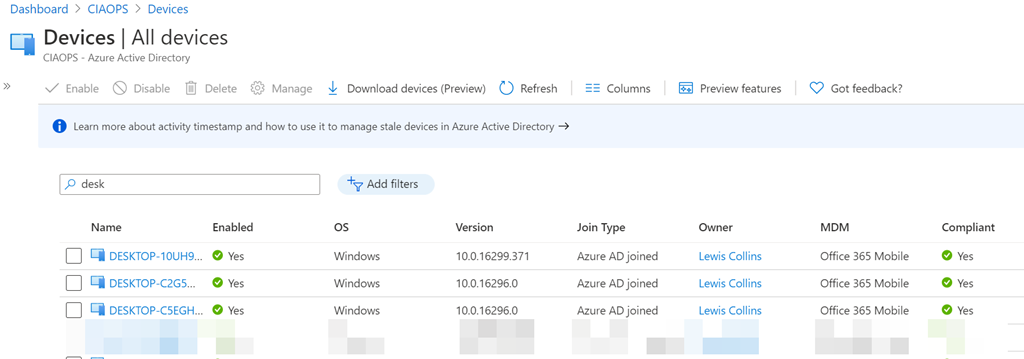
Azure AD joined devices will be shown as above with the join type as Azure AD joined. You will also note that these devices have MDM (device) management being Office 365 Mobile and a field for whether they are Compliant.

image

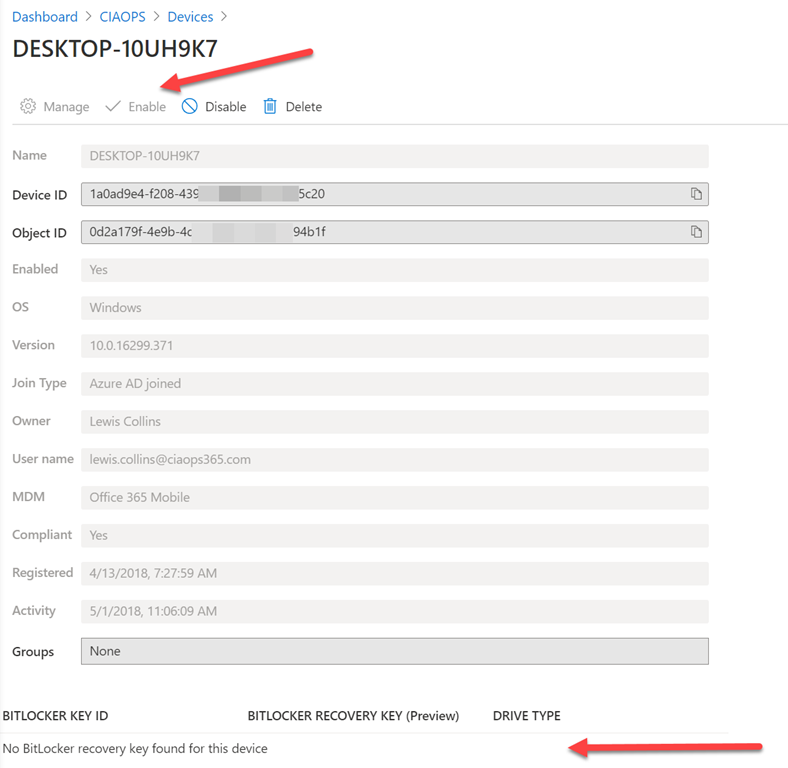
If you select an Azure AD joined device you largely get an inventory, as shown above, of that device, plus the ability to Enable, Disable and Delete the device via the top menu. Another benefit is the ability to capture BitLocker keys as well, which are shown at the bottom of the device if BitLocker is configured on the device.

Thus, the benefits of Azure AD joined devices is that they have some basic device management (via Office 365 mobile) as well as ability to be check for compliance. You can also, for example, do a device level wipe (i.e. factory reset) which you can’t do with the prior device connection methods. Azure AD Joined devices are also able to have easier access to Microsoft 365 services as with the previous two device connection methods.

Azure AD joined devices are a typical scenario you see for company issued devices in a pure Office 365 environment. That is, environments WITHOUT Intune where the company provides the device to employees.

Thus, Office 365 has a basic MDM and compliance capability which is detailed here:

Set Up Basic Mobility and Security

How you configure the Office 365 Mobile policies is found here:

Create device security policies in Basic Mobility and Security

You may need to use the direct URL:

https://protection.office.com/devicev2

to see these.

image

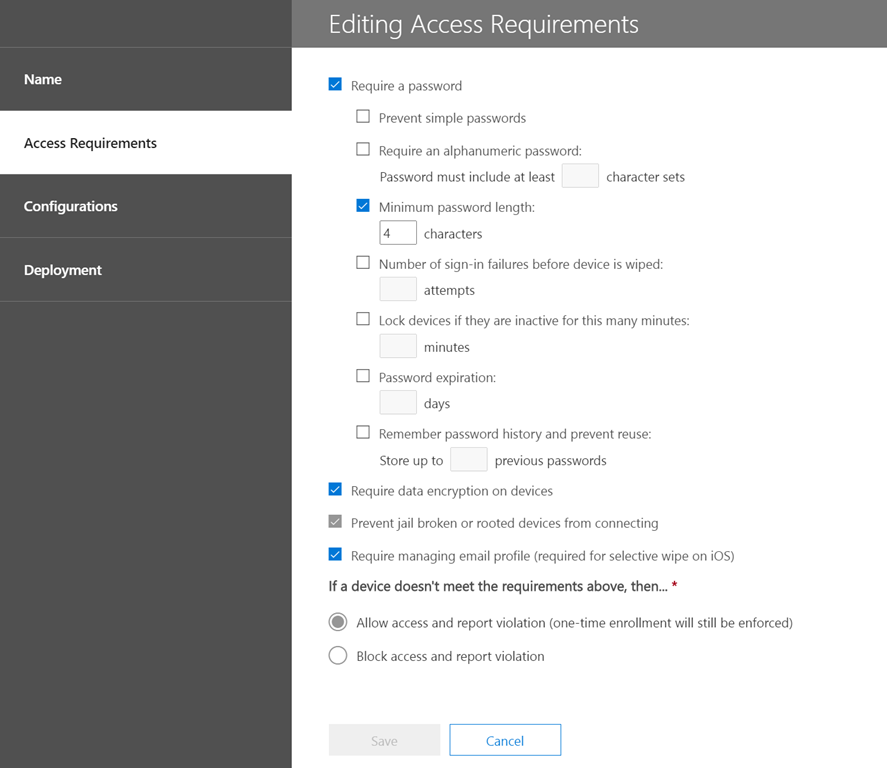
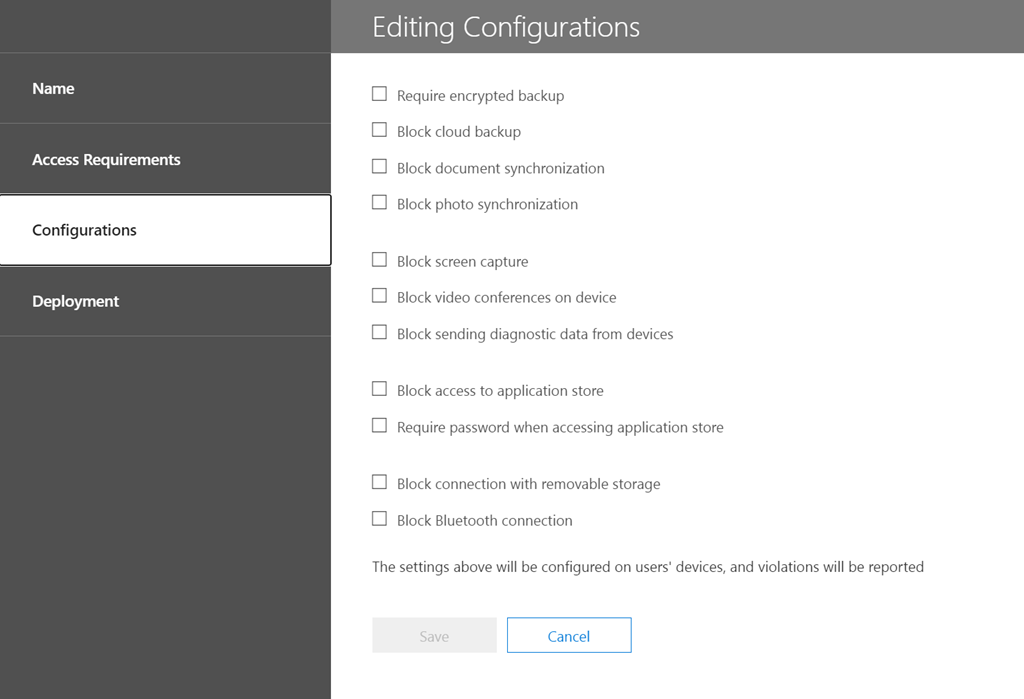
If you look at what these policies provide you see

image

for Access Requirements and

image

for Configurations.

Both of these options are quite limited and don’t provide any specific device OS/type targeting. They also roll compliance (Access requirements) and configuration together into a single policy, which lacks a certain amount of flexibility. In essence then, this is why the out of the box device management that comes with Office 365, known as Office 365 Mobile is ‘basic’. This is why something with more power and granularity is required if you are serious about device management.

You will note that, Office 365 Mobile management does not provide any real application management (MAM). This prevents doing things like push install to devices.

In summary, what has been covered so far is the out of the box device management capabilities you get with all Office 365 tenants. We can extend this much further using Microsoft 365 Business Premium and the power of Intune to manage devices. However, I’ll save that for an upcoming article as I want to break these concepts up into digestible chunks for people. So next we’ll take a look at how we can extend this basic device configuration using Intune.

Modern Device Management with Microsoft 365 Business Premium–Part 2

Need to Know podcast–Episode 254

In this episode we go a bit Dev and talk with MVP David Gardiner about software and using things like GitHub to make life easier for all those scripts you have developed. Having a handle on using software is a very important skill for IT Professionals to have in the cloud and David gives us some insight and experience as a developer that I think will help.

Of course I bring you up to date with all the news on the even of Microsoft Ignite and the fire hose we expect afterwards. Listen in an enjoy this episode.

This episode was recorded using Microsoft Teams and produced with Camtasia 2020

Take a listen and let us know what you think – feedback@needtoknow.cloud

You can listen directly to this episode at:

https://ciaops.podbean.com/e/episode-254-david-gardiner/

Subscribe via iTunes at:

https://itunes.apple.com/au/podcast/ciaops-need-to-know-podcasts/id406891445?mt=2

The podcast is also available on Stitcher at:

http://www.stitcher.com/podcast/ciaops/need-to-know-podcast?refid=stpr

Don’t forget to give the show a rating as well as send us any feedback or suggestions you may have for the show.

Resources

@davidrgardiner

@directorcia

https://david.gardiner.net.au/

https://github.com/flcdrg

https://www.adnug.net/

Microsoft Ignite 2020

Guidance for delivering Virtual Events

In development for Microsoft Intune

Move flows across environments

End of support for Office 2010

New conversations button in Teams

The changing security environment with Microsoft 365

A couple of new additions to Azure Sentinel

The changing security environment with Microsoft 365

First, a quick trip down memory lane. Back when Microsoft released Windows XP it had no local firewall (yep, I know, hard to believe now). After that fact being exploited by malicious software to spread through networks, Microsoft added a firewall to Windows XP in Service Pack 1. However, it didn’t automatically enable it. It remained something optional that was on the user to enable. Of course, given that most people are never going to enable a security feature that is optional, security issues continued. Then, with Service Pack 2, Microsoft enabled the firewall in Windows XP and it has been on ever since.

Most software is generally not configured as securely as it could be out of the box. In the case of Microsoft, it has to cater to a very, very broad audience with very different needs and configurations. Thus, it has fallen to the IT Professional for the business to implement the appropriate security using the features provided.

This equates to the Windows XP Service Pack 1 days. That is, the security capabilities are included but not enabled. And just like those days, only a very small percentage of them seem to get implemented. Multi Factor Authentication (MFA) is a great example of this. From Microsoft Ignite 2019 (i.e ONLY last year):

“it was discussed that out of all the Azure tenants globally, less than 8% of them WORLD-WIDE have enabled MFA.  99.9% of attacks on accounts are prevented by MFA.” – Reference

Even though EVERY Microsoft/Office 365 and Azure tenant includes MFA for identities, less than 8% have enabled it. This is hard to rationalise given the reality that doing so would prevent almost 100% of attacks. Clearly, it harkens back to the Windows XP Service Pack 1 days – if it ain’t on by default, then it will probably NEVER be turned on, no matter how much protection it provides.

So I hope you can appreciate, that in one aspect the IT security landscape hasn’t changed much from back when we had Windows XP (2002 if you check Wikipedia). I think however that this is in fact driving what I see as the ‘new’ security landscape for Microsoft 365.

The first big change with Microsoft 365 security is that Microsoft is beginning to move from Windows XP Service Pack 1 approach to a Service Pack 2 approach. That is, security enabled by default.

The first example of this is the End of support for Basic authentication and actively disabling it which you can read about here:

Deferred end of support date for Basic Authentication in Exchange Online

The next example is Security defaults.

Security defaults make it easier to help protect your organization from these attacks with preconfigured security settings:


  • Requiring all users to register for Azure Multi-Factor Authentication.
  • Requiring administrators to perform multi-factor authentication.
  • Blocking legacy authentication protocols.
  • Requiring users to perform multi-factor authentication when necessary.
  • Protecting privileged activities like access to the Azure portal.

If your tenant was created on or after October 22, 2019, it is possible security defaults are already enabled in your tenant. In an effort to protect all of our users, security defaults is being rolled out to all new tenants created.

and from – Introducing security defaults

“We will expand first to apply security defaults to all new tenants as well as applying it retroactively to existing tenants who have not taken any security measures for themselves.”

image

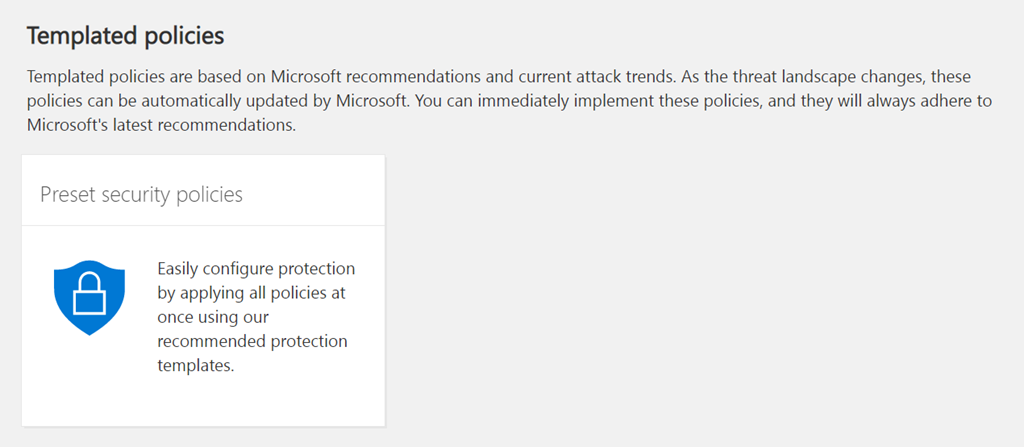
The next example are the new templated Exchange Online policies found in the Administration console which I have detailed previously here:

New templated email policies

image

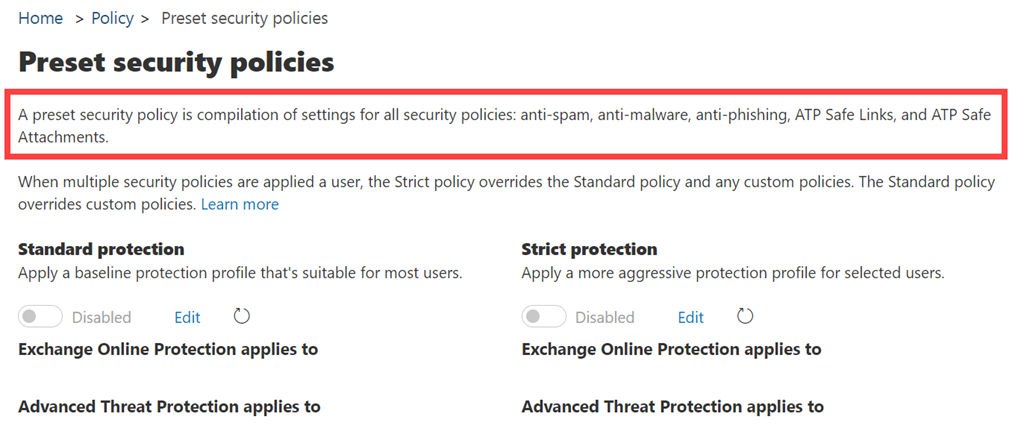
Basically, this is a ‘Microsoft Security Baseline’ for securing Exchange online to best practices. You can read more about these at:

Preset security policies in EOP and Office 365 ATP

I can see a future where at least the Standard protection policy is applied to all new tenants out of the box.

SNAGHTML38b0b00c

Next, if you go and look in Microsoft EndPoint Manager you will see a growing number of similar baseline policies. I say growing, because a

New Security baseline for Office

is on the way.

At the moment, the smart approach is to use these baseline policies from Microsoft and then adjust or add as required to suit your own environment (i.e. Windows XP Service Pack 1 approach). Again, I see the day, in the not too distant future, where these baselines will be enabled by default (i.e. Windows XP Service Pack 2 approach).

image

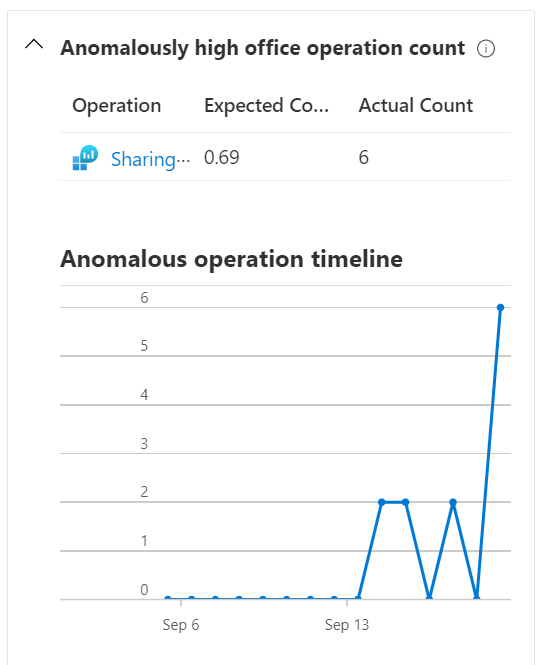
Where I see a major difference between the Windows XP Service Pack 2 approach (i.e. security on by default) is with the introduction of Artificial Intelligence (AI). Thanks to telemetry from tenants and activities being fed back into the Microsoft Cloud, AI and Machine Learning (ML) can be used to look for anomalies. The best example of this Azure Sentinel.

In this new world of AI, you need to spend less time looking at individual events. In essence, you allow the AI to do that and determine what looks suspect based on EVERYTHING it sees in your environment and what it sees across the whole ecosystem. I can see a future where not only will the AI analyse all this data in a blink of the eye but it will also start taking action. For example, if you haven’t disabled basic authentication, it will disable it automatically because it knows that doing so is recognised by its algorithm to protect data to a high degree. I also believe we will also soon have the option for the AI to start taking ‘pro-active’ action to re-configure spam filtering to provide the best protection and adapt automatically to new methods of attack.

In short, I see a day, in the not to distant future, when all possible security options will be enabled by default and then AI will not only monitor but automatically adjust services and settings as required to meet the changing threat landscape. All of this will be driven by the growing volumes of telemetry that Microsoft collects from tenants big and small.

This all seems pretty marvellous, having a self adjusting security posture but perhaps the bigger question to consider is, what role does the IT Professional who is supposed to be setting this security configuration up manually today play in this future? Does a role for manual IT security configuration exist in the future? If not, where will the opportunities be in the IT security realm?