Need to Know podcast–Episode 254

In this episode we go a bit Dev and talk with MVP David Gardiner about software and using things like GitHub to make life easier for all those scripts you have developed. Having a handle on using software is a very important skill for IT Professionals to have in the cloud and David gives us some insight and experience as a developer that I think will help.

Of course I bring you up to date with all the news on the even of Microsoft Ignite and the fire hose we expect afterwards. Listen in an enjoy this episode.

This episode was recorded using Microsoft Teams and produced with Camtasia 2020

Take a listen and let us know what you think – feedback@needtoknow.cloud

You can listen directly to this episode at:

https://ciaops.podbean.com/e/episode-254-david-gardiner/

Subscribe via iTunes at:

https://itunes.apple.com/au/podcast/ciaops-need-to-know-podcasts/id406891445?mt=2

The podcast is also available on Stitcher at:

http://www.stitcher.com/podcast/ciaops/need-to-know-podcast?refid=stpr

Don’t forget to give the show a rating as well as send us any feedback or suggestions you may have for the show.

Resources

@davidrgardiner

@directorcia

https://david.gardiner.net.au/

https://github.com/flcdrg

https://www.adnug.net/

Microsoft Ignite 2020

Guidance for delivering Virtual Events

In development for Microsoft Intune

Move flows across environments

End of support for Office 2010

New conversations button in Teams

The changing security environment with Microsoft 365

A couple of new additions to Azure Sentinel

The changing security environment with Microsoft 365

First, a quick trip down memory lane. Back when Microsoft released Windows XP it had no local firewall (yep, I know, hard to believe now). After that fact being exploited by malicious software to spread through networks, Microsoft added a firewall to Windows XP in Service Pack 1. However, it didn’t automatically enable it. It remained something optional that was on the user to enable. Of course, given that most people are never going to enable a security feature that is optional, security issues continued. Then, with Service Pack 2, Microsoft enabled the firewall in Windows XP and it has been on ever since.

Most software is generally not configured as securely as it could be out of the box. In the case of Microsoft, it has to cater to a very, very broad audience with very different needs and configurations. Thus, it has fallen to the IT Professional for the business to implement the appropriate security using the features provided.

This equates to the Windows XP Service Pack 1 days. That is, the security capabilities are included but not enabled. And just like those days, only a very small percentage of them seem to get implemented. Multi Factor Authentication (MFA) is a great example of this. From Microsoft Ignite 2019 (i.e ONLY last year):

“it was discussed that out of all the Azure tenants globally, less than 8% of them WORLD-WIDE have enabled MFA.  99.9% of attacks on accounts are prevented by MFA.” – Reference

Even though EVERY Microsoft/Office 365 and Azure tenant includes MFA for identities, less than 8% have enabled it. This is hard to rationalise given the reality that doing so would prevent almost 100% of attacks. Clearly, it harkens back to the Windows XP Service Pack 1 days – if it ain’t on by default, then it will probably NEVER be turned on, no matter how much protection it provides.

So I hope you can appreciate, that in one aspect the IT security landscape hasn’t changed much from back when we had Windows XP (2002 if you check Wikipedia). I think however that this is in fact driving what I see as the ‘new’ security landscape for Microsoft 365.

The first big change with Microsoft 365 security is that Microsoft is beginning to move from Windows XP Service Pack 1 approach to a Service Pack 2 approach. That is, security enabled by default.

The first example of this is the End of support for Basic authentication and actively disabling it which you can read about here:

Deferred end of support date for Basic Authentication in Exchange Online

The next example is Security defaults.

Security defaults make it easier to help protect your organization from these attacks with preconfigured security settings:


  • Requiring all users to register for Azure Multi-Factor Authentication.
  • Requiring administrators to perform multi-factor authentication.
  • Blocking legacy authentication protocols.
  • Requiring users to perform multi-factor authentication when necessary.
  • Protecting privileged activities like access to the Azure portal.

If your tenant was created on or after October 22, 2019, it is possible security defaults are already enabled in your tenant. In an effort to protect all of our users, security defaults is being rolled out to all new tenants created.

and from – Introducing security defaults

“We will expand first to apply security defaults to all new tenants as well as applying it retroactively to existing tenants who have not taken any security measures for themselves.”
image

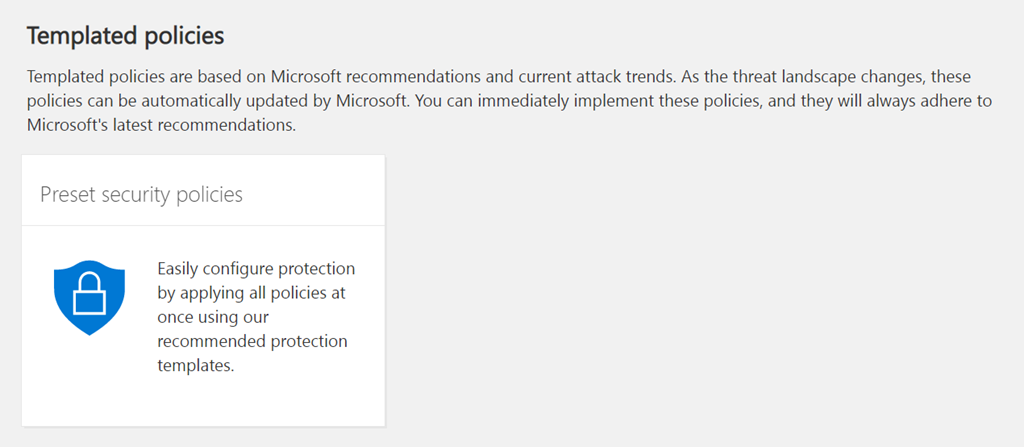
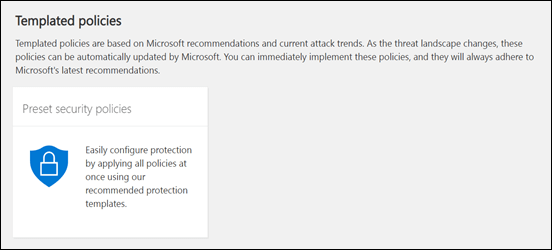
The next example are the new templated Exchange Online policies found in the Administration console which I have detailed previously here:

New templated email policies
image

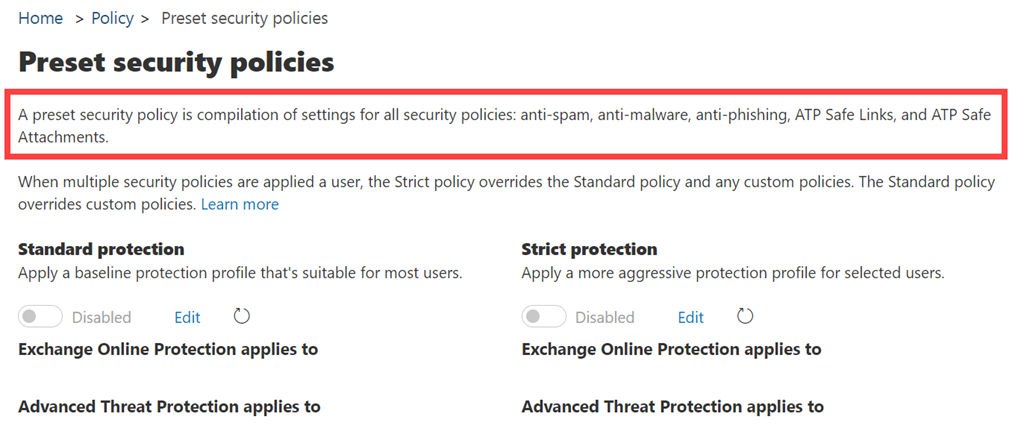
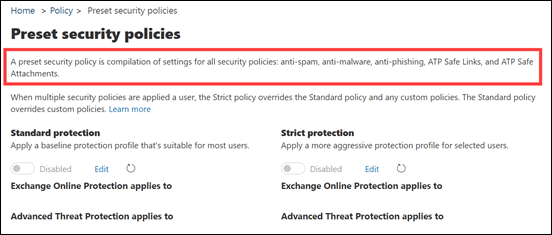
Basically, this is a ‘Microsoft Security Baseline’ for securing Exchange online to best practices. You can read more about these at:

Preset security policies in EOP and Office 365 ATP

I can see a future where at least the Standard protection policy is applied to all new tenants out of the box.
SNAGHTML38b0b00c

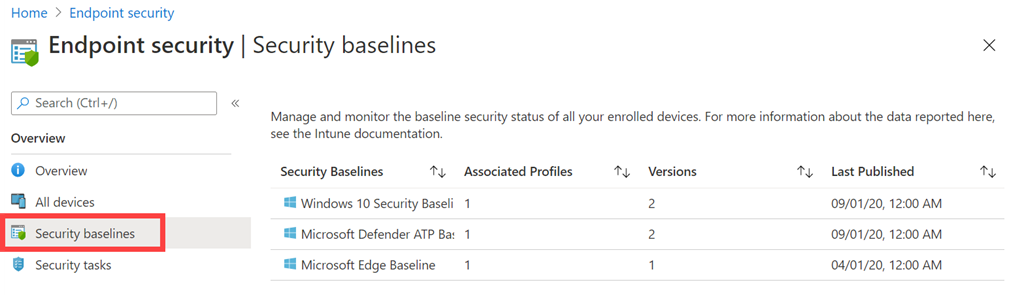
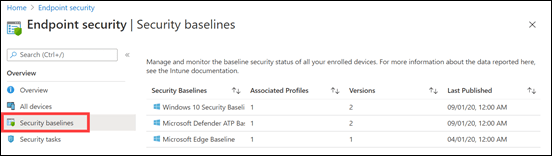
Next, if you go and look in Microsoft EndPoint Manager you will see a growing number of similar baseline policies. I say growing, because a

New Security baseline for Office

is on the way.

At the moment, the smart approach is to use these baseline policies from Microsoft and then adjust or add as required to suit your own environment (i.e. Windows XP Service Pack 1 approach). Again, I see the day, in the not too distant future, where these baselines will be enabled by default (i.e. Windows XP Service Pack 2 approach).
image

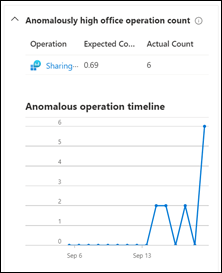
Where I see a major difference between the Windows XP Service Pack 2 approach (i.e. security on by default) is with the introduction of Artificial Intelligence (AI). Thanks to telemetry from tenants and activities being fed back into the Microsoft Cloud, AI and Machine Learning (ML) can be used to look for anomalies. The best example of this Azure Sentinel.

In this new world of AI, you need to spend less time looking at individual events. In essence, you allow the AI to do that and determine what looks suspect based on EVERYTHING it sees in your environment and what it sees across the whole ecosystem. I can see a future where not only will the AI analyse all this data in a blink of the eye but it will also start taking action. For example, if you haven’t disabled basic authentication, it will disable it automatically because it knows that doing so is recognised by its algorithm to protect data to a high degree. I also believe we will also soon have the option for the AI to start taking ‘pro-active’ action to re-configure spam filtering to provide the best protection and adapt automatically to new methods of attack.

In short, I see a day, in the not to distant future, when all possible security options will be enabled by default and then AI will not only monitor but automatically adjust services and settings as required to meet the changing threat landscape. All of this will be driven by the growing volumes of telemetry that Microsoft collects from tenants big and small.

This all seems pretty marvellous, having a self adjusting security posture but perhaps the bigger question to consider is, what role does the IT Professional who is supposed to be setting this security configuration up manually today play in this future? Does a role for manual IT security configuration exist in the future? If not, where will the opportunities be in the IT security realm?


A couple of new additions to Azure Sentinel

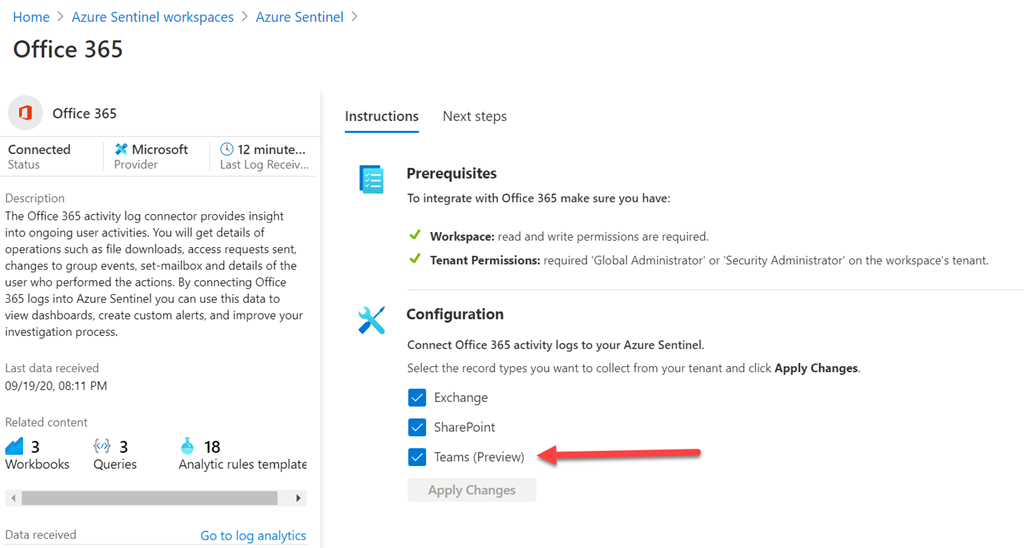
If you have a look inside your Azure Sentinel console you should some new options.

image

The first is a new option in the Office 365 Data connector to allow you to bring Teams data from the Office 365 Unified Audit Log into Sentinel. All you need to do to enable this is open the Office 365 connector and select the Teams check box as shown above.

image

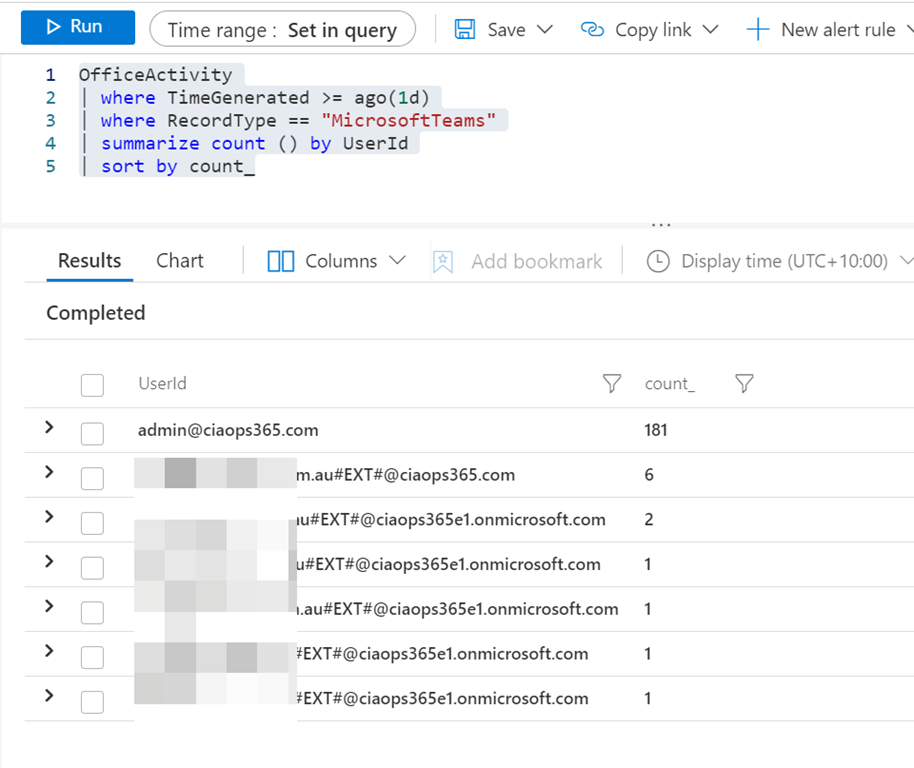
Once the data starts flowing in, the you’ll be able to run Kusto queries on the log data as shown above. This query will produce a quick report of all the Teams sessions over the last day. The KQL for this is:

OfficeActivity

| where TimeGenerated >= ago(1d)

| where RecordType == “MicrosoftTeams”

| summarize count () by UserId

| sort by count_

With Teams data now flowing into Sentinel you can start creating all sorts of interesting reports.

image

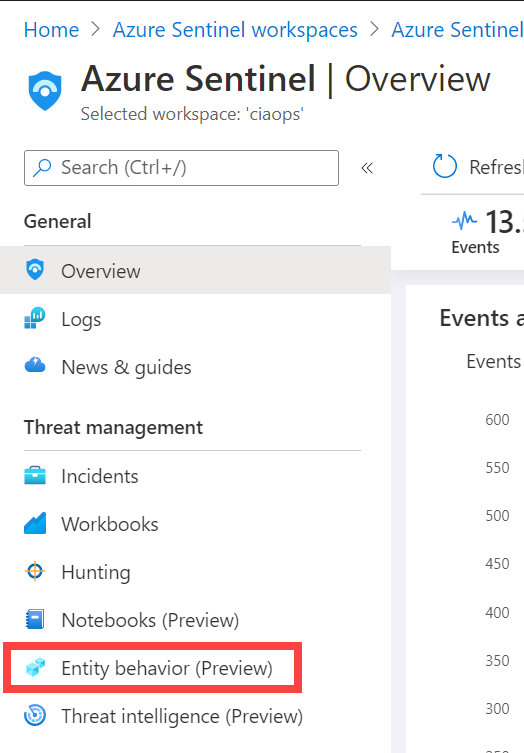
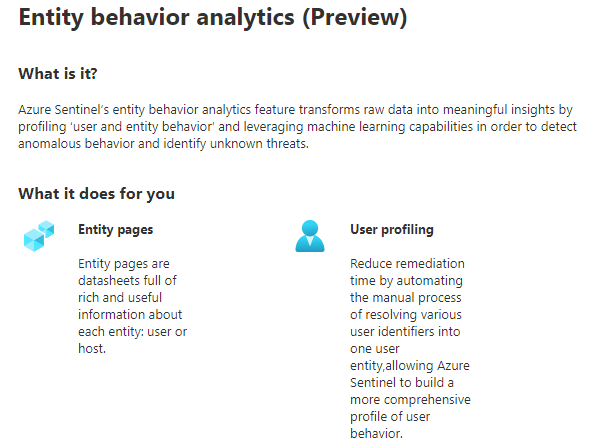
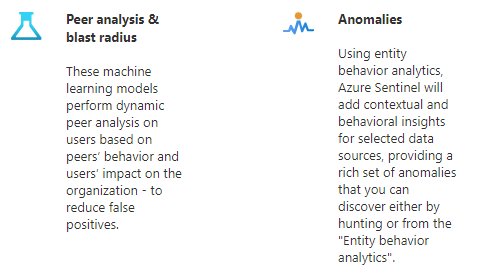
The next new item is the Entity behavior as shown above. Here is what it does:

image
image

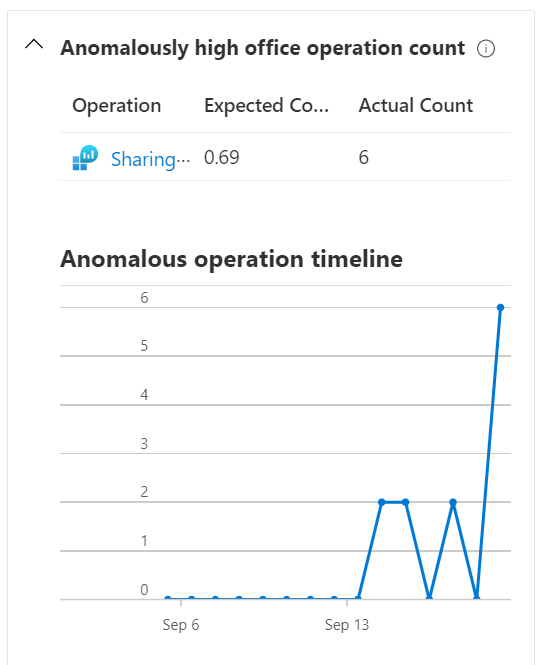
Basically, it is going to give you the ability to be more granular when looking at data as well as providing more AI (Artificial Intelligence) across that data looking for anomalies.

image

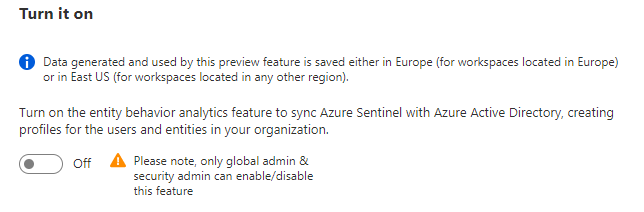
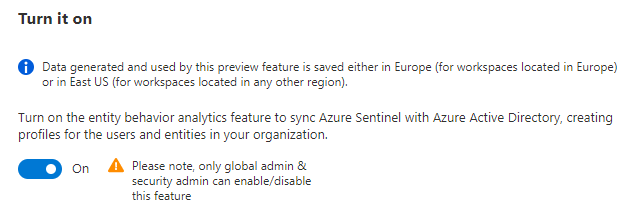
Just scroll down the page and Turn it on.

image

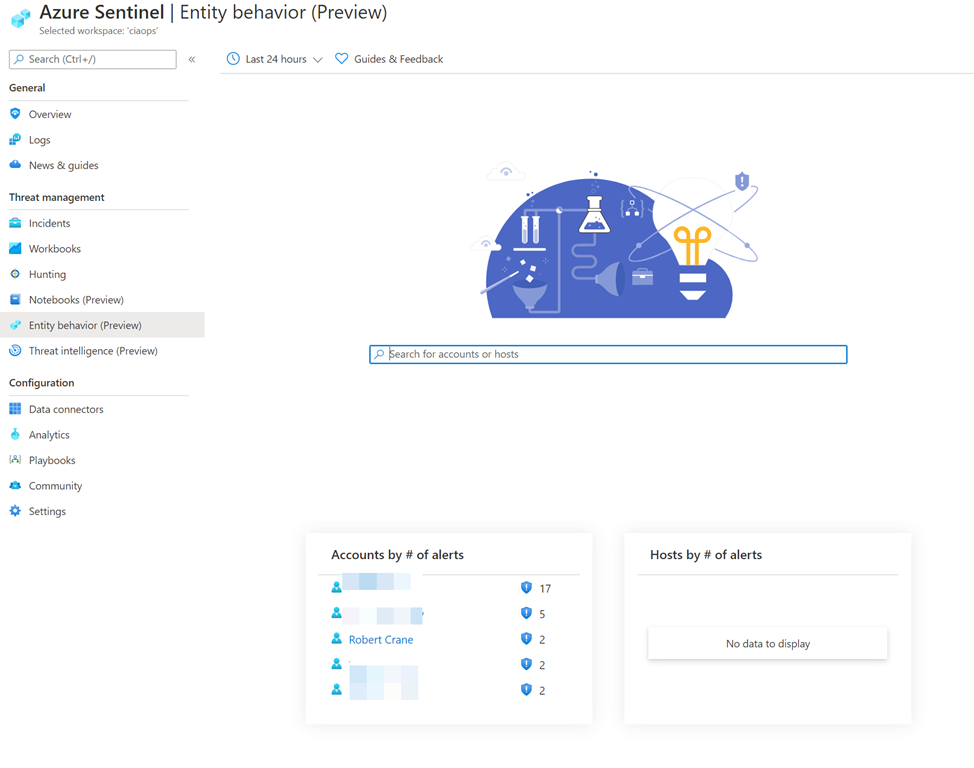
Now when you visit the link you’ll see:

image

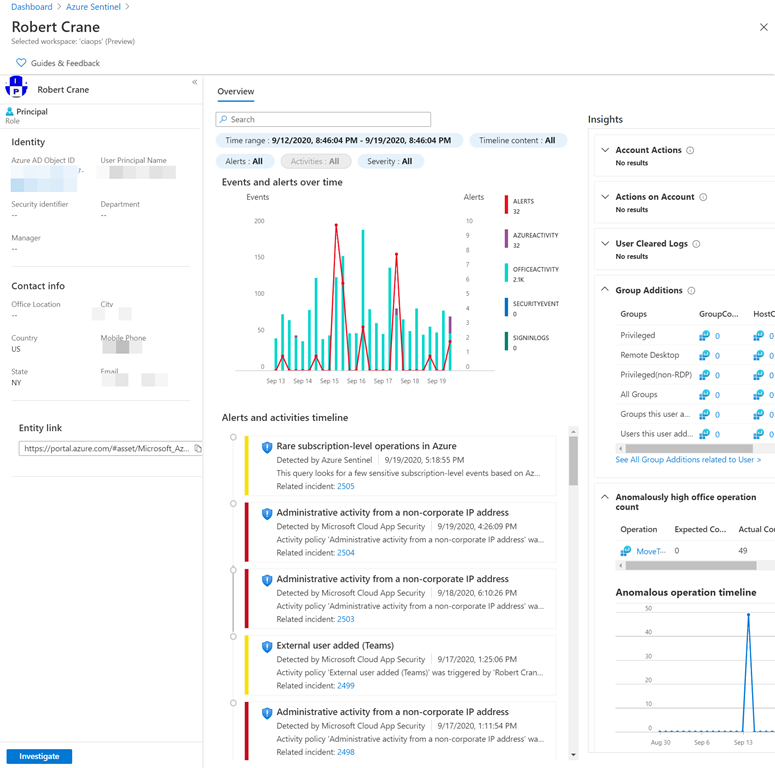
and selecting an account will show you information like:

image

Which is a great summary for that user over the time period you selected.

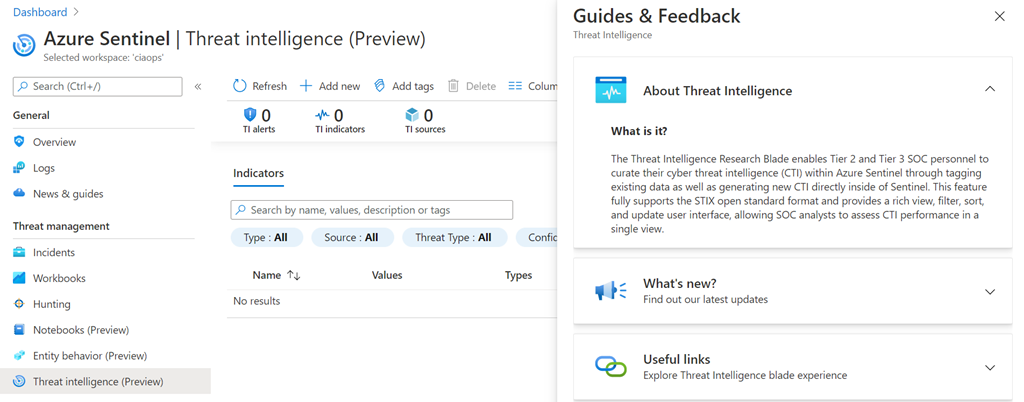
image

The Threat intelligence option provides the above options, which to be honest, I haven’t fully figured out how to use effectively yet. I may not as yet have enough data in this tenant to make full use of it. I’ll have to wait and see.

Overall some really handy additions to Azure Sentinel that I’d be encouraging you to take advantage of to improve you security analysis. If you are looking to get started with Azure Sentinel, don’t forget my online course:

https://www.ciaopsacademy.com/p/getting-started-with-azure-sentinel

Need to Know podcast–Episode 253

FAQ podcasts are shorter and more focused on a particular topic. In this episode I speak about some automation options that are available in the Microsoft Cloud.

This episode was recorded using Microsoft Teams and produced with Camtasia 2020

Take a listen and let us know what you think – feedback@needtoknow.cloud

You can listen directly to this episode at:

https://ciaops.podbean.com/e/episode-253-automation-optiona/

Subscribe via iTunes at:

https://itunes.apple.com/au/podcast/ciaops-need-to-know-podcasts/id406891445?mt=2

The podcast is also available on Stitcher at:

http://www.stitcher.com/podcast/ciaops/need-to-know-podcast?refid=stpr

Don’t forget to give the show a rating as well as send us any feedback or suggestions you may have for the show.

Resources

FAQ 16

CIAOPS Patron Community

@directorcia

New conversation button in Teams

image

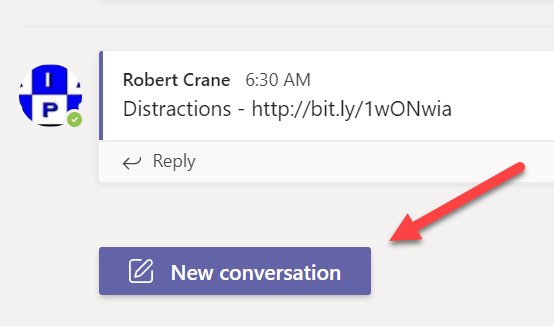
A New conversation button has appeared for me inside my tenant both on the desktop and on the web as shown. This is very much like the button you in the mobile experience of Teams.

One of the major challenges with conversations or chats in Teams was the simplicity that you could create new conversation threads. This simplicity was its own worse enemy unfortunately, because what you’d find is that people would post new message threads rather than posting to the current or existing one. Many users didn’t notice that fact and you ended up with many, many disjointed conversations. That reduced Teams chat benefits and effectiveness.

This New conversation button will ensure that any existing reply will stay in the existing thread and you’ll only get a new conversation by pressing that button. It also makes the interface between, desktop, mobile and web more consistent.

Look out for the New conversation button coming to your Teams environment soon.

Need to Know podcast–Episode 252

In this episode I speak with MVP Megan Strant all about adoption. However, in this discussion we focus on the human side of adoption and change management which can be really challenging for many organisations to successfully manage. Megan shares her experiences and provides some handy insight into how we can improve our chances of successful adoption of Microsoft 365.

Of course, there is always Microsoft Cloud news which I’ll bring you up to date with. We will be expecting a whole lot more once Microsoft Ignite starts, so stay tuned here for all the latest!

This episode was recorded using Microsoft Teams and produced with Camtasia 2020

Take a listen and let us know what you think – feedback@needtoknow.cloud

You can listen directly to this episode at:

https://ciaops.podbean.com/e/episode-252-megan-strant/

Subscribe via iTunes at:

https://itunes.apple.com/au/podcast/ciaops-need-to-know-podcasts/id406891445?mt=2

The podcast is also available on Stitcher at:

http://www.stitcher.com/podcast/ciaops/need-to-know-podcast?refid=stpr

Don’t forget to give the show a rating as well as send us any feedback or suggestions you may have for the show.

Resources

@meganstrant

@directorcia

Meganstrant

Megan Strant on Linkedin

Prosci

Microsoft Ignite 2020

Organize content your way with the Preview of Project Moca

Microsoft Lists in Microsoft Teams is now generally available

Updates for Dictate, including voice commands in Word

Transcribe in Word

What’s New with Microsoft 365 | August 2020

What’s New in Microsoft Teams | August 2020

Incrementing a SharePoint list column using Power Automate and Flow

Updated CIAOPS PowerShell course

https://ciaops.podbean.com/e/episode-252-megan-strant/

Incrementing a SharePoint List Column using Power Automate and Flow

A common task that I have found need for in SharePoint is the ability to increment an identifier field for an item in a SharePoint list. One use case that I have is the ability to send regular posts to a Team channel but continue to loop through all the items in the list no matter how many there is. In short, I want to take a list of items from SharePoint and post the contents one item per day to a Teams channel, forever in an automated fashion

I want to take this opportunity to thank Andrew from Andrew Gallagher Computing for assisting me working this out. Here is the result:

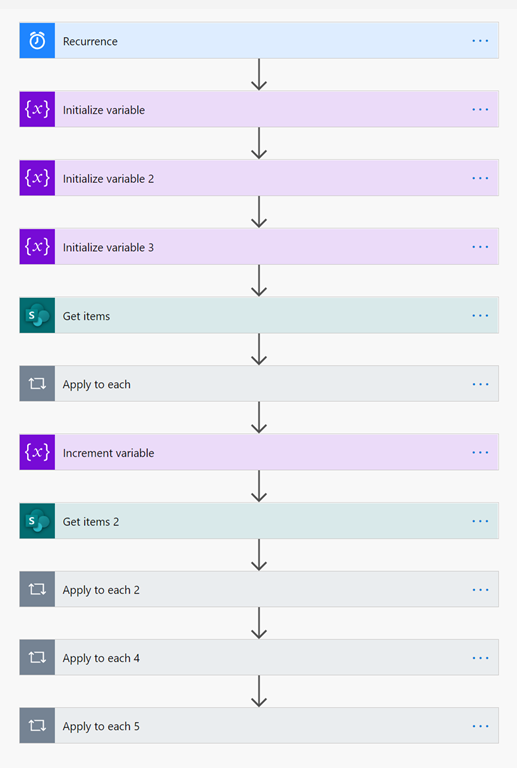
image

You can achieve this outcome using Power Automate in Microsoft 365, which we have done as shown in the above summary screen shot. Now let me break down all the components.

image

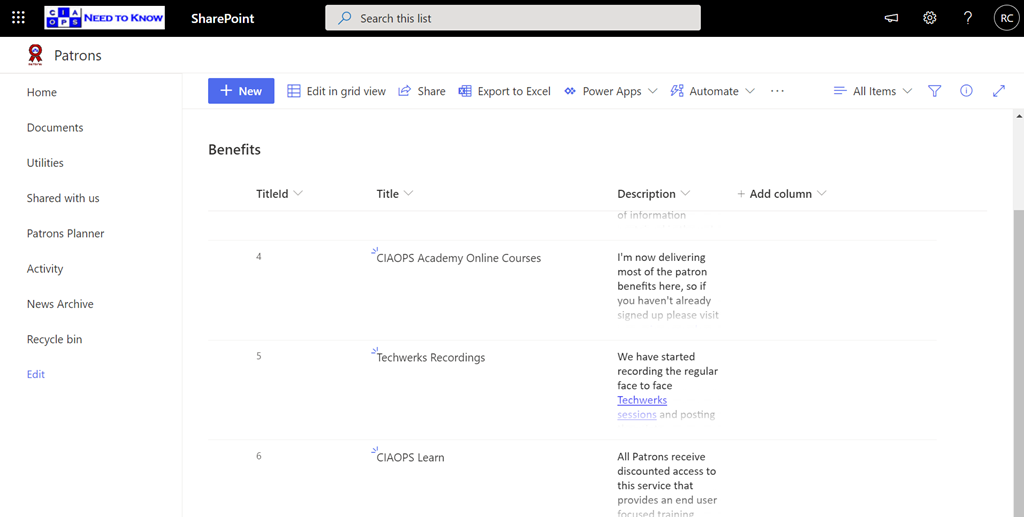
The first place to start is to create a list in SharePoint that you will use with the appropriate columns. In this case I have 3 columns:

TitleId = a column to keep track of each entry. This will contain an integer that gets incremented.

Title = the subject line of the post in the Microsoft Teams channel

Description = the body of the post in the Microsoft Teams channel

image

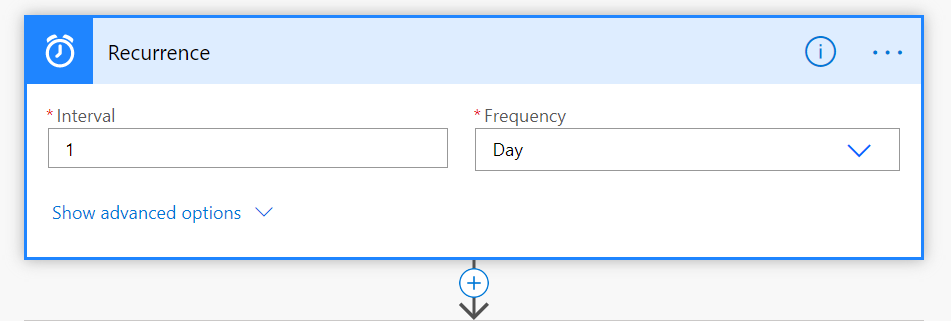
The first step in Power Automate is to create a recurrence trigger, which is pretty easy. I want this Power Automate to run once a day at a set time.

image

Next, I initialise 3 variables:

MaxTitleId = will hold the current maximum value found in the TitleId column in the list

MinTitleId = will hold the current minimum value found in the TitleId column in the list

NewTitleId = this value will be MaxTitleId + 1 and will replace the existing TitleId value in the list items when that item is used.

An interesting point here that we found was that the field type for the variables has to be Float even though the actual numbers in the SharePoint list field are integers.

image

Next I need to get items from the SharePoint list I have created, from the SharePoint site location I desire. You will notice here that I also want to display the Advanced fields so I can add the following fields:

Order by = TitleId desc

Top count = 1

In effect, I am ordering the list by the TitleID column in descending order, which places the row with the highest value in the TitleId column at the top of the list. Then I simply take the 1 item from the list in that order, i.e. the top row. In essence, I am finding the item in the list with the highest  TitleId number in the list.

image

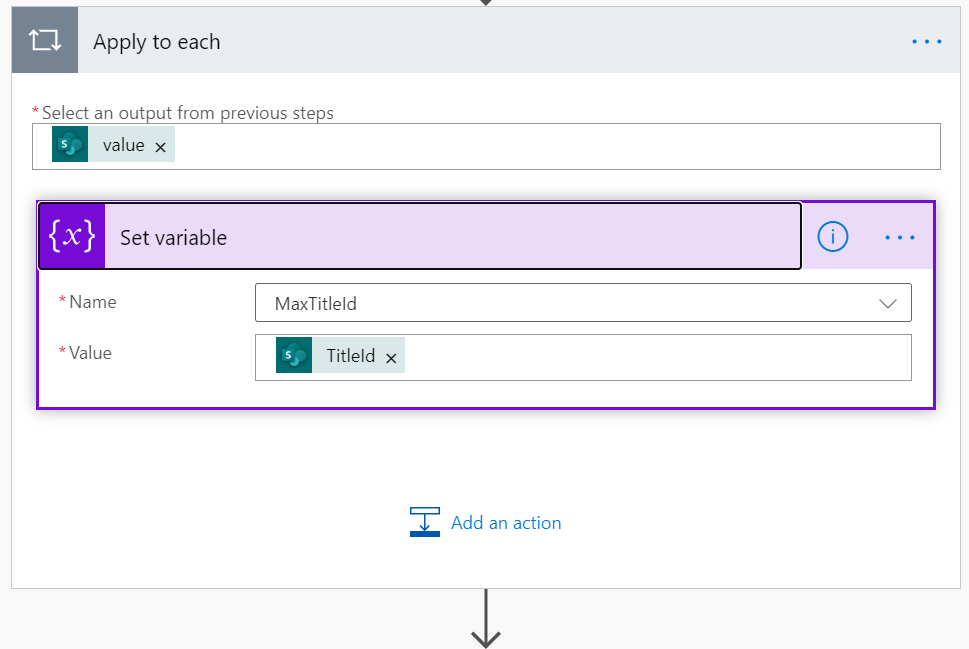
I then take that List row and set the variable MaxTitleId to be the value in the TitleId field for that item in the SharePoint list I just captured. That means that I am finding the highest value in the TitleId column for the list and saving that highest value into the variable MaxTitleId for later use.

image

next, I perform the operation of MaxTitleId + 1 using the expression:

add(variables(‘MaxTitleId’),1)

and store it into the variable NewTitleId. This will be the new value of the field TitleId in the list item after I have used that item. In effect, it will move the item that I use to end of my list.

image

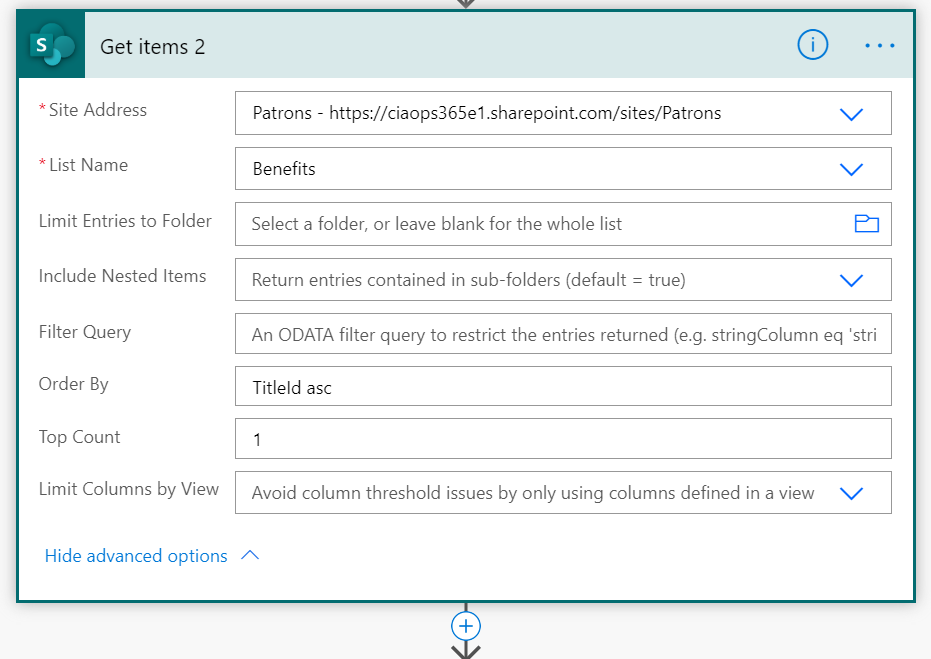
I now again, get the same list, but this time sort by the field TitleId in ascending order using the command:

TitleId asc

After doing this, I again only take the top row of the list. In essence, I am now finding the row in the list where the field TitleId is the lowest. This will be the item that I want to post out to my Teams channel.

image

Before I do that, I save this minimum TitleId value to the variable MinTitleId as shown above.

image

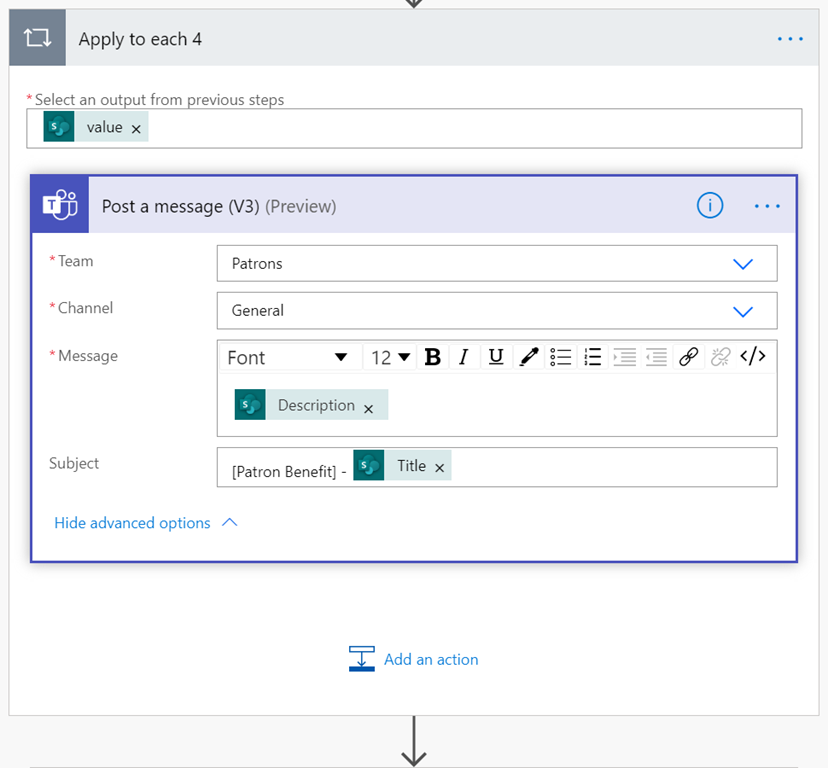
I now post the information in the row item with the lowest value of TitleId to my preferred Microsoft Teams channel as shown above.

image

and above, is what it appears like in my Teams channel.

image

Finally, I update the item that I just used to post information to my Teams channel and replace the existing Titleid with the one in the variable NewTitleId. In effect, I am now making this used item in the list with the lowest TitleId field, the one with the highest value + 1 of TitleId in the list. This means that this item will fall to the bottom of the list and won’t be used again until down the track it becomes the item with the lowest TitleId field once again. That won’t happen until all other items in the list have been published and completed a similar process.

So there you have it. Yes, technically we don’t use the variable MinTitleId but we have included here to help anyone who may be looking for that using Power Automate. I speak more about the business reason for creating this type of automation in an upcoming article, but for now, consider it as a way to continually broadcast common messaging to people using Microsoft Teams.

CIAOPS Need to Know Microsoft 365 Webinar–September

laptop-eyes-technology-computer

Time to look at the newest Microsoft 365 service – Lists. In this webinar I’ll show what Microsoft Lists is all about and give you some suggestions on how you can put it to work in your business. I’ll also have the  the latest Microsoft Cloud updates plus open Q and A as well.


You can register for the regular monthly webinar here:


September Webinar Registrations


The details are:


CIAOPS Need to Know Webinar – September 2020
Thursday 24th of September 2020
11.00am – 12.00am Sydney Time


All sessions are recorded and posted to the CIAOPS Academy.


The CIAOPS Need to Know Webinars are free to attend but if you want to receive the recording of the session you need to sign up as a CIAOPS patron which you can do here:


http://www.ciaopspatron.com


or purchase them individually at:


http://www.ciaopsacademy.com/


Also feel free at any stage to email me directly via director@ciaops.com with your webinar topic suggestions.


I’d also appreciate you sharing information about this webinar with anyone you feel may benefit from the session and I look forward to seeing you there.