Security test script walk through video – Update 1

I have made some updates to my free security test script:

https://github.com/directorcia/Office365/blob/master/sec-test.ps1

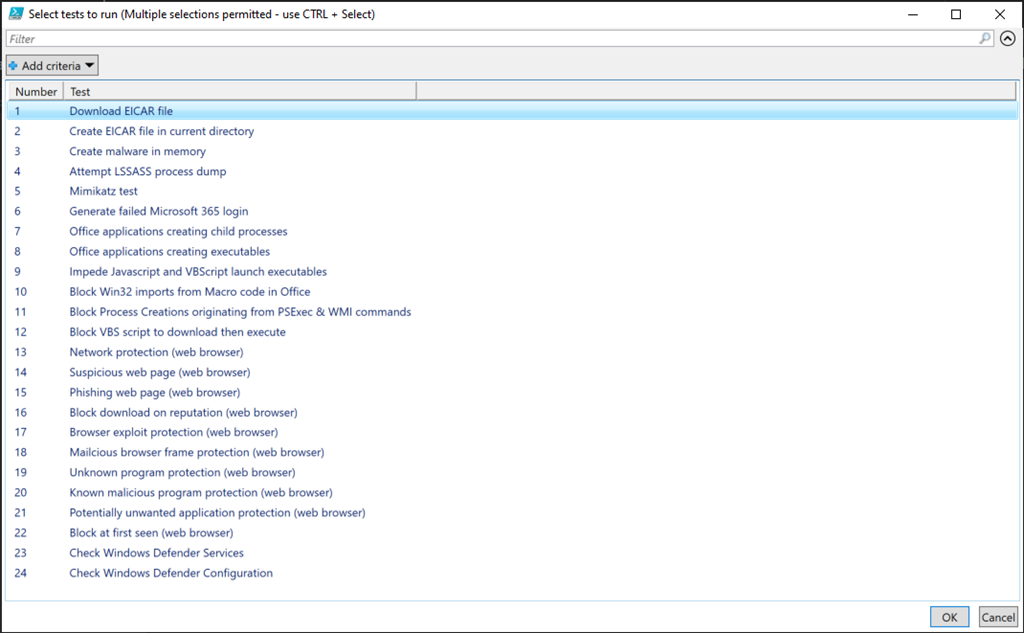
The main improvement is the inclusion of a menu that allows you to select which test you want to run.

image

You can use the CTRL and SHIFT key to make multiple selections here.

The video also shows the results when the test script is run on a Windows 10 environment with Trend Micro and a Chrome browser.

Don’t forget to keep checking back for further script updates and improvements.

Windows Print Spooler Remote Code Execution Vulnerability–CVE-2021-34527

Information about this from Microsoft can be found here:

https://msrc.microsoft.com/update-guide/vulnerability/CVE-2021-34527

At the moment one of the work arounds is:

Option 2 – Disable inbound remote printing through Group Policy


You can also configure the settings via Group Policy as follows:


Computer Configuration / Administrative Templates / Printers


Disable the “Allow Print Spooler to accept client connections:” policy to block remote attacks.


You must restart the Print Spooler service for the group policy to take effect.


Impact of workaround This policy will block the remote attack vector by preventing inbound remote printing operations. The system will no longer function as a print server, but local printing to a directly attached device will still be possible.

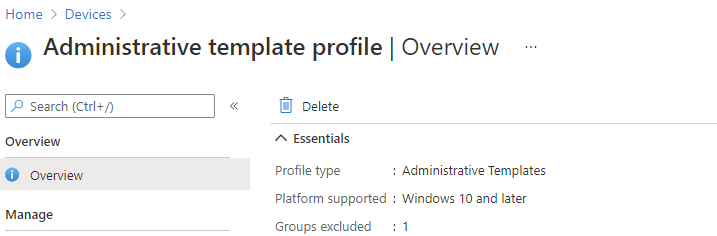
You can also make that settings change via Endpoint Manager and Intune.

image

You’ll need to ensure you have an Administrative template (ADMX) profile in the Device Configuration profiles. If not, then simply create one.

image

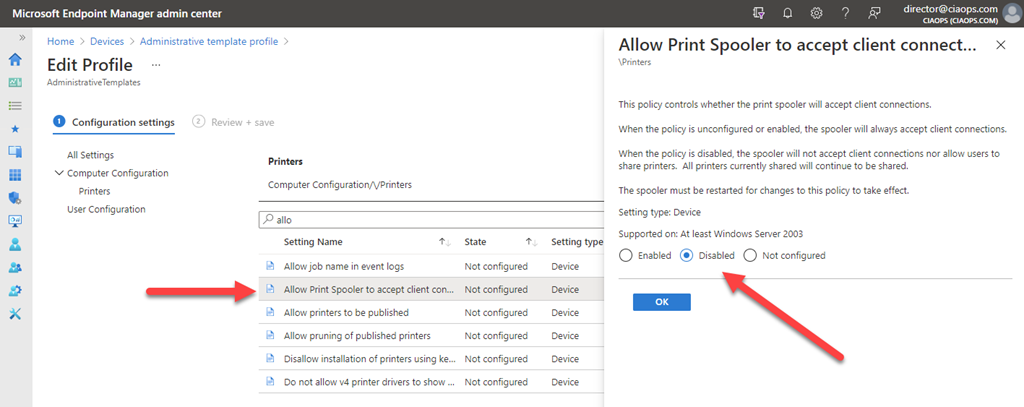
In that Administrative policy settings do a search for ‘spool’ or the like. You should find the above setting under \printers – Allow Print Spooler to accept client connections, which you should then set to Disable as shown.

if you then save the policy it should be pushed out to all machines. According to the CVE, you’ll also need to restart the spooler service as well. You can do this with the following PowerShell command once the policy has taken effect:

restart-service –name spooler

Perhaps a reboot is easier anyway?

You’ll need to be careful about potential disabling existing printing configurations with shared machines, so it will be best to monitor the impact just in case.

Hopefully, a patch will become available soon for this but even when it does, I think leaving the setting disabled in general is a good idea!

Security test script walk through video

I’ve create this video to give you a basic walk through of the free security testing PowerShell script I’ve created. You’ll find the script here:

https://github.com/directorcia/Office365/blob/master/sec-test.ps1

In the video you’ll see how to quickly get and run the script as well the results it generates on a stand alone Windows 10 device.

Apart from Windows 10, PowerShell and Word there are no special requirements and it can be used on stand alone, domain or Azure Ad joined, etc. It doesn’t matter. It is designed to help you better evaluate your security posture.

A simplified protection model

image

As much as third party cyber security protection models are handy (i.e NIST Cybersecurity Framework), I personally find them far too complicated for my liking. Complicated generally translates to poorly or not full implemented. That translates into lower levels of security, especially in the SMB space. I think that good security is all about keeping things as simple as possible.

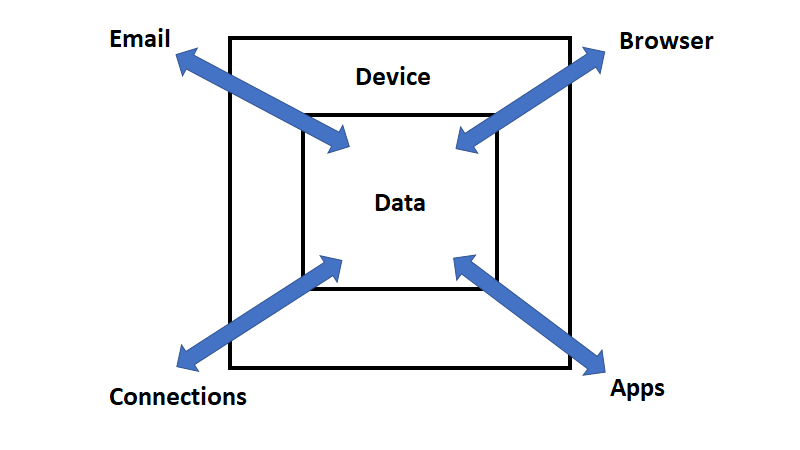
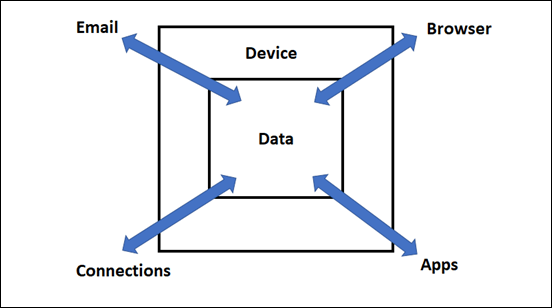
With that in mind, I’ve started to try and nut out my own model. My thoughts so far centre on the above diagram. In the centre is your data. Data is moved and changed via four basic connectors:

1. Email

2. Connections (i.e. to removeable storage, network connections, Internet, etc)

3. Applications

4. Browser

The Data is normally protected by a Device, being a workstation, server or mobile. However, typically it is a workstation as hopefully most people aren’t browsing on servers. The aim also here is to focus on cloud deployments here without on-premises infra-structure.

For the Connectors to interact with Data they must do so across the Device boundary. In the security context, this means that these Connectors also need access to not only the Data but also the Device. Thus, attacks are going to be targeted at either the Data or the Device via the Connectors as I see it.

If we consider that most Data doesn’t include it’s own defensive capabilities because, typically, it is the container in which the data lives that has the defensive capabilities, then we need to look at the defensive capabilities of the Device I believe. It is also worth noting that data on it’s own generally isn’t a threat, it is only when action is taken with Data that risk arises. For example, a phishing email sitting in an inbox unopened is not an active threat. It only becomes active when it is read and the link inside is clicked allowing a process to take place, typically, on the device. In short, Data typically isn’t the source of active threats, it is actions taken with that data that generates active threats. These are typically activated on the device.

That means the major security focus should be on the defensive capabilities of the Device. It also means that the major threats are going to come from the four connectors; email, browser, connections and applications. Of these four, I would suggest that the most likely source of introduced threats is going to be from email and the browser.

Reducing the risks from both email and the browser start at the source of these two connectors. For email that means appropriately configuring things like DNS, then mail filtering policies to provide protection even before the connection passes onto the device. Likewise for the browser, this means content filtering before results are returned to the browser. However, setting those items aside for the moment and let’s just focus on what threats the device faces from the email and browser connections.

The threat from email is going to be a message that either:

1. delivers a malicious attachment that when opened by the user and takes action

2. delivers a message that contains a malicious link that is clicked by the user and takes action

3. delivers a message that convinces the user to take some risky action

The threat from the browser is going to be either:

1. navigating to a web site that contains malicious content that is downloaded and takes action

2. navigating to a web site that harvests credentials

The interesting thing with all of these is that it requires some sort of user interaction. As I said, a phishing email isn’t a major threat until a user click on a link it contains.

So what’s kind of missing from my model so far is the person or identity. let me go away and think about this some more but I appreciate sharing my thoughts with you and if you have any feedback on this model I’m trying to develop, please let me know.

Current Windows Defender configuration using PowerShell

image

I’ve uploaded a new script:

win10-def-get.ps1

to my Github repository.

What this script will do is report back on Windows Defender versions and settings on a Windows 10 device as shown above.

The interesting thing is that to find the latest version of the released signatures from Microsoft I need to scrape the details from the page:

https://www.microsoft.com/en-us/wdsi/defenderupdates

which turns out to be somewhat imperfect because many times my local signature is more current than what is reported on the Microsoft page. Even more interesting is that it doesn’t appear that Microsoft has an API that will report these details! I find that really strange, as one would think it something simple to provide and a common request. Seems not, as I can’t find one anywhere and have to resort to this unreliable scraping method. If you know of a better way to get the latest version and signature information via PowerShell, I’d love to hear.

The idea with the script is that you can run it on your Windows 10 devices to check that everything is update to date and configured correctly. I’ll keep improving it over time, so feel free to let me know any suggestion you may have on how to improve it.

Windows 10 mobile hot spotting

Annoyingly, I currently have an issues with my ADSL on my phone line. I am getting about a 25% packet loss, which effectively makes the connection unusable. I’ve done everything at my end to troubleshoot the issue and now it is up to the ISP to hopefully resolve the issue.

The problem is that I need internet to work! Luckily, I have a 4G mobile plan that includes unlimited (yes, I said unlimited data). I can easily turn my phone into a hot spot and connect my devices. Problem, is I then I can’t access my local resources and easily share between machines.

image

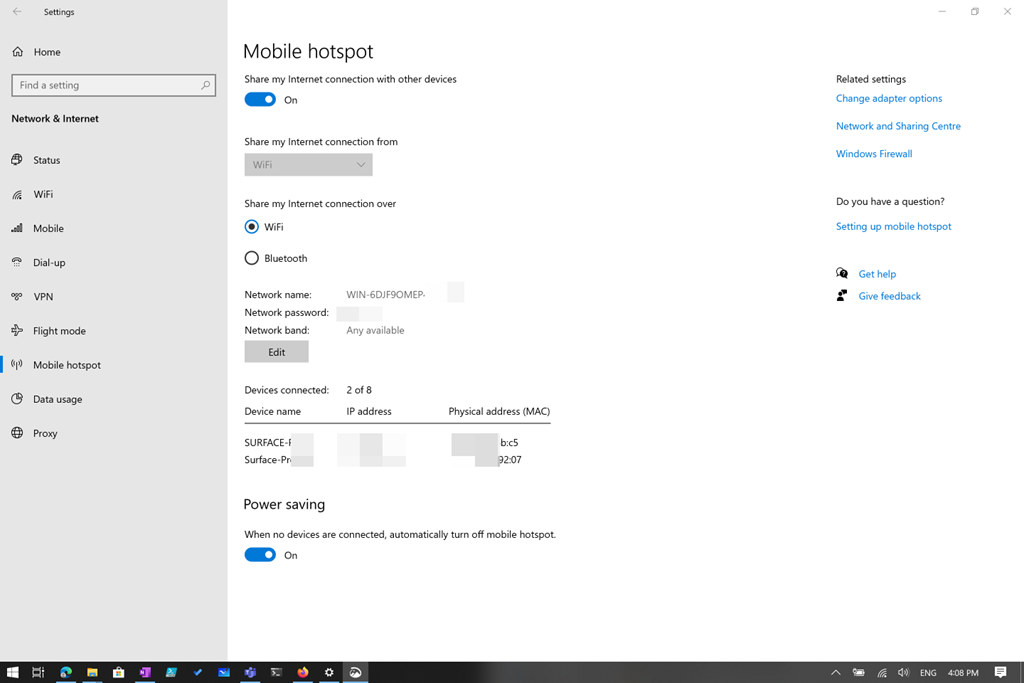
The solution I found is to turn my phone into a hot spot as normal and connect one of my devices that is on my internal network to it. I then share that device connection out using the hot spotting capabilities built into Windows as shown above.

image

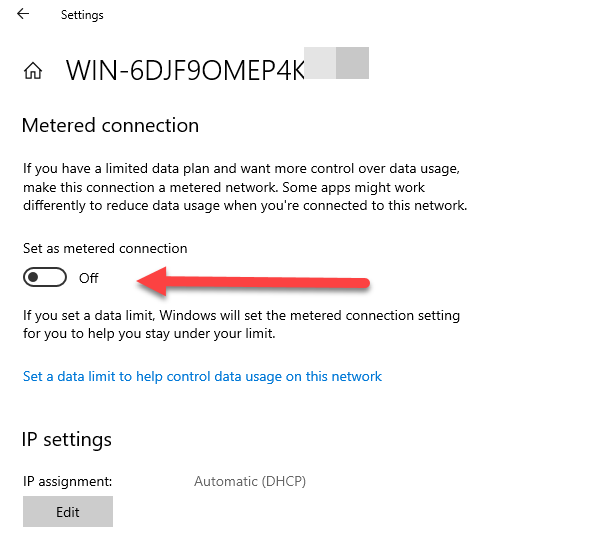
On the other machines, I connect to the Windows 10 hotspot to gain Internet connectivity but I also go into these connections and change the option Set as metered connection to Off as shown above. This means the other Windows devices will see this Windows 10 hotspot like a LAN connection, thus giving it a higher priority for data than a ‘metered connection’.

Just to be 100% sure I have turned off the modem to my problem ADSL connection to ensure that traffic doesn’t try and head that way.

Now all my machines can work together as normal on the LAN but also be connected to the Internet via their own WiFi to the Windows hot spotted machine that is ‘sharing’ my 4G mobile connection.

In many ways, it is better that what I had with ADSL!

All the Defenders

knight

Microsoft unfortunately has quite a few products under the ‘Defender’ banner that I see causing confusion out there. Most believe that ‘Defender’ is only an anti-virus solution, but that could not be further from the case. Hopefully, I can show you here how broad the ‘Defender’ brand is here and hopefully give you a basic idea of what each ‘Defender’ product is.

To start off with there are products that are considered ‘Window Defender’ products, although I see the Windows and Microsoft brand intermingled regularly. Here is a list of specific ‘Windows Defender’ products:

Windows Defender Application Control – WDAC was introduced with Windows 10 and allows organizations to control what drivers and applications are allowed to run on their Windows 10 clients.

Windows Defender Firewall – By providing host-based, two-way network traffic filtering for a device, Windows Defender Firewall blocks unauthorized network traffic flowing into or out of the local device.

Windows Defender Exploit Guard – Exploit protection automatically applies a number of exploit mitigation techniques to operating system processes and apps.

Windows Defender Credential Guard –  Windows Defender Credential Guard uses virtualization-based security to isolate secrets so that only privileged system software can access them.

In contrast, here are the ‘Microsoft Defender’ products :

Microsoft Defender Smart screen – Microsoft Defender SmartScreen protects against phishing or malware websites and applications, and the downloading of potentially malicious files.

Microsoft Defender Antivirus – Brings together machine learning, big-data analysis, in-depth threat resistance research, and the Microsoft cloud infrastructure to protect devices in your organization.

Microsoft Defender Application Guard – helps to isolate enterprise-defined untrusted sites, protecting your company while your employees browse the Internet.

Microsoft Defender Security Center – is the portal where you can access Microsoft Defender Advanced Threat Protection capabilities. It gives enterprise security operations teams a single pane of glass experience to help secure networks.

Microsoft Defender Advanced Threat Protection – is an enterprise endpoint security platform designed to help enterprise networks prevent, detect, investigate, and respond to advanced threats.

Microsoft Defender Browser Protection –  a non Microsoft browser extension helps protect you against online threats, such as links in phishing emails and websites designed to trick you into downloading and installing malicious software that can harm your computer.

So, as you can see, there are quite a lot of ‘Defender’ products out there from Microsoft. How and when you get each of these varies greatly as well as their capabilities, since most will integrate together. That however, is beyond the scope of this article but maybe something I explore in upcoming articles.

For now, just be careful to investigate what is actually meant when it says ‘Defender’ in the Microsoft space!

Resolving Windows Application Guard Issues

A while back I wrote about a issue I was having with Windows Defender Application Guard (WDAG). You’ll find it here:

Microsoft Defender App Guard issue

I have now managed to find a solution for this. In short, the issue, as it turns out, has to do with disk encryption. I found some information about the general issue here:

Why does my encryption driver break Windows Defender Application Guard?

which says:

Windows Defender Application Guard accesses files from a VHD mounted on the host that needs to be written during setup. If an encryption driver prevents a VHD from being mounted or from being written to, WDAG will not work and result in an error message (“0x80070013 ERROR_WRITE_PROTECT”).

Chatting with good people at Microsoft, it seems that in my particular case was solved by this update:

https://support.microsoft.com/en-us/help/4550945/windows-10-update-kb4550945

and was due to a BitLocker issue (being drive encryption).

So, the good news is that my issue is resolved and I can run Windows Defender Application Guard without any errors.

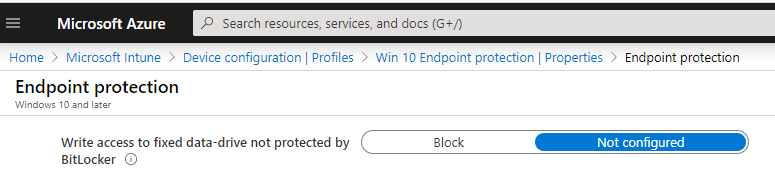
If you can’t install the KB for some reason and you need a quick work around, the issue was linked the BitLocker “Deny write access to fixed drives not protected by Bitlocker” policy and you should clear any group policy and set the following in Intune to Not configured as well as a work around.

image

image

So in the end it was an issue with drive encryption that was rectified with an update. Yeah!

Thanks to the people at Microsoft for the assist on this one. Now onto the next challenge.