Using Defender for Endpoint API and Power Automate

I recently detailed:

Using Defender for Endpoint API and PowerShell

to produce this type of output

image

which is all well and good but does lack some flexibility when it comes to output as well as being something you need to manually initiate. There is way to deliver more using Power Automate.

To do this you’ll still need to complete the initial steps from the previous article and create an Azure AD app in the destination tenant and save the access information. This basically allows access to the destination tenant to extract data. However, now, rather than embedding that sensitive information inside a public script and having the credentials ‘in the open’, they can be securely stored in Azure Key Vault. This will provide a secure repository for the Azure AD app credentials while still allowing them to be readily accessible by service like Power Automate. To use Azure Key Vault you will need a paid Azure subscription.

image

In a nutshell, we want to create a basic Flow in Power Automate like that shown above. In this case it is initiated manually but it could just as easily be triggered on a schedule using the Recurrence action in Flow. Next, the required parameters are grabbed from the Azure Key Vault.
image

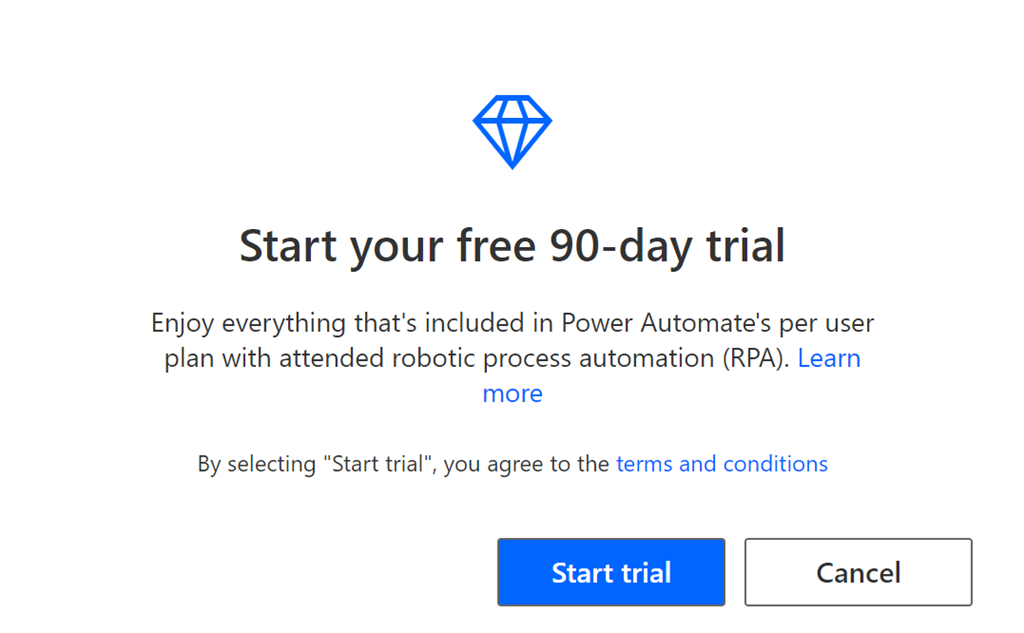
When you are building this Flow, if you see a dialog like shown above, it means you don’t have a Power Automate license that includes the ability to use Premium connectors like Azure Key Vault and HTTP. Licensing the Power Platform is beyond the scope of this article but, if you see that dialog you’ll probably need to purchase a stand alone license of Power Automate to gain access to the required premium connectors.

image

You construct the HTTP action as shown above, using the parameters from the Azure Key Vault to access the Azure AD app via the API URL:

https://api.securitycenter.microsoft.com/api/machines/SoftwareVulnerabilitiesByMachine

that will return a list of vulnerabilities exactly like the PowerShell script did in JSON format.

image

After parsing the JSON output from the HTTP action that executes the API request, the results are mapped to a simple SharePoint list as shown.

image

Thanks to the magic of SharePoint, you get results that look like the above, which is vulnerabilities by machine, or

image

vulnerabilities by severity above, thanks to the ability to easily sort lists in SharePoint.

You’ll also notice that conditional column formatting has been applied to to highlight the severity. Yet another benefit SharePoint lists provide.

So the basis of all of this is an Azure AD app with the appropriate permissions inside a tenant that you wish to obtain information from. From there you can use an API request using PowerShell or Power Automate or whatever, to pull the desired information. The easily way to format that information is to send the results to SharePoint, as done here, to slice and dice as well as display the information any way you want.

This output could as easily have been sent to Power BI, Power Apps, an email, or any other service in Microsoft 365. That’s the benefit of using the Power Platform and things like Flow to get the information. Now the possibilities are endless.

A few important point to note about this:

1. You are in control of the permissions and credentials for obtaining the information using the API. You are not surrendering or trusting these to a third party to access the source data.

2. Credentials are save in Azure Key vault which ensure they are secure and access is controlled by you.

3. You can use this technique with just about any API to import information. All you need is the API URL and the appropriate permissions inside the Azure AD app.

4. You can extract information from multiple tenants into a single source tenant if you wish, you are not limited to just pulling information from the tenant where the Flow was created.

5. The extracted data can be mapped to any Microsoft 365 service. Here it was to SharePoint as that is the easiest, but it could just as well be sent to any Microsoft 365 service. This provides a huge amount of flexibility.

6. You can modify, enhance, extend, etc the Flow at any stage to suit any changing needs.

7. The Flow and the process it executes lives inside you Microsoft 365 tenant and is subject to all the compliance and security options that Microsoft provides here.

8. You can trigger the data extraction to happen on a scheduled basis of your choice with Flow easily.

I see lots and lots of benefits of using this process to regularly pull information from any tenant on just about anything and report it in what ever way you wish. It puts you in control of the whole process, and most importantly, the security of executing this, which in a world moving to zero trust, is a huge benefit.

Hopefully, this will inside you to start playing around with the possibilities when it comes to API and Power Automate.

Cybercrime reporting poll

pexels-donald-tong-143580

I’ve created an anonymous public poll asking the question:

Are you reporting cybercrime incidents, like ransomware, to government or police authorities?

which is here:

https://forms.office.com/r/mENdwmaXRj

as the results rolling you can see the summary here:

http://bit.ly/ciapoll01

I’m interested to see what people are doing when it comes to reporting incidents to authorities?

Exchange user best practices script

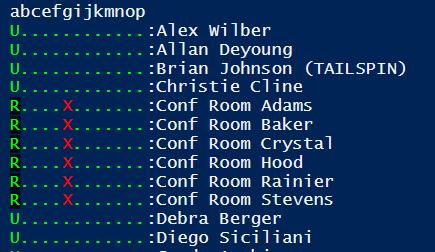
image

I’ve created a new Exchange user best practices summary script which you can find at:

https://github.com/directorcia/Office365/blob/master/o365-mx-usr-all.ps1

The idea with this script is to give you a quick visual summary of your user mailboxes to ensure they conform to best practices.

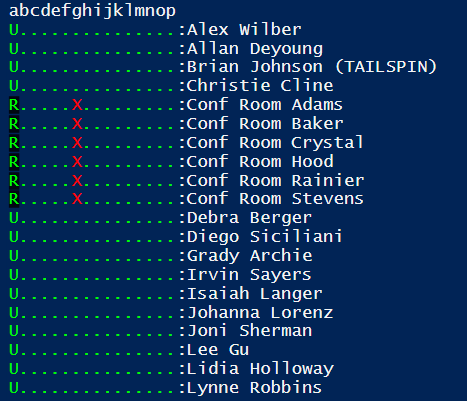
When you run the script without any command line options you will see the above output. Each row is a user with their name at the end of the line. The entries on the right provide you an indication of settings status. A green dot is for good and a red X is for bad. You will see this creates a matrix of settings for each mailbox. These settings are designated by a letter (currently a through p). These letters correspond to the following settings:

a = Mailbox type: S = Shared, R = Resource, U = User
b = Enabled
c = Inactive
d = Remote PowerShell Enabled
e = Retain Deleted Items for at least 30 days
f = Deliver to Mailbox and Forward
g = Litigation Hold Enabled
h = Archive Mailbox Status
i = Auto-expanding Archive Enabled
j = Hidden From Address Lists Enabled
k = POP Enabled
l = IMAP Enabled
m = EWS Enabled
n = EWS Allow Outlook
o = EWS Allow Mac Outlook
p = Mailbox Audit Enabled

image

If you use the –verbose command line option, you’ll get additional information about the script operation as you see above.

If you use the –debug command line option, a log file of the script process will be created in the parent directory.

If you use the –prompt command line option, the script will wait after each user for you to press ENTER.

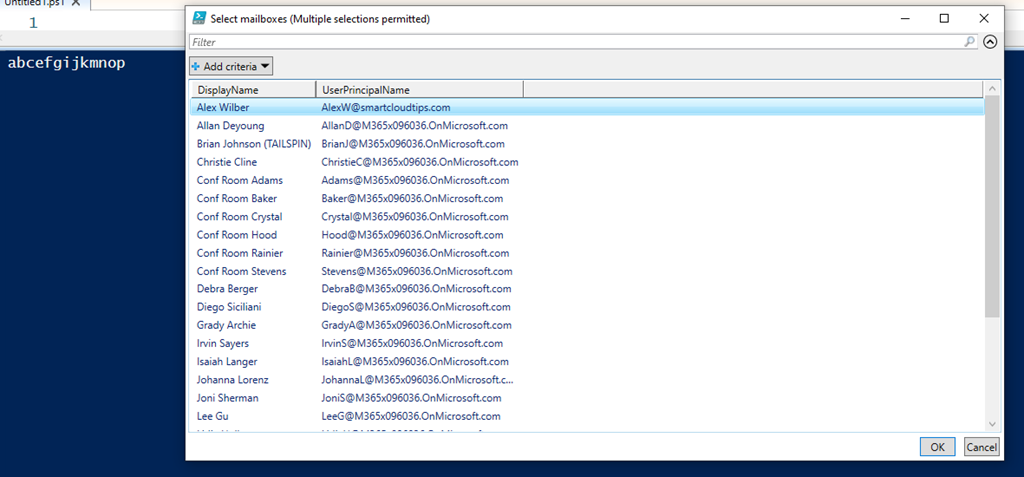
If you use the –select command line option, the script will prompt you to select the users you wish to display.

If you also specify any letter from, currently, a through p on the command line, those settings will not be checked by the script. Thus, specifying dhl on the command line will not check or display Remote PowerShell Enabled (setting = d), Archive Mailbox Status (setting = h) or IMAP enabled (setting = l).

Thus:

.\o365-mx-usr-all.ps1 dhl

will display:

image

(note: no d, h or l in the output)

and

.\o365-mx-usr-all.ps1 dhl –select

will display:

image

no d, h or l settings as well as prompting for selection of users to check and display.

The script requires that you are connected to Exchange Online first via PowerShell prior and this can be done using my script:

https://github.com/directorcia/Office365/blob/master/o365-connect-exo.ps1

In summary then, this script when run without any command line options is designed to give you a quick reference to your user mailboxes and whether they have best practice settings enabled. You can also run the script with number of different command line options to create a log, individually select users and settings to test as well as pause after each user if desired.

I’ll continue to update and improve this script over time so make sure you follow my Office 365 GitHub repository, which you can find here:.

https://github.com/directorcia/Office365/

Prevent alerts from DiscoverySearchMailbox

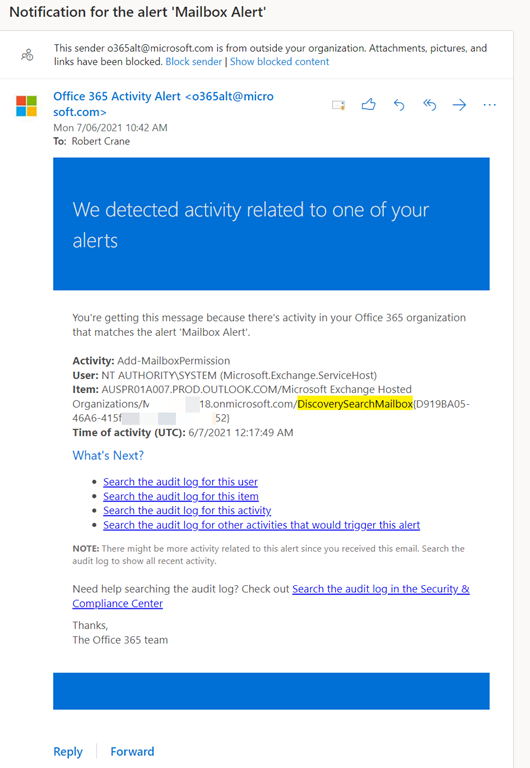
image

When you set up bulk alerting for mailboxes you may end up enabling alerts for system mailboxes like DiscoverySearchMailbox as shown above. This will mean receiving regular alerts about changes to that mailbox by the system. This basically means Exchange Online is performing some expected administrative process on a mailbox, which triggers a configured alert.

To reduce the noise caused by these alerts you can do the following to disable it:

image

Firstly connect to Exchange Online using PowerShell. My script for that is here:

https://github.com/directorcia/Office365/blob/master/o365-connect-exo.ps1

next run the command to find any DiscoverySearchMailbox

get-mailbox -ResultSize unlimited | Where-Object {$_.name -MATCH “Discovery”} | Select-Object alias, displayname, auditenabled

which should give you a result like shown above.

$dsm = get-mailbox -ResultSize unlimited | Where-Object {$_.name -MATCH “Discovery”}

Run the above command to save the mailbox details to a variable. Then run:

set-mailbox -identity $dsm.alias -AuditEnabled $false

to disable auditing for that mailbox.

image

if you now re-run

get-mailbox -ResultSize unlimited | Where-Object {$_.name -MATCH “Discovery”} | Select-Object alias, displayname, auditenabled

you should find that the auditing is now disabled for that mailbox as shown above.

IAMCP Video Presentation

I recently did a presentation for the International Association of Microsoft Channel Partners Quarterly Briefing and you can find the slides here:

https://www.slideshare.net/directorcia/microsoft-365-security-overview

The videos is also available now at:

https://www.youtube.com/watch?v=bGEfjgIfhdE

if you want to take a look.

Thanks again to the IAMCP for the opportunity to present on Microsoft cloud security.

CIAOPS Secwerks 1 registrations now open

pexels-pixabay-60504

With the venue now secured I am please to announce that registrations for CIAOPS Secwerks 1 in Melbourne CBD on Thursday August 5th and Friday August the 6th are now open. If you are not a CIAOPS Patron there is an early bird offer of $440 inc GST if you use the coupon code SWEB at check out. After that date, the price will be $798 inc GST. Note, costs exclude food which is not available in the venue. You can register now at:

https://www.ciaopsacademy.com/p/secwerks

The event is a 2 day hands on Level 400+ deep dive into security for Microsoft 365. It will cover topics such as:

– Exchange Online Security

– Windows 10 device hardening

– Incident monitoring and handling

– Effective identity security

– Data protection and more

If you have the responsibility for the management of Microsoft and Office 365 environments, then this session is for you.

I’ll be posting more information about the event in the coming weeks but if you do have questions please feel free to contact me via director@ciaops.com.

I look forward to seeing you at the event.

Missing calendar icon in Microsoft Teams

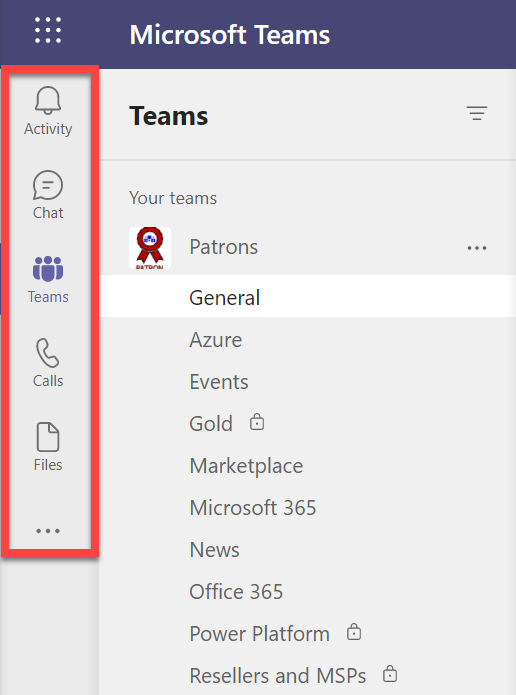
image

I recently ran a Live Event in Microsoft Teams and wanted to get back to the event resources but found my calendar was missing as seen above. This was evident on both the desktop and web interface.

image

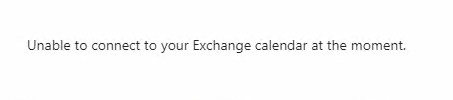
When I attempted to use the link from the Live Event appointment in the calendar in my Outlook I was greeted with the above message:

Unable to connect to your Exchange calendar at the moment

I thought this strange as i had scheduled the Live Event using the calendar icon in Teams?

Turns out that what I had done in the meantime was disable Exchange Web Services (EWS) in my environment. Doing so affects a number of services in my environment including Teams and Exchange Add-ins as it turns out.

If you are seeing the same issues you can use PowerShell to check the EWS status of your environment. You’ll firstly need to connect to Exchange Online with PowerShell which you can do using my script:

https://github.com/directorcia/Office365/blob/master/o365-connect-exo.ps1

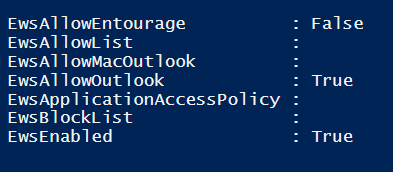
then run the following command to see what the EWS settings are at the tenant level:

Get-organizationconfig | fl ews*

to which you should see something like:

image

From what I understand you’ll need to ensure that EWSEnabled and EWSAllowOutlook are NOT False (i.e. disabled). This will take care of allowing EWS for any new mailboxes created from this point forward.

Also run the command:

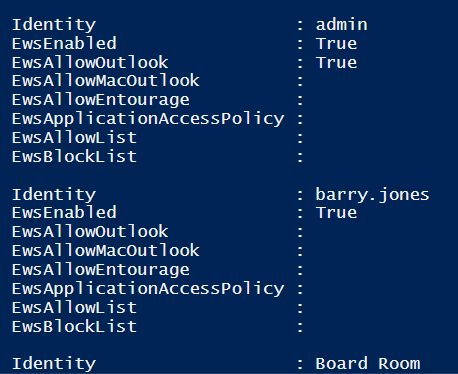
Get-CASMailbox  | fl identity, ews*

which should result in a list of all the EWS for each user like so:

image

Make sure that users do not have EwsEnabled or EwsAllowOutlook set to False (i.e. disabled). If it is you can use the command:

set-casmailbox –identity user@domain.com –ewsenabled $true –ewsallowoutlook $true

command to re-enable it and set it to True.

If you change an EWS setting for an individual mailbox it can take 4 – 24 hours for that change to flow through according to documentation I’ve seen. In my case however, I found by logging out and back in the change appeared almost immediately.

image

It should then re-appear in Teams as shown above. If it doesn’t, simply use the three dots (ellipse) at the bottom of the list to add it back in. You may also need to right mouse click it once you have added it back in and “pin” it to the side menu, so it stays there.

So in a nutshell, don’t disable EWS in your environment because things like Microsoft Teams needs it! If you are missing your calendar in Microsoft Teams or have issues with Outlook Add-ins, check EWS is enabled.

Microsoft Secure Score should be your security benchmark

Security is tough. There are many different settings in many different places I know, however my suggestion is that you should start, and continue to use, Microsoft Secure Score as your security benchmark when it comes to the protection of your environment will make things much easier and provide a simple starting point.

To start, visit:

https://securescore.office.com/

You’ll need to login with a Microsoft 365 administration account to view the results.

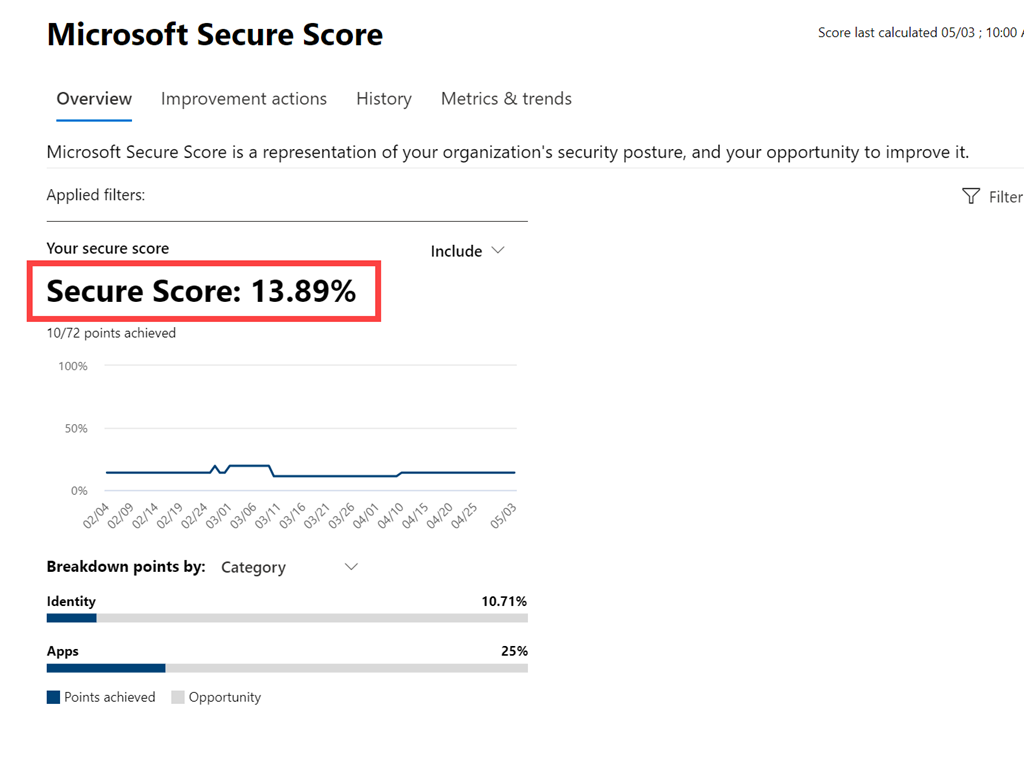
image

You should then pretty much see your Secure Score, out of 100, front and centre as shown above. Think of this score as an aggregation of your entire Microsoft 365 environment.

To me, your Secure Score should be at least 80% and higher if possible. If it’s not, then you have some work to do.

If your Secure Score is less than 80% and you are not the person responsible for configuring your Microsoft 365 environment then you need to open a dialog with them about improving your score. If you are paying an external business to manage your Microsoft 365 environment then you should ask them to show you what their own  Secure Score is.

– If their Secure Score is LOWER than what your is, then I would suggest it is time to find someone else who is actually serious about security.

– If their Secure Score is EQUAL to what yours is, ask them to show you a plan for how they plan to get your Secure Score to at least 80%. If they are unable to, again, think about whether you should be using them.

– If their Secure Score is HIGHER than yours is, ask them why that is so and how long will it take for your score to equal or exceed theirs.

A well configured tenant, to best practices, will normally come in with a Secure Score of 65% or so. To me, getting a tenant to 80% does require some work but it isn’t all that hard. Remember, good security means expending some effort. This means that if your Secure Score is well below the 65% mark, then you should be taking immediate action to improve it and implement things to best practices as soon as possible.

image

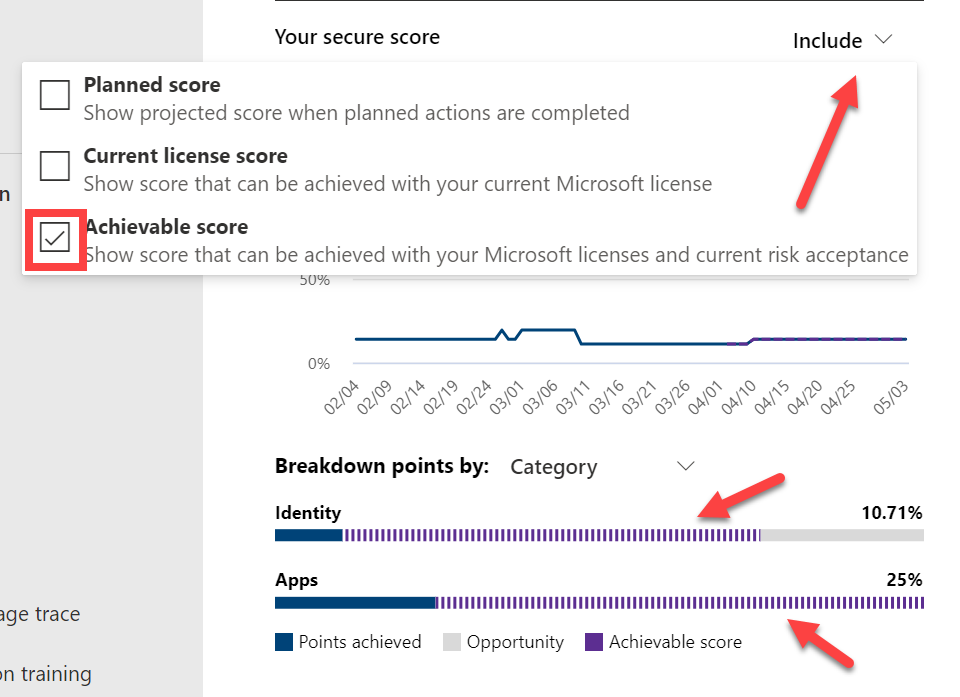
Now go back to your Secure Score console and select the Include menu in the top right as shown and select the Achievable score as shown. This now shows you what Secure Score you could achieve if you implemented everything you are currently paying for (i.e. licensed for). In essence, this shows you how much security stuff you are paying for that has not been enabled. If that is large, then add that item to your security To-Do list as well.

So in summary, in my opinion,

– Anything below a Secure Score of 30% means you are highly vulnerable I believe.

– Anything below a Secure Score of 50% indicates that best practices have not been fully applied.

– Around 67% is the Secure Score you should expect for a tenant configured to best practices and with all security features enabled.

– Around 80% is the Secure score you should be aiming to get to as soon as possible, mindful of the fact that it will required additional configurations to get to this level.

– A Secure Score of 100% should be your ultimate goal over time. Perhaps a better approach is to always be looking to improve your score above the recommended 80% I indicated. This will require many fiddly and time consuming settings throughout your environment BUT remember, each time you complete one of these your environment will be more secure and that fact should also be reflected in your Microsoft Secure Score.