CIAOPS Secwerks 1 registrations now open

pexels-pixabay-60504

With the venue now secured I am please to announce that registrations for CIAOPS Secwerks 1 in Melbourne CBD on Thursday August 5th and Friday August the 6th are now open. If you are not a CIAOPS Patron there is an early bird offer of $440 inc GST if you use the coupon code SWEB at check out. After that date, the price will be $798 inc GST. Note, costs exclude food which is not available in the venue. You can register now at:

https://www.ciaopsacademy.com/p/secwerks

The event is a 2 day hands on Level 400+ deep dive into security for Microsoft 365. It will cover topics such as:

– Exchange Online Security

– Windows 10 device hardening

– Incident monitoring and handling

– Effective identity security

– Data protection and more

If you have the responsibility for the management of Microsoft and Office 365 environments, then this session is for you.

I’ll be posting more information about the event in the coming weeks but if you do have questions please feel free to contact me via director@ciaops.com.

I look forward to seeing you at the event.

Missing calendar icon in Microsoft Teams

image

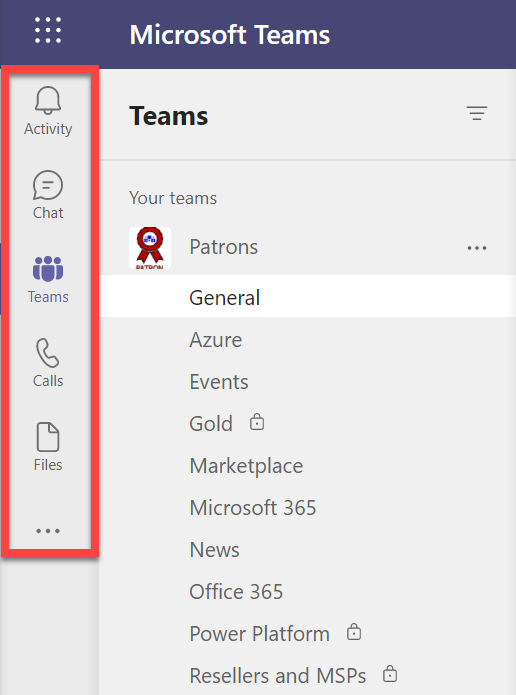
I recently ran a Live Event in Microsoft Teams and wanted to get back to the event resources but found my calendar was missing as seen above. This was evident on both the desktop and web interface.

image

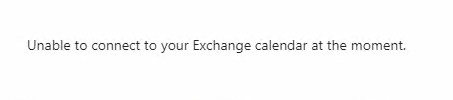
When I attempted to use the link from the Live Event appointment in the calendar in my Outlook I was greeted with the above message:

Unable to connect to your Exchange calendar at the moment

I thought this strange as i had scheduled the Live Event using the calendar icon in Teams?

Turns out that what I had done in the meantime was disable Exchange Web Services (EWS) in my environment. Doing so affects a number of services in my environment including Teams and Exchange Add-ins as it turns out.

If you are seeing the same issues you can use PowerShell to check the EWS status of your environment. You’ll firstly need to connect to Exchange Online with PowerShell which you can do using my script:

https://github.com/directorcia/Office365/blob/master/o365-connect-exo.ps1

then run the following command to see what the EWS settings are at the tenant level:

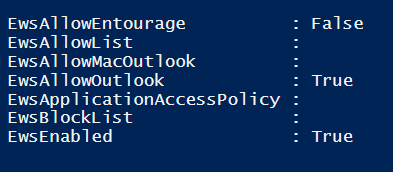
Get-organizationconfig | fl ews*

to which you should see something like:

image

From what I understand you’ll need to ensure that EWSEnabled and EWSAllowOutlook are NOT False (i.e. disabled). This will take care of allowing EWS for any new mailboxes created from this point forward.

Also run the command:

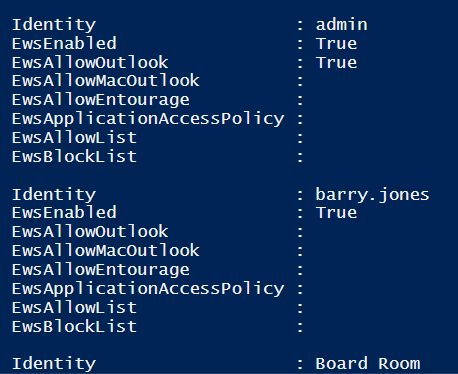
Get-CASMailbox  | fl identity, ews*

which should result in a list of all the EWS for each user like so:

image

Make sure that users do not have EwsEnabled or EwsAllowOutlook set to False (i.e. disabled). If it is you can use the command:

set-casmailbox –identity user@domain.com –ewsenabled $true –ewsallowoutlook $true

command to re-enable it and set it to True.

If you change an EWS setting for an individual mailbox it can take 4 – 24 hours for that change to flow through according to documentation I’ve seen. In my case however, I found by logging out and back in the change appeared almost immediately.

image

It should then re-appear in Teams as shown above. If it doesn’t, simply use the three dots (ellipse) at the bottom of the list to add it back in. You may also need to right mouse click it once you have added it back in and “pin” it to the side menu, so it stays there.

So in a nutshell, don’t disable EWS in your environment because things like Microsoft Teams needs it! If you are missing your calendar in Microsoft Teams or have issues with Outlook Add-ins, check EWS is enabled.

Microsoft Secure Score should be your security benchmark

Security is tough. There are many different settings in many different places I know, however my suggestion is that you should start, and continue to use, Microsoft Secure Score as your security benchmark when it comes to the protection of your environment will make things much easier and provide a simple starting point.

To start, visit:

https://securescore.office.com/

You’ll need to login with a Microsoft 365 administration account to view the results.
image

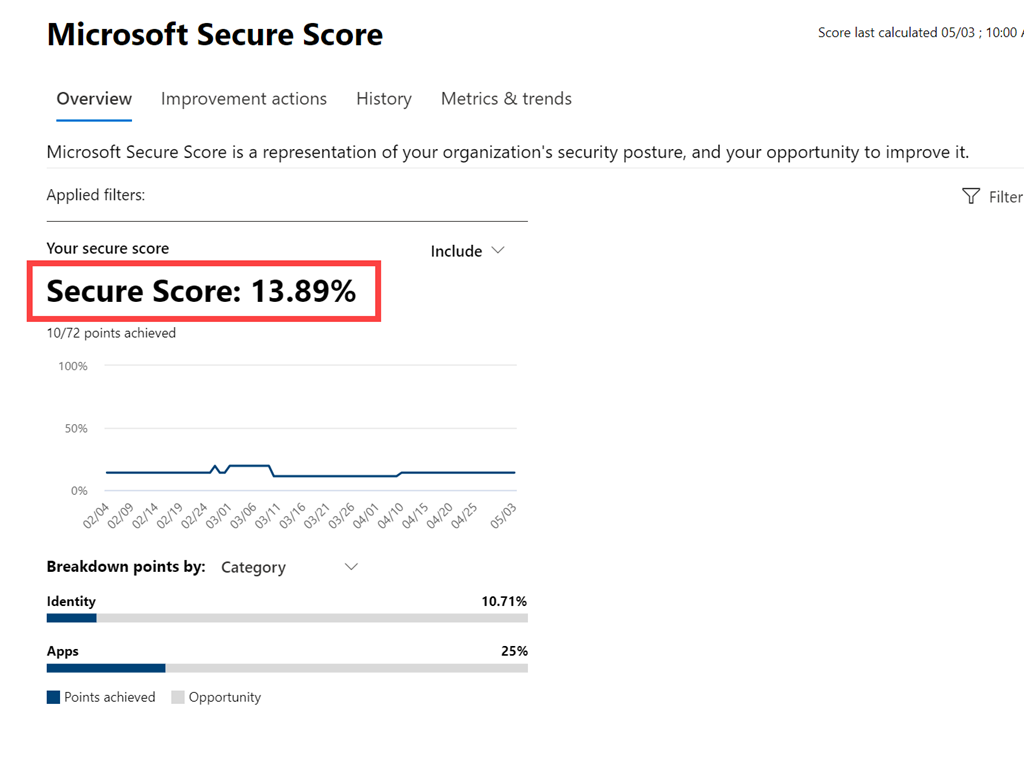
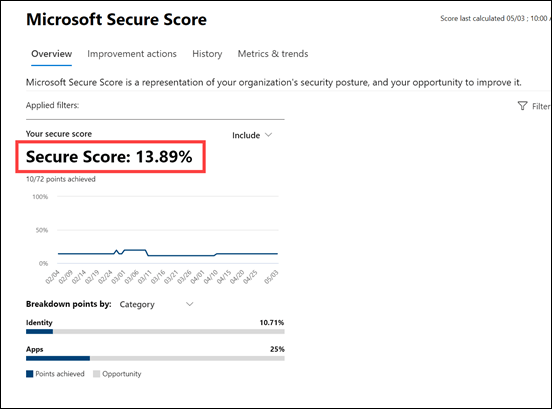
You should then pretty much see your Secure Score, out of 100, front and centre as shown above. Think of this score as an aggregation of your entire Microsoft 365 environment.

To me, your Secure Score should be at least 80% and higher if possible. If it’s not, then you have some work to do.

If your Secure Score is less than 80% and you are not the person responsible for configuring your Microsoft 365 environment then you need to open a dialog with them about improving your score. If you are paying an external business to manage your Microsoft 365 environment then you should ask them to show you what their own  Secure Score is.

– If their Secure Score is LOWER than what your is, then I would suggest it is time to find someone else who is actually serious about security.

– If their Secure Score is EQUAL to what yours is, ask them to show you a plan for how they plan to get your Secure Score to at least 80%. If they are unable to, again, think about whether you should be using them.

– If their Secure Score is HIGHER than yours is, ask them why that is so and how long will it take for your score to equal or exceed theirs.

A well configured tenant, to best practices, will normally come in with a Secure Score of 65% or so. To me, getting a tenant to 80% does require some work but it isn’t all that hard. Remember, good security means expending some effort. This means that if your Secure Score is well below the 65% mark, then you should be taking immediate action to improve it and implement things to best practices as soon as possible.
image

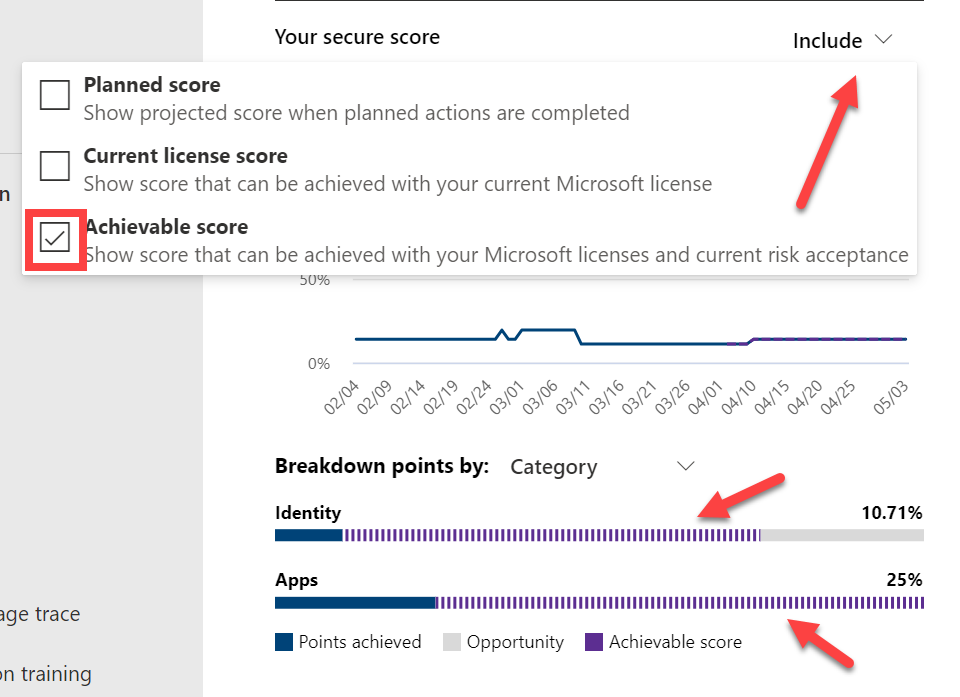
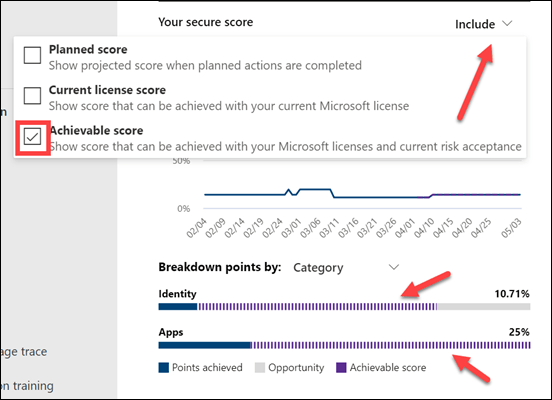
Now go back to your Secure Score console and select the Include menu in the top right as shown and select the Achievable score as shown. This now shows you what Secure Score you could achieve if you implemented everything you are currently paying for (i.e. licensed for). In essence, this shows you how much security stuff you are paying for that has not been enabled. If that is large, then add that item to your security To-Do list as well.

So in summary, in my opinion,

– Anything below a Secure Score of 30% means you are highly vulnerable I believe.

– Anything below a Secure Score of 50% indicates that best practices have not been fully applied.

– Around 67% is the Secure Score you should expect for a tenant configured to best practices and with all security features enabled.

– Around 80% is the Secure score you should be aiming to get to as soon as possible, mindful of the fact that it will required additional configurations to get to this level.

– A Secure Score of 100% should be your ultimate goal over time. Perhaps a better approach is to always be looking to improve your score above the recommended 80% I indicated. This will require many fiddly and time consuming settings throughout your environment BUT remember, each time you complete one of these your environment will be more secure and that fact should also be reflected in your Microsoft Secure Score.


Azure Cloud Shell now available in Microsoft 365

image

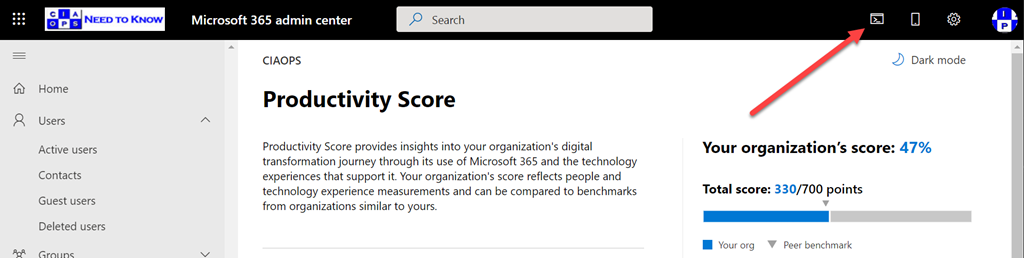
If you take a close look at your Microsoft 365 admin center, as shown above, you might see a new icon in the top right. The Azure Cloud shell is now available right from here.

image

If you select that, you’ll then see a PowerShell style window appear at the bottom of page as shown above. Here you can run all your favourite scripts directly in a browser!

I’ve covered the Azure Cloud Shell in previous articles:

Azure Cloud Shell

Connecting to Exchange Online with Azure Cloud Shell

and you can read the Microsoft documentation here:

Overview of Azure Cloud Shell

The only limitation seems to me is that you need an active Azure subscription tied to your Microsoft 365 environment because Azure Cloud Shell does need some storage to operate. But who doesn’t have an Azure subscription in their tenant these days right?

Deploy Office 365 and Azure together

(Hint, this is another reason to ALWAYS sell an Azure subscription when you sell Microsoft 365 if you are a reseller).

Hopefully, Microsoft might allow some included storage in the future for those without an Azure subscription.

Having the ability to run PowerShell directly from the browser with Microsoft 365 is a super handy addition and hopefully the functionality will keep extending with this.

Email filtering reports

image

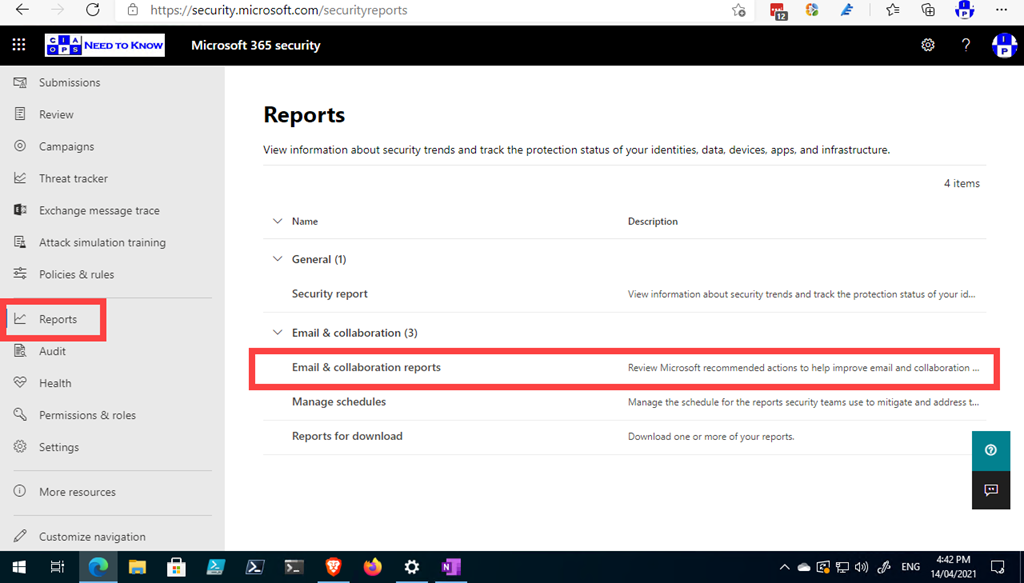
There are some real nice and helpful email report in your Microsoft 365 Security console if you haven’t taken a look recently. You can pull them up by visiting:

https://security.microsoft.com/securityreports

as shown above. Then selecting Email & collaboration reports on the right.

image

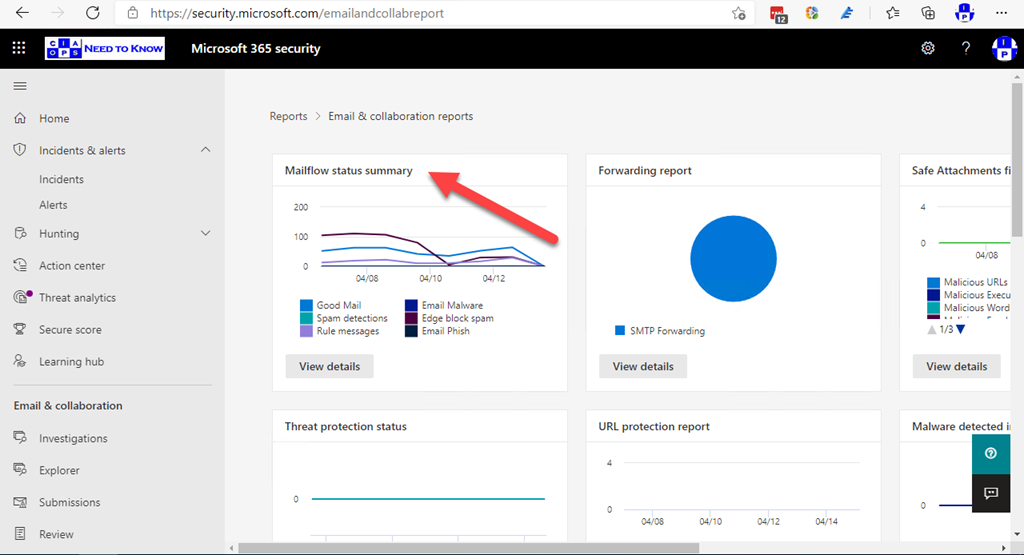
The one I really like is the Mailflow status summary which you can drill into further by clicking on the heading or selecting the View details button.

image

If you then select the Funnel option across the top as shown, you get an idea of the number of bad emails that are being caught by each stage of the filtering process, from top (total in) to bottom (remaining out).

SNAGHTMLc4b85a0

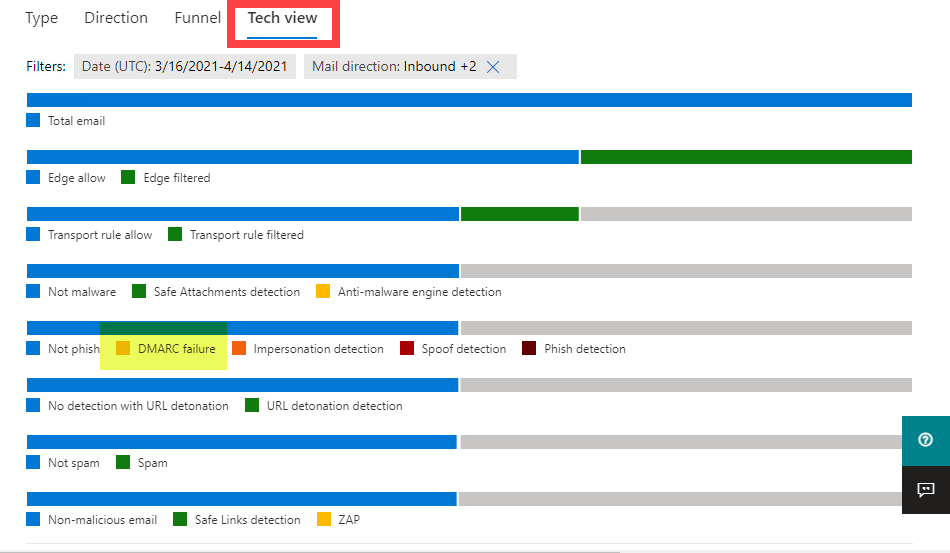
However, the report I love is the one you get when you select the Tech view as shown above. Why? Because this one even shows you results from DMARC as highlighted.

image

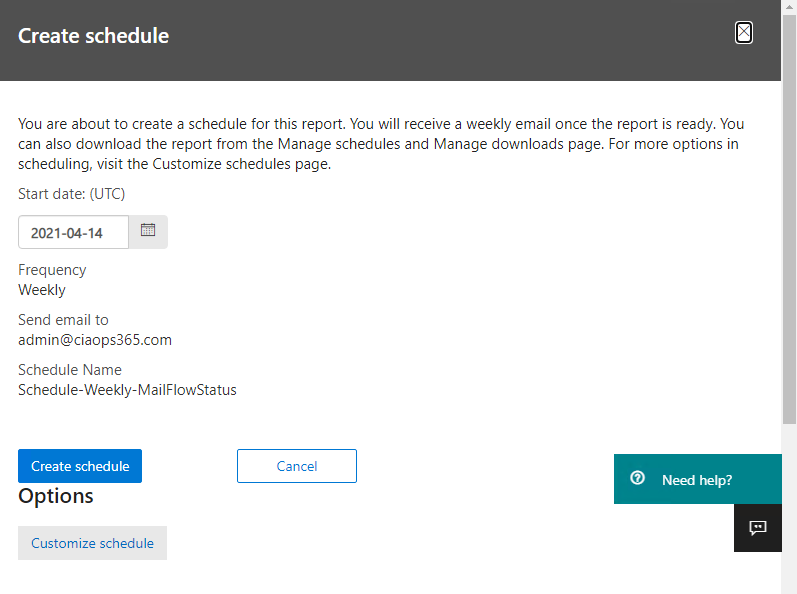
Many also allow you to Create schedule as shown above,

image

that allows you to email the reports regularly.

Keep an eye on the reporting areas of your tenant, as they are rapidly improving and expanding!

Exchange Online AV engines

image

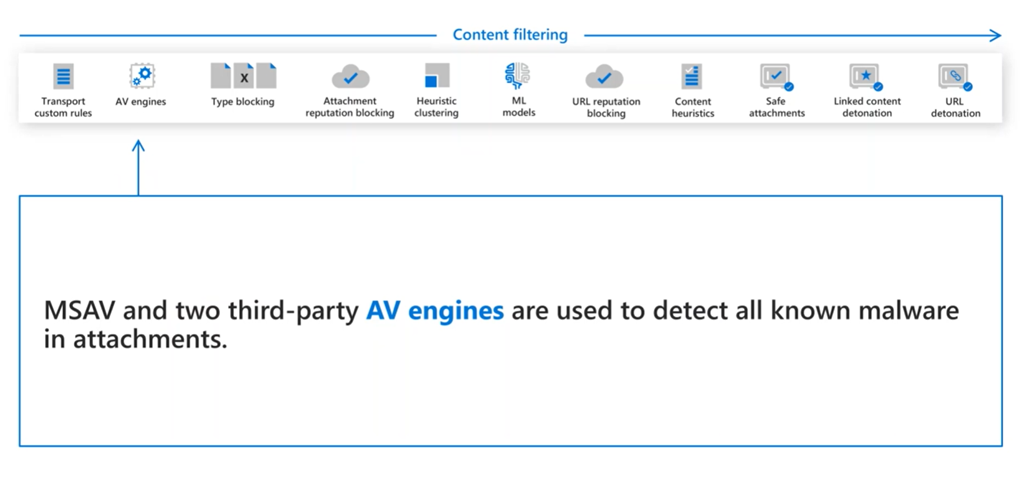
I have found that many don’t appreciate that Exchange Online uses anti virus engines from multiple providers, apart from Microsoft.

“We have partnerships with multiple anti-malware technology providers, so messages are scanned with the Microsoft anti-malware engines, two added signature based engines, plus URL and file reputation scans from multiple sources. Our partners are subject to change, but EOP always uses anti-malware protection from multiple partners. You can’t choose one anti-malware engine over another.:

per – How many anti-malware partners do you have? Can I choose which malware engines we use?

So email will be scanned by three (3) engines in total. One from Microsoft and another two from third parties.

What the online world can learn from recent on prem Exchange Server challenges

It has been a pretty challenging few days for those that still manage and maintain on premises Exchange servers thanks to:

HAFNIUM targeting Exchange Servers with 0-day exploits

Throughout which I’ve seen a lot of smug cloud administrators wondering why people still bother with on premises. I think a better use of their energies would be to look at the current situation and learn from it rather than allocating it to self righteousness.

The cloud is a shared responsibility model. This means that both Microsoft and end user now responsible for the security of cloud infrastructure. Luckily, these recent Exchange issues have largely fallen to Microsoft when it comes to the cloud. Where there is room to learn for the rest of us, is in the response to the situation from those battling to contain it.

From everything I have seen online in regards to the HAFNIUM issue, what I find most interesting is the lack of a response plan. Technically, administrators can follow directions, run scripts, patch systems pretty well. However, most seem totally unprepared for this kind of situation, especially at scale. That’s what worries me the most. Why? Because challenges in the cloud can easily be of the same scale and impact.

There have been plenty of examples when services like Azure AD or Exchange Online have been unavailable, but when they have, I’ve seen the same level of, dare I say, panic. Because systems work 99.99% or more of the time ‘on average’, a large amount of complacency begins to creep into the system, especially those charged with maintaining these systems. Thoughts of disaster recovery and outage impact get put on the back burner and never really addressed because there are always ‘higher’ priorities.

What worries me is the dependency we have built into our modern lives, business and economy, to the point where most cannot function if their phones run out of charge. What worries me when I look at the response I see to broad security challenges in IT is simply the lack of a credible contingency plan. A check list of what to do, if you like. Of course, you can’t have a plan for every contingency but some semblance of a plan is better than no plan at all surely?

In the end it comes down to risk analysis. When the sun is shining, risk analysis is the furthest thing from people minds. This however, is exactly the time that it should be a priority because developing a strategy in midst of a crisis does not generally lead to the best outcome. You want to have a checklist of what to do, well in advance of whenever you may need it.

Even though the systems I work with are cloud based are immune from the HAFNIUM (it appears at least), that doesn’t stop me learning from how the unfortunate are dealing with it. I’m watching, learning and preparing, because as the saying goes, “When did Noah build the Ark?”

Before it rained.

Before it rained.